Modern Azure Deployments with Terraform & GitHub – Part 3 – Automating Terraform CI/CD Workflows with GitHub Actions
After building a production-style multi-environment Terraform project with centralized remote state management and environment-specific deployment configurations in Part 2, the next logical step is automation.
In this part of the series, we will integrate GitHub Actions to automatically validate, plan, and deploy Terraform-based Microsoft Azure infrastructure directly from GitHub repositories. We will configure authentication between GitHub and Azure, create reusable CI/CD workflows, securely manage secrets, and automate environment-specific Terraform deployments for development, testing, and production environments.
By the end of this part, the Terraform project will no longer rely solely on manual local executions, but instead use fully automated Infrastructure as Code deployment pipelines directly integrated into GitHub.
- Why Automate Terraform Deployments?
- Understanding GitHub Actions and CI/CD Workflows
- Preparing Azure Authentication for GitHub Actions
- Creating the GitHub Actions Workflow Structure
- Creating the First Terraform Workflow
- Storing Azure Credentials Securely in GitHub Secrets
- Testing Azure Authentication in GitHub Actions
- Running Terraform Plan Automatically
- Deploying Terraform Automatically with Apply
- Testing Automatic Infrastructure Changes
- Environment-Specific CI/CD Deployments
- Manual Approval Workflows for Production
- Links
Why Automate Terraform Deployments?
Managing Terraform deployments manually from local workstations works well for learning and smaller environments, but it quickly becomes difficult to maintain consistently across larger teams and multiple deployment environments.
By integrating Terraform with GitHub Actions and CI/CD workflows, infrastructure deployments can be standardized, automated, and executed directly from GitHub repositories. This reduces manual effort, improves consistency, enables collaboration, and helps prevent configuration drift between environments.
Automated Terraform pipelines also provide additional benefits such as centralized execution, version-controlled deployment workflows, automated validation, approval processes for production deployments, and full deployment traceability through GitHub Actions logs and history.
Understanding GitHub Actions and CI/CD Workflows
GitHub Actions is the built-in automation and CI/CD platform provided by GitHub. It allows workflows to run automatically based on repository events such as code commits, pull requests, manual triggers, or scheduled executions.
A GitHub Actions workflow is defined through YAML configuration files stored directly inside the GitHub repository under the .github/workflows directory. These workflows consist of jobs and steps that execute automatically on GitHub-hosted or self-hosted runners.
In Terraform-based Infrastructure as Code projects, GitHub Actions can automate common deployment tasks such as:
- Validating Terraform configurations
- Initializing Terraform backends
- Running Terraform plan operations
- Deploying infrastructure with Terraform apply
- Managing environment-specific deployments
- Executing automated checks before production deployments
In a typical CI/CD workflow, developers commit Terraform configuration changes into a GitHub repository.
GitHub Actions then automatically executes the configured pipeline, authenticates against Microsoft Azure, validates the infrastructure configuration, generates a Terraform execution plan, and optionally deploys the infrastructure changes automatically.
This approach centralizes infrastructure deployments, improves consistency across environments, and enables fully automated Infrastructure as Code delivery pipelines directly integrated into GitHub.
Preparing Azure Authentication for GitHub Actions
Before GitHub Actions can deploy Terraform-managed infrastructure into Microsoft Azure, the workflow must first be able to authenticate securely against Azure.
Instead of storing usernames and passwords inside GitHub workflows, the recommended approach is to use a Microsoft Entra ID application together with a service principal. The service principal acts as a dedicated identity that GitHub Actions can use to authenticate and perform infrastructure deployments in Azure.
The Terraform pipeline will later use this identity to:
- Authenticate against Azure
- Access Azure subscriptions and resource groups
- Create, modify, or remove Azure resources
- Access remote Terraform state storage accounts
The following Azure information will later be required inside the GitHub Actions workflow:
- Azure Subscription ID
- Tenant ID
- Client ID (Application ID)
- Client Secret
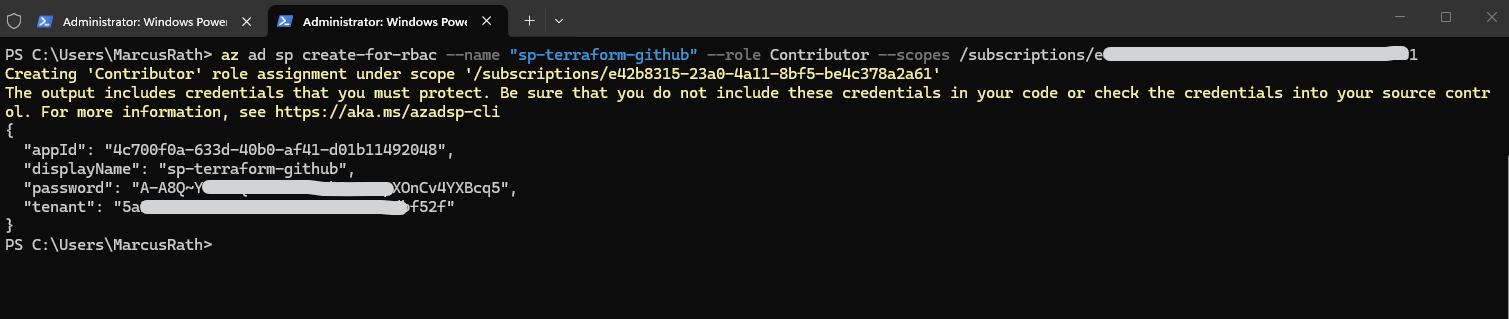
To create the service principal, run the following Azure CLI command:
The command creates a new Microsoft Entra ID application and service principal with Contributor permissions on the selected Azure subscription.
The output will contain the credentials required later for GitHub Actions authentication.
For security reasons, these credentials should never be stored directly inside Terraform files or GitHub workflow files. Instead, we will securely store them later as encrypted GitHub Secrets and reference them dynamically inside the CI/CD workflows.
PS> az ad sp create-for-rbac --name "sp-terraform-github" --role Contributor --scopes /subscriptions/<SUBSCRIPTION_ID>
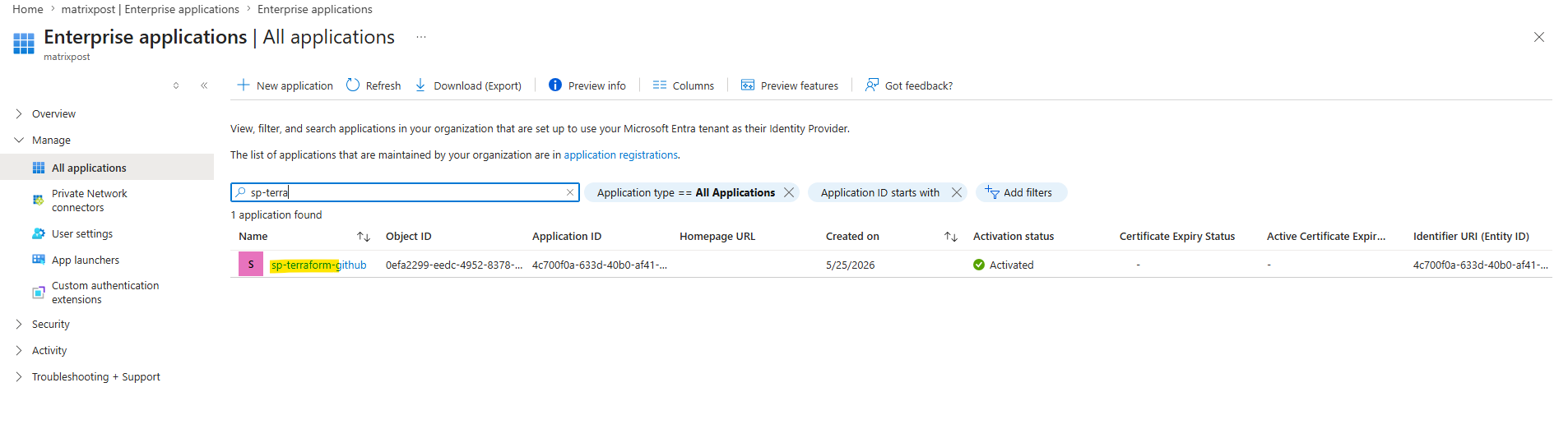
More about service principals in Azure and the difference between App Registrations and Enterprise Applications (Microsoft Entra ID application) you will find in my following post.
Creating the GitHub Actions Workflow Structure
GitHub Actions workflows are stored directly inside the GitHub repository within the .github/workflows directory. Each workflow is defined as a separate YAML file and contains the automation logic for the CI/CD pipeline.
Inside the Terraform project repository, we first create the required workflow directory structure:
PS> mkdir .github
PS> mkdir .github\workflows
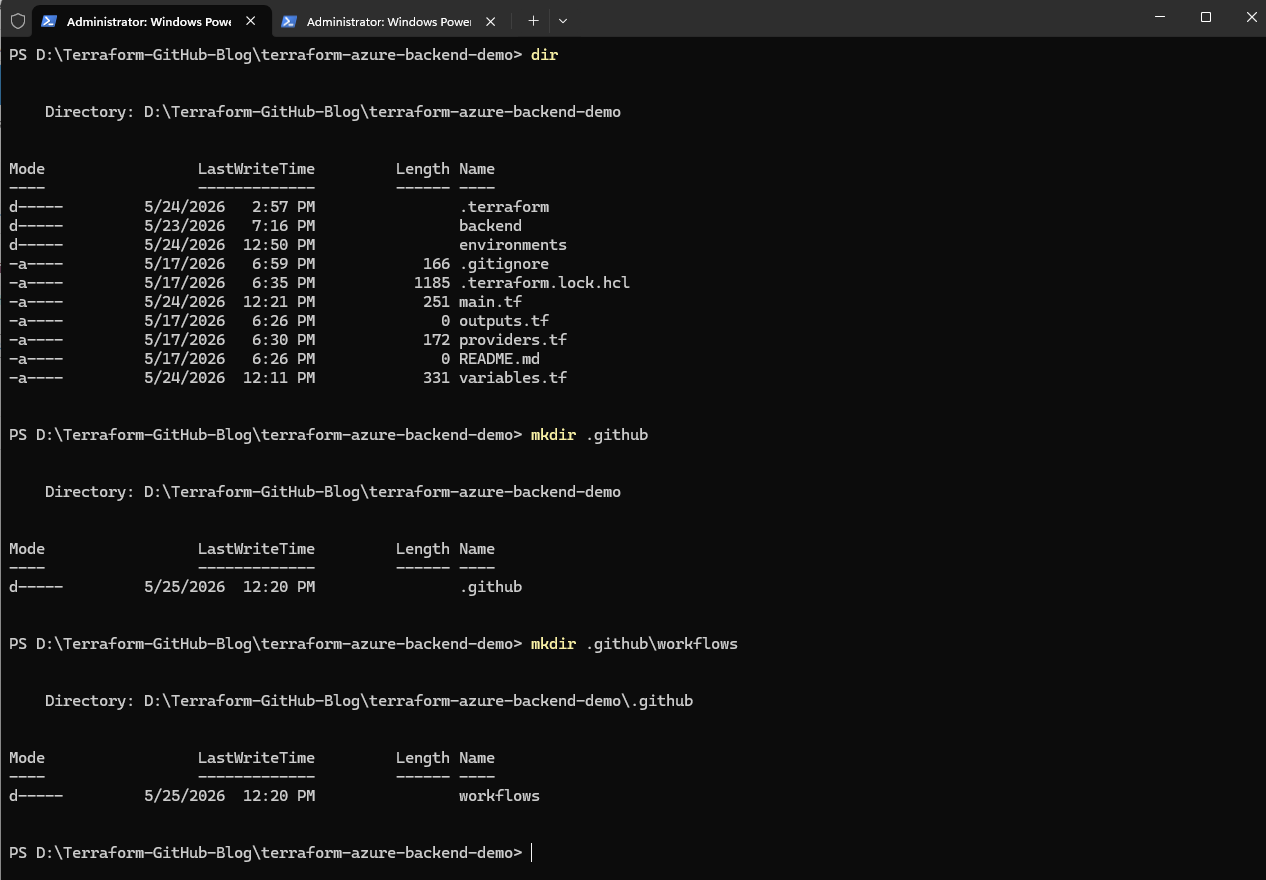
Inside the workflows folder, we then create the first GitHub Actions workflow file:
PS> New-Item .github\workflows\terraform.yml
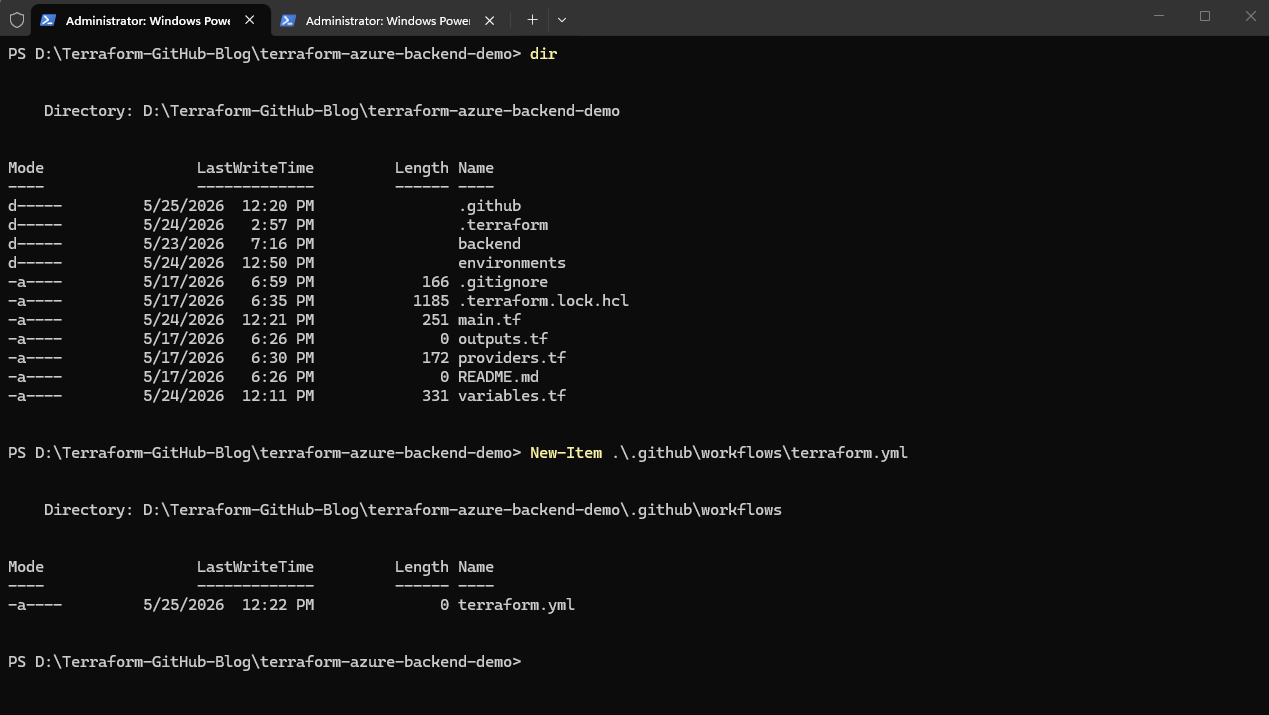
The terraform.yml file will later contain the complete CI/CD workflow definition, including:
- Workflow triggers
- Azure authentication
- Terraform initialization
- Terraform validation
- Terraform plan execution
- Automated Terraform deployments
Once committed and pushed to GitHub, GitHub Actions will automatically detect the workflow file and make the pipeline available directly inside the repository under the “Actions” tab.
Creating the First Terraform Workflow
Next, we add the first basic GitHub Actions workflow to the terraform.yml file. This initial workflow will not deploy anything yet. It is mainly used to verify that GitHub Actions can start the pipeline, check out the repository, install Terraform, and run basic Terraform commands.
name: Terraform Azure CI/CD

on:
  workflow_dispatch:
  push:
    branches:
      - main

jobs:
  terraform:
    name: Terraform Workflow
    runs-on: ubuntu-latest

    steps:
      - name: Checkout repository
        uses: actions/checkout@v4

      - name: Setup Terraform
        uses: hashicorp/setup-terraform@v3

      - name: Terraform Version
        run: terraform version
This first workflow is triggered manually through workflow_dispatch or automatically whenever changes are pushed to the main branch.
The workflow runs on a GitHub-hosted Ubuntu runner, checks out the repository content, installs Terraform using the official HashiCorp setup action, and finally prints the installed Terraform version.
This is a good first test before adding Azure authentication, backend initialization, planning, and apply steps.
Storing Azure Credentials Securely in GitHub Secrets
After creating the Azure service principal, the required authentication values should be stored securely in GitHub Secrets instead of writing them directly into the workflow file.
In the GitHub repository, open:
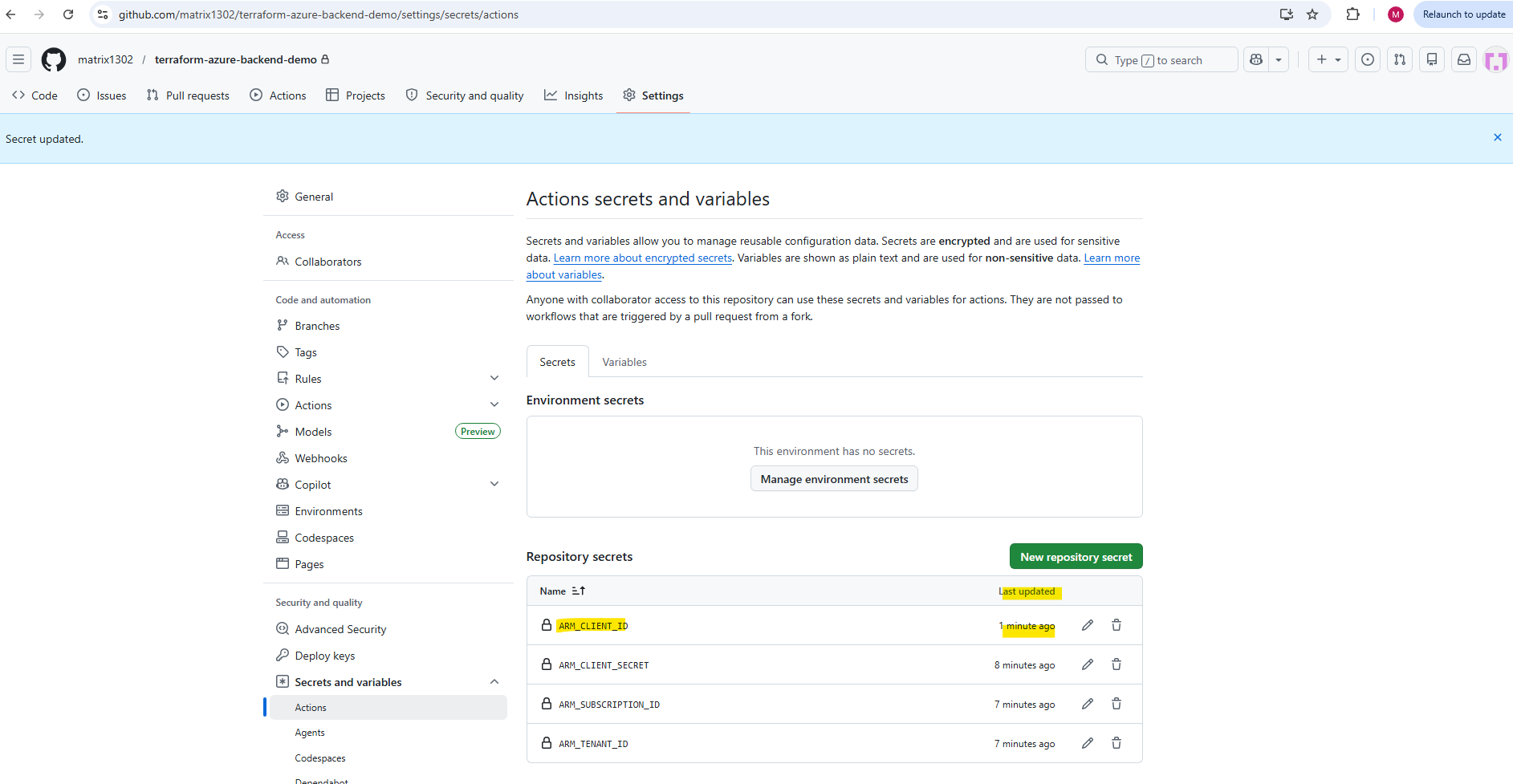
Settings → Secrets and variables → Actions → New repository secret
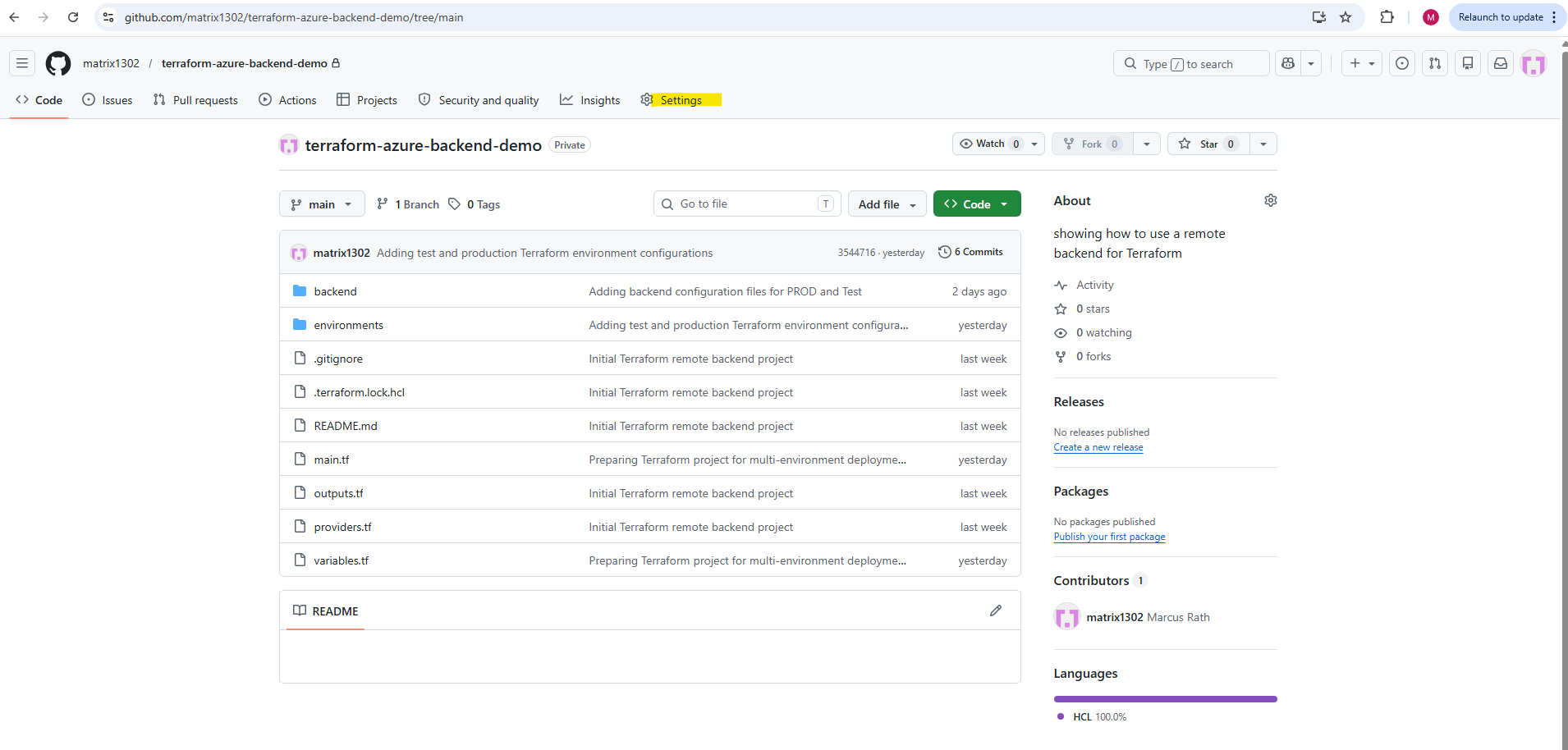
→ Secrets and variables → Actions
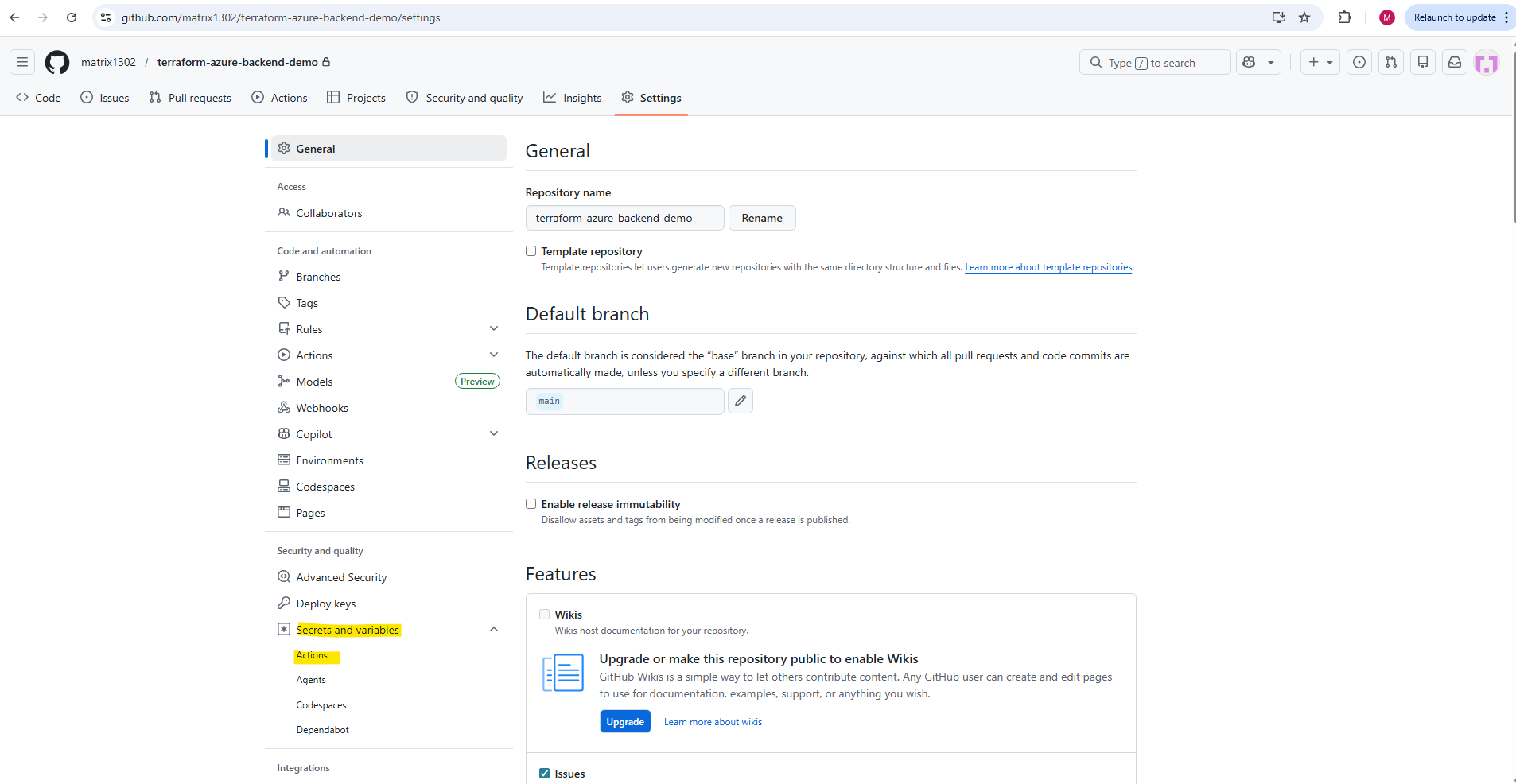
→ New repository secret
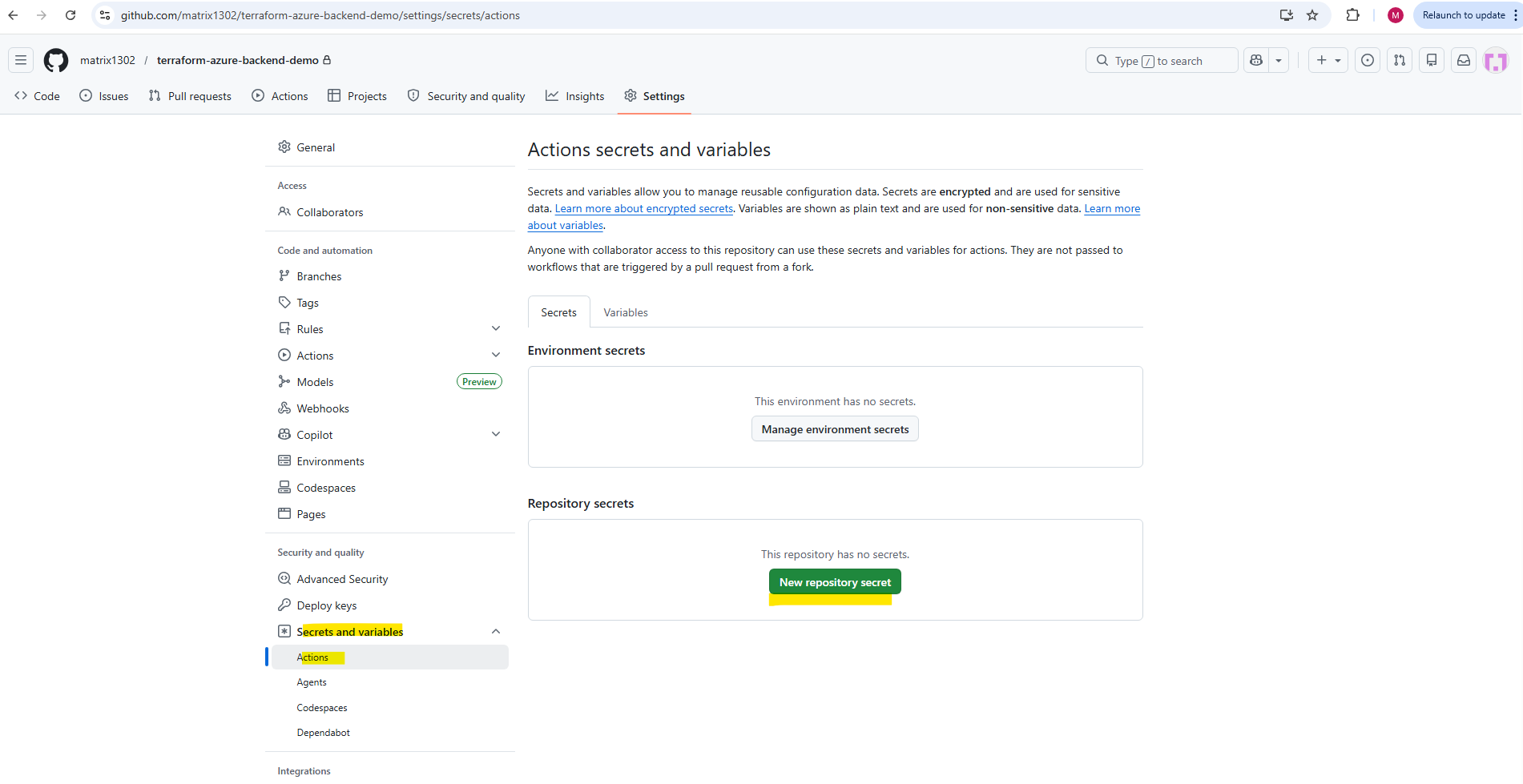
Then create the following secrets:
ARM_CLIENT_ID
ARM_CLIENT_SECRET
ARM_SUBSCRIPTION_ID
ARM_TENANT_ID
These values map to the service principal output above as follows:
ARM_CLIENT_ID       = appId
ARM_CLIENT_SECRET   = password
ARM_TENANT_ID       = tenant
ARM_SUBSCRIPTION_ID = your Azure subscription ID
Terraform and the AzureRM provider can automatically use these ARM_* environment variables for authentication. Later in the GitHub Actions workflow, we will reference the secrets and pass them into the Terraform job without exposing them in the pipeline output.
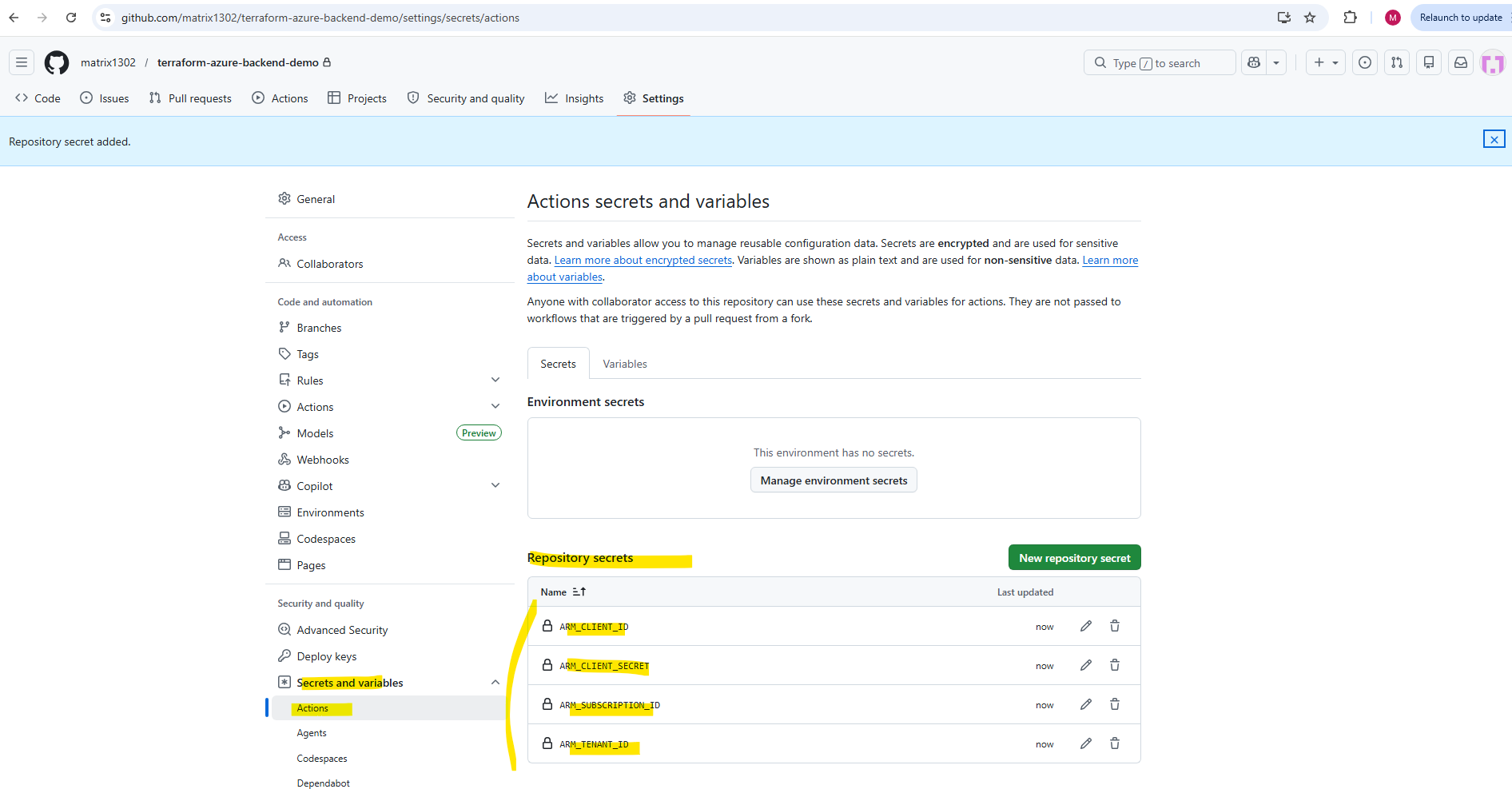
So create each above listed secrets in GitHub.
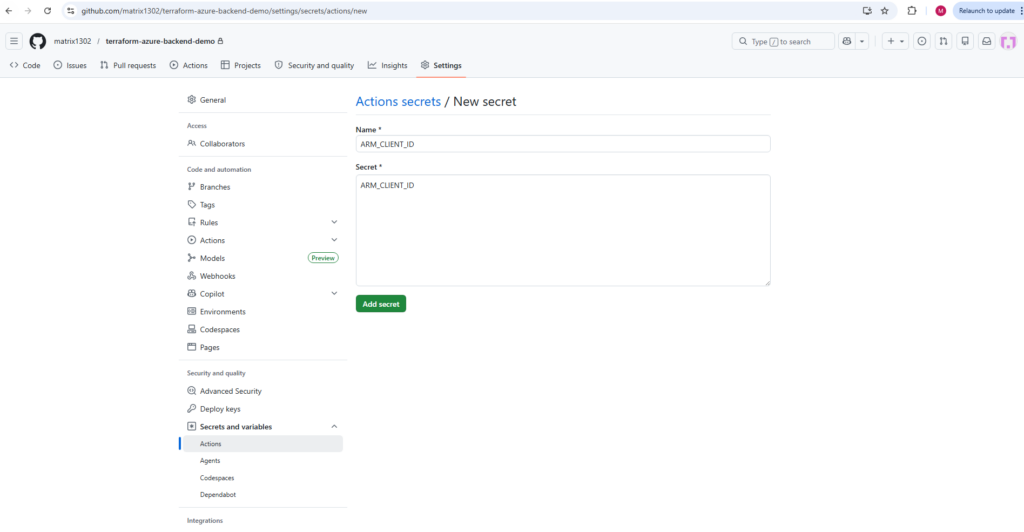
Finally it should looks like this.
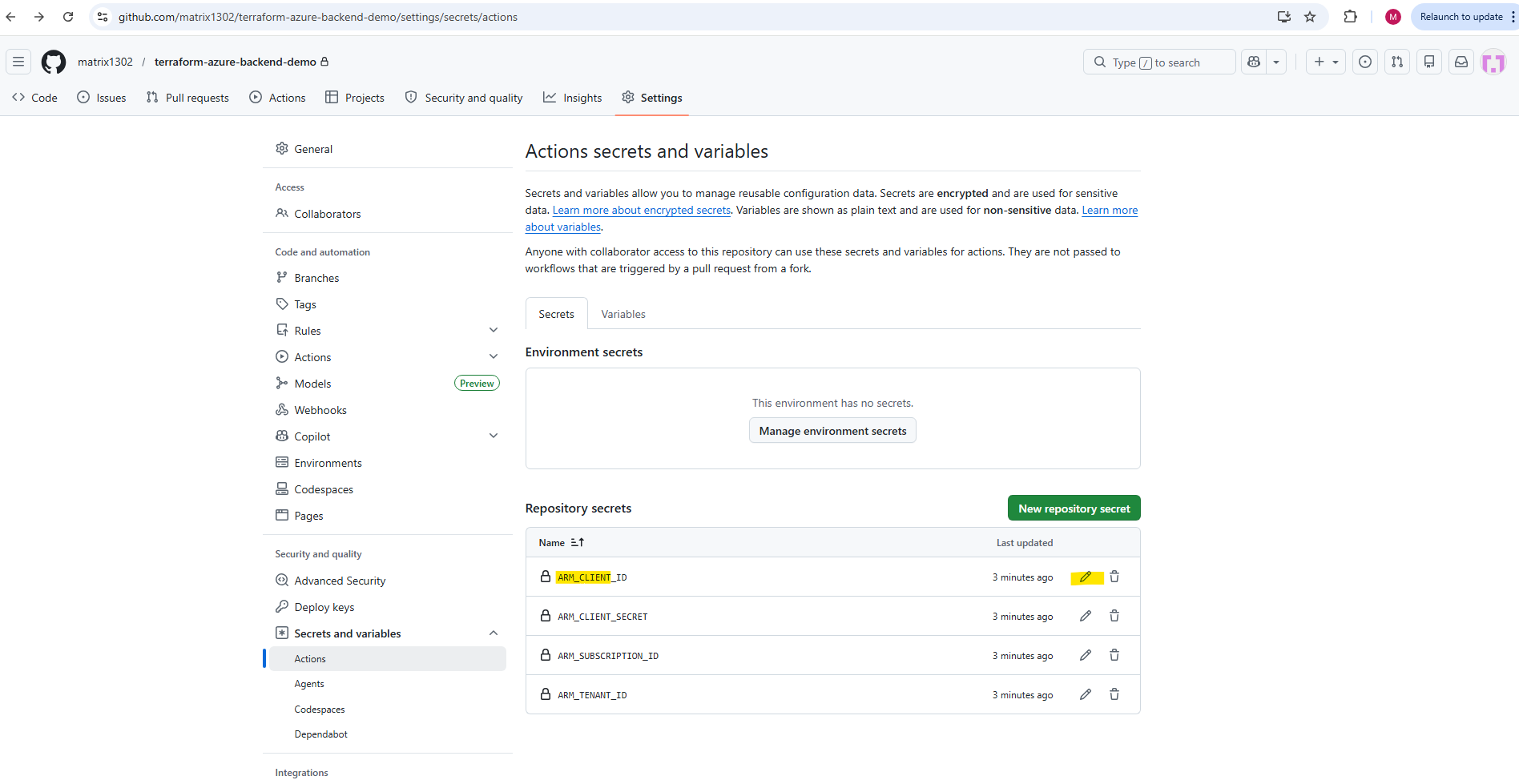
Next we need to set the values for the secrets by clicking on the pencil icon to edit them.
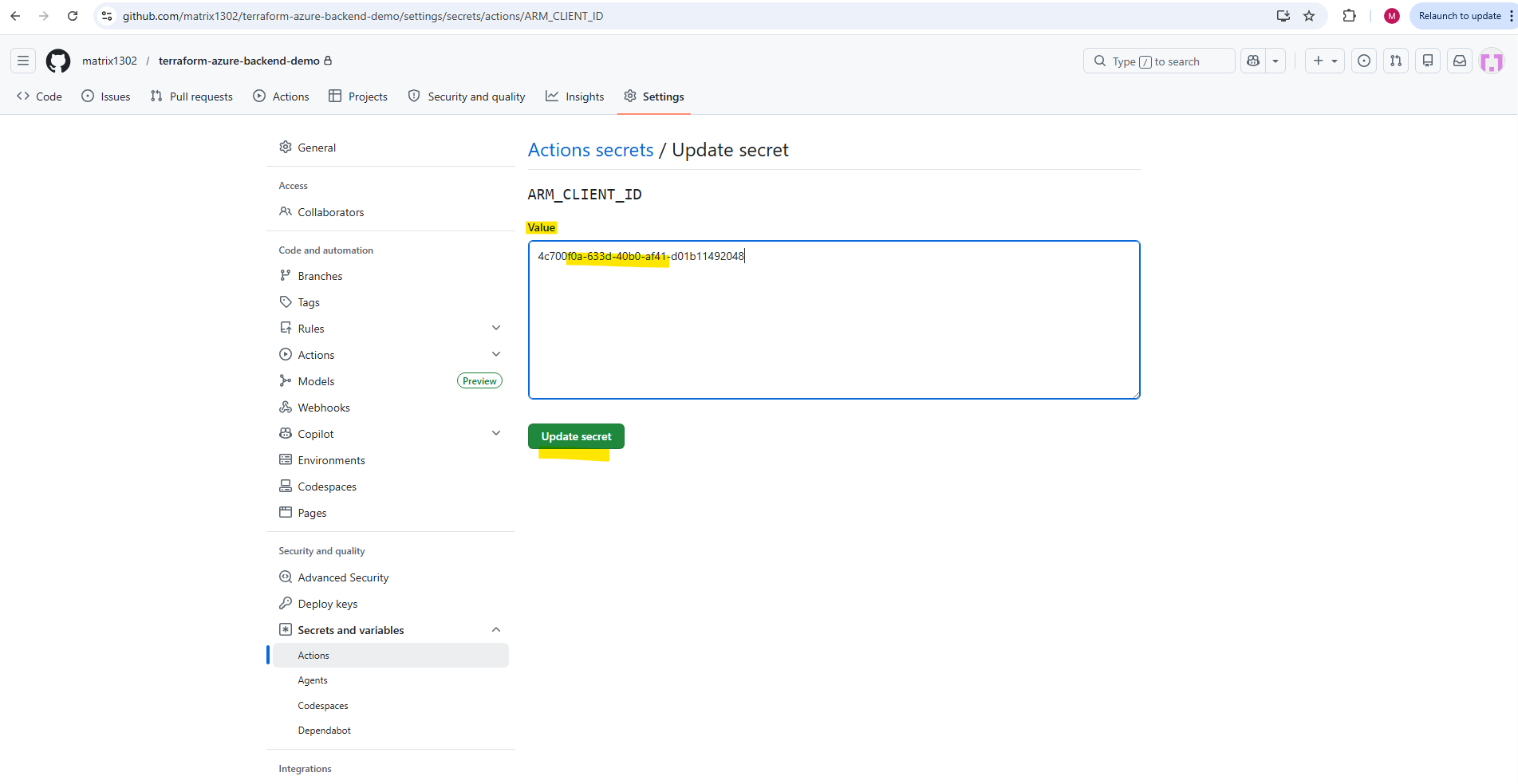
Here we can enter or update the value for our created secret. Do this finally for all 4 created secrets.
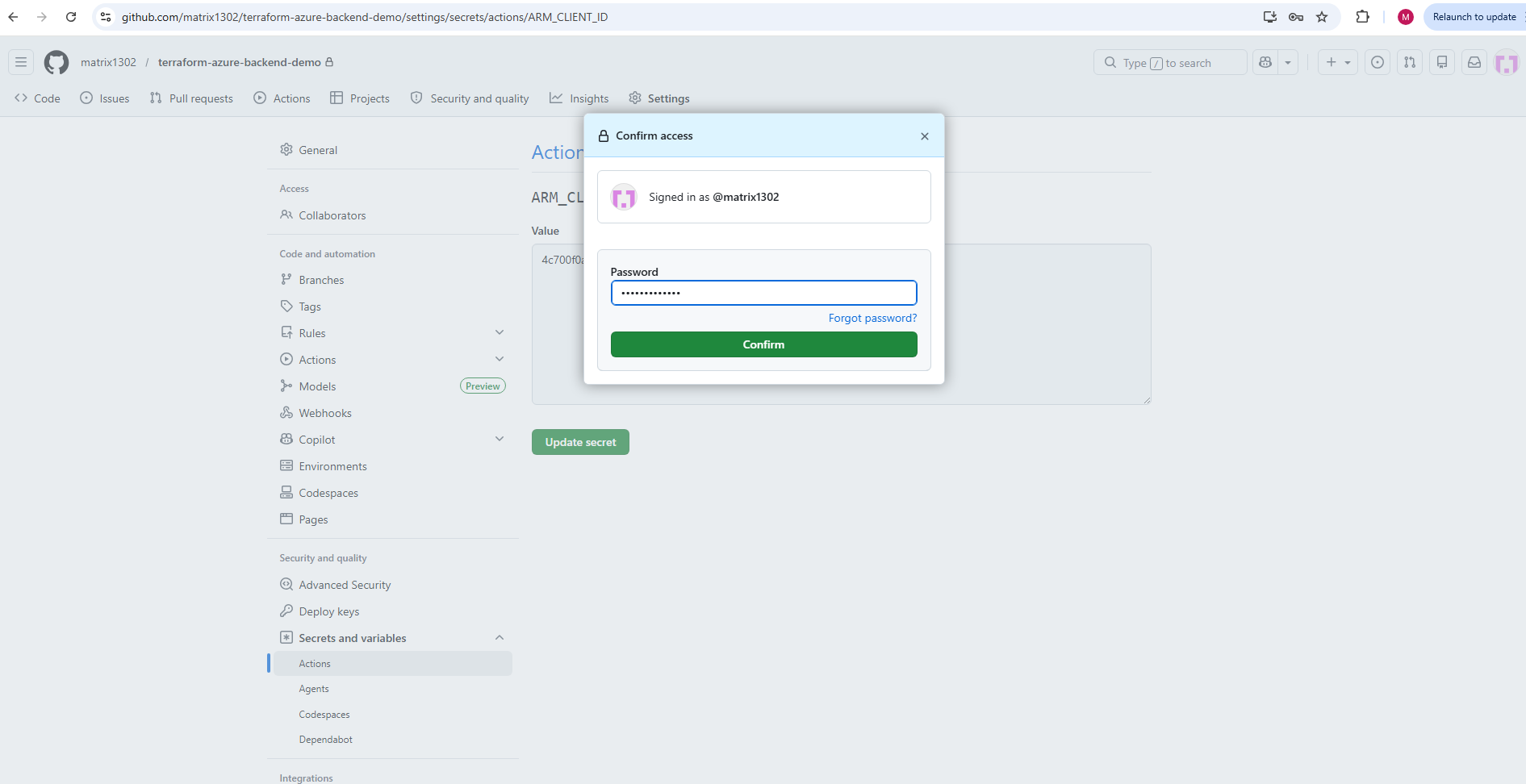
We also need to provide the password for our GitHub account to set or update the value for the secret.
Testing Azure Authentication in GitHub Actions
Before extending the workflow with Terraform plan and apply steps, we first verify that GitHub Actions can authenticate against Microsoft Azure by using the GitHub Secrets we created earlier.
For this first authentication test, we can add the Azure login step to the existing workflow:
name: Terraform Azure CI/CD

on:
  workflow_dispatch:
  push:
    branches:
      - main

jobs:
  terraform:
    name: Terraform Workflow
    runs-on: ubuntu-latest

    steps:
      - name: Checkout repository
        uses: actions/checkout@v4

      - name: Azure Login
        uses: azure/login@v2
        with:
          creds: '{"clientId":"${{ secrets.ARM_CLIENT_ID }}","clientSecret":"${{ secrets.ARM_CLIENT_SECRET }}","subscriptionId":"${{ secrets.ARM_SUBSCRIPTION_ID }}","tenantId":"${{ secrets.ARM_TENANT_ID }}"}'

      - name: Verify Azure Login
        run: az account show
This workflow checks out the repository, authenticates to Azure using the stored GitHub Secrets, and then runs az account show to verify that the runner is successfully logged in to the correct Azure subscription.
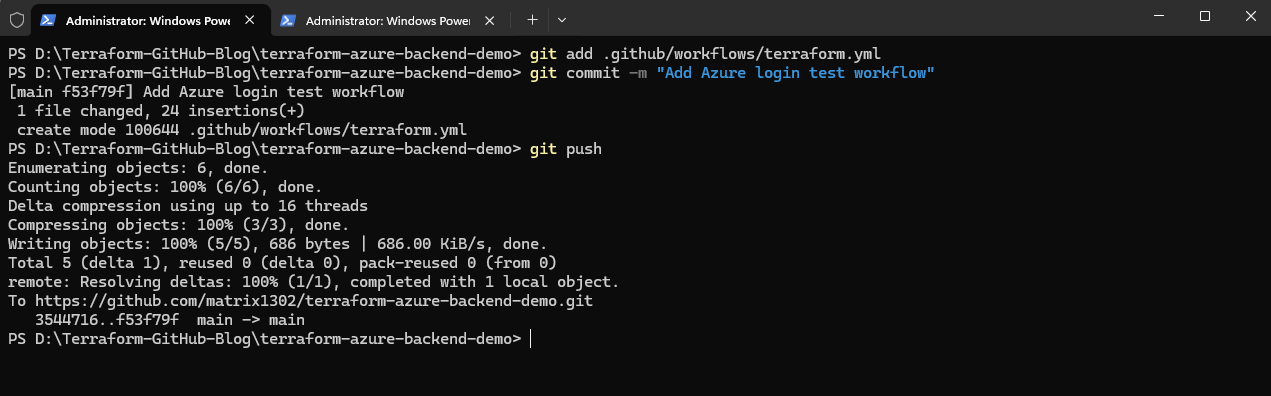
To test this we need to save the updated terraform.yml, then commit and push it:
PS> git add .github/workflows/terraform.yml
PS> git commit -m "Add Azure login test workflow"
PS> git push
Then in GitHub we open our repository and go to: Actions → Terraform Azure CI/CD → Run workflow
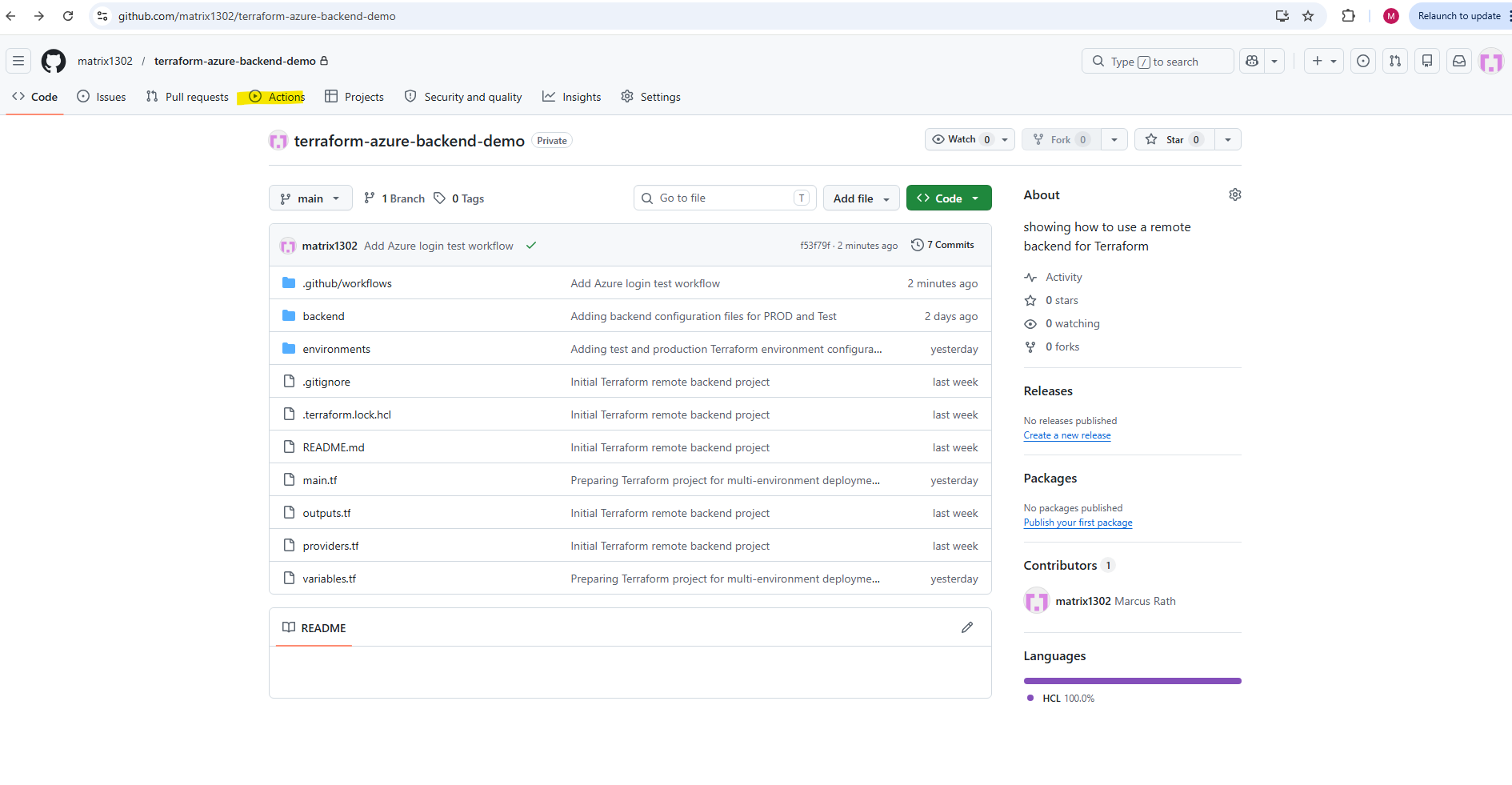
→ Terraform Azure CI/CD → Run workflow
Select the
mainbranch and click Run workflow.
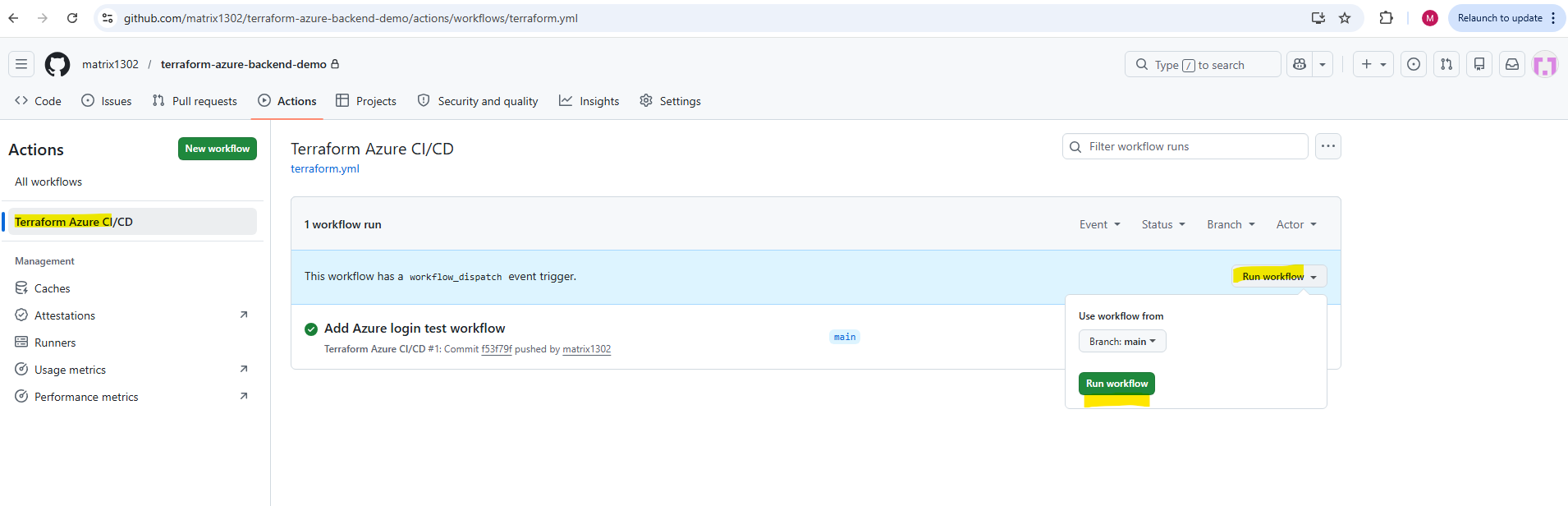
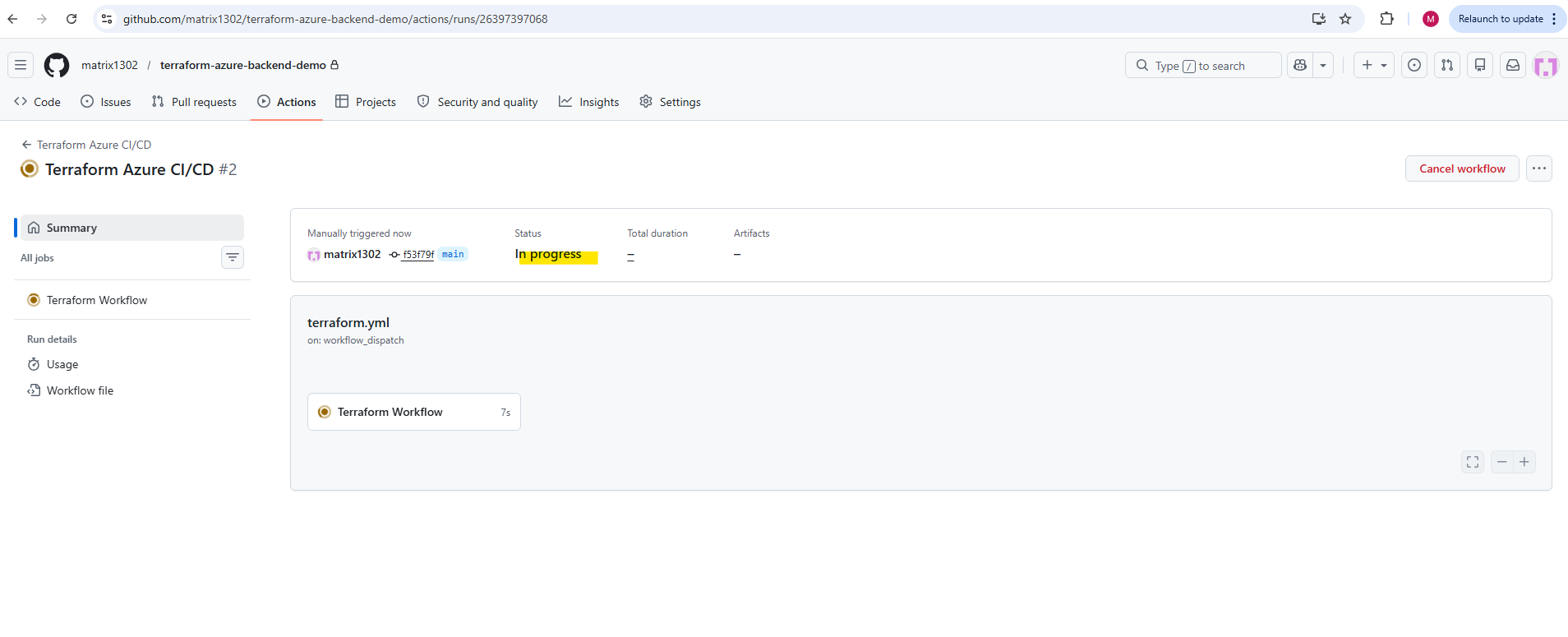
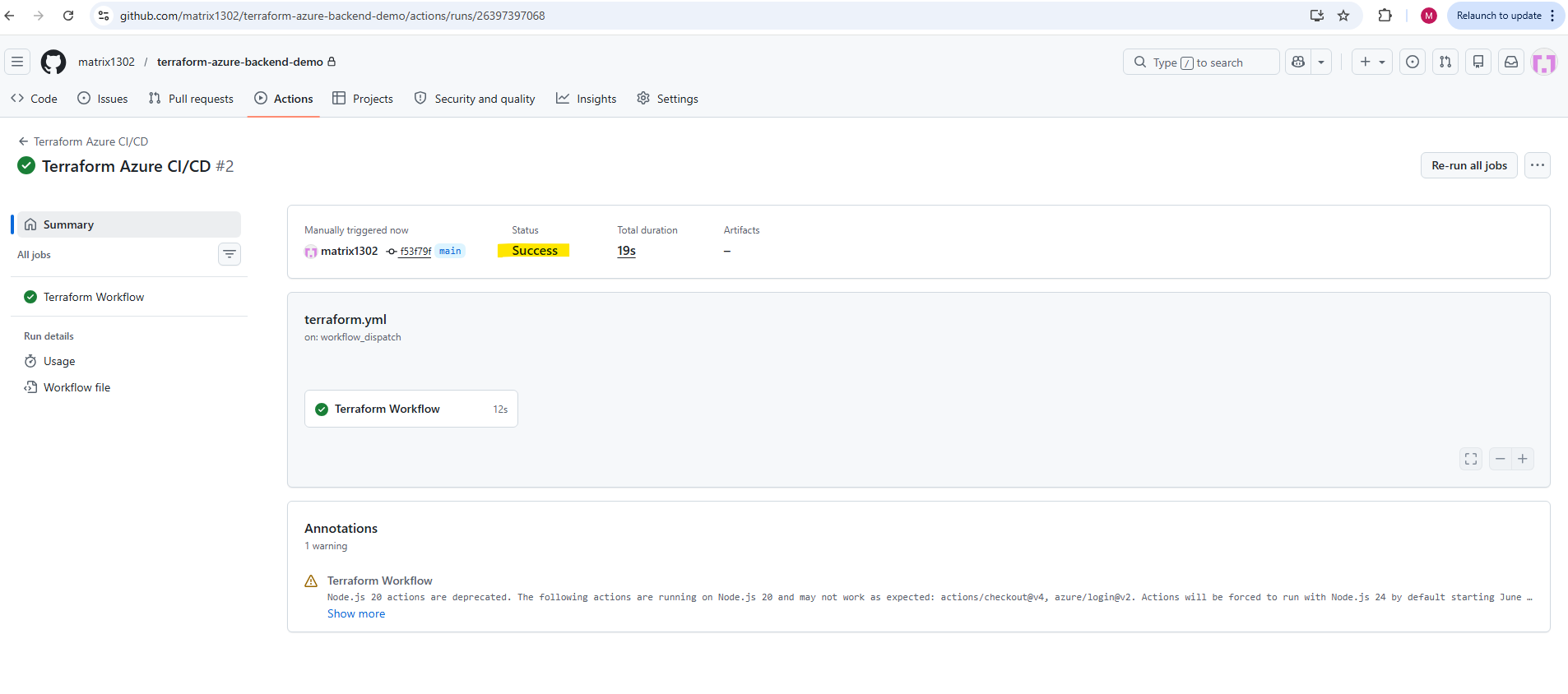
After it starts, open the workflow run and check the job output. If authentication works, the Azure Login step should be green, and the Verify Azure Login step should show your Azure subscription details from.
We can click on the Terraform Workflow with the green check icon below to see all steps configured in the workflow.
During the workflow execution, GitHub Actions may currently display a warning about deprecated Node.js 20 runtimes used internally by some GitHub Actions such as
actions/checkout@v4orazure/login@v2.At the time of writing, the workflow still executes successfully, but GitHub announced that actions will gradually transition to Node.js 24 as the new default runtime. Updated action versions supporting Node.js 24 will likely become available over time.
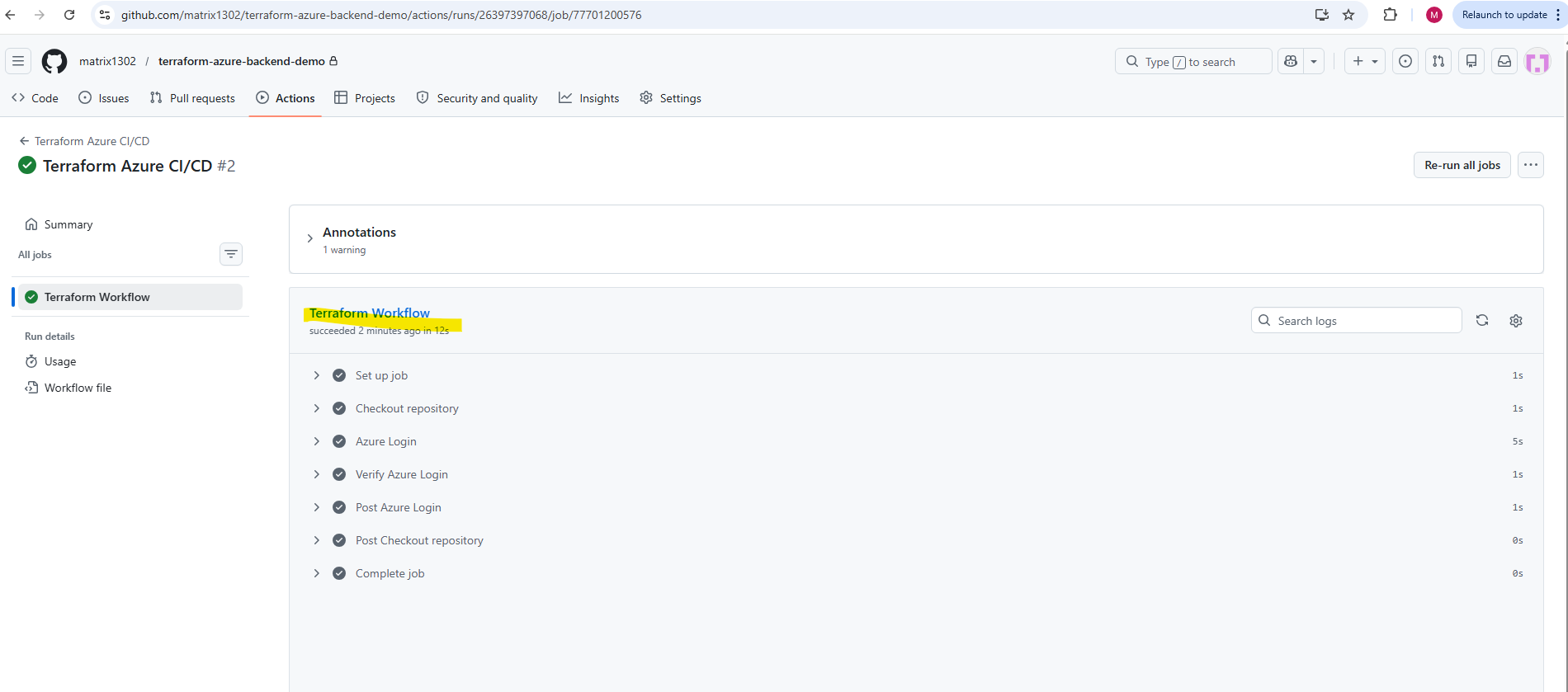
Regarding the warning about node.js we can already opt in by adding this at the workflow level:
GitHub documents this as the current opt-in method for forcing JavaScript-based actions to run on Node.js 24 before it becomes the default on June 2, 2026. Node.js 20 is planned for removal from runners on September 16, 2026.
env:
  FORCE_JAVASCRIPT_ACTIONS_TO_NODE24: true
Example:
name: Terraform Azure CI/CD

on:
  workflow_dispatch:
  push:
    branches:
      - main

env:
  FORCE_JAVASCRIPT_ACTIONS_TO_NODE24: true

jobs:
  terraform:
    name: Terraform Workflow
    runs-on: ubuntu-latest
After enabling
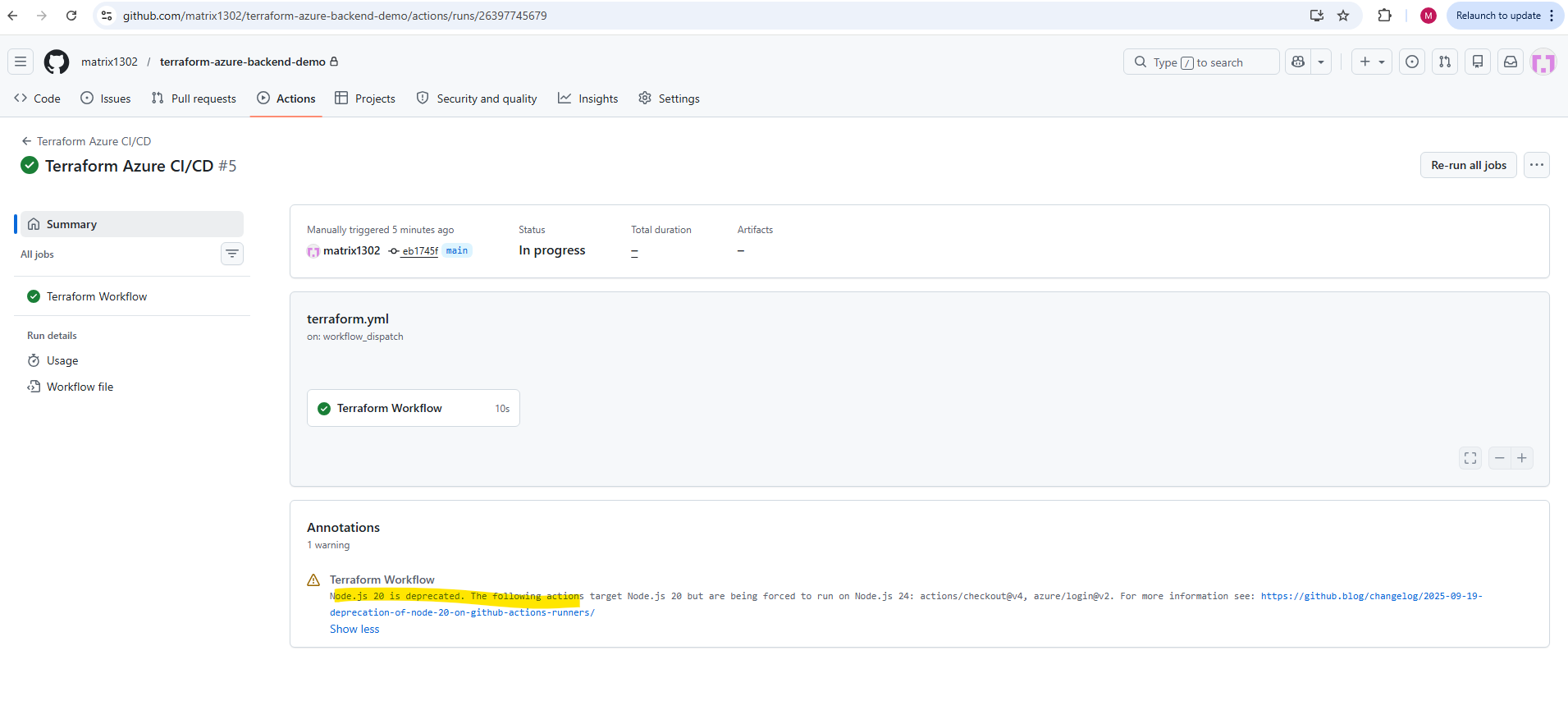
FORCE_JAVASCRIPT_ACTIONS_TO_NODE24, GitHub Actions may still show a warning because some actions currently still target Node.js 20 internally. However, the message now indicates that these actions are being forced to run on Node.js 24, which means the workflow is already using the newer runtime.
Running Terraform Plan Automatically
After successfully testing Azure authentication from GitHub Actions, we can now extend the workflow (terraform.yml file) to run Terraform automatically.
The next step is to initialize the Terraform backend, validate the configuration, and generate an execution plan for the selected environment.
In this example, we use the test.tfvars file from the environments folder.
name: Terraform Azure CI/CD

on:
  workflow_dispatch:
  push:
    branches:
      - main

env:
  FORCE_JAVASCRIPT_ACTIONS_TO_NODE24: true

jobs:
  terraform:
    name: Terraform Workflow
    runs-on: ubuntu-latest

    env:
      ARM_CLIENT_ID: ${{ secrets.ARM_CLIENT_ID }}
      ARM_CLIENT_SECRET: ${{ secrets.ARM_CLIENT_SECRET }}
      ARM_SUBSCRIPTION_ID: ${{ secrets.ARM_SUBSCRIPTION_ID }}
      ARM_TENANT_ID: ${{ secrets.ARM_TENANT_ID }}

    steps:
      - name: Checkout repository
        uses: actions/checkout@v4

      - name: Setup Terraform
        uses: hashicorp/setup-terraform@v3

      - name: Terraform Init
        run: terraform init

      - name: Terraform Validate
        run: terraform validate

      - name: Terraform Plan
        run: terraform plan -var-file="environments/test.tfvars"
This workflow now authenticates Terraform against Azure by passing the GitHub Secrets as ARM_* environment variables.
Terraform then initializes the remote backend, validates the configuration, and creates a plan showing which Azure resources would be created, changed, or destroyed.
After updating the terraform.yml workflow file, commit the changes locally and push them to the GitHub repository:
Once the changes are pushed to the
mainbranch, GitHub Actions automatically starts the updated CI/CD workflow. The workflow execution can then be monitored directly from the repository under the Actions tab.
PS> git add .github/workflows/terraform.yml
PS> git commit -m "Add automated Terraform plan workflow"
PS> git push
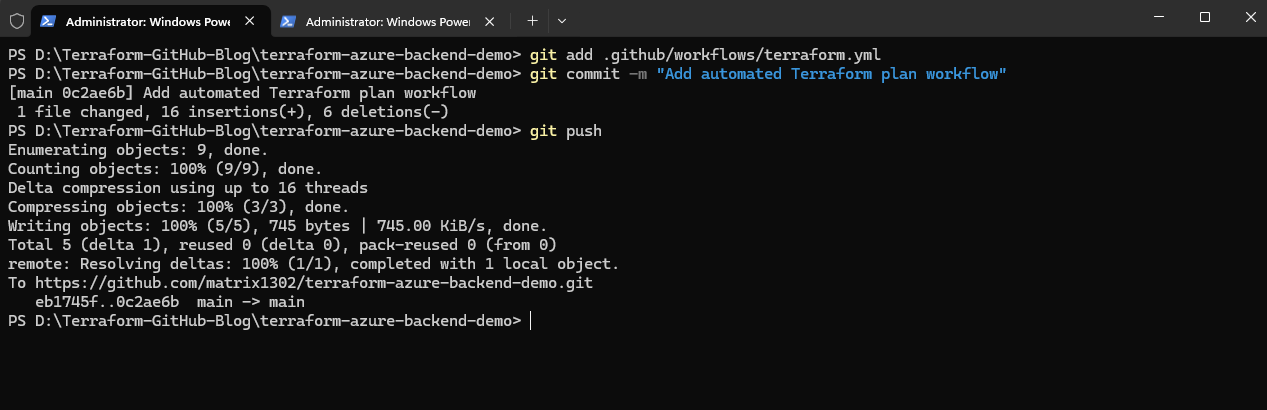
The workflow execution starts immediately after pushing the updated terraform.yml workflow file to the GitHub Repository.
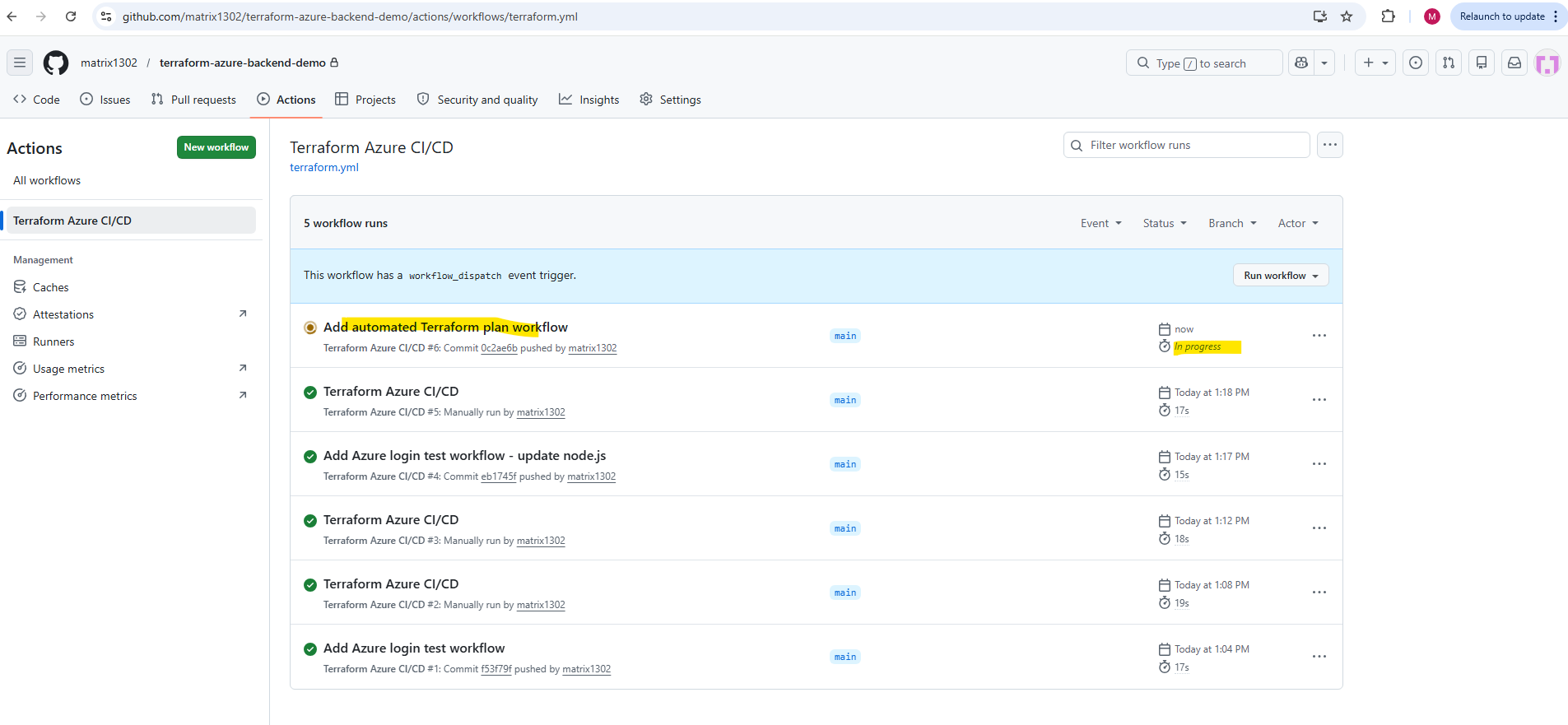
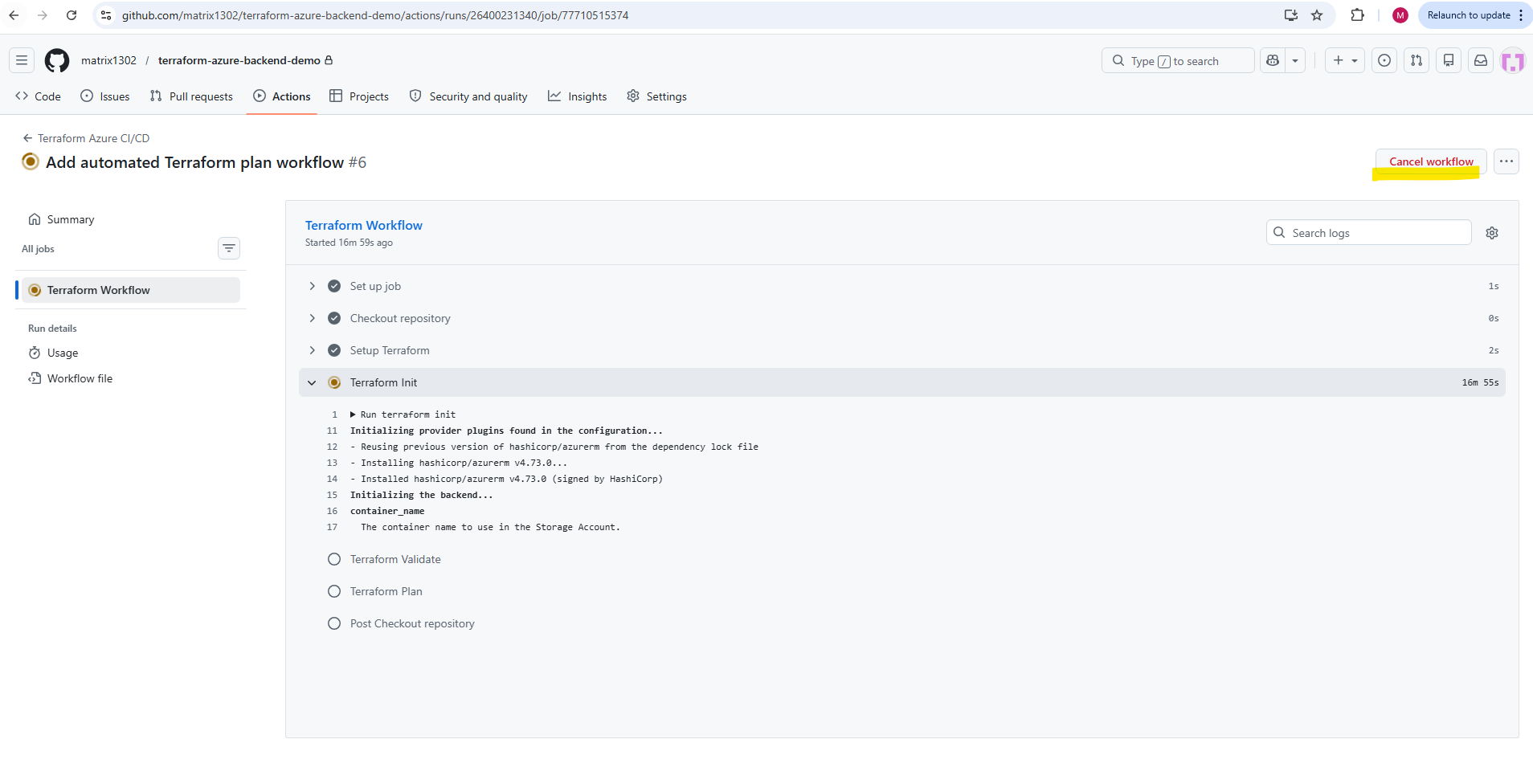
When clicking on the workflow above we can monitor the detailed steps as shown below.
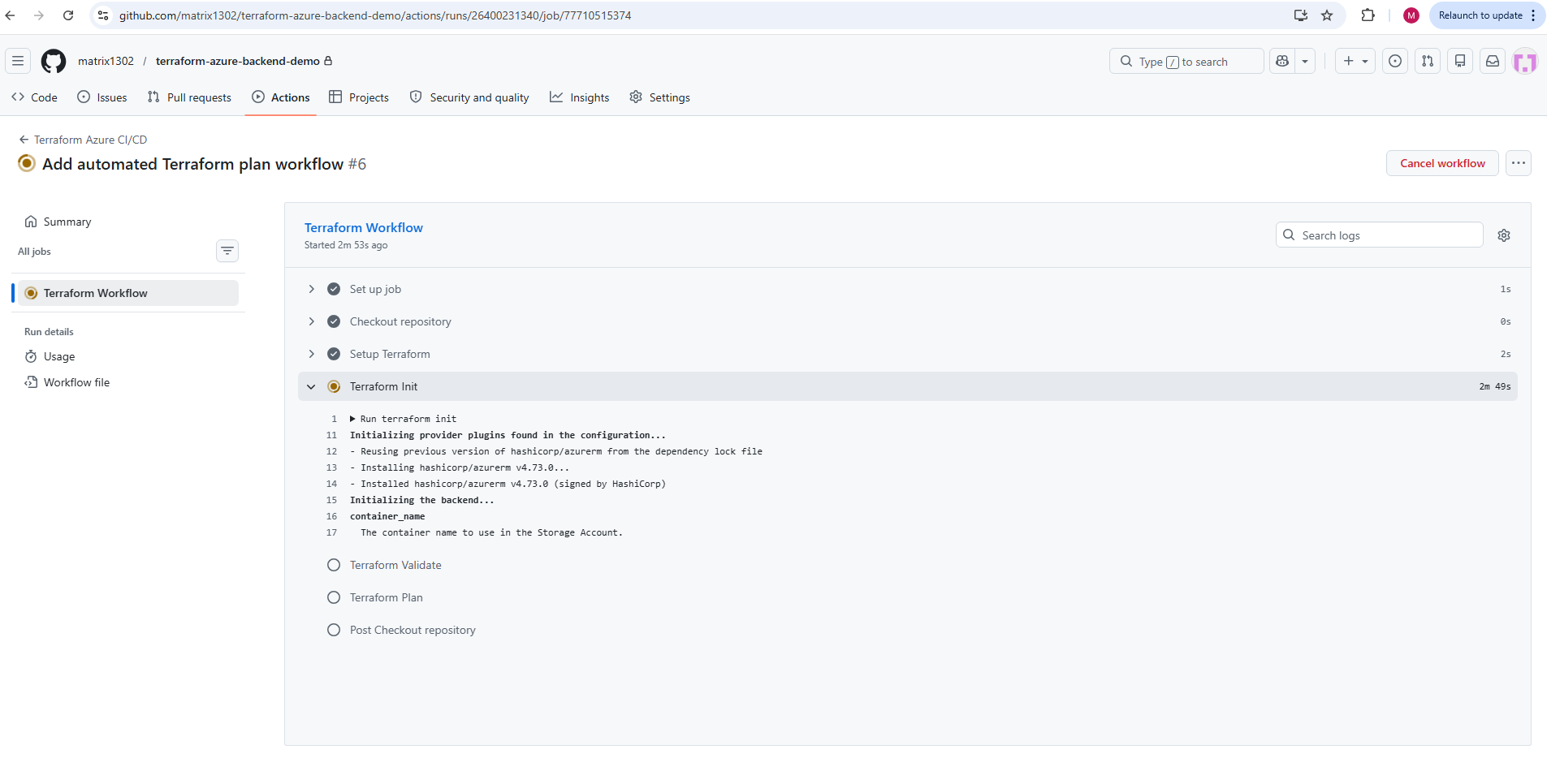
In my case terraform init is waiting for input because the backend configuration is incomplete.
This line shows the problem:
container_name
  The container name to use in the Storage Account.
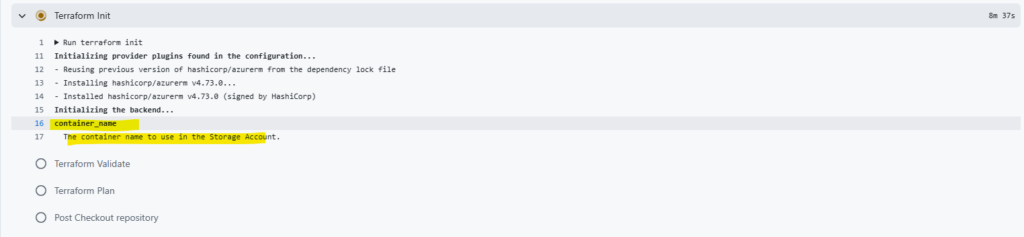
Terraform is asking interactively for the backend value. In GitHub Actions this is bad because the workflow cannot answer.
We need to fix it by passing the backend config in the init step:
- name: Terraform Init
  run: |
    terraform init \
      -backend-config="resource_group_name=rg-terraform-backend" \
      -backend-config="storage_account_name=sttfbackenddemo2026" \
      -backend-config="container_name=tfstate" \
      -backend-config="key=test.terraform.tfstate"
Finally my terraform.yml workflow file look like below.
name: Terraform Azure CI/CD

on:
  workflow_dispatch:
  push:
    branches:
      - main

env:
  FORCE_JAVASCRIPT_ACTIONS_TO_NODE24: true

jobs:
  terraform:
    name: Terraform Workflow
    runs-on: ubuntu-latest

    env:
      ARM_CLIENT_ID: ${{ secrets.ARM_CLIENT_ID }}
      ARM_CLIENT_SECRET: ${{ secrets.ARM_CLIENT_SECRET }}
      ARM_SUBSCRIPTION_ID: ${{ secrets.ARM_SUBSCRIPTION_ID }}
      ARM_TENANT_ID: ${{ secrets.ARM_TENANT_ID }}

    steps:
      - name: Checkout repository
        uses: actions/checkout@v4

      - name: Setup Terraform
        uses: hashicorp/setup-terraform@v3

      - name: Terraform Init
        run: |
          terraform init \
            -backend-config="resource_group_name=rg-terraform-backend" \
            -backend-config="storage_account_name=sttfbackenddemo2026" \
            -backend-config="container_name=tfstate" \
            -backend-config="key=test.terraform.tfstate"

      - name: Terraform Validate
        run: terraform validate

      - name: Terraform Plan
        run: terraform plan -var-file="environments/test.tfvars"
Before the changes are pushed to the main branch, we first cancel the current running workflow.
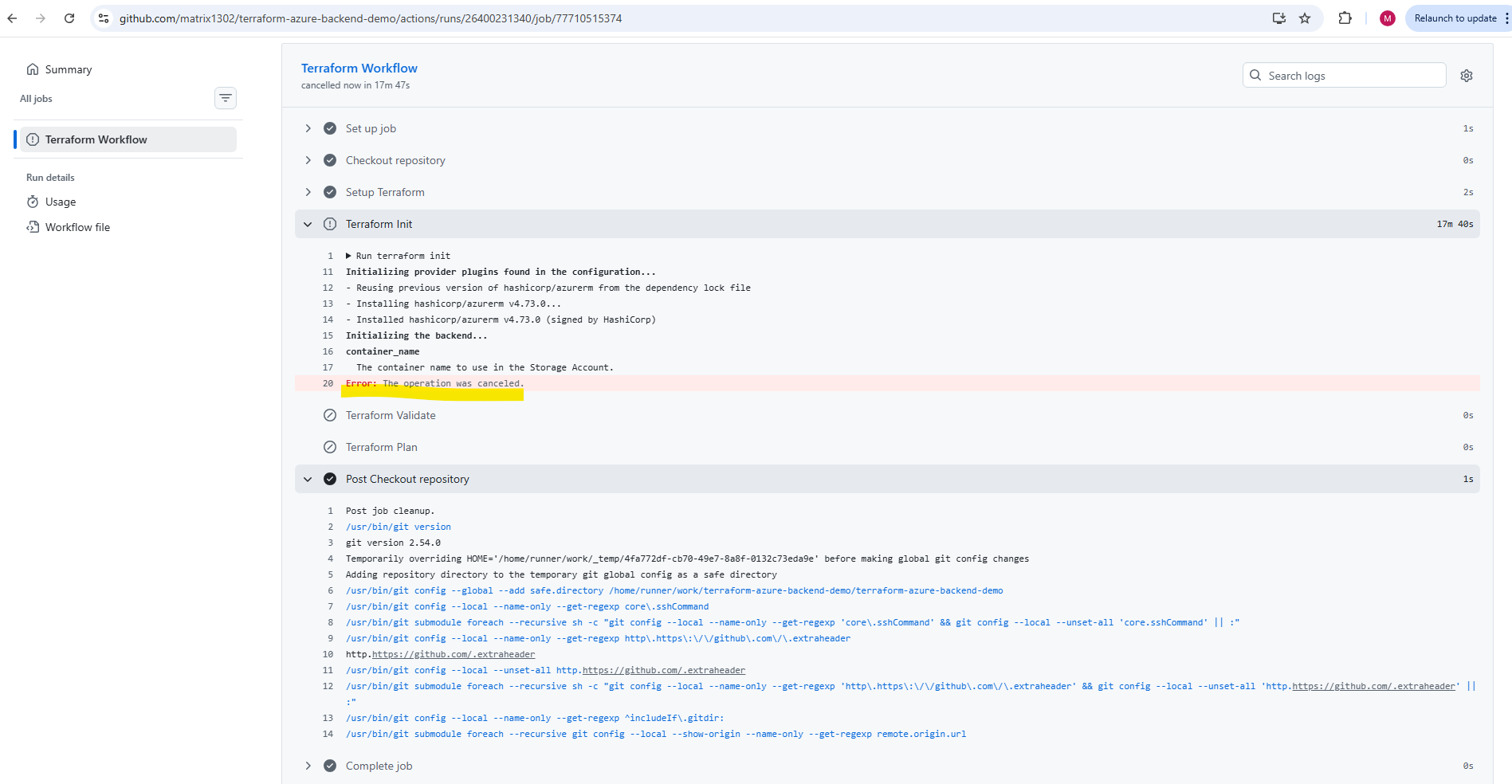
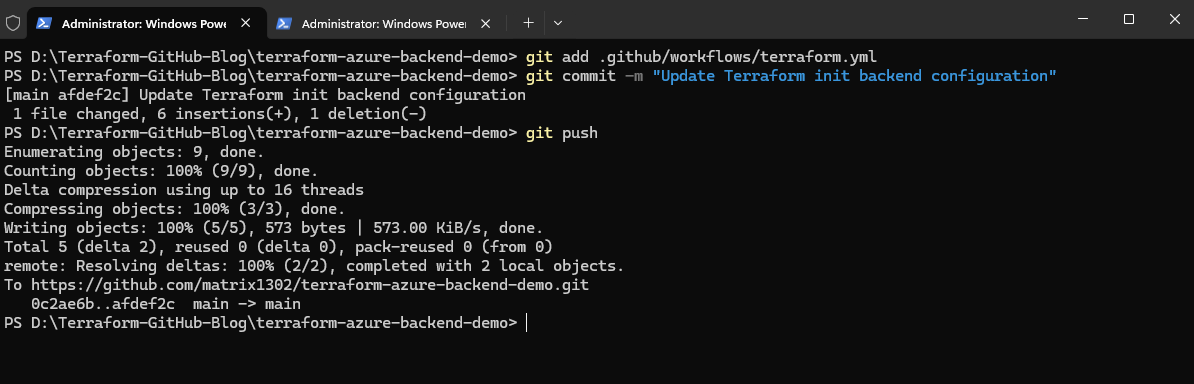
After updating the workflow file with the backend configuration, the modified terraform.yml file must be committed locally and pushed again to the GitHub repository. Once pushed to the main branch, GitHub Actions automatically starts the updated Terraform CI/CD workflow with the corrected backend initialization settings.
PS> git add .github/workflows/terraform.yml
PS> git commit -m "Update Terraform init backend configuration"
PS> git push
The workflow execution again starts immediately after pushing the updated terraform.yml workflow file to the GitHub Repository.
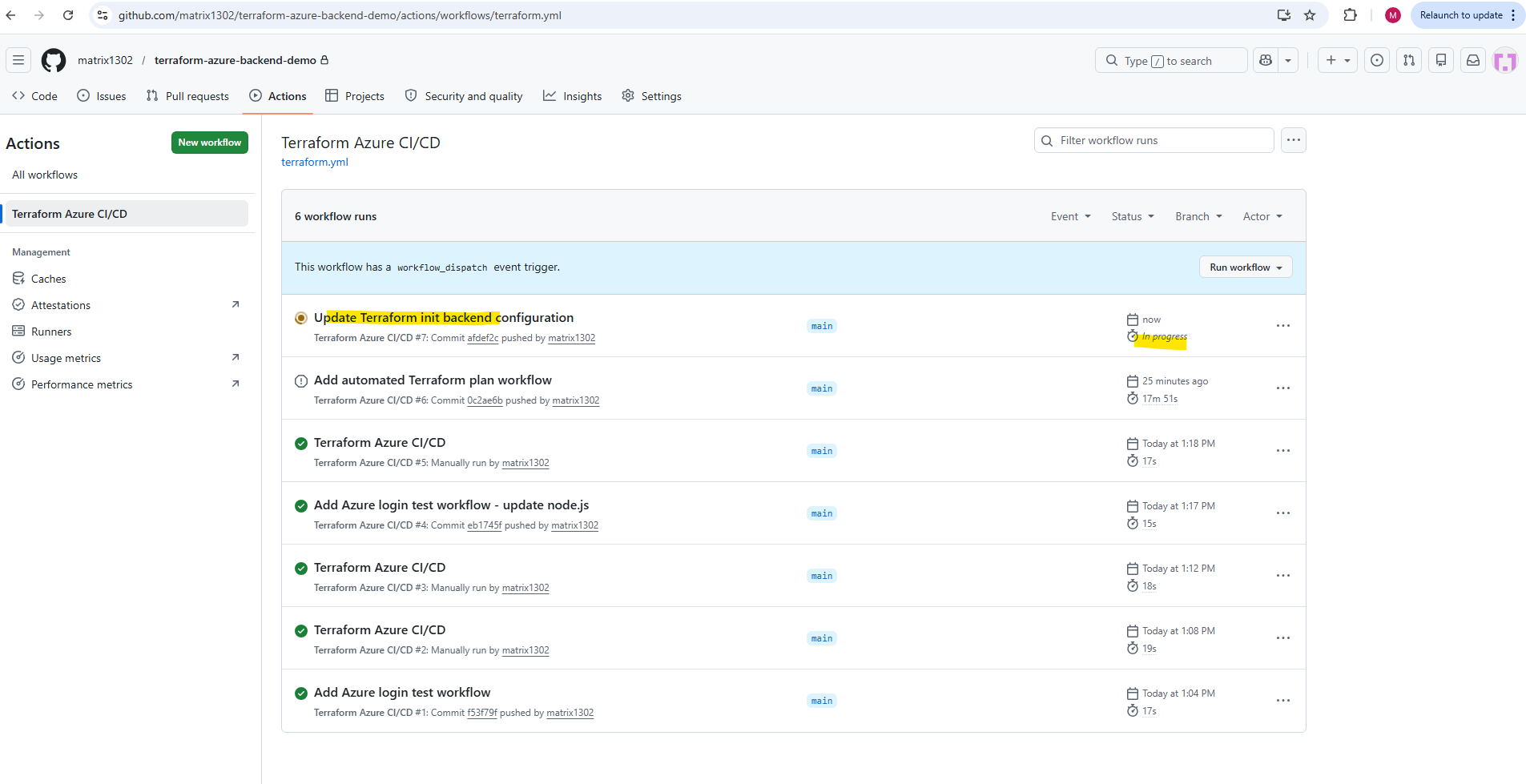
This time the execution was successfully.
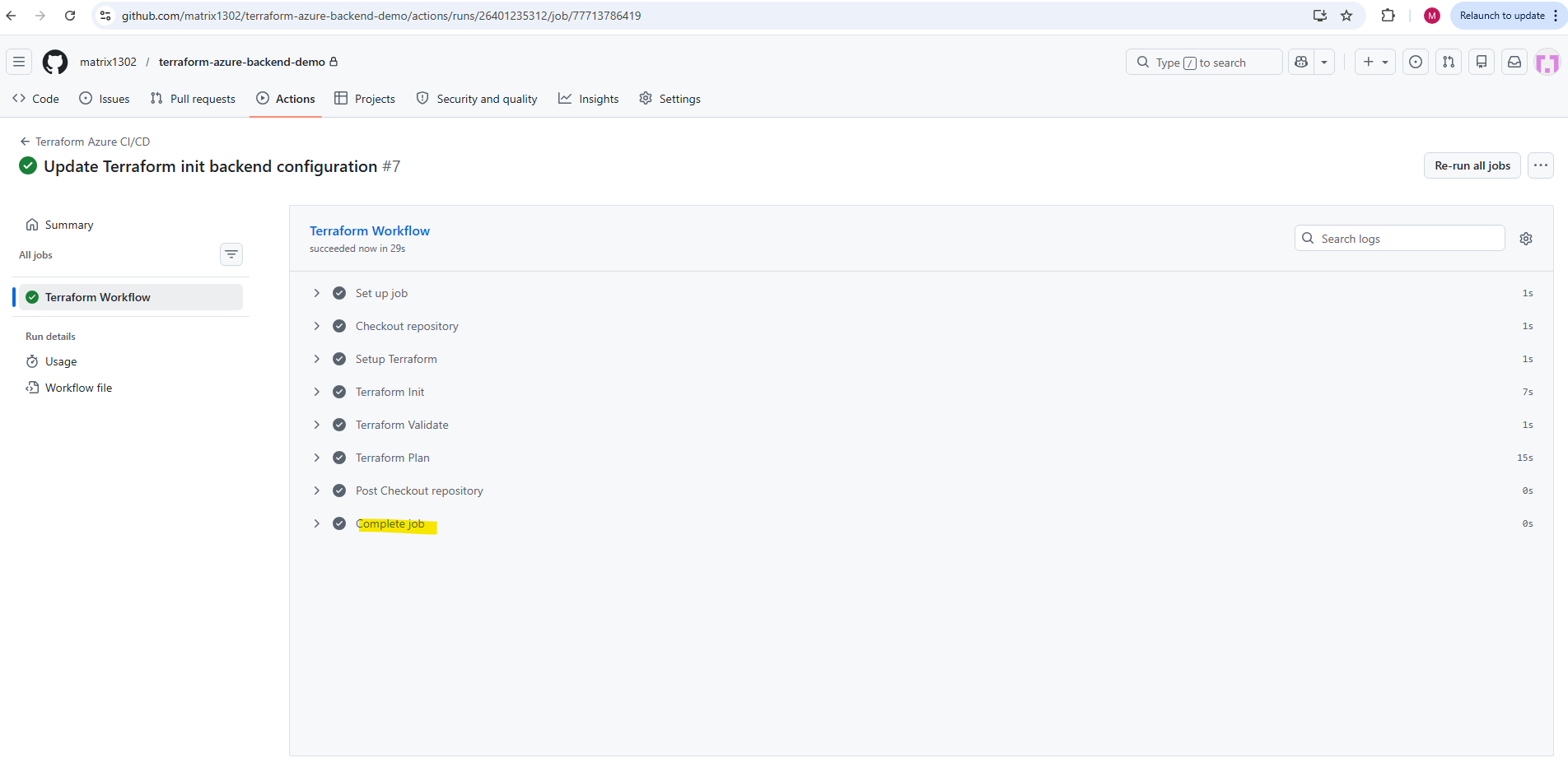
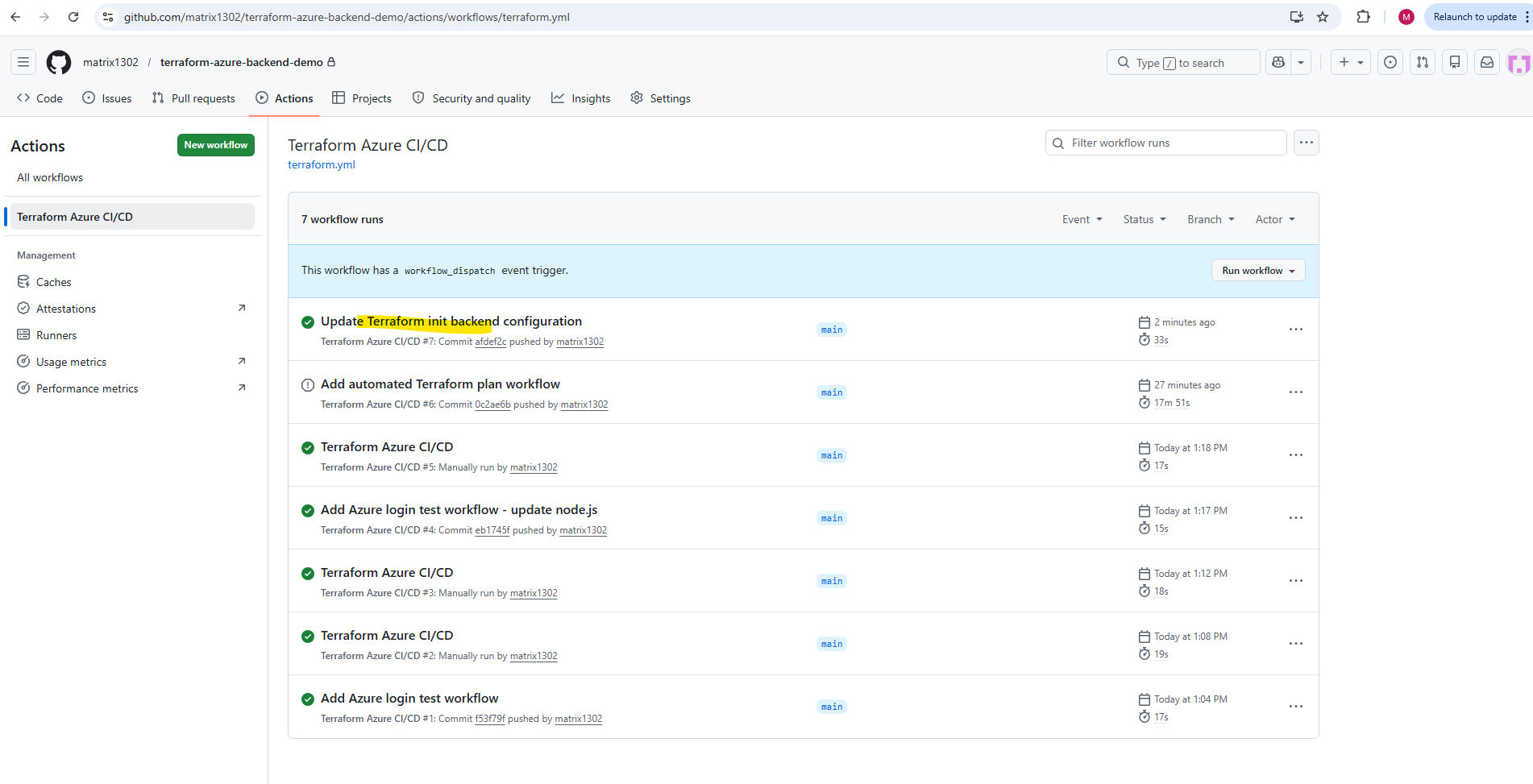
The workflow currently only runs terraform plan, which generates an execution plan but does not apply any infrastructure changes in Azure.
Therefore, no new resource changes appear in the Azure Activity Log yet; the actual deployment will only happen later when
terraform applyis added to the workflow.
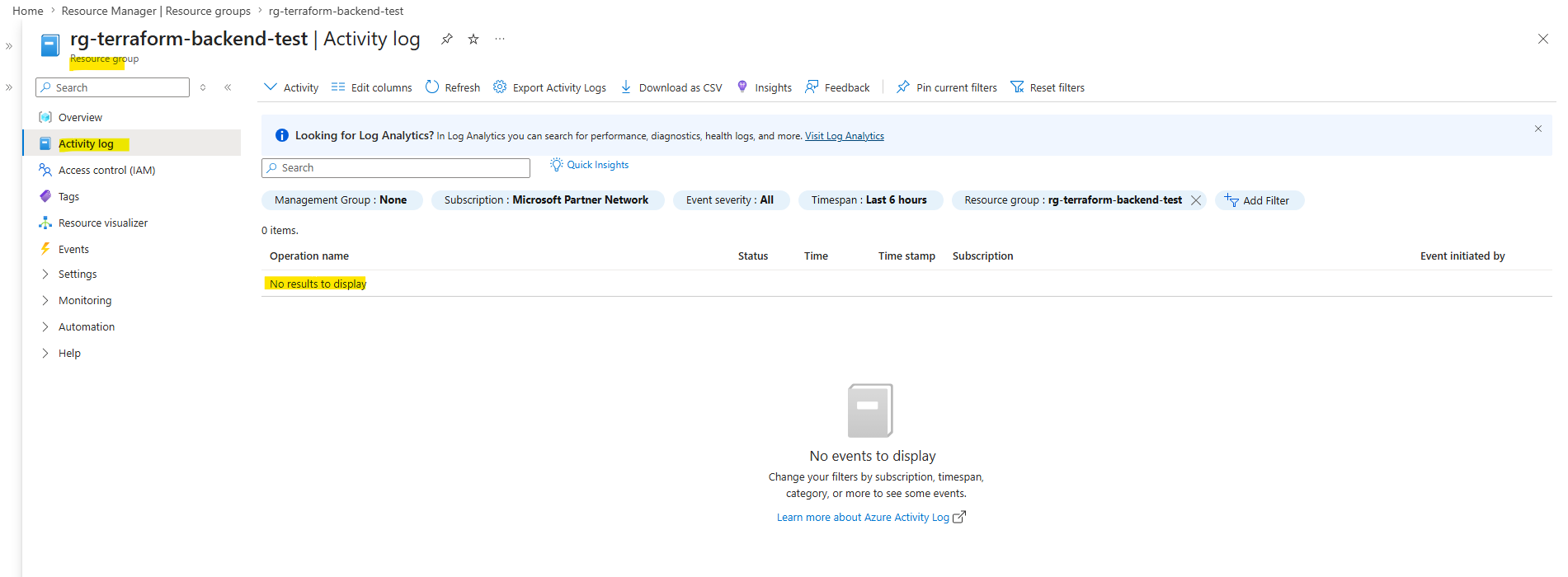
Before adding automatic deployment, it is important to understand that terraform apply performs the actual changes in Azure. Unlike terraform plan, this step is no longer a dry run and will be visible in Azure through created, modified, or deleted resources.
This will change the workflow from a validation and preview pipeline into a real deployment pipeline that can create, update, or remove Azure resources automatically.
Deploying Terraform Automatically with Apply
After successfully running terraform plan, the next step is to let the workflow apply the planned infrastructure changes automatically.
For this, we add a Terraform Apply step after the plan step:
The
-auto-approveparameter is required in CI/CD workflows because GitHub Actions cannot answer the interactive approval prompt that Terraform normally shows during a localterraform apply.
      - name: Terraform Apply
        run: terraform apply -auto-approve -var-file="environments/test.tfvars"
Finally my terraform.yml workflow file look like below.
name: Terraform Azure CI/CD

on:
  workflow_dispatch:
  push:
    branches:
      - main

env:
  FORCE_JAVASCRIPT_ACTIONS_TO_NODE24: true

jobs:
  terraform:
    name: Terraform Workflow
    runs-on: ubuntu-latest

    env:
      ARM_CLIENT_ID: ${{ secrets.ARM_CLIENT_ID }}
      ARM_CLIENT_SECRET: ${{ secrets.ARM_CLIENT_SECRET }}
      ARM_SUBSCRIPTION_ID: ${{ secrets.ARM_SUBSCRIPTION_ID }}
      ARM_TENANT_ID: ${{ secrets.ARM_TENANT_ID }}

    steps:
      - name: Checkout repository
        uses: actions/checkout@v4

      - name: Setup Terraform
        uses: hashicorp/setup-terraform@v3

      - name: Terraform Init
        run: |
          terraform init \
            -backend-config="resource_group_name=rg-terraform-backend" \
            -backend-config="storage_account_name=sttfbackenddemo2026" \
            -backend-config="container_name=tfstate" \
            -backend-config="key=test.terraform.tfstate"

      - name: Terraform Validate
        run: terraform validate

      - name: Terraform Plan
        run: terraform plan -var-file="environments/test.tfvars"

      - name: Terraform Apply
        run: terraform apply -auto-approve -var-file="environments/test.tfvars"
After adding the Terraform Apply step to the workflow, the updated terraform.yml file must again be committed locally and pushed to the GitHub repository.
Once pushed, GitHub Actions automatically starts the updated deployment pipeline and begins applying the Terraform-managed infrastructure changes in Azure.
PS> git add .github/workflows/terraform.yml
PS> git commit -m "Add automated Terraform apply step"
PS> git push
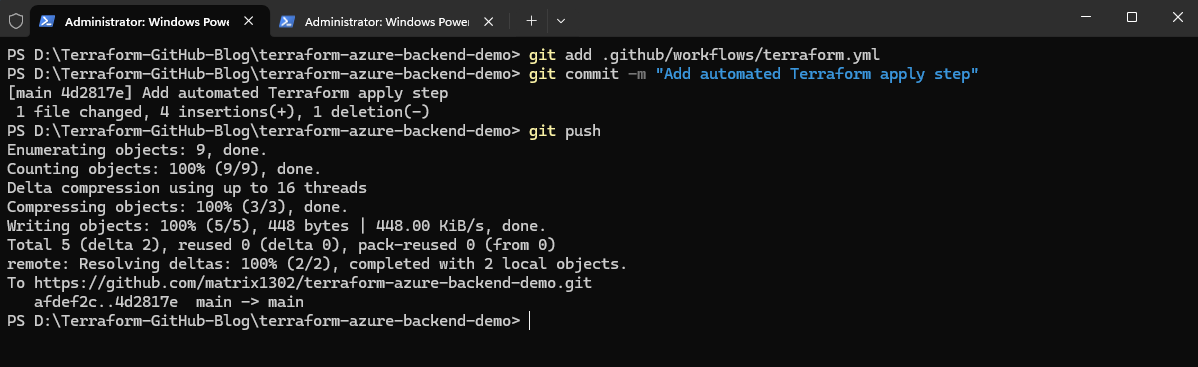
The workflow execution starts immediately after pushing the updated terraform.yml workflow file to the GitHub Repository.
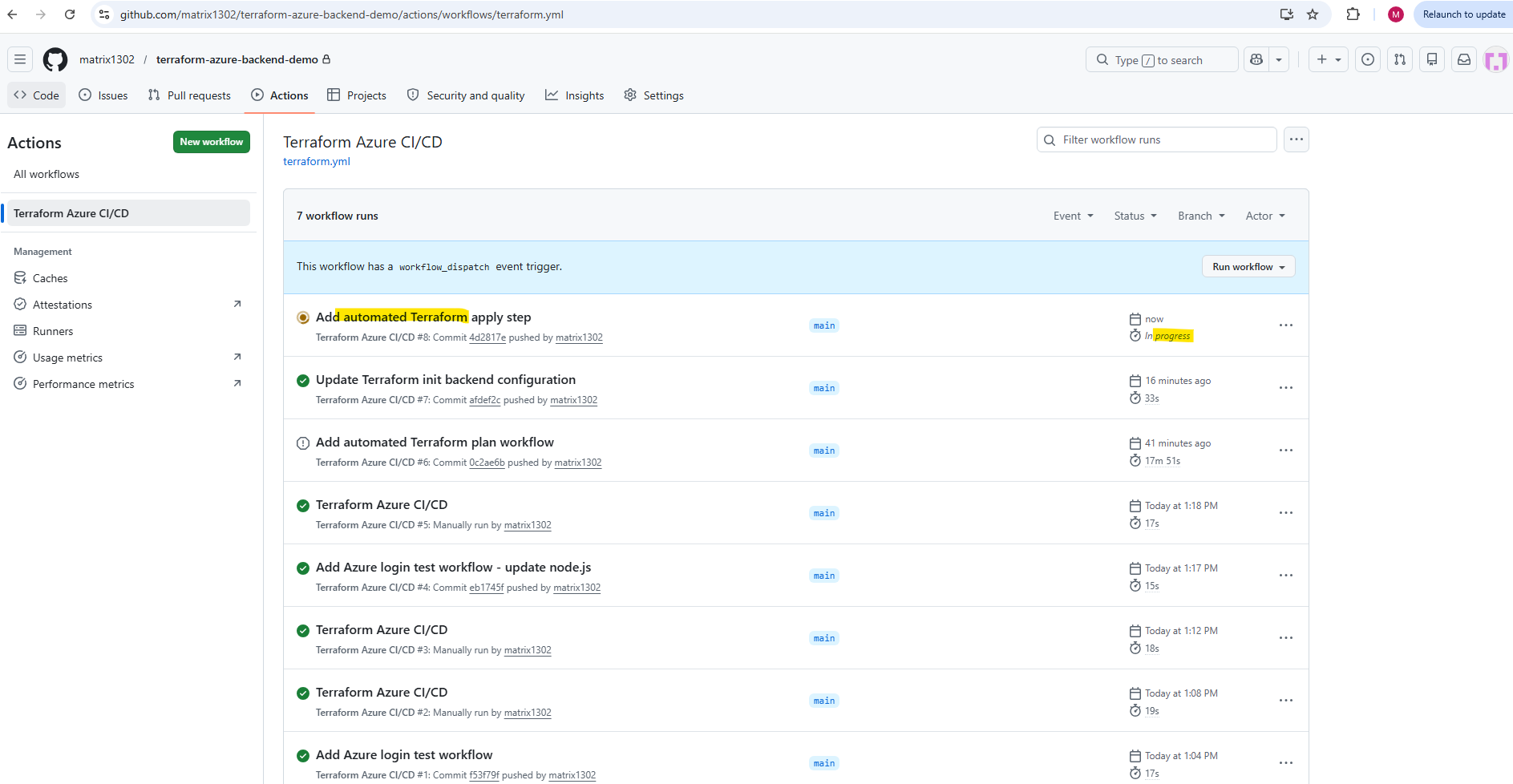
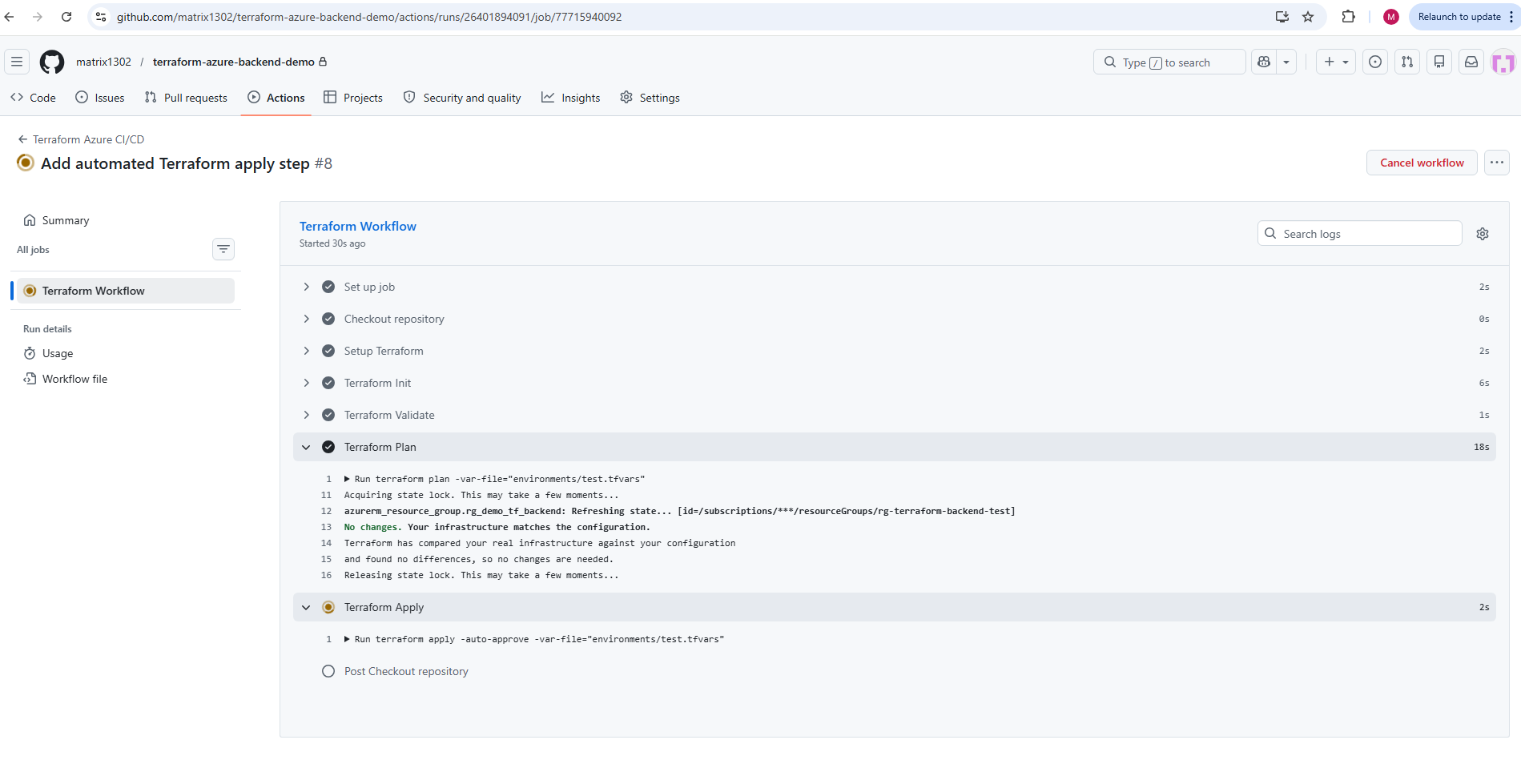
Because the Azure infrastructure was already deployed previously and no Terraform configuration changes were made since the last deployment, Terraform reports that no differences were detected between the existing Azure resources and the current Infrastructure as Code configuration.
The message
No changes. Your infrastructure matches the configuration.confirms that the deployed Azure infrastructure is already fully synchronized with the current Terraform configuration and state file.
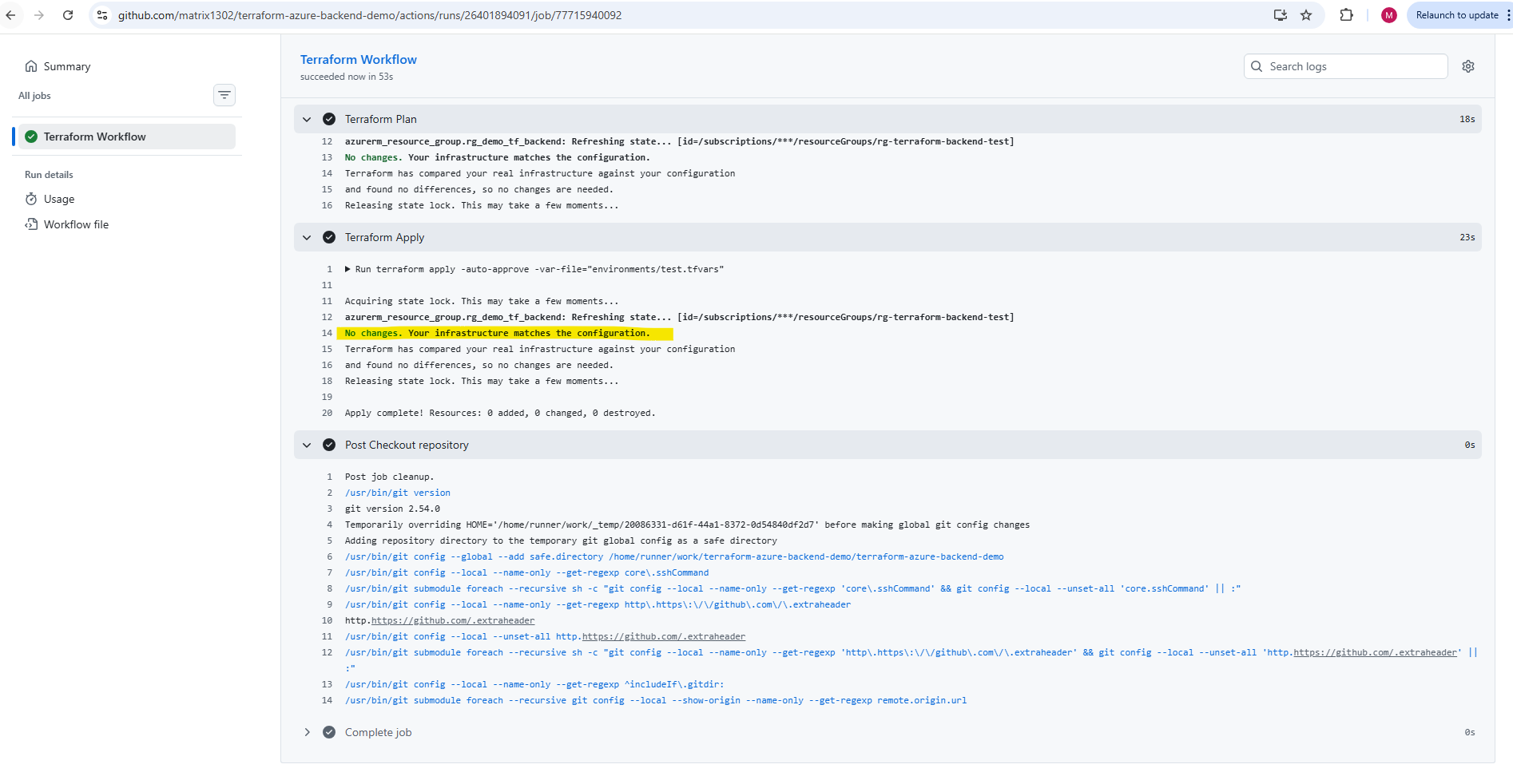
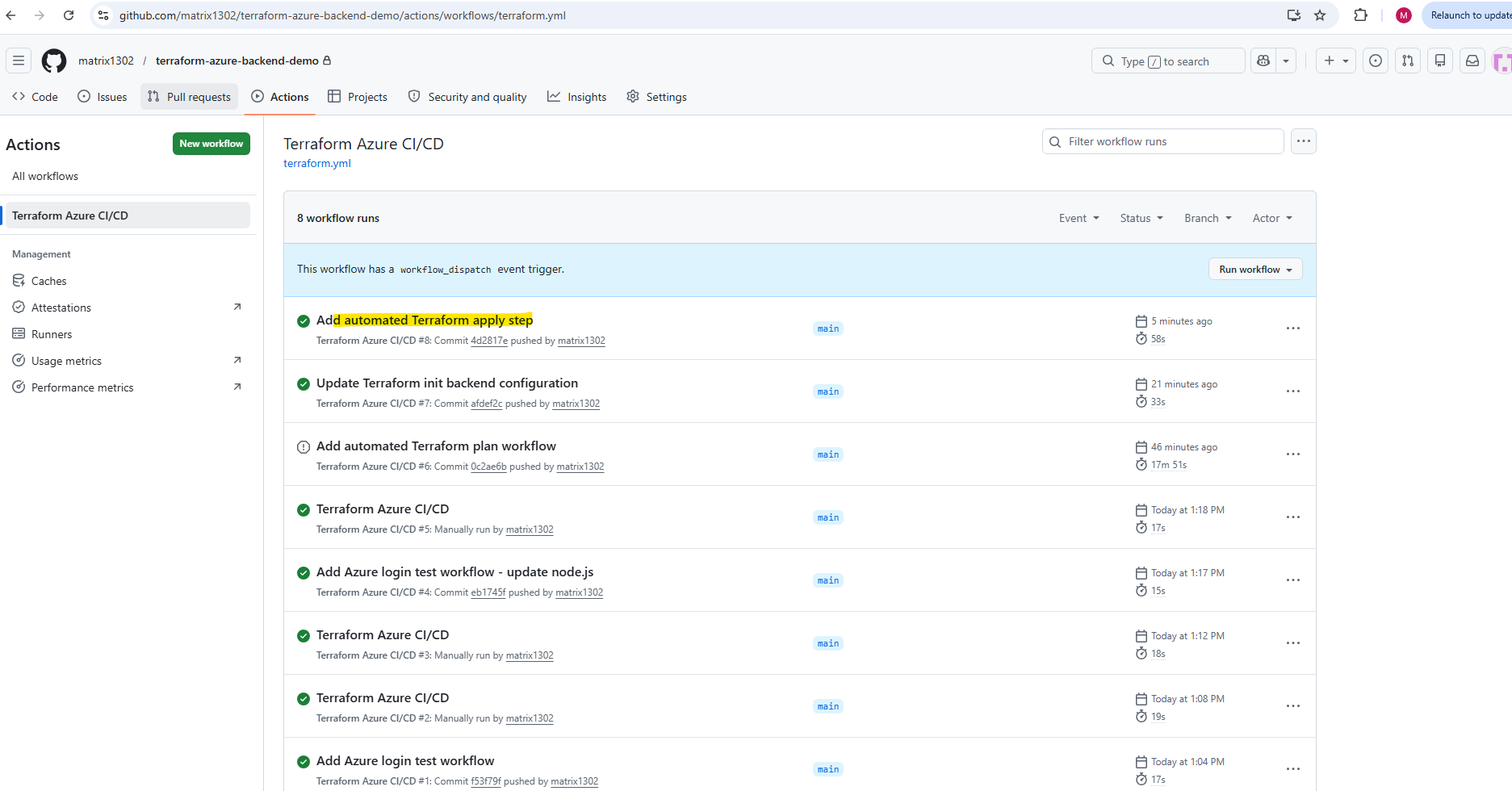
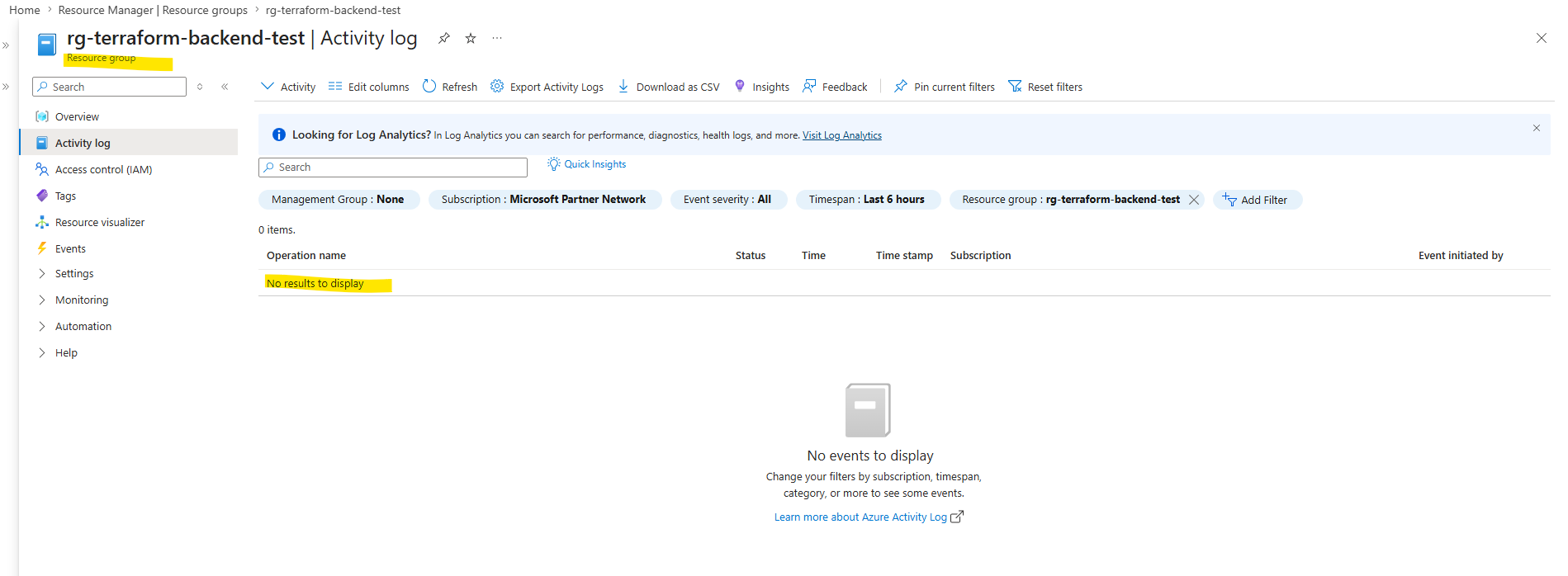
Because Terraform returned No changes. Your infrastructure matches the configuration., no Azure resources were created, modified, or deleted during this workflow run.
Therefore, no new entries appear in the Azure Activity Log; the pipeline executed successfully, but Azure itself had no control-plane changes to record.
Testing Automatic Infrastructure Changes
To verify that the GitHub Actions deployment pipeline performs real infrastructure changes in Azure, we can now modify the Terraform configuration and trigger another automated deployment.
In this example, we add an additional tag to the existing Azure resource group inside the main.tf Terraform configuration:
resource "azurerm_resource_group" "rg_demo_tf_backend" {
  name     = var.resource_group_name
  location = var.location

  tags = {
    environment = var.environment
    managed_by  = "terraform"
    project     = "terraform-github-demo"
  }
}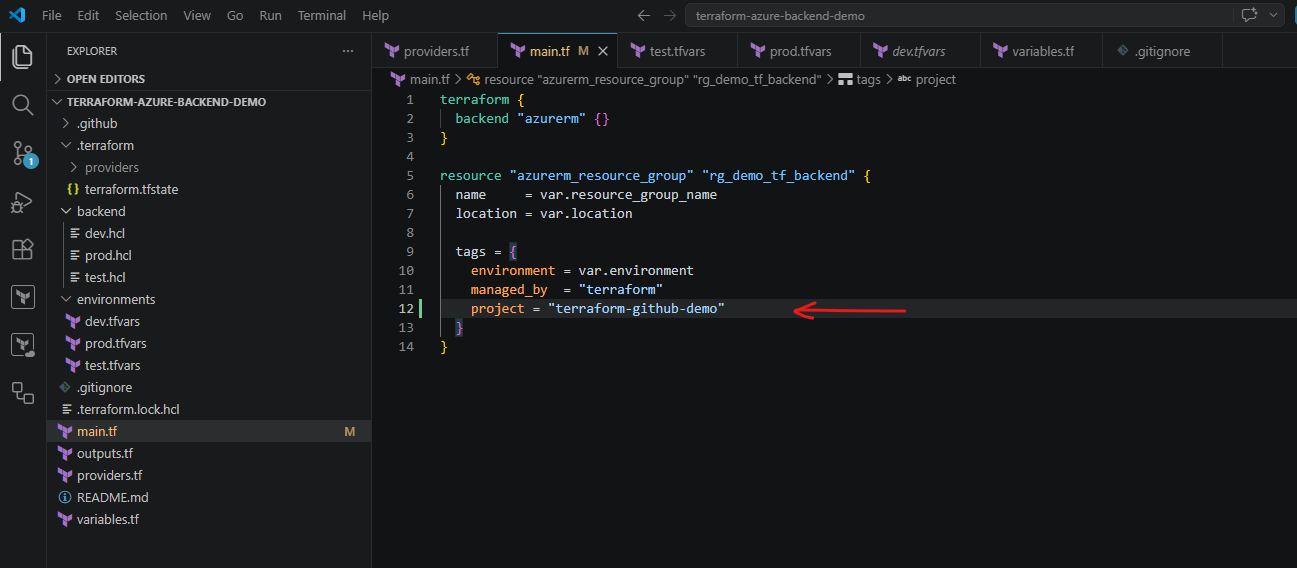
Even small Terraform configuration changes such as adding tags are automatically detected by Terraform during the plan step. The GitHub Actions workflow will then apply the detected changes automatically during the apply step.
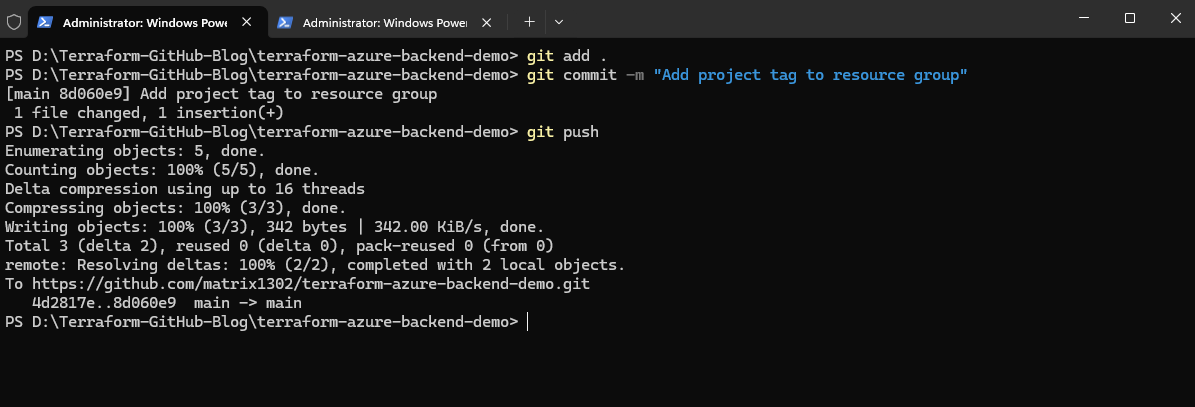
After saving the change, commit and push the updated Terraform configuration to GitHub:
PS> git add .
PS> git commit -m "Add project tag to resource group"
PS> git push
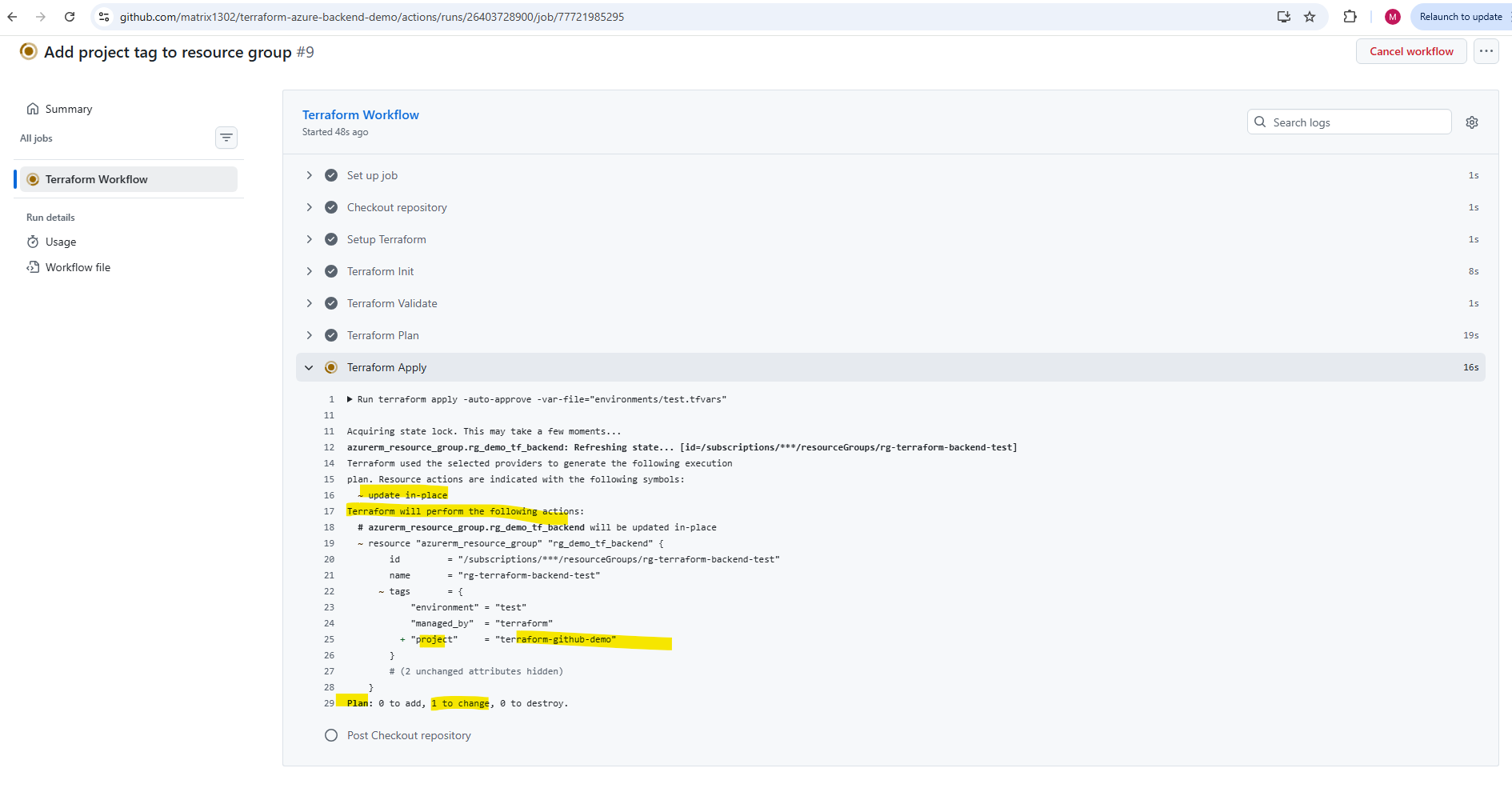
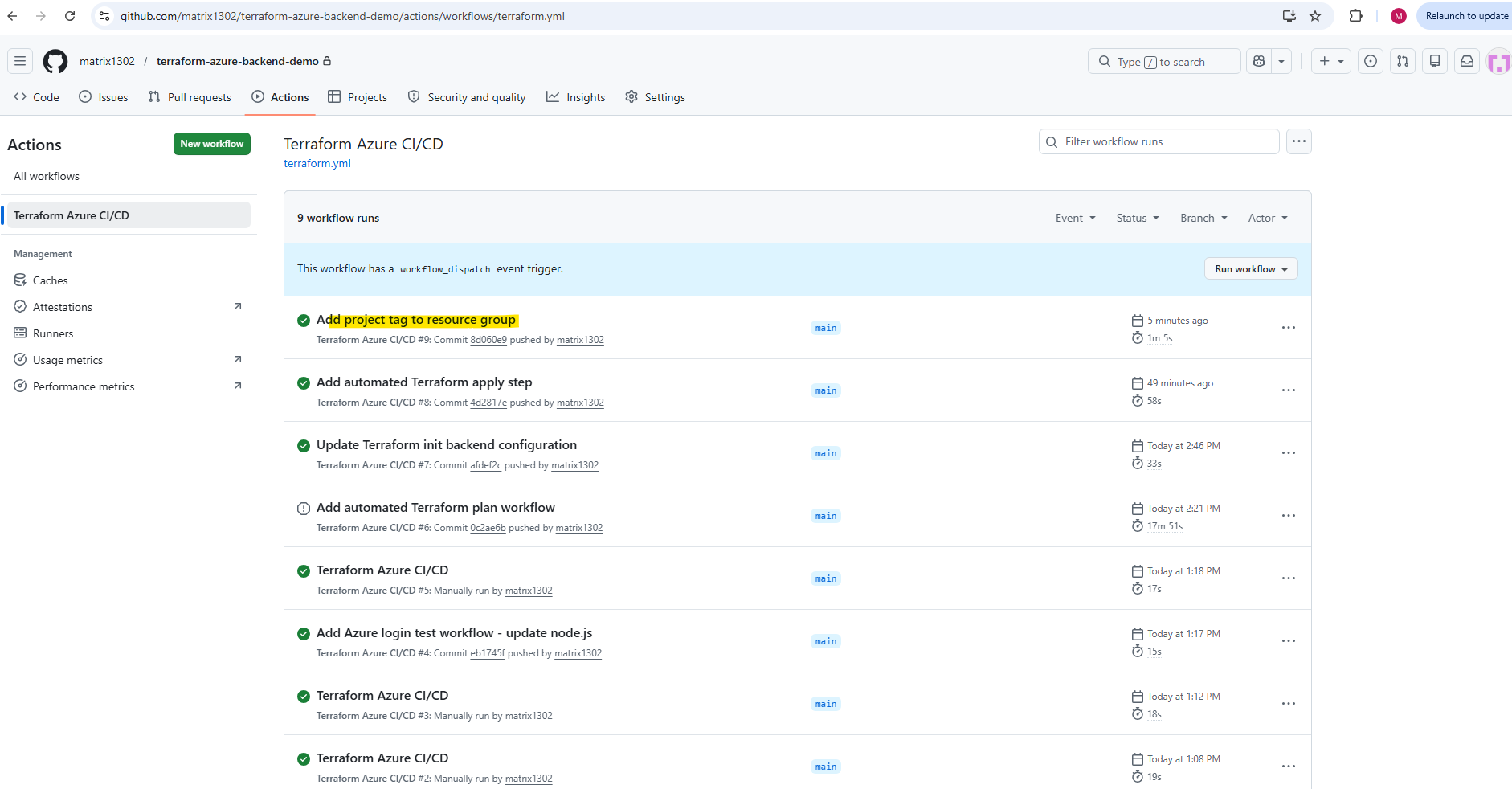
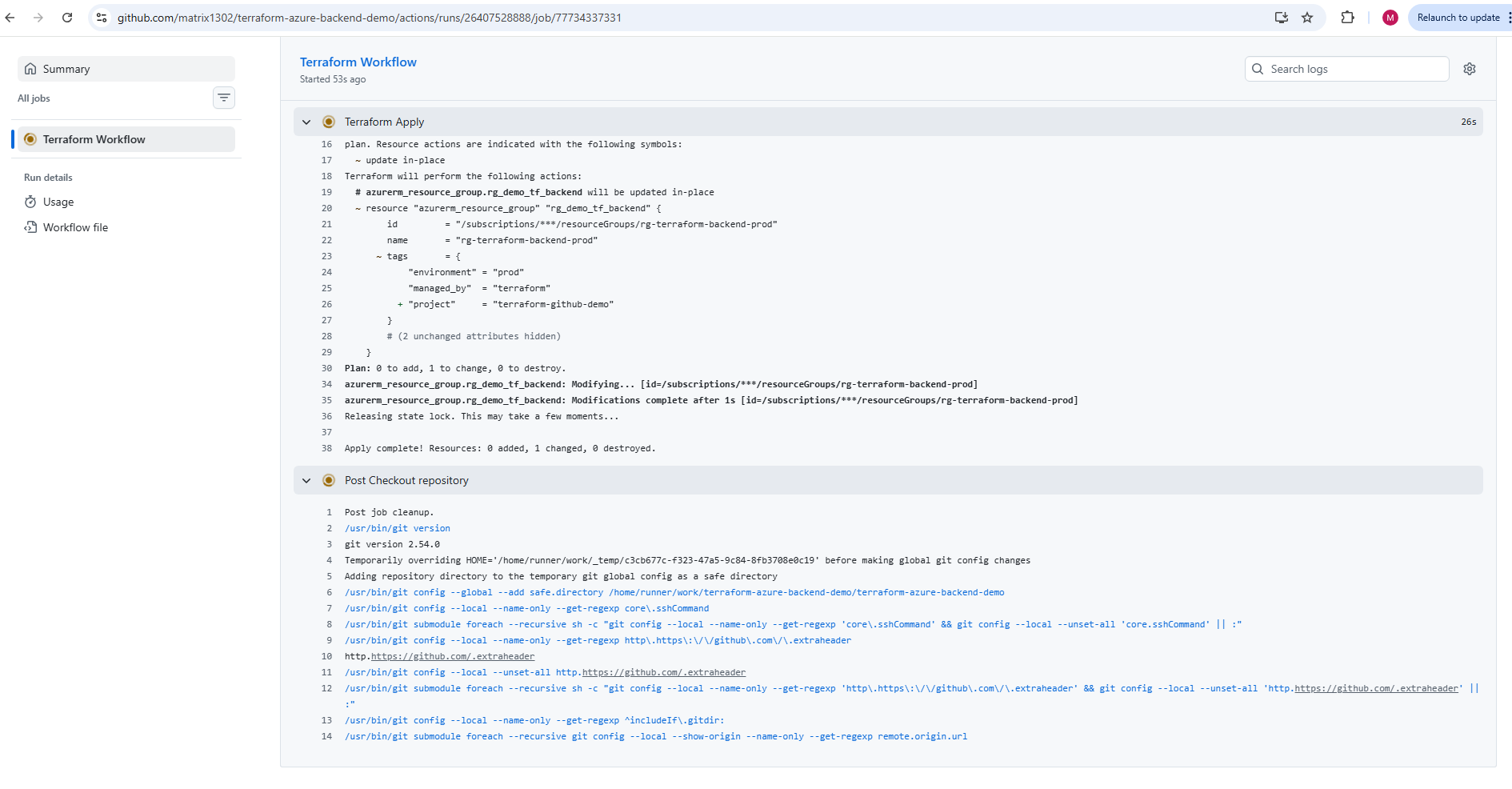
Once the workflow starts again, Terraform should now detect an in-place update for the Azure resource group and automatically apply the modification through the CI/CD pipeline.
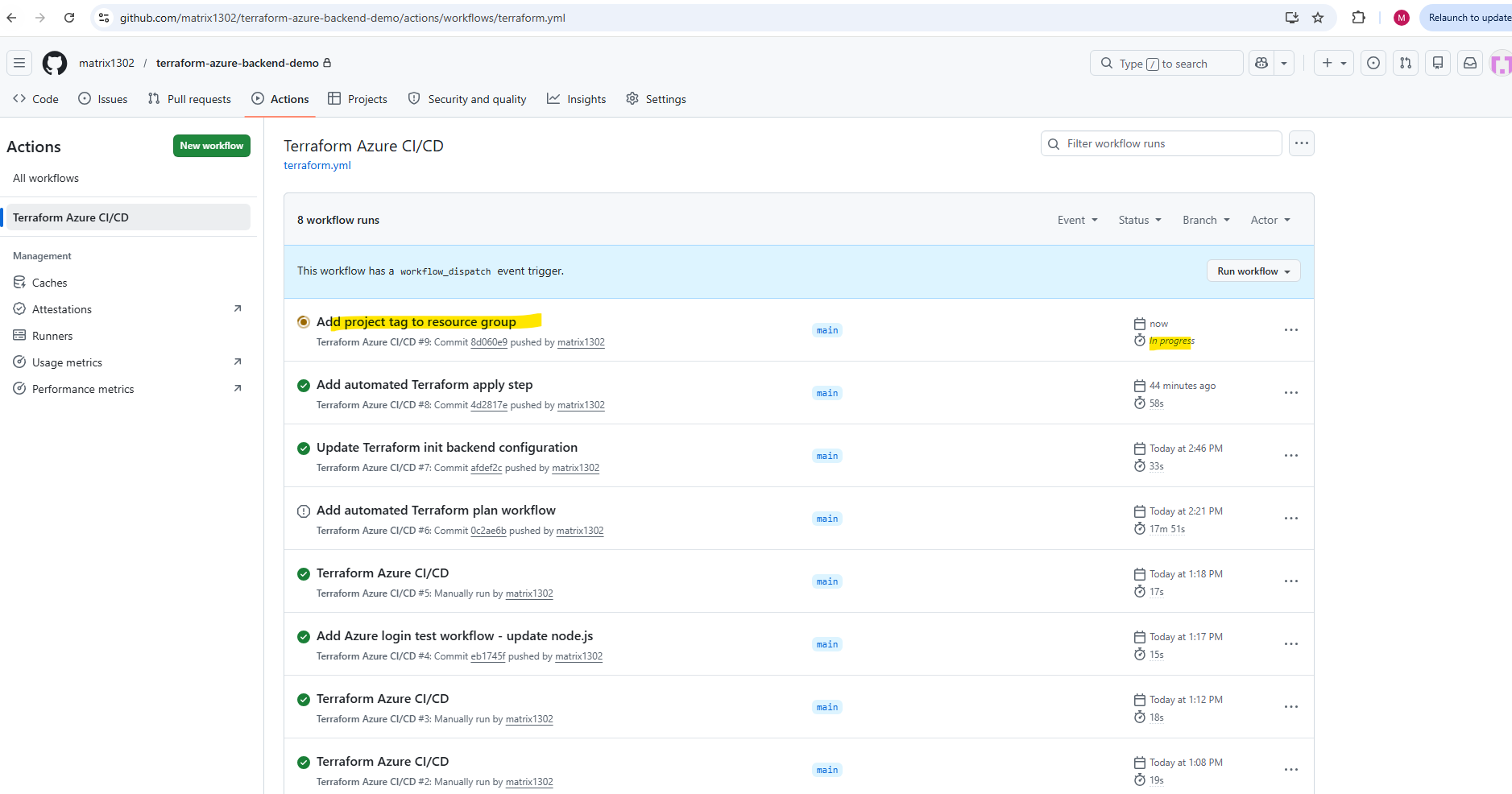
Terraform detected that the existing Azure resource group configuration differs from the current Infrastructure as Code definition and therefore performed an in-place update by adding the new project tag. No resources were recreated or destroyed; instead, the existing resource group was modified directly within Azure through the automated GitHub Actions deployment pipeline.
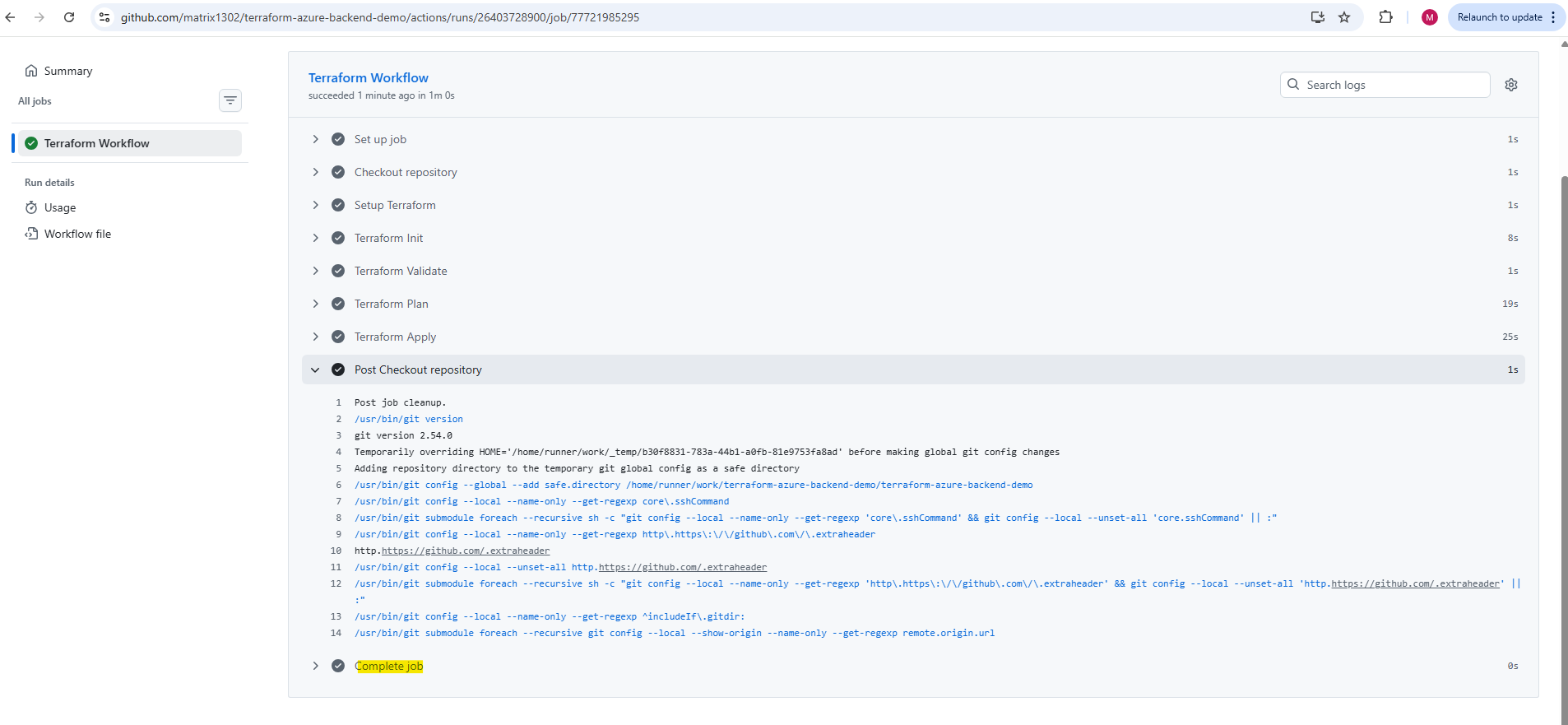
The final output confirms that Terraform successfully applied the configuration change and synchronized the Azure infrastructure with the updated Terraform configuration.
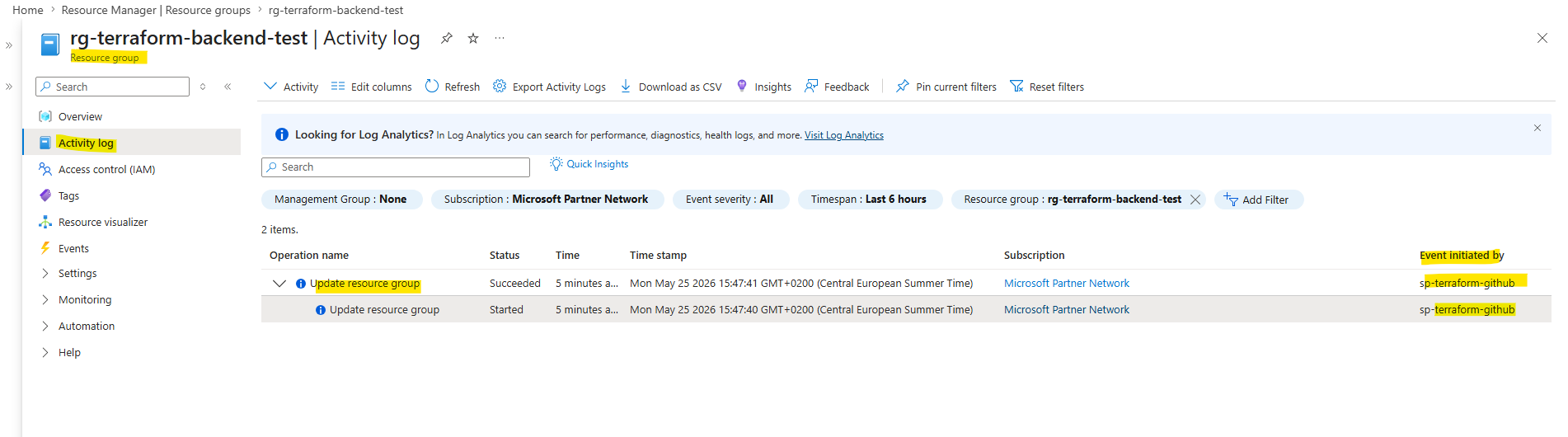
This time, new entries appear inside the Azure Activity Log because Azure resources are now actually being modified by the Terraform deployment workflow.
Environment-Specific CI/CD Deployments
So far, our GitHub Actions workflow deploys only one environment by using the fixed test.tfvars variable file and the fixed test.terraform.tfstate backend state file.
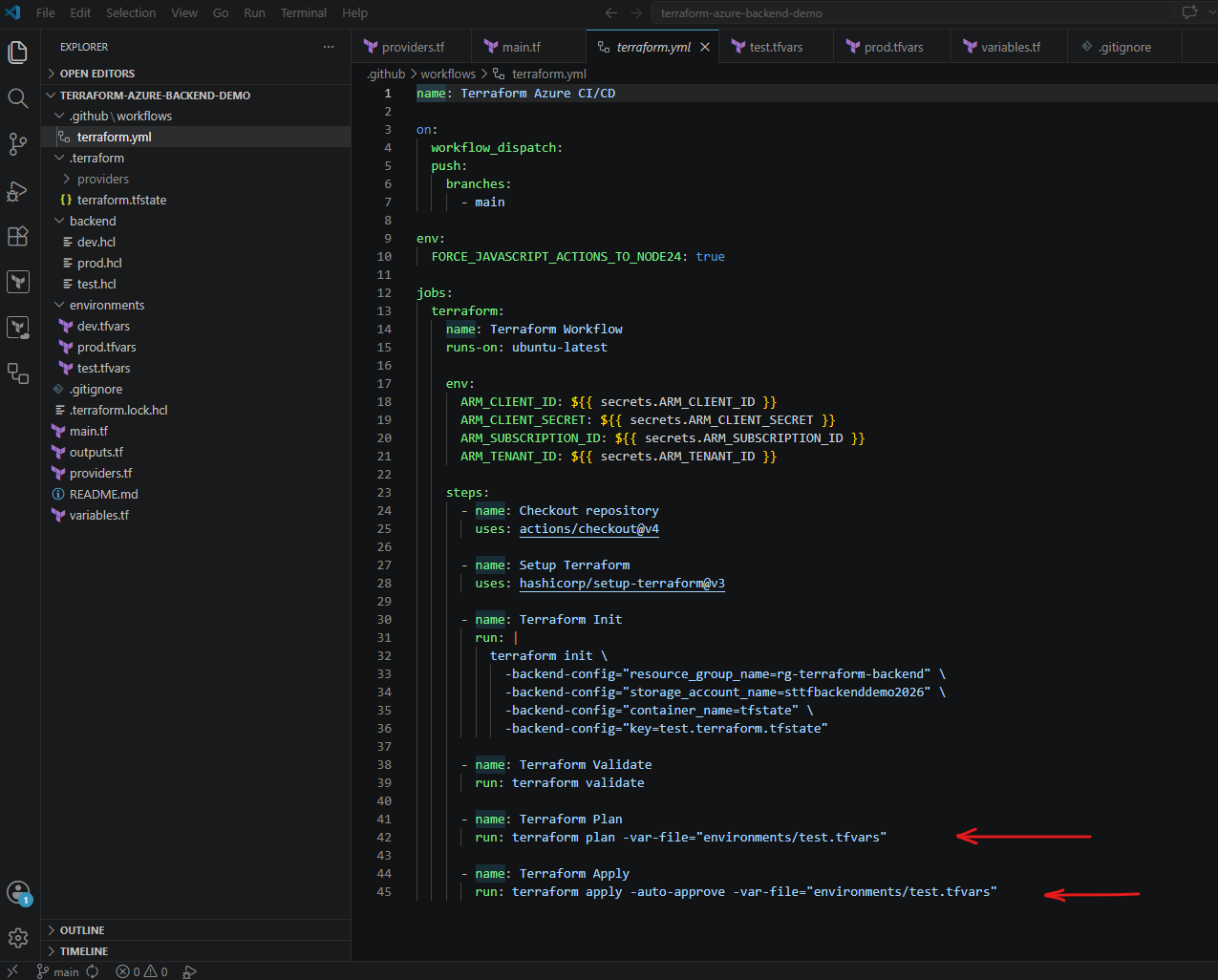
In real-world Terraform projects, however, we usually do not want to edit the workflow file manually whenever we deploy to another environment. Instead, the deployment environment should be selected automatically based on the Git branch.
In this example, we use the following branch-to-environment mapping:
develop branch → dev environment  → dev.tfvars  → dev.terraform.tfstate
test branch    → test environment → test.tfvars → test.terraform.tfstate
main branch    → prod environment → prod.tfvars → prod.terraform.tfstate
This allows the same Terraform configuration to deploy isolated Azure environments while still keeping separate configuration values and separate remote state files per environment.
The additional environment variable files like the test.tfvars file we also already created in Part 2 and can use them.
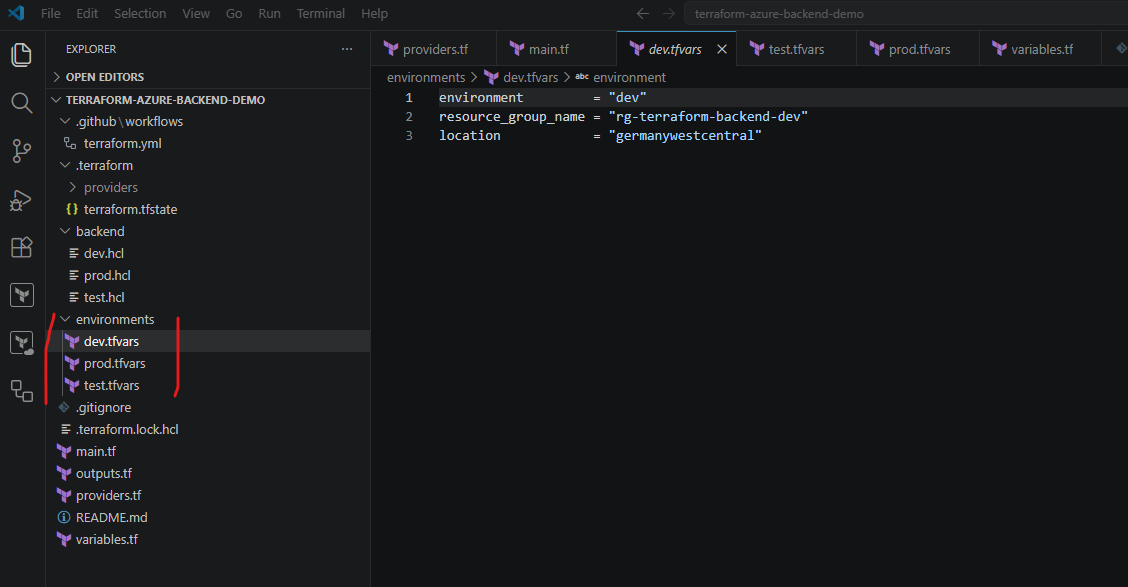
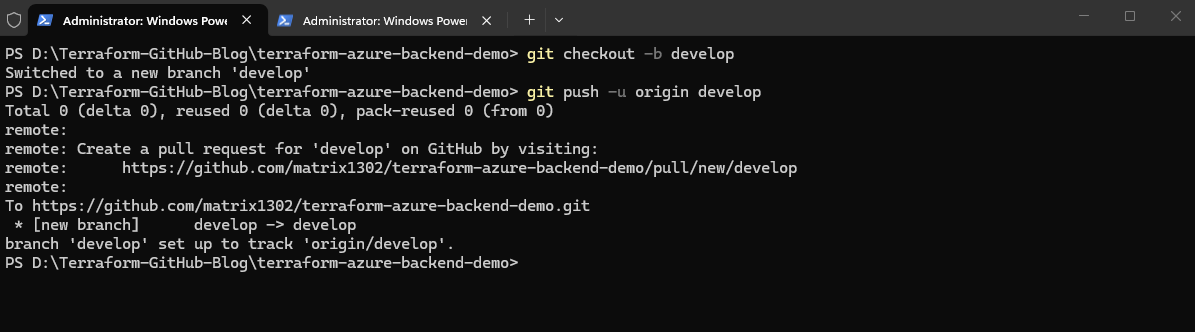
Next, we create the additional Git branches that represent our environments:
This creates a new local Git branch named
develop, switches the working directory to that branch, and then publishes the branch to the remote GitHub repository. The-uparameter creates an upstream tracking relationship between the local and remote branch.
PS> git checkout -b develop
PS> git push -u origin develop
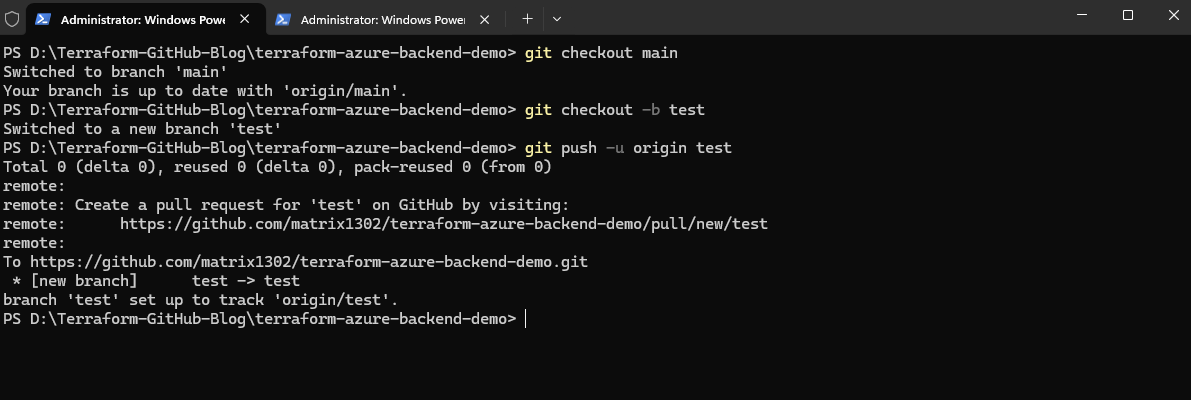
These commands first switch back to the main branch and then create a second branch named test, which is also published to GitHub.
Finally, we switch the local repository back to the main branch, which in this example later represents the production environment. Switching back to main before creating additional environment branches ensures that new branches are created from the same stable baseline and initially contain the same repository state and commit history as the main branch.
PS> git checkout main
PS> git checkout -b test
PS> git push -u origin test
Finally, the repository is switched back to the main branch, which in this example later represents the production environment.
PS> git checkout main

By running the command below we can see the currently active branch:
PS> git branch
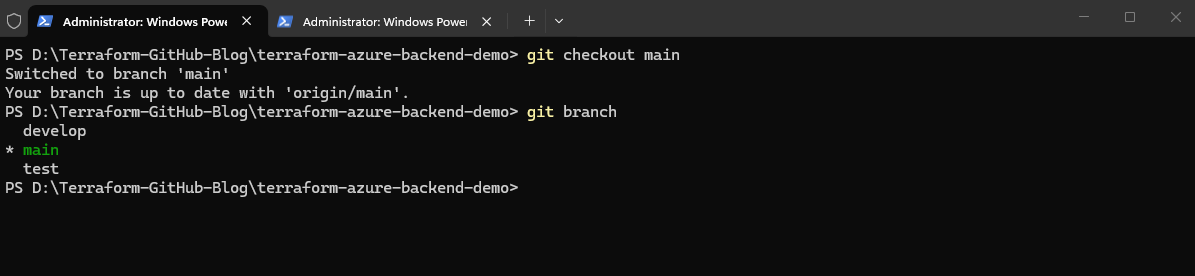
Now we update the GitHub Actions workflow so that it reacts to all three branches and automatically maps the current branch to the matching Terraform environment.
name: Terraform Azure CI/CD

on:
  workflow_dispatch:
  push:
    branches:
      - develop
      - test
      - main

env:
  FORCE_JAVASCRIPT_ACTIONS_TO_NODE24: true

jobs:
  terraform:
    name: Terraform Workflow
    runs-on: ubuntu-latest

    env:
      ARM_CLIENT_ID: ${{ secrets.ARM_CLIENT_ID }}
      ARM_CLIENT_SECRET: ${{ secrets.ARM_CLIENT_SECRET }}
      ARM_SUBSCRIPTION_ID: ${{ secrets.ARM_SUBSCRIPTION_ID }}
      ARM_TENANT_ID: ${{ secrets.ARM_TENANT_ID }}

    steps:
      - name: Checkout repository
        uses: actions/checkout@v4

      - name: Set Terraform Environment
        run: |
          if [ "${GITHUB_REF_NAME}" = "develop" ]; then
            echo "TF_ENV=dev" >> $GITHUB_ENV
          elif [ "${GITHUB_REF_NAME}" = "test" ]; then
            echo "TF_ENV=test" >> $GITHUB_ENV
          elif [ "${GITHUB_REF_NAME}" = "main" ]; then
            echo "TF_ENV=prod" >> $GITHUB_ENV
          else
            echo "Unsupported branch: ${GITHUB_REF_NAME}"
            exit 1
          fi

      - name: Setup Terraform
        uses: hashicorp/setup-terraform@v3

      - name: Terraform Init
        run: |
          terraform init \
            -backend-config=resource_group_name="rg-terraform-backend" \
            -backend-config=storage_account_name="sttfbackenddemo2026" \
            -backend-config=container_name="tfstate" \
            -backend-config=key="${TF_ENV}.terraform.tfstate"

      - name: Terraform Validate
        run: terraform validate

      - name: Terraform Plan
        run: terraform plan -var-file="environments/${TF_ENV}.tfvars"

      - name: Terraform Apply
        run: terraform apply -auto-approve -var-file="environments/${TF_ENV}.tfvars"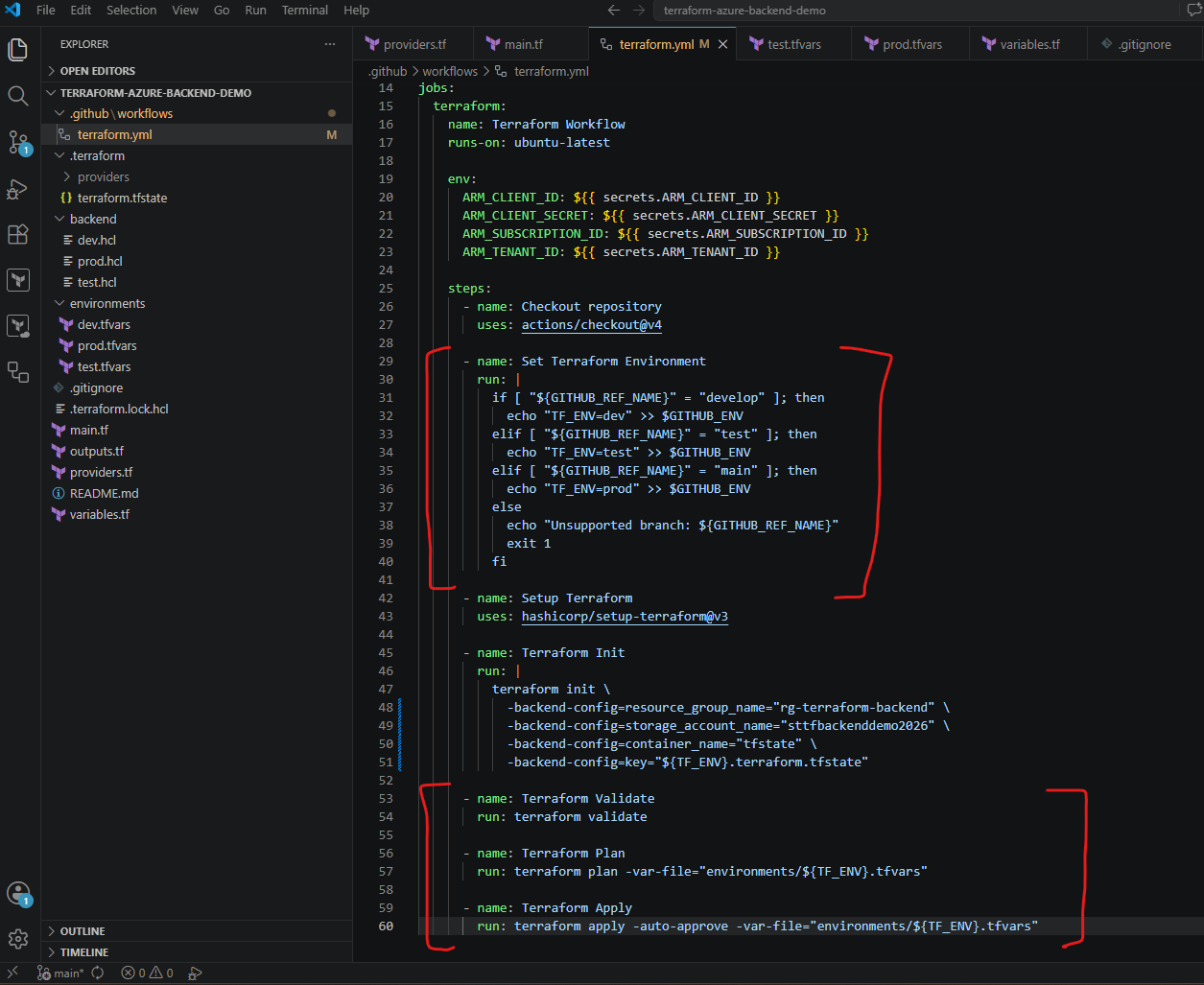
With this workflow, the Terraform environment is no longer hardcoded. GitHub Actions detects the branch name, sets the matching TF_ENV value, uses the correct .tfvars file, and stores the Terraform state in a separate backend state file.
For example, a push to the develop branch deploys the development environment using dev.tfvars and dev.terraform.tfstate, while a push to the main branch deploys the production environment using prod.tfvars and prod.terraform.tfstate.
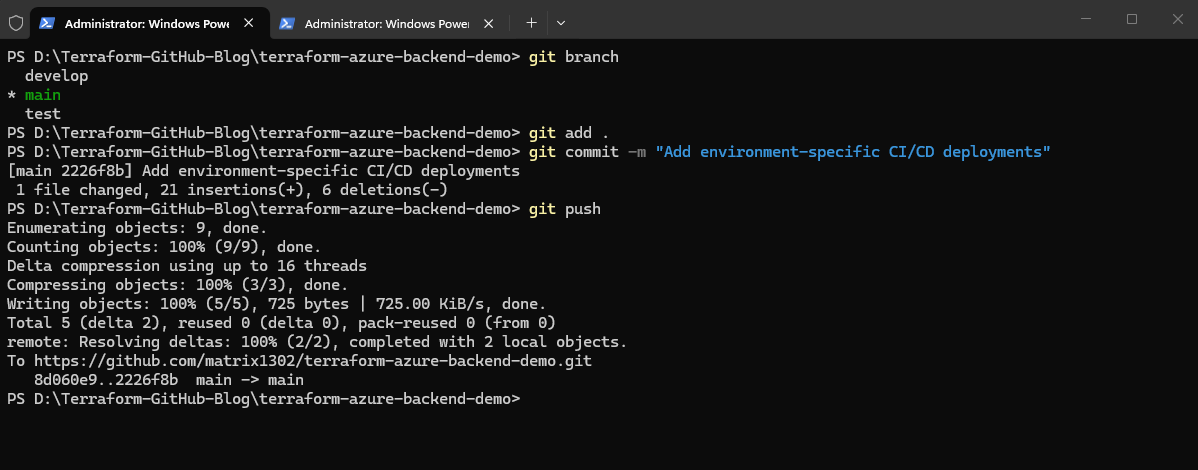
After updating the Terraform configuration and GitHub Actions workflow, the changes must also be available in all environment branches. Because each branch represents its own deployment environment, the latest workflow and Terraform changes need to be merged into the develop and test branches as well.
We first commit and push the changes to the main branch:
PS> git branch
PS> git add .
PS> git commit -m "Add environment-specific CI/CD deployments"
PS>git push
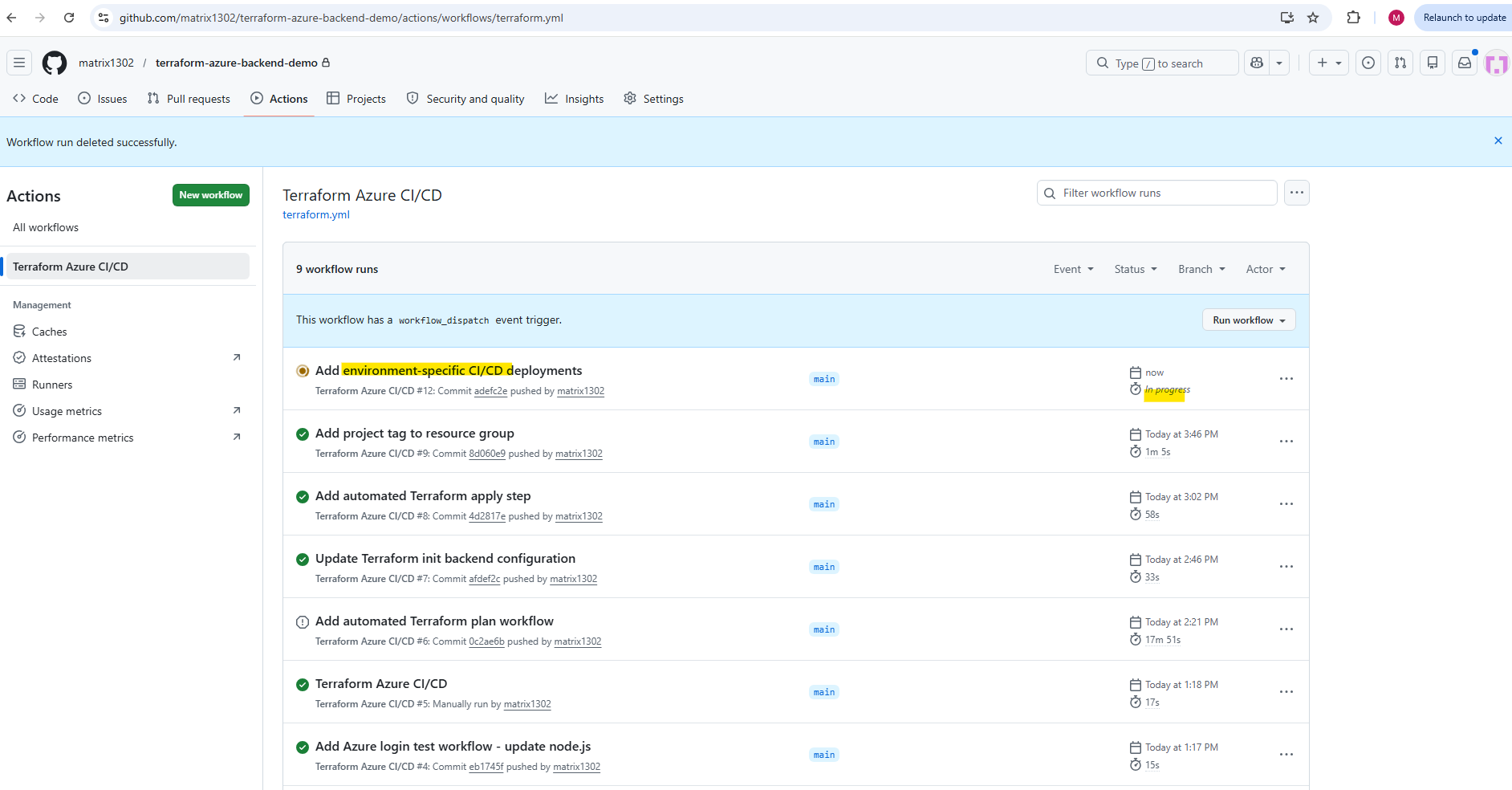
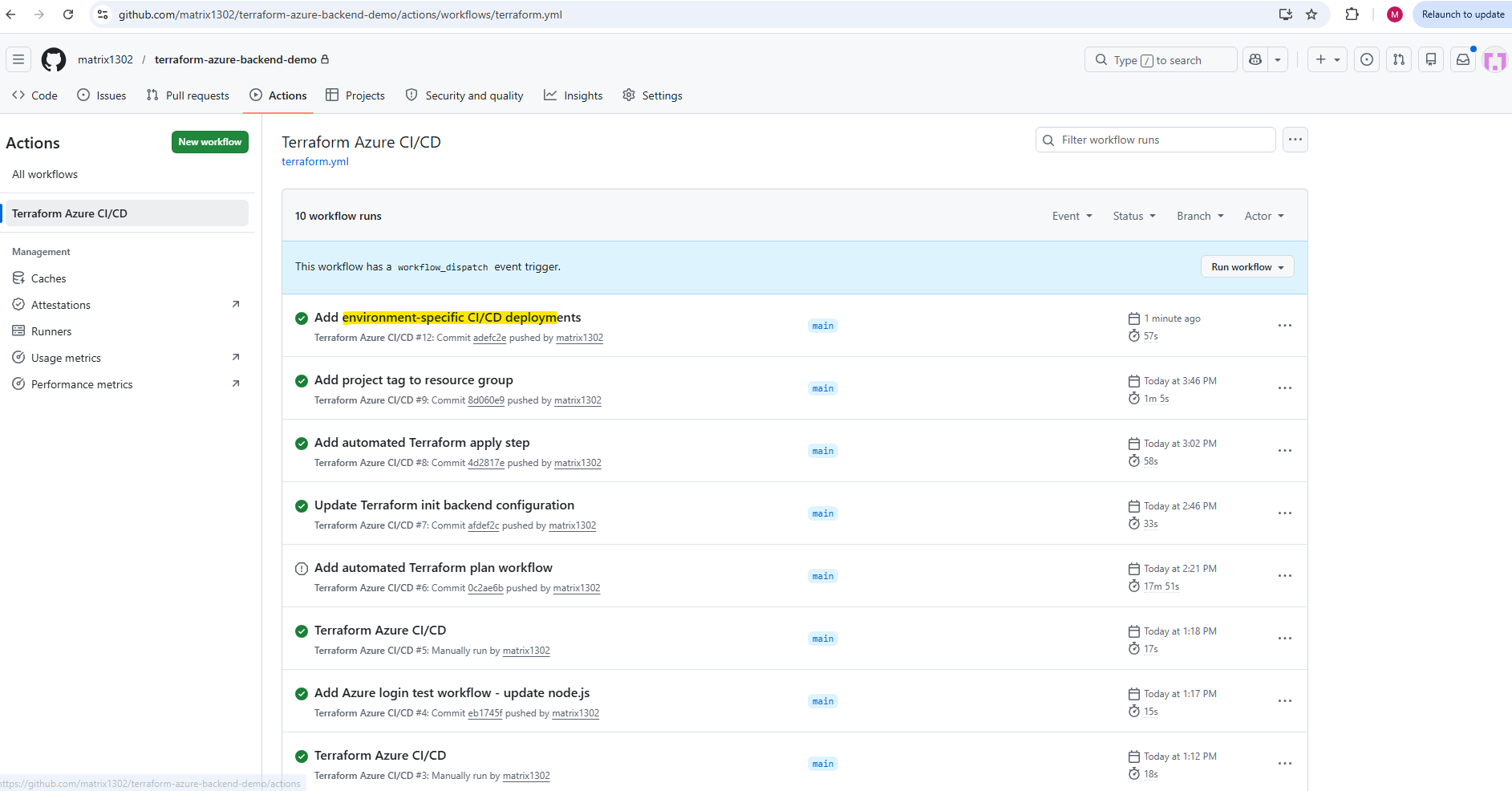
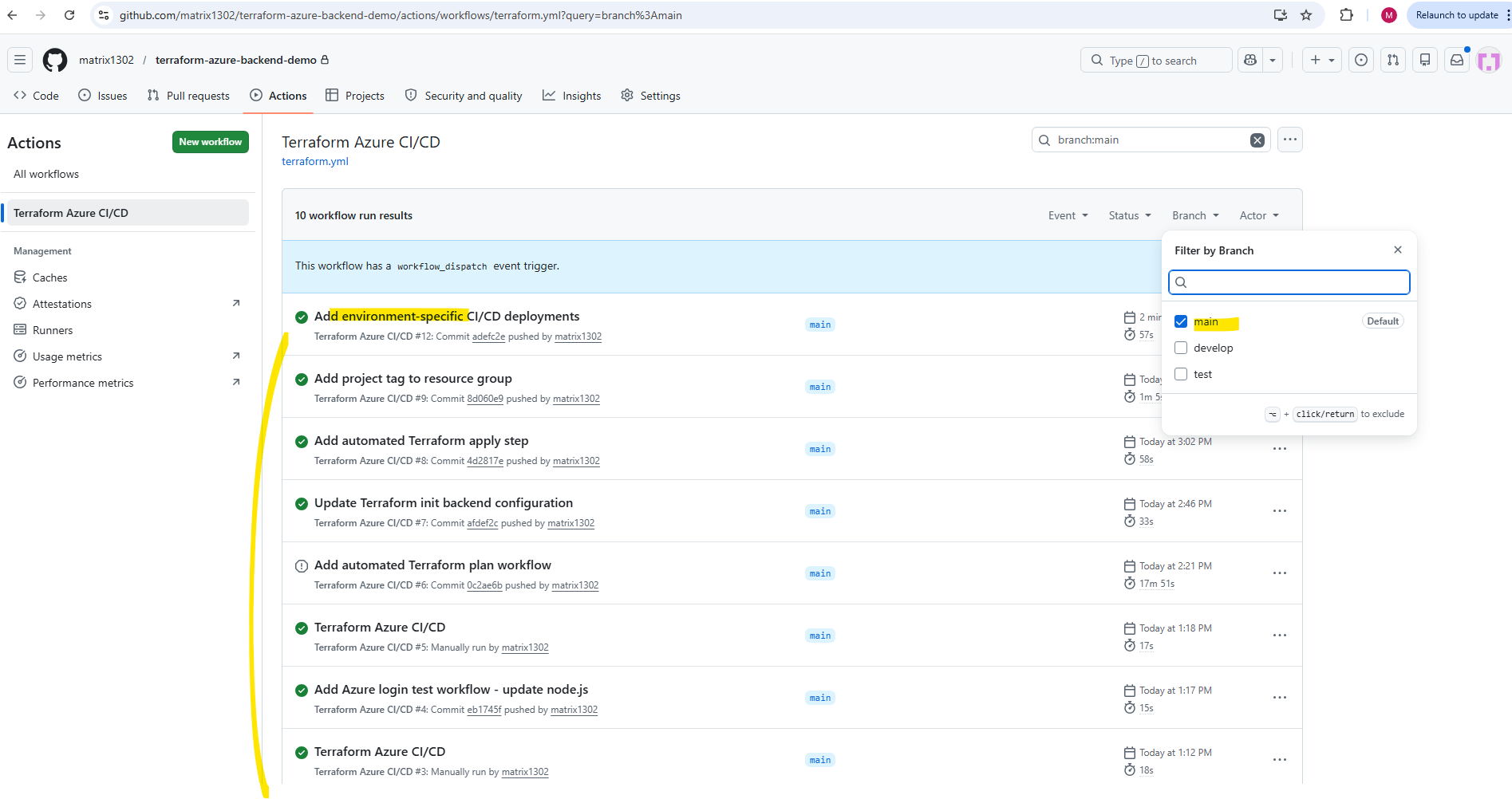
Inside the GitHub Actions interface, the main branch is marked as the default branch and therefore already shows the executed workflow runs.
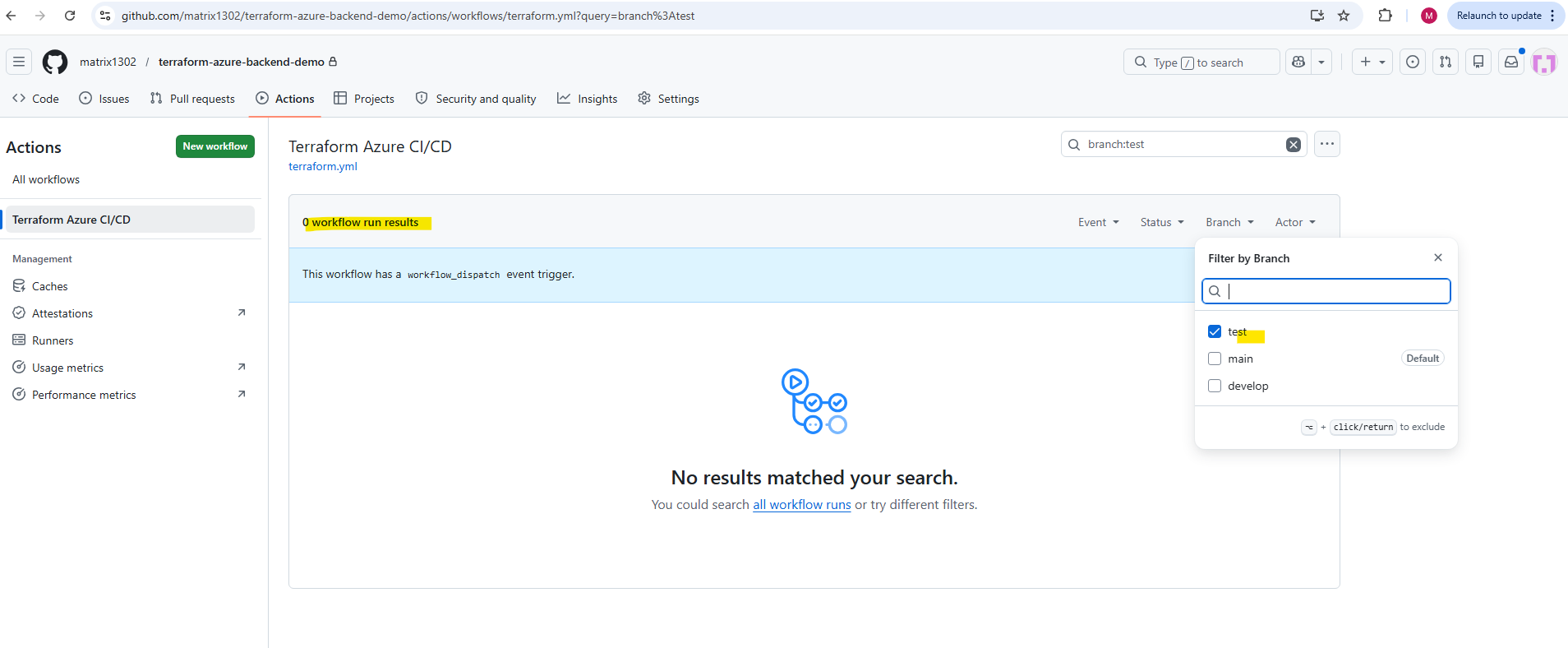
When selecting the develop or test branches instead, GitHub may initially display 0 workflow runs until the first commit or workflow-triggering push has been executed on those branches.
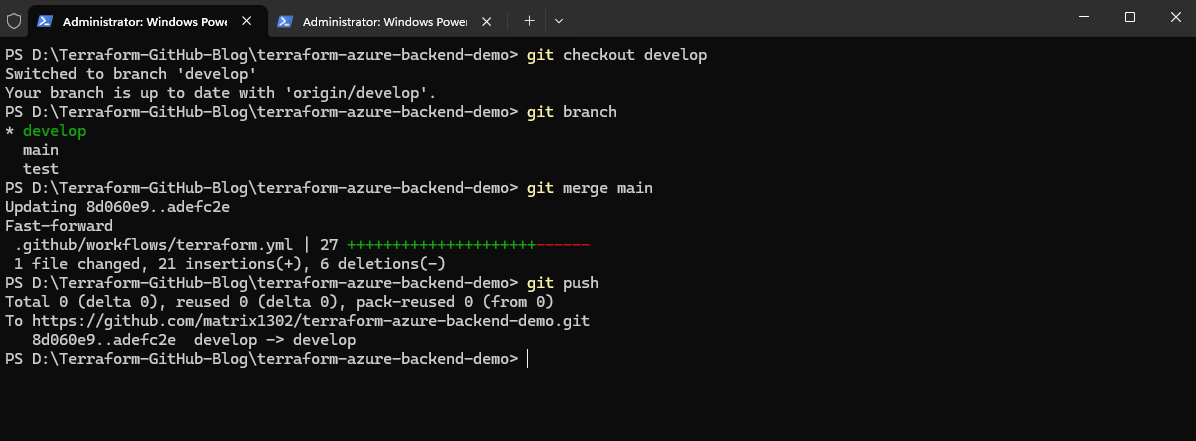
Next, the latest changes from main are merged into the develop branch and published to GitHub:
PS> git checkout develop
PS> git merge main
PS> git push
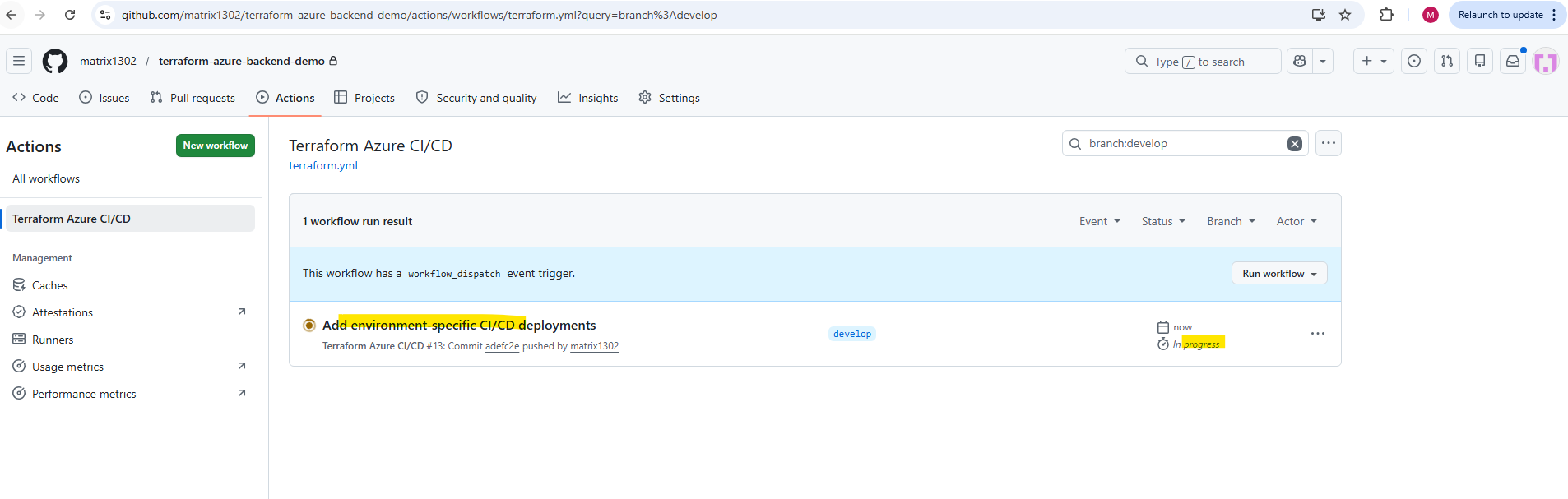
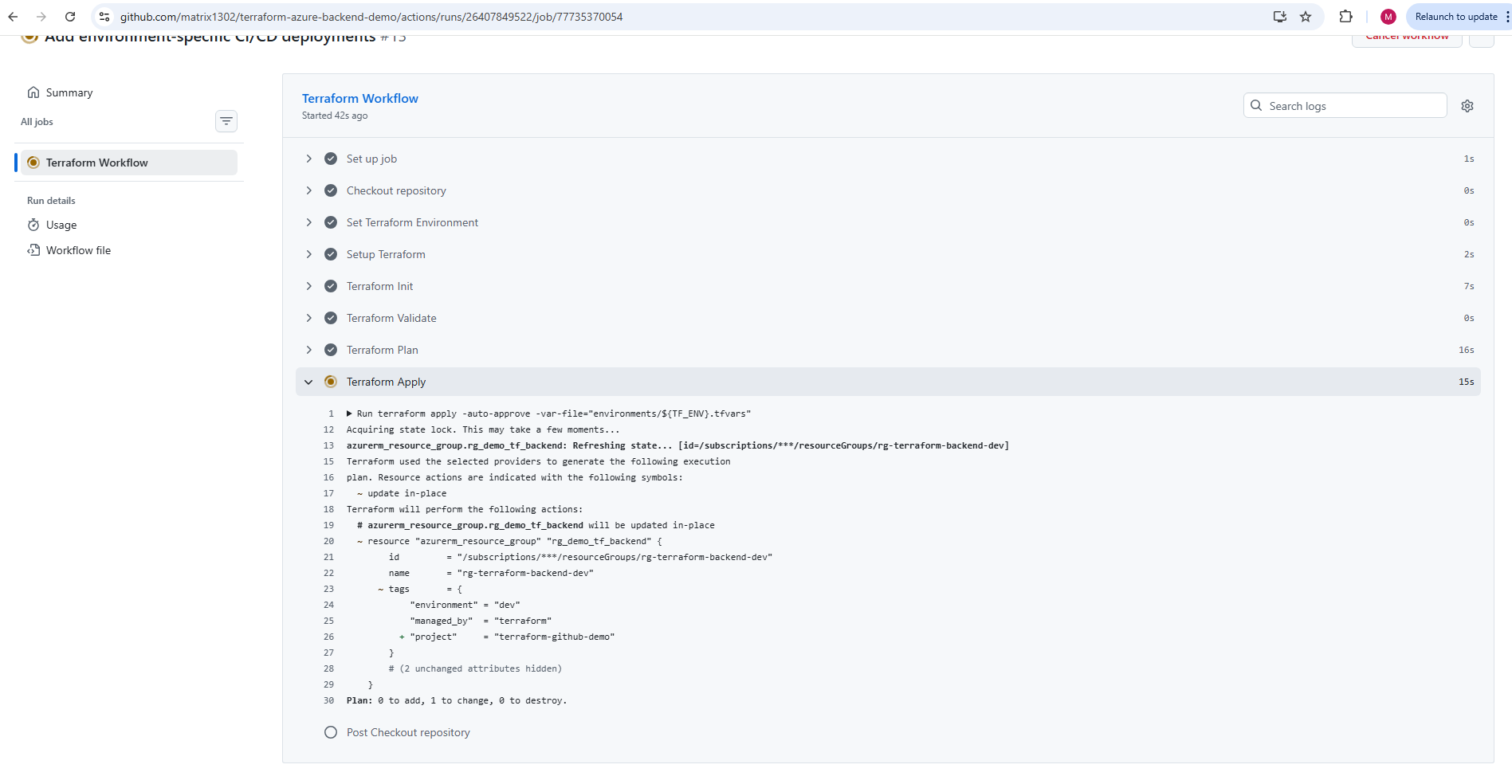
To monitor the workflow switch to the develop branch in the GitHub Actions interface.
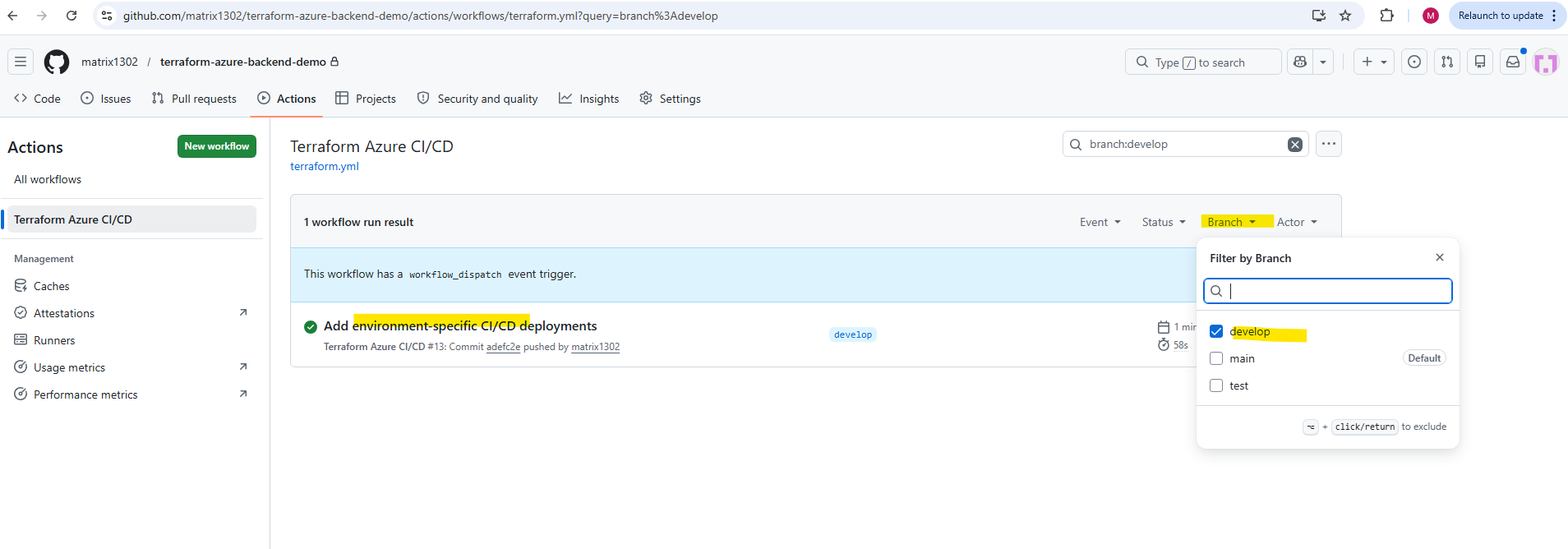
Afterwards, we repeat the same process for the test branch:
PS> git checkout test
PS> git merge main
PS> git push
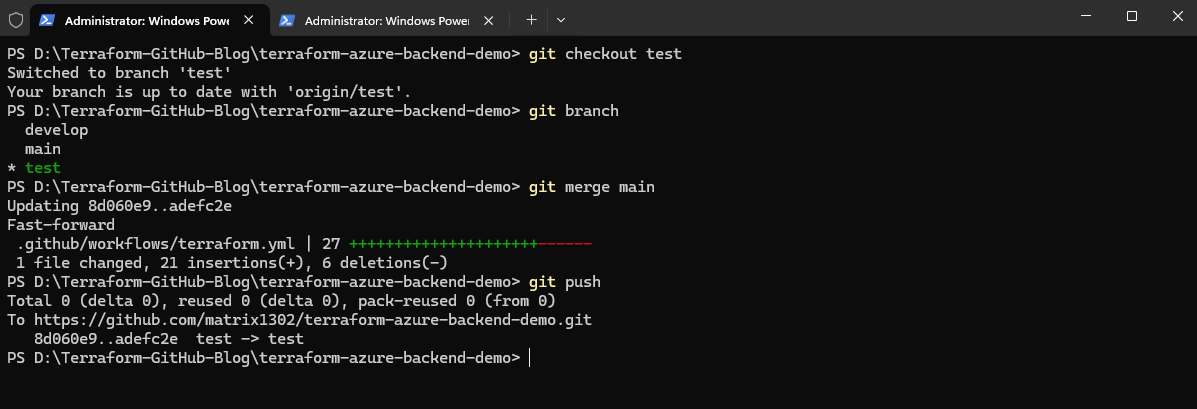
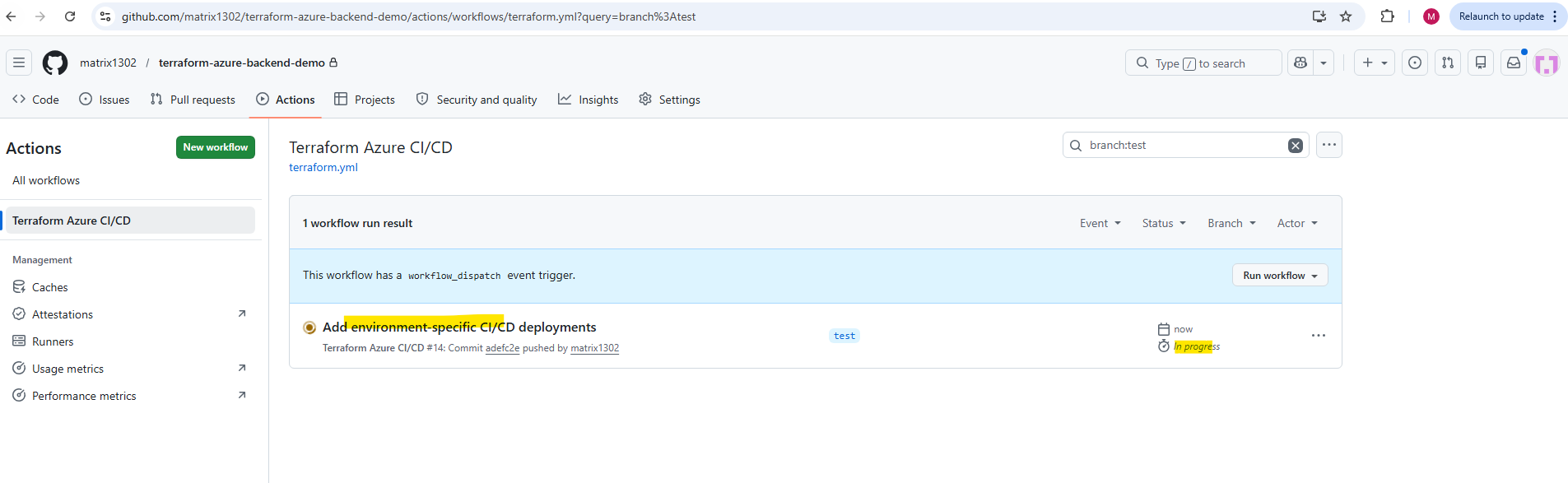
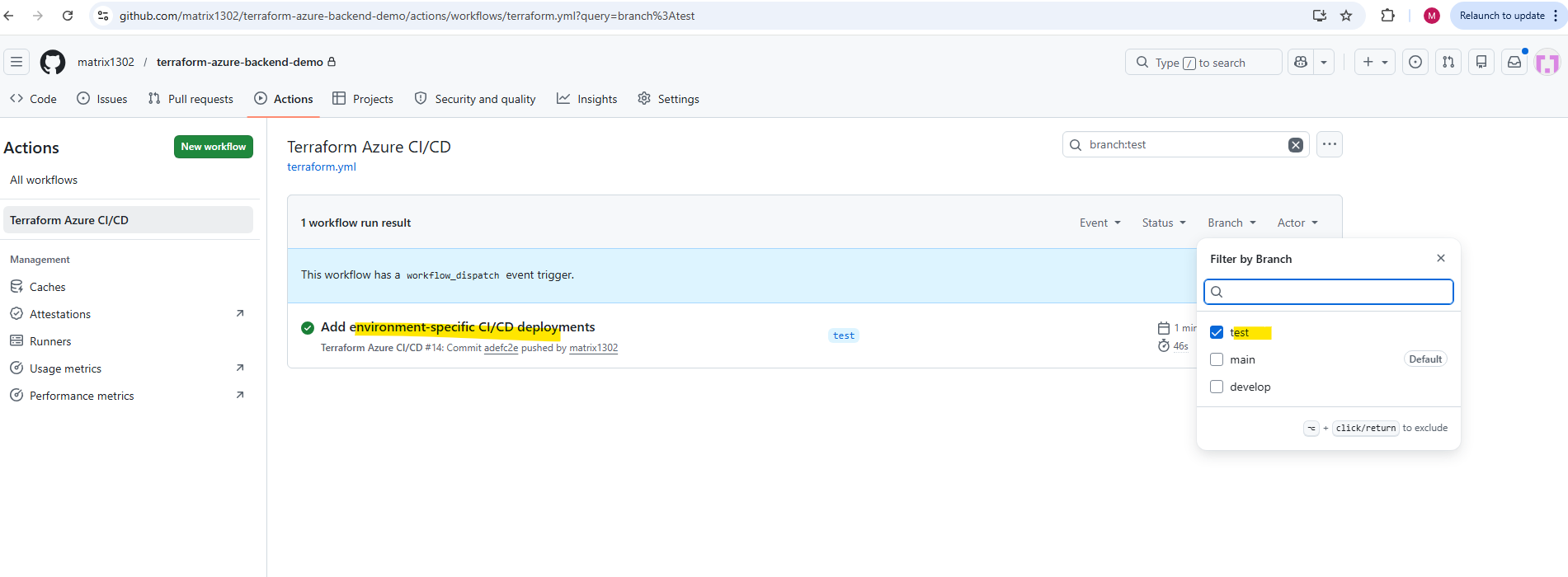
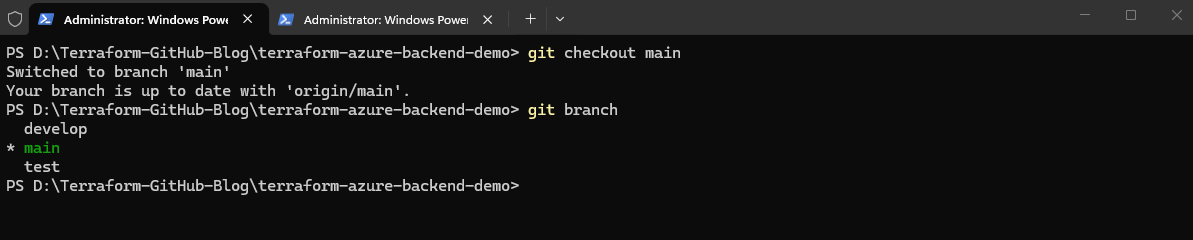
Finally, we switch back to the main branch:
PS> git checkout main
PS> git branch
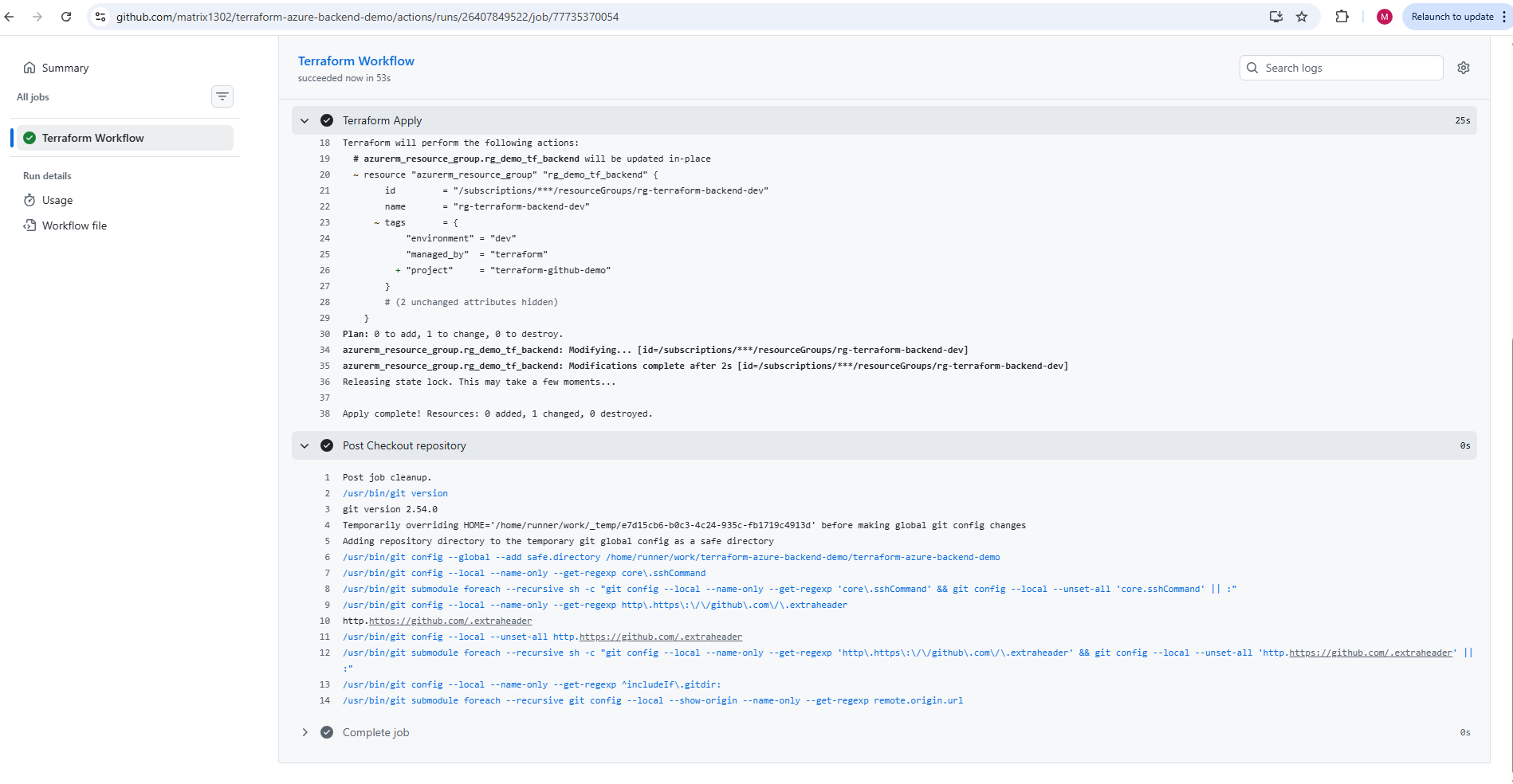
Once the updated branches are pushed, GitHub Actions automatically starts the corresponding environment-specific deployment workflows.
Each branch now deploys its own isolated Azure environment while still sharing the same Terraform codebase and GitHub Actions workflow configuration.
In real-world CI/CD environments, infrastructure changes are typically not deployed directly to production first. Instead, Terraform configuration changes are usually tested progressively across multiple environments before finally reaching production.
A common workflow is:
develop branch → development environment
test branch    → testing/staging environment
main branch    → production environment
For example, after modifying the main.tf Terraform configuration, the changes are first committed and pushed to the develop branch. This automatically deploys the updated infrastructure to the isolated development environment through the GitHub Actions workflow.
Once the changes are successfully validated in development, the updated branch can later be merged into the test branch for additional validation and finally into the main branch for production deployment.
This staged promotion model helps reduce deployment risks and is commonly used in real-world Infrastructure as Code and CI/CD environments.
Promoting Terraform Changes Across Environments
After implementing environment-specific deployments, infrastructure changes can now be promoted progressively across isolated Azure environments by using Git branches together with GitHub Actions CI/CD workflows.
In a typical real-world workflow, Terraform changes are first deployed to the development environment, then validated and promoted to testing or staging, and finally merged into the production branch for deployment into the production environment. This staged deployment model helps reduce deployment risks and allows infrastructure changes to be validated before reaching production systems.
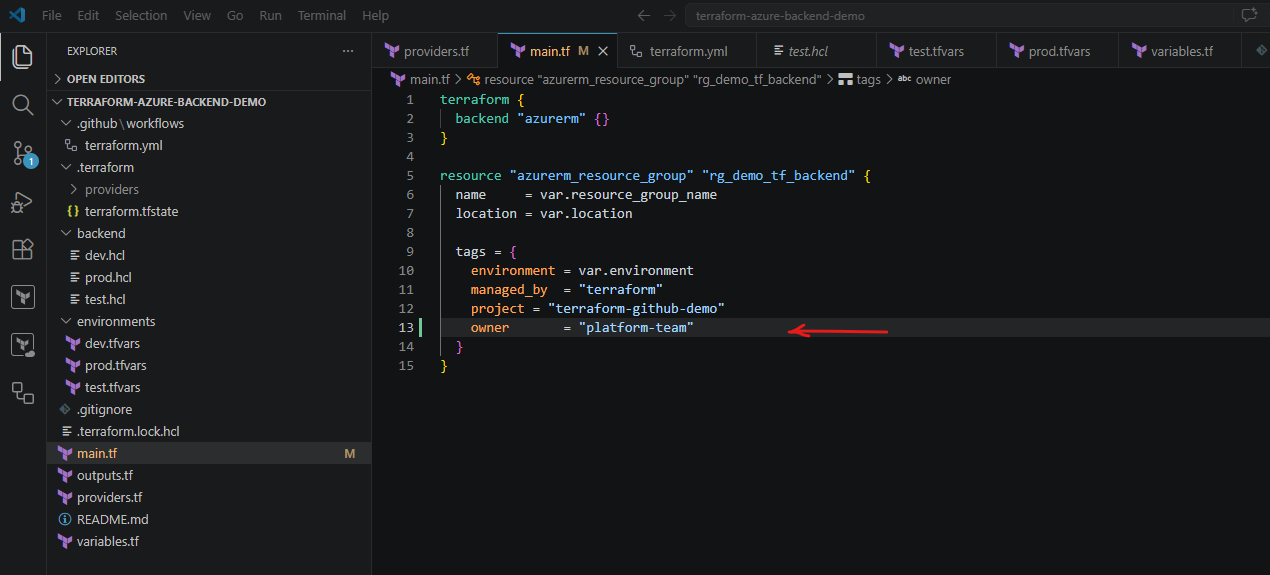
To demonstrate this workflow, we now modify the Terraform configuration again by adding another tag (owner) to the Azure resource group inside the main.tf file:
resource "azurerm_resource_group" "rg_demo_tf_backend" {
  name     = var.resource_group_name
  location = var.location

  tags = {
    environment = var.environment
    managed_by  = "terraform"
    project     = "terraform-github-demo"
    owner       = "platform-team"
  }
}
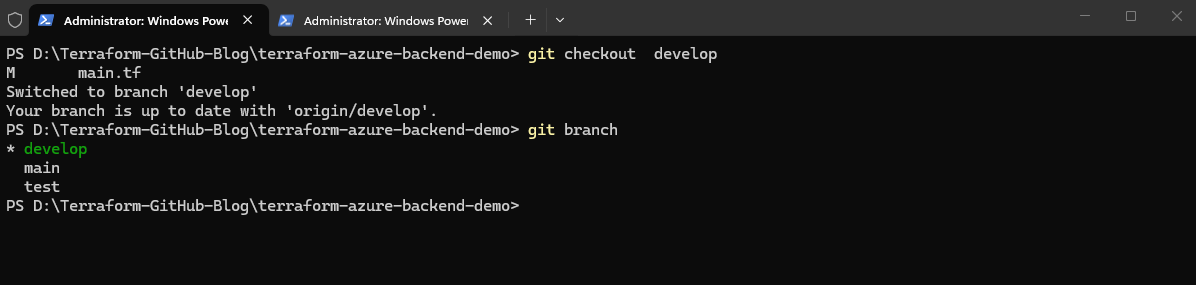
Instead of deploying the change directly to production, we first switch to the develop branch:
PS> git checkout develop

# show the current active branch
PS> git branch
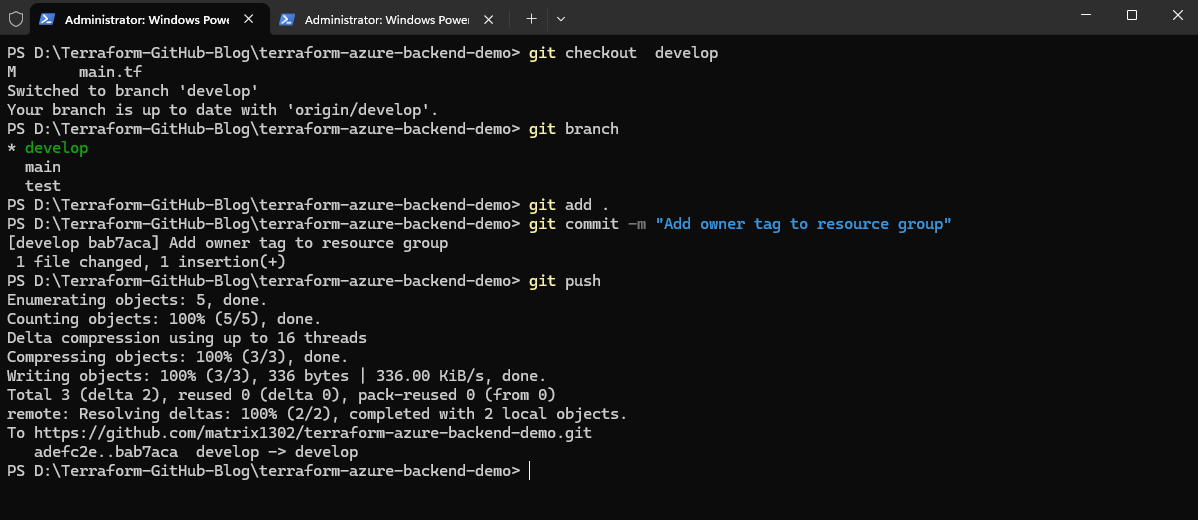
Next, we commit and push the Terraform configuration change to the develop branch:
PS> git add .
PS> git commit -m "Add owner tag to resource group"
PS> git push
Once the changes are pushed, GitHub Actions automatically starts the CI/CD workflow for the develop branch and deploys the updated Terraform configuration to the isolated development environment using:
dev.tfvars
dev.terraform.tfstate
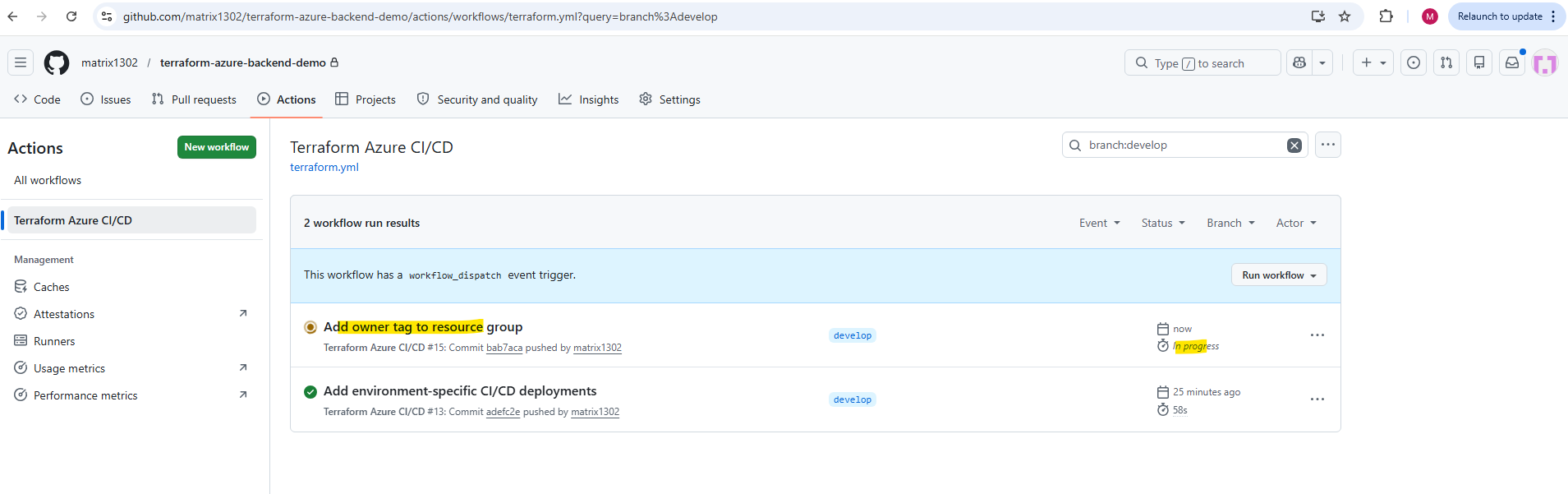
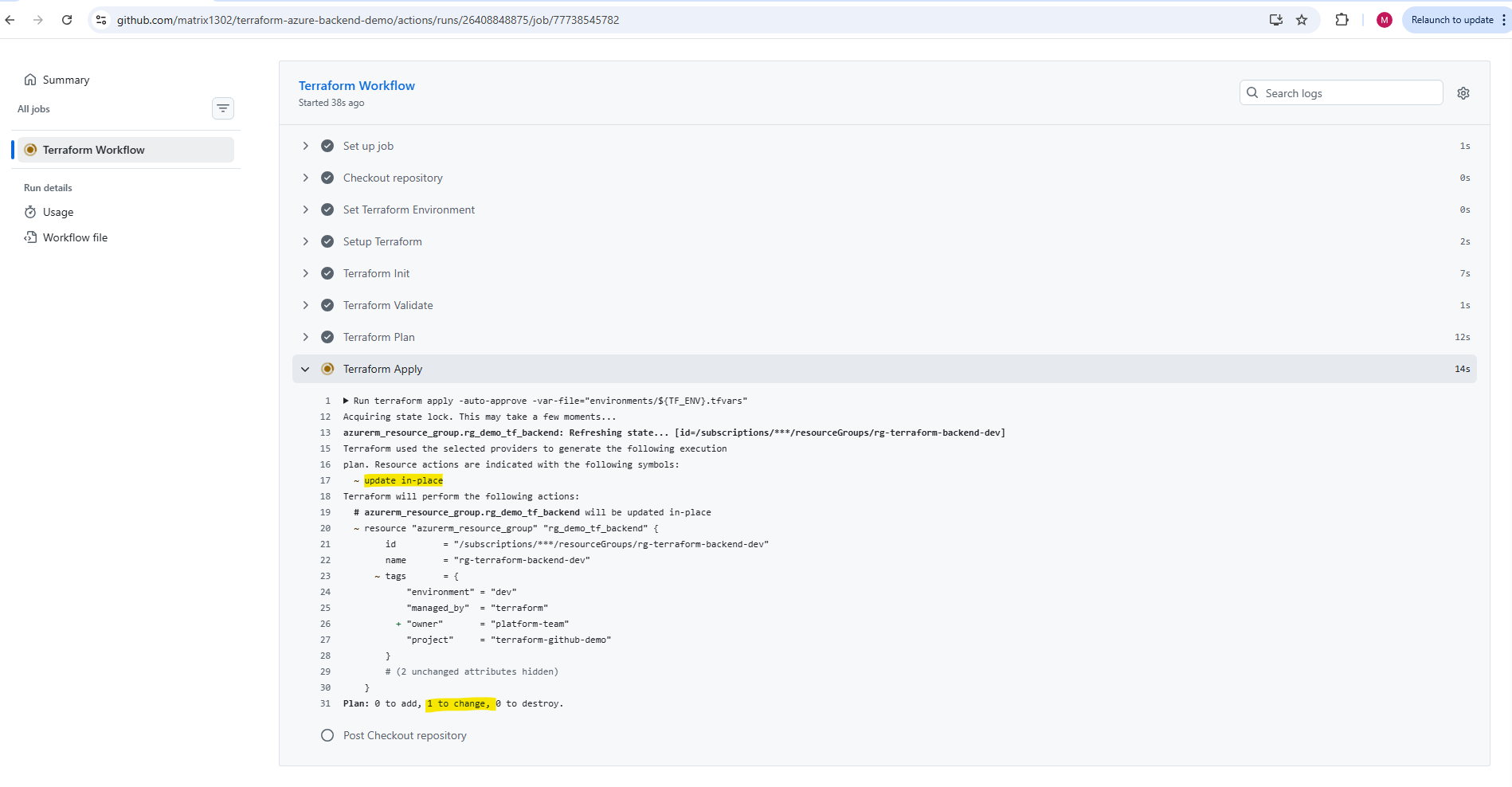
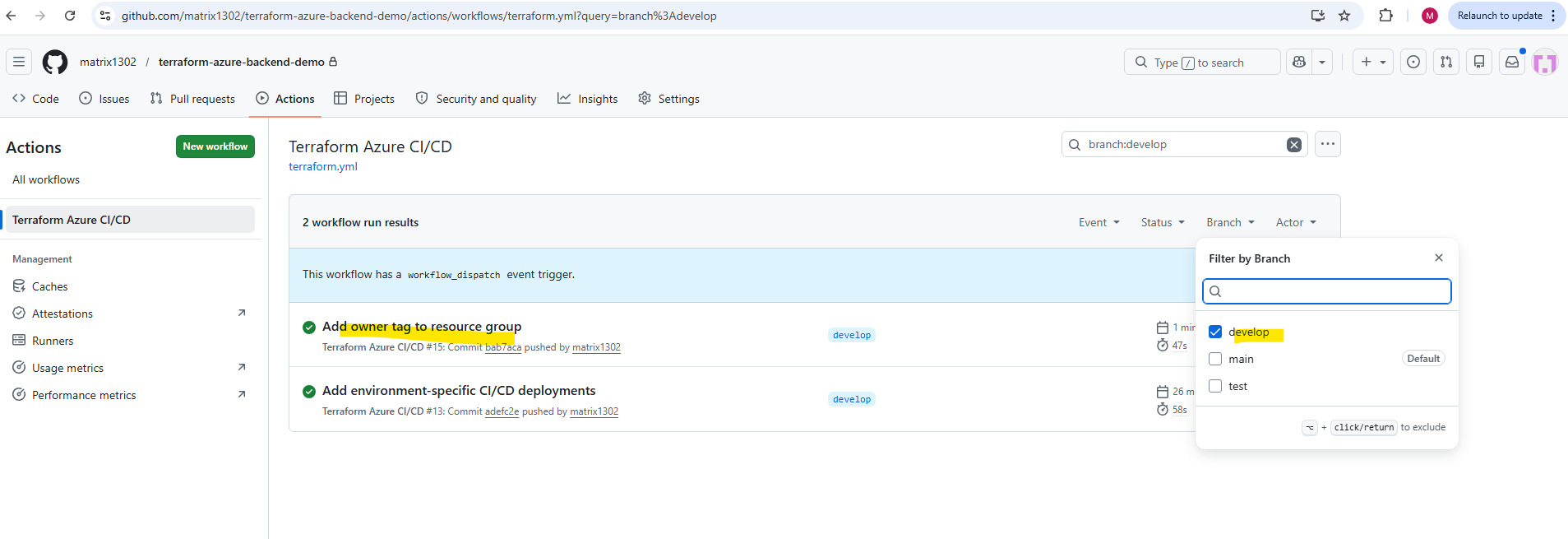
The new owner tag is now visible on the Azure resource group.
This confirms that the infrastructure change was automatically propagated through the CI/CD pipeline from the
developbranch into the corresponding Azure development environment.
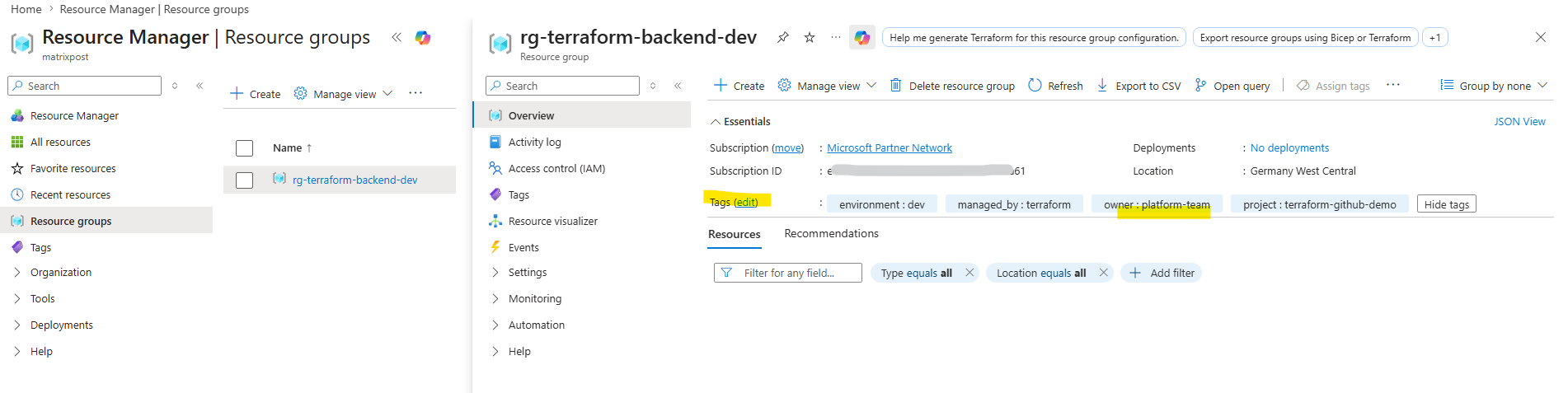
After validating the deployment successfully in the development environment, the changes can later be promoted to the test and finally the main branch for production deployment.
Promoting the Change from Development to Test
In this lab, the new owner tag was first added while working on the develop branch. This means the updated main.tf file exists only in the development branch and was already deployed to the Azure development environment by the GitHub Actions workflow.
Before the test environment can receive the same infrastructure change, the validated change must be promoted from develop into the test branch.
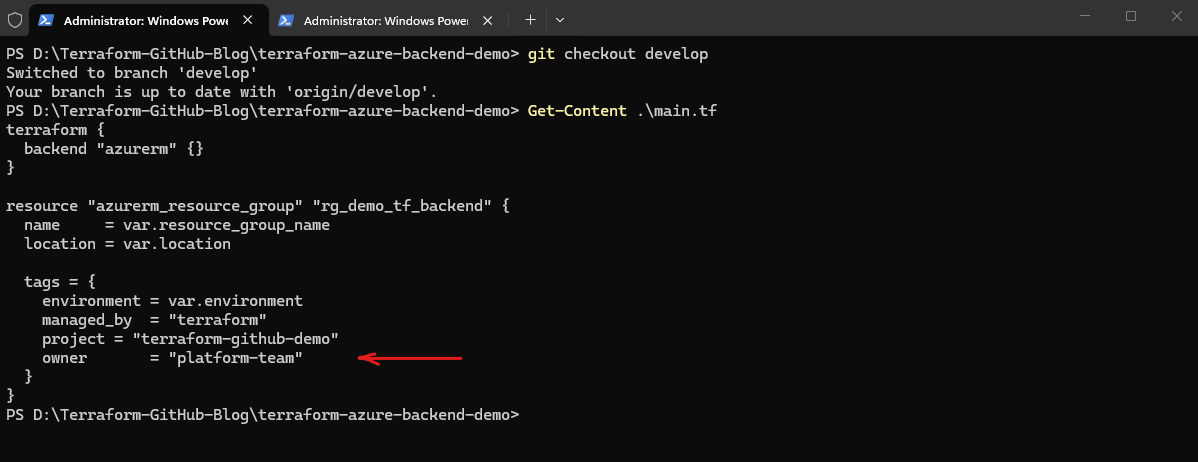
First, make sure the owner tag exists in the develop branch:
The tag block should now contain the additional
ownertag:
PS> git checkout develop
PS> Get-Content .\main.tf
When switching between Git branches, Visual Studio Code automatically reloads the working directory and displays the file versions stored in the currently active branch. Therefore, the same file such as main.tf can contain different content depending on which Git branch is currently selected.
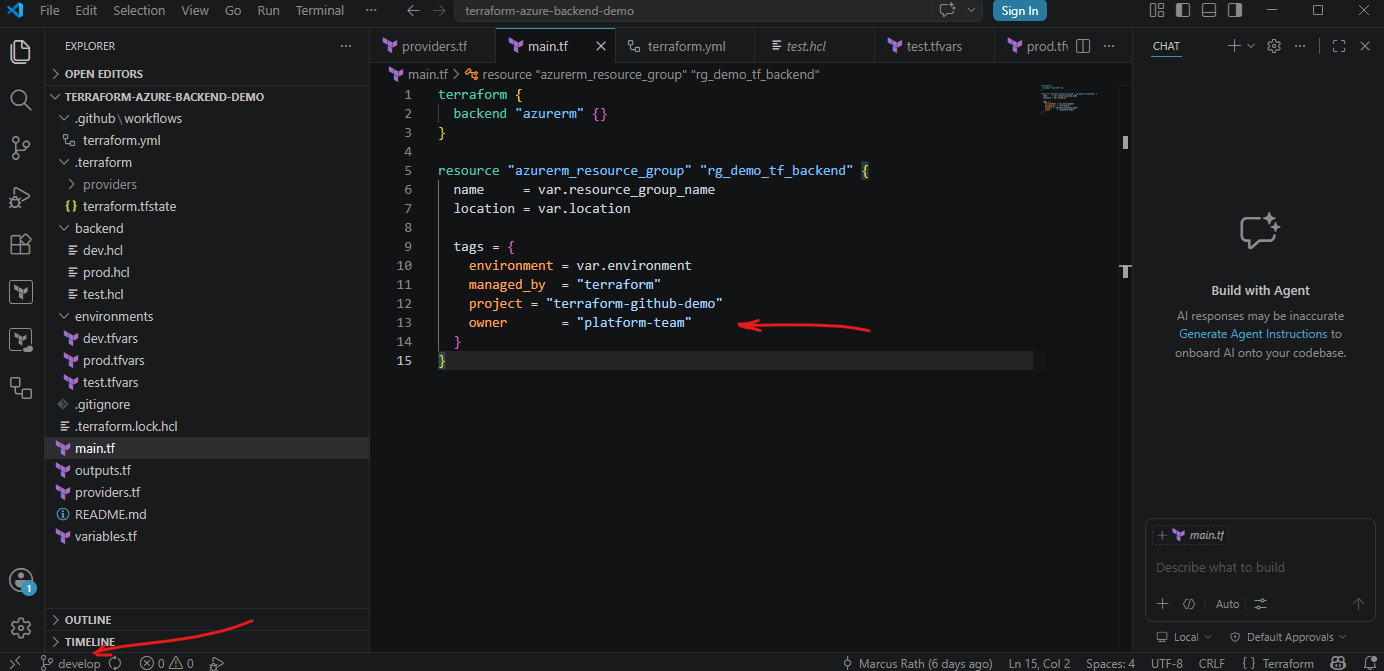
Next, switch to the test branch:
PS> git checkout test

After switching to the test branch, the owner tag is not yet visible inside the main.tf file because the change currently exists only in the develop branch. This demonstrates how each Git branch can contain different versions of the same Terraform configuration files until the changes are merged between the branches.
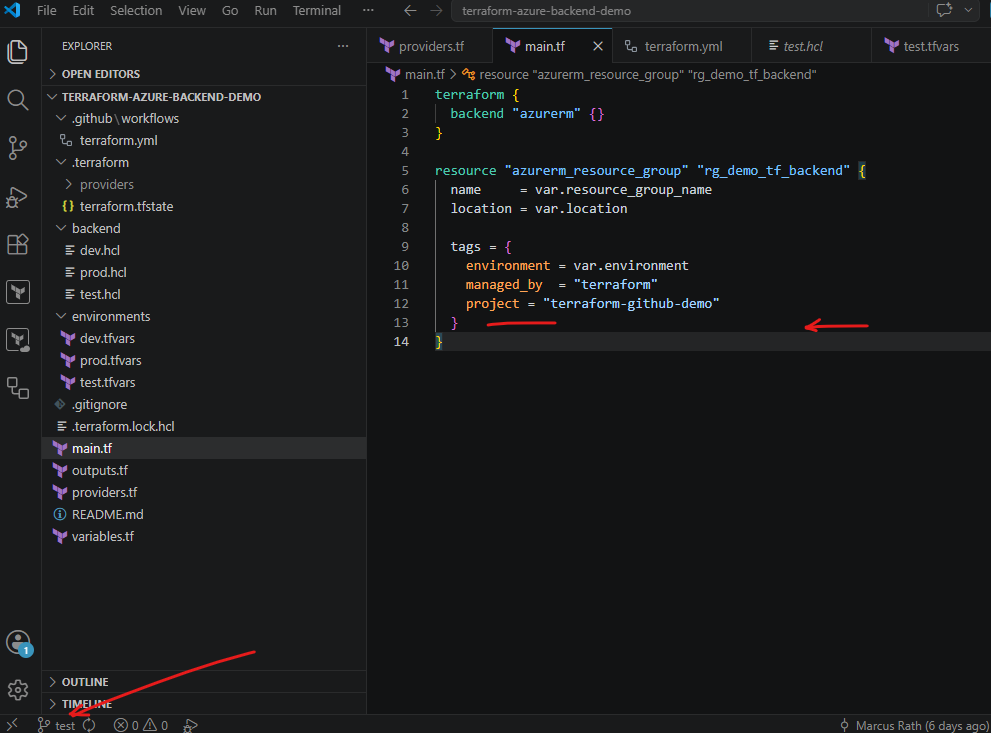
Now merge the validated development changes into the test branch:
PS> git merge develop
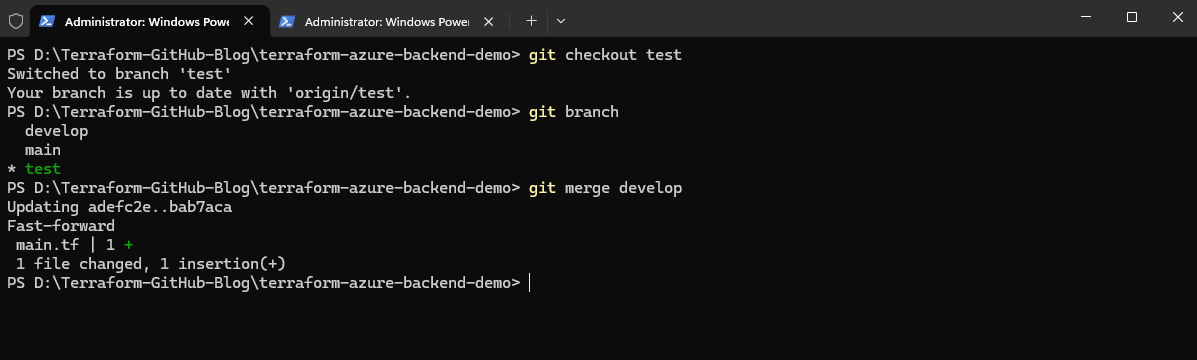
After the merge, push the updated test branch to GitHub:
PS> git push
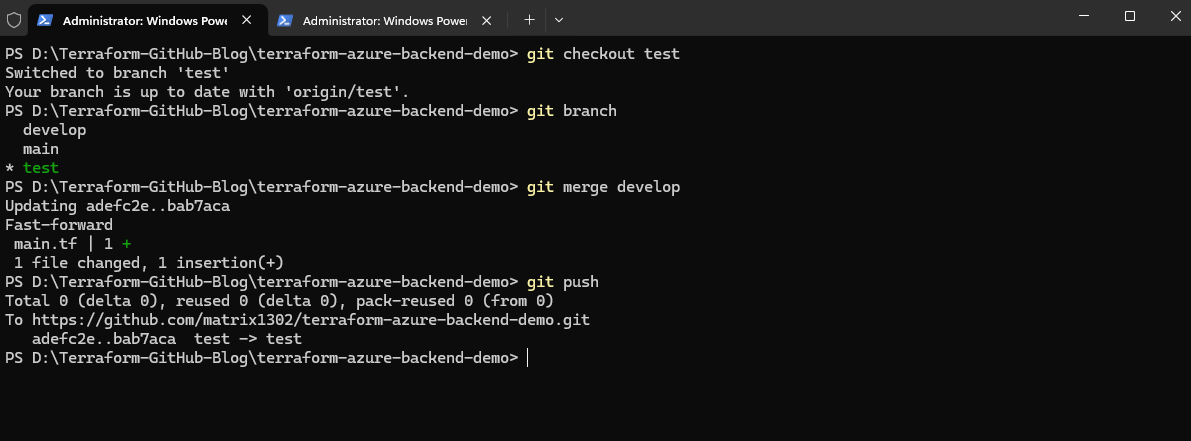
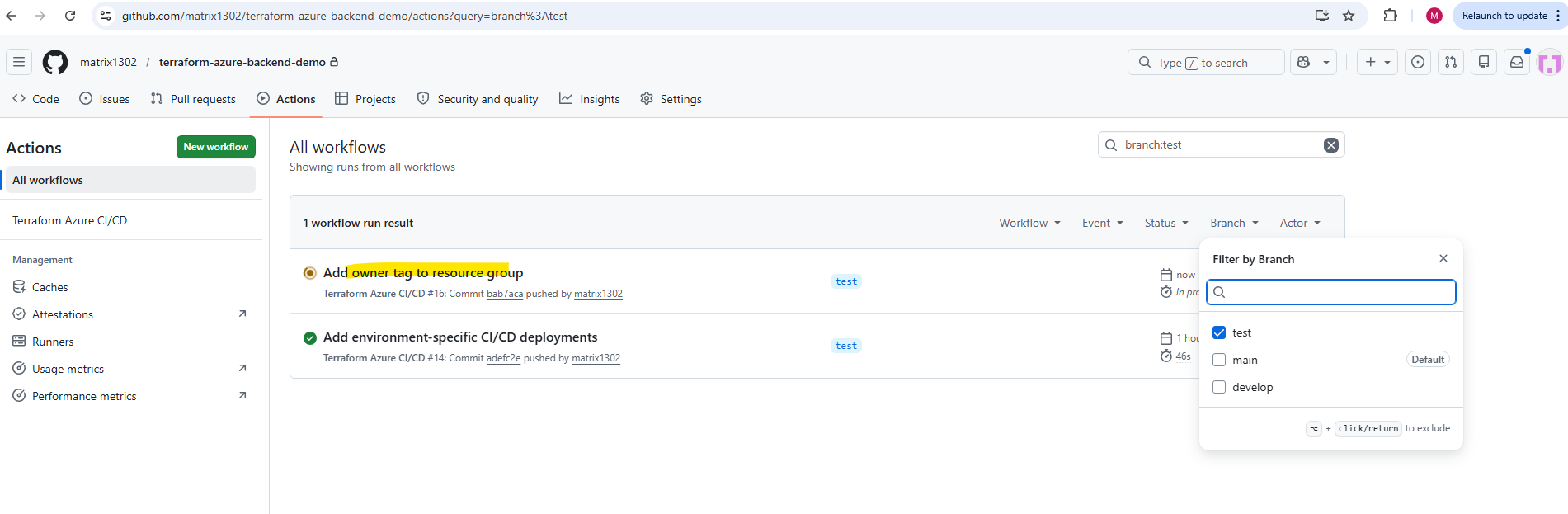
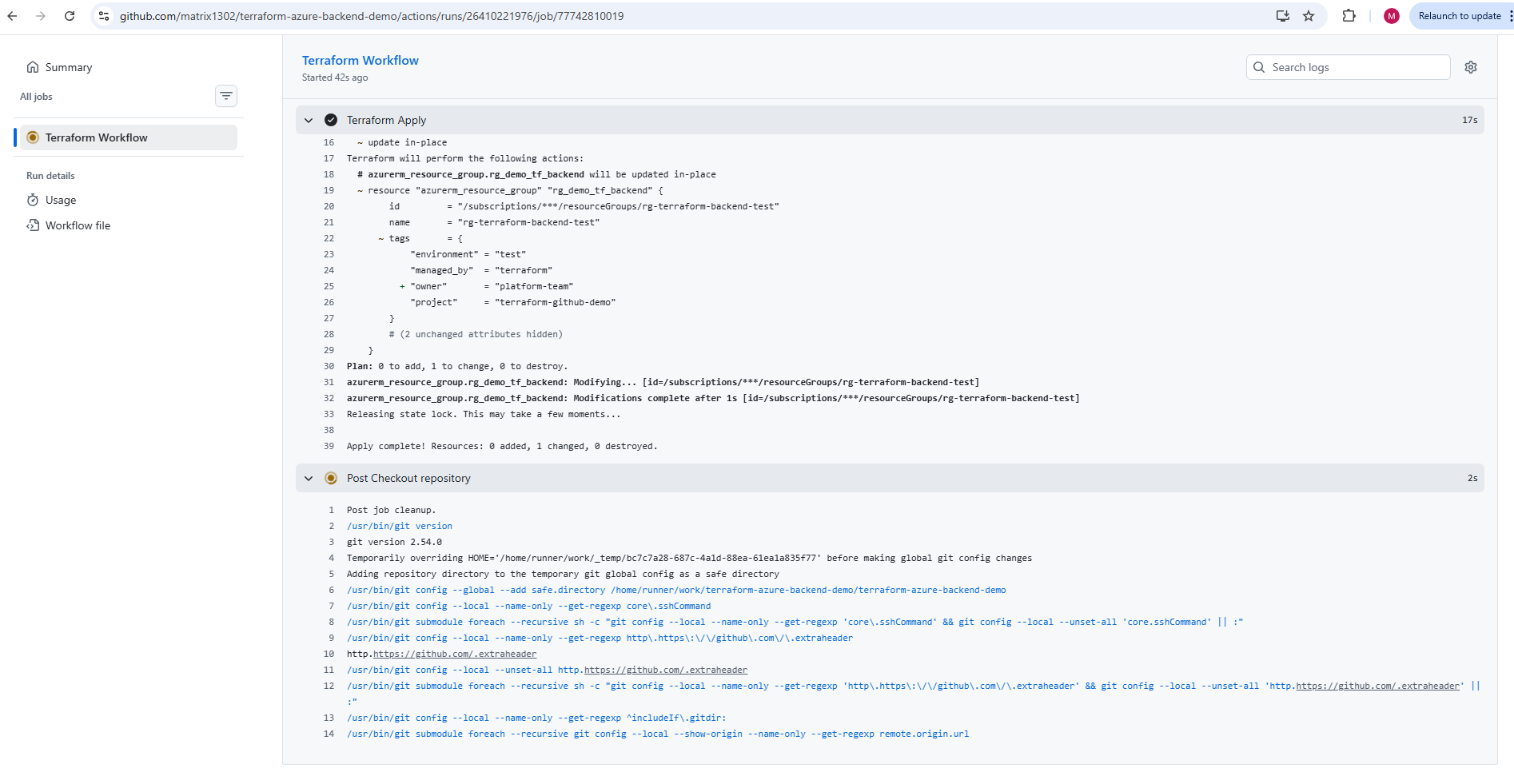
As a result, the same owner tag change is applied to the isolated Azure test resource group.
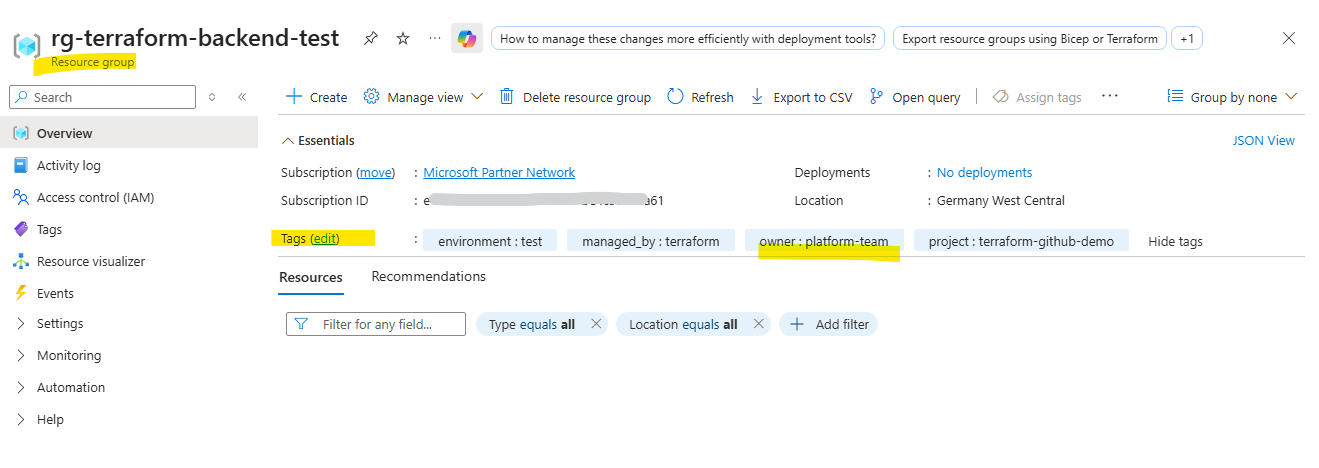
In real-world CI/CD environments, production deployments are usually protected by additional approval and governance mechanisms before infrastructure changes are applied automatically. Therefore, the next section shows how to implement manual approval workflows for production deployments in GitHub Actions.
Manual Approval Workflows for Production
For non-production environments like dev or test, fully automated Terraform deployments can be useful and efficient. For production environments, however, it is usually safer to add a manual approval step before running terraform apply.
A typical approach is:
dev/test  → plan and apply automatically
prod      → plan automatically, apply only after approval
In GitHub Actions, this can be implemented with GitHub Environments and required reviewers. The workflow can still create the Terraform plan automatically, but the production deployment waits until an authorized person approves the job.
This adds an important safety layer before applying infrastructure changes to production while still keeping the deployment process automated and traceable through GitHub Actions.
Configuring GitHub Environment Protection Rules
To implement manual approval workflows for production deployments, we first create a dedicated GitHub Environment for the production environment.
GitHub Environments provide a mechanism to separate and protect deployment targets inside GitHub Actions workflows. They can be used to define environment-specific deployment rules, approval workflows, secrets, variables, branch restrictions, wait timers, and other deployment protection mechanisms for environments such as development, testing, staging, or production.
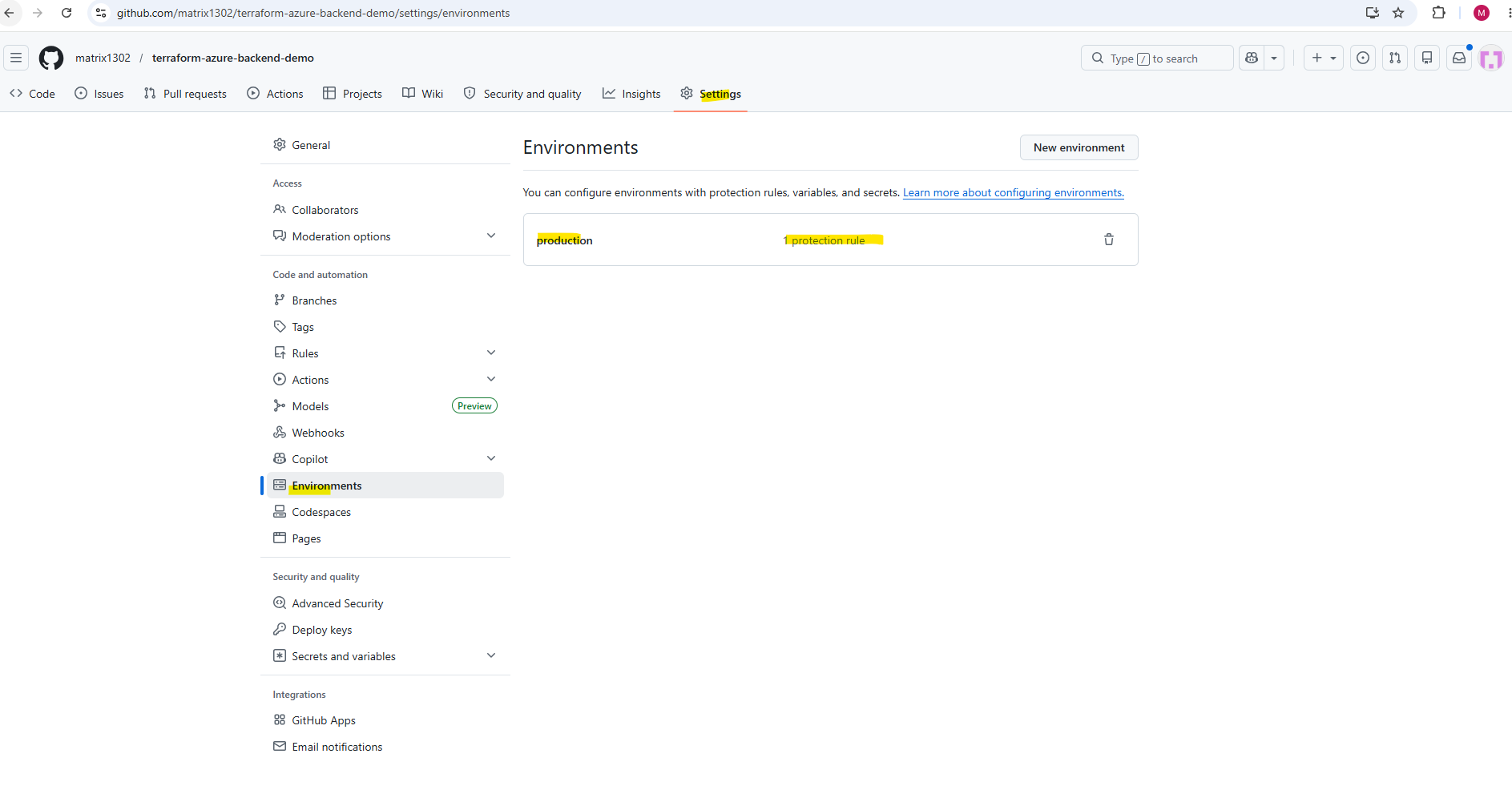
Inside the GitHub repository, open Settings → Environments → New environment.
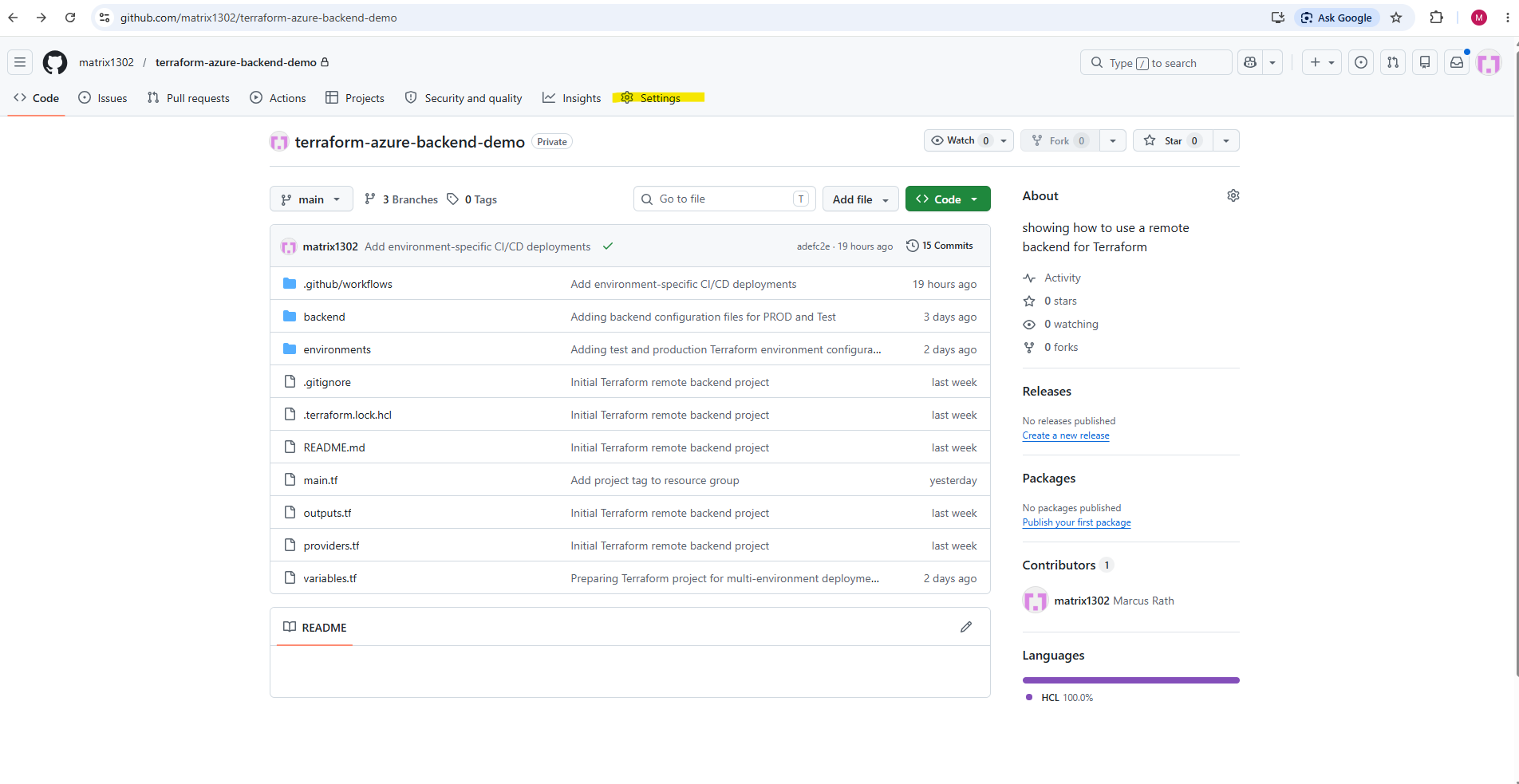
→ Environments → New environment.
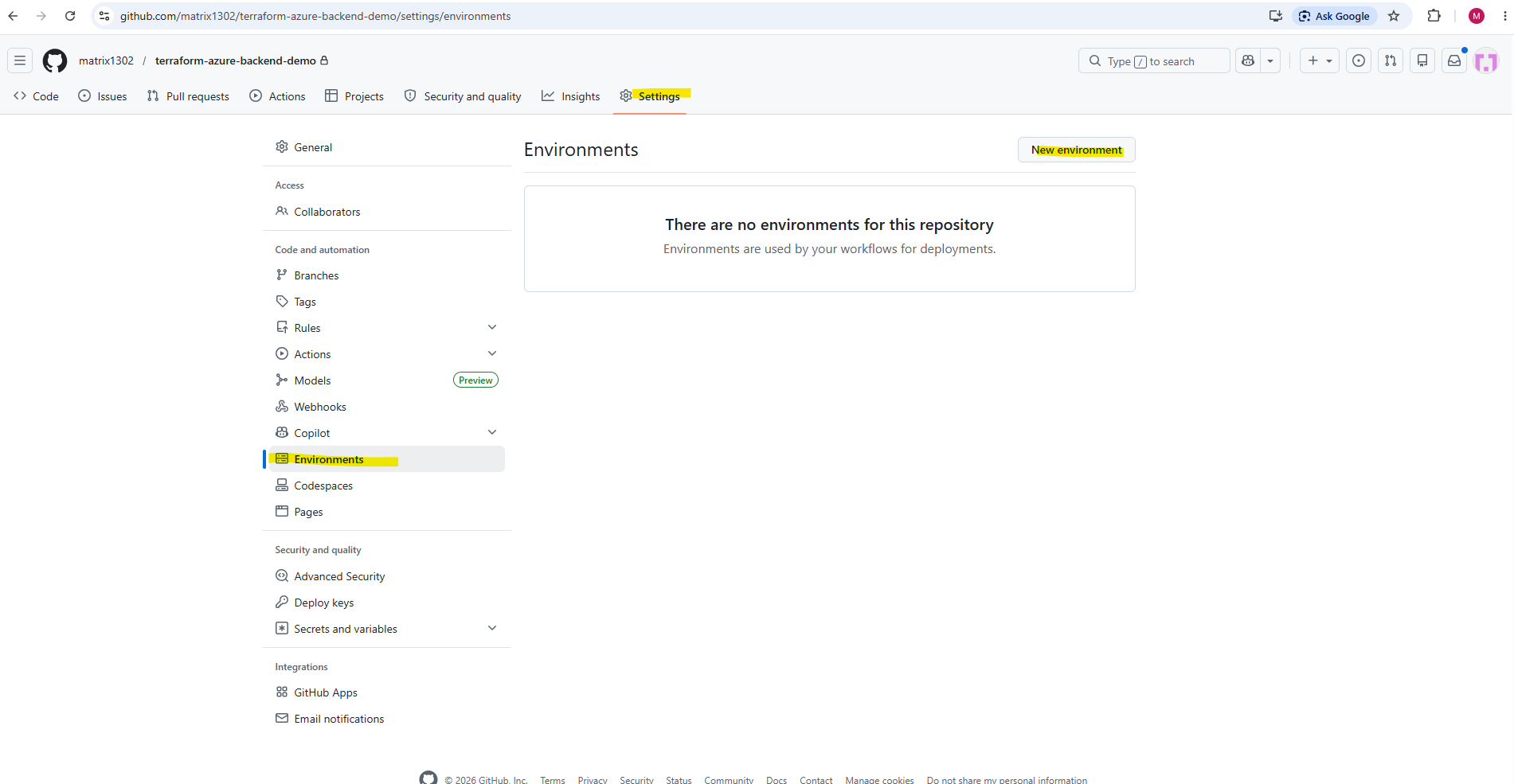
Create a new environment named production.
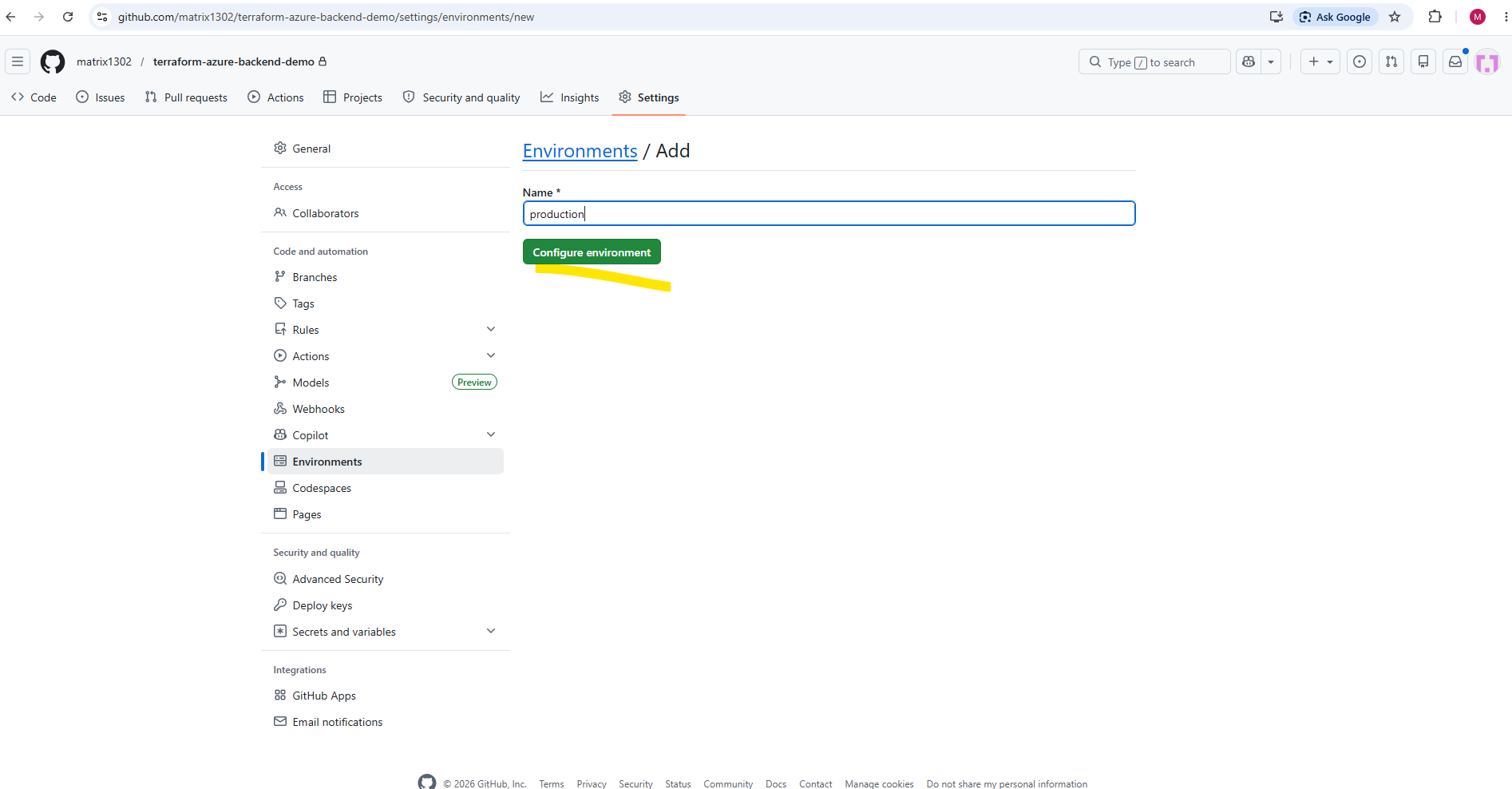
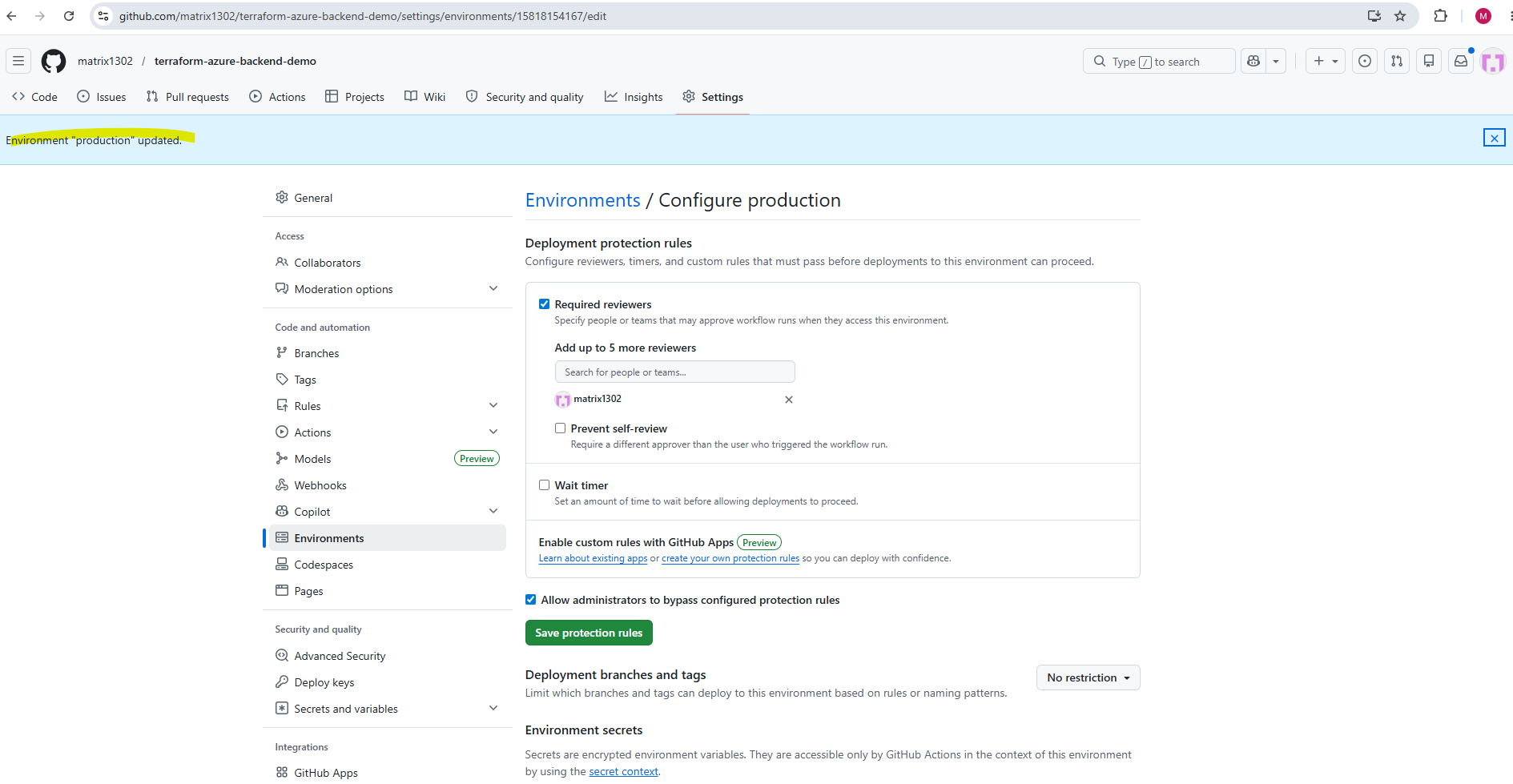
After creating the environment, enable Required reviewers and select the users who must approve production deployments before the workflow can continue.
Once configured, GitHub Actions will automatically pause the workflow before the terraform apply step whenever the workflow targets the production environment.
The deployment only continues after an authorized reviewer manually approves the pending production deployment inside GitHub Actions.
Depending on the GitHub repository visibility and subscription plan, some deployment protection features such as Required reviewers may not be available.
In private repositories, GitHub currently limits certain environment approval and deployment protection capabilities to higher-tier GitHub plans.
If you are on a GitHub Free, GitHub Pro, or GitHub Team plan,
required reviewersare only available for public repositories.Source: https://docs.github.com/en/actions/reference/workflows-and-actions/deployments-and-environments
For my lab switching the repository to public is probably the easiest way to demonstrate the full GitHub Environment approval workflow with required reviewers.
Otherwise I would need a higher GitHub plan to access the deployment protection features in a private repository.
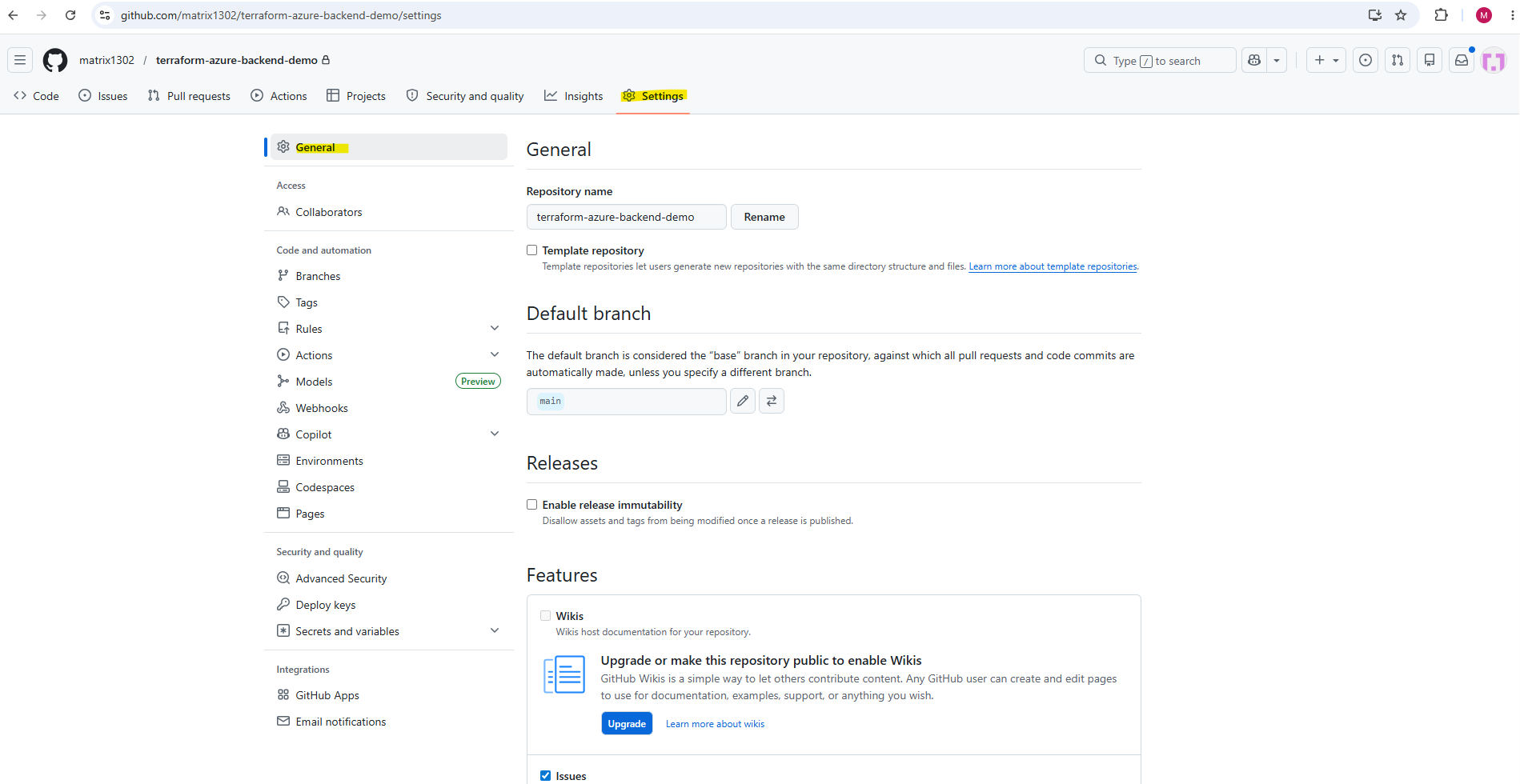
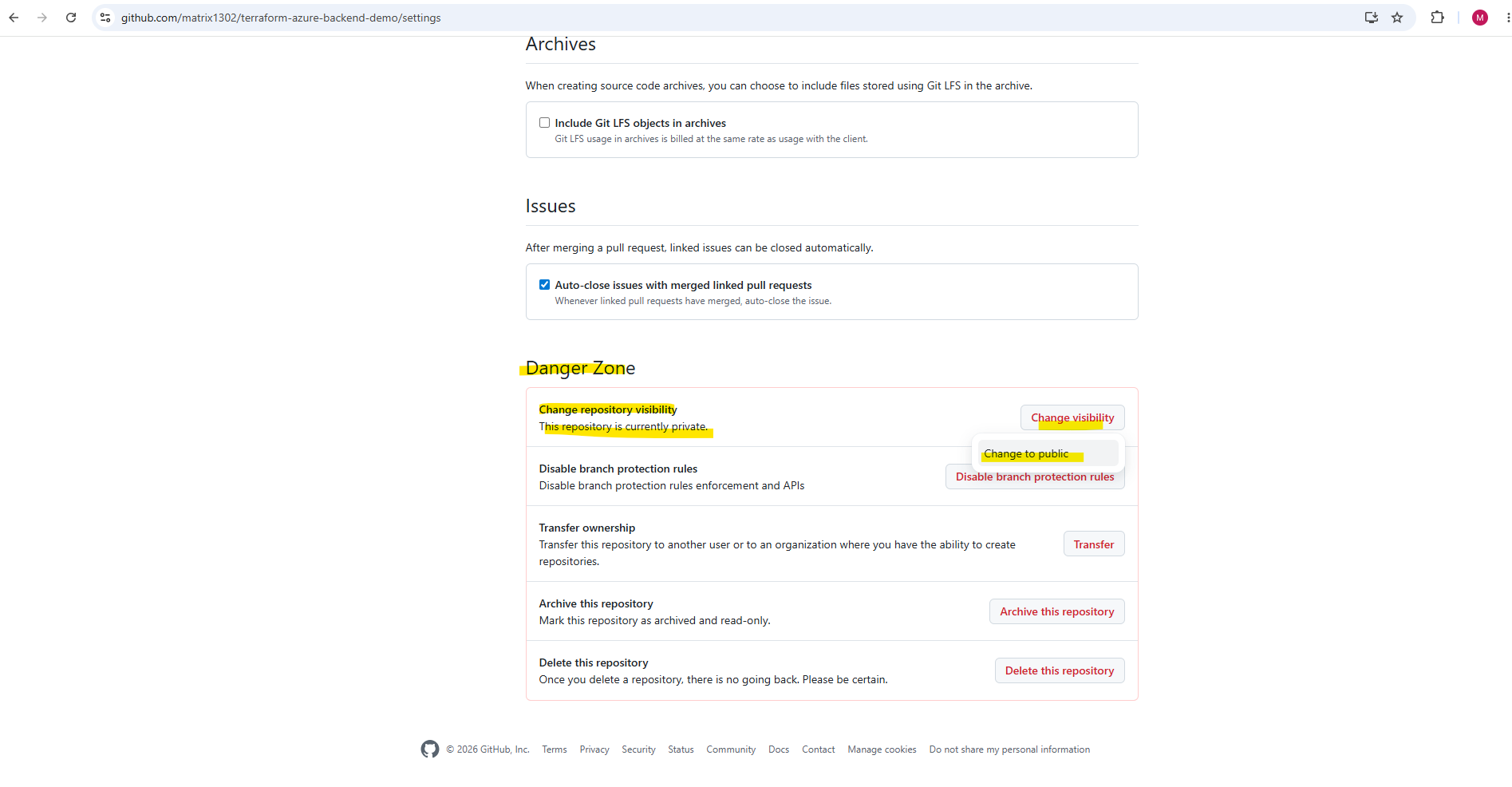
We can switch the repository visibility under Settings → General → Danger Zone → Change repository visibility.
Danger Zone → Change repository visibility.
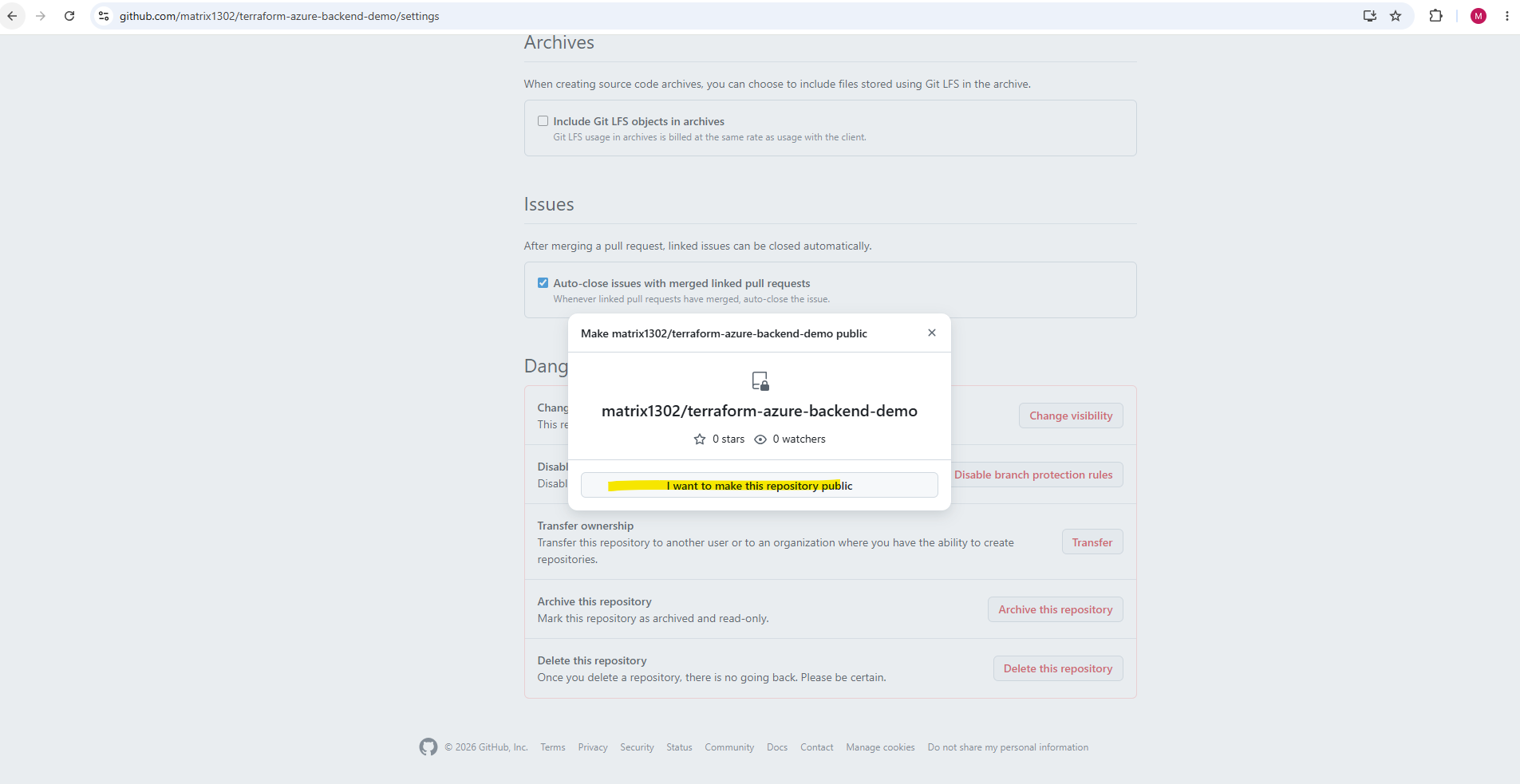
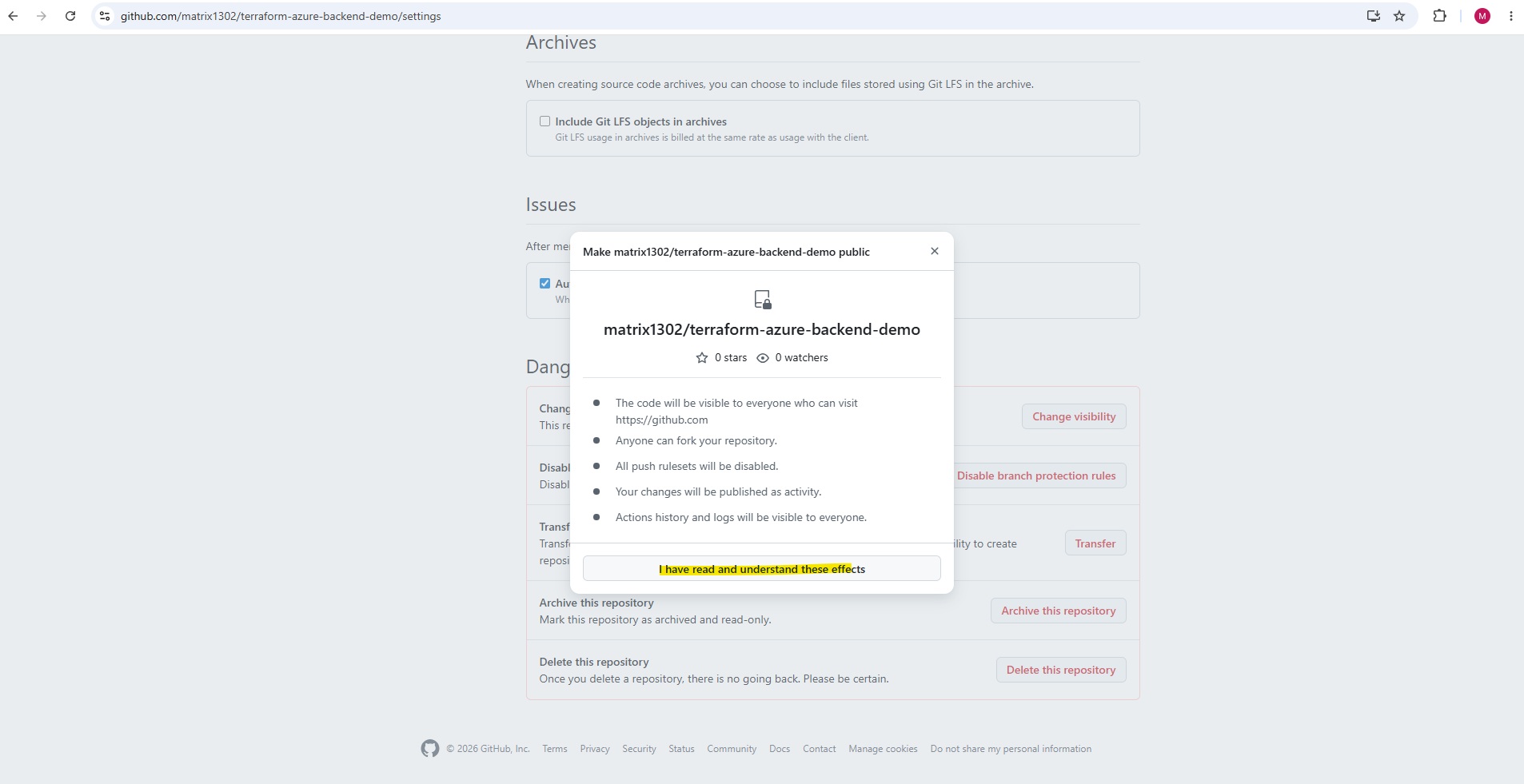
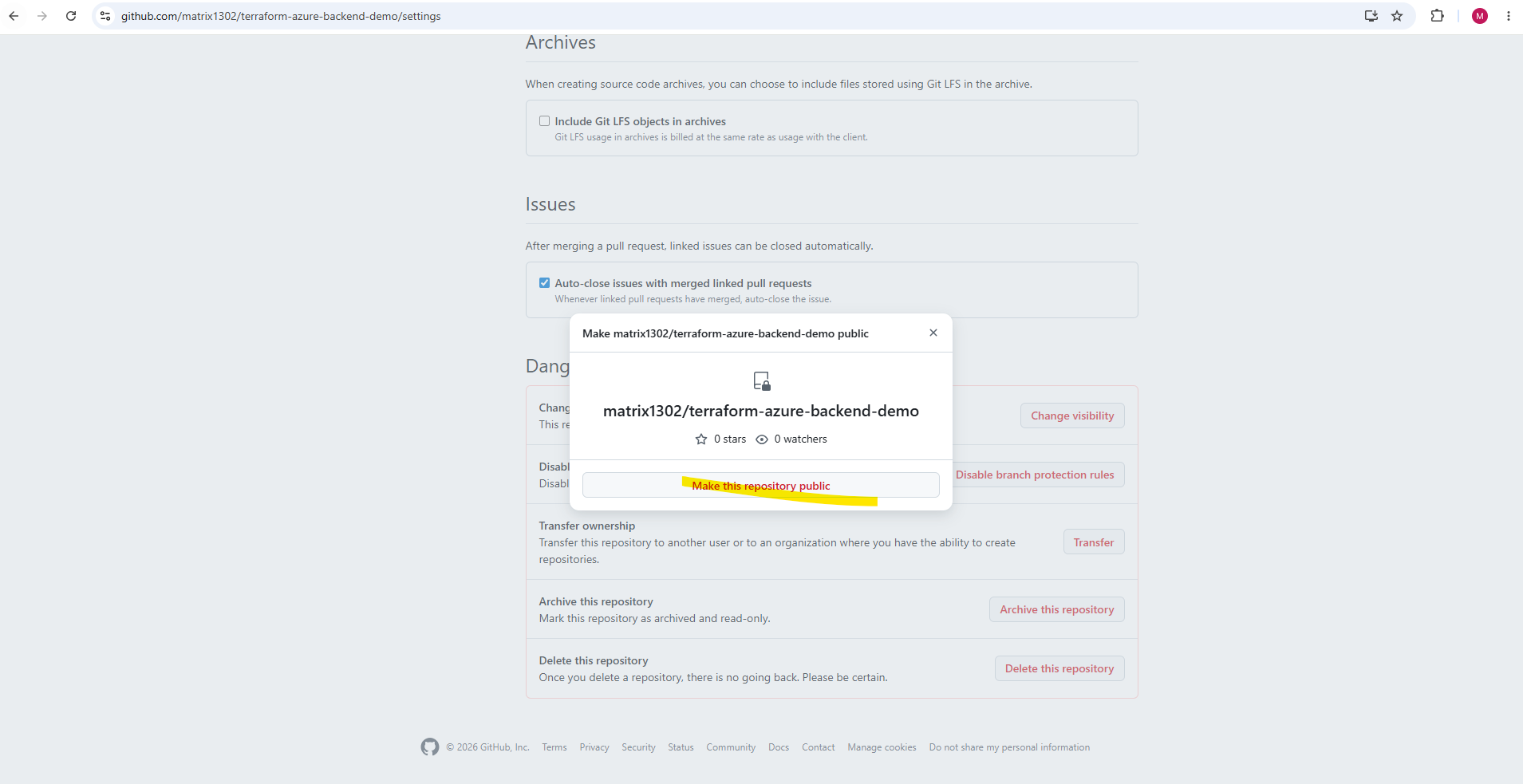
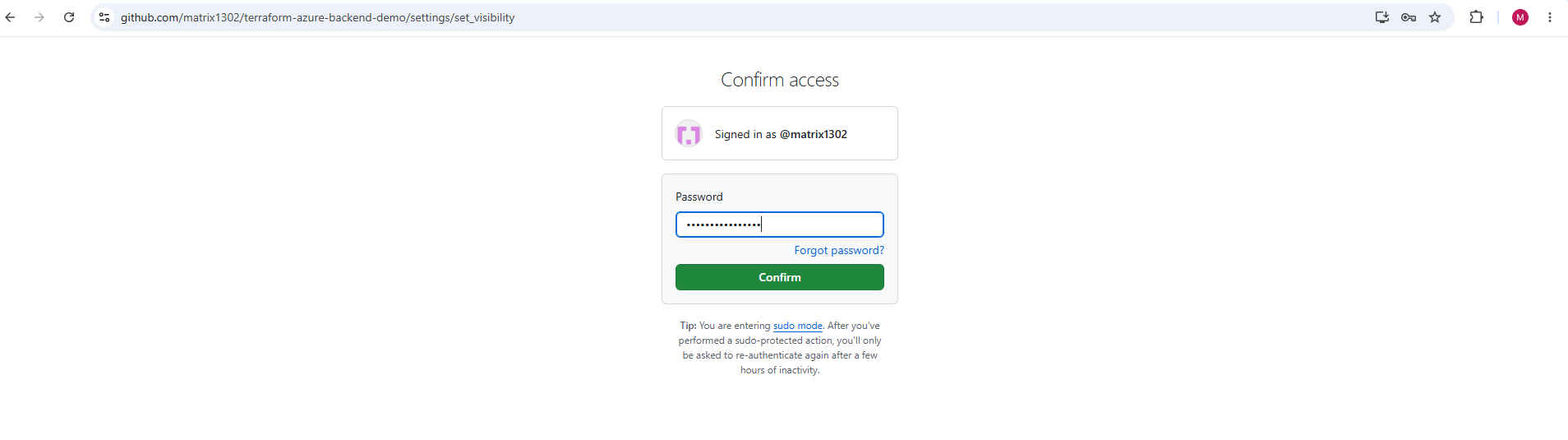
We need to confirm access by providing the password to finally switch to public.
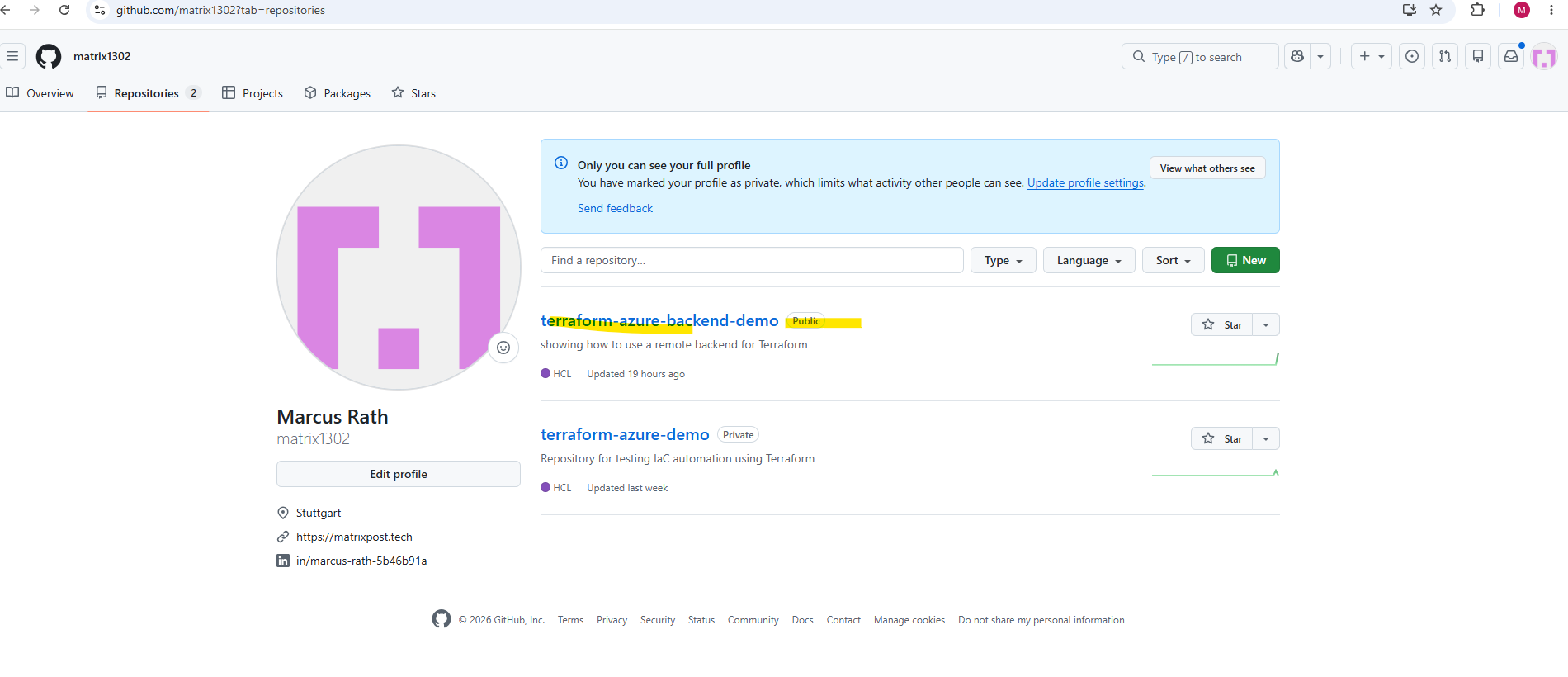
Enable Required reviewers
Now back to inside the GitHub repository, Settings → Environments to see if we can now enable Required reviewers.
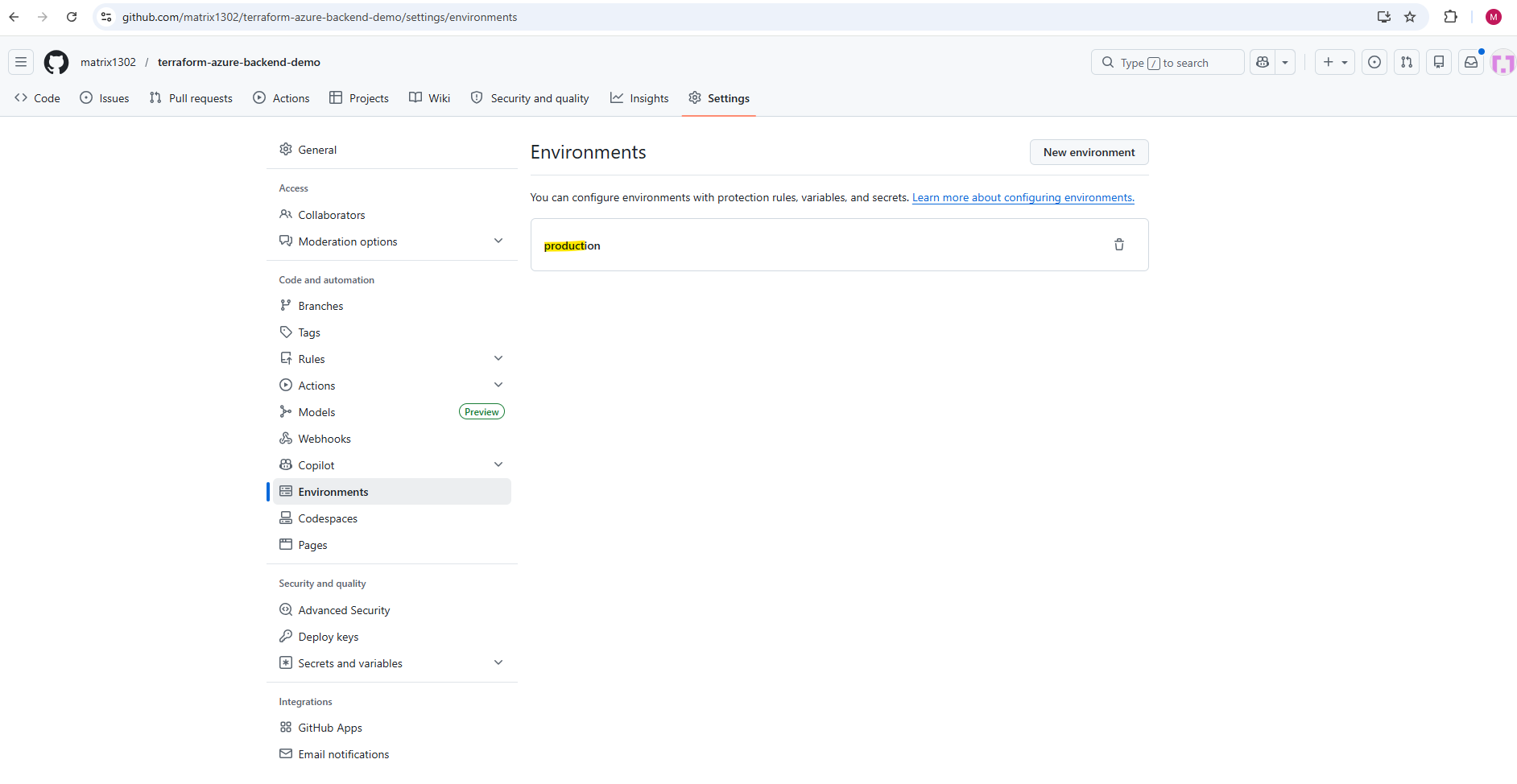
We can now enable Required reviewers by checking it below and can add up to 6 reviewers.
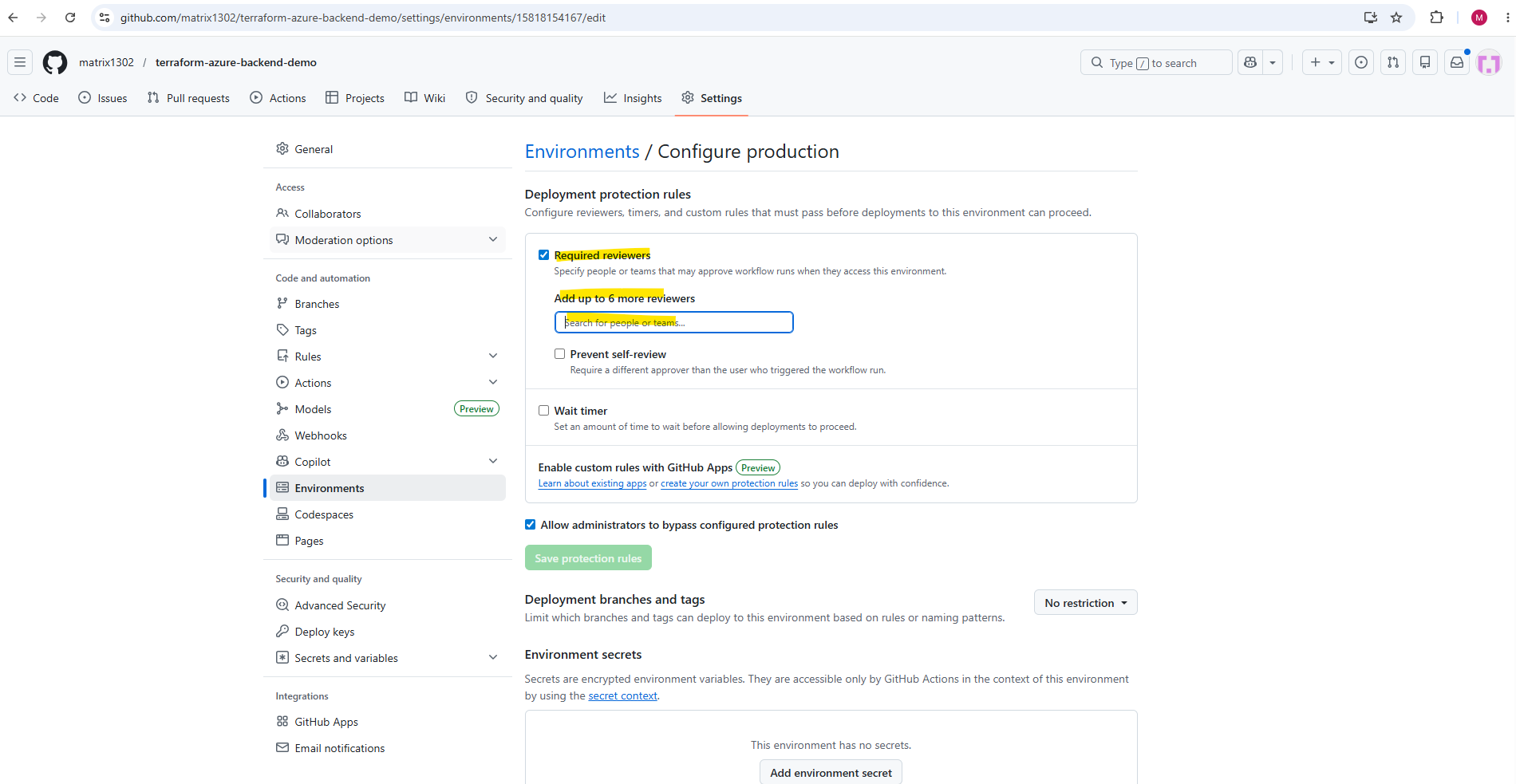
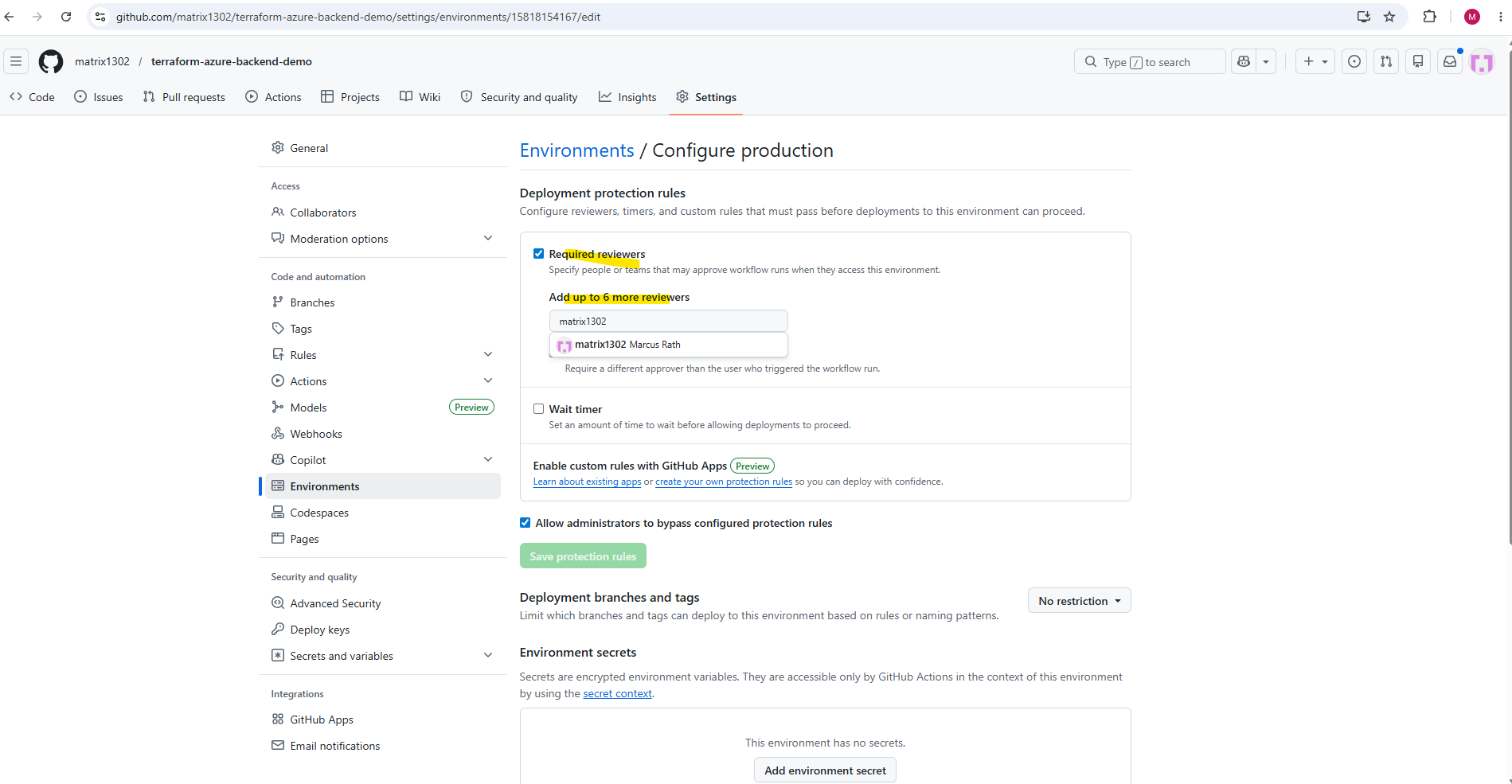
For this lab I will add my own account.
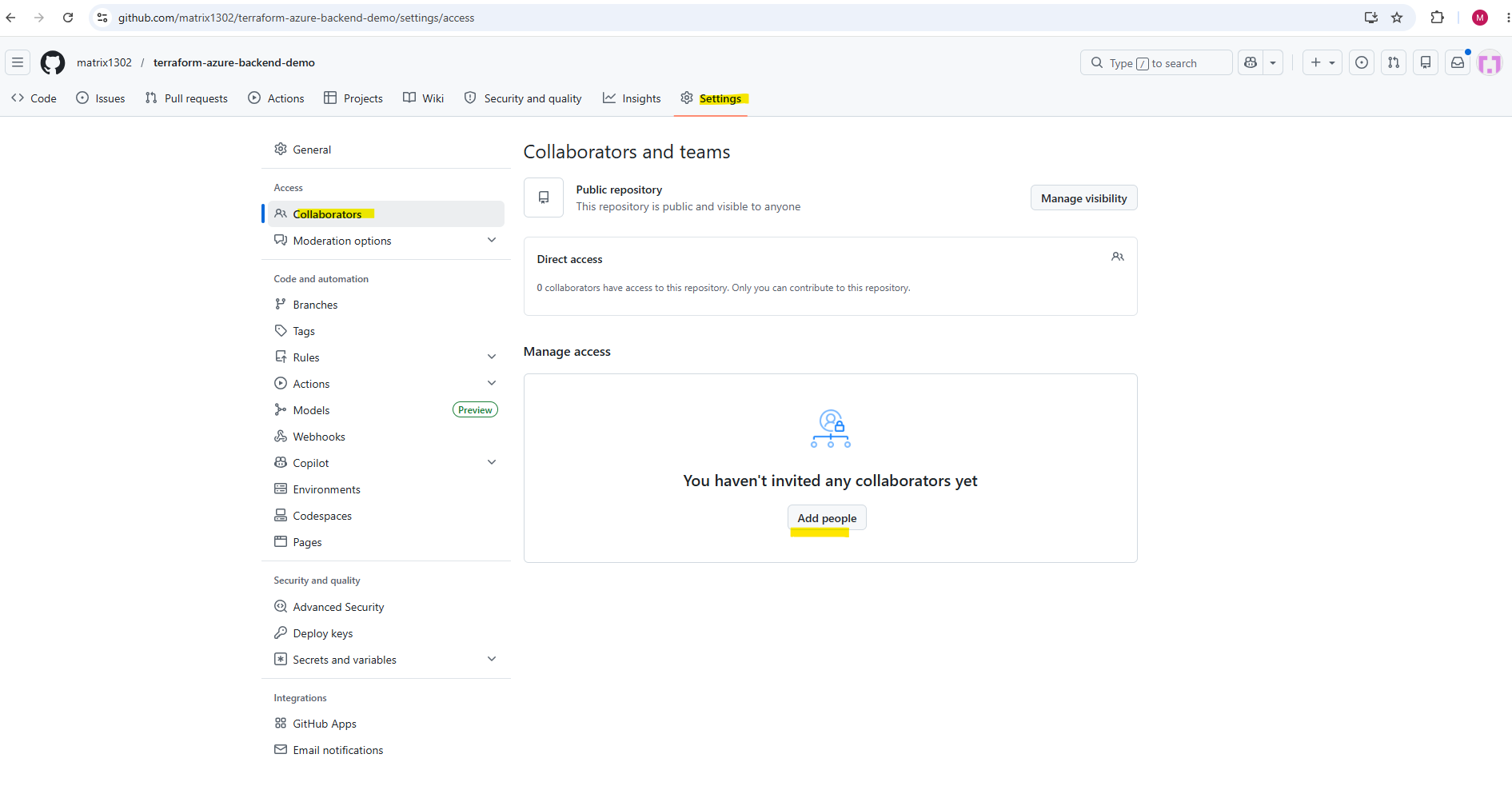
Under Settings → Collaborators → Add people we can add further collaborators which then will be available above to select.
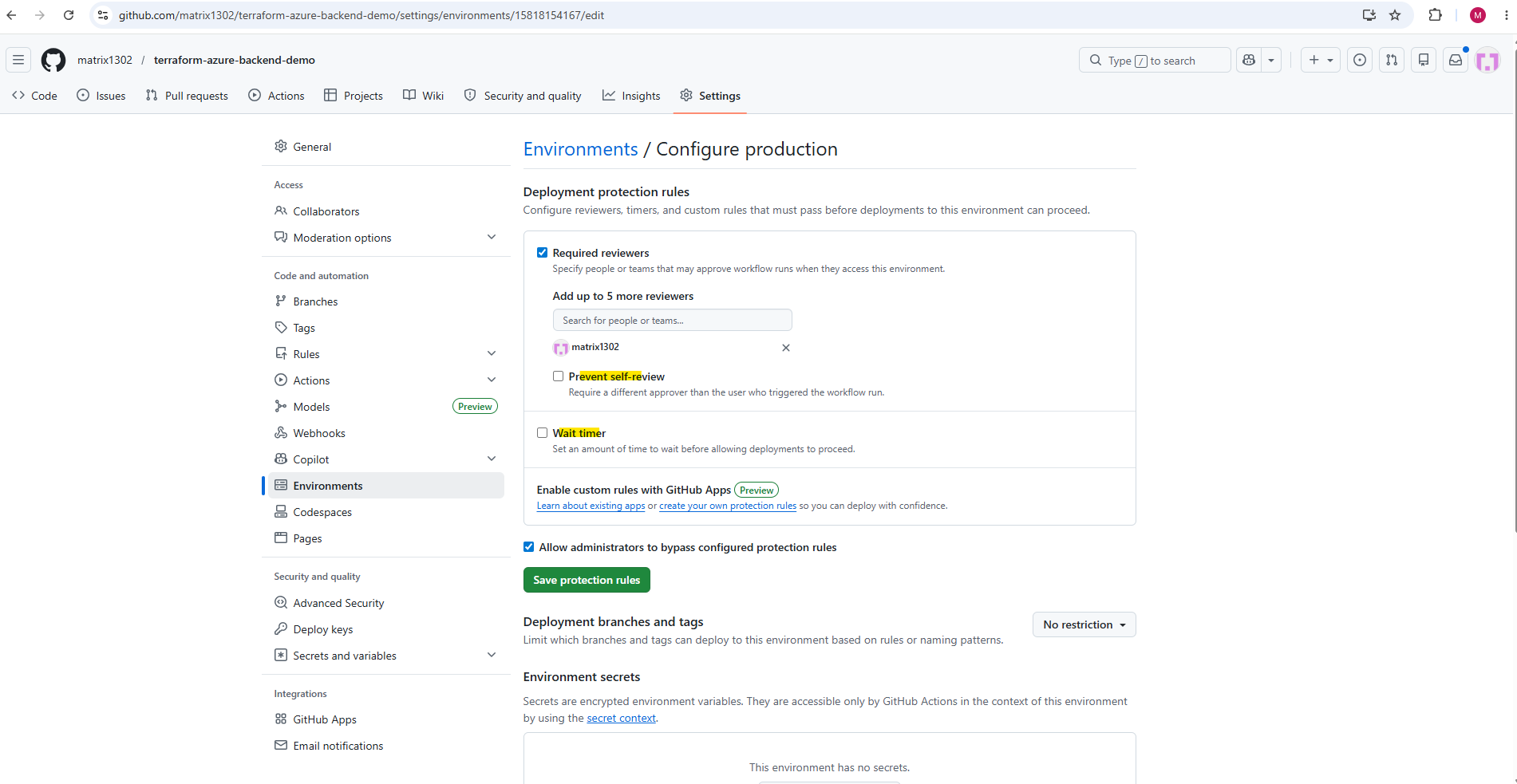
After configuring a required reviewer for the production environment, additional deployment protection options become available. The Prevent self-review option prevents the same user who triggered the workflow from approving the production deployment themselves, while the Wait timer can enforce a configurable delay before the deployment is allowed to continue.
Finally we can click on Save protection rules below.
Integrating GitHub Environments into the Terraform Workflow
Next, we update the GitHub Actions workflow so that the main branch deployment uses the new production GitHub Environment.
Add the following line inside the Terraform job: (terraform.yml file)
The GitHub Environment name is evaluated before the workflow steps are executed. Therefore, a direct GitHub expression using
${{ github.ref_name }}is required because environment variables created later during the workflow runtime are not yet available at this stage.
    environment:
      name: ${{ github.ref_name == 'main' && 'production' || 'nonprod' }}
Example:
jobs:
  terraform:
    name: Terraform Workflow
    runs-on: ubuntu-latest

    environment:
      name: ${{ github.ref_name == 'main' && 'production' || 'nonprod' }}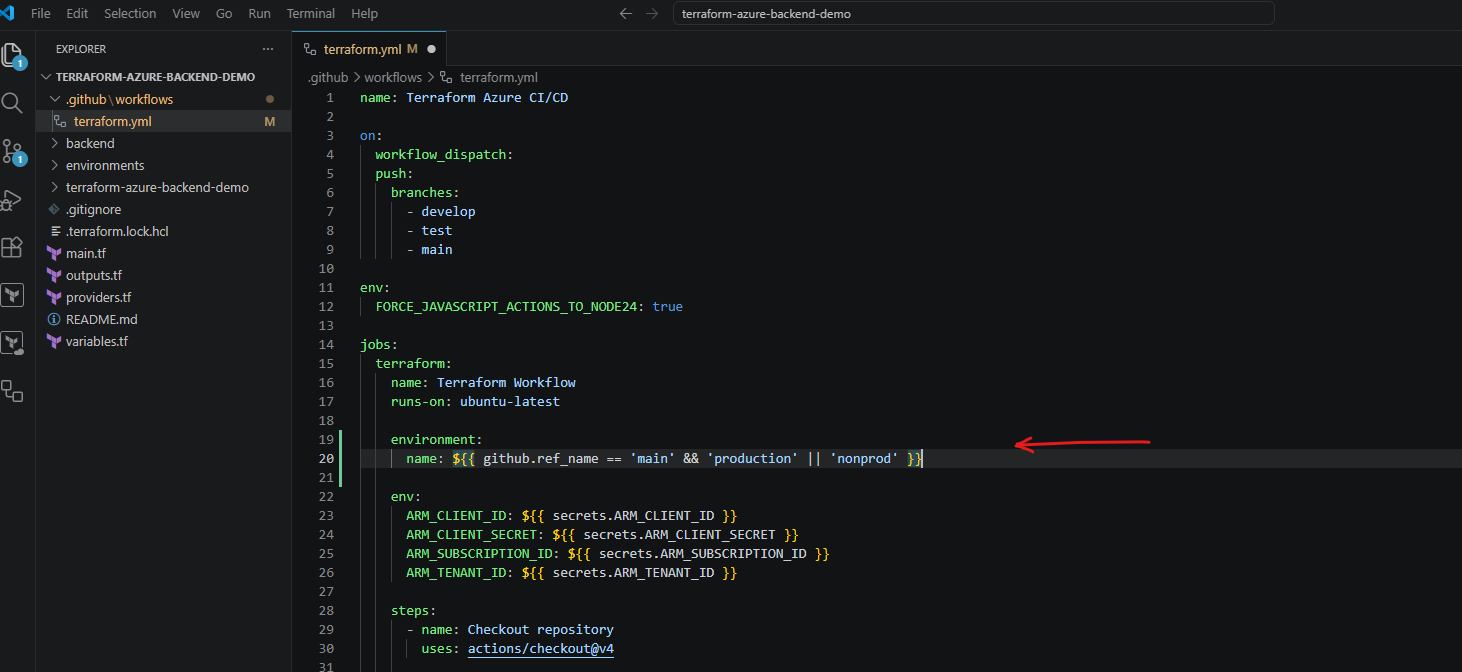
However, we only want approval protection for the production environment (main branch), not for develop or test. Therefore, we can dynamically assign the GitHub Environment depending on the active branch.
Update the workflow with an additional step:
Place the new step directly after the
Checkout repositorystep and before the Terraform steps.
      - name: Set GitHub Environment
        run: |
          if [ "${GITHUB_REF_NAME}" = "main" ]; then
            echo "GH_ENV=production" >> $GITHUB_ENV
          else
            echo "GH_ENV=nonprod" >> $GITHUB_ENV
          fi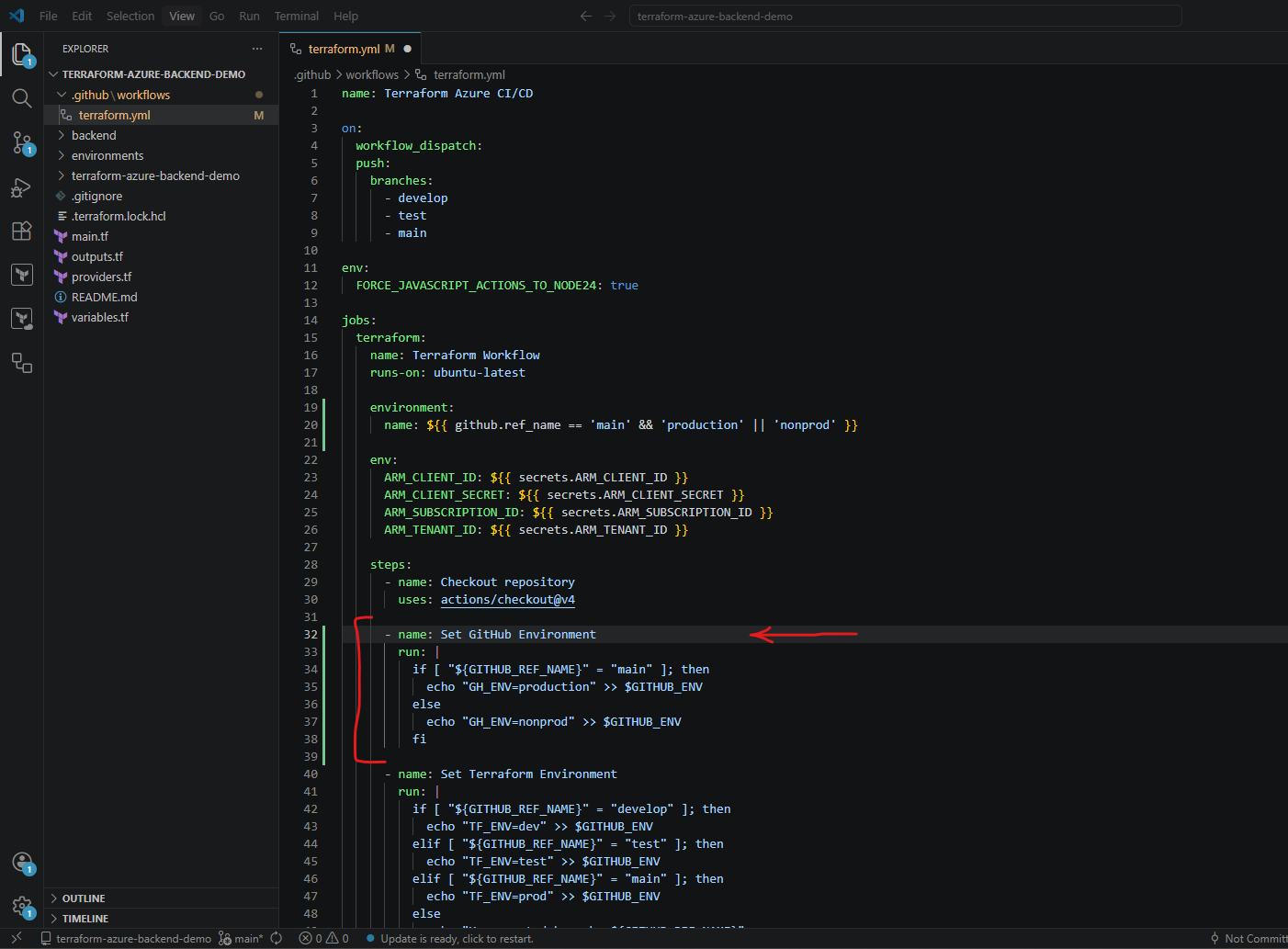
Triggering the Protected Production Deployment Workflow
Next, commit and push the updated workflow configuration to GitHub:
PS> git add .github/workflows/terraform.yml
PS> git commit -m "Add production approval workflow"
PS> git push
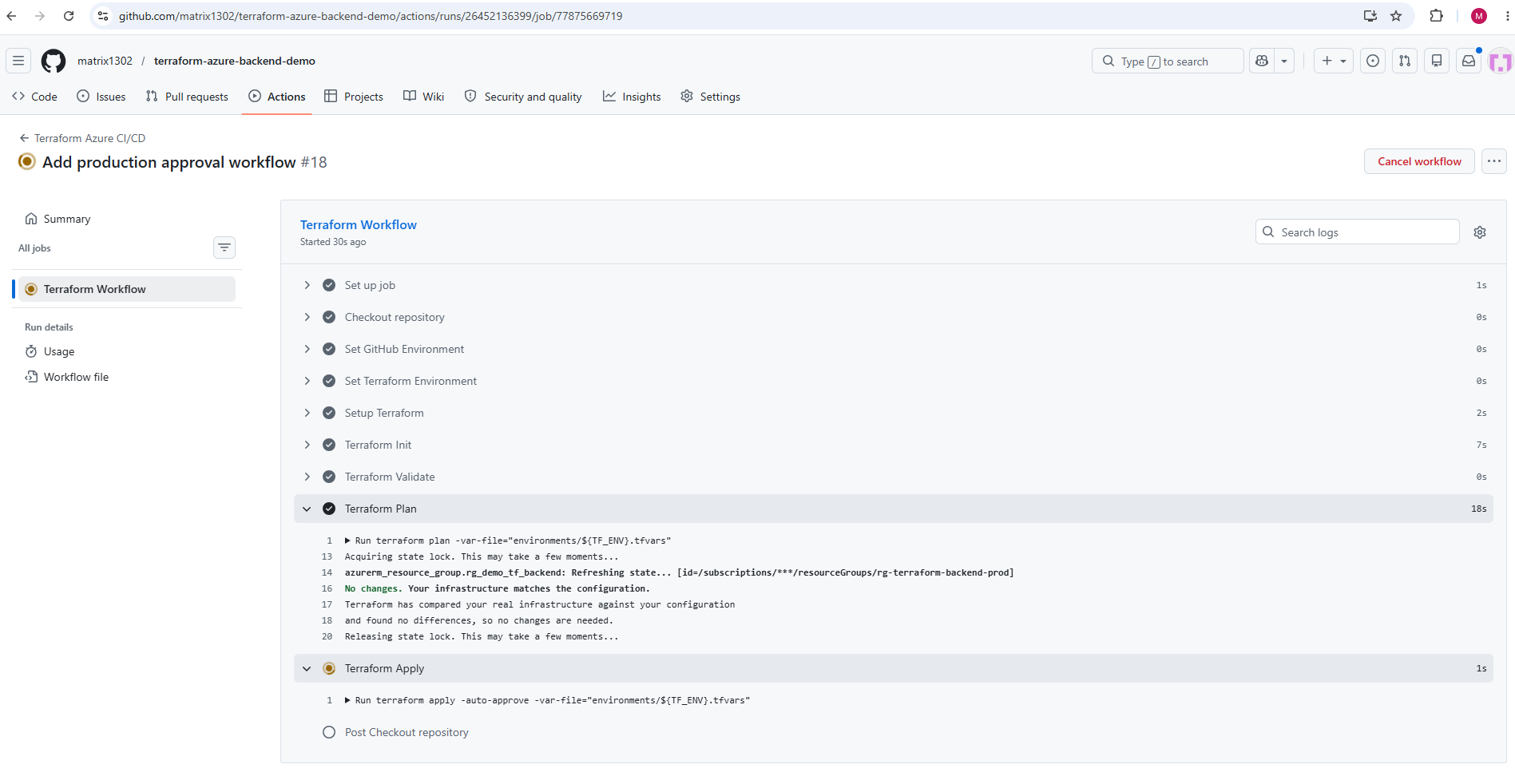
Once the workflow starts on the main branch, GitHub Actions should now pause the deployment before the Terraform Apply step and display a pending approval notification for the production environment.
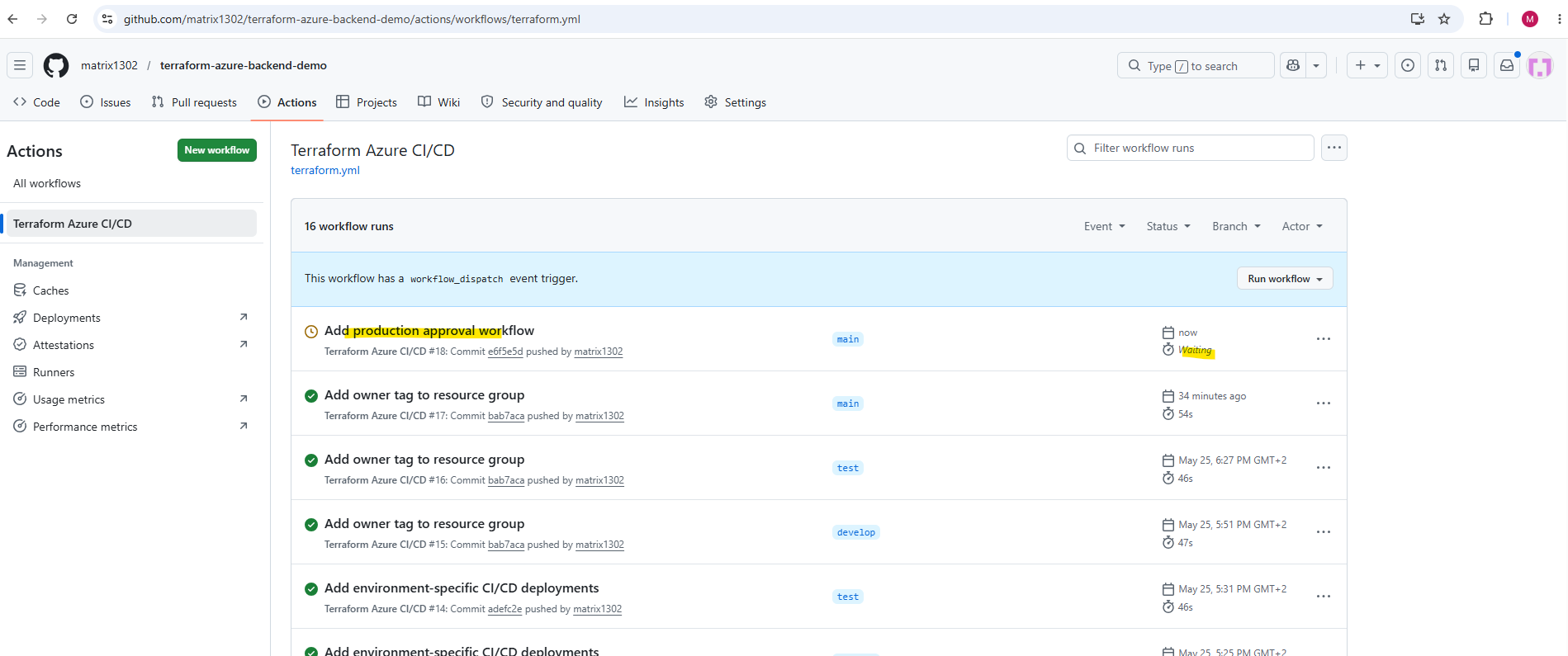
Inside the GitHub Actions workflow view, the deployment now waits until the configured reviewer manually approves the production deployment before Terraform is allowed to continue applying infrastructure changes to the Azure production environment.
Click on Review deployments.
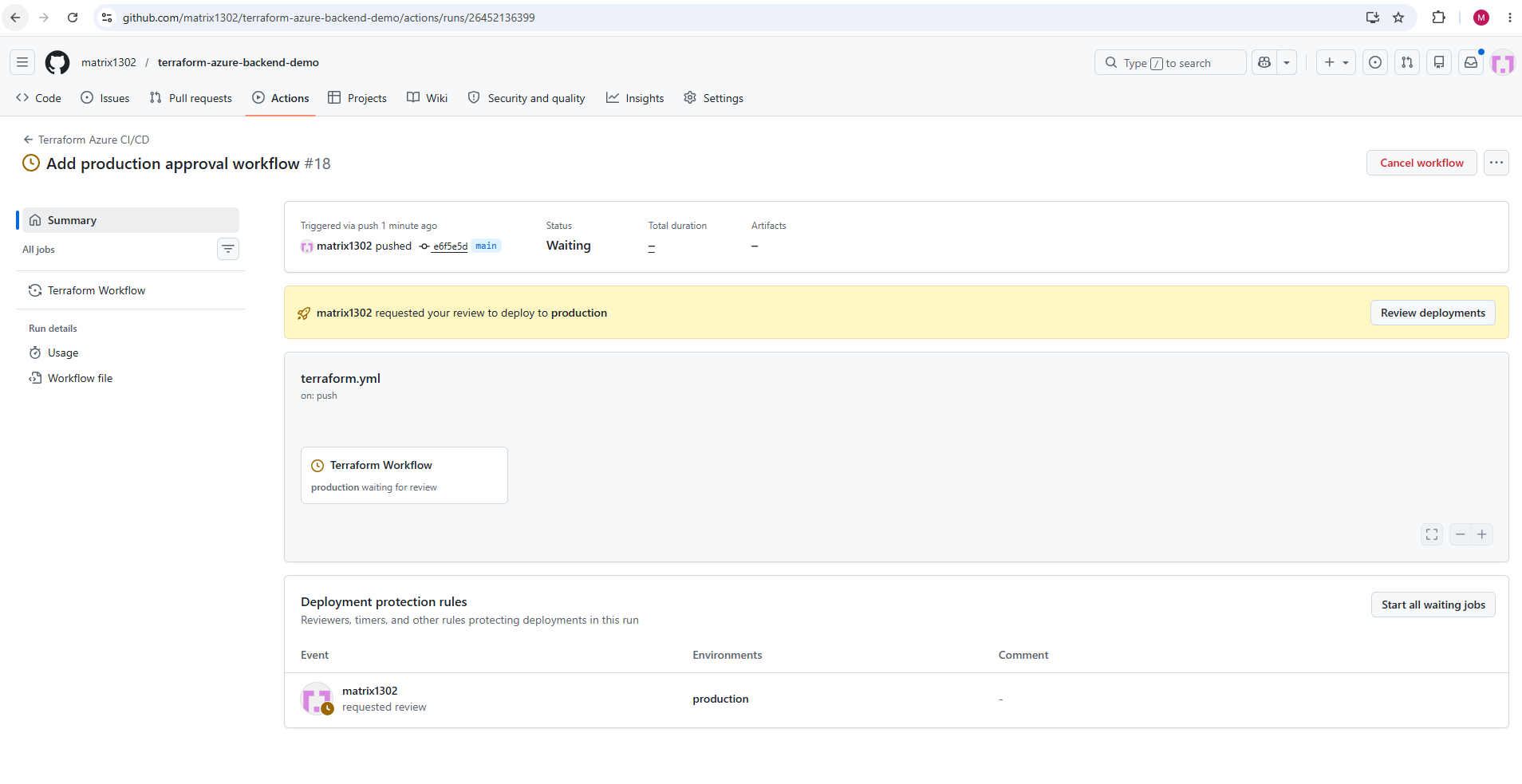
The configured reviewer can then select the production environment, optionally leave a deployment comment, and either reject the deployment or approve and continue the Terraform production deployment workflow.
So I will now click on Approve and deploy below.
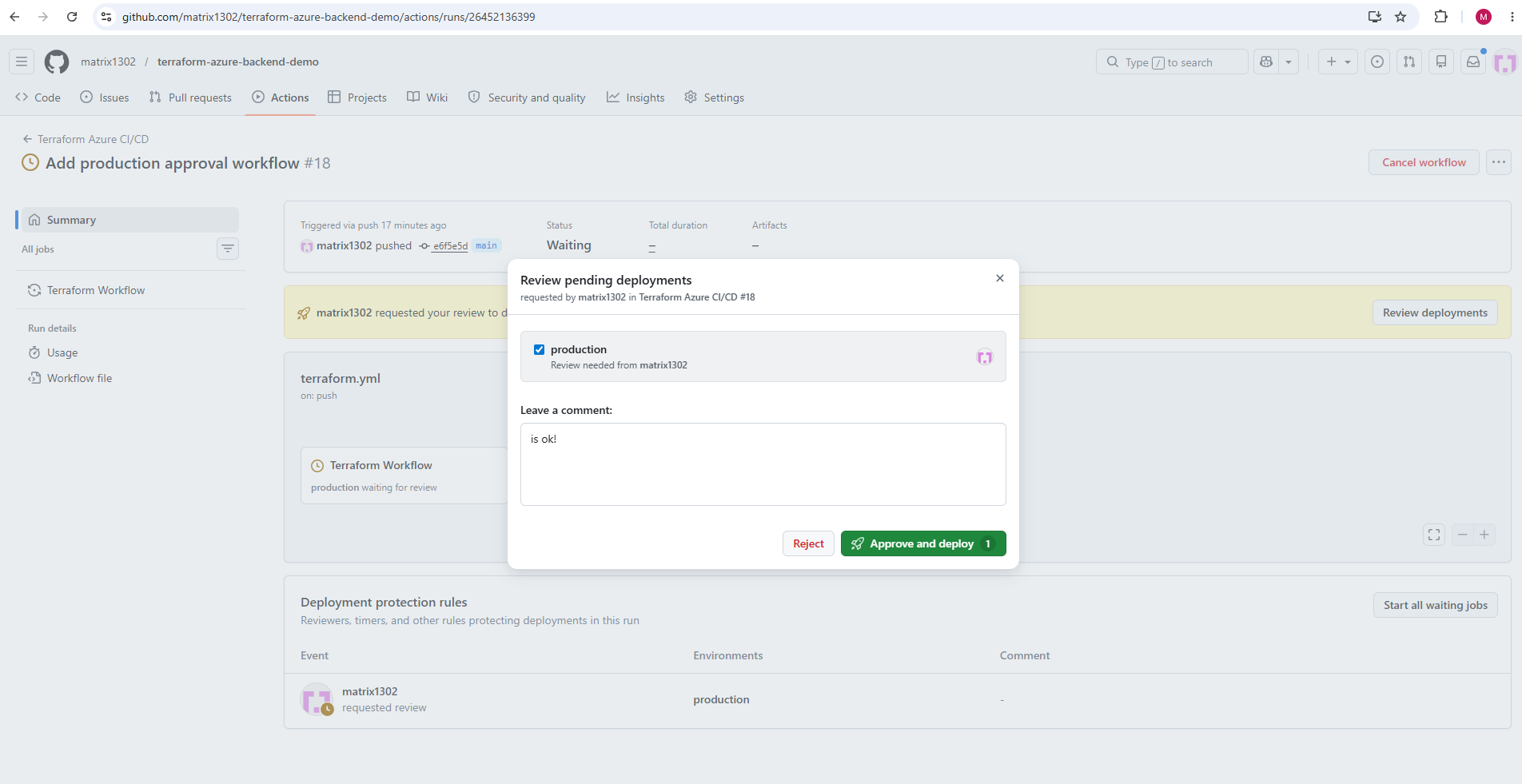
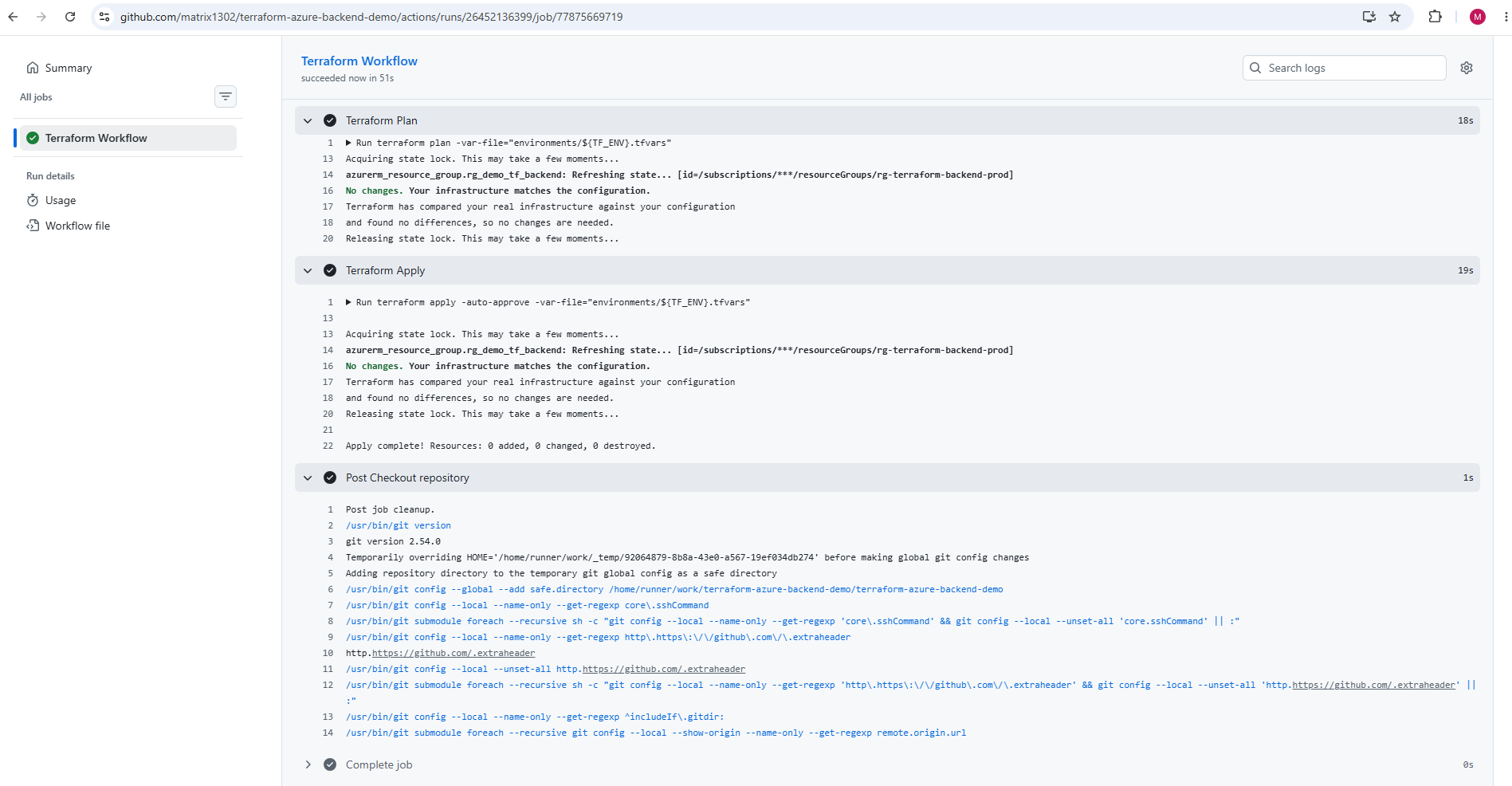
After approving the pending production deployment, the workflow continued with the familiar Terraform deployment steps.
Terraform initialized the backend, validated the configuration, generated the execution plan, and finally applied the production infrastructure changes successfully.
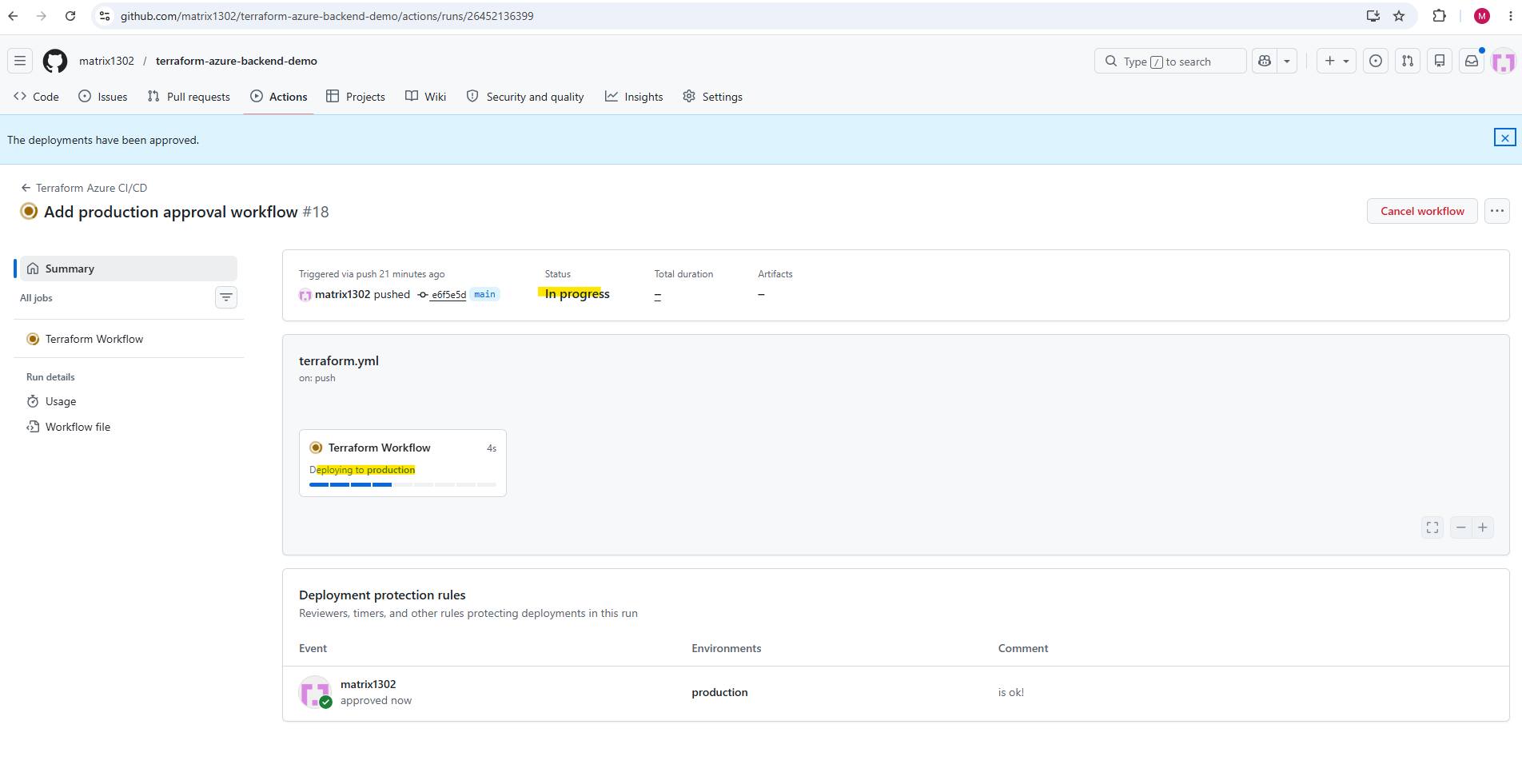
In this part of the series, we transformed our Terraform project from manual local deployments into a fully automated multi-environment CI/CD platform using GitHub Actions and Microsoft Azure. We implemented automated Terraform validation, planning, and deployment workflows, integrated secure Azure authentication through GitHub Secrets, deployed isolated development, test, and production environments, and finally added protected production approval workflows using GitHub Environments.
In Part 4 coming soon, we will continue evolving the platform towards enterprise-grade Infrastructure as Code workflows by implementing Pull Request validation pipelines, branch protection rules, automated Terraform quality checks, and advanced GitHub Actions workflow strategies for controlled and collaborative Terraform.
Links
Deployments and environments
https://docs.github.com/en/actions/reference/workflows-and-actions/deployments-and-environments