Beyond the Clustershell: Troubleshooting ONTAP via VLOADER and Maintenance Mode
For most NetApp administrators, daily operations happen entirely within the safety of the ONTAP clustershell. But when a severe hardware failure, ungraceful shutdown, or split-brain scenario occurs, a node may become completely inaccessible via traditional management paths.
To recover a non-booting controller, whether it’s a physical FAS/AFF array or a software-defined ONTAP Select instance, you must understand how to manipulate the system before the operating system even loads.
This guide covers how to leverage low-level VLOADER environment variables and step into Maintenance Mode to diagnose storage timeouts, clear stale mailbox locks, and safely bring degraded aggregates back online.
Introduction VLOADER
VLOADER (often simply called LOADER) is NetApp’s low-level bootloader environment. Sitting directly between the underlying hardware (or hypervisor) and the operating system, it is the very first software layer that executes when a physical FAS/AFF array or virtual ONTAP Select instance powers on.
Here is what VLOADER does and why it matters during recovery:
- Hardware Initialization: It initializes basic system memory, management network interfaces, and storage controllers before handing control off to the kernel.
- Boot Environment Variables (
bootargs): It stores critical environment parameters that dictate how the operating system boots—such as forcing the system to halt at the Boot Menu (bootarg.init.bootmenu=true). - Low-Level Recovery: Because VLOADER operates entirely outside of the ONTAP kernel, it serves as your primary safety net. If ONTAP enters a panic loop, experiences file system corruption, or hangs during boot (such as a stale mailbox lock), VLOADER allows administrators to interrupt the boot process, modify system variables, or select recovery boot paths.
OS Architecture: Physical vs. ONTAP Select
Understanding what VLOADER boots into helps clarify how recovery works under the hood:
- Physical FAS / AFF Hardware: ONTAP on physical hardware runs on a customized FreeBSD base. FreeBSD acts as the host OS and loader, handling system initialization, basic device drivers, and core networking tasks. Once booted, NetApp’s proprietary storage engine, including WAFL (Write Anywhere File Layout), RAID management, and clustering protocols, executes as a specialized subsystem within kernel space.
- Software-Defined ONTAP Select: When running as a virtual machine (such as on VMware ESXi or KVM), ONTAP Select uses a Linux-based architecture as its underlying host wrapper instead of FreeBSD.
Regardless of whether the host environment relies on FreeBSD or Linux, VLOADER provides a consistent bootloader interface for administrators to interrupt boot sequences and access diagnostic utilities like Maintenance Mode.
Entering Maintenance Mode from VLOADER
In some situations, ONTAP may not complete the boot process and the clustershell never becomes available.
In these cases, you can interrupt the boot sequence and enter Maintenance Mode, a minimal operating environment that provides access to low-level diagnostic and recovery commands.
The following example shows an ONTAP Select node that appears to be stuck during boot while waiting for the required local mailbox information.
Although the root cause was ultimately a network configuration issue preventing HA mailbox communication, it provides a good opportunity to demonstrate how to access Maintenance Mode for further analysis.
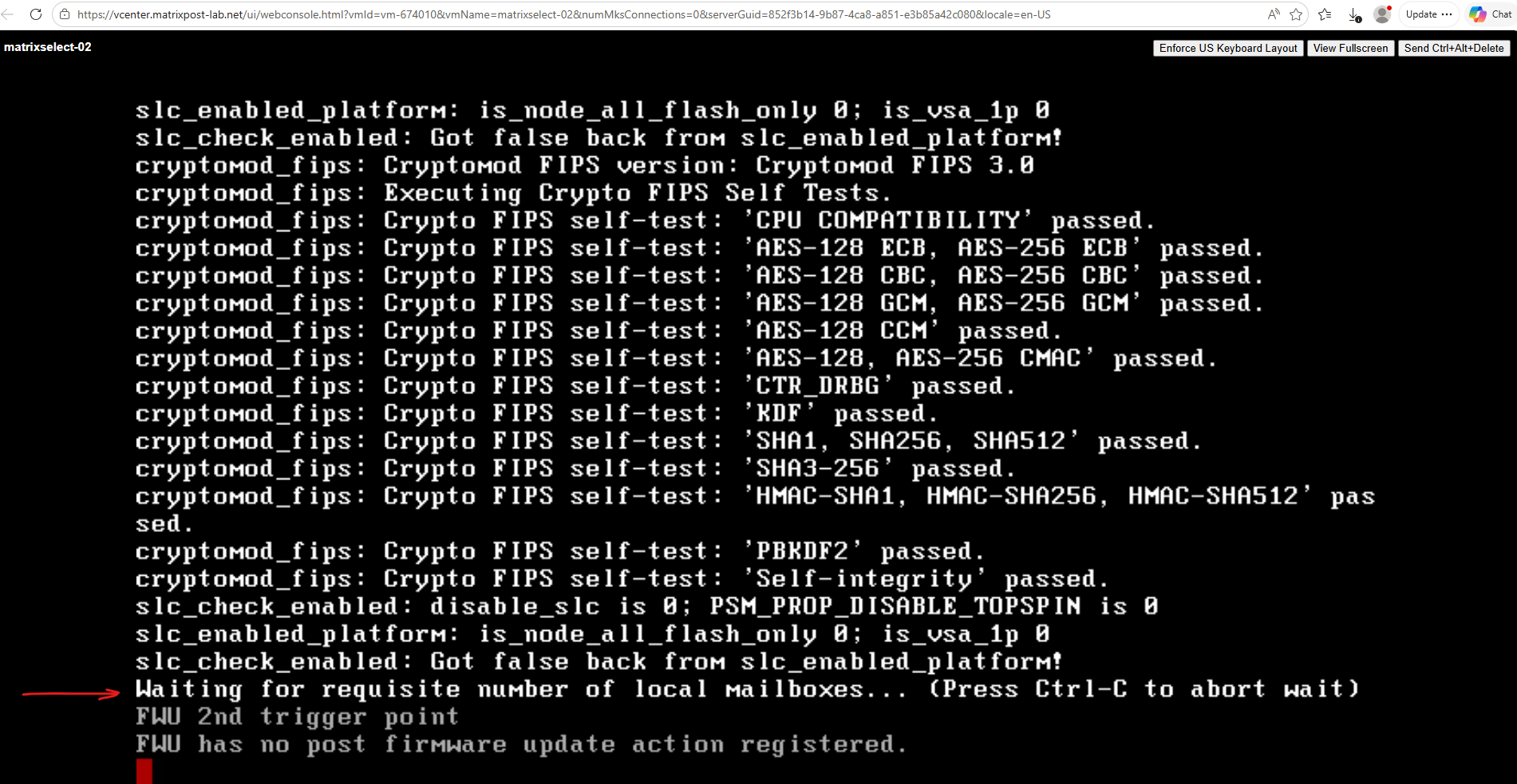
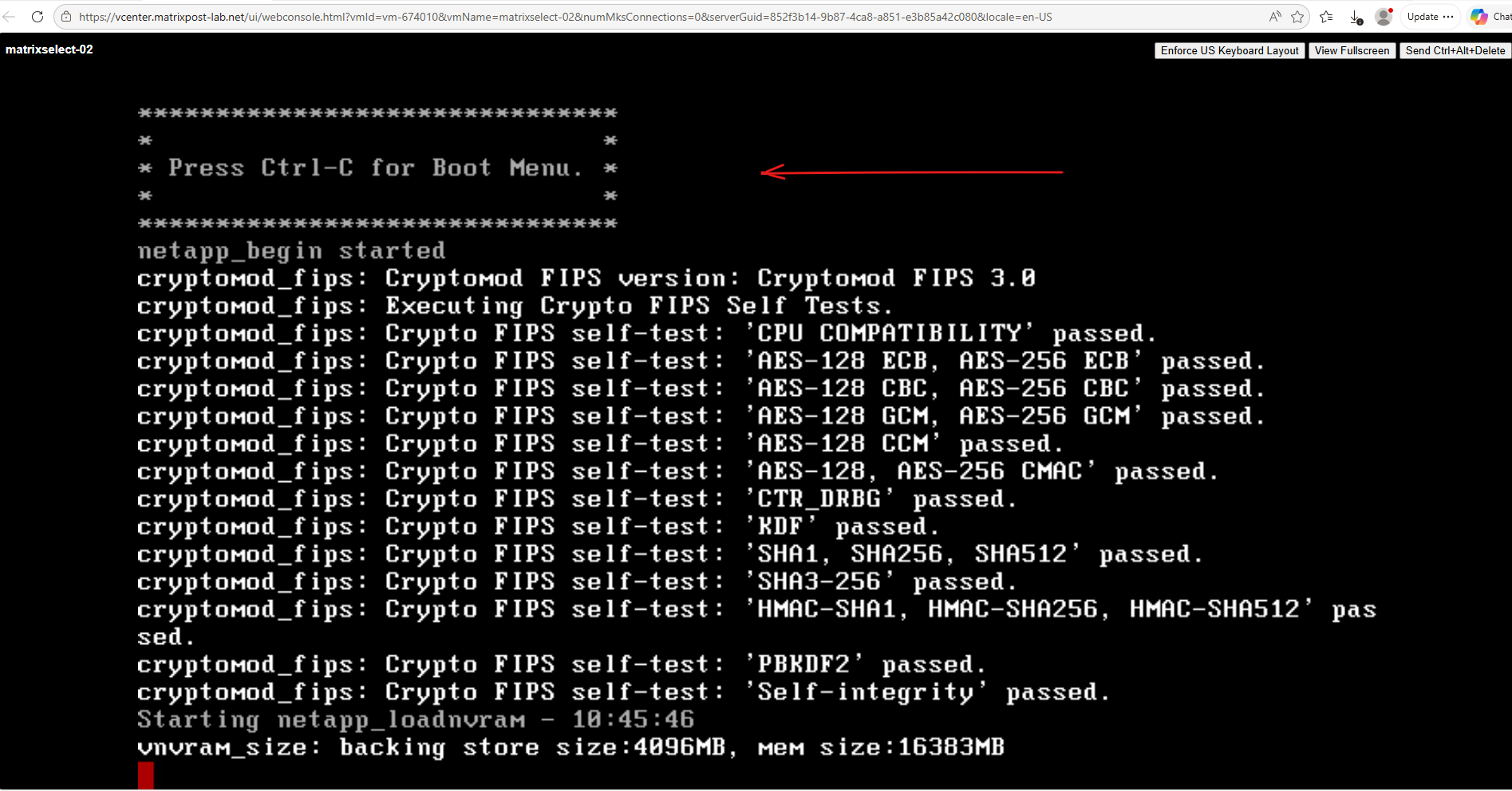
As the node starts, press Ctrl+C when the “Press Ctrl-C for Boot Menu” prompt appears to interrupt the boot process. This opens the Boot Menu, providing access to Maintenance Mode and other low-level recovery options.
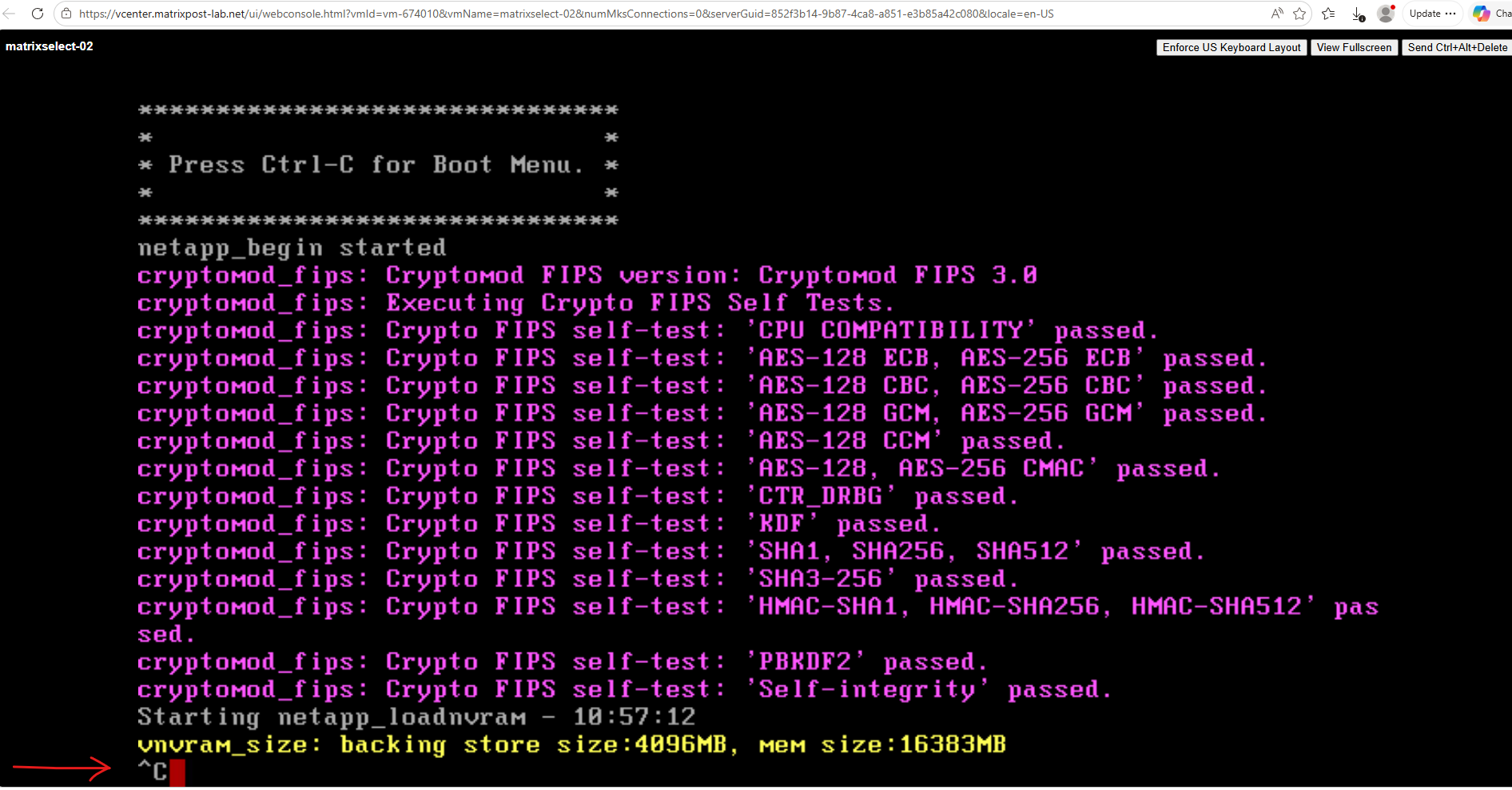
After pressing Ctrl+C, the console displays ^C, indicating that the boot process has been interrupted successfully.
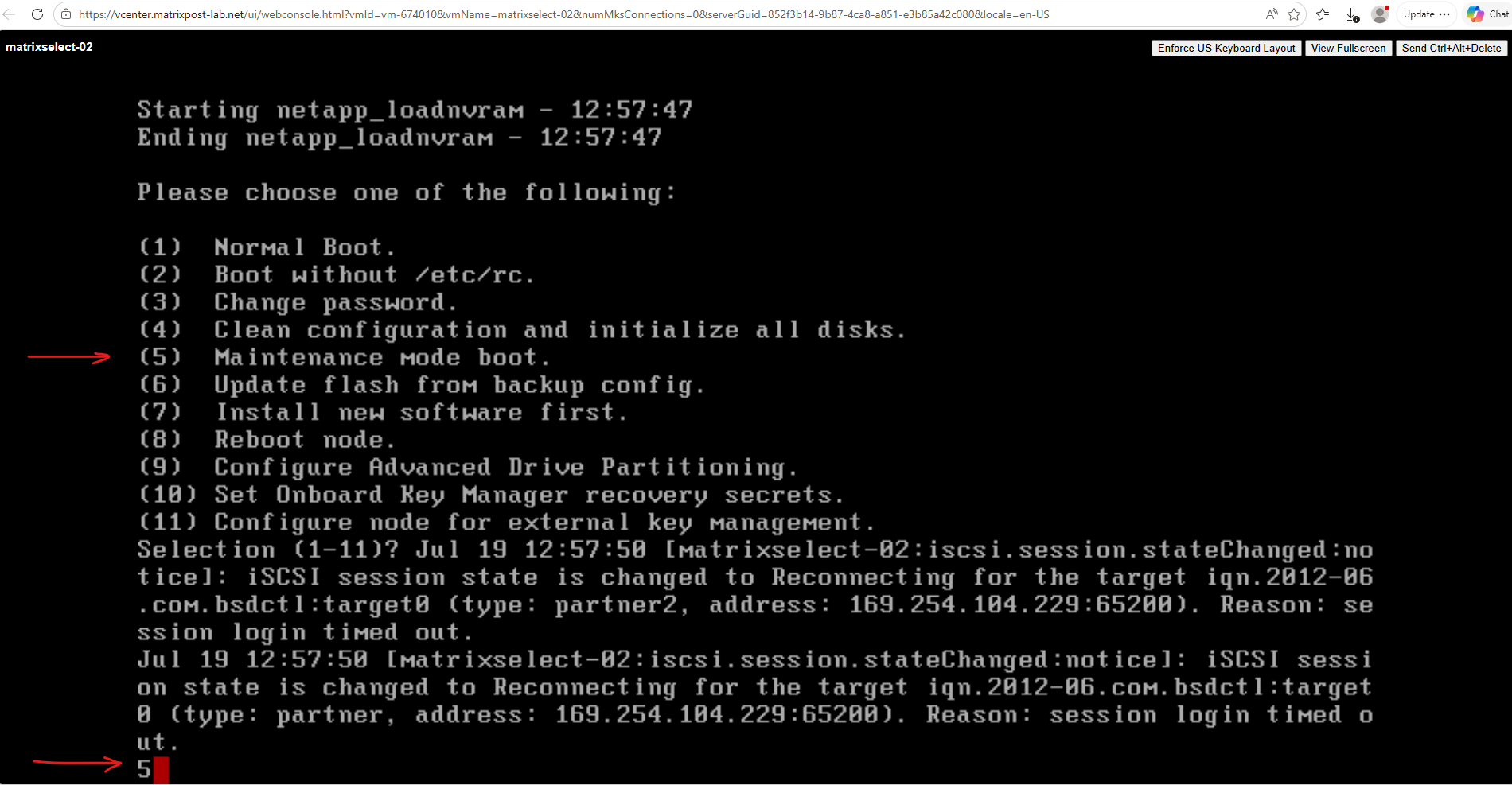
The node then opens the ONTAP Boot Menu, from which you can access Maintenance Mode and other recovery options.
From the Boot Menu, choose option 5 – Maintenance mode boot. This starts the node in Maintenance Mode, a minimal ONTAP environment designed for maintenance, diagnostics, and recovery tasks such as inspecting disks and aggregates or performing low-level repair operations.
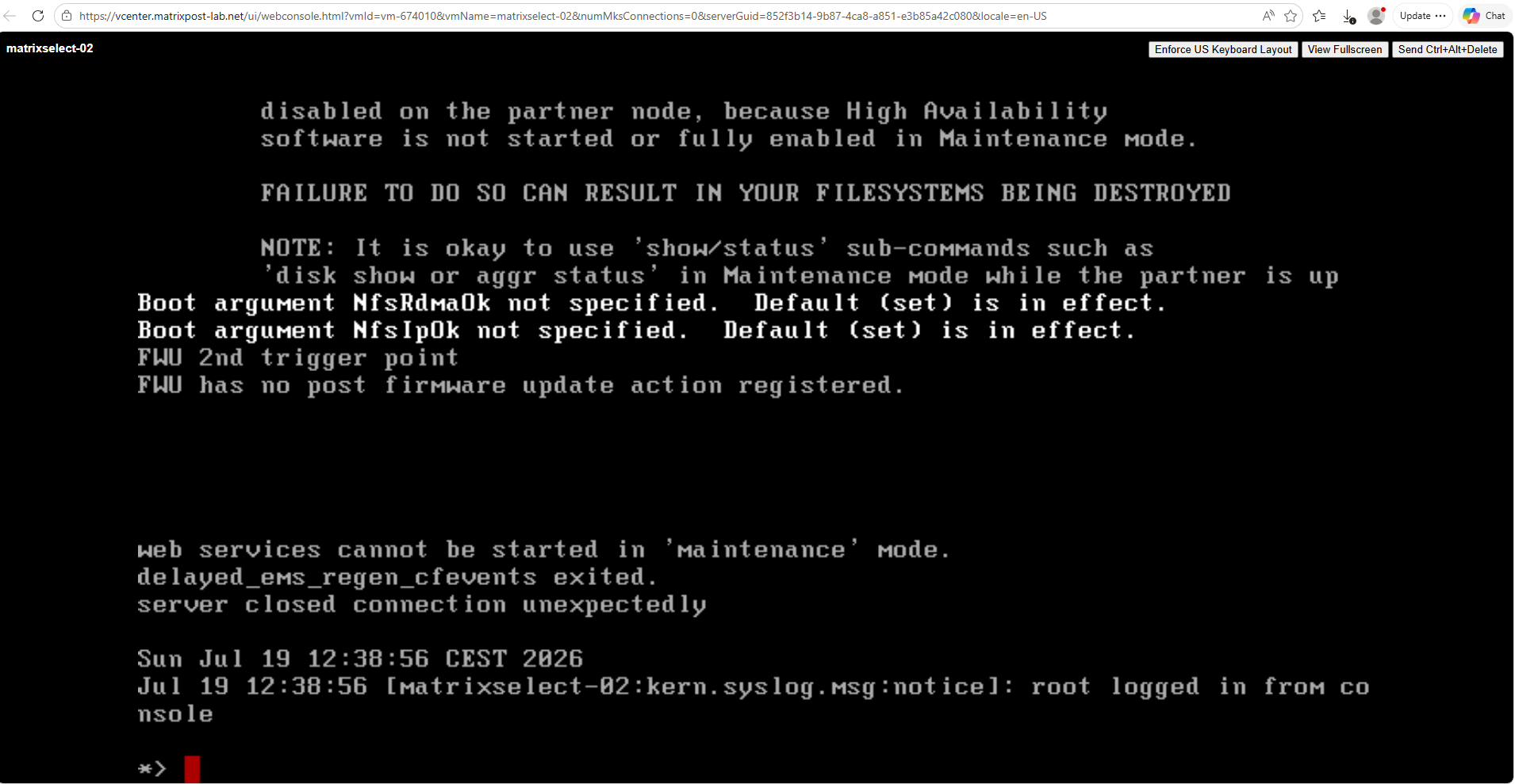
After a short initialization, ONTAP enters Maintenance Mode and presents the *> prompt, indicating that the environment is ready to accept maintenance and diagnostic commands.
From this prompt, you can inspect disks and aggregates, verify storage configuration, and perform low-level recovery operations that are not available from the clustershell.
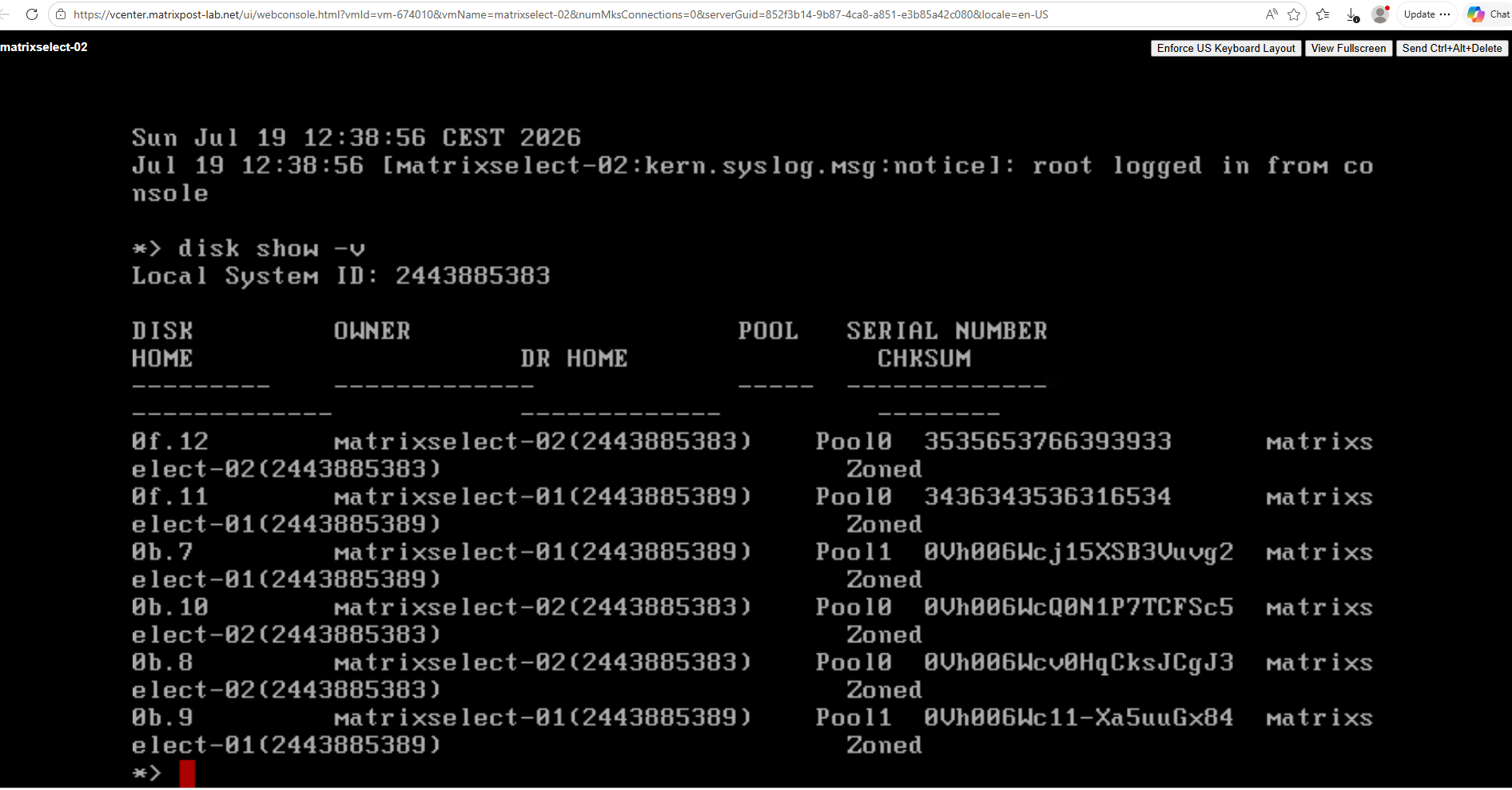
The disk show -v output verifies that the virtual disks are healthy and accessible. The node can see both its local disks (Pool 0) and the mirrored partner disks (Pool 1), confirming that the underlying VMware storage is functioning correctly.
As discussed earlier, the boot issue was ultimately caused by a missing VLAN on the physical network for the ONTAP Select cluster communication rather than a storage failure.
*> disk show -v
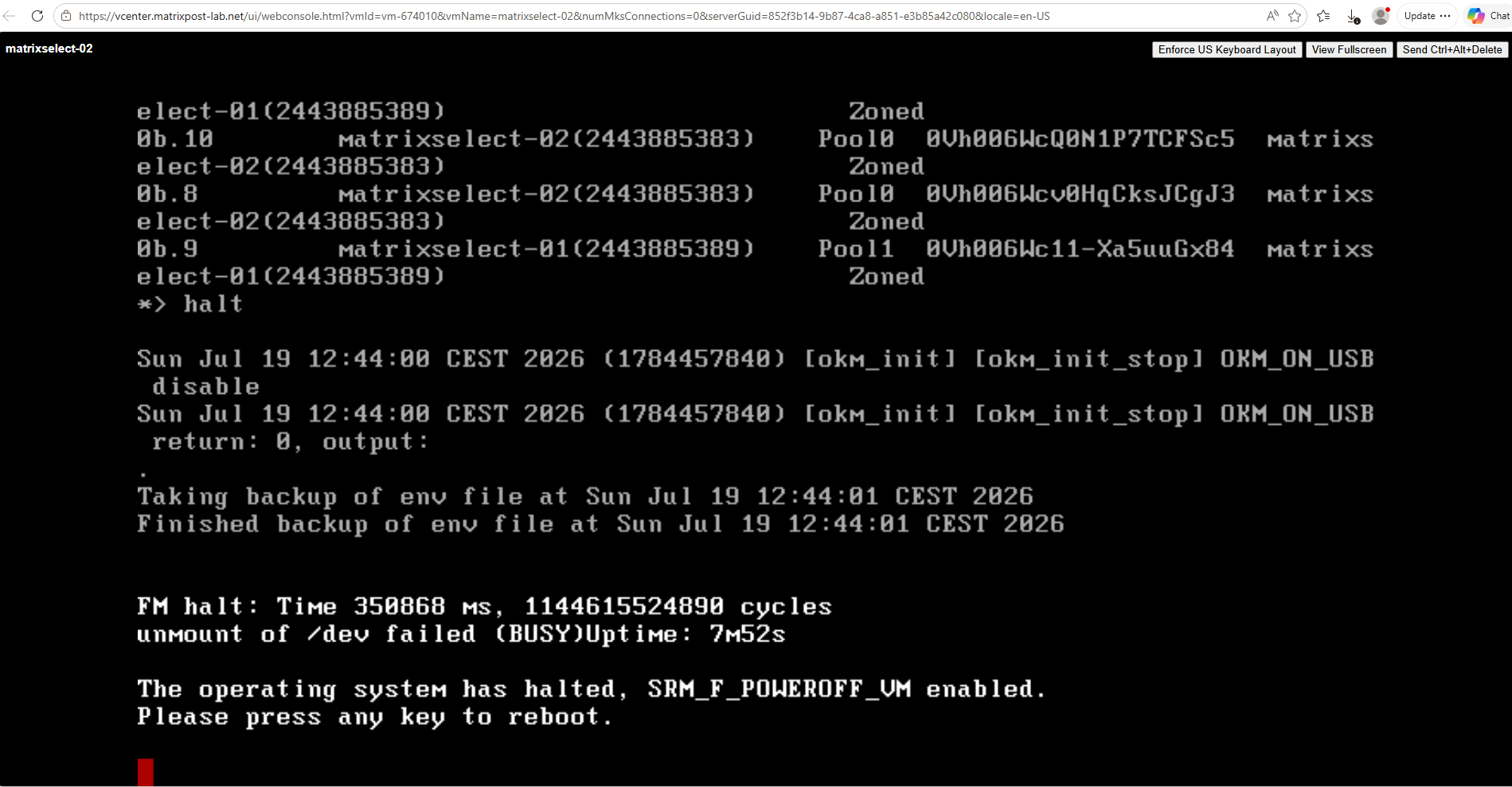
To exit maintenance mode type the following command to halt the node and drop to the loader prompt:
*> halt
Accessing the VLOADER Environment
While Maintenance Mode provides low-level access to the ONTAP storage stack, some recovery scenarios require working at an even lower level.
Before ONTAP itself starts, the VLOADER environment allows you to inspect and modify boot environment variables, boot arguments, and other settings that influence the startup process.
It is also the starting point for several advanced recovery and troubleshooting procedures documented by NetApp.
During the early boot process, VLOADER displays a short countdown:
Hit [Enter] to boot immediately, or any other key for command prompt.
Press any key except Enter before the countdown expires to interrupt the automatic boot process and enter the VLOADER command prompt.
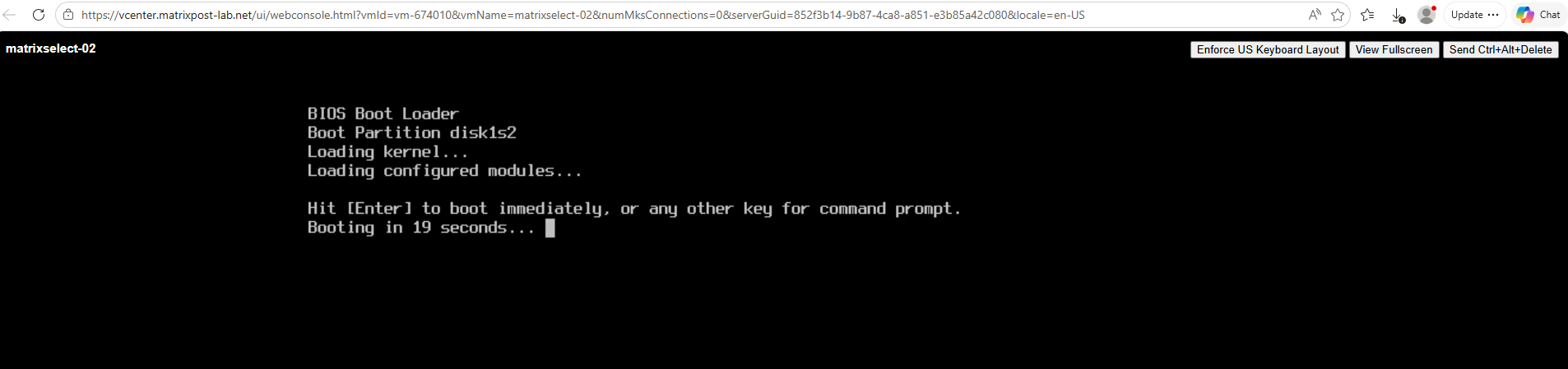
Before continuing, a small warning from practical experience: timing the initial break into VLOADER, or even catching the short “Press Ctrl-C for Boot Menu” prompt, through the vSphere Web Console can be surprisingly frustrating.
Keyboard input over the HTML5 console is often just laggy enough that several attempts may be required before the keystroke is registered at the right moment. If you miss the prompt, simply reboot the node and try again.
At this point, you’re operating below ONTAP itself. From the VLOADER> prompt, you can inspect and modify the boot environment before the operating system loads, making it an invaluable tool for advanced troubleshooting and recovery.
VLOADER is the ONTAP boot loader environment that runs before the operating system itself is loaded. It initializes the boot process and provides a command-line interface for inspecting and modifying boot environment variables, configuring boot arguments, and starting ONTAP using different boot options for troubleshooting and recovery.
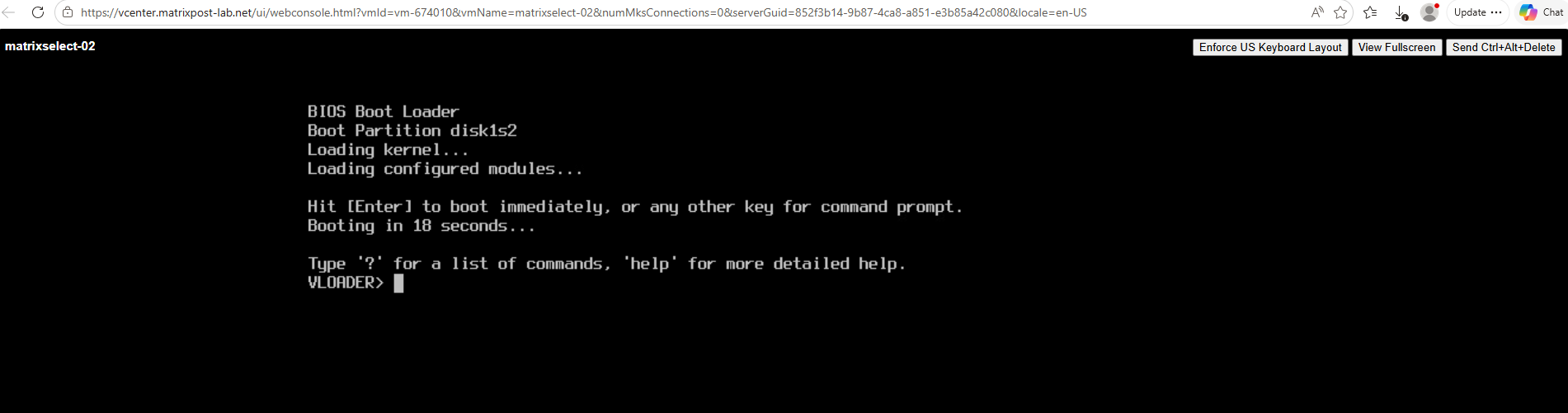
Once you are at the LOADER> prompt, type these three commands exactly as shown, pressing Enter after each one:
Boot arguments can be modified directly from the VLOADER prompt using the
setenvcommand. In this example, theinit.boot_as_partnerandsfo.support_takeoverboot arguments are set before manually starting ONTAP with thebootcommand. This approach is commonly used during advanced recovery procedures or when instructed by NetApp Support.These temporary boot arguments instruct the node to participate in the HA recovery process during startup. Such commands are typically executed only as part of specific recovery procedures or under the guidance of NetApp documentation or Support.
VLOADER> set bootarg.init.boot_as_partner='true'
VLOADER> set bootarg.sfo.support_takeover='true'
VLOADER> boot
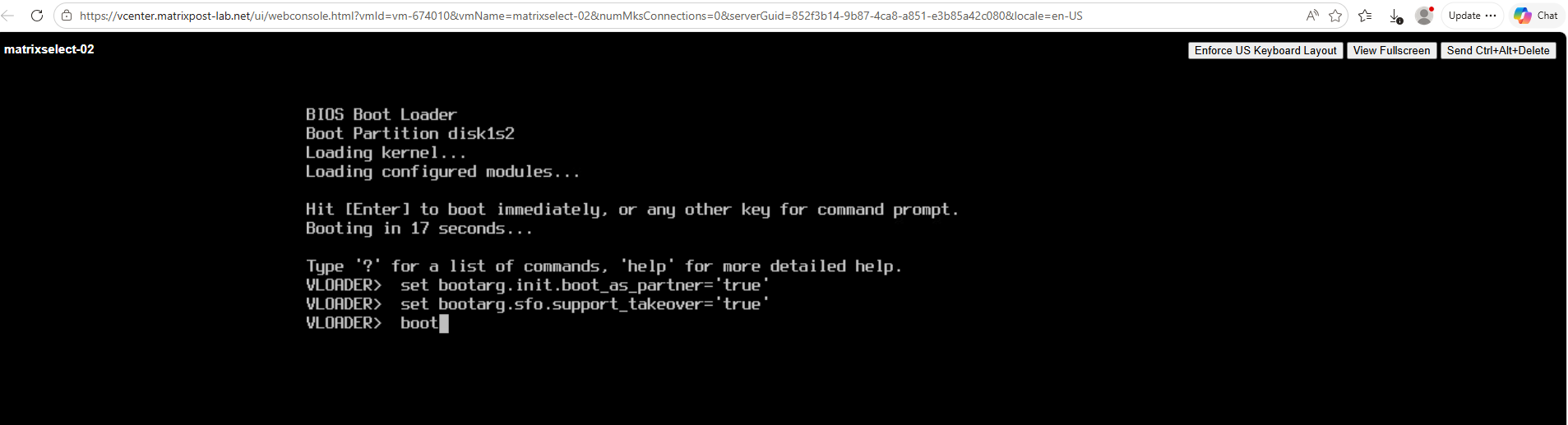
After typing boot, the VM will execute its normal startup sequence.
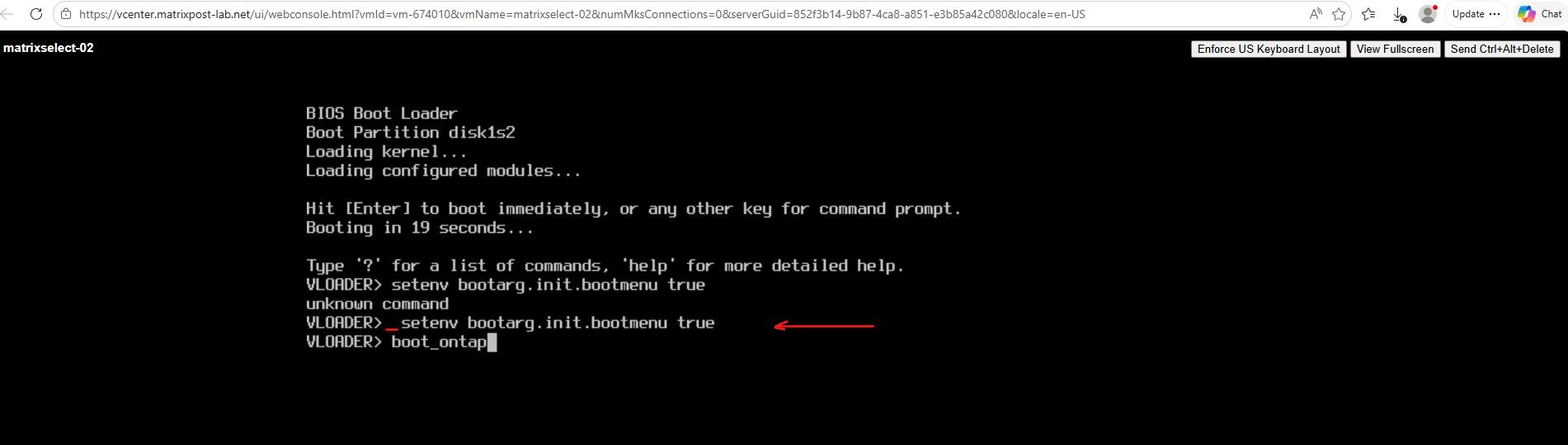
In this example below, the bootarg.init.bootmenu variable is set to true, instructing ONTAP to display the Boot Menu during the next startup. The node is then started by executing the boot_ontap command.
VLOADER>  setenv bootarg.init.bootmenu true
VLOADER> boot_ontap
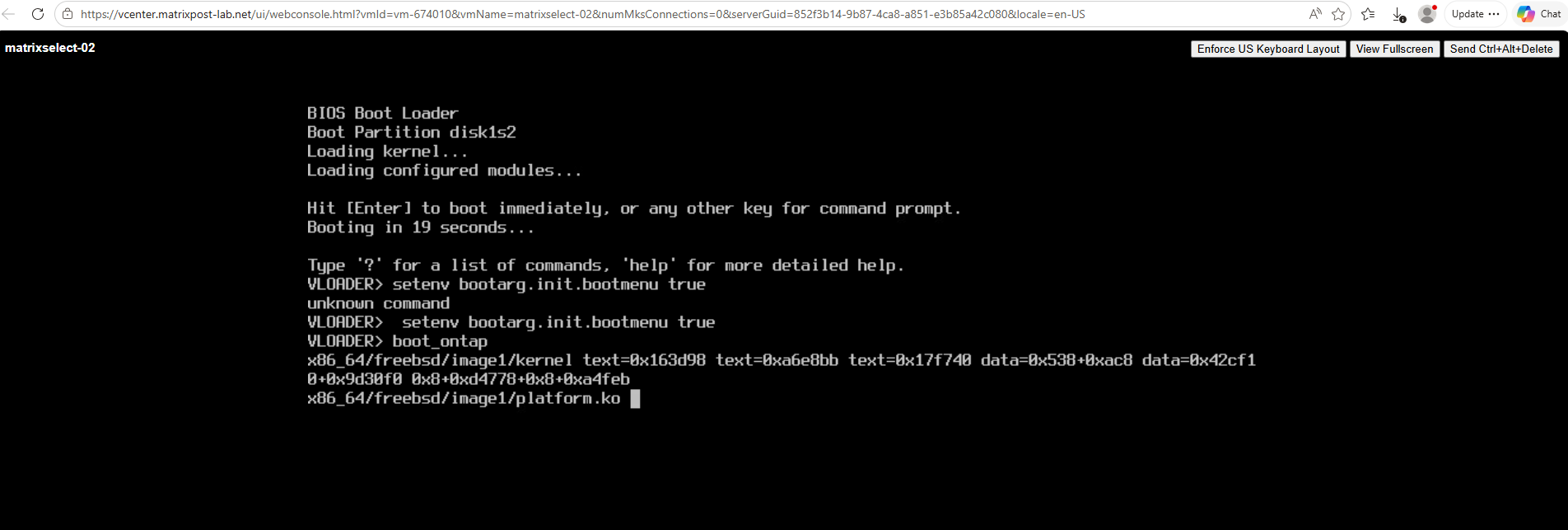
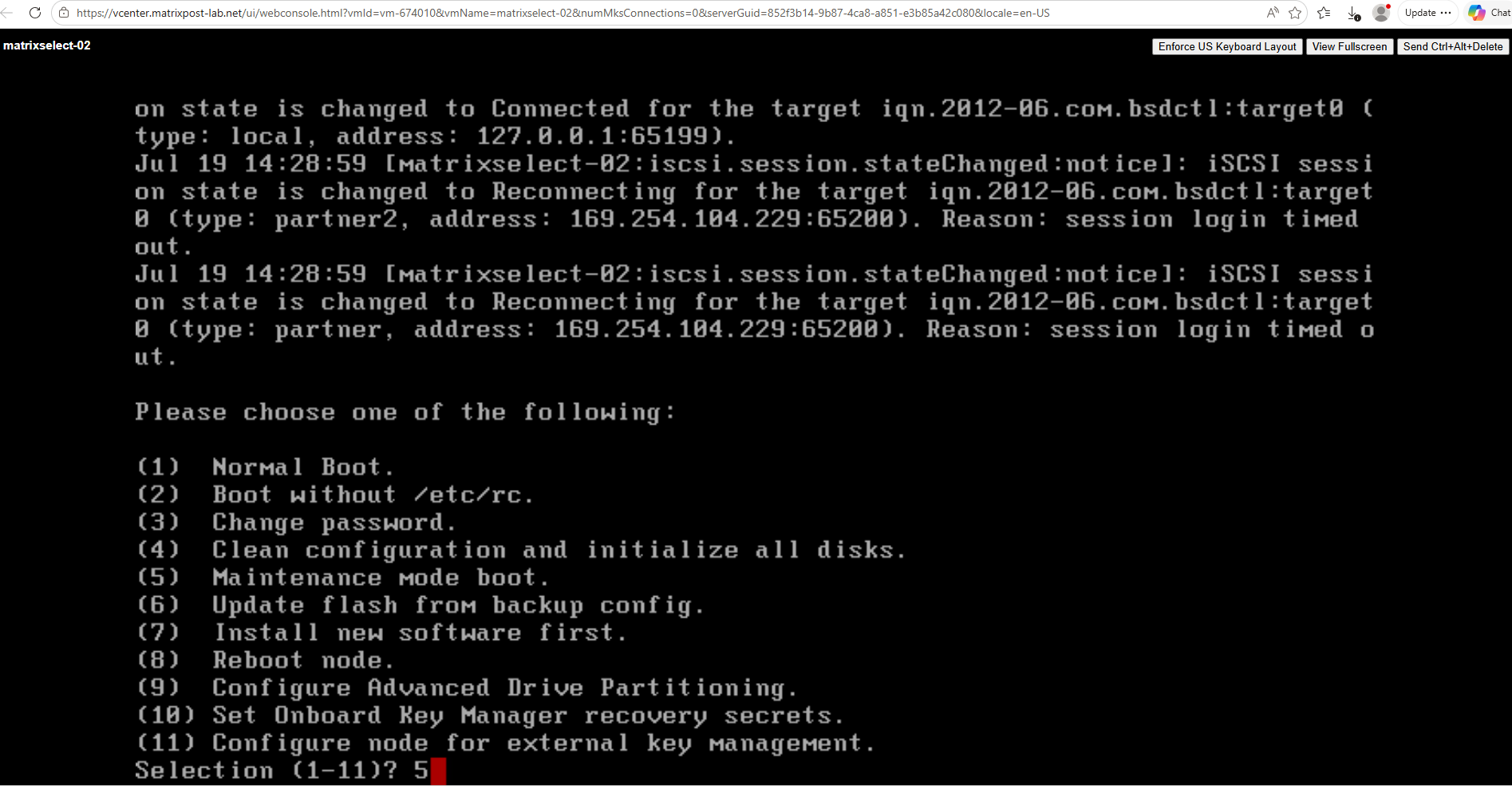
Now we are safely at the *> prompt in Maintenance Mode.
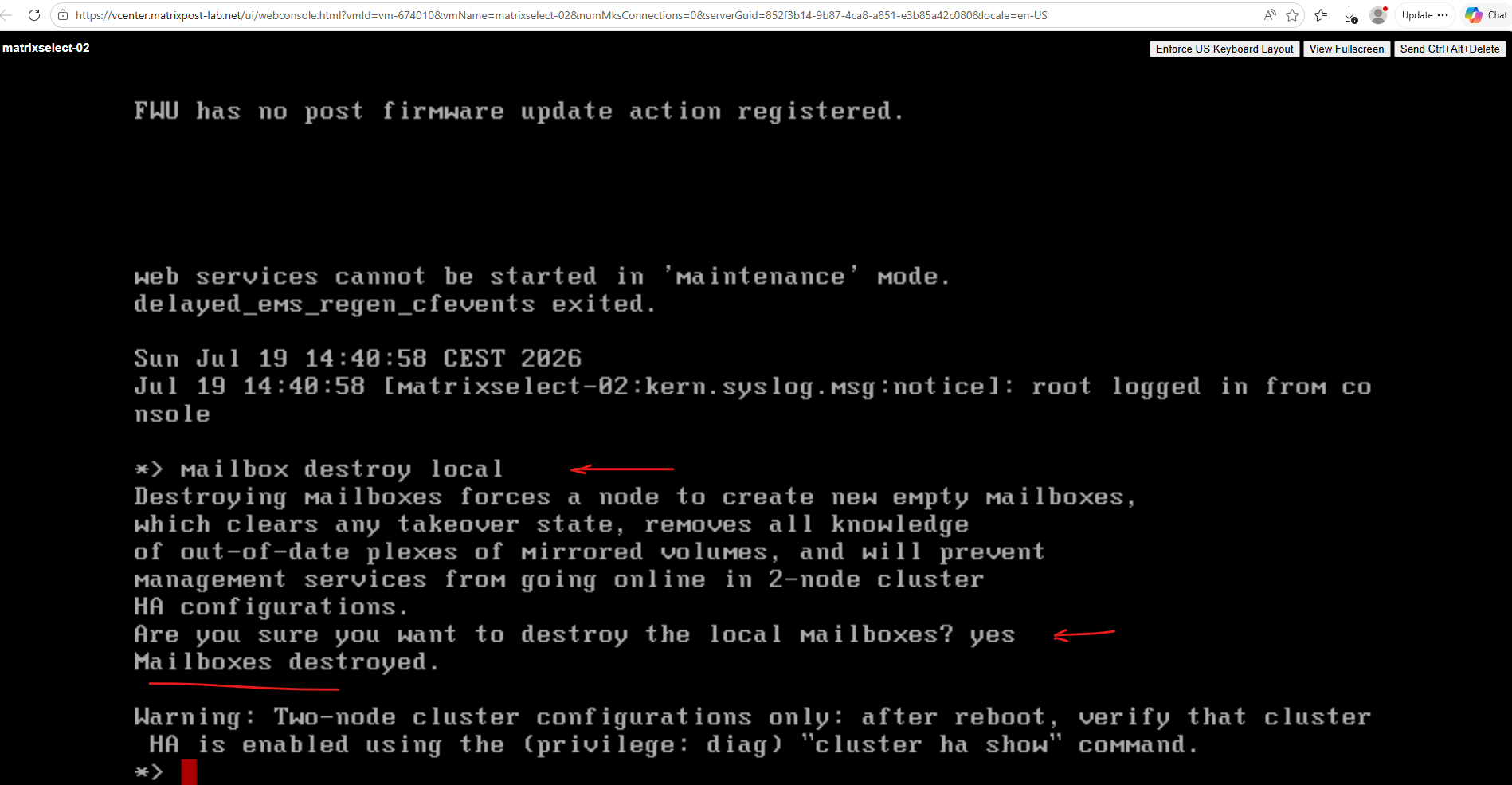
In a two-node ONTAP HA pair, each node maintains mailboxes that store metadata required for HA coordination between the partners. These mailboxes contain state information used during takeover and giveback operations, allowing each node to determine the current HA status of its partner and the ownership of mirrored storage resources.
If the mailbox information becomes stale or inconsistent, for example, after an ungraceful shutdown, storage replacement, or certain recovery scenarios, it may be necessary to destroy the local mailbox contents and allow ONTAP to recreate them during the next boot.
This clears the old, locked mailbox information from the disks. It does not touch your actual data volumes; it just wipes the cluster state ownership locks that were keeping the node stuck in that loop.
The following command removes the local mailbox information:
After confirming the operation with
yes, ONTAP deletes the local mailbox metadata. During the next startup, new empty mailboxes are created automatically.Important: This command should only be used as part of a documented recovery procedure or under the guidance of NetApp Support. Destroying mailbox information clears the node’s HA state and, in a two-node cluster, requires verification that Cluster HA is correctly re-established after the node has rebooted.
*> mailbox destroy local
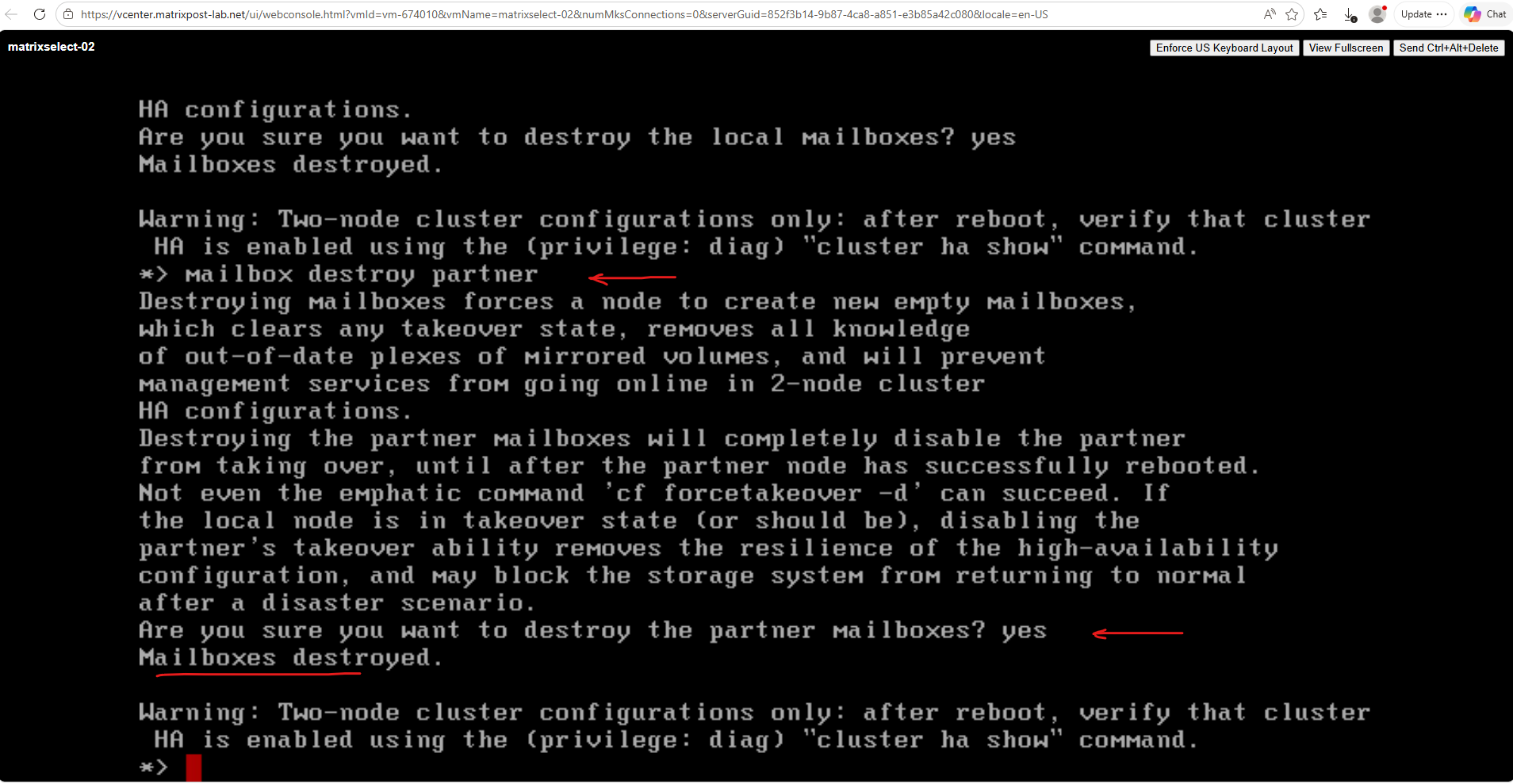
The mailbox destroy partner command removes the partner node’s mailbox information stored on the local node. This clears any stale HA state associated with the partner and forces the mailbox information to be recreated after the partner has successfully rebooted.
Before executing the command, ONTAP displays a detailed warning explaining that the partner’s takeover capability will be disabled until it has completed a reboot. After confirming the operation with
yes, the partner mailbox information is destroyed.Important: Destroying the partner mailboxes temporarily removes the HA relationship information required for takeover. As the warning indicates, this command should only be executed as part of a documented recovery procedure or under the guidance of NetApp Support, as it can leave a two-node HA pair without takeover protection until the partner has restarted and recreated its mailbox information.
*> mailbox destroy partner
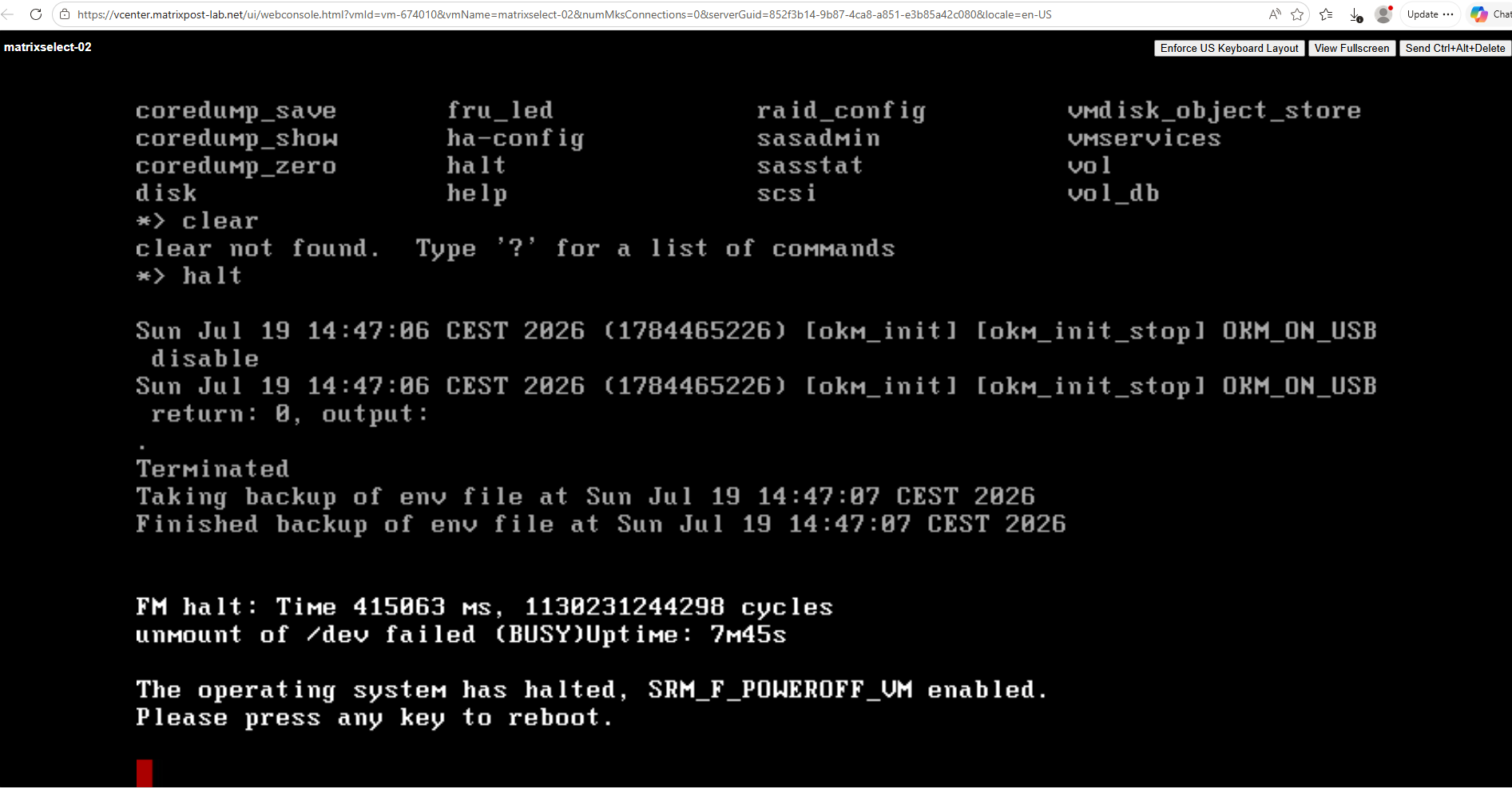
After completing the required maintenance or recovery tasks, the node can be shut down cleanly by issuing the halt command. ONTAP terminates the Maintenance Mode environment, saves the current boot environment, and halts the operating system.
Once the message
The operating system has halted, SRM_F_POWEROFF_VM enabled.
Please press any key to reboot.
appears, the node has been shut down successfully and is ready to reboot. Press any key to start the boot process again, or power on the node later if it has been shut down from the hypervisor.
*>halt
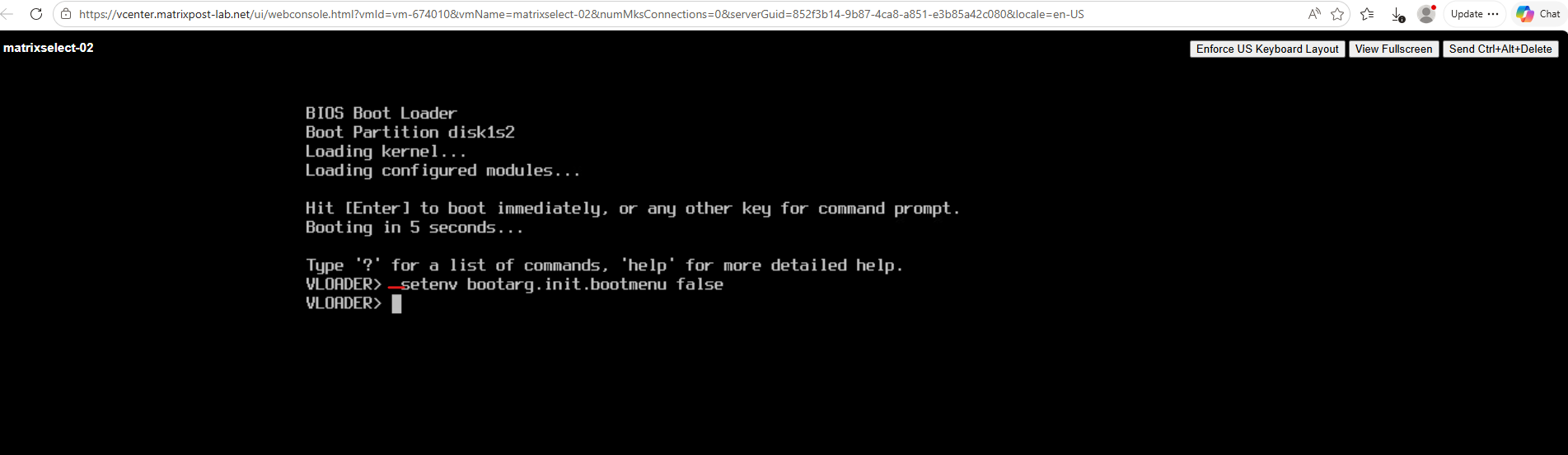
If the Boot Menu was enabled temporarily by setting bootarg.init.bootmenu to true, it should be reset once it is no longer needed. From the VLOADER prompt, execute:
!! Note !! We need a leading space before setenv command.
After resetting the bootarg.init.bootmenu variable to false, start ONTAP by executing the boot_ontap command.
VLOADER>  setenv bootarg.init.bootmenu false
VLOADER> boot_ontap
Links
How to get to the LOADER prompt Resolution Guide
https://kb.netapp.com/on-prem/ontap/OHW/OHW-KBs/How_to_get_to_the_LOADER_prompt_Resolution_GuideHow to get to the LOADER prompt in ONTAP 9.7 and later
https://kb.netapp.com/on-prem/ontap/OHW/OHW-KBs/How_to_get_to_the_LOADER__prompt_in_ONTAP_9.7_and_laterONTAP Select node stuck at VLOADER
https://kb.netapp.com/on-prem/ontap/ontap-select/Select-KBs/ONTAP_Select_node_stuck_at_VLOADERWhat are the ONTAP maintenance mode commands
https://kb.netapp.com/on-prem/ontap/Ontap_OS/OS-KBs/What_are_the_ONTAP_maintenance_mode_commandsMaintenance mode
https://docs.netapp.com/us-en/hci/docs/concept_hci_storage_maintenance_mode.htmlManage an ONTAP node using the boot menu
https://docs.netapp.com/us-en/ontap/system-admin/manage-node-boot-menu-task.html