Modern Azure Deployments with Terraform & GitHub – Part 4 – Advanced CI/CD with Pull Requests, Branch Protection, and Terraform Validation
In the previous parts of this series, we built a fully automated multi-environment CI/CD pipeline using Terraform, GitHub Actions, and Microsoft Azure, including separate remote state files and protected production deployments.
In this part, we will extend our existing workflow by introducing Pull Request validation, GitHub branch protection rules, automated Terraform quality checks, and more advanced GitHub Actions strategies.
These improvements will help us establish a more controlled and collaborative Infrastructure as Code deployment process.
- Configuring Pull Request Validation with GitHub Actions
- Step 1 – Enable Pull Request Triggers
- Step 2 – Adjust Environment Selection for Pull Requests
- Step 3 – Testing Pull Request Validation.
- Delete the Feature Branch After Merging
- Promote Terraform Changes from Development to Testing
- Promote Terraform Changes from Test to Main (Production)
- Configure GitHub Branch Protection Rules.
- Links
Configuring Pull Request Validation with GitHub Actions
Before introducing branch protection rules, we will first extend our existing GitHub Actions workflow to automatically validate Terraform changes whenever a Pull Request (PR) is created or updated.
Unlike our existing deployment workflow, which executes terraform apply after pushing changes to a branch, the Pull Request validation workflow will only initialize Terraform, check the configuration, and generate an execution plan without deploying any resources to Azure.
This allows us to identify configuration errors and review proposed infrastructure changes before merging them into the target branch.
Step 1 – Enable Pull Request Triggers
In our existing .github/workflows/terraform.yml, we currently trigger the workflow on pushes to develop, test, and main.
We will extend the trigger configuration to include Pull Requests:
Our workflow now supports three triggers:
workflow_dispatch— Manual execution from GitHub.push— Automatic execution when commits are pushed todevelop,test, ormain.pull_request— Automatic execution when a Pull Request targeting one of those branches is opened or updated.
name: Terraform Azure CI/CD

on:
  workflow_dispatch:
  push:
    branches:
      - develop
      - test
      - main

  pull_request:
    branches:
      - develop
      - test
      - main
The pull_request trigger runs when a Pull Request targets one of these branches, including when new commits are pushed to an open Pull Request.
Step 2 – Adjust Environment Selection for Pull Requests
Currently, our workflow identifies the Terraform environment using GITHUB_REF_NAME. This works for normal pushes, but for Pull Requests, GitHub typically uses a reference such as 123/merge instead of the target branch name.
We therefore need to adjust our workflow to distinguish between push events and Pull Request events, while ensuring that Pull Request validation runs automatically without requiring production deployment approval.
Adjust the GitHub Environment Selection
First, we replace our existing job-level GitHub Environment configuration:
environment:
  name: ${{ github.ref_name == 'main' && 'production' || 'nonprod' }}
With:
environment:
  name: ${{ github.event_name == 'pull_request' && 'nonprod' || (github.ref_name == 'main' && 'production' || 'nonprod') }}
The expression is evaluated from left to right:
github.event_name == 'pull_request'checks whether the workflow was triggered by a Pull Request.&& 'nonprod'returns the GitHub Environment namenonprodif the preceding condition is true. Here,&&does not check whether the Environment isnonprod; instead, it returns the string when the condition is satisfied.||provides the alternative when the preceding expression evaluates to false.github.ref_name == 'main'checks whether the selected Git branch ismain, provided the workflow was not triggered by a Pull Request.&& 'production'returns the GitHub Environment nameproductionwhen the branch ismain.|| 'nonprod'provides the final fallback for all other branches, such asdevelopandtest.
In other words, the expression behaves like a compact if/else statement:
IF event == "pull_request"
    GitHub Environment = "nonprod"
ELSE IF branch == "main"
    GitHub Environment = "production"
ELSE
    GitHub Environment = "nonprod"
In other words, the expression behaves like a compact if/else statement:
IF event == "pull_request"
    GitHub Environment = "nonprod"
ELSE IF branch == "main"
    GitHub Environment = "production"
ELSE
    GitHub Environment = "nonprod"
This ensures that Pull Request validation always runs without manual deployment approval, even when targeting the main branch. Normal pushes to main continue to use the protected production Environment, while pushes to develop and test use nonprod.
Important: This expression only selects the GitHub Environment and its protection rules. The actual Terraform environment (
dev,test, orprod), including its backend configuration and variable files, is selected separately in our Set Terraform Environment step.
Adjust the Terraform Environment Selection
Next, find our existing Set Terraform Environment step and replace it with:
- name: Set Terraform Environment
  run: |
    if [ "${{ github.event_name }}" = "pull_request" ]; then
      BRANCH="${{ github.base_ref }}"
    else
      BRANCH="${GITHUB_REF_NAME}"
    fi

    if [ "$BRANCH" = "develop" ]; then
      echo "TF_ENV=dev" >> $GITHUB_ENV
    elif [ "$BRANCH" = "test" ]; then
      echo "TF_ENV=test" >> $GITHUB_ENV
    elif [ "$BRANCH" = "main" ]; then
      echo "TF_ENV=prod" >> $GITHUB_ENV
    else
      echo "Unsupported branch: $BRANCH"
      exit 1
    fi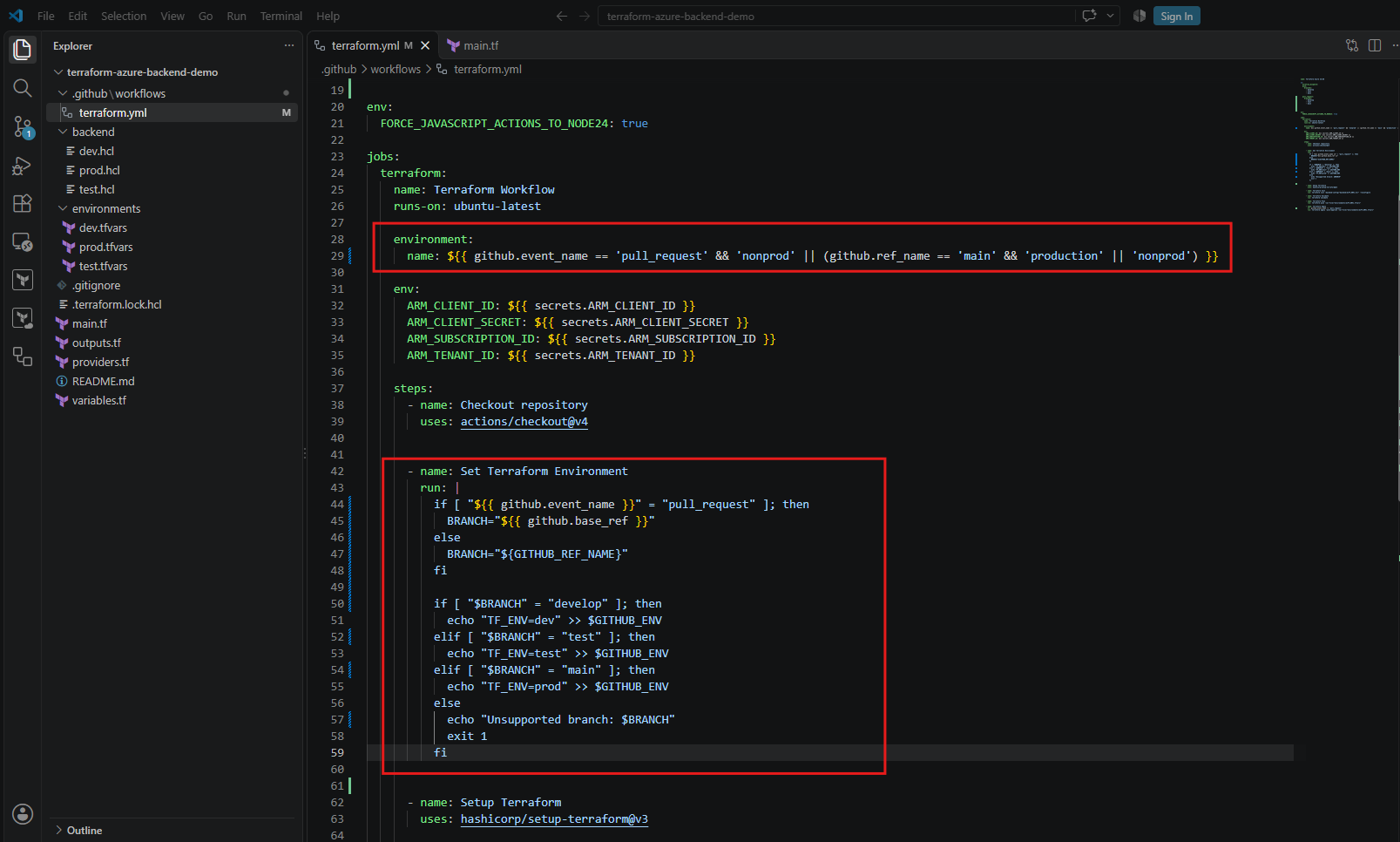
For normal pushes, GITHUB_REF_NAME identifies the branch receiving the push. For Pull Requests, github.base_ref identifies the target branch into which the changes are proposed to be merged.
Based on that branch, the workflow sets TF_ENV to dev, test, or prod, which is subsequently used to select the corresponding Terraform backend configuration (.hcl) and variable file (.tfvars).
This means that a Pull Request targeting main, for example, can generate a Terraform plan against the production configuration and remote state while still using the unprotected nonprod GitHub Environment for validation.
Prevent Terraform Apply During Pull Request Validation
Finally, we add the following condition to our existing Terraform Apply step:
- name: Terraform Apply
  if: github.event_name != 'pull_request'
  run: terraform apply -auto-approve -var-file="environments/${TF_ENV}.tfvars"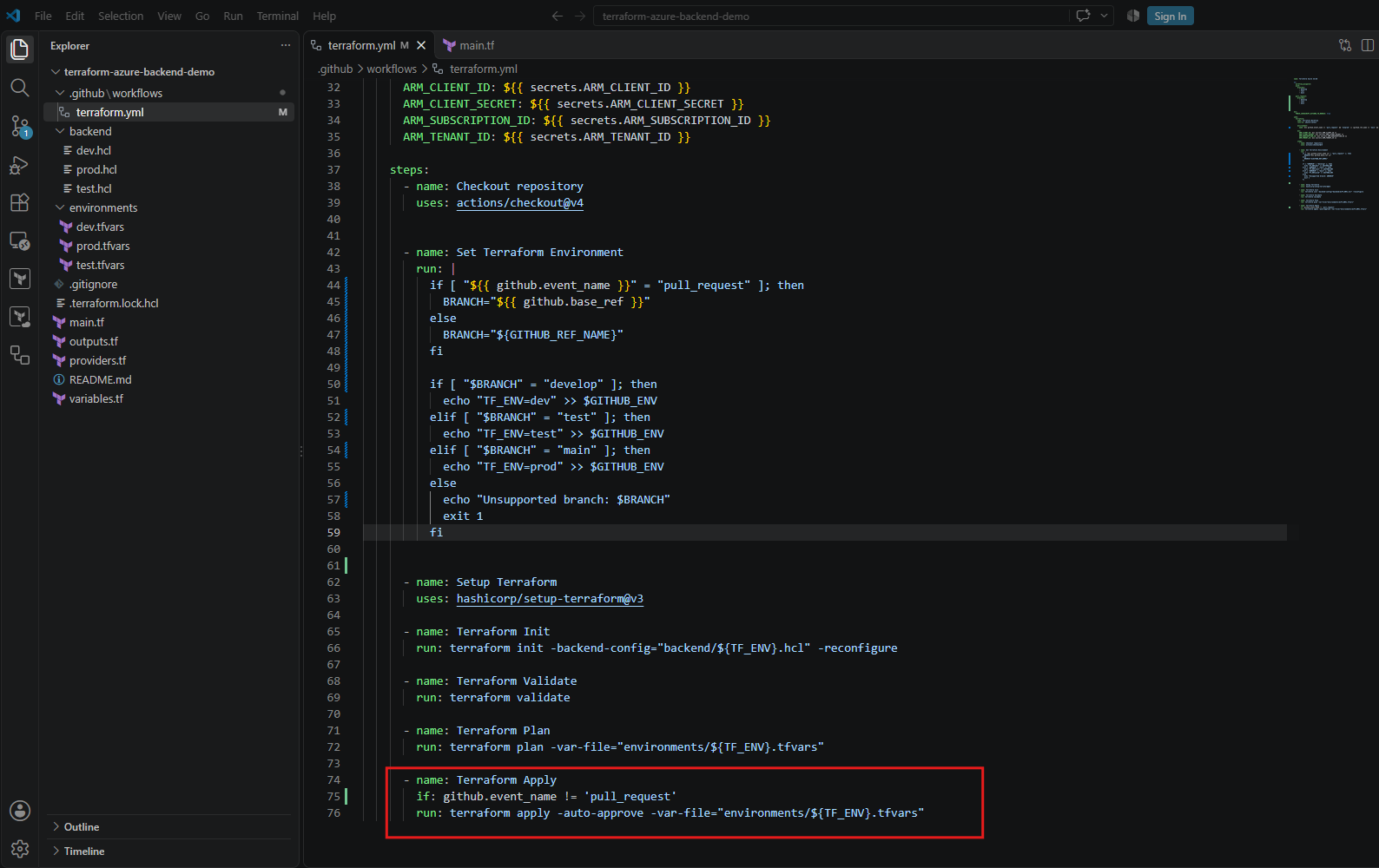
The if condition ensures that Terraform Apply is skipped whenever the workflow is triggered by a Pull Request.
Therefore, Pull Request workflows execute Terraform Init, Validate, and Plan, allowing us to review proposed infrastructure changes without deploying them. Normal push events continue to execute the complete Terraform workflow, including Apply and any required production approval.
Note: Our current lab workflow uses the same Azure service principal for validation and deployment.
In a production environment,
Pull Request validationshould use separate, least-privilege credentials, and untrusted Pull Requests should not receive deployment secrets.
Configuring a Dedicated Azure Service Principal for Pull Request Validation
We’ll create a second service principal, sp-terraform-github-validation, with restricted Azure permissions and separate GitHub secrets.
There is one important detail: Terraform Plan isn’t always read-only from an authentication perspective. It needs access to Azure resources and the remote Terraform state. We therefore need to distinguish between Azure resource permissions and Azure Storage backend permissions.
For our existing Terraform deployments, we use the Azure service principal sp-terraform-github with the Contributor role.
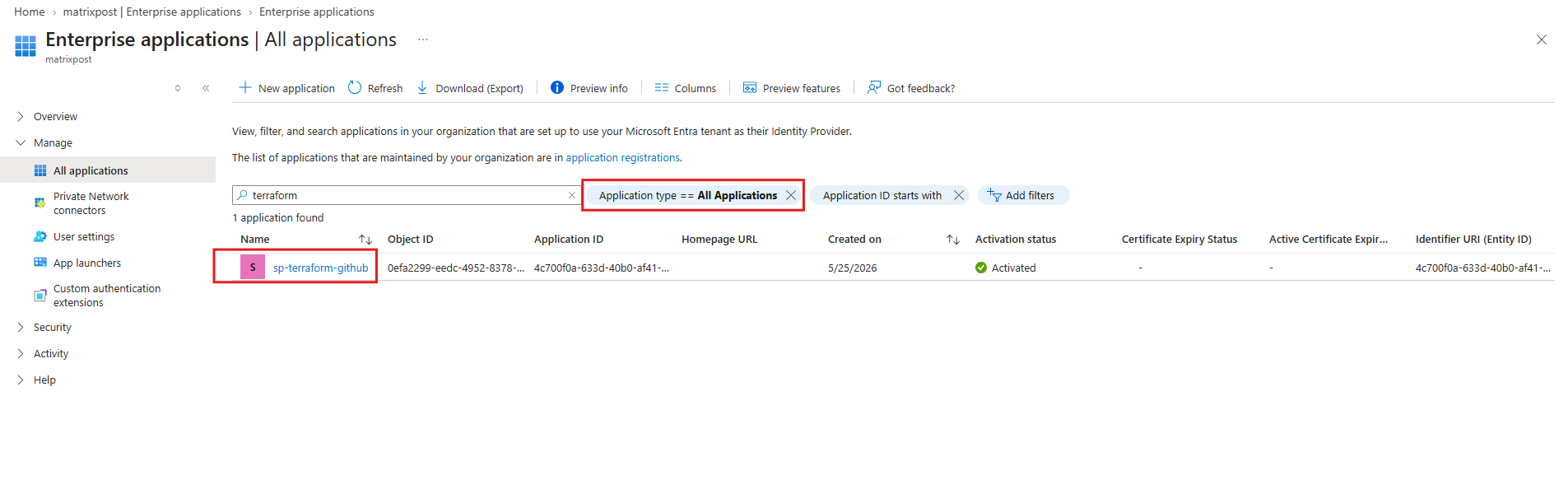
To follow the principle of least privilege, we will create a separate service principal named sp-terraform-github-validation that is used exclusively for Pull Request validation.
The validation service principal requires two types of access:
| Azure component | Role | Purpose |
|---|---|---|
| Azure subscription | Reader | Read existing Azure resources to generate a Terraform plan |
Terraform state blob container (tfstate) | Storage Blob Data Contributor | Access the remote Terraform state and perform the necessary state-locking operations |
Although the Reader role prevents modifications to Azure infrastructure, Terraform’s Azure backend requires additional permissions to manage state locking. The Storage Blob Data Contributor role therefore grants more than read-only access to the state container.
Important: For my lab, this is a practical separation of infrastructure permissions. It is not a strictly read-only security boundary because the validation identity can still modify state blobs. We should restrict its access to the necessary state files and avoid running untrusted Terraform code with these credentials.
Create the validation service principal
Using Azure CLI:
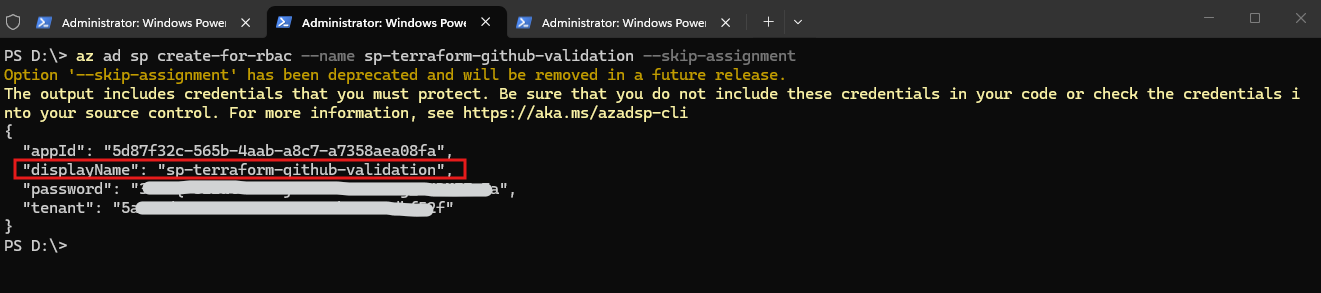
The command creates the service principal without automatically assigning Azure permissions. Save the returned
appId,password, andtenantsecurely.
az ad sp create-for-rbac --name sp-terraform-github-validation --skip-assignment
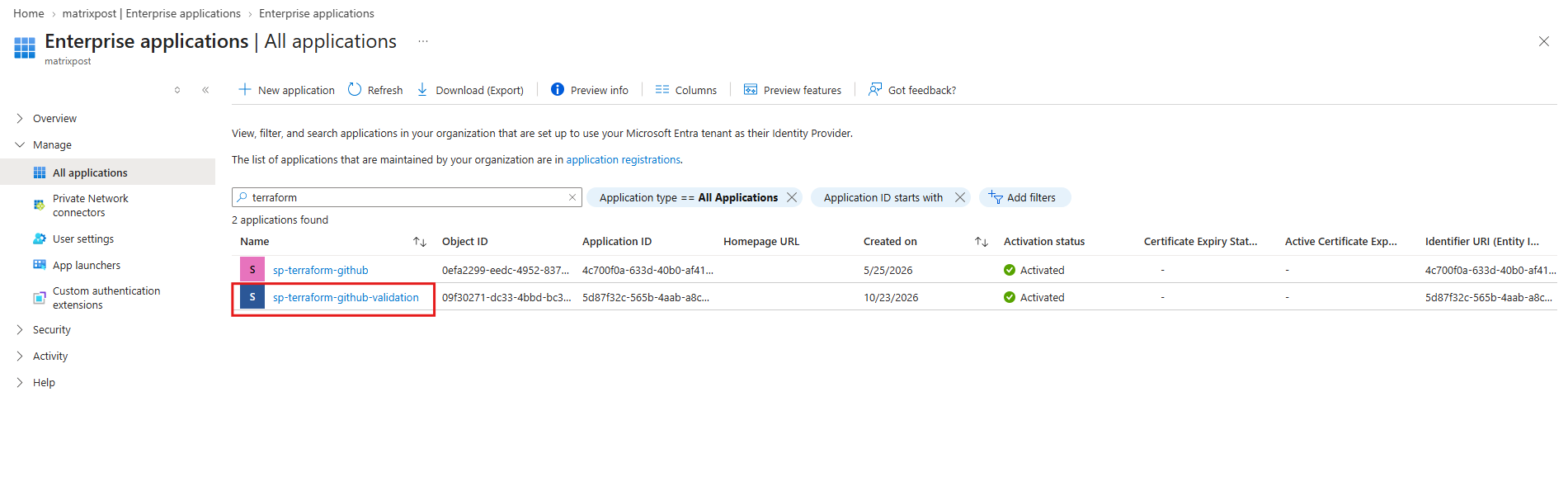
More about service principals in Azure and the difference between App Registrations and Enterprise Applications (Microsoft Entra ID application) you will find in my following post.
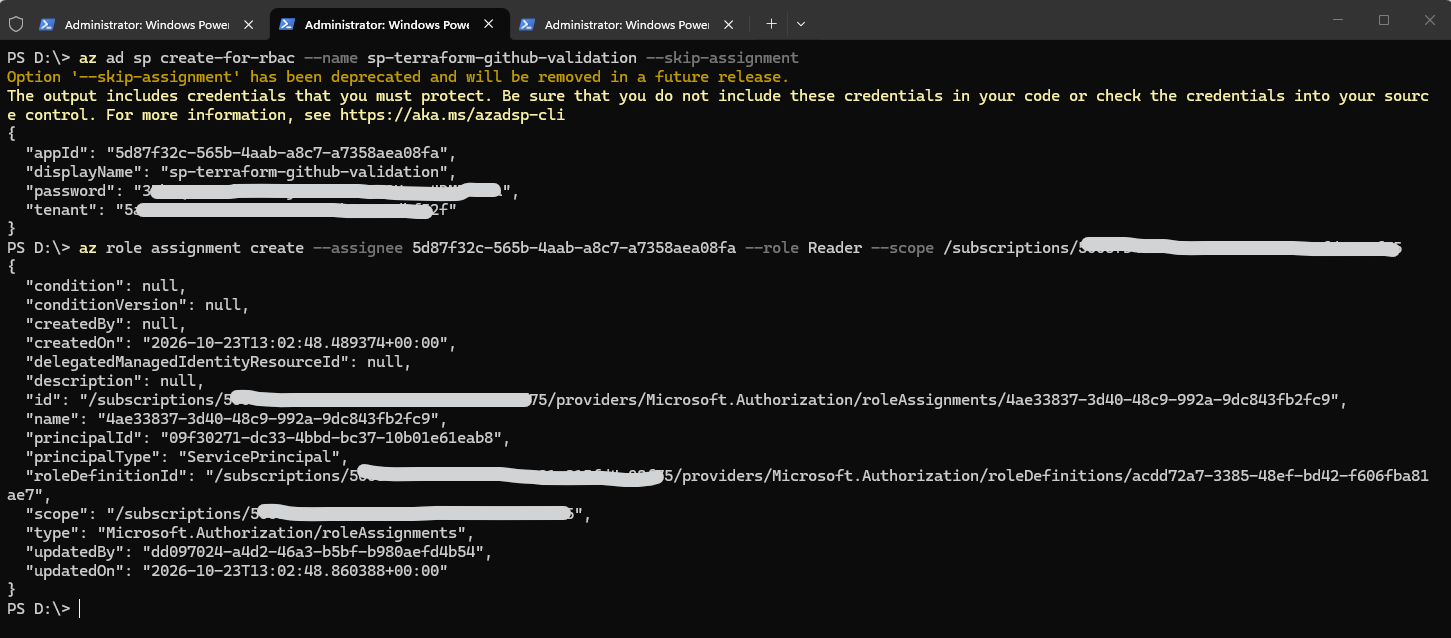
Assign Azure Reader permissions
az role assignment create --assignee <APP_ID> --role Reader --scope /subscriptions/<SUBSCRIPTION_ID>
Grant access to the Terraform state container
az role assignment create --assignee <APP_ID> --role "Storage Blob Data Contributor" --scope /subscriptions/<SUBSCRIPTION_ID>/resourceGroups/rg-terraform-backend/providers/Microsoft.Storage/storageAccounts/sttfbackenddemo2026/blobServices/default/containers/tfstate
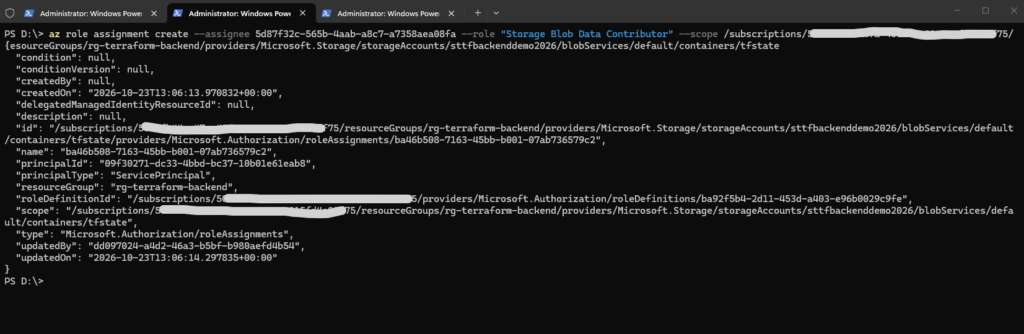
These assignments allow the validation identity to read Azure infrastructure and access the remote Terraform state without granting Contributor permissions to the subscription.
Our backend configuration must also use Microsoft Entra ID authentication (
use_azuread_auth = true) so Terraform does not attempt to retrieve the storage account access key.We will see this below within Select the appropriate credentials in GitHub Actions.
Configure separate GitHub secrets
Under Settings → Secrets and variables → Actions, create:
| GitHub secret | Value |
|---|---|
ARM_VALIDATION_CLIENT_ID | Validation service principal Application ID |
ARM_VALIDATION_CLIENT_SECRET | Validation service principal password |
We can reuse the existing subscription and tenant IDs.
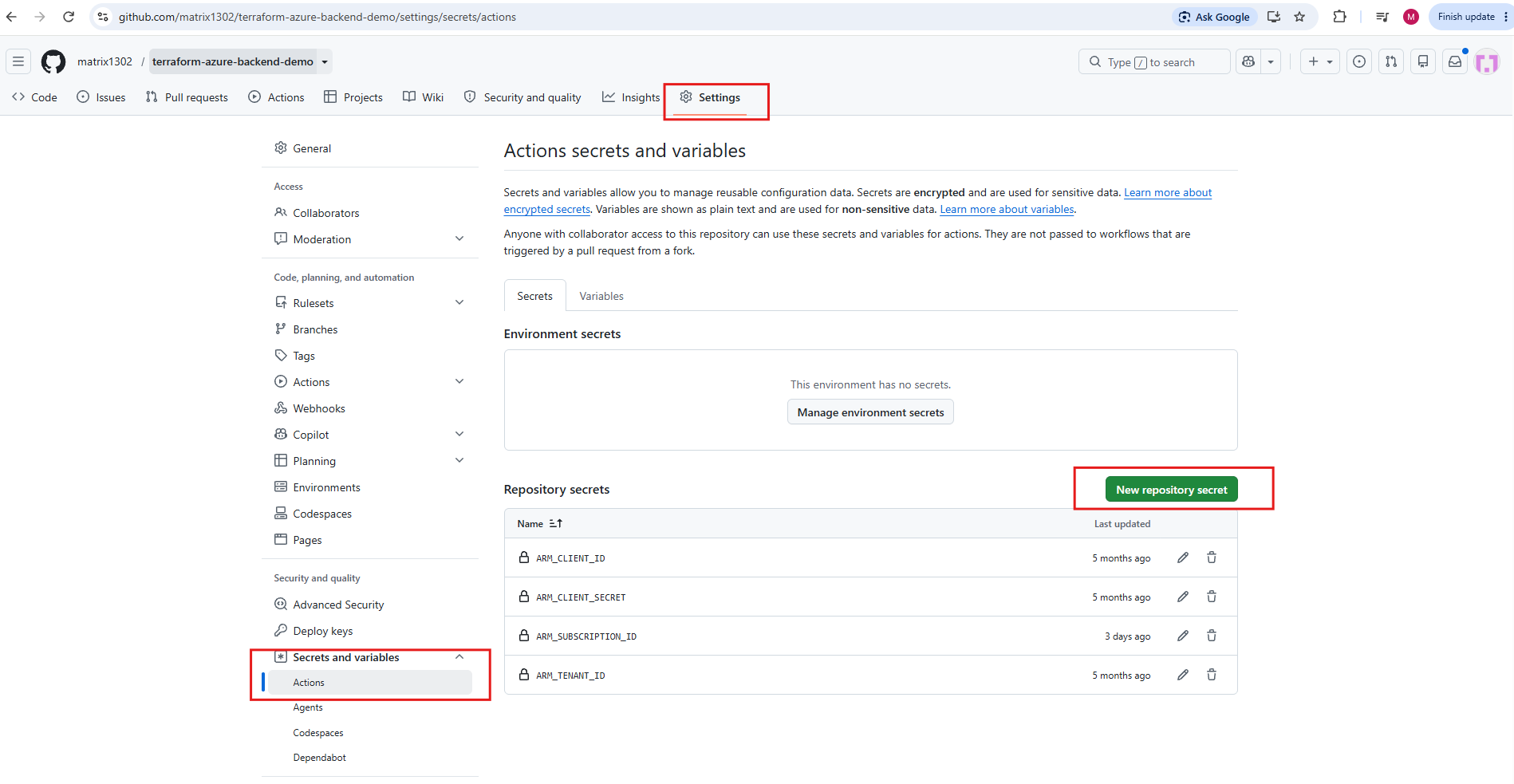
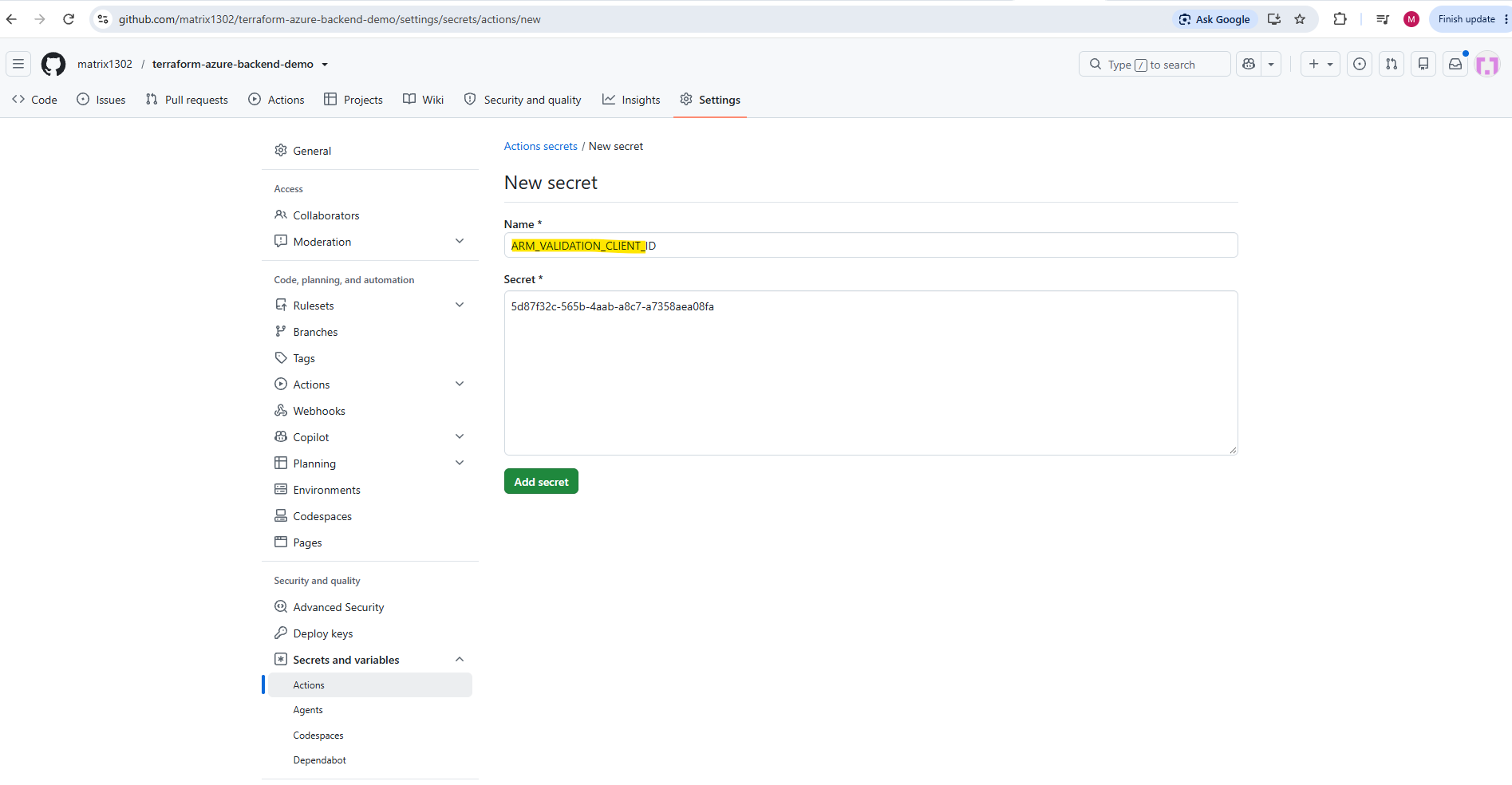
Create the GitHub Actions secret ARM_VALIDATION_CLIENT_ID using the Application (client) ID of the new validation service principal.
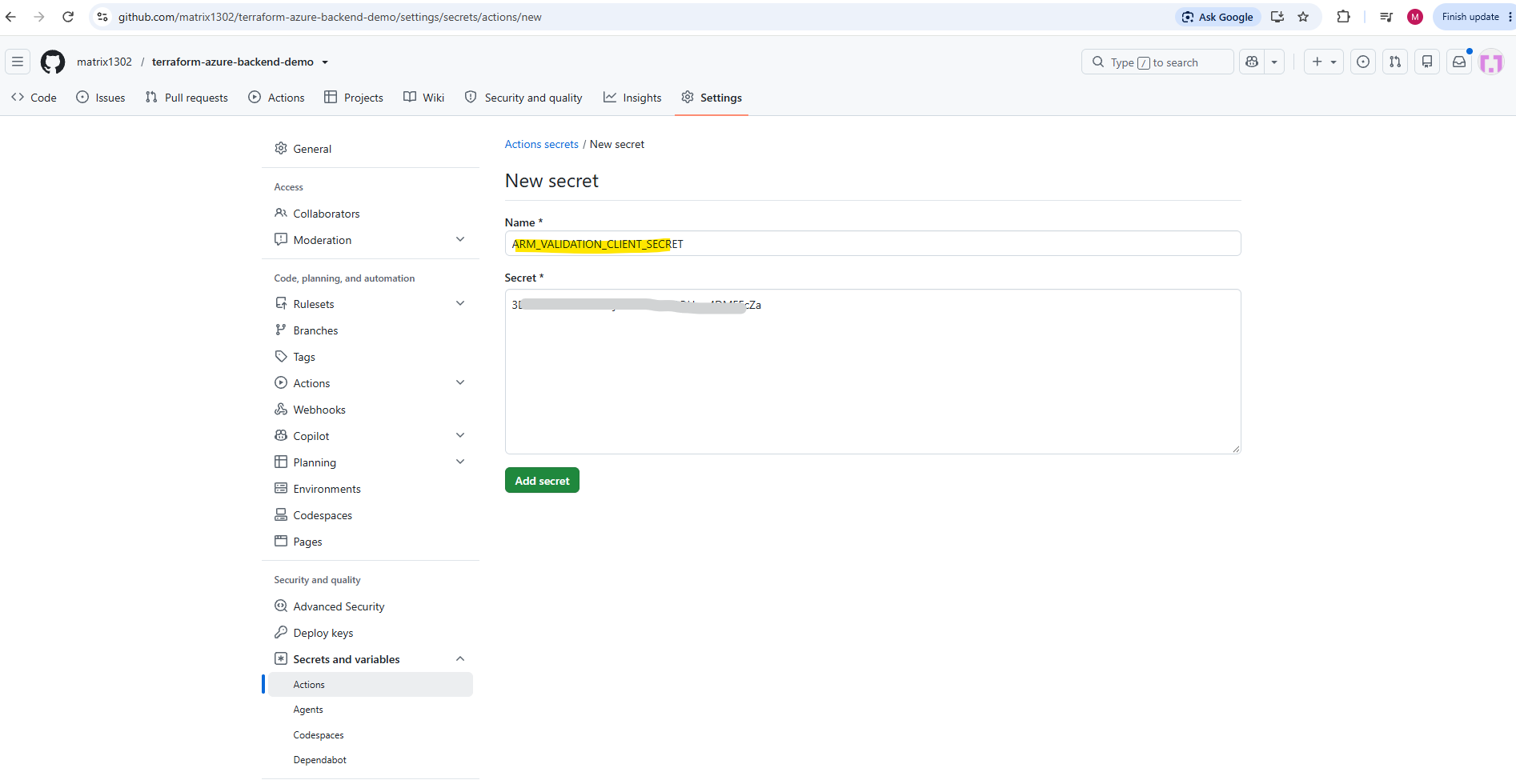
Next, create the GitHub Actions secret ARM_VALIDATION_CLIENT_SECRET using the password generated when creating the validation service principal.
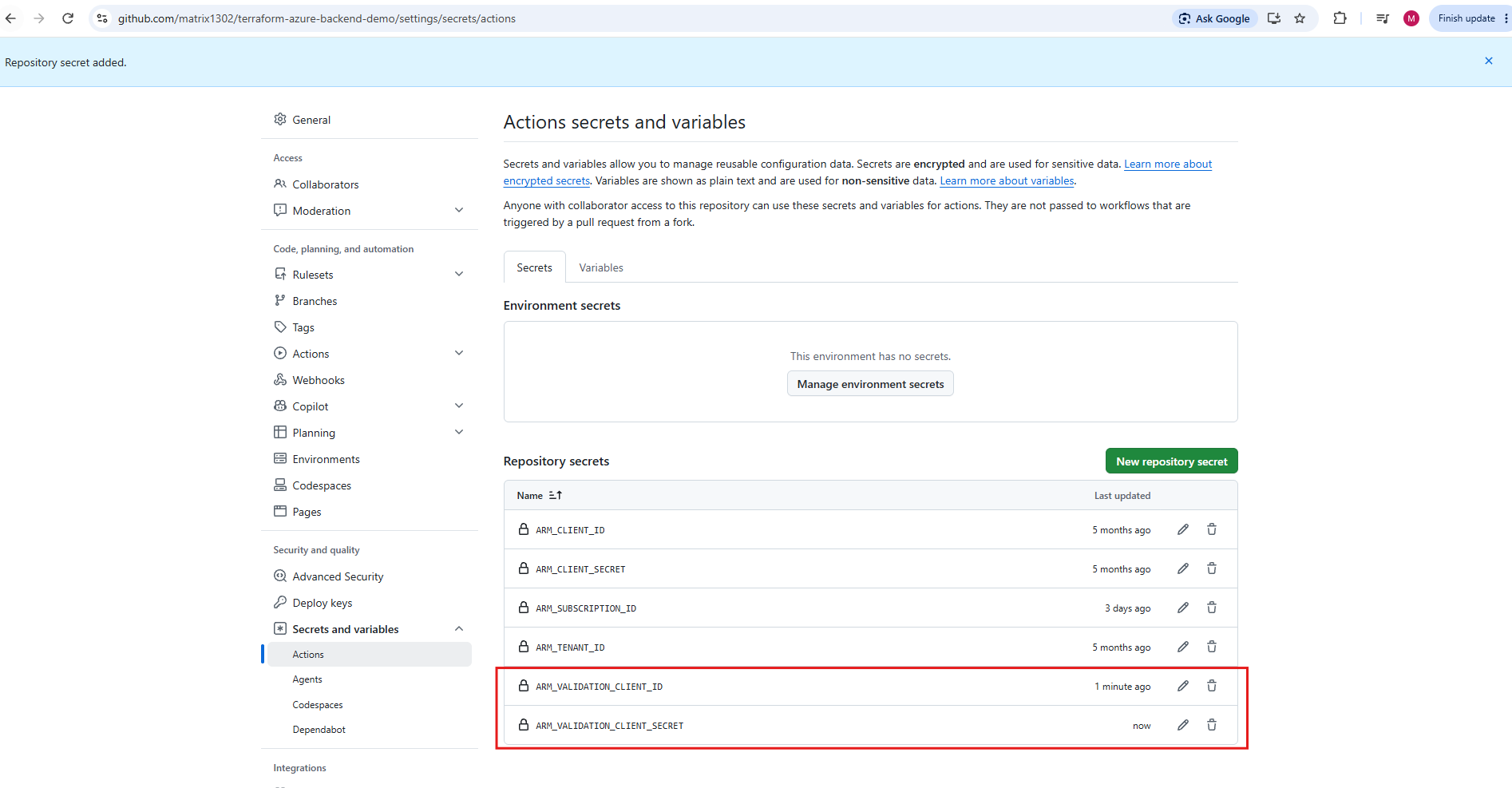
Both GitHub Actions repository secrets,
ARM_VALIDATION_CLIENT_IDandARM_VALIDATION_CLIENT_SECRET, have now been created successfully and will be used to authenticate Terraform Pull Request validation with the dedicated Azure service principal.
Grant Terraform State Access to the Existing Deployment Service Principal
Our existing deployment service principal, sp-terraform-github, already has the Azure Contributor role, allowing it to create and modify Azure resources.
However, this role does not automatically grant access to Azure Blob Storage data when authenticating through Microsoft Entra ID.
Since we will enable ARM_USE_AZUREAD: true in our GitHub Actions workflow, both the validation and deployment service principals require appropriate permissions to access the remote Terraform state.
Therefore, we also assign the Storage Blob Data Contributor role to our existing deployment service principal, scoped specifically to the tfstate container:
az role assignment create --assignee <DEPLOYMENT_APP_ID> --role "Storage Blob Data Contributor" --scope /subscriptions/<SUBSCRIPTION_ID>/resourceGroups/rg-terraform-backend/providers/Microsoft.Storage/storageAccounts/sttfbackenddemo2026/blobServices/default/containers/tfstate
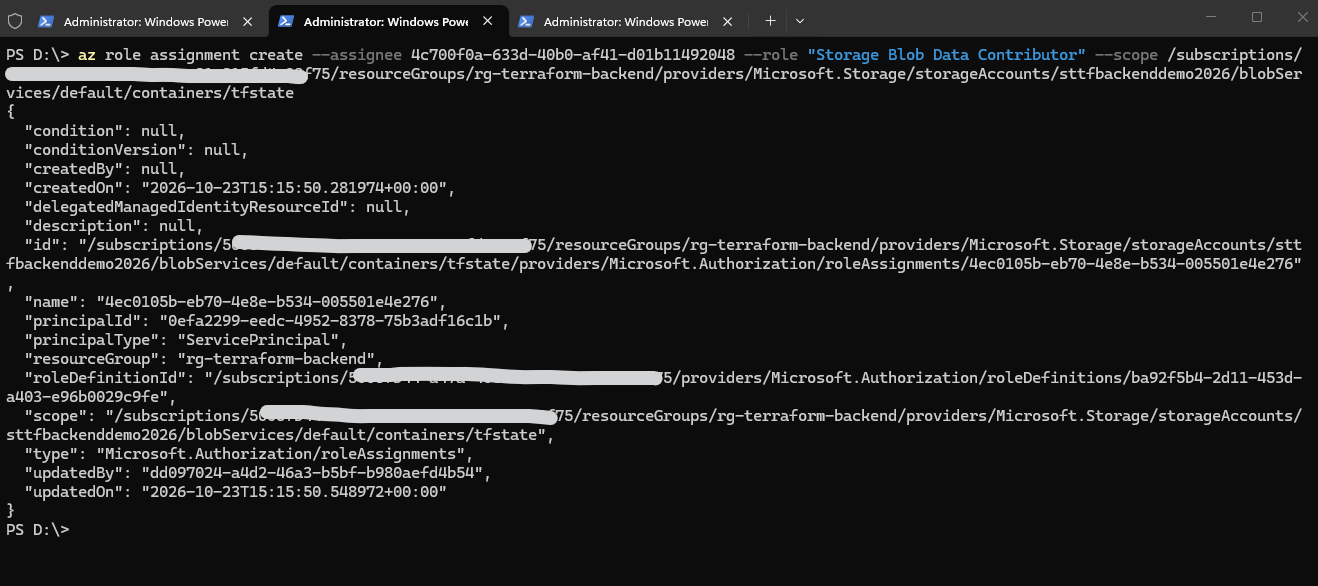
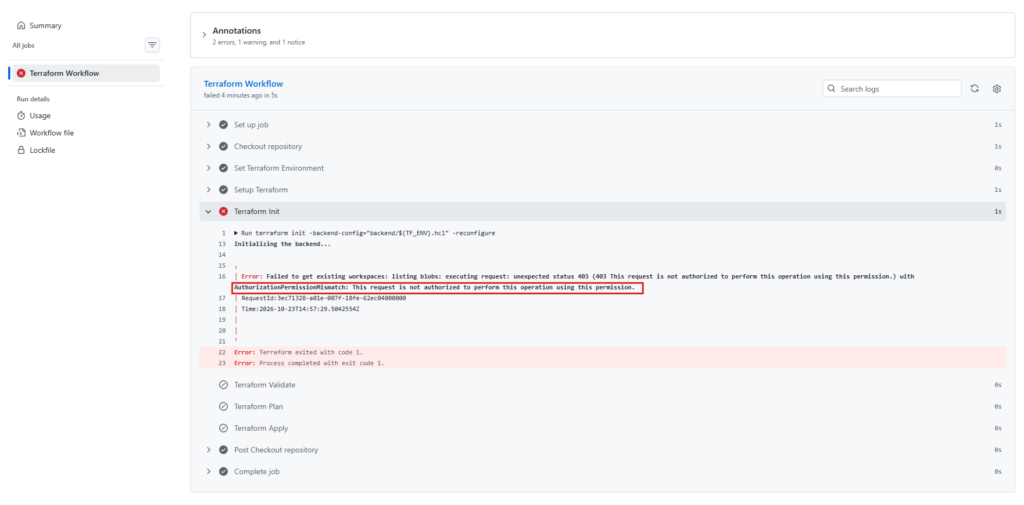
Without this additional role assignment, terraform init fails with HTTP 403 – AuthorizationPermissionMismatch when attempting to list blobs in the Azure Storage backend as shown below.
This permission is required independently of the Azure Contributor role because Azure resource management and Azure Storage Blob data access use different authorization mechanisms.
Select the appropriate credentials in GitHub Actions
Replace the existing job-level Azure credential mappings with:
env:
  ARM_CLIENT_ID: ${{ github.event_name == 'pull_request' && secrets.ARM_VALIDATION_CLIENT_ID || secrets.ARM_CLIENT_ID }}
  ARM_CLIENT_SECRET: ${{ github.event_name == 'pull_request' && secrets.ARM_VALIDATION_CLIENT_SECRET || secrets.ARM_CLIENT_SECRET }}
  ARM_SUBSCRIPTION_ID: ${{ secrets.ARM_SUBSCRIPTION_ID }}
  ARM_TENANT_ID: ${{ secrets.ARM_TENANT_ID }}
  ARM_USE_AZUREAD: true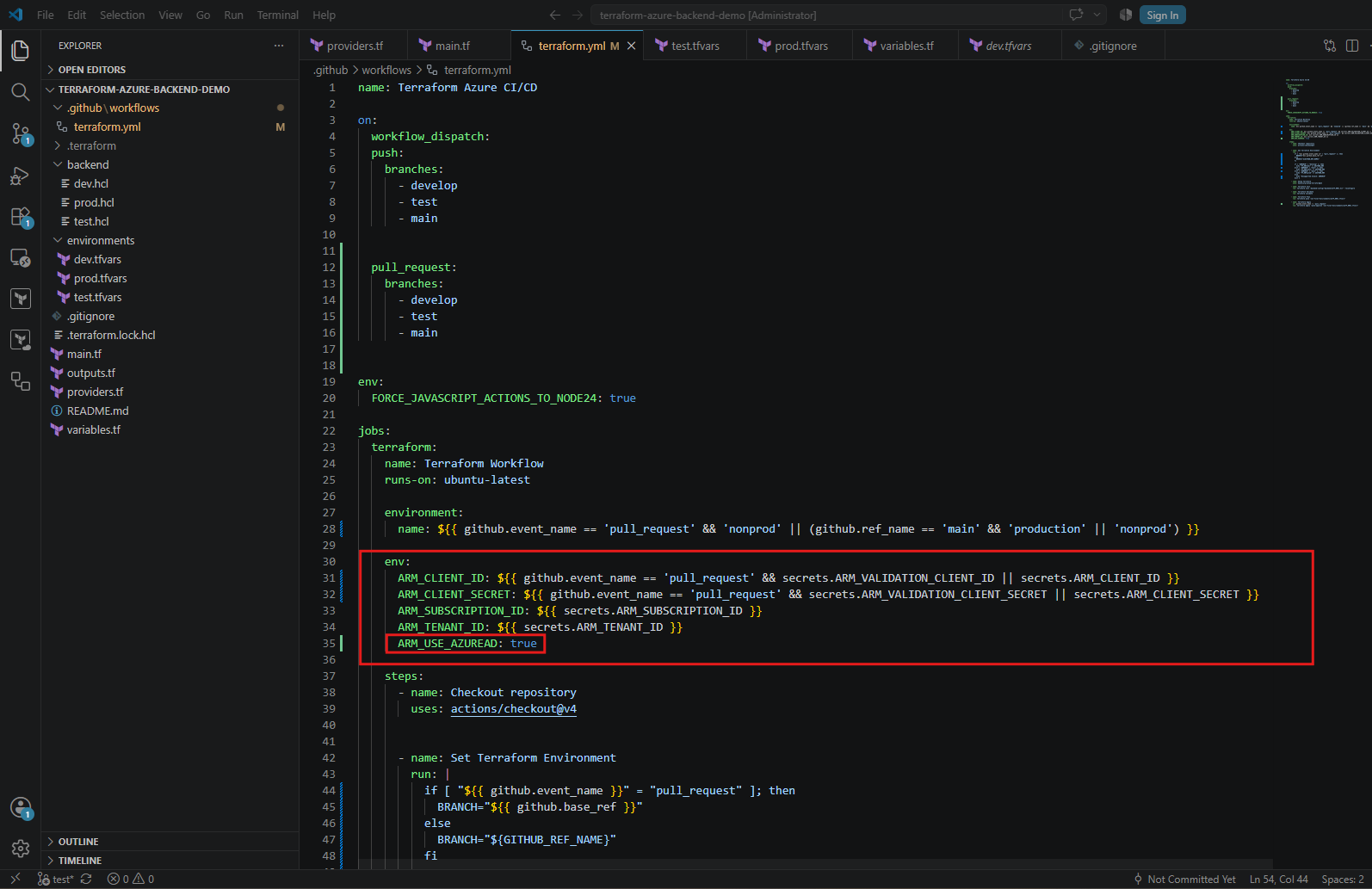
env:defines environment variables for the entire Terraform job, making them available to all subsequent workflow steps.github.event_name == 'pull_request'checks whether the workflow was triggered by a Pull Request.&& secrets.ARM_VALIDATION_CLIENT_ID || secrets.ARM_CLIENT_IDselects the validation service principal’s Application (client) ID for Pull Requests. For other events, such aspushorworkflow_dispatch, the existing deployment service principal’s client ID is used.ARM_CLIENT_SECRETapplies the same selection logic to the corresponding service principal password, ensuring that both credentials belong to the same identity.ARM_SUBSCRIPTION_IDidentifies the Azure subscription against which Terraform operates. Both service principals use the same subscription.ARM_TENANT_IDidentifies the Microsoft Entra ID tenant containing the service principals.ARM_USE_AZUREAD: trueinstructs the Terraform Azure Storage backend to use Microsoft Entra ID authentication for accessing the remote state instead of relying on storage account access keys.
The validation service principal can read Azure resources and generate Terraform execution plans but cannot deploy infrastructure changes through the Azure Resource Manager API. Additionally, our if: github.event_name != 'pull_request' condition ensures that Terraform Apply is skipped for all Pull Request workflows.
Important: The && and || operators implement a compact conditional expression. The validation credentials are selected when the event is pull_request; otherwise, the existing deployment credentials are used. This assumes the validation secrets are configured and nonempty.
Using ARM_USE_AZUREAD: true also requires that the deployment service principal has appropriate Azure Storage Blob data permissions.
Azure Contributor alone does not grant Blob data access through Microsoft Entra ID authentication.
The workflow now uses the validation service principal for Pull Requests and retains the existing deployment service principal for normal pushes.
For this lab, the example assumes trusted Pull Requests created from branches within our own repository.
GitHub does not provide repository secrets to workflows triggered by Pull Requests from forks, and a shared workflow with deployment secrets still requires careful access controls.
Step 3 – Testing Pull Request Validation.
We’ll create a feature branch from develop, introduce a small Terraform configuration change, and open a Pull Request targeting develop.
Our goal is to verify that GitHub Actions:
- Automatically starts when the Pull Request is opened.
- Uses the dedicated validation service principal.
- Selects the
nonprodGitHub Environment and thedevTerraform configuration. - Successfully executes Terraform
Init,Validate, andPlan. - Skips Terraform Apply, leaving Azure infrastructure unchanged.
What Is a Feature Branch in Git?
A feature branch is a separate Git branch used to develop, modify, or test a specific feature without directly changing an existing development or production branch.
In a typical enterprise Git workflow, a new feature branch is created for each individual feature, bug fix, or configuration change, usually based on the latest
developbranch.Once the changes have been validated and merged through a Pull Request, the feature branch is normally deleted, while permanent branches such as
develop,test, andmainremain in place.
Technically, a feature branch is no different from any other Git branch. The prefix feature/ is simply a naming convention used to identify branches dedicated to individual changes.
In our Terraform CI/CD architecture, we distinguish between feature branches and environment branches:
- Feature branch (
feature/pr-validation): Used to introduce and validate individual changes before integrating them into the development branch. - Development branch (
develop): Automatically deploys integrated changes to our Azure development environment. - Testing branch (
test): Deploys changes to a separate Azure test environment for further verification. - Production branch (
main): Deploys approved changes to production, requiring manual approval.
Why do we need feature branches when we already have a development branch?
In our current GitHub Actions workflow, pushing changes directly to develop, test, or main automatically triggers Terraform Apply (with additional approval required for production).
A feature branch allows us to introduce changes through a Pull Request, where GitHub Actions first executes Terraform Init, Validate, and Plan without applying the proposed infrastructure changes.
Only after the Pull Request has been reviewed and merged into develop does the normal deployment workflow execute Terraform Apply.
This separation allows us to validate infrastructure changes before deployment while maintaining distinct Development, Testing, and Production environments.
The resulting Feature → Development → Testing → Production architecture represents a widely adopted, enterprise-style CI/CD approach, following established best practices for automated validation, environment separation, controlled deployments, and production approvals.
Git Branches vs. Azure Deployment Environments vs. GitHub Environments
In our CI/CD architecture, we need to distinguish between three concepts that are closely related but serve different purposes.
1. Git Branches (develop, test, main)
Git branches represent different versions of our Terraform configuration. We use a branch-based deployment strategy, where each permanent branch is associated with a specific Azure deployment environment.
2. Azure Deployment Environments (Dev, Test, Production)
These are the actual Azure resources managed by Terraform. Each environment has its own Terraform configuration variables and remote state file.
develop→ Azure Dev environment (dev.tfvars,dev.terraform.tfstate)test→ Azure Test environment (test.tfvars,test.terraform.tfstate)main→ Azure Production environment (prod.tfvars,prod.terraform.tfstate)
3. GitHub Environments (nonprod, production)
GitHub Environments are GitHub Actions features used to control workflow execution, deployment approvals, environment-specific secrets, and protection rules.
In our project, we configured only two GitHub Environments:
nonprod: Used for Pull Request validation and normal deployments fromdevelopandtest, without manual approval.production: Used for normal deployments frommain, requiring manual approval before the Terraform job executes.
Important: A GitHub Environment does not determine which Azure environment Terraform deploys to. That selection is handled independently by our
TF_ENVvariable, which determines the corresponding backend configuration and Terraform variables.For example, both
developandtestuse the same GitHub Environment (nonprod) but deploy to different Azure environments using separate Terraform state files.Similarly, a Pull Request targeting
mainuses thenonprodGitHub Environment to avoid production approval during validation, while Terraform still selects the production configuration for its Plan.In short, Git branches define the version of our infrastructure code, Terraform configurations determine the Azure deployment target, and GitHub Environments control how the workflow is executed and approved.
Create a Feature Branch from develop
We will create a new feature branch named feature/pr-validation based on our existing develop branch.
This allows us to introduce Terraform configuration changes independently and later submit them through a Pull Request targeting develop, where our GitHub Actions workflow will automatically validate the proposed changes before deployment.
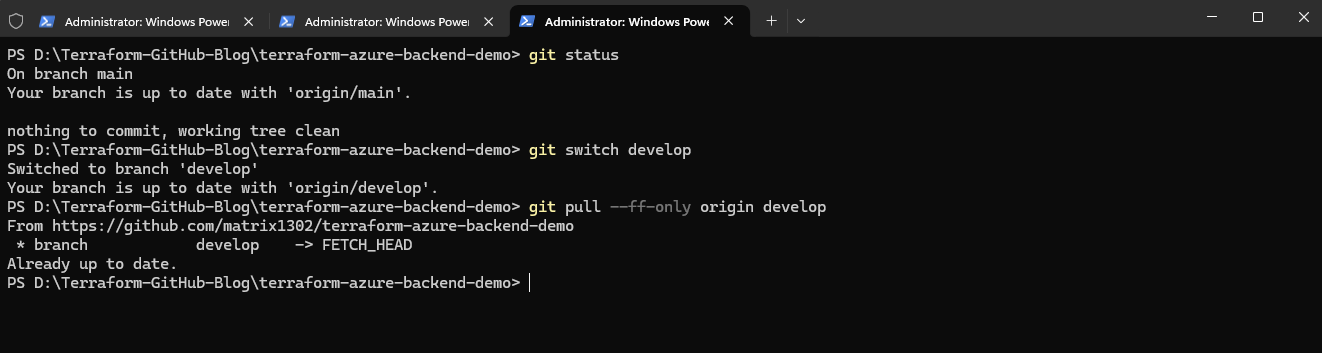
First we check the current branch and working directory:
git status
Then we switch to develop and synchronize it with GitHub:
git switch develop
git pull --ff-only origin develop
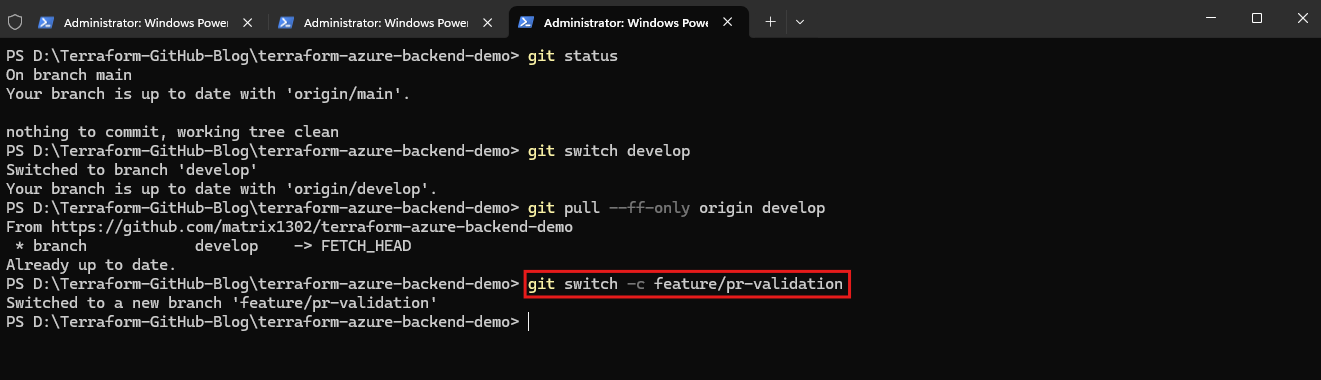
Now we can create our feature branch:
git switch -c feature/pr-validation
Verify the result:
git branch
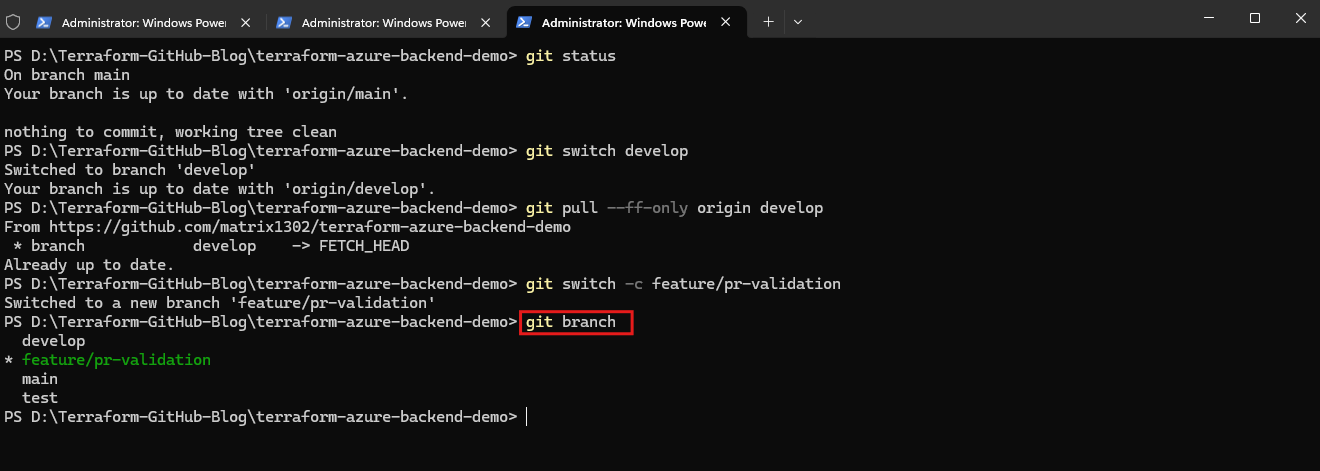
What happens here? The new feature branch initially points to the same commit as develop. Any subsequent commits will be recorded on feature/pr-validation without modifying develop.
At this point, the feature branch exists only in our local Git repository. We’ll push it to GitHub after introducing our Terraform change.
What does it mean that a branch points to a commit?
Every Git commit has a unique identifier (SHA hash) and represents a snapshot of the tracked files at that point in the repository’s history.
A Git branch is simply a movable reference containing the identifier of a particular commit.
When we executed:
git switch develop
git pull --ff-only origin develop
git switch -c feature/pr-validation
Git performed the following operations:
- Switched to our existing
developbranch. - Verified that
developwas synchronized with GitHub. - Created a new branch reference named
feature/pr-validation, pointing to the same commit asdevelop. - Switched our working directory to the new feature branch.
This is the key concept: commits are snapshots, and branch names are movable references to those snapshots. When we commit on a branch, Git creates a new commit and advances that branch’s pointer to it.
We can verify this by running:
git rev-parse develop
git rev-parse feature/pr-validation
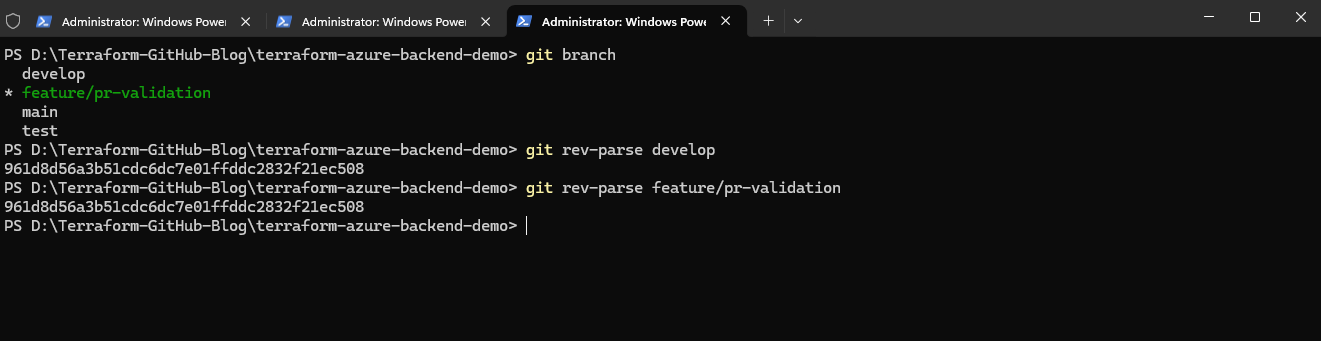
Both should currently return the exact same SHA hash.
After we create our first commit on feature/pr-validation, the hashes will differ because the feature branch will point to a newer commit.
Git branches are lightweight because creating a new branch does not duplicate the repository or its files. Instead, Git simply creates a new reference (pointer) to an existing commit. This applies to all branches, regardless of whether they are used for feature development, testing, or production.
More about Git branches and commit references you will find here.
Introduce a Terraform Configuration Change
After creating our feature branch from develop, we introduce a small change to main.tf to test the Pull Request validation workflow. For this initial test, we add a comment without changing any Terraform resources.
We then stage and commit the modification locally before pushing the new branch to GitHub. The first push creates the corresponding remote branch and establishes its upstream tracking relationship.
At this point, our feature branch contains a new commit that is not yet part of develop. We can now create a Pull Request targeting develop to validate the proposed change before merging it.
Let’s us make a small, harmless change to main.tf that we can later validate through a Pull Request without modifying the deployed Azure infrastructure.
We add a comment near the beginning of main.tf:
# Terraform configuration change for GitHub Pull Request validation
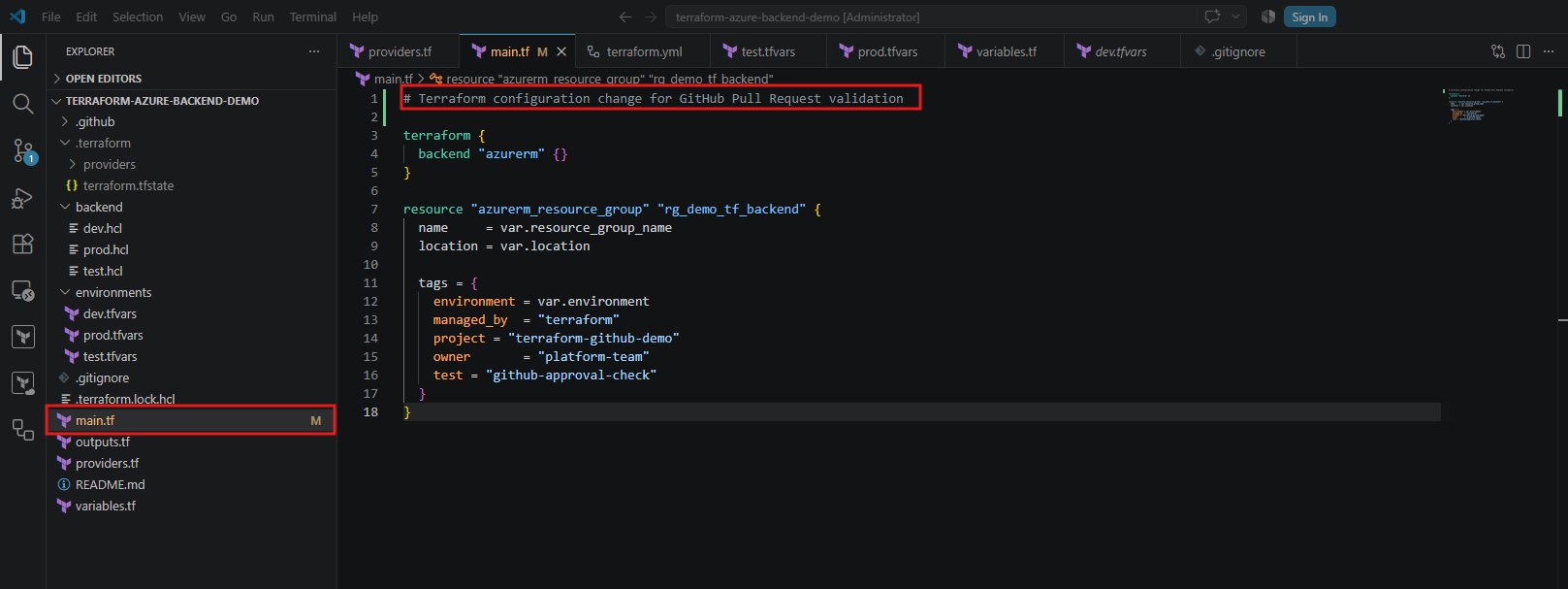
This is deliberately a comment-only change. It gives us a real Git commit to test while leaving the Terraform infrastructure configuration unchanged.
Then we run:
git status
git add main.tf
git commit -m "Test Terraform pull request validation"
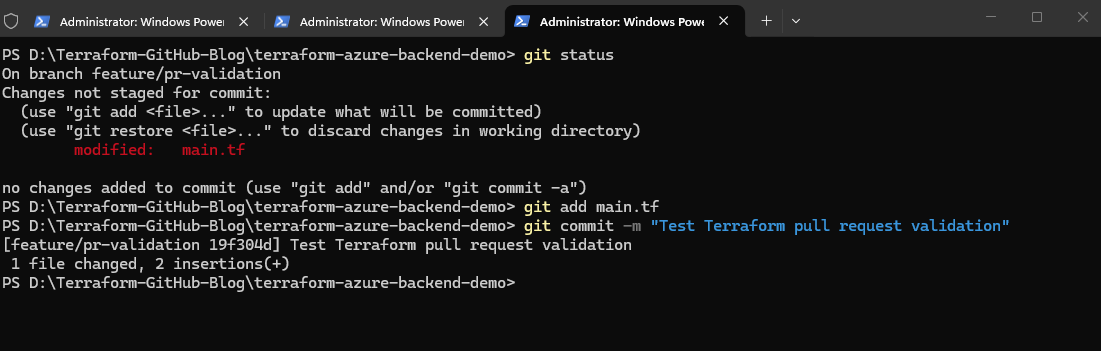
Important: Pushing
feature/pr-validationshould not trigger a Terraform deployment because our current workflow only triggers on pushes todevelop,test, andmain, or Pull Requests targeting those branches.
Next we push the feature branch to GitHub:
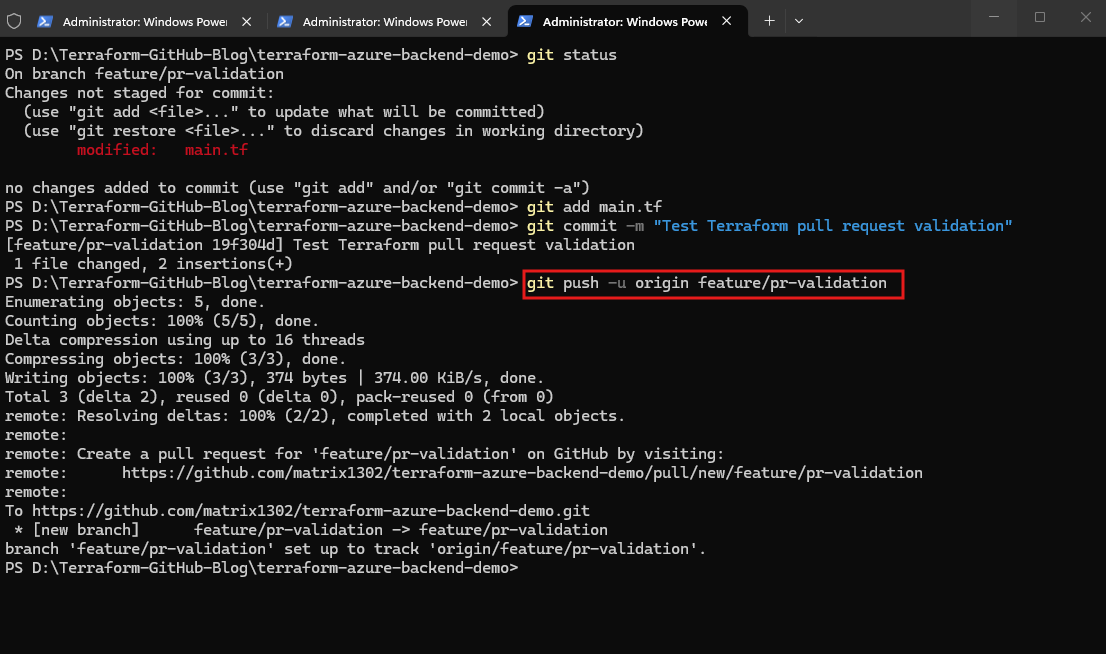
The modified
main.tfwas first staged and committed locally as commit19f304d, now below successfully pushed to GitHub usinggit push -u origin feature/pr-validation.This created the remote feature branch and configured upstream tracking, allowing future changes to be pushed simply using
git push.When pushing our new
feature/pr-validationbranch, GitHub automatically suggested creating a Pull Request because the branch contains a new commit that can be proposed for merging into an existing branch. Unlike our earlier push ofmain, which established the primary branch, GitHub recognized the feature branch as a potential source of changes for a Pull Request. This notification is generated by GitHub independently of our GitHub Actions workflow.
git push -u origin feature/pr-validation
Create a Pull Request for the Feature Branch
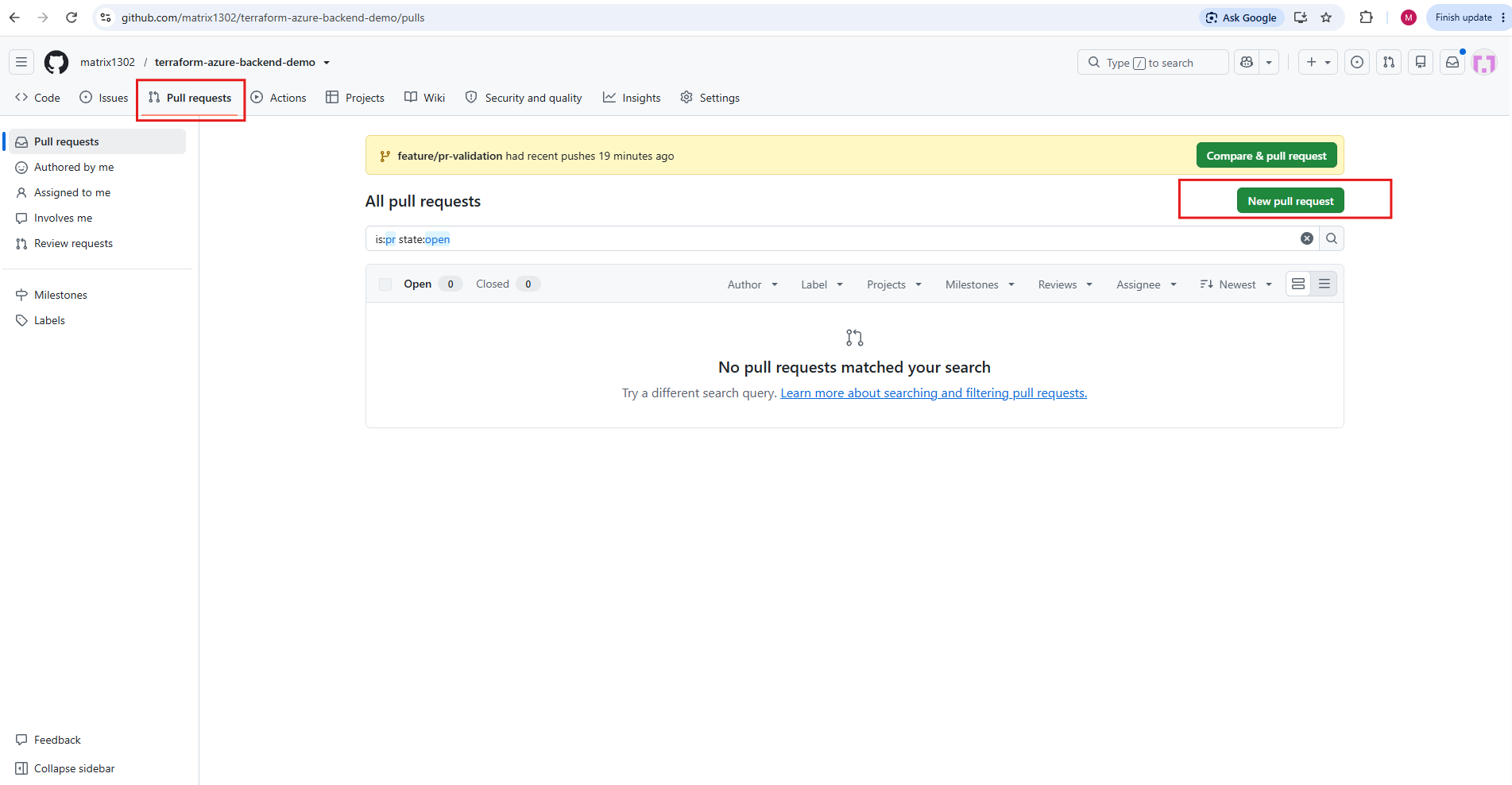
Now that our feature/pr-validation branch has been pushed to GitHub, we can create a Pull Request to propose merging its changes into develop.
Open the Pull Request link provided by GitHub or navigate to Pull requests → New pull request in our repository.
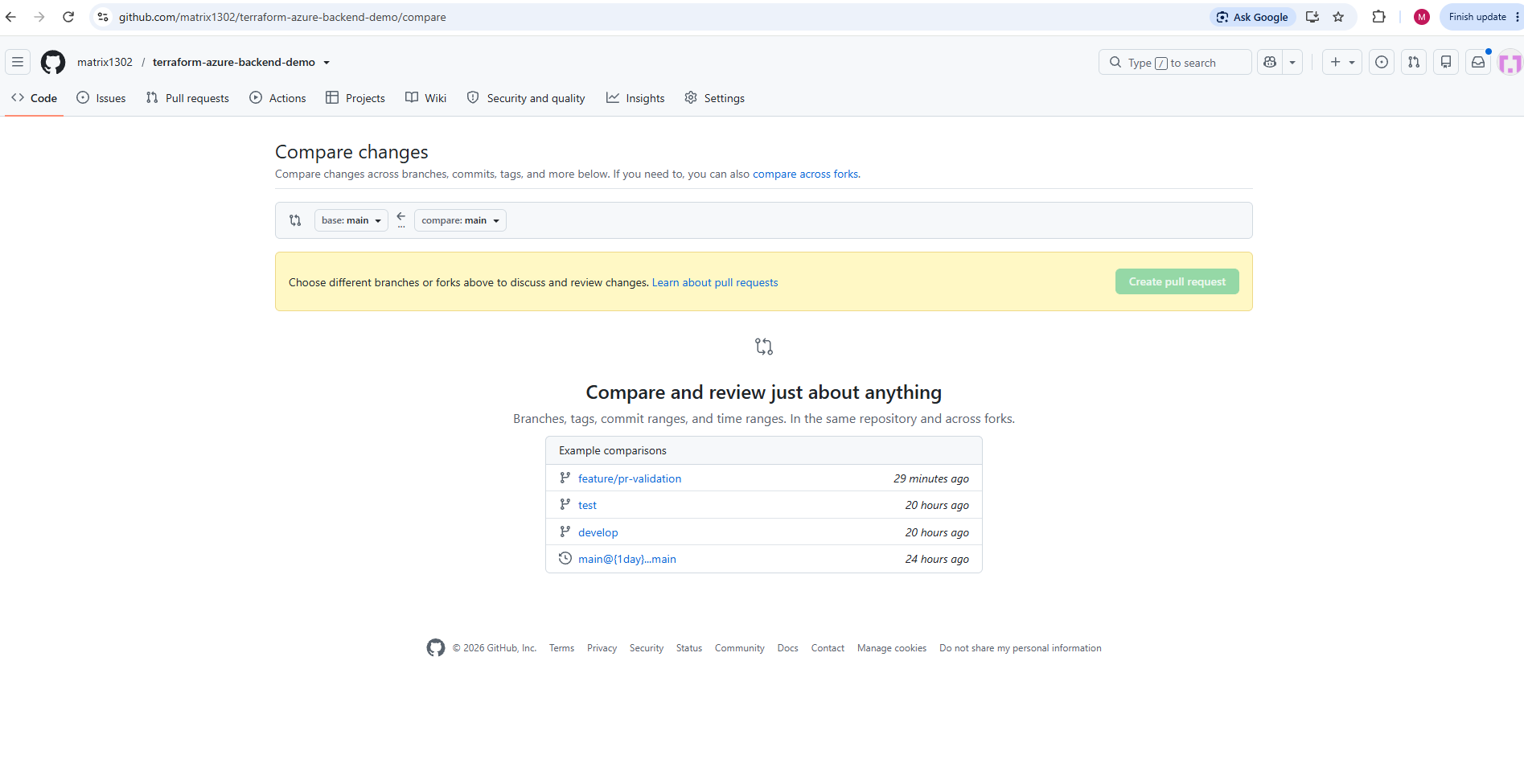
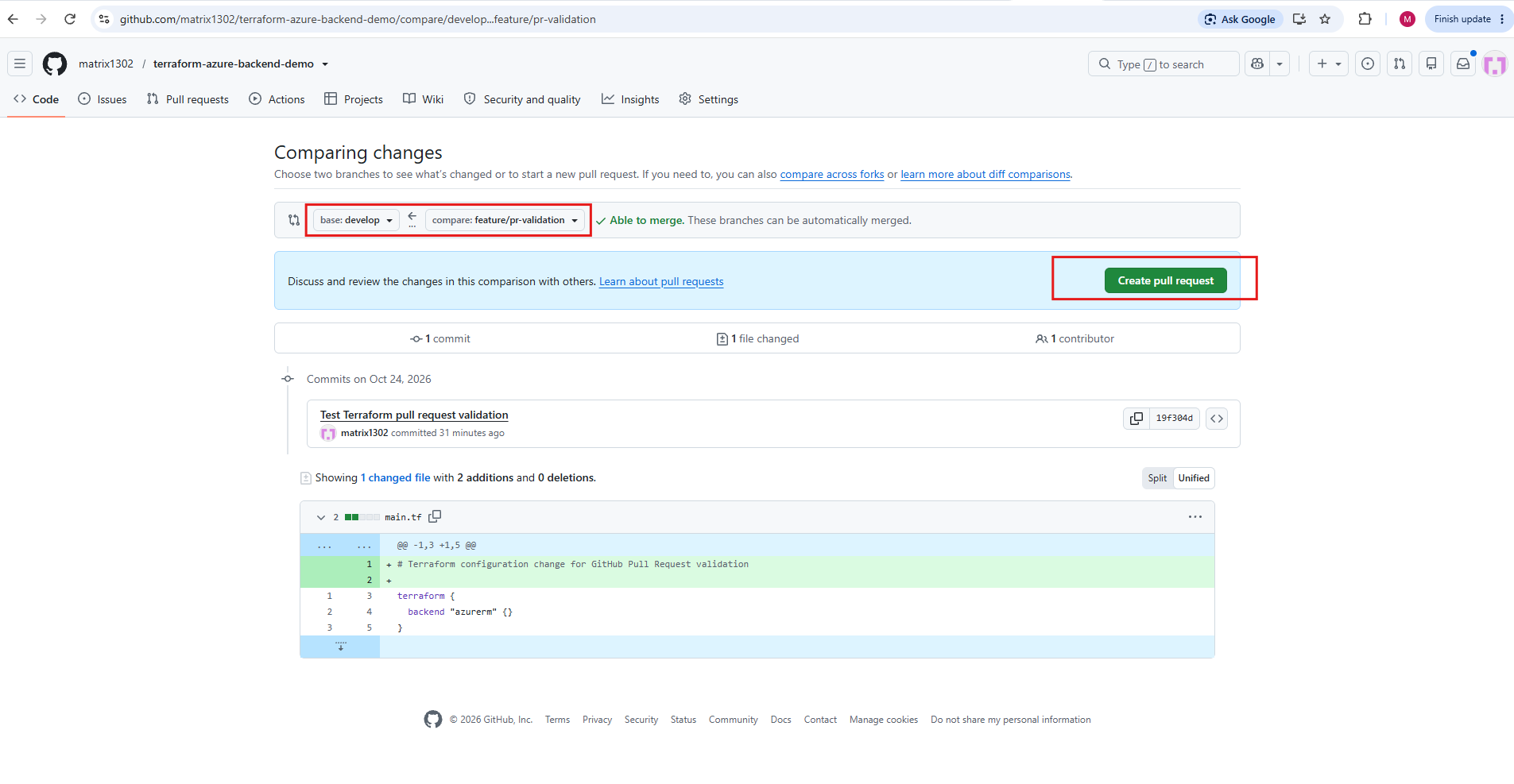
Select develop as the base (target) branch and feature/pr-validation as the compare (source) branch.
GitHub will display the differences between both branches, allowing us to review the proposed changes before creating the Pull Request.
On the left, we select develop as the base (target) branch, because this is where we eventually want to merge our changes.
On the right, we select feature/pr-validation as the compare (source) branch, because it contains our newly committed Terraform configuration change.
GitHub compares both branches, displays the differences, and confirms with “Able to merge” that the changes can be merged into
developwithout conflicts.
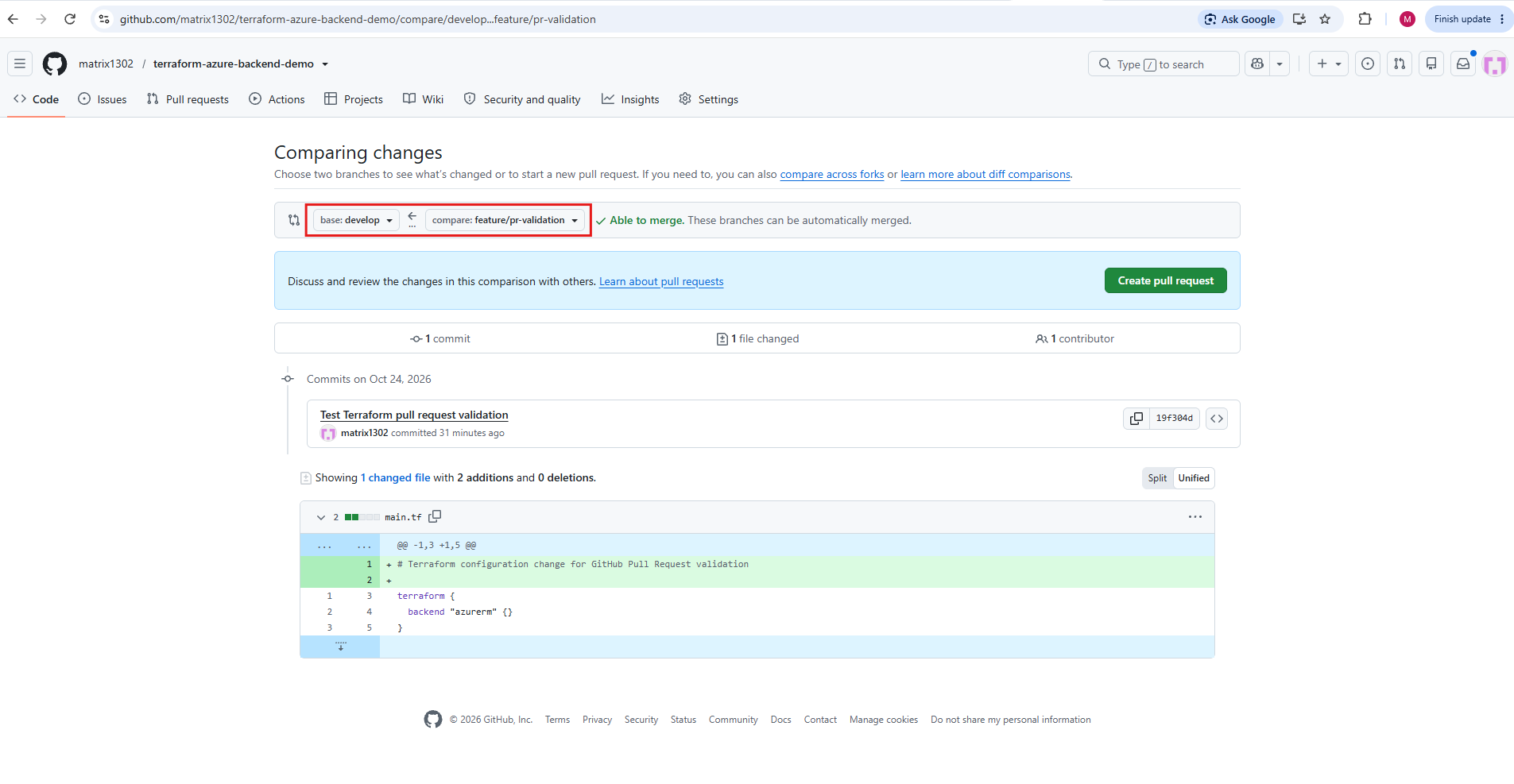
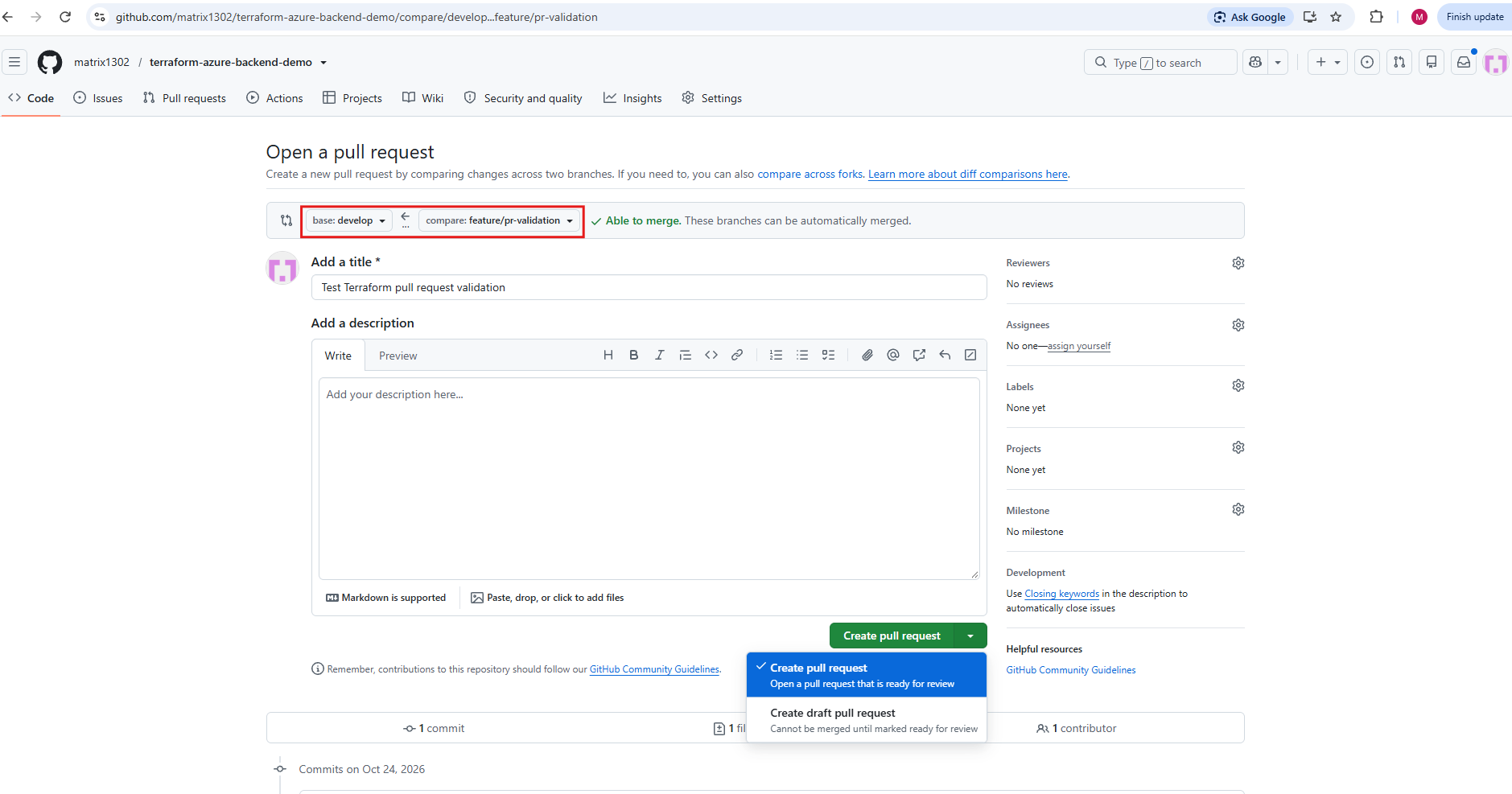
Click Create pull request to open the Pull Request form. GitHub automatically prepopulates the title Test Terraform pull request validation from our commit message, so we can keep the suggested title and leave the optional description empty.
Finally, click Create pull request again to submit it.
The dropdown offers two options:
- Create pull request: Creates a regular Pull Request that is ready for review and can be merged after any required checks and approvals.
- Create draft pull request: Creates a Pull Request marked as work in progress. It cannot be merged until marked ready for review.
For our Terraform CI/CD test, we keep Create pull request selected, since we want to validate the change and eventually merge it into develop.
Click the green Create pull request button.
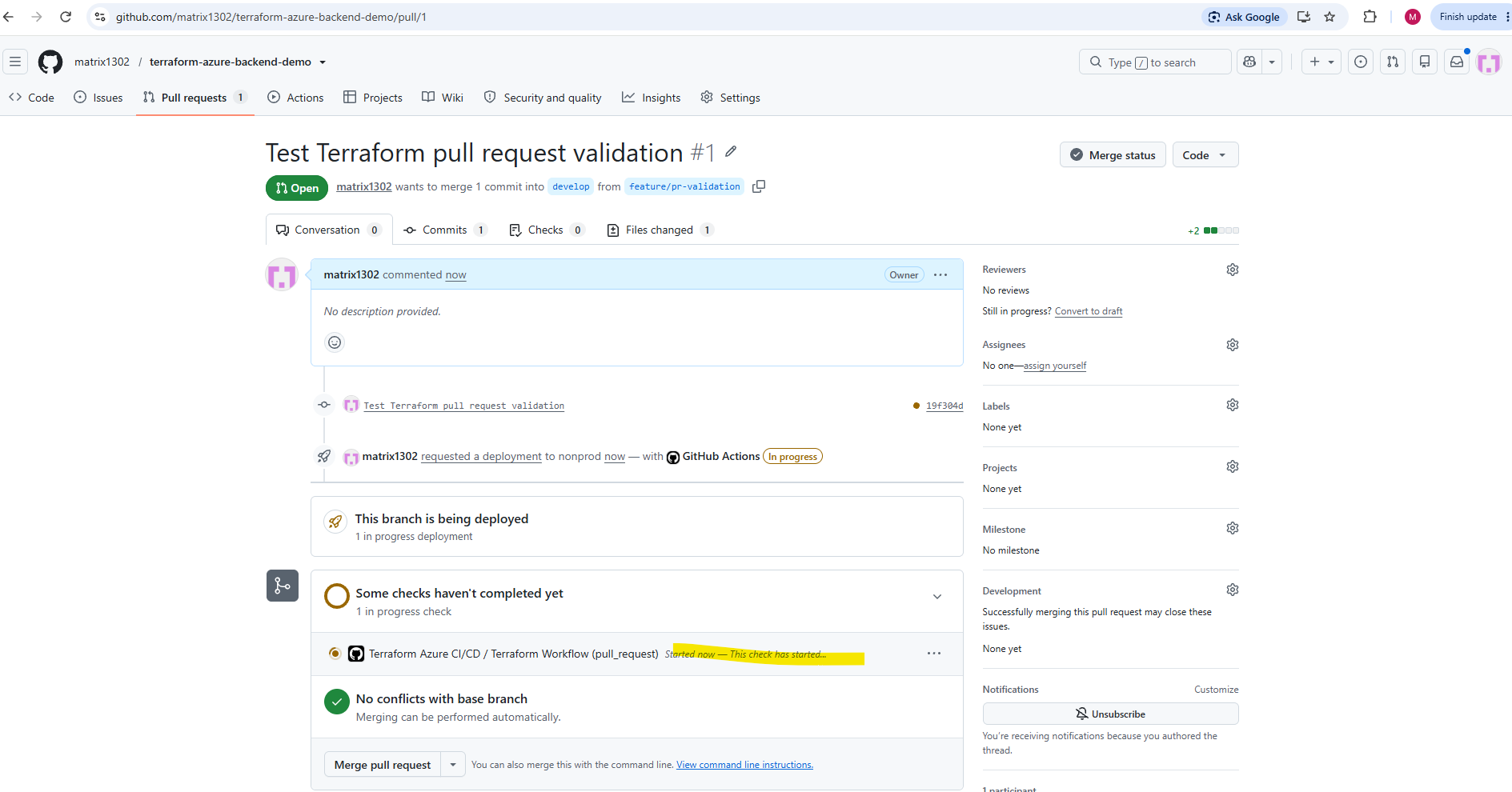
After creating Pull Request #1, GitHub automatically triggers our Terraform validation workflow using the pull_request event and the nonprod GitHub Environment.
The workflow is currently running, with no merge conflicts detected; Terraform Apply should be skipped because this is a Pull Request rather than a regular branch push.
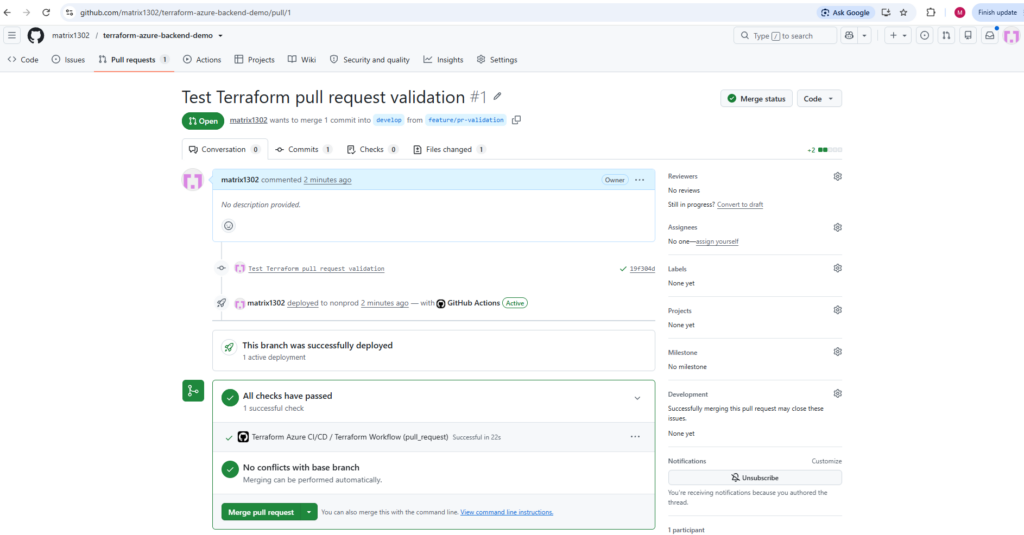
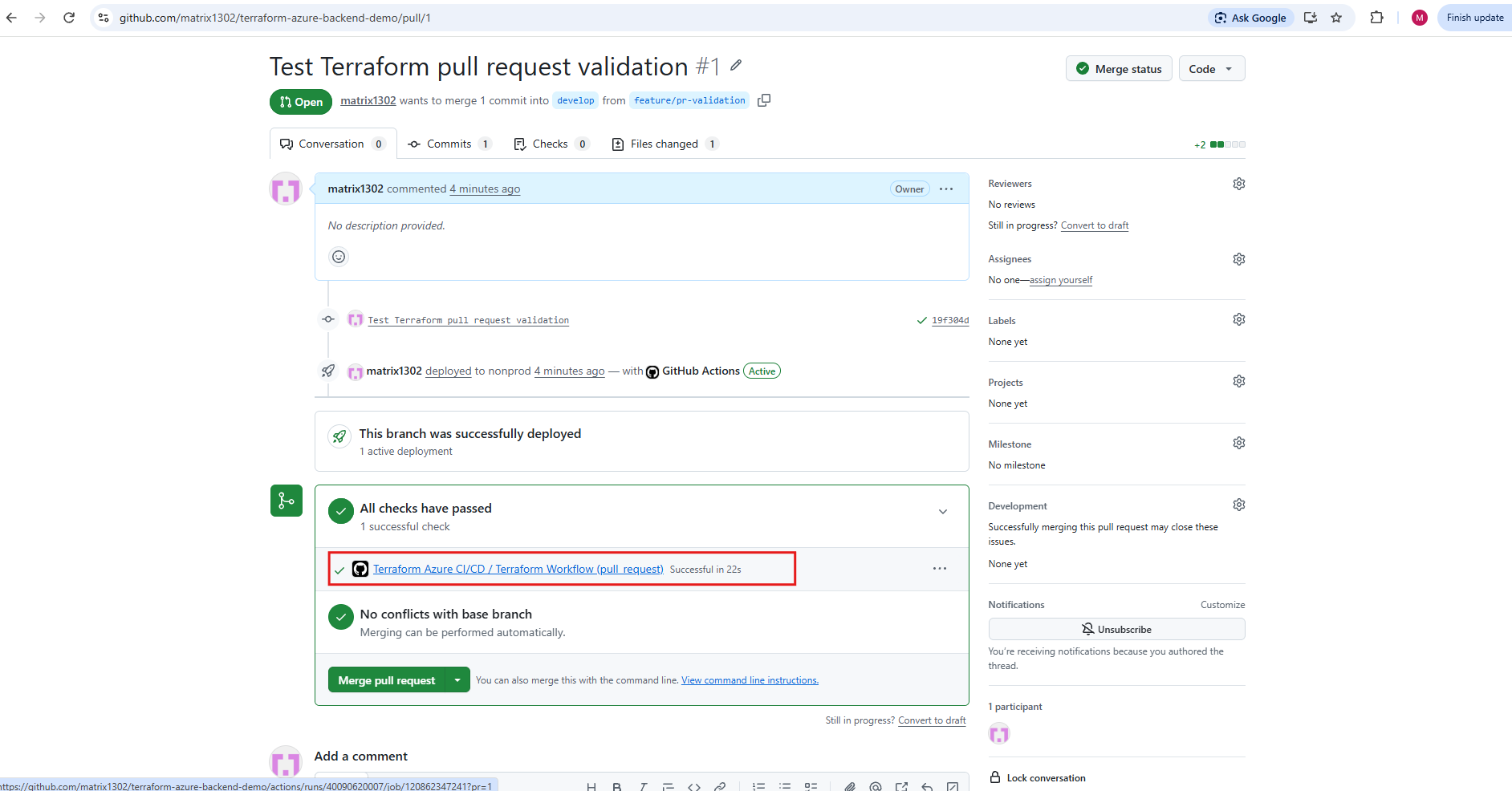
Our Pull Request validation completed successfully in 22 seconds, with all checks passed and no merge conflicts detected.
GitHub now offers Merge pull request, allowing us to merge the validated changes from
feature/pr-validationintodevelop; the reportednonproddeployment refers to the GitHub Environment and does not by itself indicate an Azure infrastructure deployment.
To inspect the validation results, click Terraform Azure CI/CD / Terraform Workflow (pull_request) under All checks have passed.
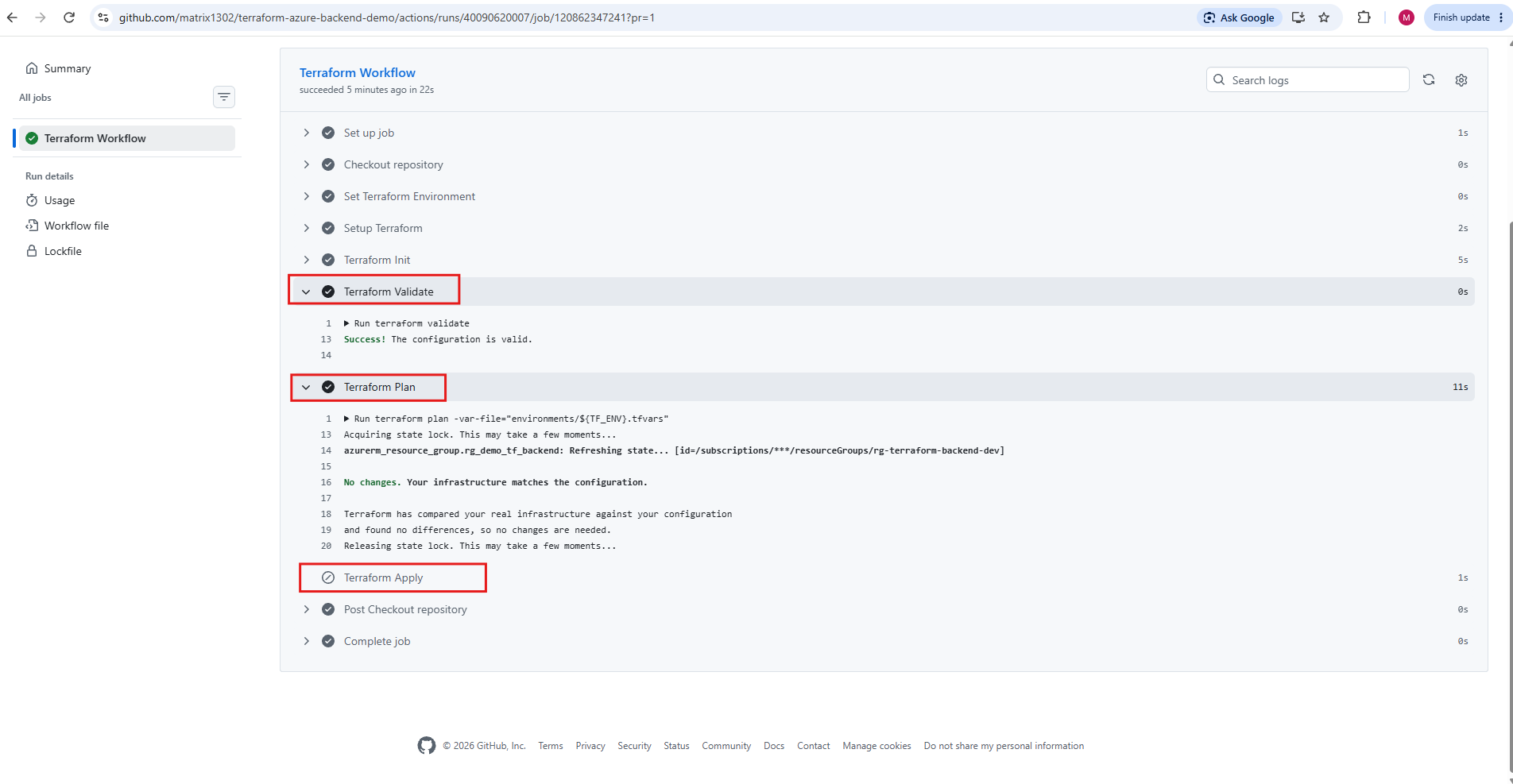
This opens the GitHub Actions job details, where we can verify that Terraform
Init,Validate, andPlancompleted successfully while TerraformApplywas skipped.
The GitHub Actions logs confirm that Terraform Validate completed successfully and Terraform Plan detected no infrastructure changes (No changes. Your infrastructure matches the configuration.). This is expected because we only added a comment to main.tf, which does not affect the Terraform configuration or deployed Azure resources.
Most importantly, Terraform Apply was skipped, confirming that our Pull Request workflow validates the proposed changes without deploying anything to Azure.
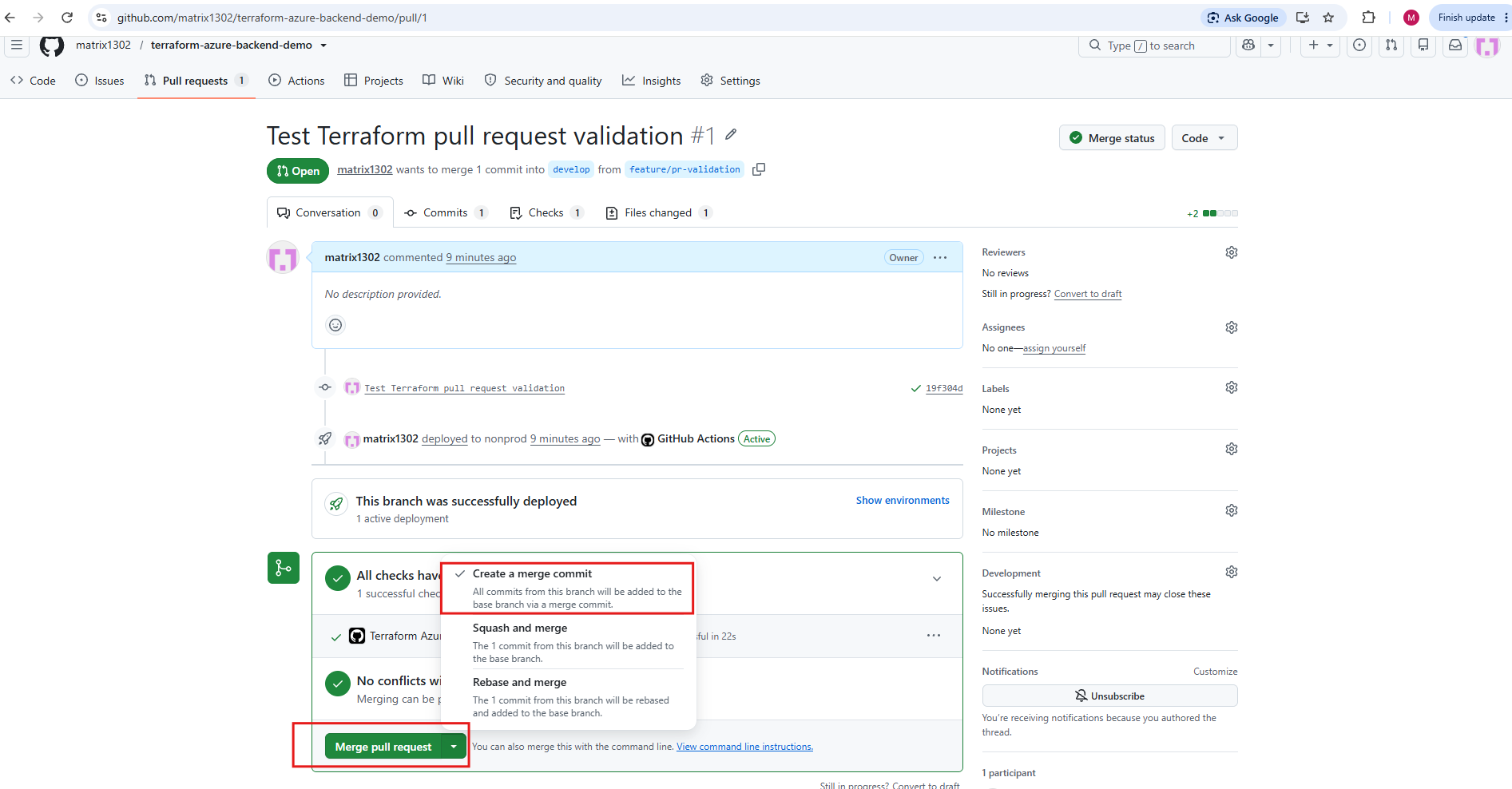
GitHub offers three merge strategies:
- Create a merge commit: Preserves the feature branch’s commits and creates an additional merge commit connecting its history to
develop. - Squash and merge: Combines all feature branch commits into one new commit on
develop, producing a simpler history. - Rebase and merge: Replays the feature branch commits onto
developwithout creating a merge commit, producing a linear history.
For our Terraform CI/CD demonstration, I’d choose Create a merge commit. This preserves the original feature commit and makes the integration of our feature branch into develop visible in Git’s history.
We keep that option selected and click Merge pull request. GitHub will then ask us to confirm the merge.
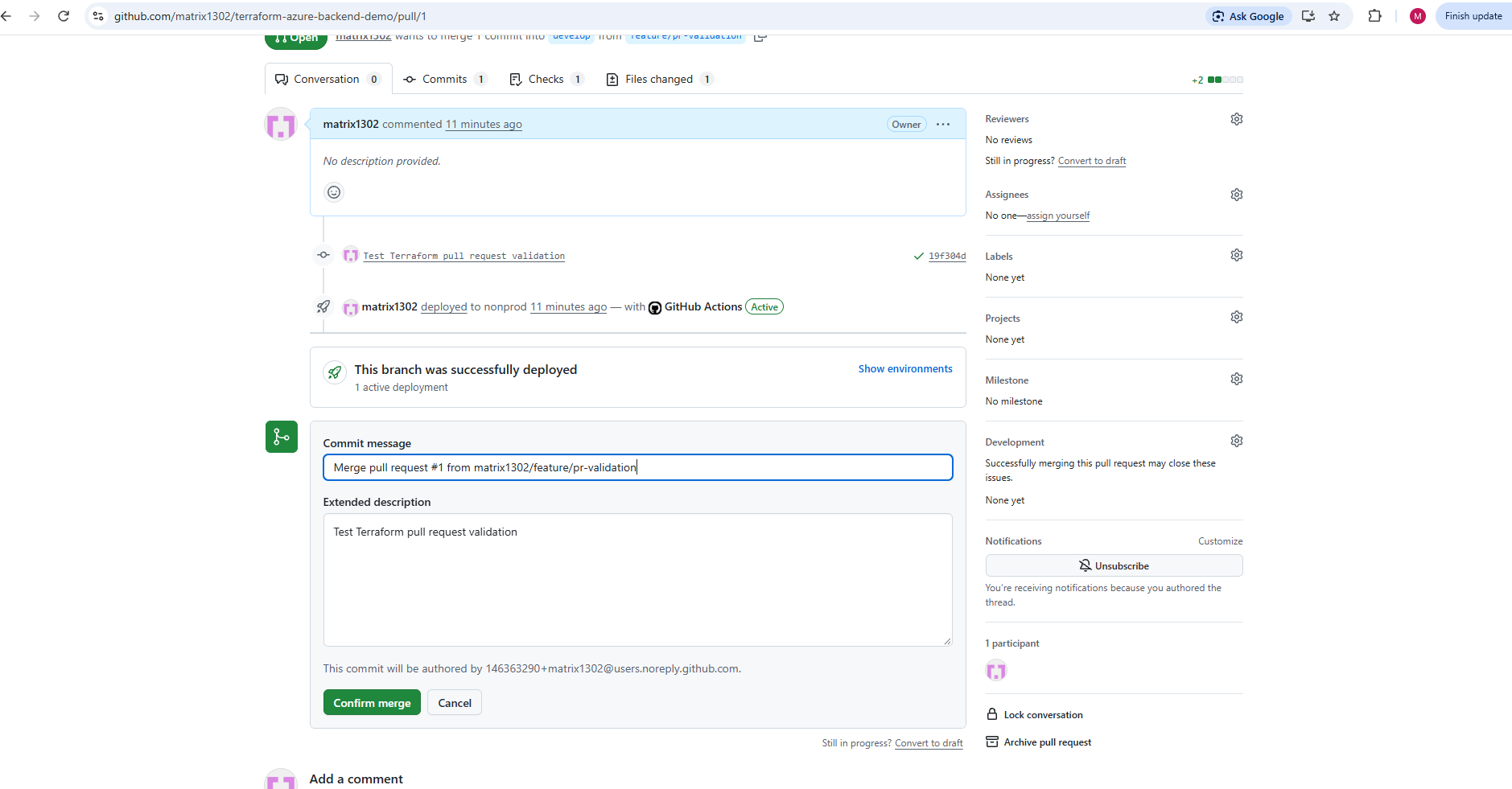
GitHub now displays the confirmation for Create a merge commit, including the automatically generated commit message and description.
We can leave both unchanged and click Confirm merge.
GitHub will create a merge commit on
develop, preserving our original feature commit and triggering the regular Terraform deployment workflow for the development environment.
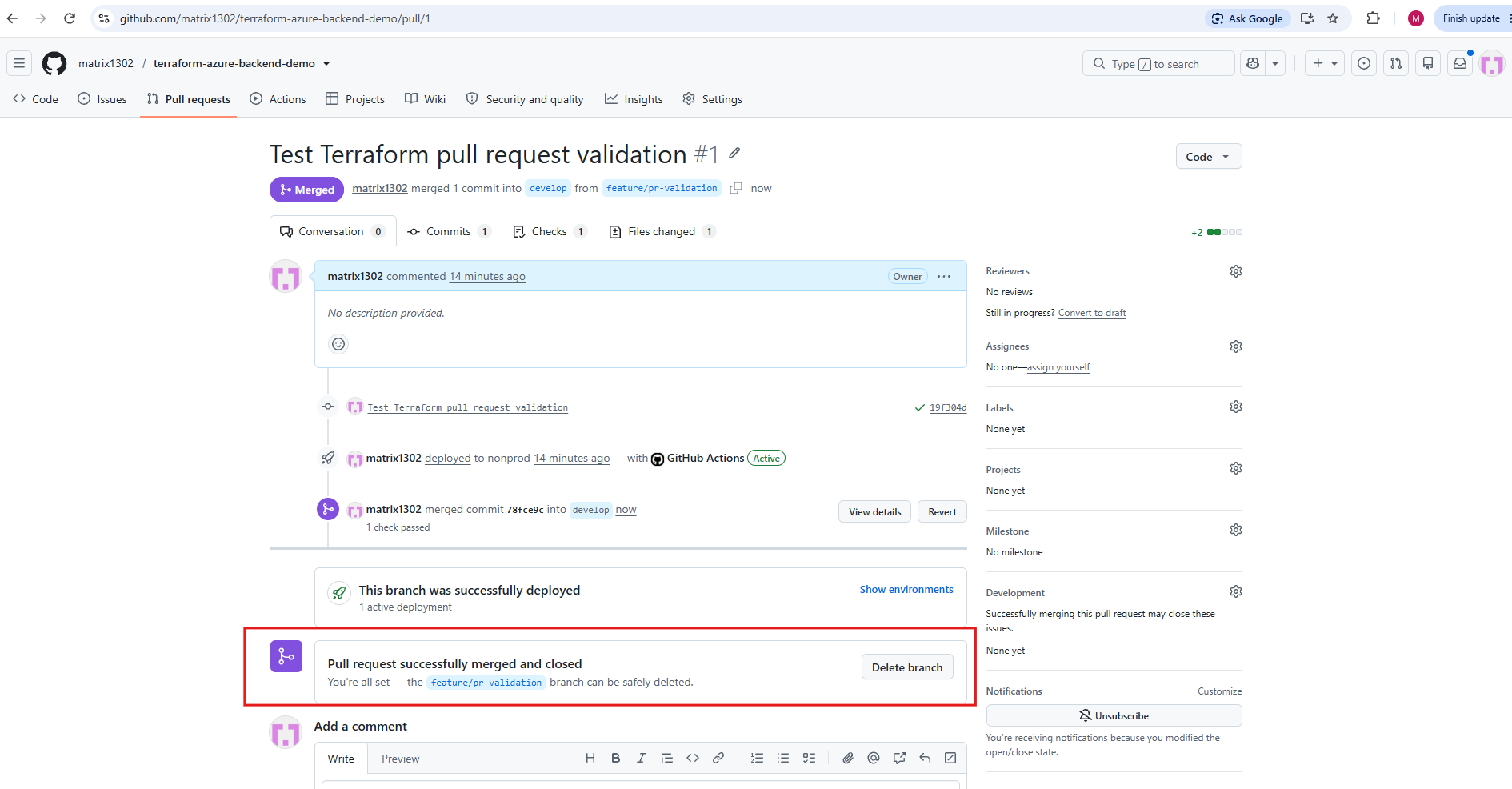
Pull Request #1 was successfully merged into develop and automatically closed, creating merge commit 78fce9c while preserving our original feature commit.
GitHub now offers to delete the temporary feature branch, and the merge triggers our regular Terraform deployment workflow for the development environment.
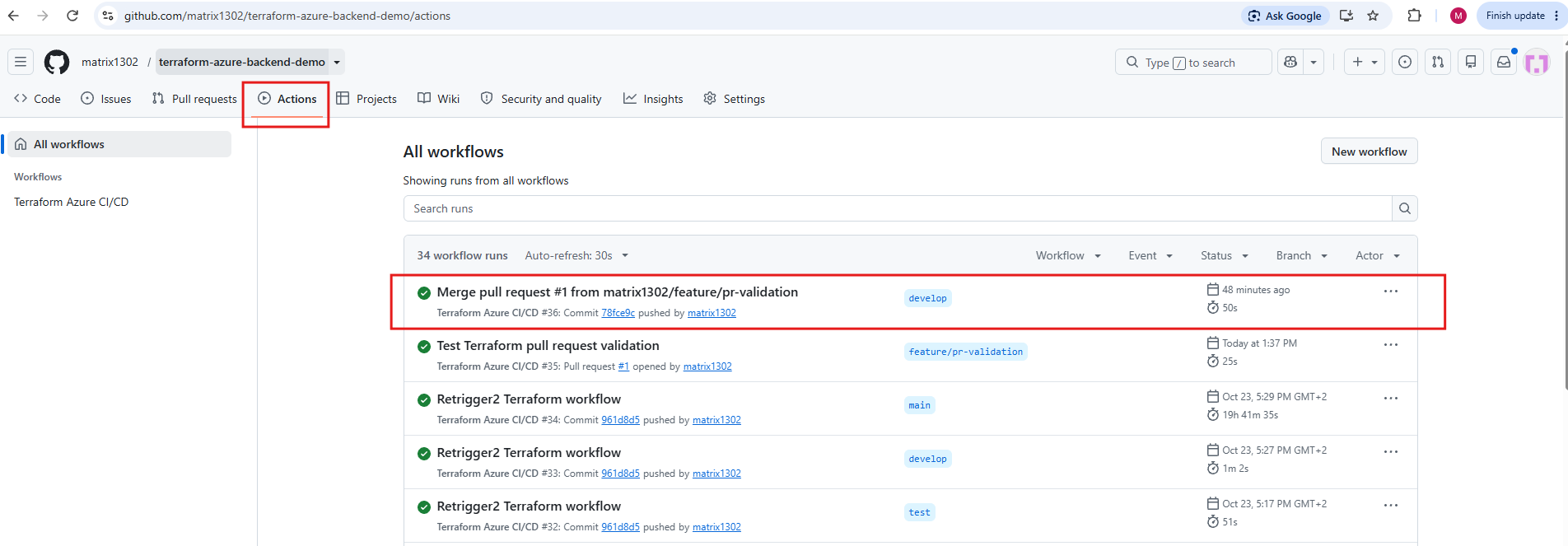
Under Actions, we can see that merging Pull Request #1 into develop automatically triggered workflow run #36, which completed successfully in 50 seconds.
Unlike the previous Pull Request validation run (#35), this workflow was triggered by a
pushevent and includes the TerraformApplystep for our development environment.
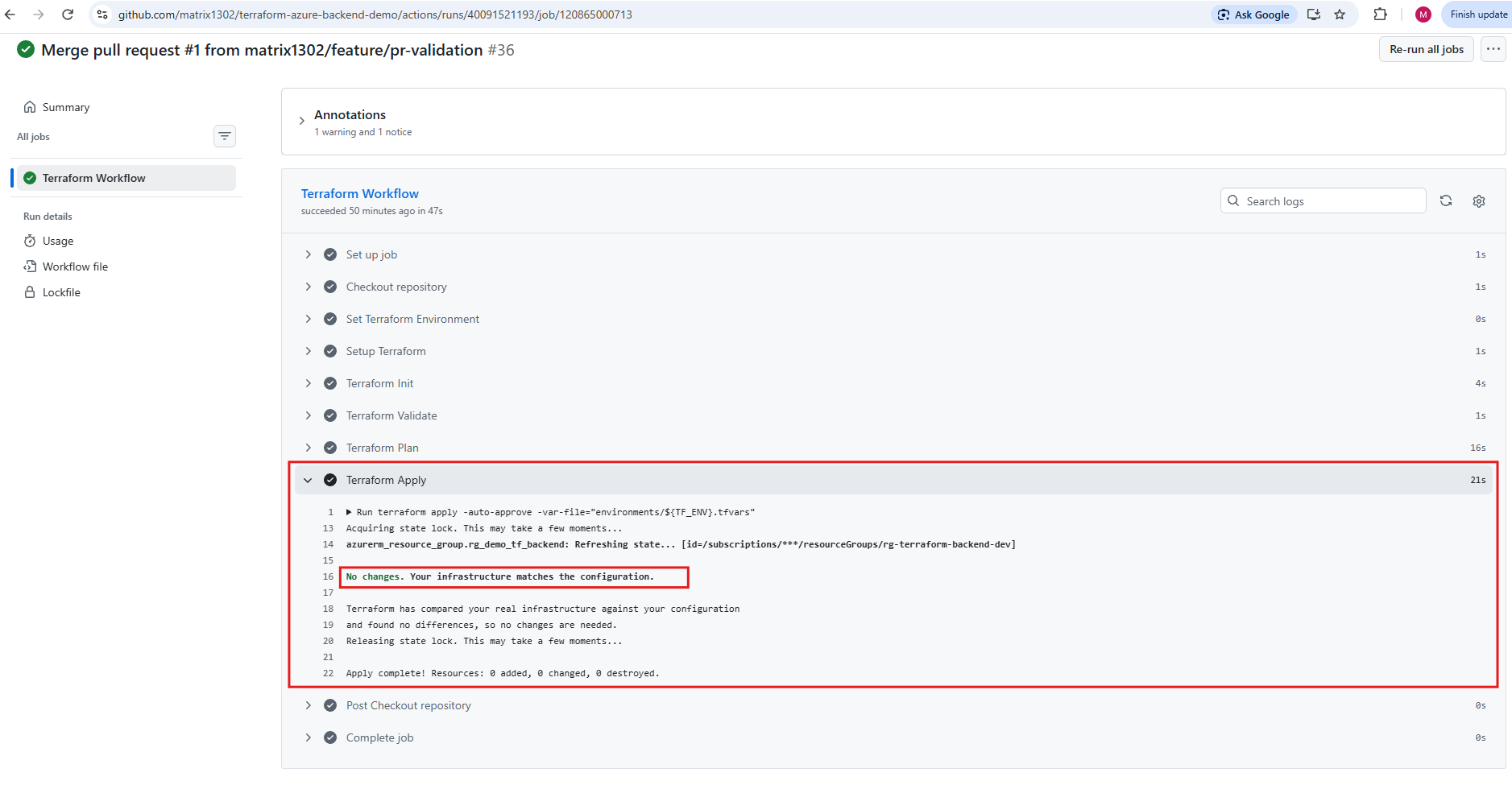
Workflow run #36 confirms that Terraform Apply executed successfully after merging the Pull Request into develop.
As expected, Terraform detected no infrastructure changes because we only added a comment to
main.tf, resulting in 0 resources added, 0 changed, and 0 destroyed.
Delete the Feature Branch After Merging
In a typical enterprise Git workflow, feature branches are temporary and created for individual features, bug fixes, or configuration changes. Once a feature has been validated and merged into develop, its branch is normally deleted, keeping the repository organized while permanent branches such as develop, test, and main remain in place.
After successfully merging our Pull Request and verifying the Terraform deployment workflow, we can delete feature/pr-validation because its changes are now incorporated into develop.
First, return to the completed Pull Request on GitHub and click Delete branch. This removes the remote feature branch from GitHub.
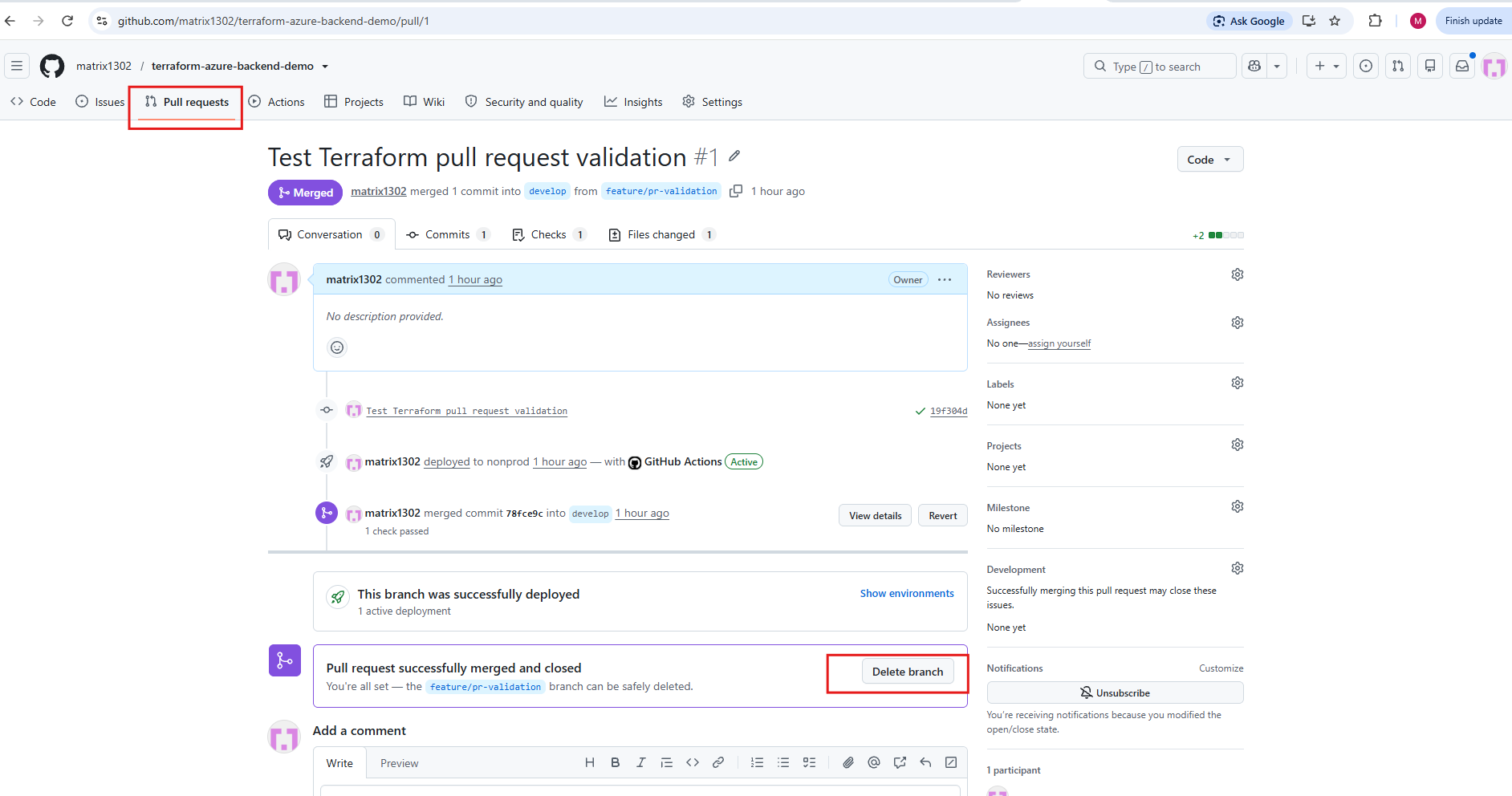
Next, we synchronize our local develop branch and delete the local feature branch:
git pull origin develop— may create a merge commit if local and remote histories have diverged, depending on our Git configuration.git pull --ff-only origin develop— refuses to merge if the histories have diverged, preventing an unintended merge commit.
git switch develop
git pull --ff-only origin develop
git branch -d feature/pr-validation
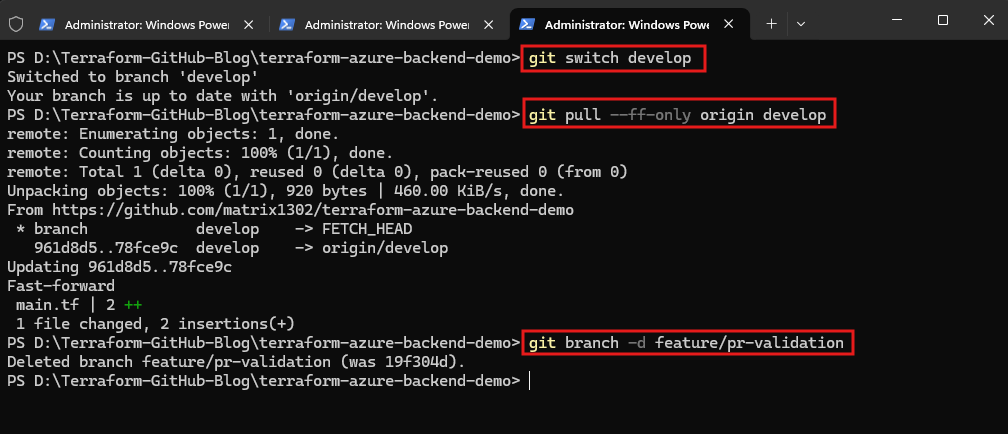
The git pull retrieves the latest merge commit from GitHub, while git branch -d safely deletes the local feature branch after verifying that its changes have been merged.
Deleting the feature branch does not delete its commits or changes, which remain preserved in the history of
develop.For our next Terraform configuration change, we would typically create a new feature branch from the updated
developbranch and repeat the same Pull Request workflow.
Promote Terraform Changes from Development to Testing
After successfully validating and merging our feature branch into develop, we can promote the changes to the next environment, test, using another Pull Request. Unlike feature branches, develop, test, and main are permanent branches representing our development, testing, and production deployment stages.
In GitHub, navigate to Pull requests → New pull request.
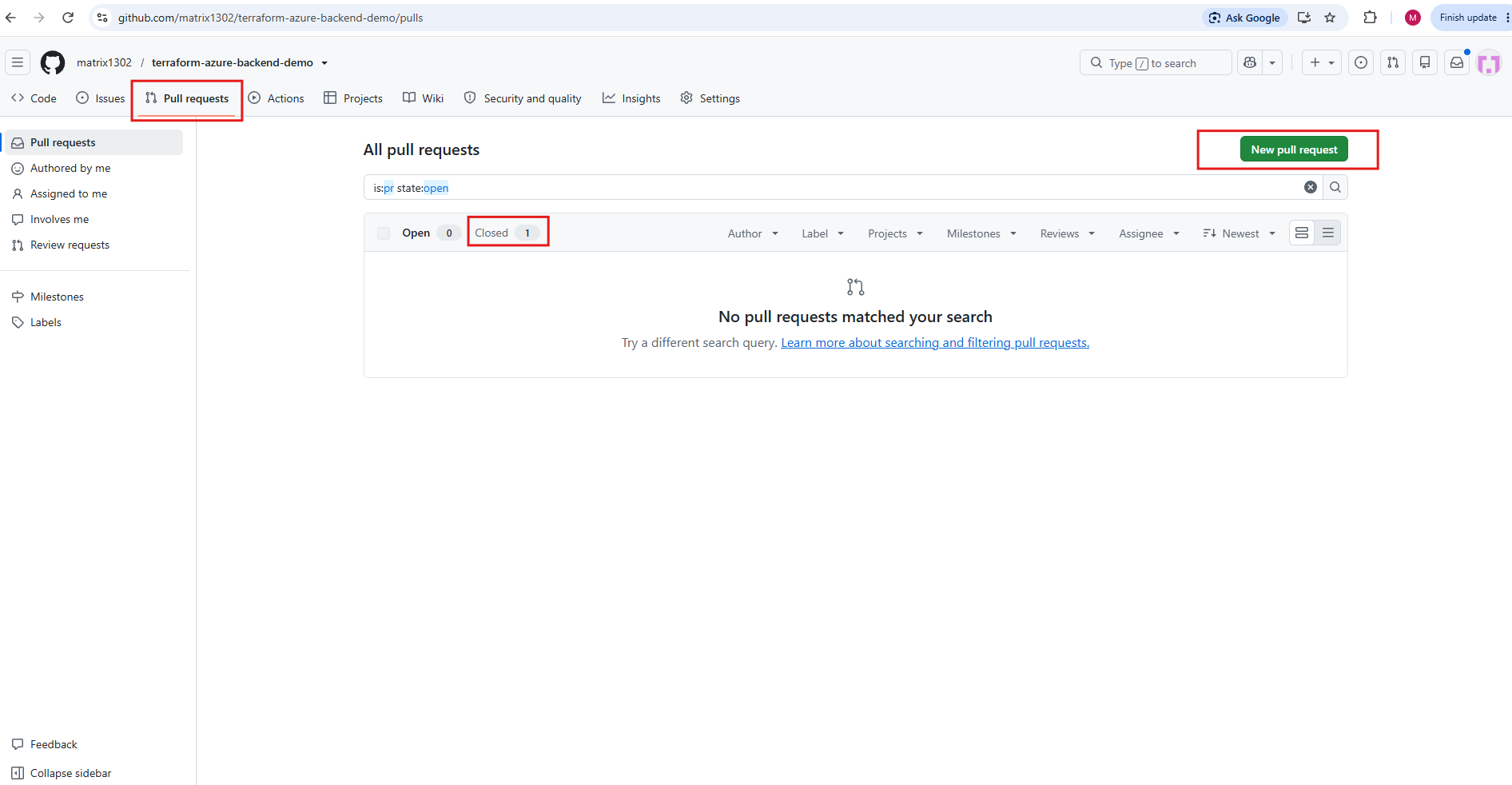
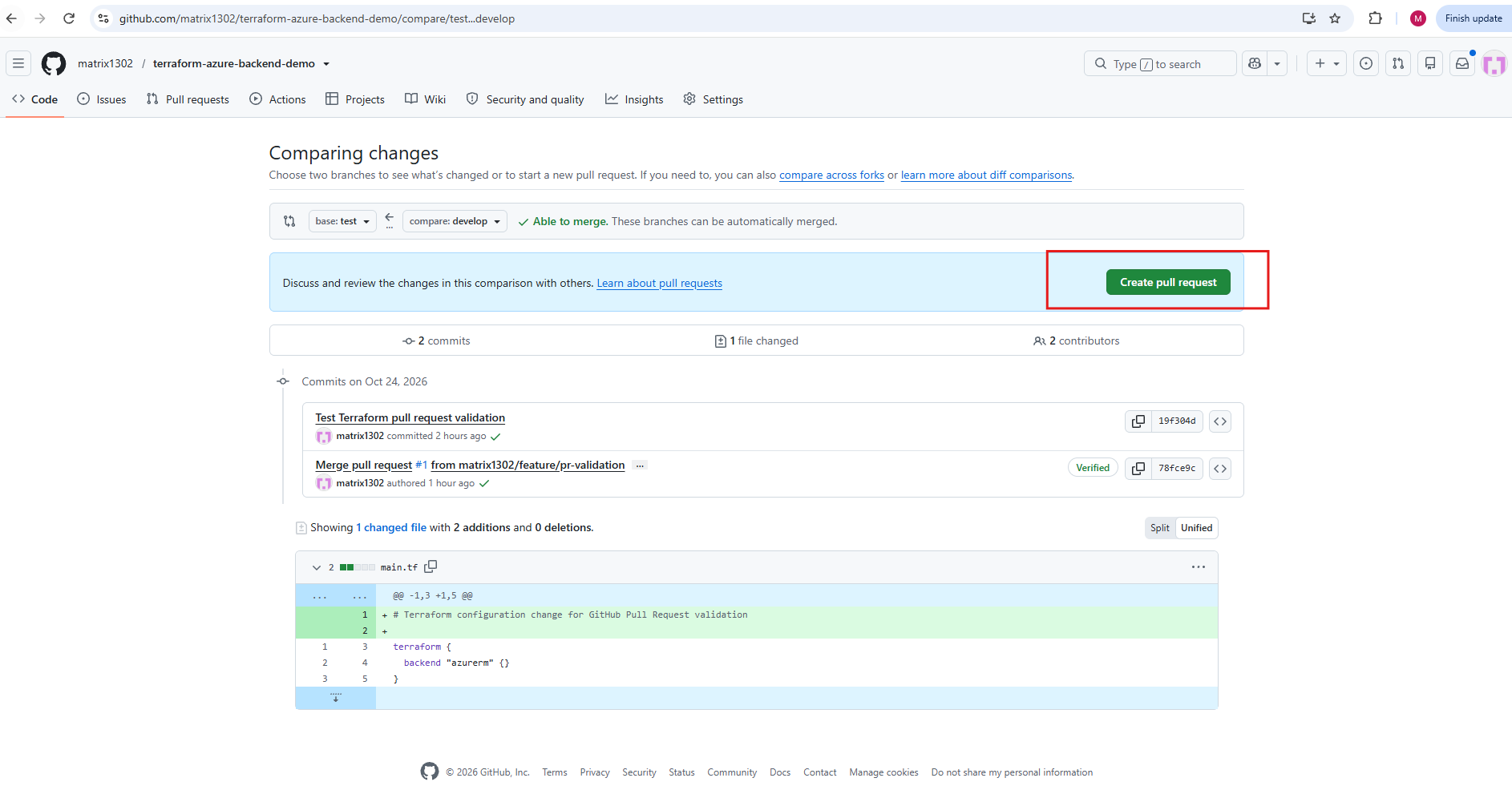
Select test as the base (target) branch on the left and develop as the compare (source) branch on the right.
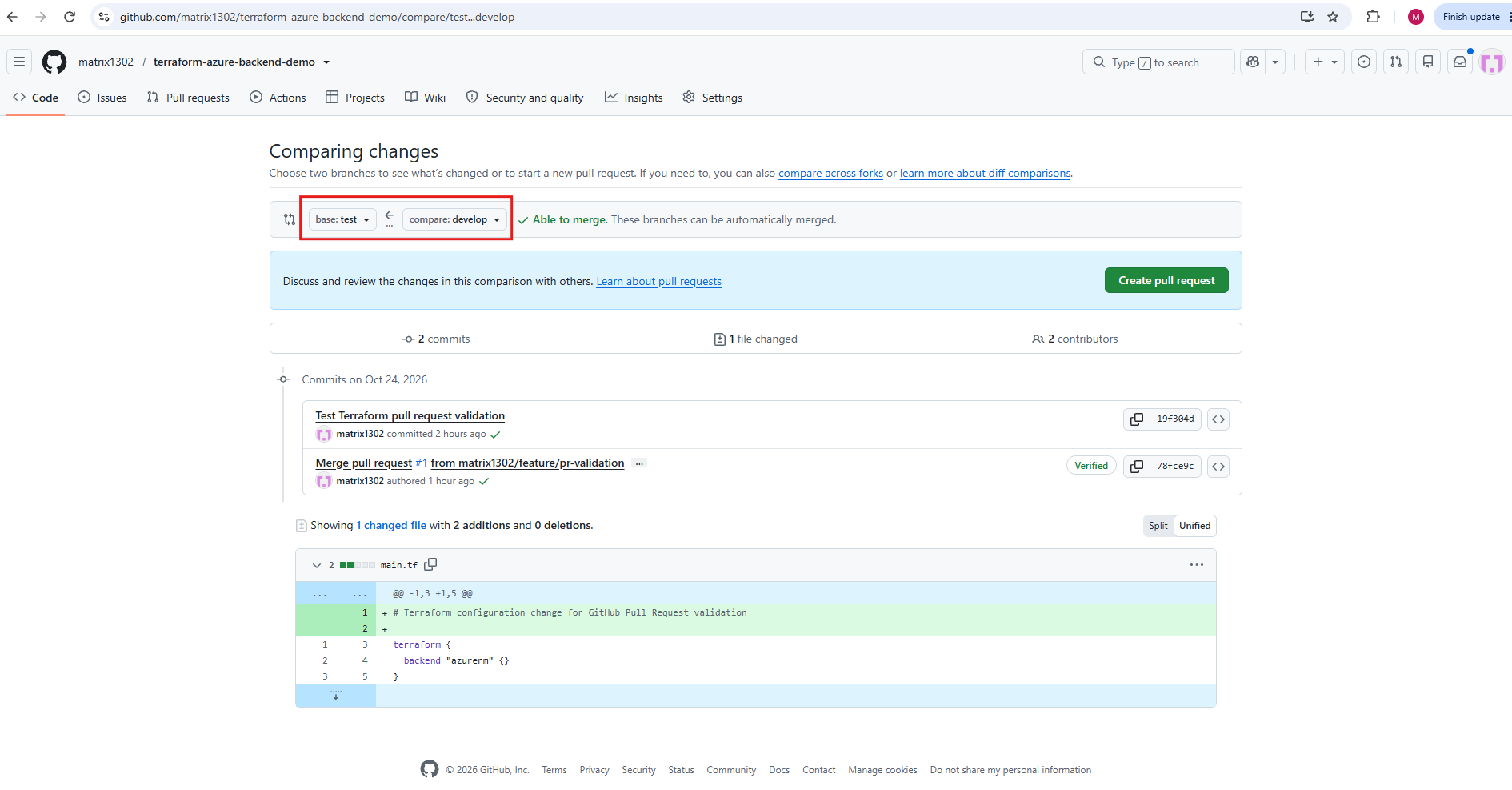
GitHub displays the differences between both branches, allowing us to review the changes before promoting them to the testing environment.
Creating the Pull Request will trigger our Terraform validation workflow using the test environment’s Terraform configuration and state, without executing Terraform Apply.
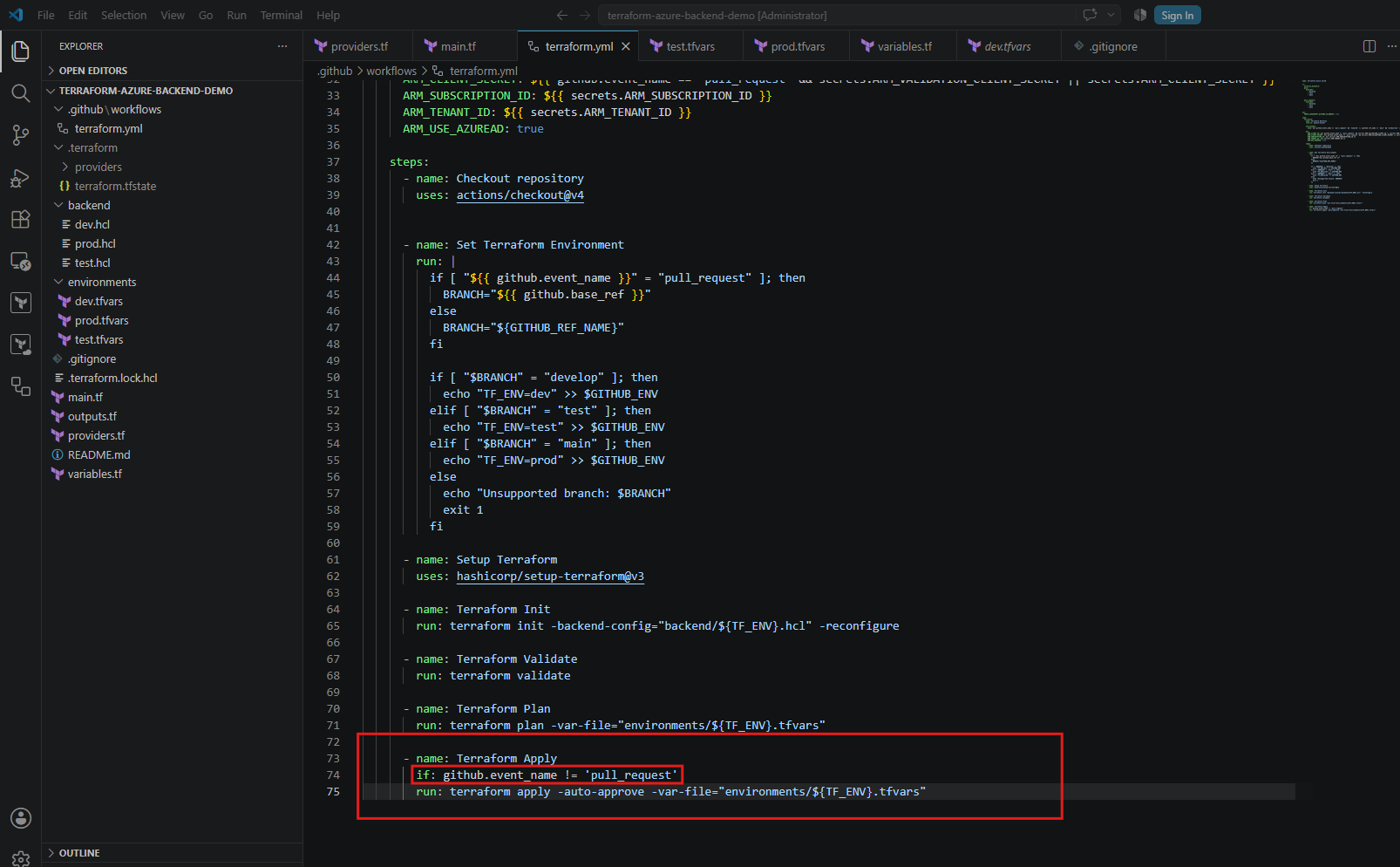
As shown in our GitHub Actions workflow (
terraform.yml), the Terraform Apply step uses the conditionif: github.event_name != 'pull_request'.This ensures that
Applyis automatically skipped for Pull Request validation, including our upcoming promotion fromdeveloptotest, and only executes after changes are merged and trigger a regularpushevent.
Now we click Create pull request, keeping test as the base branch and develop as the compare branch.
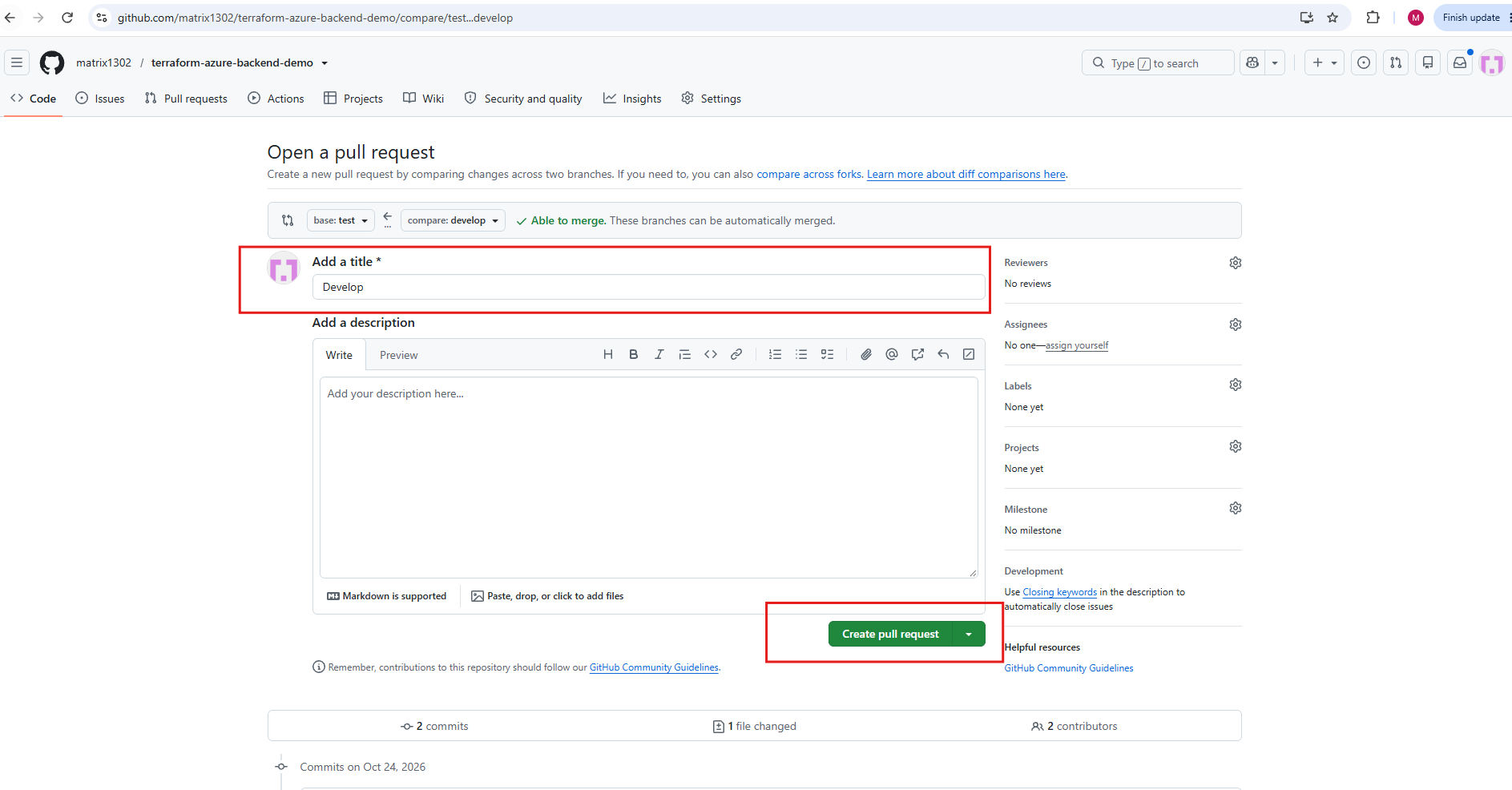
GitHub automatically prepopulates the Pull Request title with Develop, based on our source branch name.
We replace it with the more descriptive title Promote Terraform configuration from Development to Testing, leave the optional description empty, and click Create pull request to trigger Terraform validation against our test environment.
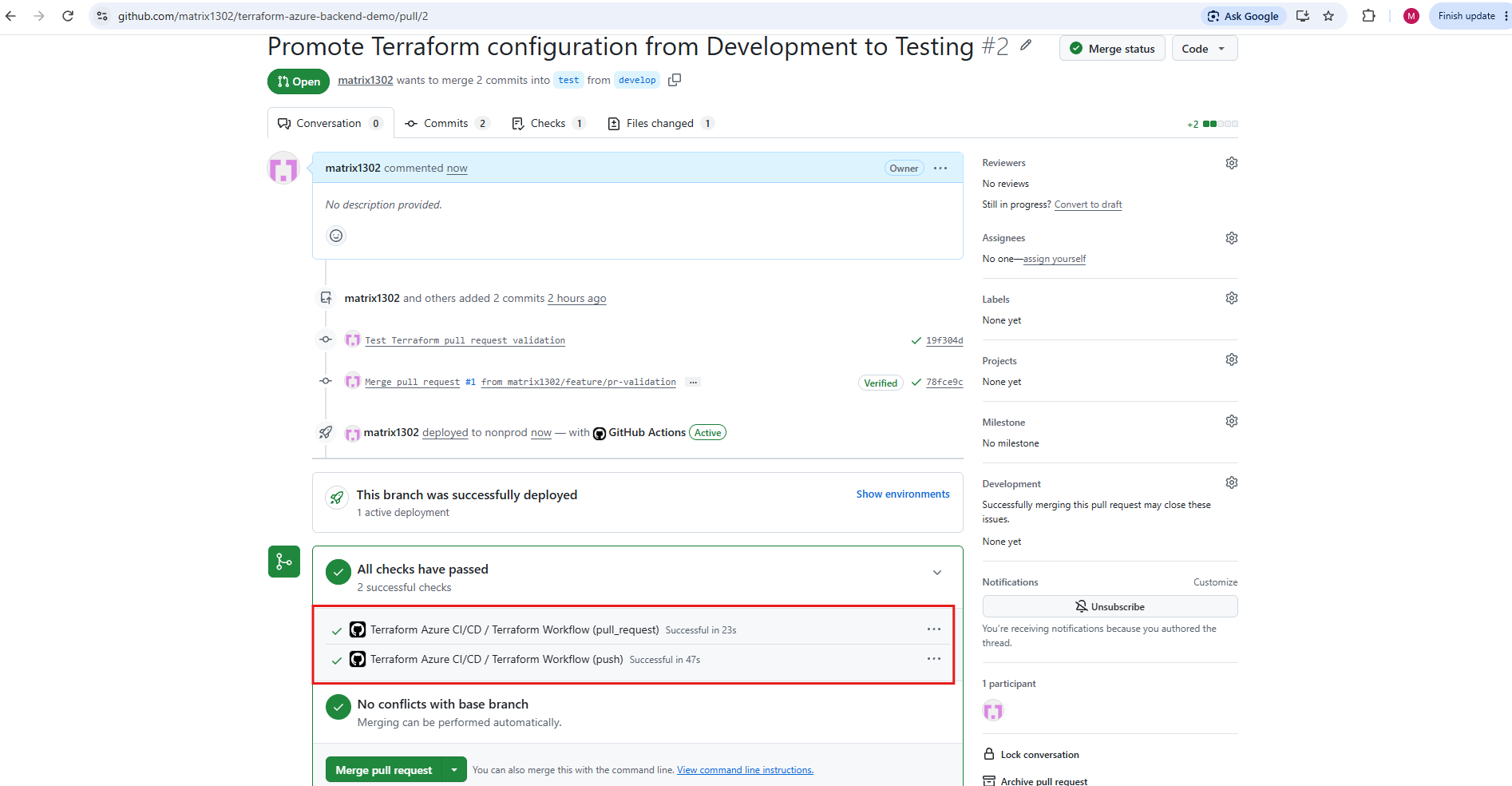
After creating the Pull Request from develop to test, GitHub displays two successful checks: the earlier push workflow, triggered when the previous Pull Request was merged into develop, and the new pull_request workflow, which validates the proposed changes without executing Terraform Apply. Both checks passed, and GitHub confirms that the branches can be merged without conflicts.
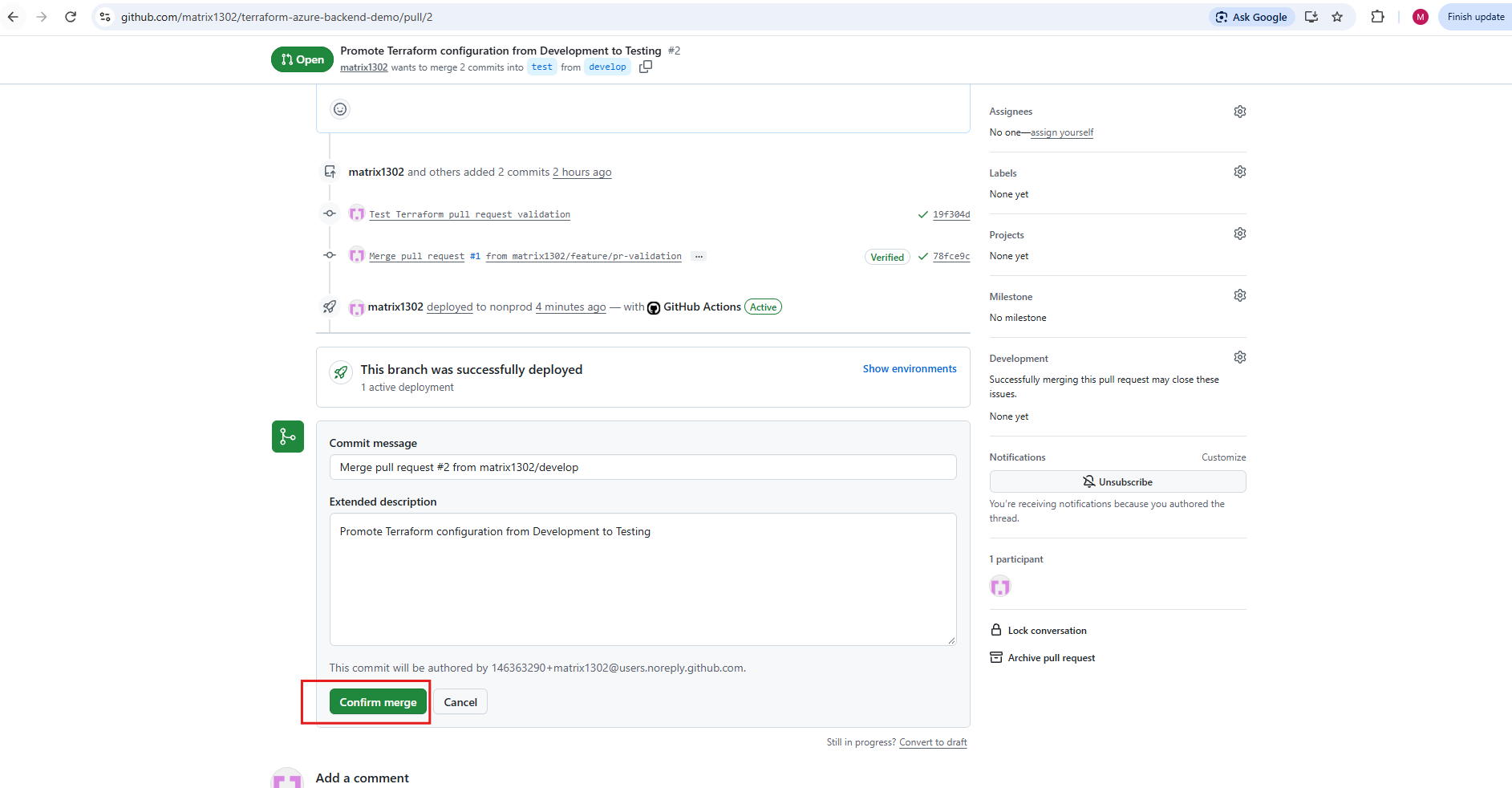
Click Merge pull request, keep the default Create a merge commit option.
Select Confirm merge.
Pull Request #2 was successfully merged, promoting the Terraform configuration from develop to test.
Although GitHub offers to delete the source branch afterward, we retain
developbecause it is a permanent branch used for ongoing development and future deployments.
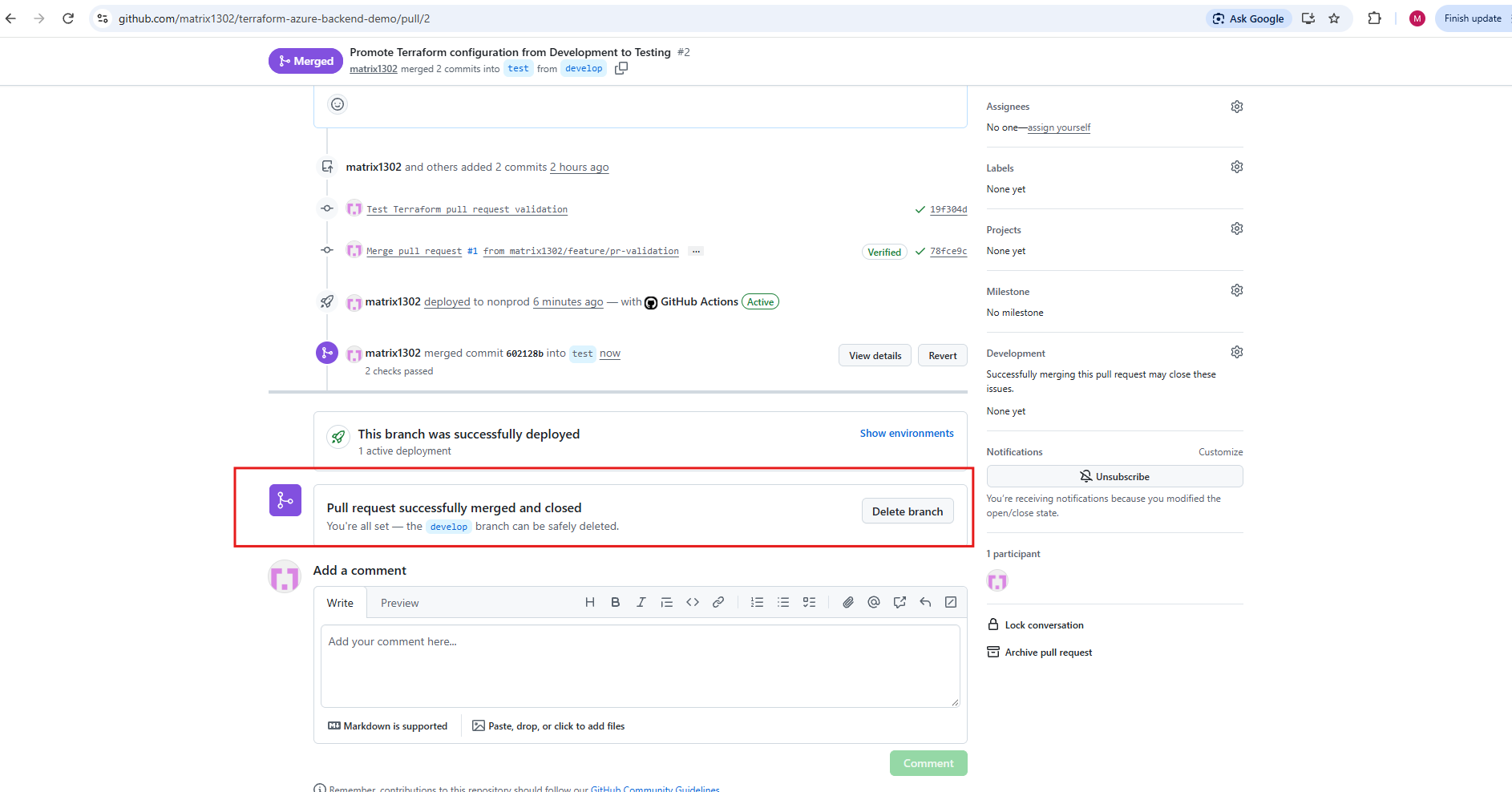
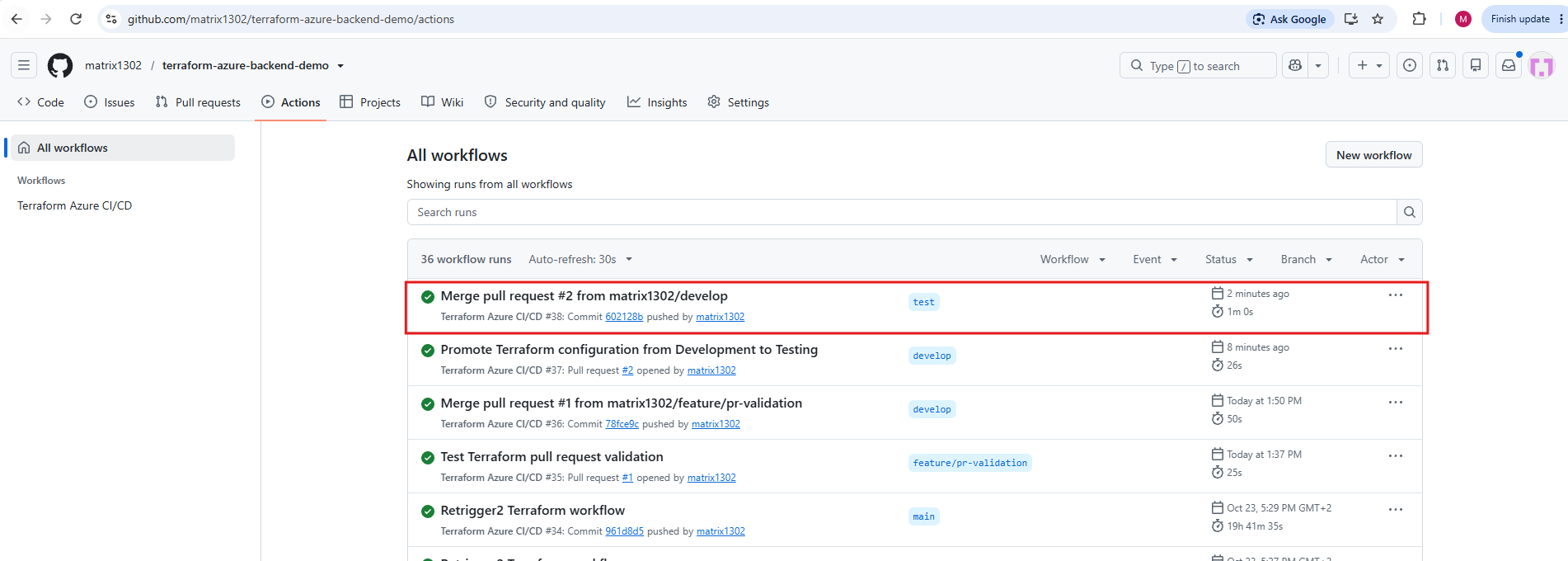
After merging Pull Request #2, GitHub automatically triggered a new push workflow on the test branch.
Workflow run #38 completed successfully, confirming that the Terraform CI/CD pipeline executed without errors for the Testing environment.
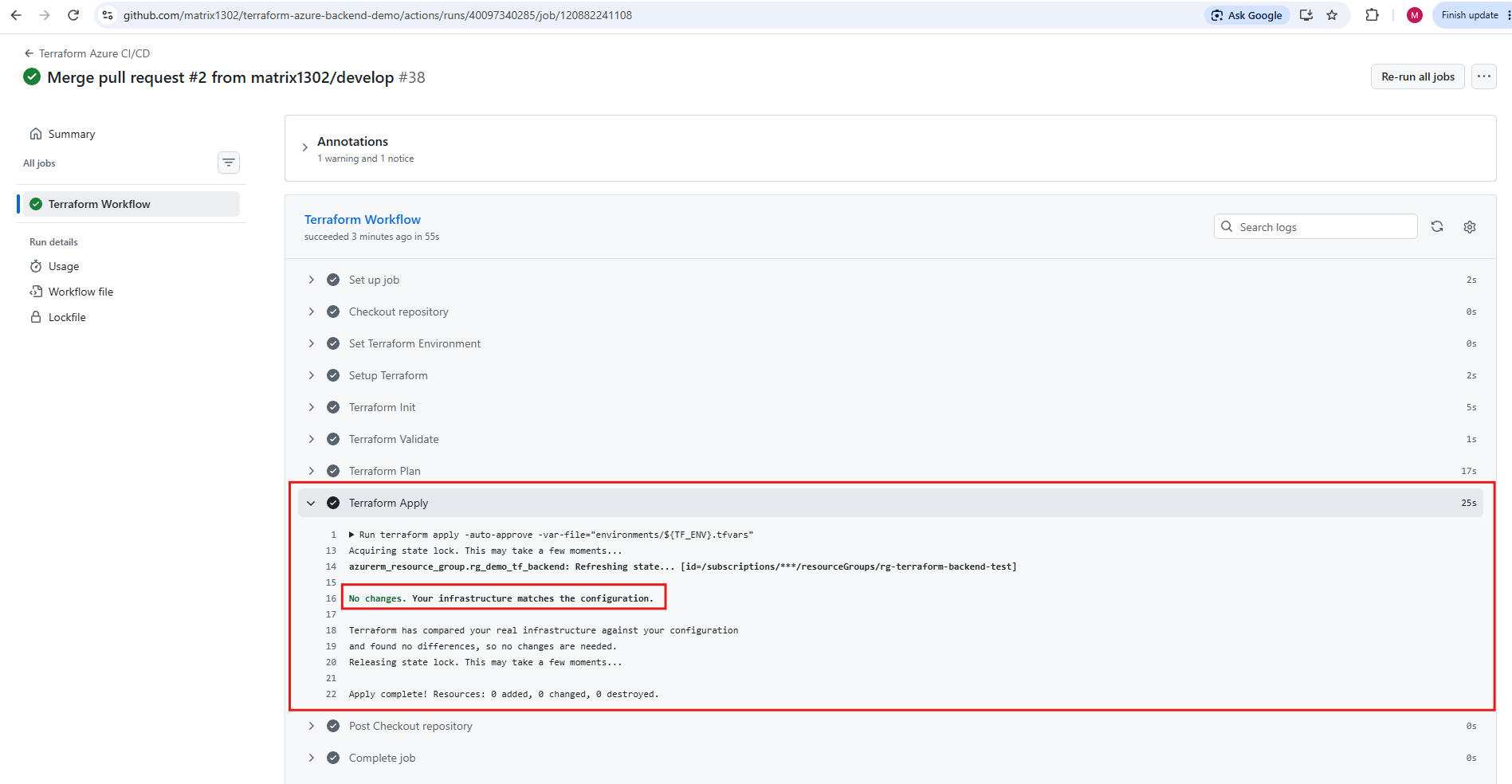
The Terraform Apply step completed successfully using the Testing environment configuration.
Since our changes only introduced a comment in
main.tf, Terraform reported “No changes”, confirming that the existing Azure infrastructure already matches the configuration.No resources were added, modified, or destroyed.
Promote Terraform Changes from Test to Main (Production)
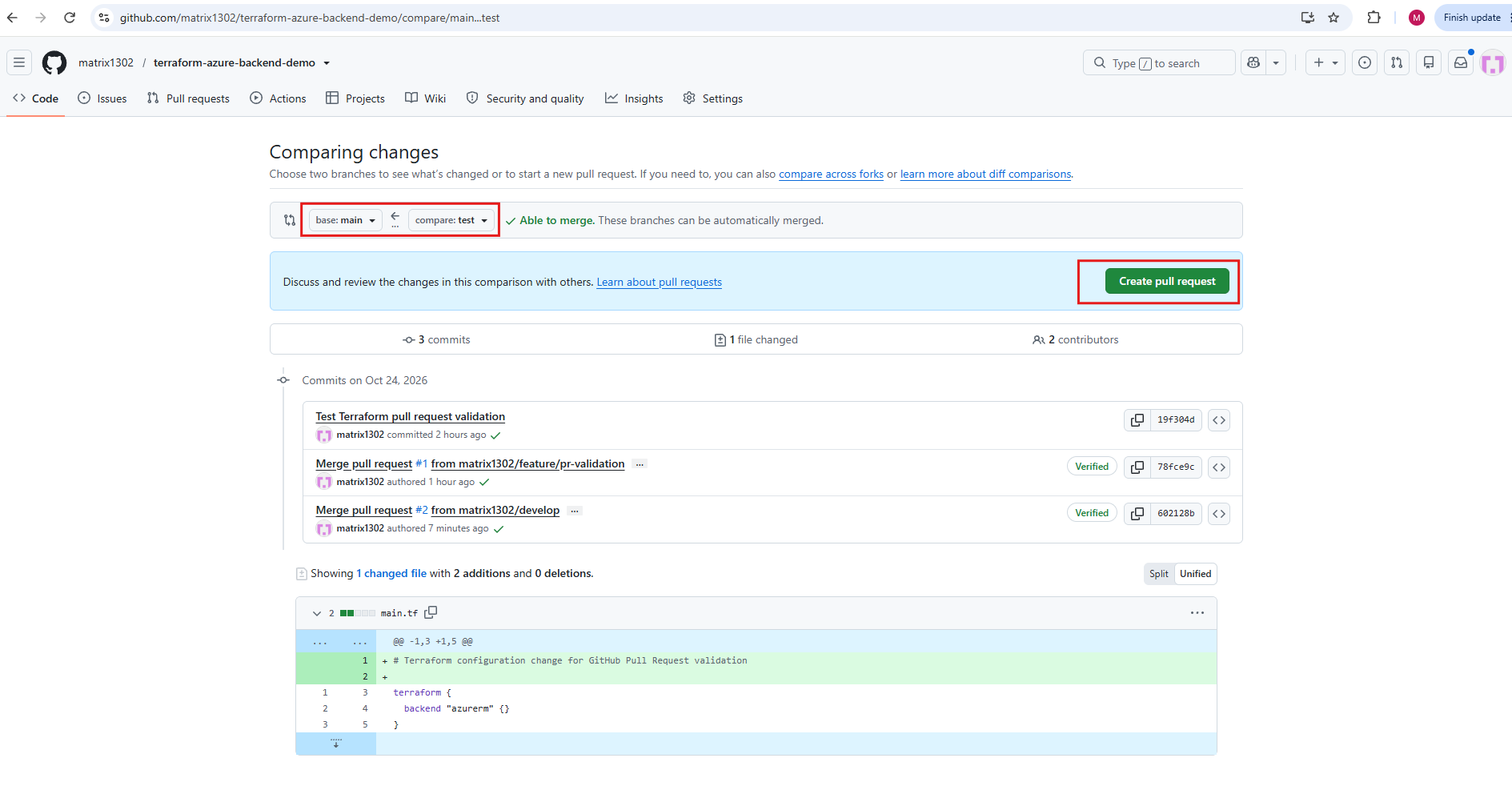
After successfully validating and deploying our Terraform configuration in the Testing environment, we can promote the same changes to Production using another GitHub Pull Request.
Navigate to Pull requests → New pull request and select:
- Base (left):
main– the target branch representing Production. - Compare (right):
test– the source branch containing our validated changes.
Click Create pull request, review the automatically populated title, and create the Pull Request.
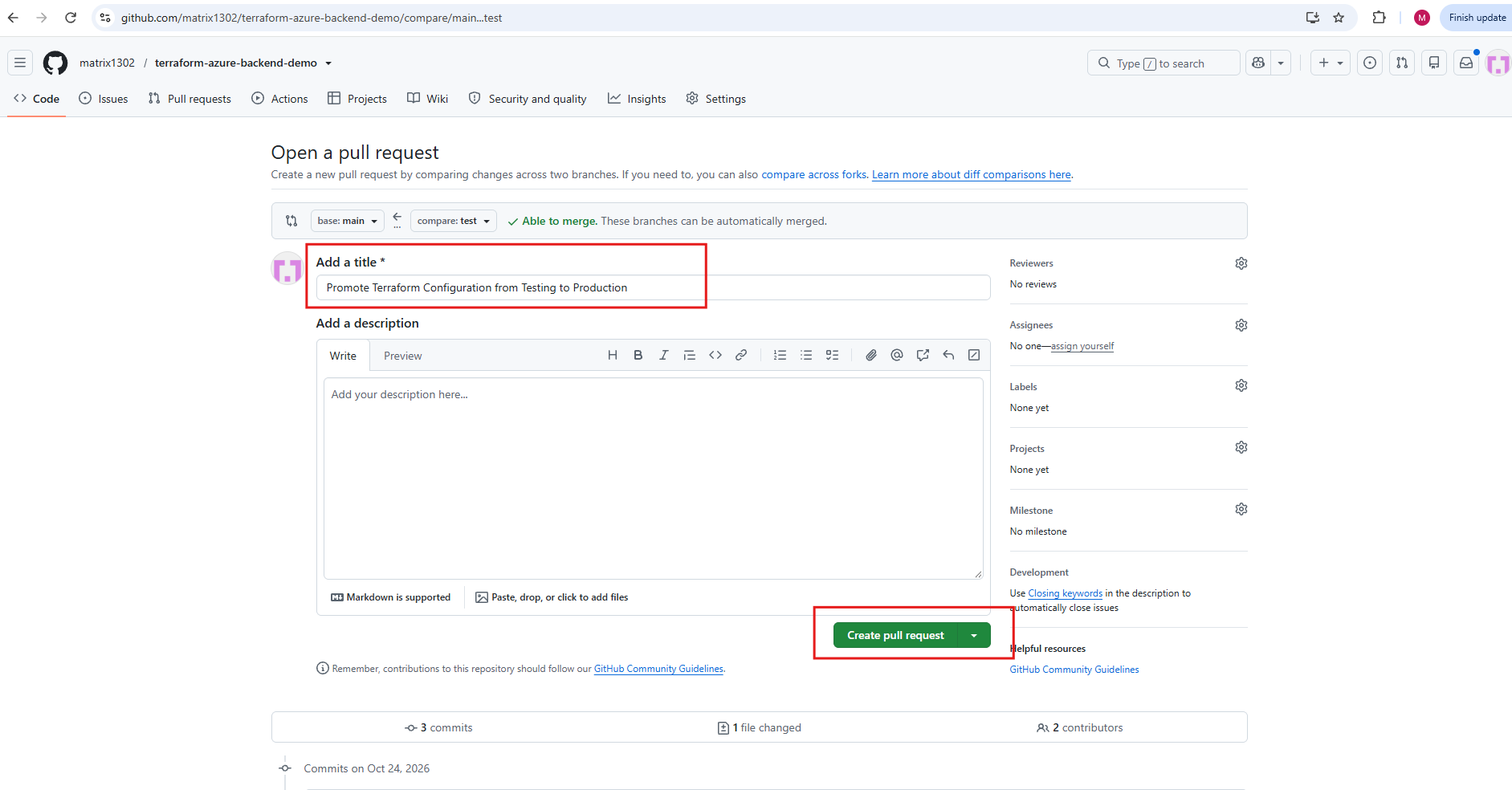
GitHub Actions will automatically execute Terraform Init, Validate, and Plan against the Production configuration without running Terraform Apply.
Once validation succeeds, we can merge the Pull Request into main, triggering the Production workflow, which requires manual approval before any Terraform operations are executed.
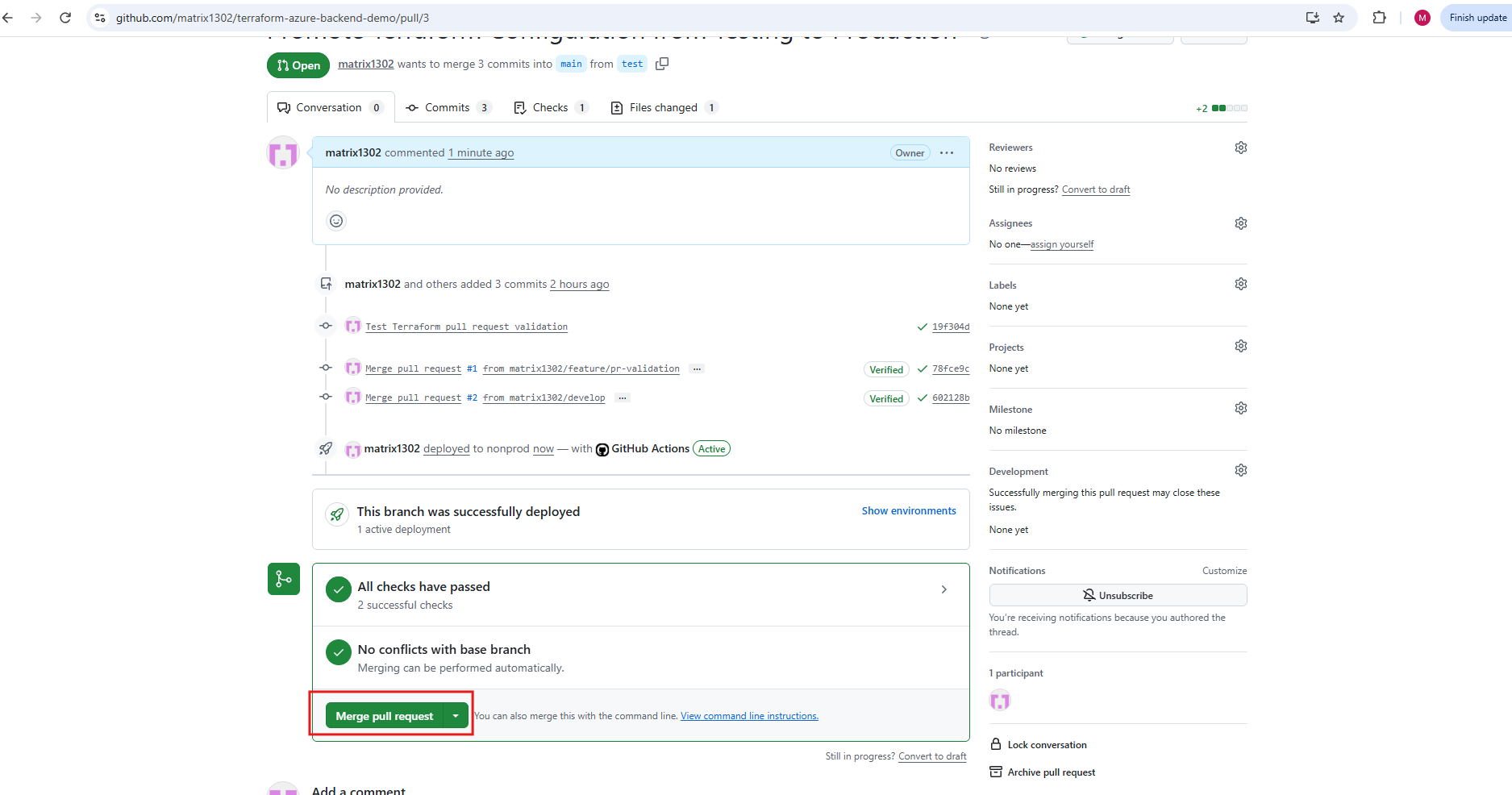
Pull Request #3 successfully passed Terraform validation against the Production configuration.
GitHub confirms that all checks have passed and the changes from
testcan be merged intomainwithout conflicts. The Production infrastructure remains unchanged because TerraformApplyis skipped during Pull Request validation.
Next: Click Merge pull request → Confirm merge
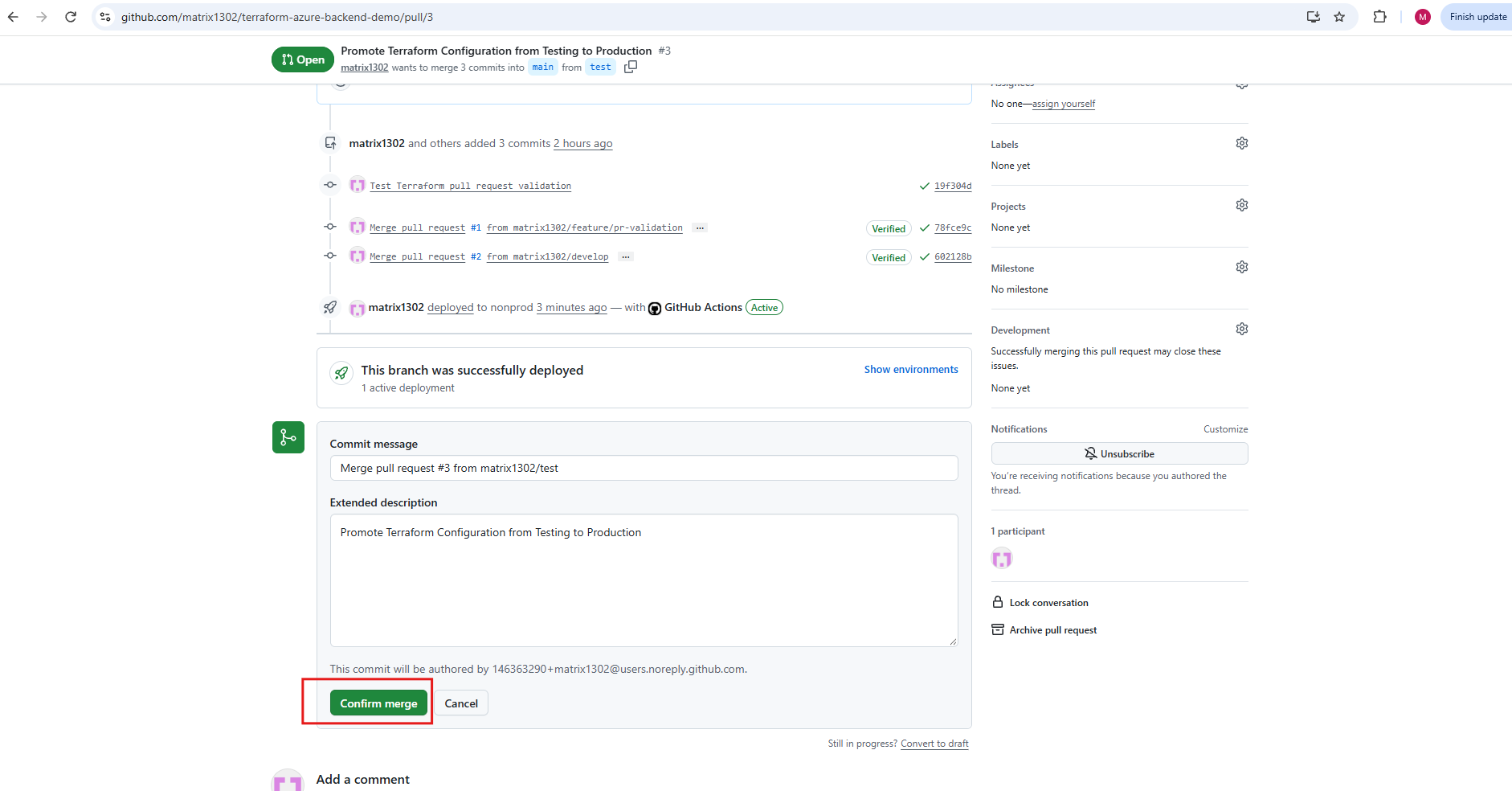
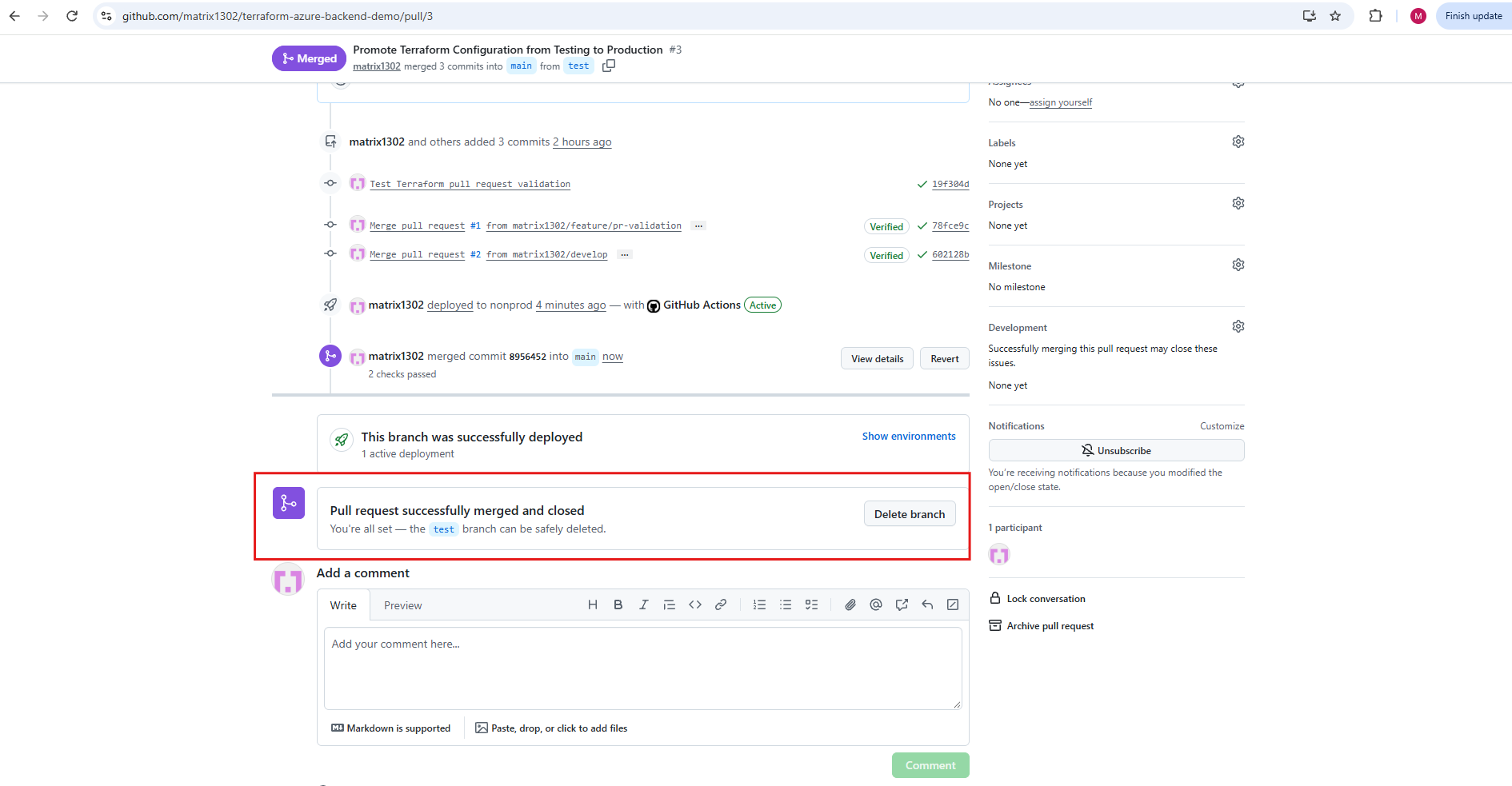
Pull Request #3 was successfully merged, promoting the validated Terraform configuration from test to main (Production).
GitHub again offers to delete the source branch, but we retain
testbecause it is a permanent branch in our CI/CD architecture.
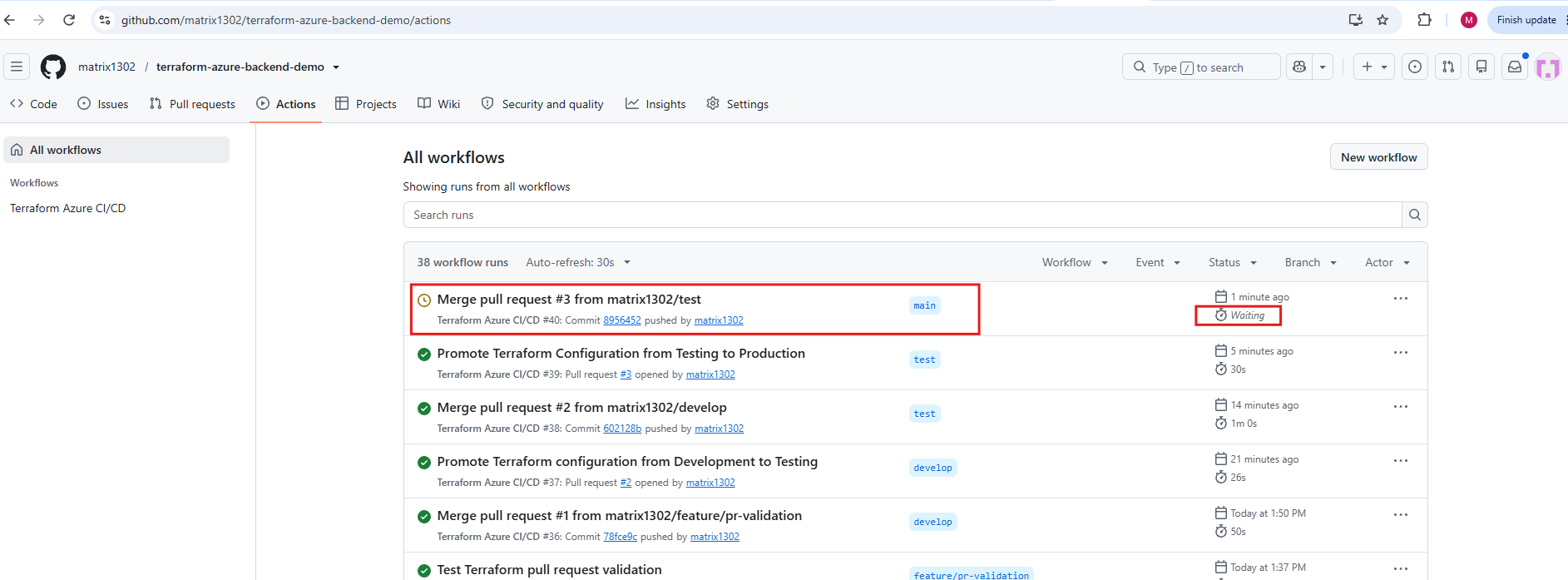
After merging Pull Request #3 into main, GitHub Actions automatically triggered Production workflow #40.
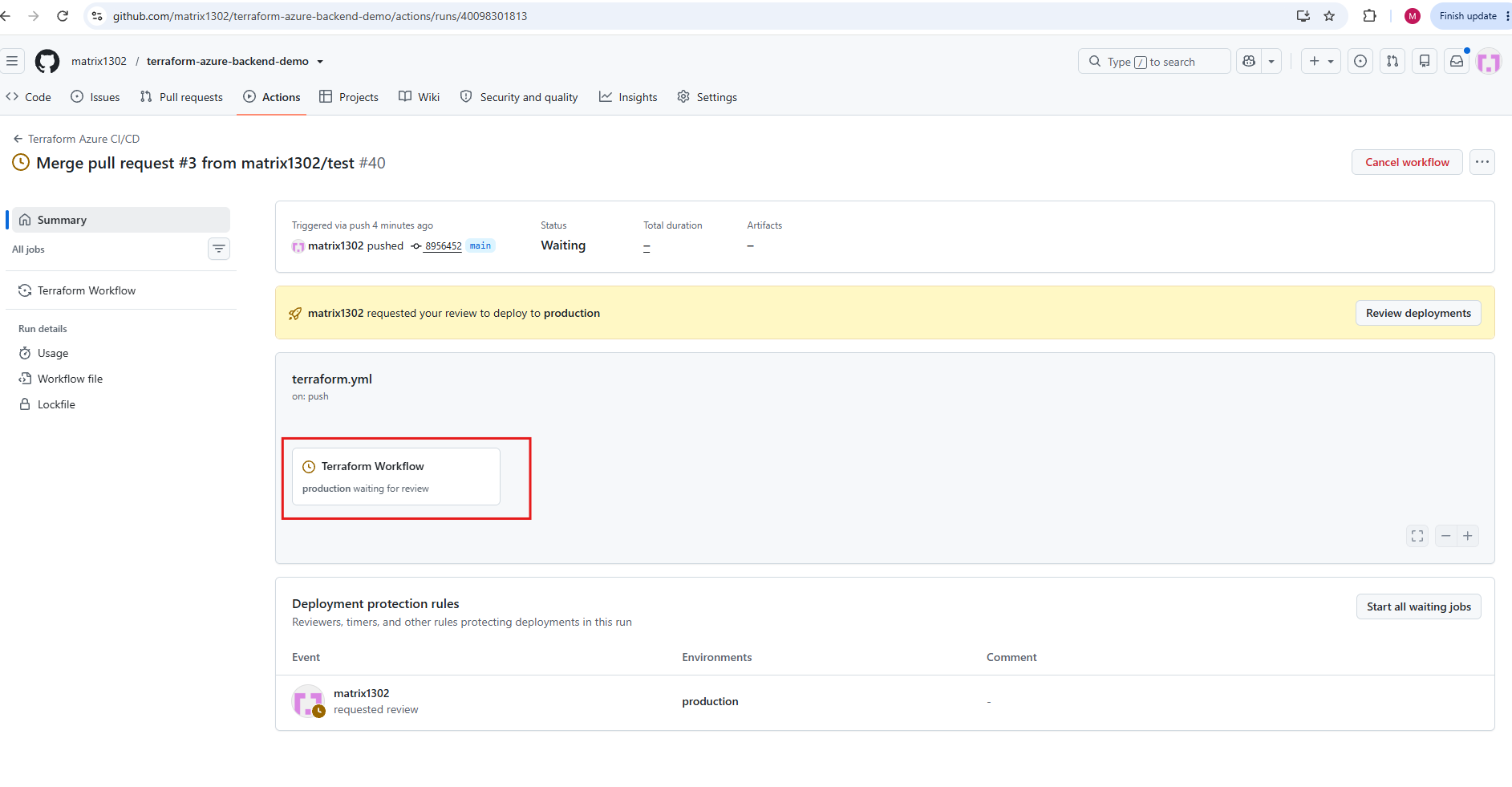
Unlike the Development and Testing workflows, this execution remains in the Waiting state because the protected
productionGitHub Environment requires manual approval before the Terraform job can start.
The job remains in Waiting status because the protected production GitHub Environment requires manual approval before Terraform Init, Validate, Plan, and Apply can execute.
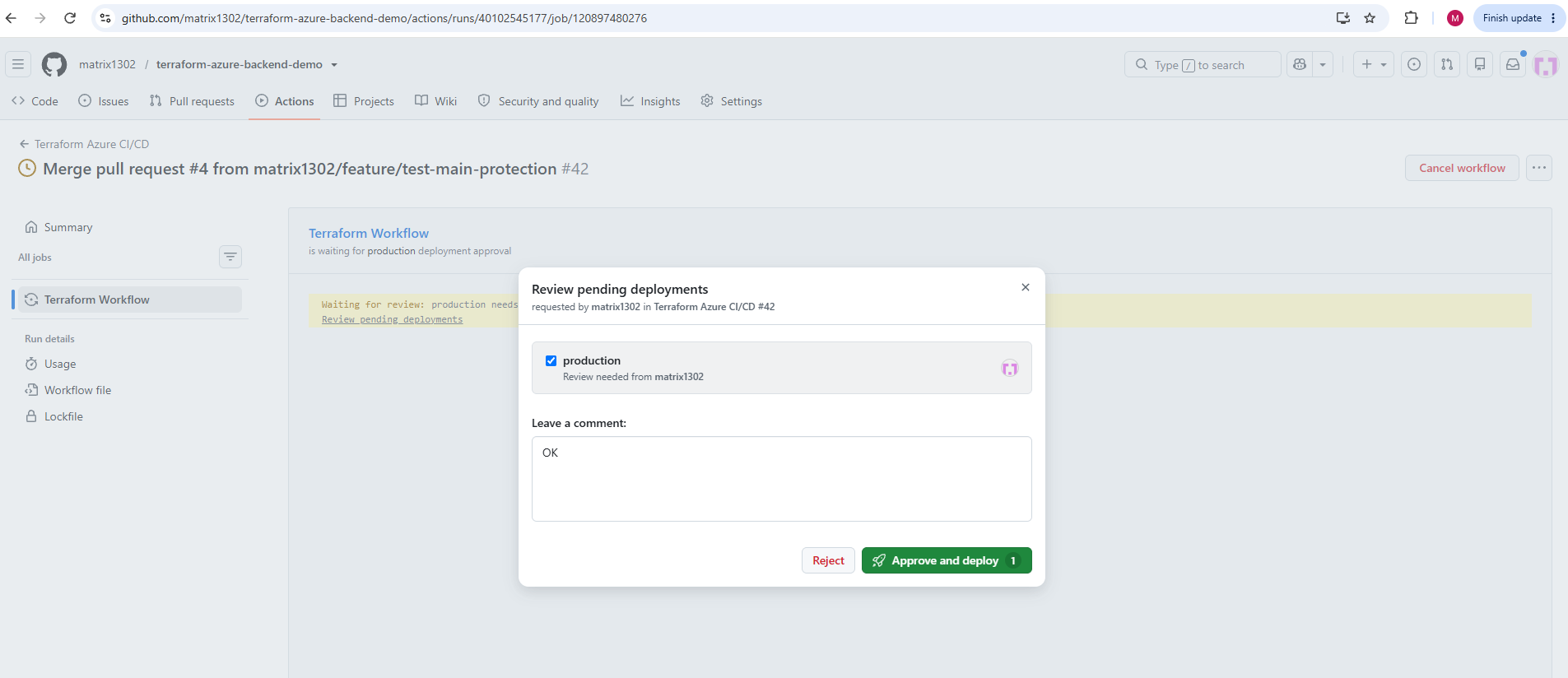
Click Review deployments to approve the Production deployment and allow the workflow to continue.
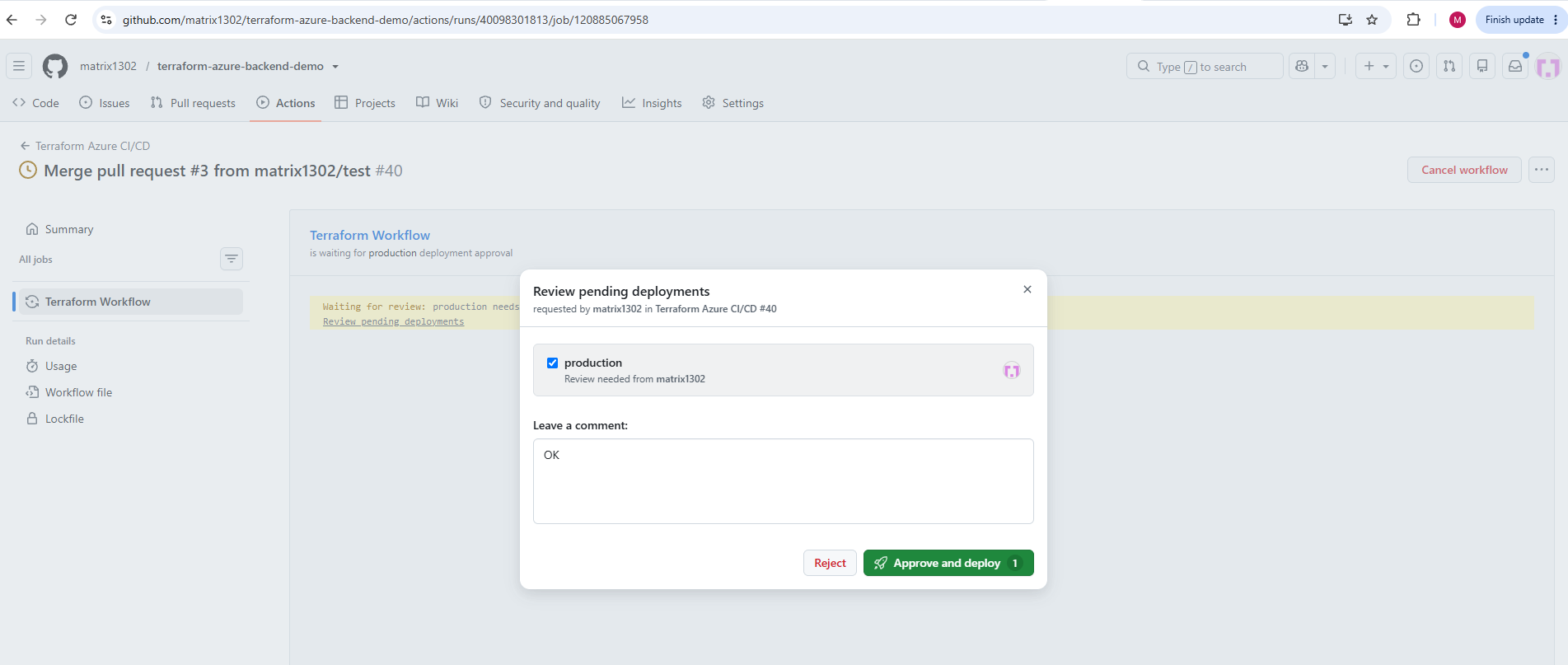
Click on Approve and deploy.
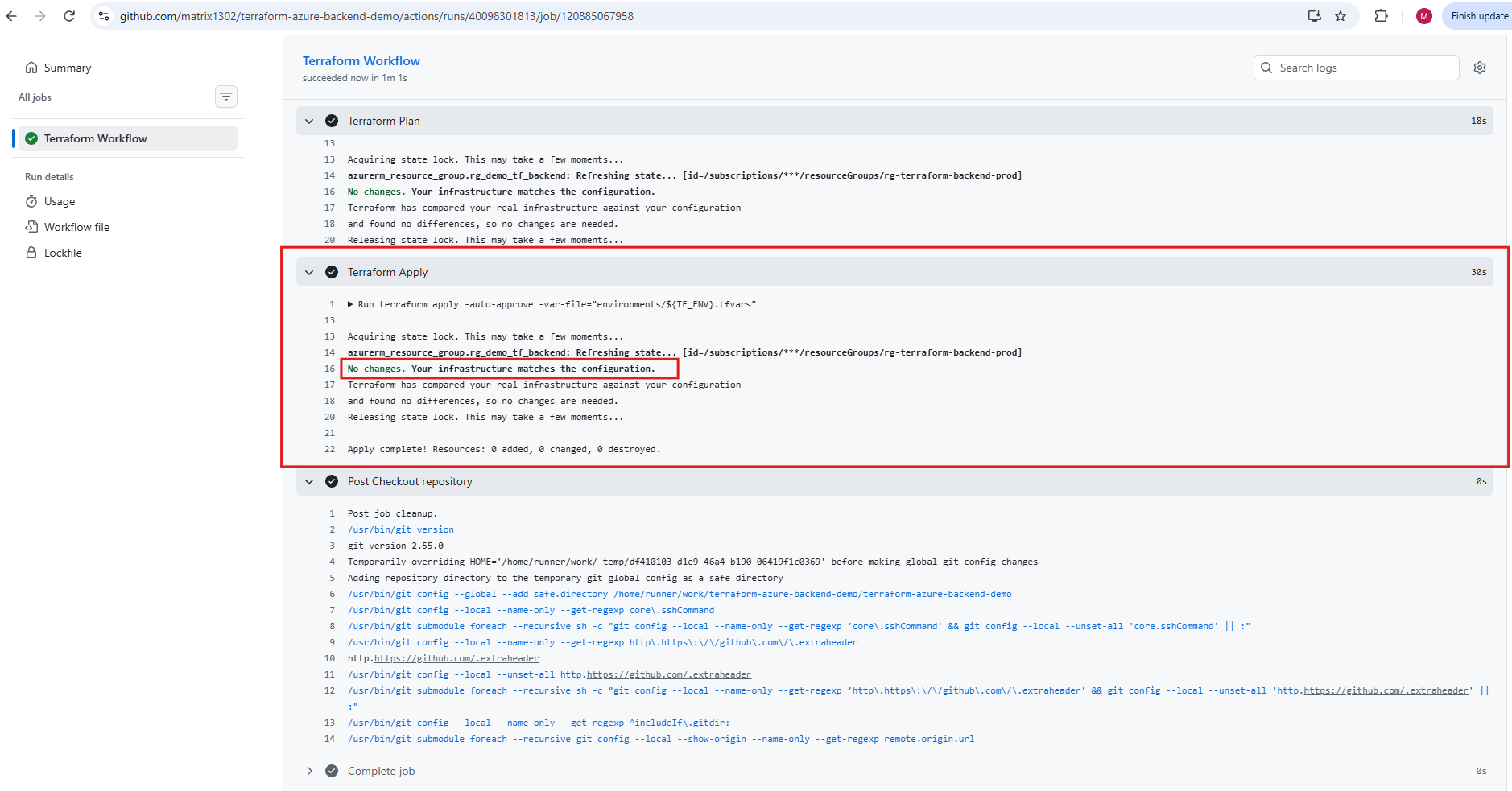
After approving the deployment to the protected production GitHub Environment, Terraform successfully executed Plan and Apply using the production configuration.
No infrastructure changes were required (0 added, 0 changed, 0 destroyed), and GitHub Actions automatically masked the Azure subscription ID in the logs.
Configure GitHub Branch Protection Rules.
We’ve successfully tested the complete Feature → Development → Testing → Production workflow, including Pull Request validation and production deployment approval.
Now we’ll protect our permanent branches (develop, test, and main) against unauthorized or accidental changes.
In our GitHub repository, navigate to: Settings → Branches → Add classic branch protection rule.
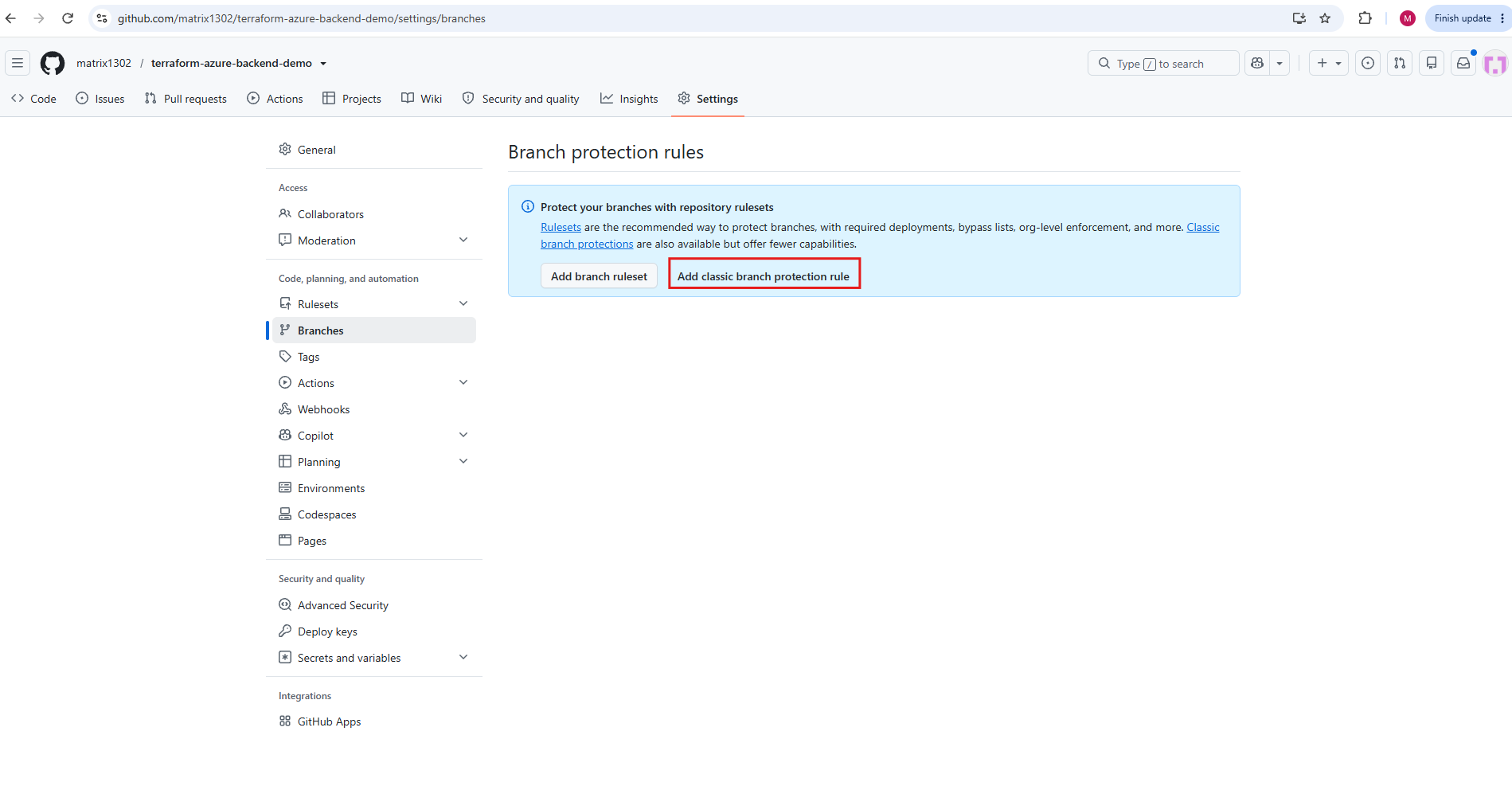
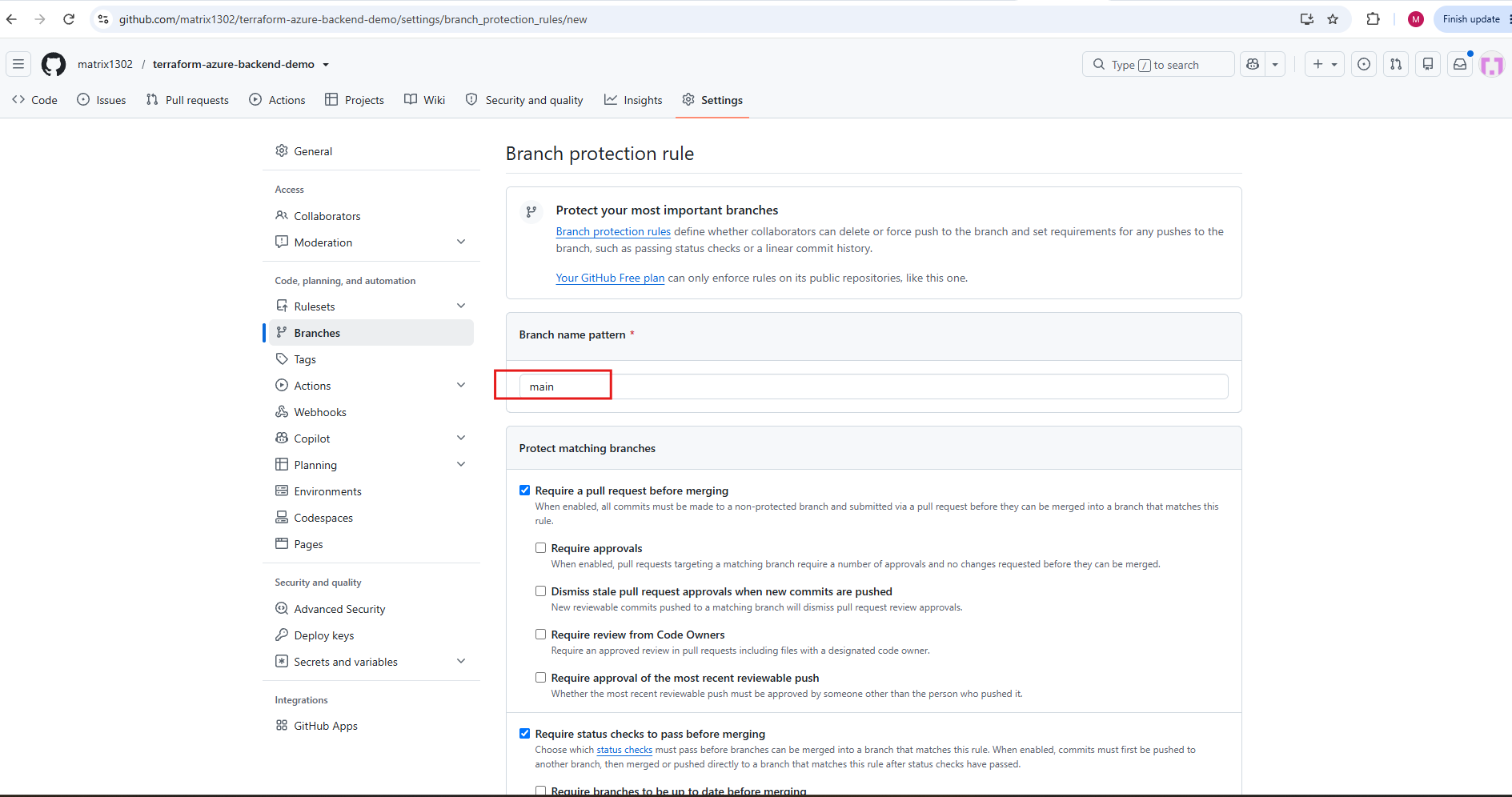
We configure the protection for our production branch (main).
Branch name pattern: main
Enable Require a pull request before merging.
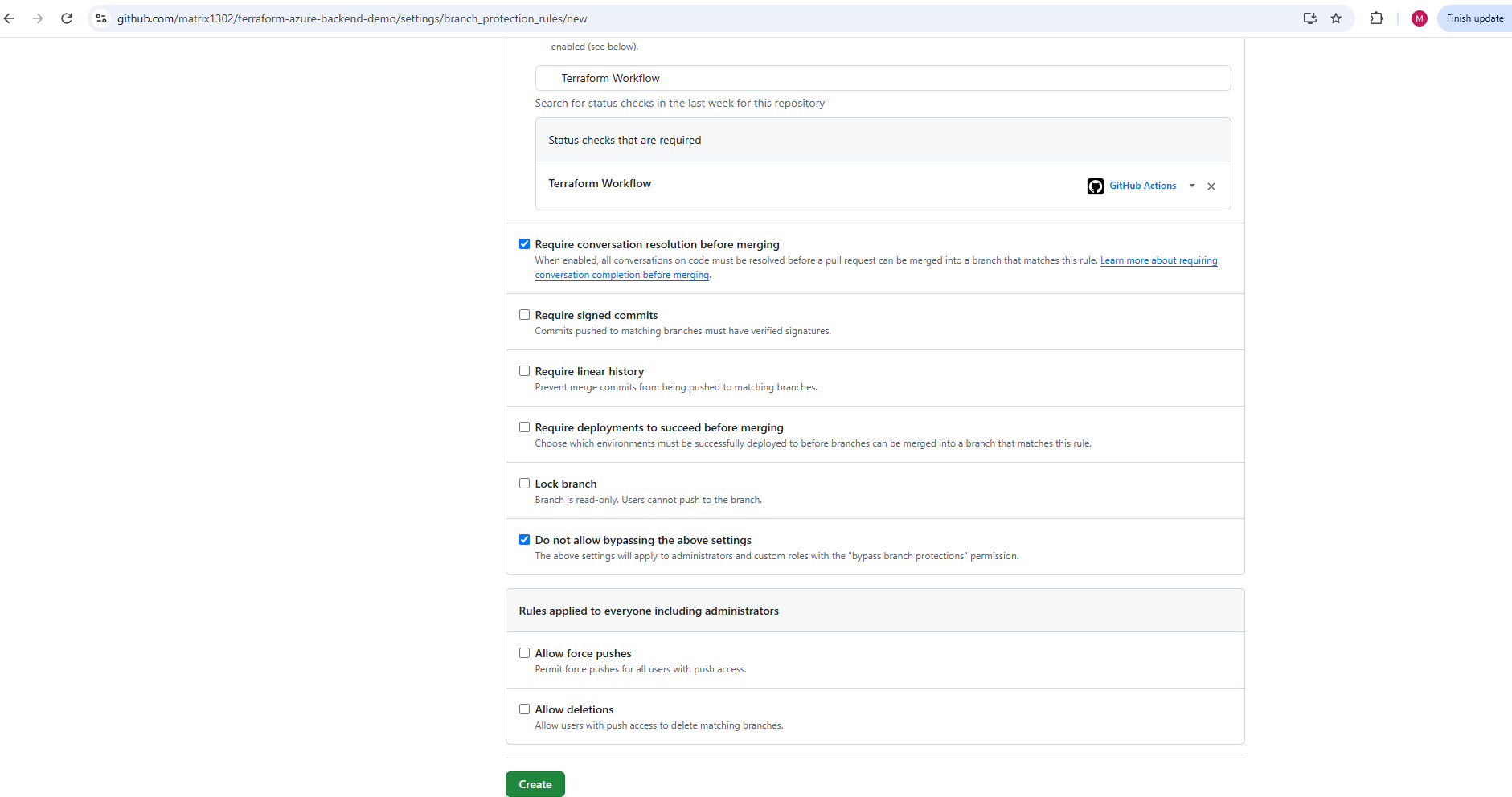
Enable Require status checks to pass before merging.
Enable Require conversation resolution before merging.
Administrator bypass disabled, so the rules also apply to me.
Click Create.
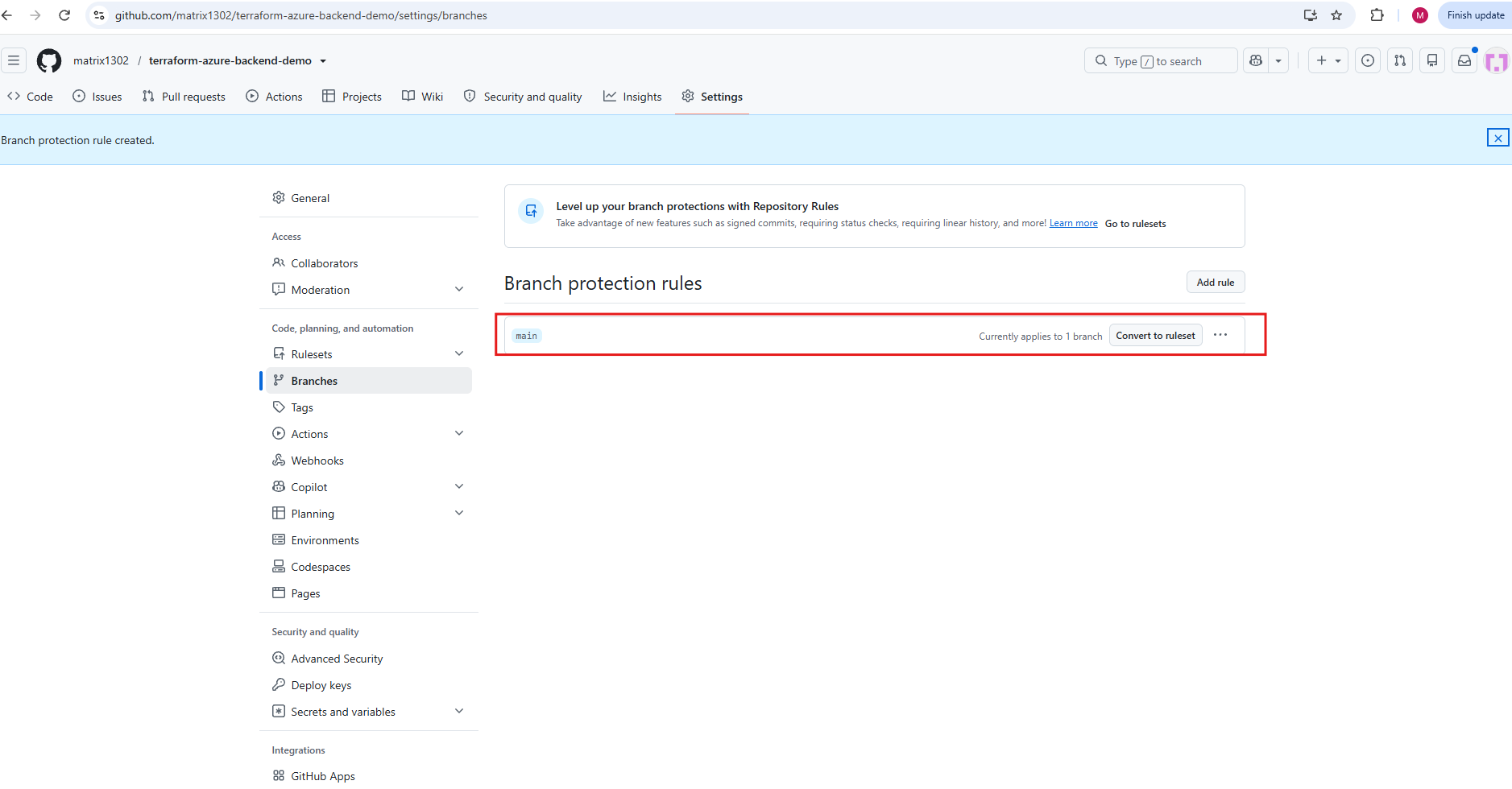
After saving the configuration, GitHub confirms that the branch protection rule has been successfully created and applies to the main branch.
From now on, changes to the production branch must follow the configured pull request process and pass the required Terraform workflow checks before merging.
Testing Branch Protection – Preventing Direct Pushes to Production
To verify that our newly configured branch protection rule works as expected, we will attempt to push a commit directly to the protected main branch.
GitHub should reject this operation because changes to the production branch must be introduced through a pull request and pass the required Terraform validation checks before merging.
First, we synchronize the local main branch and create a temporary test commit:
The
--allow-emptyoption creates a commit without modifying any Terraform files, allowing us to test branch protection without changing the infrastructure configuration.
git switch main
git pull --ff-only origin main
git commit --allow-empty -m "Test production branch protection"
git push origin main
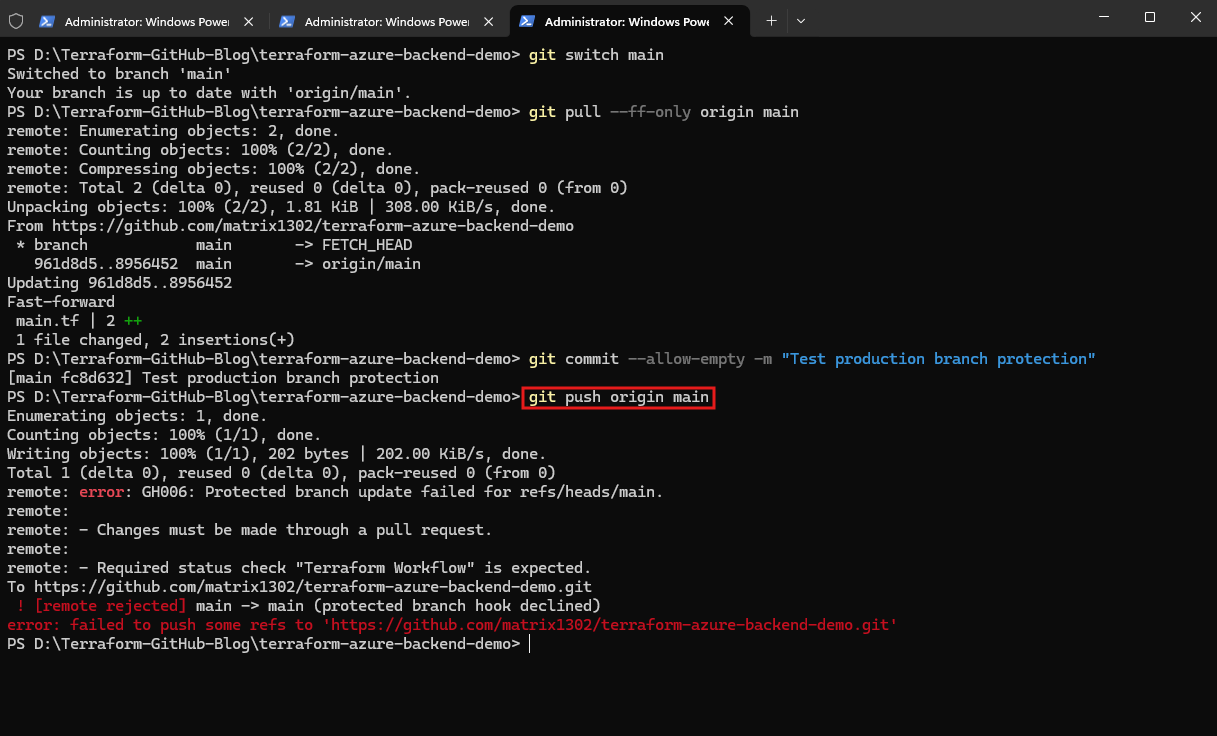
As expected, GitHub rejected the direct push to the protected main branch with error GH006: Protected branch update failed.
The output confirms that changes must be submitted through a pull request and that the required
Terraform Workflowstatus check must pass before merging, successfully validating our production branch protection configuration.
Now remove the temporary test commit from your local main branch:
git reset --hard origin/main
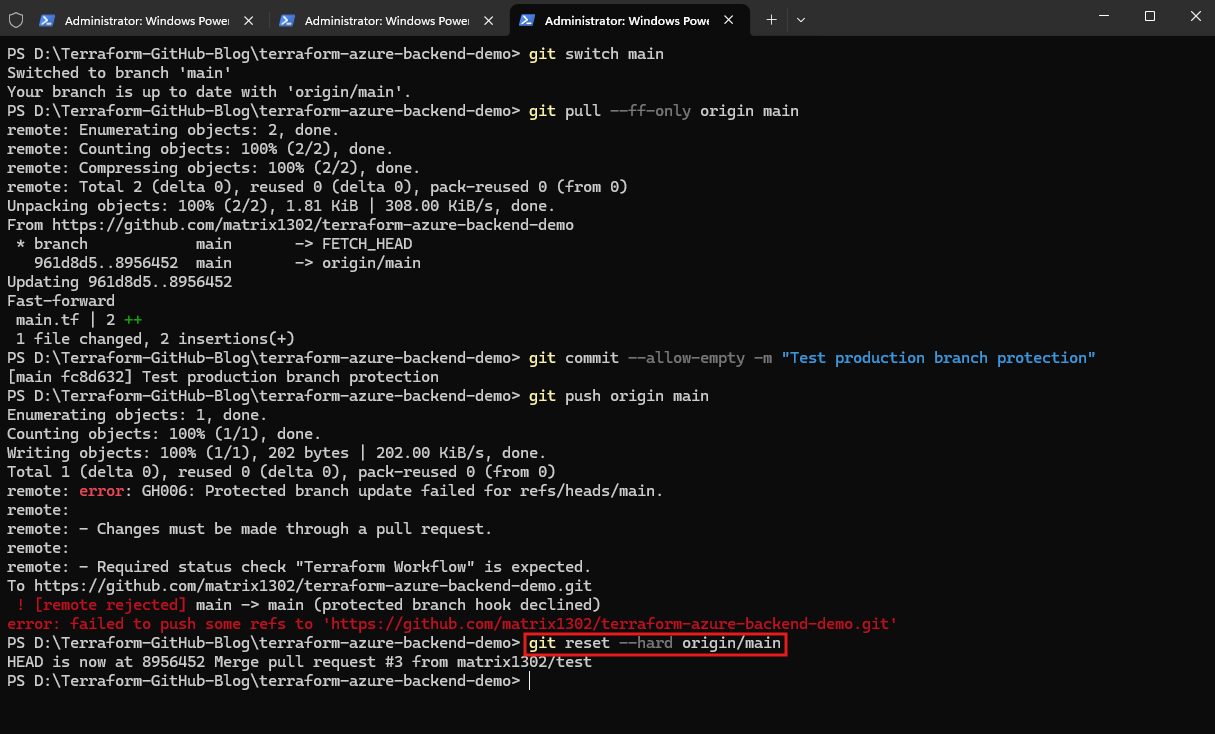
Since our test used an empty commit and the push was rejected, this safely restores the local branch to the remote state, provided no other local changes were made.
Result: We now have two independent production safeguards:
branch protectioncontrols what can be merged intomain, while the protected GitHubproductionenvironment controls when the Terraform deployment job can execute.
Testing Branch Protection – Pull Request Validation
After confirming that direct pushes to the protected main branch are rejected, we will verify the intended deployment workflow through a pull request.
GitHub should require the configured Terraform Workflow status check to complete successfully before allowing changes to be merged into the production branch.
Let’s test this without modifying any Terraform infrastructure.
Create a temporary feature branch from main
We create again a temporary feature branch, this time from main:
git switch main
git pull --ff-only origin main
git switch -c feature/test-main-protection
git commit --allow-empty -m "Test protected production pull request"
git push -u origin feature/test-main-protection
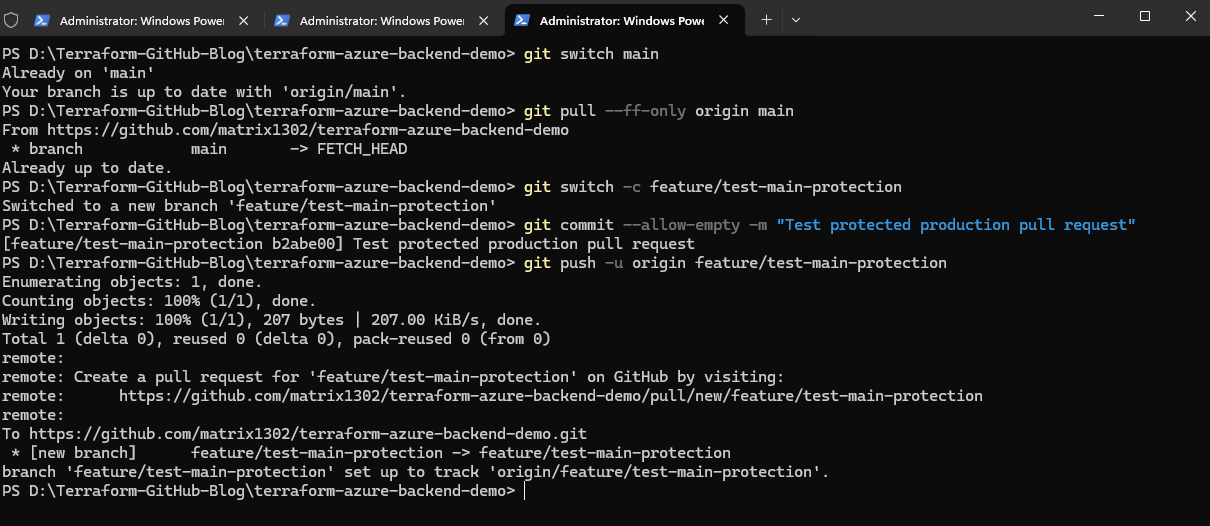
Create a pull request on GitHub
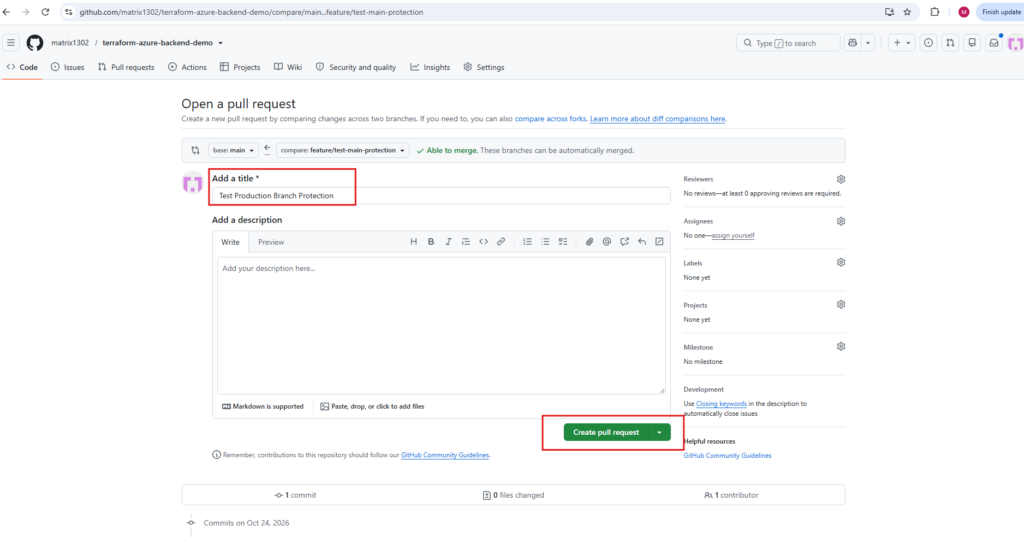
We create a pull request from our temporary feature/test-main-protection branch into the protected main branch.
The comparison shows one empty test commit and no modified files, allowing us to verify the required Terraform validation checks and branch protection rules without introducing any infrastructure changes.
Open Pull requests → New pull request and select:
Base: main
Compare: feature/test-main-protection
Title: Test Production Branch Protection
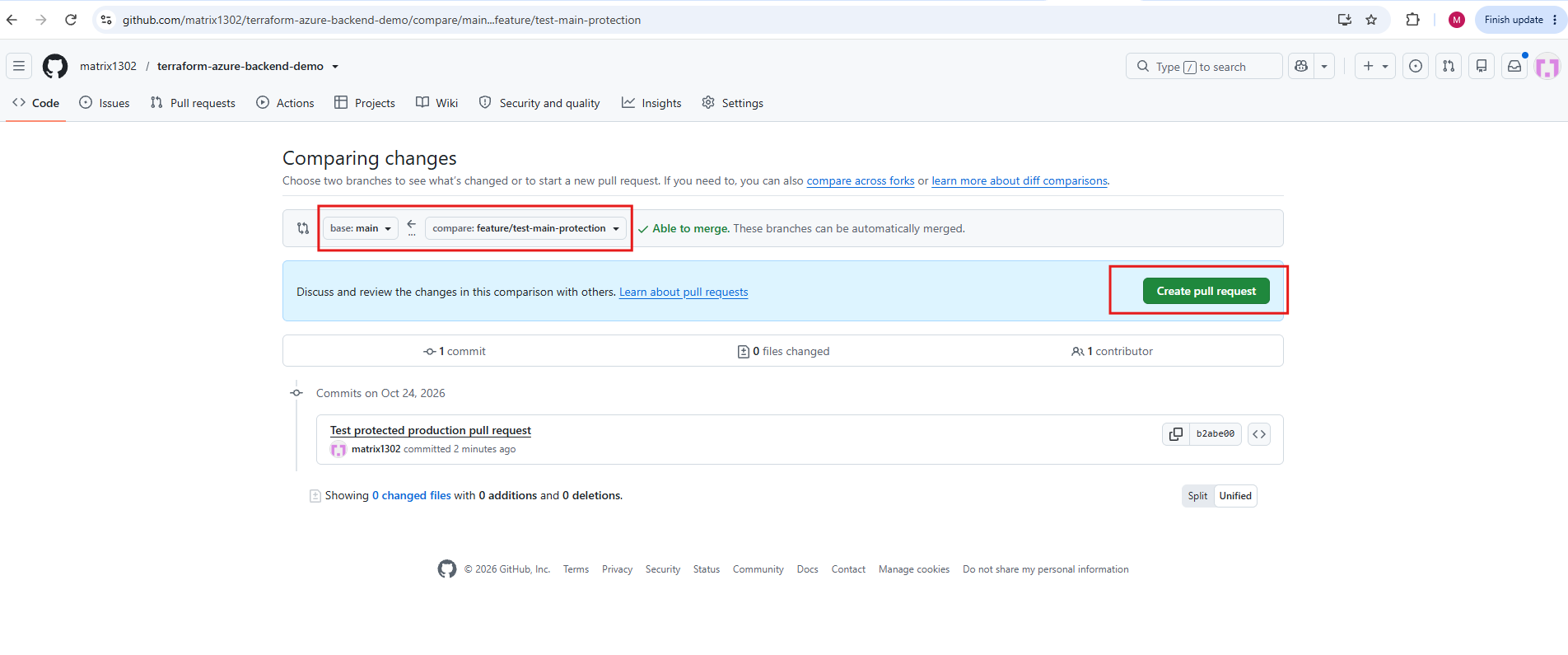
Click Create pull request, enter the title Test Production Branch Protection, and submit it.
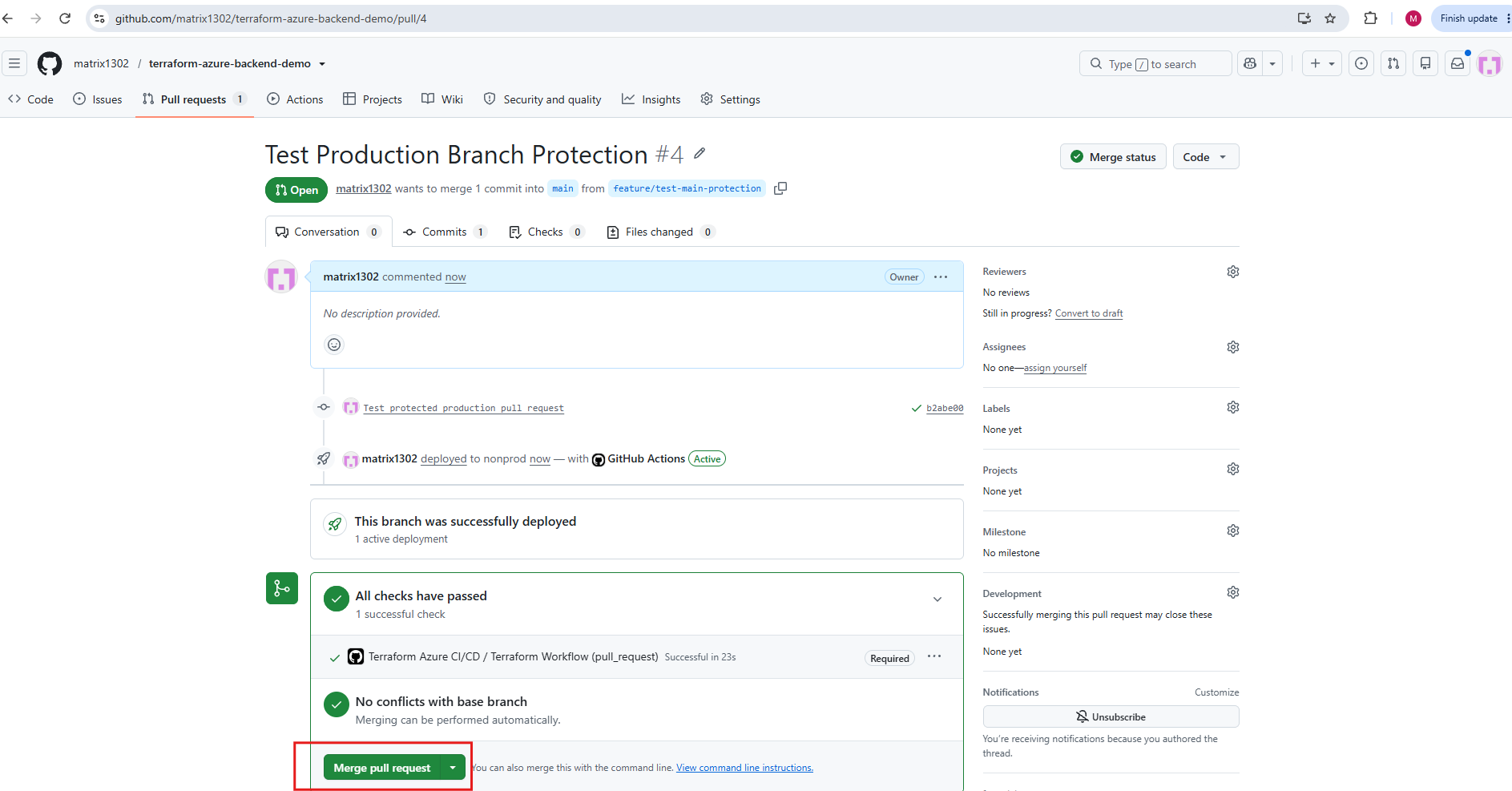
Pull request #4 successfully passed the required Terraform Workflow status check, confirming that our branch protection rule is enforced.
GitHub marks the validation as Required and only permits merging into the protected main branch after the check succeeds and no merge conflicts exist.
Since this is a pull request, Terraform validates the production configuration without executing Terraform Apply.
Click Merge pull request.
Confirm the merge.
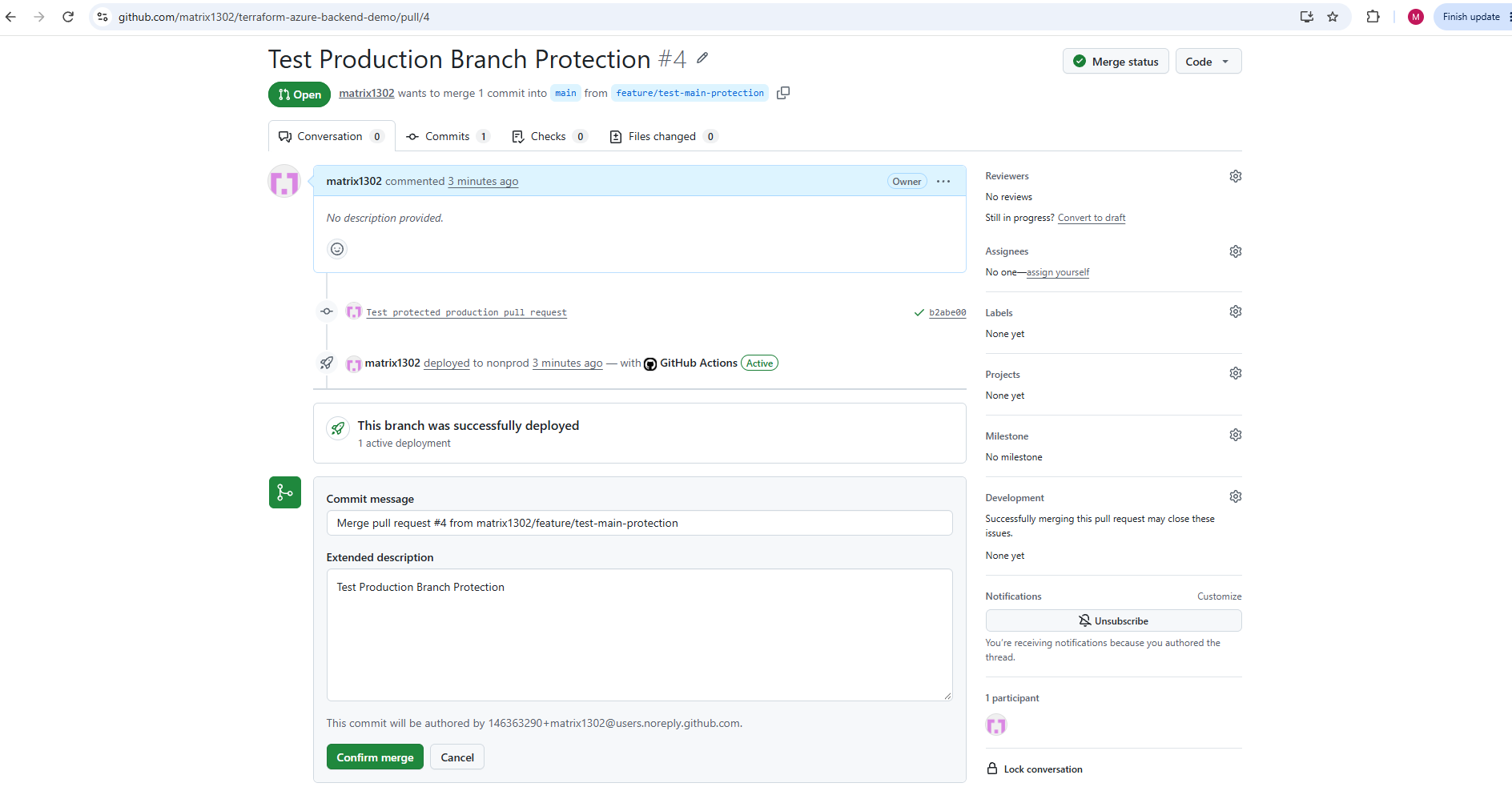
After the required Terraform validation completed successfully, GitHub allowed pull request #4 to be merged into the protected main branch.
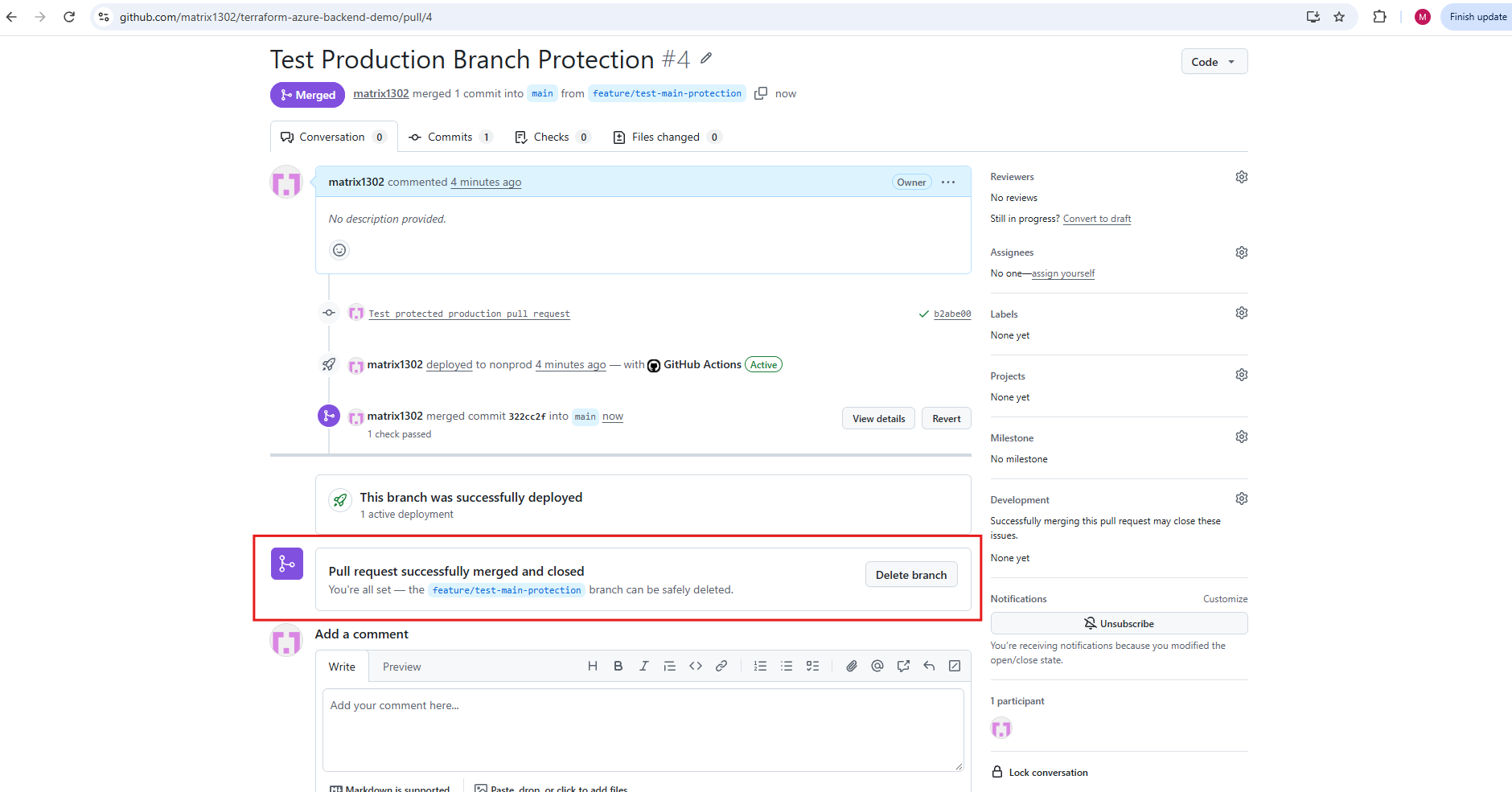
Click Delete branch to remove the temporary feature branch from GitHub.
The pull request is now closed, and GitHub offers to delete the temporary
feature/test-main-protectionbranch, which is no longer needed after the merge.
Open Actions and locate the new workflow run triggered by the merge into main.
Verify that the workflow is waiting for approval of the protected production environment.
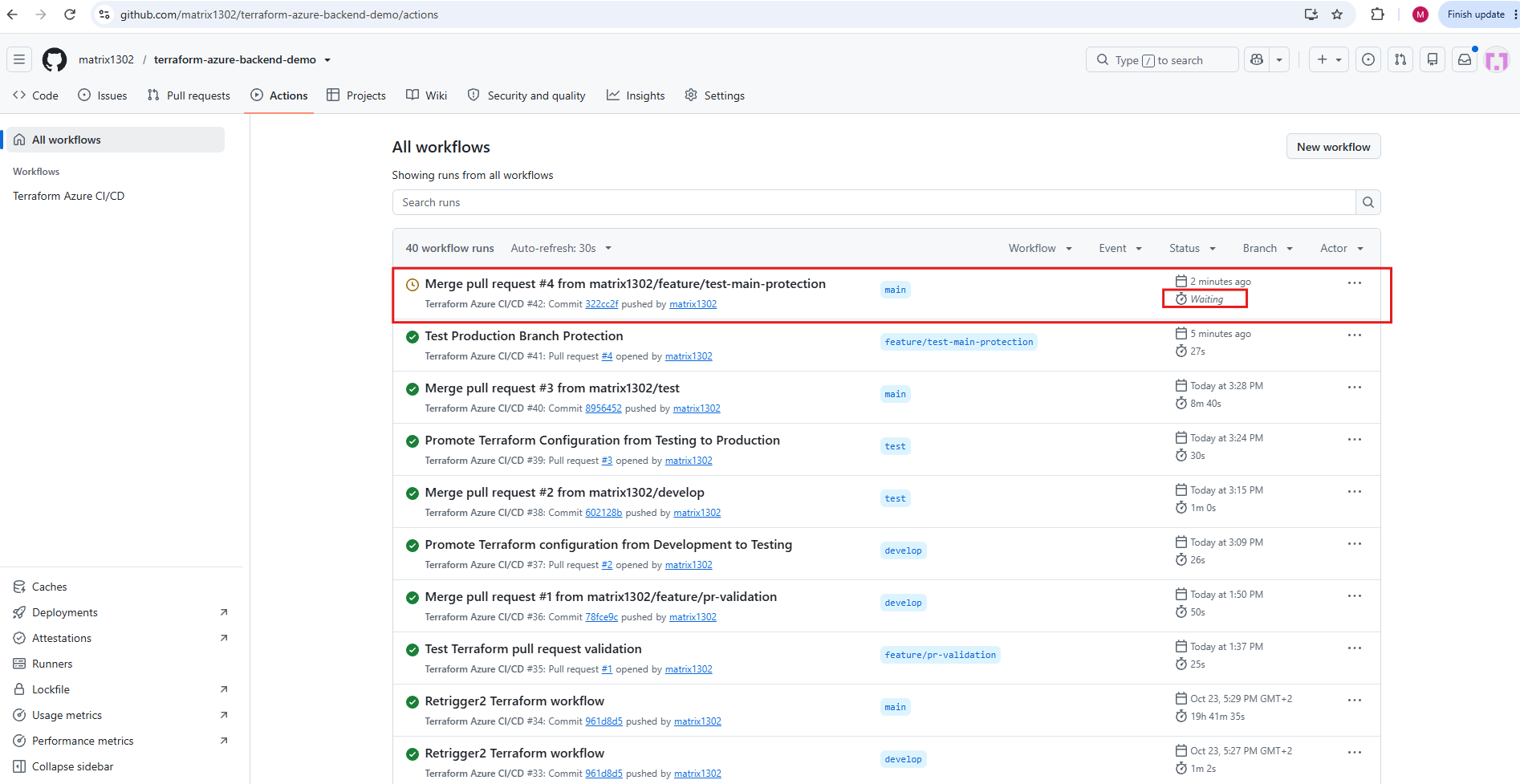
Once approved, Terraform should execute against the production configuration. Since we used an empty test commit, no infrastructure changes are expected.
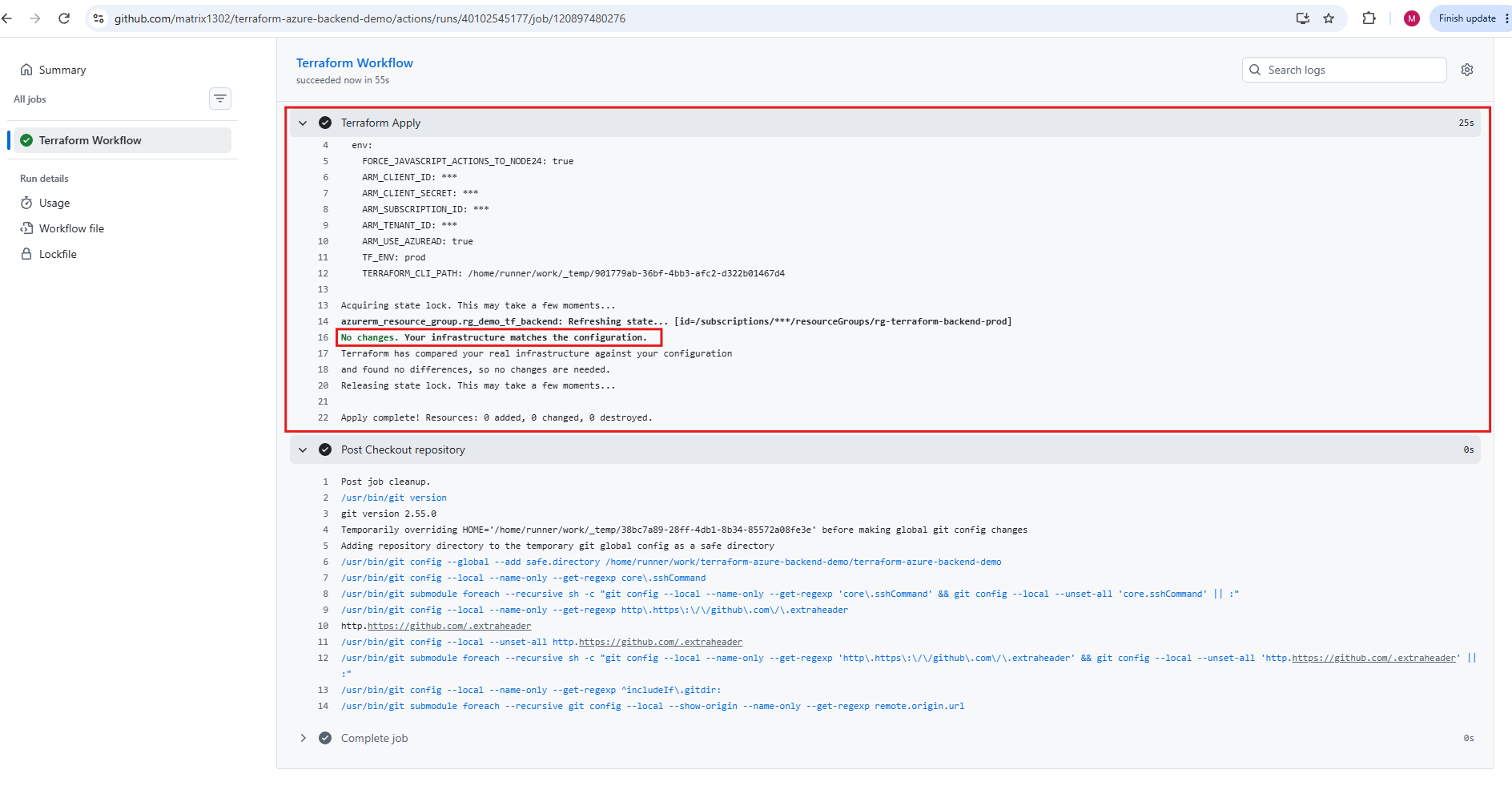
Following the successful pull request validation, merge into the protected main branch, and approval of the GitHub production environment, the Terraform deployment workflow completed successfully.
The execution logs confirm that Terraform used the production configuration (
TF_ENV=prod) and detected no infrastructure changes, completing with zero resources added, modified, or destroyed. This validates our complete CI/CD process, including pull request checks, branch protection, and controlled production deployments.
We have now verified the entire Feature → Development → Testing → Production workflow, including the additional protection mechanisms for production.
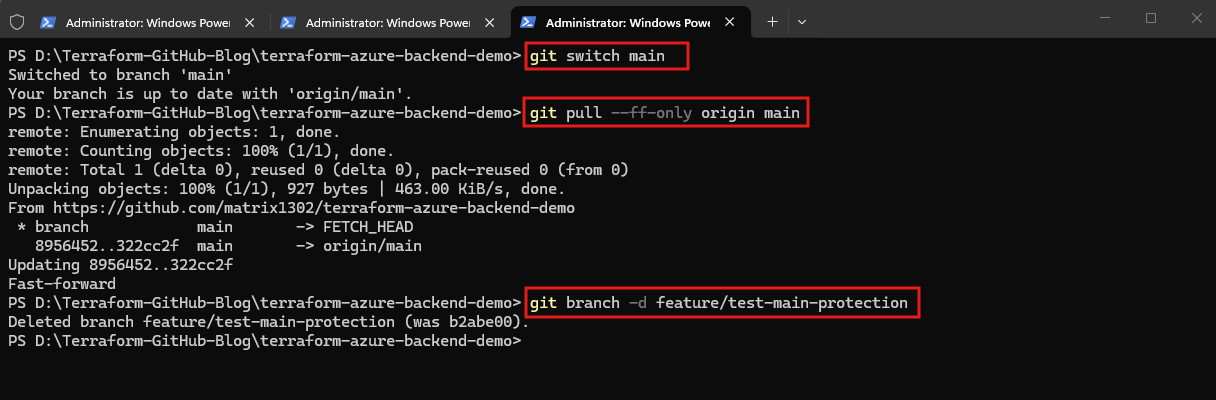
Finally, we synchronize our local main branch with the latest changes from GitHub using git pull --ff-only origin main.
We then delete the temporary local feature branch using git branch -d feature/test-main-protection, completing the cleanup after successfully testing our protected production deployment workflow.
git switch main
git pull --ff-only origin main
git branch -d feature/test-main-protection
Links
azurerm
https://docs.hashicorp.com/terraform/language/backend/azurermAbout protected branches
https://docs.github.com/en/repositories/configuring-branches-and-merges-in-your-repository/managing-protected-branches/about-protected-branchesManaging protected branches
https://docs.github.com/en/repositories/configuring-branches-and-merges-in-your-repository/managing-protected-branchesManaging environments for deployment
https://docs.github.com/en/actions/how-tos/deploy/configure-and-manage-deployments/manage-environmentsReviewing deployments
https://docs.github.com/en/actions/how-tos/deploy/configure-and-manage-deployments/review-deploymentsTerraform CLI Overview
https://developer.hashicorp.com/terraform/cli/commandsUse GitHub Actions to connect to Azure
https://learn.microsoft.com/en-us/azure/developer/github/connect-from-azure