Cheat Sheet – Git & Terraform
This cheat sheet provides a quick reference for commonly used Git and Terraform CLI commands, covering repository management, branch synchronization, commits, remote repositories, Terraform initialization, validation, planning, and infrastructure deployment.
It is intended as a practical reference for daily work with Infrastructure as Code (IaC) and automated CI/CD workflows using GitHub and Azure.
- Git – Staging, Committing, and Pushing Changes to GitHub
- Git – Committing and Pushing Changes to Multiple Branches
- Git – Triggering a GitHub Actions Workflow Using an Empty Commit
- Git – Fetching and Synchronizing Local Branches with a Remote GitHub Repository
- Git – Cloning an Existing Git Repository
- Git – Understanding Branches and Commit References
- Git – Creating a Short-Lived Branch to Merge Changes into a Protected Main Branch
- Links
Git – Staging, Committing, and Pushing Changes to GitHub
When modifying files in a local Git repository, the changes are not automatically saved in Git’s history or uploaded to GitHub.
Git separates this process into three distinct operations: staging, committing, and pushing.
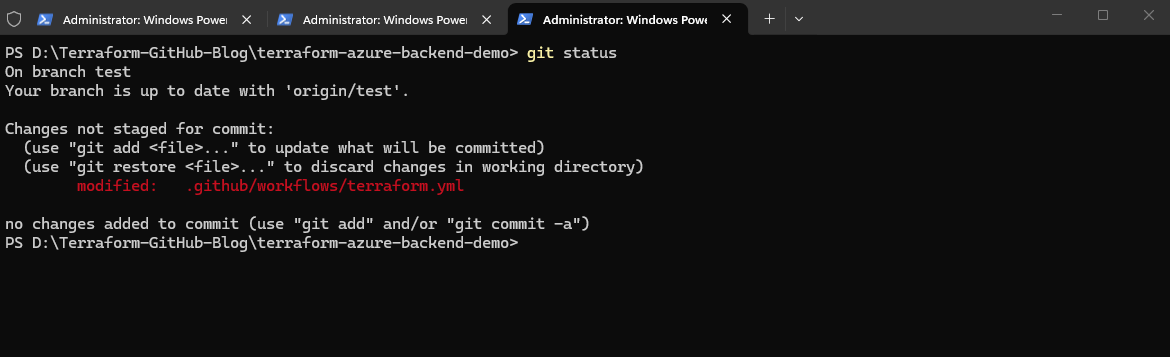
Check the current repository status
To show the currently selected branch and any modified, staged, or untracked files.
The
git statuscommand shows that we are currently on the localtestbranch, which is synchronized with its remote counterpartorigin/test. However, our GitHub Actions workflow file.github/workflows/terraform.ymlhas been modified locally, and these changes have not yet beenstagedorcommitted.Staging (
git add) prepares selected file changes for the next commit, while committing (git commit) permanently records those staged changes as a new snapshot in the local Git repository’s history. Neither operation uploads changes to GitHub; this requiresgit push.The message “Changes not staged for commit” indicates that Git has detected the modifications, but we must first use
git addbefore creating a local commit withgit commit. Only afterward can we upload the commit to GitHub usinggit push.
git status
Stage the modified files
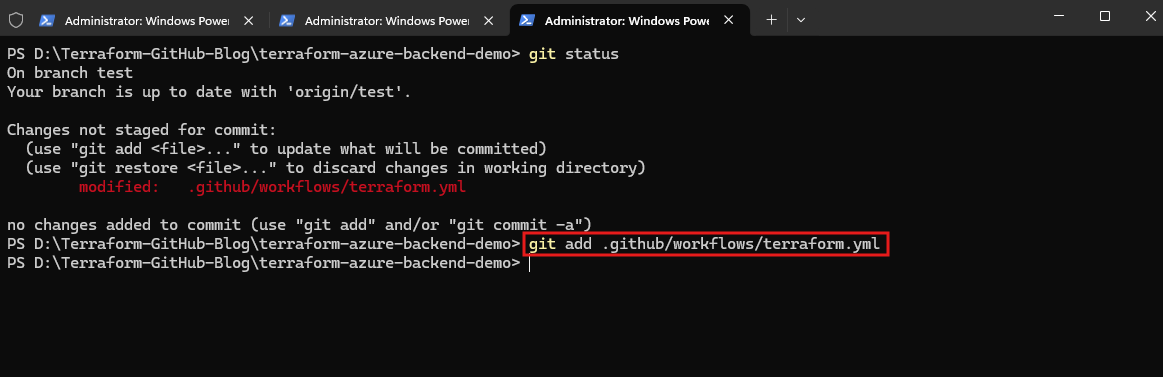
This adds the modified workflow file to the staging area, preparing its current contents for the next commit.
Alternatively, git add . stages all changes within the current directory and its subdirectories.
git add .github/workflows/terraform.yml
Commit the staged changes locally
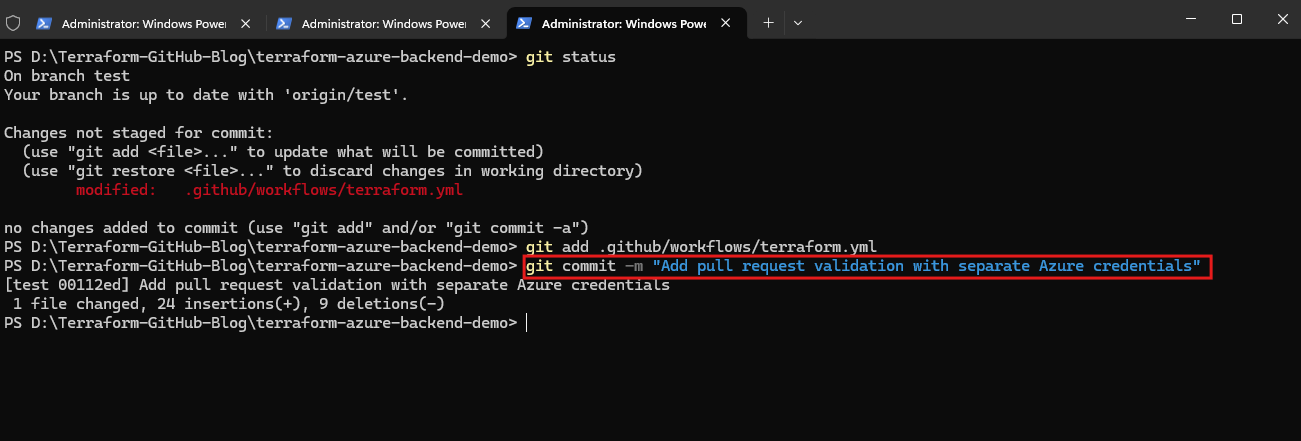
This creates a new commit in the local Git repository, including the staged changes and a descriptive commit message.
At this point, nothing has been uploaded to GitHub.
git commit -m "Add pull request validation with separate Azure credentials"
Push the local commits to GitHub
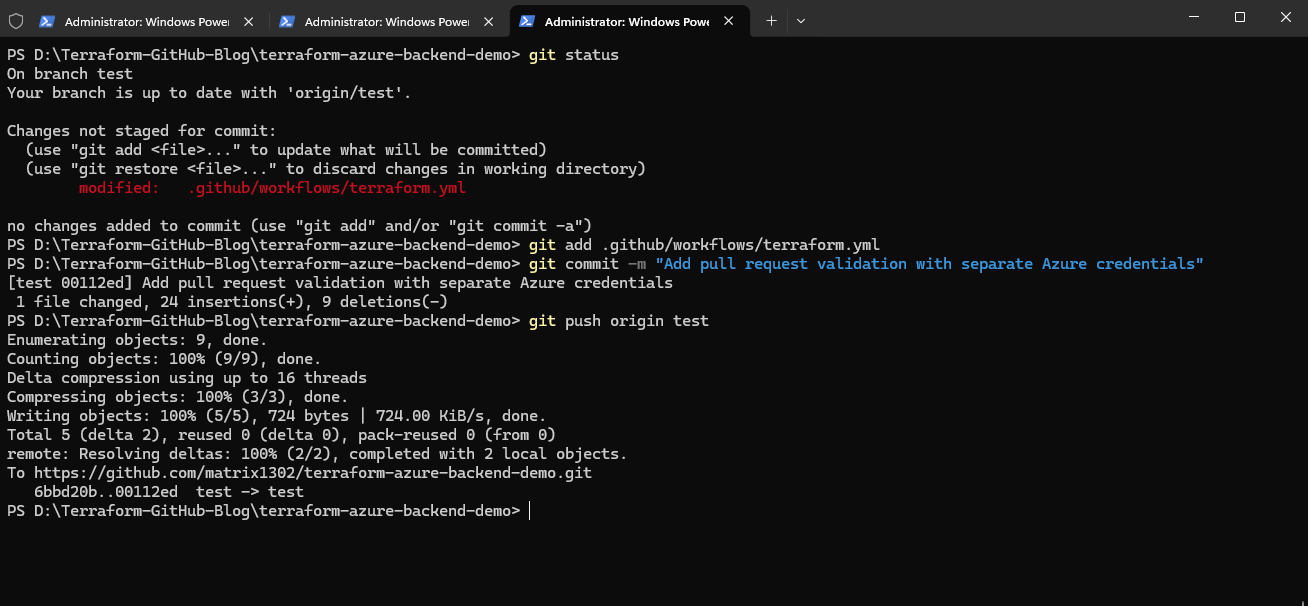
This uploads the commits from our local test branch to the corresponding remote branch (origin/test) on GitHub.
git push origin test
Important:
git commitdoes not upload anything to GitHub. Onlygit pushpublishes the local commits to the remote repository.The
git commitcommand creates a new snapshot (version) of the staged files in the local Git repository, including a unique commit ID, timestamp, author, and commit message.Each commit becomes part of the repository’s history, allowing us to track changes, compare versions, and restore previous states when necessary.
Git – Committing and Pushing Changes to Multiple Branches
The git add, git commit, and git push commands shown above, operate on the currently checked-out local branch. Therefore, committing and pushing changes to test does not automatically update develop or main.
If we want to distribute the same changes across multiple branches, we should create the commit once and then merge it into the other branches.
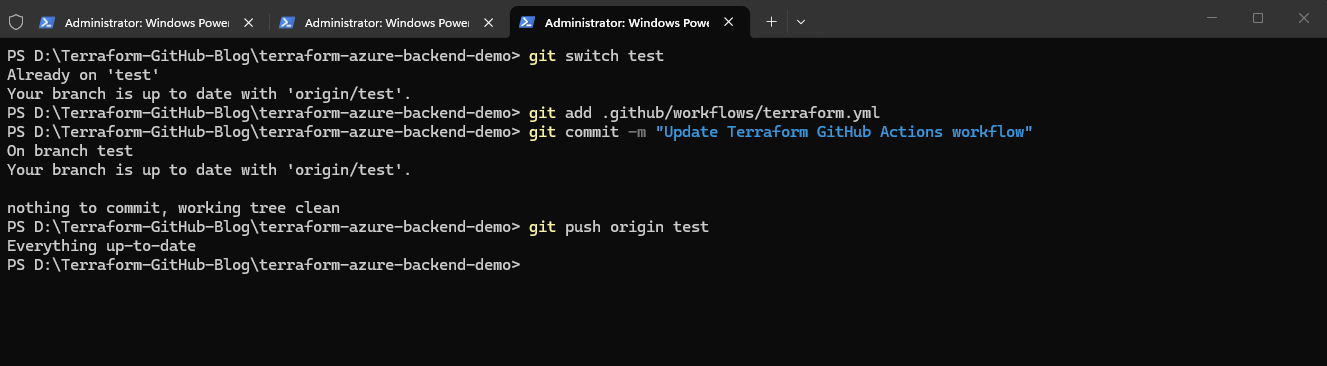
Commit and push changes to test
git switch test

git add .github/workflows/terraform.yml

git commit -m "Update Terraform GitHub Actions workflow"
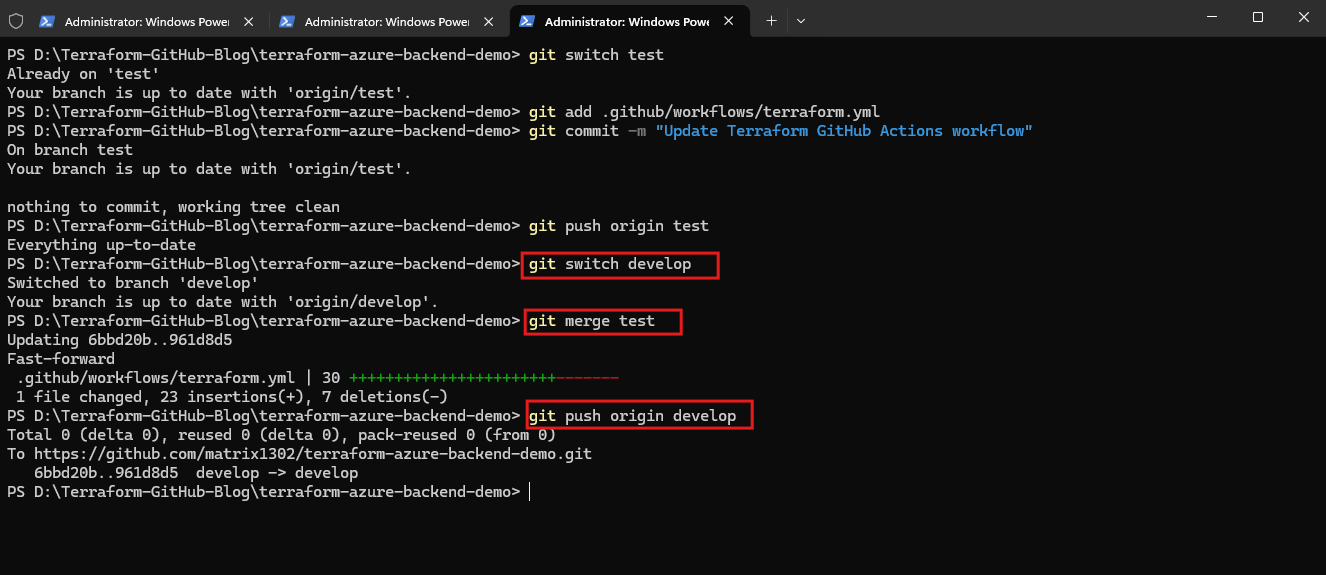
Merge the changes into develop
git switch develop

git merge test

git push origin develop
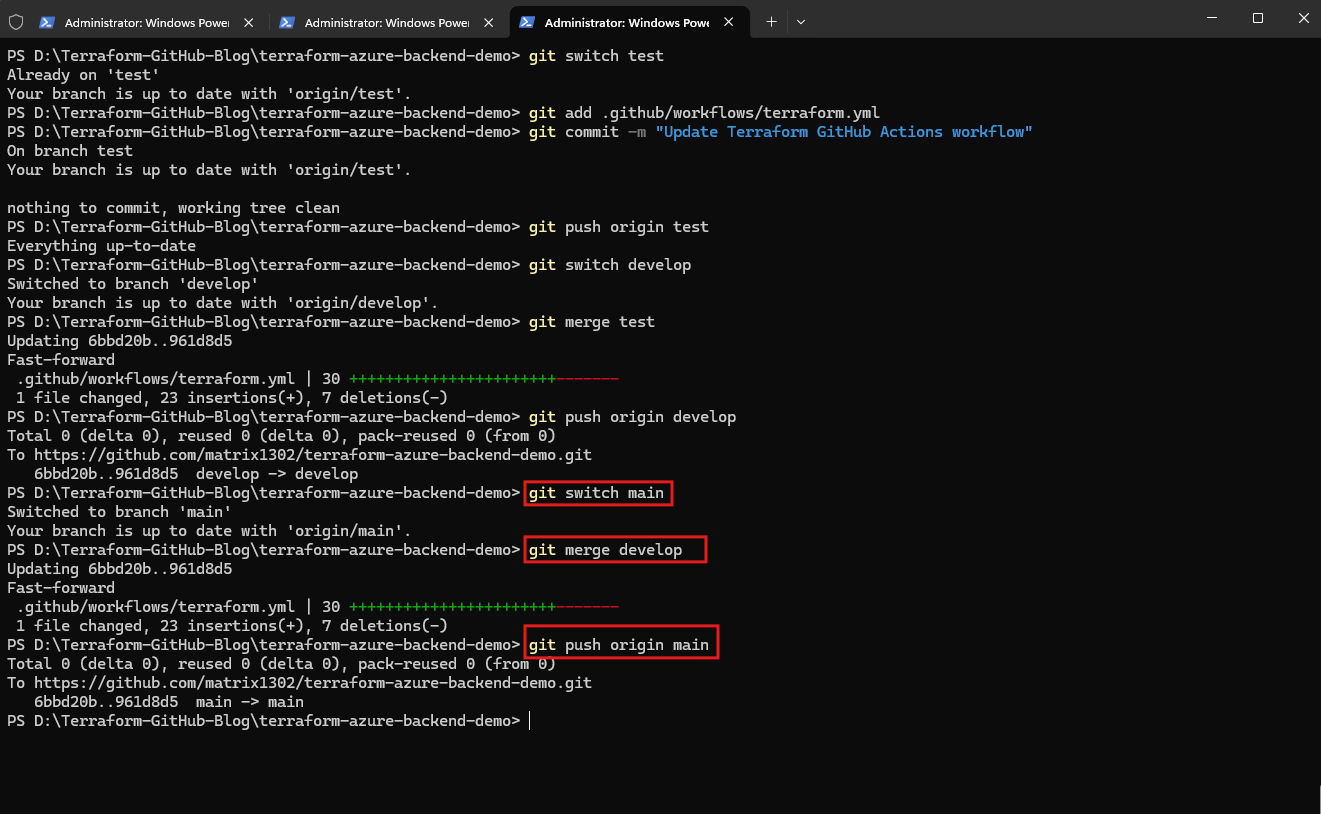
Merge the changes into main
git switch main

git merge develop

git push origin main
Important:
git mergeintegrates commits from another branch into the currently checked-out branch. If Git detects conflicting changes, we must resolve them before completing the merge.
Git – Triggering a GitHub Actions Workflow Using an Empty Commit
Sometimes we want to trigger a new GitHub Actions workflow run without modifying any repository files, for example after changing Azure permissions or GitHub repository secrets.
We can create an empty commit and push it to the remote repository:
git commit --allow-empty -m "Retrigger Terraform workflow"
git push origin test
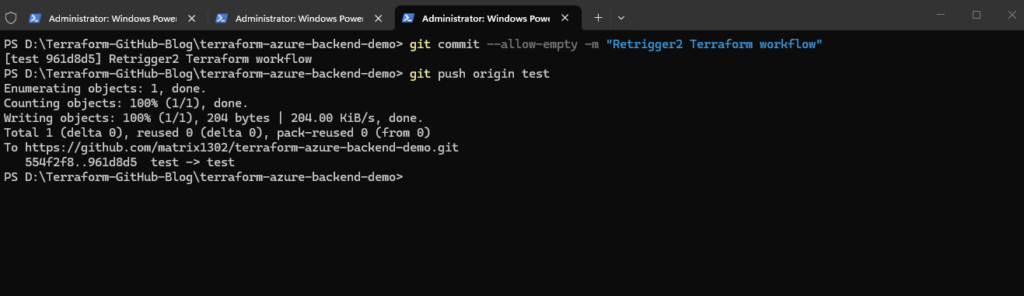
The --allow-empty option allows Git to create a new commit even though no files have changed. This commit receives a new unique commit ID but retains the same file contents as its parent commit.
When we push the commit to GitHub, the configured push trigger starts a new GitHub Actions workflow run for the test branch.
Important: An empty commit is useful when we want to test the complete workflow again without changing its configuration.
Alternatively, we can use Re-run jobs directly in GitHub Actions to repeat an existing workflow execution without creating another commit.
Git – Fetching and Synchronizing Local Branches with a Remote GitHub Repository
The following Git commands demonstrate how to fetch the latest changes from a remote GitHub repository and synchronize multiple local branches with their remote counterparts.
The commands are executed sequentially, starting by navigating to the local Git repository and checking its current status.
cd D:\Terraform-GitHub-Blog\terraform-azure-backend-demo
git status
git fetch origin
git switch main
git pull --ff-only origin main
First, git fetch origin downloads the latest commits from GitHub and updates all remote-tracking branches (origin/main, origin/develop, origin/test) without changing our local branches or working files.
Next, we switch to a specific local branch using git switch main and synchronize it with GitHub using git pull --ff-only origin main. This updates only our local main branch, provided the changes can be applied without creating a merge commit.
We repeat the same procedure for develop and test.
Important: Both
git fetchandgit pullretrieve changes from GitHub. However, whilegit fetchonly updates our remote-tracking branches,git pulladditionally integrates the fetched changes into our currently checked-out local branch. Therefore, the initialgit fetch originis optional when subsequently usinggit pull, but useful if we want to inspect remote changes before integrating them.
Alternatively, we can execute all commands in a single line using semicolons (;) to separate them. PowerShell executes the commands sequentially, switching between branches and synchronizing each one with its corresponding remote branch on GitHub.
git fetch origin
git switch main; git pull --ff-only origin main; git switch develop; git pull --ff-only origin develop; git switch test; git pull --ff-only origin test
Force Synchronizing Local Git Branches with the Remote GitHub Repository
When working with the same GitHub repository on multiple computers or notebooks, the local branches on one device may become outdated after changes have been committed and pushed from another device.
If the repository already exists locally and we want to completely synchronize all local branches with their corresponding remote branches on GitHub, we can use git fetch combined with git reset --hard.
Unlike git pull, which attempts to preserve local changes, this approach explicitly overwrites the local branch state with the latest version from GitHub.
git fetch origin
git switch main; git reset --hard origin/main
git switch develop; git reset --hard origin/develop
git switch test; git reset --hard origin/test
git status
First, git fetch origin retrieves the latest changes from GitHub and updates the local remote-tracking references.
Next, git reset --hard synchronizes each checked-out local branch with its corresponding remote-tracking branch.
Git – Cloning an Existing Git Repository
The git clone command creates a local copy of an existing remote Git repository, including its files, commit history, and branch references.
This is useful when setting up a new workstation or continuing development on another machine.
git clone https://github.com/matrix1302/terraform-azure-backend-demo.git
By default, Git creates a new directory named after the repository and checks out its default branch.
To navigate into the cloned repository and display the available local and remote branches:
cd terraform-azure-backend-demo
git branch -a
To switch to our Development branch:
git switch develop
The local branch will track origin/develop when Git automatically creates it from the corresponding remote branch.
Git – Understanding Branches and Commit References
Git branches are lightweight, movable references (pointers) to commits. Creating a new branch does not duplicate the repository or its files; Git simply creates another reference to an existing commit.
Each commit represents a snapshot of the tracked files and has a unique SHA hash. Multiple branches can point to the same commit, but when a new commit is created, only the currently checked-out branch advances to that new commit.
This behavior applies to all Git branches, including feature, development, testing, and production branches.
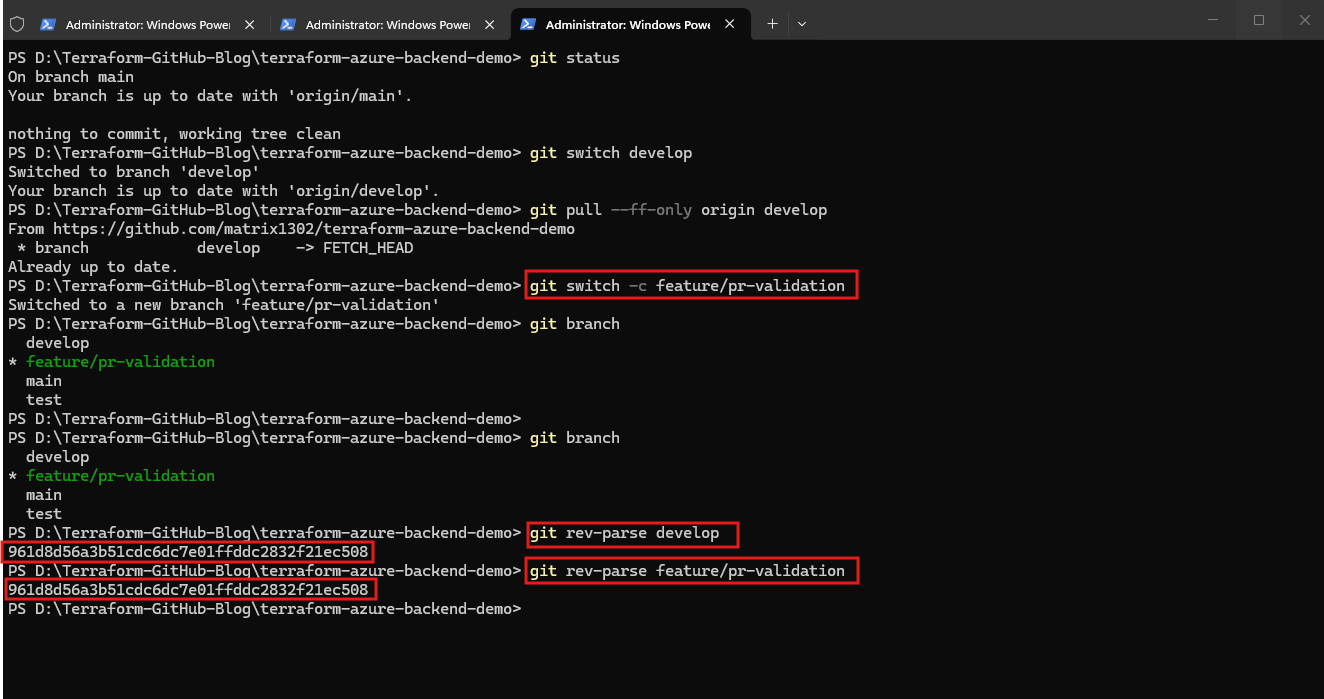
Example: When creating feature/pr-validation from develop, both branches initially point to the same commit. After committing changes to the feature branch, its reference advances while develop remains unchanged.
The commands git rev-parse develop and git rev-parse feature/pr-validation display the SHA hash of the commit referenced by each branch.
Since both return the identical commit ID, this confirms that our newly created feature branch currently points to the same commit as
develop, before any additional changes have been committed.
git rev-parse develop
git rev-parse feature/pr-validation
How Git Stores File Snapshots
Git uses a content-addressed object database consisting primarily of three object types:
- Blob objects: Store the contents of individual files.
- Tree objects: Represent directories and reference blobs or other trees.
- Commit objects: Reference the root tree, parent commits, and commit metadata.
Git maintains two distinct representations of our Terraform project:
- Working directory: Contains the actual files, such as
main.tf,variables.tf, andoutputs.tf, which we edit in VS Code and which Terraform reads during execution. - Git object database (
.git/objects): Stores the version-controlled contents of these files as blob objects, together with tree and commit objects representing the repository’s history.
A Git commit does not reference the physical files in our working directory. Instead, it references a root tree object, which maps filenames to blob objects containing their corresponding file contents.
Interestingly, blob objects do not store filenames. The filenames are maintained by the tree objects referencing them.
Git’s object database is not a traditional relational database such as SQL Server or PostgreSQL. It is a content-addressed object store, physically implemented using loose object files and packfiles.
This separation explains why we can modify or even delete main.tf from our working directory while still being able to retrieve its previously committed versions from Git’s object database.
For example, multiple commits can reference different versions of my Terraform main.tf file shown in my Terraform & GitHub series. Unchanged files reuse existing blob objects rather than creating duplicate copies.
Different versions of a modified file are initially stored as separate compressed objects. Git can subsequently optimize storage using packfiles and delta compression, storing differences between similar objects instead of multiple complete copies.
Unlike VMware or Hyper-V snapshot chains, these deltas are internal storage optimizations and do not define the logical relationships between commits.
Conceptually, Git snapshots share some similarities with NetApp ONTAP snapshots because both can preserve historical states while reusing unchanged data. However, Git operates at the version-controlled file/object level, whereas ONTAP operates at the filesystem/block level.
For a deeper comparison of storage and virtualization snapshots, see ONTAP Snapshots vs. VMware and Hyper-V Snapshots – Understanding the Difference.
Useful Git Commands
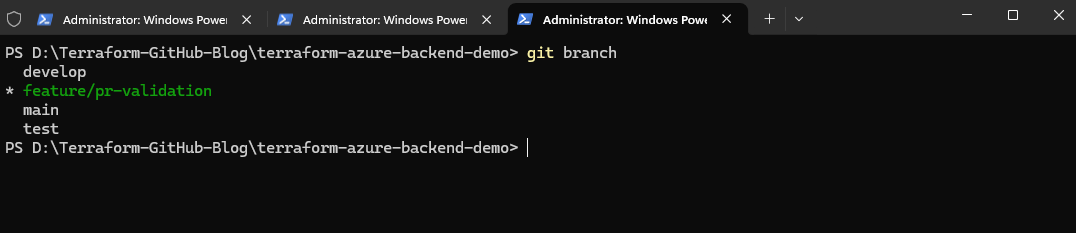
Show all local branches
git branch
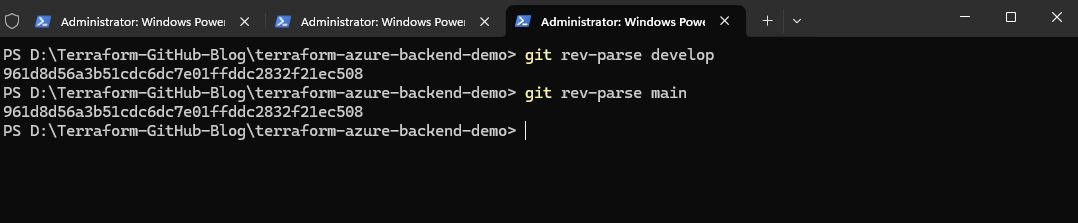
Display the commit referenced by a branch
git rev-parse develop
git rev-parse main
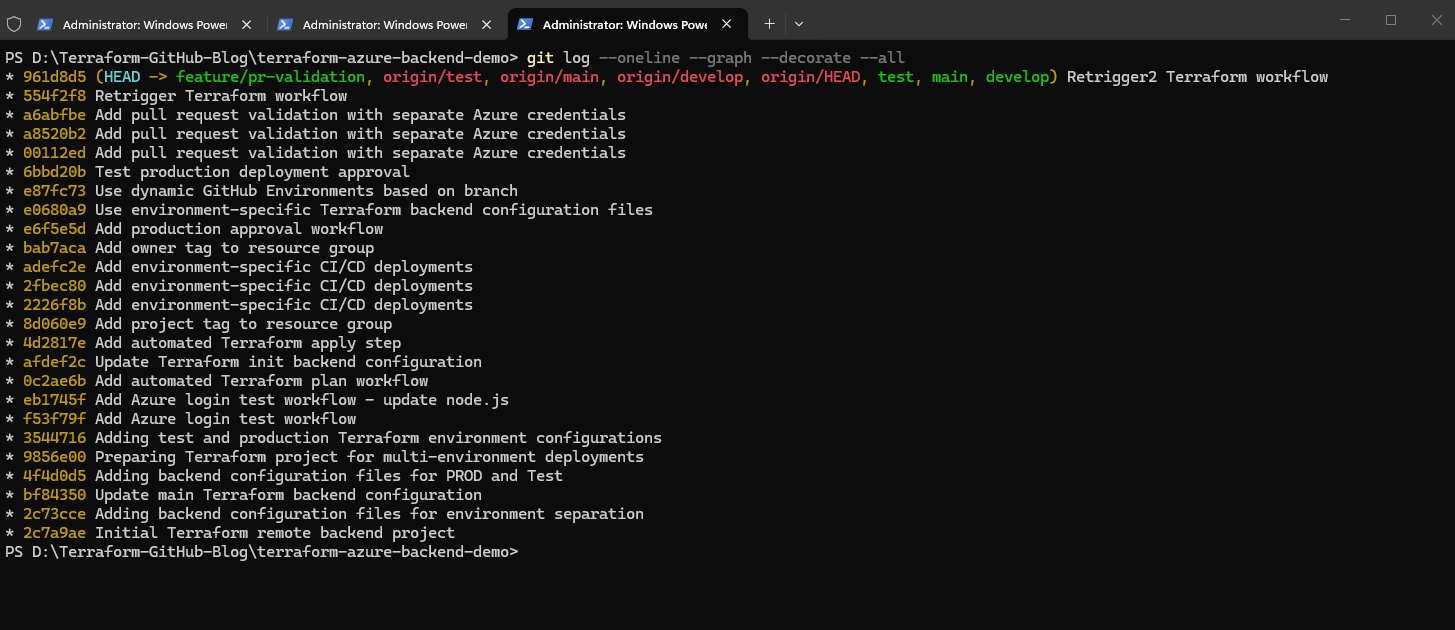
Display the commit history and branch references
git log --oneline --graph --decorate --all
Display All Versions of a File and Retrieve a Previous Version
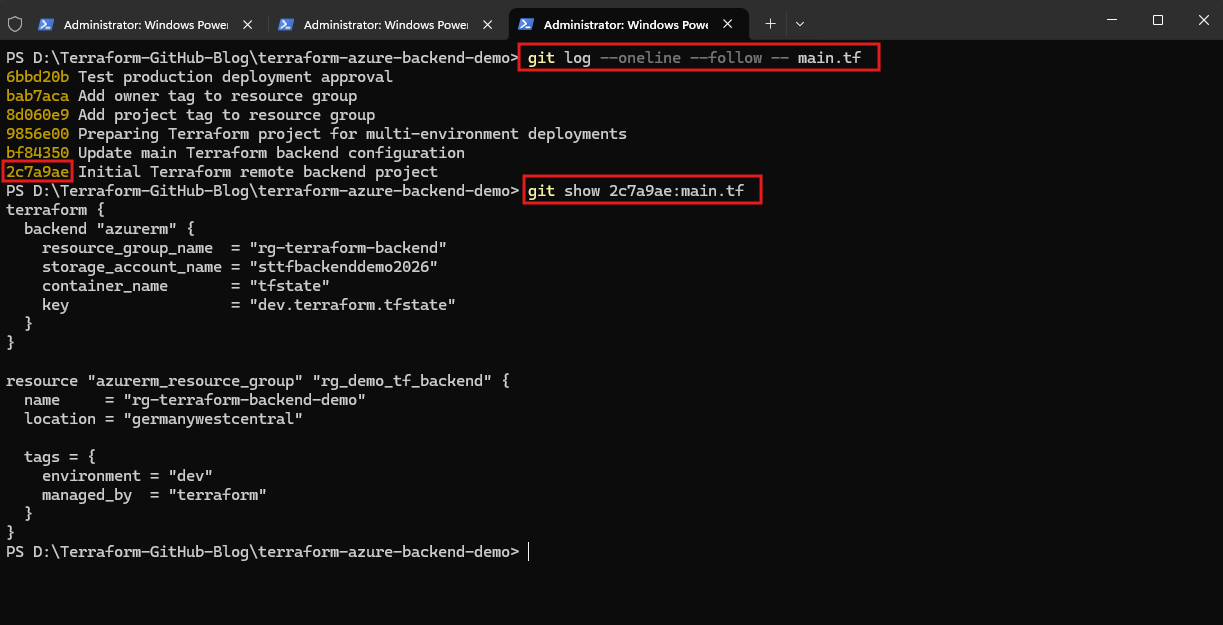
Use git log --oneline --follow -- main.tf to list all commits in which main.tf was modified, including their commit hashes and messages.
Then use git show <commit-sha>:main.tf to display the file’s contents at a specific commit without changing the current working directory, as shown below with the original version of main.tf.
git log --oneline --follow -- main.tf
git show <commit-sha>:main.tf
Inspect Git object storage statistics
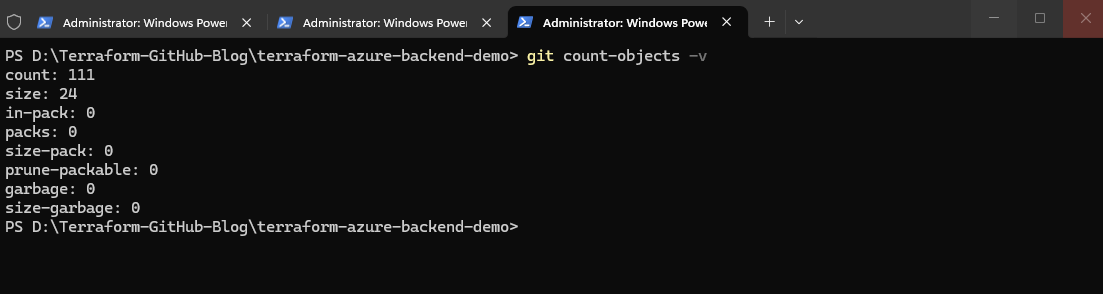
The command git count-objects -v displays statistics about Git’s internal object database.
In my example, Git stores 111 loose objects occupying approximately 24 KiB, with no packfiles (
packs: 0). This means objects are currently stored individually using zlib compression, without packfile-based delta compression.
git count-objects -v
Deleting Local Branches After a Merged Pull Request
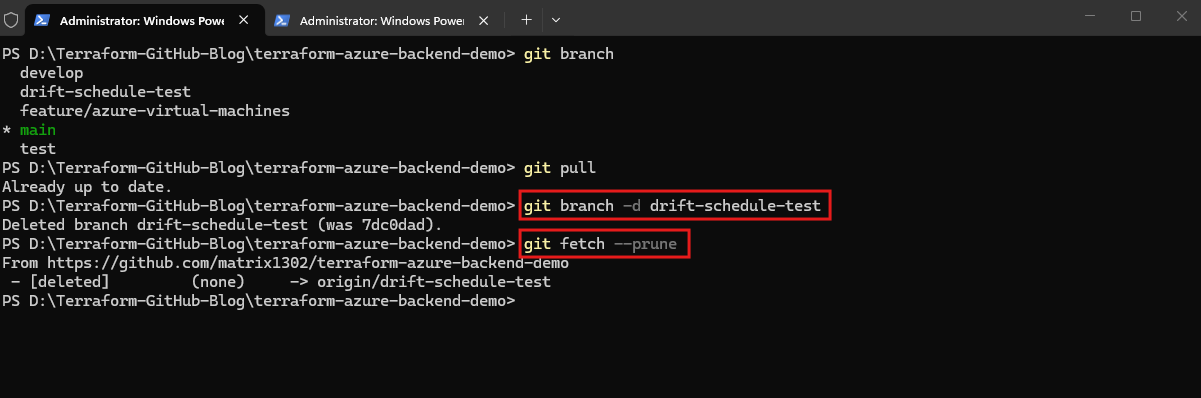
Deleting a branch on GitHub after a pull request is merged doesn’t remove it from your local repository.
git branch -d deletes the local branch, but only if it’s fully merged, and git fetch --prune removes leftover remote-tracking references such as origin/<branch> for branches that no longer exist on GitHub.
Important: Use
git branch -D(capital D) only to force-delete a branch Git doesn’t consider merged. Its commits are lost locally if they aren’t on any other branch.
git branch -donly deletes a branch that’s already merged into your current branch, so we pull first to get the pull request’s merge commit into our localmain; otherwise Git thinks the branch isn’t merged and refuses to delete it.
git switch main
git pull
git branch -d drift-schedule-test
git fetch --prune
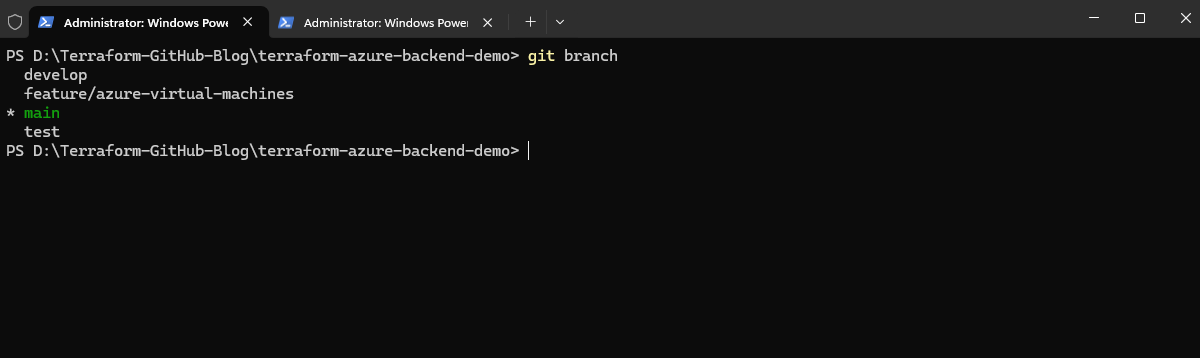
Running git branch again confirms that drift-schedule-test is gone from the local repository. Only the remaining branches develop, feature/azure-virtual-machines, main and test are listed.
Note:
git switch mainandgit checkout maindo the same thing when changing branches.git switch(added in Git 2.23) is the newer, safer command because it only switches branches, whilegit checkoutalso restores files and can discard local changes if you mistype it.
Git – Creating a Short-Lived Branch to Merge Changes into a Protected Main Branch
A short-lived branch, called a topic branch in Git’s own documentation, is a branch created for a single focused change that is deleted again once it has been merged.
Because main is protected and requires an approved pull request like shown in my Terraform/GitHub/Azure series in Part 4, we can’t push changes such as a new workflow schedule to it directly. Instead, we create a short-lived branch from an up-to-date main, push it to GitHub, and merge it through a pull request.
Short-lived branches are a common practice for any change, but with a protected
mainthat requires an approved pull request, they become the only way to get changes into it.
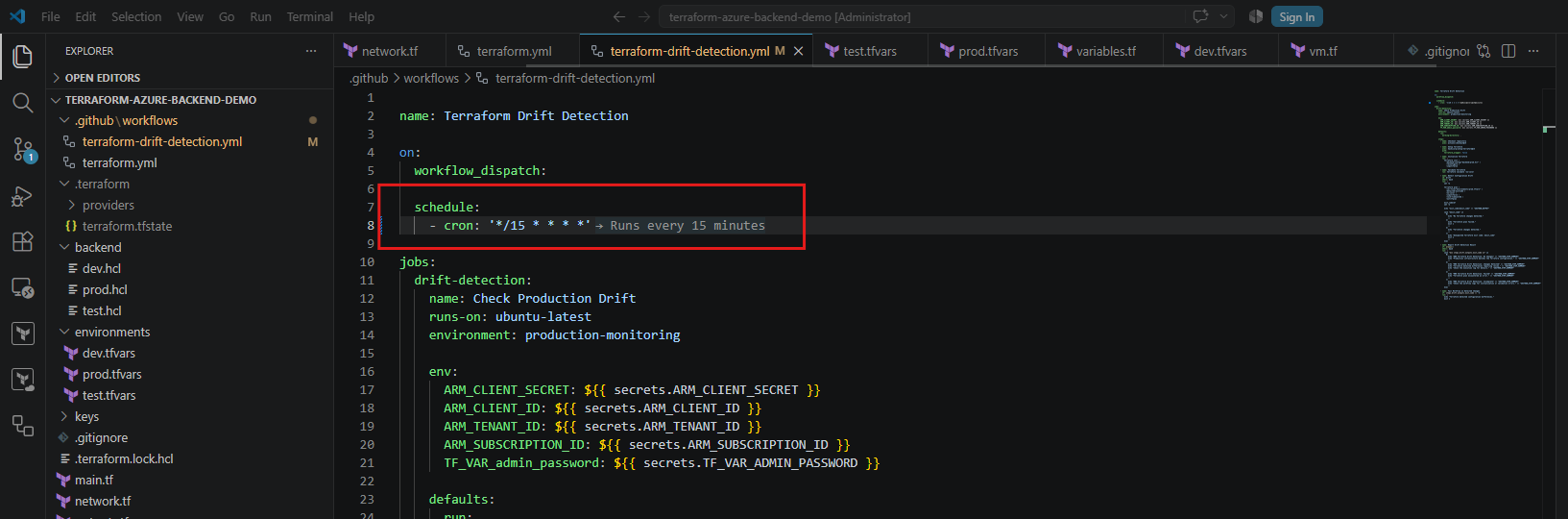
In my example, this is the change we want to merge into main through the short-lived branch: the drift detection workflow’s schedule trigger now uses '*/15 * * * *', so it runs every 15 minutes.
That lets us quickly confirm that GitHub actually triggers the scheduled workflow before we switch to the final daily schedule.
git switch main
git pull
git switch -c drift-schedule-test
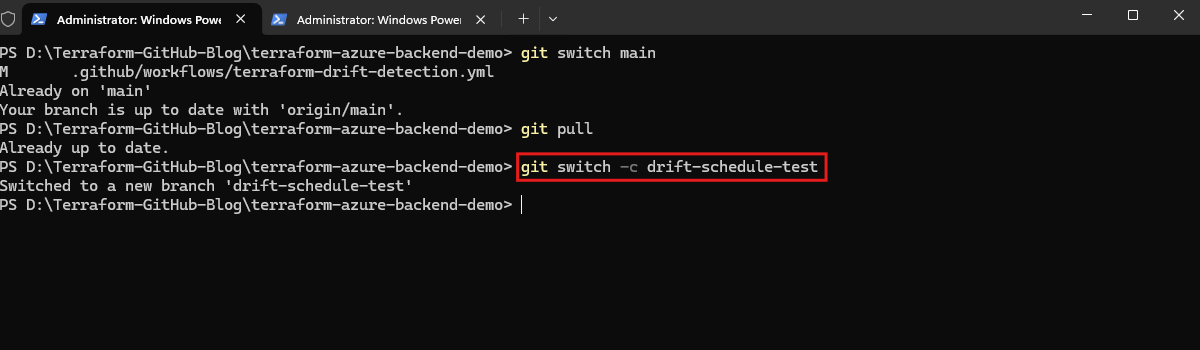
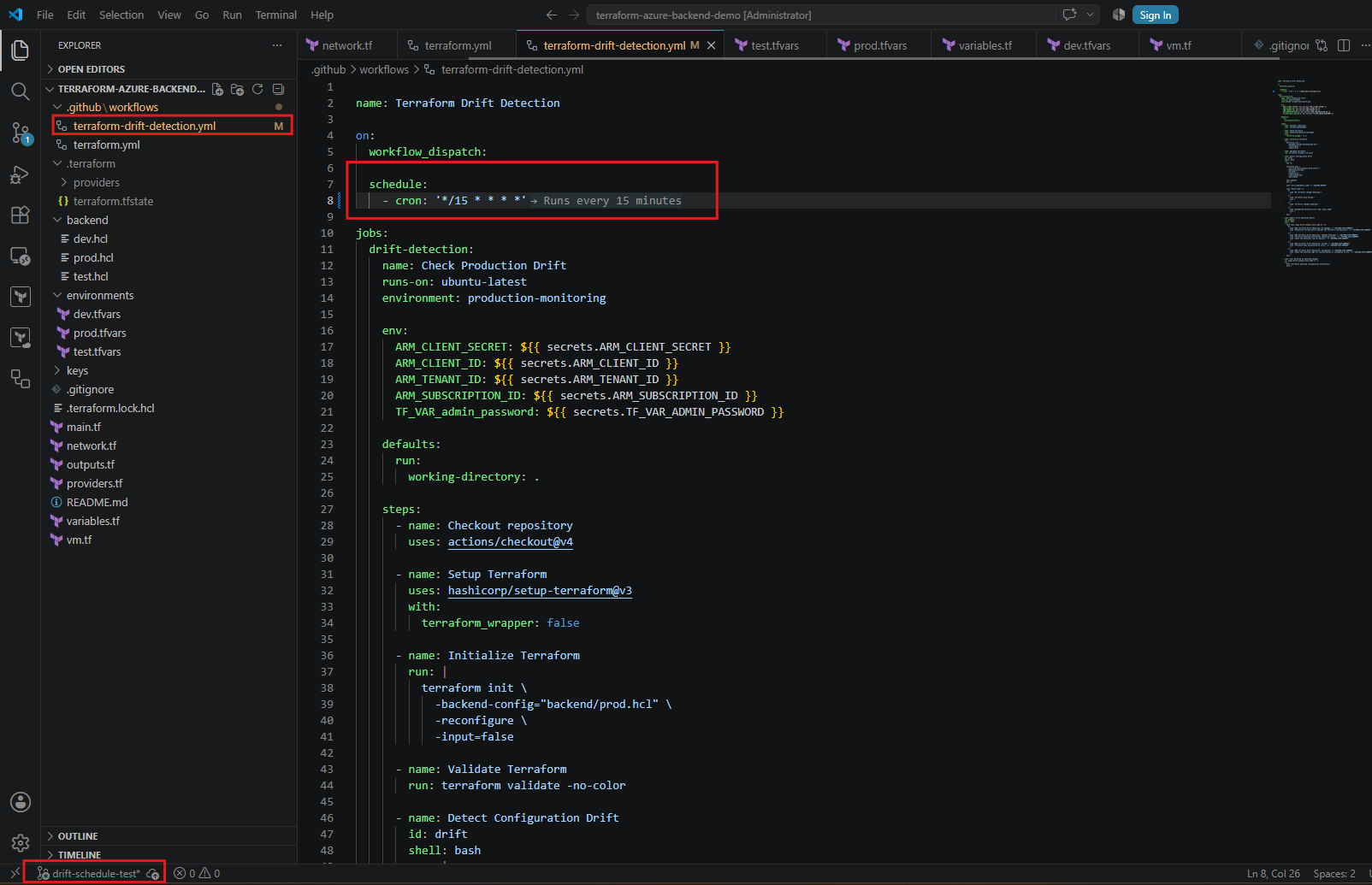
git switch -c creates the new branch from the current state of main and switches to it right away. We make our change, for example the new cron value in .github/workflows/terraform-drift-detection.yml, then commit and push the branch:
git add .github/workflows/terraform-drift-detection.yml
git commit -m "Test scheduled Terraform drift detection"
git push -u origin drift-schedule-test
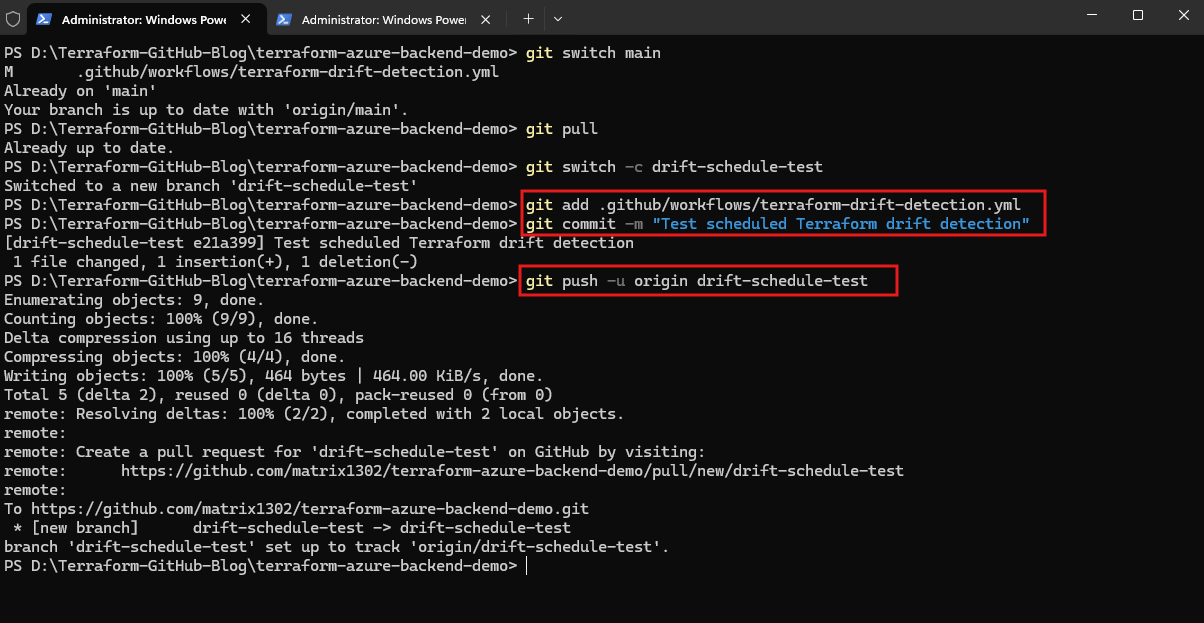
-u links the local branch to the new remote branch, so later git push or git pull commands on it need no extra arguments.
Next, we open a pull request from drift-schedule-test into main on GitHub, get it approved and merge it. After that, we can delete the branch on GitHub and locally.
Important: A scheduled GitHub Actions workflows only run from the default branch, so a new
cronvalue takes effect only after the pull request is merged intomain. Allow 15–30 minutes or more before the first scheduled run is due.
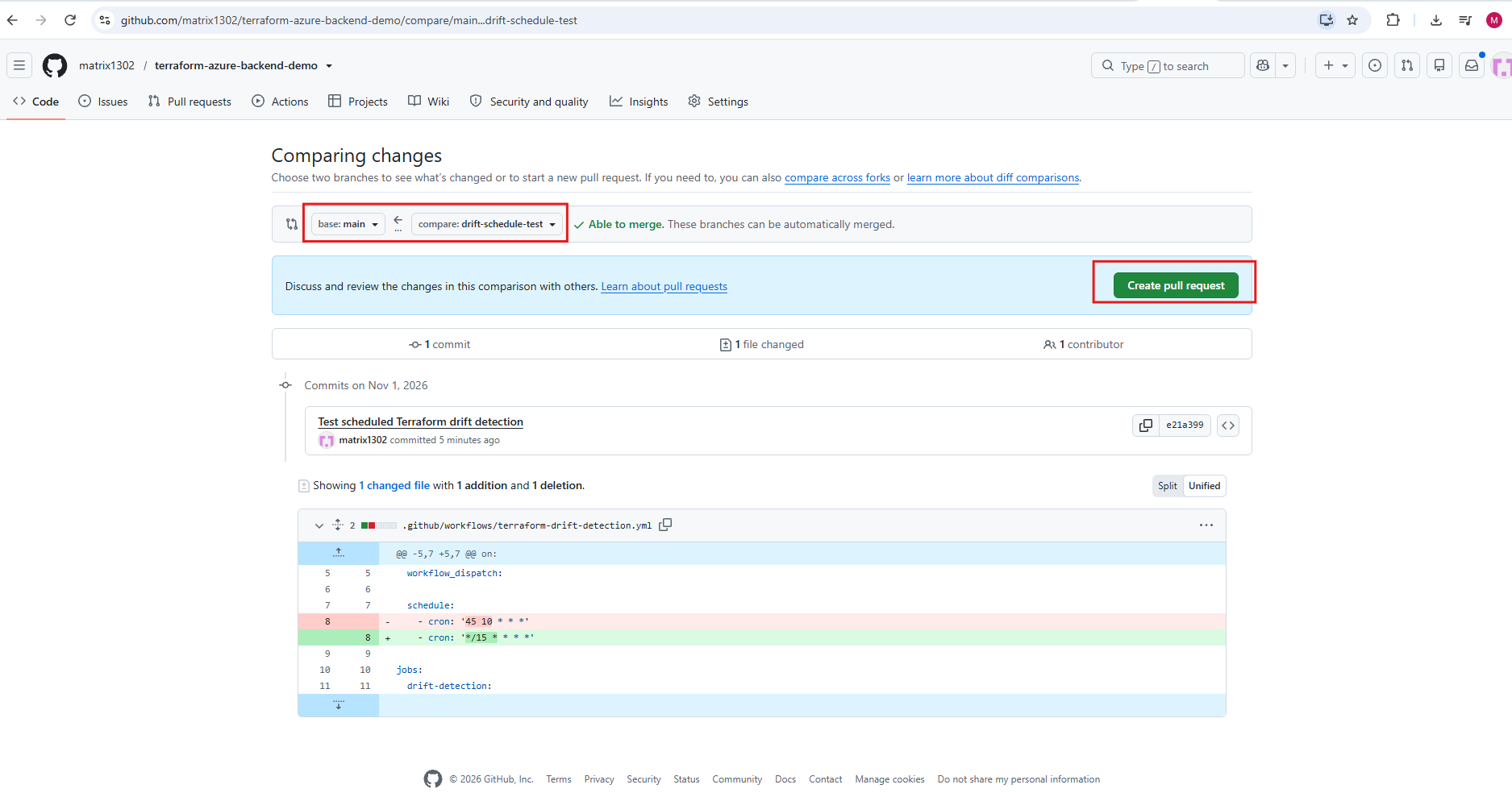
On GitHub, we open a pull request with main as the base branch and drift-schedule-test as the compare branch.
The diff shows the single change, the
cronvalue going from'45 10 * * *'to'*/15 * * * *', and GitHub confirms the branches can be merged automatically, so we click Create pull request.
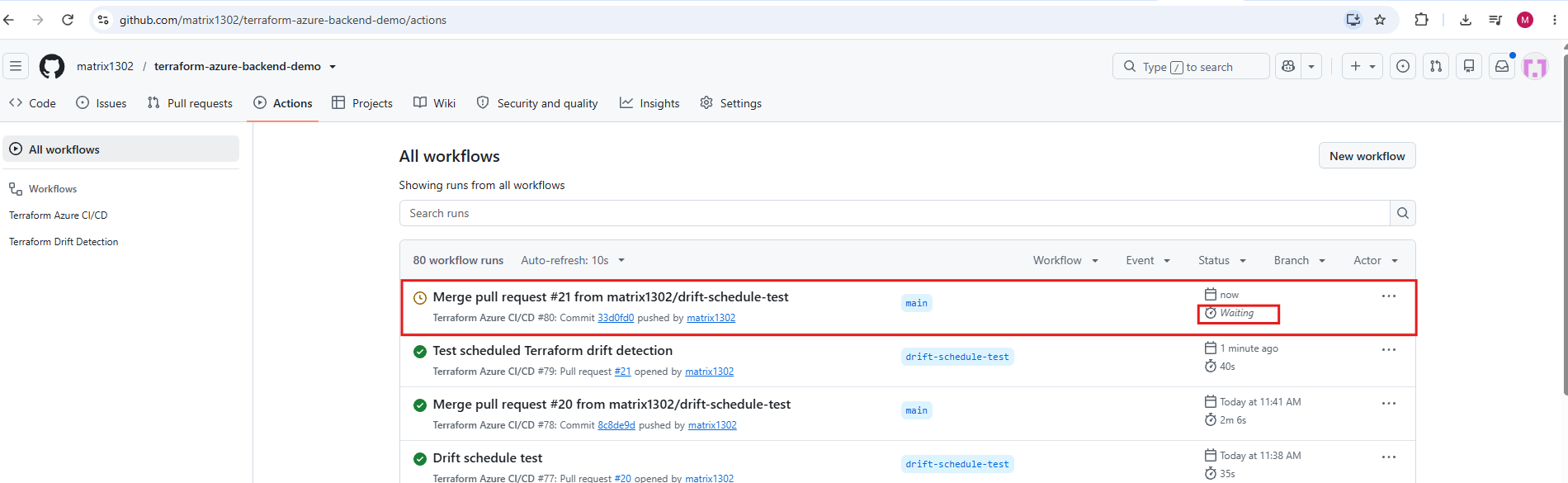
After the merge, the push to main triggers the regular CI/CD workflow, which waits for approval of the production environment like shown in Part 4 of my Terraform/GitHub/Azure series.
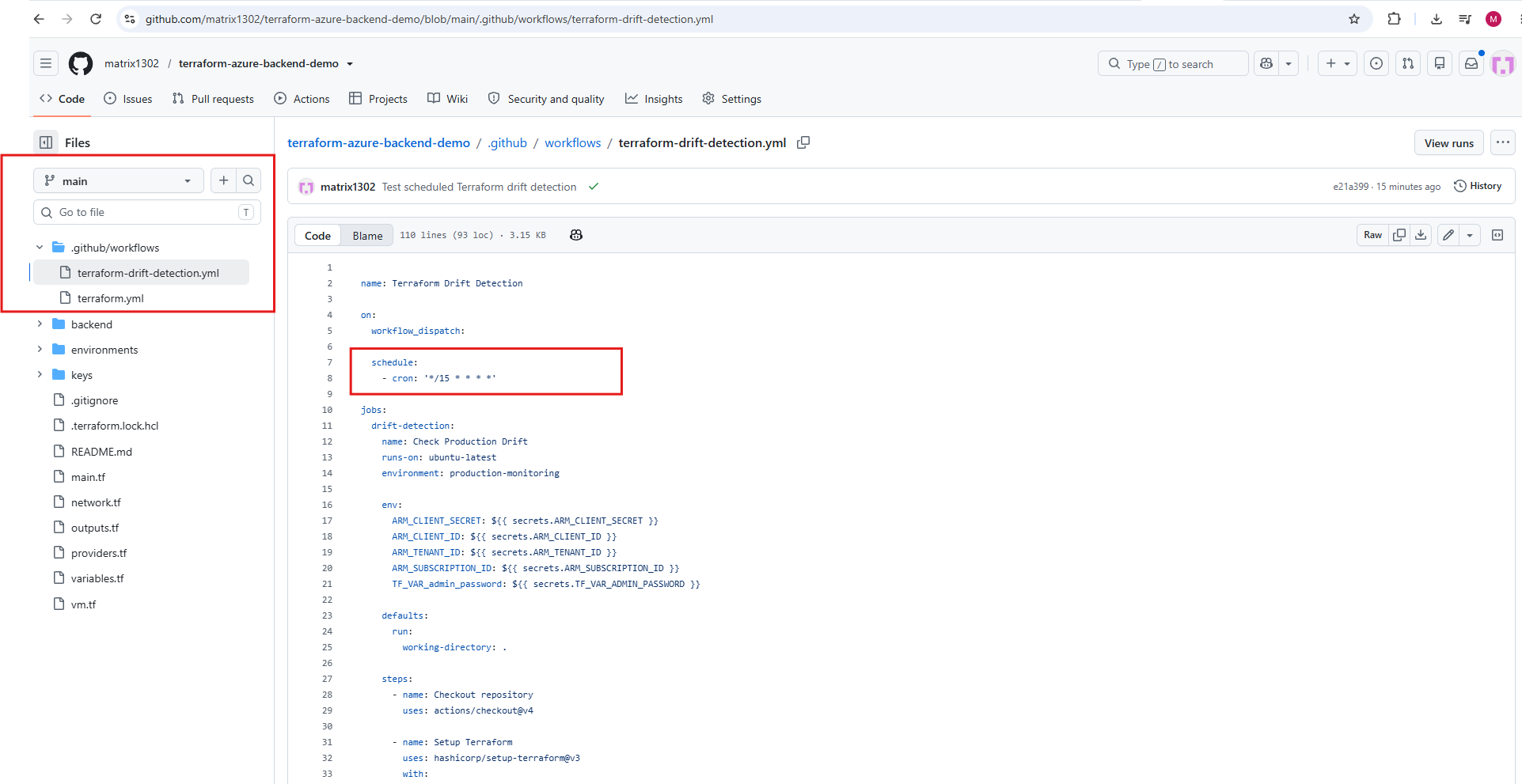
The
*/15 * * * *schedule is now part of the drift detection workflow in the protectedmainbranch. Because GitHub only evaluatesscheduletriggers from the default branch, the workflow can now run automatically every 15 minutes.Scheduled GitHub Actions workflows only run from the workflow file on the repository’s default branch (usually
main), so a new or changedcronvalue in a feature branch has no effect until it’s merged. The cron time is always UTC, not our local time zone.
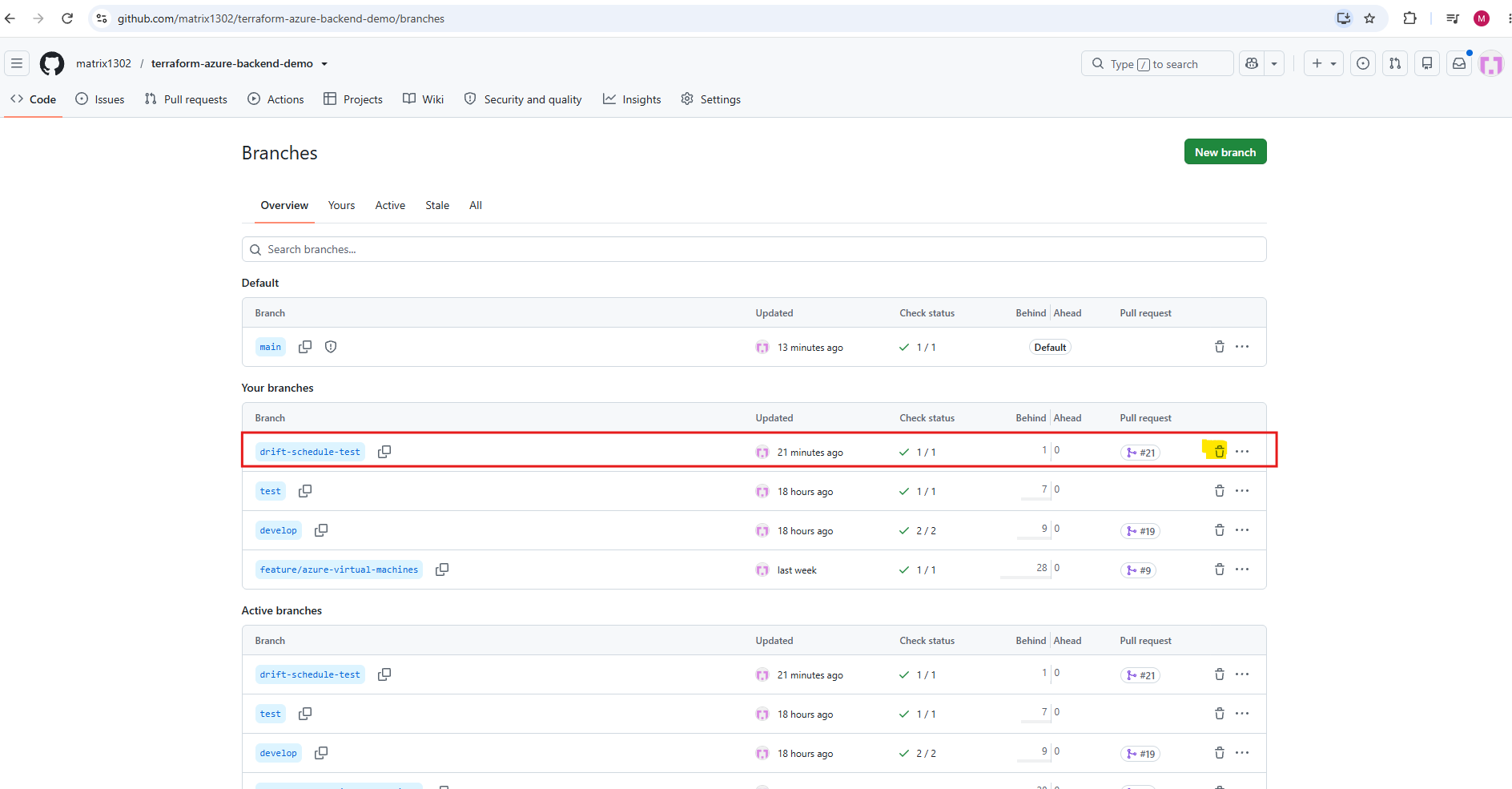
After the pull request has been merged, the short-lived branch is no longer needed and can be deleted both on GitHub and locally.
On GitHub under Code → Branches using the trash icon. “0 Ahead” confirms that all of its commits are already in
main, so nothing is lost.
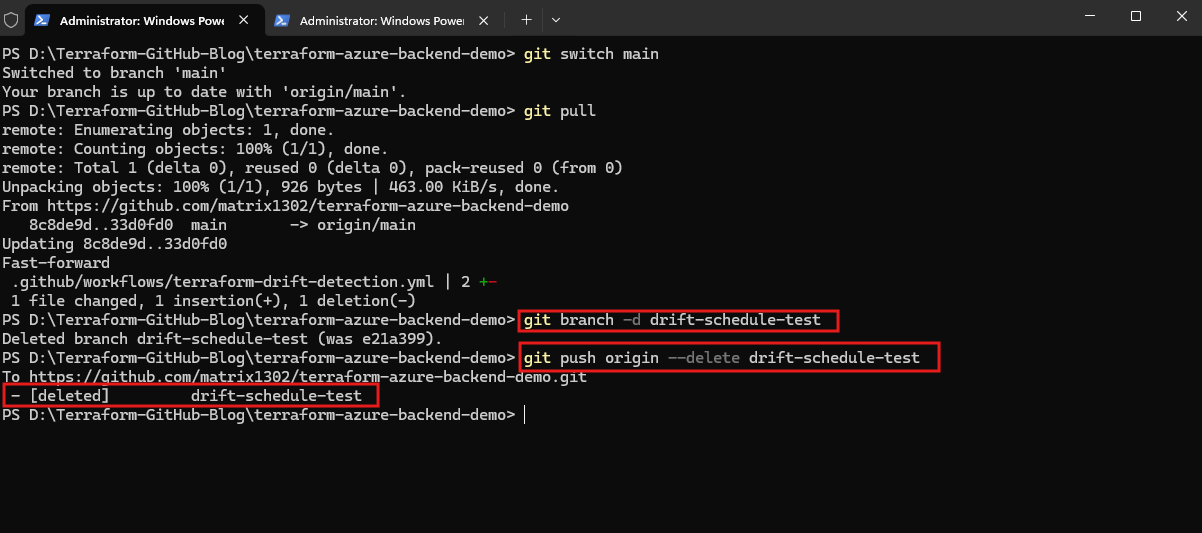
We can delete the branch on GitHub also directly from our terminal, so we don’t need the web UI:
After switching to
mainand pulling the merged change,git branch -dremoves the local branch andgit push origin --deleteremoves it from GitHub.The
- [deleted] drift-schedule-testline confirms that the remote branch is gone.
git push origin --delete drift-schedule-testusespushbecause deleting a remote branch is a change to the remote repository on GitHub. Onlypushcan make that change, and here it removes the branch reference instead of sending new commits.
git switch main
git pull
git branch -d drift-schedule-test
git push origin --delete drift-schedule-test
How Short-Lived Branches Interact with the CI/CD Pipeline
In Part 4 of my Terraform/GitHub/Azure series we set up three long-lived branches, develop, test and main, each mapped to its own Azure environment through TF_ENV (dev, test and prod, each with its own .tfvars file and state file).
The short-lived branch is not part of this mapping. It only carries a single change into one of these branches through a pull request.
The relevant part of terraform.yml shows why:
on:
  workflow_dispatch:

  push:
    branches:
      - develop
      - test
      - main

  pull_request:
    branches:
      - develop
      - test
      - main
- name: Terraform Apply
  if: github.event_name != 'pull_request'
  run: terraform apply -auto-approve -var-file="environments/${TF_ENV}.tfvars"
- Pushing the short-lived branch to GitHub triggers nothing, because the
pushtrigger only covers the long-lived branches. - Opening the pull request into
maintriggers the workflow through thepull_requesttrigger.TF_ENVis taken from the target branch (github.base_ref), so Terraform plans against the production configuration and state. The run uses thenonprodGitHub environment and the read-only validation service principal. Because of theif:condition, Terraform Apply is skipped: the pull request only validates and shows the plan. - Merging the pull request creates a push to
main. Now the workflow runs with theproductionGitHub environment, waits for approval under Review deployments, and only then runs Terraform Apply.
So the short-lived branch is never deployed itself. It only gives the change a reviewable path into main, through the Terraform Workflow status check required by the branch protection rule.
Important: Our drift schedule change is a special case. Normally changes are promoted from
developtotesttomain. Since the drift detection workflow only checks production, andscheduletriggers only run frommainanyway, we merged the short-lived branch directly intomain. Afterwards, mergemainback intodevelopandtestso the long-lived branches stay in sync.
Links
git-fetch
https://git-scm.com/docs/git-fetchgit-pull
https://git-scm.com/docs/git-pullGit Branching – Remote Branches
https://git-scm.com/book/en/v2/Git-Branching-Remote-BranchesTerraform CLI Overview
https://developer.hashicorp.com/terraform/cli/commands