How to Keep Linux Commands Running after Disconnecting from SSH using GNU Screen
When working with Linux servers over SSH, you may need to execute commands or scripts that take several minutes or even hours to complete. However, if your SSH connection is interrupted or you simply close your terminal, processes running in the foreground may be terminated along with your session.
GNU Screen provides a simple and effective solution by allowing you to create persistent terminal sessions that continue running independently of your SSH connection.
You can detach from a Screen session at any time, disconnect from the server, and reconnect later to resume exactly where you left off, including any commands or scripts still running.
In this article, we will look at how to install GNU Screen, create and manage persistent terminal sessions, detach and reattach to existing sessions, and keep long-running Linux commands running even after disconnecting from SSH.
- Install GNU Screen on Linux
- Create a GNU Screen Session
- Terminate a GNU Screen Session Using exit or Ctrl + D
- Detach from a GNU Screen Session Without Terminating It
- List Existing Screen Sessions
- Reattach to an Existing Screen Session
- Terminating GNU Screen Sessions
- Demonstrating a Long-Running Process That Survives an SSH Disconnect
- Links
Install GNU Screen on Linux
GNU Screen is a terminal multiplexer that allows you to create and manage multiple persistent terminal sessions within a single SSH connection.
Depending on your Linux distribution, GNU Screen may already be installed. You can check this by running:
screen --version

If GNU Screen is not installed, you can install it using the package manager of your Linux distribution.
Ubuntu / Debian:
sudo apt update
sudo apt install screen
RHEL / Rocky Linux / AlmaLinux:
sudo dnf install screen
SUSE Linux Enterprise Server (SLES) / openSUSE:
sudo zypper install screen
With GNU Screen installed, we can now create our first persistent terminal session and execute commands that will continue running even after disconnecting from SSH.
Create a GNU Screen Session
To start a new Screen session, simply execute:
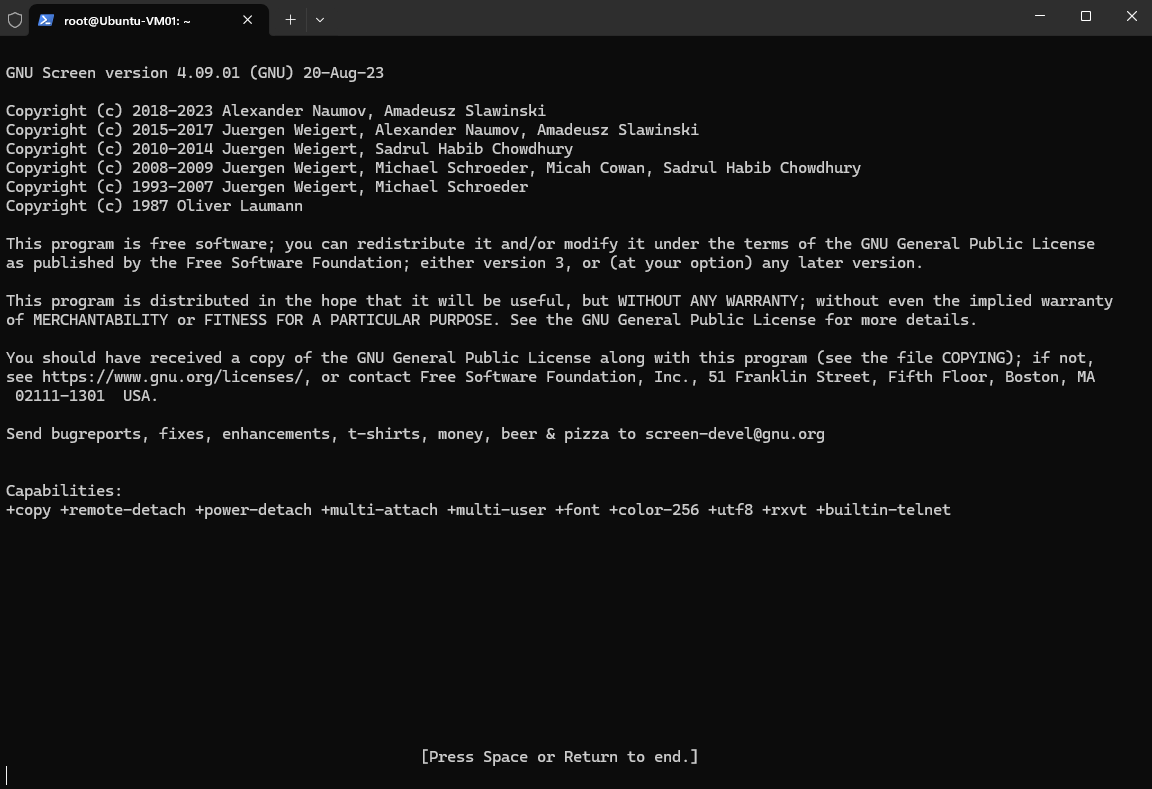
When starting GNU Screen, you may initially see a welcome screen displaying version information, copyright notices, and licensing details.
At the bottom, the message [Press Space or Return to end.] appears.
Despite the wording, pressing Space or Enter does not terminate the Screen session. It simply dismisses the welcome screen and takes you to the interactive shell inside your newly created Screen session.
screen
To verify that you are currently working inside a GNU Screen session, execute:
The environment variable
$STYidentifies the active Screen session. The output contains the Screen process ID (2790) and the automatically generated session identifier (pts-0.Ubuntu-VM01).If the command returns an empty result, you are not currently inside a GNU Screen session.
Note: The
$STYvariable is particularly useful when you are unsure whether your current shell is running inside Screen or directly within your SSH session.
echo $STY

To terminate a GNU Screen session, simply execute the following command inside the session. Alternatively, you can press Ctrl + D to exit the current shell.
exit
To verify that you are no longer inside a Screen session, execute:
As shown in the screenshot, the command now returns an empty result because the Screen session has been terminated.
echo $STY

Important: Terminating a Screen session using
exitis different from detaching using Ctrl + A, followed by D.Detaching keeps the session and its running commands alive, whereas exiting the last shell terminates the Screen session.
By default, starting GNU Screen with:
screen
creates a session with an automatically generated identifier consisting of the Screen process ID, terminal identifier, and hostname, for example:
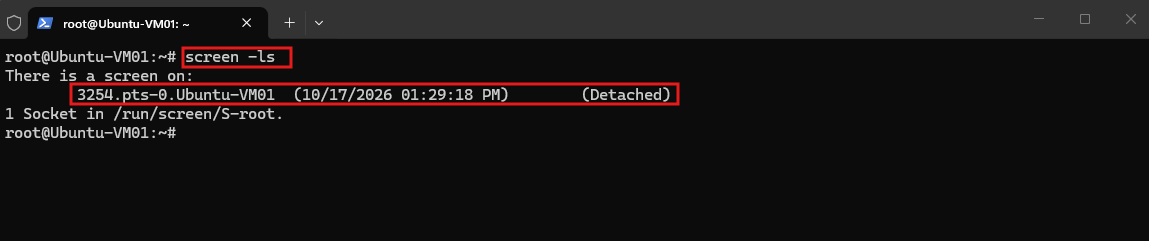
Alternatively, we can assign a descriptive session name using the -S parameter:
screen -S backup
This creates a session with an identifier similar to:
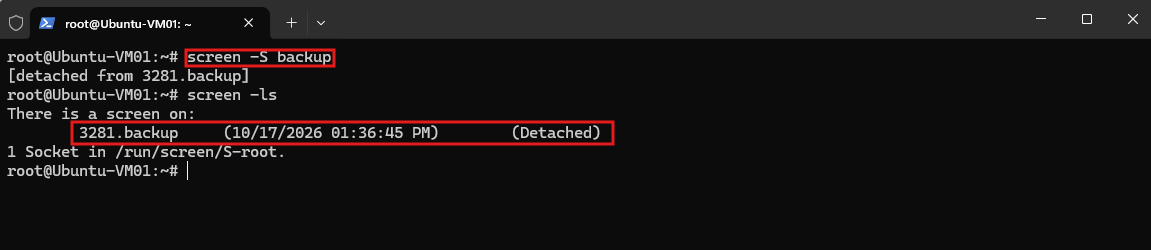
Using named sessions is particularly useful when managing multiple Screen sessions, as we can later reattach to a specific session directly by its name:
screen -r backup
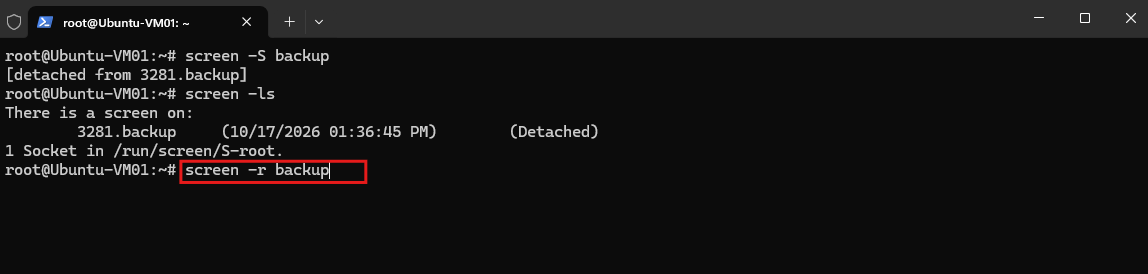
After reattaching to the session, we can verify its identity using echo $STY.
As shown in the screenshot, the output
3281.backupconfirms that we are back inside our previously created Screen session namedbackup.
echo $STY

Terminate a GNU Screen Session Using exit or Ctrl + D
There are two simple ways to terminate a GNU Screen session when you no longer need it.
Option 1 – Using the exit command
Inside the Screen session, execute:
exit
Option 2 – Using Ctrl + D
Alternatively, press Ctrl + D to send an EOF (End-of-File) signal to the interactive shell, which normally causes the shell to exit.
Both methods terminate the current shell. If it is the last running window within the Screen session, GNU Screen also terminates and displays:

You are then returned to your original SSH shell.
Important: Unlike detaching with Ctrl + A, followed by D, these methods terminate the shell rather than preserving it for later reconnection. Any foreground processes still associated with the terminating shell may also be stopped.
Detach from a GNU Screen Session Without Terminating It
To leave a GNU Screen session while keeping it and its running commands active, press the following key combination:
Ctrl + A, followed by D.
First, press Ctrl + A together, release both keys, and then press D.

GNU Screen detaches the current session and returns you to your original SSH shell.
Unlike terminating a session using exit or Ctrl + D, detaching preserves the Screen session and any commands running inside it.
You can now safely disconnect from SSH or close your terminal window. The detached Screen session continues running on the Linux server, and you can reattach to it later.
List Existing Screen Sessions
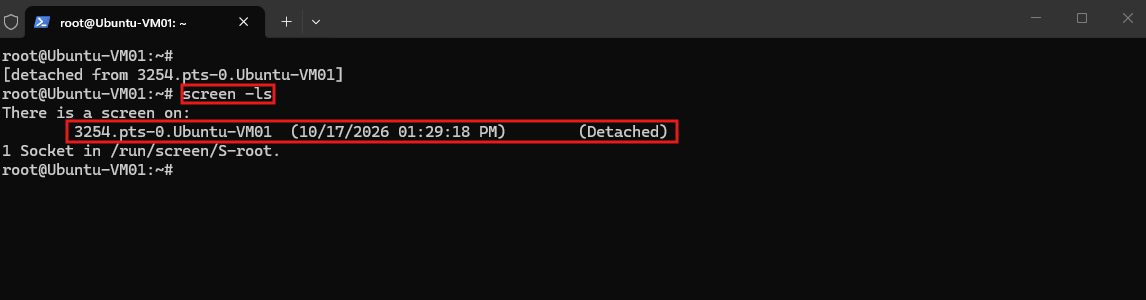
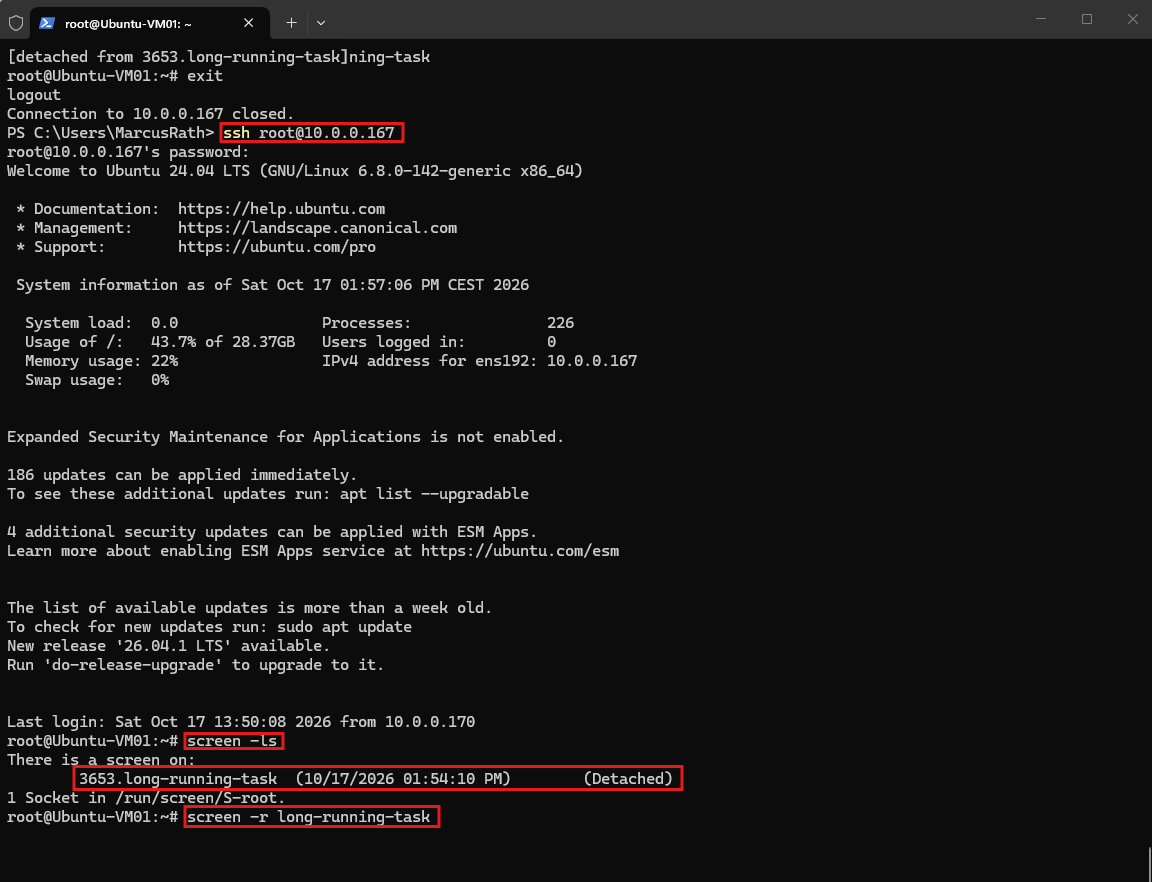
After reconnecting to the Linux server via SSH, you can display all existing Screen sessions by running:
screen -ls
Reattach to an Existing Screen Session
To reconnect to our previously detached named backup session, execute:
screen -r backup
As shown in the screenshot, the output
3281.backupconfirms that we are back inside our previously created Screen session namedbackup.
Alternatively, we can use the session ID:
screen -r 3426

As shown in the screenshot, the output
3426.pts-0.Ubuntu-VM01confirms that we are back inside our previously created Screen session without using a name for.

Terminating GNU Screen Sessions
Besides terminating a Screen session from within using exit or Ctrl + D, GNU Screen also allows you to terminate detached sessions directly from your regular SSH shell without reattaching to them.
First, list all existing Screen sessions:
screen -ls
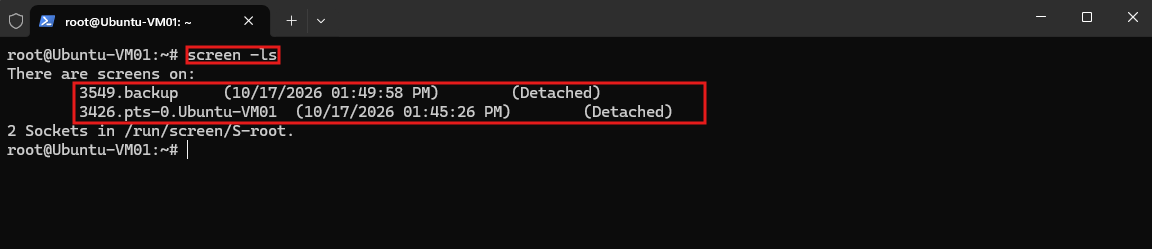
In our example, screen -ls shows two detached GNU Screen sessions: one named backup with session ID 3549, and another with the automatically generated identifier 3426.pts-0.Ubuntu-VM01.
Both sessions remain active in the background and can either be reattached or terminated independently.
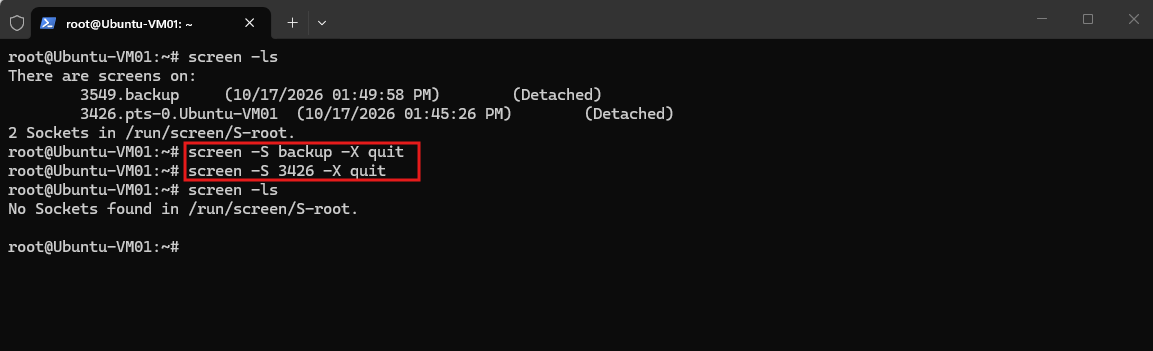
To terminate both detached Screen sessions from our screenshot, we execute:
screen -S backup -X quit
screen -S 3426 -X quit

# verify:
screen -ls
Note:
-X quitterminates the selected Screen session and its running processes, rather than simply detaching it.
Demonstrating a Long-Running Process That Survives an SSH Disconnect
Now let’s demonstrate how GNU Screen keeps a process running even after disconnecting from SSH. We will start a simple continuously running command, detach from the Screen session, close our SSH connection, and reconnect later to verify that the process continued running uninterrupted.
First, we create a new GNU Screen session named long-running-task using the -S parameter:
This opens a new persistent terminal session in which we can execute our test command independently of the SSH connection.
screen -S long-running-task

For demonstration purposes, we use a simple infinite loop that executes the date command every five seconds:
while true; do date; sleep 5; done
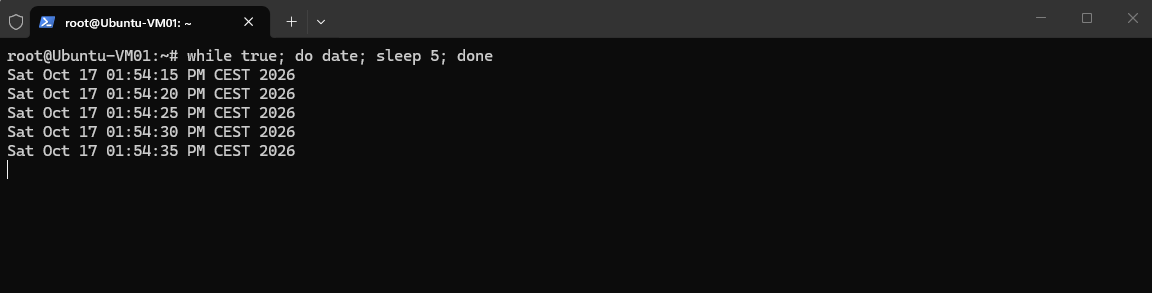
While the dates are being printed, press Ctrl + A, followed by D.

The process continues running inside the detached session.
Now we disconnect completely from SSH:
exit
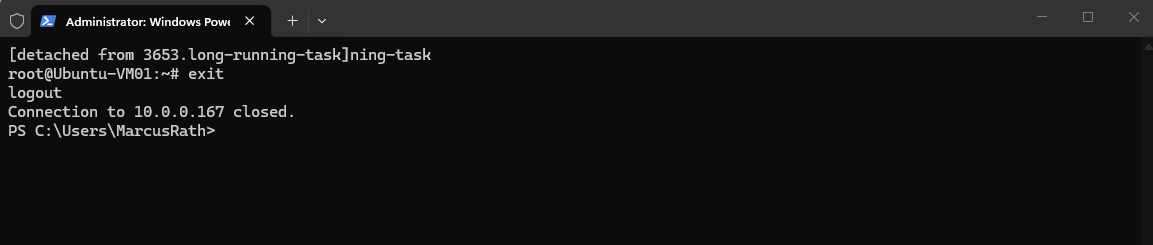
After a few minutes we reconnect and reattach to our Screen session.
screen -r long-running-task
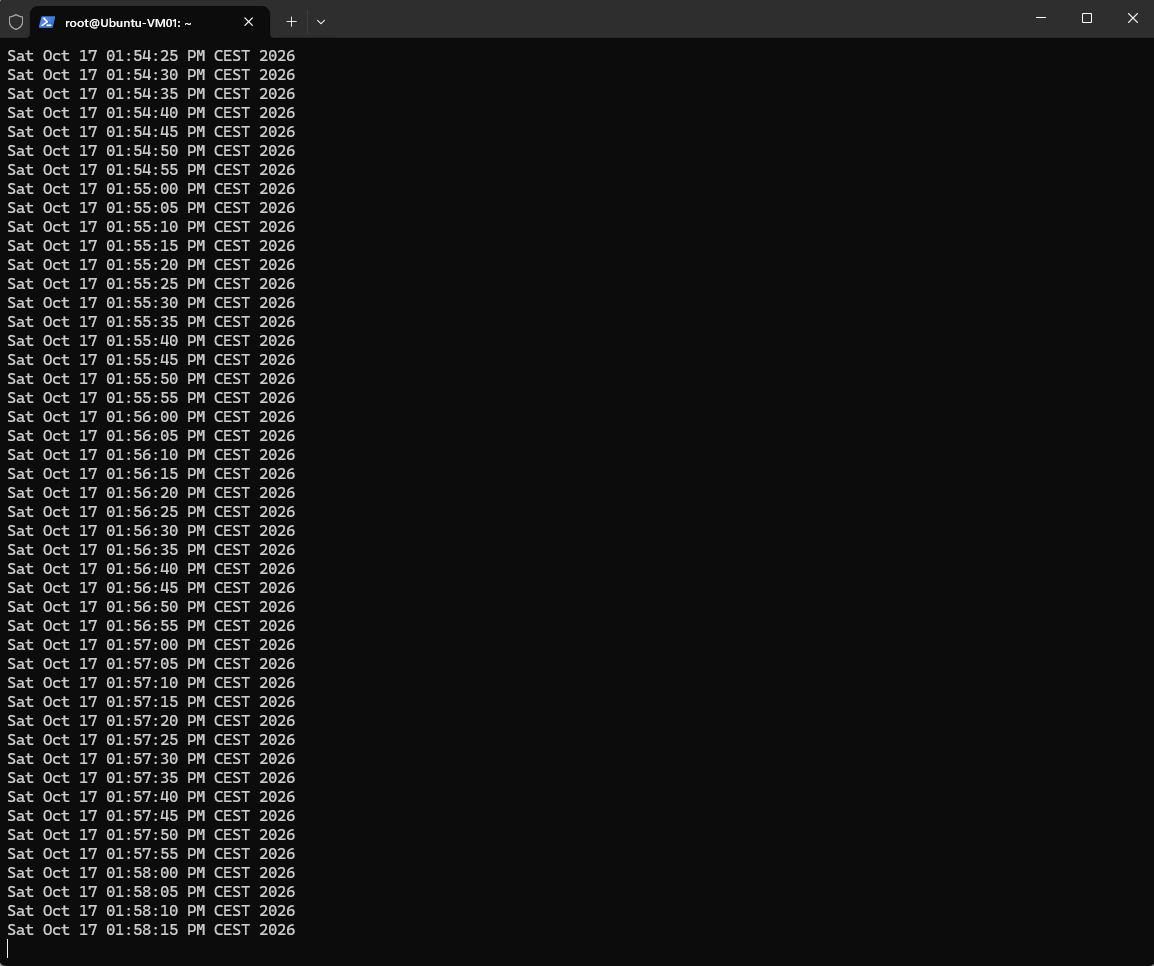
After reattaching to our Screen session, we can see that the date and time continued to update every five seconds, even while our SSH connection was closed.
This confirms that the process remained running independently of the SSH session and resumed displaying its output as soon as we reconnected.
Links
GNU Screen
https://www.gnu.org/software/screen/Screen User’s Manual
https://www.gnu.org/software/screen/manual/screen.html