Cheat Sheet Visual Studio Code
A collection of useful Visual Studio Code settings, shortcuts, commands, and troubleshooting notes that I regularly use.
This cheat sheet focuses mainly on practical configuration tweaks and productivity features rather than covering the basics of Visual Studio Code.
Integrated Terminal
Using Visual Studio Code as a Standalone Terminal
Visual Studio Code can also be used as a standalone terminal without opening a project, folder, or workspace.
This is useful when you simply need a convenient terminal for PowerShell, SSH, or other command-line tools while still benefiting from VS Code features such as terminal tabs and scrollback shown below.
Run code -n from a command prompt or PowerShell session to open a new Visual Studio Code window without explicitly opening a project or folder.
code -n

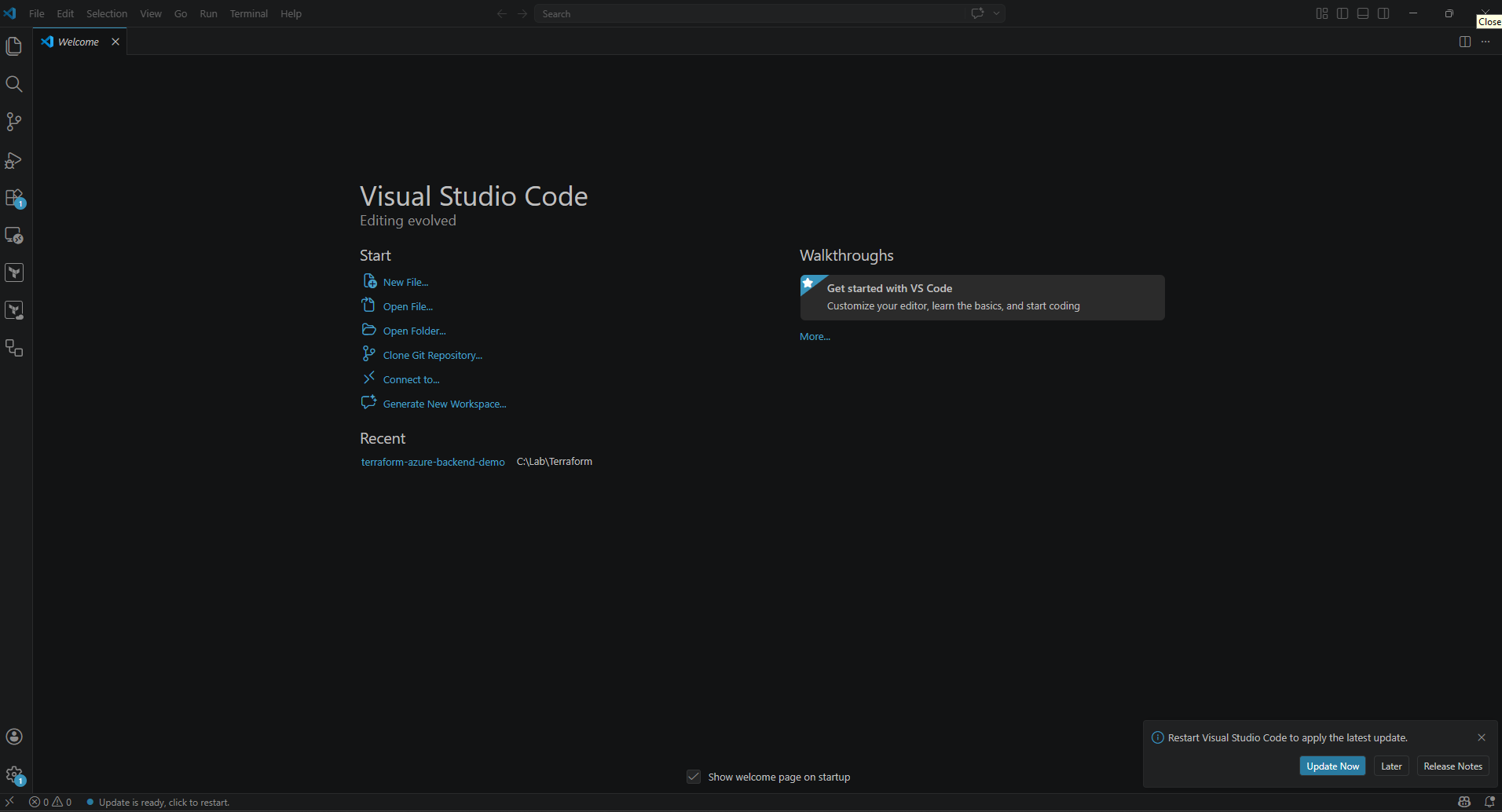
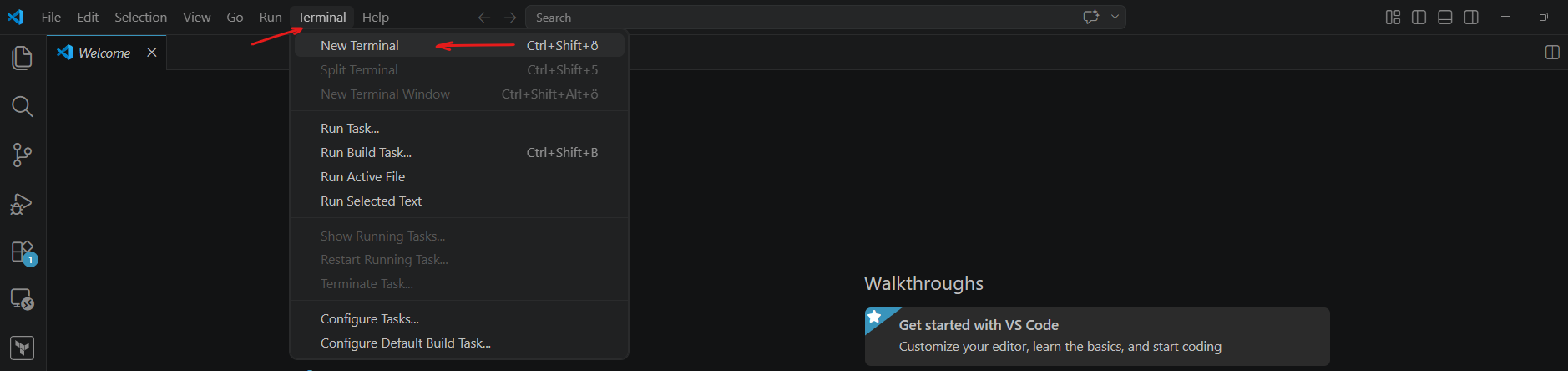
Then open the integrated terminal via Terminal → New Terminal.
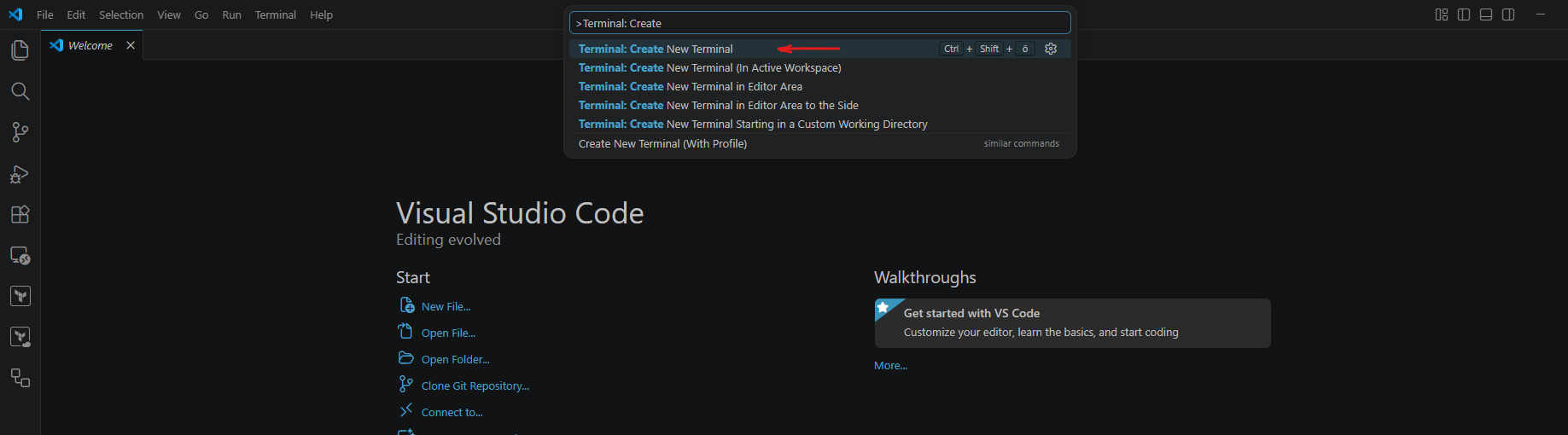
You can also use the Command Palette:
Ctrl + Shift + P
and run:
Terminal: Create New Terminal
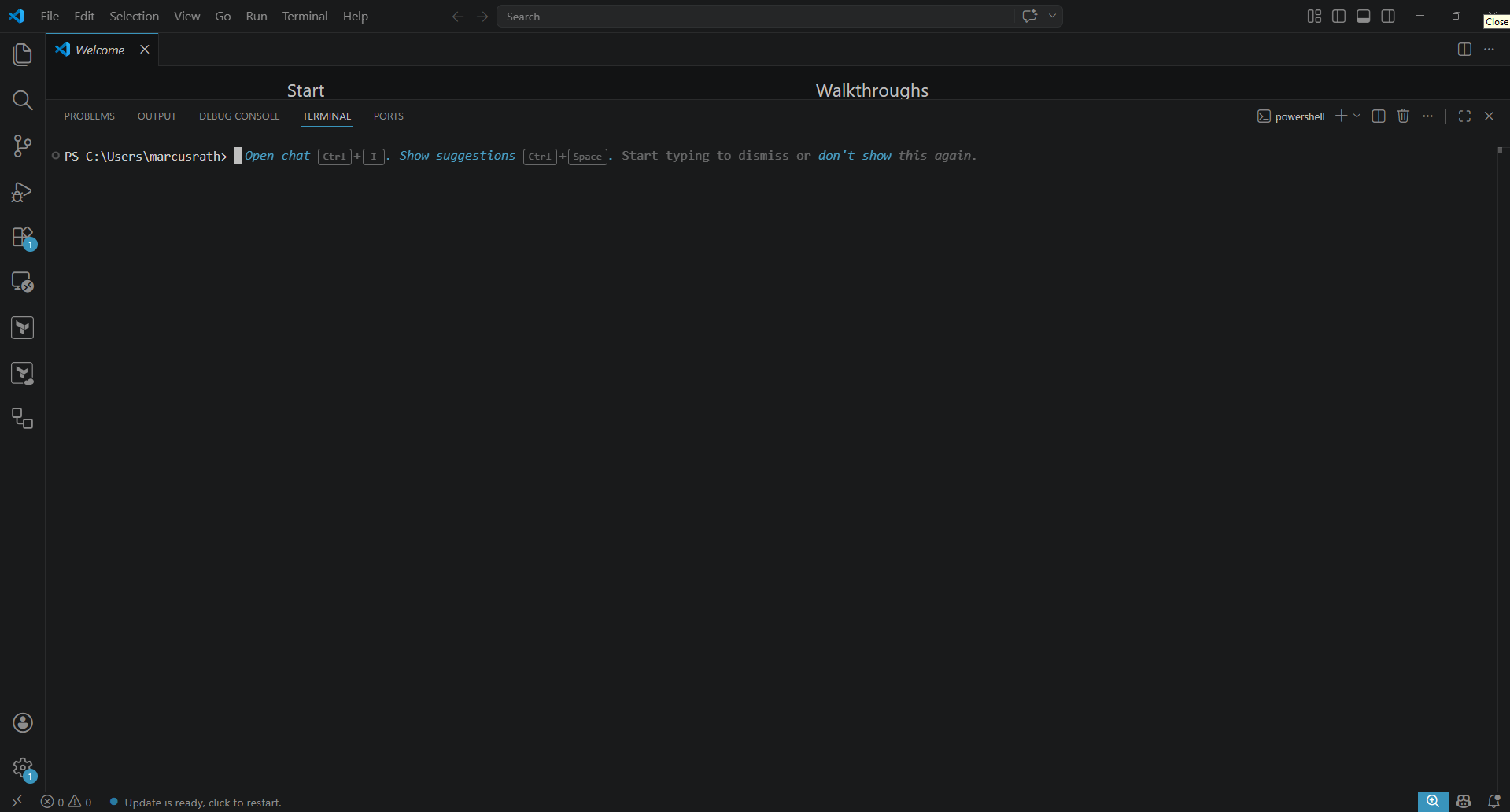
Terminal Integrated Scrollback
By default, Visual Studio Code keeps only a limited number of previous lines in the integrated terminal buffer. When working with commands that generate a large amount of output, older lines can therefore disappear and are no longer available by scrolling back.
The number of retained terminal lines can be increased with the following setting in settings.json:
"terminal.integrated.scrollback": 10000
For example, setting the value to 10000 keeps up to 10,000 lines of terminal output available for scrolling. This can be especially useful when analyzing long command outputs or troubleshooting directly inside the Visual Studio Code integrated terminal.
The setting can also be changed through Settings by searching for:
Terminal › Integrated: Scrollback
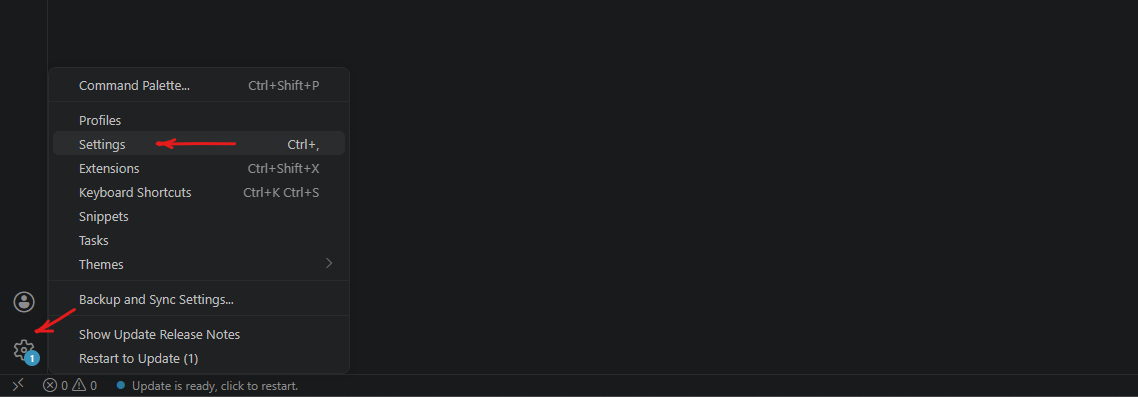
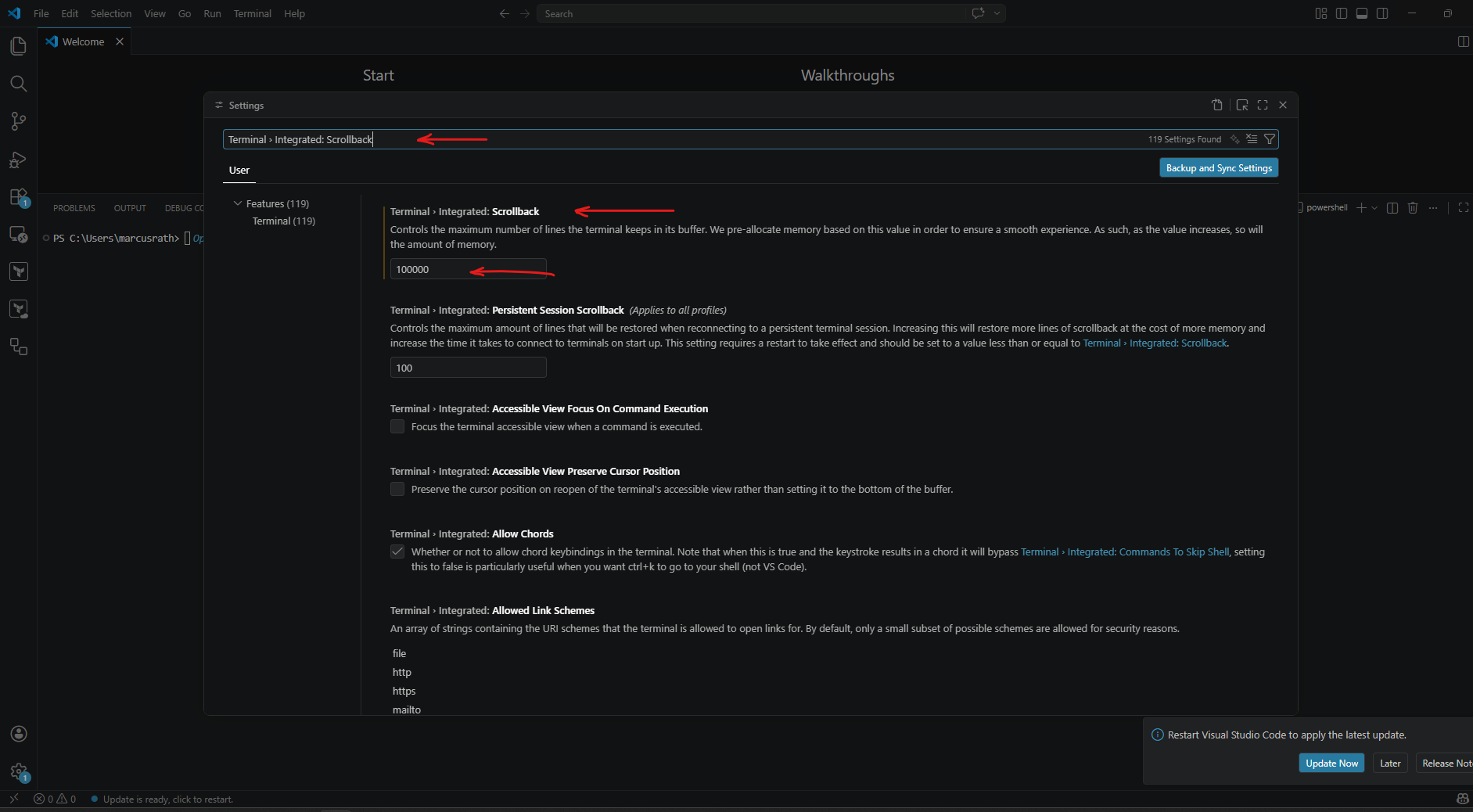
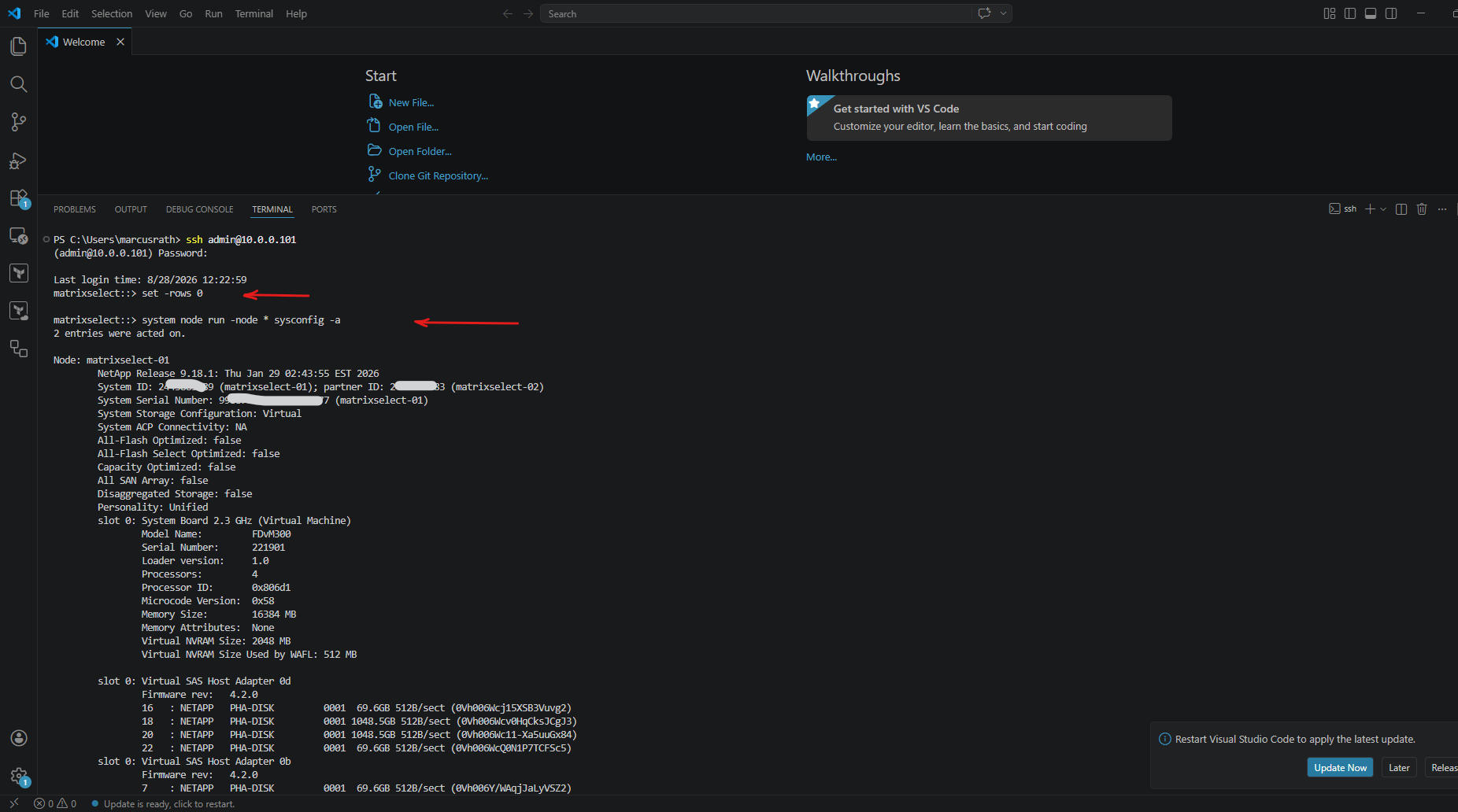
The Terminal Integrated Scrollback setting is especially useful when running ONTAP commands that produce a large amount of output.
In combination with set -rows 0, ONTAP outputs the command continuously without pausing at the end of each terminal page, while also removing the additional blank lines normally used for pagination.
matrixselect::> set -rows 0
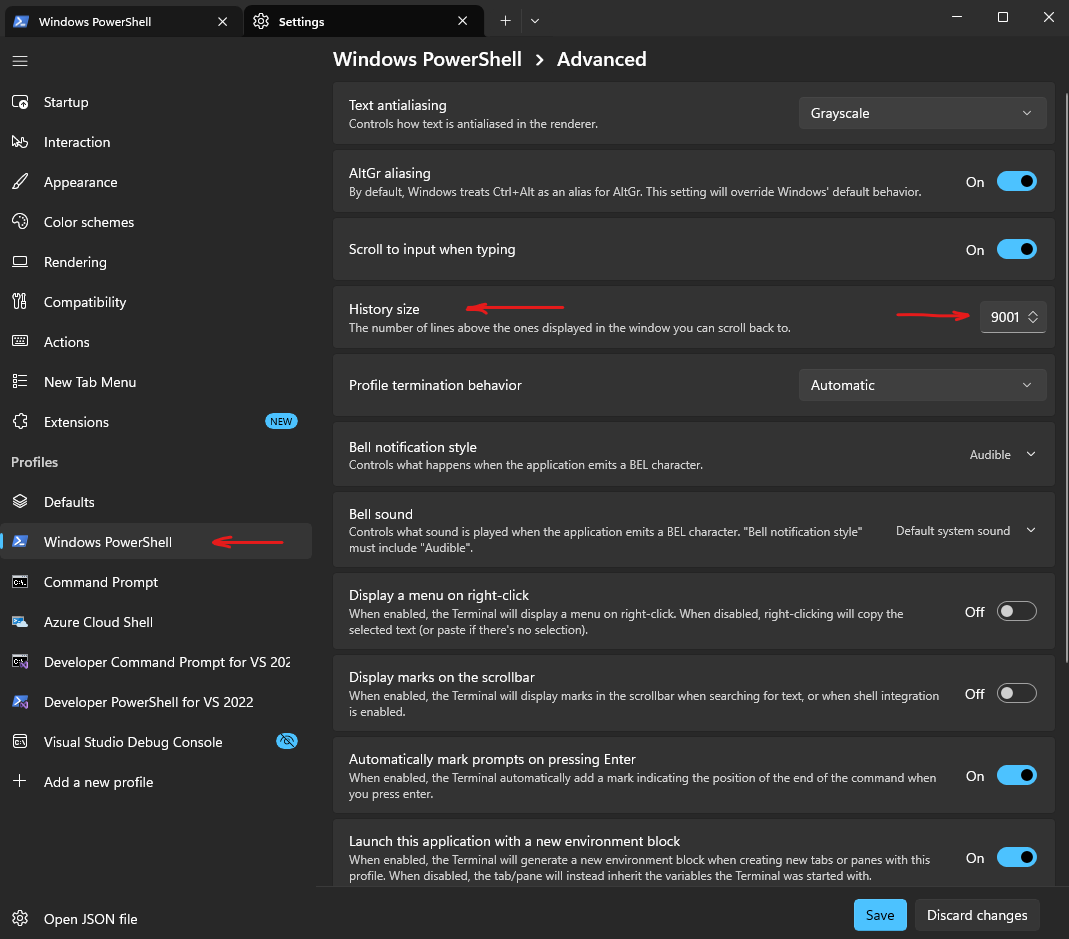
Windows Terminal provides a similar scrollback setting for its PowerShell profile.
Navigate to Settings → Profiles → Windows PowerShell → Advanced.
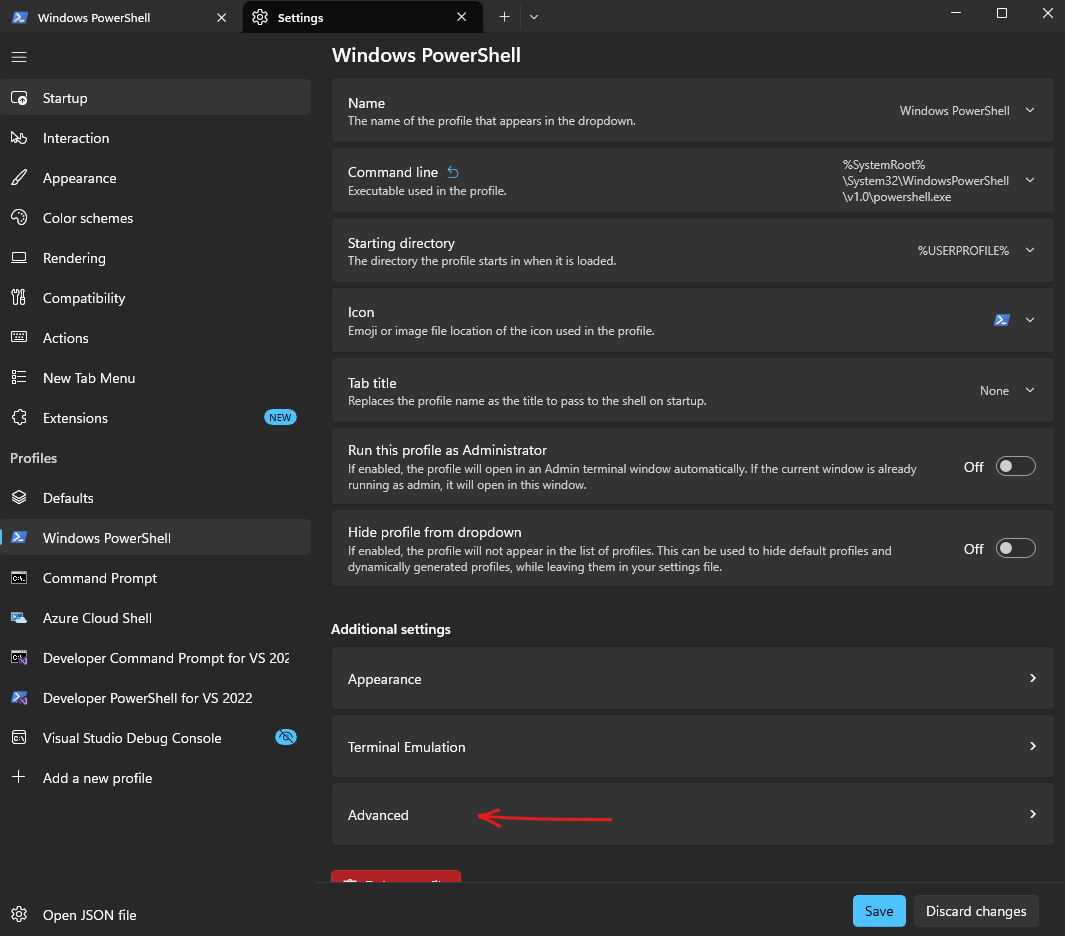
Advanced → History size and increase the number of retained output lines as required.
Links
Visual Studio Code – The open source AI code editor
https://code.visualstudio.com/