Update Dell PowerEdge BIOS and Firmware Directly via iDRAC9 – Without the Server Update Utility ISO
Keeping the BIOS and firmware of Dell PowerEdge servers up to date is essential for maintaining security, stability, and hardware compatibility.
In my previous article, Update Firmware, UEFI and Device Drivers for Dell PowerEdge Servers by Using the Dell iDRAC Lifecycle Controller, I demonstrated how to update server firmware using the Dell Server Update Utility (SUU) ISO mounted through iDRAC Virtual Media and the Lifecycle Controller.
While this method works well, it requires downloading the SUU ISO and rebooting the server into Lifecycle Controller, even if you only want to compare the installed firmware versions with the available updates.
Although updating firmware directly through the iDRAC web interface was already supported by earlier generations such as iDRAC8, newer iDRAC9 versions provide a more convenient way to retrieve Dell’s online firmware catalog over HTTPS and install updates without downloading the Server Update Utility ISO or manually entering Lifecycle Controller.
Using the integrated System Update functionality, we can connect directly to Dell’s online firmware repository, compare installed and available firmware versions, and install or schedule updates without downloading an ISO or manually booting into Lifecycle Controller.
In this article, I will demonstrate the process on a Dell PowerEdge R650 running VMware ESXi 8, including how to check available firmware updates without interrupting the running virtual machines.
How to Check Available Firmware Updates Without Interrupting Running Virtual Machines
One of the major advantages of updating Dell PowerEdge servers directly through iDRAC9 is the ability to check for available BIOS and firmware updates without rebooting the server or interrupting running virtual machines.
This is particularly useful in VMware ESXi environments, where rebooting a host just to check for firmware updates would otherwise require migrating virtual machines or scheduling a maintenance window.
Using the integrated System Update functionality in iDRAC9, we can connect directly to Dell’s online firmware repository and compare the currently installed firmware versions with the latest available updates.
The entire firmware comparison runs independently of the installed operating system. Whether the server is running VMware ESXi, Windows Server, or Linux, no operating system interaction or downtime is required.
In the following example, we will use a Dell PowerEdge R650 running VMware ESXi 8 to demonstrate how to retrieve and review available firmware updates before deciding which components to update.
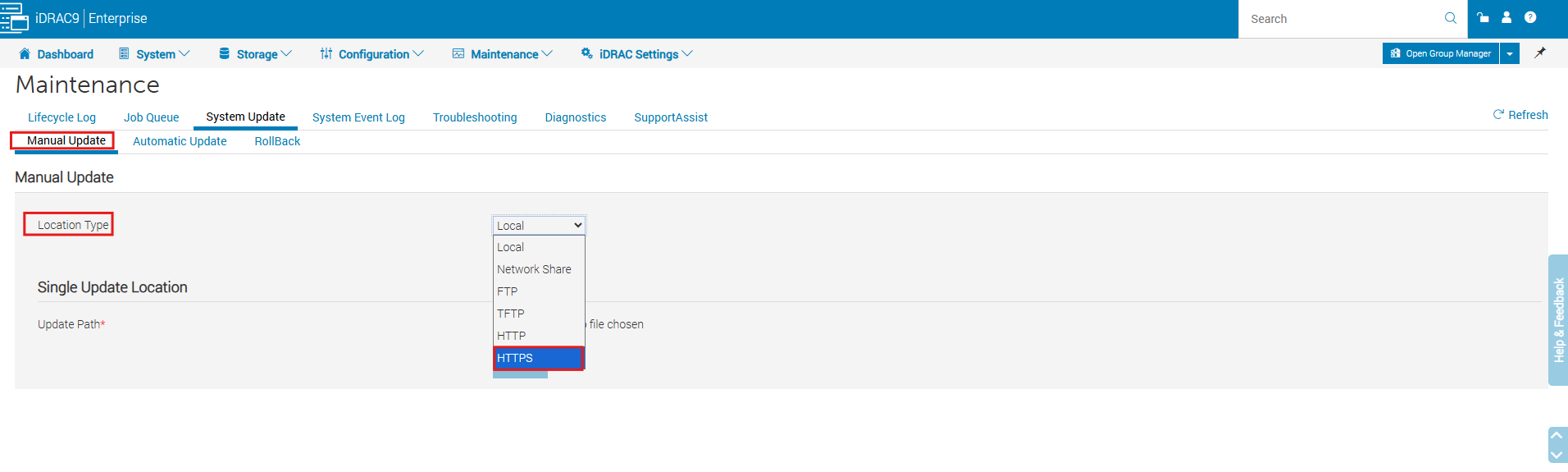
Navigate to Maintenance → System Update → Manual Update

Select → Manual Update → Location Type → HTTPS
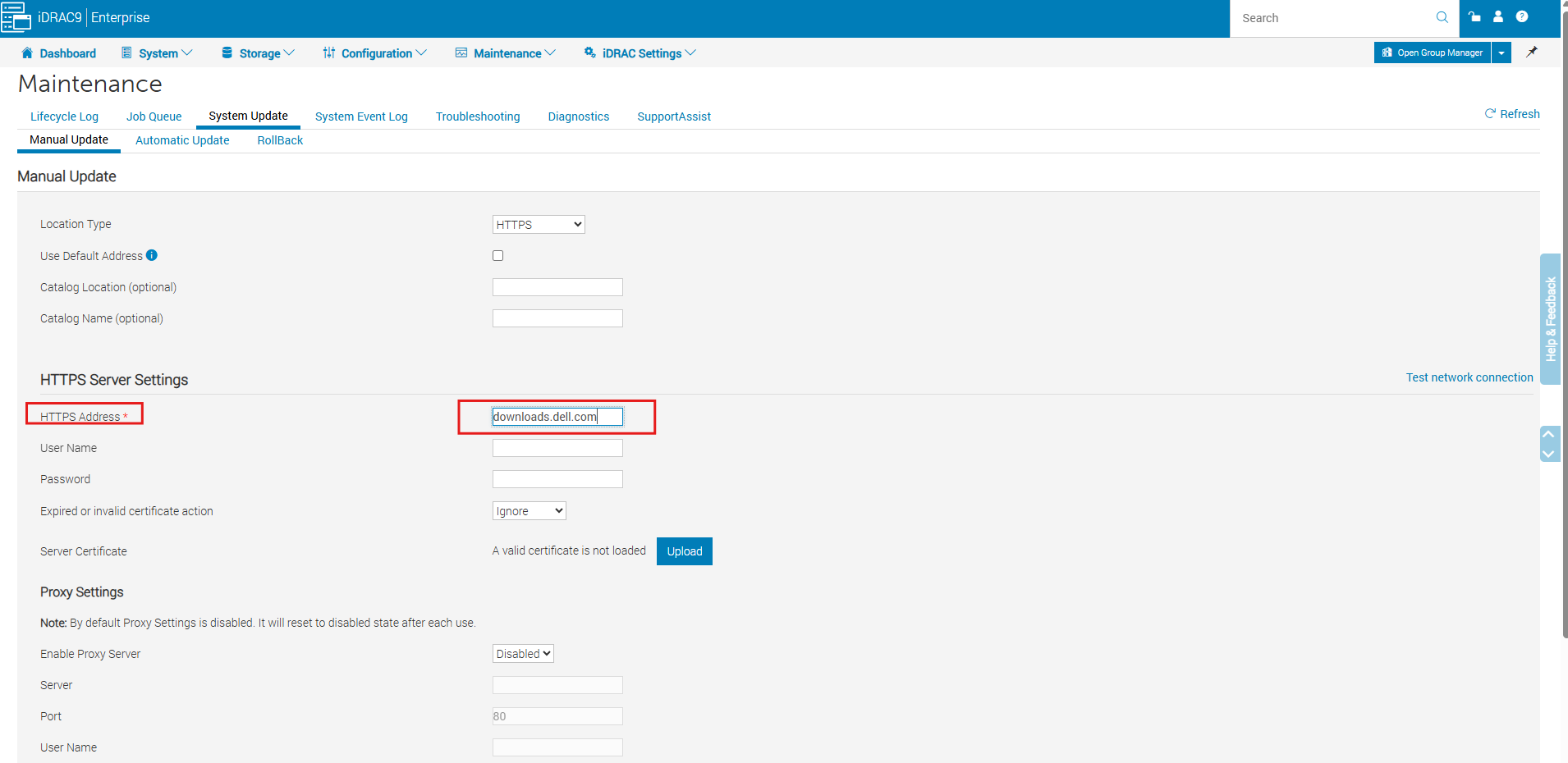
Enter the following HTTPS server address: downloads.dell.com
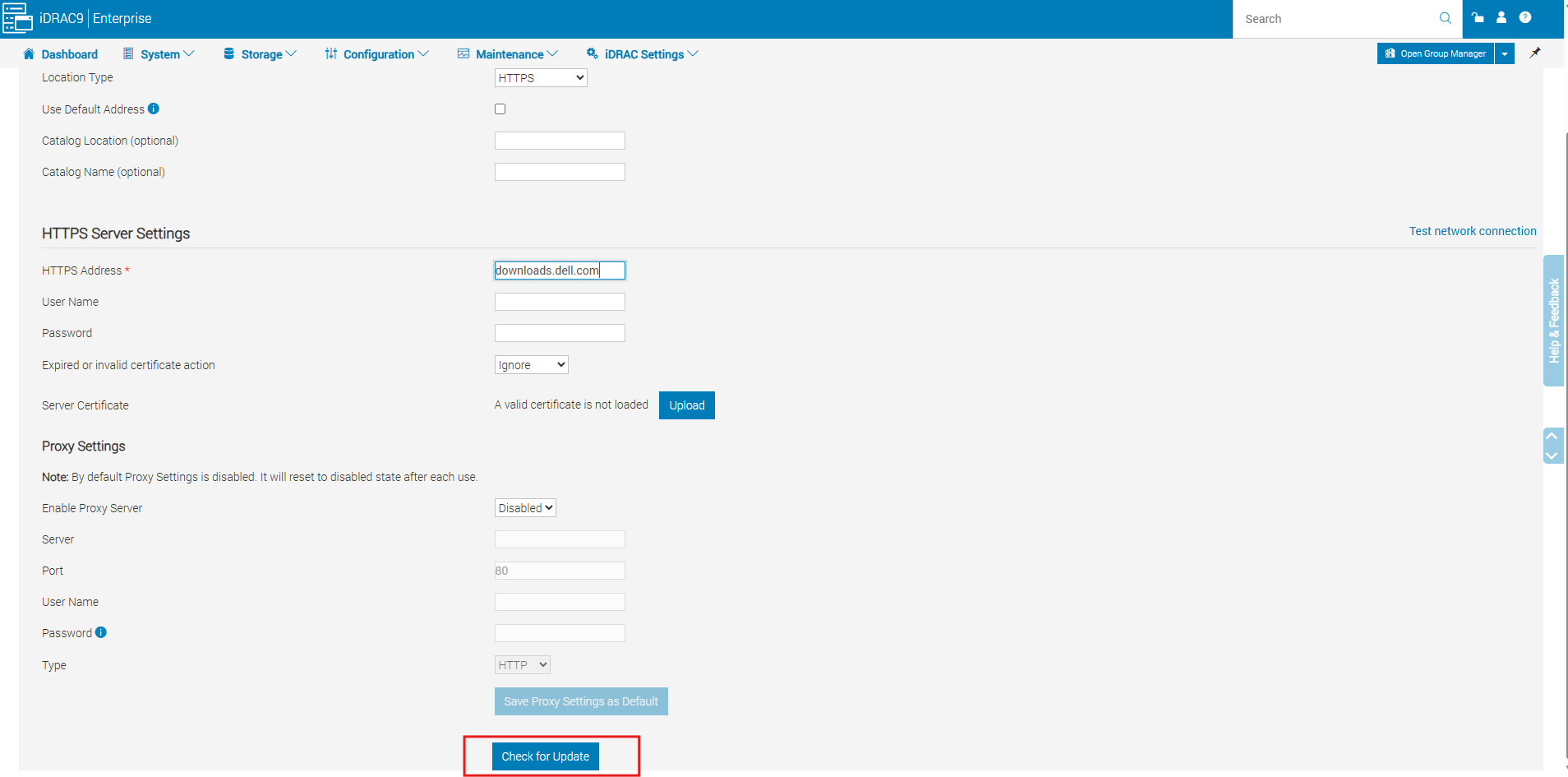
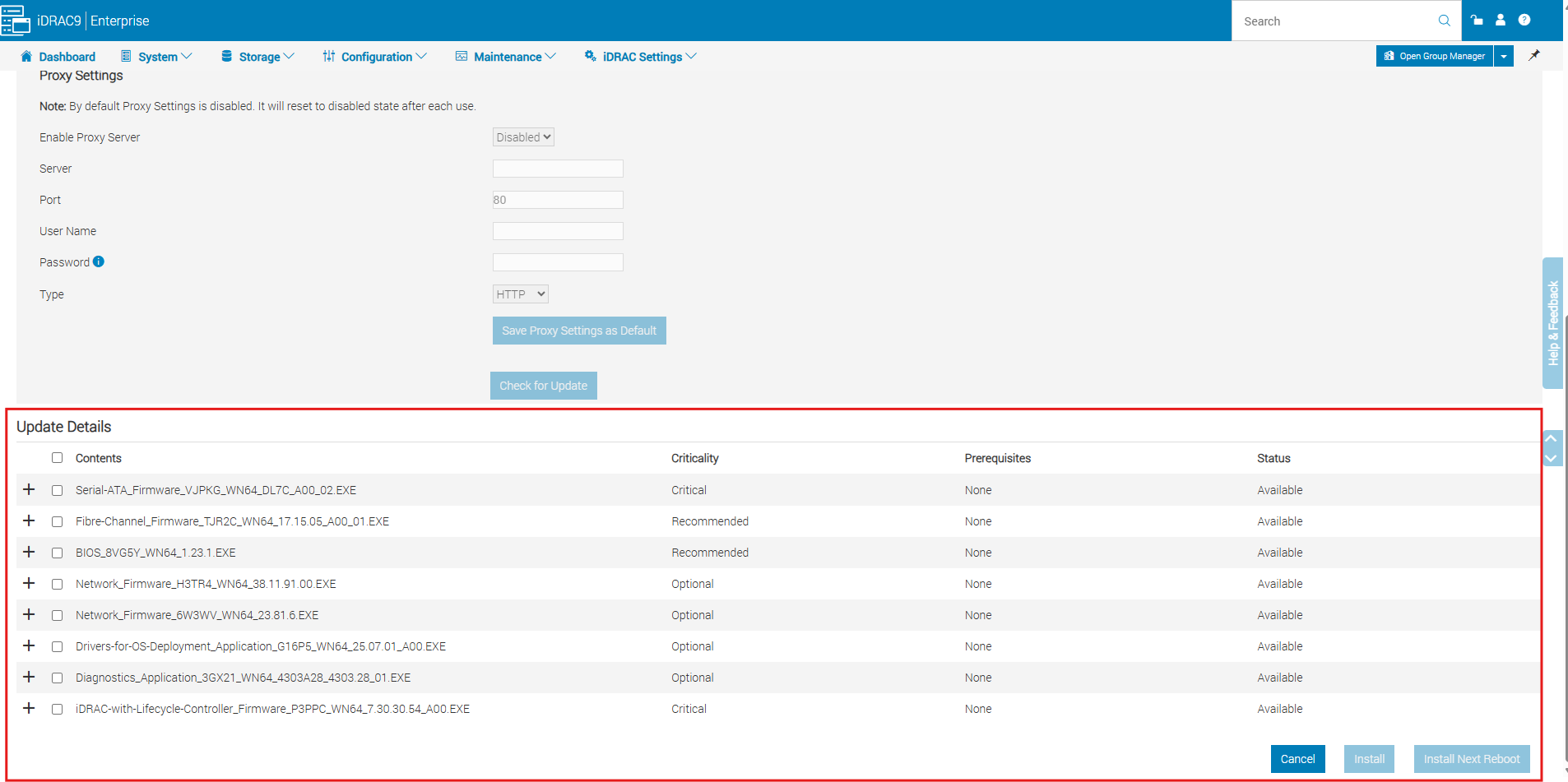
Scroll down and click on Check for Update.
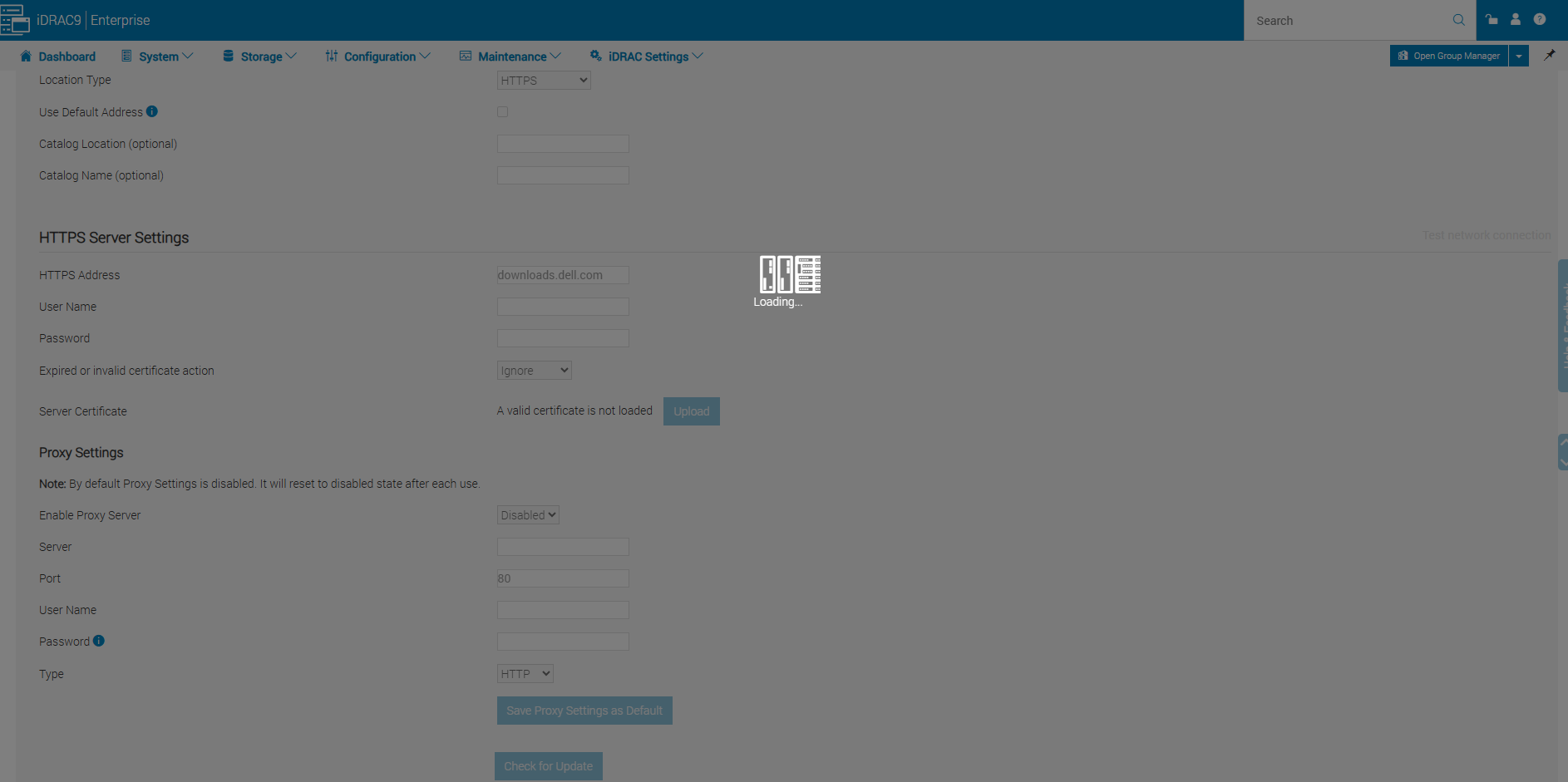
After clicking Check for Update, iDRAC connects to Dell’s online firmware repository, downloads the update catalog, and compares the available firmware versions with those currently installed on the server.
iDRAC retrieves Dell’s online catalog and displays applicable firmware updates, including installed and available versions.
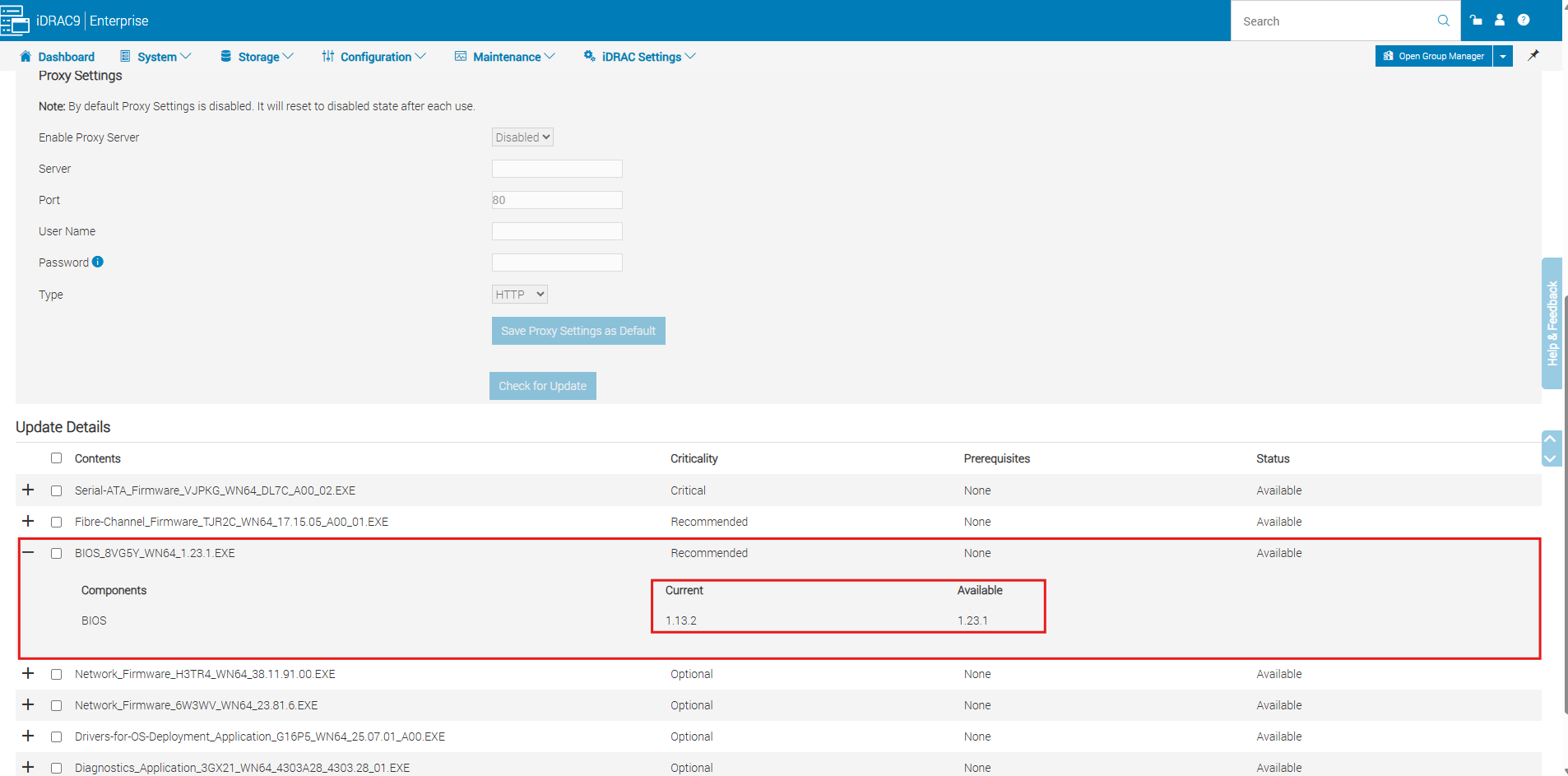
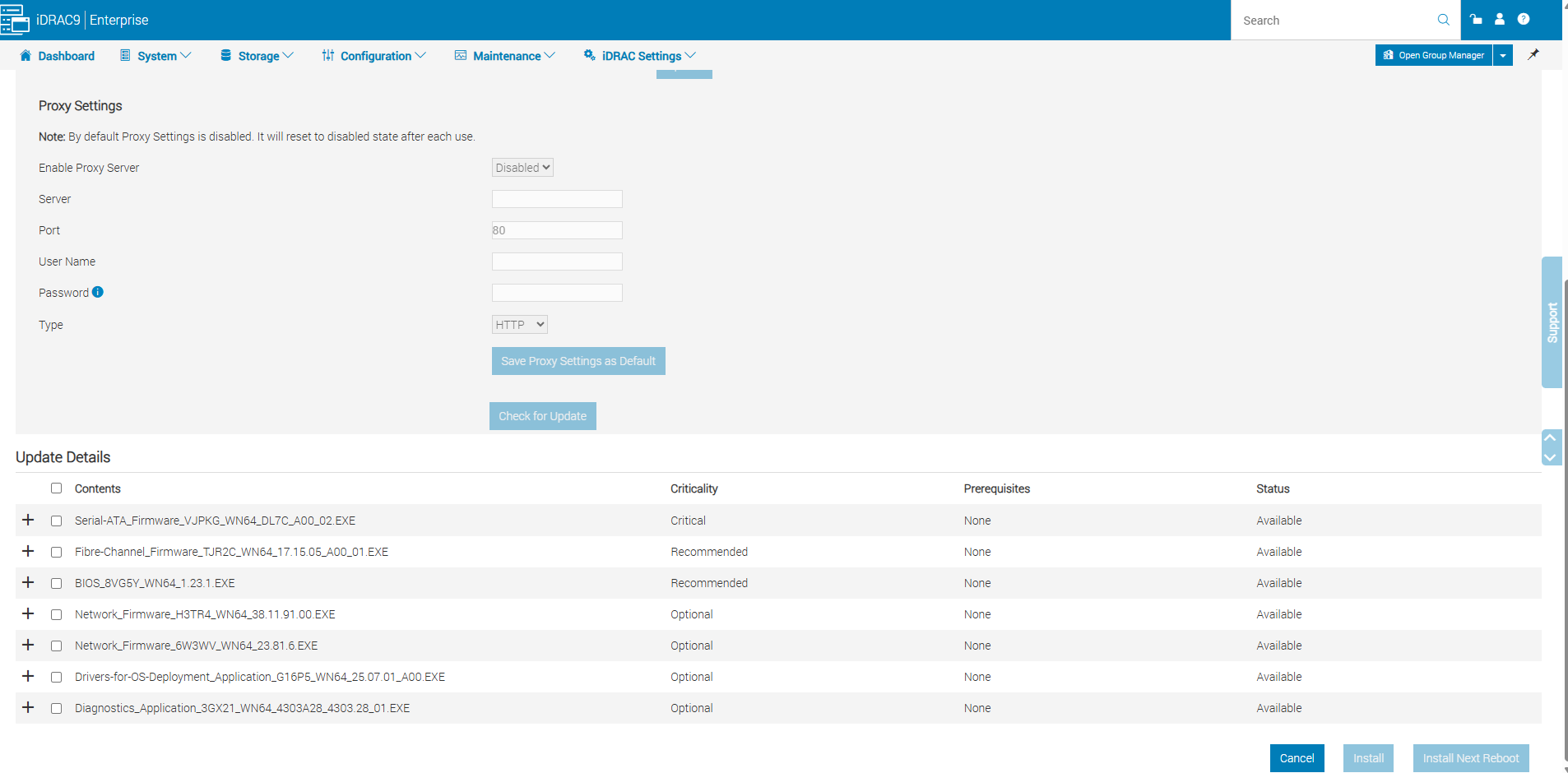
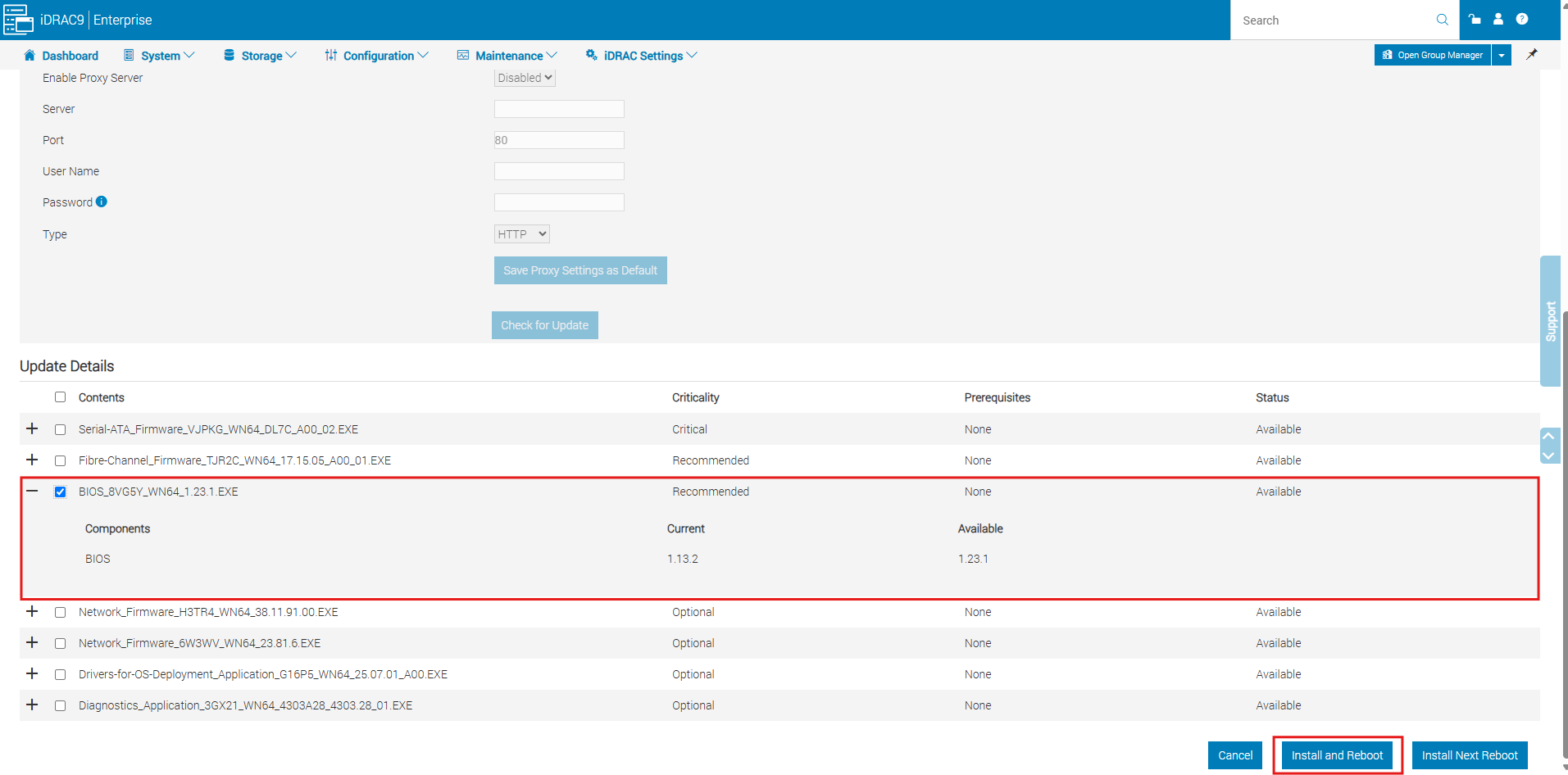
As shown in the example below, iDRAC detects that the currently installed BIOS version is 1.13.2, while the newer version 1.23.1 is available from Dell’s firmware repository.
By expanding each update entry using the + icon, we can compare the installed and available firmware versions for individual hardware components without rebooting the server.
Installing Firmware Updates Directly Through iDRAC9
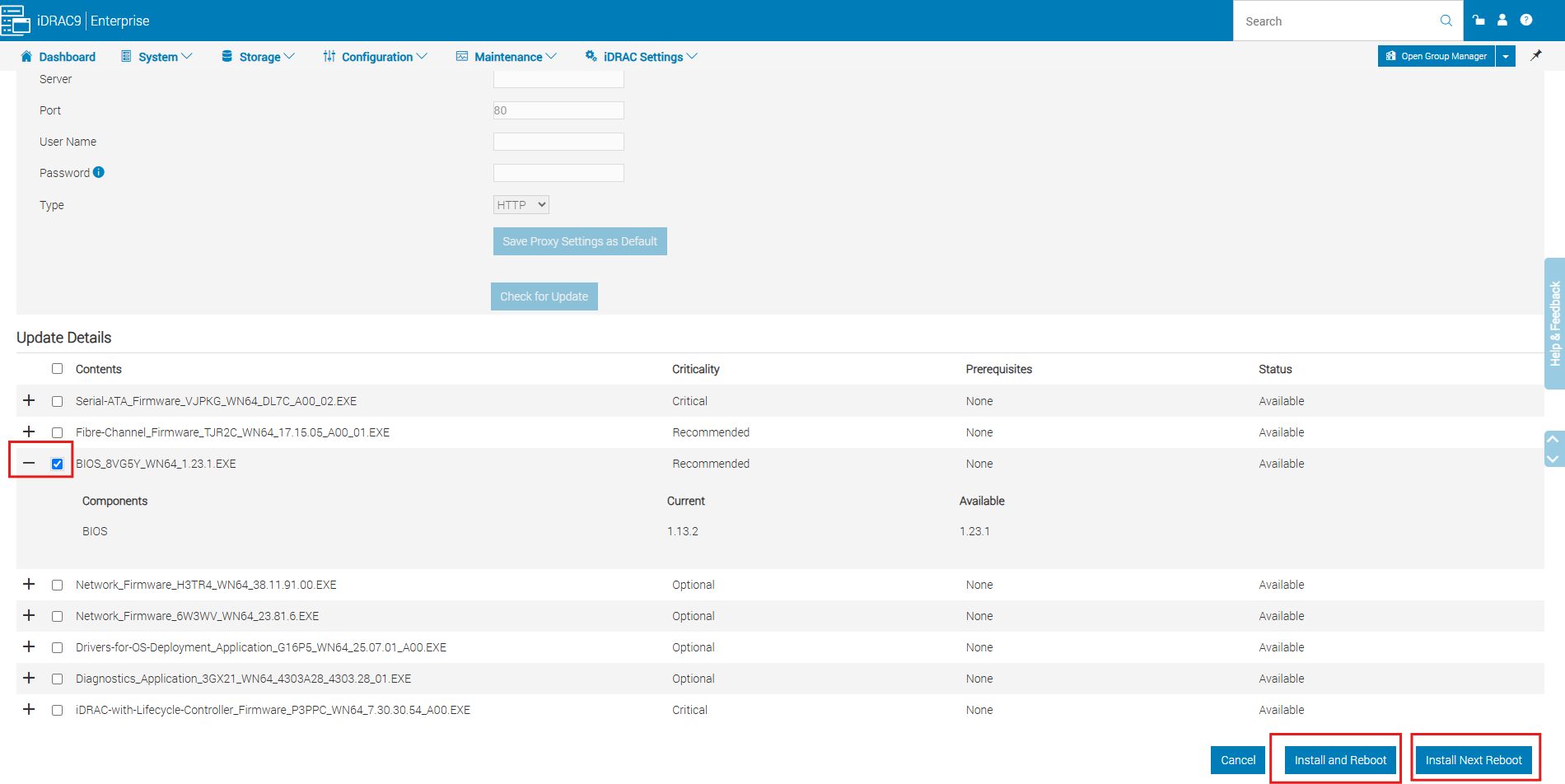
After reviewing the available firmware updates, we can select the components we want to update using the corresponding checkboxes.
iDRAC9 provides two installation options:
- Install and Reboot: Initiates the firmware update process and automatically reboots the server as required.
- Install Next Reboot: Schedules the selected firmware updates for installation during the next server reboot.
The firmware installation is managed by iDRAC and the underlying Lifecycle Controller infrastructure, without requiring us to manually boot into the Lifecycle Controller interface, as demonstrated in my previous article using the Dell Server Update Utility (SUU) ISO.
When multiple firmware updates are selected, iDRAC automatically organizes the update sequence to minimize unnecessary server reboots.
However, Dell recommends installing certain firmware updates, including BIOS, iDRAC, CPLD/FPGA and power supply firmware, separately.
The iDRAC firmware can be updated independently of the host operating system, without requiring a server reboot or interrupting running virtual machines. During the update, only the iDRAC management controller restarts, temporarily making the management interface unavailable while ESXi and its virtual machines continue running.
The update progress can be monitored under Maintenance → Job Queue, while detailed events are recorded in the Lifecycle Log.
Important: Firmware updates affecting the system BIOS or other hardware components may require one or more server reboots. In VMware ESXi environments, the host should first be placed into Maintenance Mode after migrating its virtual machines to other cluster hosts using vMotion.
Updating the iDRAC9 and Lifecycle Controller Firmware
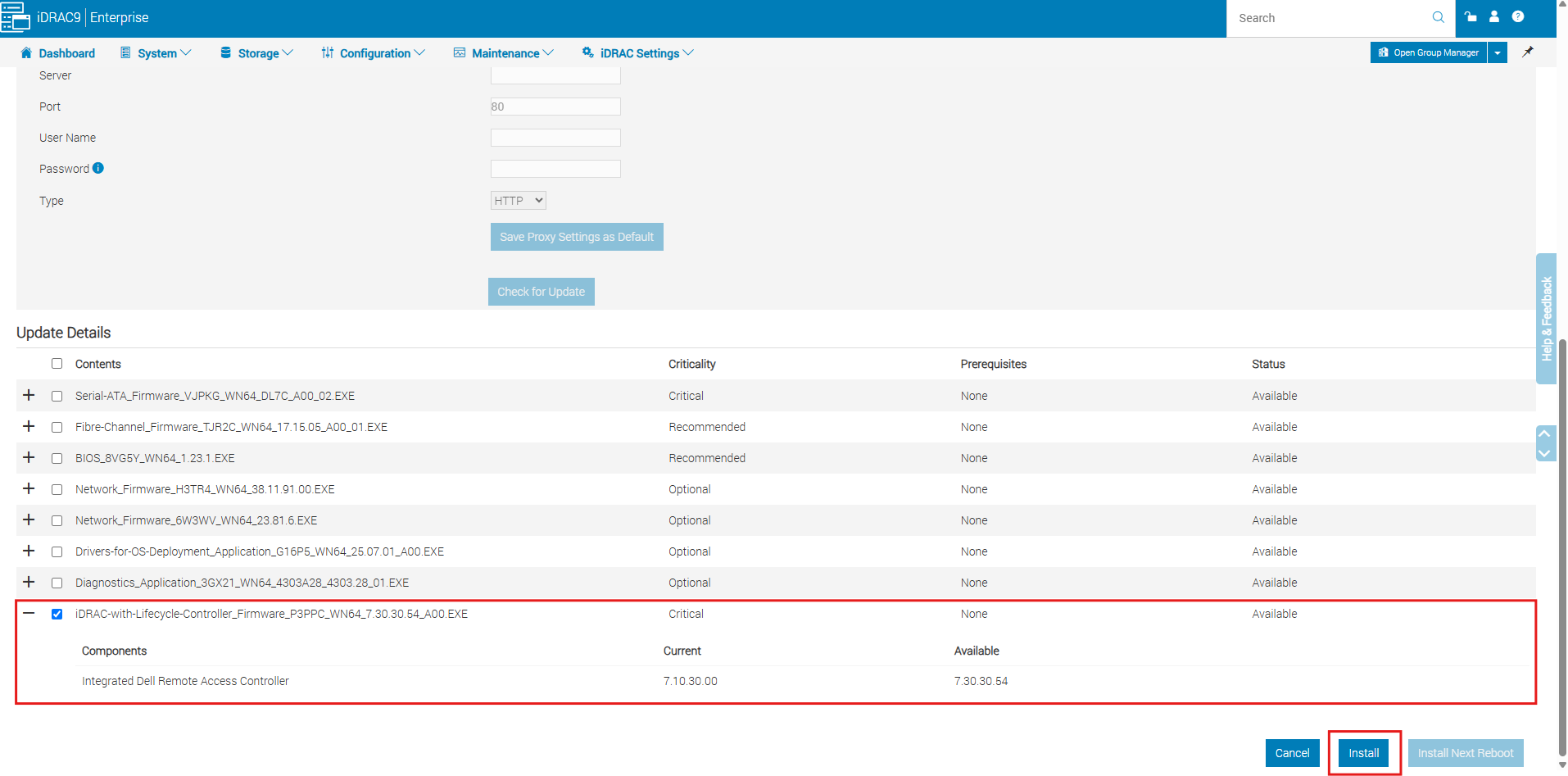
We first update the iDRAC9 with Lifecycle Controller firmware from version 7.10.30.00 to 7.30.30.54, which Dell classifies as a critical update.
Since the iDRAC is an independent management controller, we can simply click Install to apply the update without rebooting the physical server or interrupting the running operating system.
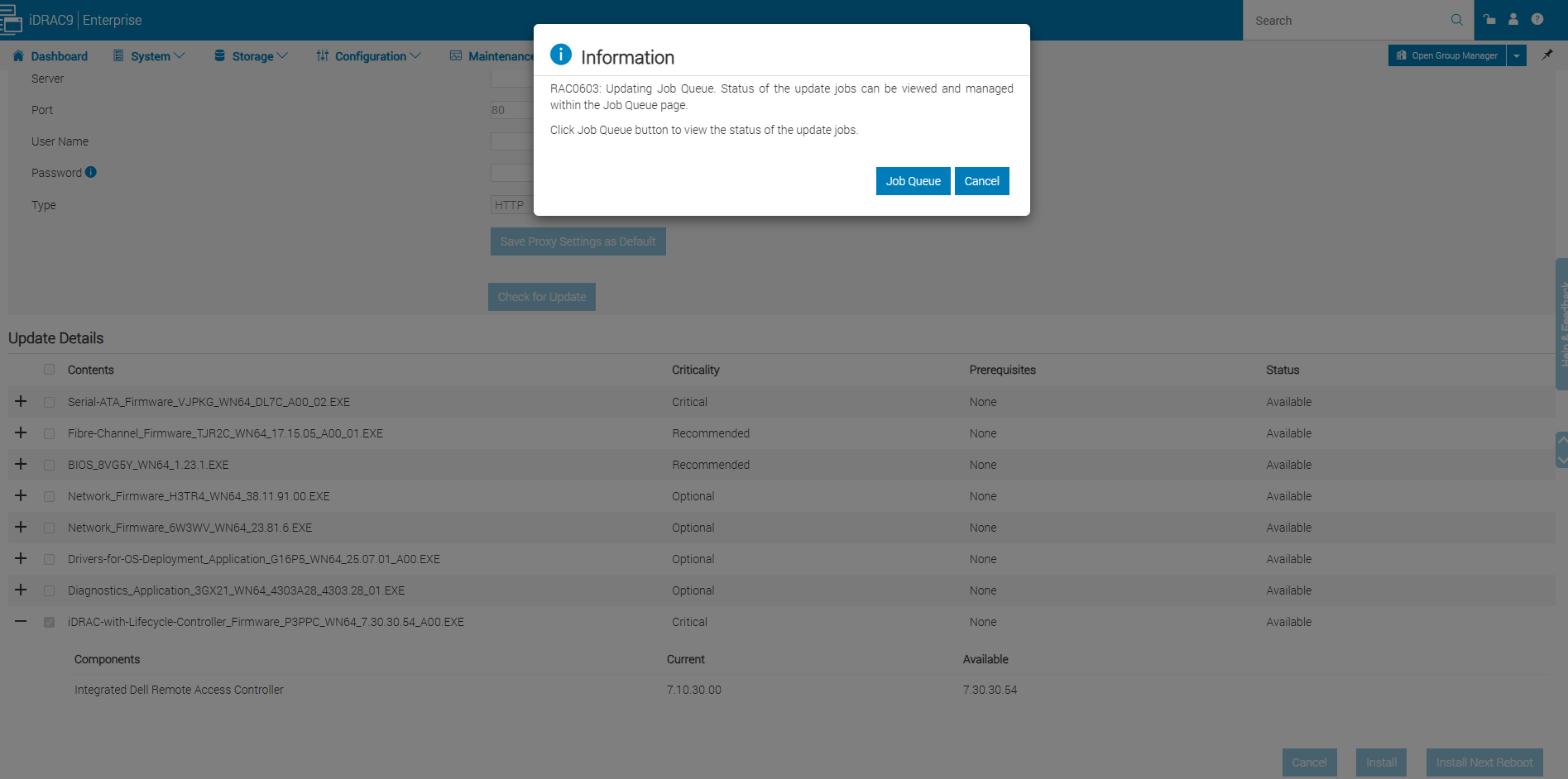
After clicking Install, iDRAC confirms that the firmware update has been submitted to the Job Queue. We can click Job Queue to monitor the installation progress.
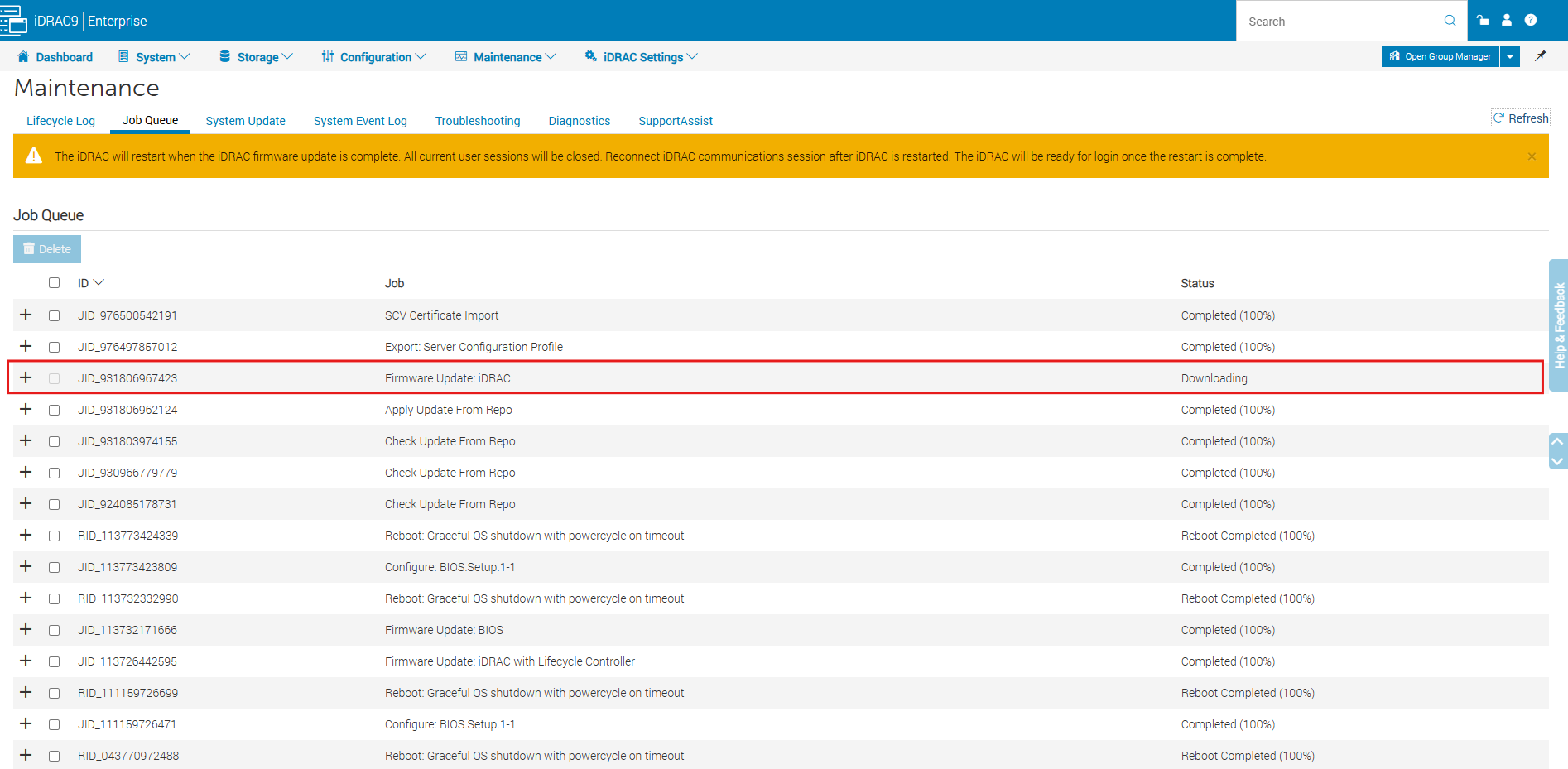
The Job Queue displays all firmware update and maintenance jobs, with the newest entries listed first.
Our current iDRAC firmware update is still in the Downloading state, while the repository update jobs have already completed successfully.
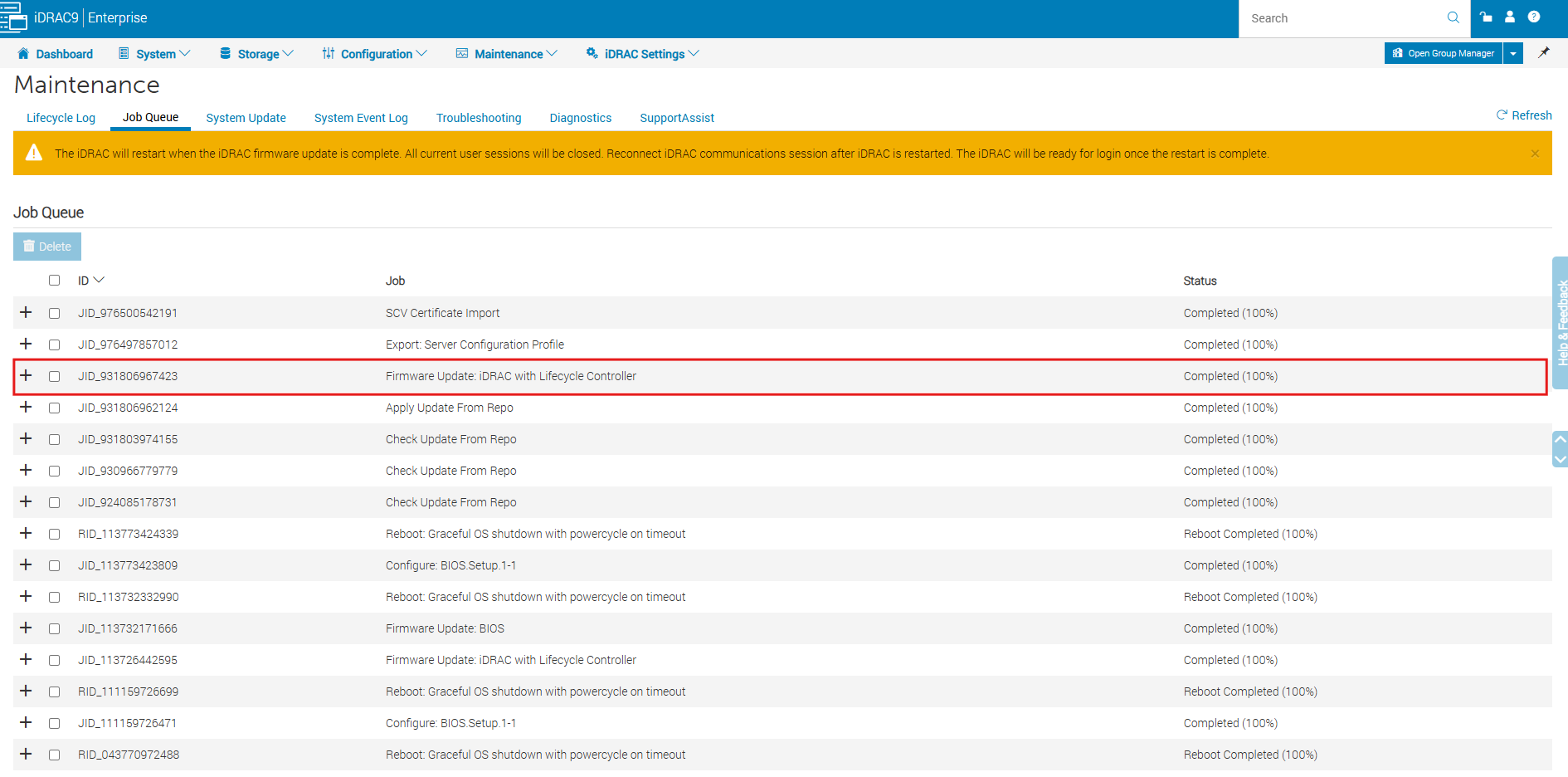
After approximately ten minutes, the iDRAC9 with Lifecycle Controller firmware update completed successfully, as confirmed by the Completed (100%) status in the Job Queue. We can now verify that the new firmware version 7.30.30.54 is installed before proceeding with the BIOS update.
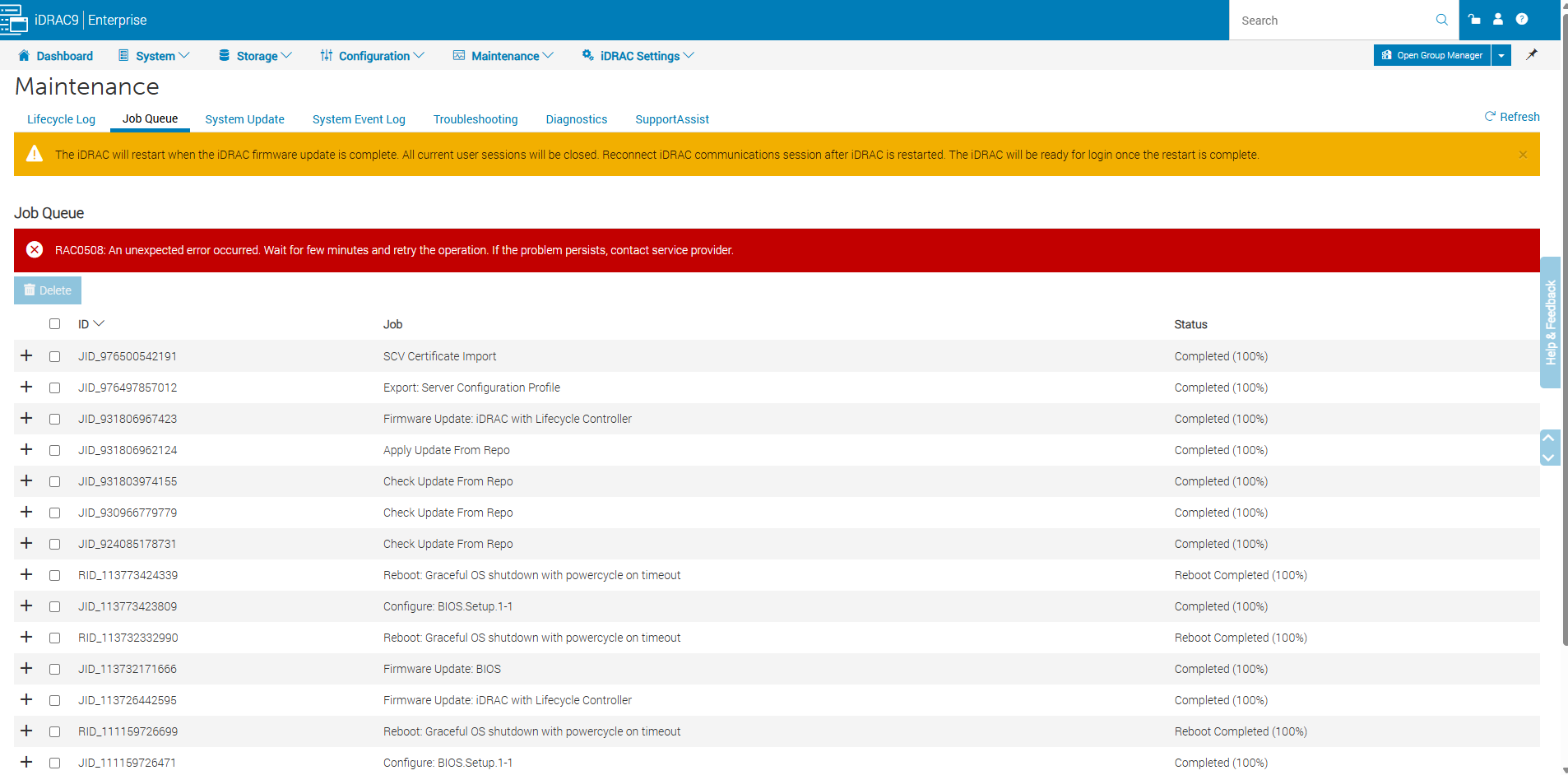
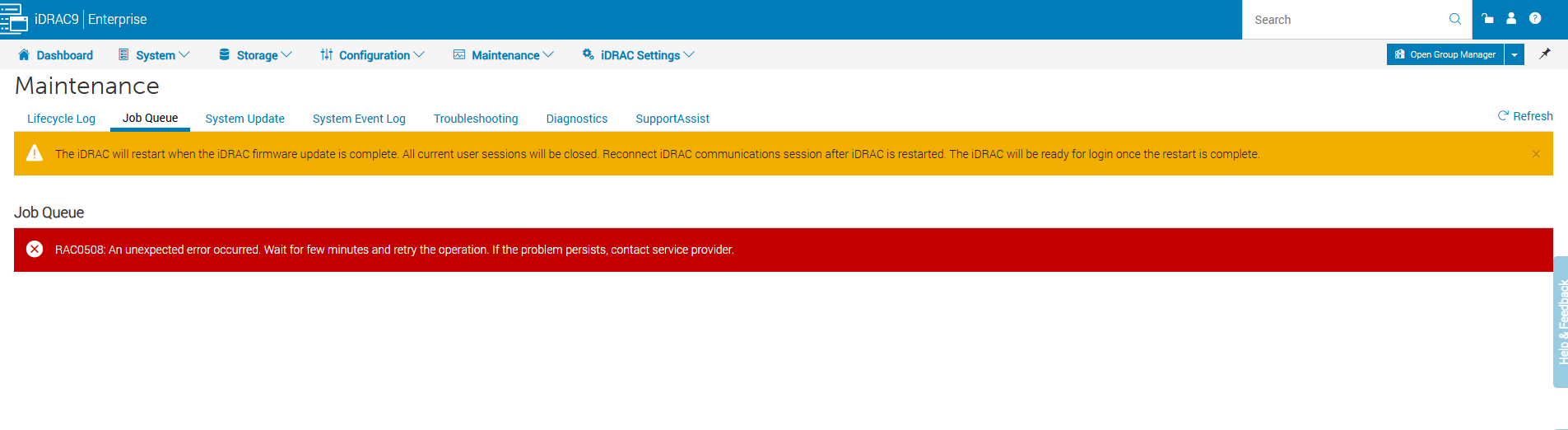
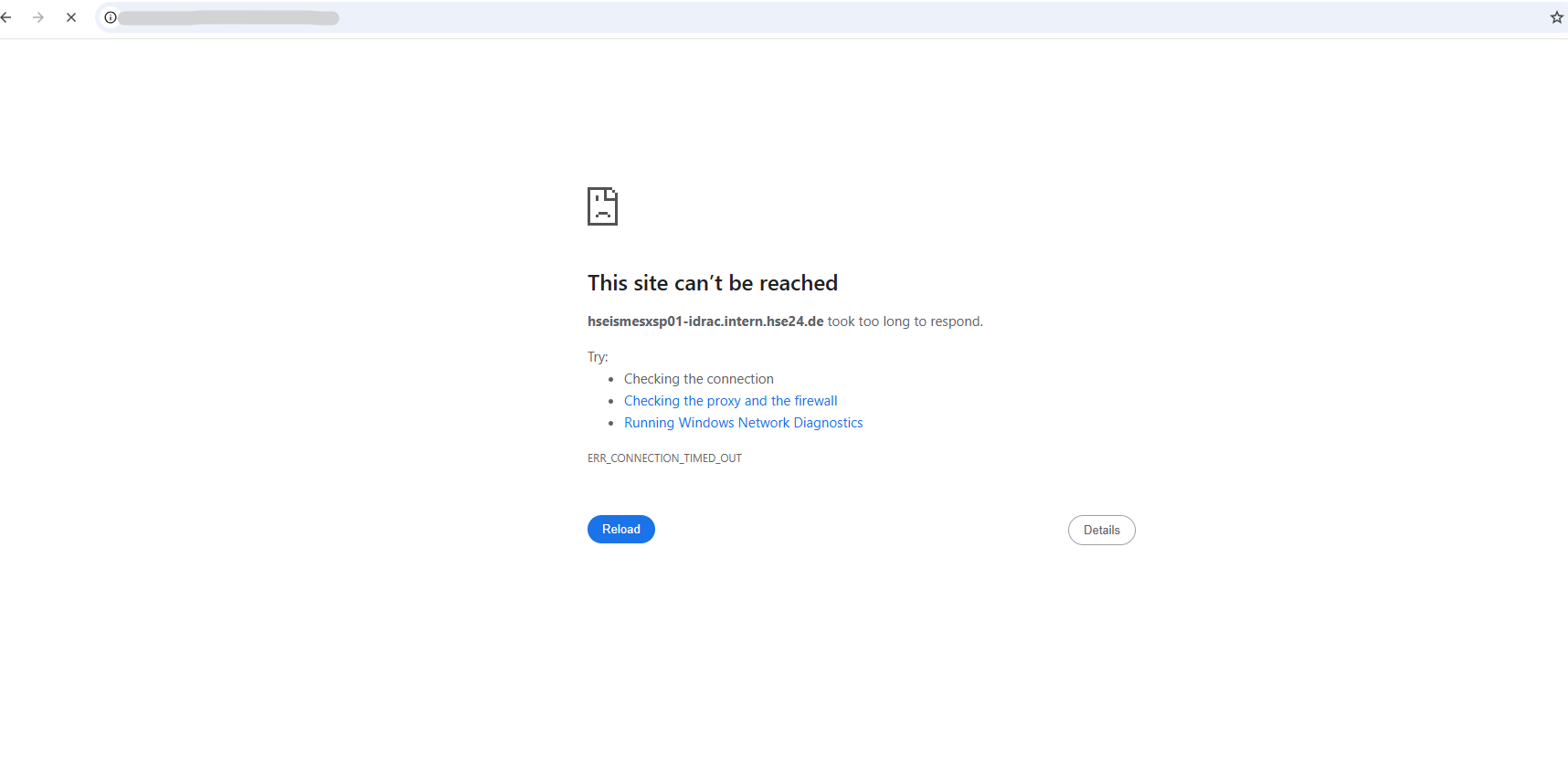
During the iDRAC firmware update, the web interface may briefly display RAC0508: An unexpected error occurred, followed by ERR_CONNECTION_TIMED_OUT when reloading the page.
This is expected while the iDRAC management controller restarts and temporarily becomes unavailable, without affecting the running ESXi host.
When reloading the entire iDRAC web interface, the browser displays “This site can’t be reached” (ERR_CONNECTION_TIMED_OUT) because the management controller is temporarily unavailable during its firmware update and restart.
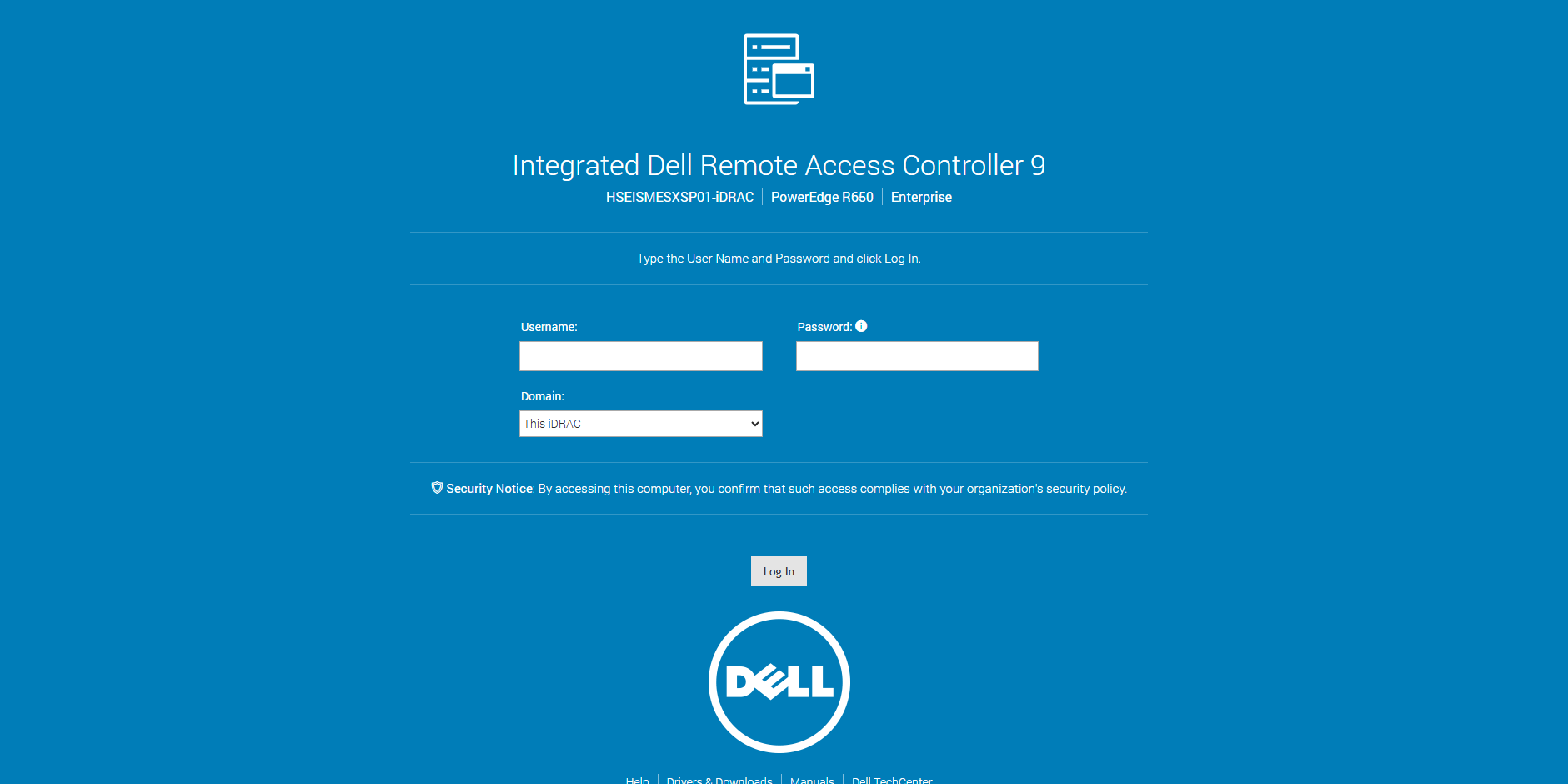
Approximately 2–3 minutes later, the iDRAC9 login page becomes accessible again after the management controller has restarted.
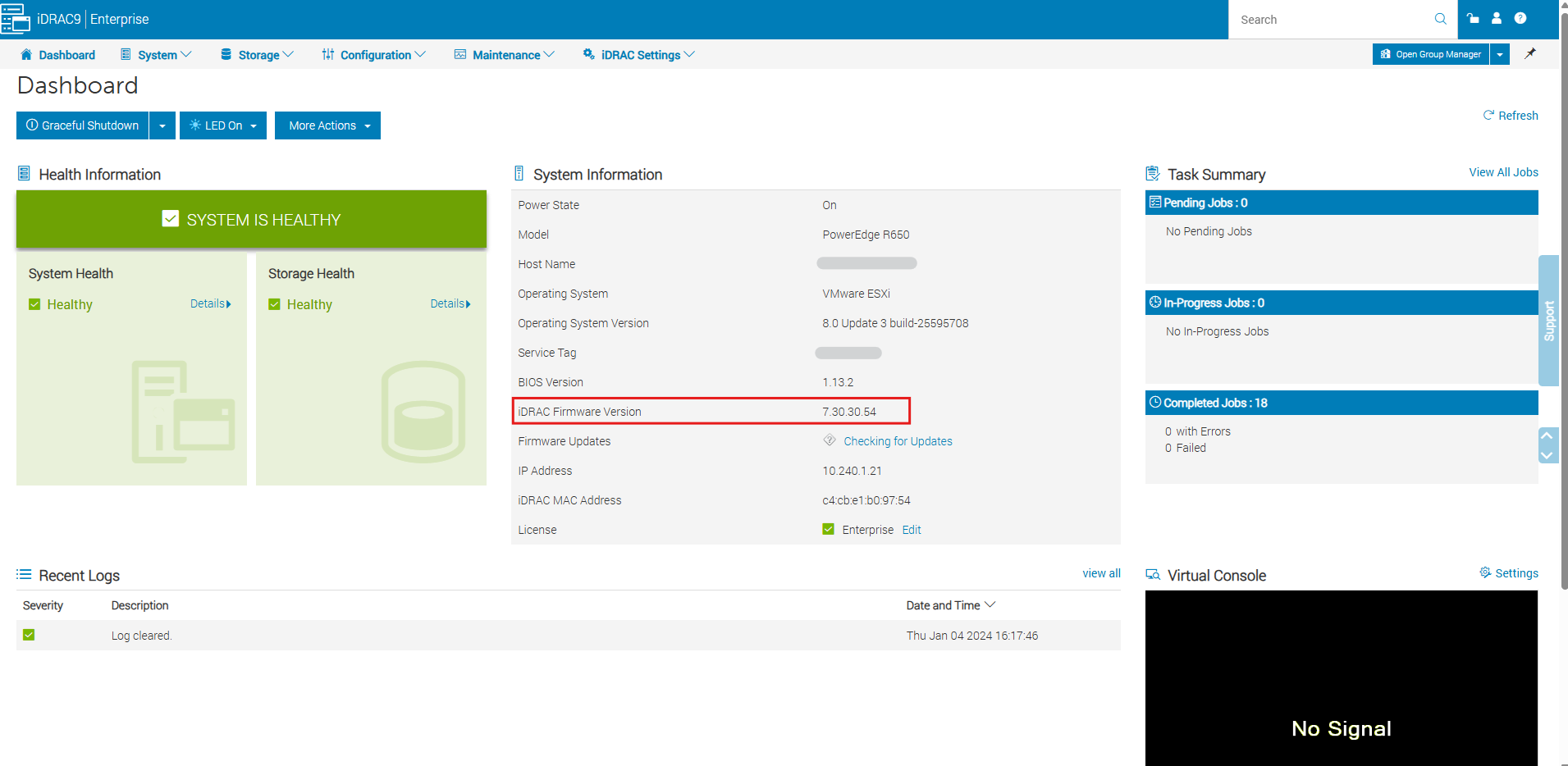
We can now log in and verify that the new firmware version was installed successfully.
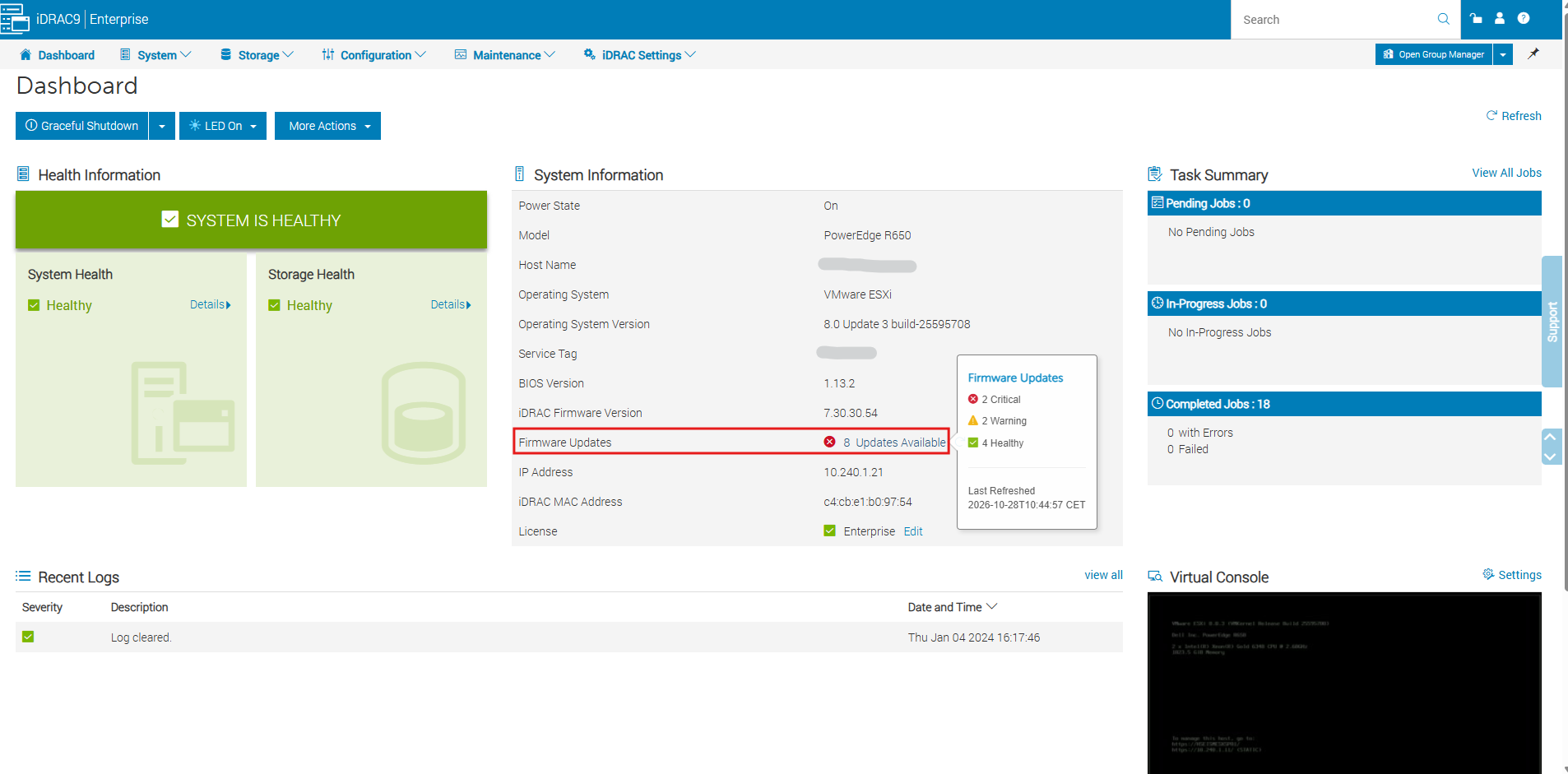
After logging back into iDRAC9, the dashboard confirms that the firmware was successfully updated to version 7.30.30.54. The system and storage health indicators remain healthy, and the Job Queue shows no pending, running, or failed updates.
The iDRAC9 dashboard now shows 8 remaining firmware updates, including 2 critical and 2 warning-level updates, while 4 components are classified as healthy. Hovering over 8 Updates Available displays this breakdown along with the last refresh timestamp.
Returning to System Update, the successfully installed iDRAC9 firmware update is no longer listed among the available updates. Next, we will update the BIOS from version 1.13.2 to 1.23.1, which requires a server reboot and therefore should be performed while the ESXi host remains in Maintenance Mode.
Updating the Dell PowerEdge BIOS Firmware
After successfully updating the iDRAC9 and Lifecycle Controller firmware, we can proceed with the BIOS update from version 1.13.2 to 1.23.1. This update also addresses the security vulnerabilities described in Dell Security Advisory DSA-2026-355.
Unlike the iDRAC firmware update, updating the BIOS requires a physical server reboot to apply the new firmware. Since our Dell PowerEdge R650 is running VMware ESXi, we first migrate all running virtual machines to the remaining cluster hosts using vMotion and place the host into Maintenance Mode before proceeding.
Select the available BIOS firmware update from version 1.13.2 to 1.23.1 and click Install and Reboot to start the update immediately.
Unlike the iDRAC firmware update, the BIOS update requires a server reboot, during which the Lifecycle Controller applies the new firmware before VMware ESXi starts again.
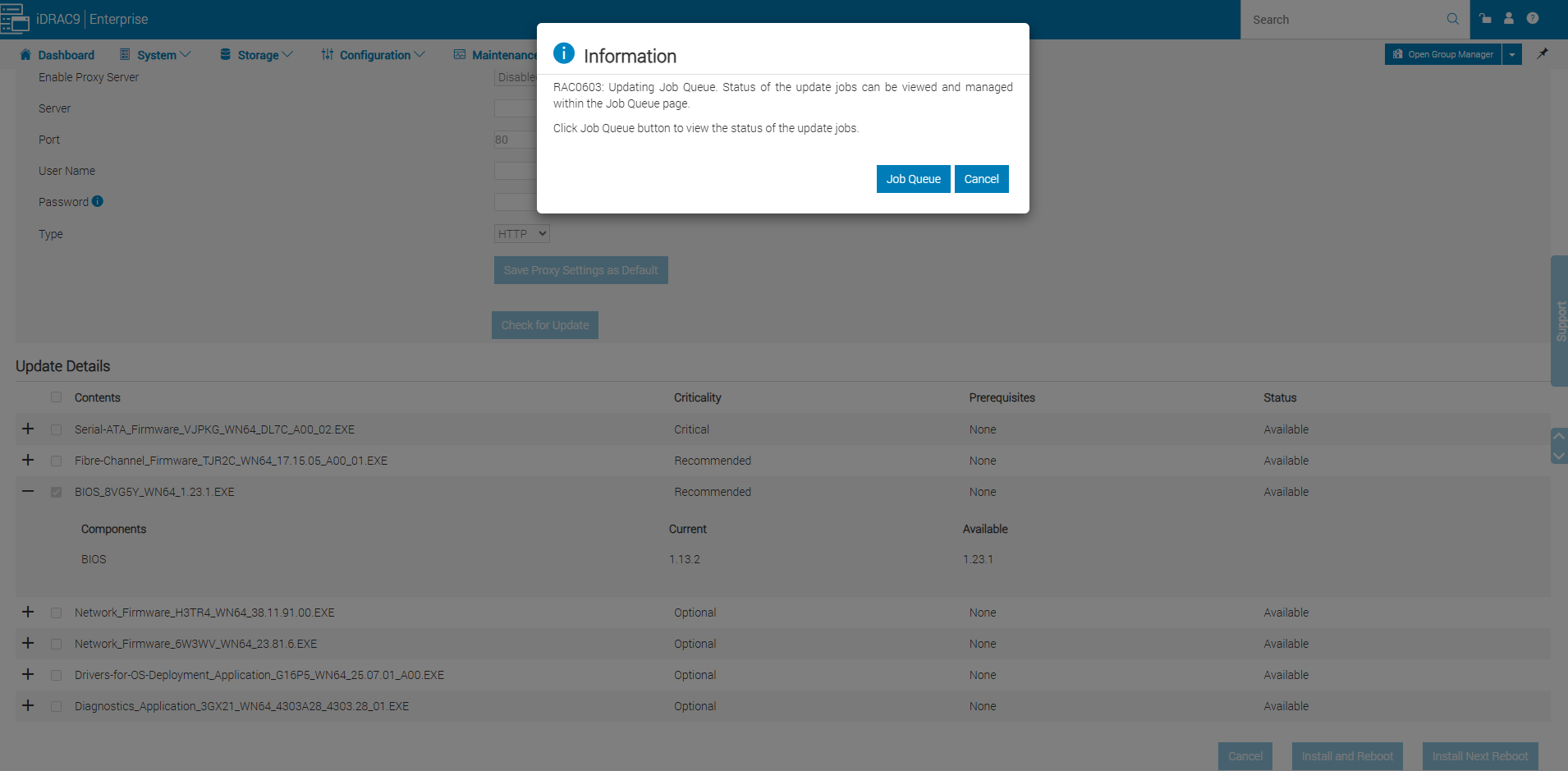
After clicking Install and Reboot, iDRAC confirms that the update jobs have been submitted to the Job Queue. We can monitor the BIOS firmware update there, including the download, installation, and reboot process.
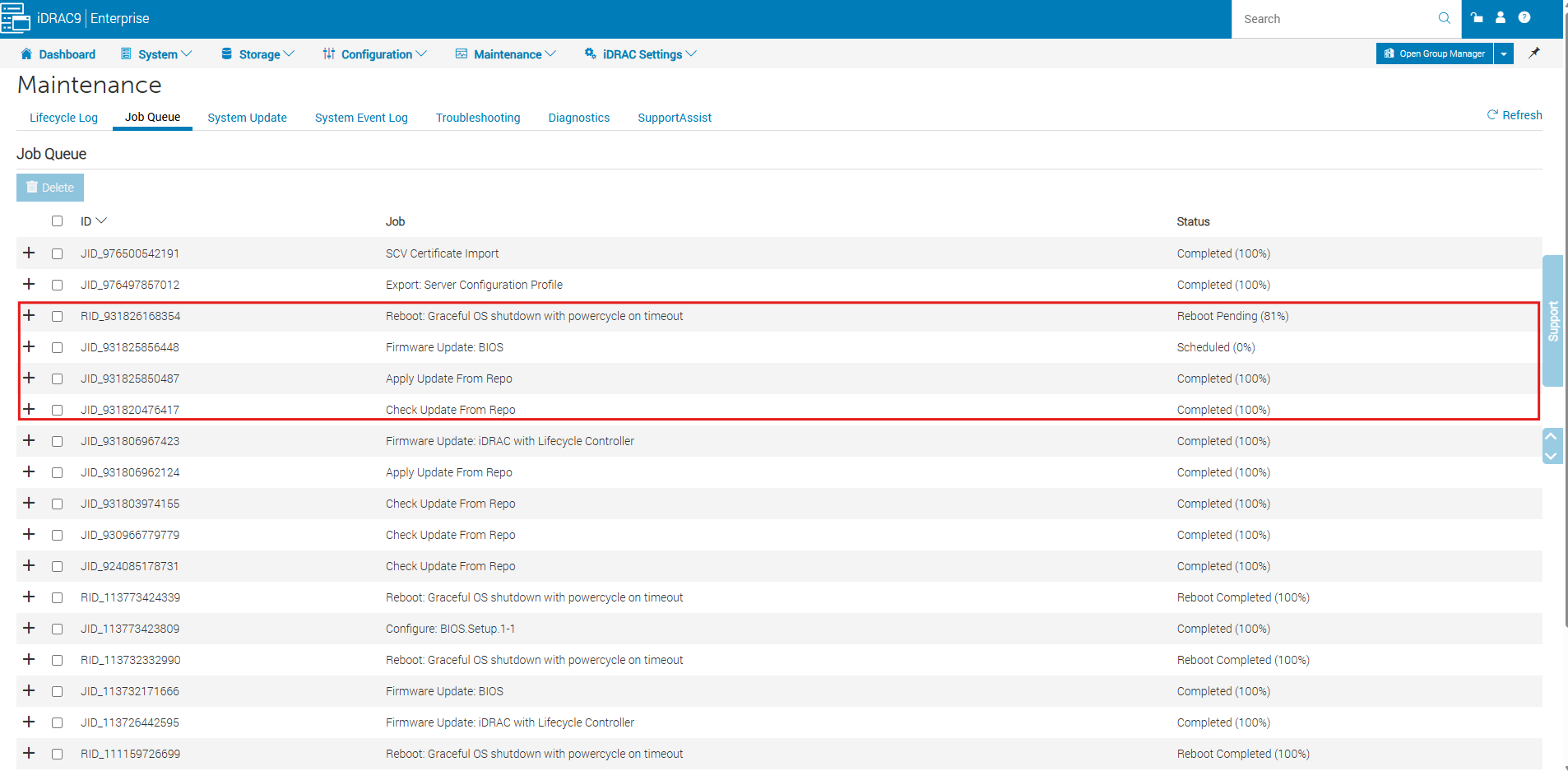
The iDRAC Job Queue now shows the BIOS firmware update as scheduled, with a server reboot pending.
The repository checks and update preparation have already completed successfully, and the BIOS update will be applied during the reboot process.
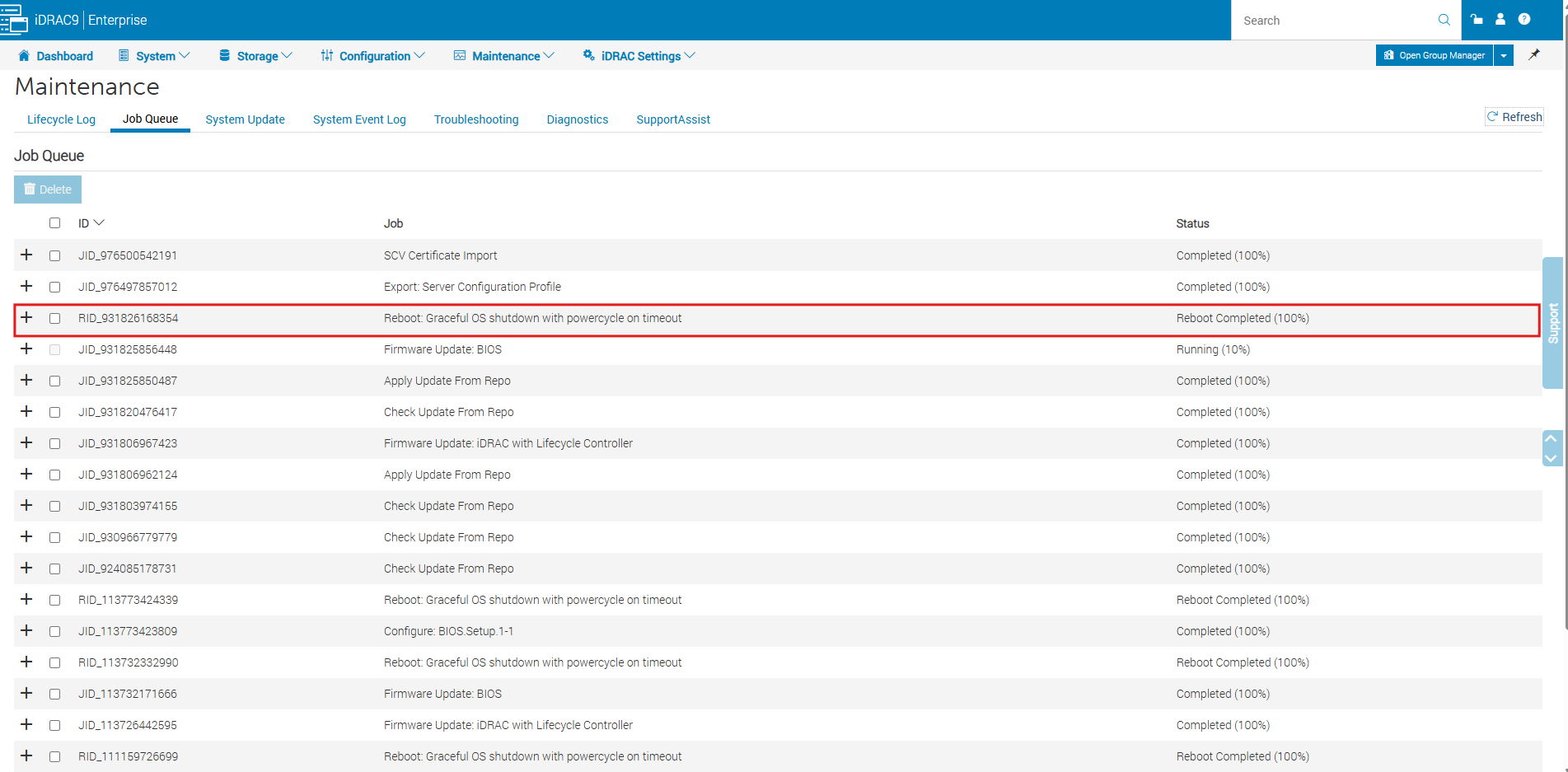
The Job Queue confirms that the server reboot has completed successfully, while the BIOS firmware update is now running. The update is being processed by Lifecycle Controller, and we can monitor its progress directly through the iDRAC interface.
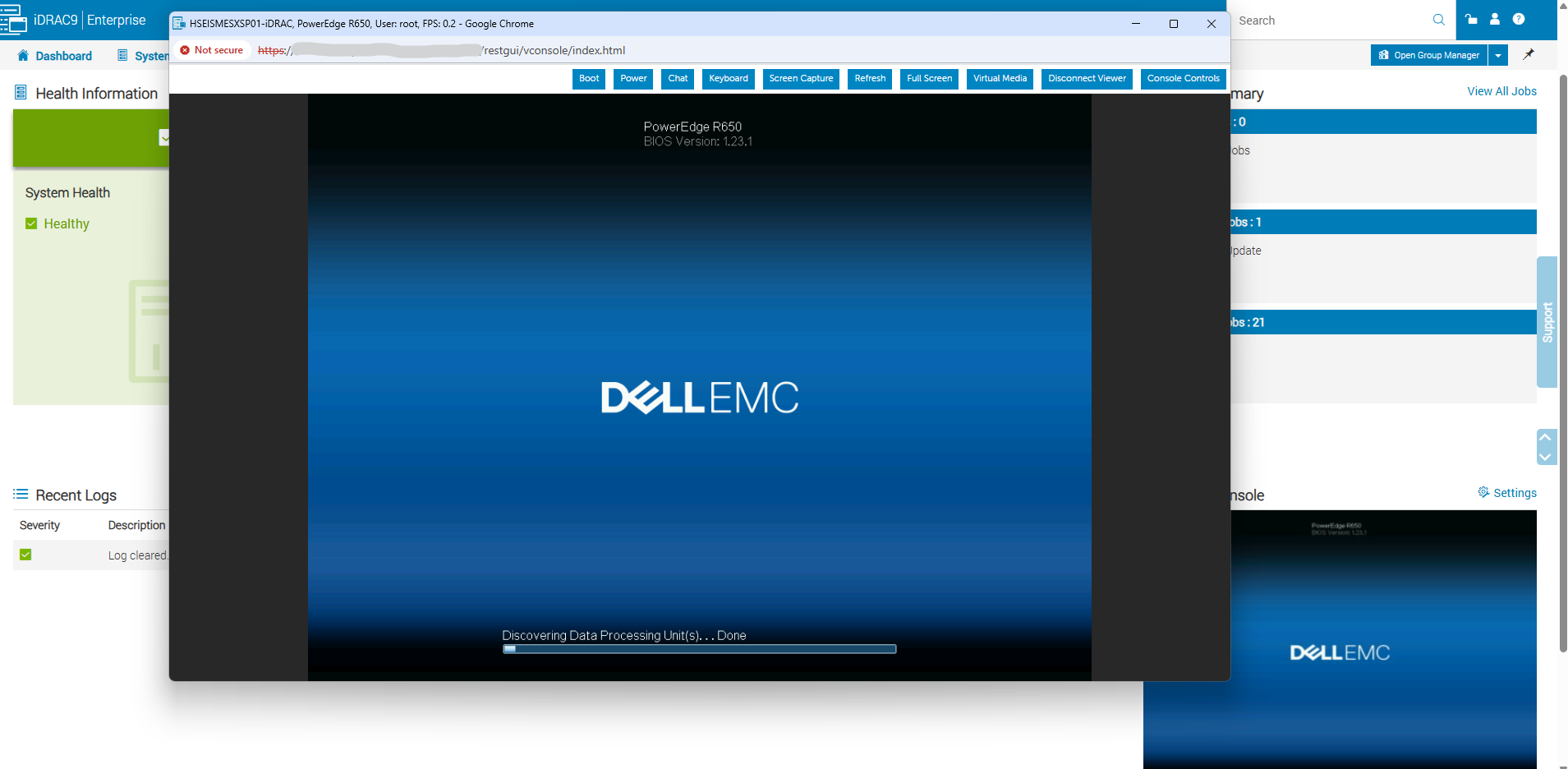
Using the iDRAC Virtual Console, we can follow the server’s reboot and POST process.
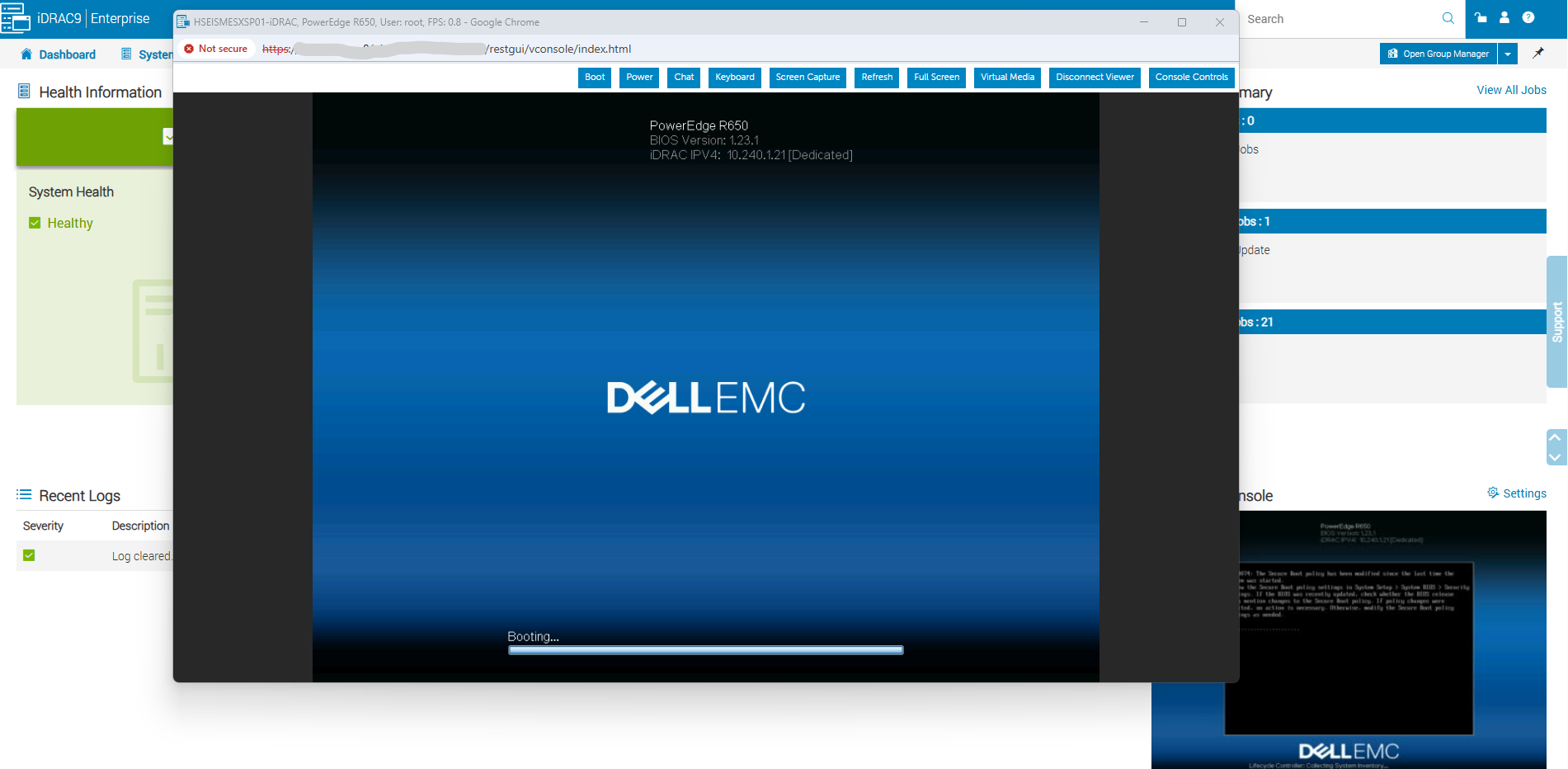
The boot screen already displays the updated BIOS version
1.23.1, confirming that the new firmware has been applied successfully.
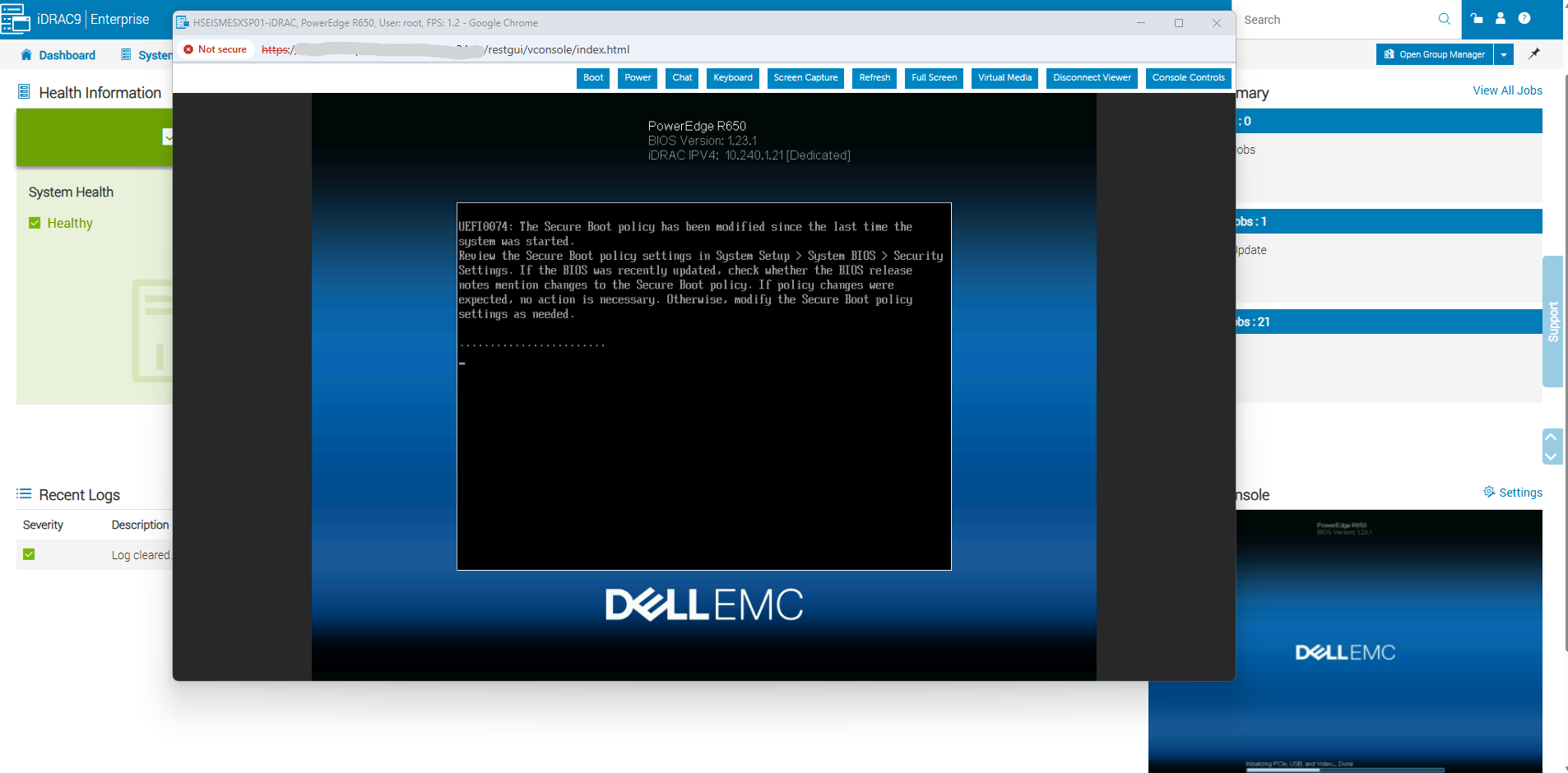
During the first reboot after the BIOS update, the server displays the UEFI0074 notification, indicating that the Secure Boot policy has changed since the previous startup. This can occur after BIOS firmware updates and should be followed by verification of the Secure Boot configuration and successful ESXi startup.
After displaying the Secure Boot policy notification following the BIOS update, the server continues its normal boot sequence with the new BIOS version 1.23.1.
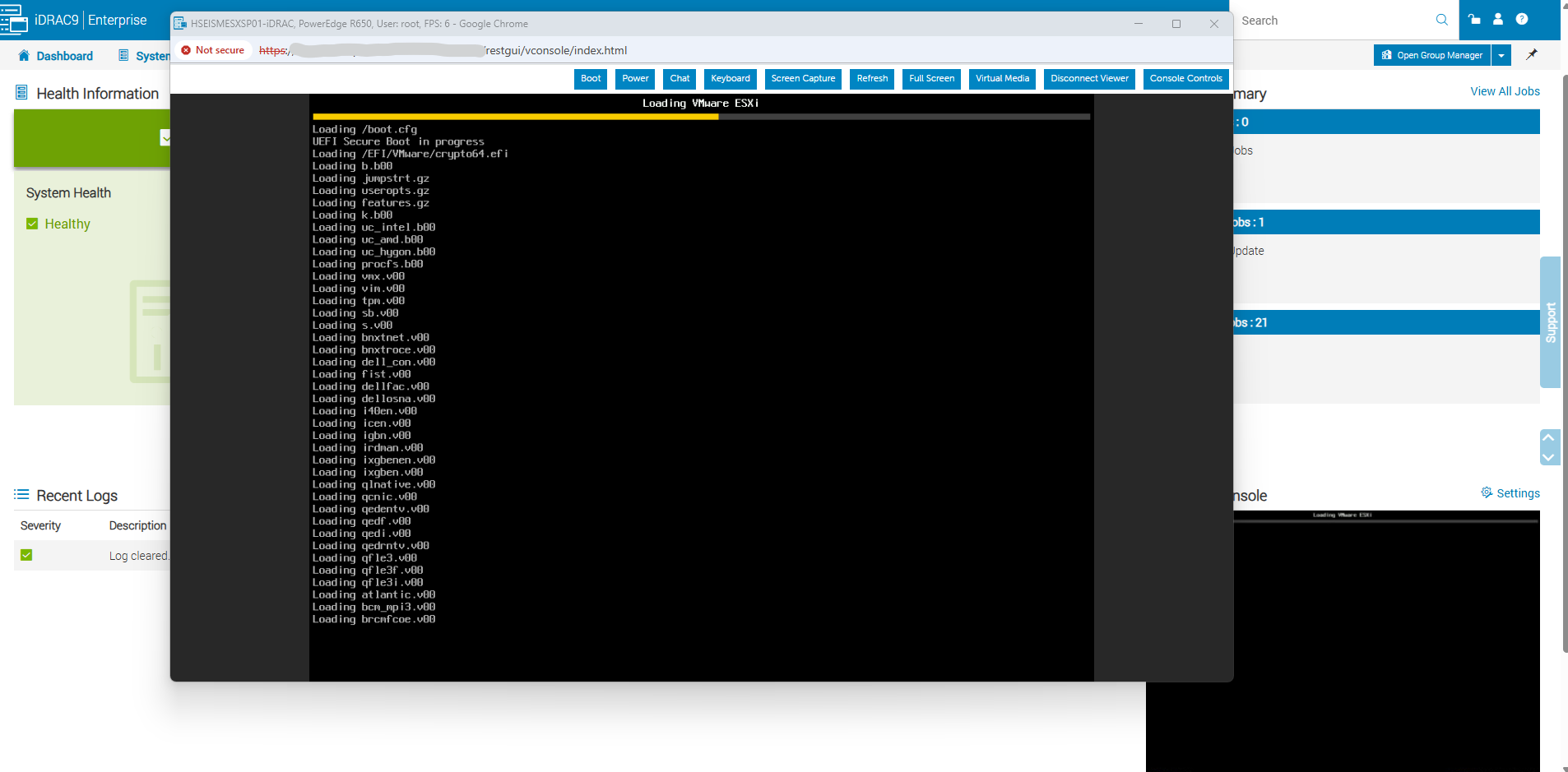
The server proceeds with the UEFI boot process and starts loading VMware ESXi 8.0.3, including its boot modules and drivers.
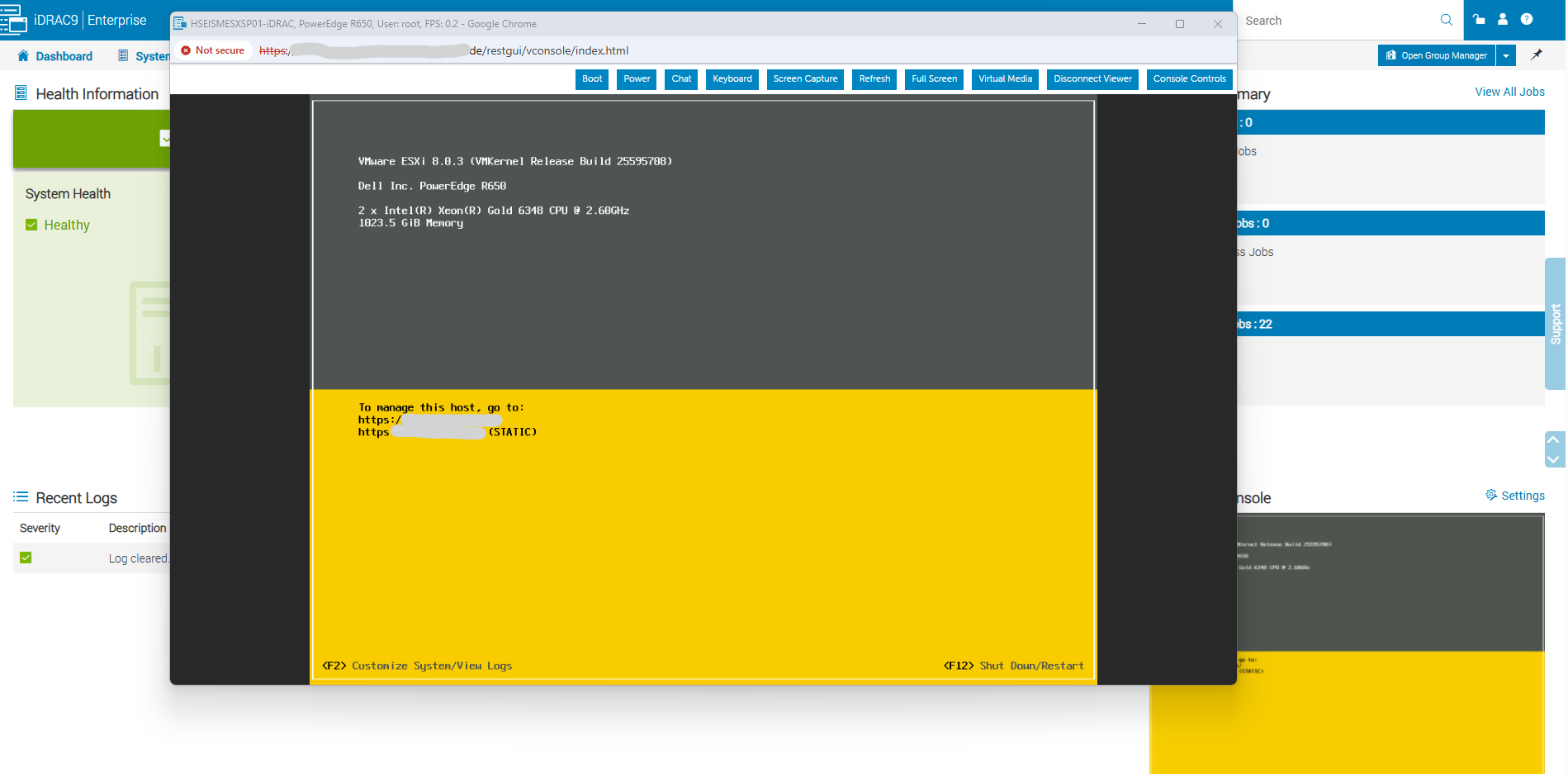
VMware ESXi 8.0.3 successfully boots after the BIOS update, displaying the familiar Direct Console User Interface (DCUI).
With the BIOS update completed, we can now proceed with the remaining firmware updates while keeping the host in Maintenance Mode.
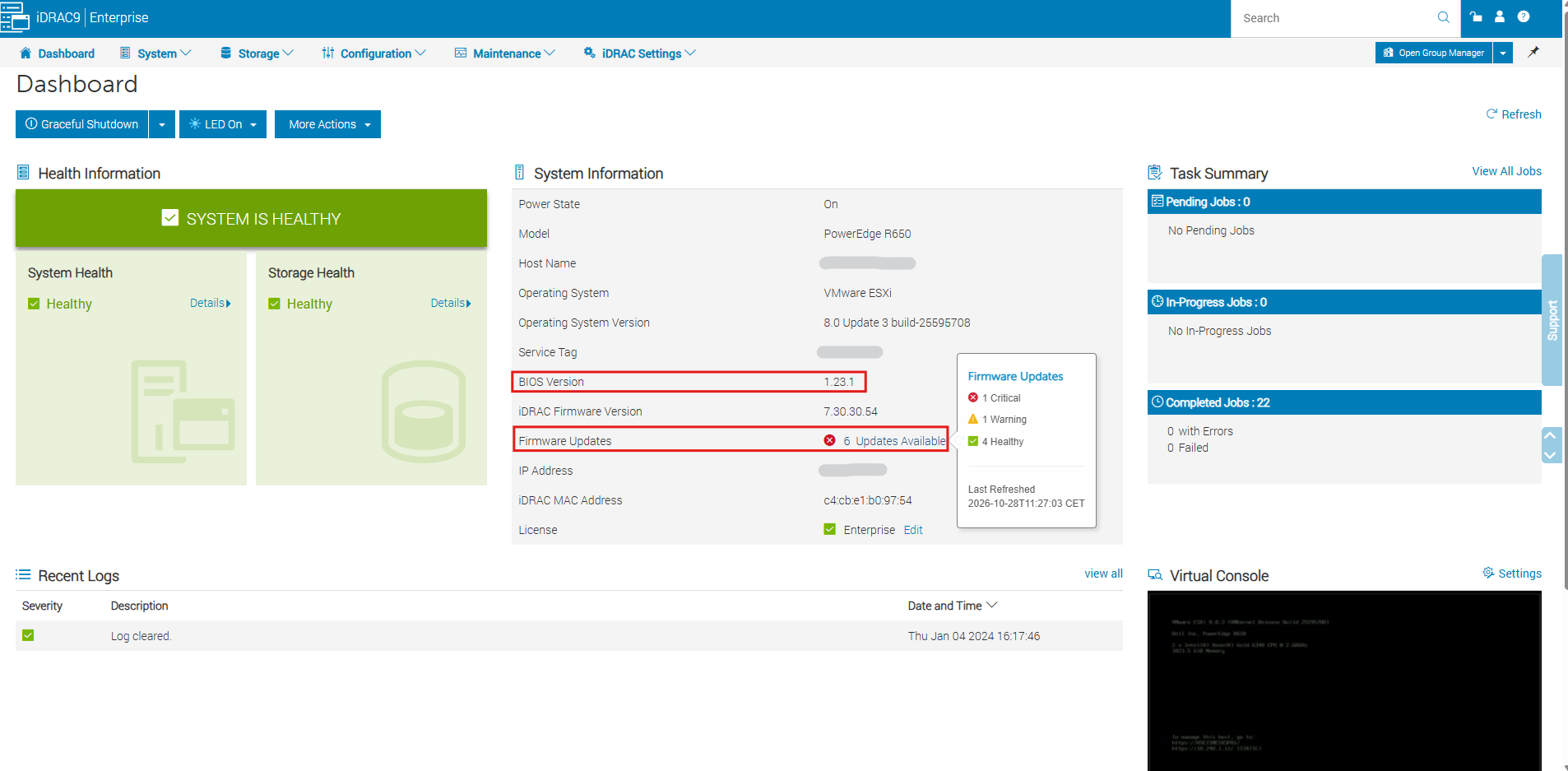
After refreshing the iDRAC dashboard, the BIOS version is now correctly displayed as 1.23.1, confirming the successful update from 1.13.2.
With both iDRAC and BIOS updated, six firmware updates remain available, which we will address next while the ESXi host remains in Maintenance Mode.
Updating the SATA Disk Firmware
Next, we will update the SATA disk firmware from DL74 to DL7C, which Dell classifies as a Critical update.
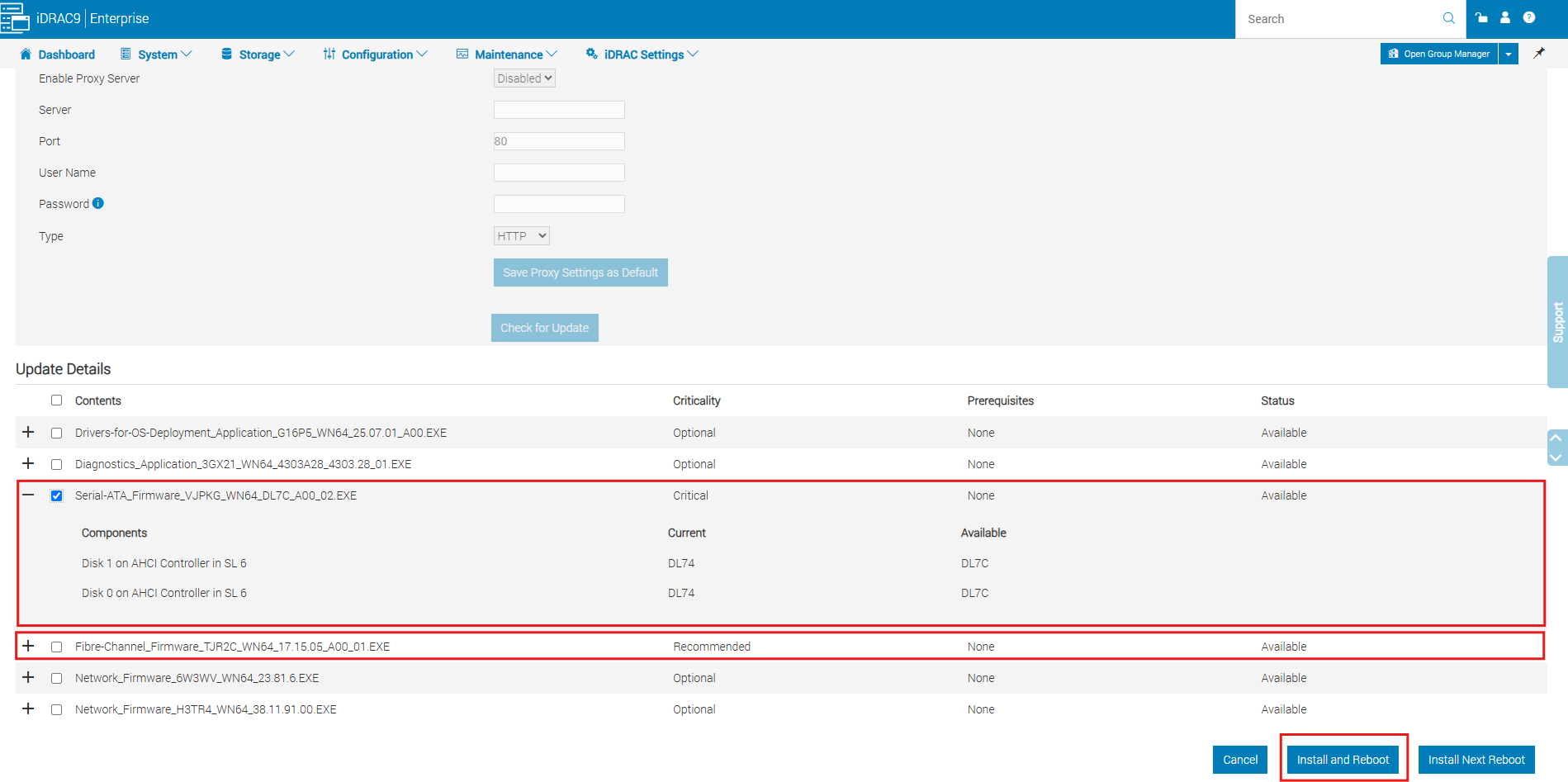
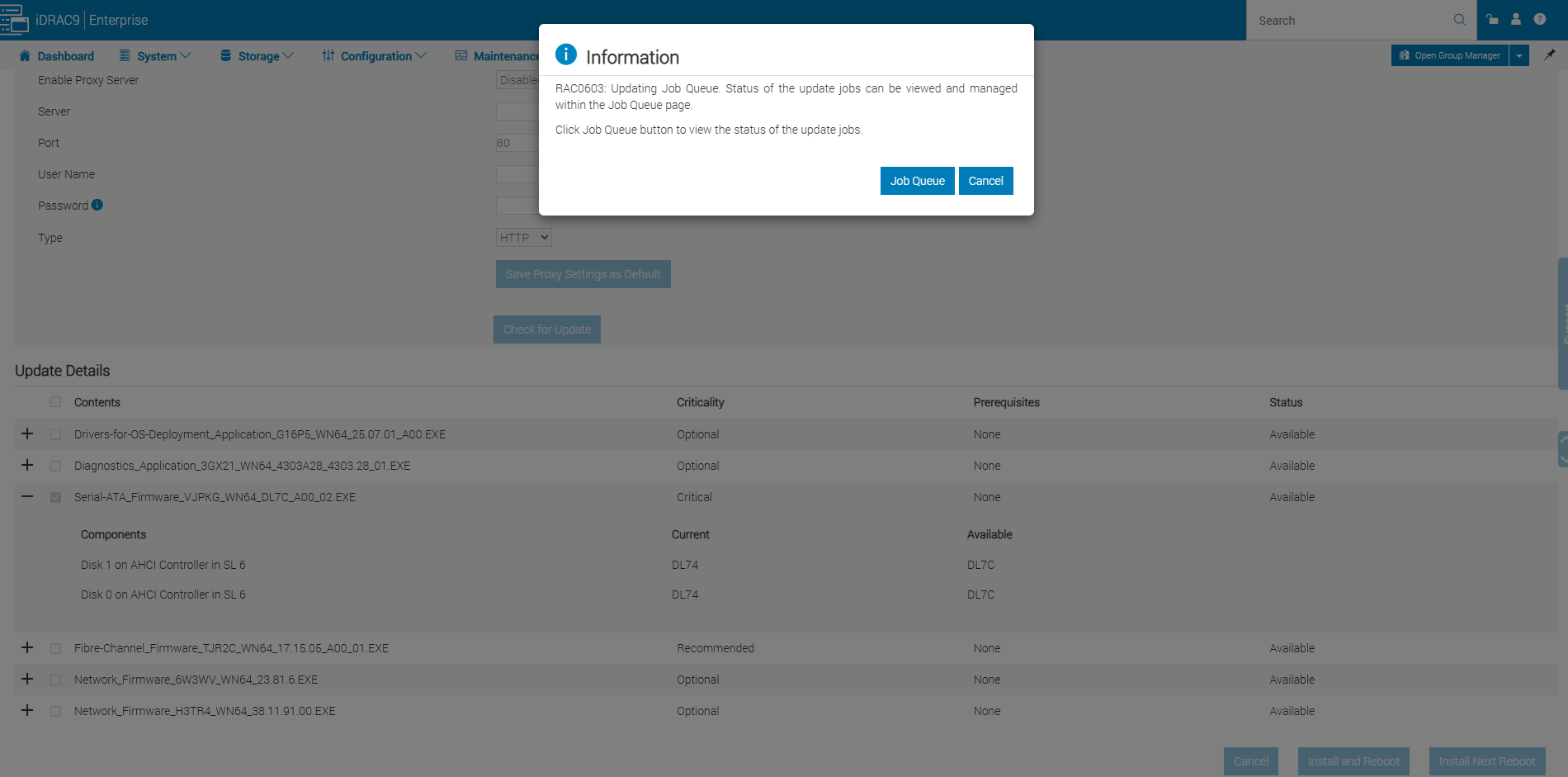
After clicking Install and Reboot, iDRAC9 displays the informational message RAC0603, confirming that the firmware update job is being added to the Job Queue. We can click Job Queue to monitor the installation progress and subsequent server reboot.
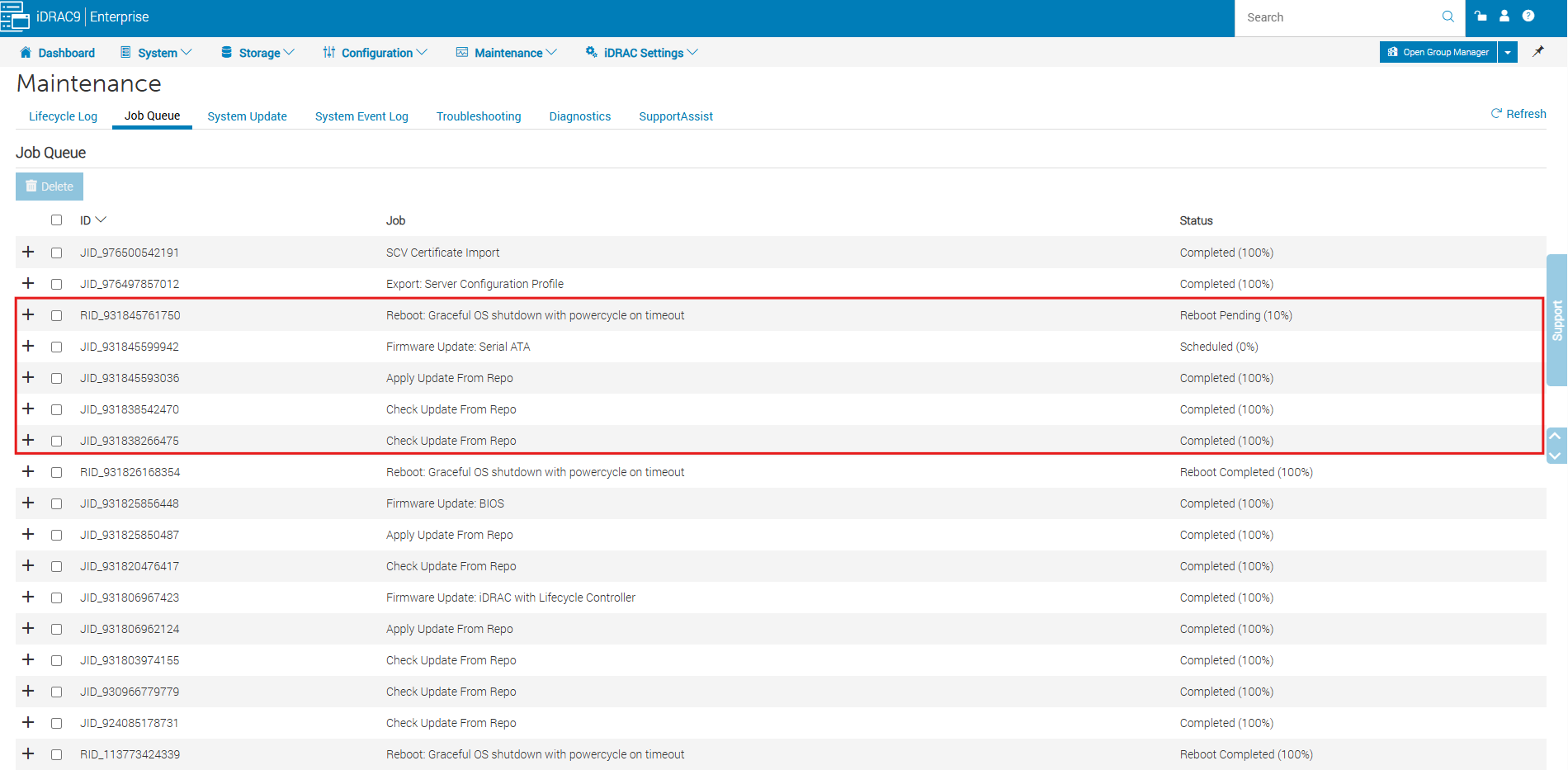
The iDRAC9 Job Queue now shows the SATA firmware update as Scheduled (0%), while the associated server reboot is Pending (10%). The repository update tasks have already completed successfully, and the firmware installation will proceed during the upcoming reboot.
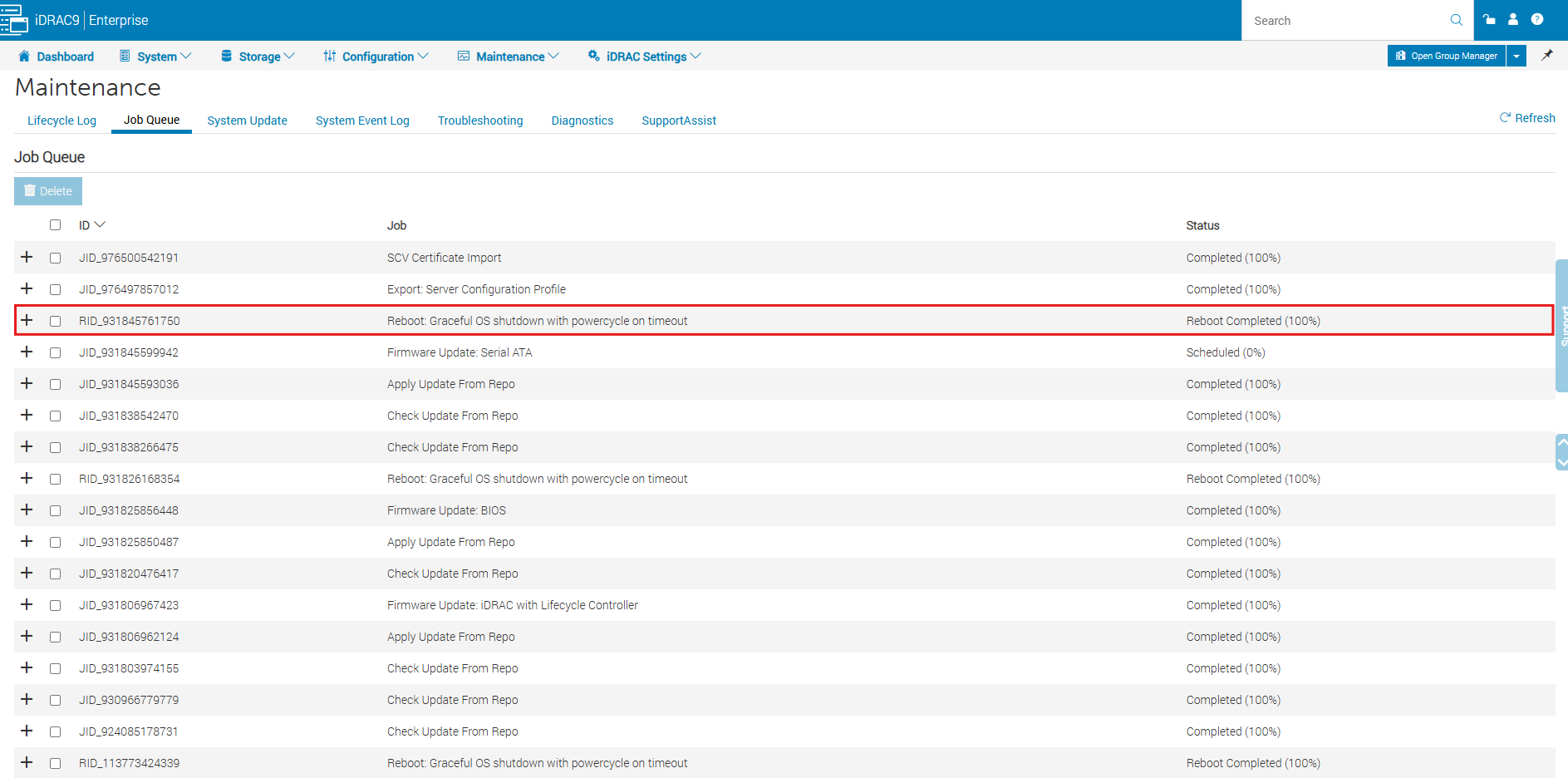
The iDRAC9 Job Queue now confirms that the server reboot has completed successfully (100%). However, the SATA firmware update still shows Scheduled (0%), so we continue monitoring the job until the firmware installation is completed.
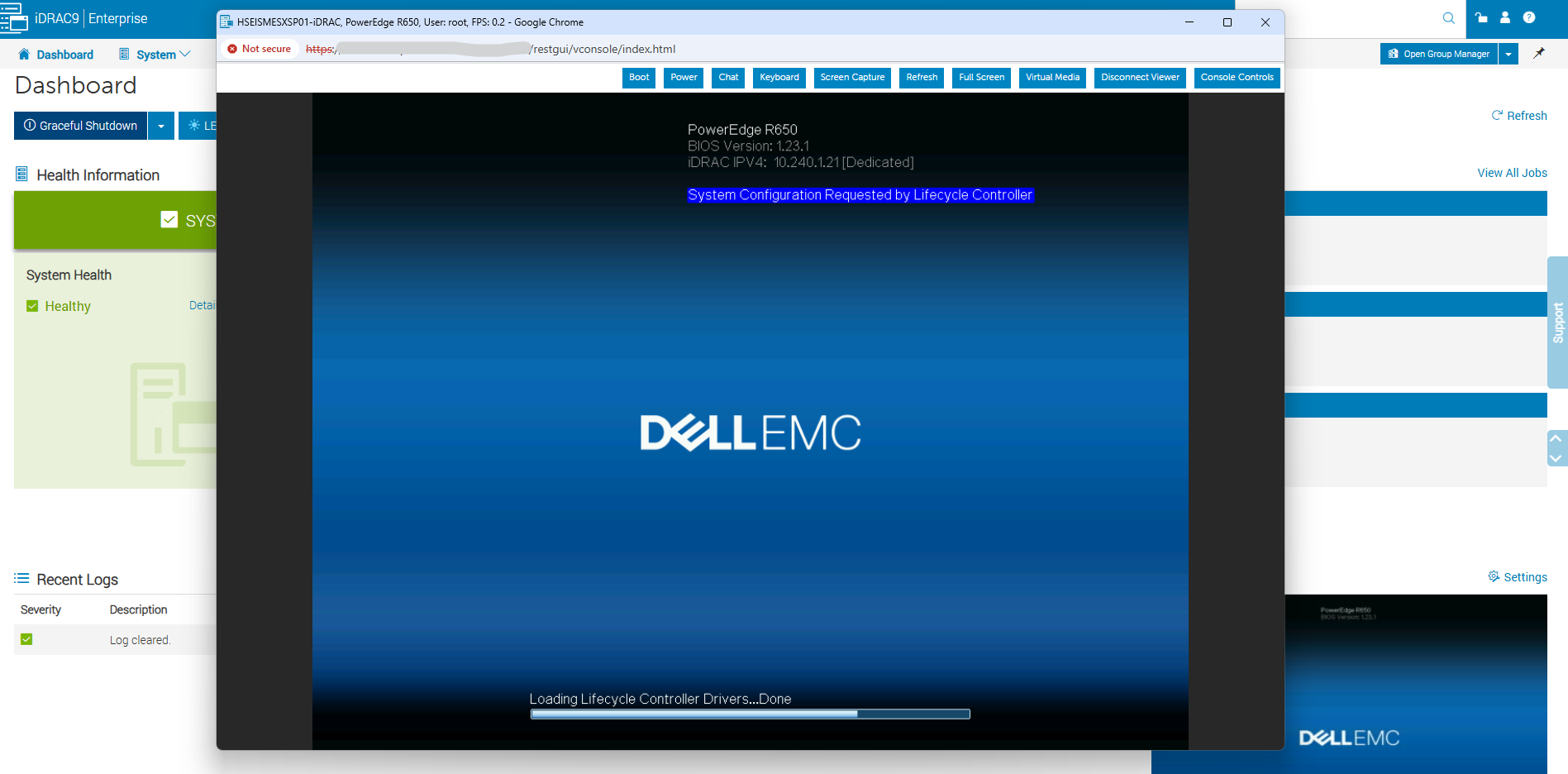
The iDRAC9 Virtual Console shows the server booting into the Lifecycle Controller, indicated by the message “System Configuration Requested by Lifecycle Controller.” This is expected, as the Lifecycle Controller takes over during startup to process the scheduled SATA firmware update before VMware ESXi boots.
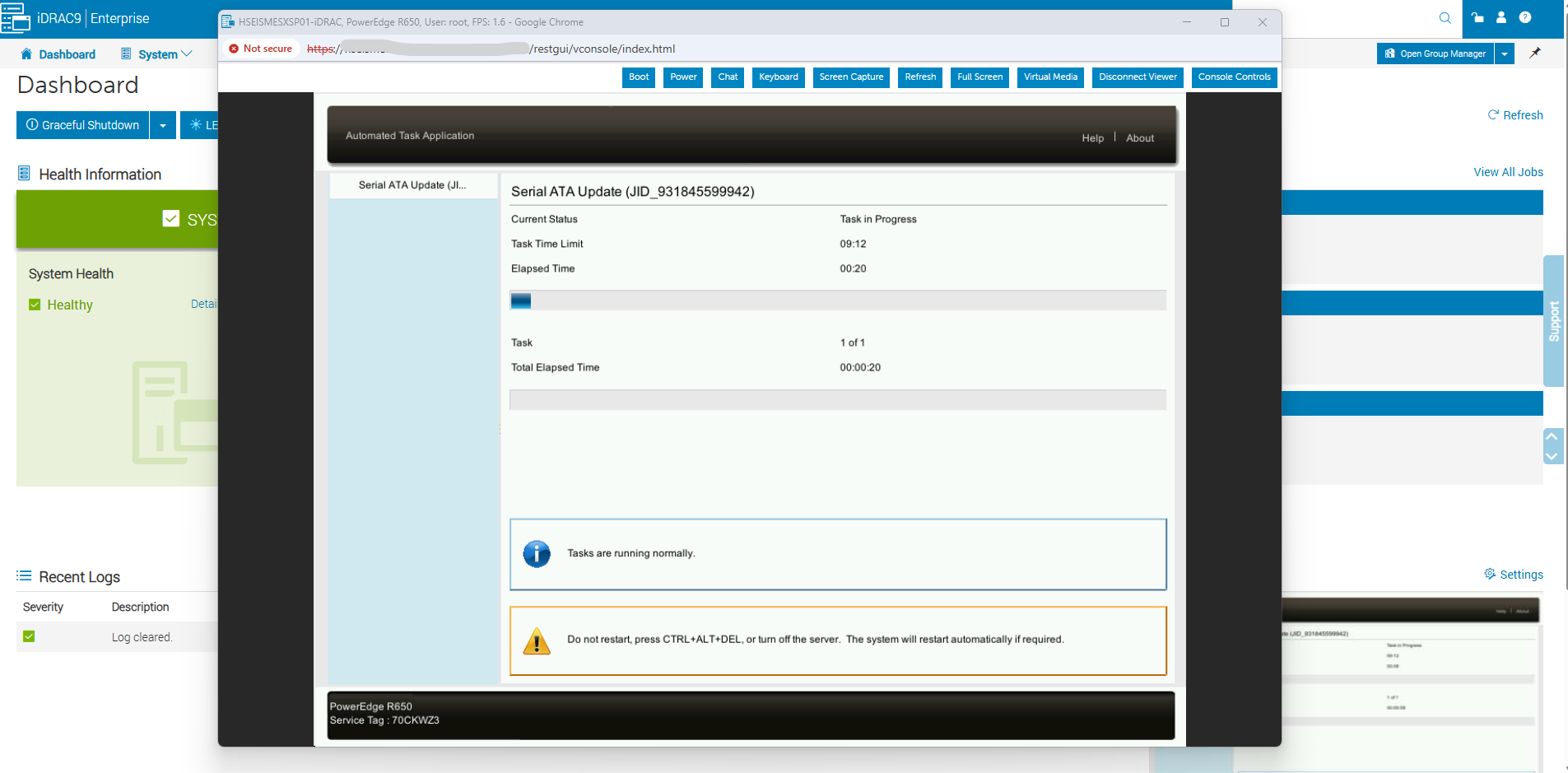
The Lifecycle Controller has started the Serial ATA firmware update, displaying its progress in the Automated Task Application.
After the Lifecycle Controller finishes processing the SATA firmware update, the server automatically restarts and resumes its normal boot sequence.
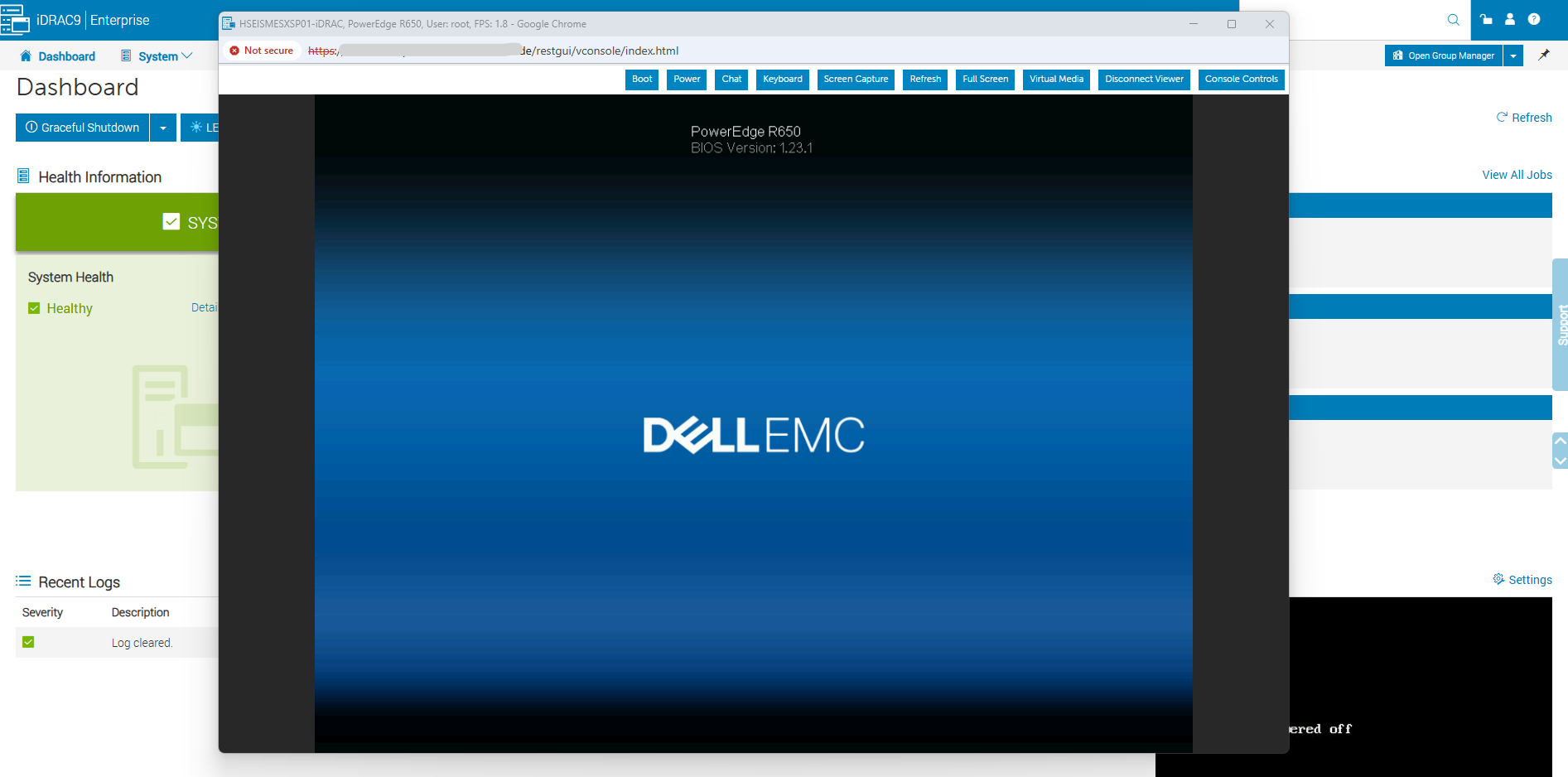
The server continues its normal POST sequence after the SATA firmware update, with BIOS version 1.23.1 displayed. Once VMware ESXi has finished booting, we can verify the firmware update status in the iDRAC9 Job Queue and confirm that both SATA disks are healthy.
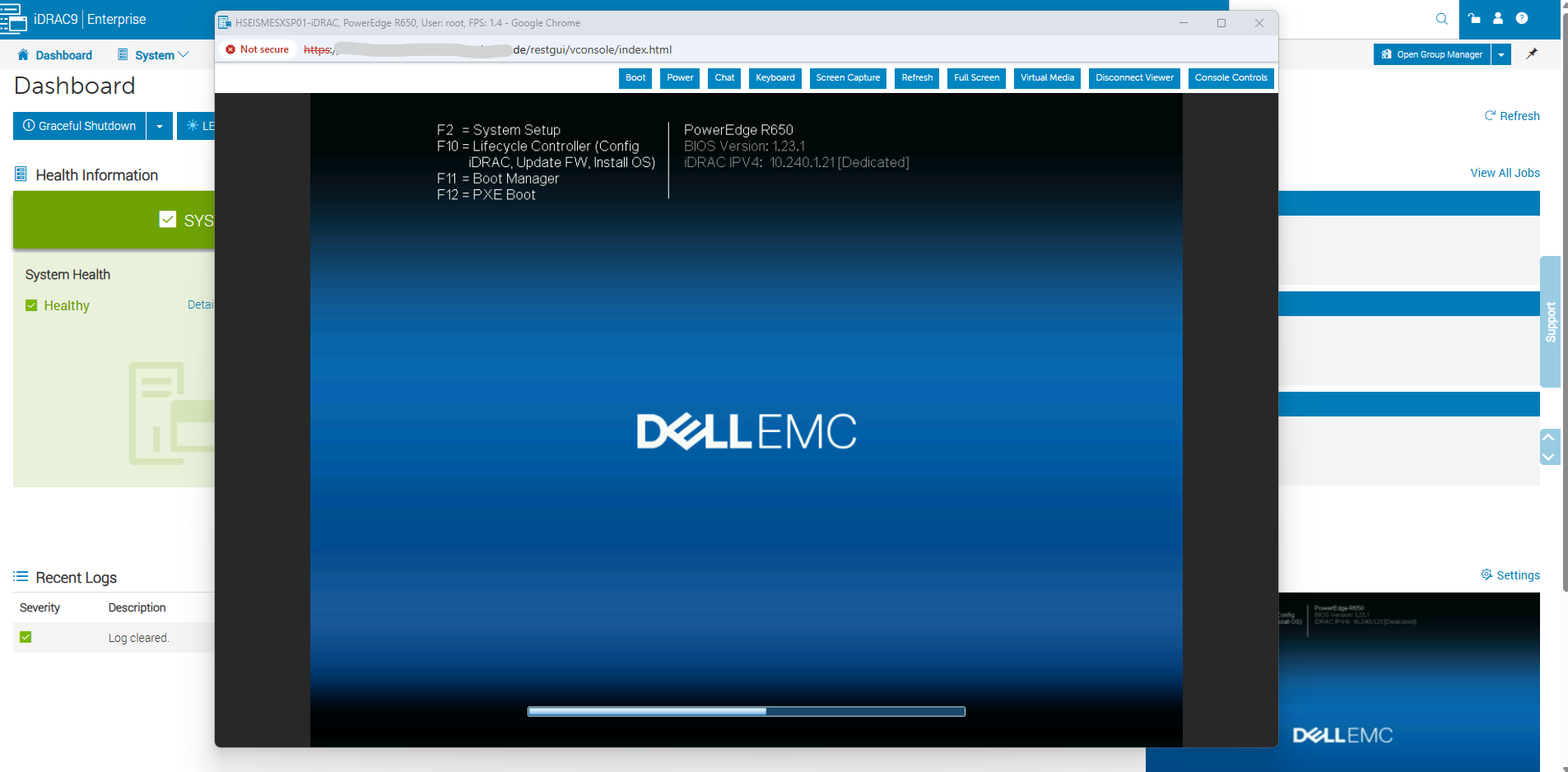
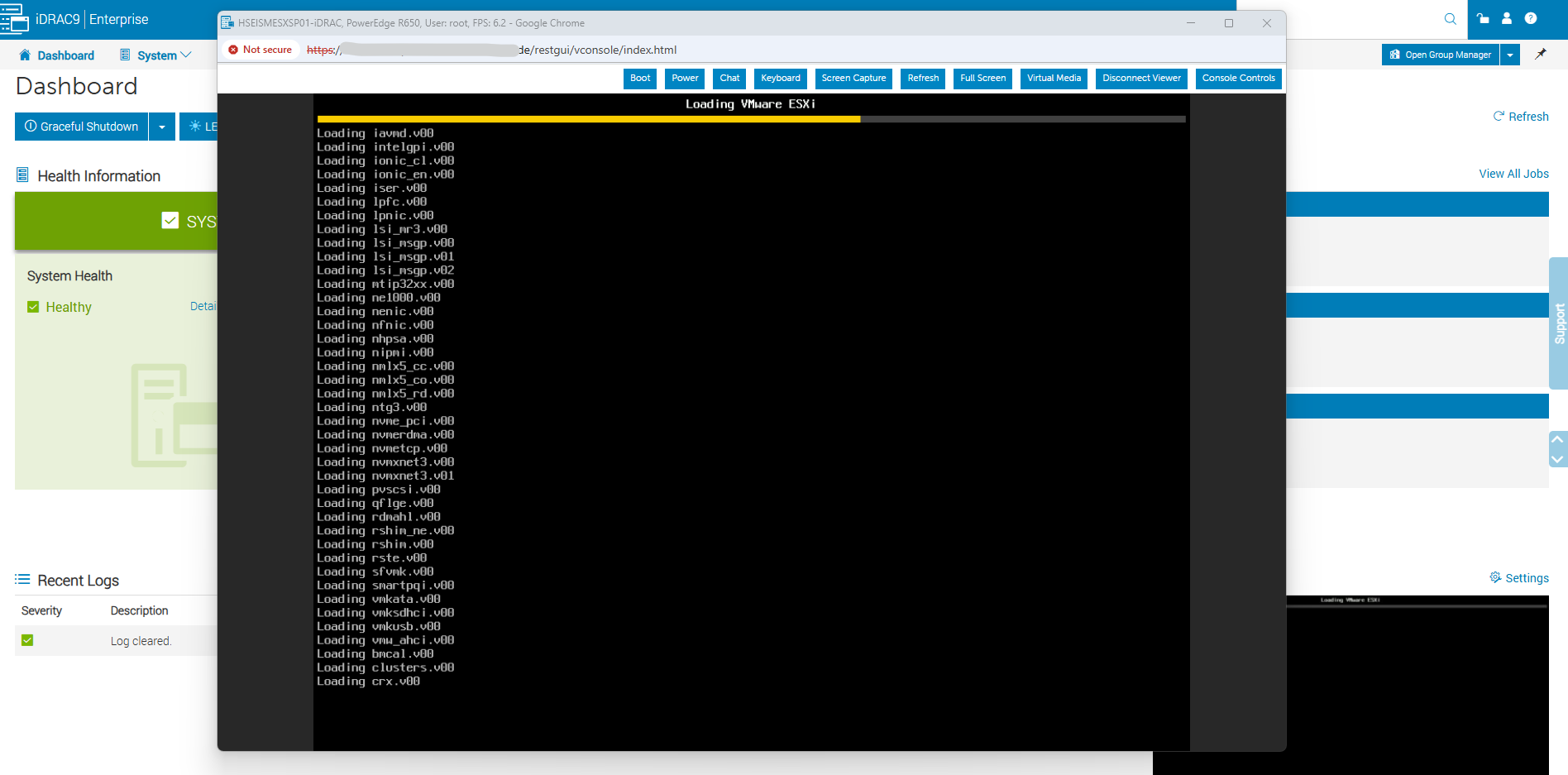
Following the SATA firmware update and automatic reboot, the server proceeds to load VMware ESXi 8.0, including its kernel modules and device drivers. Once ESXi has fully started, we can perform the final firmware and storage health checks before taking the host out of Maintenance Mode.
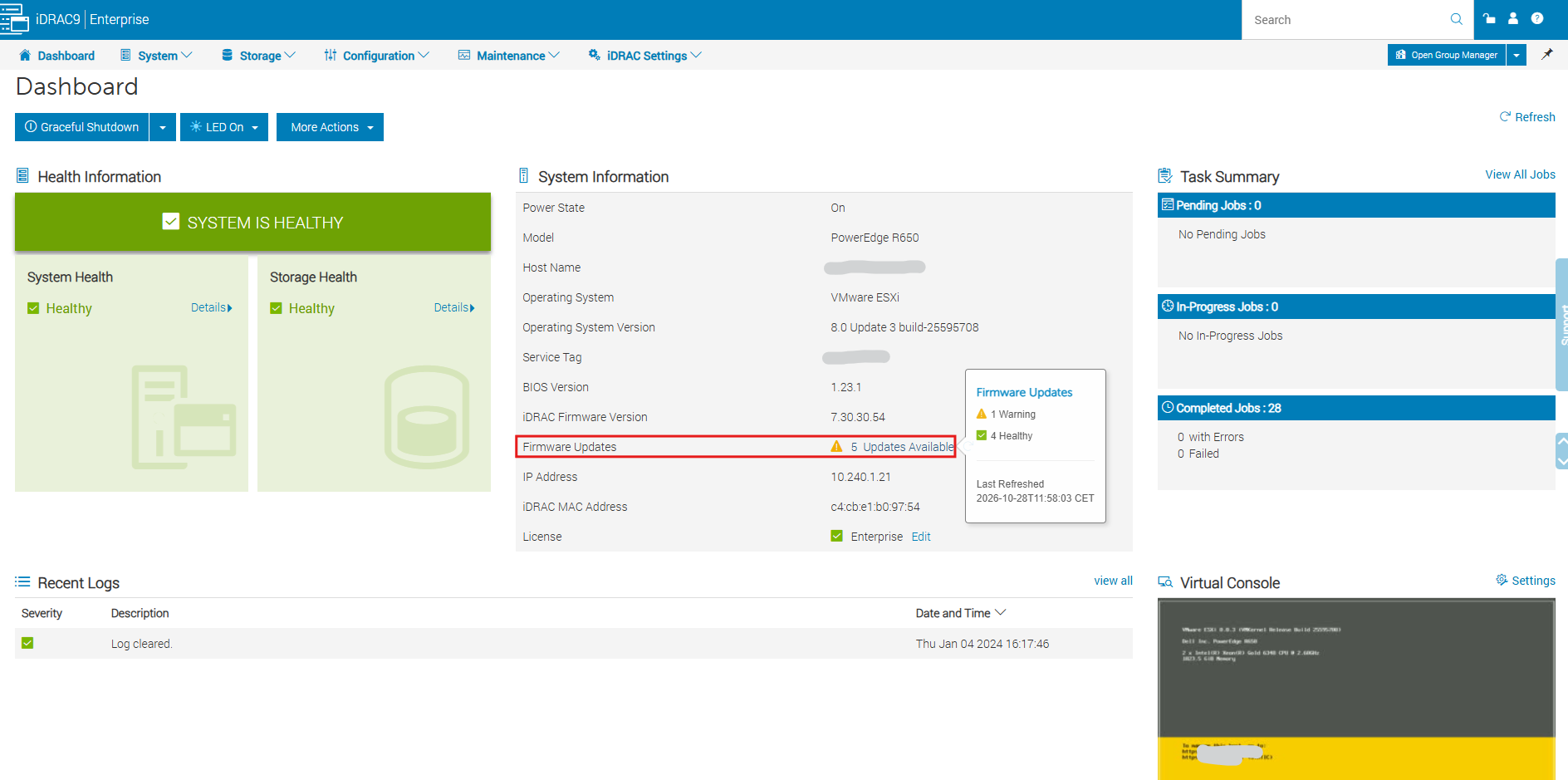
After the reboot, the iDRAC9 dashboard confirms that VMware ESXi 8.0 Update 3 is running and both system and storage health are reported as Healthy.
The number of available firmware updates has decreased to five, with no pending, running, or failed jobs, indicating that the Critical SATA firmware update has been processed successfully.
The remaining firmware warning is likely related to the Recommended Fibre Channel firmware update, which we intentionally leave unchanged, while overall system and storage health remain Healthy.
After completing the firmware updates and verifying system and storage health, we successfully exited VMware ESXi Maintenance Mode.
The host rejoined normal cluster operation, and VMware DRS automatically began migrating virtual machines back onto the updated server.
Links
PowerEdge: Update Firmware over HTTPS Using iDRAC 9-10
https://www.dell.com/support/kbdoc/en-us/000435817/poweredge-update-firmware-over-https-using-idrac-9-10PowerEdge: How to Update Firmware Remotely Using the iDRAC Web Interface
https://www.dell.com/support/kbdoc/en-us/000134013/dell-poweredge-update-the-firmware-of-single-system-components-remotely-using-the-idracIntegrated Dell Remote Access Controller 8 (iDRAC8) and iDRAC7 v2.20.20.20 User’s Guide
https://www.dell.com/support/manuals/en-gb/idrac7-8-with-lc-v2.20.20.20/idrac8_2.10.10.10_ug-v2/updating-device-firmware-using-http?guid=guid-e67c44c4-3de8-447c-b0b1-2a489e60c401&lang=en-usPowerEdge: Dell Server Update Utility (SUU) – Guide and Download
https://www.dell.com/support/kbdoc/en-us/000123359/dell-emc-server-update-utility-suu-guide-and-downloadPowerEdge: Integrated Dell Remote Access Controller 9 Versions and Release Notes
https://www.dell.com/support/kbdoc/en-us/000178115/idrac9-versions-and-release-notes