Modern Azure Deployments with Terraform & GitHub – Part 5 – Deploying Real Azure Infrastructure with Terraform and GitHub Actions
In Part 5 of our series, we will extend our existing Terraform configuration beyond simple Azure resource groups to deploy more complex infrastructure, including virtual networks (VNets), subnets, and virtual machines (VMs).
Along the way, we will explore essential Git commands and workflows, including cloning repositories, synchronizing local and remote branches, committing and pushing changes, and merging branches.
Using our existing GitHub Actions CI/CD pipeline, we will demonstrate how infrastructure changes can be developed, validated, and promoted across Dev, Test, and Production environments.
For a quick reference to the Git commands used throughout this series, see also my following cheat sheet, which covers common Git operations such as cloning repositories, managing branches, committing changes, synchronizing with remote repositories, and merging branches. I will regularly extend and update this cheat sheet with additional commands and practical examples.
- Deploying Azure Virtual Networks Across Dev, Test, and Production
- Creating a Feature Branch for Our Azure Network Deployment
- Extending Our Terraform Configuration with Azure Virtual Networks and Subnets
- Configure the Environment-Specific Network Settings
- Validate Our Terraform Configuration Locally
- Commit and push our feature branch
- Create the pull request
- Promote the Infrastructure to Testing
- Promote the Infrastructure to Production
- Synchronize Our Local Git Branches After Deployment
- Final deployment overview
- Deploying Azure Virtual Machines Across Dev, Test, and Production
- Creating a Feature Branch for Our Azure Virtual Machine Deployment
- Extending Our Terraform Configuration with Azure Virtual Machines
- Configure the Azure Virtual Machine Variables
- Creating the Azure Virtual Machine Configuration (vm.tf)
- Configuring the Virtual Machines for Testing and Production
- Validating Our Terraform Configuration Locally
- Commit and Push Our Azure Virtual Machine Feature Branch
- Create the Pull Request
- Verify the Development deployment
- Verify the deployed VM in Azure
- Testing SSH Key Authentication
- Testing Password-Based Authentication
- Cleaning Up Our Development Environment with Terraform
- Links
Deploying Azure Virtual Networks Across Dev, Test, and Production
In this section, we will extend our existing Terraform configuration to deploy Azure Virtual Networks (VNets) into our development, testing, and production environments.
Rather than maintaining separate Terraform configurations, we will reuse the same infrastructure code and define environment-specific network settings through our existing dev.tfvars, test.tfvars, and prod.tfvars files.
We will also create subnets within each virtual network and use our existing GitHub Actions CI/CD pipeline to validate and deploy the infrastructure progressively across all three environments.
For my lab environment, we will use the following network configuration, with separate, non-overlapping IP address ranges for development, testing, and production.
| Environment | Existing resource group | VNet address space | Subnet |
|---|---|---|---|
| Development | rg-terraform-backend-dev | 10.10.0.0/16 | 10.10.1.0/24 |
| Testing | rg-terraform-backend-test | 10.20.0.0/16 | 10.20.1.0/24 |
| Production | rg-terraform-backend-prod | 10.30.0.0/16 | 10.30.1.0/24 |
Creating a Feature Branch for Our Azure Network Deployment
Before modifying our existing Terraform configuration, we will create a dedicated feature branch based on develop.
This allows us to implement and validate our Azure networking changes independently before merging them into the development branch and subsequently promoting them to testing and production.
This creates the local branch feature/azure-networking based on the latest develop branch.
git switch develop
git pull --ff-only origin develop
git switch -c feature/azure-networking
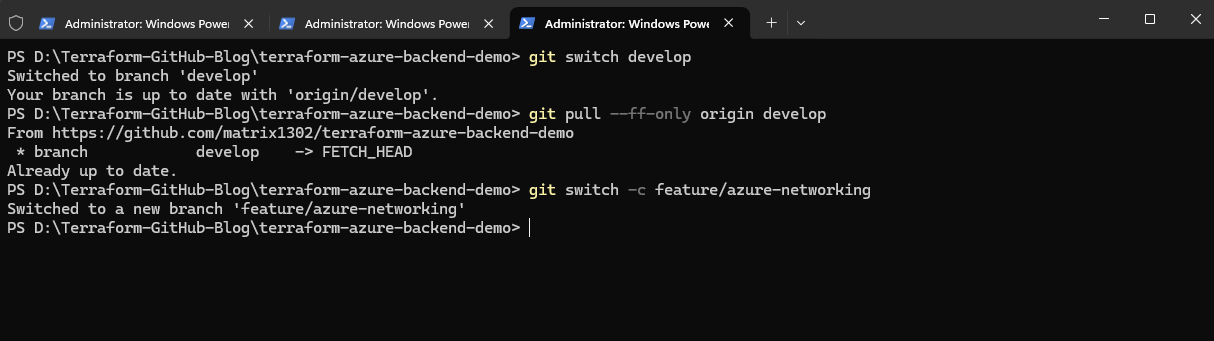
Verify:
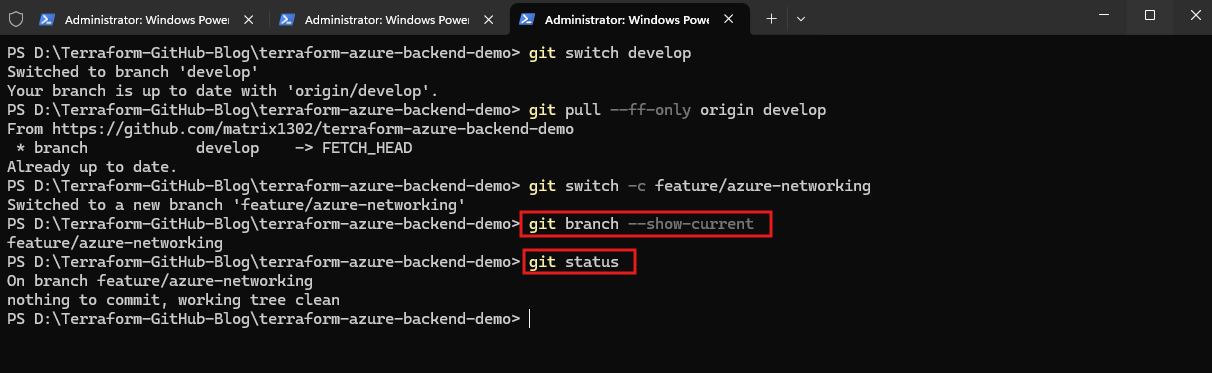
After synchronizing our local
developbranch with the remote repository, we create the newfeature/azure-networkingbranch. Usinggit branch --show-currentandgit status, we verify that we are working on the correct branch and that our working directory is clean before making any Terraform configuration changes.
git branch --show-current
git status
Extending Our Terraform Configuration with Azure Virtual Networks and Subnets
With our new feature branch in place, we can now extend the existing Terraform project to deploy actual Azure networking resources.
We will configure Azure Virtual Networks (VNets) and subnets using reusable Terraform resource definitions, while keeping the network address ranges specific to each environment.
First, we open our local Terraform repository in Visual Studio Code using the following command:
code .
We will review the existing main.tf, variables.tf, and environment-specific .tfvars files before introducing the additional network resources.
Our existing Terraform configuration currently manages the Azure resource groups for each environment.
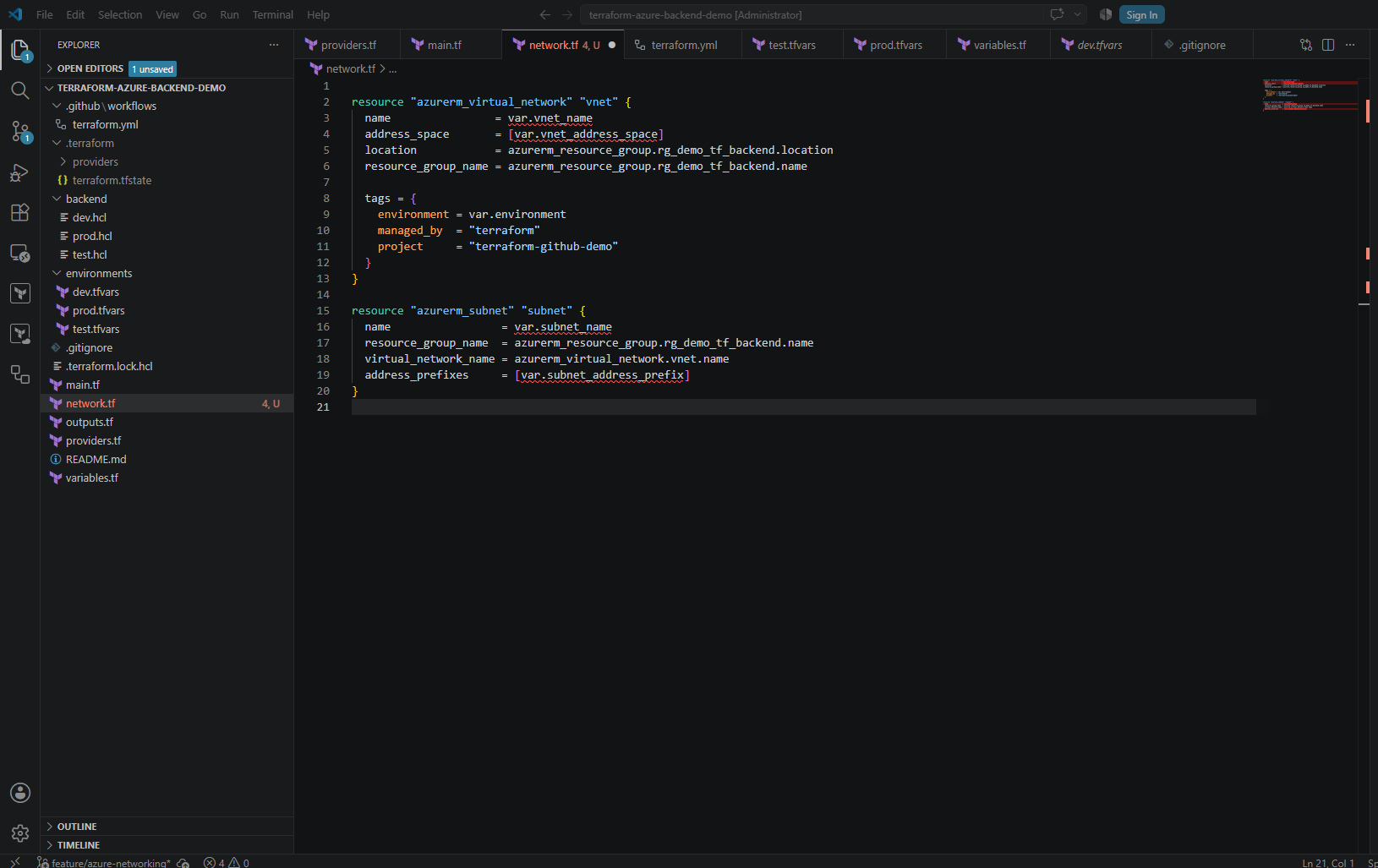
To keep the project modular and easier to maintain, we create a separate network.tf file containing the Azure Virtual Network and subnet resource definitions.
Terraform automatically processes all .tf files within the same working directory, allowing us to organize infrastructure resources without changing our existing deployment workflow.
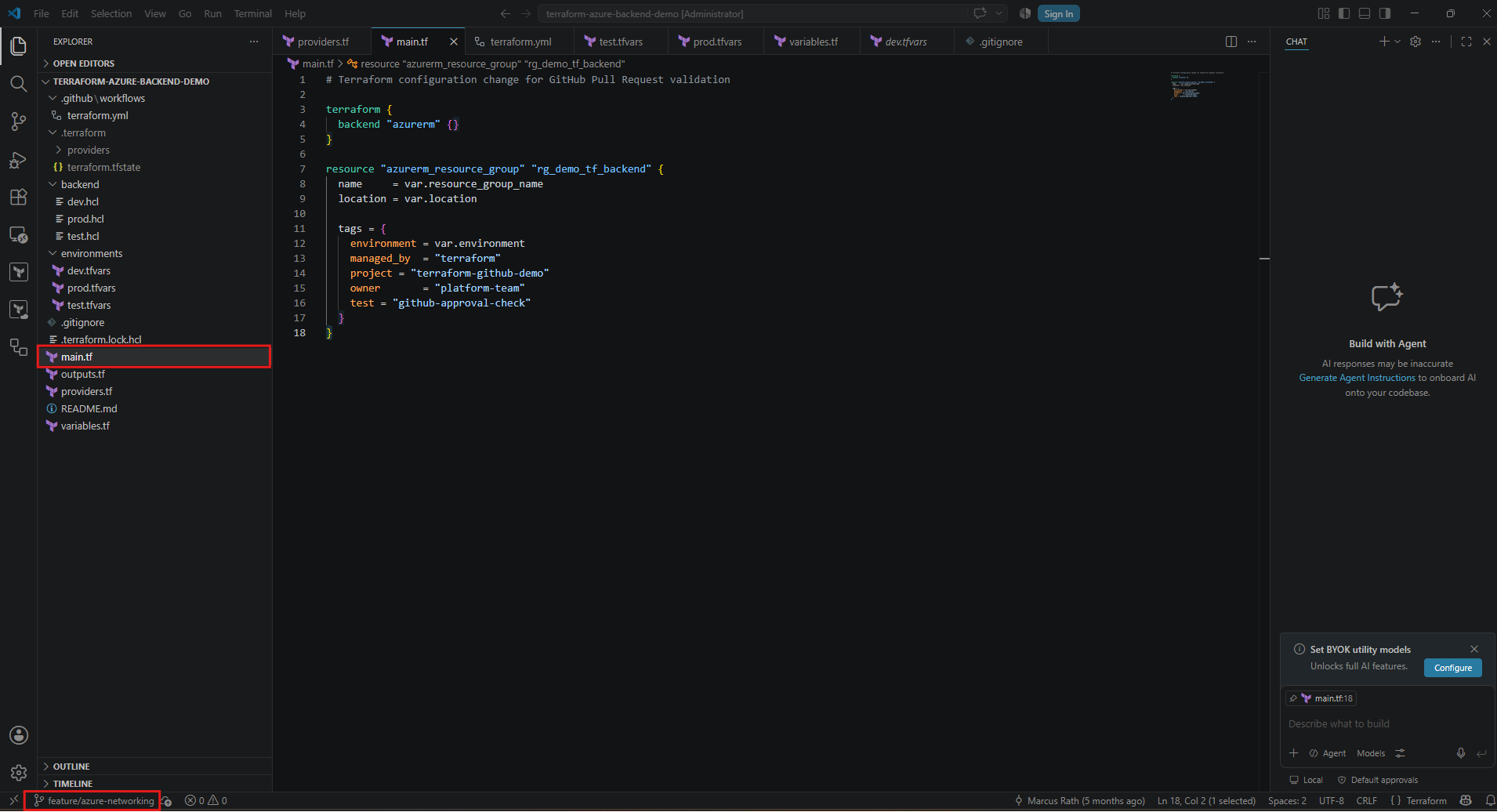
In VS Code, create a new file called network.tf in the repository root, alongside main.tf.
In this new network.tf file, we define two Azure resources: azurerm_virtual_network for creating the VNet and azurerm_subnet for creating its subnet.
Both resources reference our existing Terraform-managed resource group, while the network names and IP address ranges are provided through variables, allowing us to reuse the configuration across all three environments.
Note: Visual Studio Code currently highlights four errors because the referenced variables (
vnet_name,vnet_address_space,subnet_name, andsubnet_address_prefix) have not yet been declared.This is expected at this stage, and we will resolve these errors in the next step by adding the corresponding variable declarations to
variables.tf.These variables will receive their values from the existing
environments/dev.tfvars,test.tfvars, andprod.tfvarsfiles.
variable "vnet_name" {
  description = "Name of the Azure Virtual Network"
  type        = string
}

variable "vnet_address_space" {
  description = "Address space of the Azure Virtual Network"
  type        = string
}

variable "subnet_name" {
  description = "Name of the Azure subnet"
  type        = string
}

variable "subnet_address_prefix" {
  description = "Address prefix of the Azure subnet"
  type        = string
}
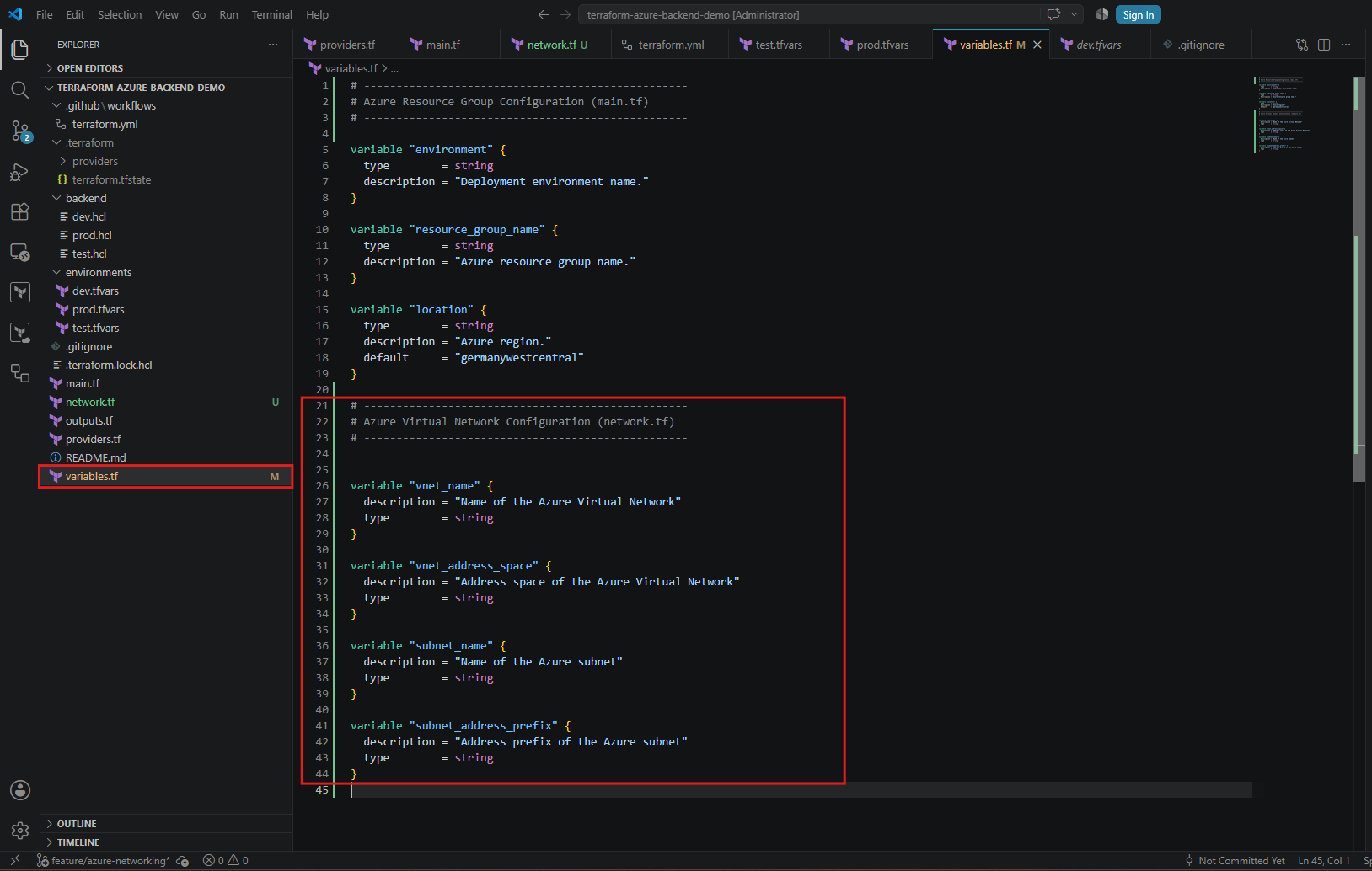
So next we extend our variables.tf with the four variables referenced in our above network.tf. file.
Open our existing variables.tf and append:
# --------------------------------------------------
# Azure Virtual Network Configuration (network.tf)
# --------------------------------------------------

variable "vnet_name" {
  description = "Name of the Azure Virtual Network"
  type        = string
}

variable "vnet_address_space" {
  description = "Address space of the Azure Virtual Network"
  type        = string
}

variable "subnet_name" {
  description = "Name of the Azure subnet"
  type        = string
}

variable "subnet_address_prefix" {
  description = "Address prefix of the Azure subnet"
  type        = string
}
Configure the Environment-Specific Network Settings
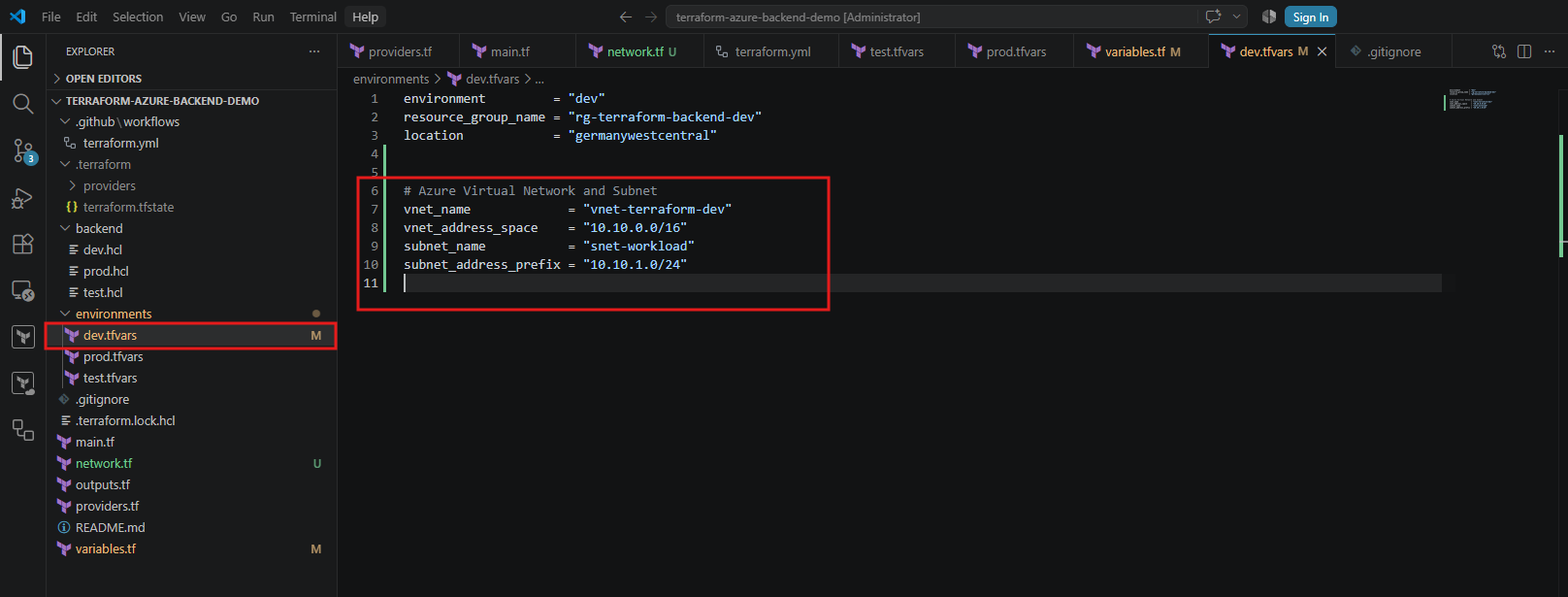
Next, we configure the network settings for our three environments using the existing Terraform variable files.
Each environment receives its own VNet and subnet with a dedicated IP address range, while all three deployments share the same resource definitions in network.tf.
environments/dev.tfvars — append:
# Azure Virtual Network and Subnet
vnet_name             = "vnet-terraform-dev"
vnet_address_space    = "10.10.0.0/16"
subnet_name           = "snet-workload"
subnet_address_prefix = "10.10.1.0/24"
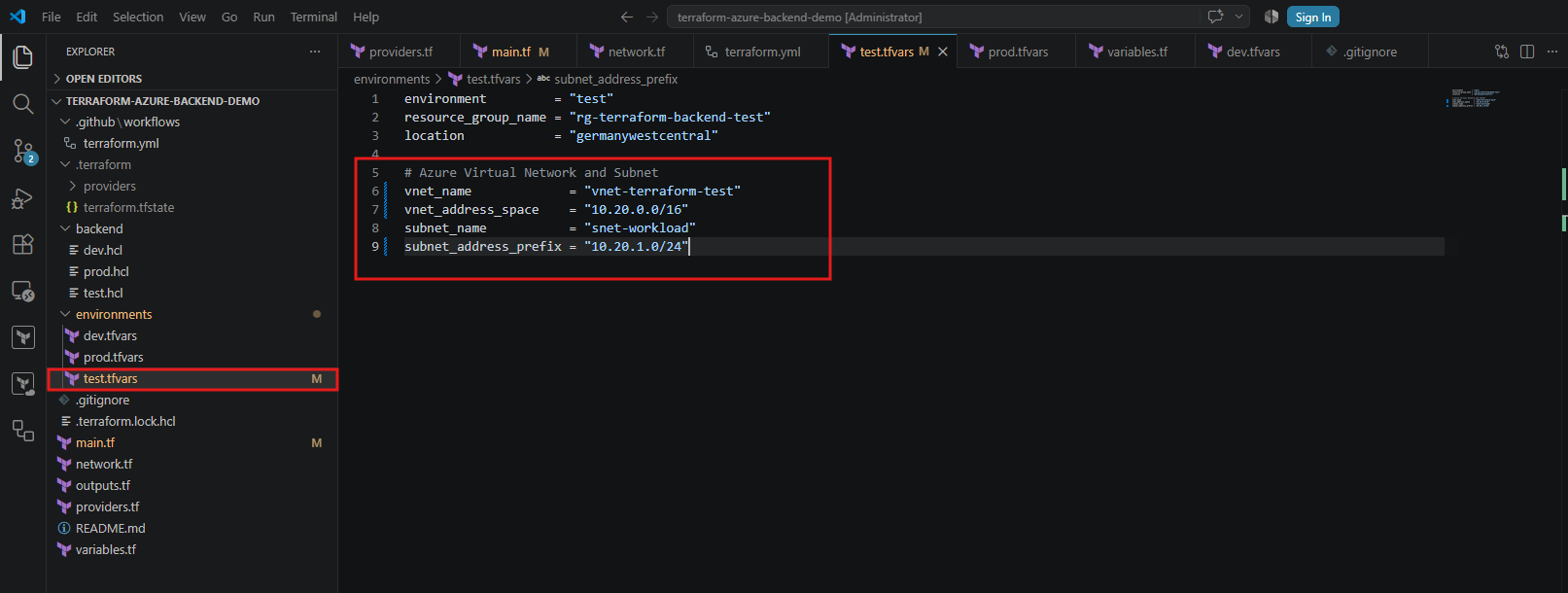
environments/test.tfvars — append:
# Azure Virtual Network and Subnet
vnet_name             = "vnet-terraform-test"
vnet_address_space    = "10.20.0.0/16"
subnet_name           = "snet-workload"
subnet_address_prefix = "10.20.1.0/24"
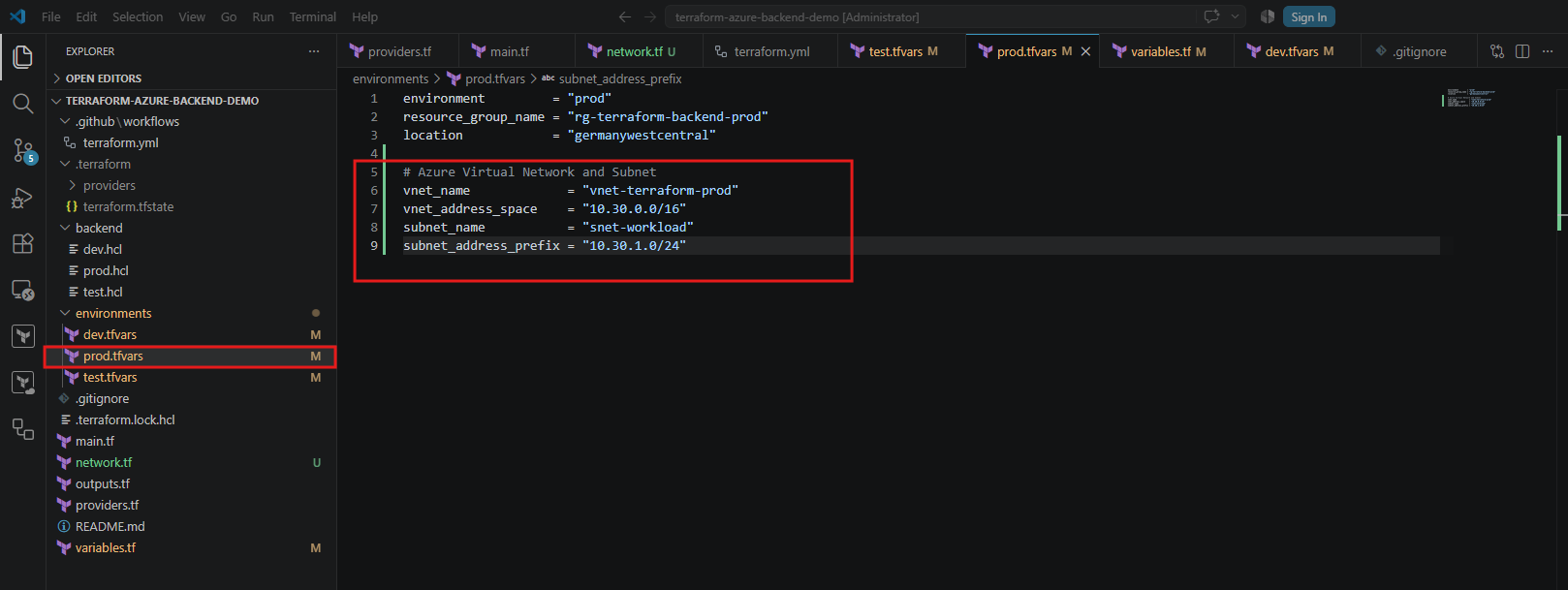
environments/prod.tfvars — append:
# Azure Virtual Network and Subnet
vnet_name             = "vnet-terraform-prod"
vnet_address_space    = "10.30.0.0/16"
subnet_name           = "snet-workload"
subnet_address_prefix = "10.30.1.0/24"
Validate Our Terraform Configuration Locally
Before pushing our infrastructure changes to GitHub, we will perform a local Terraform validation and execution plan against the development environment.
This allows us to identify configuration errors and review the proposed Azure resources before triggering our CI/CD pipeline.
From the repository root in the VS Code terminal or in my case PowerShell:
The
terraform fmt -recursivecommand automatically formats all Terraform configuration files (.tf) in the current directory and its subdirectories according to HashiCorp’s standard formatting conventions, ensuring consistent indentation, alignment, and code readability.It modifies files where necessary but does not deploy or change any Azure resources.
terraform fmt -recursive
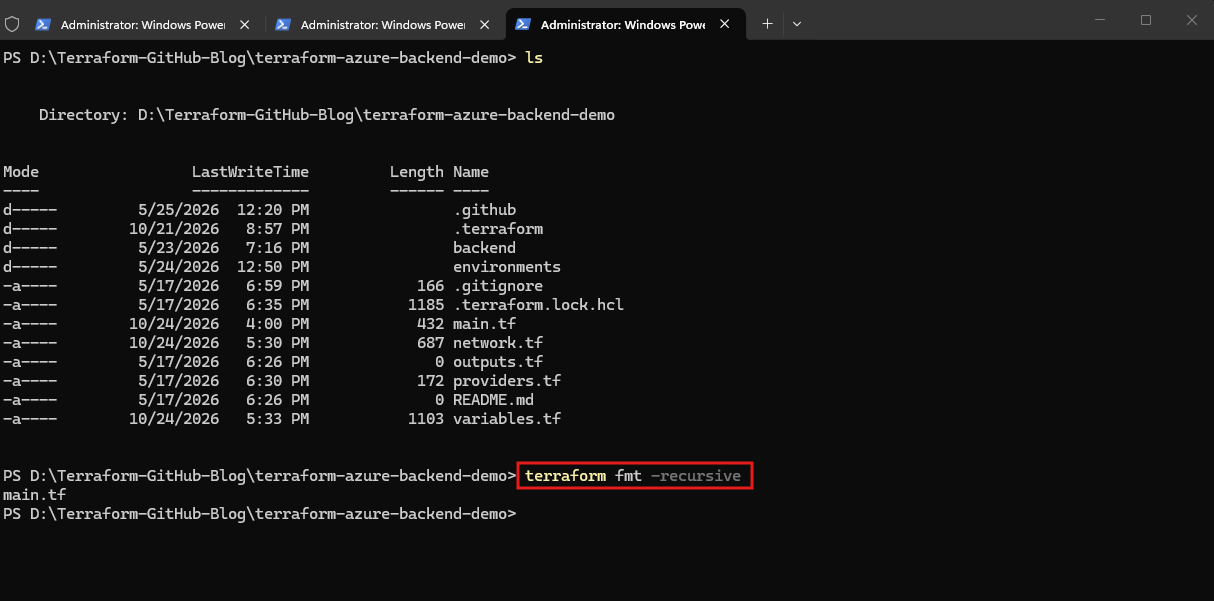
Next we initialize the development backend. We must select the correct backend to ensure Terraform uses the development state file rather than the testing or production state.
terraform init -backend-config="backend/dev.hcl" -reconfigure
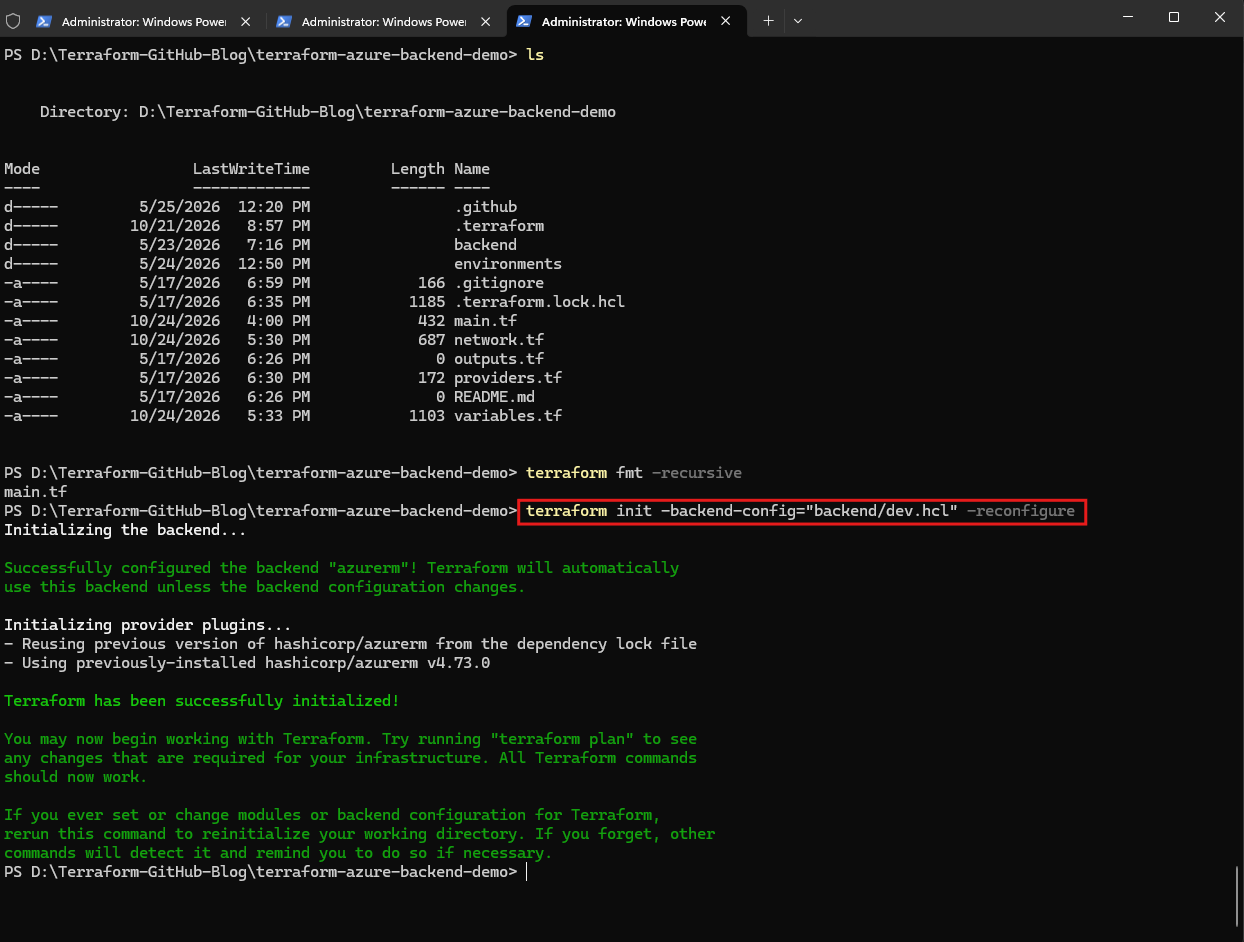
Validate the configuration:
terraform validate

Next we generate the development execution plan:
The Terraform execution plan confirms that our configuration will create two new Azure resources: a Virtual Network (
vnet-terraform-dev) with the address space10.10.0.0/16and a subnet (snet-workload) using10.10.1.0/24.The result, 2 to add, 0 to change, 0 to destroy, confirms that our existing development resource group remains unchanged and only the intended networking resources will be created.
terraform plan -var-file="environments/dev.tfvars"
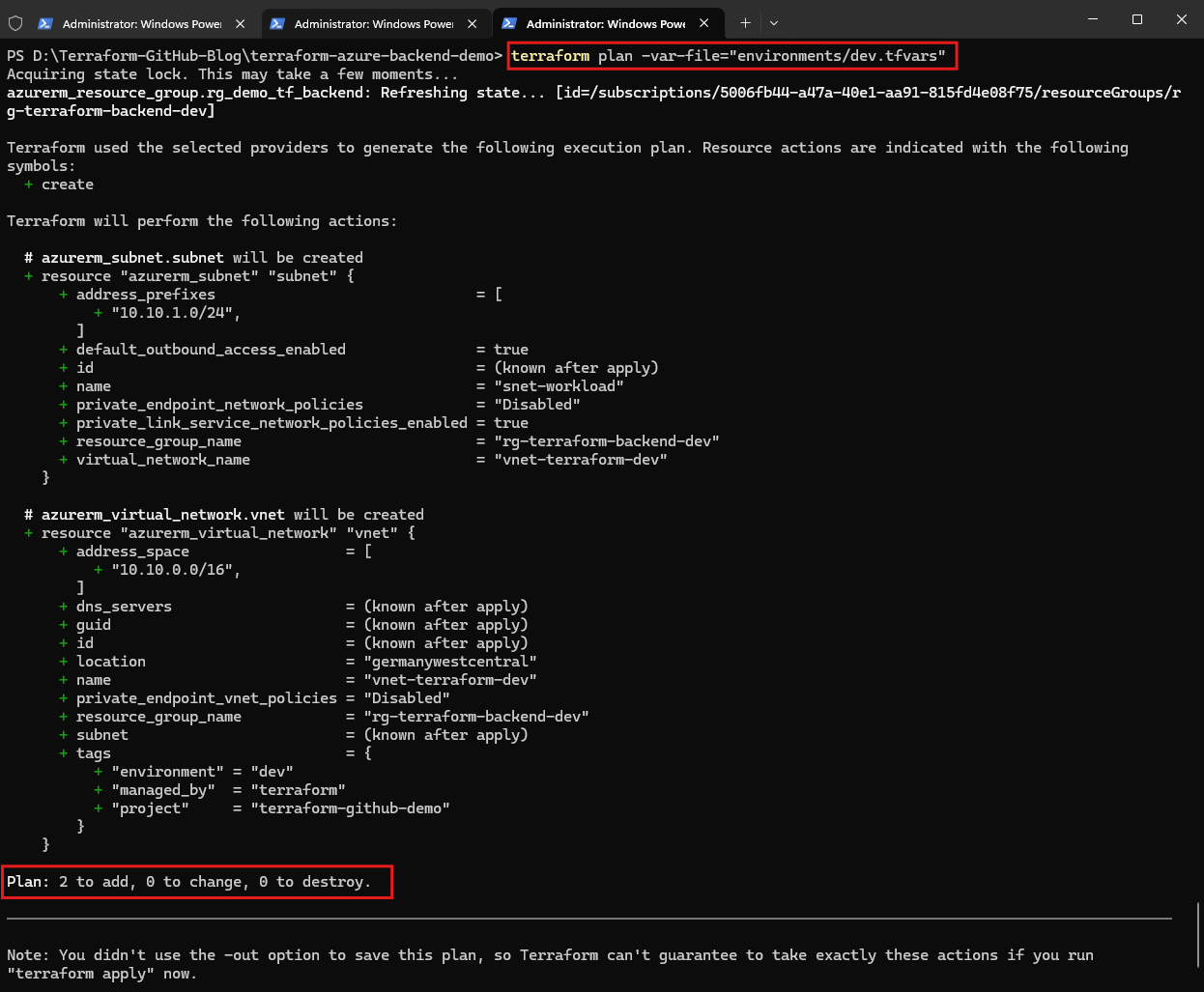
Commit and push our feature branch
Since our local plan looks correct, we can now commit the changes to feature/azure-networking and push the branch to GitHub.
After successfully validating our Terraform configuration and reviewing the development execution plan, we stage and commit the infrastructure changes to our
feature/azure-networkingbranch.Using
git push -u origin feature/azure-networking, we publish the branch to GitHub and configure upstream tracking, preparing our changes for pull request validation through GitHub Actions.
git status
git add network.tf variables.tf environments/dev.tfvars environments/test.tfvars environments/prod.tfvars
git commit -m "Add Azure VNets and subnets for dev test and prod"
git push -u origin feature/azure-networking
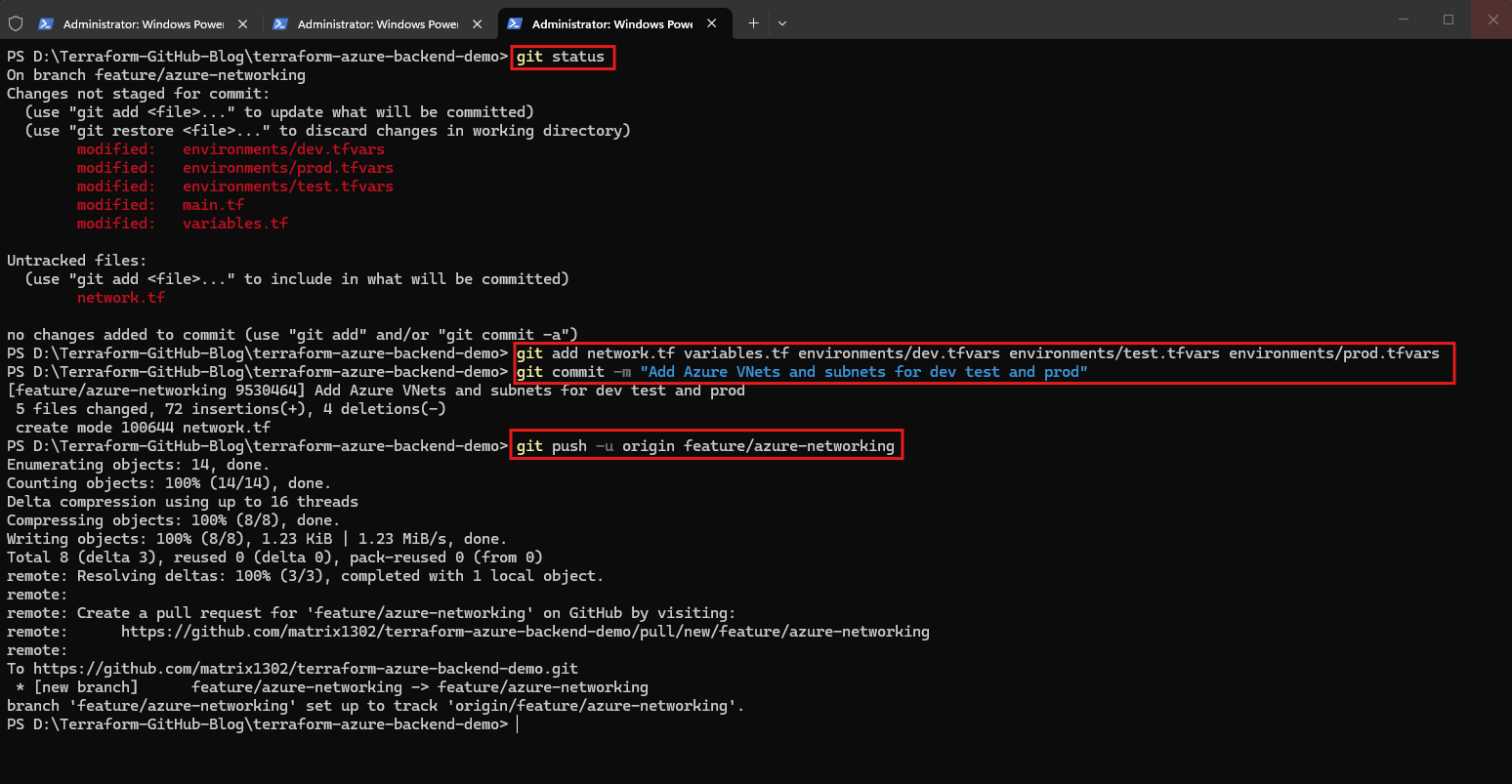
Create the pull request
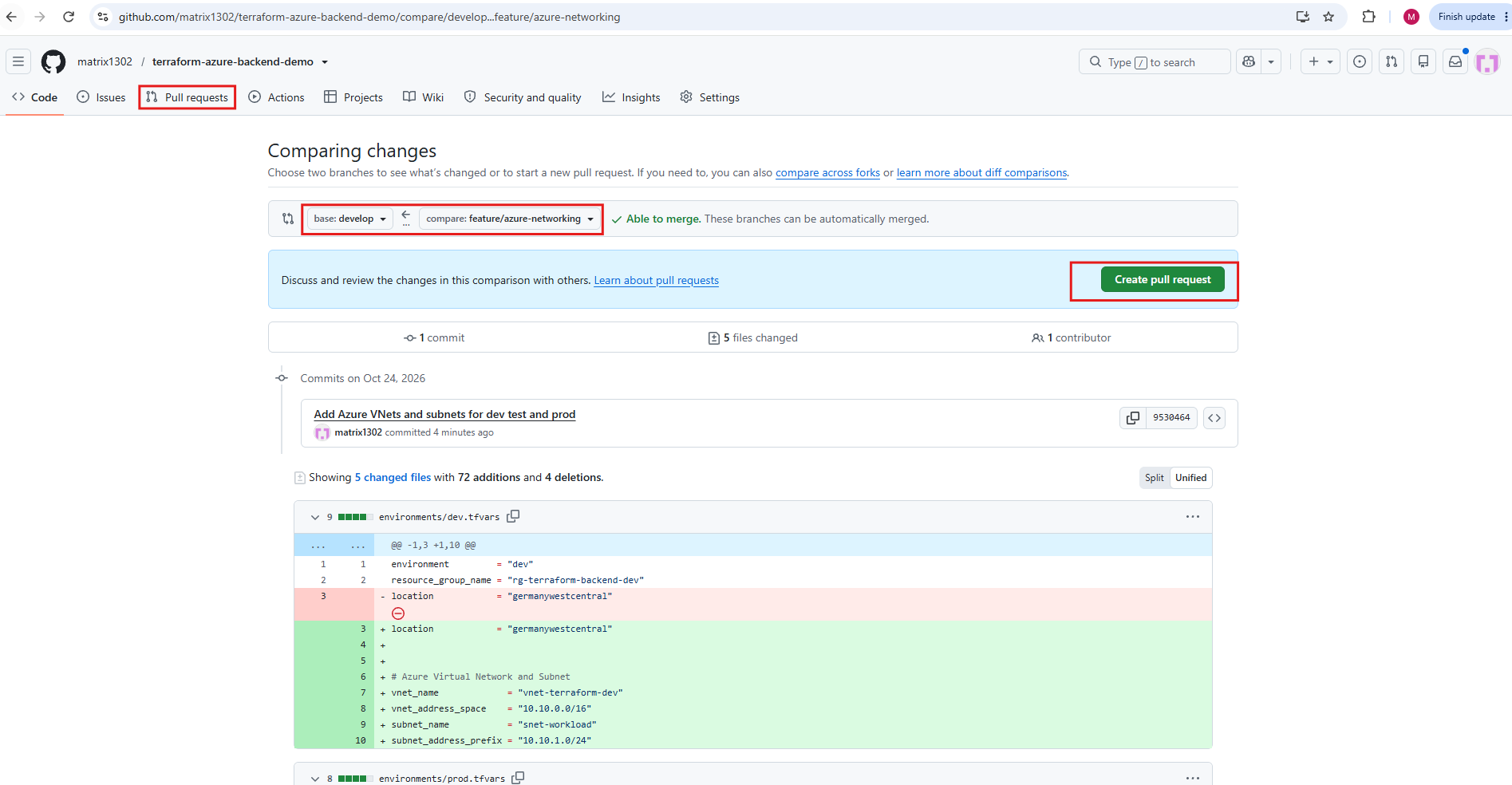
After pushing our feature branch to GitHub, we create a pull request with develop as the base branch and feature/azure-networking as the compare branch.
GitHub displays the proposed Terraform changes and confirms that both branches can be merged automatically without conflicts. Before merging, our GitHub Actions workflow will validate the configuration and generate a Terraform execution plan for the development environment.
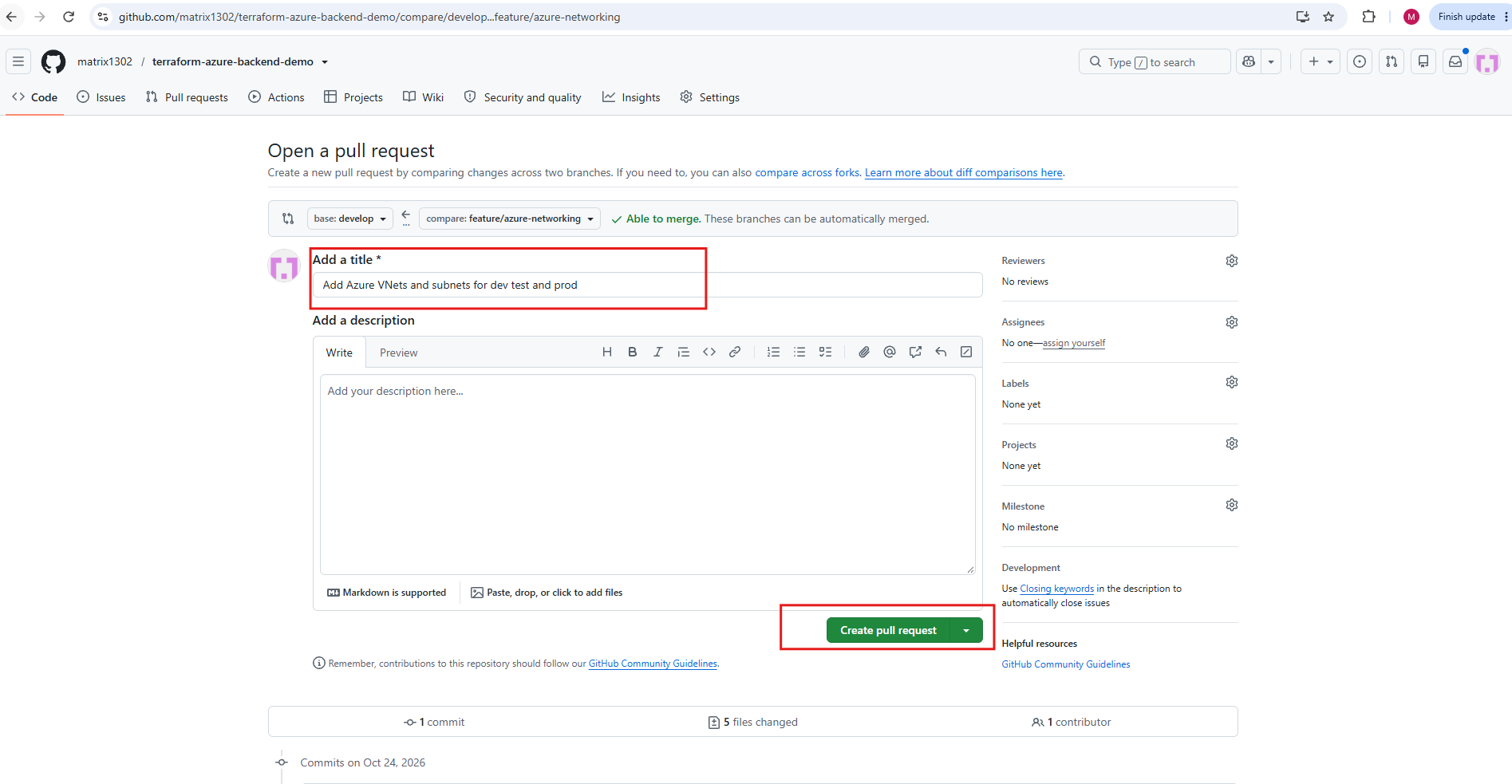
Click Create pull request.
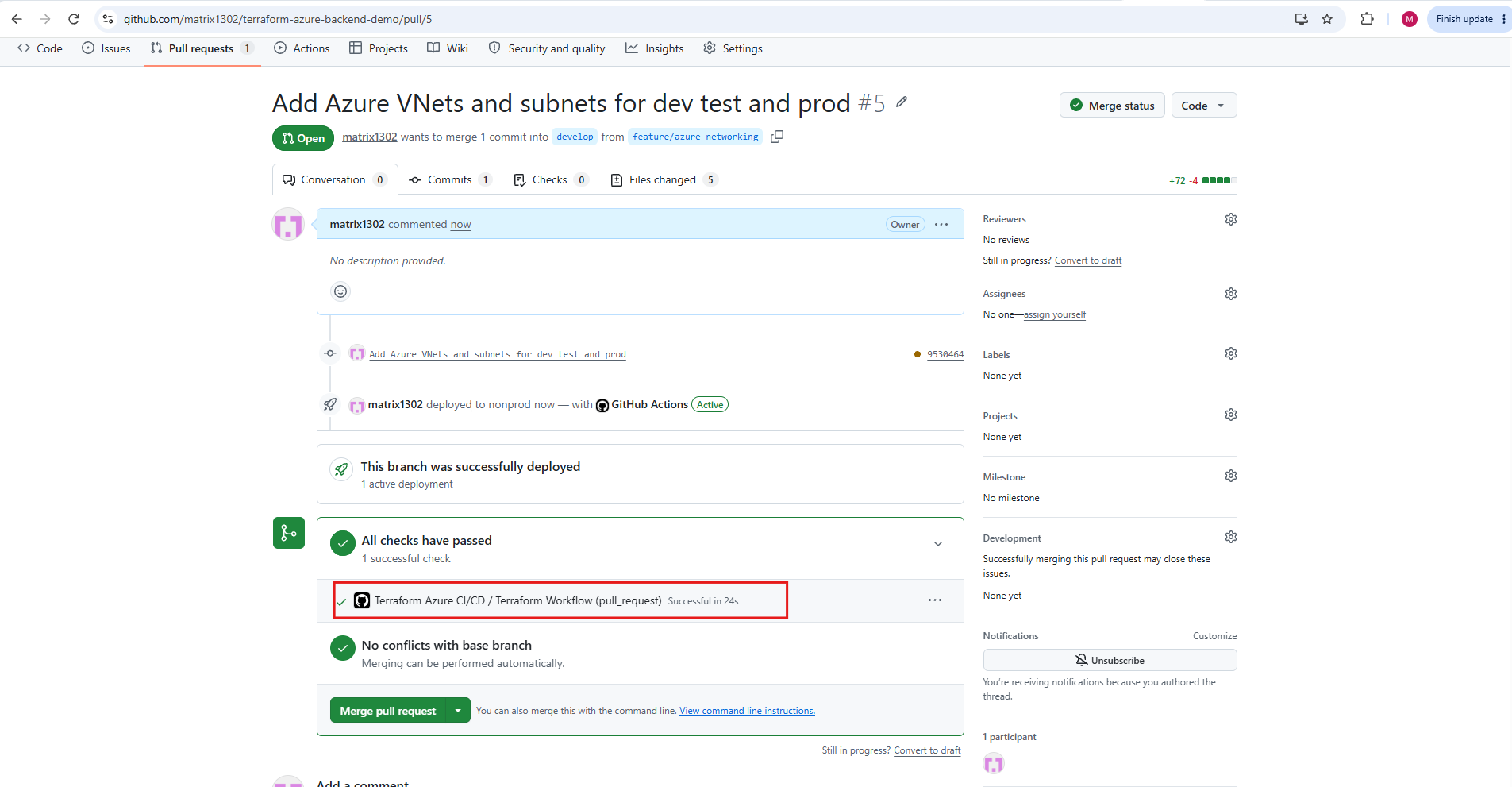
Our pull request successfully passed the automated Terraform validation workflow in GitHub Actions. Since the pull request targets develop, the workflow uses the nonprod GitHub Environment and executes Terraform initialization, validation, and planning without applying infrastructure changes.
With all checks successful and no merge conflicts detected, GitHub allows us to merge the changes into the development branch.
Before merging, click the successful Terraform Workflow check and inspect its Terraform Plan output. We want to confirm that it reports:
Terraform Apply is skipped because this workflow was triggered by a Pull Request, not a push.
Remember the condition we configured in Part 4 in terraform.yml:
This ensures that pull requests only validate and plan infrastructure changes, without actually deploying anything to Azure.
- name: Terraform Apply
  if: github.event_name != 'pull_request'
  run: terraform apply -auto-approve -var-file="environments/${TF_ENV}.tfvars"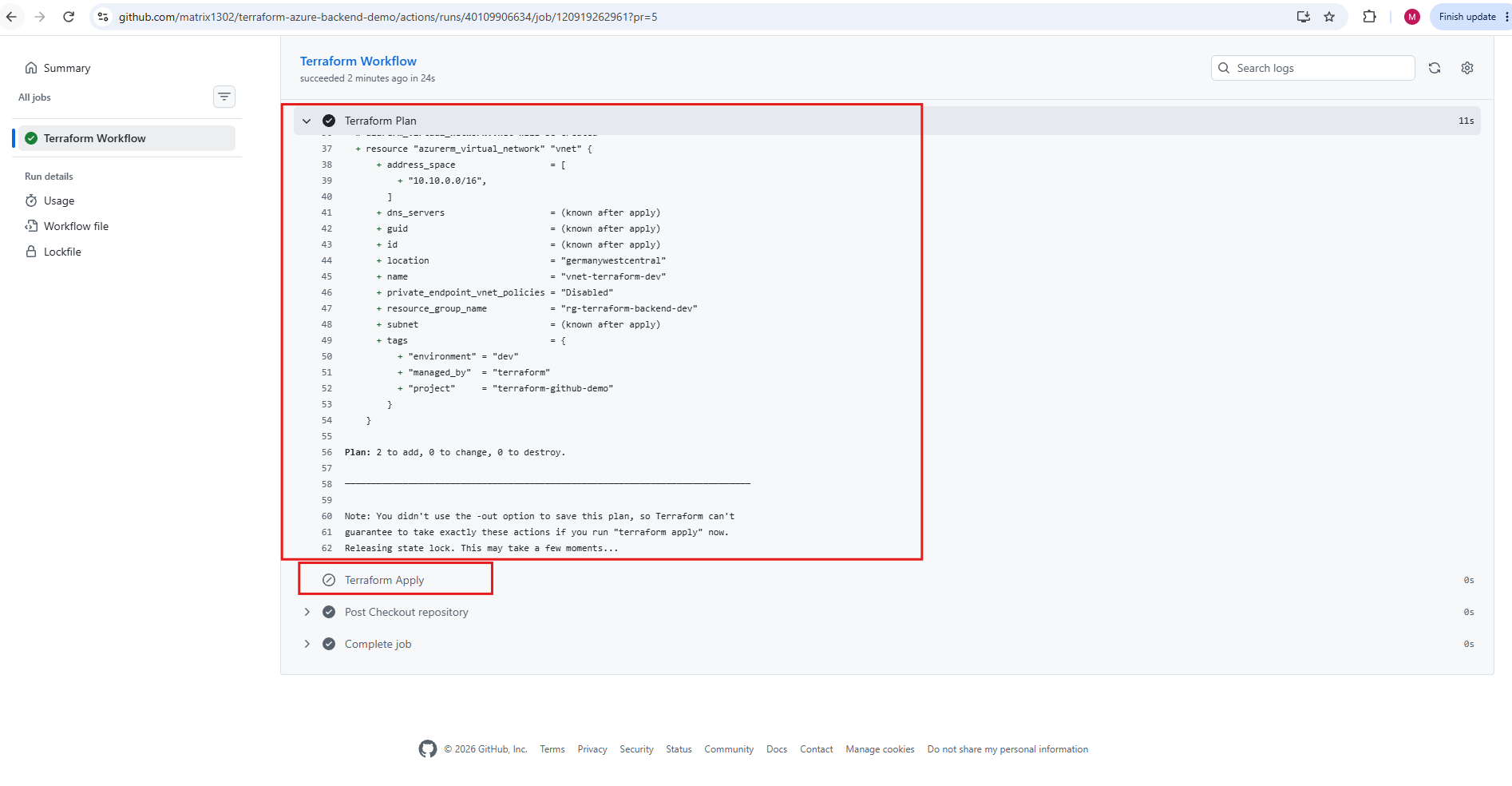
After successfully validating our Terraform configuration through GitHub Actions, we can now merge pull request #5 into the develop branch.
This merge triggers a new workflow through the GitHub
pushevent, which executesterraform applyand deploys our Azure Virtual Network and subnet into the development resource group.
Open Pull Request #5 and click Merge pull request, followed by Confirm merge.
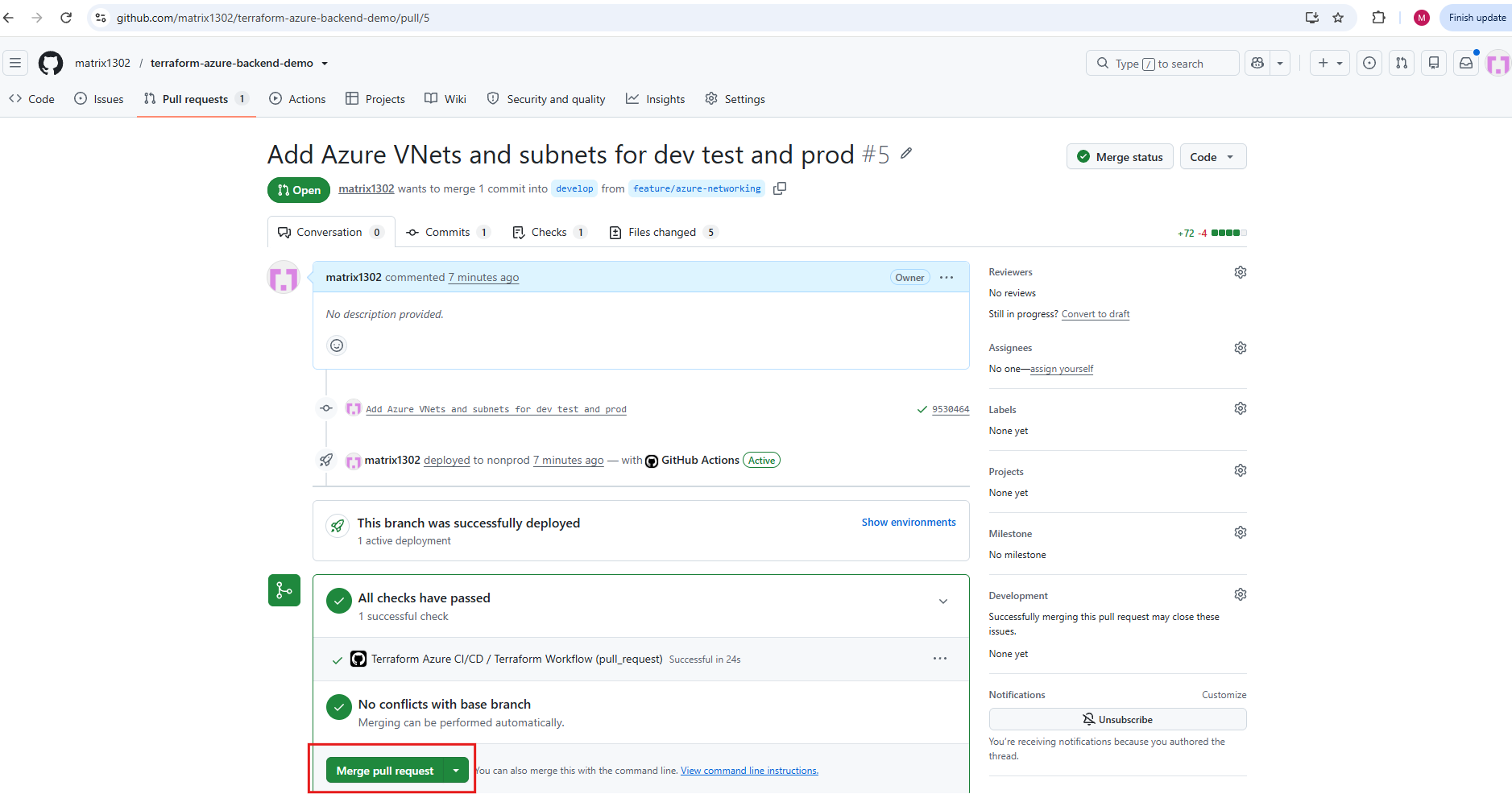
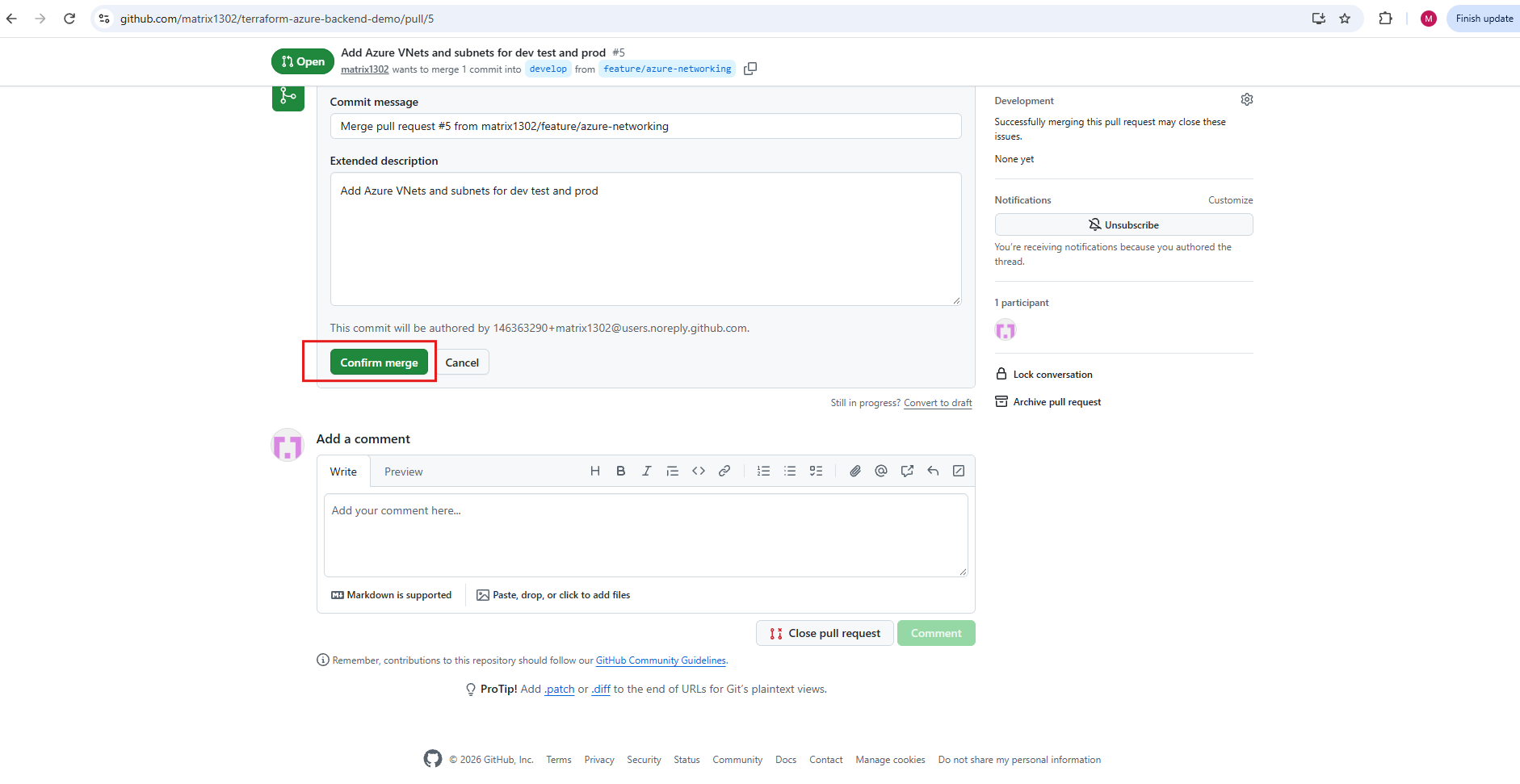
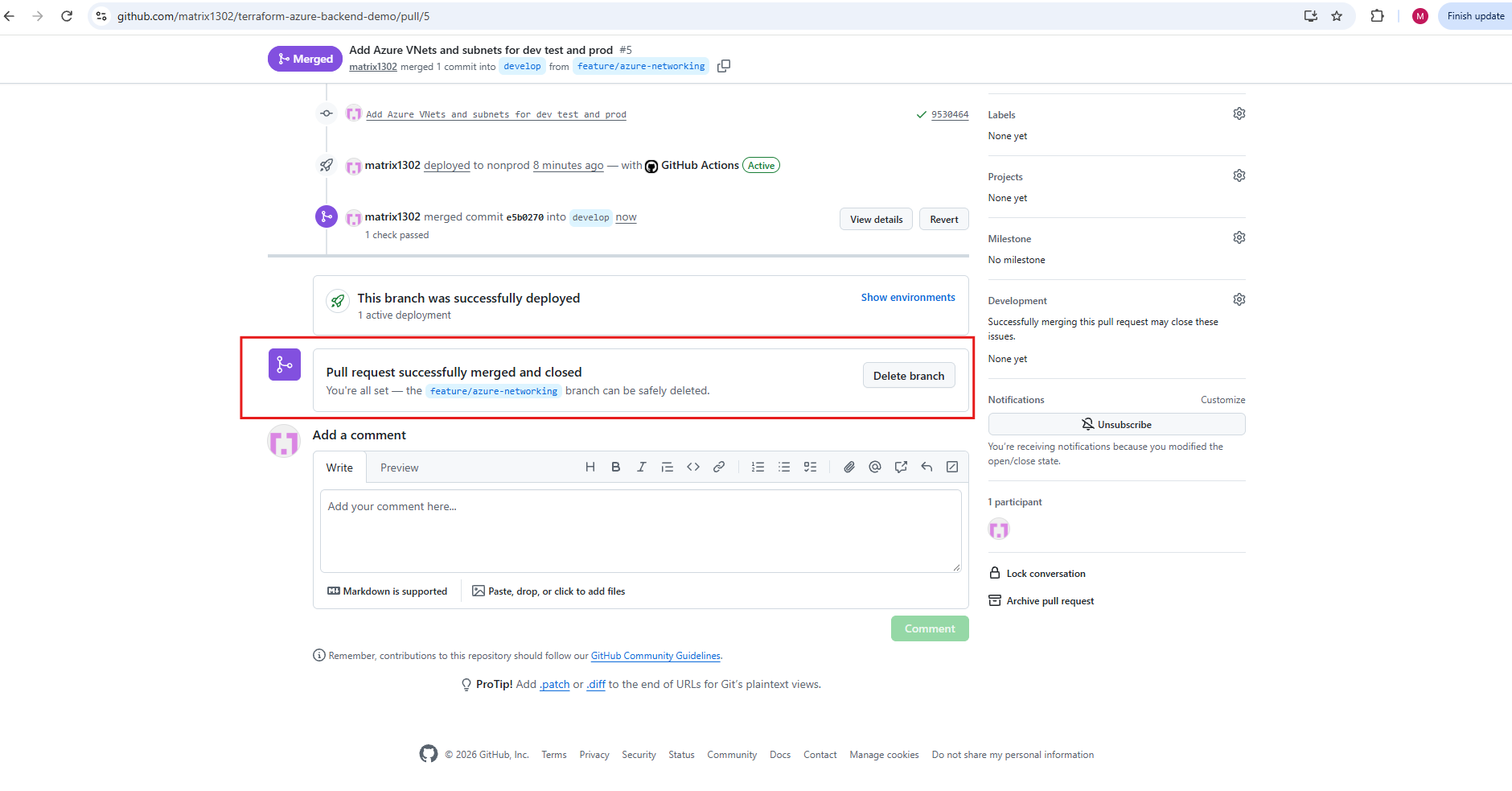
After successfully passing the Terraform validation checks, pull request #5 is merged into the develop branch and automatically closed.
GitHub now offers to delete the temporary
feature/azure-networkingbranch, as its changes have been incorporated into development. The merge also triggers a new GitHub Actions workflow that will execute the actual Terraform deployment.
Click Delete branch to remove the temporary remote feature branch.
Navigate to GitHub → Actions.
Open the new workflow run triggered by the merge into develop.
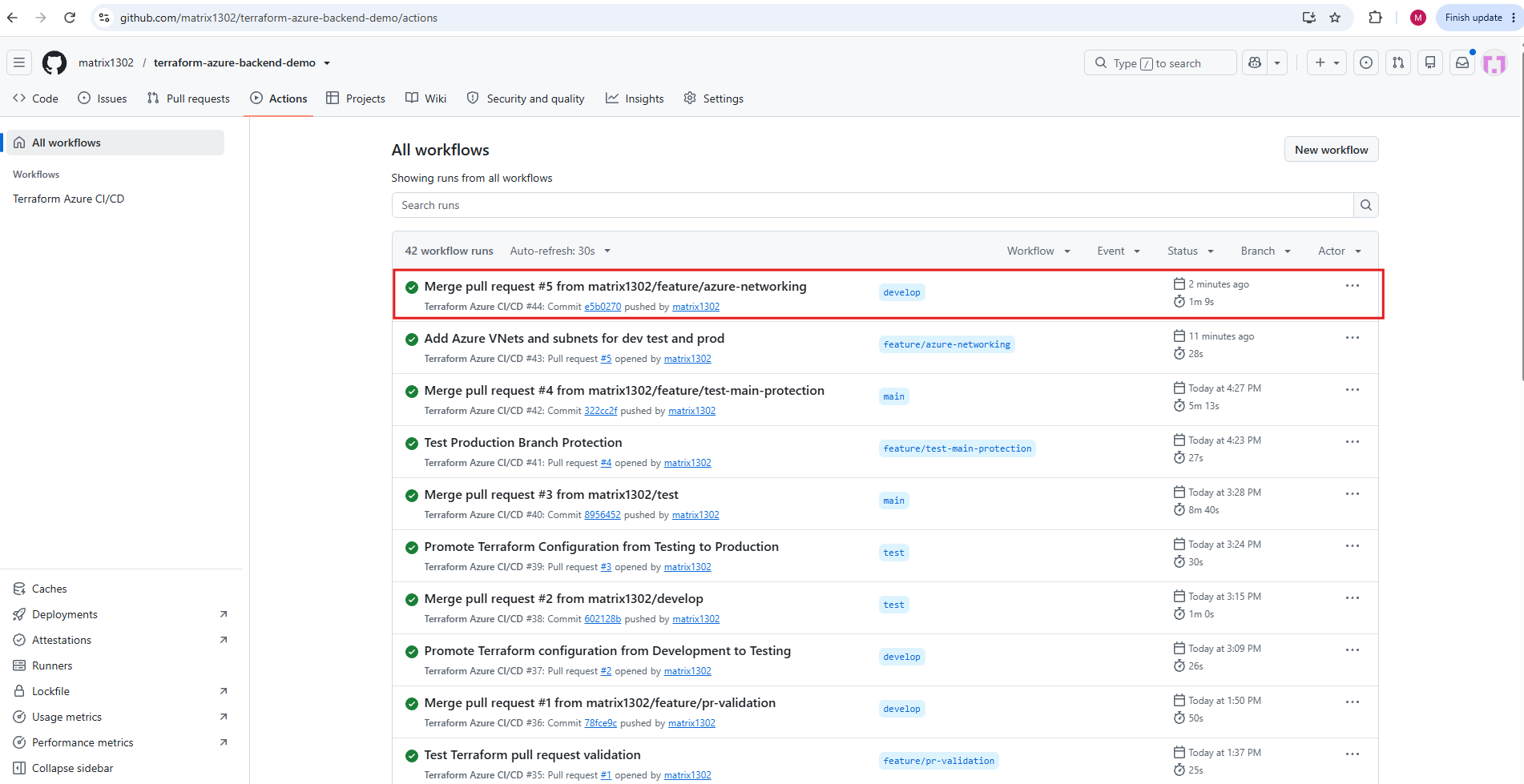
Expand Terraform Apply and check whether both networking resources were successfully created.
After merging our feature branch into
develop, GitHub Actions automatically triggered a new Terraform deployment workflow.This time,
terraform applywas executed, successfully creating the Azure Virtual Network (vnet-terraform-dev) and its subnet (snet-workload) in the development resource group.The execution completed with 2 resources added, 0 changed, and 0 destroyed, confirming our first successful Azure networking deployment through the CI/CD pipeline.
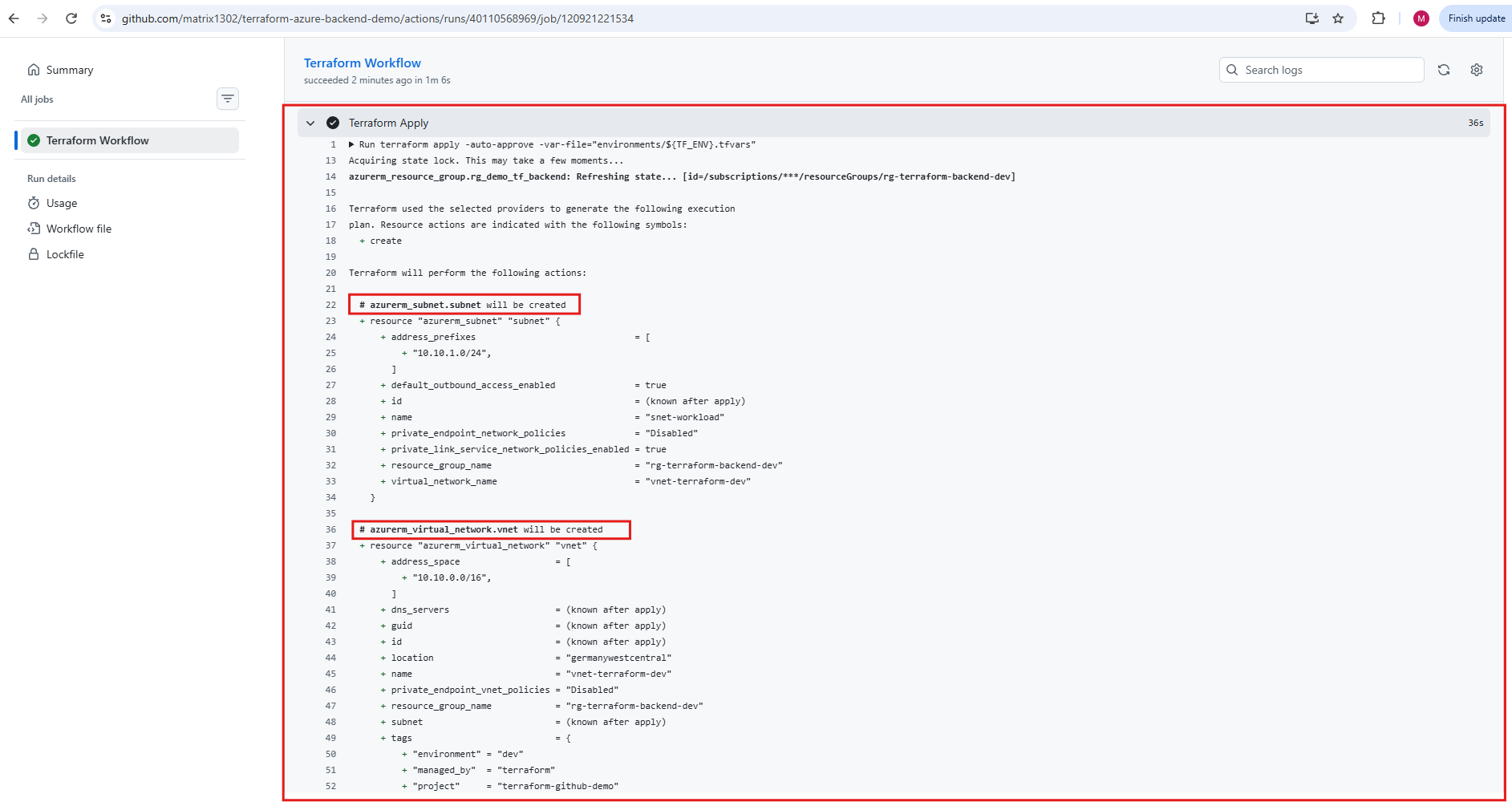
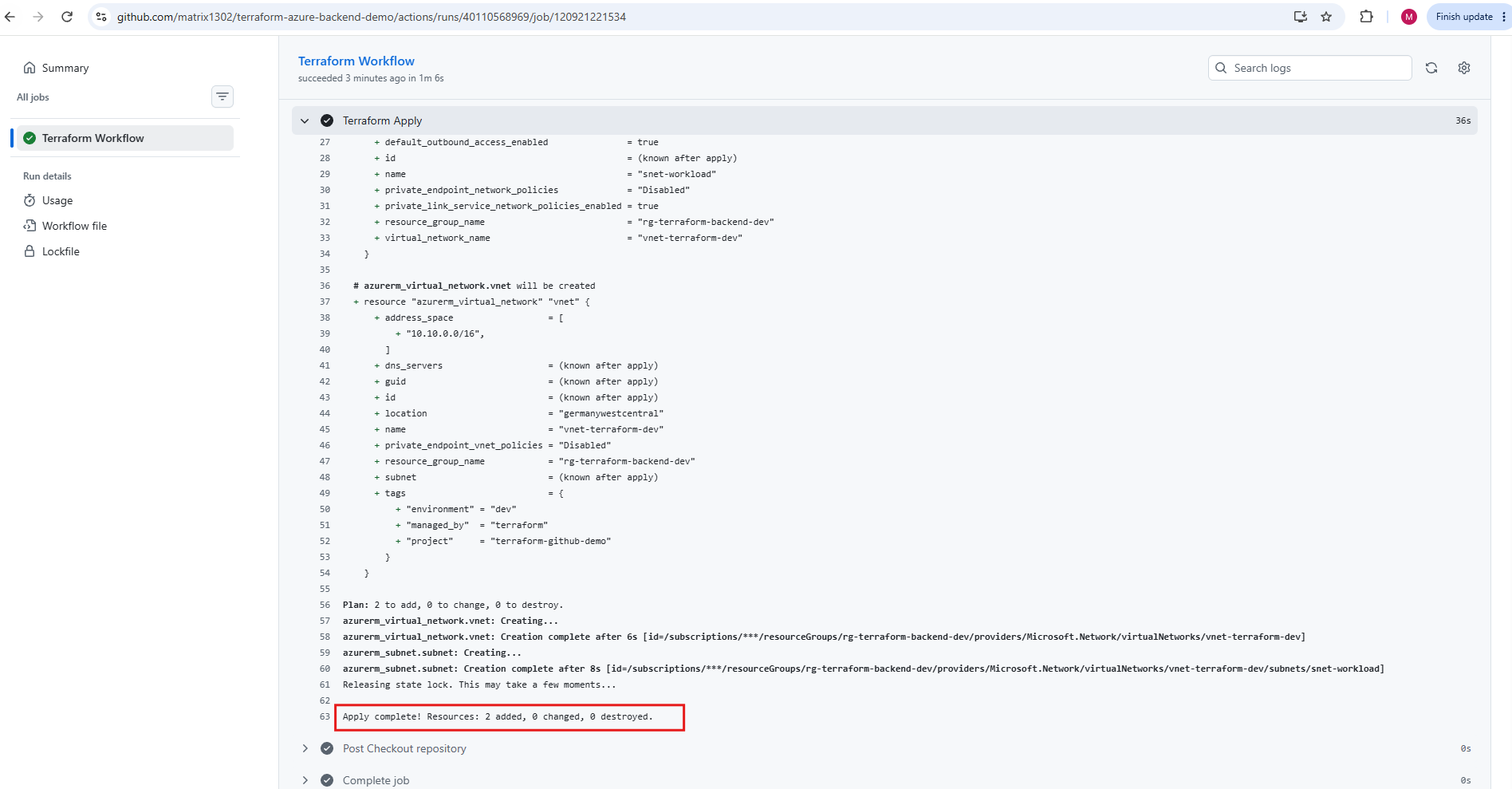
Finally, we verify our deployment directly in the Azure Portal.
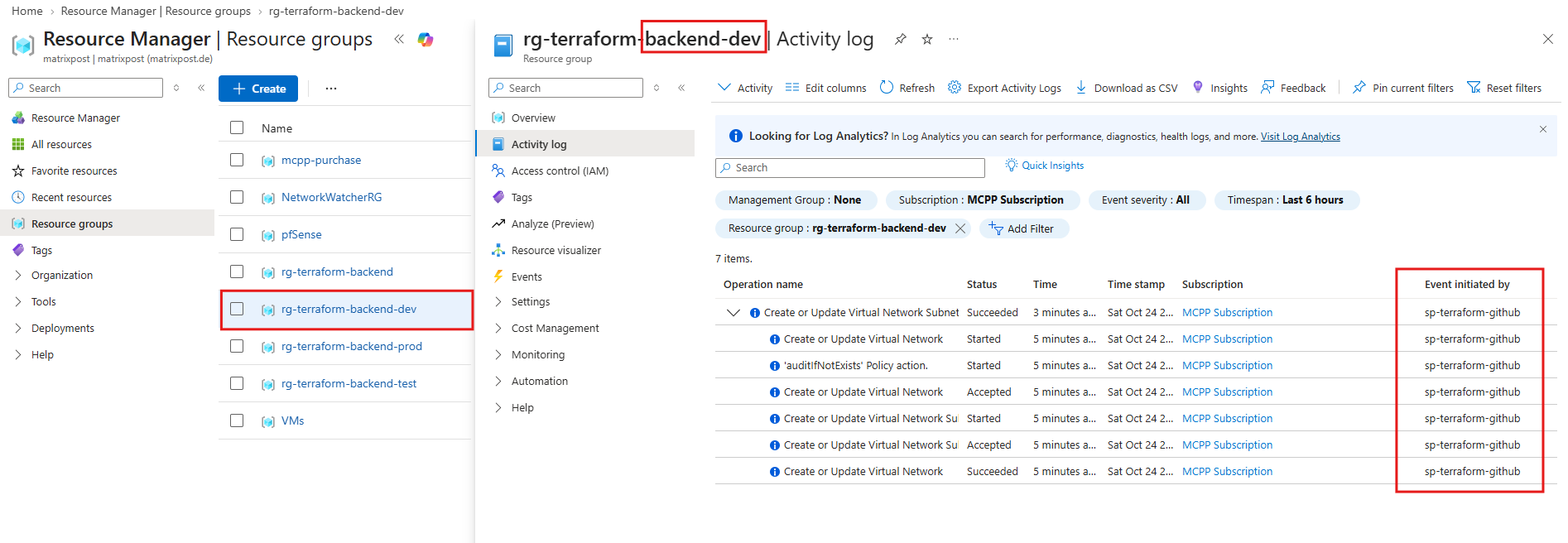
The Activity Log confirms that the Virtual Network and subnet creation operations were successfully executed by our
sp-terraform-githubservice principal through GitHub Actions.The Azure Activity Log also provides a useful way to identify who initiated infrastructure changes. By checking the Event initiated by column, we can determine whether a resource operation was performed by an individual user or an automated identity, such as our
sp-terraform-githubservice principal.In our example, the successful VNet and subnet creation operations were initiated by
sp-terraform-github, confirming that the changes originated from the identity used by our Terraform/GitHub Actions CI/CD pipeline, rather than a manual deployment through the Azure Portal.
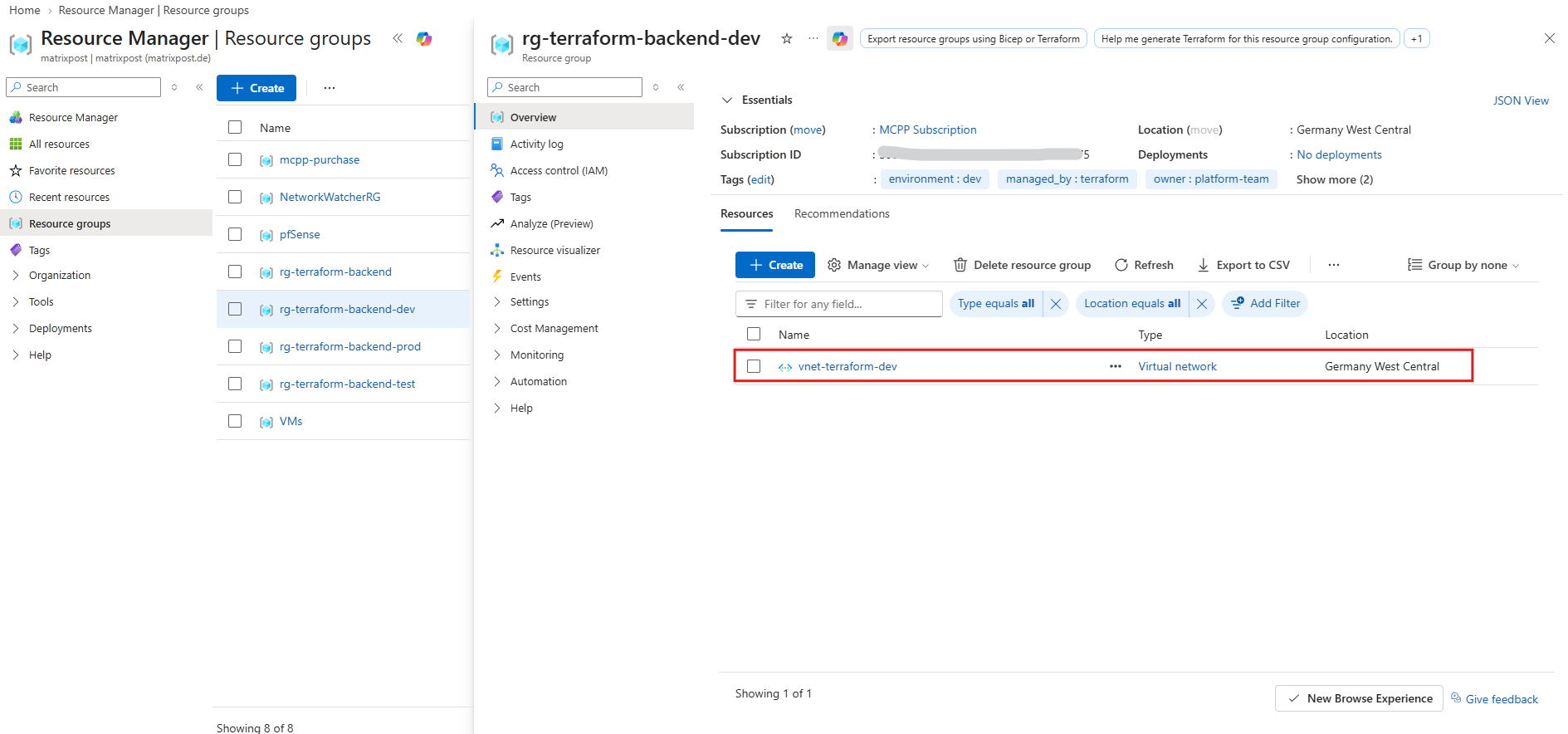
Within the development resource group (
rg-terraform-backend-dev), we can now see our newly deployed Virtual Network (vnet-terraform-dev).
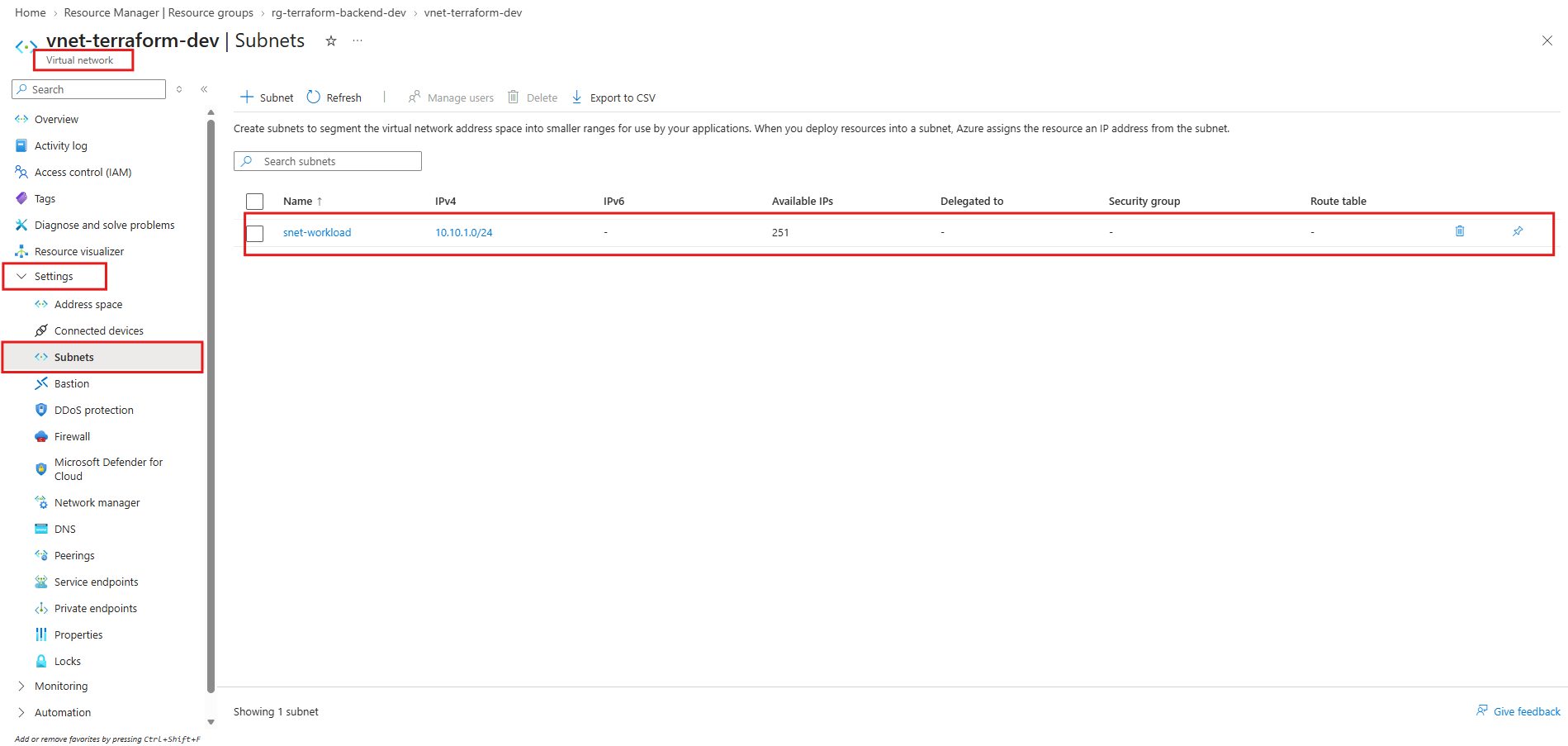
Navigating to its Subnets section confirms that
snet-workloadwas successfully created with the configured address range10.10.1.0/24.
Promote the Infrastructure to Testing
Now that development has been successfully deployed and verified, we’ll promote the same Terraform configuration from develop → test through a new pull request.
The existing pipeline will automatically select environments/test.tfvars, deploying:
| Resource | Testing environment |
|---|---|
| Resource group | rg-terraform-backend-test |
| VNet | vnet-terraform-test |
| VNet address space | 10.20.0.0/16 |
| Subnet | snet-workload — 10.20.1.0/24 |
Next we create a pull request with test as the base branch and develop as the compare branch. We’ll validate the Terraform plan before merging, just as we did for development.
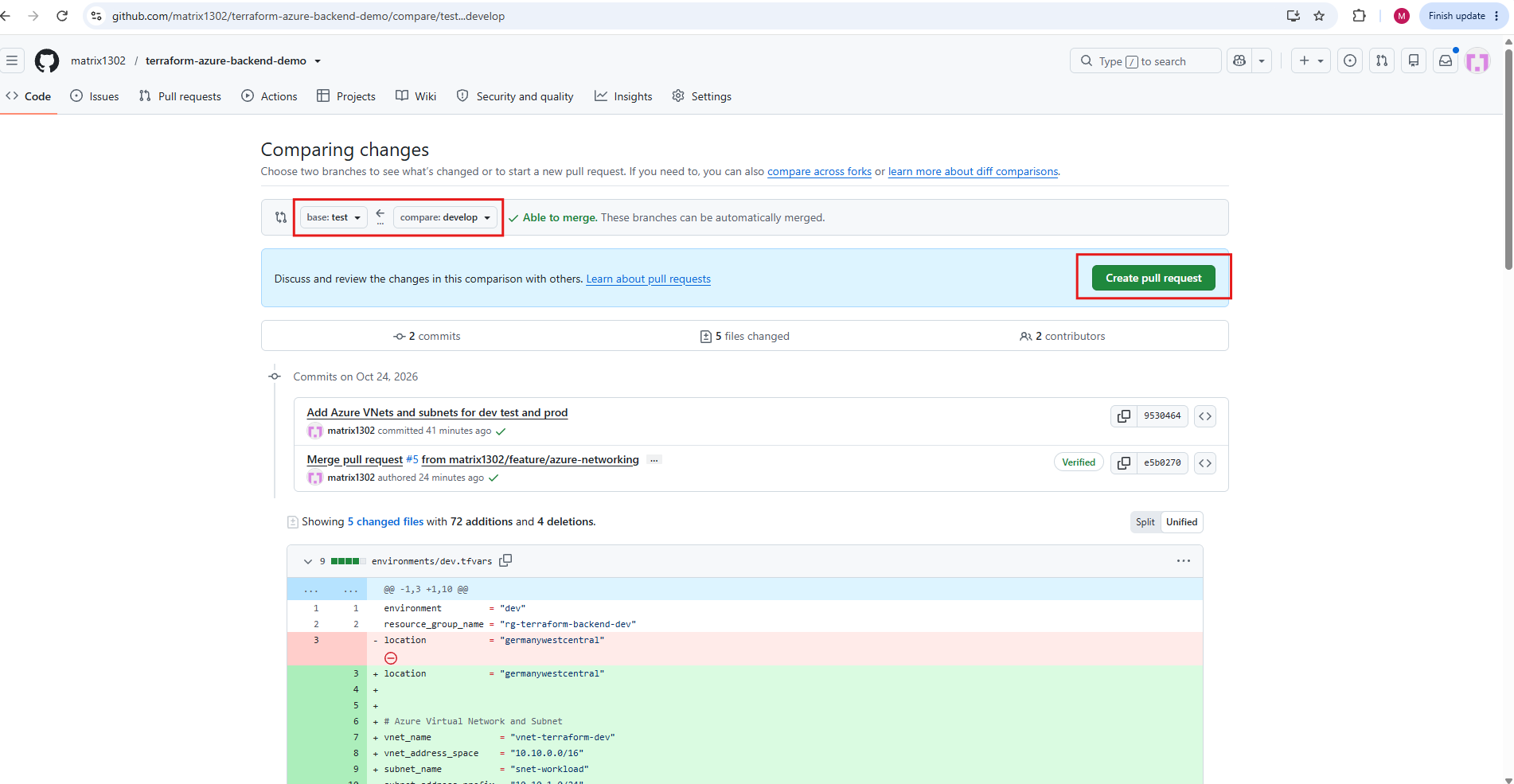
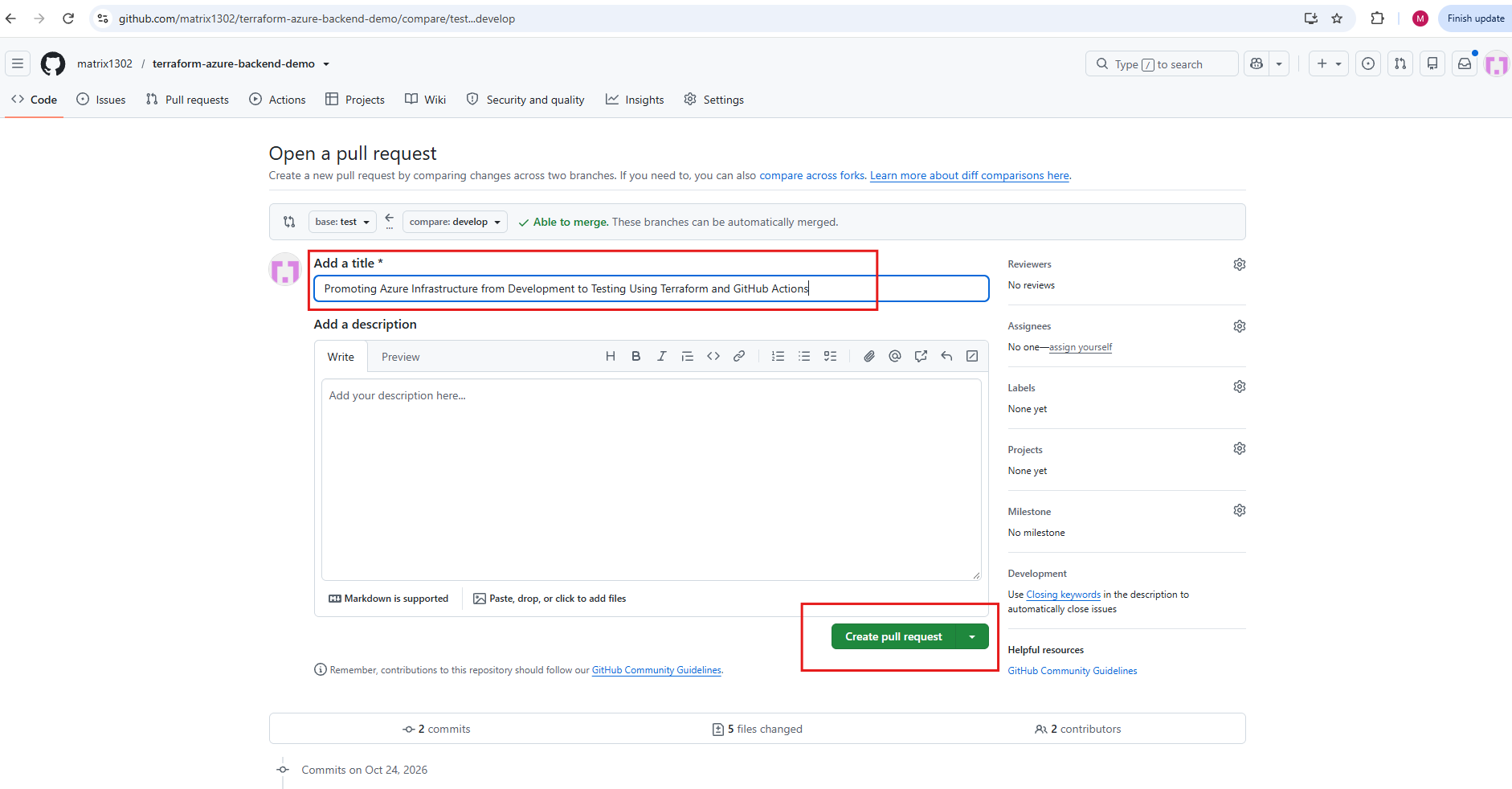
Click on Create pull request and enter a title for.
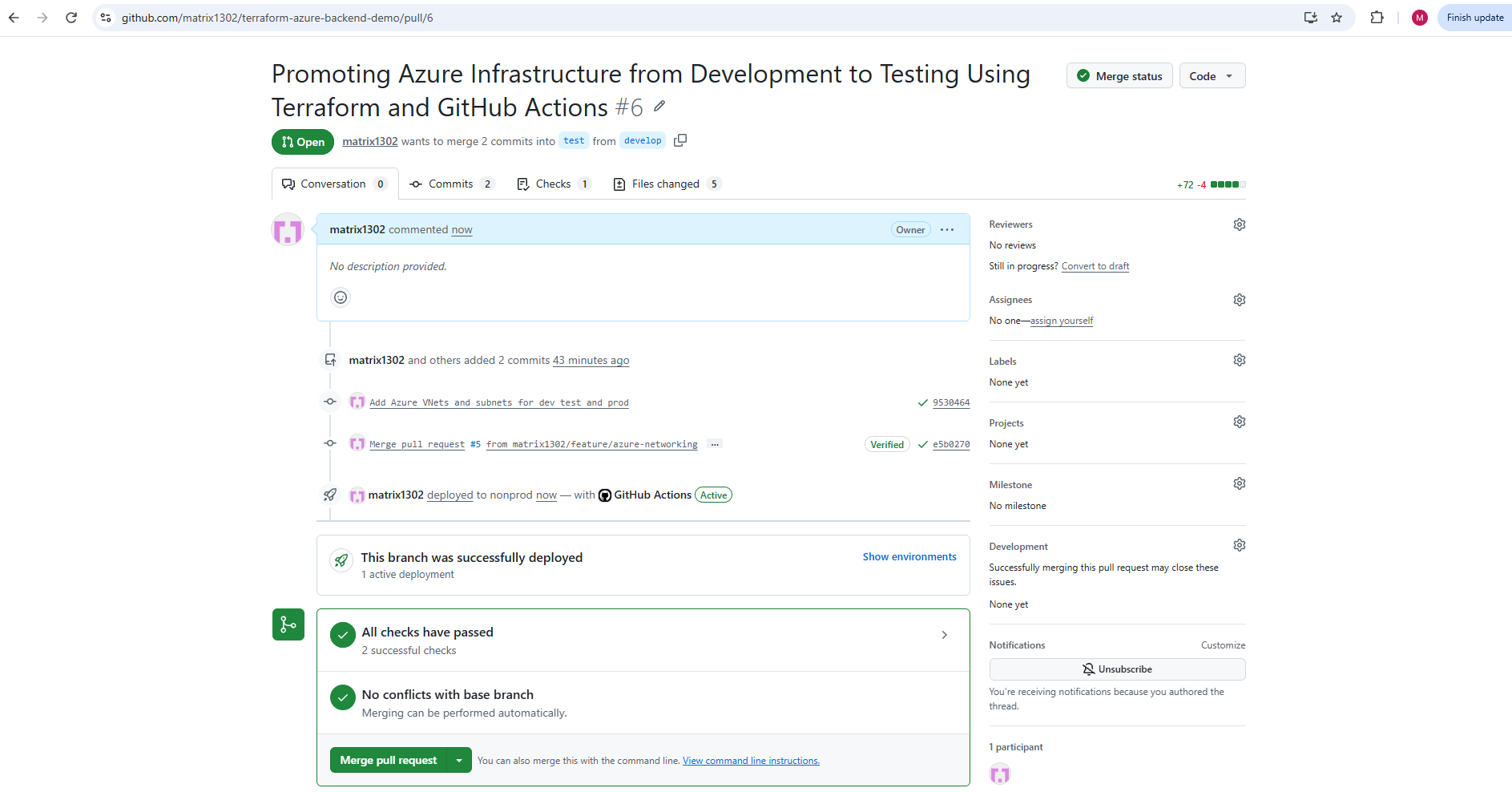
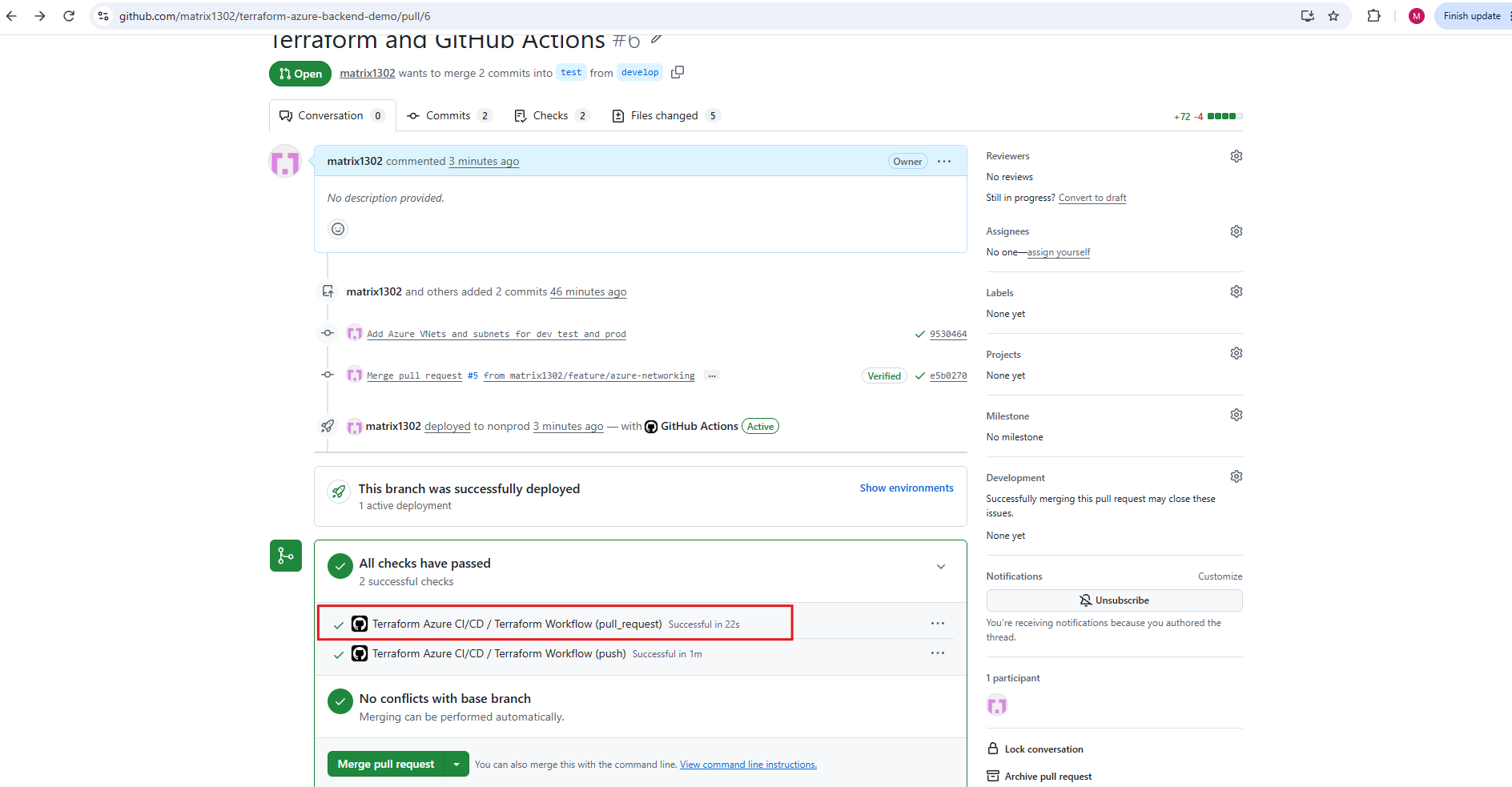
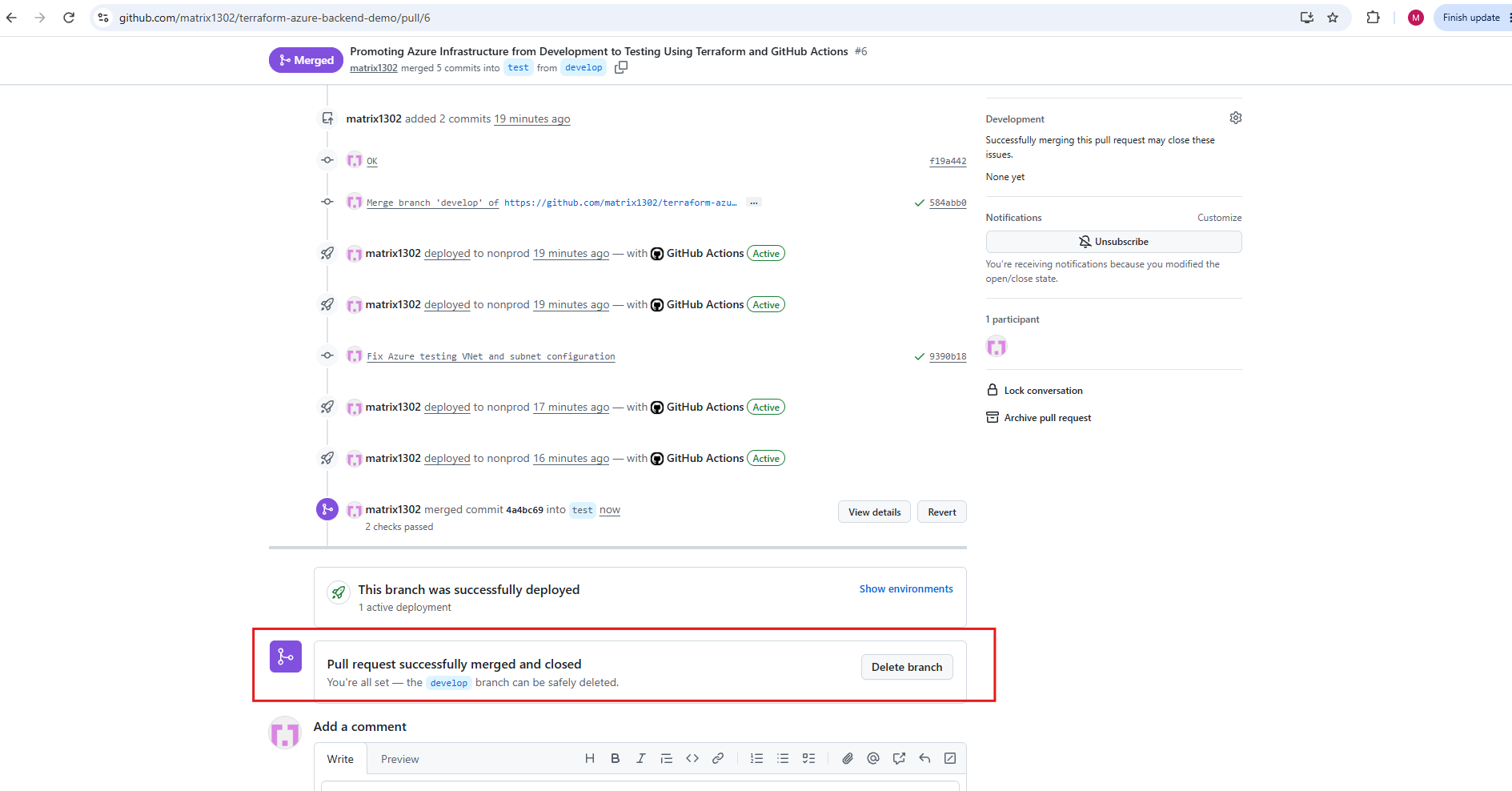
After successfully deploying and verifying our Azure networking infrastructure in Development, we create pull request #6 to promote the same Terraform configuration from develop to test.
GitHub Actions automatically validates the configuration against our testing environment, and all required checks pass successfully without merge conflicts. The infrastructure is now ready for deployment to Testing.
Before merging, we inspect the Terraform Plan check and verify that it reports:
Plan: 2 to add, 0 to change, 0 to destroy.
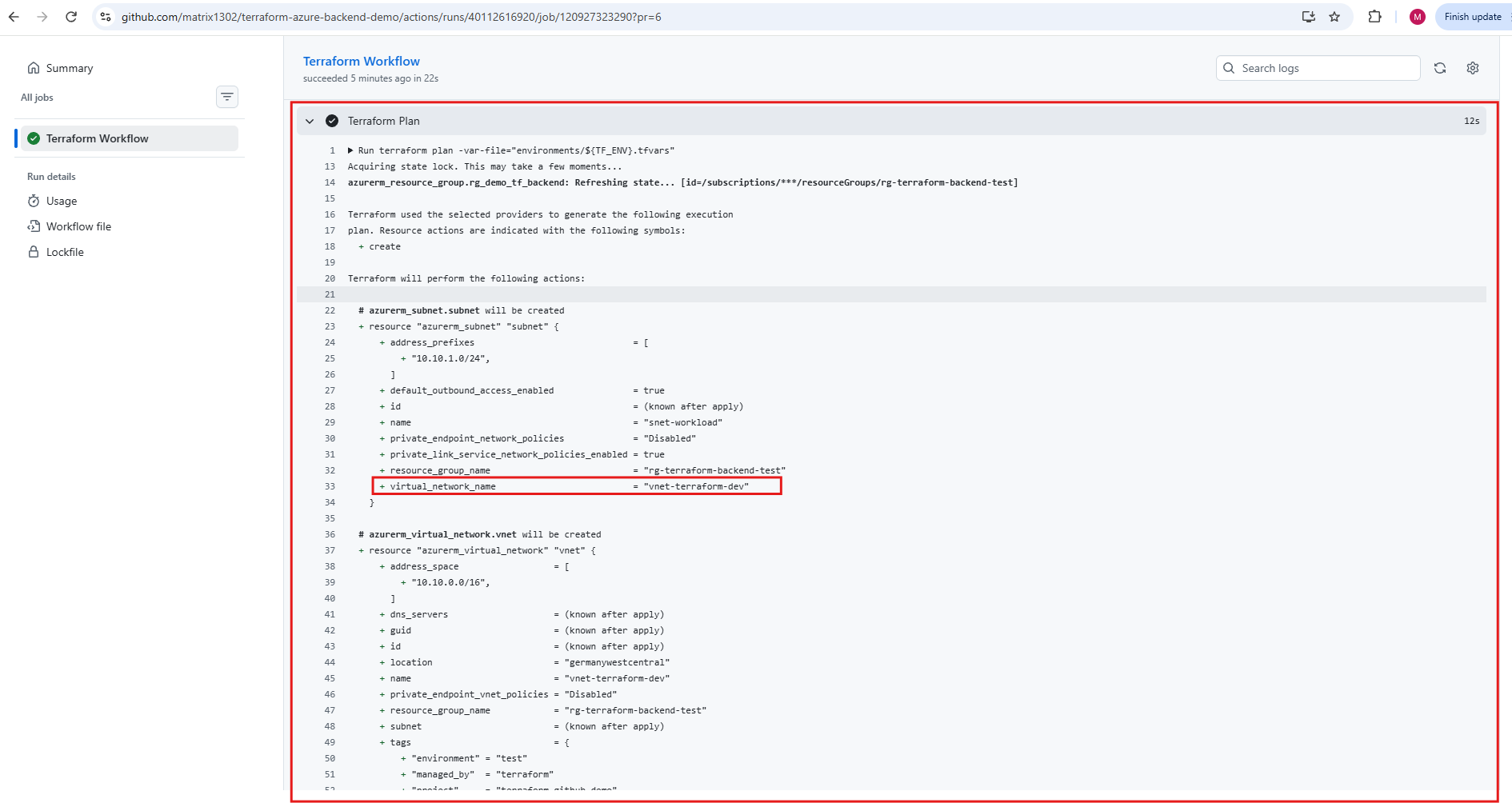
This example demonstrates one of the key advantages of using Pull Requests with automated Terraform validation.
Although all checks passed successfully, reviewing the Terraform execution plan revealed an incorrect configuration: the Testing resource group (
rg-terraform-backend-test) would receive the Development VNet (vnet-terraform-dev) with the address space10.10.0.0/16, instead of the intended Testing network (10.20.0.0/16).Because our Pull Request workflow executes Terraform Plan without Terraform Apply, we can identify and correct such configuration mistakes before merging the changes and deploying infrastructure to Azure.
Importantly, a successful Terraform validation does not necessarily mean the planned infrastructure matches our intended design. The execution plan still needs to be reviewed.
Note: The incorrect network configuration was caused by a simple copy-and-paste mistake: I accidentally copied the Development network variables into
environments/test.tfvarsinstead of using the intended Testing values.
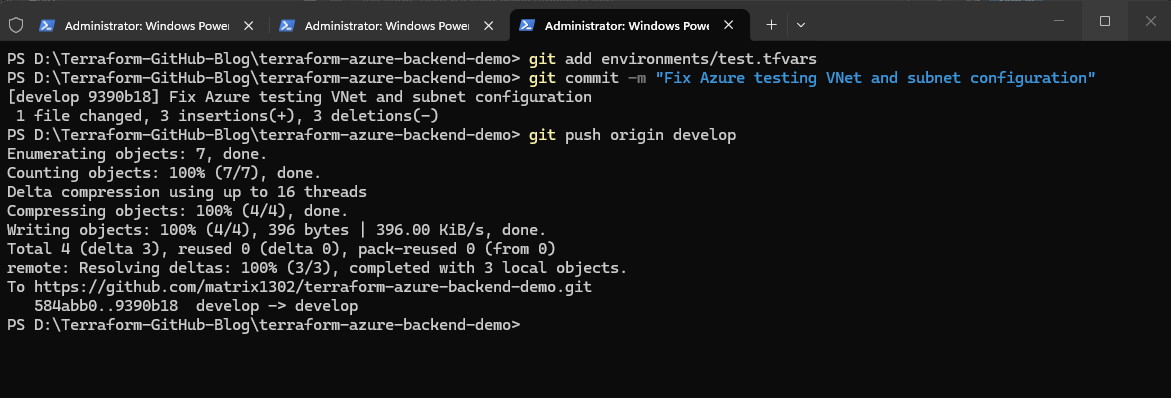
After discovering the incorrect network settings in the Terraform execution plan, we return to our local develop branch and correct the values in environments/test.tfvars.
The Testing environment should use the VNet vnet-terraform-test with address space 10.20.0.0/16 and subnet 10.20.1.0/24.
Once corrected, we commit and push the updated configuration:
git add environments/test.tfvars
git commit -m "Fix Azure testing VNet and subnet configuration"
git push origin develop
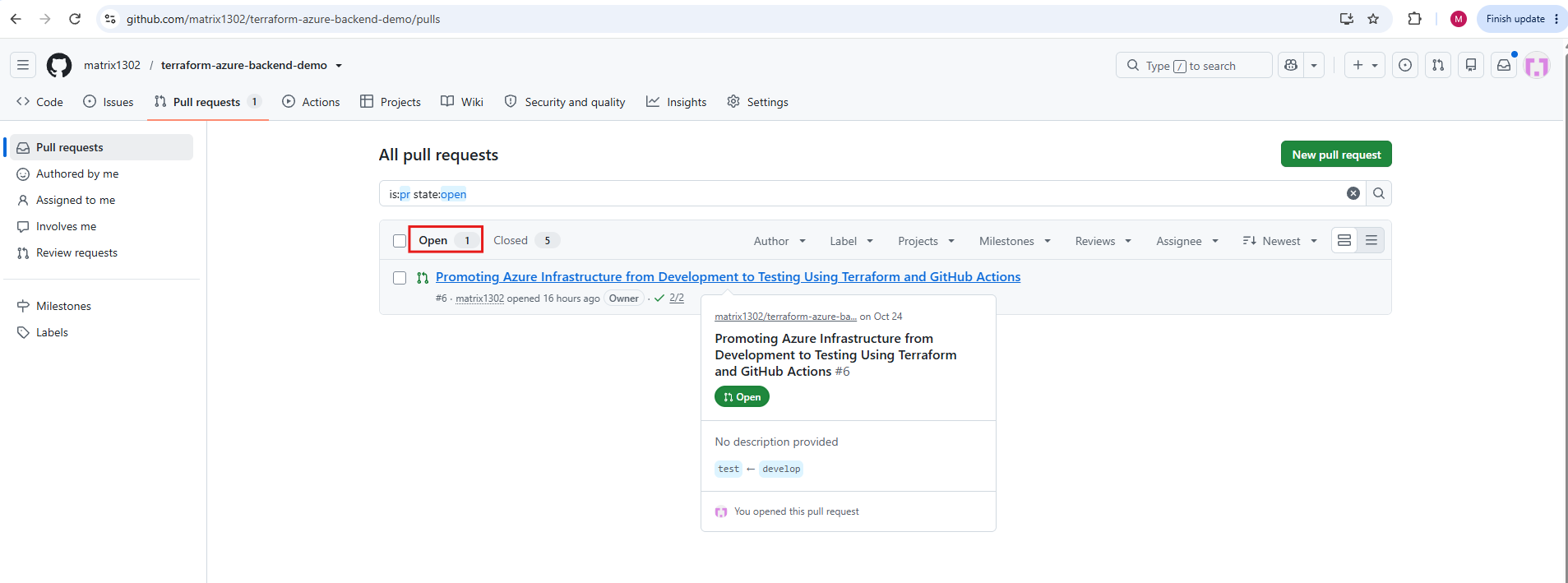
Since Pull Request #6 (develop → test) is still open, GitHub automatically updates the existing Pull Request and triggers another Terraform validation workflow.
We can then review the corrected execution plan before merging and deploying the infrastructure to Testing. Open Pull Request #6.
Expand All checks have passed and open the latest Terraform Workflow (pull_request) run.
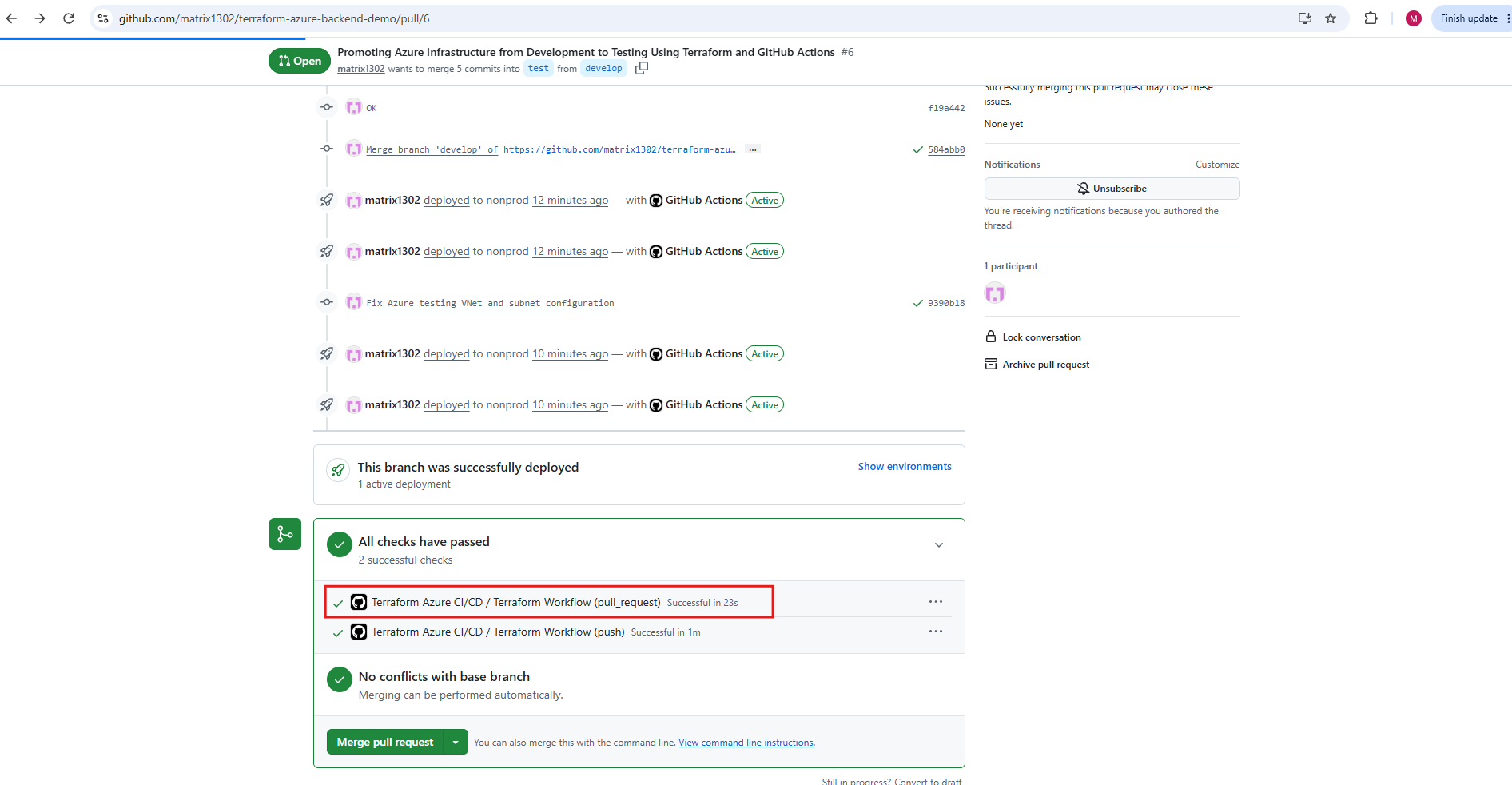
Check that the Terraform Plan now contains the correct Testing settings.
The updated GitHub Actions workflow confirms that our Testing environment will receive exactly the intended network configuration.
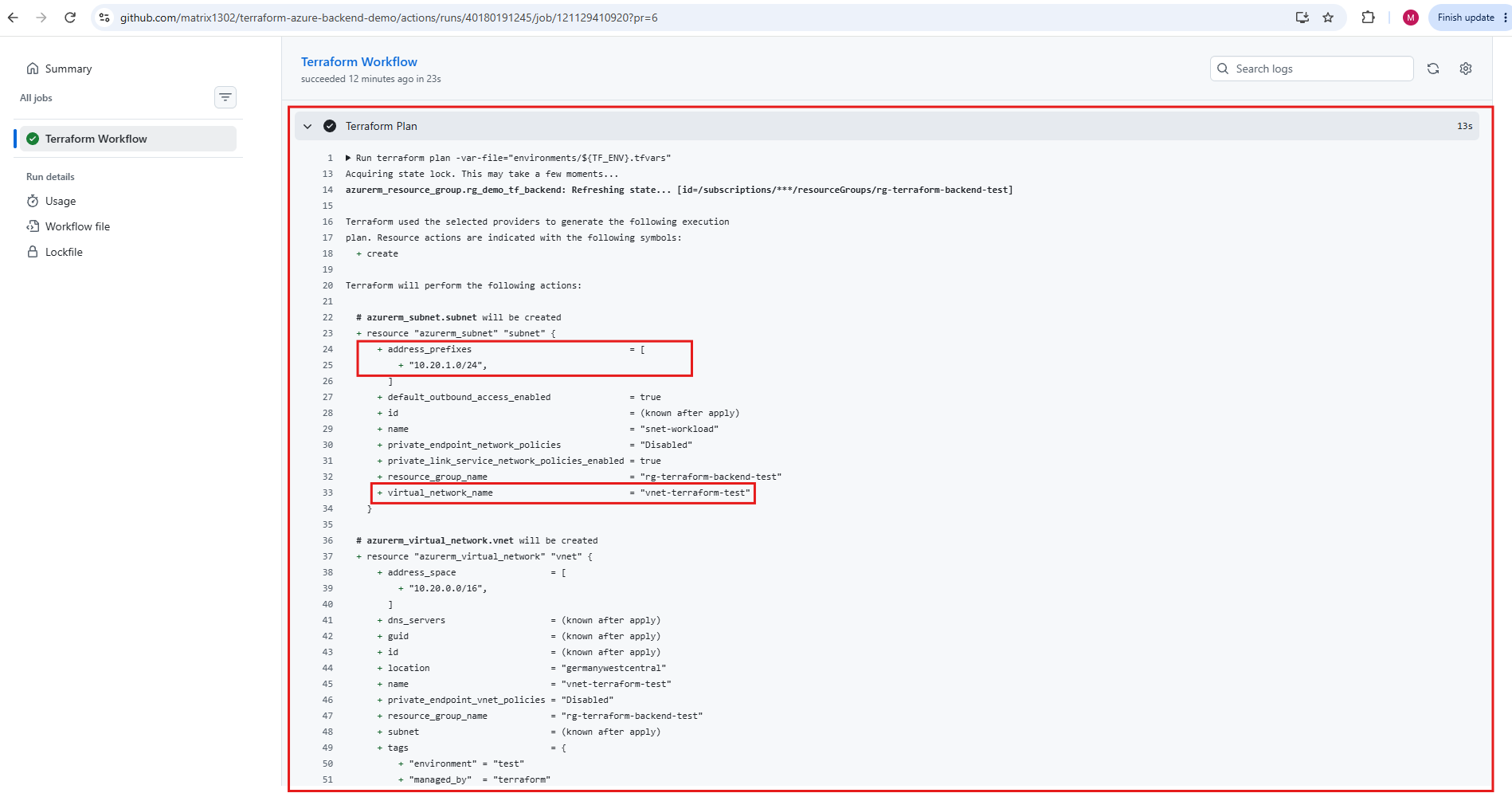
After committing and pushing the corrected test.tfvars configuration to develop, GitHub automatically updated our existing Pull Request #6 and triggered another Terraform validation workflow.
The new execution plan now shows the correct Testing VNet (vnet-terraform-test) with address space 10.20.0.0/16 and subnet 10.20.1.0/24, confirming that the configuration issue has been resolved before deployment.
Return to Pull Request #6 and merge develop into test.
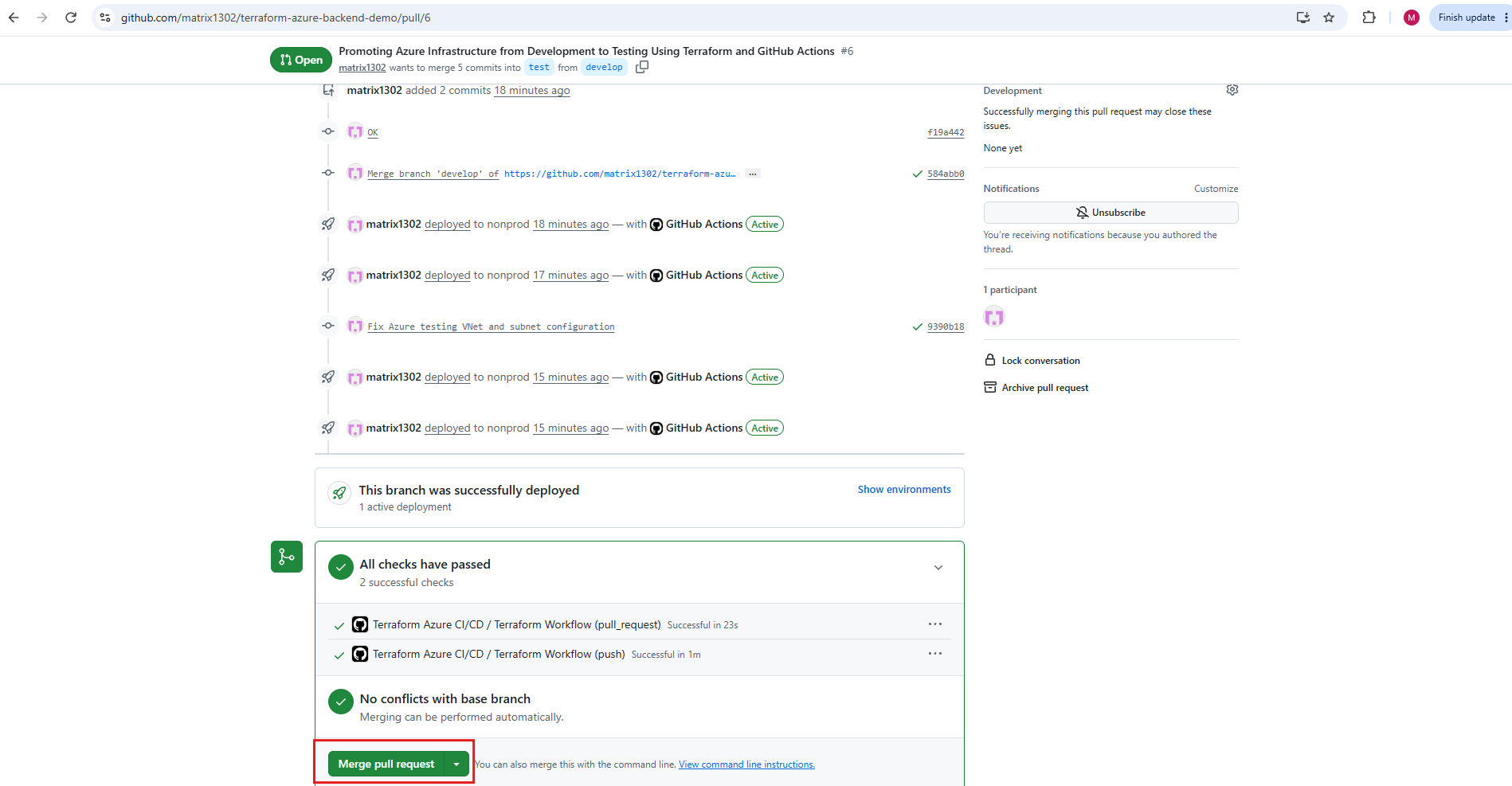
Click on Confirm merge.
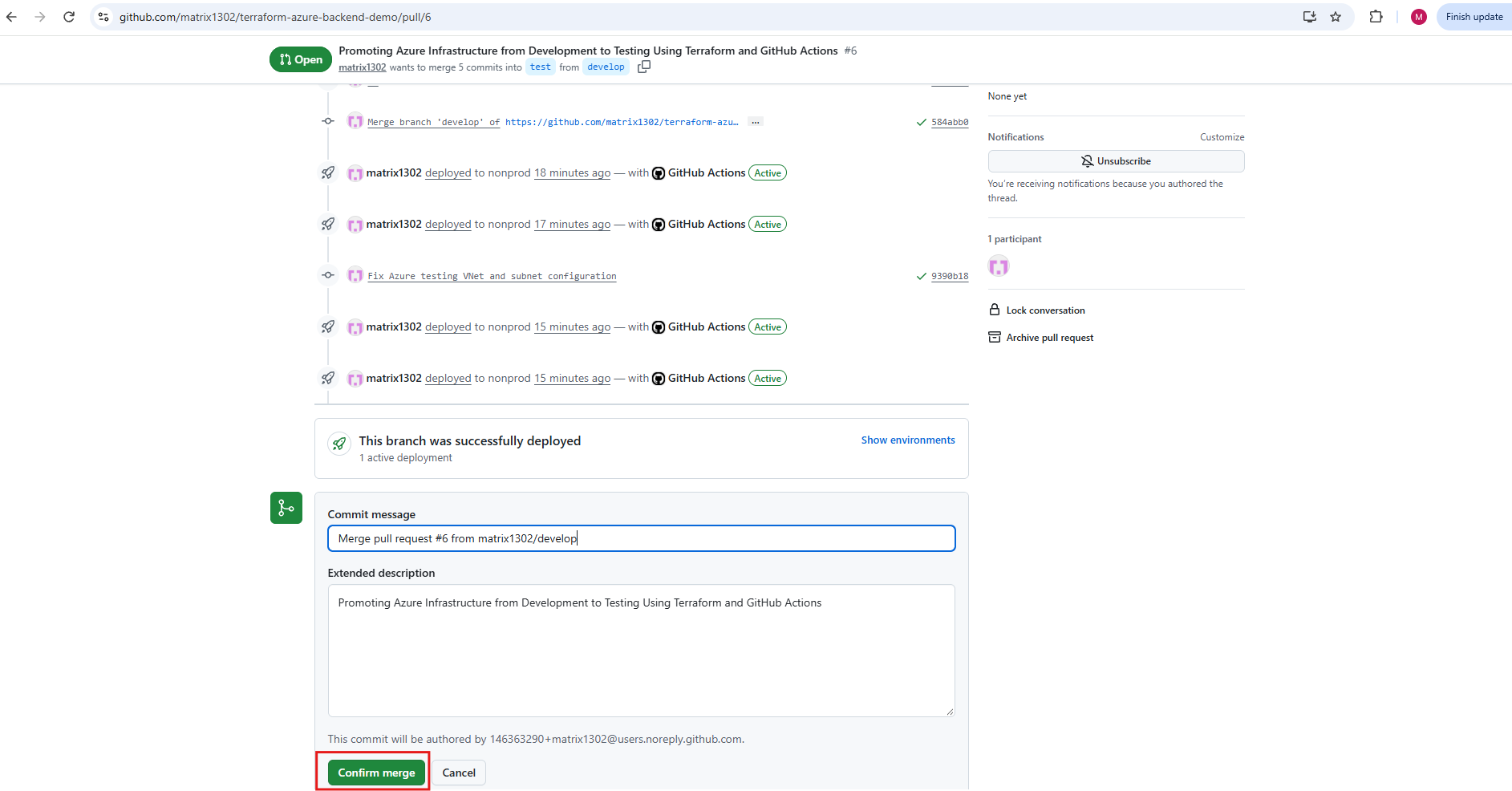
After correcting the Testing network configuration and successfully completing the updated Terraform validation, we merge Pull Request #6 from develop into test. GitHub confirms that the Pull Request has been successfully merged and closed, triggering a new GitHub Actions workflow to deploy the networking resources into our Testing environment.
Although GitHub offers to delete the source branch after merging, we retain
developbecause it is a permanent branch in ourDev,Test, andProductiondeployment workflow.
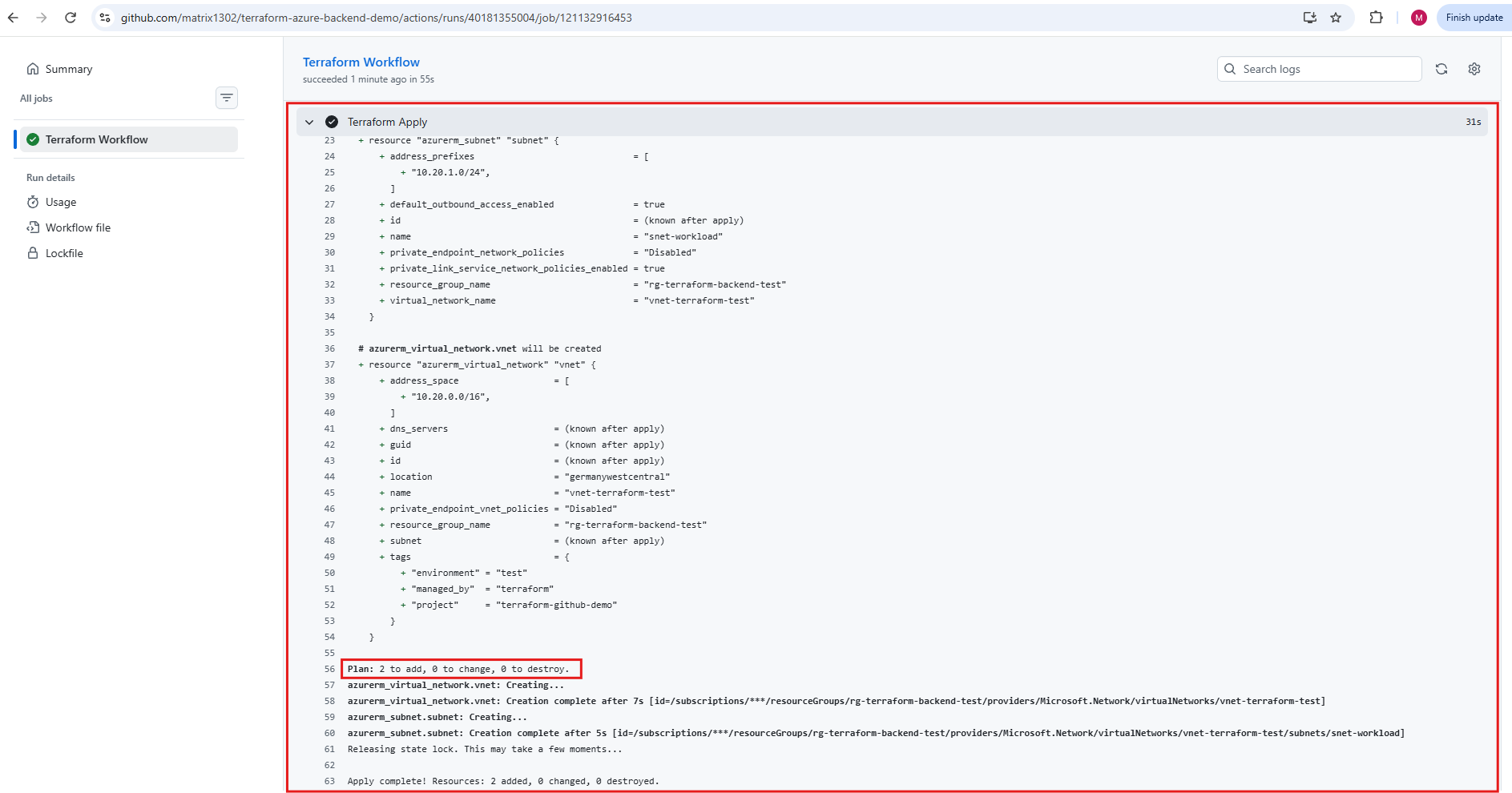
After merging Pull Request #6 into the test branch, GitHub Actions automatically executes the Terraform deployment using our Testing environment configuration. The execution logs confirm the successful creation of vnet-terraform-test (10.20.0.0/16) and its subnet snet-workload (10.20.1.0/24) in the resource group rg-terraform-backend-test.
Terraform completes successfully with 2 resources added, 0 changed, and 0 destroyed, confirming that our corrected infrastructure configuration has now been deployed to Testing.
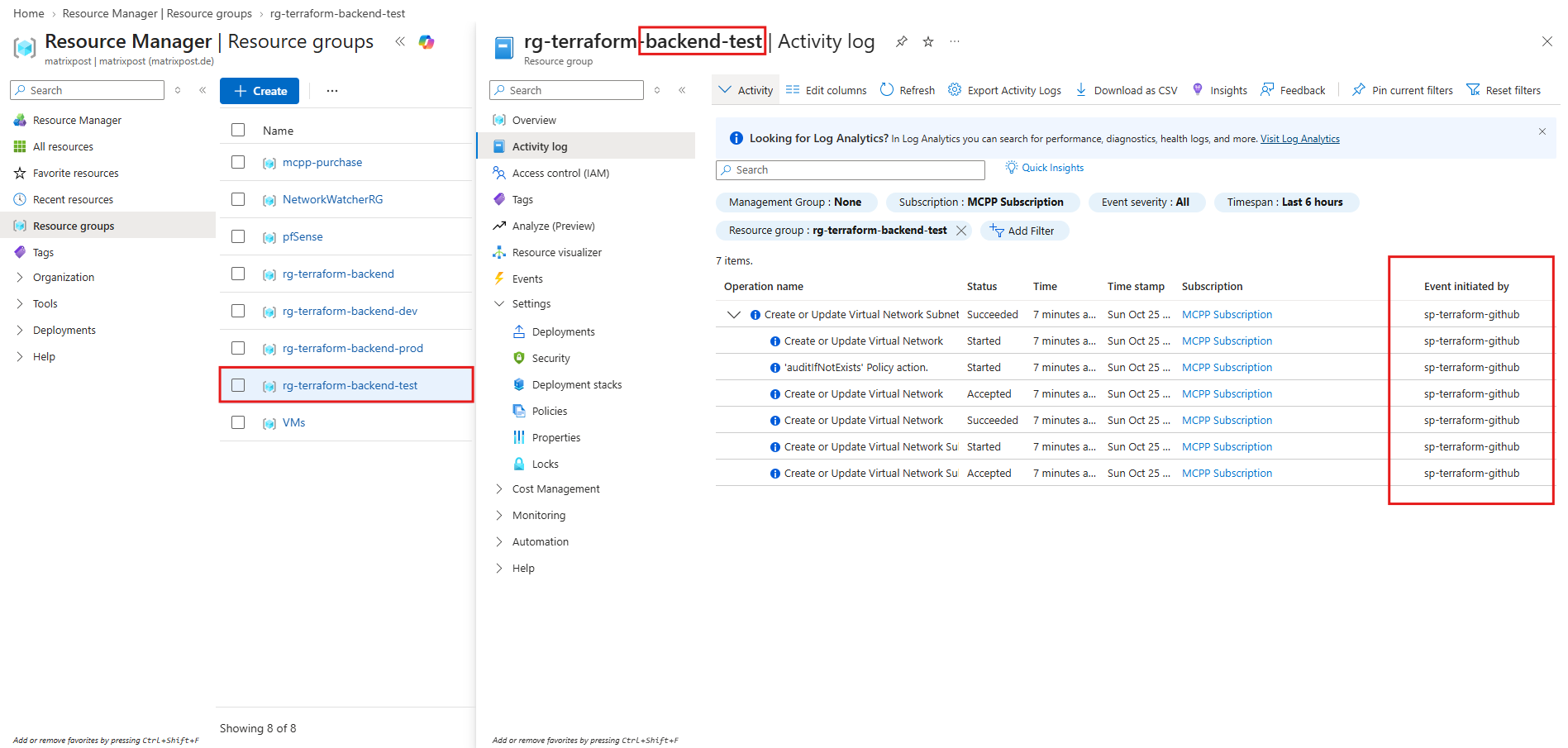
Finally, we verify the Testing deployment directly in the Azure Portal. The resource group’s Activity Log confirms that the Virtual Network and subnet creation operations were successfully executed by our sp-terraform-github service principal.
The Azure Activity Log also provides a useful way to identify who initiated infrastructure changes. By checking the Event initiated by column, we can determine whether a resource operation was performed by an individual user or an automated identity, such as our
sp-terraform-githubservice principal.In our example, the successful VNet and subnet creation operations were initiated by
sp-terraform-github, confirming that the changes originated from the identity used by our Terraform/GitHub Actions CI/CD pipeline, rather than a manual deployment through the Azure Portal.
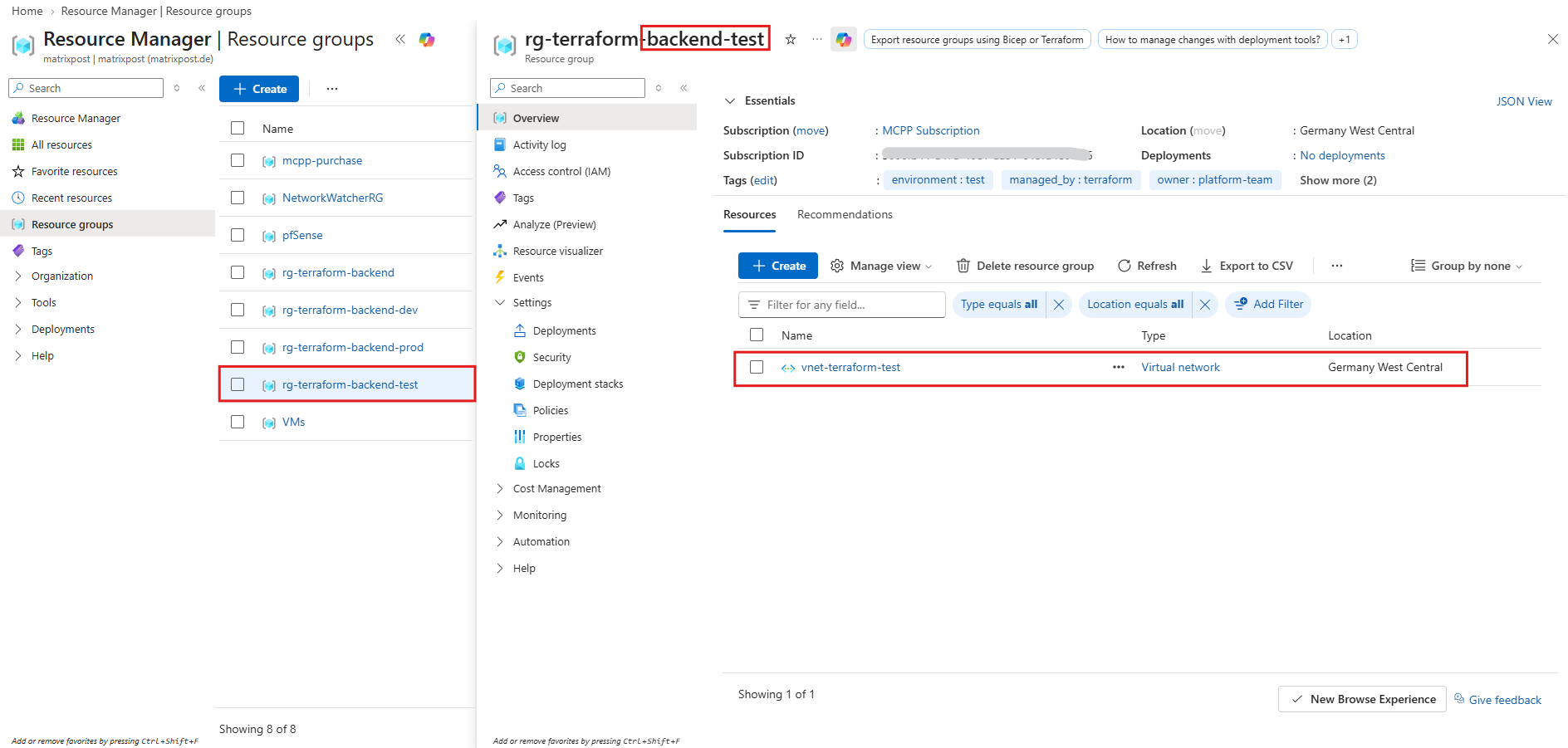
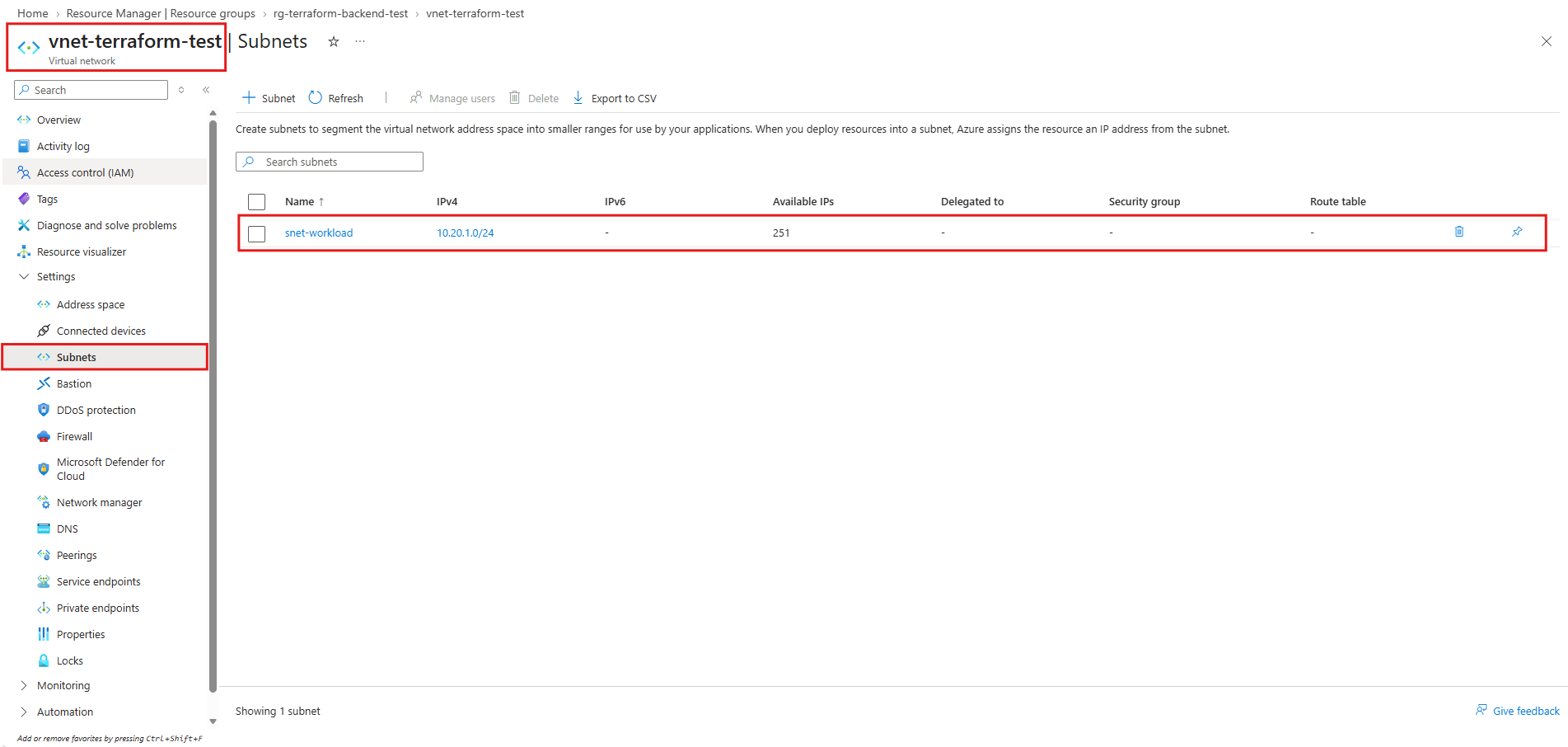
Within rg-terraform-backend-test, we can see our newly deployed Virtual Network (vnet-terraform-test).
Its Subnets section also confirms that snet-workload was created with the correct address prefix 10.20.1.0/24.
Promote the Infrastructure to Production
After successfully deploying and verifying our Azure networking infrastructure in both Development and Testing, we can now promote the same Terraform configuration to Production.
As configured in Part 4, our main branch is protected by GitHub Branch Protection Rules, requiring successful Terraform validation before changes can be merged. Additionally, our production GitHub Environment requires manual approval before the actual deployment can begin.
We will now create a Pull Request from test to main and review the Terraform execution plan to ensure that our Production environment receives the intended Virtual Network (vnet-terraform-prod) with address space 10.30.0.0/16 and subnet snet-workload (10.30.1.0/24).
This completes the final promotion stage of our Development → Testing → Production CI/CD workflow, with automated validation and controlled production deployments.
Next, we create a pull request with main as the base branch and test as the compare branch. We’ll validate the Terraform plan before merging, just as we did for Development and Testing.
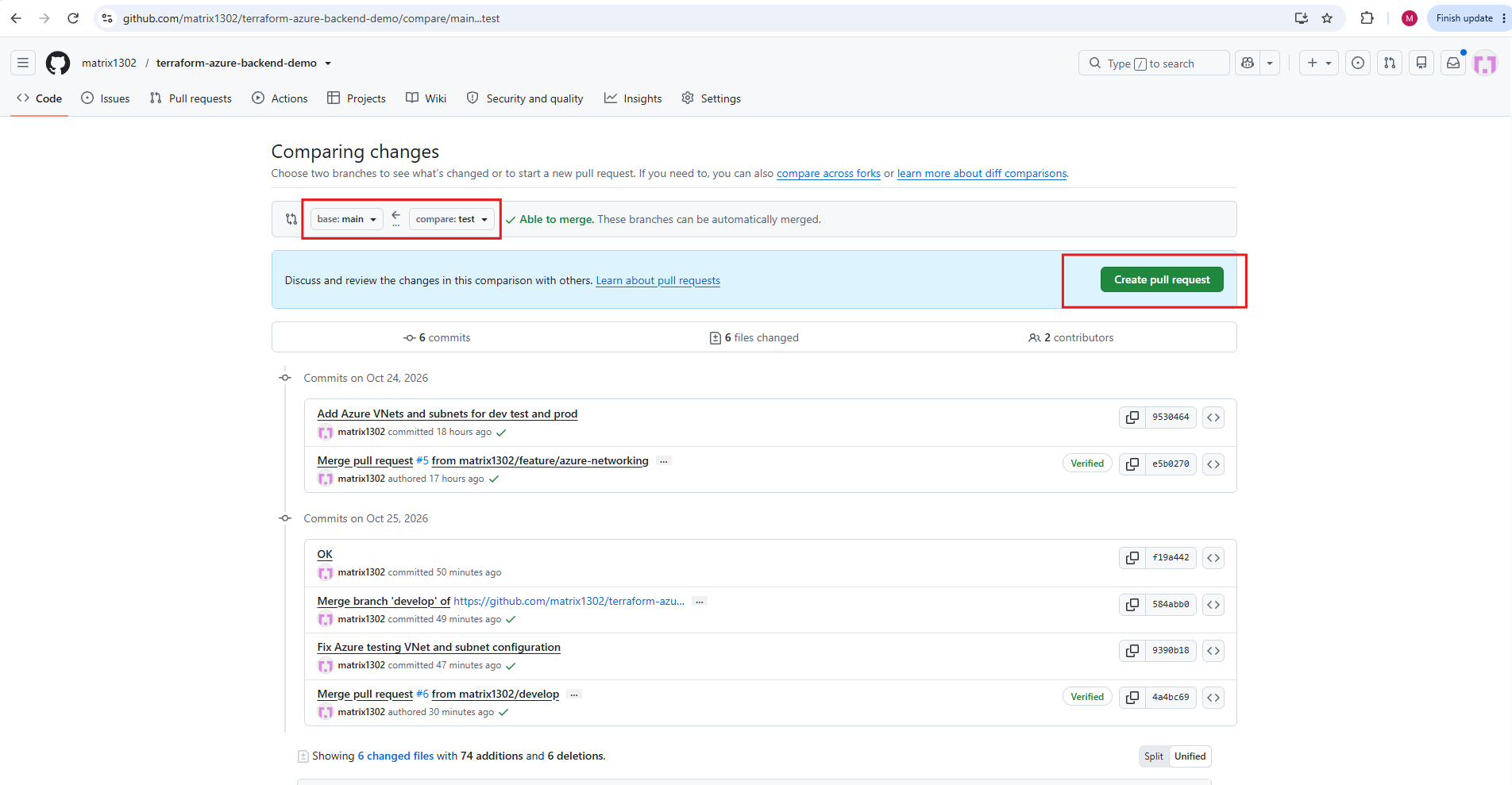
Click on Create pull request and enter a title for.
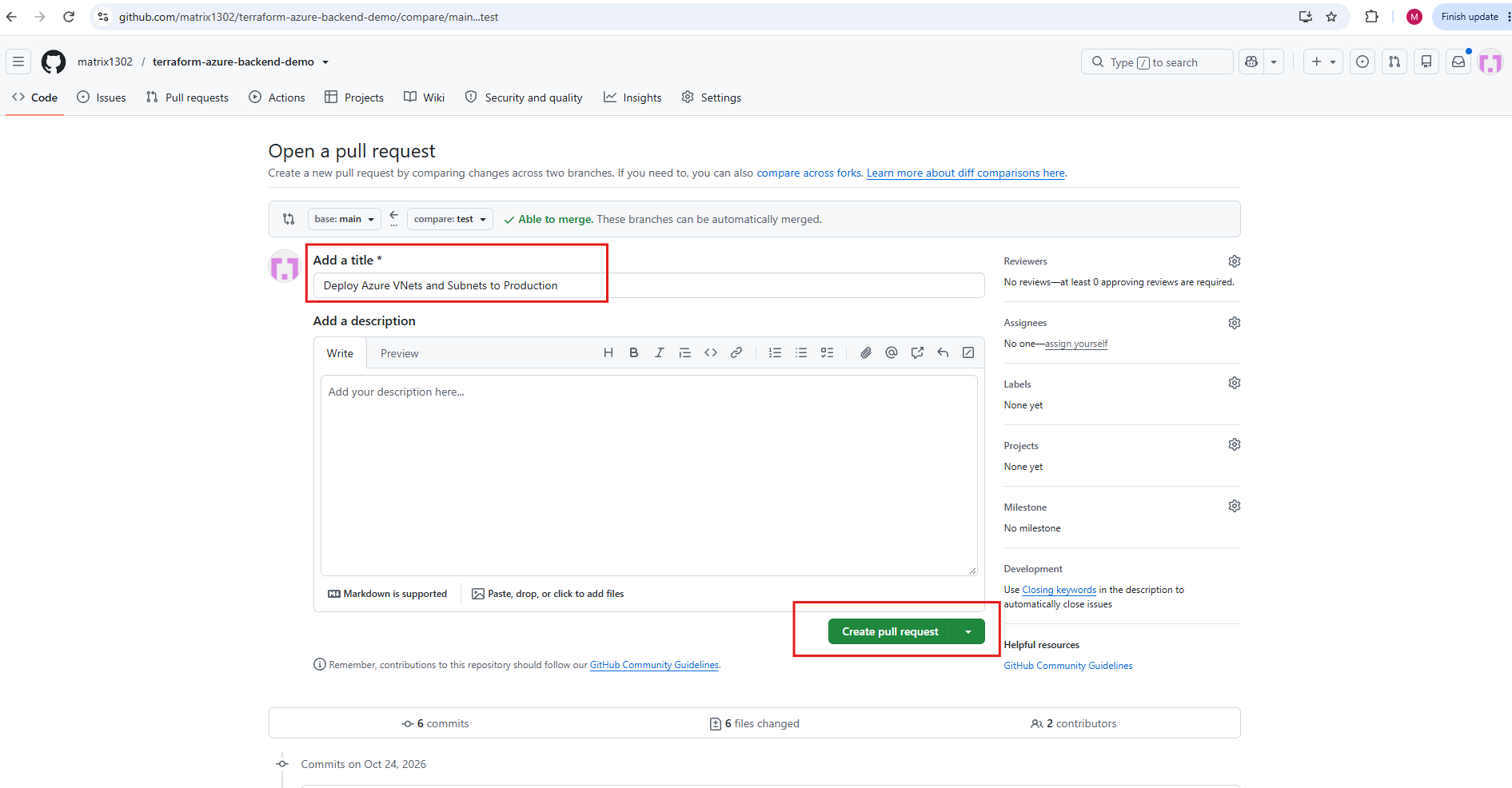
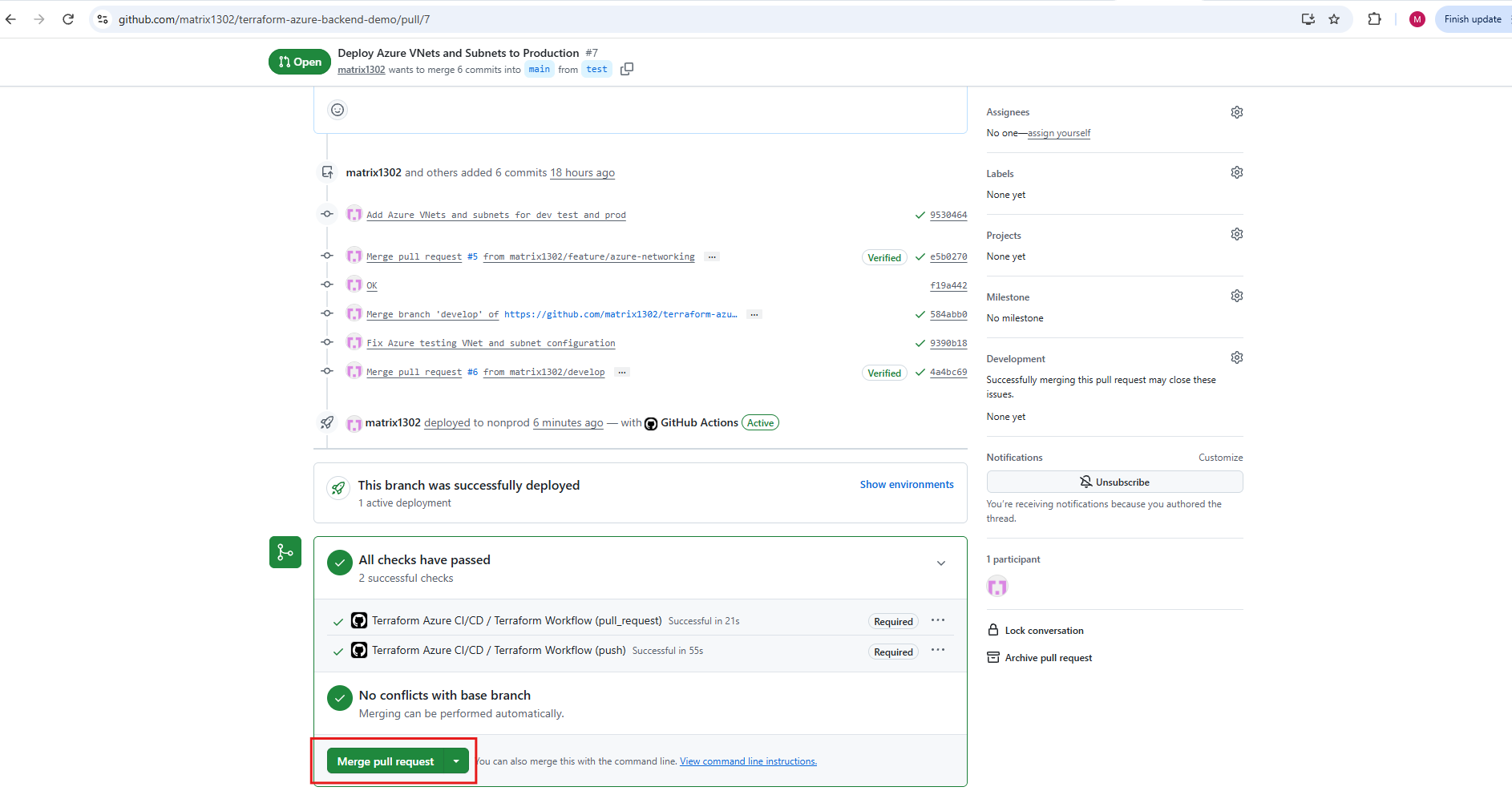
Our Production Pull Request #7 successfully completes the automated GitHub Actions checks, with no merge conflicts detected. Since the target is our protected main branch, the configured branch protection rules require successful Terraform validation before the changes can be merged.
The Pull Request is now eligible for merging, but we will first inspect the Terraform execution plan to verify the intended Production network configuration.
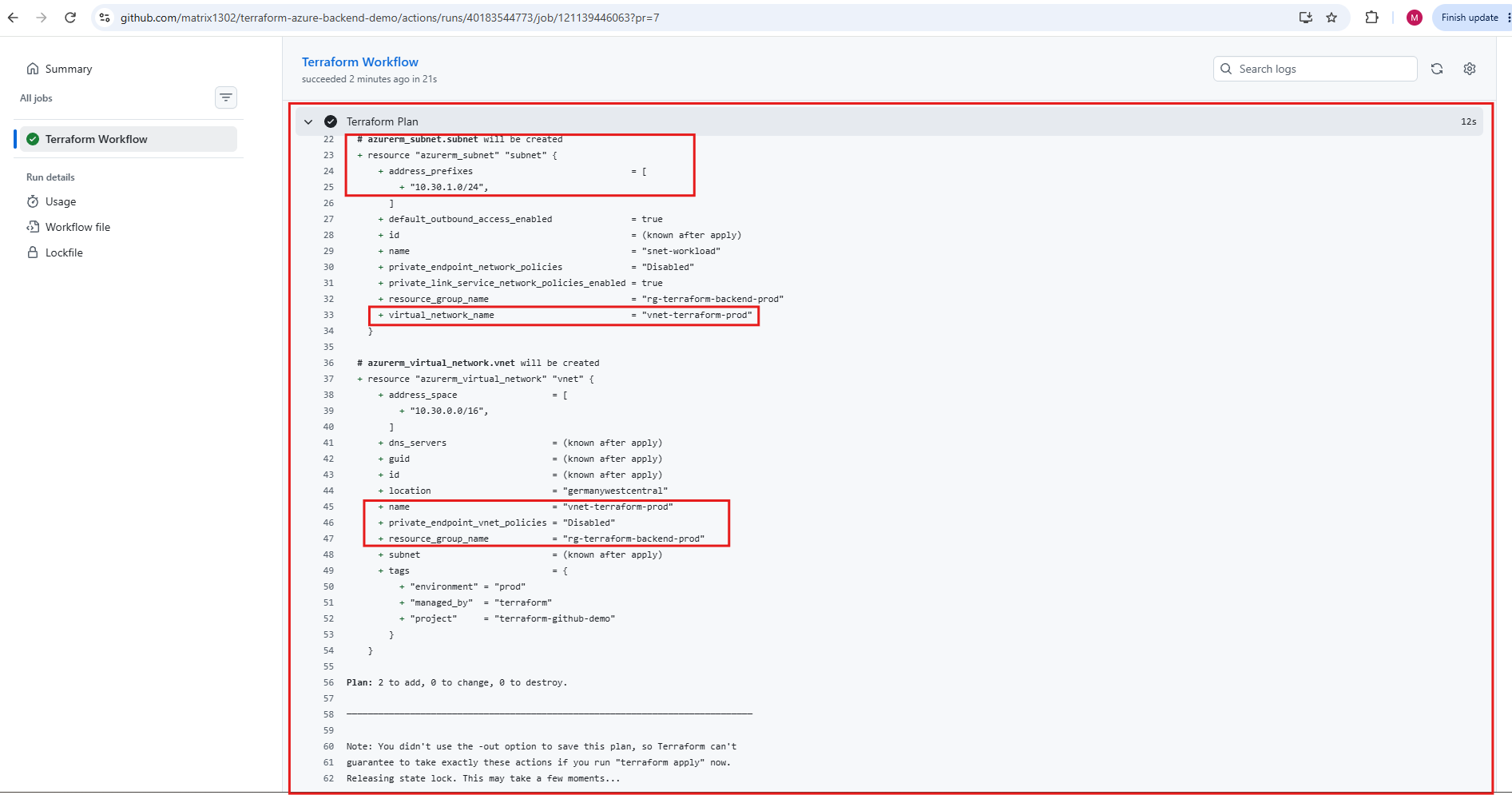
Open the successful Terraform Workflow (pull_request) check and inspect the Terraform Plan output.
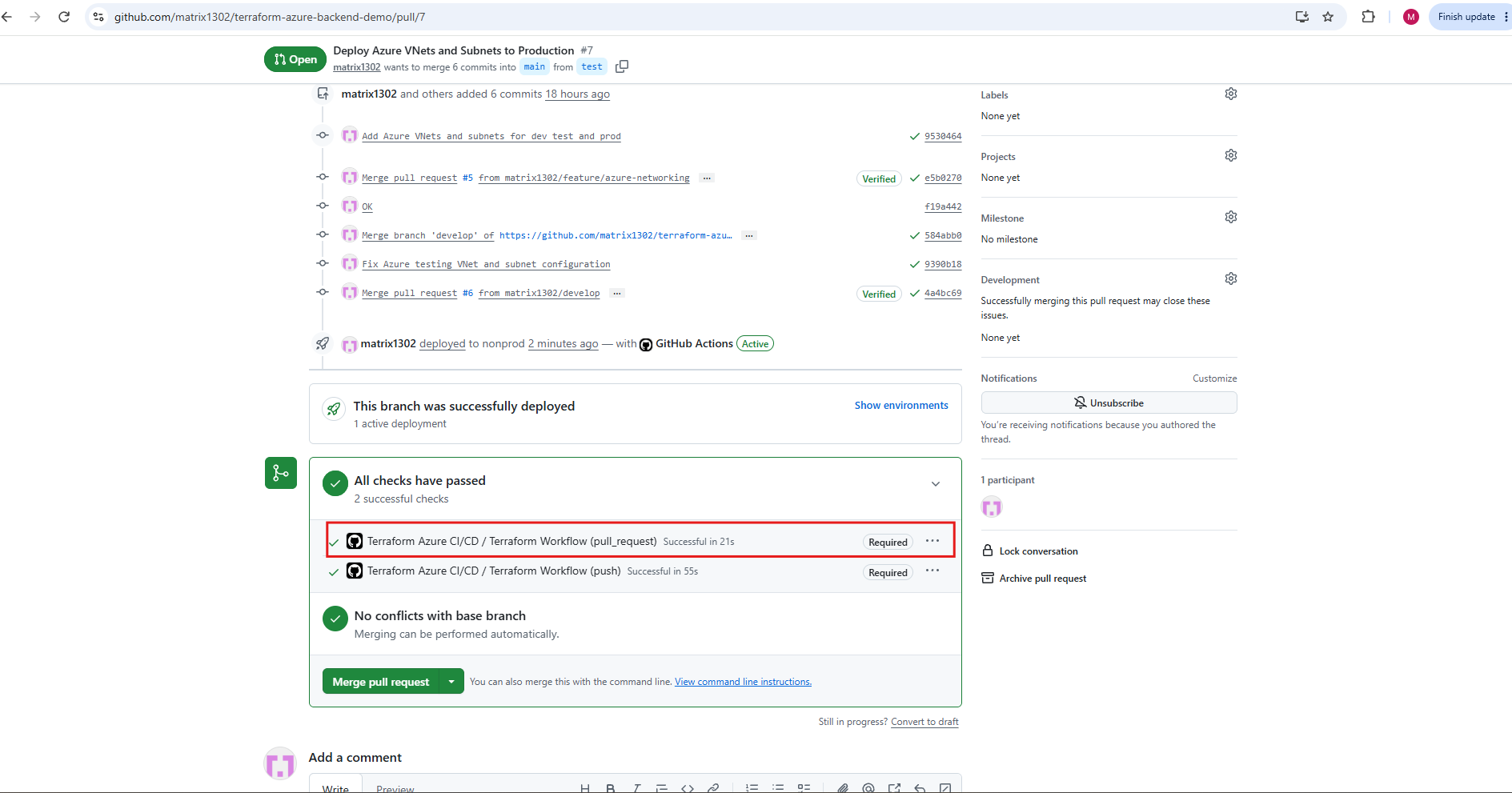
The Terraform execution plan for Pull Request #7 confirms that our Production environment will receive the correct Virtual Network (vnet-terraform-prod) with address space 10.30.0.0/16 and subnet snet-workload (10.30.1.0/24) in rg-terraform-backend-prod.
With 2 resources to add, 0 to change, and 0 to destroy, the configuration has passed our final pre-deployment review and is ready to be merged into the protected
mainbranch.
Return to Pull Request #7 and select Merge pull request → Confirm merge.
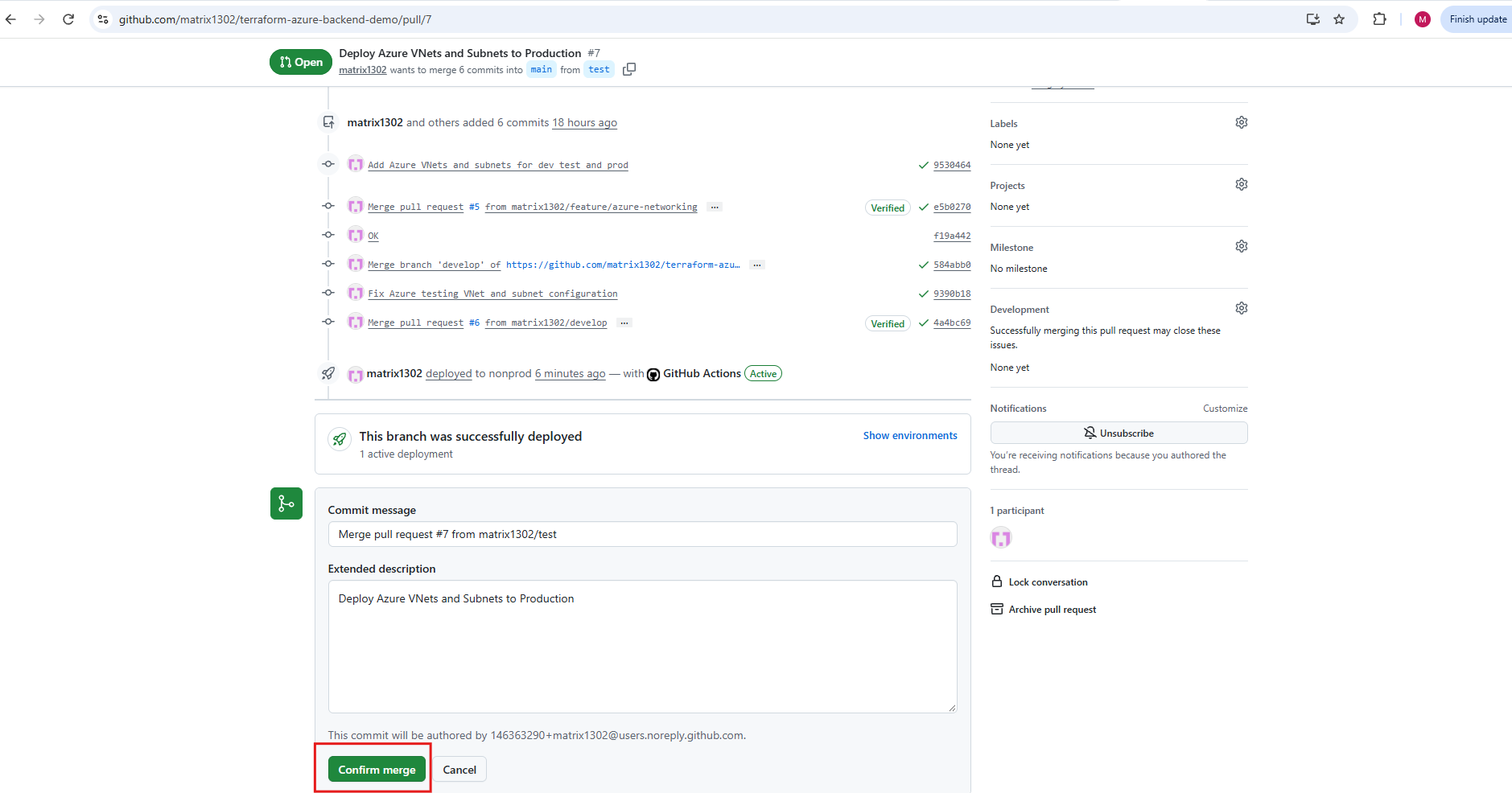
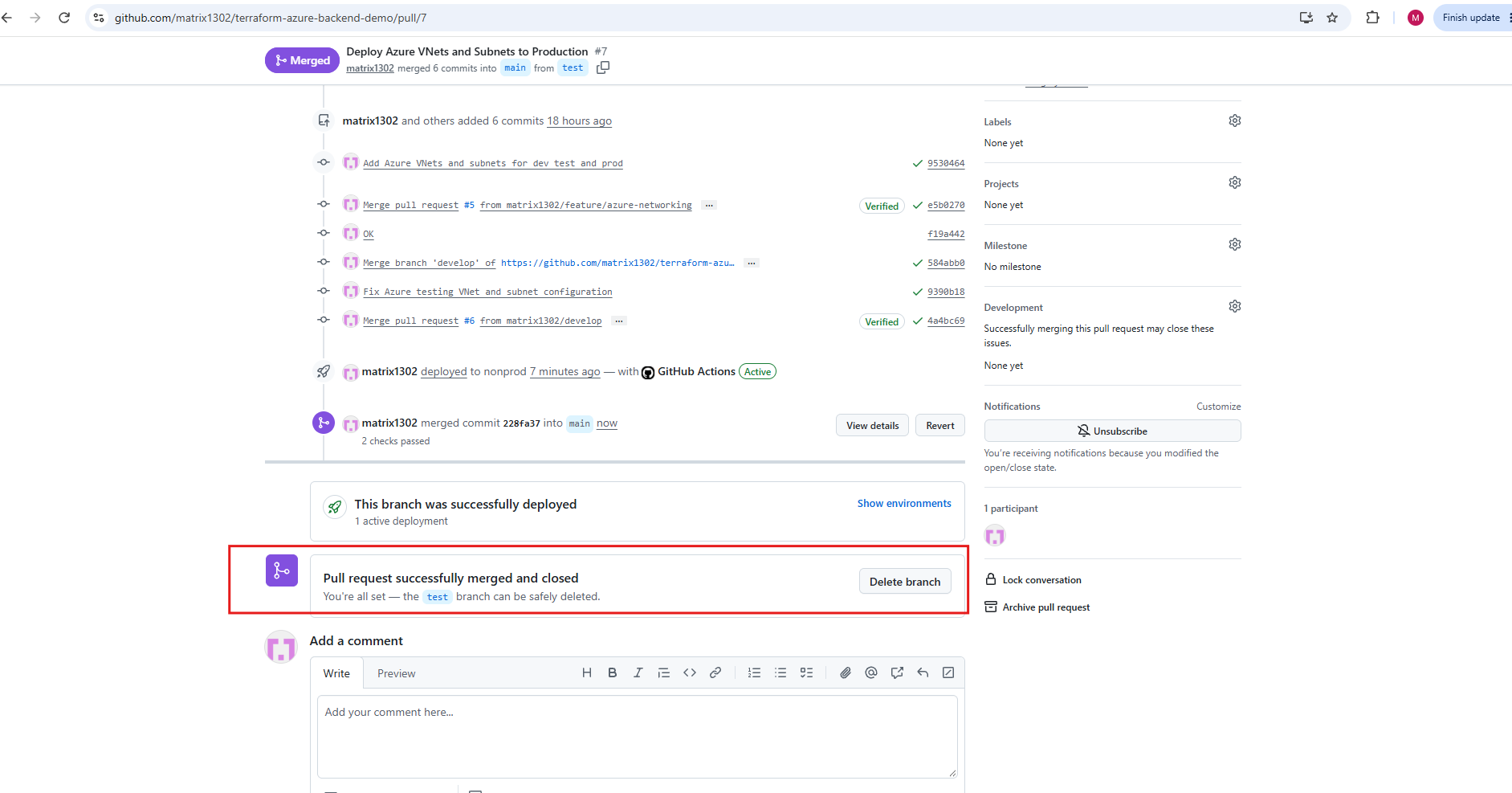
After successfully reviewing the Production Terraform execution plan and passing all required validation checks, we merge Pull Request #7 from test into our protected main branch.
The merge automatically triggers our Production GitHub Actions workflow. However, before any Terraform commands can execute, the workflow requires manual approval through our protected production GitHub Environment, as configured in Part 4.
We also retain the
testbranch, as it is a permanent part of our Development → Testing → Production deployment workflow.
Next: Production Deployment Approval
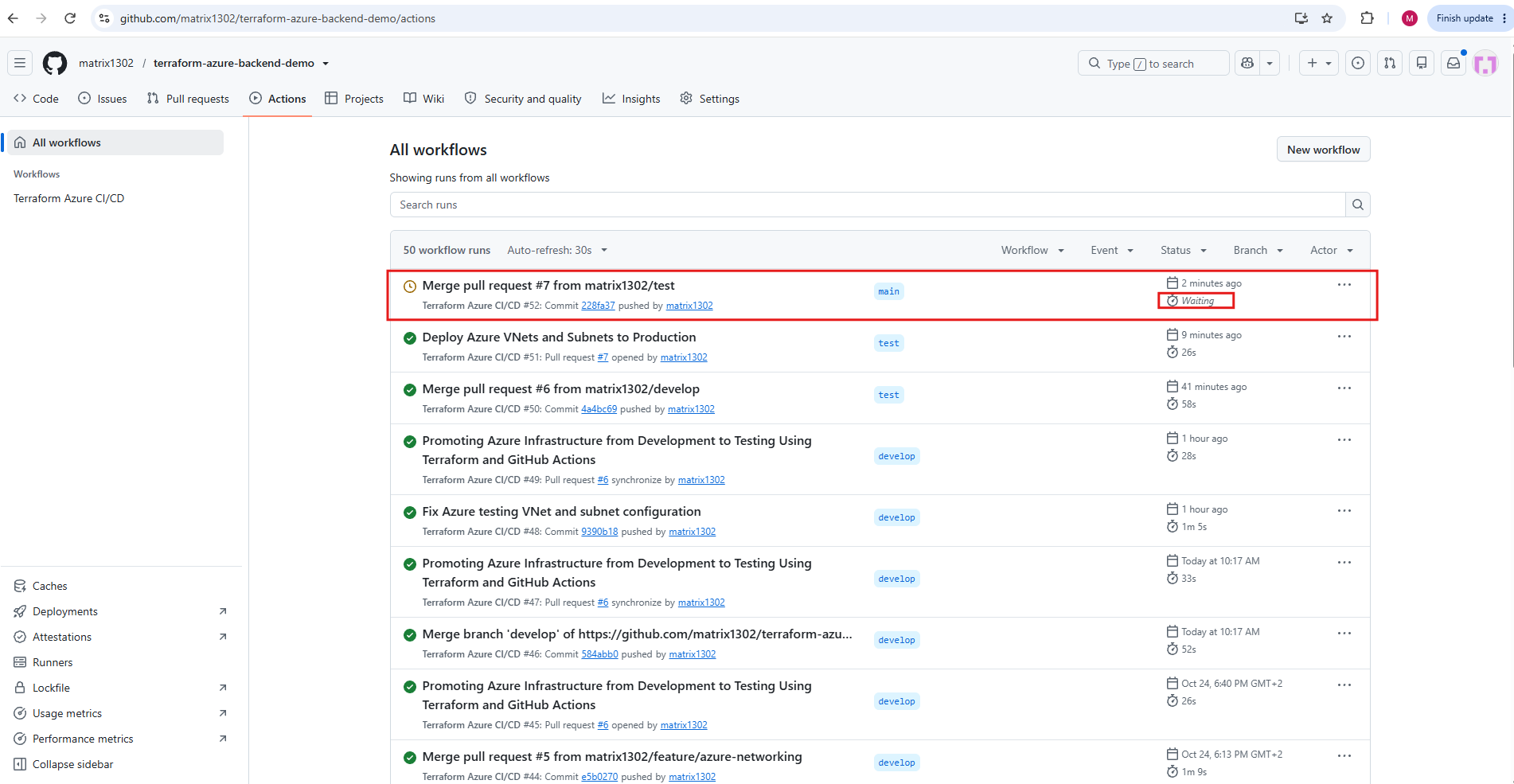
Open GitHub → Actions and select the new workflow triggered by the merge into main. Click the waiting workflow run Merge pull request #7 in GitHub Actions.
After merging Pull Request #7 into our protected
mainbranch, GitHub Actions automatically triggers the Production deployment workflow. However, instead of immediately executing Terraform, the workflow enters the Waiting state because ourproductionGitHub Environment requires manual approval.This additional protection ensures that infrastructure changes cannot be automatically deployed to Production without explicit authorization, even after successfully passing all Terraform validation checks and branch protection requirements.
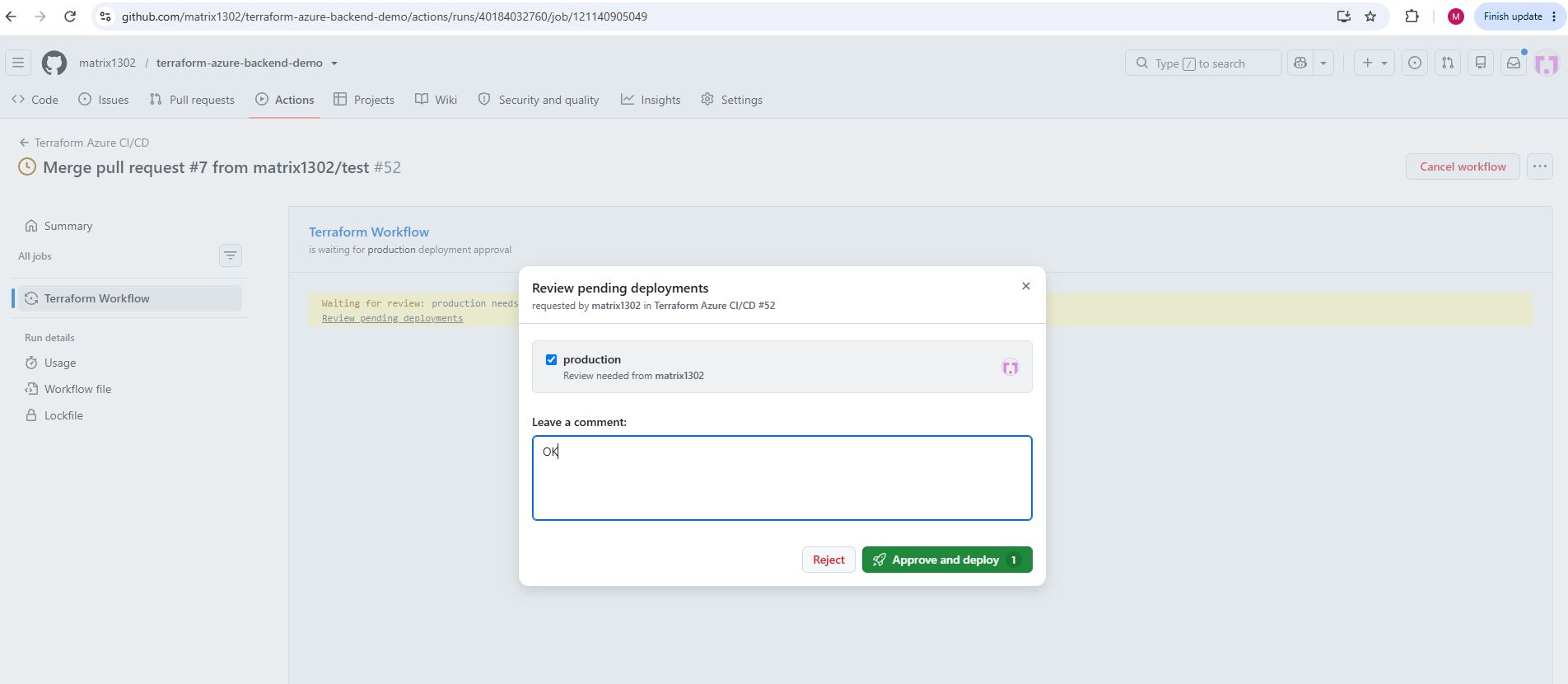
Click Approve and deploy.
By selecting Approve and deploy, we authorize the workflow to continue and execute the Terraform deployment against our Production environment.
This provides an additional manual approval gate after the Pull Request validation and branch protection checks have succeeded.
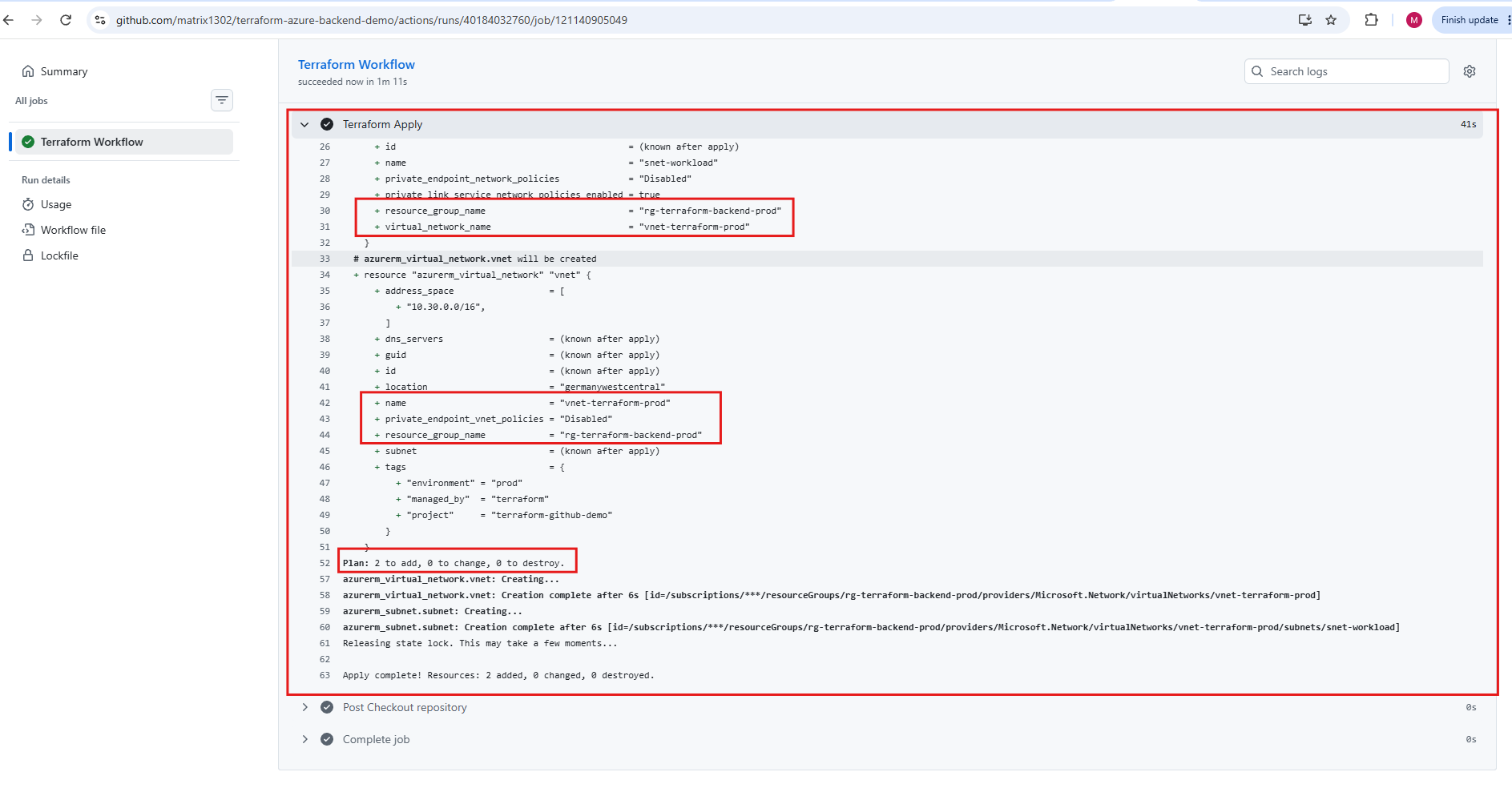
After approving the Production deployment through our protected GitHub Environment, the GitHub Actions workflow resumes and successfully executes terraform apply.
The execution logs confirm that Terraform created our Production Virtual Network (vnet-terraform-prod) with address space 10.30.0.0/16 and subnet snet-workload (10.30.1.0/24) in rg-terraform-backend-prod.
The deployment completes with 2 resources added, 0 changed, and 0 destroyed, confirming that our infrastructure has now been successfully promoted through the entire Development → Testing → Production CI/CD pipeline, including automated Terraform validation, branch protection, and manual Production approval.
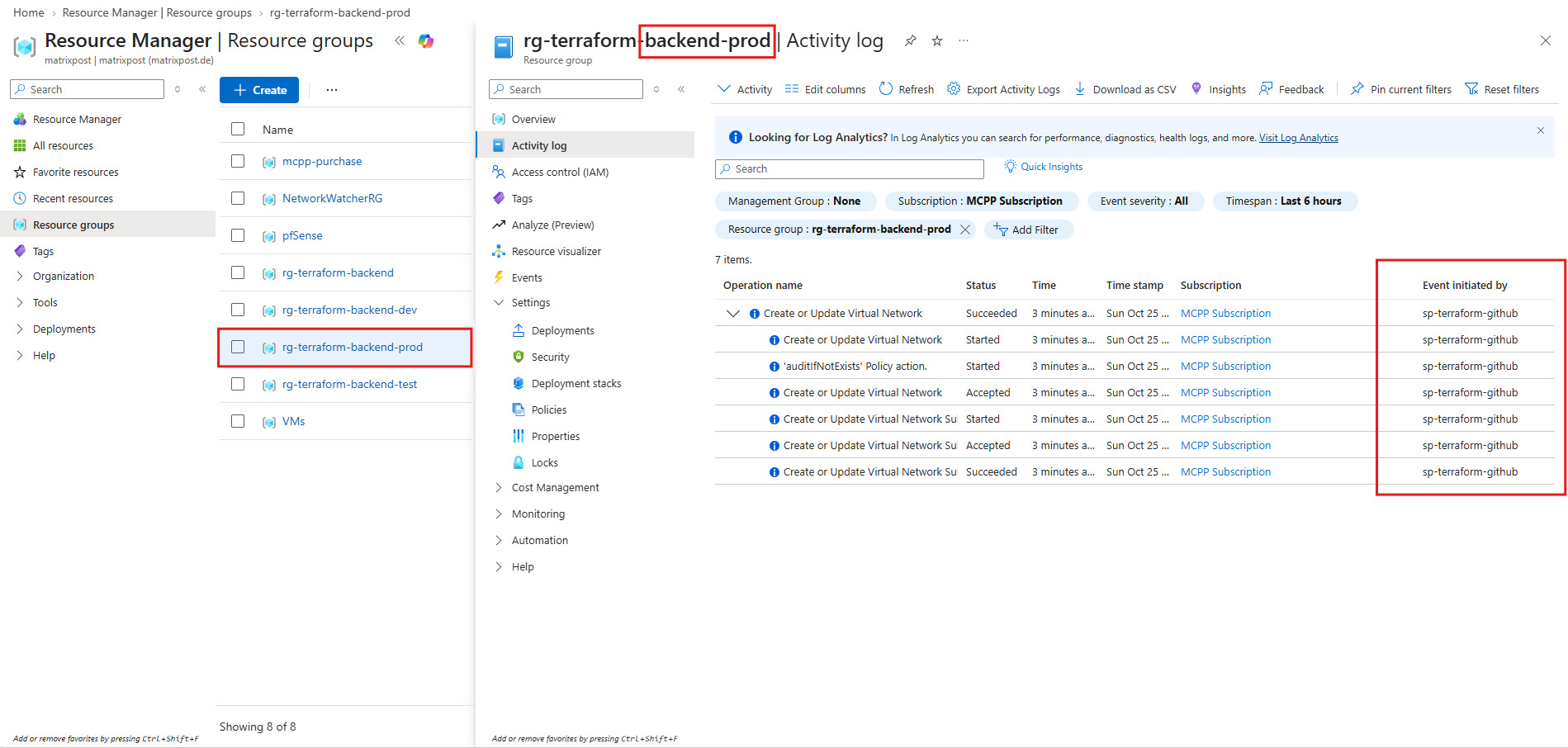
Finally, we verify our Production deployment directly in the Azure Portal. The Activity Log confirms that the Virtual Network and subnet creation operations were successfully initiated by our sp-terraform-github service principal, demonstrating that the infrastructure was deployed through our automated GitHub Actions pipeline.
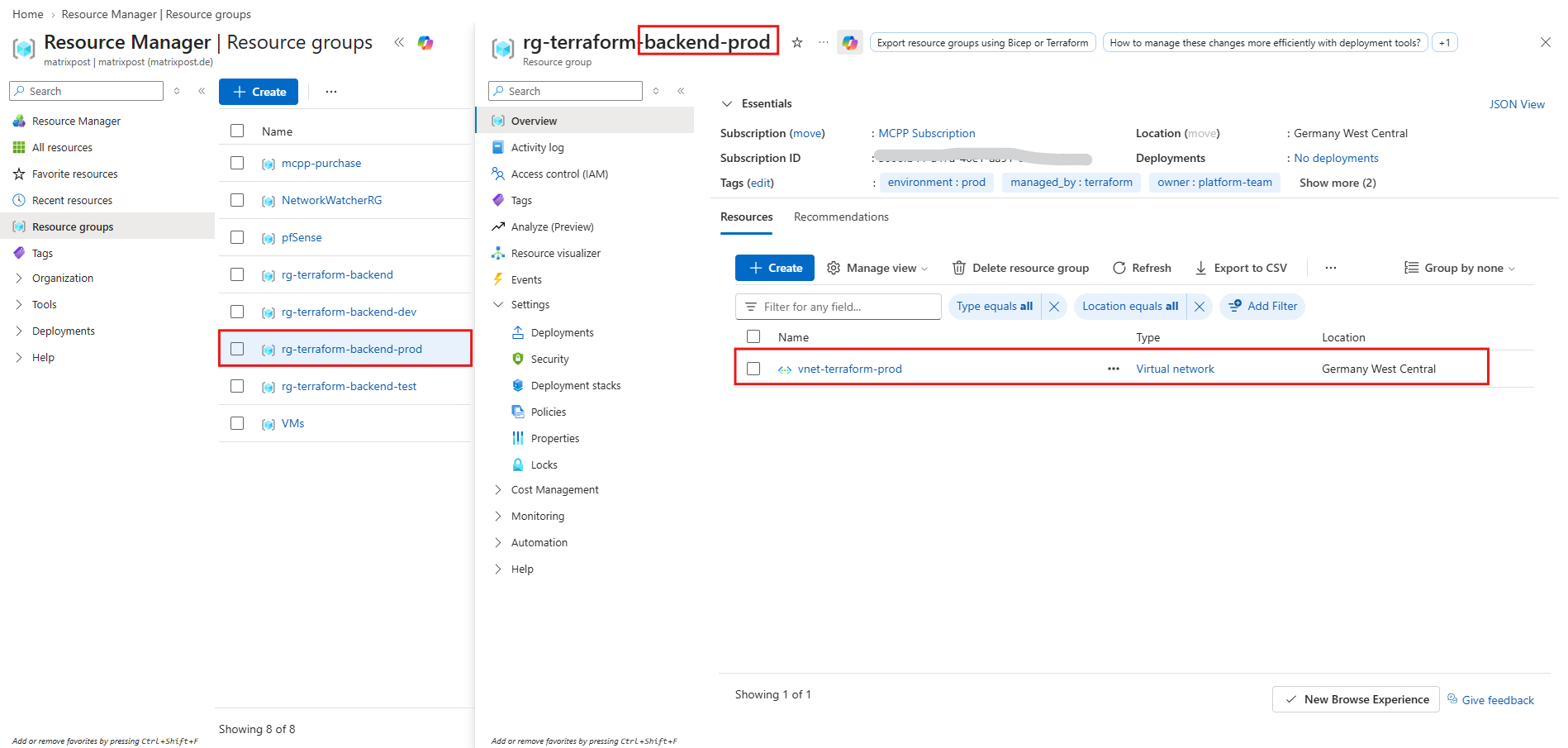
Within the Production resource group (rg-terraform-backend-prod), we can see our newly created Virtual Network (vnet-terraform-prod).
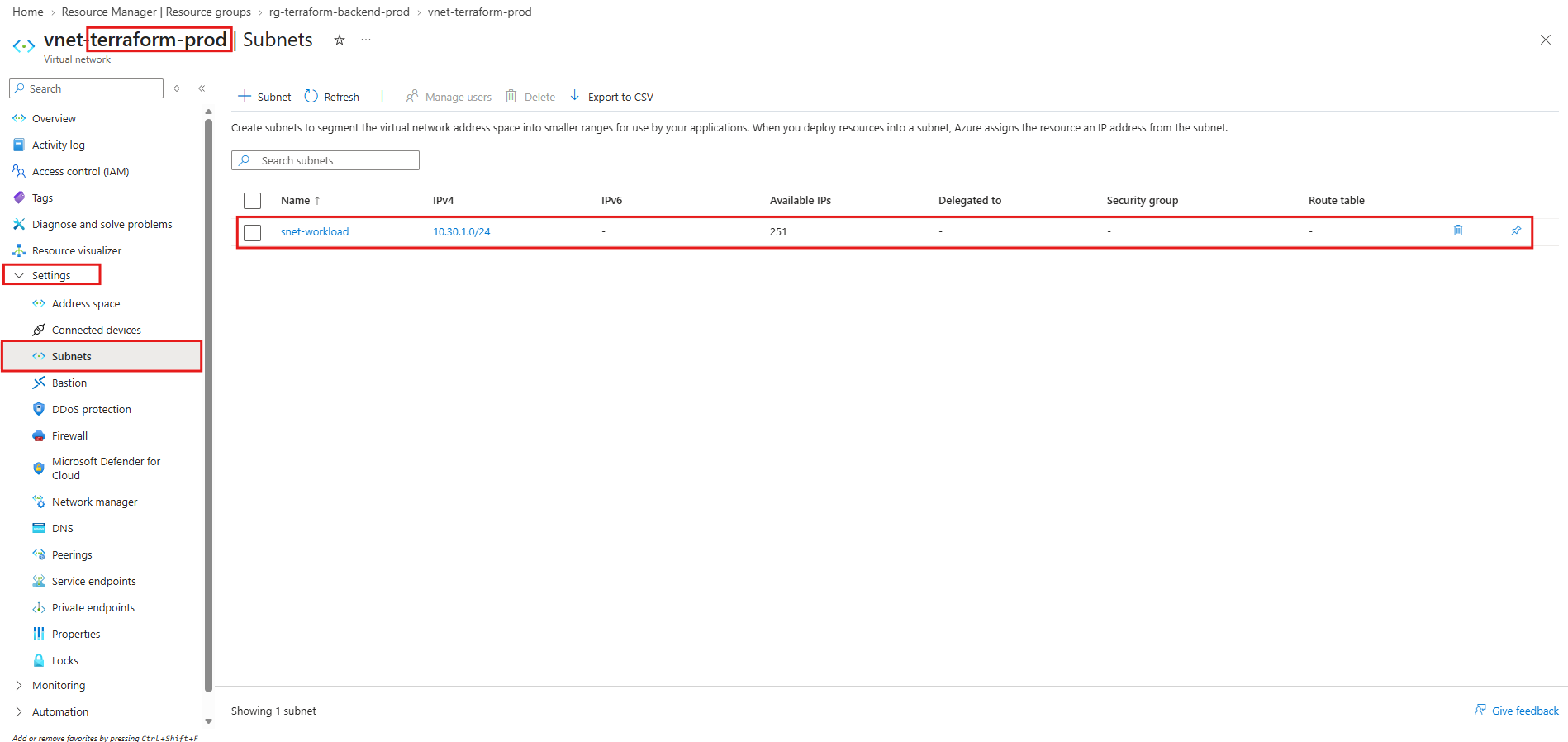
Navigating to its Subnets section confirms that snet-workload was successfully deployed with the configured address prefix 10.30.1.0/24.
With this final verification, we have successfully deployed Azure networking infrastructure across Development, Testing, and Production using a single reusable Terraform configuration and our existing GitHub Actions CI/CD pipeline.
Synchronize Our Local Git Branches After Deployment
After successfully deploying and verifying our infrastructure across Development, Testing, and Production, we will synchronize our local Git branches with the latest changes from GitHub.
Since our changes were promoted through multiple Pull Requests, the remote develop, test, and main branches now contain additional commits that must be synchronized with our local repository.
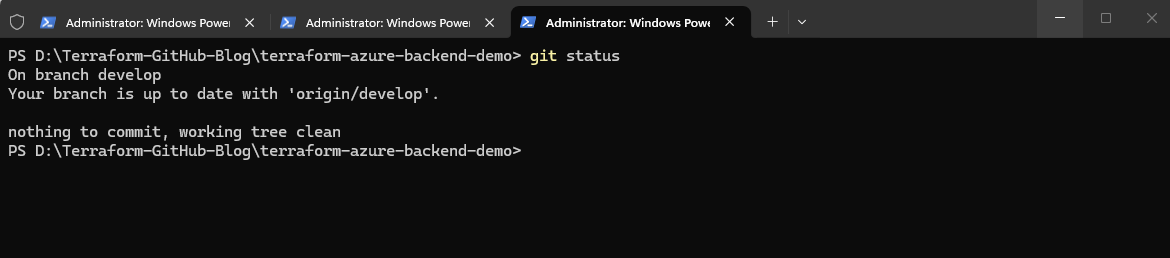
Before synchronizing our local Git branches, we use git status to verify that the working directory is clean and no uncommitted changes remain. Our local develop branch is already synchronized with origin/develop, so we can proceed with Testing and Production.
git status
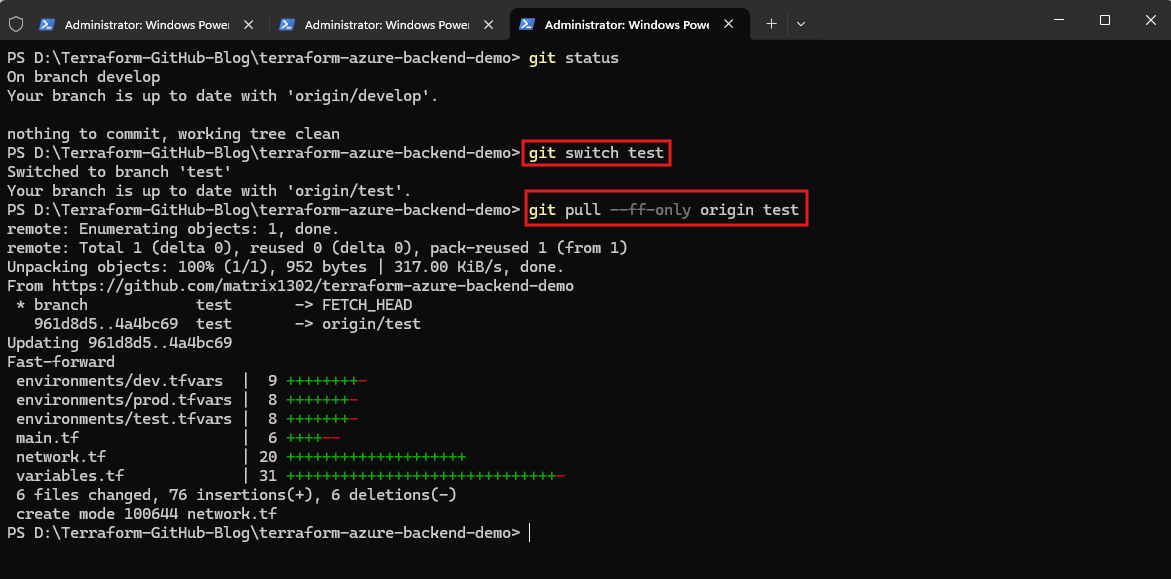
Next, we switch to our local test branch and synchronize it with origin/test using git pull --ff-only origin test.
Git performs a successful fast-forward update, bringing our local Testing branch up to date with the infrastructure changes previously merged through GitHub, without creating an additional merge commit.
git switch test
git pull --ff-only origin test
Finally, we switch to our local main branch and synchronize it with origin/main using git pull --ff-only origin main. Git successfully performs a fast-forward update, incorporating the latest Production changes without creating an additional merge commit.
With our local
develop,test, andmainbranches synchronized, our repository now reflects the latest Terraform configurations promoted through the entire CI/CD pipeline.
git switch main
git pull --ff-only origin main
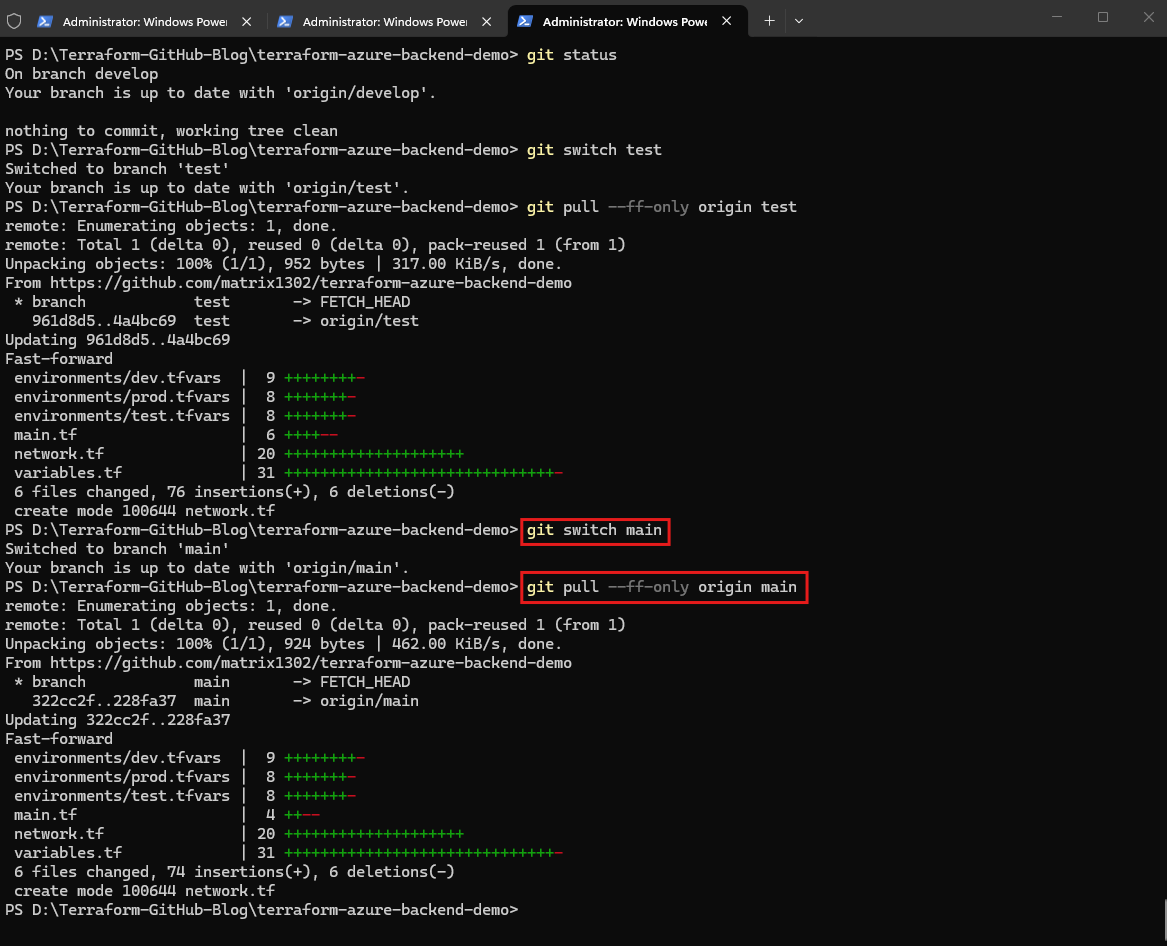
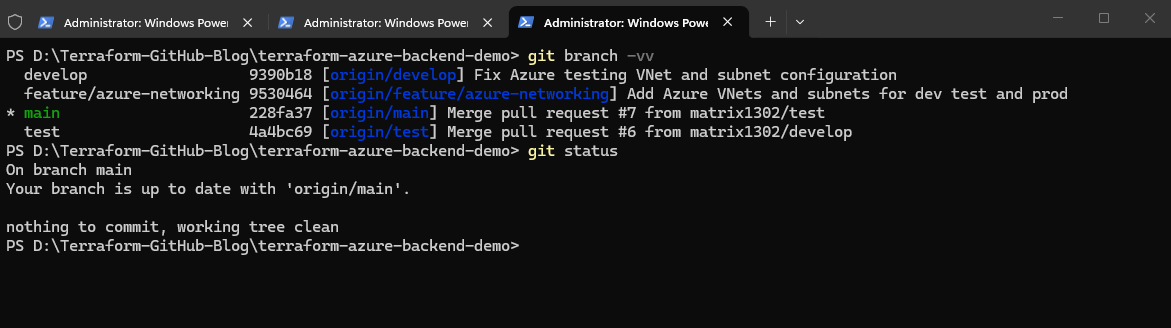
Finally, we verify our local Git branches using git branch -vv and git status. The output confirms that our permanent develop, test, and main branches are synchronized with their respective remote branches and that our working directory is clean.
Since the infrastructure changes have already been successfully promoted through all three environments, we can now remove the temporary
feature/azure-networkingbranch while retaining our permanent environment branches.
git branch -vv
git status
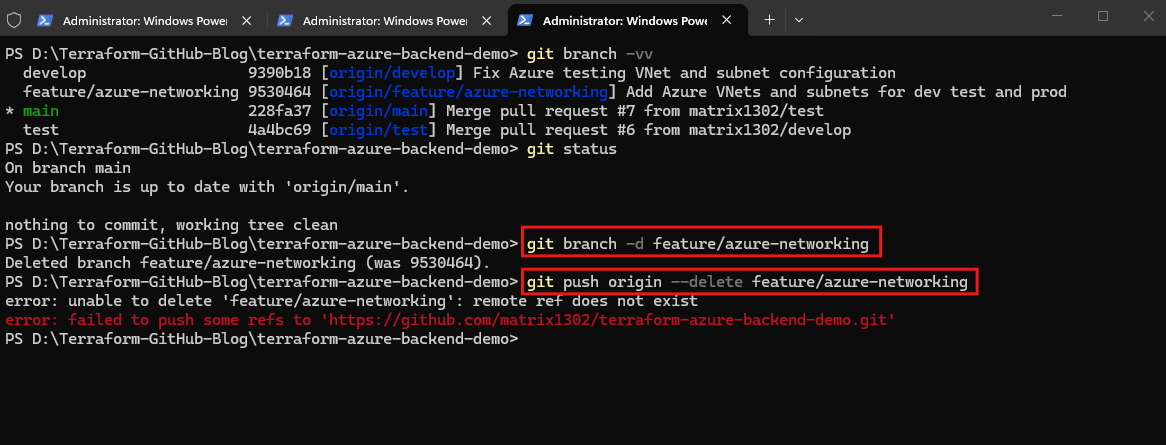
After synchronizing our permanent Git branches, we delete the temporary local feature/azure-networking branch using git branch -d feature/azure-networking.
Attempting to delete the corresponding remote branch returns
remote ref does not exist, indicating that it has already been removed from GitHub.
git branch -d feature/azure-networking
git push origin --delete feature/azure-networking
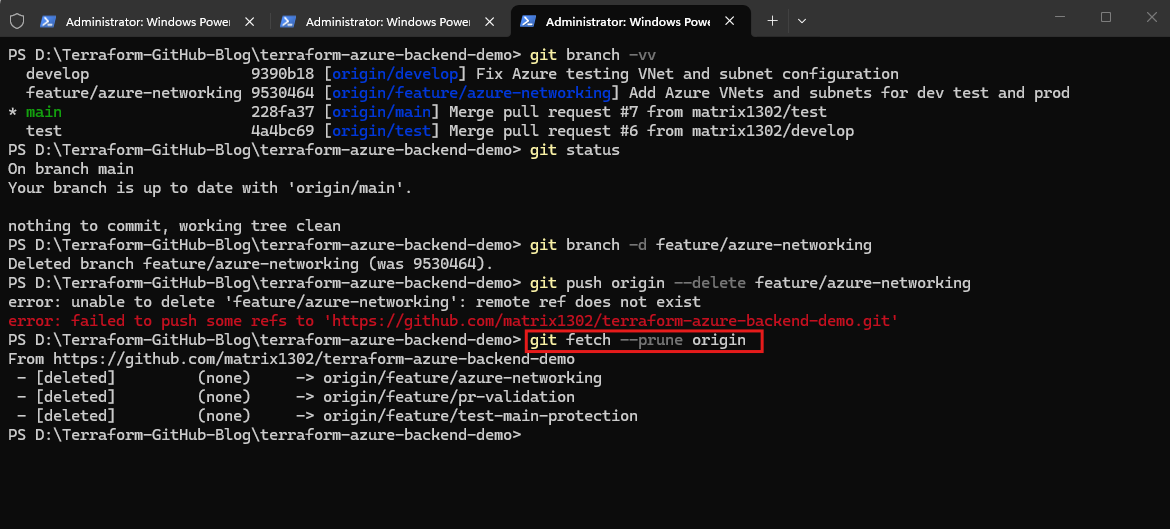
Finally, we execute git fetch --prune origin to remove obsolete remote-tracking references for feature branches that have already been deleted from GitHub.
This cleans up our local Git repository without affecting the permanent
develop,test, andmainbranches or deleting any additional remote branches.
git fetch --prune origin
Final deployment overview
| Environment | Virtual network | Address space | Deployment |
|---|---|---|---|
| Development | vnet-terraform-dev | 10.10.0.0/16 | Successful |
| Testing | vnet-terraform-test | 10.20.0.0/16 | Successful |
| Production | vnet-terraform-prod | 10.30.0.0/16 | Successful |
Deploying Azure Virtual Machines Across Dev, Test, and Production
After successfully deploying our Azure Virtual Networks and subnets across Development, Testing, and Production, we will now extend our existing Terraform configuration to provision Azure Virtual Machines.
We will define the required compute and networking resources, reuse our environment-specific configurations, and deploy the VMs through our existing GitHub Actions CI/CD pipeline, following the same feature branch and Pull Request workflow used for our network deployment.
Creating a Feature Branch for Our Azure Virtual Machine Deployment
As with our previous network deployment, we’ll create a dedicated feature branch from develop to implement the Azure Virtual Machines without modifying our permanent environment branches directly.
This allows us to implement and validate our Azure Virtual Machine changes independently before merging them into the development branch and subsequently promoting them to testing and production.
First, switch to develop and synchronize it with GitHub:
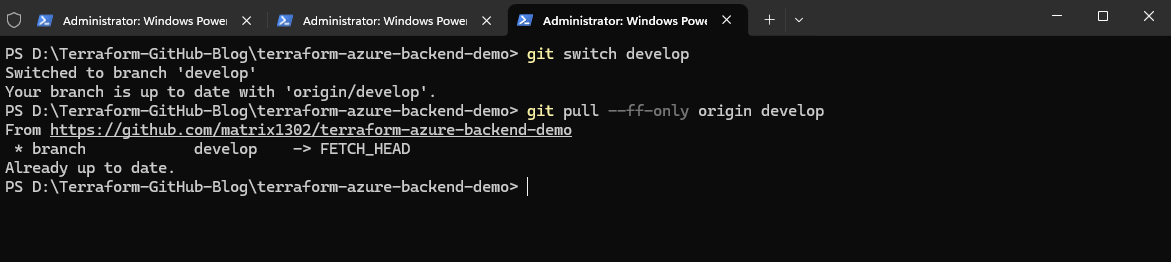
Then create and switch to our new feature branch:
git switch -c feature/azure-virtual-machines
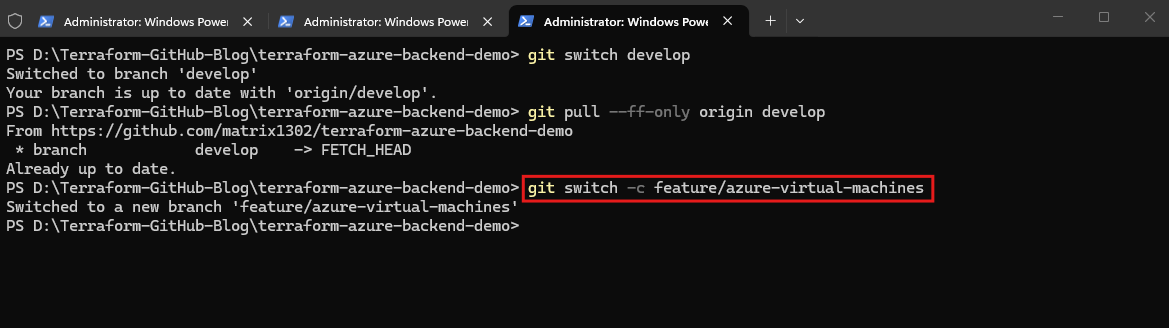
Verify the active branch:
git branch --show-current
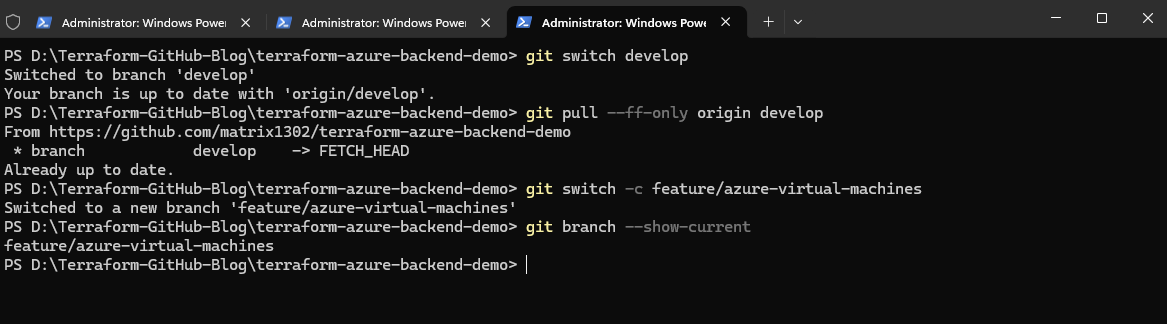
Extending Our Terraform Configuration with Azure Virtual Machines
Now that we have created our dedicated feature branch, we can extend our existing Terraform configuration to deploy Azure Virtual Machines across Development, Testing, and Production.
We will create a new vm.tf file to define the virtual machines and their network interfaces, connecting each VM to the subnet previously deployed in its respective environment. We will also extend our existing variables.tf and environment-specific .tfvars files to configure VM names, sizes, and other deployment settings independently for each environment.
Configure the Azure Virtual Machine Variables
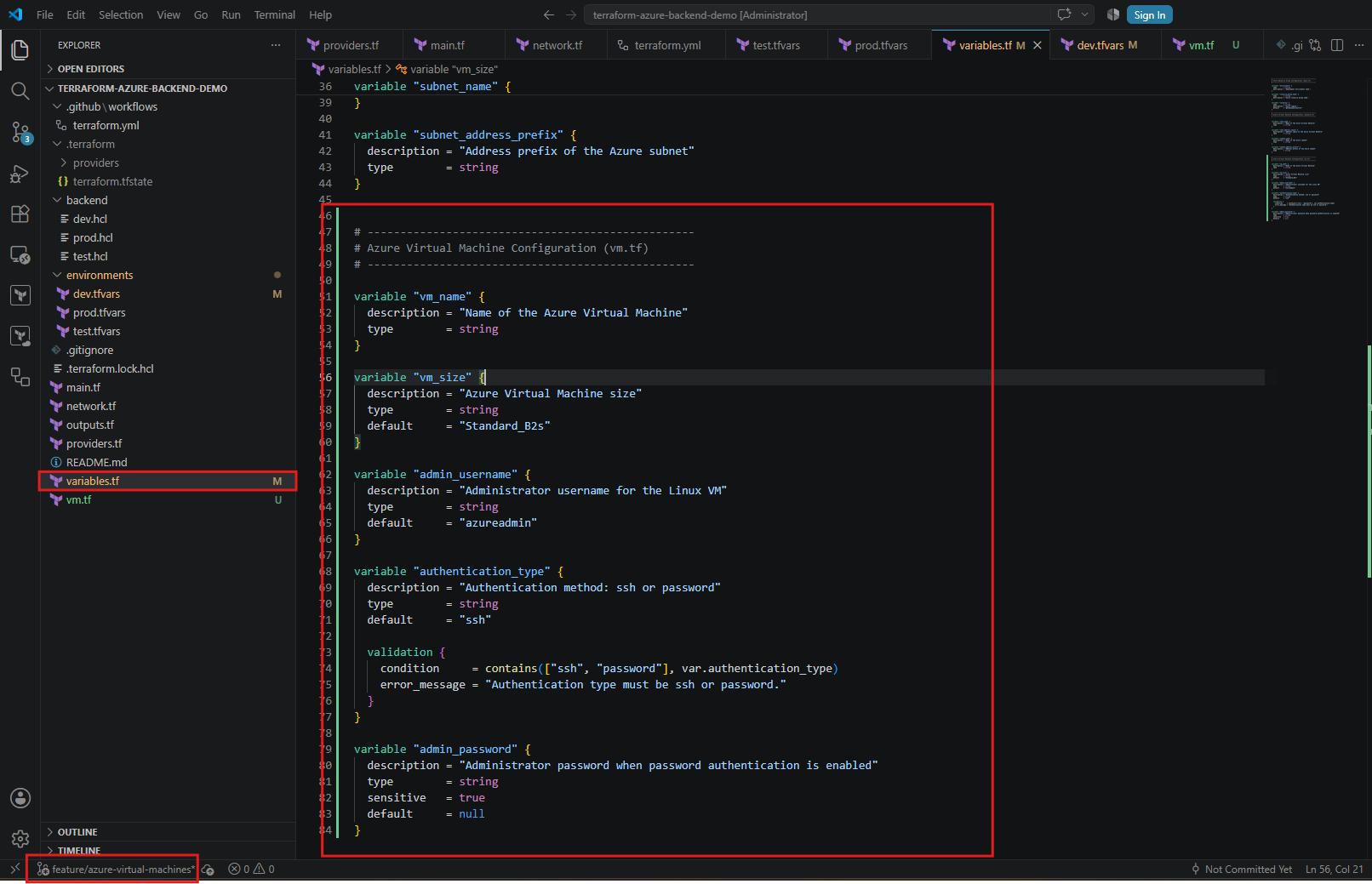
First, we append the following section to variables.tf, keeping the same structure we’ve used for main.tf and network.tf.
# --------------------------------------------------
# Azure Virtual Machine Configuration (vm.tf)
# --------------------------------------------------

variable "vm_name" {
  description = "Name of the Azure Virtual Machine"
  type        = string
}

variable "vm_size" {
  description = "Azure Virtual Machine size"
  type        = string
  default     = "Standard_B2s"
}

variable "admin_username" {
  description = "Administrator username for the Linux VM"
  type        = string
  default     = "azureadmin"
}

variable "authentication_type" {
  description = "Authentication method: ssh or password"
  type        = string
  default     = "ssh"

  validation {
    condition     = contains(["ssh", "password"], var.authentication_type)
    error_message = "Authentication type must be ssh or password."
  }
}

variable "admin_password" {
  description = "Administrator password when password authentication is enabled"
  type        = string
  sensitive   = true
  default     = null
}
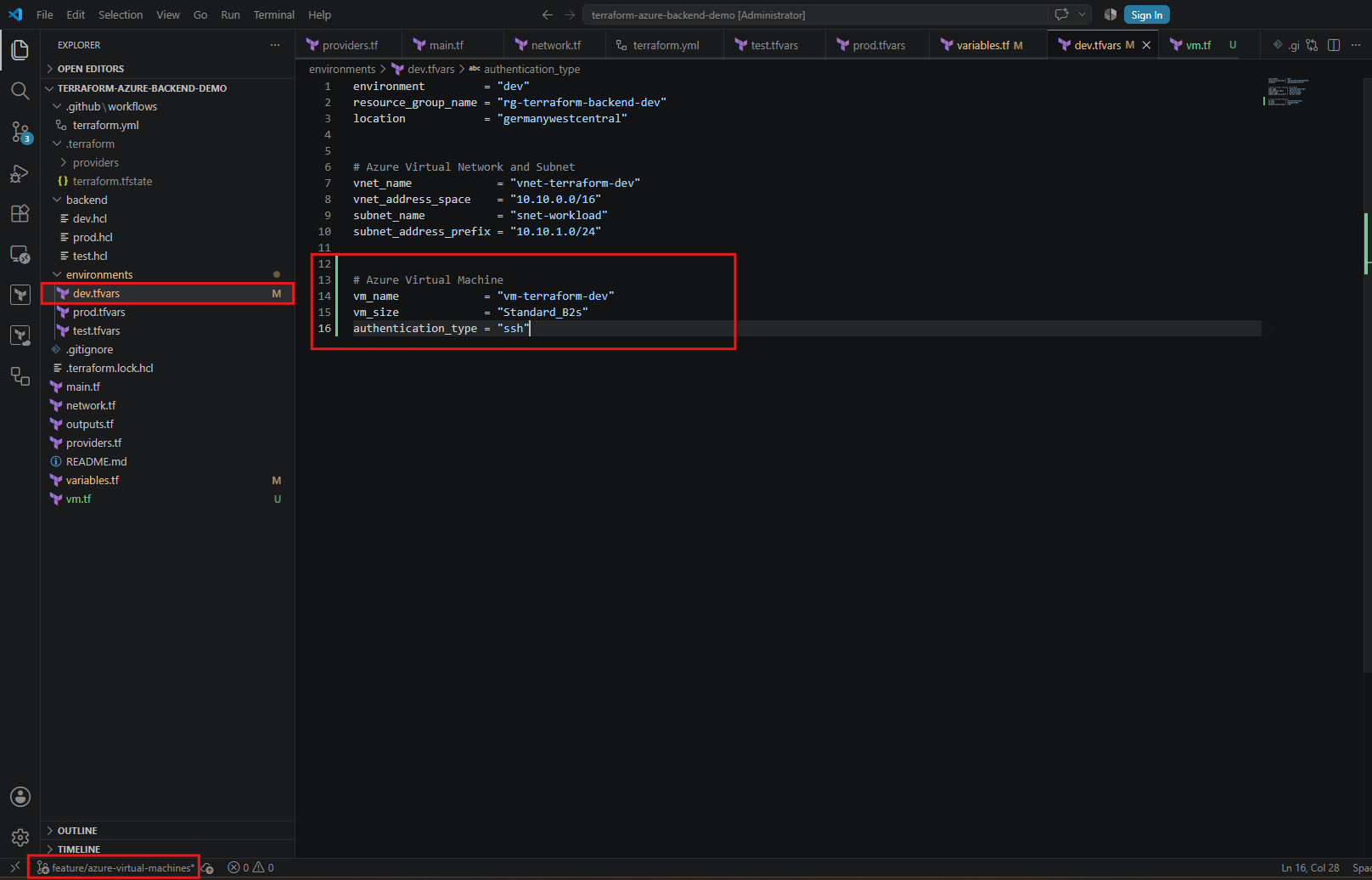
Next, we append these values to environments/dev.tfvars:
For our Azure Virtual Machines, we will demonstrate both SSH public/private key authentication and password-based authentication. We will make the authentication method configurable through Terraform, allowing us to choose either option for each environment without modifying the underlying VM resource configuration.
SSH key authentication will remain our default and recommended method, while administrator passwords will be supplied securely through Terraform variables and GitHub Actions secrets rather than stored directly in our configuration files.
# Azure Virtual Machine
vm_name             = "vm-terraform-dev"
vm_size             = "Standard_B2s"
authentication_type = "ssh"
Creating the Azure Virtual Machine Configuration (vm.tf)
Now we’ll create vm.tf in the root of our Terraform repository, alongside main.tf and network.tf.
We’ll configure an Azure network interface connected to our existing subnet and an Ubuntu Linux VM supporting both SSH public/private key authentication and password-based authentication. The authentication method will be controlled through Terraform variables, allowing us to configure it independently for each environment.
# --------------------------------------------------
# Azure Network Interface
# --------------------------------------------------

resource "azurerm_network_interface" "nic" {
  name                = "${var.vm_name}-nic"
  location            = azurerm_resource_group.rg_demo_tf_backend.location
  resource_group_name = azurerm_resource_group.rg_demo_tf_backend.name

  ip_configuration {
    name                          = "internal"
    subnet_id                     = azurerm_subnet.subnet.id
    private_ip_address_allocation = "Dynamic"
  }

  tags = {
    environment = var.environment
    managed_by  = "terraform"
    project     = "terraform-github-demo"
  }
}

# --------------------------------------------------
# Azure Linux Virtual Machine
# --------------------------------------------------

resource "azurerm_linux_virtual_machine" "vm" {
  name                = var.vm_name
  resource_group_name = azurerm_resource_group.rg_demo_tf_backend.name
  location            = azurerm_resource_group.rg_demo_tf_backend.location
  size                = var.vm_size

  admin_username = var.admin_username

  # SSH key or password authentication
  disable_password_authentication = var.authentication_type == "ssh"
  admin_password                  = var.authentication_type == "password" ? var.admin_password : null

  dynamic "admin_ssh_key" {
    for_each = var.authentication_type == "ssh" ? [1] : []

    content {
      username   = var.admin_username
      public_key = file("${path.module}/keys/terraform_vm.pub")
    }
  }

  network_interface_ids = [
    azurerm_network_interface.nic.id
  ]

  os_disk {
    caching              = "ReadWrite"
    storage_account_type = "Standard_LRS"
  }

  source_image_reference {
    publisher = "Canonical"
    offer     = "0001-com-ubuntu-server-jammy"
    sku       = "22_04-lts-gen2"
    version   = "latest"
  }

  tags = {
    environment = var.environment
    managed_by  = "terraform"
    project     = "terraform-github-demo"
  }
}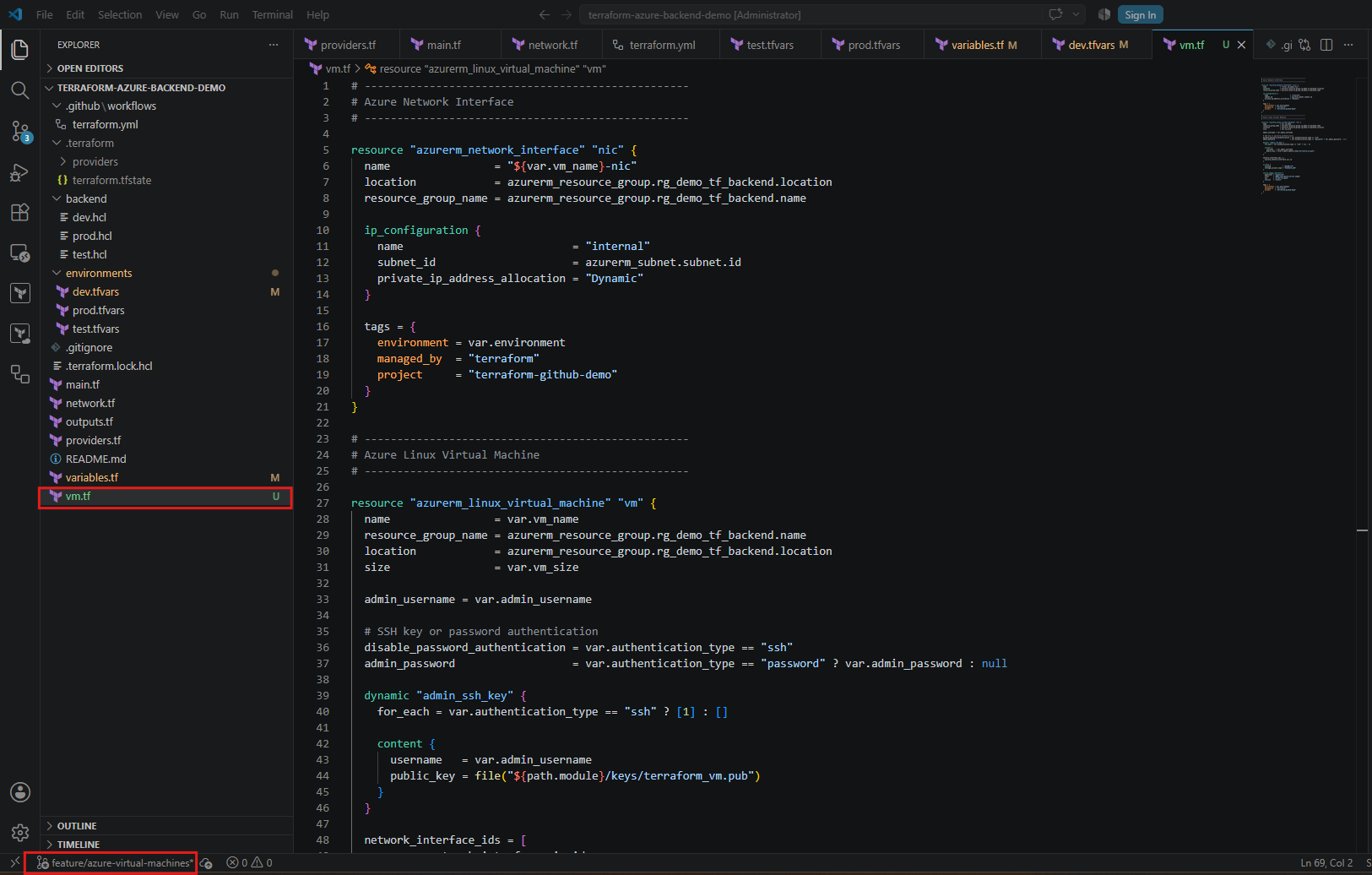
This configuration defines two Azure resources per environment: a network interface (NIC) with a dynamically assigned private IP address and an Ubuntu 22.04 LTS VM using the Standard_B2s size specified in our .tfvars file.
The VM supports both SSH public/private key authentication and password-based authentication, controlled through the authentication_type variable. When SSH authentication is selected, Terraform reads the public key from keys/terraform_vm.pub. When password authentication is selected, the administrator password is supplied through a sensitive Terraform variable.
Important: For SSH authentication, we will generate a key pair and commit only the public key to GitHub so that our GitHub Actions runner can access it. The private key must remain outside the repository.
Administrator passwords must never be committed to GitHub and will instead be supplied securely through GitHub Actions secrets. Sensitive passwords can still be stored in Terraform state, so access to our remote state must be restricted.
Creating the SSH Key Pair for Our Azure Virtual Machines
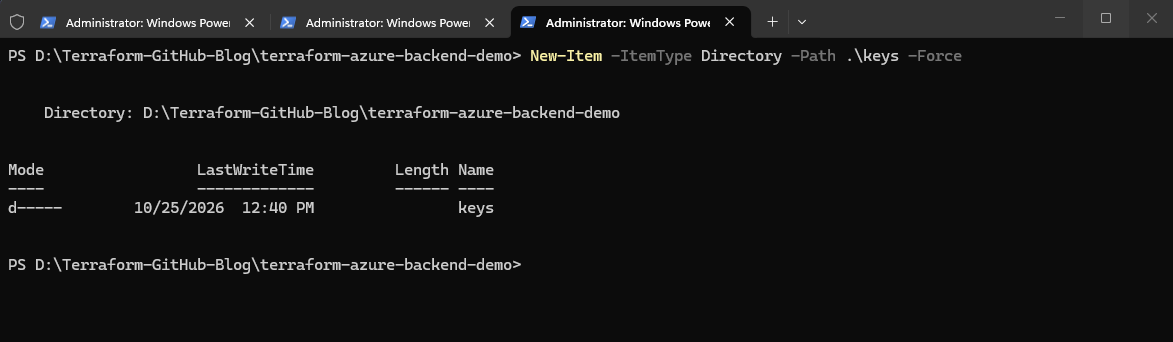
From our repository root in PowerShell:
New-Item -ItemType Directory -Path .\keys -Force
Generate the SSH key pair
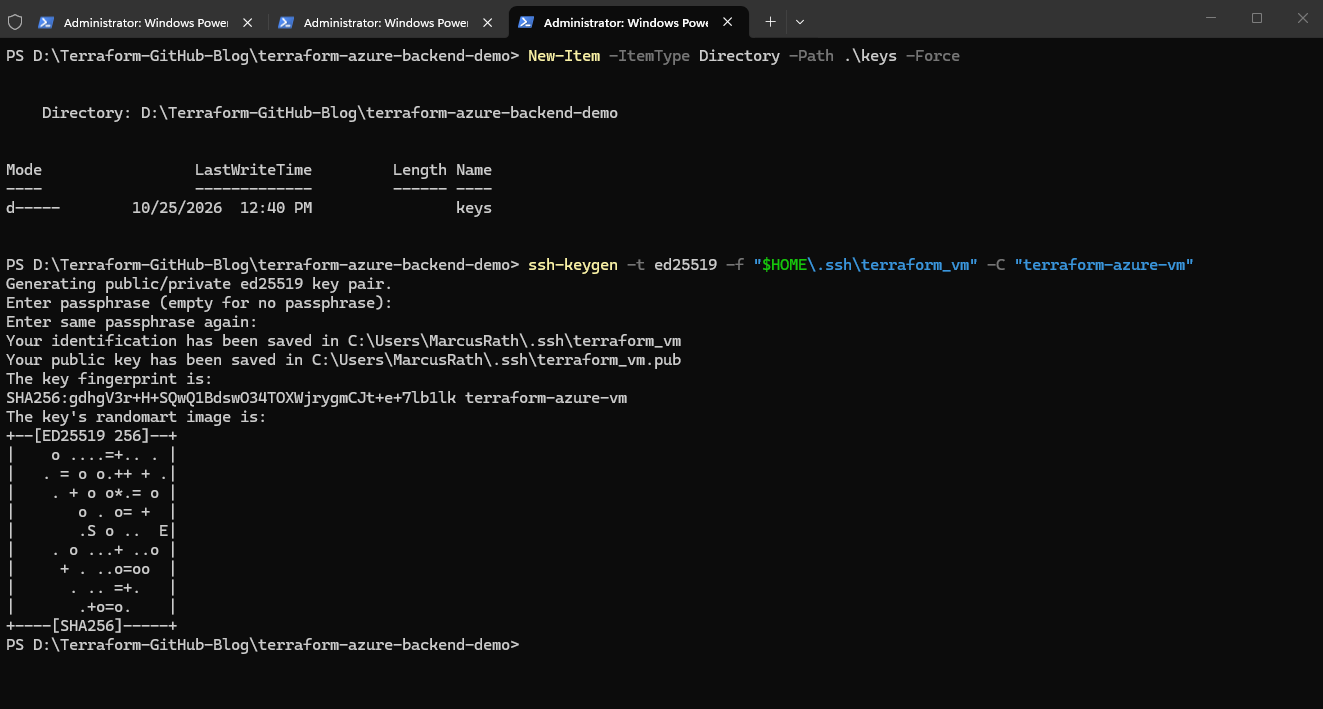
We’ll use Ed25519, a modern SSH key algorithm supported by Ubuntu.
This generates two files in our local
.sshdirectory:terraform_vm— private key, which stays on our local machine.terraform_vm.pub— public key, which Azure uses to configure SSH authentication.If the
.sshdirectory does not exist, create it first usingNew-Item -ItemType Directory -Path "$HOME\.ssh" -Force.
ssh-keygen -t ed25519 -f "$HOME\.ssh\terraform_vm" -C "terraform-azure-vm"
Copy the public key into our Terraform repository
Copy-Item "$HOME\.ssh\terraform_vm.pub" ".\keys\terraform_vm.pub"
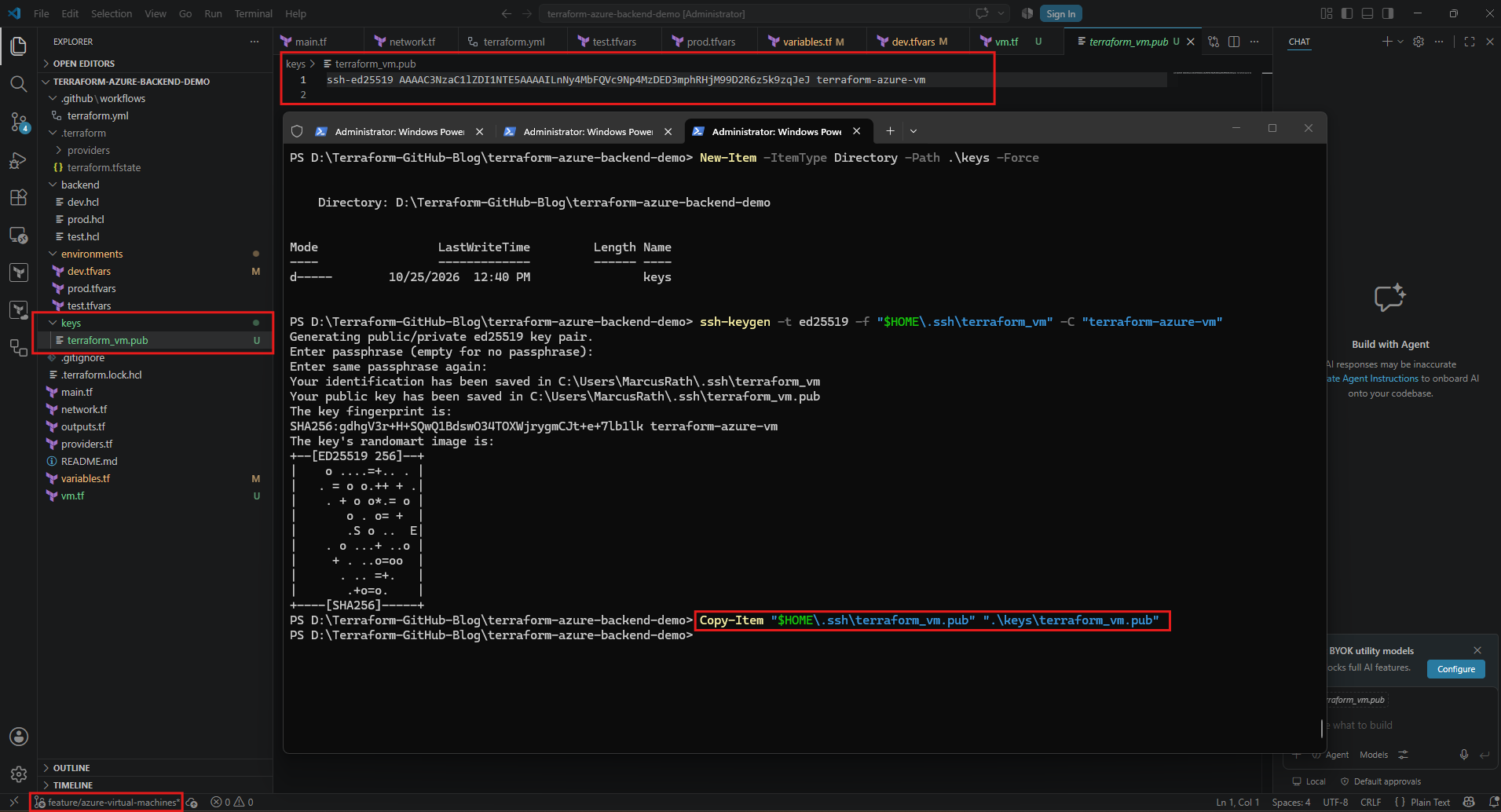
We can also verify the public key by running:
Get-Content .\keys\terraform_vm.pub

Our existing vm.tf configuration references this file:
public_key = file("${path.module}/keys/terraform_vm.pub")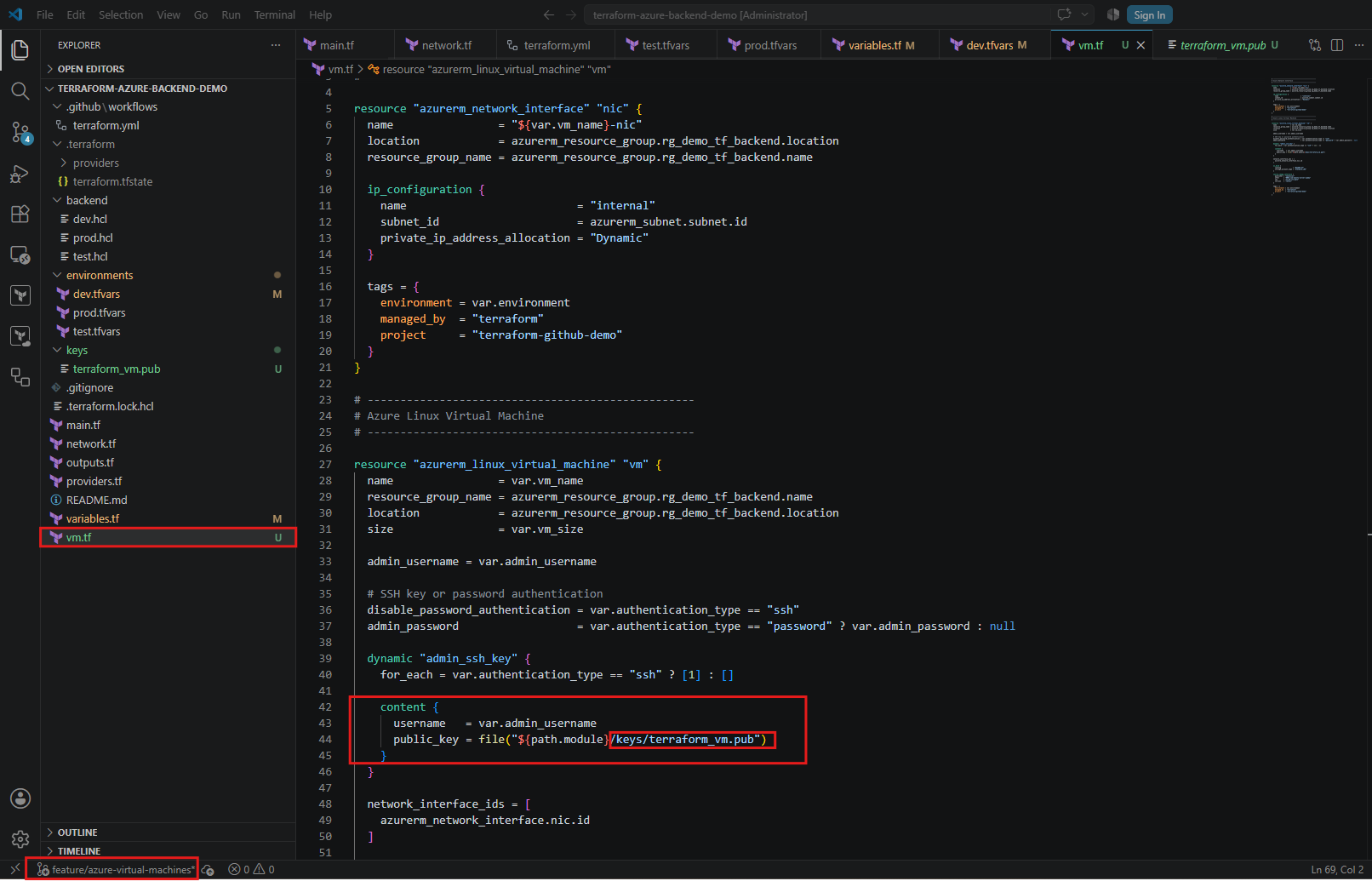
With the SSH key pair generated, we copy the public key into the keys directory of our Terraform repository. This allows both local Terraform executions and GitHub Actions to access the same public key when provisioning our Azure Linux VMs.
The private key remains outside the repository and will later be used to authenticate SSH connections to our virtual machines.
Configuring the Virtual Machines for Testing and Production
Now that we’ve prepared the SSH public key, we’ll extend our environment-specific Terraform configurations to deploy a Linux VM in both Testing and Production.
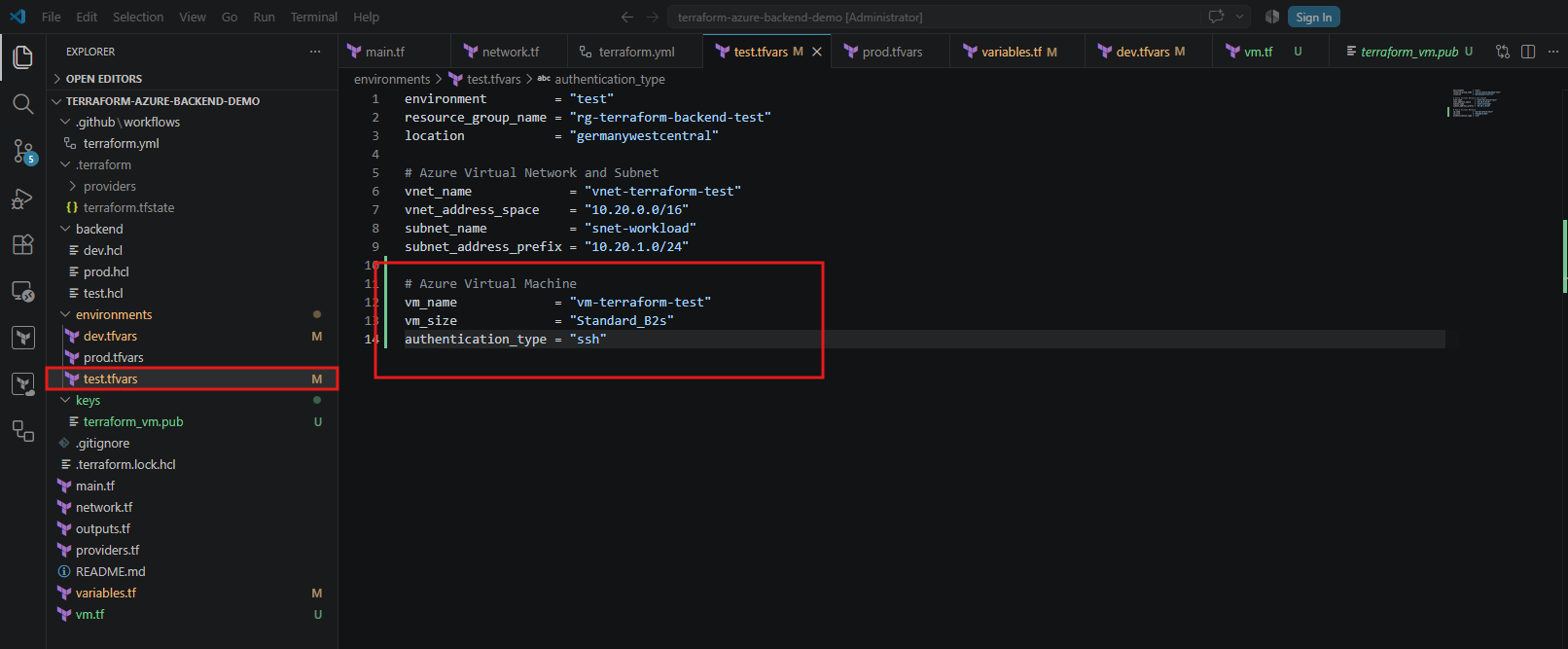
Update environments/test.tfvars
Append the following configuration:
# Azure Virtual Machine
vm_name             = "vm-terraform-test"
vm_size             = "Standard_B2s"
authentication_type = "ssh"
Update environments/prod.tfvars
Append:
# Azure Virtual Machine
vm_name             = "vm-terraform-prod"
vm_size             = "Standard_B2s"
authentication_type = "ssh"
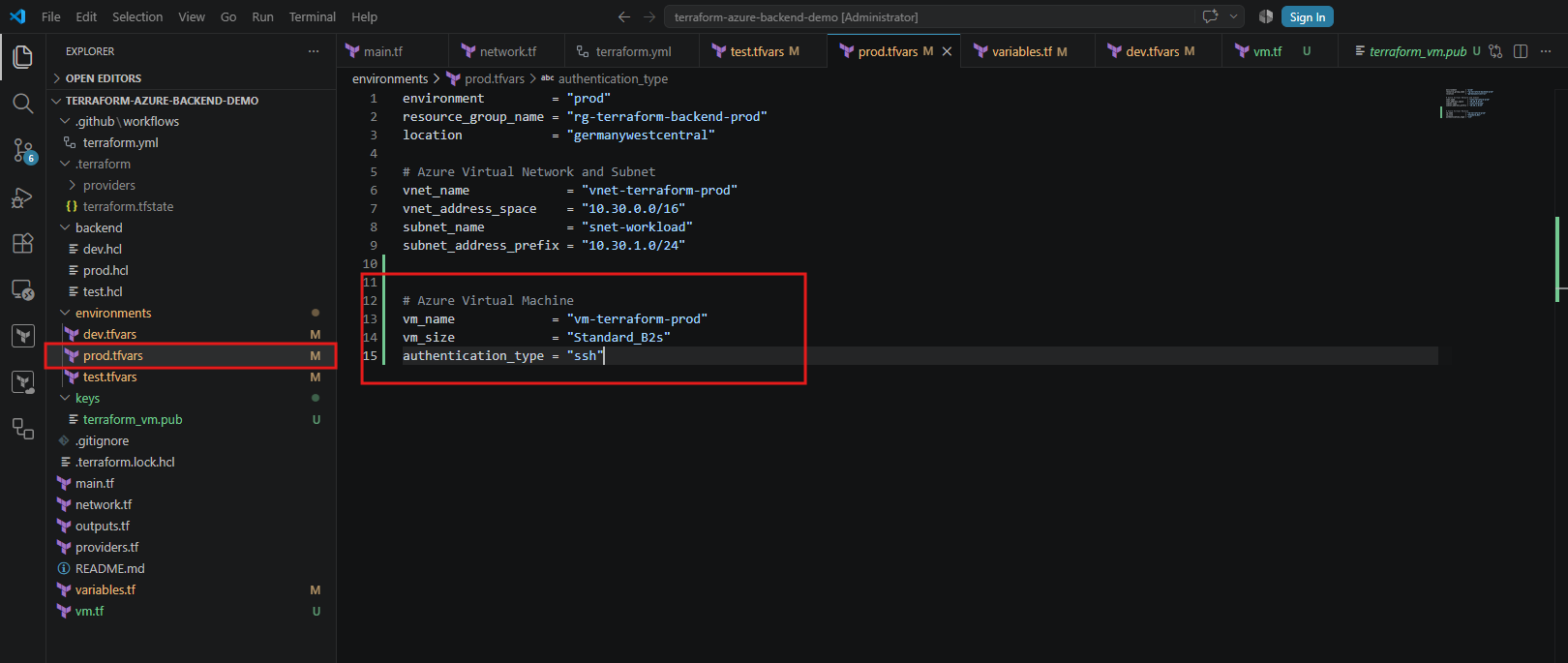
As with our previous Azure network deployment, we configure the virtual machine settings independently for each environment using the corresponding .tfvars files.
Each environment receives its own Ubuntu Linux VM, connected to its existing subnet. For our initial deployment, all three VMs use the Standard_B2s size and SSH key authentication.
We can later switch individual environments to password-based authentication by changing the authentication_type variable and securely supplying the administrator password.
Important: Password authentication also requires updating our GitHub Actions workflow to pass
TF_VAR_admin_passwordsecurely. We won’t enable that method until the workflow is configured.
Validating Our Terraform Configuration Locally
Now that we’ve configured our Azure Virtual Machines for Development, Testing, and Production, we’ll validate the Terraform configuration locally before committing our changes to GitHub.
First, check the formatting of our Terraform files:
terraform fmt -recursive

Next, we initialize Terraform using our Development backend:
terraform init -backend-config="backend/dev.hcl" -reconfigure
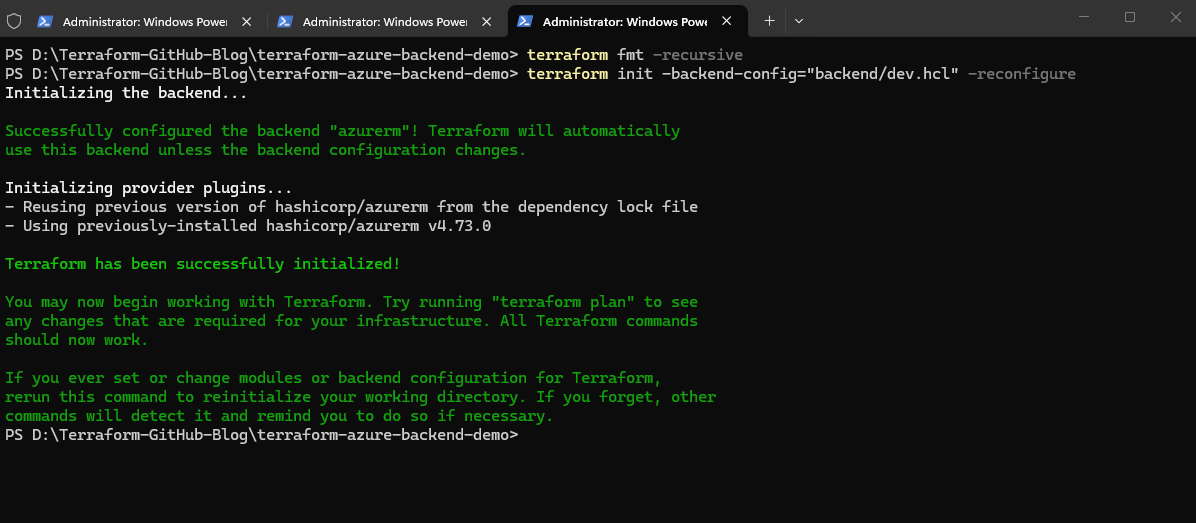
Validate the configuration:
terraform validate
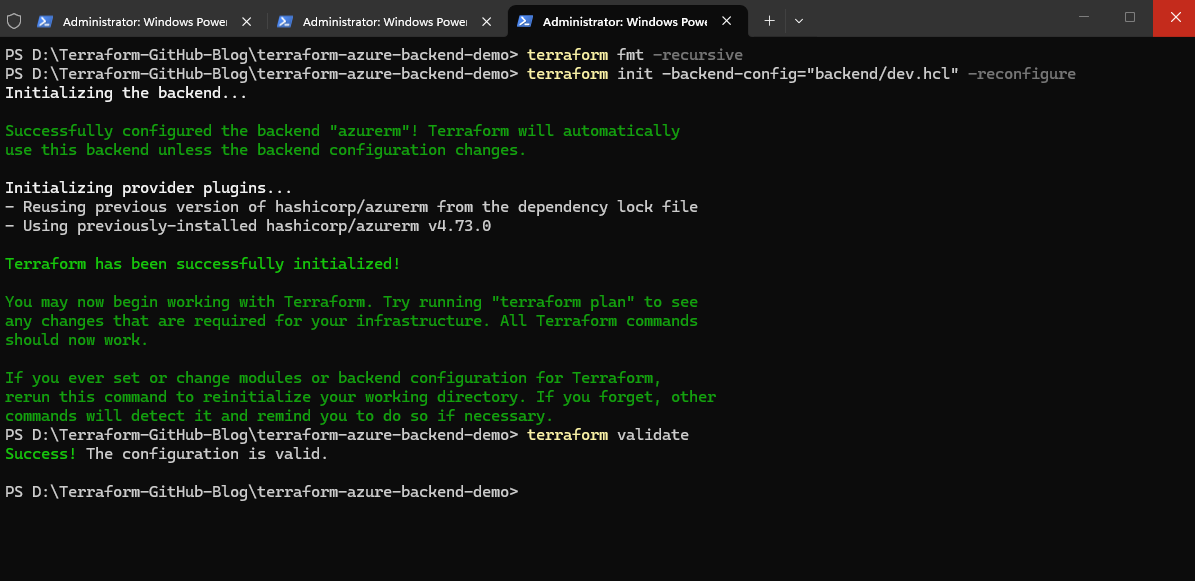
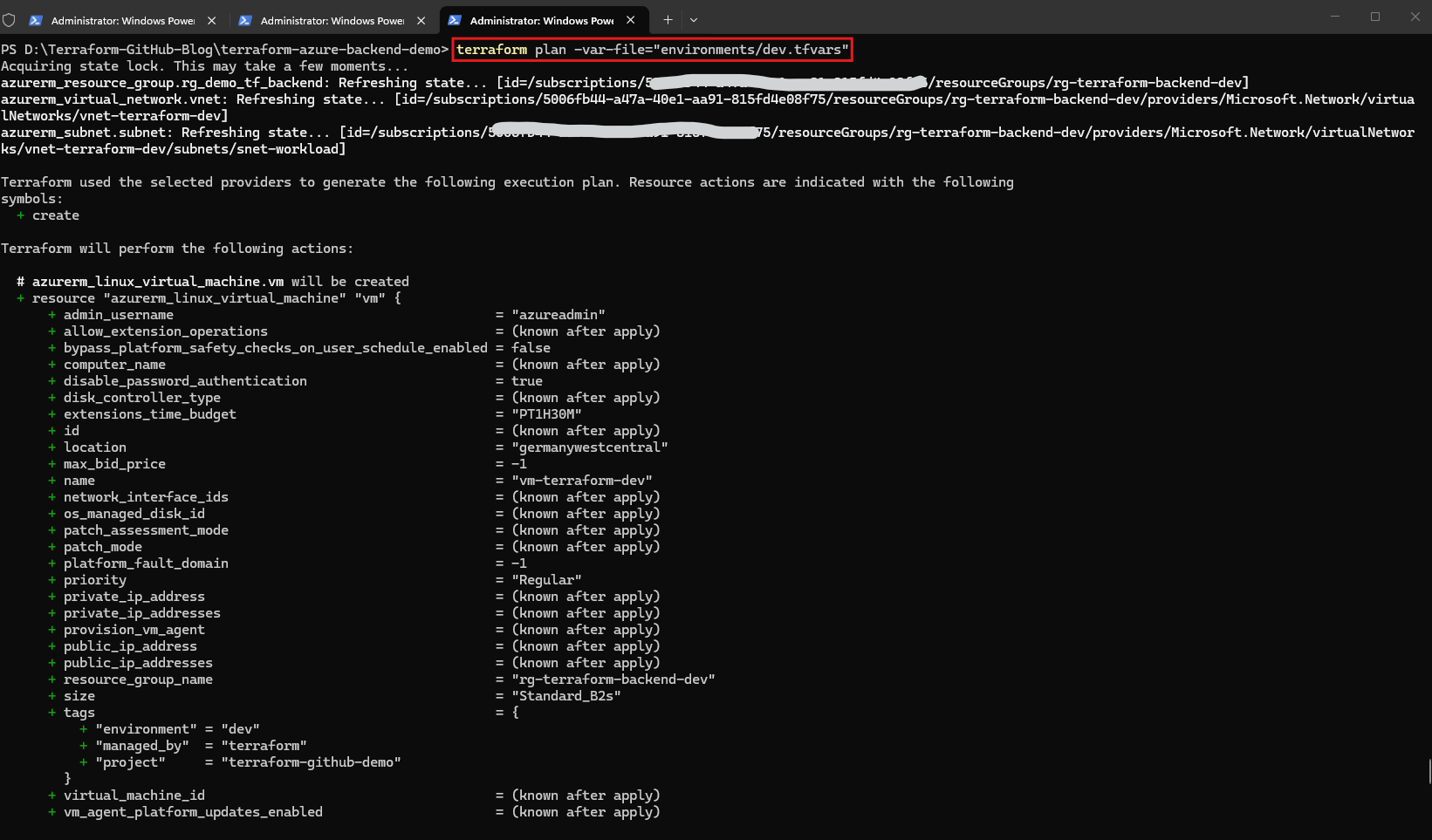
Finally, we execute terraform plan -var-file="environments/dev.tfvars" to review the proposed infrastructure changes for our Development environment.
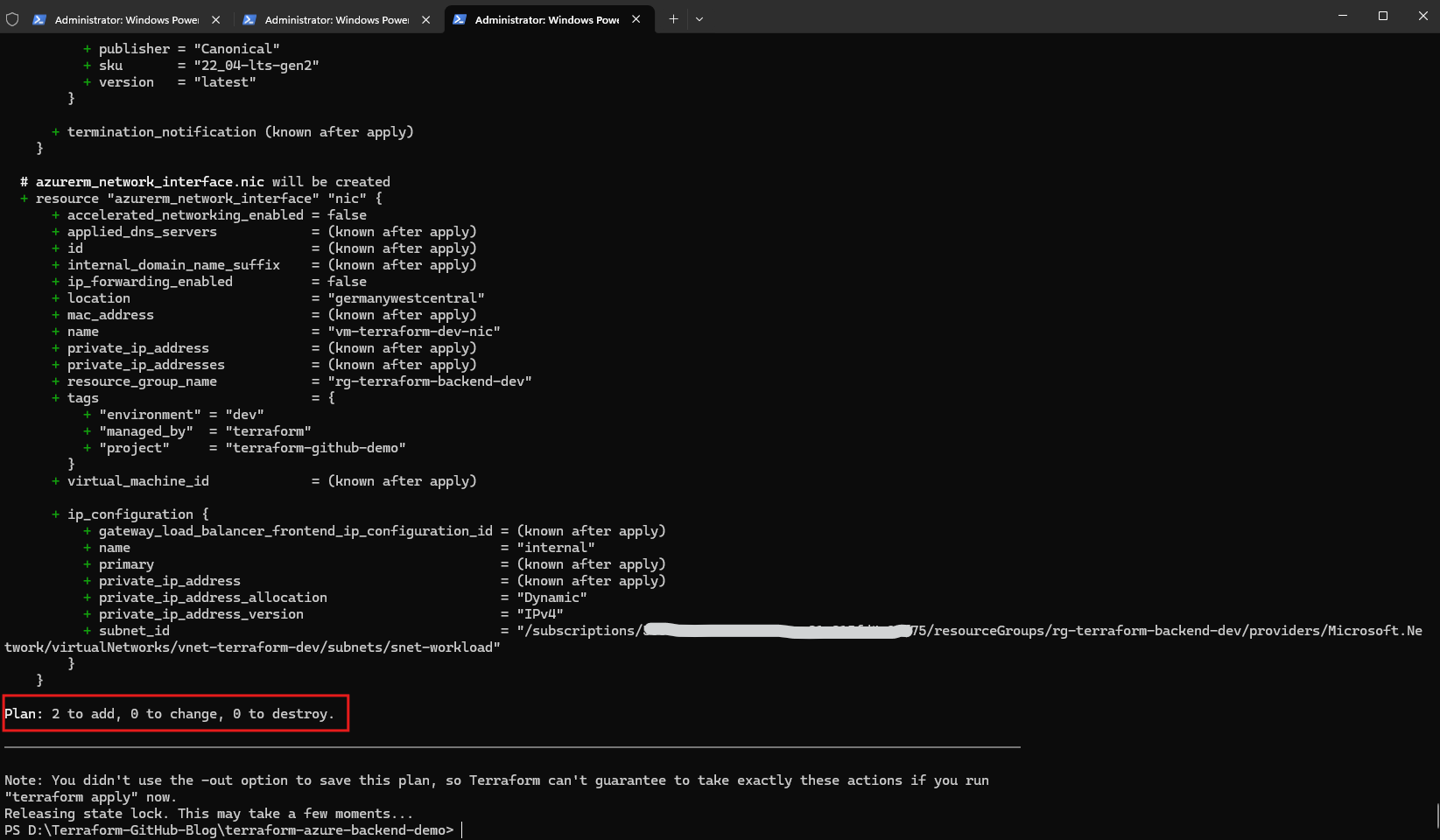
Terraform confirms that exactly two new Azure resources will be created: the network interface (
azurerm_network_interface.nic) and the Ubuntu Linux virtual machine (azurerm_linux_virtual_machine.vm). Our existing resource group, virtual network, and subnet remain unchanged.The execution plan completes successfully with 2 to add, 0 to change, and 0 to destroy, confirming that our configuration is ready for the GitHub Actions deployment workflow.
terraform plan -var-file="environments/dev.tfvars"
Commit and Push Our Azure Virtual Machine Feature Branch
After successfully validating our Terraform configuration locally, we can commit the changes to our dedicated feature branch and push them to GitHub.
This includes our new vm.tf configuration, the updated Terraform variables, the environment-specific VM settings, and the SSH public key. The private SSH key remains outside our repository.
Verify the current branch and changes
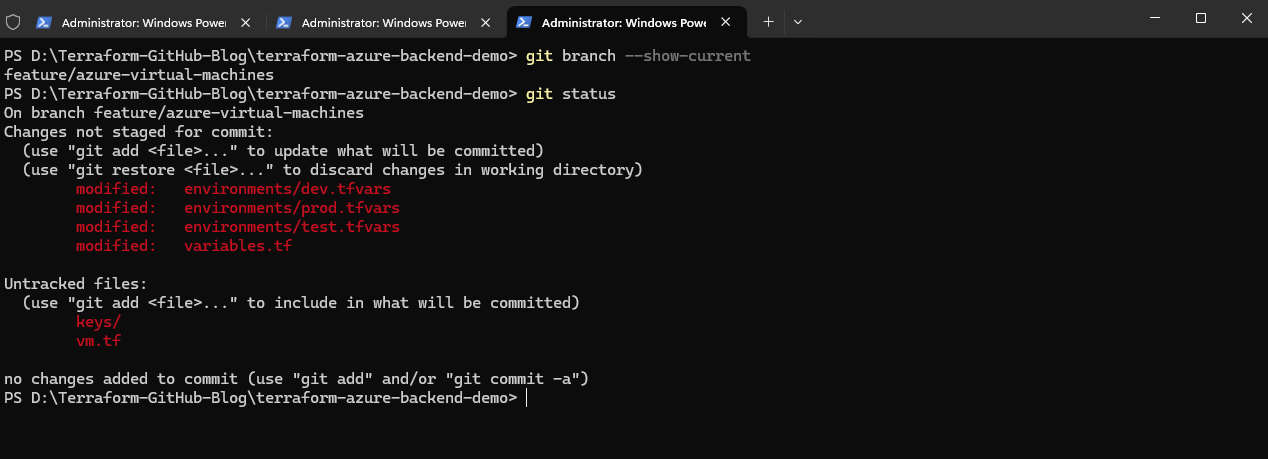
First, we verify our active Git branch using git branch --show-current and inspect the modified and newly created files using git status.
The output confirms that we are working on
feature/azure-virtual-machinesand that our Terraform configuration changes are ready to be staged for the next commit.
git branch --show-current
git status
Stage our changes
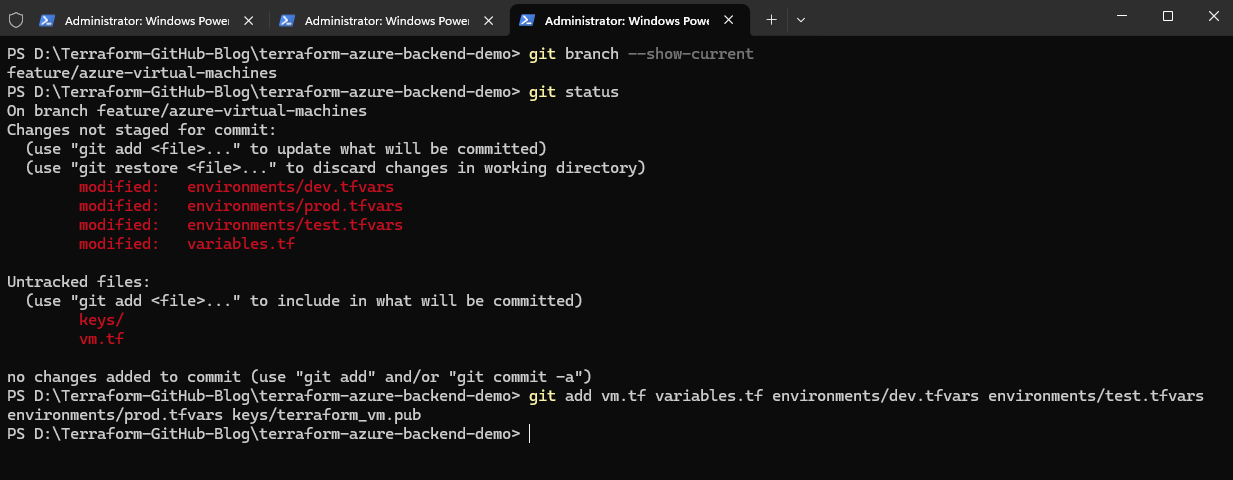
Before staging, make sure the keys directory contains only the SSH public key, not the private key.
Then execute:
git add vm.tf variables.tf environments/dev.tfvars environments/test.tfvars environments/prod.tfvars keys/terraform_vm.pub
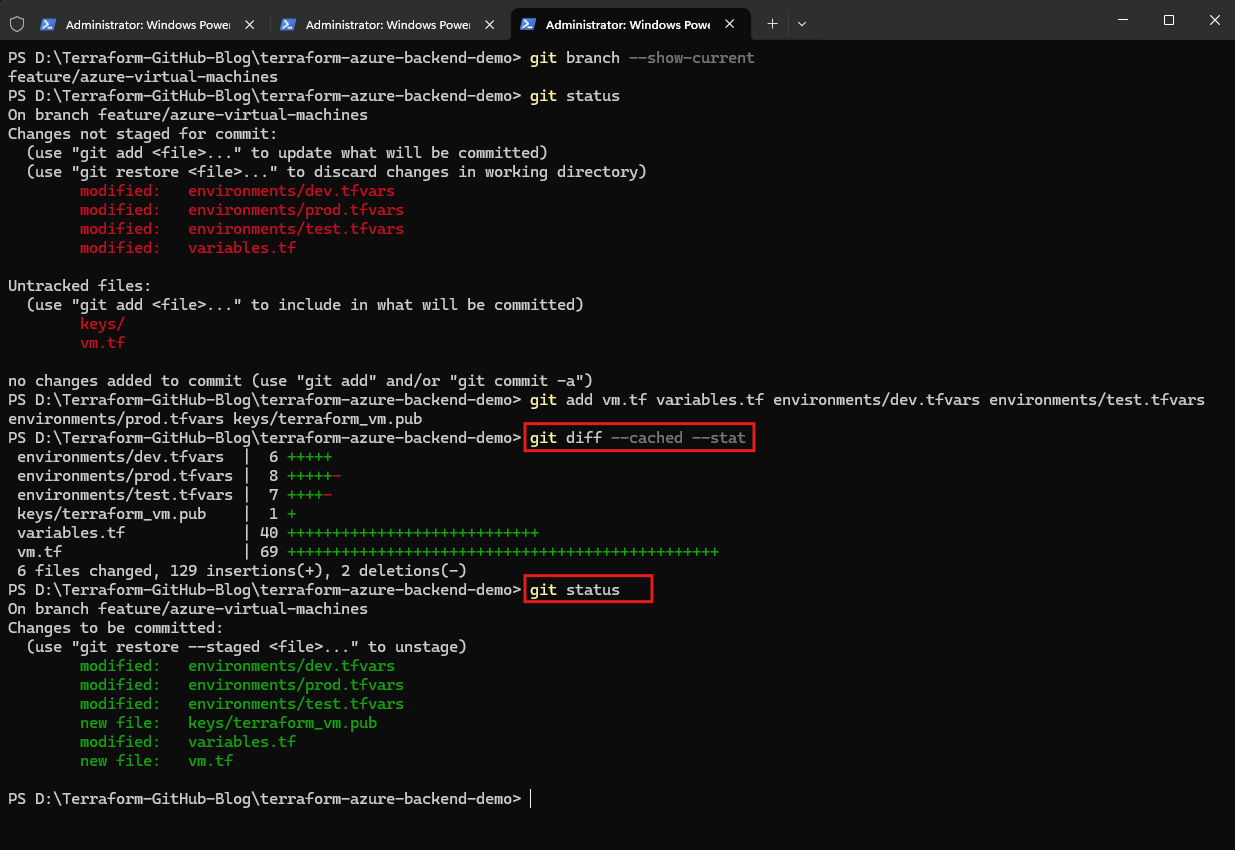
Verify the staged files:
The output confirms that all six required files have been staged, including our new VM configuration, environment-specific settings, Terraform variables, and SSH public key. No private SSH key is included in the commit.
git diff --cached --stat
git status
Commit and push
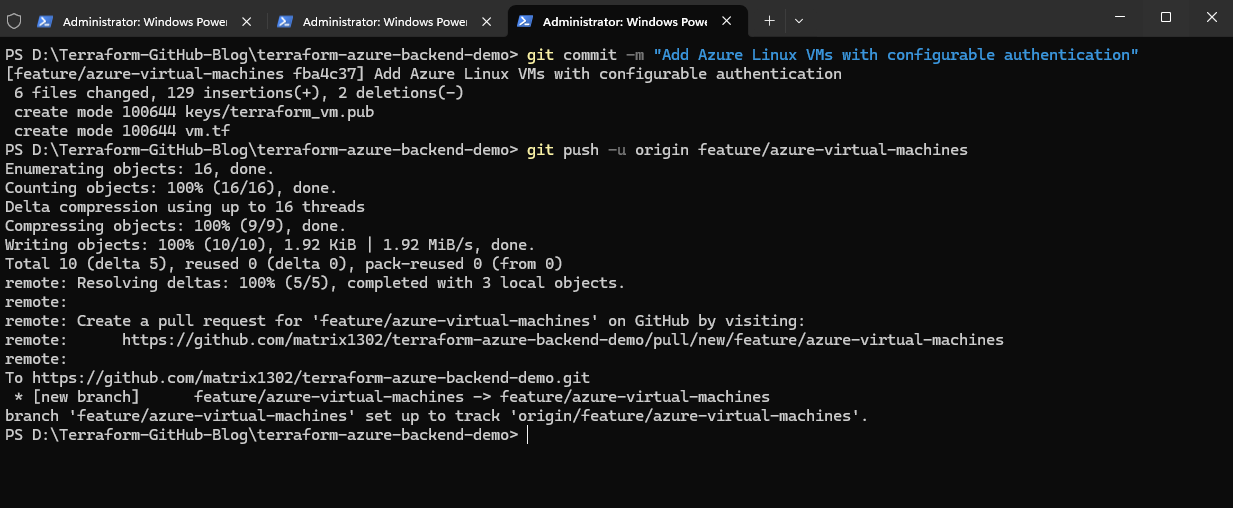
We commit our Terraform configuration changes with the message Add Azure Linux VMs with configurable authentication and push the feature branch to GitHub using git push -u origin feature/azure-virtual-machines.
git commit -m "Add Azure Linux VMs with configurable authentication"
Then push our feature branch:
The push completes successfully, creating the remote feature branch and establishing its upstream tracking relationship. Our changes are now ready for review and automated Terraform validation through a Pull Request.
git push -u origin feature/azure-virtual-machines
Create the Pull Request
Next, we open GitHub and compare our feature/azure-virtual-machines branch against develop.
GitHub displays the six modified and newly added files and confirms that both branches can be merged automatically without conflicts. We can now proceed with creating our Pull Request to trigger the automated Terraform validation workflow.
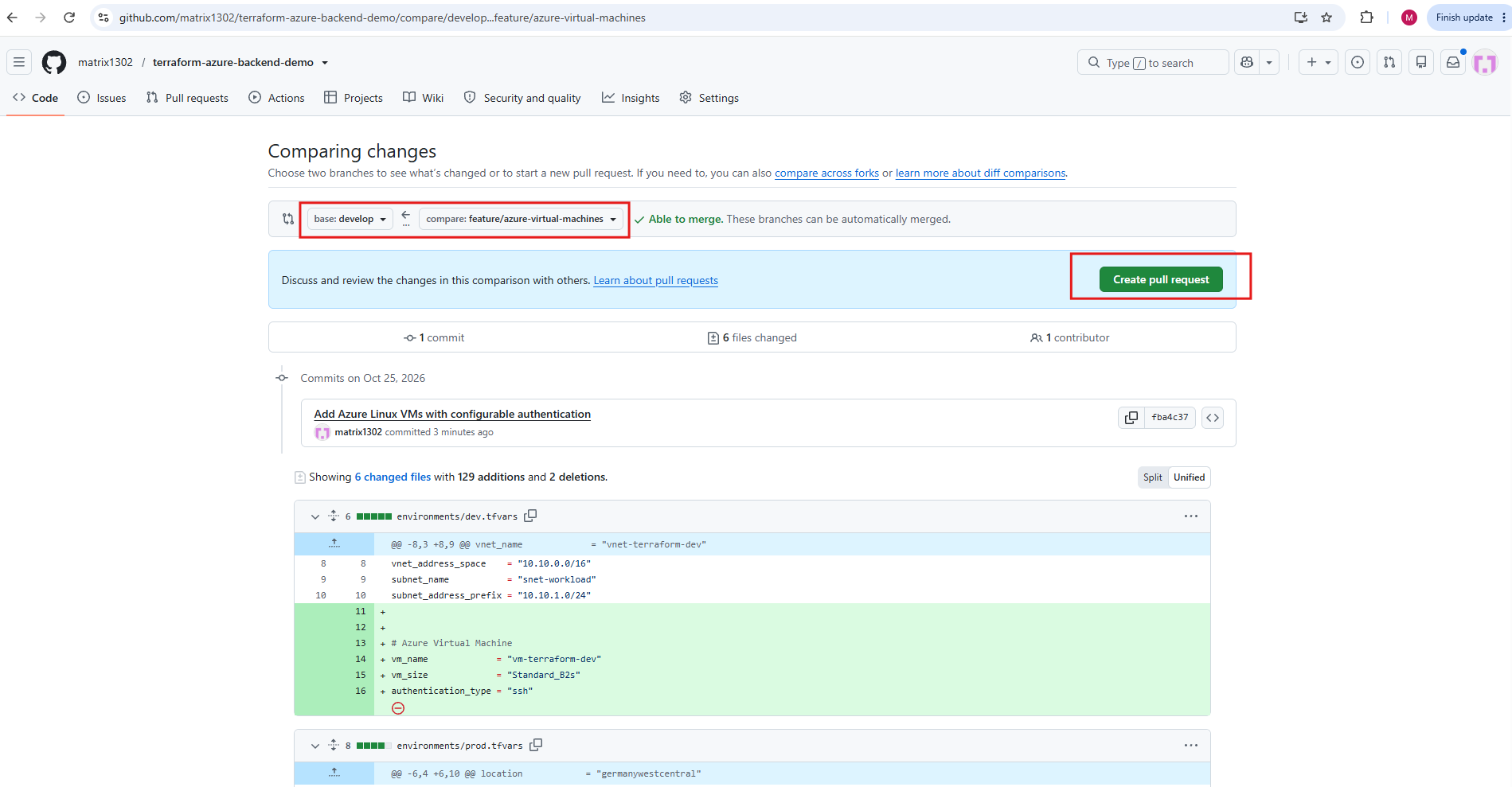
Click on Create pull request.
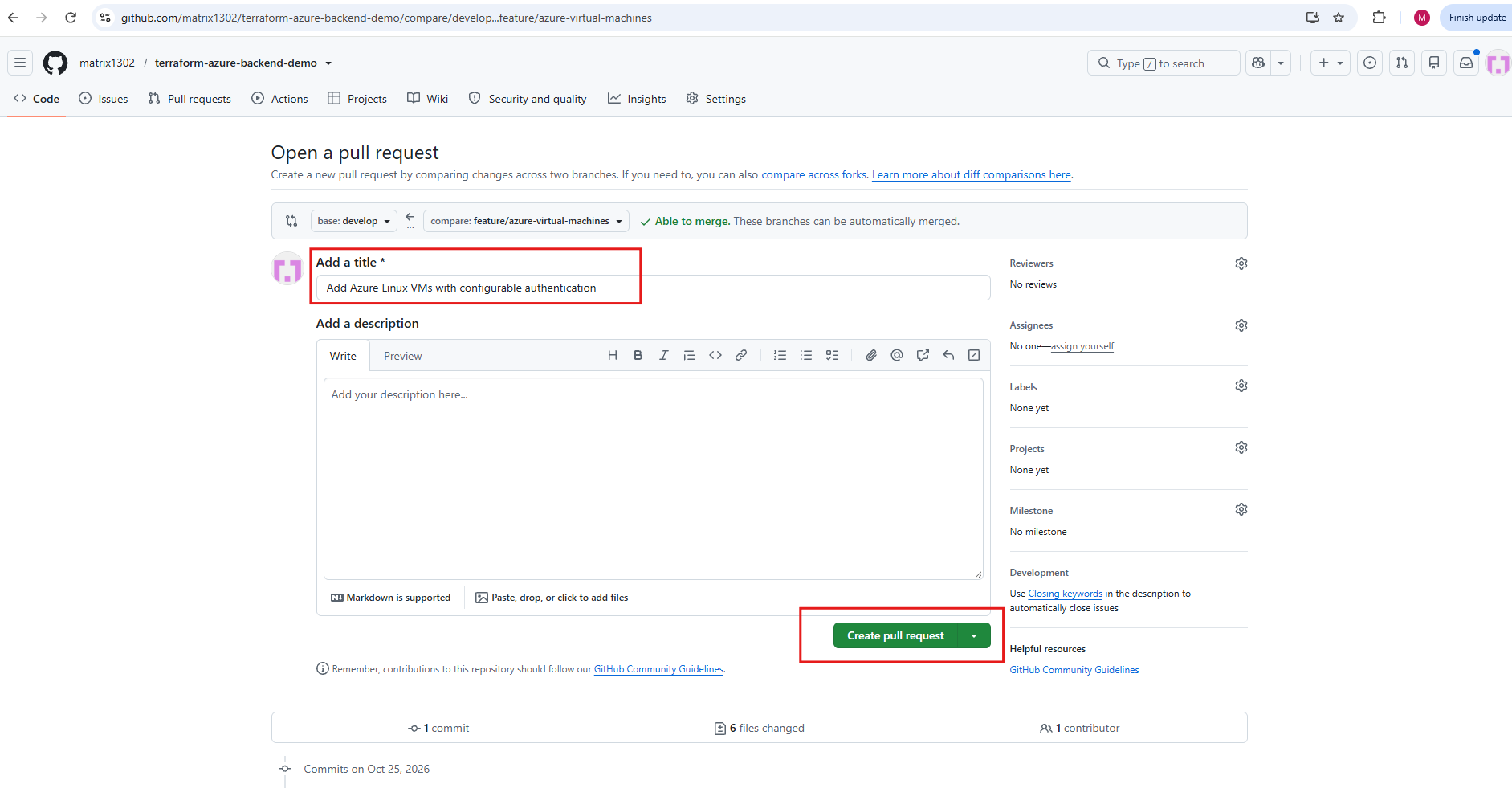
After creating Pull Request #8 from feature/azure-virtual-machines into develop, GitHub Actions automatically triggers our Terraform validation workflow.
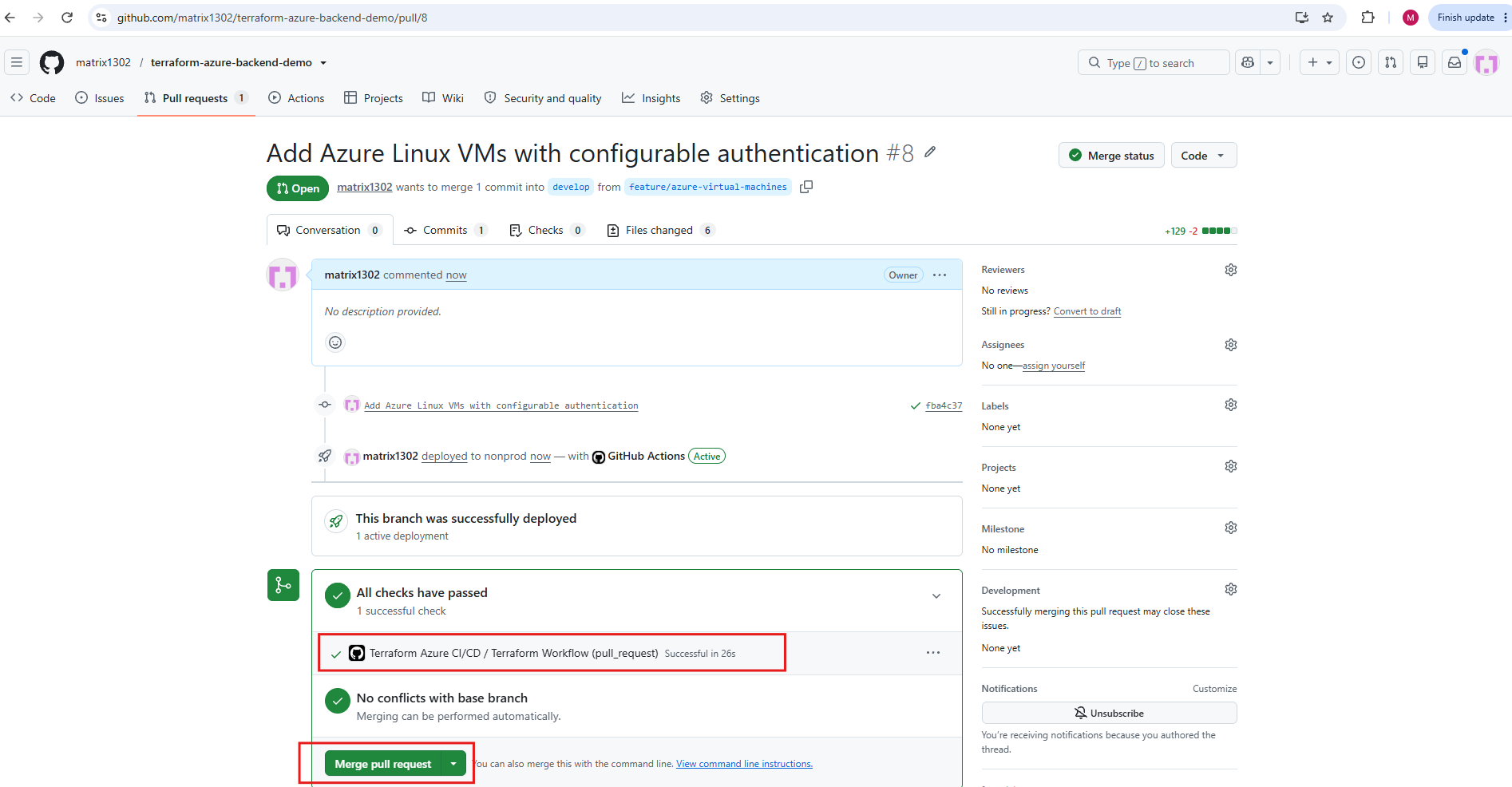
Click Merge pull request, then confirm the merge.
The workflow completes successfully in 26 seconds, and GitHub confirms that all required checks have passed without merge conflicts. Our Terraform changes are now ready to be merged into the Development branch, which will trigger the actual infrastructure deployment.
Click Confirm merge.
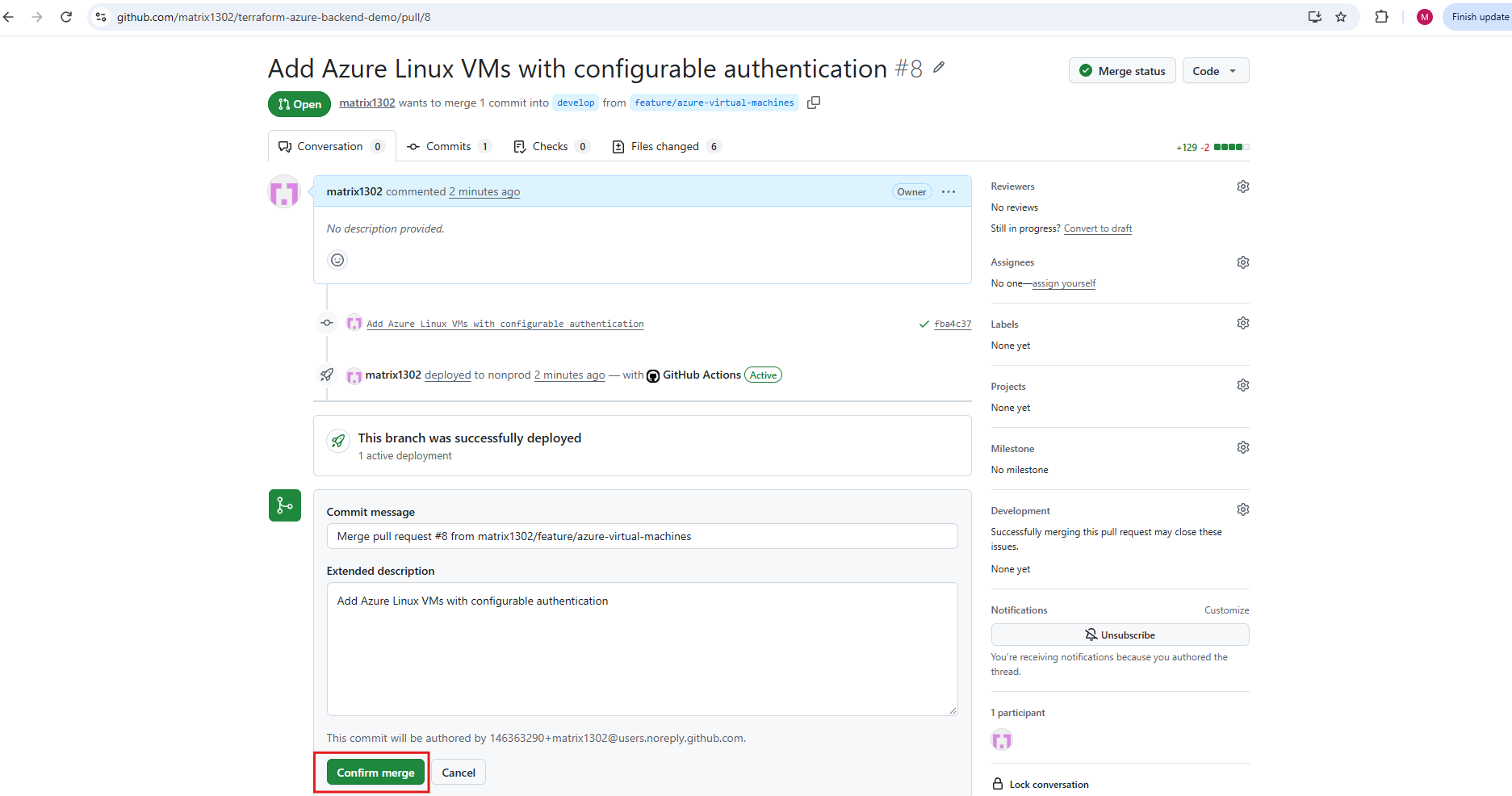
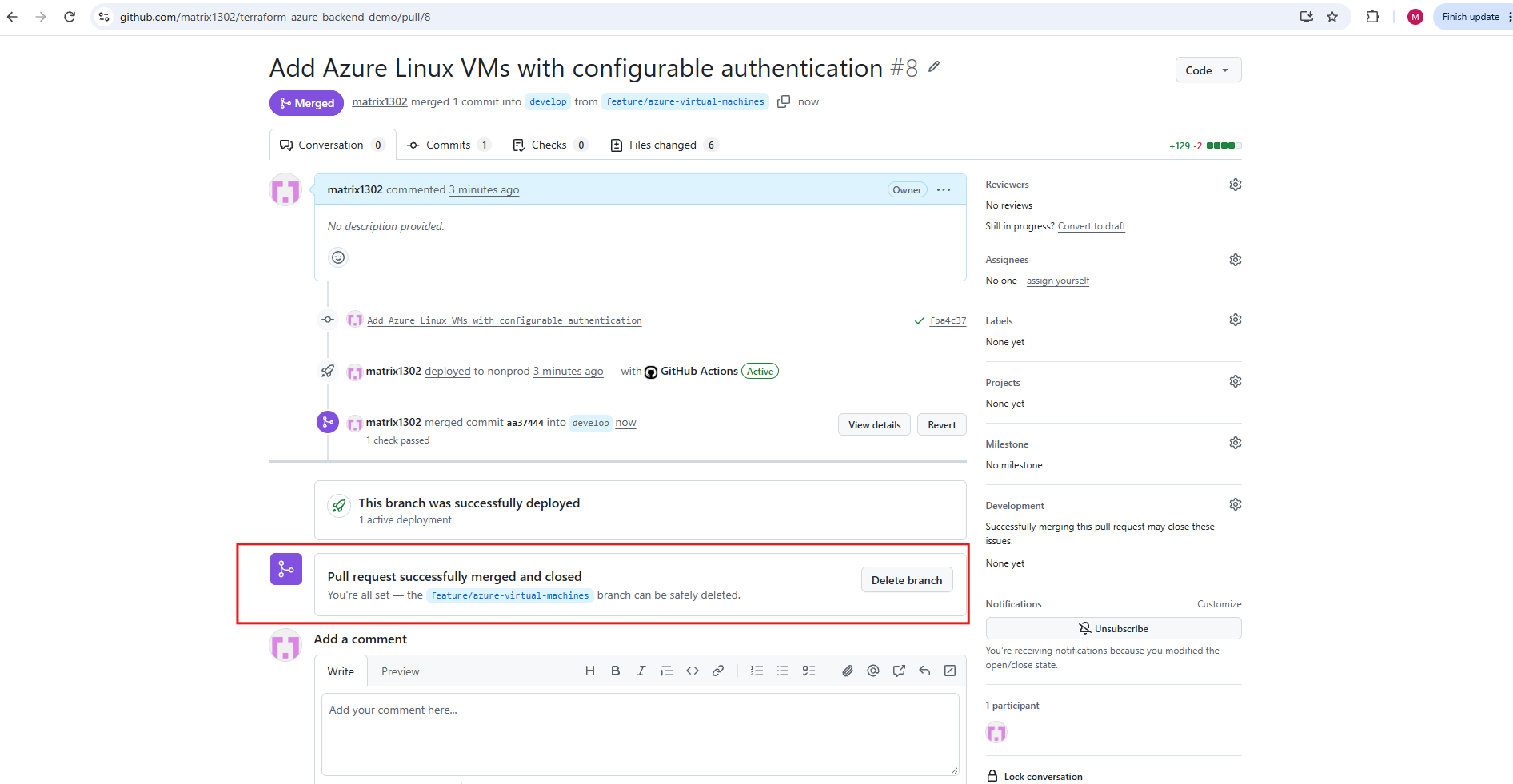
After all required Terraform validation checks have passed, we merge Pull Request #8 into our permanent develop branch.
Feature branches are temporary branches used to develop and validate new features or configuration changes before merging them into our permanent environment branches (
develop,test, andmainfor Production). This ensures that infrastructure changes are validated before being promoted through our CI/CD pipeline.Once the Pull Request has been merged, GitHub also offers the option to delete the temporary feature branch, as it is no longer required.
Verify the Development deployment
After merging Pull Request #8 into develop, GitHub Actions automatically triggers a new Terraform deployment workflow.
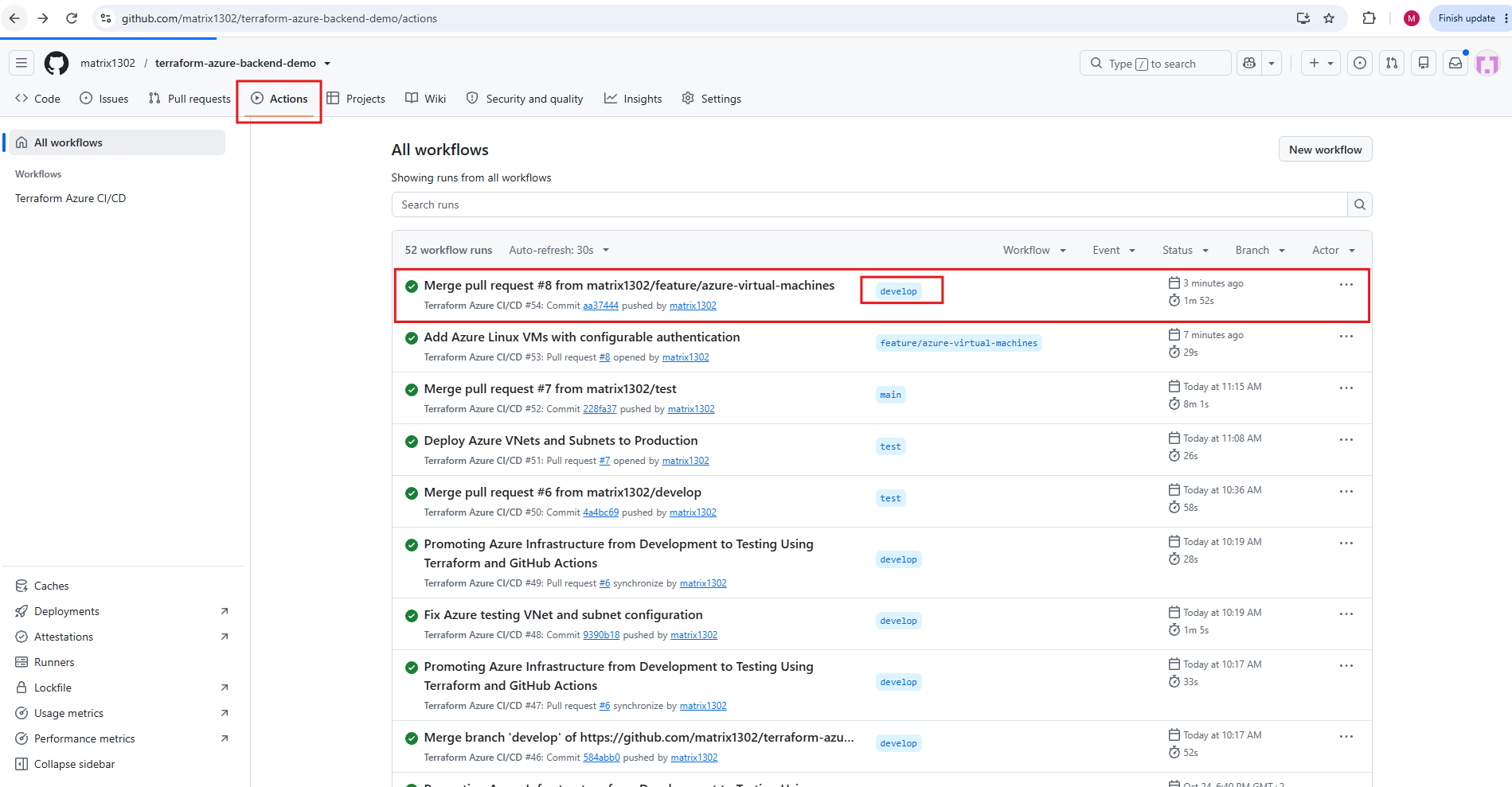
Workflow #54 completes successfully, executing terraform apply against our Development environment.
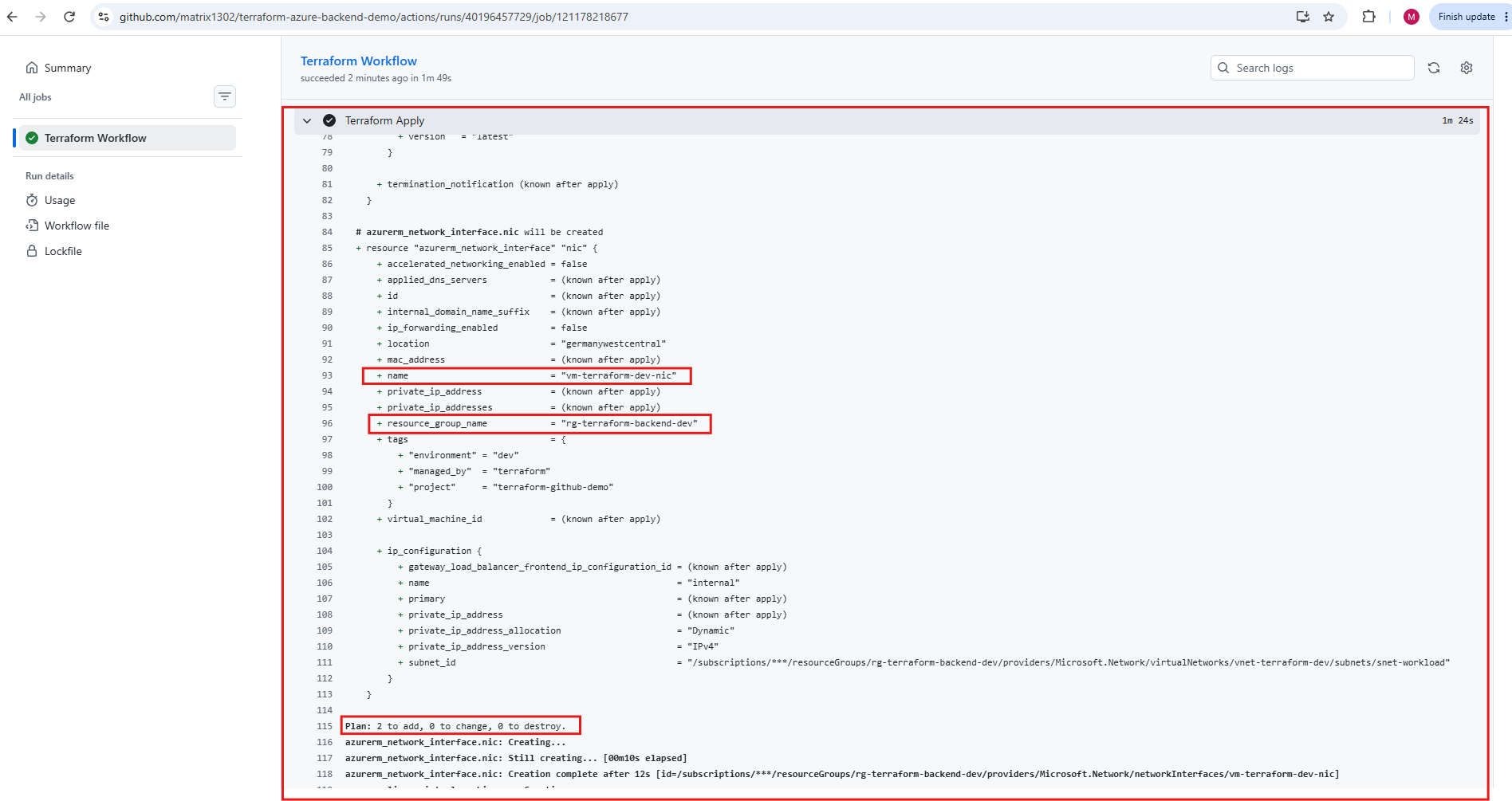
Terraform identifies two new resources to provision: the Ubuntu Linux virtual machine (
vm-terraform-dev) and its network interface (vm-terraform-dev-nic), connected to our existing Development subnet.The workflow finishes successfully without modifying or destroying any existing infrastructure.
Verify the deployed VM in Azure
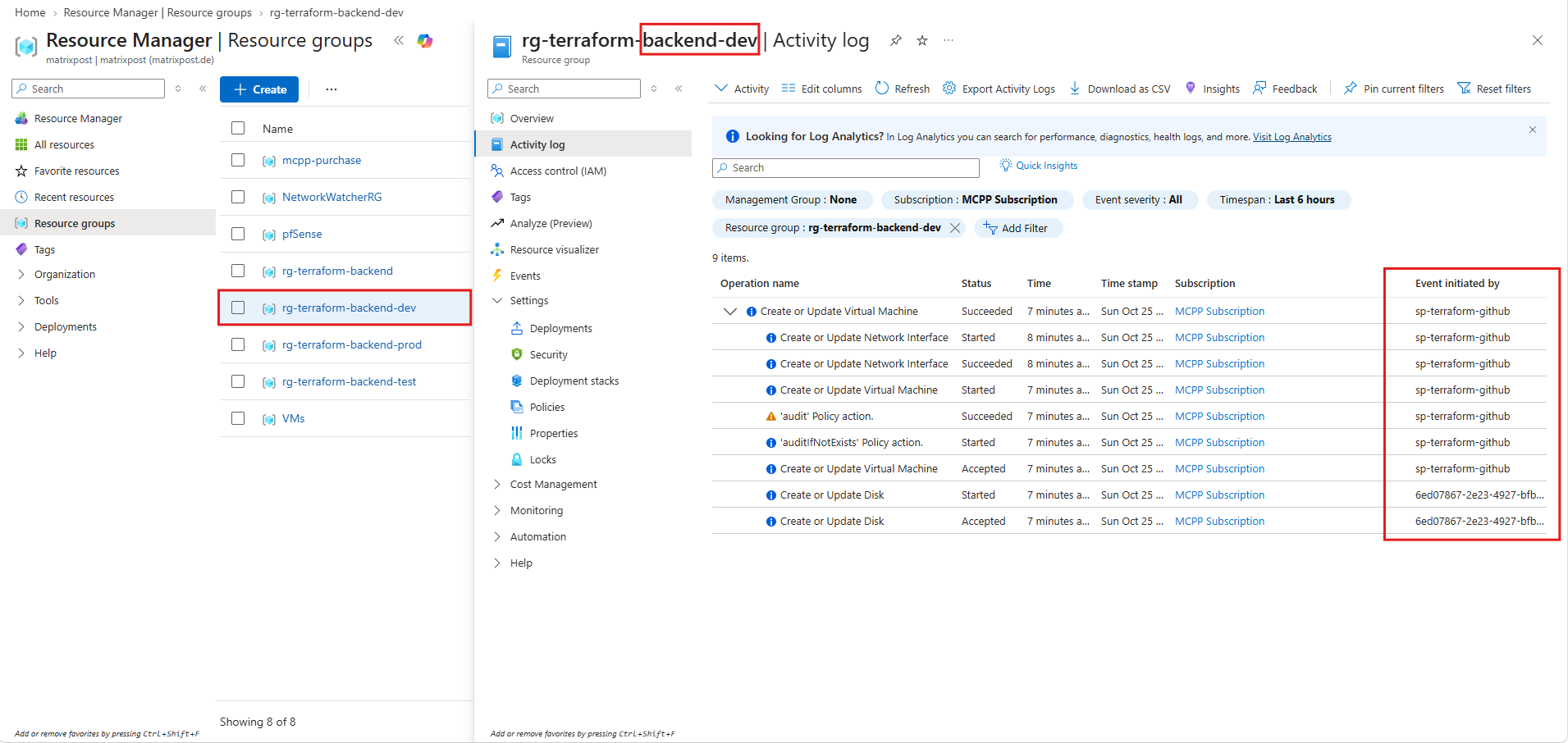
After the successful GitHub Actions deployment, we verify the newly provisioned infrastructure in the Azure Portal.
First, we inspect the Activity Log of our Development resource group (rg-terraform-backend-dev). The entries confirm that the virtual machine and network interface were successfully created, with the operations initiated by our GitHub Actions service principal, sp-terraform-github.
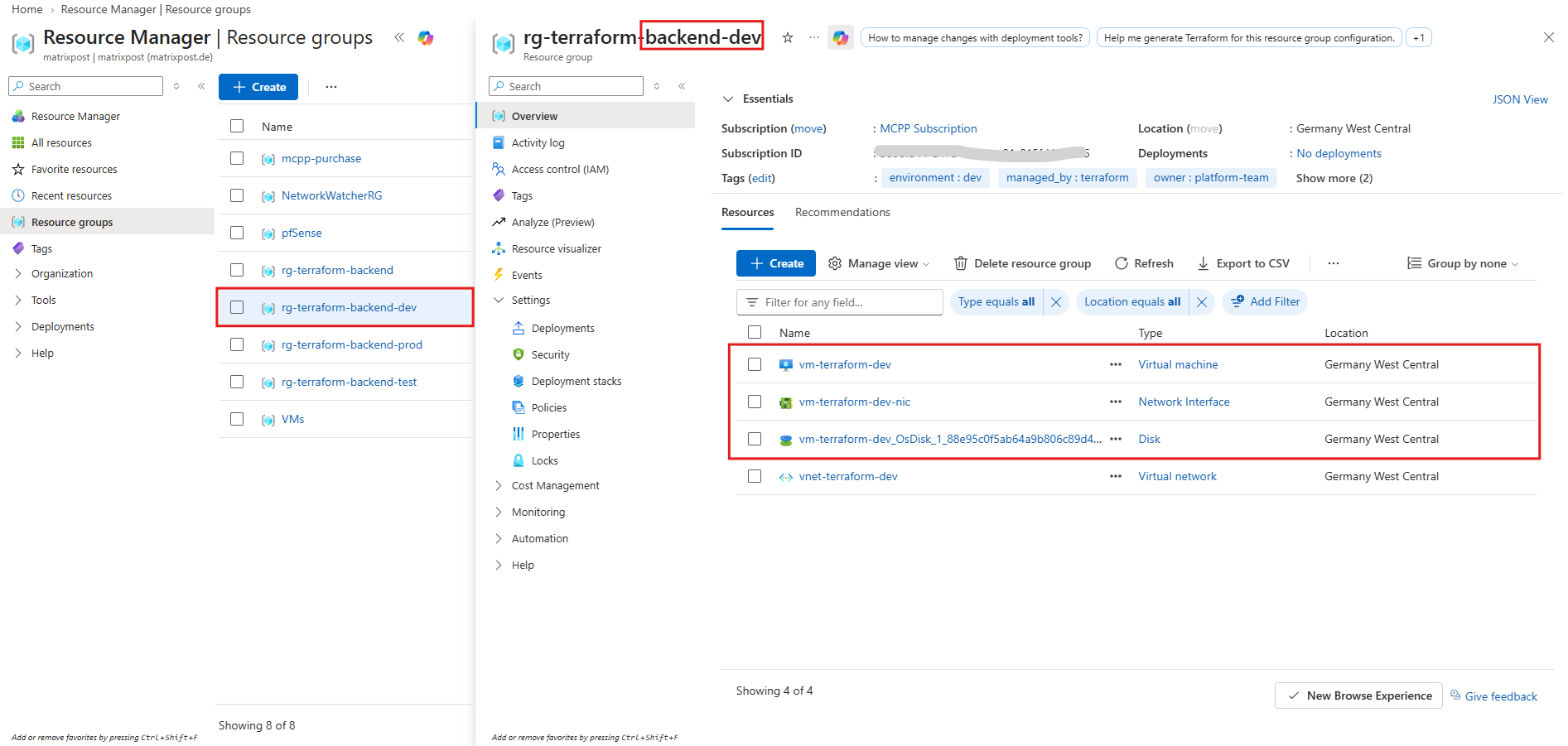
Next, we open the resource group overview and verify that our new virtual machine (vm-terraform-dev), network interface (vm-terraform-dev-nic), and managed OS disk have been created alongside the existing virtual network.
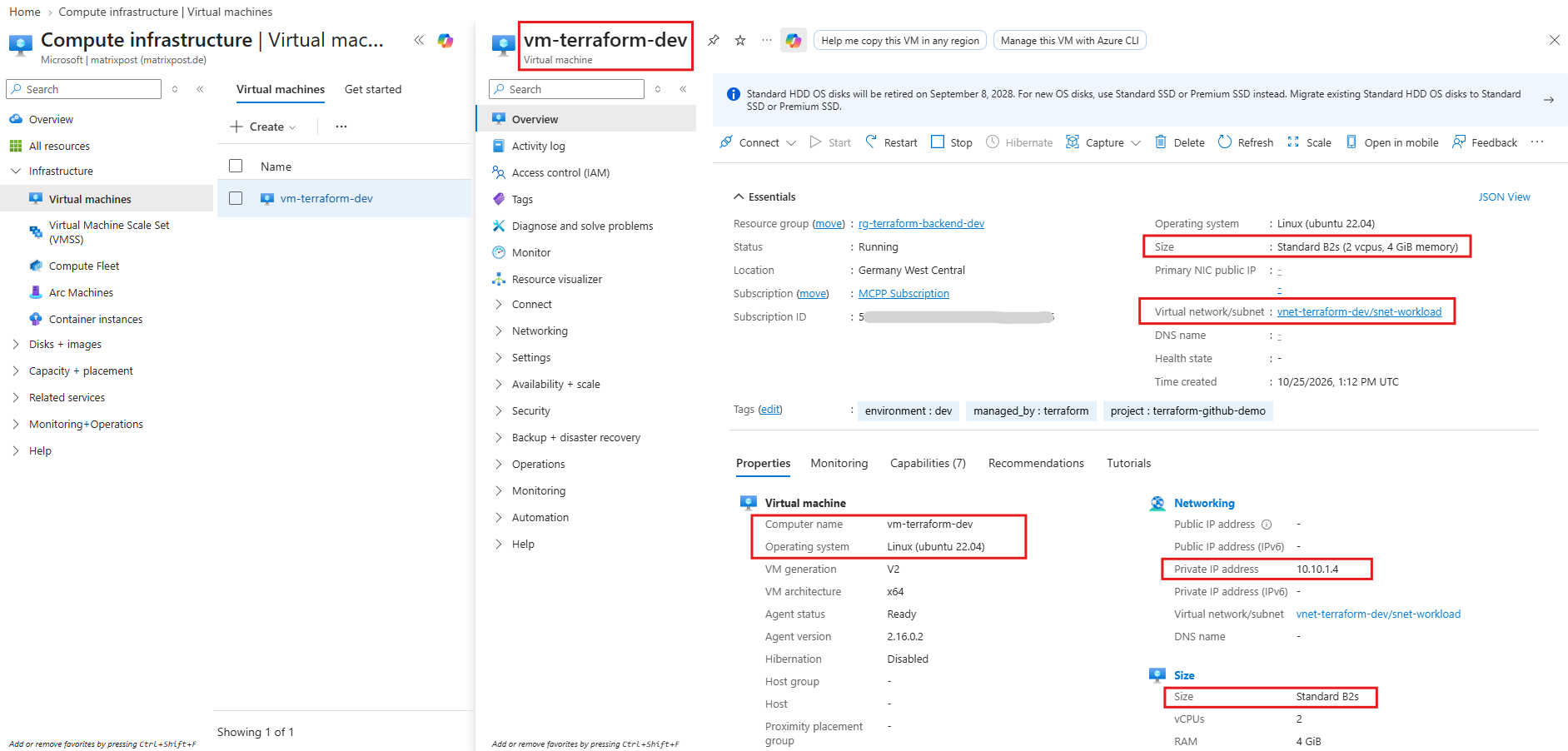
Finally, we inspect the virtual machine itself. The VM is running Ubuntu 22.04 LTS with the Standard_B2s size (2 vCPUs and 4 GiB RAM). It is connected to vnet-terraform-dev/snet-workload and has received the private IP address 10.10.1.4.
The VM has no public IP address, meaning it is not directly accessible from the Internet. This completes our successful Azure Virtual Machine deployment in the Development environment using Terraform and GitHub Actions.
The deployment of our Azure Virtual Machines to Testing and Production follows the same GitHub Actions CI/CD workflow we previously demonstrated for our Azure Virtual Networks and subnets.
Infrastructure changes are promoted from develop to test and finally to main (Production) through Pull Requests, automated Terraform validation, and environment-specific deployments.
Since this process remains unchanged, we will not repeat the individual steps here.
Instead, we will focus on configuring and testing both SSH public/private key authentication and password-based authentication for our Azure Linux Virtual Machines.
Testing SSH Key Authentication
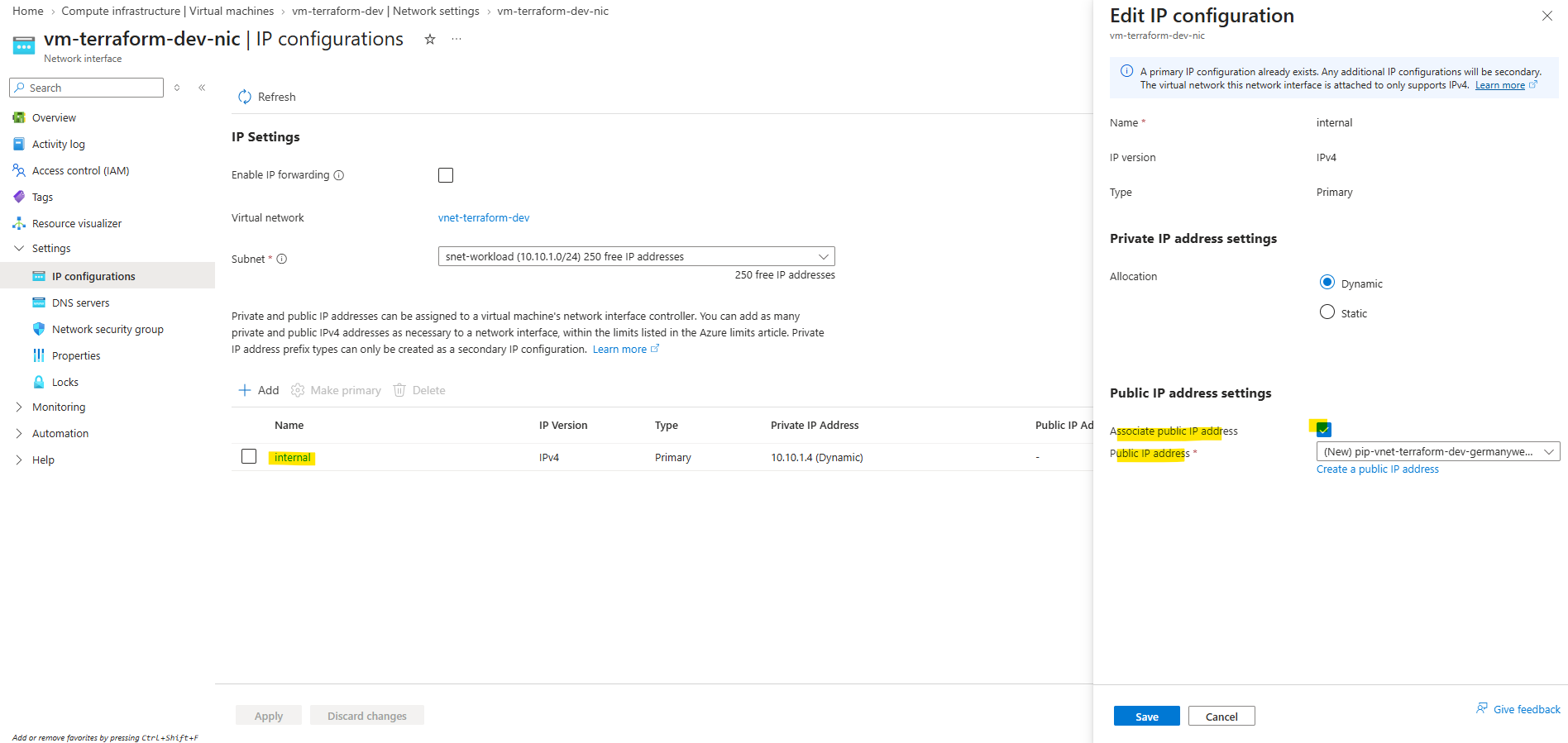
To test SSH public/private key authentication, we will temporarily assign a public IP address to our Development VM (vm-terraform-dev) through its Azure network interface. This will allow us to establish an SSH connection from our local machine using the previously generated private key, once inbound SSH access has been configured.
Normally, my on-premises vSphere lab network is connected to my Azure environment through an IPsec site-to-site VPN tunnel, allowing me to access Azure VMs directly using their private IP addresses.
I previously demonstrated this setup in my article Build a Site-to-Site VPN Between Azure and On-Prem by Using pfSense on Both Sites – No Azure VPN Gateway Required.
For this demonstration, however, we will temporarily assign a public IP address to our Development VM and configure an inbound SSH rule to test authentication directly from our local machine.
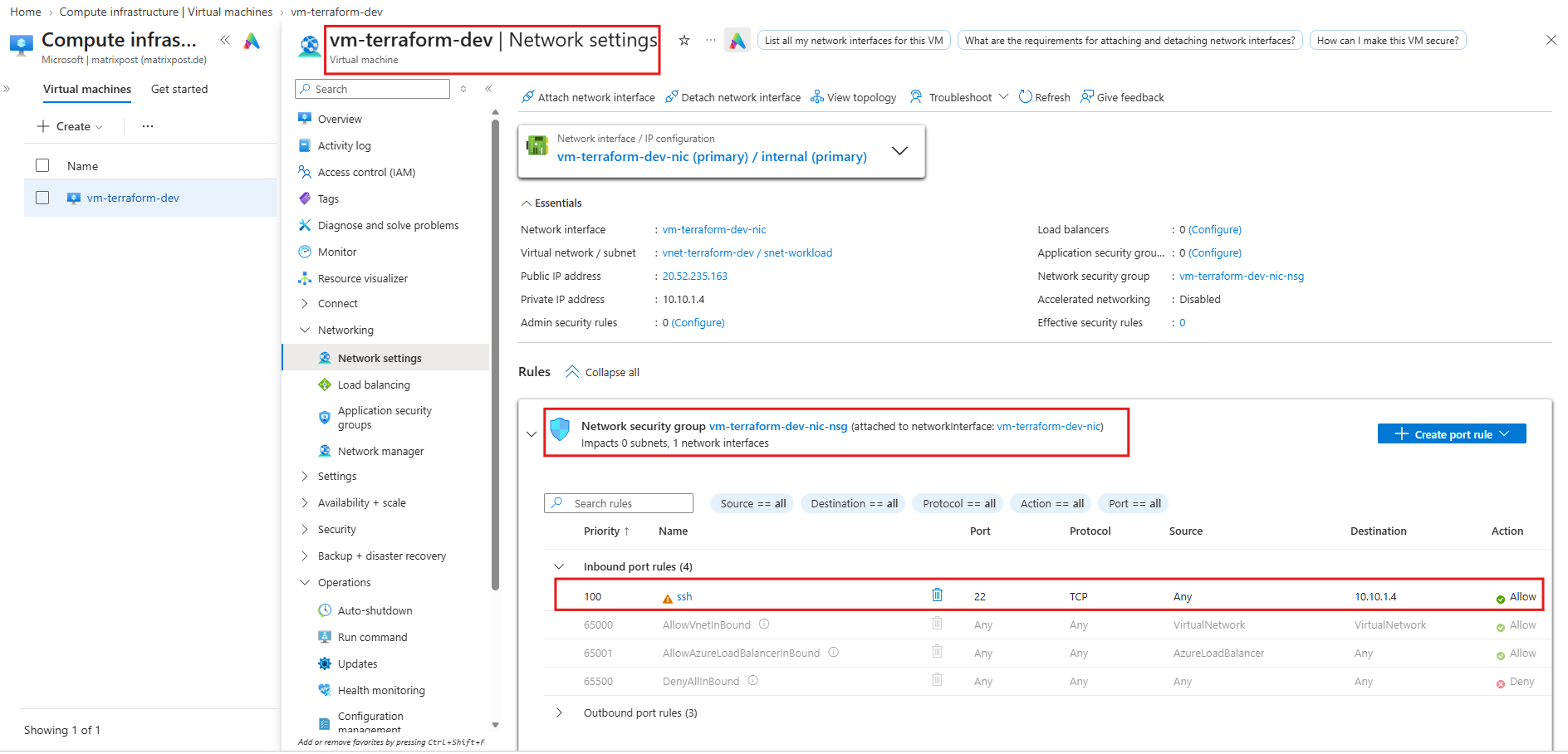
To allow SSH connections to our Development VM, we configure an inbound rule in the associated Network Security Group (vm-terraform-dev-nic-nsg) permitting TCP port 22.
For security, access should be restricted to our local public IP address rather than allowing connections from the entire Internet.
First, verify that the public IP address is assigned to vm-terraform-dev in the Azure Portal.
Then open PowerShell on our local machine and run:
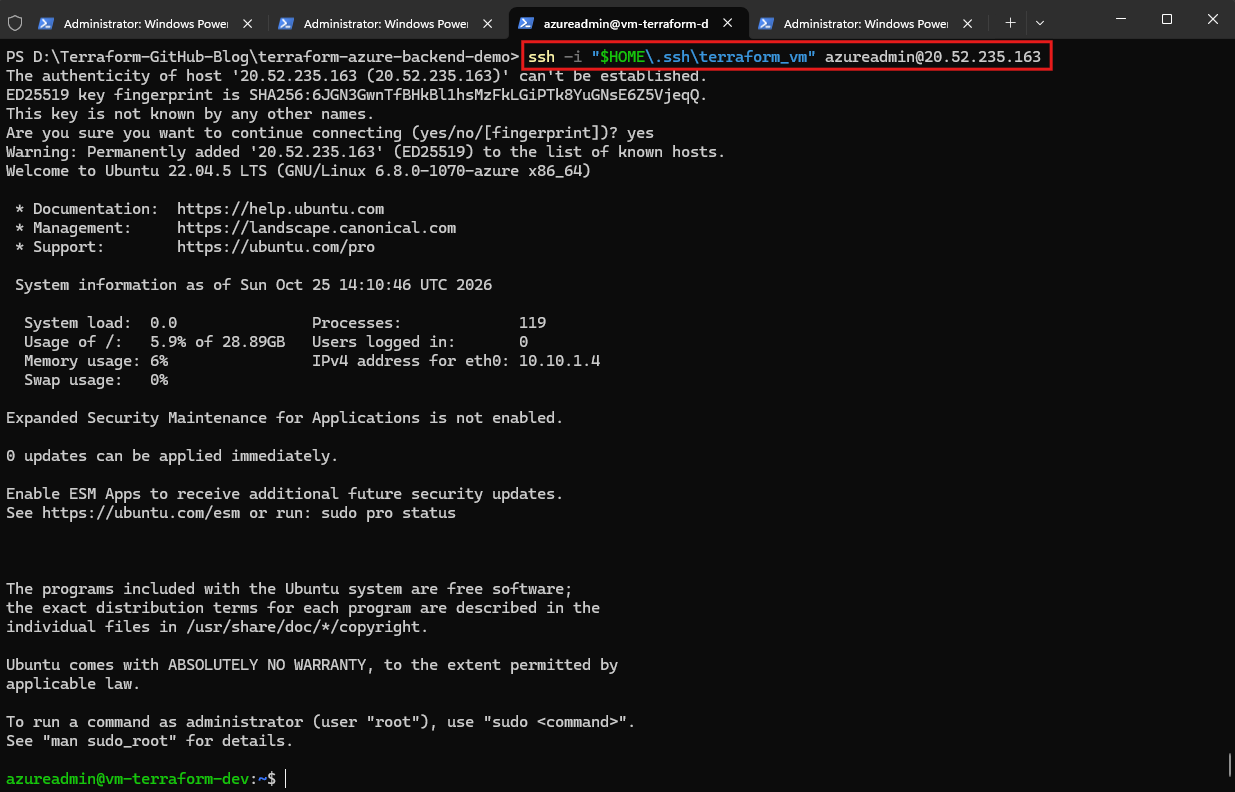
The connection succeeds without requiring the Linux user’s password, confirming that the public key deployed through Terraform matches our locally stored private key. The Ubuntu VM remains configured with its original private IP address
10.10.1.4.
ssh -i "$HOME\.ssh\terraform_vm" azureadmin@<PUBLIC-IP>
Testing Password-Based Authentication
Our vm.tf already supports both authentication methods through the authentication_type variable. Currently, Development uses ssh.
To test password authentication, we’ll switch Development to password, supply the password securely, and inspect the Terraform plan before applying anything.
Update Development Configuration
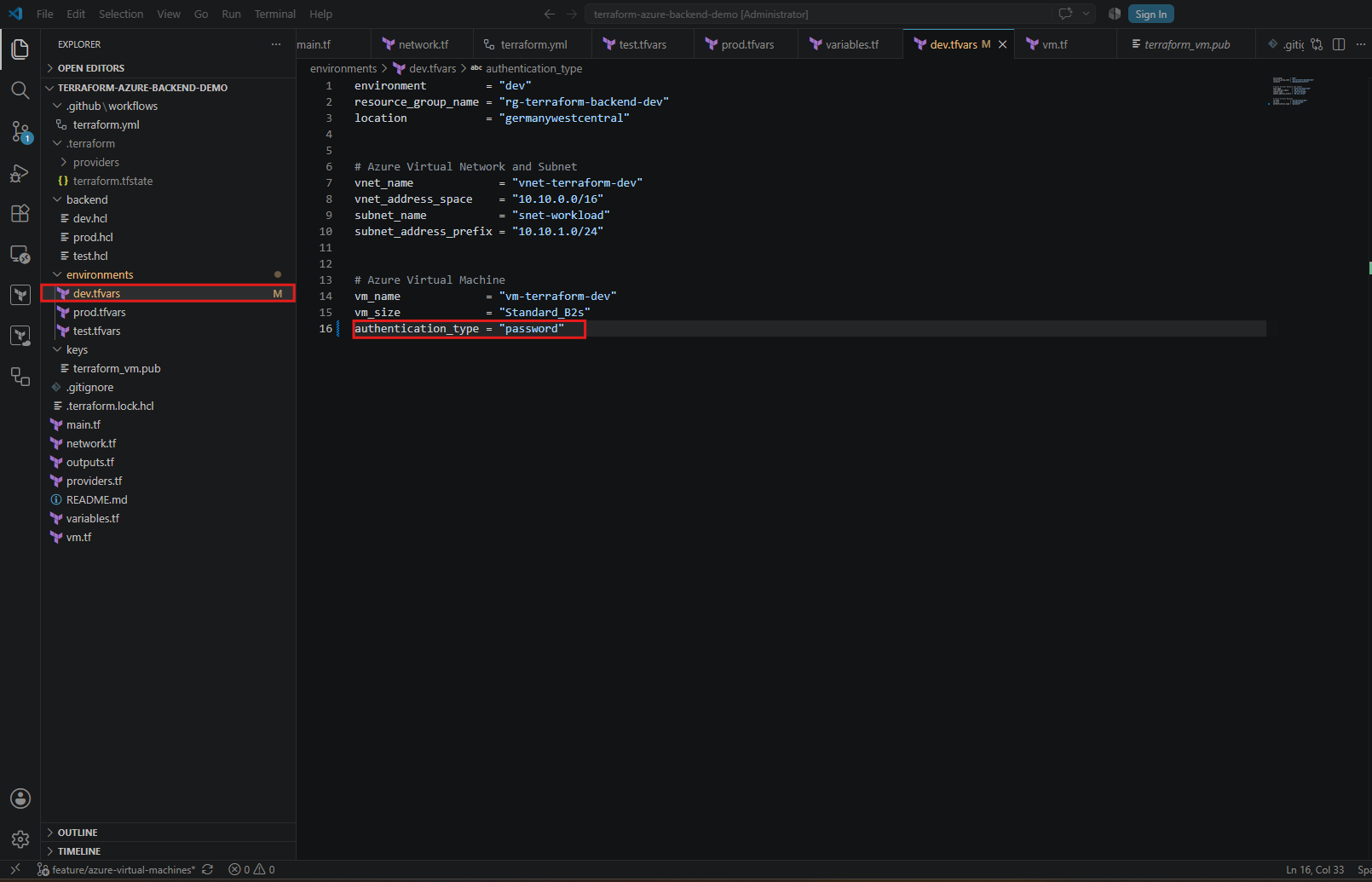
Open environments/dev.tfvars and change:
authentication_type = "ssh"
to:
Do not add
admin_passwordto this file. We’ll provide it separately using the sensitive Terraform variableTF_VAR_admin_password.
authentication_type = "password"
Set the Password and Run Terraform Plan
In our local PowerShell session, we enter:
$securePassword = Read-Host "Enter VM admin password" -AsSecureString; $env:TF_VAR_admin_password = [System.Net.NetworkCredential]::new("", $securePassword).Password
Then run:
Terraform confirms that switching from SSH key authentication to password authentication requires replacing the existing Azure Linux VM.
terraform plan -var-file="environments/dev.tfvars"
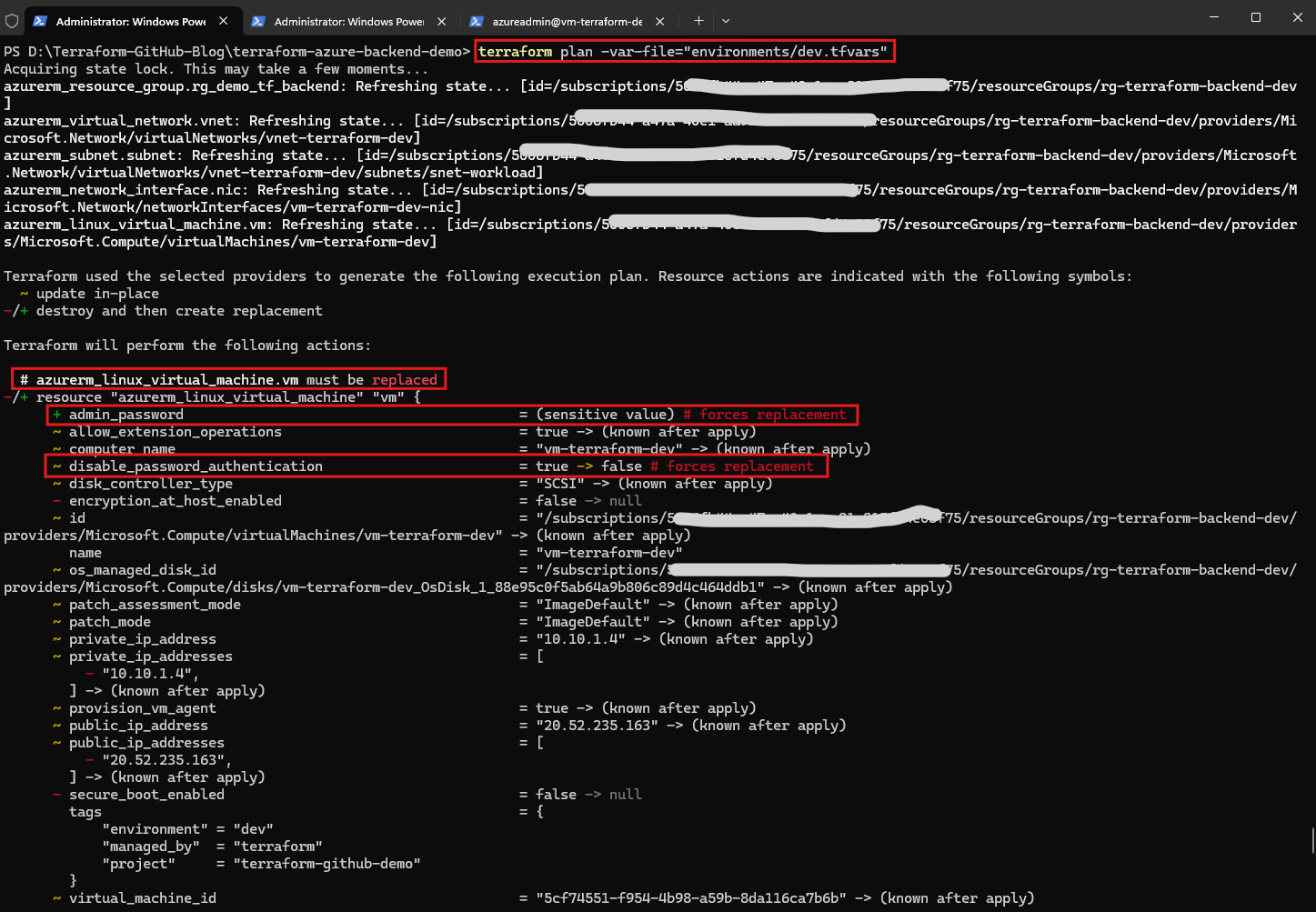
The Terraform execution plan also reveals an interesting example of configuration drift. Because we manually associated a public IP address with our VM’s network interface through the Azure Portal, Terraform detects a difference between the actual Azure configuration and our declared infrastructure in
vm.tf.The
public_ip_address_idattribute shows-> null, indicating that Terraform intends to remove the manually configured public IP association during the next deployment.This demonstrates how Terraform identifies out-of-band infrastructure changes and attempts to reconcile them with the desired configuration defined in code.
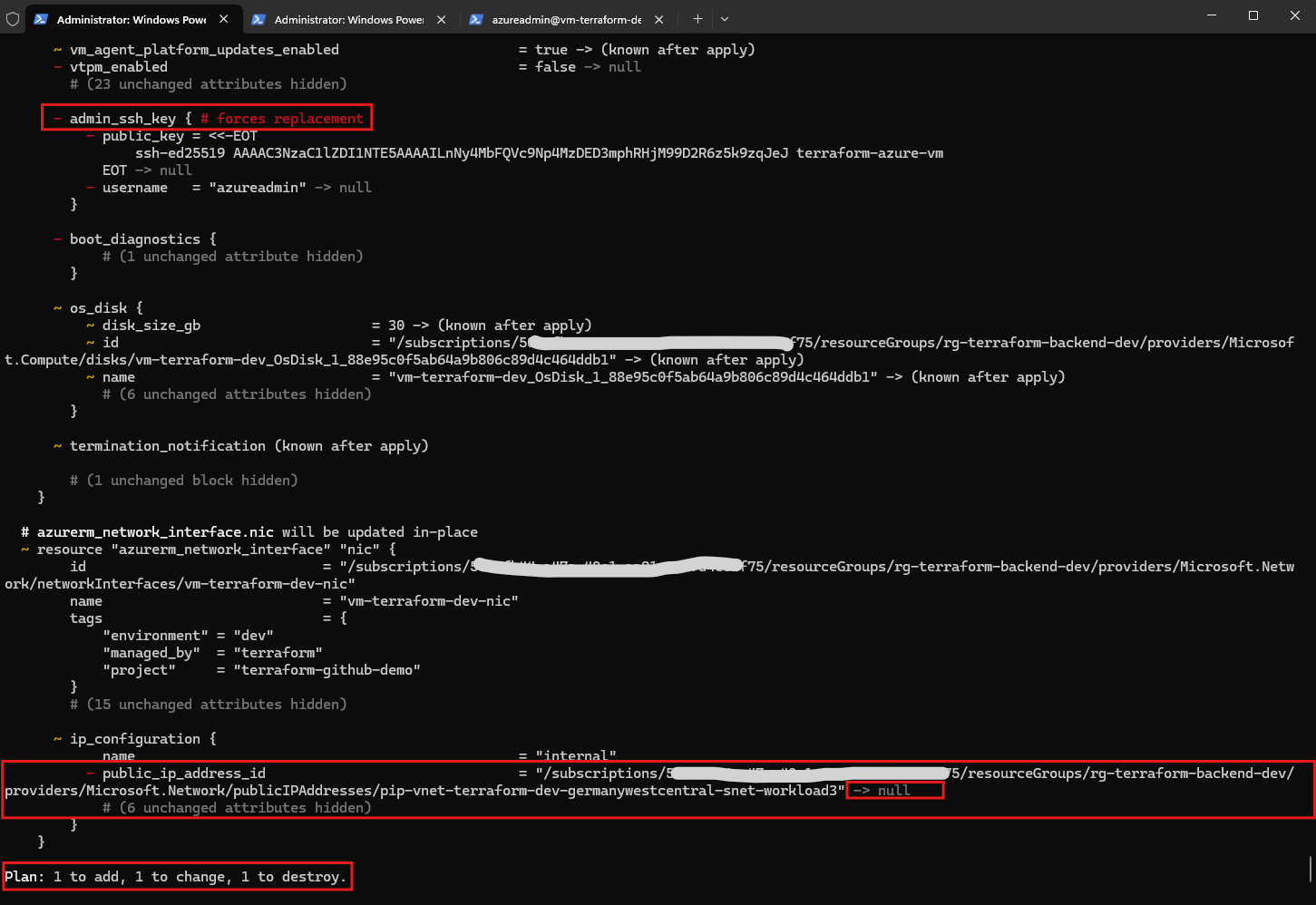
After changing the Development environment from SSH key authentication to password-based authentication, we execute terraform plan to evaluate the required infrastructure changes.
Terraform reports 1 to add, 1 to change, 1 to destroy, confirming that changing the authentication method requires replacing the existing Azure Linux Virtual Machine rather than updating it in place.
Additionally, Terraform detects our manually configured public IP association as configuration drift and plans to remove it from the network interface.
Configuring Password Authentication Through GitHub Actions
Since our Terraform deployments are executed through GitHub Actions, we also need to make the administrator password available to the GitHub Actions runner. Our locally configured TF_VAR_admin_password environment variable is only available in the current PowerShell session and cannot be accessed by GitHub Actions.
To securely provide the password, we navigate to GitHub Repository → Settings → Secrets and variables → Actions → New repository secret and create a secret named TF_VAR_admin_password. In the next step, we will update our Terraform workflow to pass this secret to Terraform without storing the password directly in our repository.
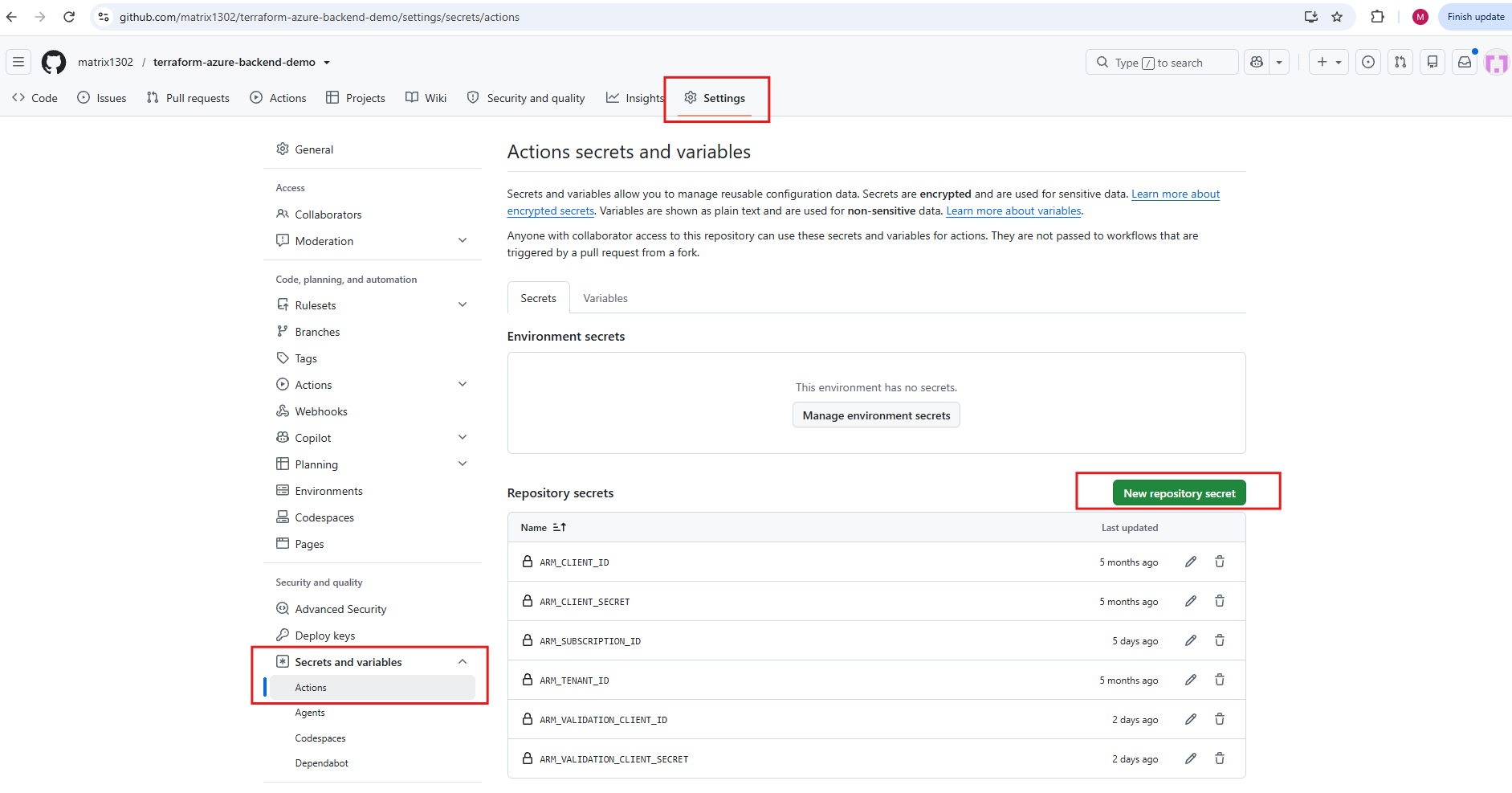
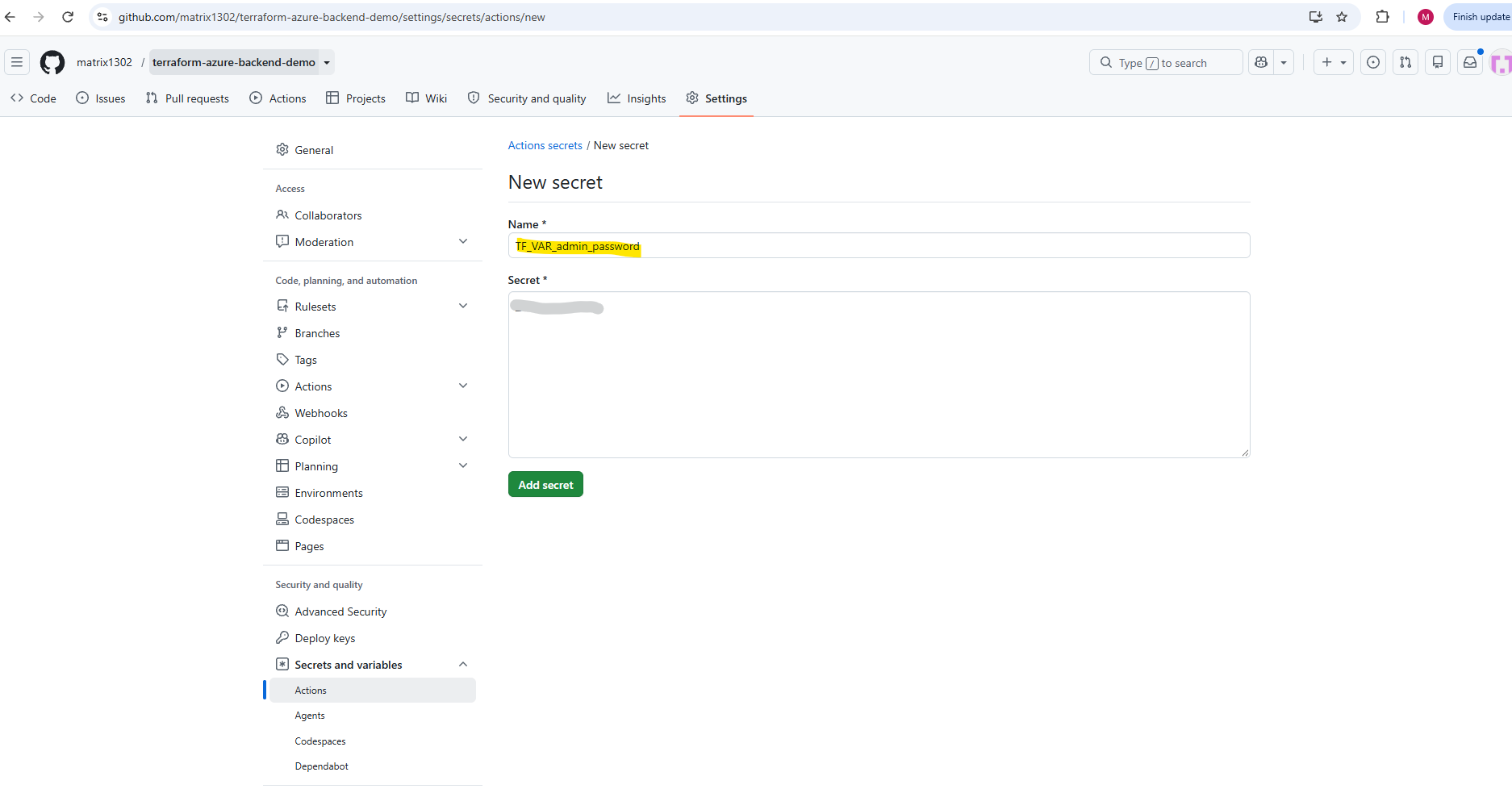
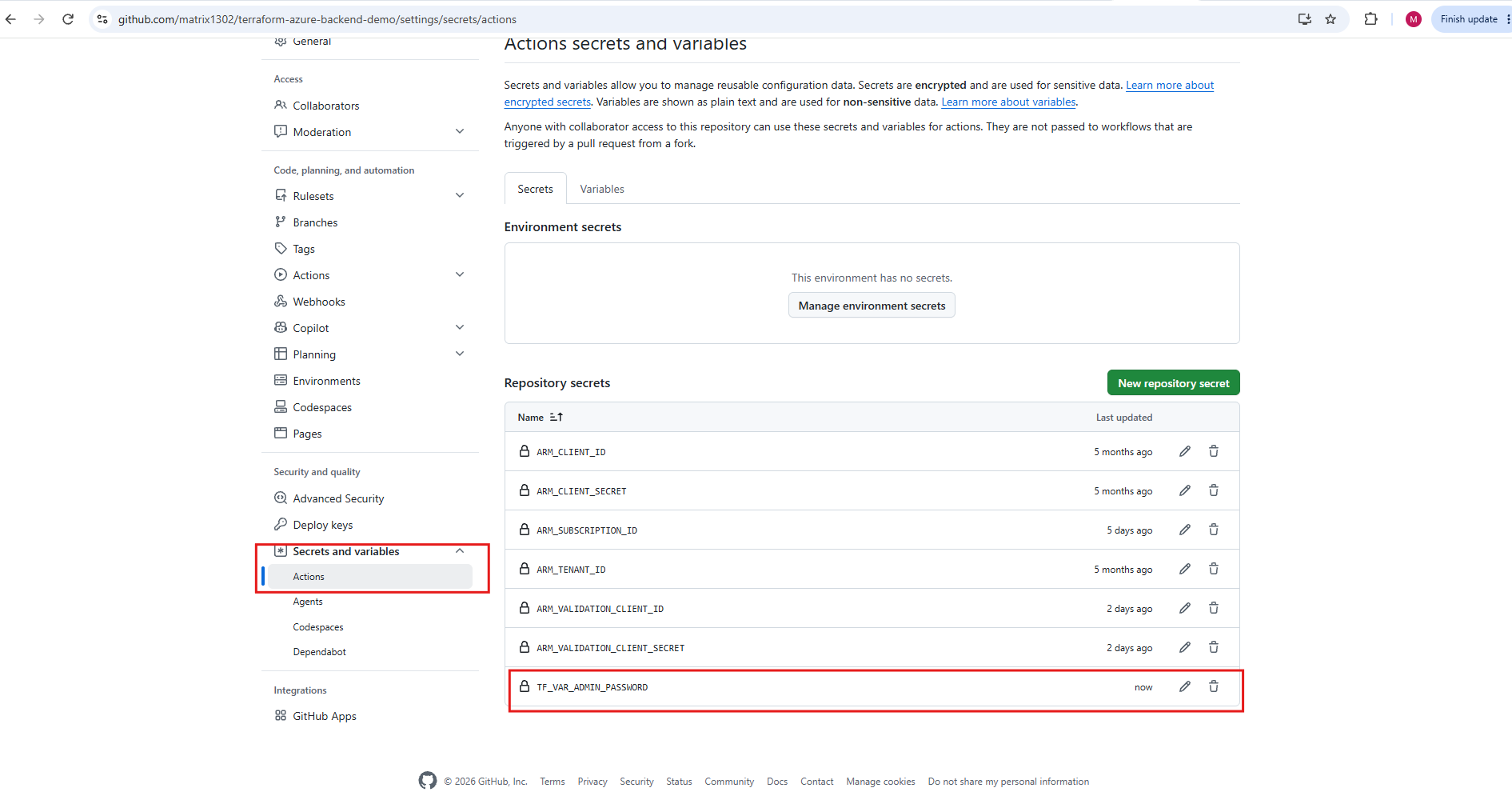
We have created a new GitHub Actions repository secret named TF_VAR_ADMIN_PASSWORD to securely store the administrator password for our Azure Linux VM.
Terraform automatically recognizes environment variables prefixed with
TF_VAR_, allowing us to provide sensitive input values without storing them directly in our Terraform configuration files or Git repository.
Update Our GitHub Actions Workflow
Next, we update our GitHub Actions workflow (.github/workflows/terraform.yml) to expose the previously created repository secret as the environment variable TF_VAR_admin_password.
Terraform automatically maps this environment variable to the corresponding admin_password input variable, allowing password-based VM deployments without storing credentials in our Terraform configuration files.
Open .github/workflows/terraform.yml.
We need to expose the secret to the Terraform execution steps using:
Important: The secret is named
TF_VAR_ADMIN_PASSWORDin GitHub, while the environment variable passed to Terraform isTF_VAR_admin_password, matching our Terraform variable nameadmin_password.
env:
  TF_VAR_admin_password: ${{ secrets.TF_VAR_ADMIN_PASSWORD }}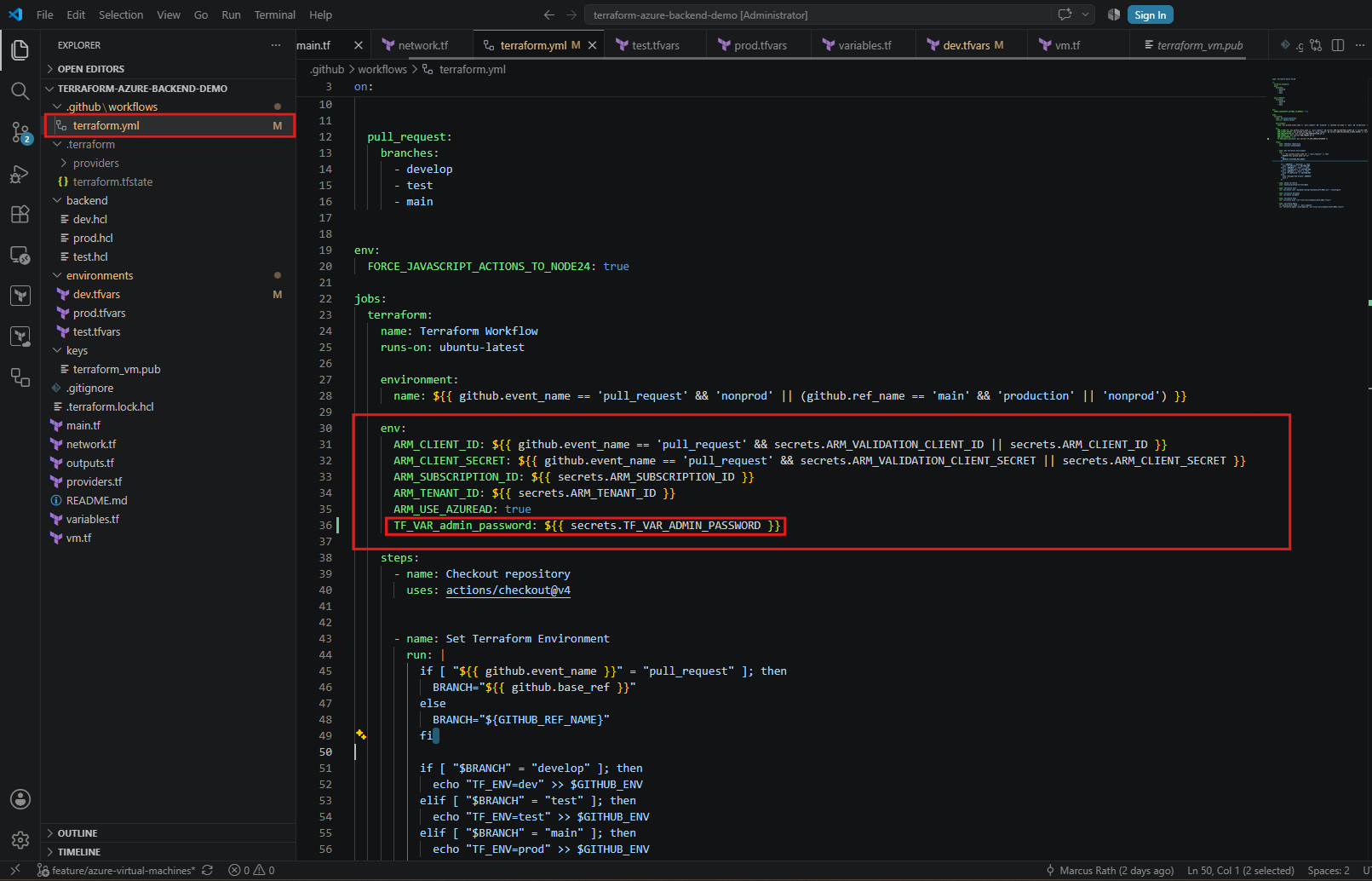
Preserve the Temporary Public IP
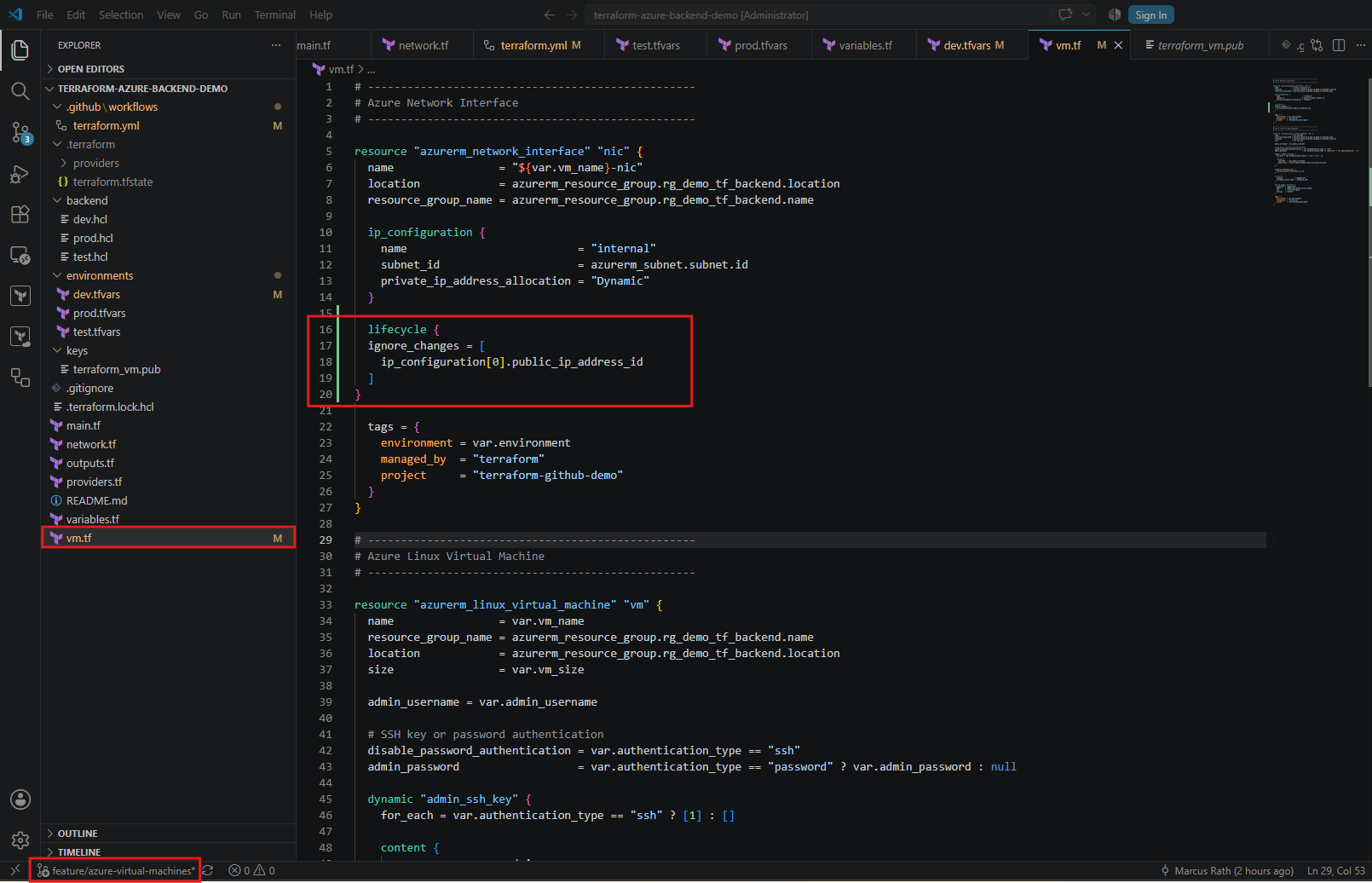
For this lab test, we can use Terraform’s ignore_changes lifecycle setting rather than introducing a new public IP resource.
In vm.tf, add the following inside the existing azurerm_network_interface.nic resource, after the ip_configuration block:
Because Azure manages network interfaces as separate resources, replacing our Virtual Machine does not necessarily require replacing its network interface. The existing NIC (
vm-terraform-dev-nic) remains in place, including its private IP configuration and associated public IP address.By using Terraform’s
ignore_changeslifecycle setting, we prevent Terraform from removing the manually configured public IP association during subsequent deployments. The replacement VM will reuse the existing NIC and should therefore remain accessible through the same public IP address, without requiring us to manually reassign it.This is particularly useful for our lab demonstration, although in production environments we would normally manage the public IP address directly through Terraform rather than excluding it from configuration management.
lifecycle {
  ignore_changes = [
    ip_configuration[0].public_ip_address_id
  ]
}
Validating the Updated Terraform Configuration
Run these commands in your local PowerShell session:
terraform fmt -recursive
terraform validate
terraform plan -var-file="environments/dev.tfvars"
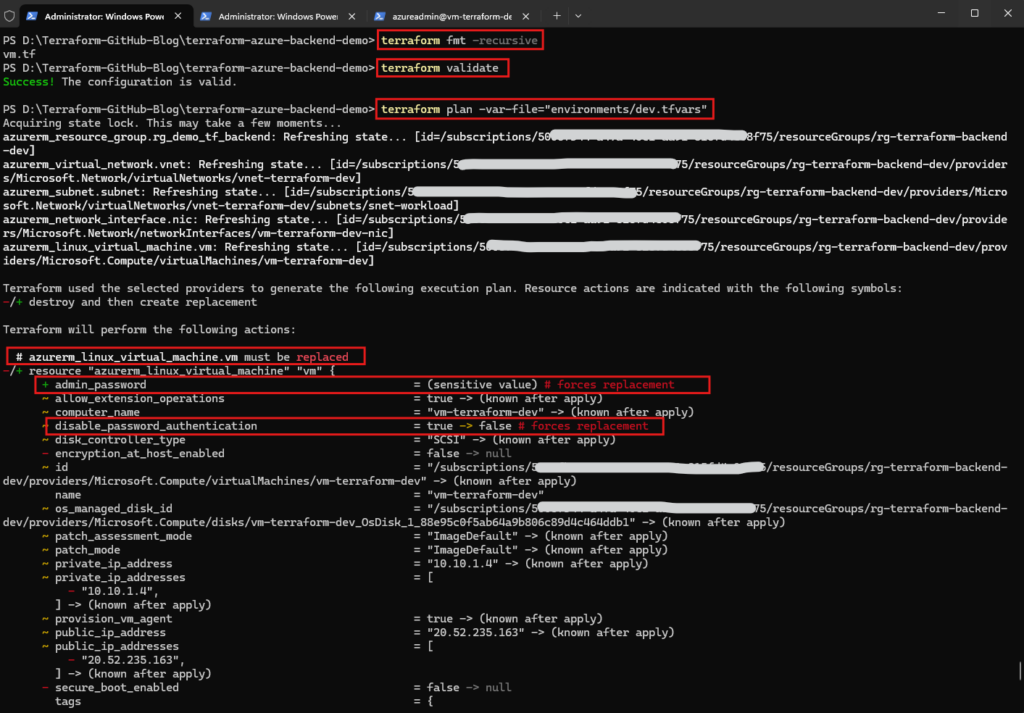
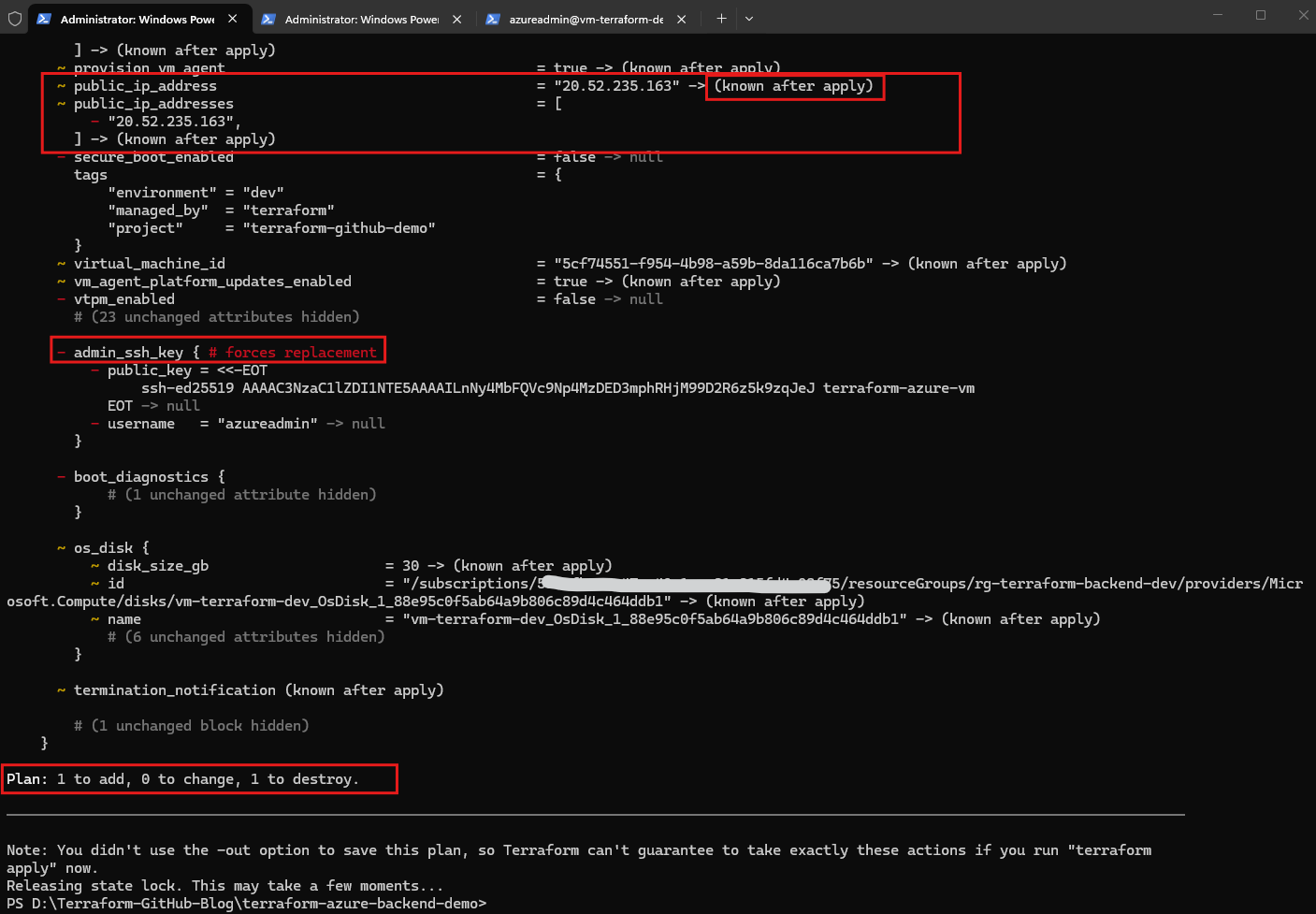
After adding the ignore_changes lifecycle configuration, we run terraform fmt -recursive, terraform validate, and terraform plan again. Terraform successfully validates our configuration and now reports 1 to add, 0 to change, 1 to destroy, confirming that only the Linux Virtual Machine needs to be replaced.
Interestingly, the execution plan still shows the existing public IP address (
20.52.235.163) changing to(known after apply). This is expected because Terraform cannot determine the replacement VM’s resulting attributes until deployment. Unlike our previous plan, however, the network interface is no longer scheduled for modification, meaning its public IP association will be preserved and the replacement VM should remain accessible through the same public IP address.
(known after apply)means Terraform will retrieve the replacement VM’s public IP after deployment.
Commit and Push the Password Authentication Changes
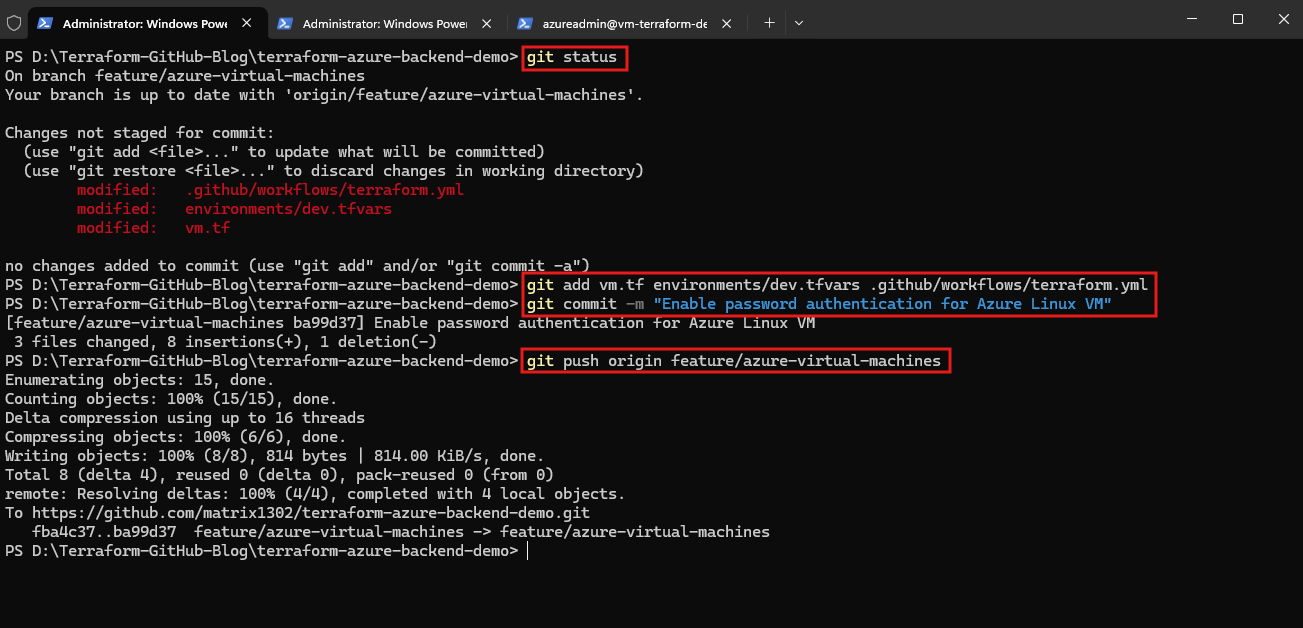
After successfully validating our updated Terraform configuration, we commit the changes to our existing feature/azure-virtual-machines branch and push them to GitHub.
The commit includes the Development environment’s password authentication settings, the Terraform lifecycle configuration for preserving our temporary public IP association, and the GitHub Actions workflow update for securely passing the administrator password.
git status
git add vm.tf environments/dev.tfvars .github/workflows/terraform.yml
git commit -m "Enable password authentication for Azure Linux VM"
git push origin feature/azure-virtual-machines
Create a Pull Request
Next, we create another Pull Request from feature/azure-virtual-machines into develop to introduce password-based authentication for our Development VM.
Click Create pull request.
GitHub identifies the three modified files, including the Terraform configuration and GitHub Actions workflow, and confirms that the branches can be merged automatically without conflicts.
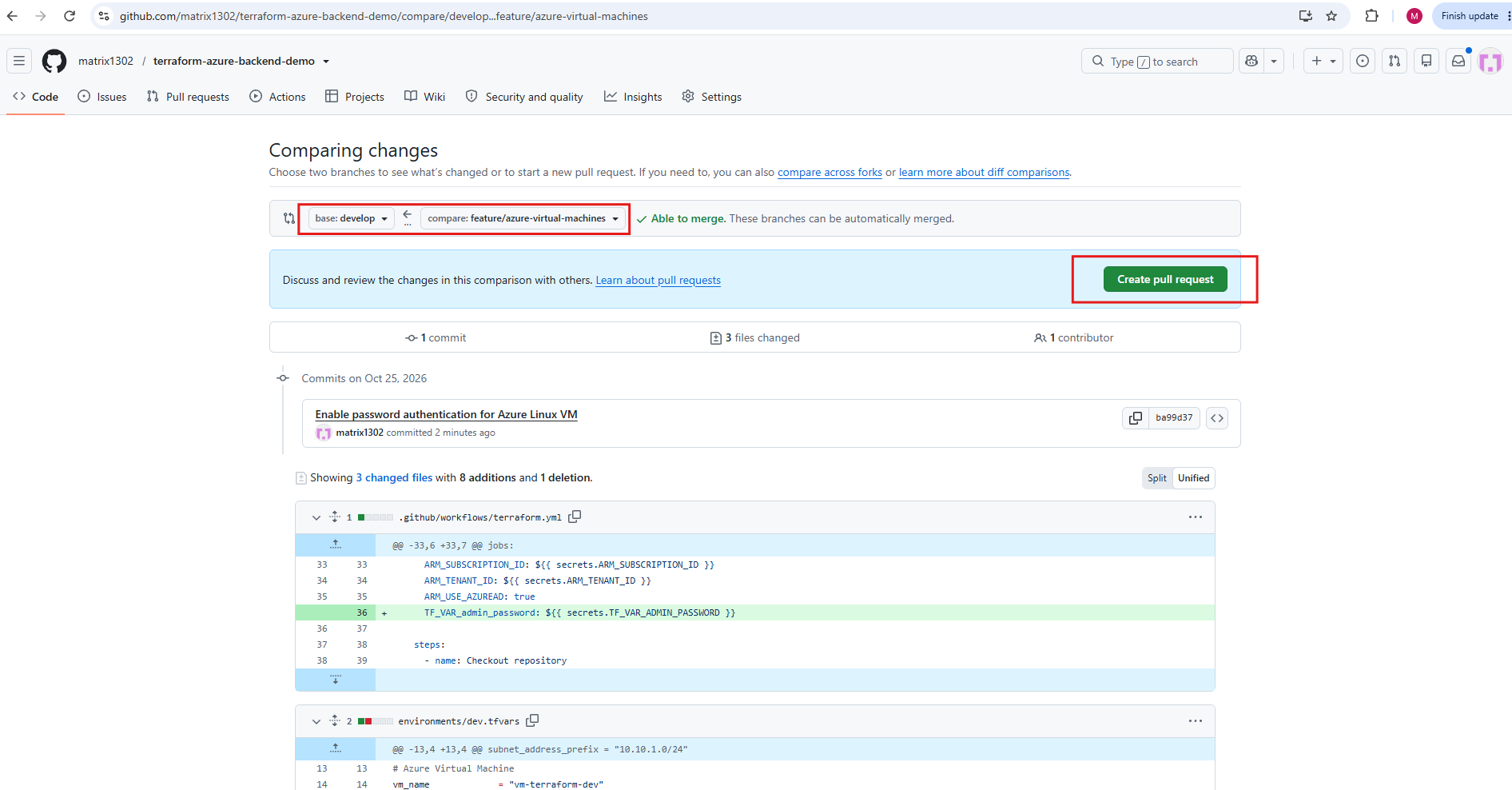
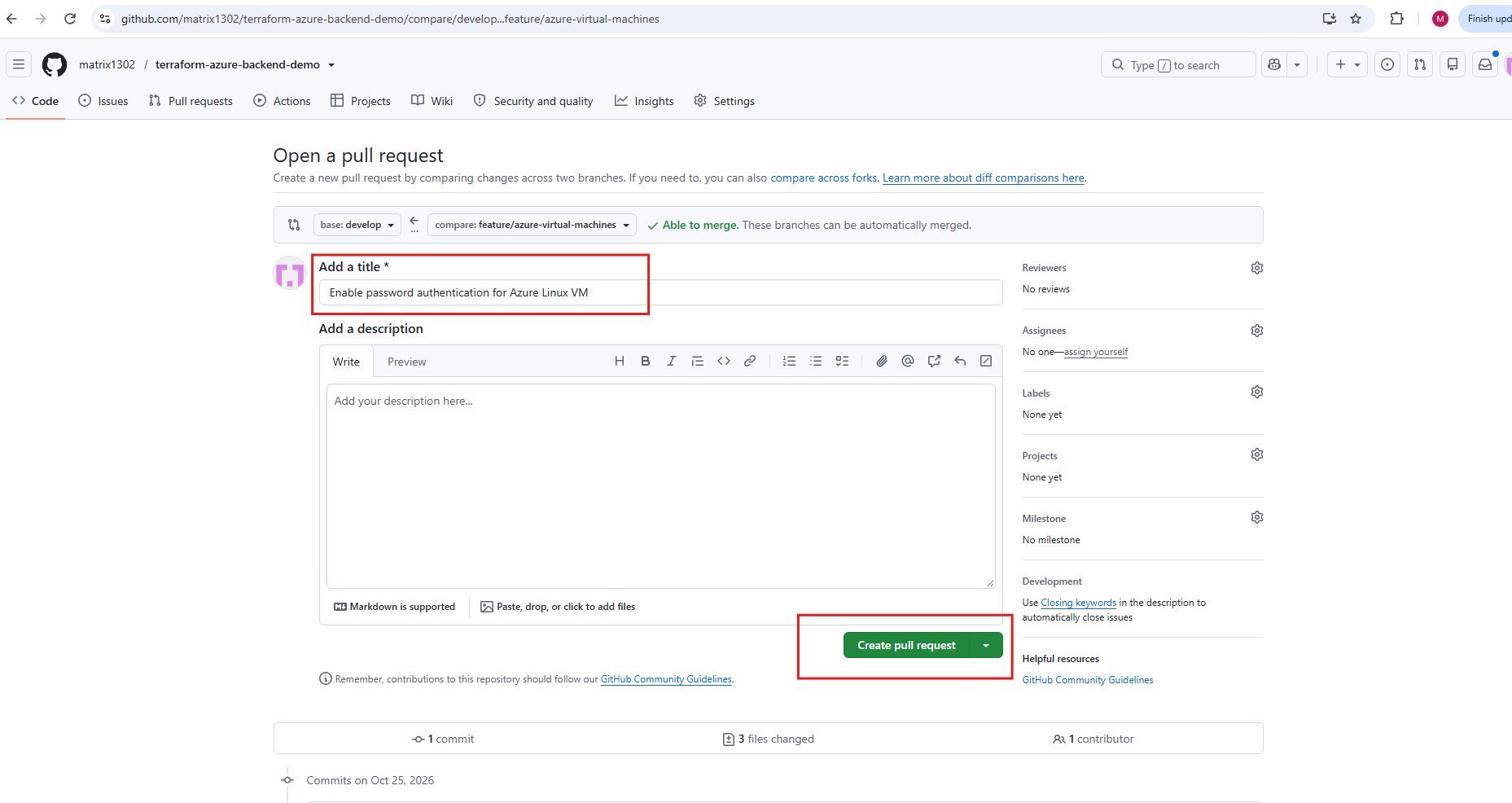
After creating Pull Request #9 to merge our password authentication changes into develop, GitHub Actions automatically executes the Terraform validation workflow. The workflow completes successfully in 34 seconds, confirming that our updated configuration passes the automated checks and can be merged without conflicts.
As with our previous deployments, the Pull Request workflow only validates and plans the infrastructure changes. The actual VM replacement is triggered after merging into
develop.
Click Merge pull request → Confirm merge.
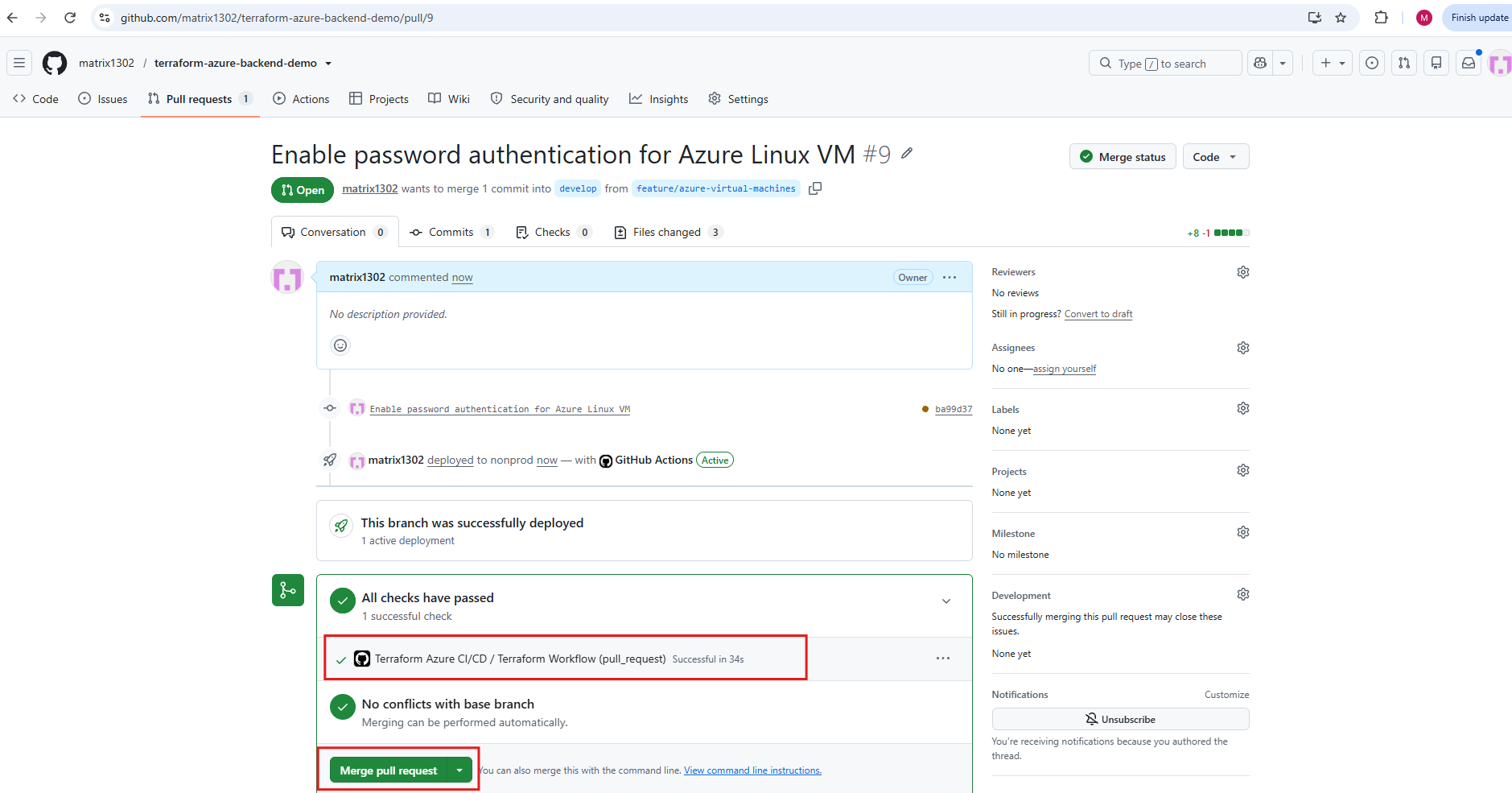
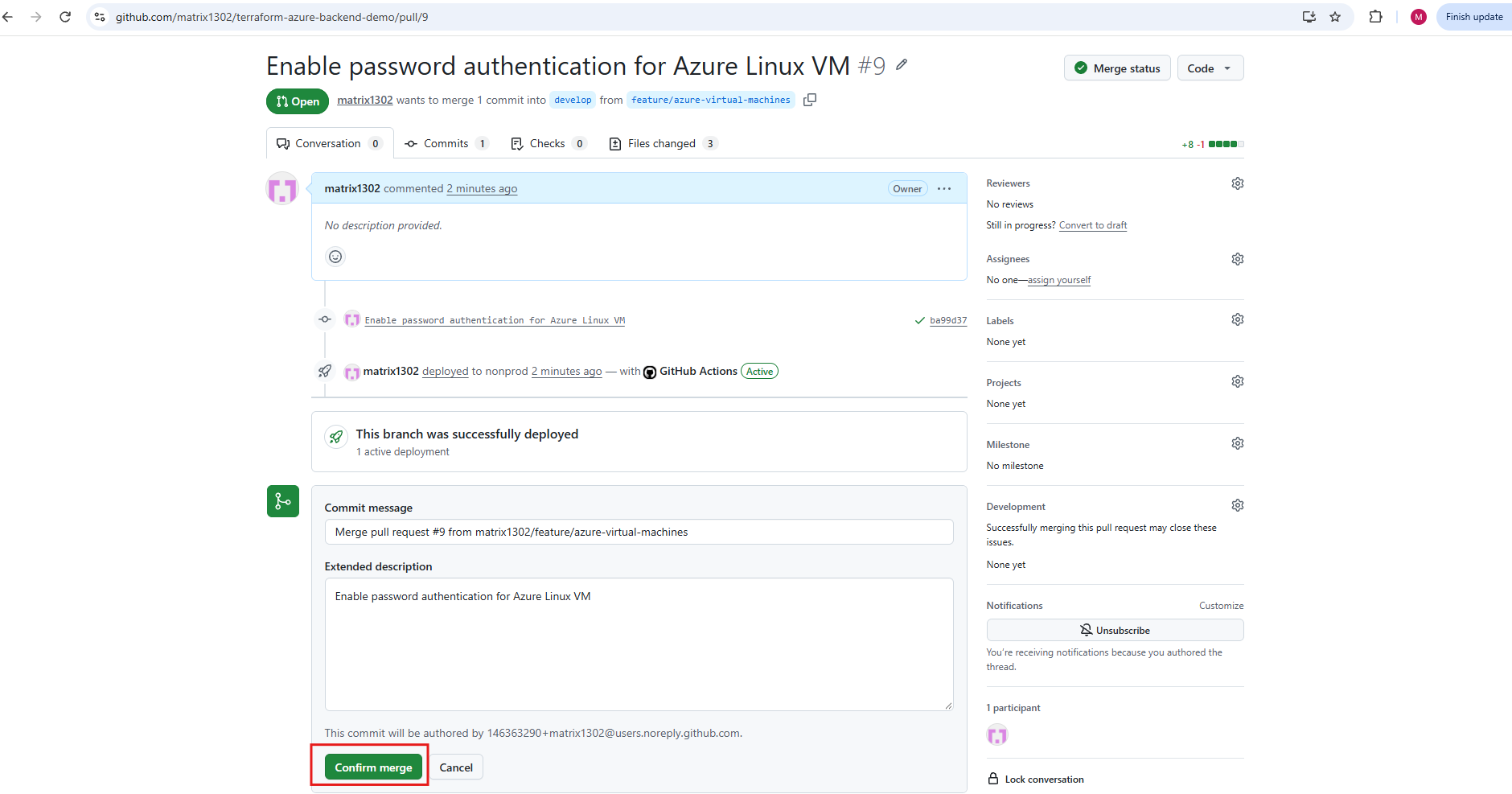
After the automated Terraform validation succeeds, we merge Pull Request #9 into our develop branch. GitHub confirms the successful merge, which triggers our existing GitHub Actions deployment workflow to replace the Development VM with password authentication enabled.
Since we reused our existing feature branch for this additional change, we can now delete it after the successful merge.
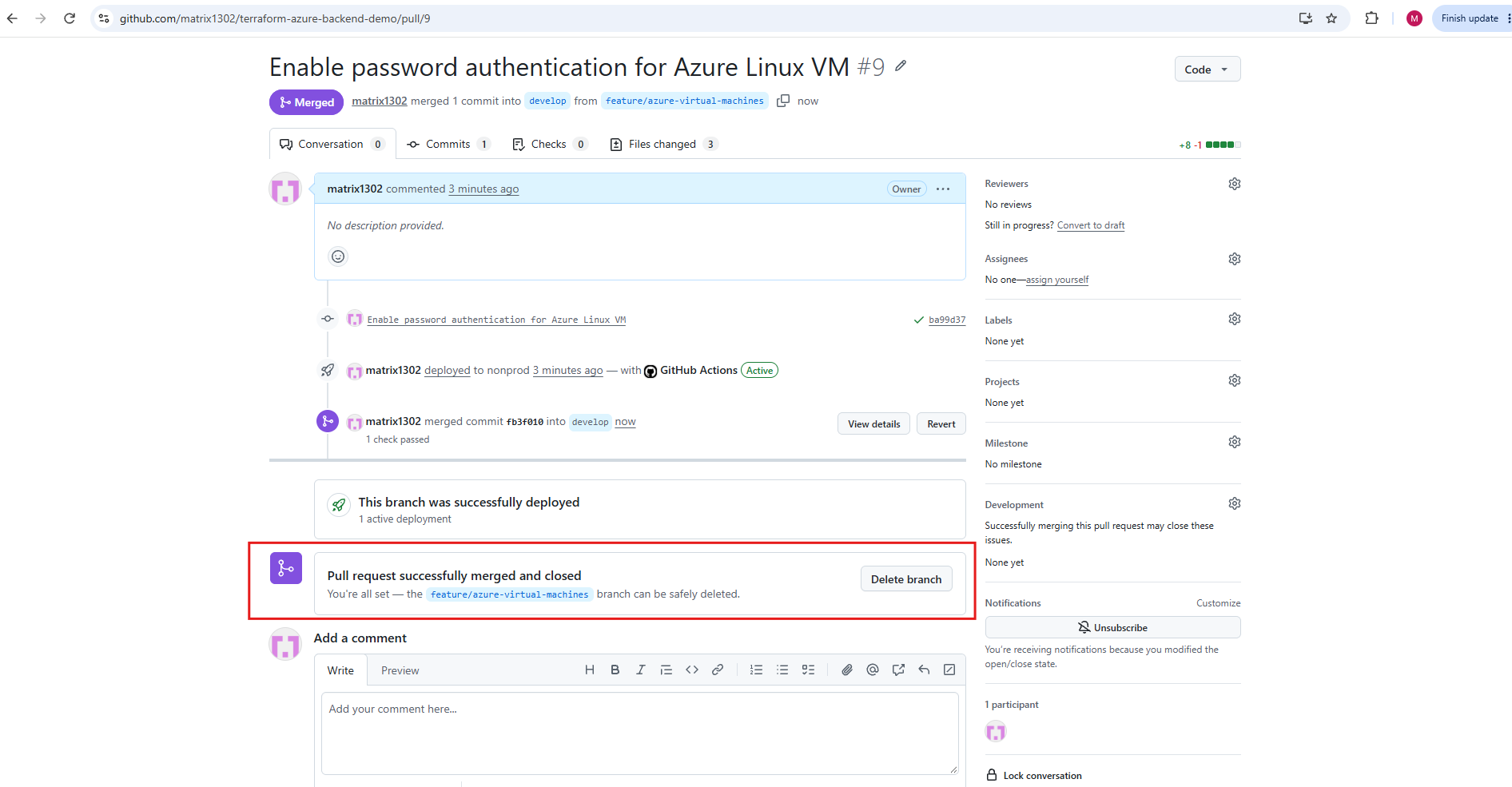
After merging Pull Request #9, GitHub Actions automatically starts workflow run #56 on the develop branch.
The workflow will execute Terraform against our Development environment, replacing the existing Linux Virtual Machine with a new instance configured for password-based authentication while retaining its existing network interface and public IP association.
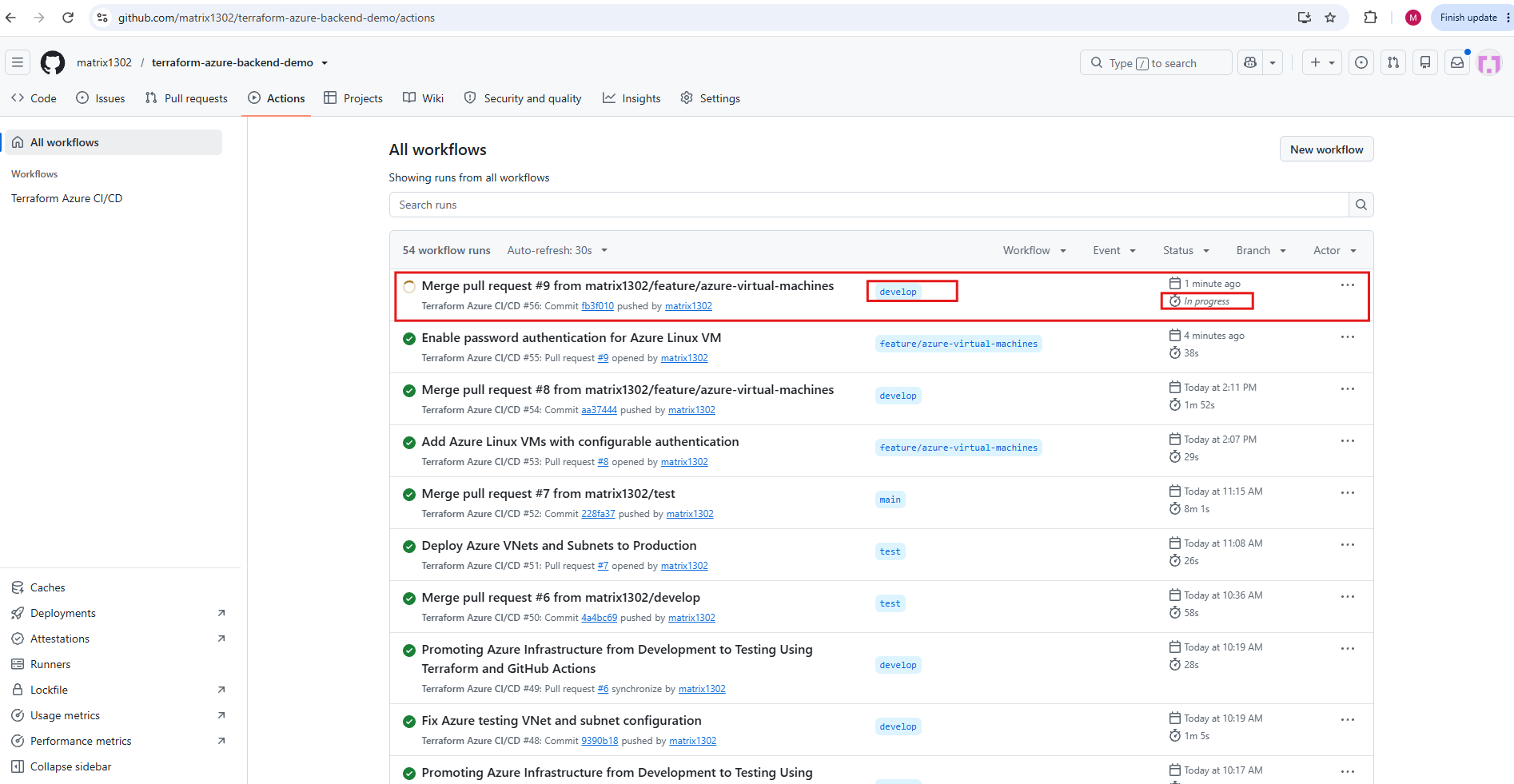
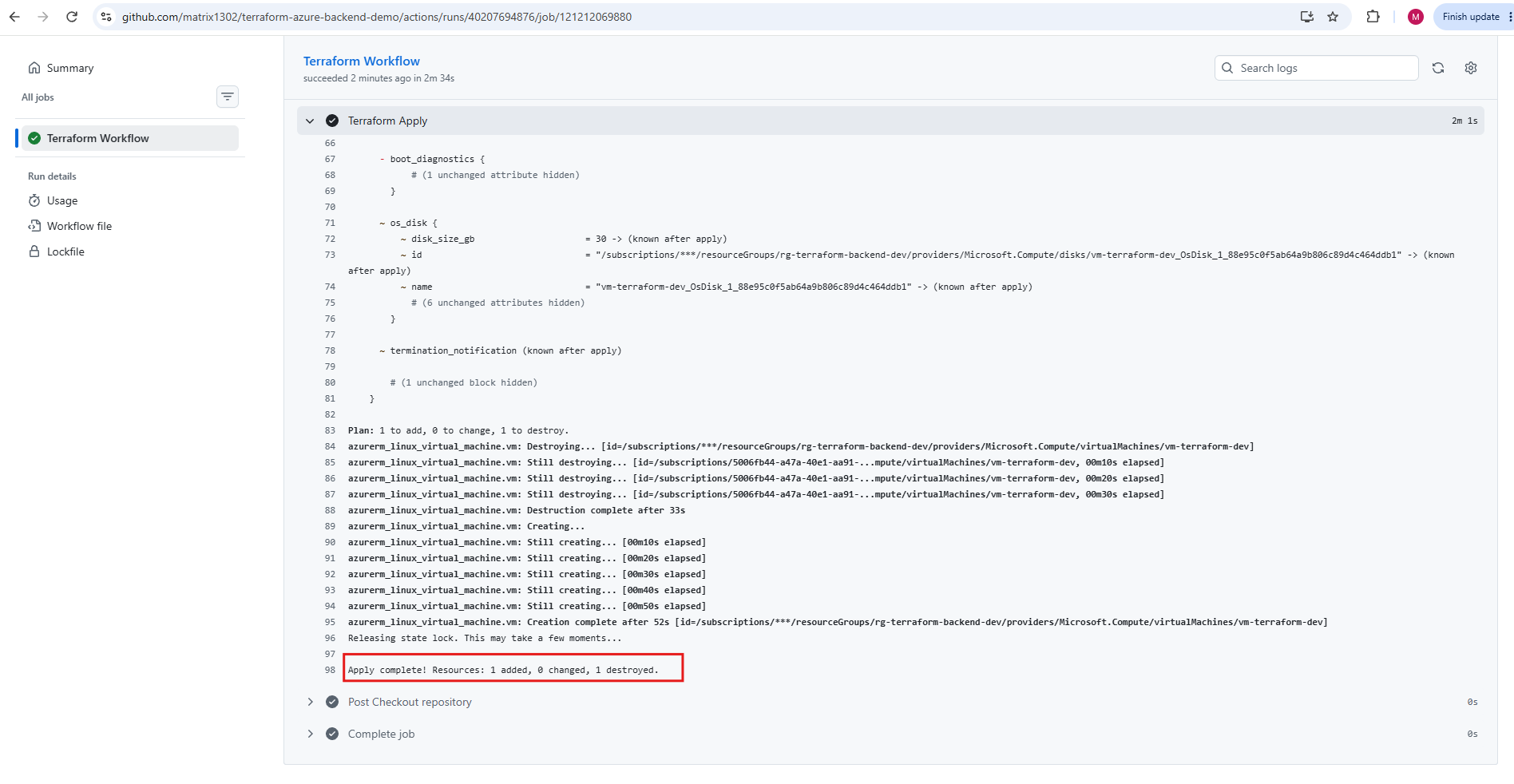
GitHub Actions workflow #56 completes successfully in 2 minutes and 38 seconds, indicating that Terraform has applied our updated Development configuration.
The deployment replaces the existing Azure Linux VM with a new instance configured for password-based authentication, while our Terraform lifecycle configuration is intended to preserve the existing network interface and its public IP association.
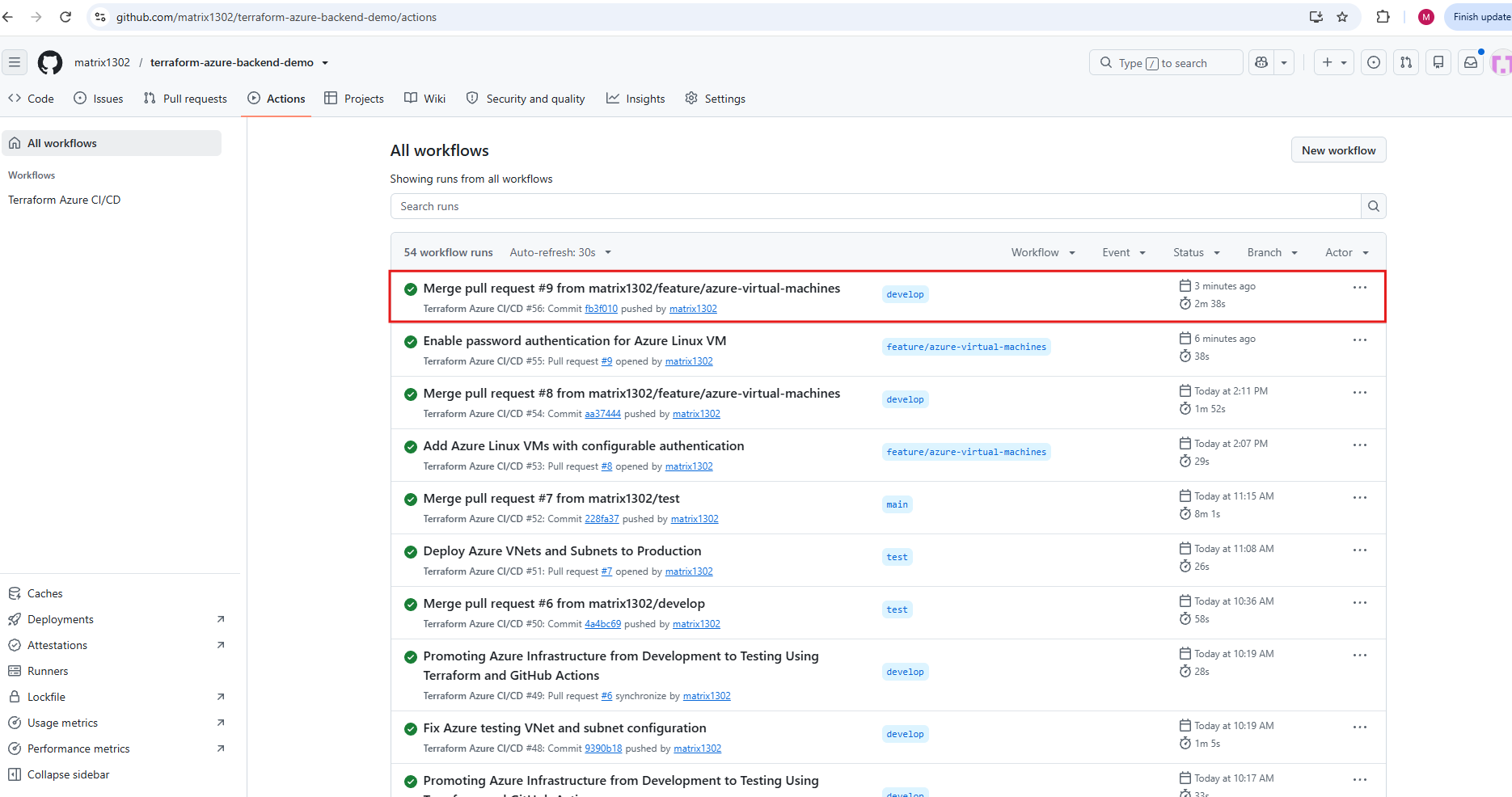
The GitHub Actions Terraform Apply logs confirm that our existing Development VM was successfully destroyed and recreated with password-based authentication enabled. Terraform completed the VM deletion in 33 seconds and provisioned the replacement in 52 seconds, reporting 1 added, 0 changed, 1 destroyed.
Importantly, no changes were applied to the existing network interface, allowing us to retain its manually associated public IP address. This demonstrates how Terraform can replace an Azure Virtual Machine while preserving separately managed networking resources.
Test Password Authentication
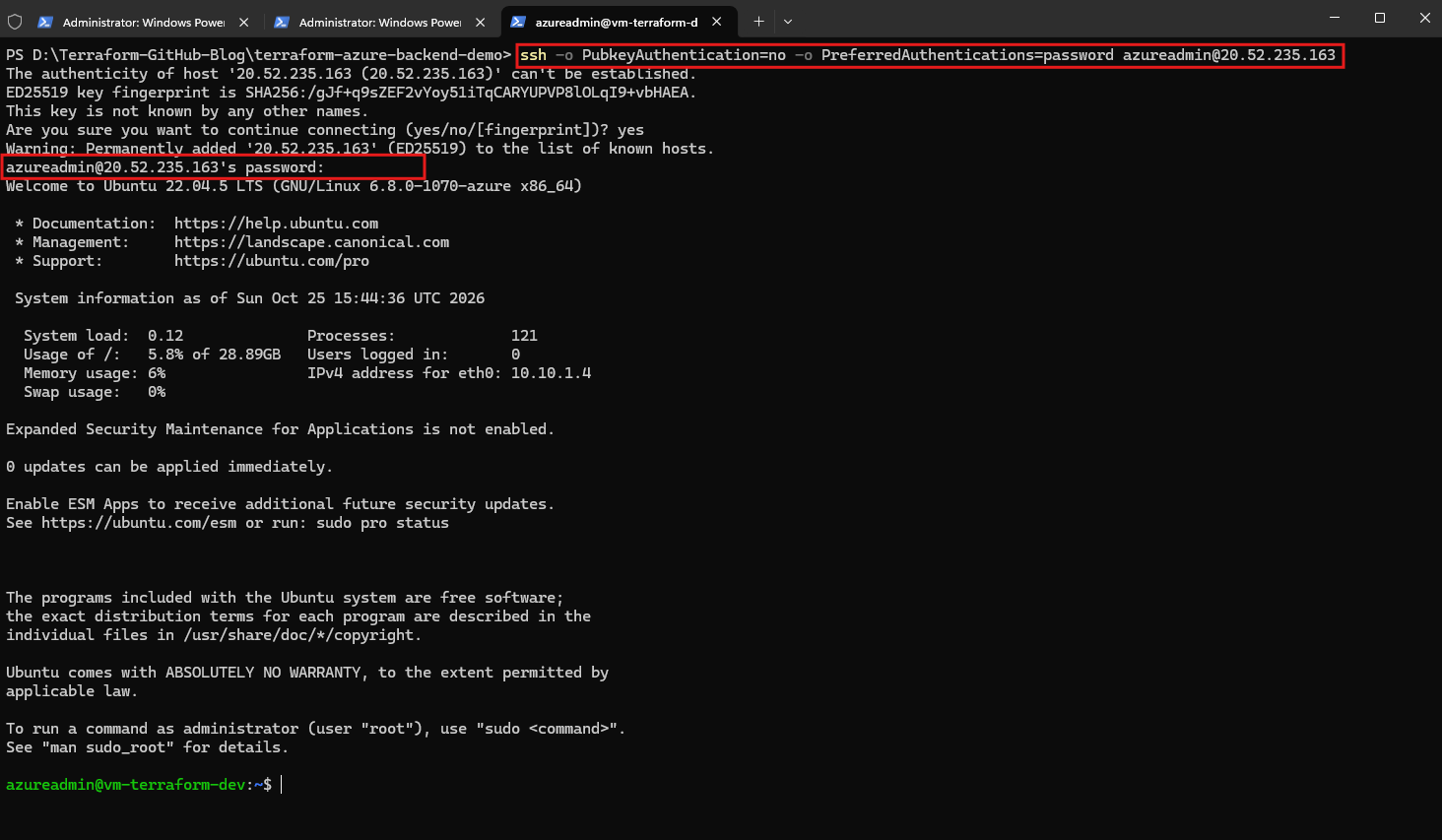
Finally, we verify password-based SSH authentication against our newly deployed Development VM using the following command:
Then connect from PowerShell:
By explicitly disabling public-key authentication, we ensure that SSH uses password authentication instead. After entering the administrator password configured through our GitHub Actions repository secret, the connection succeeds and we are logged into Ubuntu 22.04.5 LTS.
This confirms that both SSH public/private key authentication and password-based authentication work with our Terraform configuration. We have also demonstrated that changing the authentication method requires replacing the Azure Linux VM, while its existing network interface and public IP association can be preserved.
ssh -o PubkeyAuthentication=no -o PreferredAuthentications=password azureadmin@20.52.235.163
Cleaning Up Our Development Environment with Terraform
To conclude Part 5, we will demonstrate how Terraform can also remove infrastructure resources that are no longer required.
Instead of destroying our entire Development environment, we will selectively remove the Azure Linux Virtual Machine and its associated network interface while preserving the existing resource group, Virtual Network, and subnet.
This is particularly useful for temporary lab environments, where resources can be deployed for testing and subsequently removed to avoid unnecessary Azure costs.
Preview the Targeted Destruction
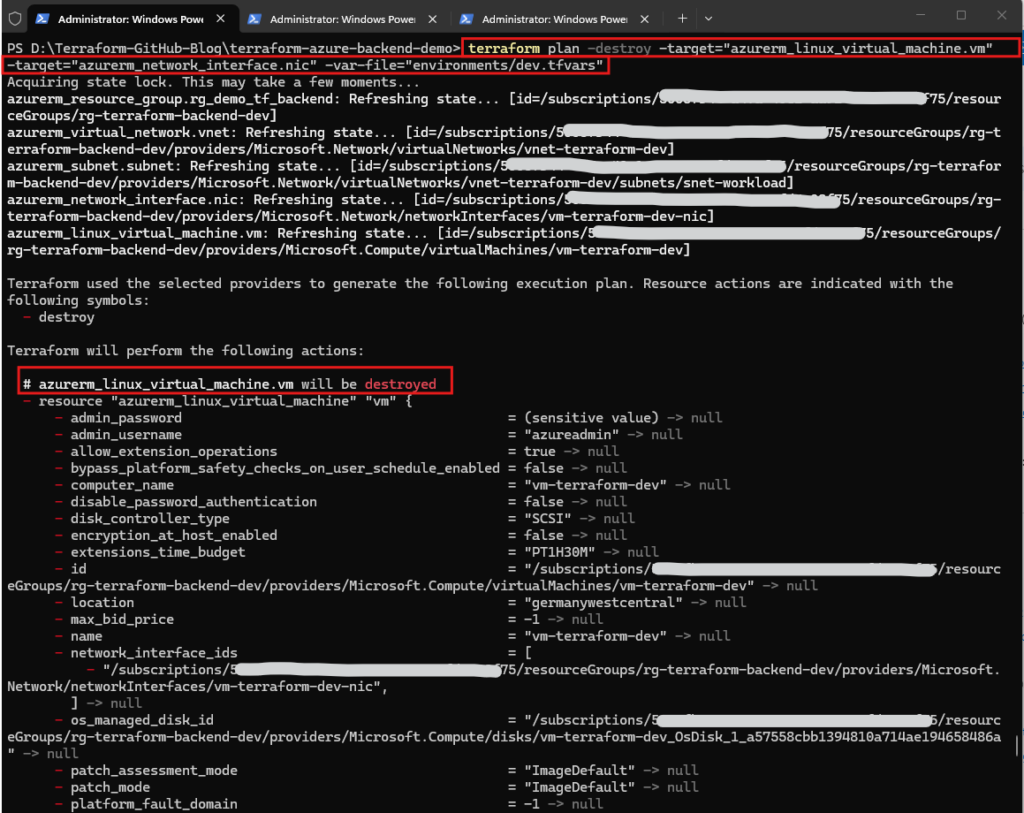
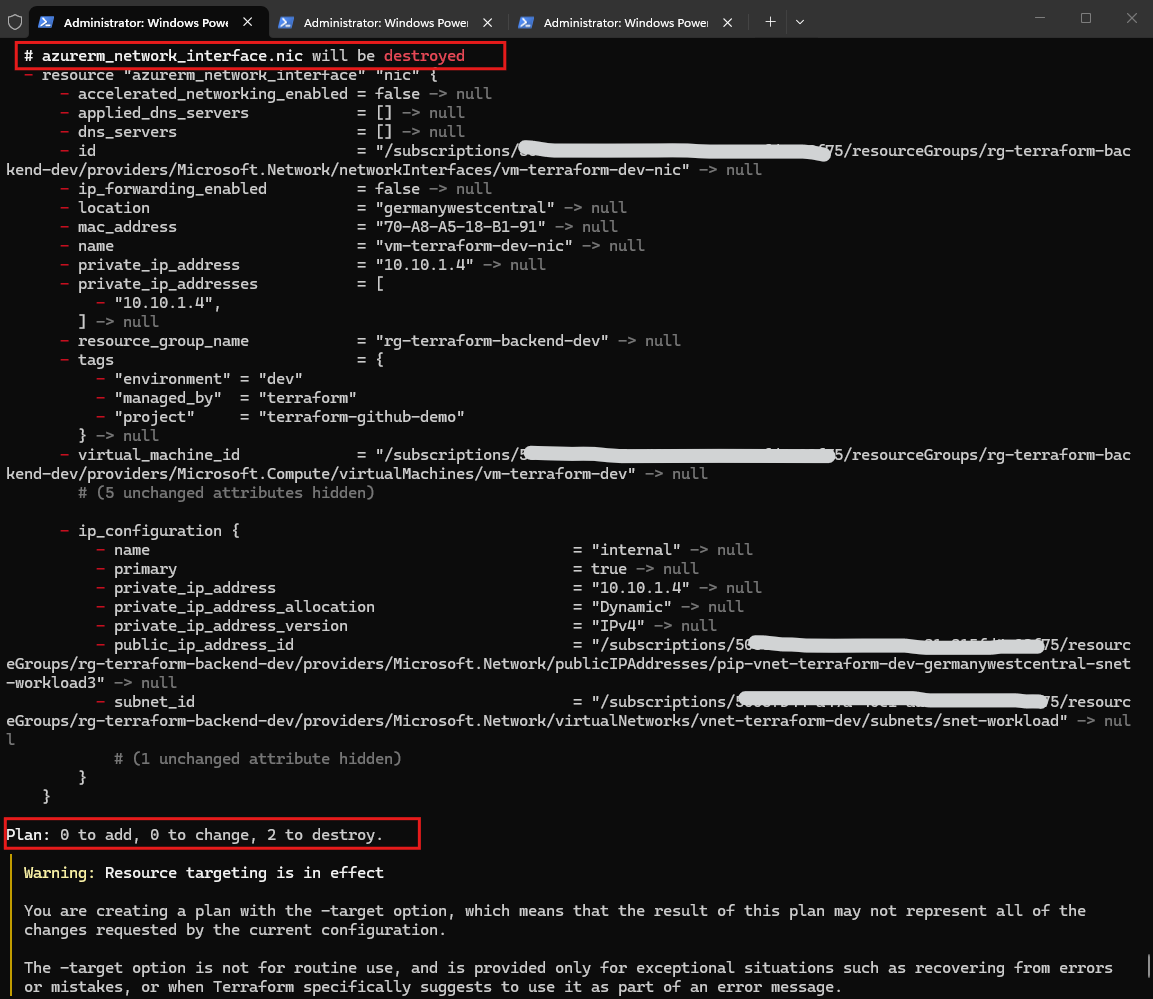
Using Terraform’s -destroy option together with -target, we can selectively remove individual infrastructure components without destroying the entire environment. In our example, Terraform identifies the Azure Linux VM and its network interface for deletion, resulting in 0 to add, 0 to change, and 2 to destroy.
Terraform also displays a warning because resource targeting is intended for exceptional operations rather than routine infrastructure management. For this demonstration, it allows us to remove the VM and NIC while preserving the existing Azure resource group, virtual network, and subnet.
terraform plan -destroy -target="azurerm_linux_virtual_machine.vm" -target="azurerm_network_interface.nic" -var-file="environments/dev.tfvars"
Execute the destruction
After reviewing the execution plan, we confirm the operation by entering yes. Although Terraform displays the generic warning about destroying managed infrastructure, the execution plan explicitly limits this operation to two resources: the Azure Linux virtual machine and its network interface.
The existing resource group, virtual network, and subnet are preserved. The separately created Azure Public IP resource also remains available, although its association with the deleted network interface is removed.
terraform destroy -target="azurerm_linux_virtual_machine.vm" -target="azurerm_network_interface.nic" -var-file="environments/dev.tfvars"
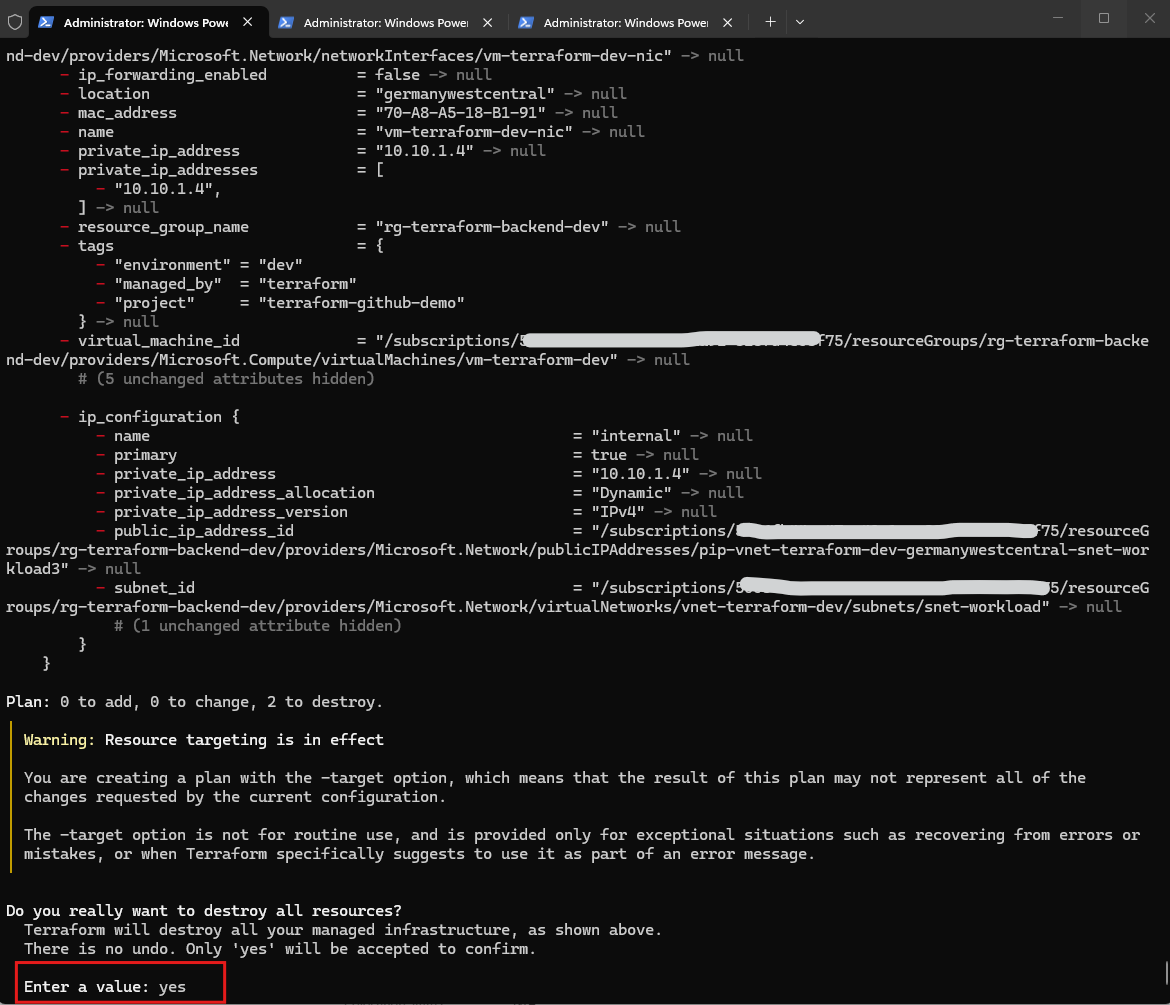
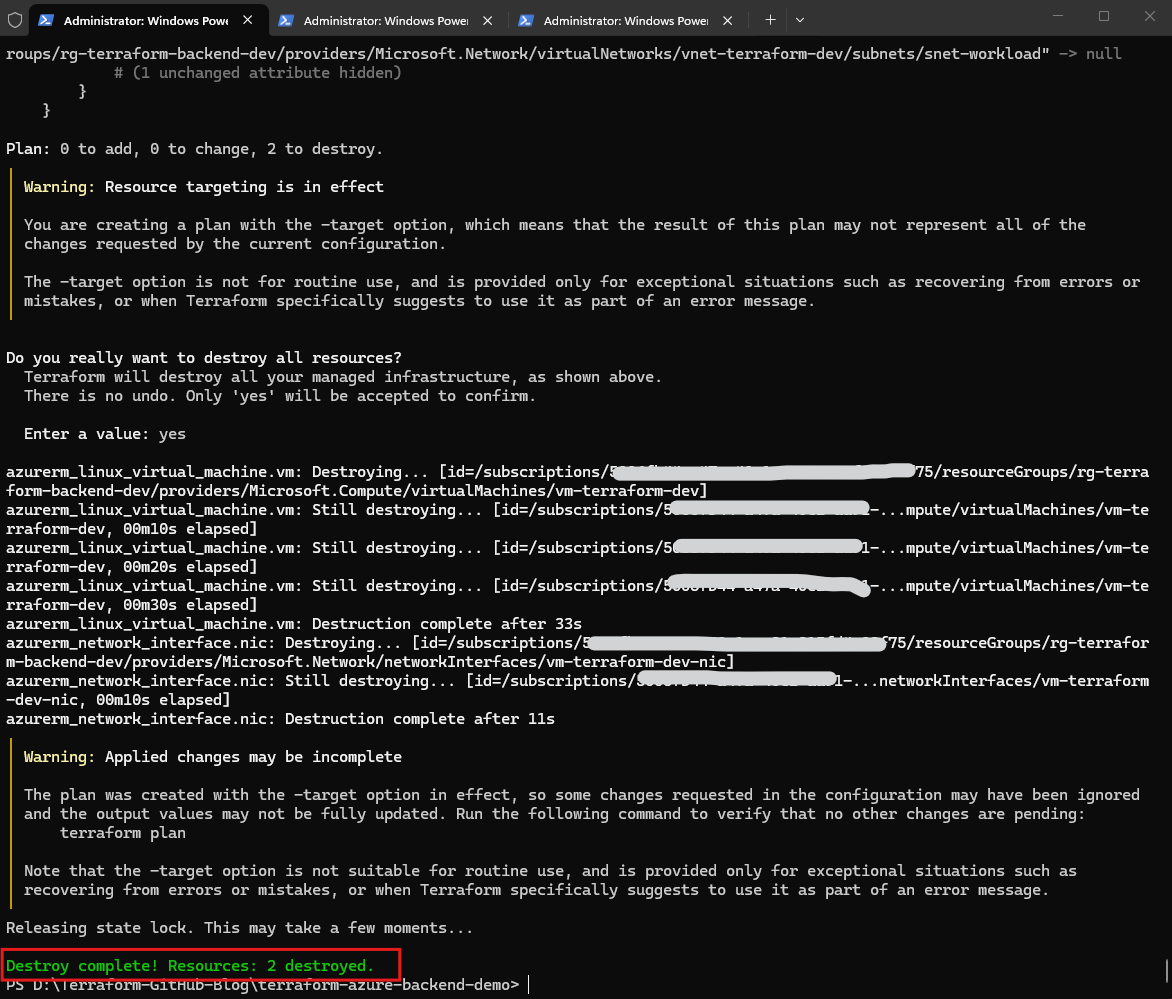
Terraform successfully destroyed both the Azure Linux virtual machine and its associated network interface, confirming the operation with Destroy complete! Resources: 2 destroyed.
The virtual machine was removed first, followed by its network interface, while the existing resource group, virtual network, and subnet remained intact. Terraform also displays a warning that targeted operations may leave other configuration changes unapplied.
Important: Because both resources are still defined in our Terraform configuration, a subsequent regular
terraform planwill identify them for recreation, andterraform applywould deploy them again. To remove resources permanently, their definitions must also be removed from the Terraform configuration and the change propagated through our GitHub workflow.
Links
azurerm_linux_virtual_machine
https://registry.terraform.io/providers/hashicorp/azurerm/latest/docs/resources/linux_virtual_machineterraform plan command
https://developer.hashicorp.com/terraform/cli/commands/planterraform destroy command
https://developer.hashicorp.com/terraform/cli/commands/destroyTarget resources
https://developer.hashicorp.com/terraform/tutorials/state/resource-targeting