Cheat Sheet – Git & Terraform
This cheat sheet provides a quick reference for commonly used Git and Terraform CLI commands, covering repository management, branch synchronization, commits, remote repositories, Terraform initialization, validation, planning, and infrastructure deployment.
It is intended as a practical reference for daily work with Infrastructure as Code (IaC) and automated CI/CD workflows using GitHub and Azure.
- Git – Staging, Committing, and Pushing Changes to GitHub
- Git – Committing and Pushing Changes to Multiple Branches
- Git – Triggering a GitHub Actions Workflow Using an Empty Commit
- Git – Fetching and Synchronizing Local Branches with a Remote GitHub Repository
- Git – Understanding Branches and Commit References
- Links
Git – Staging, Committing, and Pushing Changes to GitHub
When modifying files in a local Git repository, the changes are not automatically saved in Git’s history or uploaded to GitHub.
Git separates this process into three distinct operations: staging, committing, and pushing.
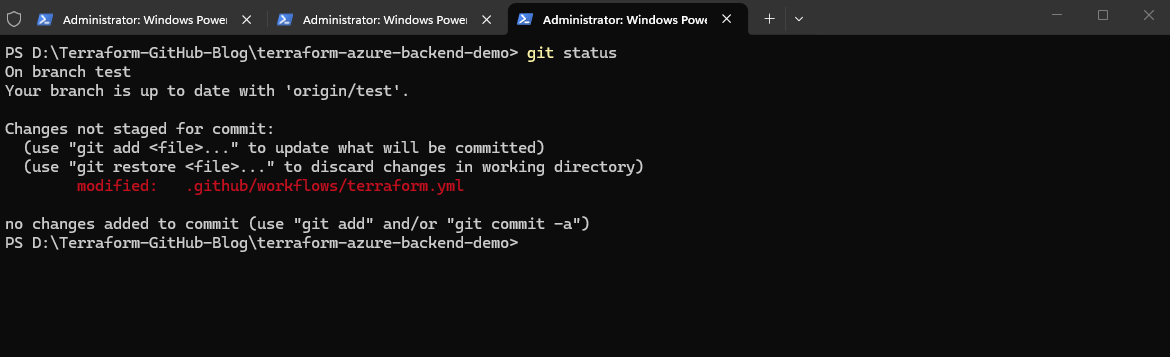
Check the current repository status
To show the currently selected branch and any modified, staged, or untracked files.
The
git statuscommand shows that we are currently on the localtestbranch, which is synchronized with its remote counterpartorigin/test. However, our GitHub Actions workflow file.github/workflows/terraform.ymlhas been modified locally, and these changes have not yet beenstagedorcommitted.Staging (
git add) prepares selected file changes for the next commit, while committing (git commit) permanently records those staged changes as a new snapshot in the local Git repository’s history. Neither operation uploads changes to GitHub; this requiresgit push.The message “Changes not staged for commit” indicates that Git has detected the modifications, but we must first use
git addbefore creating a local commit withgit commit. Only afterward can we upload the commit to GitHub usinggit push.
git status
Stage the modified files
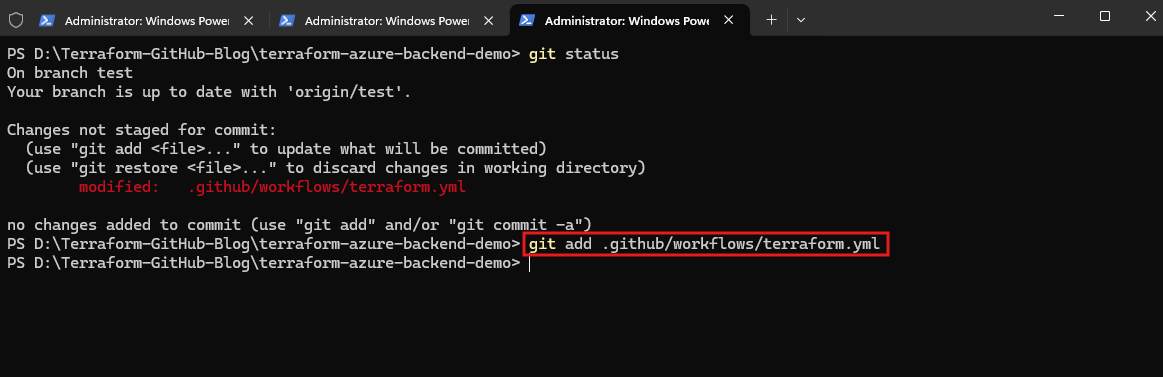
This adds the modified workflow file to the staging area, preparing its current contents for the next commit.
Alternatively, git add . stages all changes within the current directory and its subdirectories.
git add .github/workflows/terraform.yml
Commit the staged changes locally
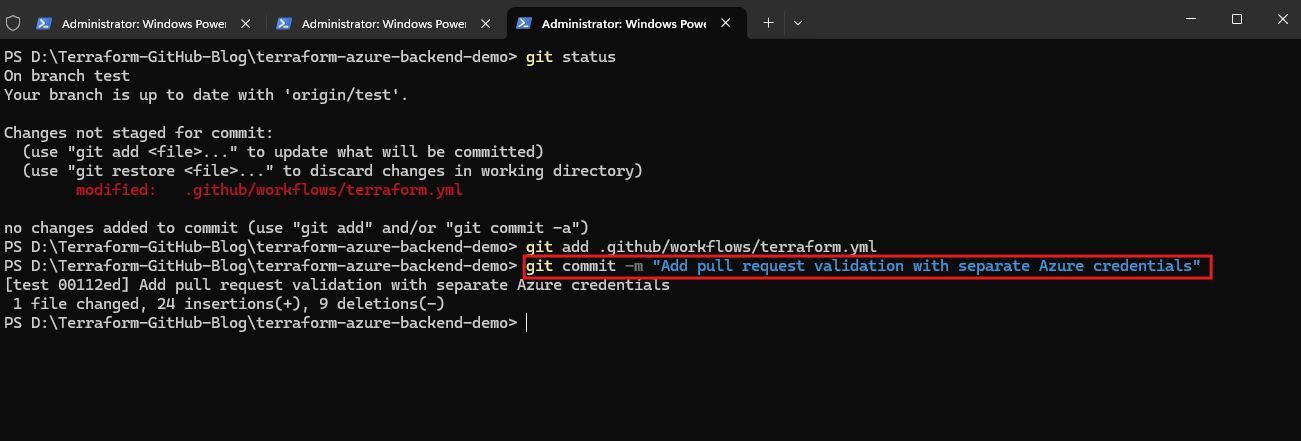
This creates a new commit in the local Git repository, including the staged changes and a descriptive commit message.
At this point, nothing has been uploaded to GitHub.
git commit -m "Add pull request validation with separate Azure credentials"
Push the local commits to GitHub
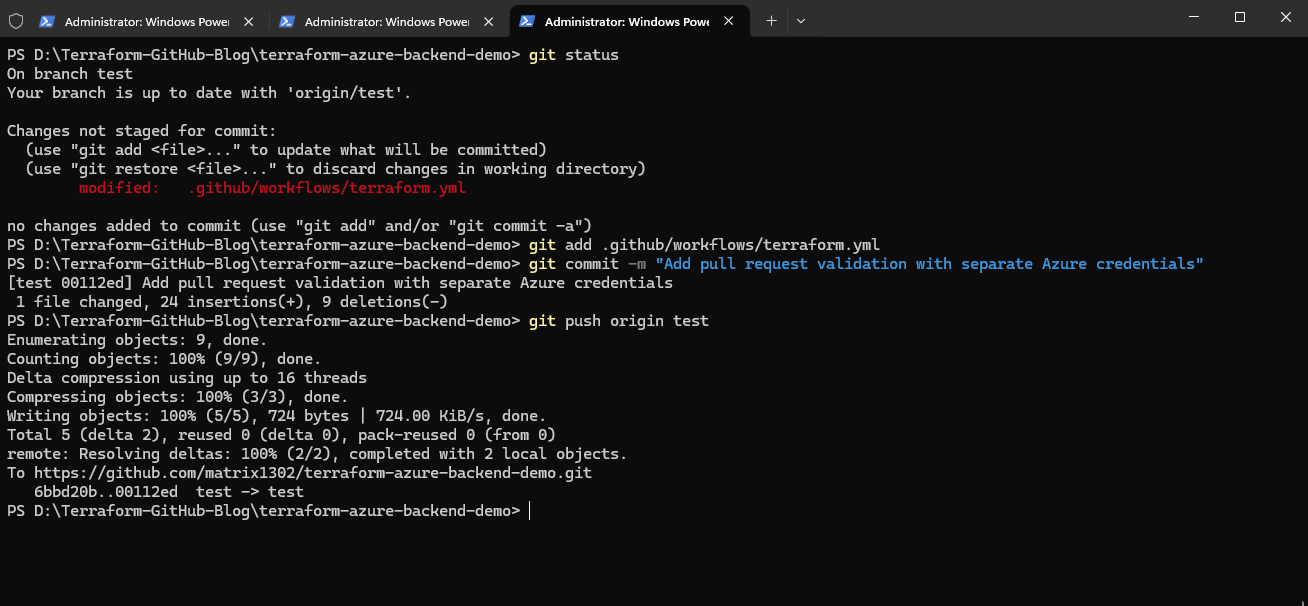
This uploads the commits from our local test branch to the corresponding remote branch (origin/test) on GitHub.
git push origin test
Important:
git commitdoes not upload anything to GitHub. Onlygit pushpublishes the local commits to the remote repository.The
git commitcommand creates a new snapshot (version) of the staged files in the local Git repository, including a unique commit ID, timestamp, author, and commit message.Each commit becomes part of the repository’s history, allowing us to track changes, compare versions, and restore previous states when necessary.
Git – Committing and Pushing Changes to Multiple Branches
The git add, git commit, and git push commands shown above, operate on the currently checked-out local branch. Therefore, committing and pushing changes to test does not automatically update develop or main.
If we want to distribute the same changes across multiple branches, we should create the commit once and then merge it into the other branches.
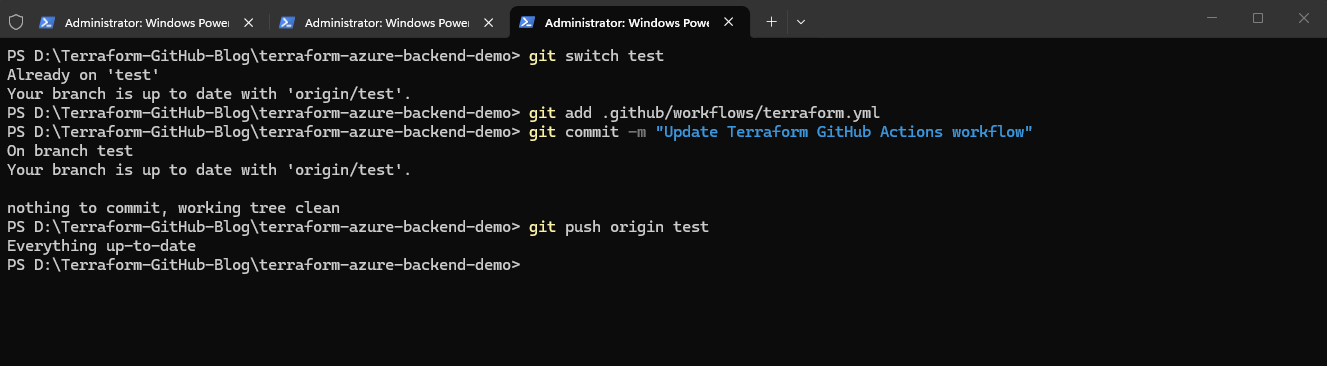
Commit and push changes to test
git switch test

git add .github/workflows/terraform.yml

git commit -m "Update Terraform GitHub Actions workflow"
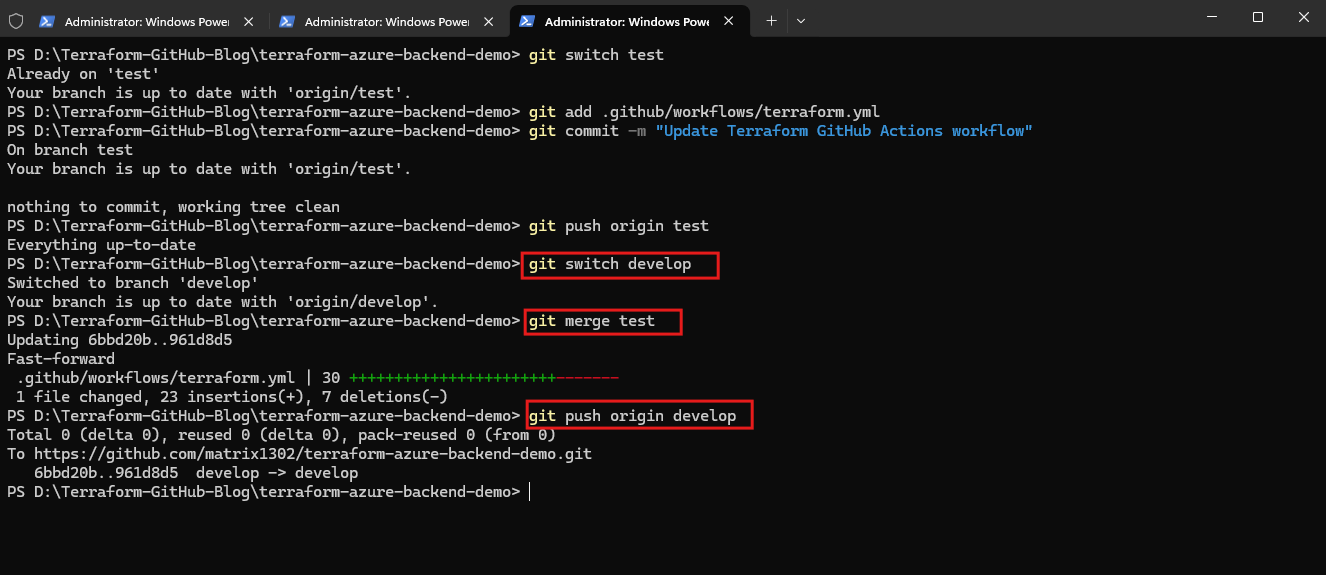
Merge the changes into develop
git switch develop

git merge test

git push origin develop
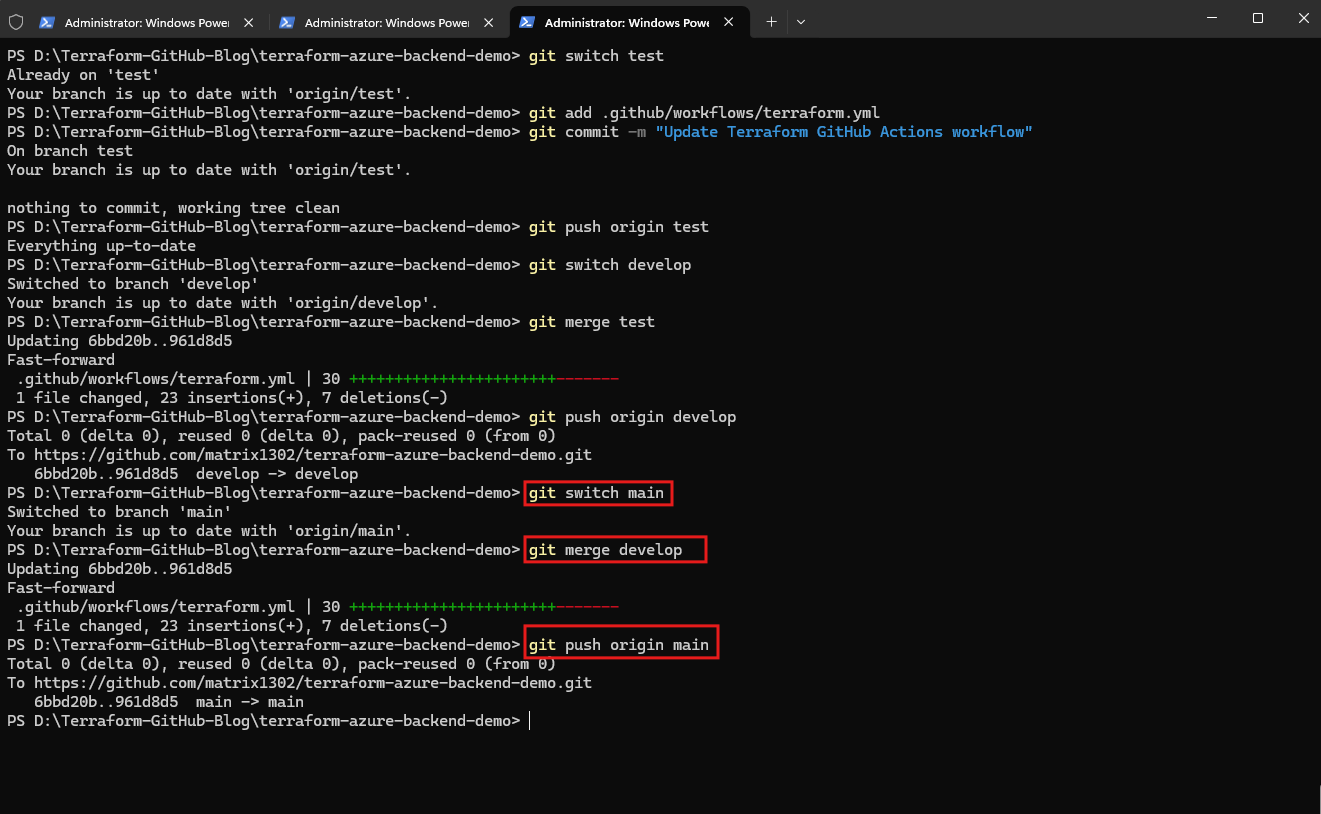
Merge the changes into main
git switch main

git merge develop

git push origin main
Important:
git mergeintegrates commits from another branch into the currently checked-out branch. If Git detects conflicting changes, we must resolve them before completing the merge.
Git – Triggering a GitHub Actions Workflow Using an Empty Commit
Sometimes we want to trigger a new GitHub Actions workflow run without modifying any repository files, for example after changing Azure permissions or GitHub repository secrets.
We can create an empty commit and push it to the remote repository:
git commit --allow-empty -m "Retrigger Terraform workflow"
git push origin test
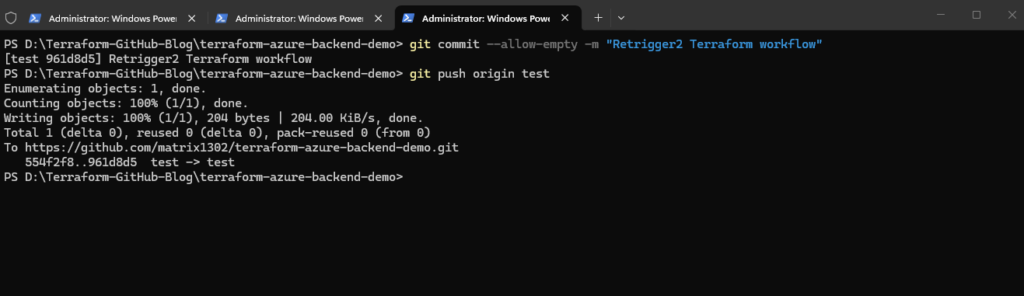
The --allow-empty option allows Git to create a new commit even though no files have changed. This commit receives a new unique commit ID but retains the same file contents as its parent commit.
When we push the commit to GitHub, the configured push trigger starts a new GitHub Actions workflow run for the test branch.
Important: An empty commit is useful when we want to test the complete workflow again without changing its configuration.
Alternatively, we can use Re-run jobs directly in GitHub Actions to repeat an existing workflow execution without creating another commit.
Git – Fetching and Synchronizing Local Branches with a Remote GitHub Repository
The following Git commands demonstrate how to fetch the latest changes from a remote GitHub repository and synchronize multiple local branches with their remote counterparts.
The commands are executed sequentially, starting by navigating to the local Git repository and checking its current status.
cd D:\Terraform-GitHub-Blog\terraform-azure-backend-demo
git status
git fetch origin
git switch main
git pull --ff-only origin main
First, git fetch origin downloads the latest commits from GitHub and updates all remote-tracking branches (origin/main, origin/develop, origin/test) without changing our local branches or working files.
Next, we switch to a specific local branch using git switch main and synchronize it with GitHub using git pull --ff-only origin main. This updates only our local main branch, provided the changes can be applied without creating a merge commit.
We repeat the same procedure for develop and test.
Important: Both
git fetchandgit pullretrieve changes from GitHub. However, whilegit fetchonly updates our remote-tracking branches,git pulladditionally integrates the fetched changes into our currently checked-out local branch. Therefore, the initialgit fetch originis optional when subsequently usinggit pull, but useful if we want to inspect remote changes before integrating them.
Alternatively, we can execute all commands in a single line using semicolons (;) to separate them. PowerShell executes the commands sequentially, switching between branches and synchronizing each one with its corresponding remote branch on GitHub.
git fetch origin
git switch main; git pull --ff-only origin main; git switch develop; git pull --ff-only origin develop; git switch test; git pull --ff-only origin test
Git – Understanding Branches and Commit References
Git branches are lightweight, movable references (pointers) to commits. Creating a new branch does not duplicate the repository or its files; Git simply creates another reference to an existing commit.
Each commit represents a snapshot of the tracked files and has a unique SHA hash. Multiple branches can point to the same commit, but when a new commit is created, only the currently checked-out branch advances to that new commit.
This behavior applies to all Git branches, including feature, development, testing, and production branches.
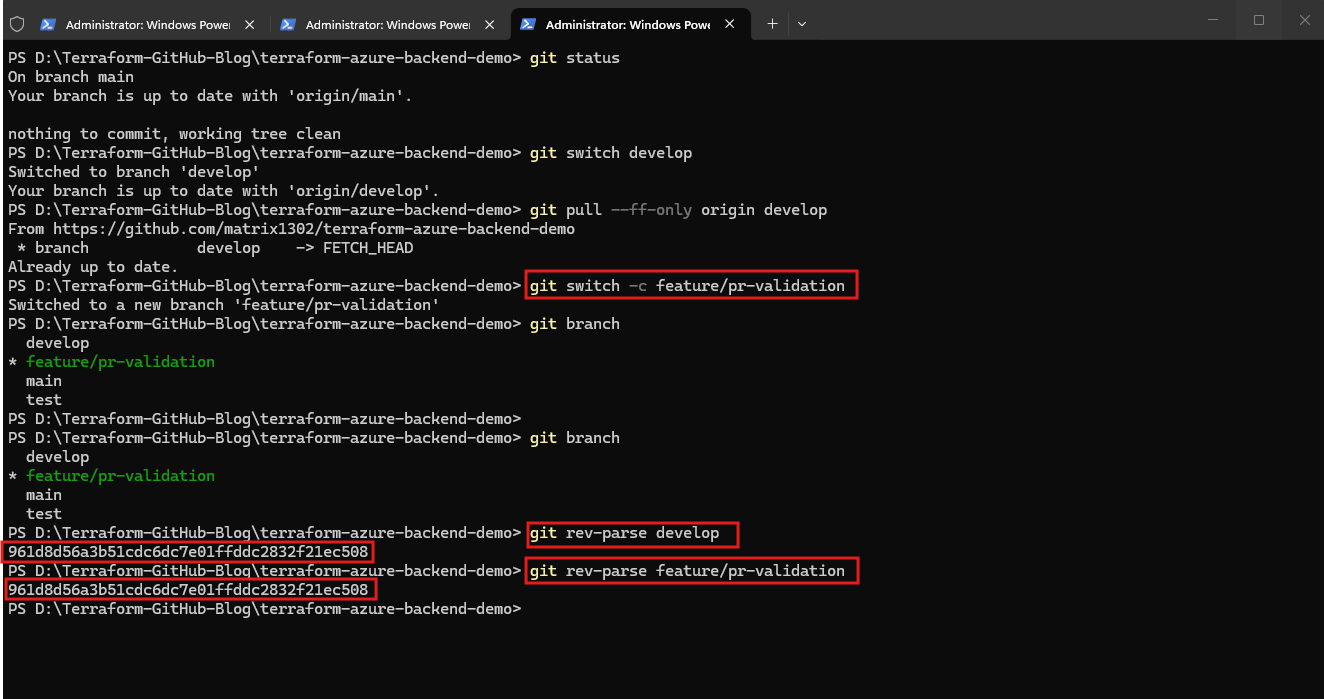
Example: When creating feature/pr-validation from develop, both branches initially point to the same commit. After committing changes to the feature branch, its reference advances while develop remains unchanged.
The commands git rev-parse develop and git rev-parse feature/pr-validation display the SHA hash of the commit referenced by each branch.
Since both return the identical commit ID, this confirms that our newly created feature branch currently points to the same commit as
develop, before any additional changes have been committed.
git rev-parse develop
git rev-parse feature/pr-validation
Links
git-fetch
https://git-scm.com/docs/git-fetchgit-pull
https://git-scm.com/docs/git-pullGit Branching – Remote Branches
https://git-scm.com/book/en/v2/Git-Branching-Remote-Branches