

Cheat Sheet Azure CLI and Azure PowerShell
When it comes to managing your resources in Microsoft Azure by using the command line, we can use therefore mainly the Azure PowerShell or Azure CLI.
Azure PowerShell is tailored for users who are familiar with PowerShell scripting and Windows environments, while Azure CLI offers a more cross-platform, Bash-like experience that works seamlessly across Linux, macOS, and Windows.
Whether you’re automating complex deployments or managing resources on the fly, understanding these tools is essential for effective cloud administration.
Below I will show the basics about both and update the post on a regular basis.
Azure CLI
How to install the Azure CLI
https://learn.microsoft.com/en-us/cli/azure/install-azure-cli?view=azure-cli-latest
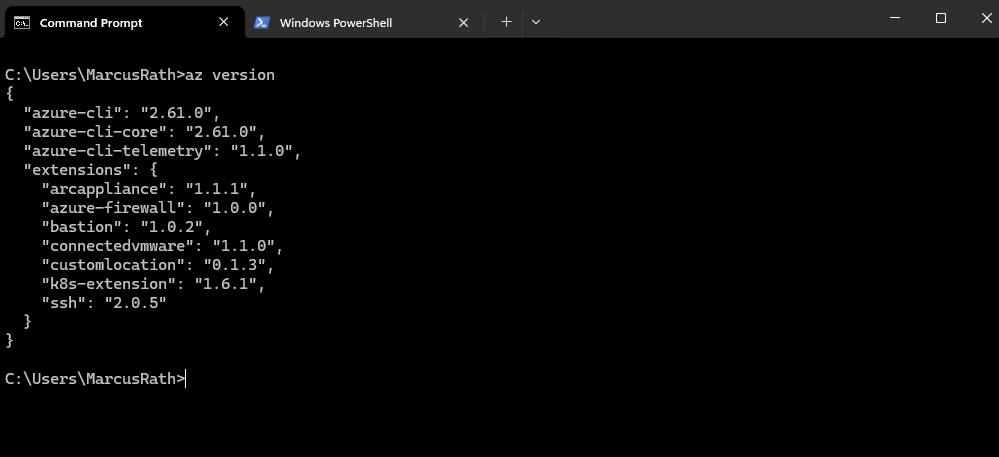
Determine Azure CLI Version
> az version
az login
To connect to your Azure tenant and subscriptions we can use the following commands.
az loginauthenticates you across all accessible tenants and may select a default context automatically, which can lead to ambiguity in multi-tenant environments. Usingaz login --tenant <tenant-id>forces authentication against a specific tenant, ensuring a clear and consistent context for accessing subscriptions and resources.After executing this command, you can logout from an Azure account using az logout.
> az login --tenant <tenant id>

or just the following which opens an interactive login. We can authenticate to all tenants our account has access to.
> az login
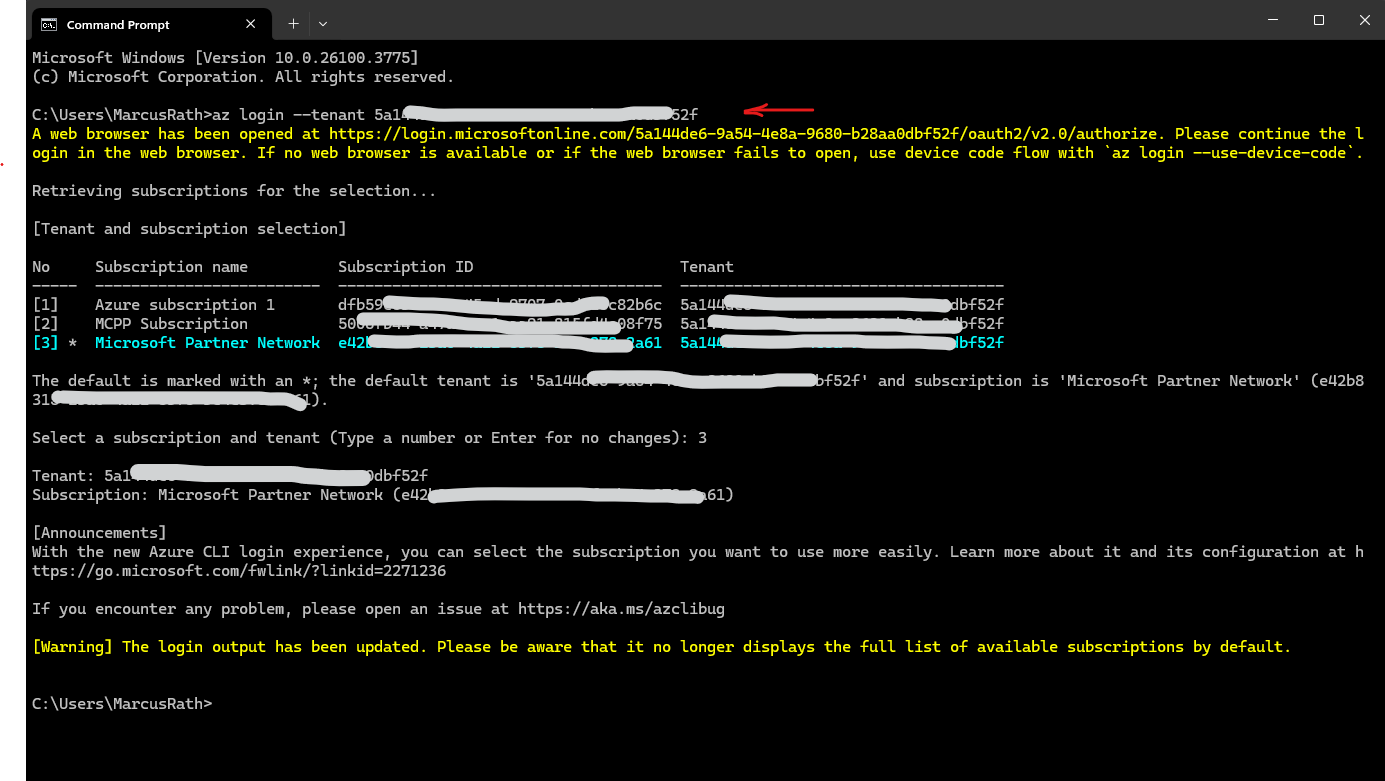
After we are logged-in to our tenant, we can change the active subscription by using the following commands.
# change the active subscription by using the subscription name
> az account set --subscription "My Demos"

# change the active subscription by using the subscription ID
> az account set --subscription "xxxxxxxx-xxxx-xxxx-xxxx-xxxxxxxxxxxx"
az login –scope
With az login --scope <resource>/.default, we explicitly request an access token for a specific Azure service or API (such as Azure Resource Manager, Microsoft Graph, or Storage), ensuring the correct token audience is used. The /.default suffix tells Azure to apply the preconfigured permissions for that resource, which helps avoid authentication or authorization issues in multi-service scenarios.
We can request tokens for specific resource audiences, typically the APIs we want to call:
https://management.azure.com//.default→ Azure Resource Manager (modern default)https://management.core.windows.net//.default→ legacy ARM endpoint (still widely used)-
https://graph.microsoft.com//.default→ Microsoft Graph API https://storage.azure.com//.default→ Azure Storage data planehttps://vault.azure.net//.default→ Azure Key Vault
In general, the scope follows the pattern <resource-URI>/.default, meaning “use the default permissions configured for this API.”, e.g.:
az login --scope https://management.core.windows.net//.default
az login –service-principal
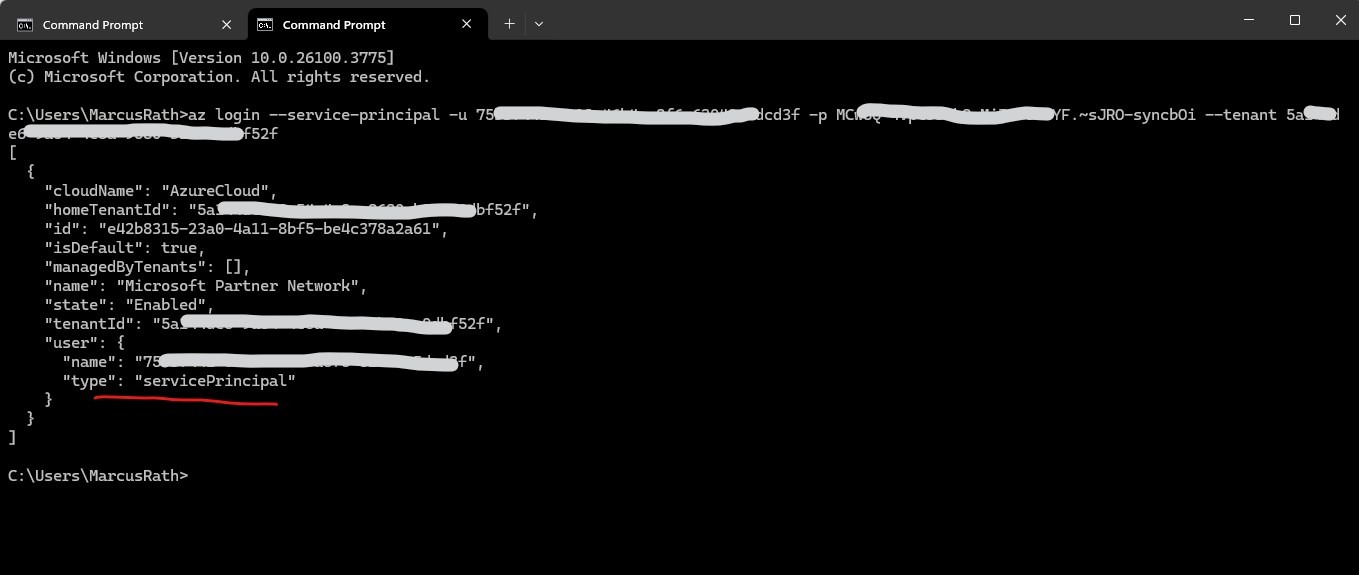
We can also login with a service principal and by using its client secret as password.
> az login --service-principal -u <app-id> -p <password-or-cert> --tenant <tenant-id>
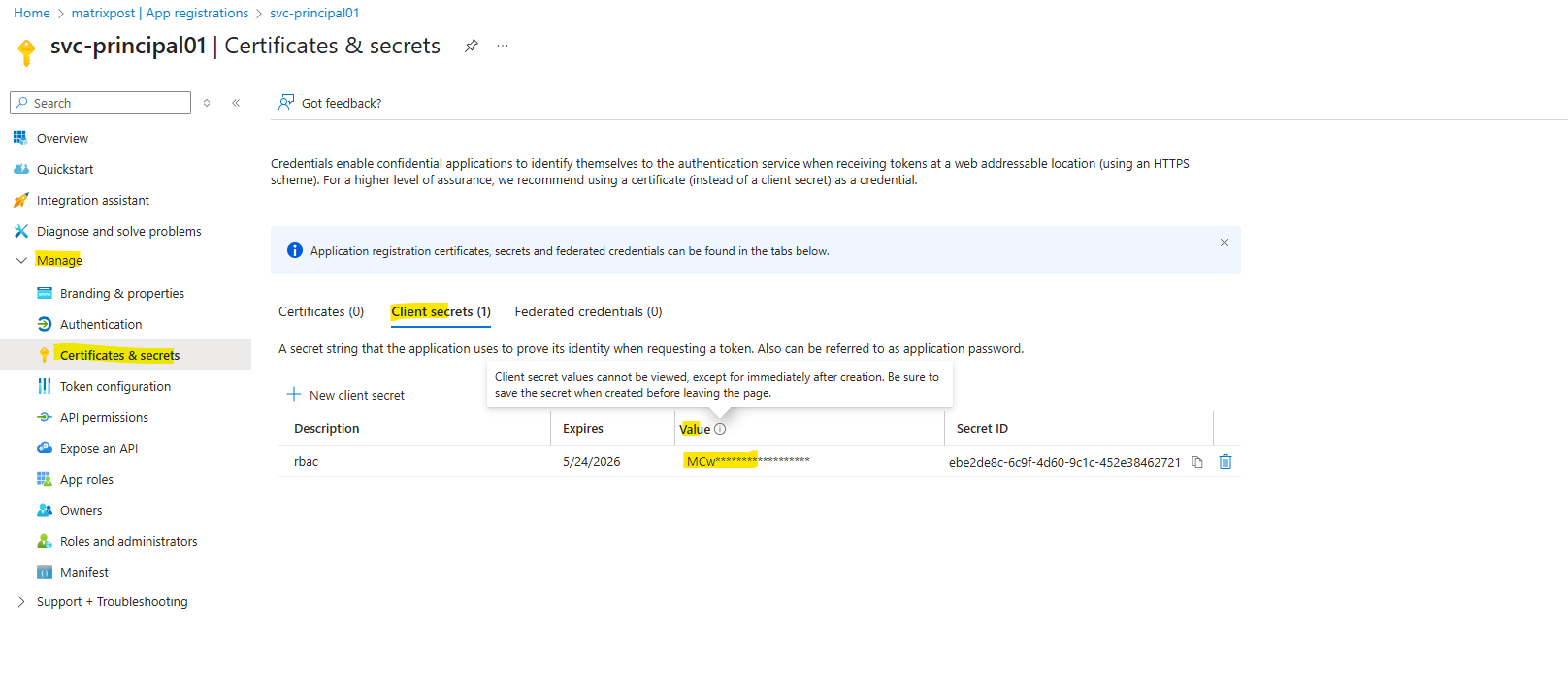
The available created service principals in our tenant we find in the Azure portal in Entra ID -> Manage –> App registrations -> All applications.
A service principal in Azure is an identity used by applications, services, and automation tools (like scripts or CI/CD pipelines) to access Azure resources without requiring a human user to log in.
Service principals are listed under App Registrations in Entra ID because they are inherently linked to an application object, the two work together to define an app’s identity and permissions in Azure.
They represents the local instance of that application in a specific Entra ID tenant.
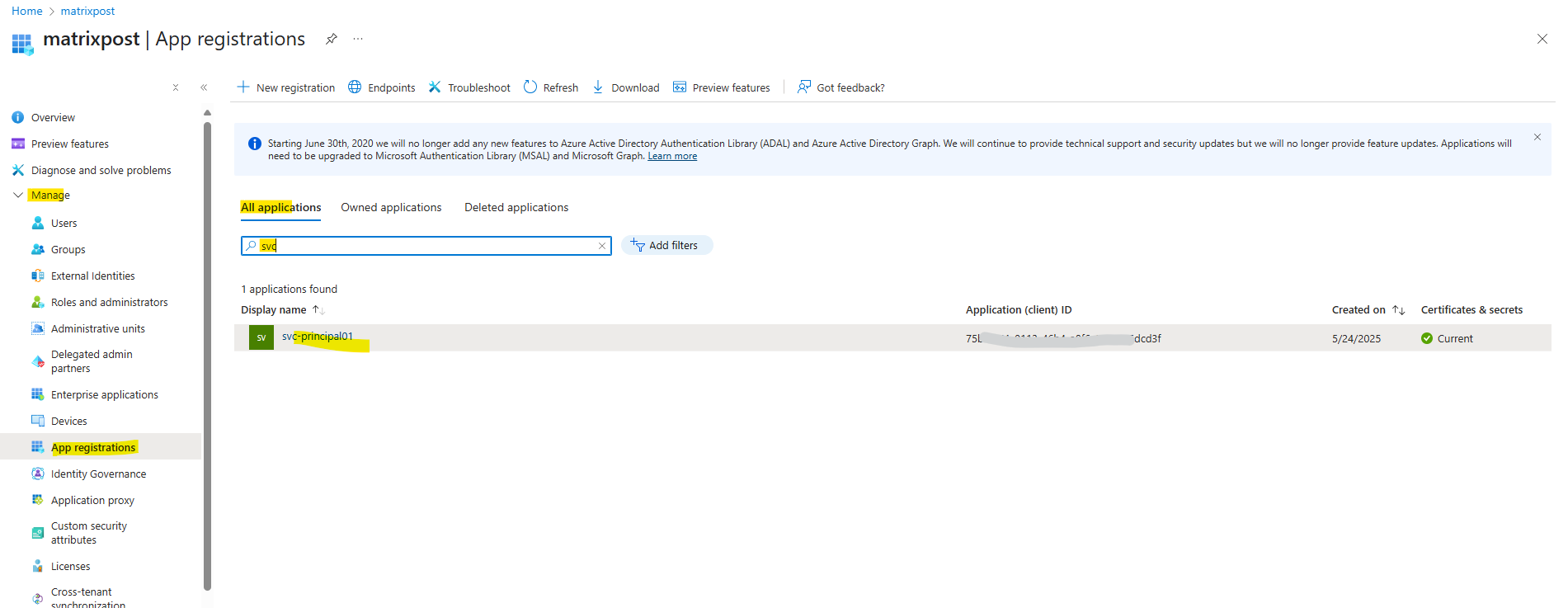
The password finally is the client secret’s value below.
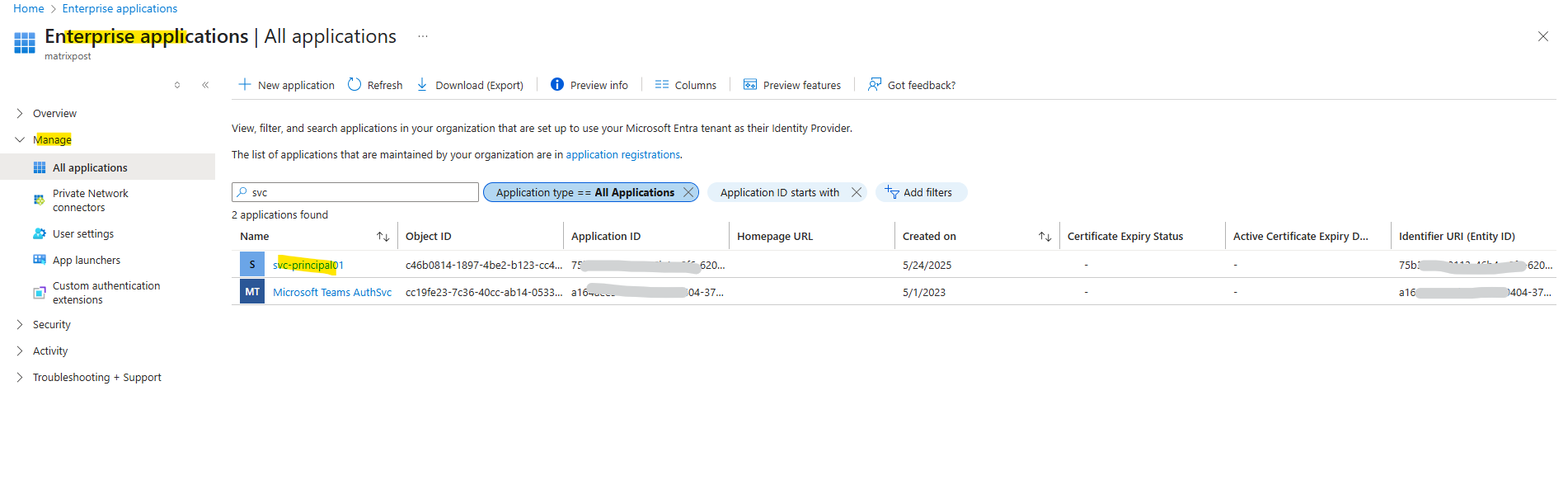
The service principal also appears within the Enterprise Applications in Entra ID.
Enterprise Applications is where you manage service principals (actual permissions & access), while App Registrations is where you define application objects (authentication & API permissions).
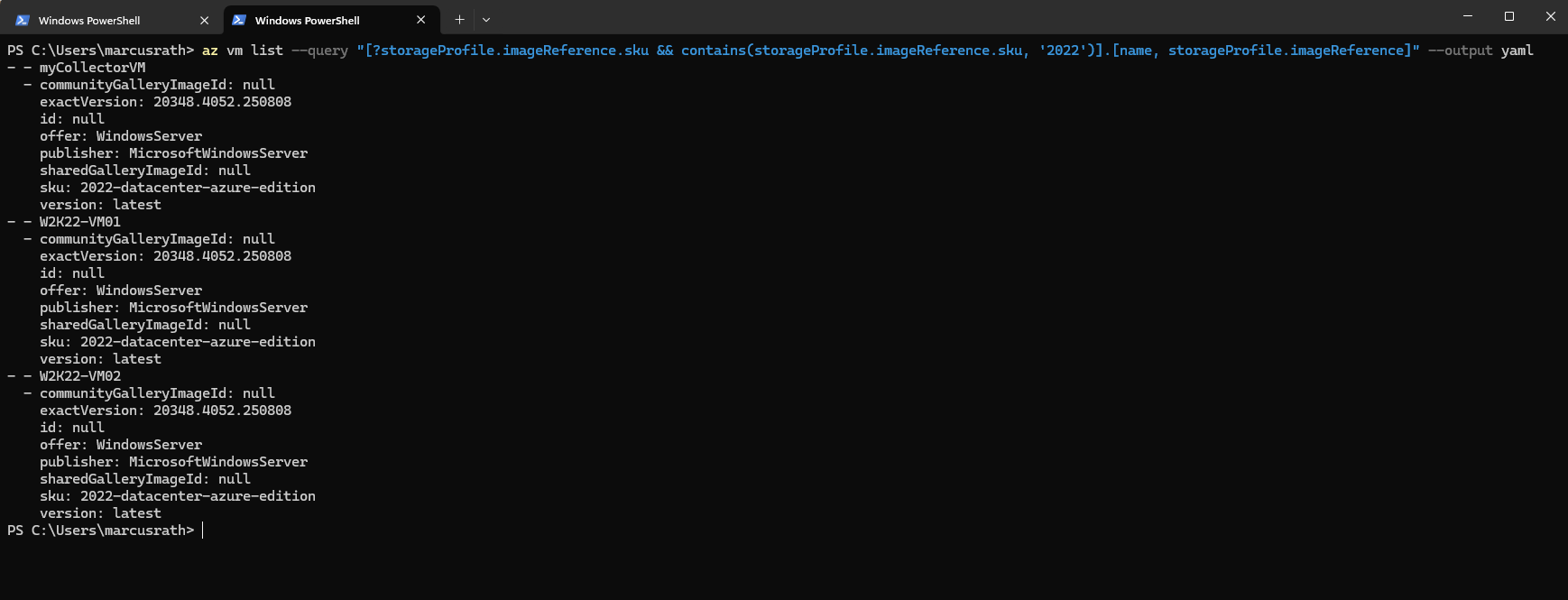
List all Virtual Machines and filter for OS Version
To list all virtual machines running e.g. Windows Server 2019 we can run.
PS> az vm list --query "[?storageProfile.imageReference.sku && contains(storageProfile.imageReference.sku, '2019')].[name, storageProfile.imageReference]" --output yaml
The Azure CLI (az) supports several output formats via the
--output(or-o) flag. Here are the main ones:
table, json (default format), jsonc, yaml, yamlc, tsv
Azure PowerShell
How to install the Azure PowerShell
https://learn.microsoft.com/en-us/powershell/azure/install-azps-windows
Determine Az PowerShell module Version
PS> (Get-InstalledModule -Name 'Az' -AllVersions -ErrorAction SilentlyContinue).Version | Sort-Object -Desc | Select-Object -First 1

Connect-AzAccount
To connect to your Azure tenant and subscriptions we can use the following commands.
Connect to Azure with an authenticated account for use with cmdlets from the Az PowerShell modules. After executing this cmdlet, you can disconnect from an Azure account using Disconnect-AzAccount.
PS> Connect-AzAccount

or by already setting the active subscription
PS> Connect-AzAccount -Subscription <subscription ID>

or by already setting the tenant and subscription ID
PS> Connect-AzAccount -Tenant <tenant ID> -Subscription <subscription ID>
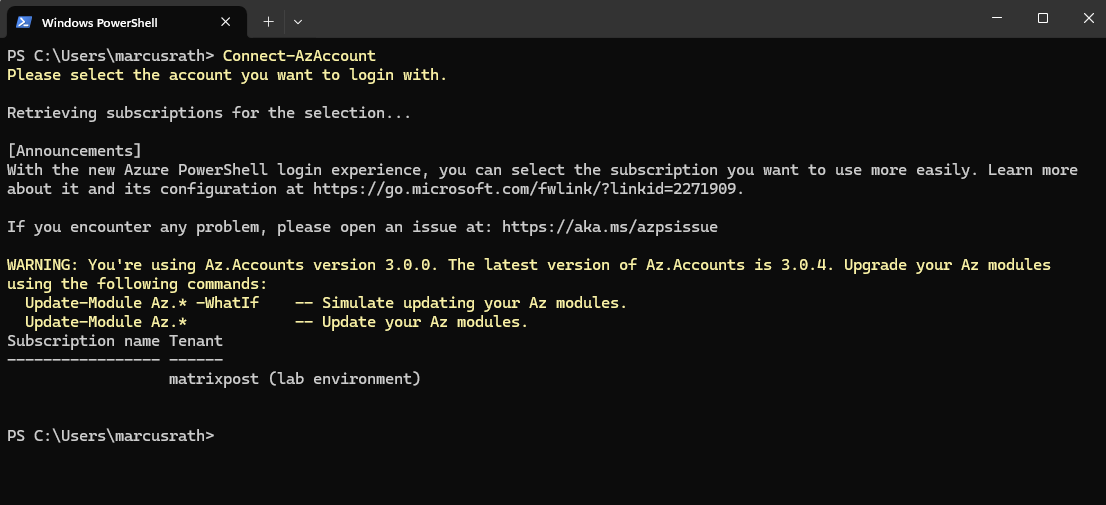
Or by using the Get-Credential cmdlet.
PS> $Credential = Get-Credential
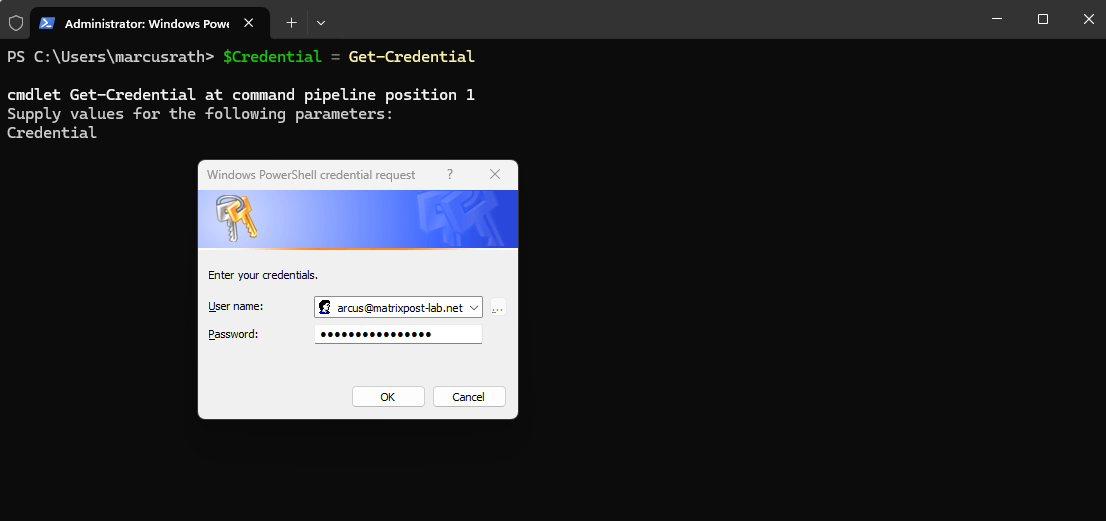
PS> Connect-AzAccount -Credential $Credential
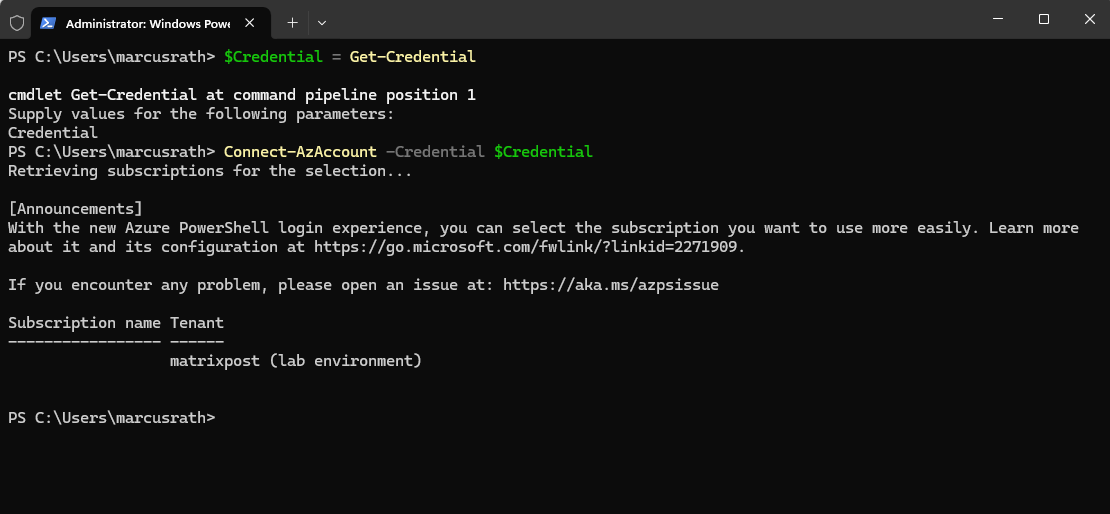
Source: https://learn.microsoft.com/en-us/powershell/module/az.accounts/connect-azaccount?view=azps-13.3.0
Connect-AzAccount -ServicePrincipal
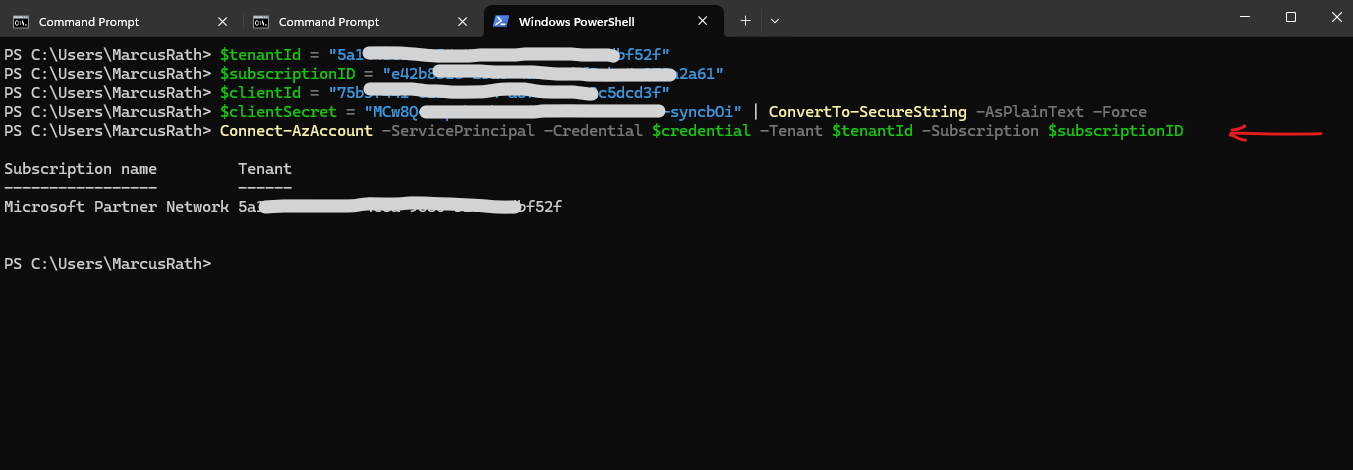
We can also login with a service principal and by using its client secret for the password.
PS> $tenantId = "your-tenant-id"
PS> $subscriptionID = "subscription-id"
PS> $clientId = "your-service-principal-app-id"
PS> $clientSecret = "your-client-secret" | ConvertTo-SecureString -AsPlainText -Force

PS> $credential = New-Object System.Management.Automation.PSCredential($clientId, $clientSecret)

PS> Connect-AzAccount -ServicePrincipal -Credential $credential -Tenant $tenantId -Subscription $subscriptionID
List all Virtual Machines and filter for OS Version
To list all virtual machines running e.g. Windows Server 2019 we can run.
PS> Get-AzVM | Select-Object Name, ResourceGroupName, Location, @{Name="OS";Expression={$_.StorageProfile.ImageReference.Sku}} | Out-String | Select-String "2019"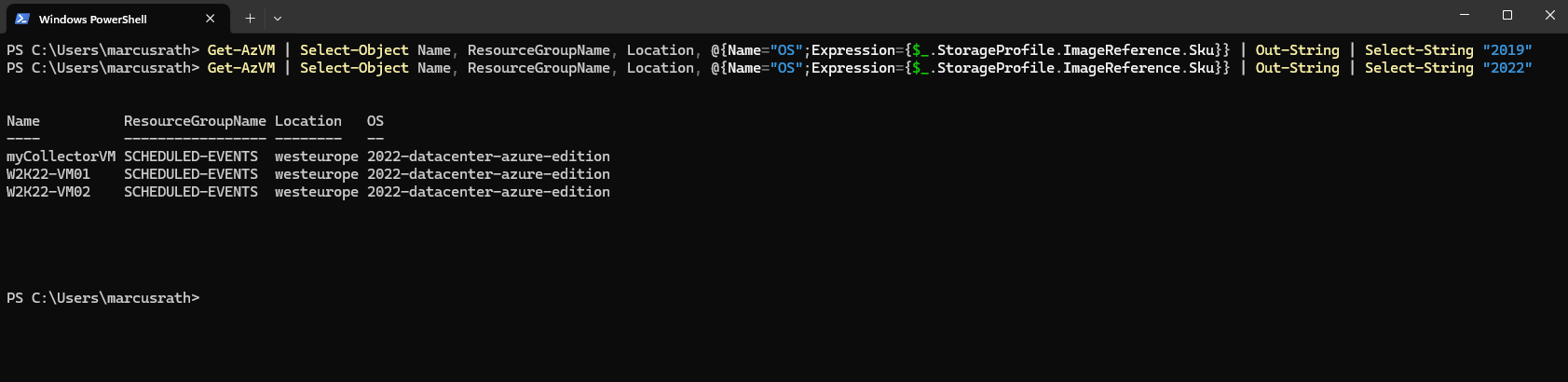
Links
Choose the right Azure command-line tool
https://learn.microsoft.com/en-us/cli/azure/choose-the-right-azure-command-line-tool?view=azure-cli-latest
