Cheat Sheet Apache HTTP Server
Apache HTTP Server is one of the most widely used web servers for hosting websites and web applications on Linux. This cheat sheet provides a quick reference to essential Apache commands for managing services, configuring VirtualHosts, troubleshooting issues, analyzing access logs, and improving web server security.
The examples focus on Apache2 running on Ubuntu/Debian. Commands and configuration paths may differ on RHEL-based distributions.
Apache Service Management
Check Apache service status:
sudo systemctl status apache2
Start, stop, restart, or reload Apache:
sudo systemctl start apache2
sudo systemctl stop apache2
sudo systemctl restart apache2
sudo systemctl reload apache2
Enable Apache at system startup:
sudo systemctl enable apache2
Check the installed Apache version:
apache2 -v
Configuration and VirtualHosts
Validate the Apache configuration:
sudo apache2ctl configtest
Display configured VirtualHosts:
sudo apache2ctl -S
Find the VirtualHost configuration for a specific domain:
sudo apache2ctl -S 2>&1 | grep -i -C 3 'example.com'
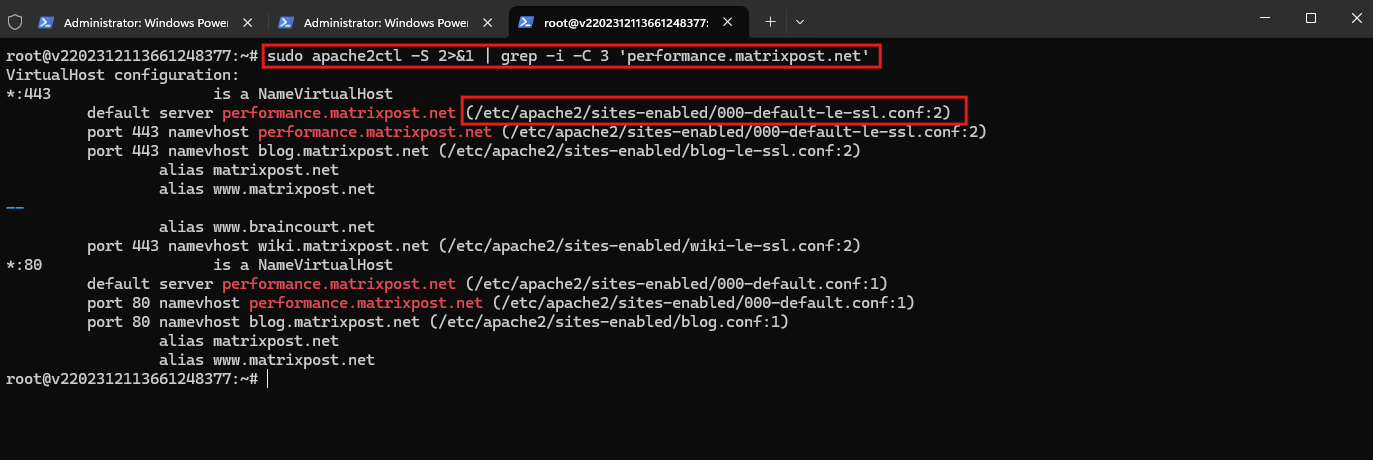
List enabled websites:
ls -l /etc/apache2/sites-enabled/
Enable or disable a VirtualHost:
sudo a2ensite example.conf
sudo a2dissite example.conf
sudo systemctl reload apache2
Find configured access and error logs:
sudo grep -Ei 'CustomLog|ErrorLog' /etc/apache2/sites-enabled/*.conf
Apache Modules
List loaded Apache modules:
sudo apache2ctl -M
Check whether specific modules are enabled:
sudo apache2ctl -M | grep -E 'rewrite|headers|ssl|security2'
Enable or disable a module:
sudo a2enmod rewrite
sudo a2dismod rewrite
sudo systemctl reload apache2
List available modules:
ls /etc/apache2/mods-available/
Access and Error Logs
Default Ubuntu/Debian log directory:
/var/log/apache2/
Follow the access log in real time:
sudo tail -f /var/log/apache2/access.log
Follow the error log:
sudo tail -f /var/log/apache2/error.log
Display the last 100 requests:
sudo tail -n 100 /var/log/apache2/access.log
Search for requests from a specific IP address:
sudo grep '192.0.2.10' /var/log/apache2/access.log
Search across current and rotated logs, including compressed archives:
sudo zcat -f /var/log/apache2/access.log* 2>/dev/null | grep '192.0.2.10'
Analyze HTTP Traffic
The following examples assume Apache’s standard combined access-log format.
Display the top 20 source IP addresses:
sudo zcat -f /var/log/apache2/access.log* 2>/dev/null | awk '{print $1}' | sort | uniq -c | sort -nr | head -20
Display the most frequently requested URLs:
sudo zcat -f /var/log/apache2/access.log* 2>/dev/null | awk '{print $7}' | sort | uniq -c | sort -nr | head -20
Count HTTP response codes:
sudo zcat -f /var/log/apache2/access.log* 2>/dev/null | awk '{print $9}' | sort | uniq -c | sort -nr
Display the top 20 source IPs for a specific date:
sudo zcat -f /var/log/apache2/access.log* 2>/dev/null | grep '07/Nov/2026:' | awk '{print $1}' | sort | uniq -c | sort -nr | head -20
Identify requests without an HTTP Referer:
sudo zcat -f /var/log/apache2/access.log* 2>/dev/null | awk -F'"' '$4=="-" {split($1,a," "); print a[1]}' | sort | uniq -c | sort -nr | head -20
Display the most common User-Agent strings:
sudo zcat -f /var/log/apache2/access.log* 2>/dev/null | awk -F'"' '{print $6}' | sort | uniq -c | sort -nr | head -20
Count requests for a specific endpoint:
sudo zcat -f /var/log/apache2/access.log* 2>/dev/null | awk '$7=="/xmlrpc.php" {print $1}' | sort | uniq -c | sort -nr
Inspect HTTP response codes for a specific IP:
sudo zcat -f /var/log/apache2/access.log* 2>/dev/null | awk '$1=="192.0.2.10" {print $9}' | sort | uniq -c | sort -nr
HTTP Requests and Response Headers
Check HTTP response headers:
curl -I https://example.com/
Follow HTTP redirects:
curl -IL https://example.com/
Display the HTTP status code:
curl -s -o /dev/null -w '%{http_code}\n' https://example.com/
Test an HTTP POST request:
curl -s -o /dev/null -w '%{http_code}\n' -X POST https://example.com/endpoint
Test with a custom HTTP Referer:
curl -I -e 'https://referrer.example/' https://example.com/
Inspect HTTP response headers with verbose output:
curl -vI https://example.com/
Apache Security Hardening
Block access to an unused WordPress XML-RPC endpoint:
<Files "xmlrpc.php">
    Require all denied
</Files>
Block a specific source IP address in an appropriate VirtualHost or Directory context:
<RequireAll>
    Require all granted
    Require not ip 192.0.2.10
</RequireAll>
Prevent access to hidden files such as .env, while preserving access to .well-known for certificate validation:
<FilesMatch "^\.">
    Require all denied
</FilesMatch>
Note: This rule blocks dotfiles by filename. Additional protections may be needed for encoded paths, backup files, and application-specific routes.
Disable Apache server signatures and minimize version disclosure:
ServerTokens Prod
ServerSignature Off
These directives belong in server-level configuration, such as /etc/apache2/conf-available/security.conf.
Enable security-related HTTP response headers:
Header always set X-Content-Type-Options "nosniff"
Header always set Referrer-Policy "same-origin"
Apply header directives in an appropriate server or VirtualHost configuration context. A Content Security Policy should be developed and tested separately to avoid breaking applications.
Always validate configuration changes before reloading Apache:
sudo apache2ctl configtest && sudo systemctl reload apache2
SSL/TLS and Certificates
Display configured SSL VirtualHosts:
sudo apache2ctl -S
Inspect the TLS certificate presented by a website:
openssl s_client -connect example.com:443 -servername example.com </dev/null
Display the certificate subject, issuer, and expiration:
echo | openssl s_client -connect example.com:443 -servername example.com 2>/dev/null | openssl x509 -noout -subject -issuer -dates
List certificates managed by Certbot:
sudo certbot certificates
Test automatic certificate renewal:
sudo certbot renew --dry-run
Troubleshooting and Performance
Check whether Apache is listening on HTTP and HTTPS ports:
sudo ss -tlnp | grep -E ':80|:443'
Inspect recent Apache service errors:
sudo journalctl -u apache2 -n 100 --no-pager
Display Apache processes:
ps aux | grep '[a]pache2'
Check Apache memory consumption:
ps -C apache2 -o pid,rss,cmd --sort=-rss
Display Apache Multi-Processing Module (MPM):
sudo apache2ctl -M | grep mpm
Inspect configured MPM worker settings:
sudo grep -R -E 'MaxRequestWorkers|ServerLimit|ThreadsPerChild|KeepAliveTimeout' /etc/apache2/
Check server-status if mod_status is enabled and access is authorized:
curl http://127.0.0.1/server-status?auto
Important Apache Directories on Ubuntu/Debian
| Path | Purpose |
|---|---|
/etc/apache2/apache2.conf | Main Apache configuration |
/etc/apache2/ports.conf | Listening ports |
/etc/apache2/sites-available/ | Available VirtualHost configurations |
/etc/apache2/sites-enabled/ | Enabled VirtualHosts |
/etc/apache2/mods-available/ | Available modules |
/etc/apache2/mods-enabled/ | Enabled modules |
/etc/apache2/conf-available/ | Additional configuration files |
/var/log/apache2/ | Access and error logs |
/var/www/html/ | Default document root |
Conclusion
Apache provides extensive command-line tools for managing websites, troubleshooting configuration issues, investigating suspicious traffic, and hardening Linux web servers.
For routine administration, the most useful commands are apache2ctl, systemctl, journalctl, curl, and standard Linux text-processing tools such as grep, awk, sort, and uniq.
When modifying Apache configuration, always run apache2ctl configtest before reloading the service.
Links
Apache HTTP Server Version 2.4 Documentation
https://httpd.apache.org/docs/2.4Apache Virtual Host documentation
https://httpd.apache.org/docs/2.4/vhosts/Log Files
https://httpd.apache.org/docs/2.4/logs.htmlapachectl – Apache HTTP Server Control Interface
https://httpd.apache.org/docs/2.4/programs/apachectl.htmlModule Index
https://httpd.apache.org/docs/2.4/modApache SSL/TLS Encryption
https://httpd.apache.org/docs/2.4/ssl/Security Tips
https://httpd.apache.org/docs/2.4/misc/security_tips.htmlApache Module mod_rewrite
https://httpd.apache.org/docs/2.4/mod/mod_rewrite.html
Apache Module mod_headers
https://httpd.apache.org/docs/2.4/mod/mod_headers.html