Cheat Sheet Microsoft Hyper-V
This cheat sheet provides a practical collection of useful Microsoft Hyper-V and Failover Clustering commands for day-to-day administration and troubleshooting. It covers common tasks around virtual machines, cluster resources, Cluster Shared Volumes (CSV), networking, storage, and other components of a Hyper-V environment.
I will regularly update and extend this cheat sheet whenever I come across additional useful commands or troubleshooting scenarios.
Hyper-V Cluster and Virtual Machines Suddenly Unavailable
During startup of my Hyper-V lab used for my article series Microsoft Hyper-V Networking Best Practices , I encountered a situation where Failover Cluster Manager no longer displayed the cluster and could not reconnect using the cluster IP address. At the same time, Hyper-V Manager on both hosts showed no virtual machines, while File Explorer on Matrix-HV-01 became unresponsive when accessing the shared storage.
Although these symptoms initially suggested a broader cluster or connectivity problem, both Hyper-V nodes were still online and the iSCSI sessions to the Synology LUN remained connected. The actual cause turned out to be the Cluster Shared Volume (CSV) being Offline, which prevented access to the VM configuration and storage files.
This behavior is most likely related to the architecture of my lab and the fact that both physical Hyper-V nodes are regularly shut down completely when the lab is not in use. After starting the environment again, the iSCSI sessions were successfully re-established, but the clustered disk resource remained offline and therefore had to be brought back online through Failover Clustering.
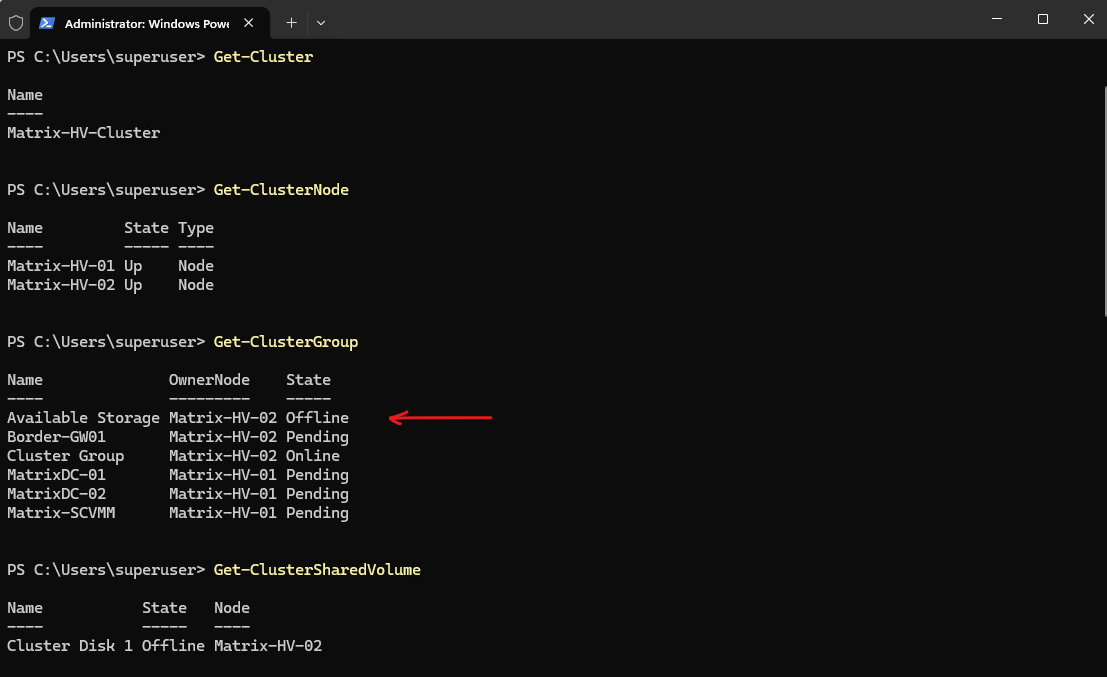
First, I verified the general cluster state using PowerShell. As shown below, the Matrix-HV-Cluster itself was available and both Hyper-V nodes were in the Up state; however, the Available Storage group and Cluster Disk 1 (CSV) were Offline, while the clustered virtual machines remained in a Pending state.
Get-Cluster
Get-ClusterNode
Get-ClusterGroup
Get-ClusterSharedVolume
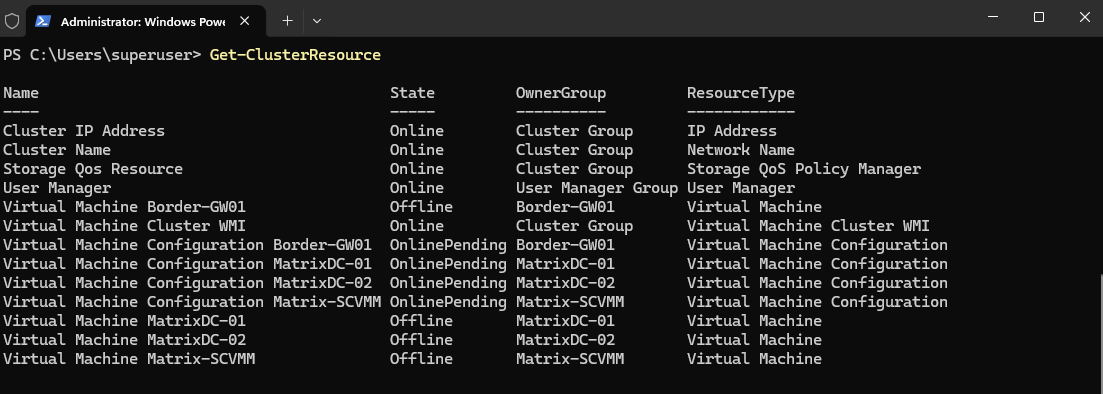
Next, I checked the individual cluster resources using Get-ClusterResource. The cluster core resources were Online, while the virtual machine resources were Offline and their corresponding configuration resources remained OnlinePending.
Get-ClusterResource
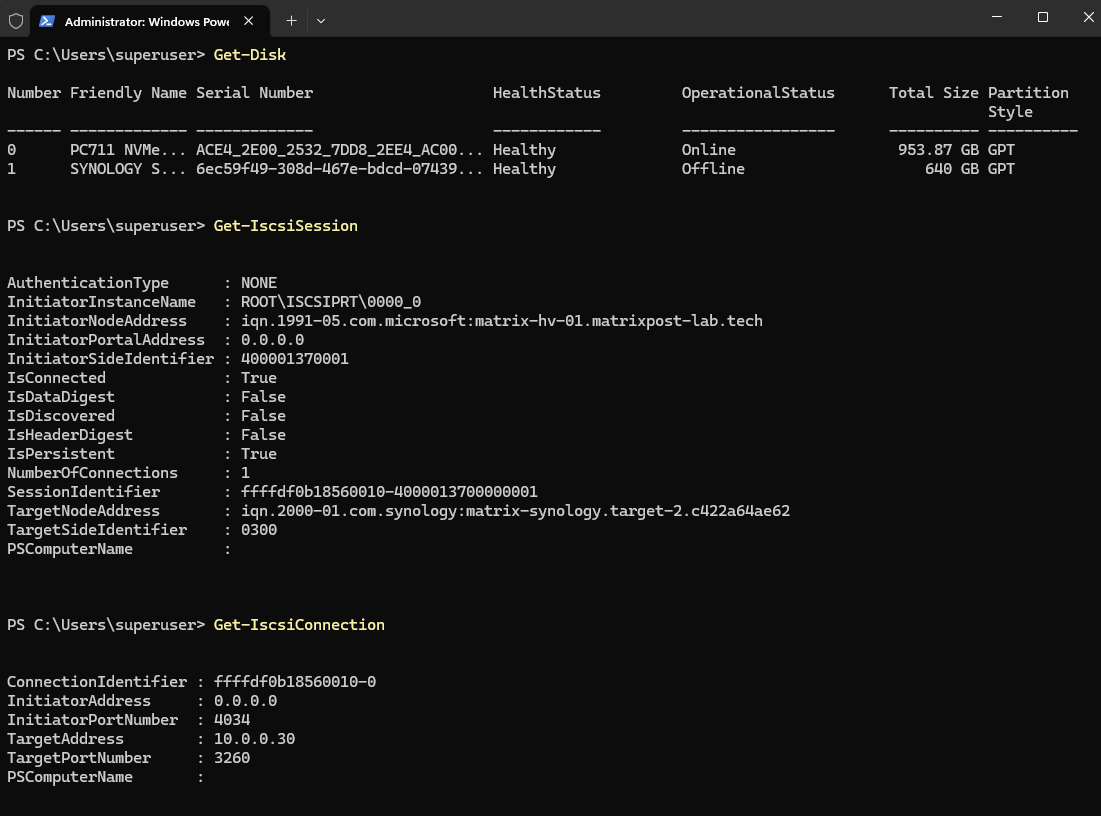
Next, I verified the underlying iSCSI connection. The Synology LUN was successfully detected and the persistent iSCSI session to the target at 10.0.0.30:3260 was connected; however, Windows still showed the 640 GB shared disk as Offline, confirming that connectivity to the itself was not the problem.
Get-Disk
Get-IscsiSession
Get-IscsiConnection
Since the iSCSI connection was established and the LUN was visible, I manually brought the clustered disk resource back online using the command below. The CSV immediately returned to the Online state on Matrix-HV-02, and the clustered virtual machines immediately reappeared in the Hyper-V Manager consoles.
This behavior is most likely related to the architecture of my lab, where both Hyper-V nodes are completely shut down at the same time. During the next startup, the Failover Cluster service may initialize before the iSCSI connection and shared storage are fully available, leaving the CSV offline even though the iSCSI session becomes available shortly afterwards.
Start-ClusterResource "Cluster Disk 1"

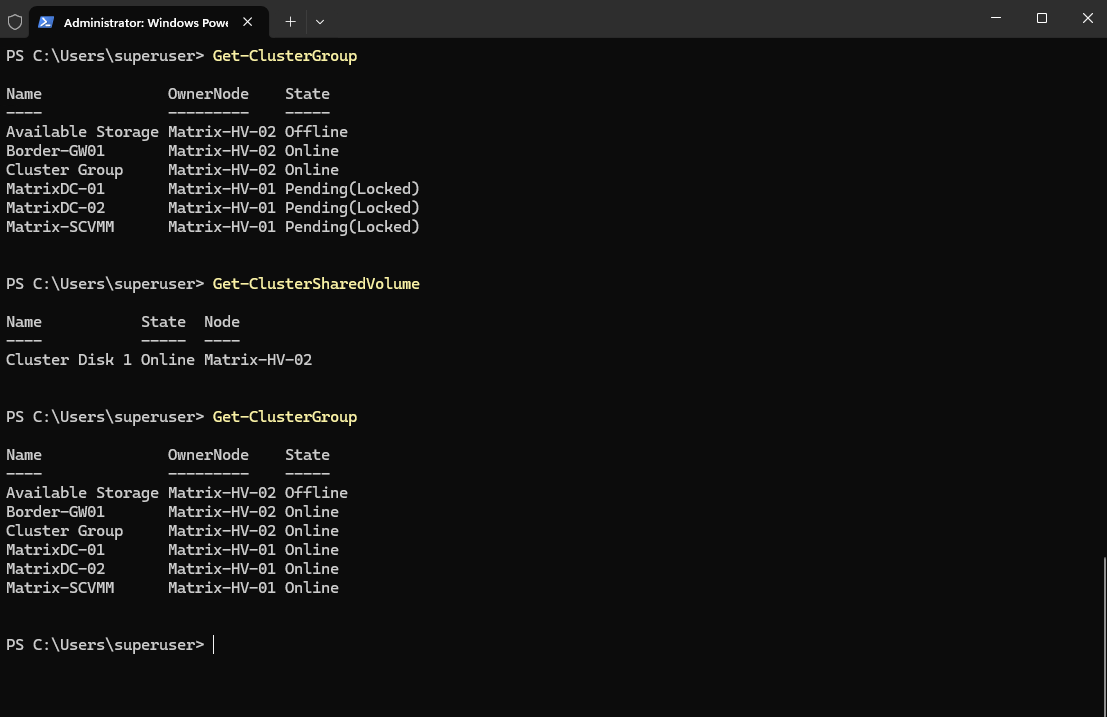
Finally, I verified the cluster state again using Get-ClusterGroup and Get-ClusterSharedVolume. The CSV was now Online, and after a short recovery period all clustered virtual machines automatically transitioned from Pending (Locked) to Online.
Get-ClusterGroup
Get-ClusterSharedVolume
Lists all Hyper-V virtual switch ports and their associated VMs/network adapters, including the VFP port names and IDs.
Especially useful when you need the VFP port ID/name for further vfpctrl troubleshooting of Hyper-V networking/SDN.
vfpctrl /list-vmswitch-port
VFP (Virtual Filtering Platform) is Microsoft’s packet-processing/filtering layer inside the Hyper-V virtual switch.
It provides the programmable forwarding/filtering pipeline used by things such as Windows Server SDN, ACLs, virtual networking, NAT, load balancing, etc.
Links
Cluster Shared Volume goes offline after a node or storage component goes offline
https://learn.microsoft.com/en-us/troubleshoot/windows-server/high-availability/csv-offline-after-component-goes-offline-during-active-io