

File Locking in NetApp ONTAP: SMB, NFS and Troubleshooting Stale Locks
In both SMB and NFS environments, a file lock represents a coordination mechanism that governs how active clients can access shared files.
While SMB (CIFS) uses mandatory locks and persistent sessions to enforce share modes and oplocks, NFS, especially v3, uses an advisory lock model via the Network Lock Manager (NLM).
Understanding how ONTAP reports and manages these locks across protocols is key to diagnosing multi-client access issues and, when necessary, clearing stale or orphaned locks.
In this post, we analyze how file locking works in NetApp ONTAP for both SMB (CIFS) and NFS, how to inspect active locks via the CLI, and how applications like Microsoft Office behave when accessing shared files.
Why File Locking Matters in SMB Environments
In enterprise environments, shared file systems are accessed simultaneously by multiple users and applications. Without proper file locking mechanisms, concurrent write operations could easily lead to data corruption, inconsistent file states, or lost changes.
The SMB protocol therefore implements several locking mechanisms, including share modes, byte-range locks, and opportunistic locks, to coordinate access between clients. NetApp ONTAP fully supports and enforces these mechanisms to ensure data integrity and consistent file access behavior across Windows environments.
SMB Locking Concepts in ONTAP
SMB locking in NetApp ONTAP is not a single mechanism but a combination of coordinated control layers that regulate how files are accessed by multiple clients. Understanding these mechanisms is essential before analyzing the lock entries shown in the ONTAP CLI.
Share Modes (File Open Semantics)
When a client opens a file over SMB, it does not just request read/write access. It also specifies how other clients are allowed to access the same file.
Like:
- Allow read
- Allow write
- Deny write
- Deny delete
Effective access is the combination of:
- Requested access mode
- Share mode restrictions
If a user opens a file with read_write-deny_write_delete, other users may read the file but cannot modify or delete it while it is open.
To demonstrate this behavior, I open the Word document “Test File1.docx” from the NetApp SMB share \\172.18.10.50\Folder1 on a Windows client with the IP address 10.0.0.142.
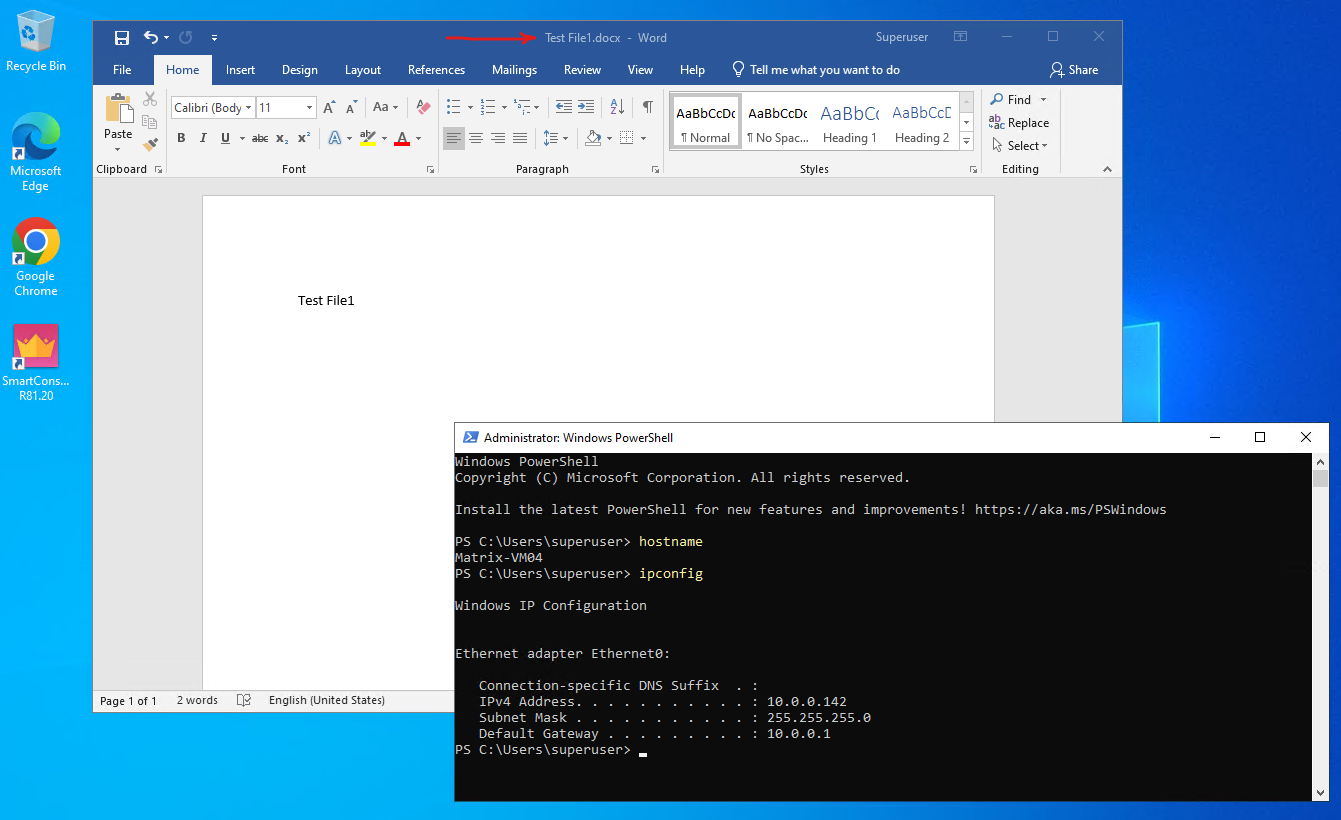
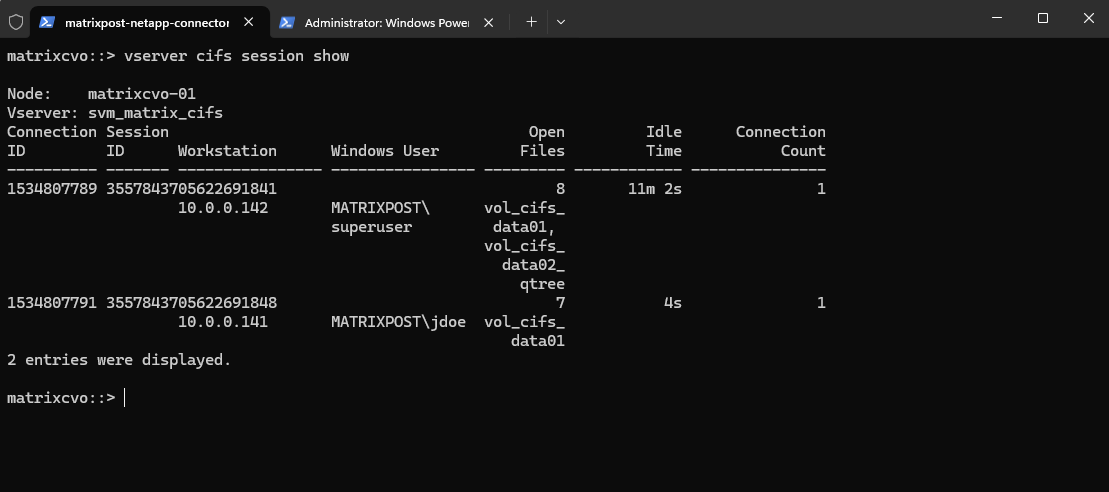
Before analyzing individual file locks, we first verify the active SMB session using:
The output shows two active CIFS sessions. One connection originates from 10.0.0.142 authenticated as
MATRIXPOST\superuser, and a second connection from 10.0.0.141 authenticated asMATRIXPOST\jdoe. The “Open Files” column indicates how many files each session currently has open, confirming that multiple users are actively accessing the SMB shares simultaneously.
matrixcvo::> vserver cifs session show
To analyze the locking behavior in detail using the ONTAP CLI, we first switch to advanced privilege level and then use the CIFS session and lock commands.
The
vserver cifs session file showcommand displays the active file handles, whilevserver locks showreveals the corresponding SMB lock types and share modes for the specified volume.
# we need to switch to advanced mode
matrixcvo::> set advanced

# displays information about all open CIFS files
matrixcvo::*> vserver cifs session file show -vserver svm_matrix_cifs

# displays information about locks for the specified SVM and volume
matrixcvo::*> vserver locks show -vserver svm_matrix_cifs -volume vol_cifs_data01
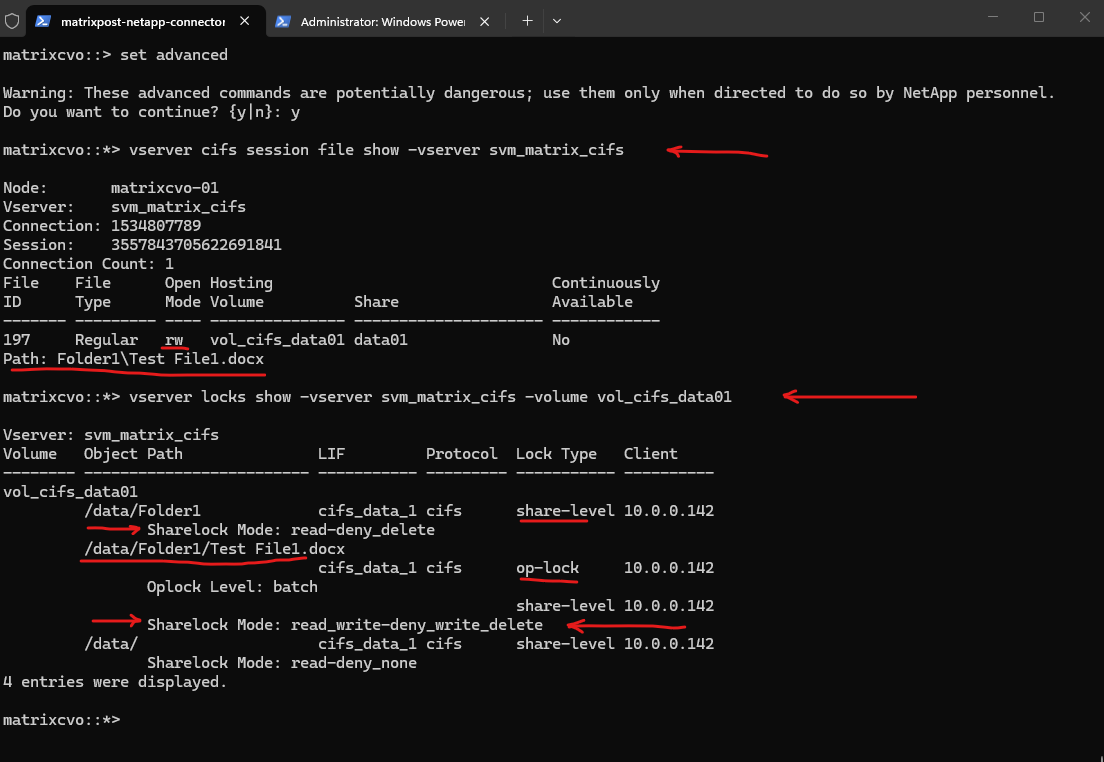
The following output shows a Microsoft Word document opened from a single Windows client. First, we can see the active file handle:
This command lists all open files for active SMB sessions on the specified SVM. It displays the connection ID, session ID, access mode, hosting volume, and file path.
The file is opened in read/write (rw) mode, meaning the client has full modification rights.
matrixcvo::*> vserver cifs session file show -vserver svm_matrix_cifs
197     Regular   rw   vol_cifs_data01 data01                No
Path: Folder1\Test File1.docx
Source: https://docs.netapp.com/us-en/ontap-cli/vserver-cifs-session-file-show.html
The vserver locks show command displays information about locks. A lock is a synchronization mechanism for enforcing limits on concurrent access to files where many clients can be accessing the same file at the same time.
For the file
Test File1.docx, ONTAP shows both a batch-level oplock (allowing client-side caching) and a share-level lock with the moderead_write-deny_write_delete, meaning other users may read the file but cannot modify or delete it while it is open.
matrixcvo::*> vserver locks show -vserver svm_matrix_cifs -volume vol_cifs_data01
/data/Folder1/Test File1.docx
                                   cifs_data_1 cifs      op-lock     10.0.0.142
                Oplock Level: batch
                                                         share-level 10.0.0.142
                Sharelock Mode: read_write-deny_write_delete
In addition to the file itself, ONTAP also shows a share-level lock on the parent directory:
Folder-level locks such as
read-deny_deleteon/data/Folder1prevent structural changes like deletion or renaming of the directory while active file handles exist within it.
vol_cifs_data01
         /data/Folder1             cifs_data_1 cifs      share-level 10.0.0.142
                Sharelock Mode: read-deny_delete
Source: https://docs.netapp.com/us-en/ontap-cli/vserver-locks-show.html
I will now also access the SMB share from a second Windows client, but without opening any files. This allows us to observe how ONTAP registers an active session and directory-level access without creating file-level locks.
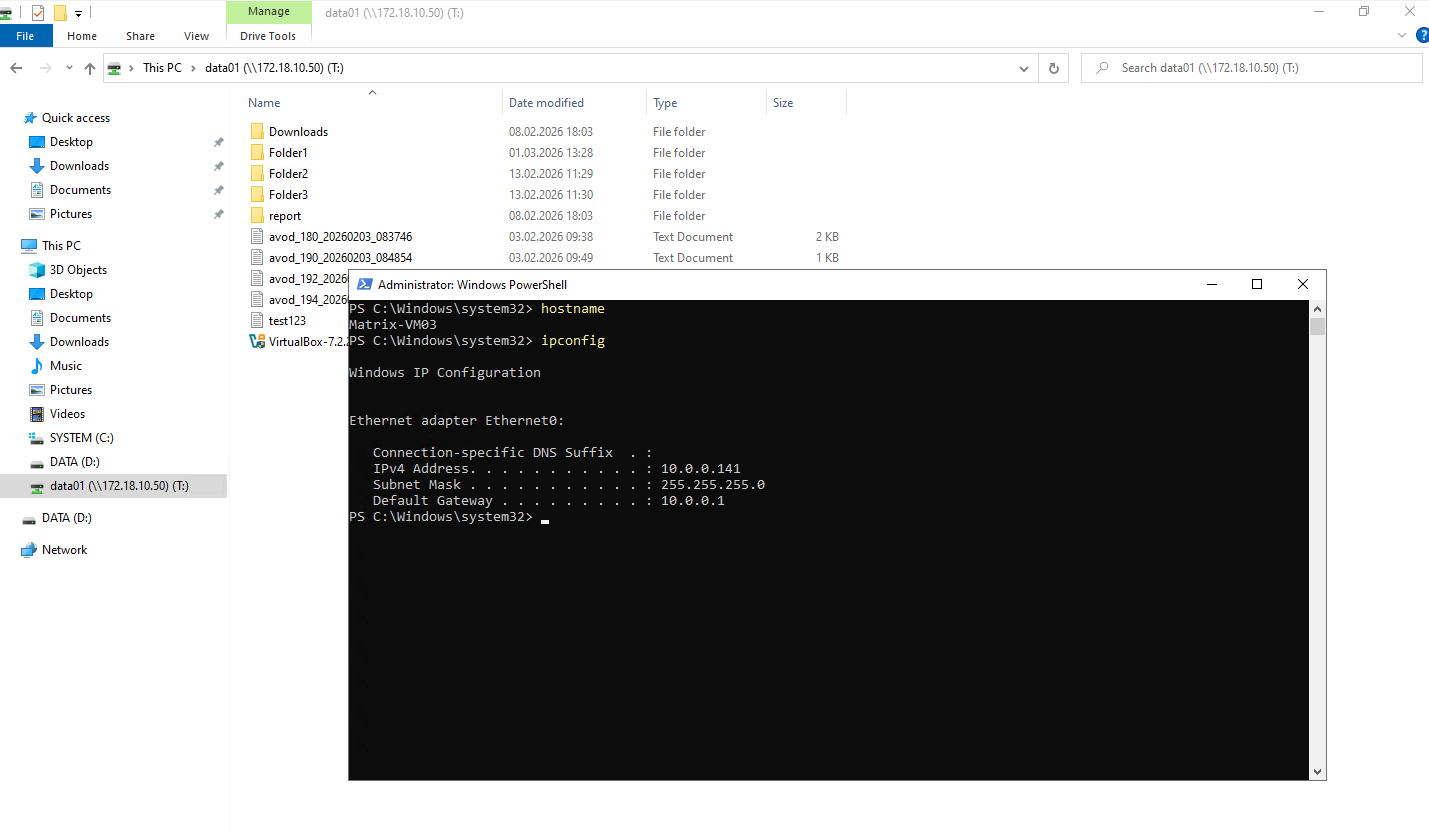
Although a second SMB session from 10.0.0.141 (MATRIXPOST\jdoe) is active, the vserver cifs session file show output only lists an open file for the first client (10.0.0.142). This is because the second user has only opened the share in Windows Explorer but has not opened any files. Simply browsing a share establishes an SMB session, but it does not create file-level handles.
The
vserver locks showoutput confirms this behavior. While the first client holds share-level and oplock entries forTest File1.docx, the second client only holds minimal share-level locks on the root path (/data/) with permissive modes such asnone-deny_noneandread-deny_none. These locks reflect directory access for browsing purposes and do not restrict file modifications.
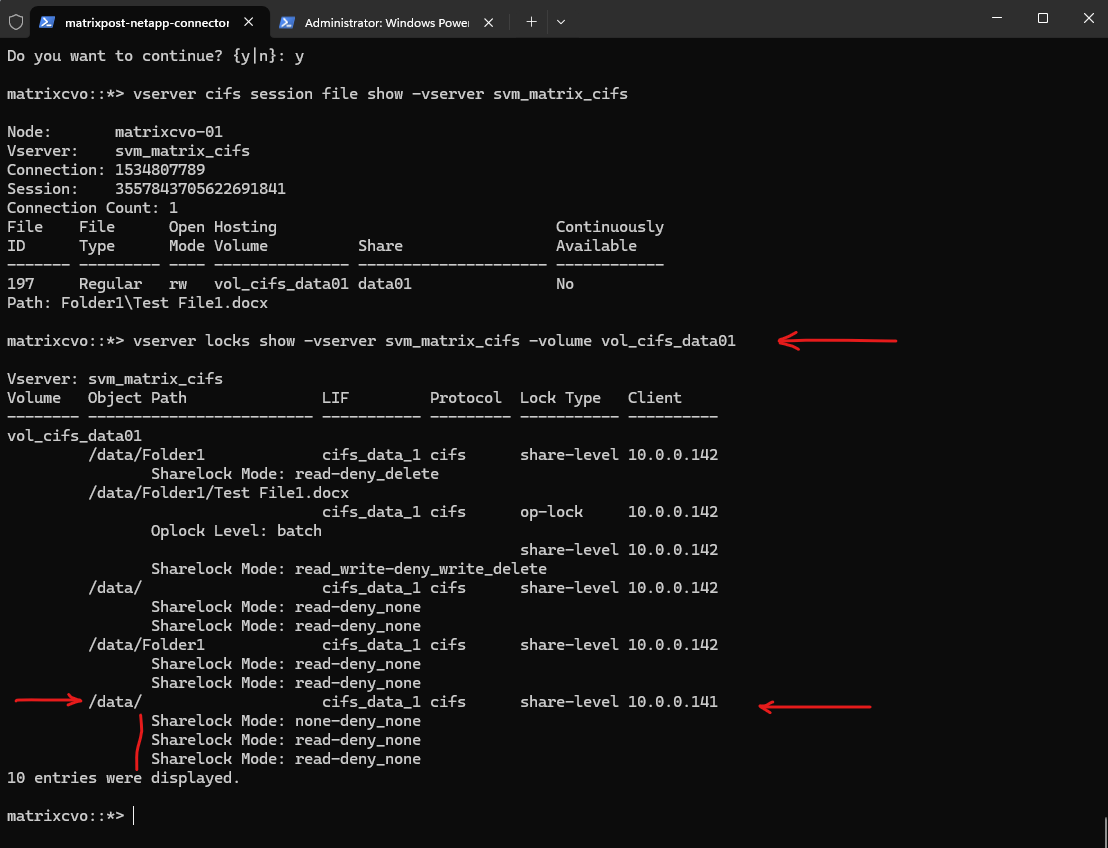
All displayed Sharelock Mode values such as none-deny_none as well as the reported Oplock Level entries originate directly from the SMB protocol semantics negotiated between the client and ONTAP.
These values reflect how the client requested access and caching behavior, and ONTAP simply enforces and reports those protocol-level locking parameters.
Testing Share Mode Enforcement with a Second Client
When I now open the same file for editing from the second Windows client, now Word will show me three options with: Open in read-only mode, Create a local copy and merge your changes later and Receive notification when the original copy is available.
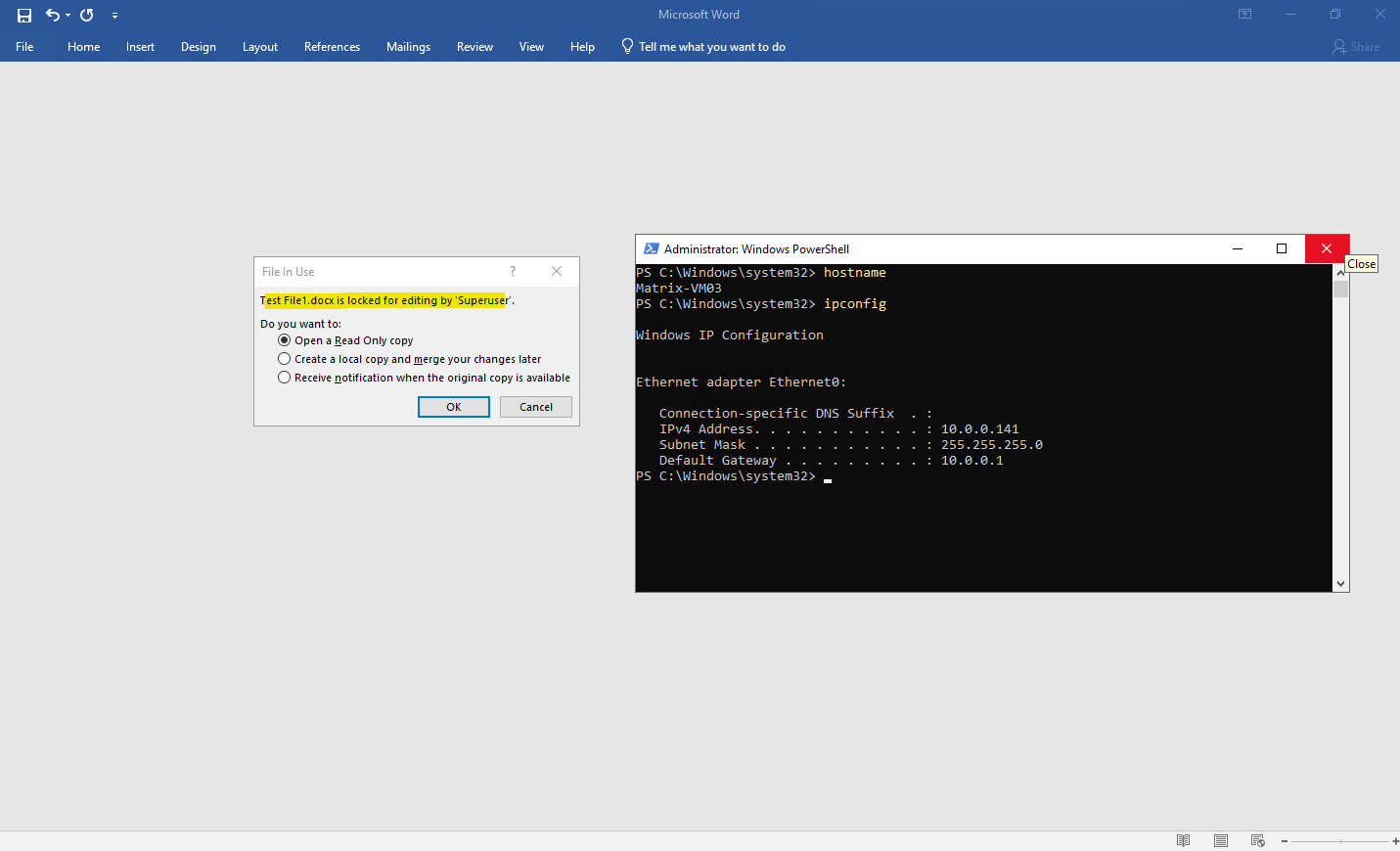
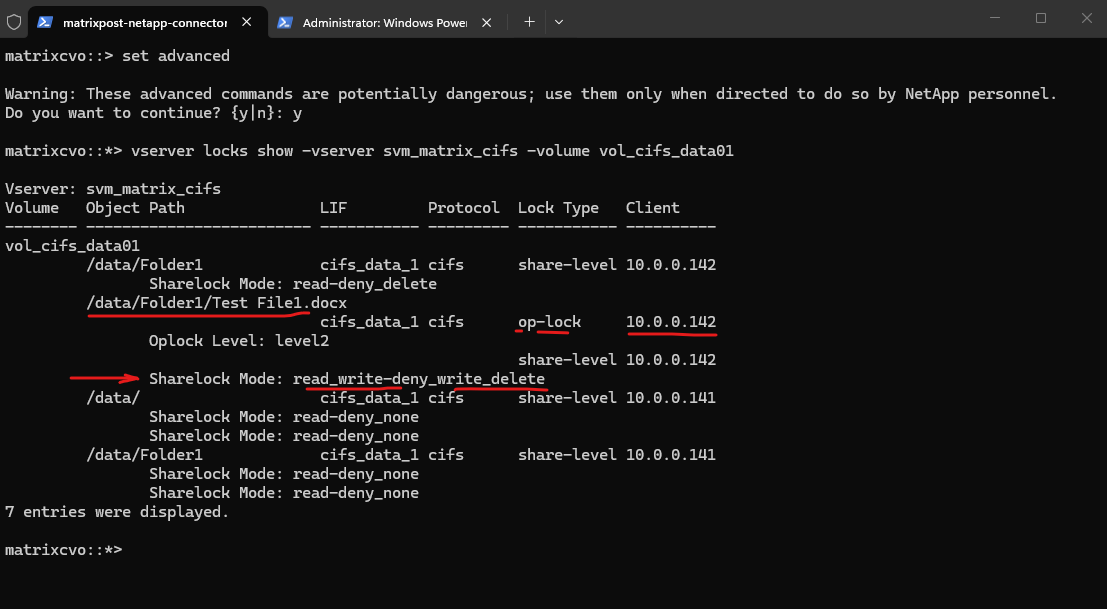
That’s because the first client opened the file as shown further above, and ONTAP registered:
That means: Other users may read, Other users may NOT write and Other users may NOT delete. So when the second client tries to open it for editing, Word cannot obtain write access.
matrixcvo::> set advanced
matrixcvo::*> vserver locks show -vserver svm_matrix_cifs -volume vol_cifs_data01
Opportunistic Locks (Oplocks / SMB Leases)
In addition to share modes, SMB implements opportunistic locks (oplocks), which are client-side caching mechanisms designed to improve performance.
Unlike share-level locks that control access permissions, oplocks allow a client to locally cache file data and defer write operations as long as no other client requests conflicting access.
When another client attempts to open the same file, ONTAP issues an oplock break request to ensure data consistency before granting access.
A batch oplock allows the client to cache file data locally and delay write operations, significantly reducing network traffic. As long as no other client attempts to access the file, the client can operate with high performance using local caching. If a second client requests access, ONTAP will break the oplock and require the first client to flush its cached data before continuing.
The term batch oplock originates from the idea that a client may perform multiple file operations as a “batch” locally without constantly communicating with the server.
matrixcvo::> set advanced
matrixcvo::*> vserver locks show -vserver svm_matrix_cifs -volume vol_cifs_data01
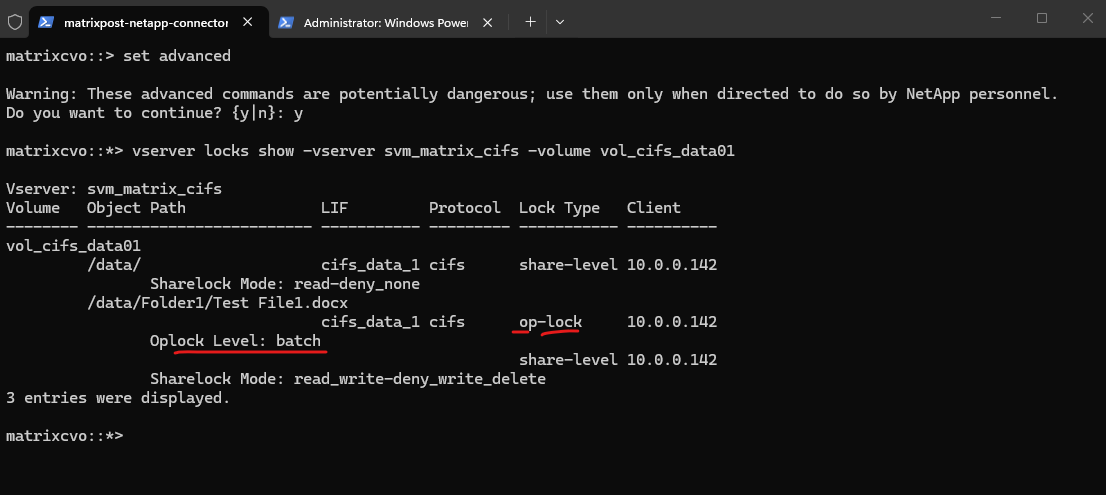
So far in the screenshot above with Oplock Level: batch, just one client had the file open, my first client with the IP address 10.0.0.142.
I will now try to open the file from a second client with the IP address 10.0.0.141.
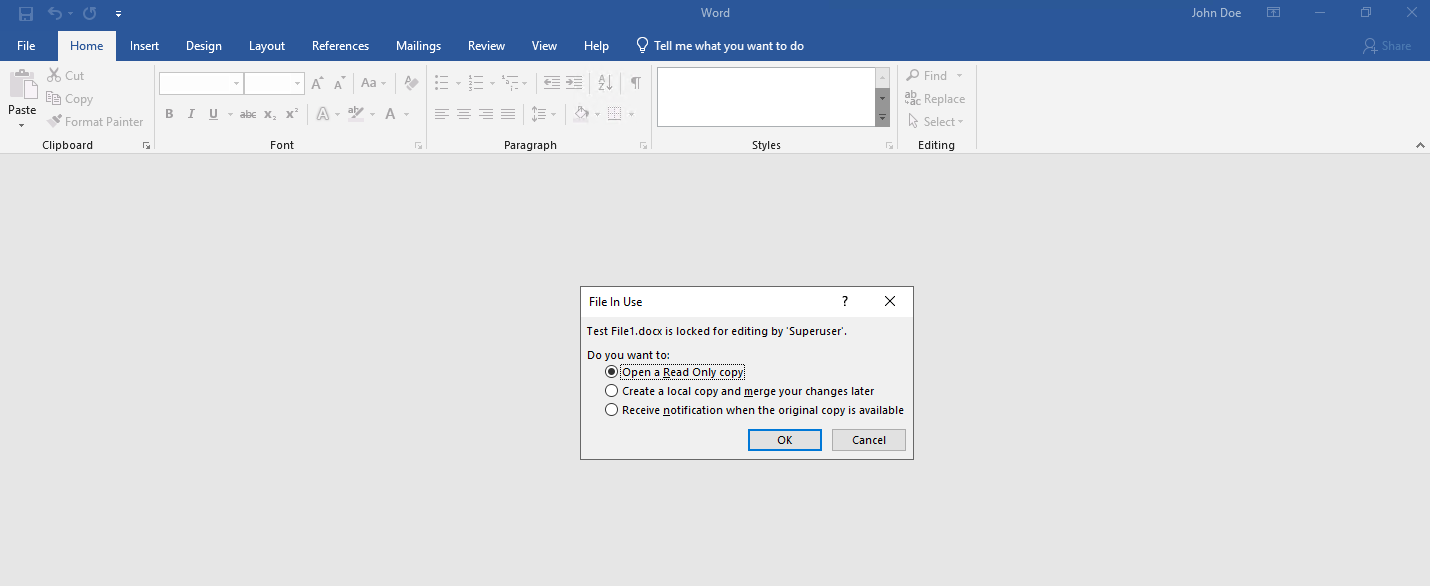
I will now check again the locks by running the command below.
When a second client accesses the same file or directory, ONTAP may downgrade the previously granted
batch oplocktoa level2 oplock.A
level2 oplockallows shared read caching but reduces exclusive caching privileges to maintain consistency between multiple clients.Even though Word has not fully opened the document yet and is only displaying the “Open as read-only / notify / copy” dialog, the second client has already sent an open request to the server.
matrixcvo::*> vserver locks show -vserver svm_matrix_cifs -volume vol_cifs_data01
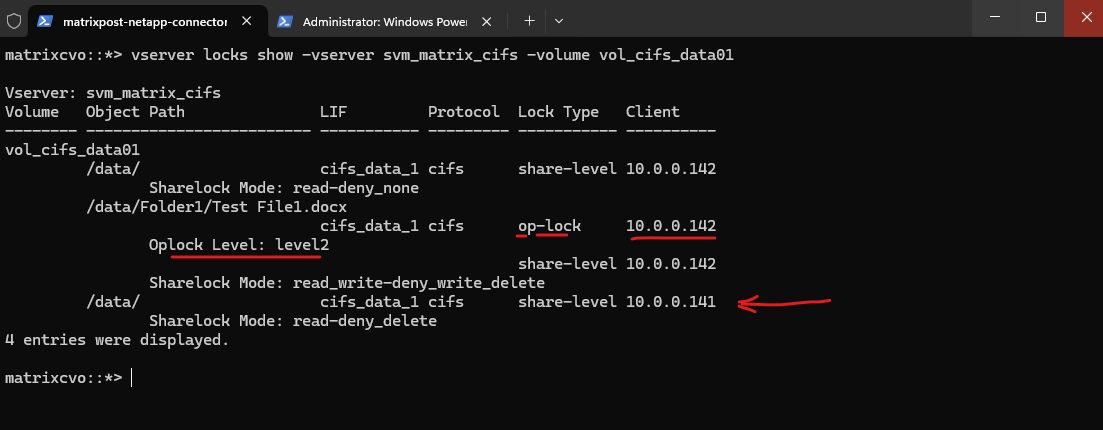
I will now open the Word file in read modus on the second client.
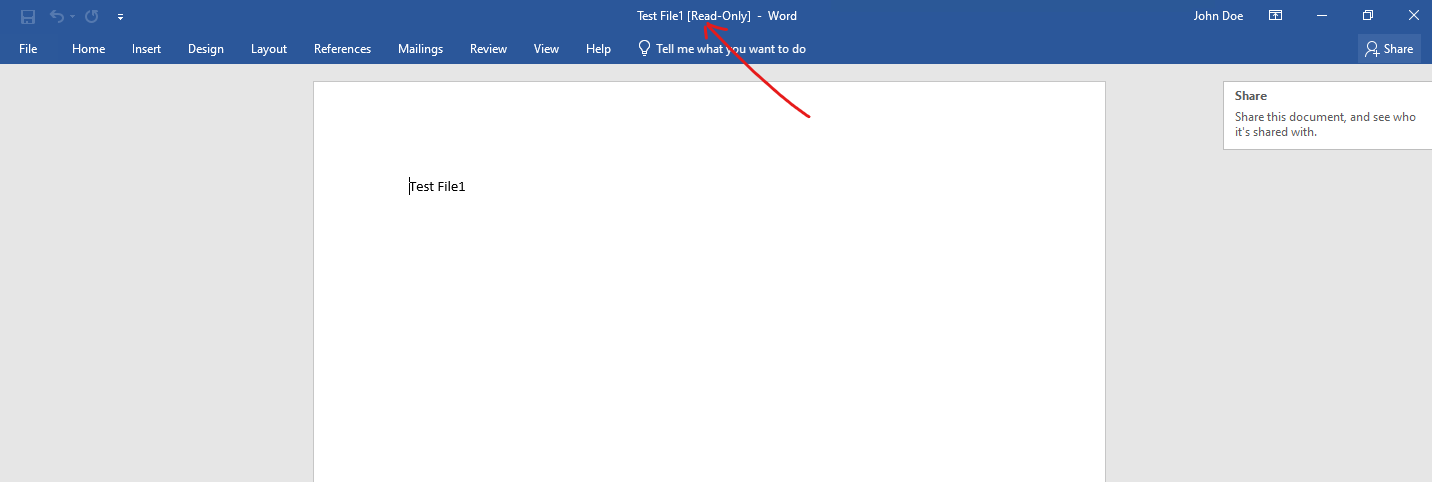
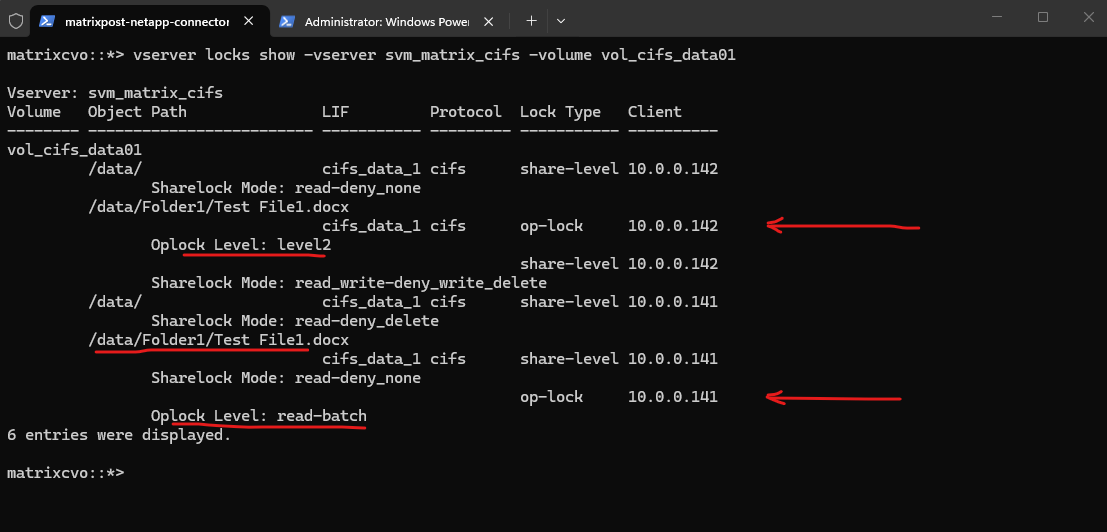
When the second client opens the document in read-only mode, ONTAP negotiates a different oplock state. The original batch oplock is downgraded to
level2for the first client, while the second client receivesa read-batch oplock. This allows efficient read caching for both clients while preventing concurrent write conflicts.
matrixcvo::*> vserver locks show -vserver svm_matrix_cifs -volume vol_cifs_data01
More about Opportunistic Locks in general you will find in the following article from Microsoft https://learn.microsoft.com/en-us/windows/win32/fileio/opportunistic-locks.
Observing Active CIFS Sessions in ONTAP
Before analyzing individual file handles or lock types, it is important to identify which clients are currently connected to the SMB share.
ONTAP provides visibility into active CIFS sessions, allowing administrators to see connected clients, authenticated users, and the number of open files per session.
This forms the foundation for understanding how file access and locking behavior is enforced across multiple users.
The active SMB sessions can be verified using the command:
matrixcvo::> vserver cifs session show
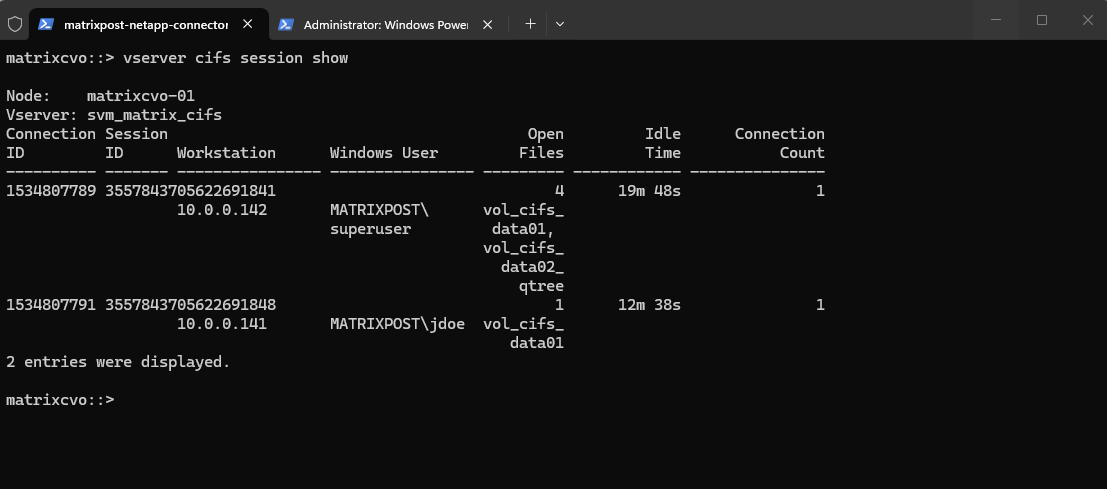
The output above shows two CIFS sessions in my lab environment. For demonstration purposes, I intentionally connected from two separate Windows clients, 10.0.0.142 (MATRIXPOST\superuser) and 10.0.0.141 (MATRIXPOST\jdoe), to simulate concurrent user access. This controlled setup allows us to clearly observe how ONTAP tracks SMB sessions and enforces locking behavior across multiple clients.
In this example, client 10.0.0.142 (MATRIXPOST\superuser) has multiple files open across different shares, while 10.0.0.141 (MATRIXPOST\jdoe) maintains a separate session with fewer open files. This clearly illustrates how ONTAP tracks each SMB session independently, even when multiple users access the same SVM simultaneously.
Inspecting Open Files
After identifying active CIFS sessions, the next step is to determine which specific files are currently open. ONTAP provides detailed visibility into file handles per session, allowing administrators to see the accessed file paths, open modes, and hosting volumes.
To show open files for a specific SVM we can run:
matrixcvo::> vserver cifs session file show -vserver svm_matrix_cifs
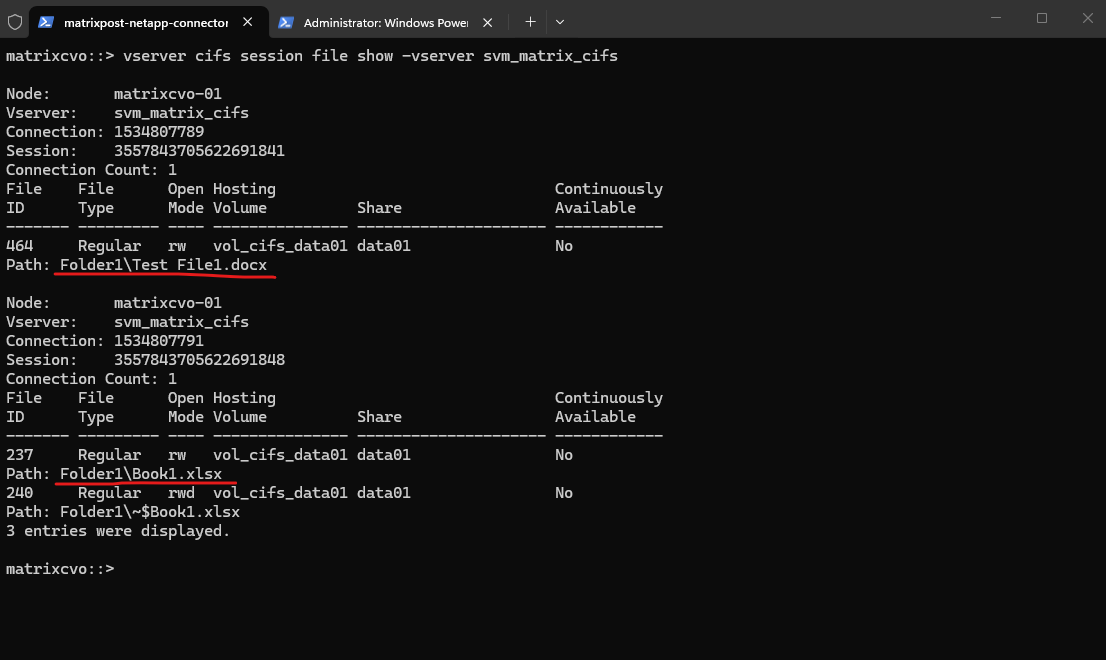
The output above shows open file handles grouped by connection and session ID. Each block of file entries belongs to a specific SMB session, and the corresponding client IP can be identified by matching the connection or session ID with the output of vserver cifs session show.
This demonstrates how ONTAP tracks file handles per SMB session rather than displaying the client address directly within the file listing.
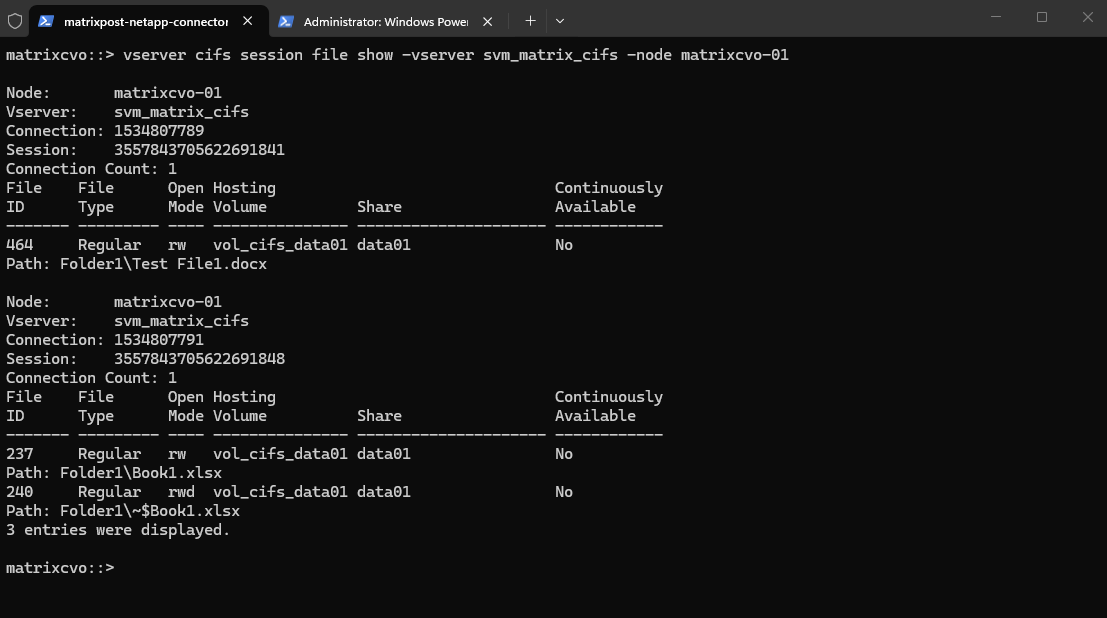
We can also filter to not just show open files for a specific SVM but also for just a specific node.
An SVM is a logical entity that can span multiple nodes within an HA pair. It can host multiple data LIFs distributed across different nodes, and all of them may be active simultaneously.
SMB sessions are handled by the node currently hosting the associated data LIF, which is why session output can be filtered by node for troubleshooting purposes.
matrixcvo::> vserver cifs session file show -vserver svm_matrix_cifs -node matrixcvo-01
In the following example, the SVM svm_matrix_cifs has two active data LIFs, cifs_data_1 on matrixcvo-01 and cifs_data_2 on matrixcvo-02.
matrixcvo::> network interface show -vserver svm_matrix_cifs
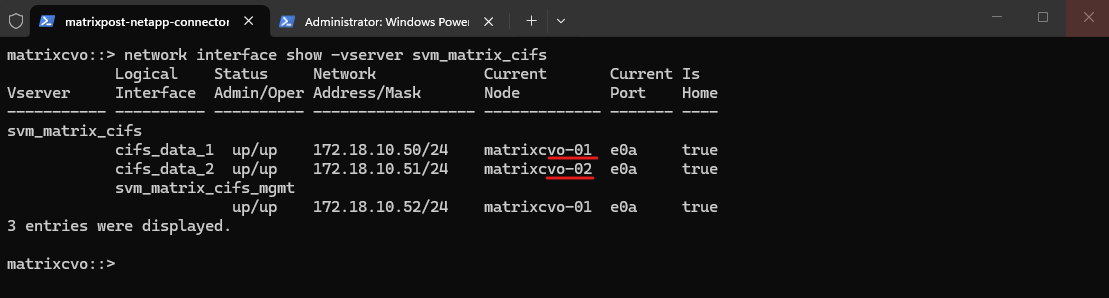
Both data LIFs are operational and can serve SMB traffic simultaneously, while the management LIF is hosted separately. SMB sessions are always handled by the node currently hosting the associated data LIF, which is why session and lock output can be filtered by node for troubleshooting purposes.
From a best practice perspective, distributing data LIFs across both nodes of an HA pair ensures proper load balancing and resiliency. If one node fails, the LIF can fail over to its partner, maintaining client connectivity with minimal disruption.
Handling Stale or Orphaned CIFS Locks
Under normal circumstances, SMB locks are automatically released when a client closes a file or disconnects.
However, in rare situations, such as client crashes, network interruptions, or node freezes, locks may appear to remain in place even though the application is no longer active.
In such cases, administrators must verify and, if necessary, manually clear stale sessions or locks.
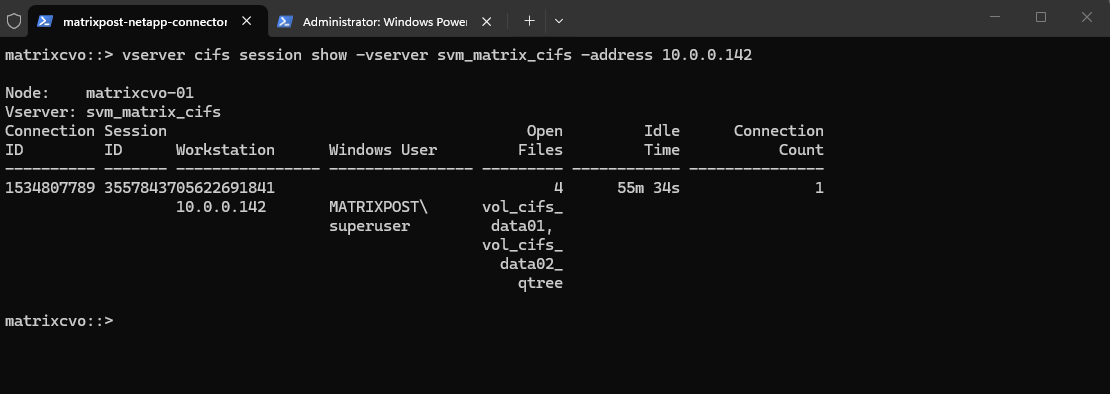
We can filter sessions by client IP address:
matrixcvo::> vserver cifs session show -vserver svm_matrix_cifs -address 10.0.0.142
We can can also filter by Windows user:
matrixcvo::> vserver cifs session show -vserver svm_matrix_cifs -windows-user MATRIXPOST\superuser
matrixcvo::> vserver cifs session show -vserver svm_matrix_cifs -windows-user MATRIXPOST\jdoe
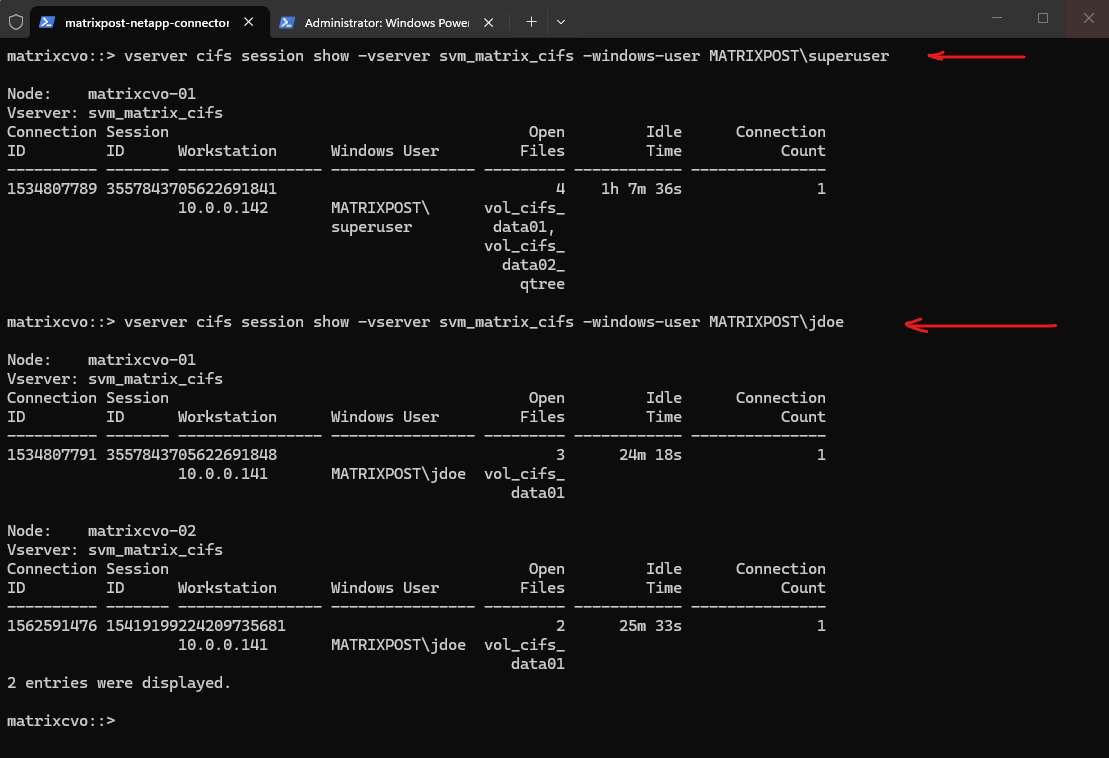
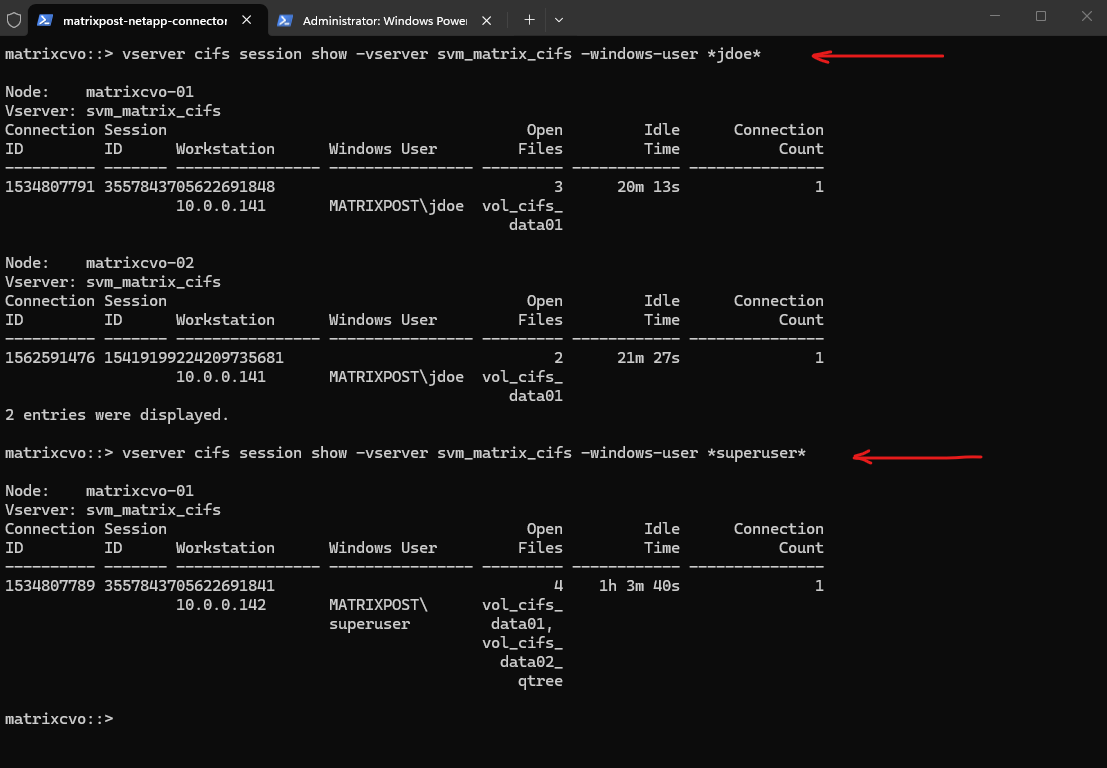
When filtering for a specific user in the ONTAP CLI, the
-windows-userparameter can be notoriously finicky because it often requires the exact case-sensitive string or the inclusion of the NetBIOS domain name.If you aren’t sure of the exact formatting (e.g.,
DOMAIN\uservsuser@fqdn), use a wildcard. This is usually the most successful way to find a specific person.
matrixcvo::> vserver cifs session show -vserver svm_matrix_cifs -windows-user *jdoe*
matrixcvo::> vserver cifs session show -vserver svm_matrix_cifs -windows-user *superuser*
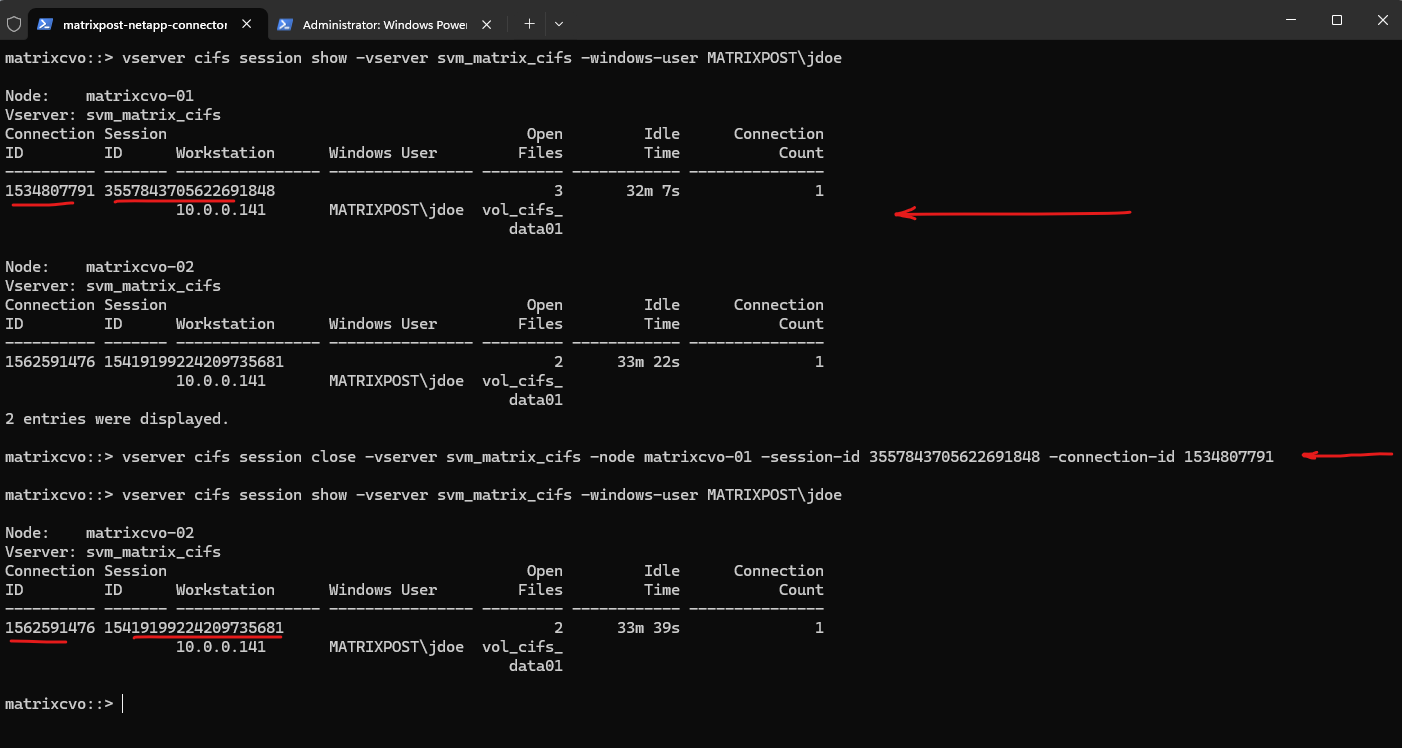
To terminate only a specific SMB session, we need to use the Session ID, Connection ID and Node obtained from the vserver cifs session show output above.
This ensures that only the affected client connection is disconnected without impacting other active users.
matrixcvo::> vserver cifs session close -vserver svm_matrix_cifs -node <node name> -session-id <SESSION_ID> -connection-id <CONNECTION_ID>

matrixcvo::> vserver cifs session close -vserver svm_matrix_cifs -node matrixcvo-01 -session-id 3557843705622691848 -connection-id 1534807791
CIFS Locking vs NFS Locking
Understanding why we had to hunt down Session IDs and Connection IDs for a Windows user, while Linux users seem to “just work,” comes down to the fundamental difference in how these protocols handle state.
CIFS is a stateful protocol. The storage (ONTAP) and the client (Windows) maintain a constant, “gossipy” conversation.
- The Lock: When a Windows user opens a file, the SVM creates a persistent lease/lock. If the network blips, that lock stays “orphaned” on the node.
- The Consequence: This is why we have to hunt down specific IDs to manually
closea session. The server won’t release the file until it’s certain the old session is dead. - The CVO Reality: While SMB 3.0+ supports Continuous Availability (CA) to move locks between nodes, any handshake failure during an Azure blip results in a “File in Use” error that only a CLI executioner can fix.
NFS (specifically v3) is traditionally stateless. The client asks for data, the server provides it, and they don’t maintain a rigid “session” identity.
- The Lock: Locking is typically handled by a separate sidecar service (NLM). If a node fails, the locks are often dropped or reclaimed by the client automatically.
- The Consequence: NFS is much more “forgiving” of network jitter. You rarely, if ever have to hunt down a “Session ID” for an NFS mount because the relationship is built on the mount point, not a persistent TCP handshake.
- The CVO Reality: Most Enterprise Linux workloads still rely on this “fire and forget” nature, making NFS significantly easier to manage during a node recovery or a manual failover test.
The Network Lock Manager (NLM) is a critical “sidecar” protocol that adds stateful locking capabilities to the otherwise stateless NFSv3 environment.
It coordinates with the ONTAP kernel to manage byte-range locks, ensuring that even if the underlying NFS connection is simple, multiple clients can safely access the same files without data corruption. When a failover or manual “break” occurs, NLM is responsible for tracking which client IPs still hold claims to specific file segments across the cluster.
More about you will also find here https://wiki.wireshark.org/Network_Lock_Manager.
The lock showing below for the NFSv3 mounted volume is from my Azure CVO Connector as shown in my post here.
When you use the CVO Connector to browse for specific files within a backup, the underlying LevelDB engine must open its metadata catalog to search the index.
To prevent multiple browse requests or background indexing processes from corrupting this database, the application places a byte-range lock on the
LOCKfile.
matrixcvo::> vserver locks show
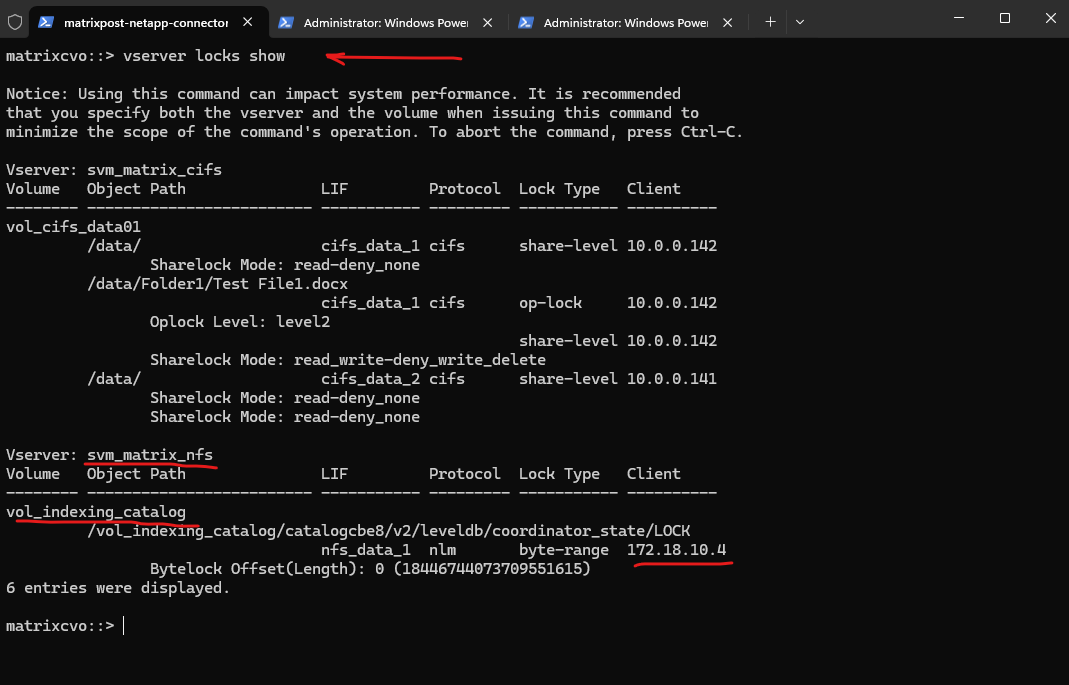
This NFS mount, connecting the Azure CVO Connector to the
vol_indexing_catalogvolume, serves as the central repository for the Cloud Backup and Recovery metadata.Specifically, this mount allows the Cloud Control Plane to index and browse individual files within your backup snapshots directly from the Azure Connector. By maintaining the LevelDB catalog on this NFS volume, CVO can quickly search for and present specific file versions for restore without needing to mount the entire backup archive first.
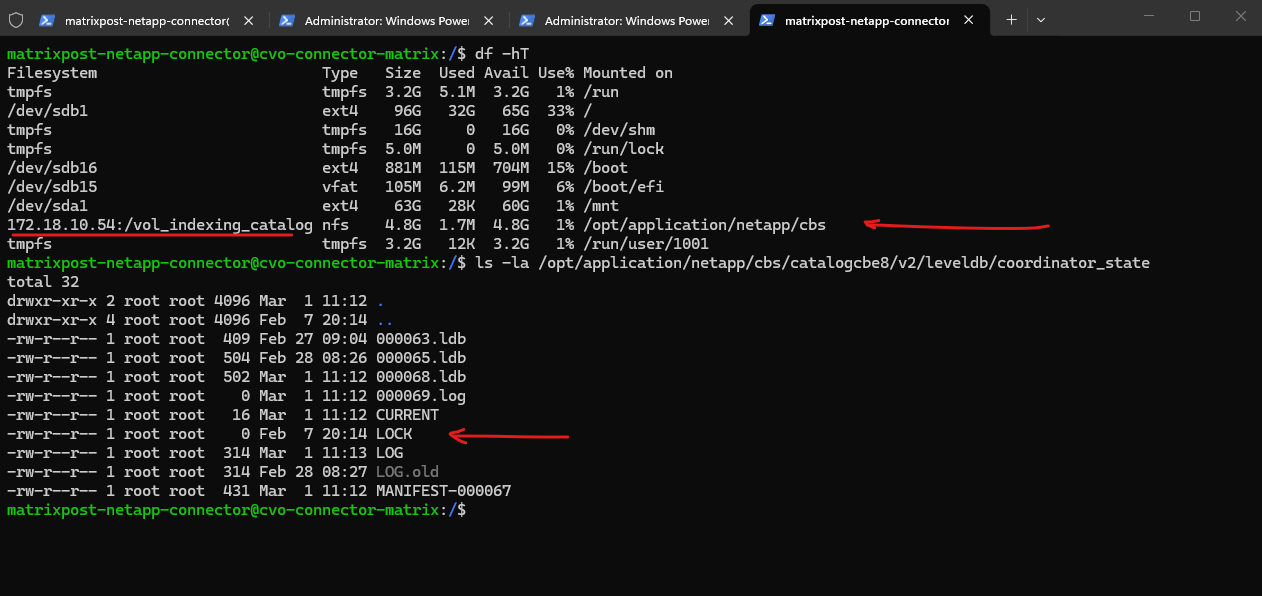
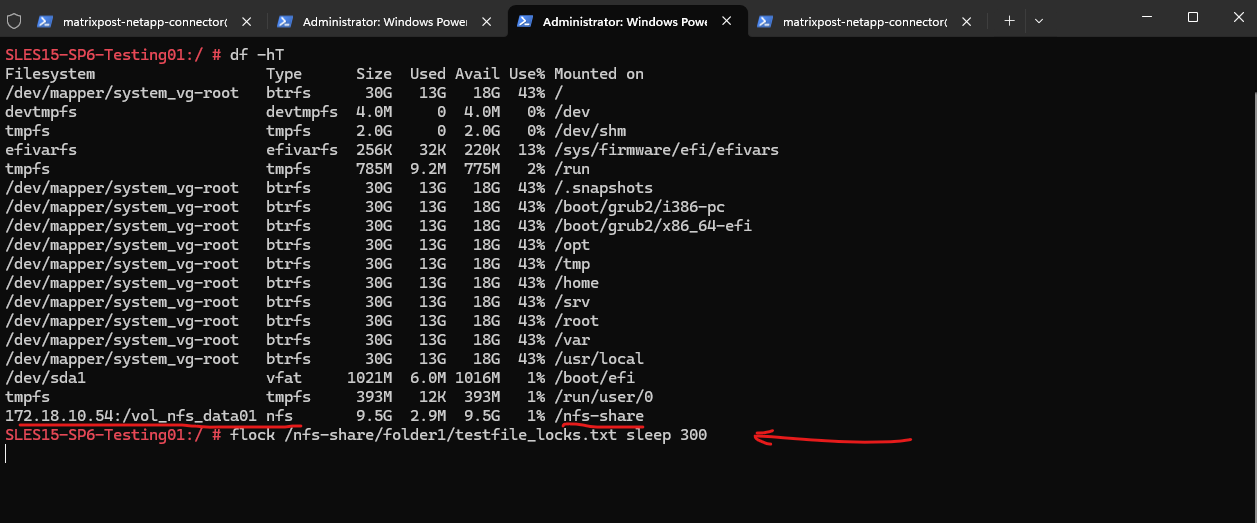
To demonstrate how NFS locks manifest in the ONTAP kernel, I will use the flock utility on a Linux client to explicitly request a persistent byte-range lock on a test file.
The
flockutility is a standard Linux tool used to manage file locking from the shell or within scripts to prevent race conditions between competing processes.It operates by making a system call to the kernel to request an advisory lock on a specific file descriptor, which in an NFS environment, triggers the NLM protocol to communicate that lock state to the ONTAP storage controller.
Unlike a simple text editor,
flockcreates a persistent, visible entry in the storage lock table, making it the perfect tool for simulating and testing how CVO handles “stuck” resources during a failover.
This allows us to bypass the “stateless” nature of standard file edits and simulate a stuck system process, providing a clear target for the vserver locks show and break commands in the CLI.
# This locks 'testfile_locks.txt' and keeps it locked for 300 seconds (5 minutes)
SLES15-SP6-Testing01:/ # flock /nfs-share/folder1/testfile_locks.txt sleep 300
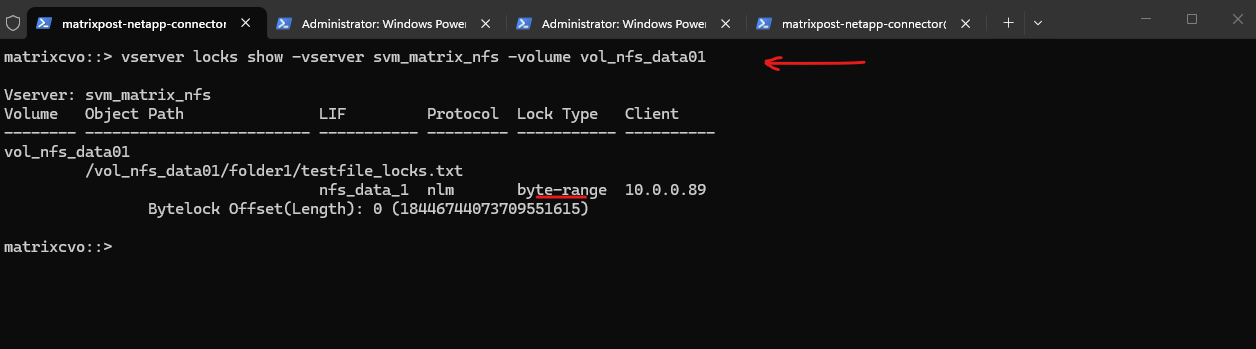
While that sleep is running, switch to your ONTAP CLI and run vserver locks show. You will see a byte-range lock appear for that specific path, similar to the one held by your CVO Connector.
matrixcvo::> vserver locks show -vserver svm_matrix_nfs -volume vol_nfs_data01
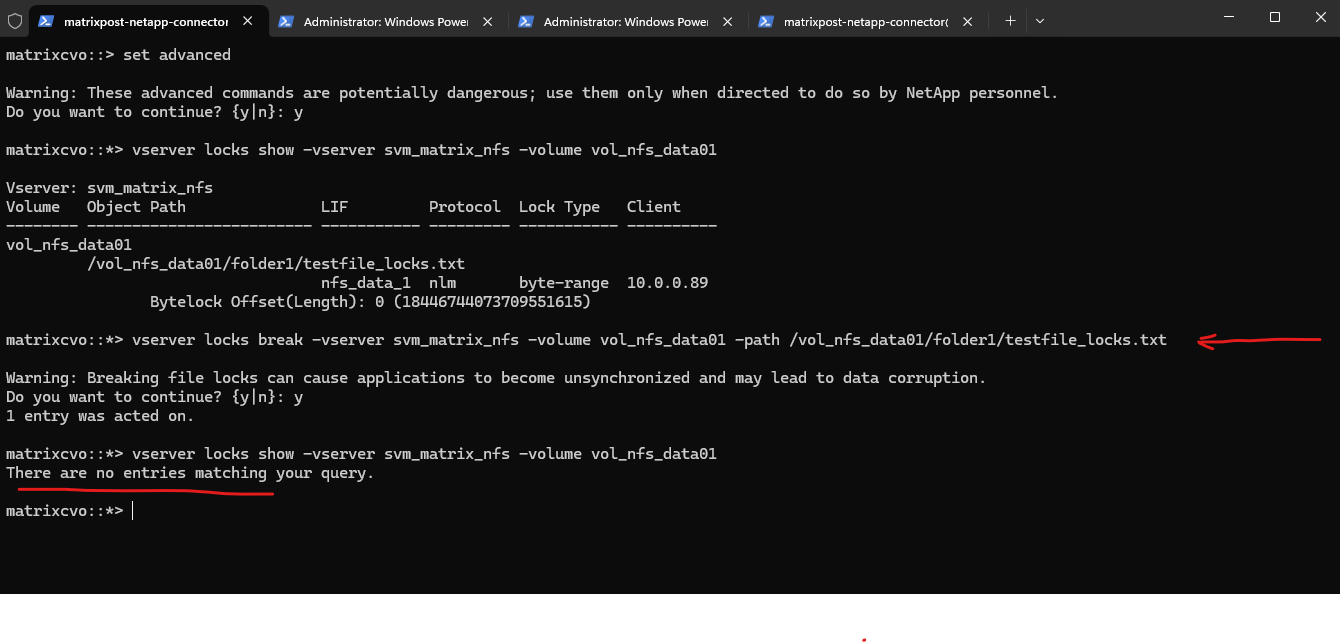
To clear this specific test lock from the ONTAP side, run:
# we need to switch to advanced mode to use the break command
matrixcvo::> set advanced

# verify the path again
matrixcvo::*> vserver locks show -vserver svm_matrix_nfs -volume vol_nfs_data01

# kill the lock
matrixcvo::*> vserver locks break -vserver svm_matrix_nfs -volume vol_nfs_data01 -path /vol_nfs_data01/folder1/testfile_locks.txt
Links
Opportunistic locks
https://learn.microsoft.com/en-us/windows/win32/fileio/opportunistic-locksvserver cifs session file show
https://docs.netapp.com/us-en/ontap-cli/vserver-cifs-session-file-show.htmlvserver cifs session show
https://docs.netapp.com/us-en/ontap-cli/vserver-cifs-session-show.htmlvserver locks show
https://docs.netapp.com/us-en/ontap-cli/vserver-locks-show.htmlNetwork Lock Manager Protocol (NLM)
https://wiki.wireshark.org/Network_Lock_ManagerNFS in NetApp ONTAP – Best practice and implementation guide
https://www.netapp.com/pdf.html?item=/media/10720-tr-4067.pdfNo locks available/Lock Reclaim not working
https://kb.netapp.com/on-prem/ontap/da/NAS/NAS-KBs/No_locks_available_Lock_Reclaim_not_working
