Offboarding NetApp Cloud Volumes ONTAP in Azure – A Clean Decommissioning Guide
After completing a deployment or lab scenario, properly decommissioning Cloud Volumes ONTAP is just as important as setting it up.
To see how to deploy NetApp Cloud Volumes ONTAP (CVO) in Azure, you can read my following multi-part guide.
In this post, I’ll walk through the correct procedure to offboard and delete a CVO system using the NetApp Console, ensuring that no orphaned Azure resources remain and that unnecessary cloud costs are avoided.
You should always delete Cloud Volumes ONTAP systems from the NetApp Console, rather than from your cloud provider’s application.
For example, if you terminate a licensed Cloud Volumes ONTAP instance from your cloud provider, then you can’t use the license key for another instance. You must delete the Cloud Volumes ONTAP system from the Console to release the license.
Source: https://docs.netapp.com/us-en/storage-management-cloud-volumes-ontap/task-deleting-system.html
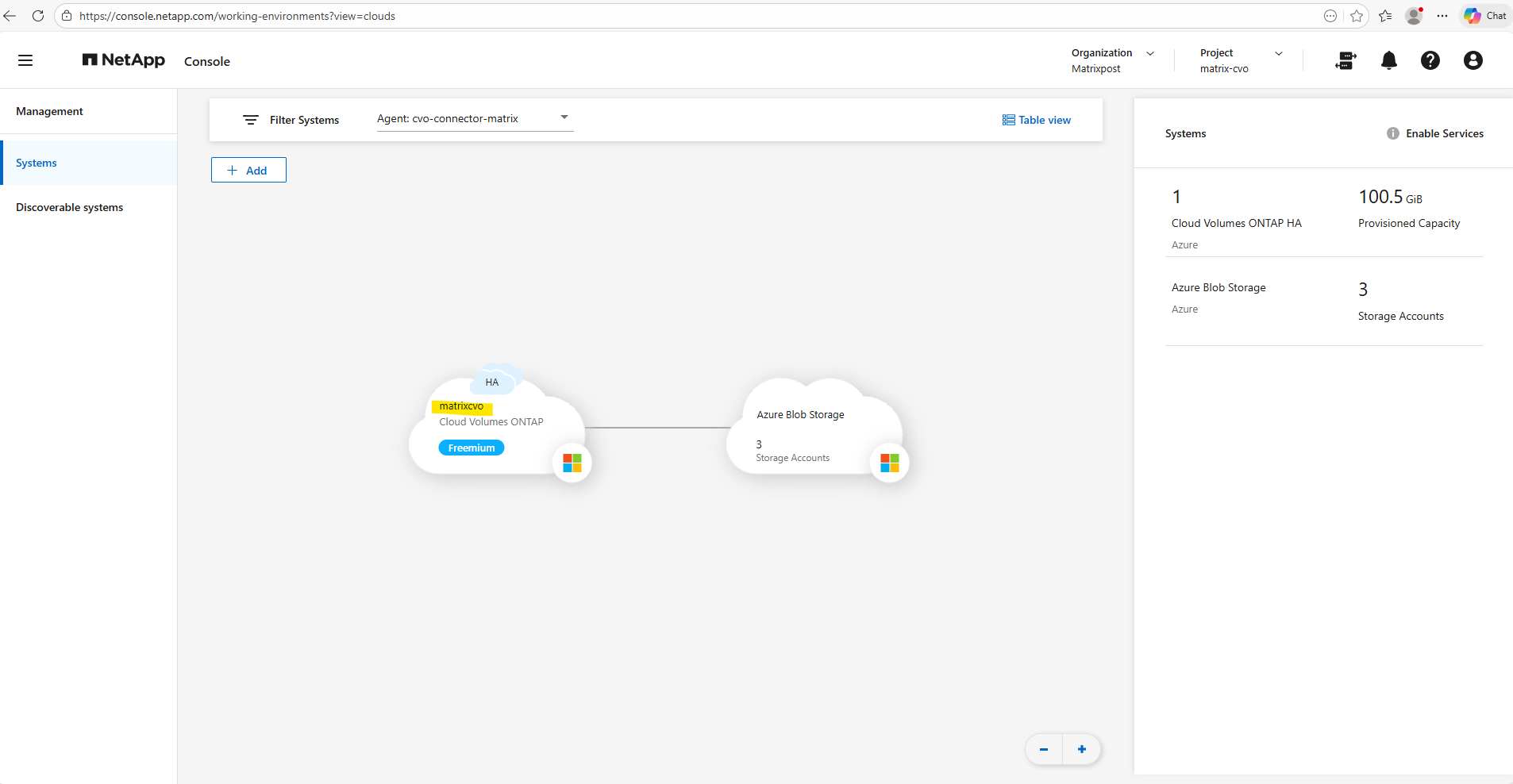
On the Systems page, double-click the name of the Cloud Volumes ONTAP system that you want to delete.
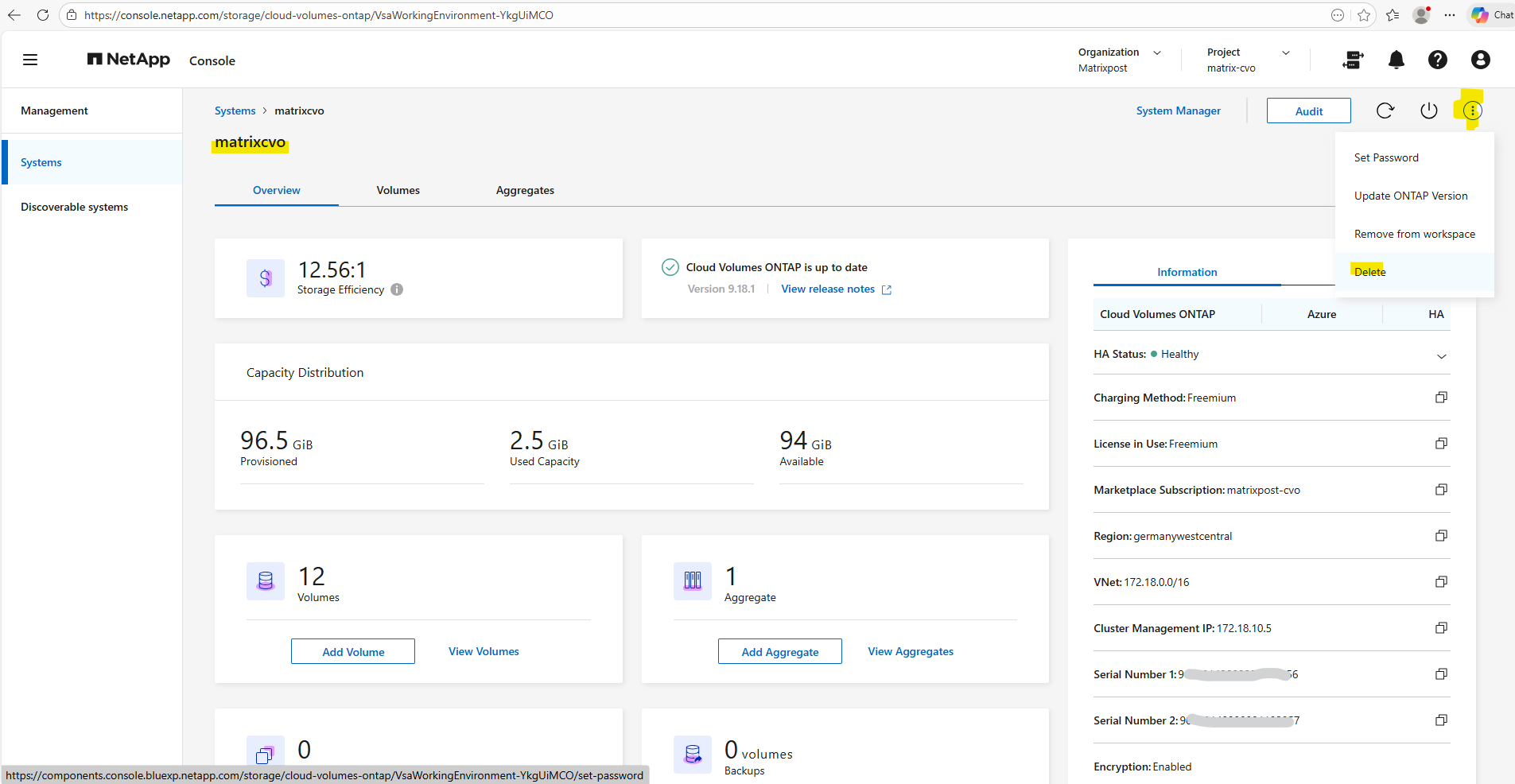
On the upper right of the Console, click the  icon, and select Delete.
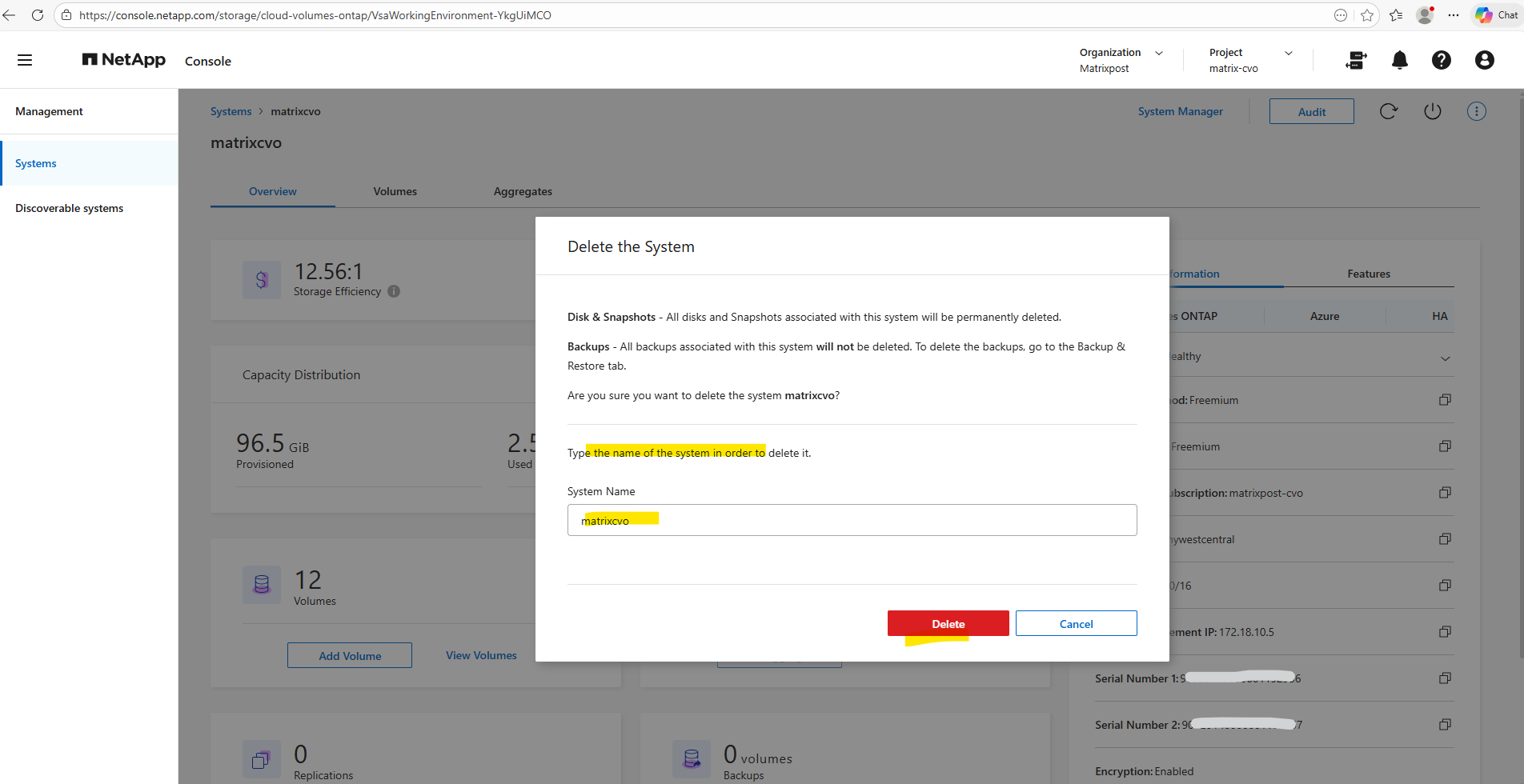
Type the name of the system you want to delete, and then click Delete. It can take up to five minutes to delete a system.
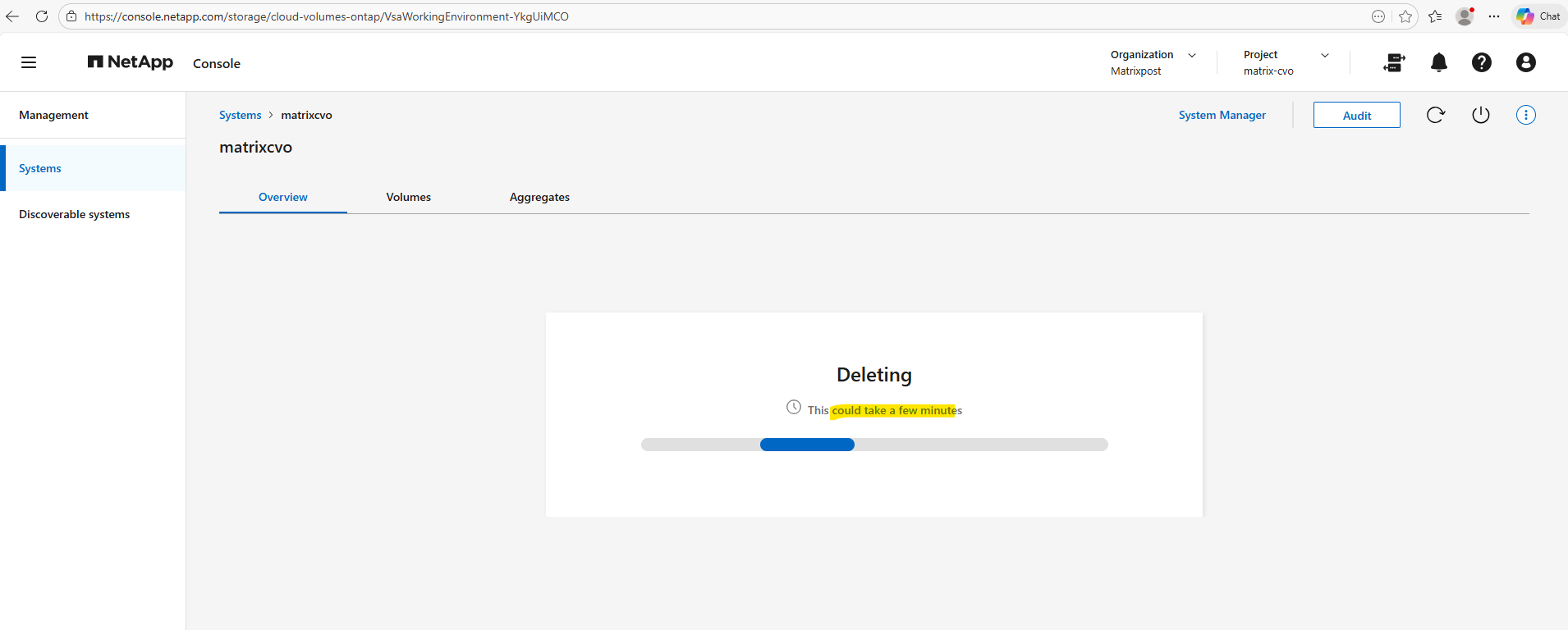
After deleting the system triggered from the NetApp console, finally in my case just one storage account is left which we can delete directly in the Azure Portal.
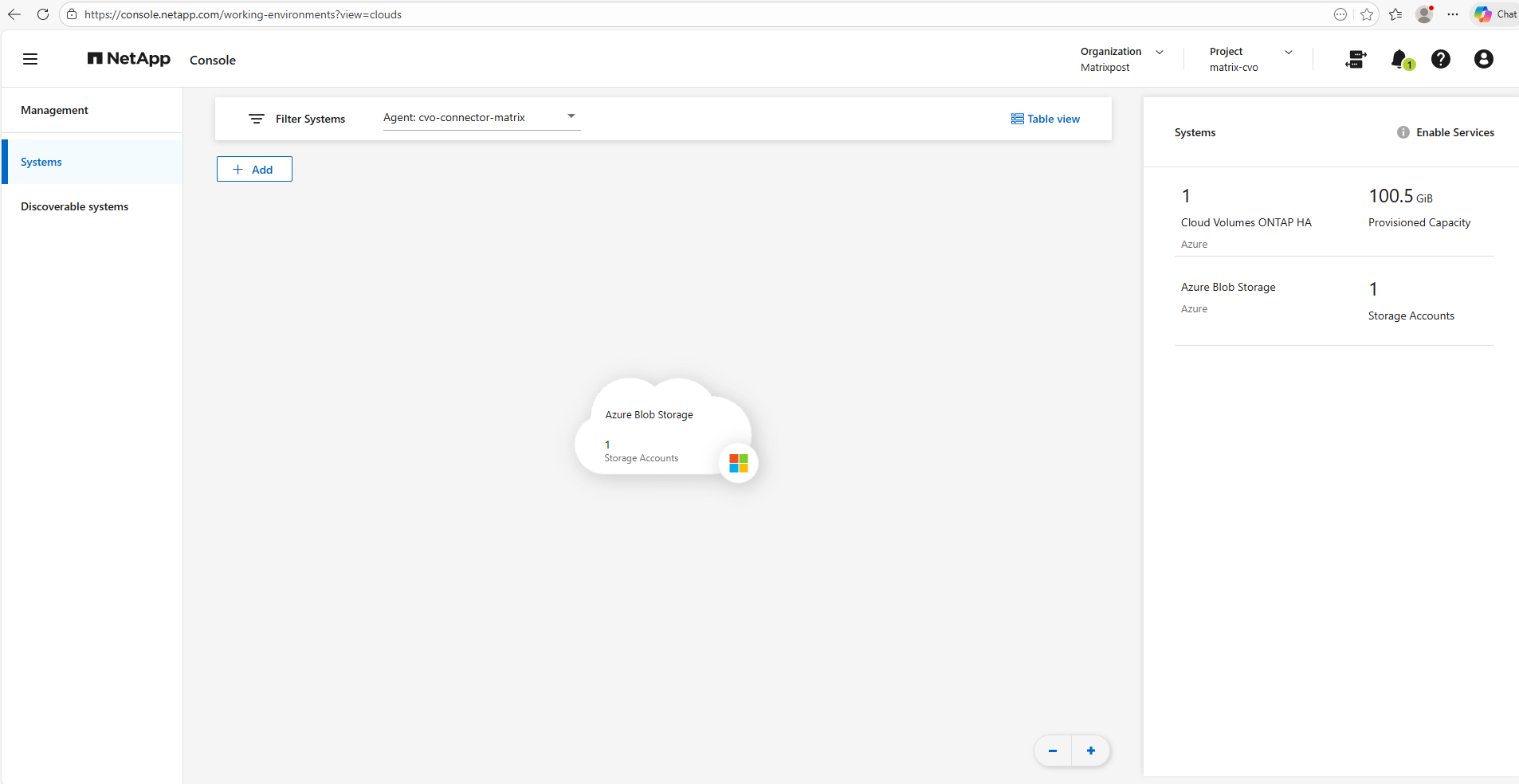
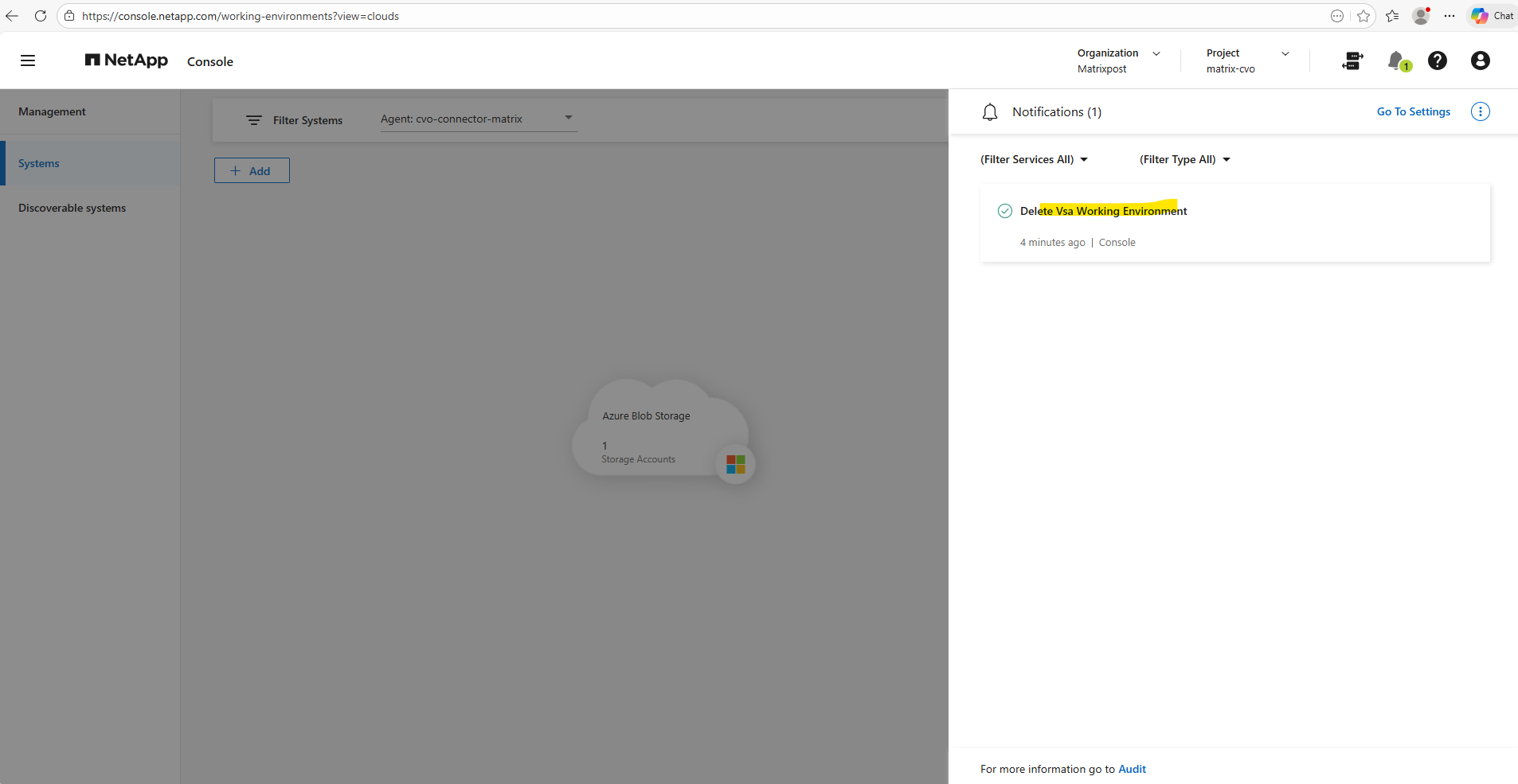
The remaining storage account as mentioned I will delete directly in Azure.
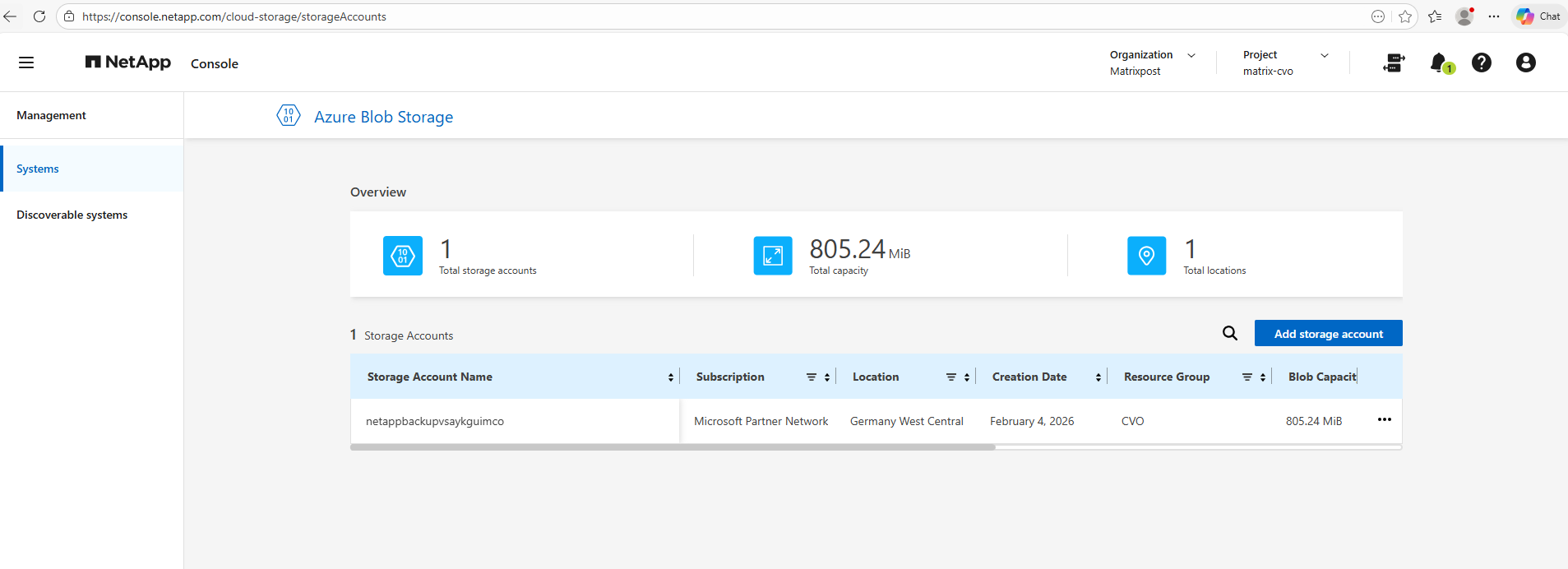
Also the Agent (Connector VM).
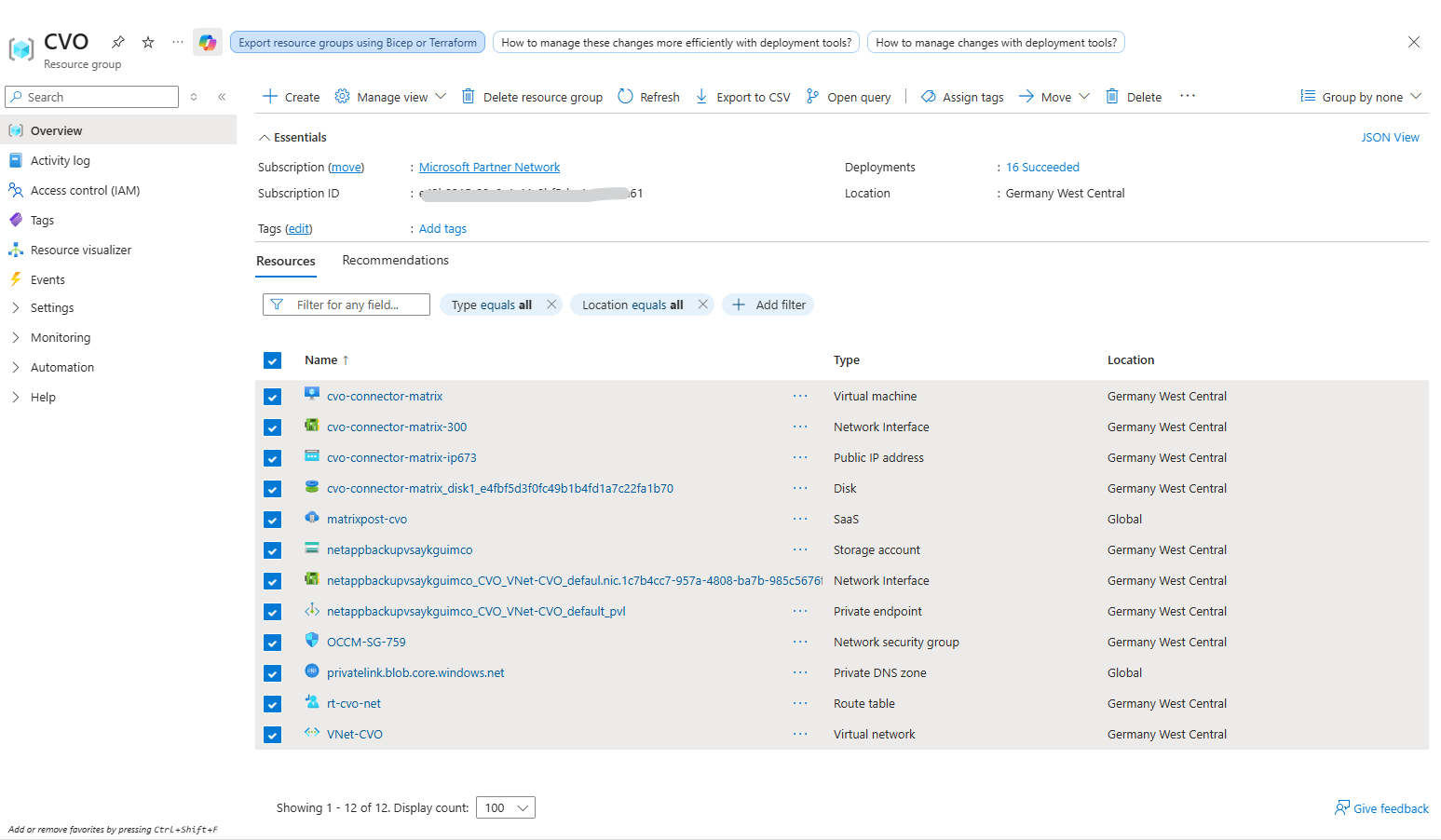
Since I deployed the Cloud Volumes ONTAP (CVO) system and all associated resources into a dedicated resource group named CVO, it becomes very easy to spot any leftover components that are not automatically removed during deletion via the NetApp console. These remaining resources can then be quickly identified and manually cleaned up directly in the Azure portal.
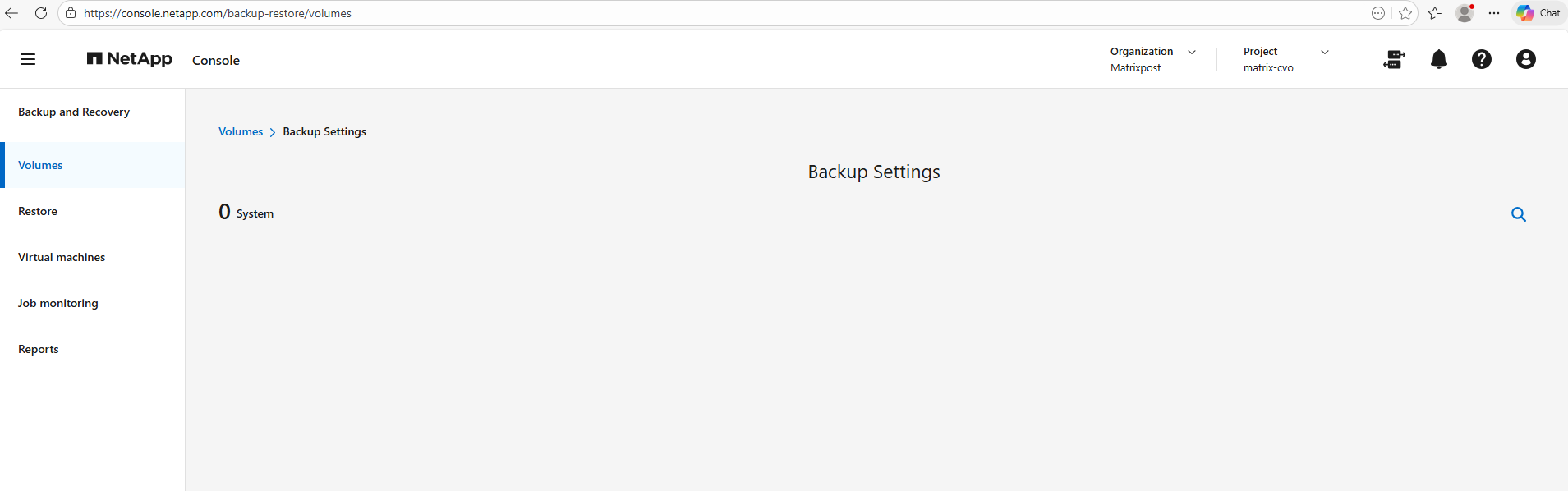
Backup and Recovery is free only for Cloud Volumes ONTAP Professional licenses. This free benefit does not apply to deleted environments.
If backed up copies of the Cloud Volumes ONTAP environment are retained in a Backup and Recovery instance, you will be charged for the backed up copies until they are deleted.
In my case I was deleting the Backups already.
Afterwards, we also receive two confirmation emails from NetApp, verifying the successful de-registration of both nodes along with their respective serial numbers.


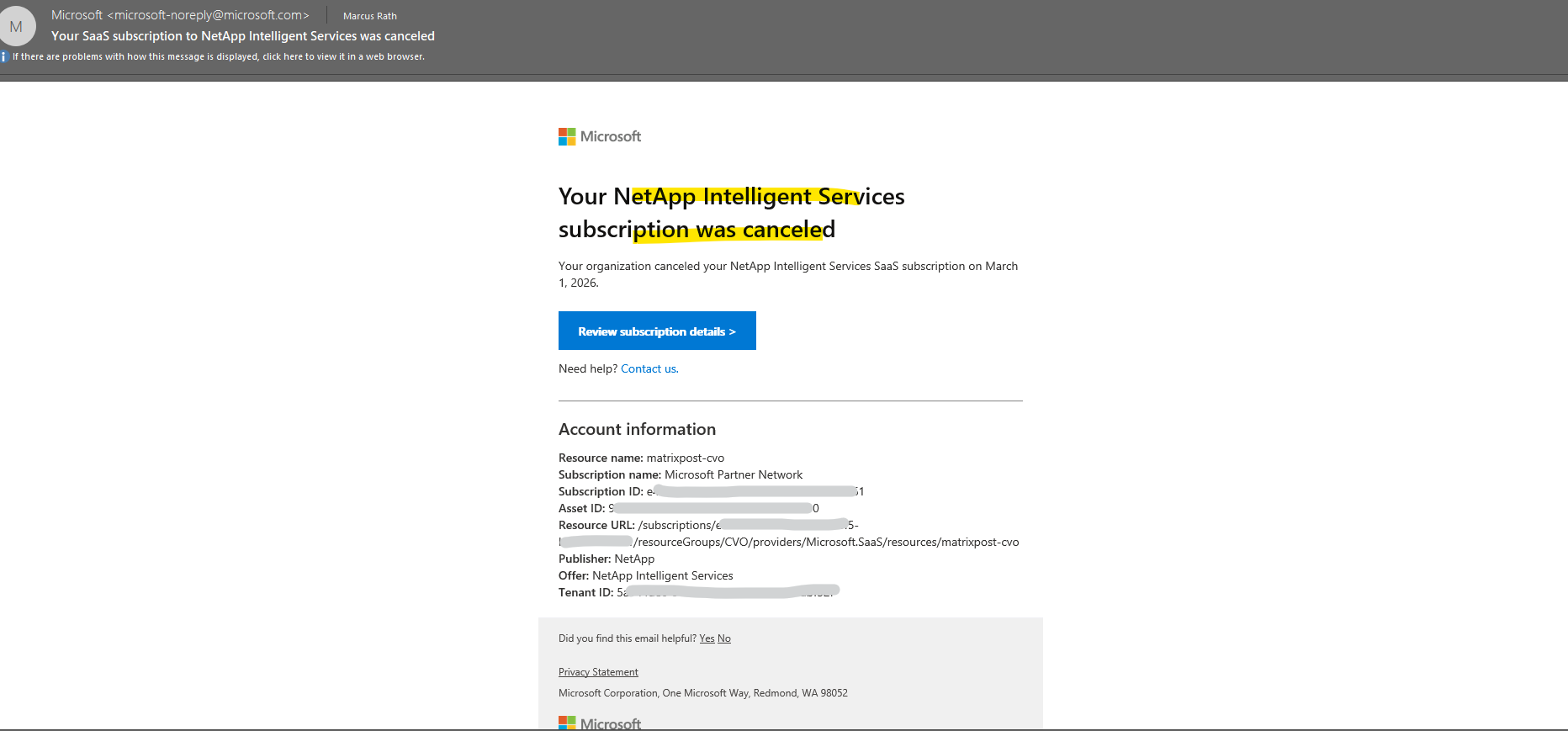
As the final step, once the NetApp Intelligent Services (SaaS) subscription is removed in the Azure portal, Microsoft sends a confirmation email verifying that the subscription has been canceled as shown below.
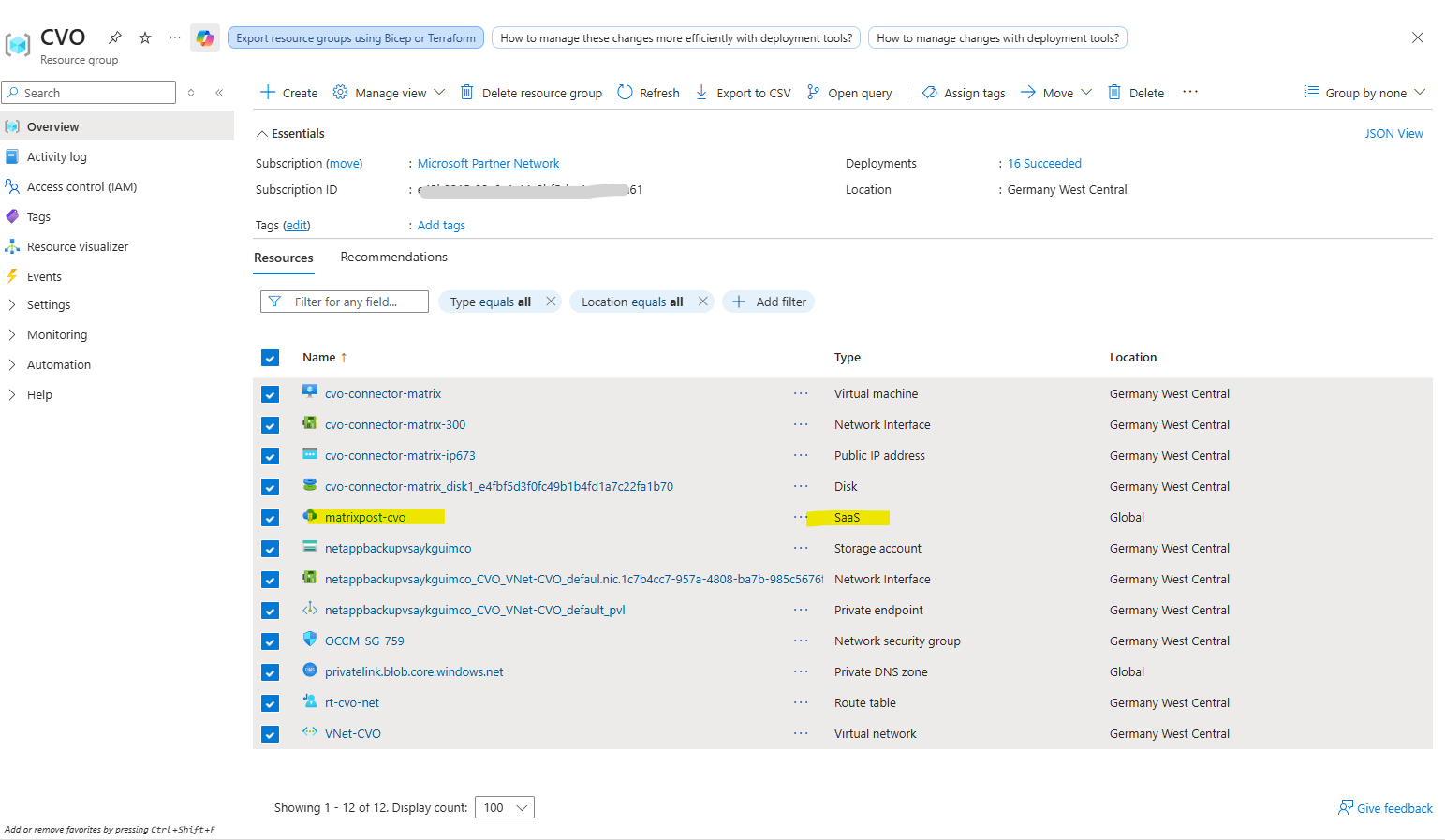
The SaaS resource (listed in my case as matrixpost-cvo with the type SaaS highlighted below) represents the NetApp Intelligent Services subscription that links the deployed Cloud Volumes ONTAP system to Azure’s marketplace billing.
It is essentially the commercial and licensing wrapper in Azure, not a storage or compute component, and removing it ensures that no further subscription charges are incurred after the CVO system has been deleted.
In Azure, a SaaS resource represents a marketplace subscription to a software service that is delivered and operated by a third-party provider rather than running directly inside your Azure infrastructure. It primarily acts as a billing and subscription object within Azure, linking your tenant to the vendor’s service while the actual application and control plane (like the NetApp console) are hosted externally.
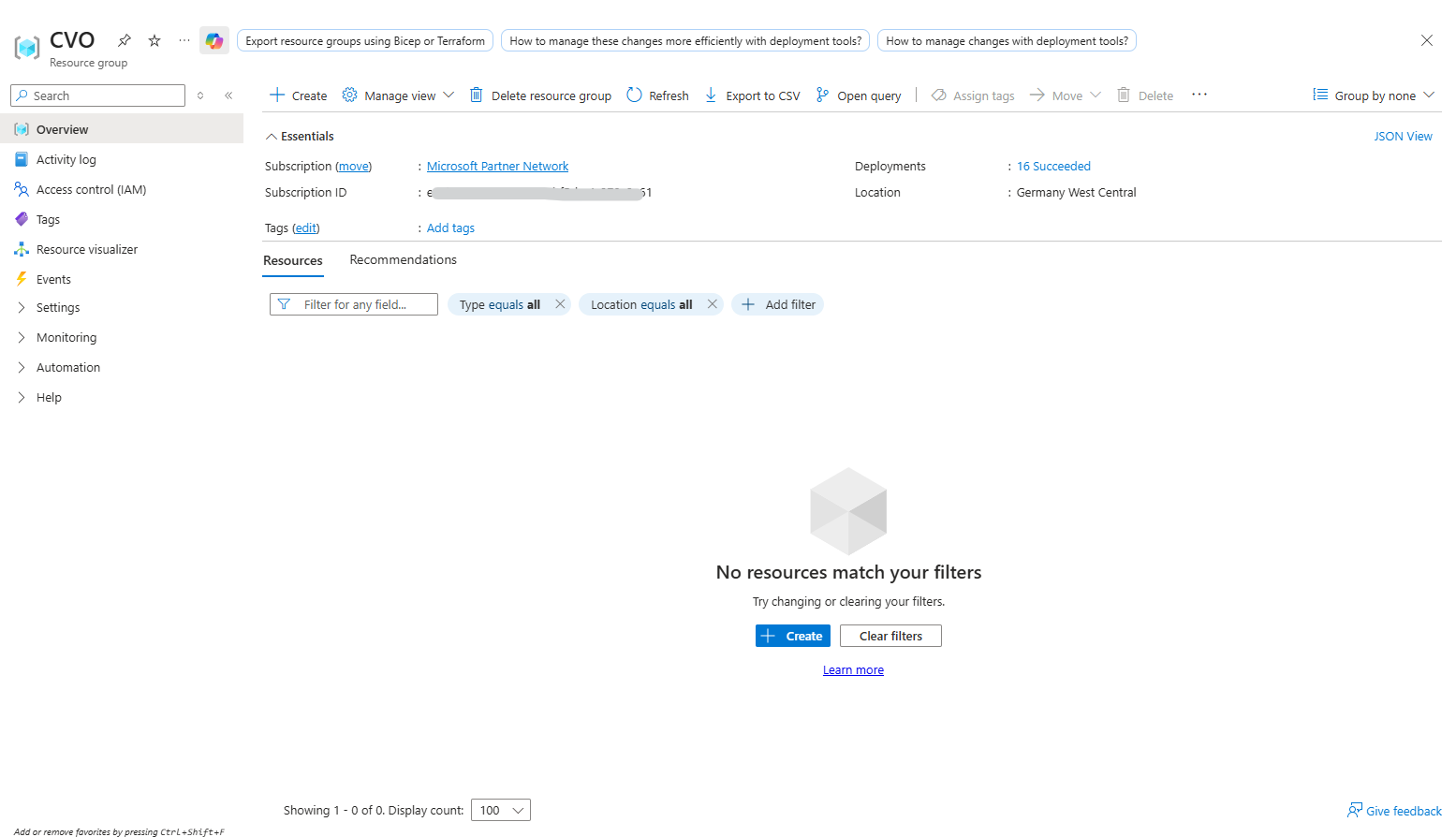
Finally, the resource group is completely empty, every single component has been successfully removed.
From now on, my Microsoft Partner subscription and annual Azure credits can finally breathe again, because even a small “Freemium” deployment with a 500 GB data disk has a surprisingly strong appetite for budget.
It’s worth noting that the FREEMIUM license only covers the NetApp software license itself (as long as the data disk does not exceed 500 GB), while the underlying Azure resources, including VMs, disks, networking, and storage, are still fully billed by Microsoft.
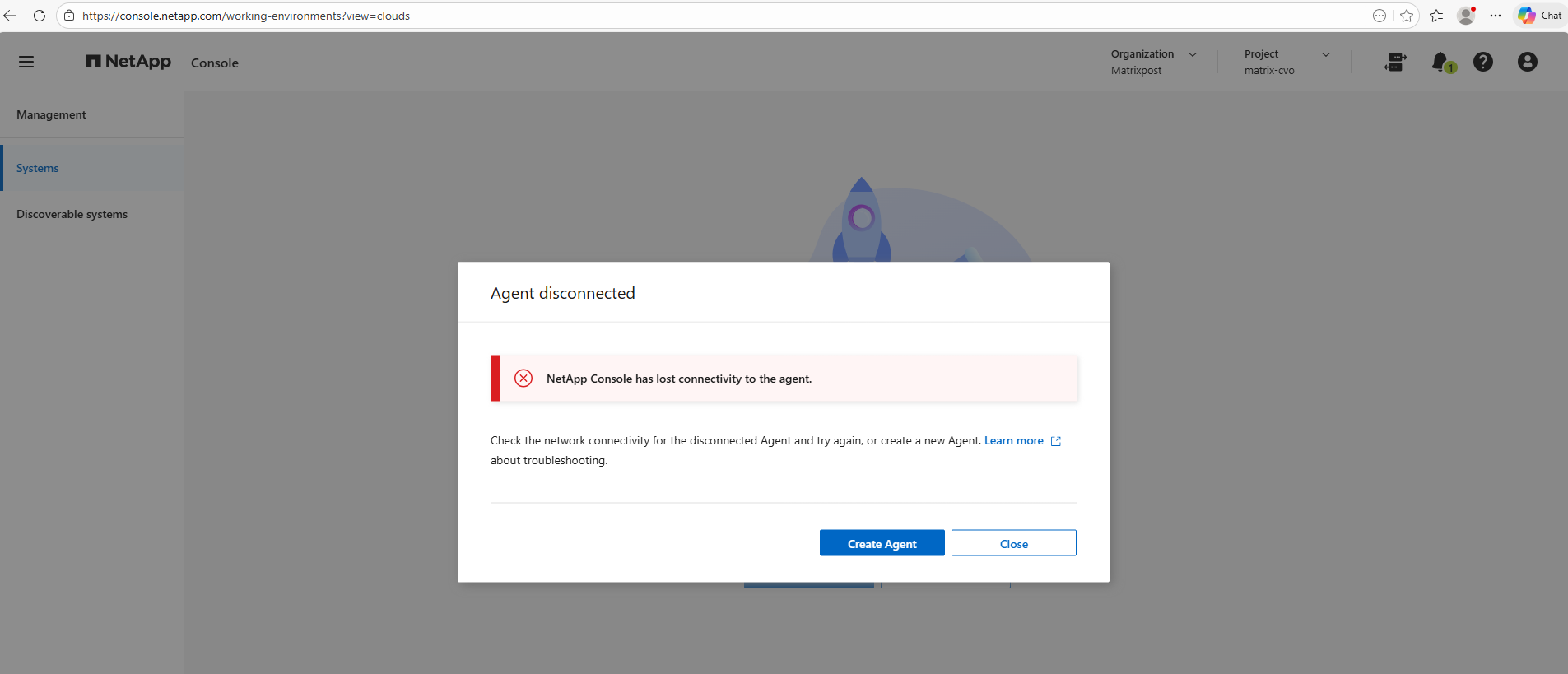
After deleting the Connector VM (Agent) as well, the NetApp console will report that no Connector can be found and mark the Agent as disconnected.
Links
Delete a Cloud Volumes ONTAP system from NetApp Console
https://docs.netapp.com/us-en/storage-management-cloud-volumes-ontap/task-deleting-system.html