Set up NIC Teaming in Windows Server
NIC Teaming, or Network Interface Card Teaming, is a feature in Windows Server that combines multiple network adapters into a single logical interface.
It enhances network performance, provides redundancy, and ensures high availability by aggregating bandwidth and enabling failover protection.
Below we will see step by step how to set up NIC Teaming in Windows Server.
To set up NIC Teaming in Windows Server, we can use either the Server Manager or PowerShell and the New-NetLbfoTeam cmdlet.
Set up NIC Teaming by using the Server Manager
Within the Server Manager navigate to Local Server and click on Disabled under NIC Teaming.
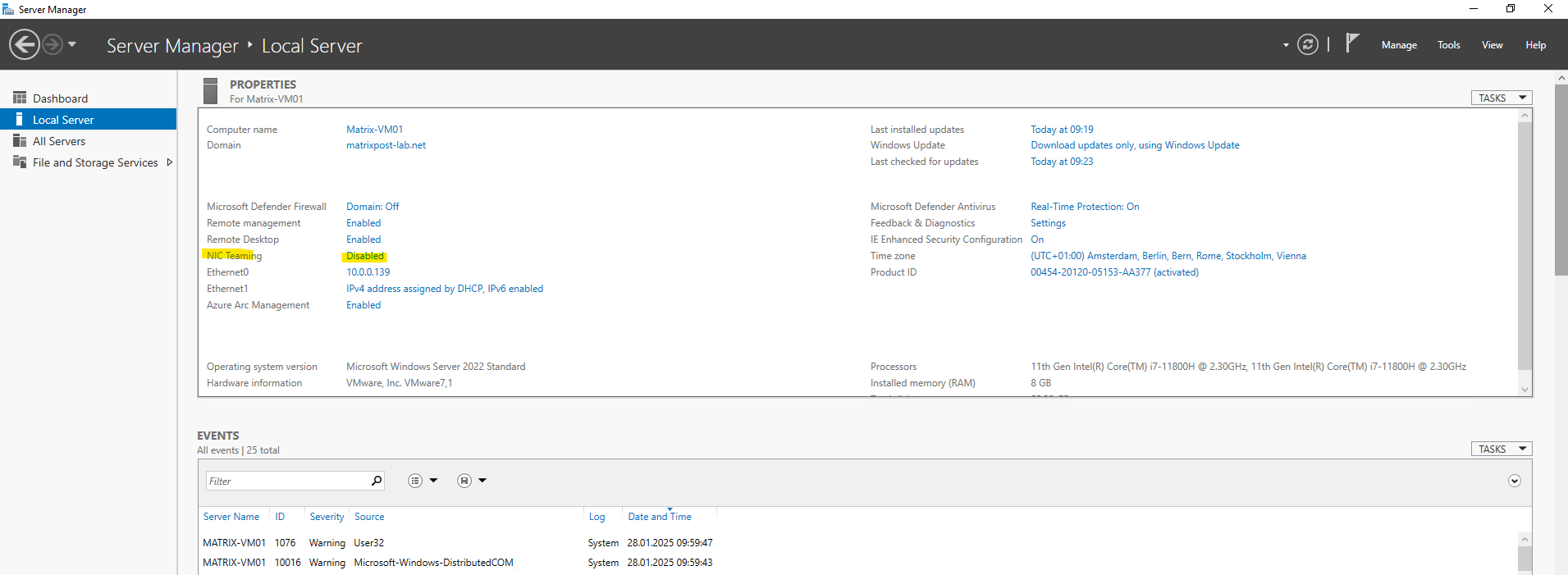
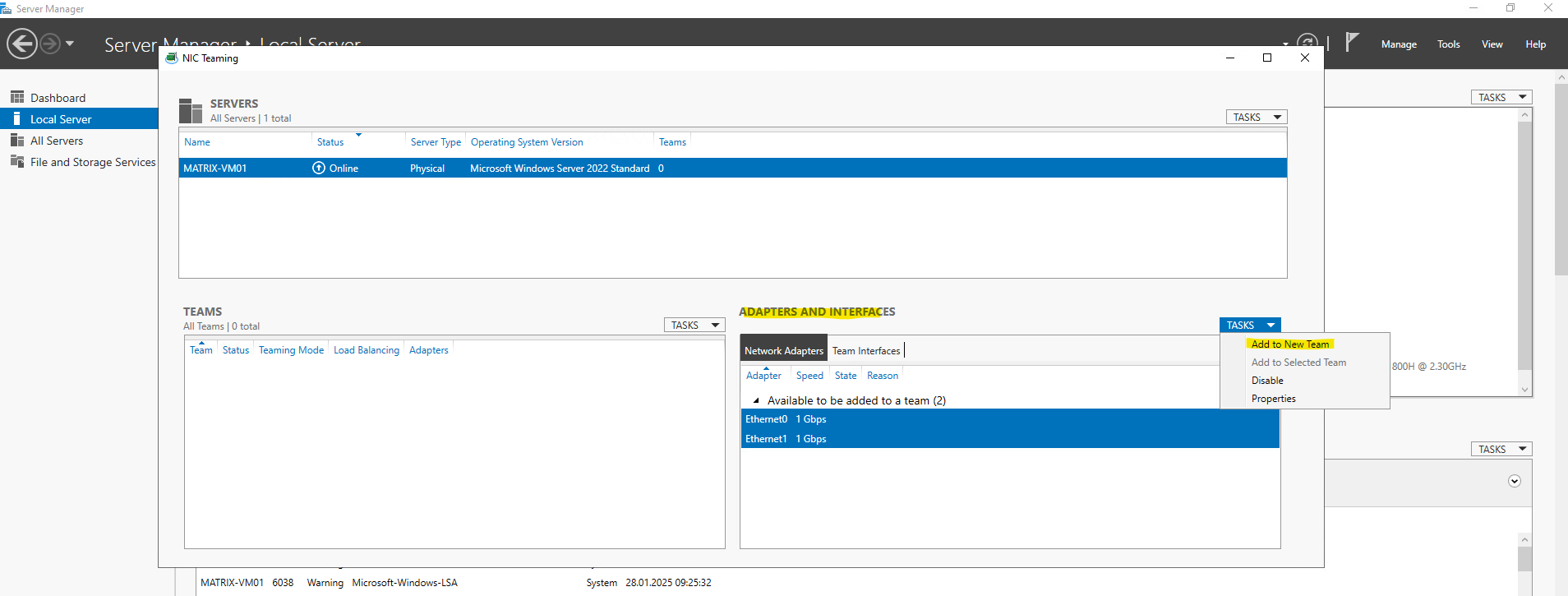
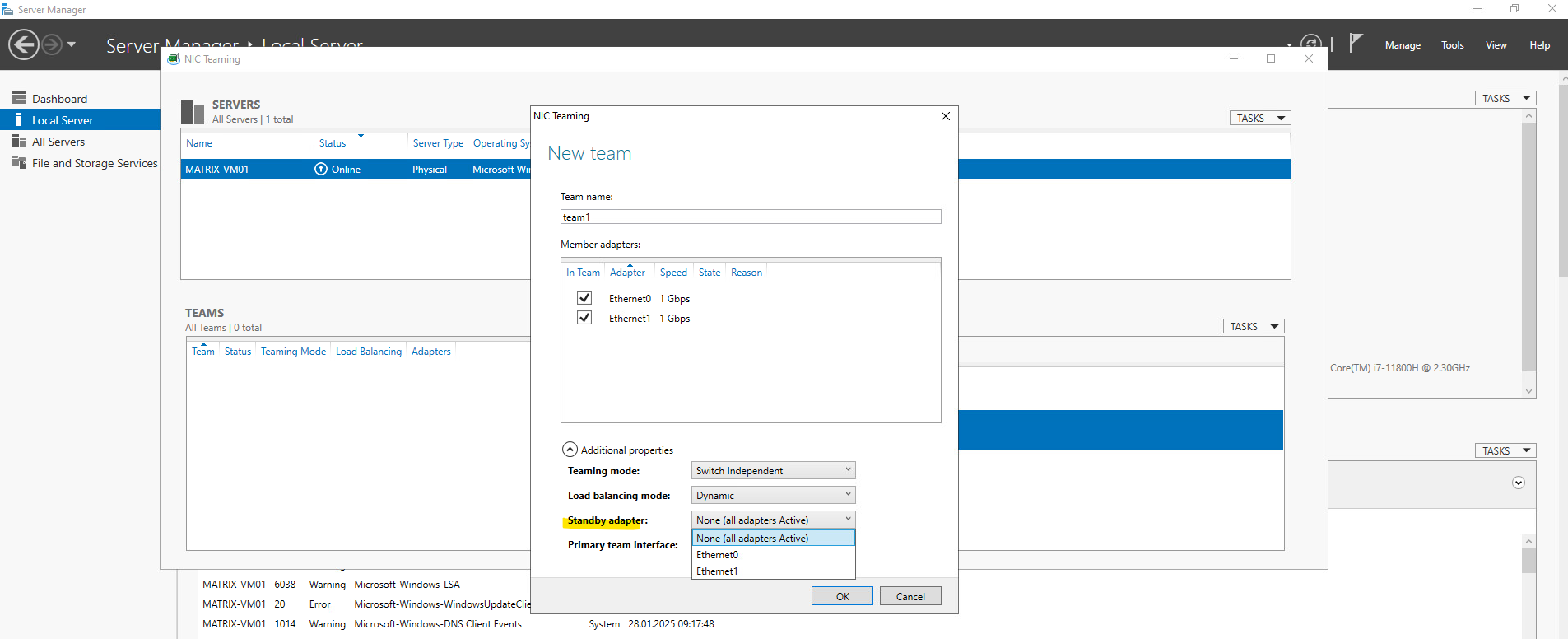
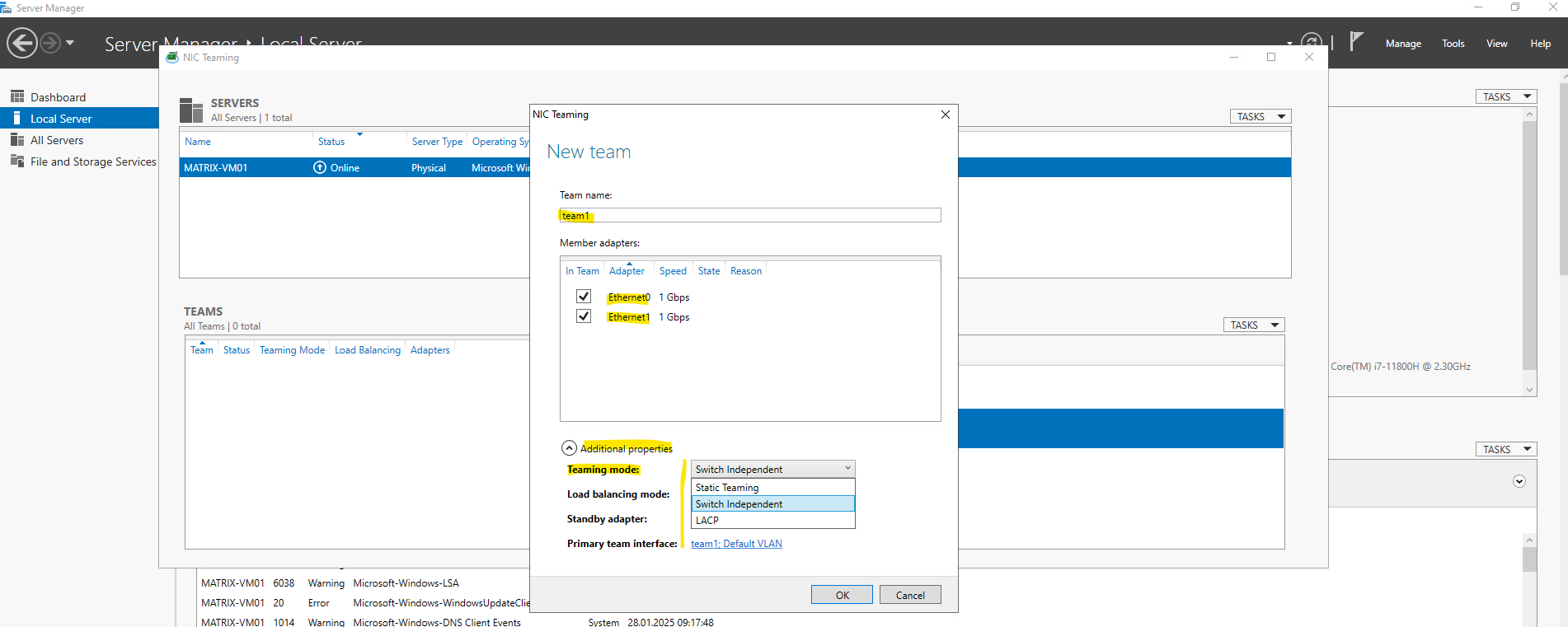
The NIC Teaming windows appears. Here select the desired server and its NICs you want to create a new team for. Below I want to create a new Team by using the Ethernet0 and Ethernet1 network adapter.
Enter a name for the new team.
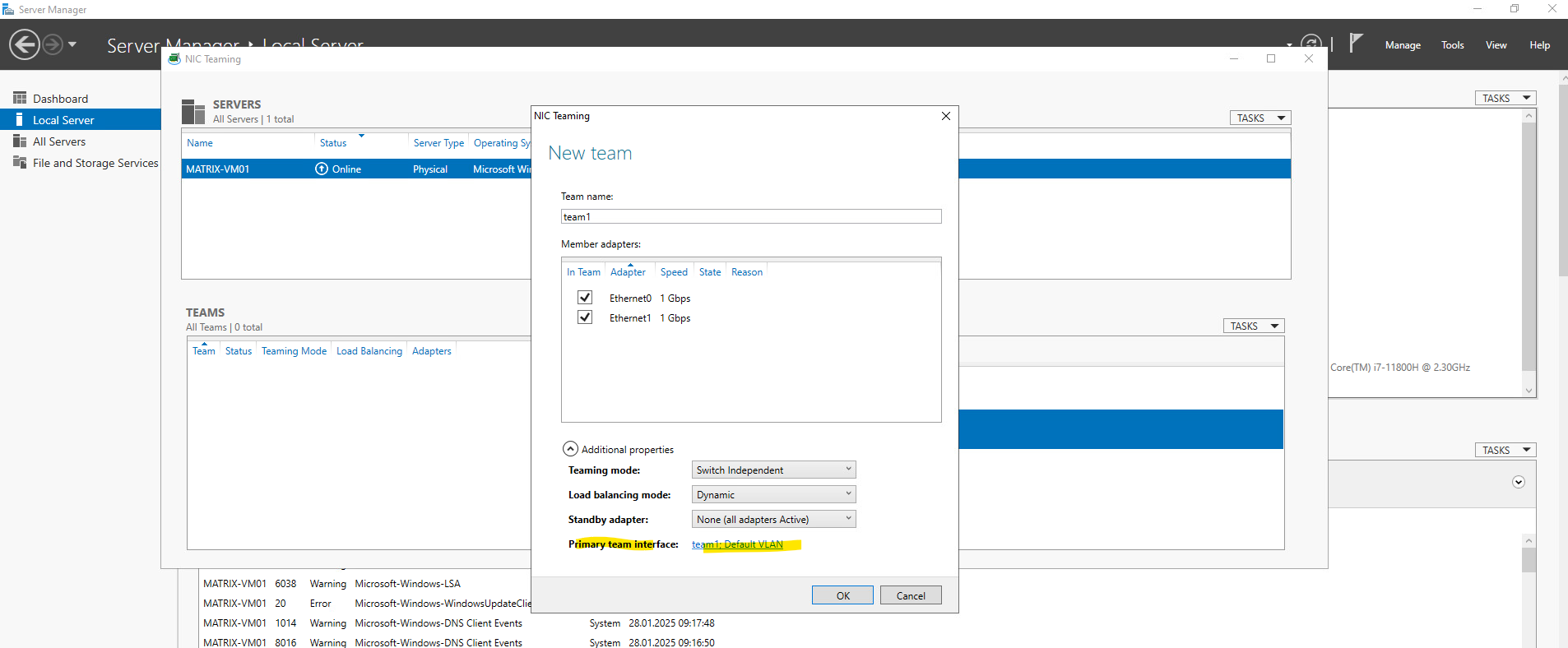
Expand Additional properties. Here we can set the teaming mode, load balancing mode and standby adapter.
For the Teaming Mode I will select Switch Independent. This is by the way also the only teaming mode which is supported in a virtual machine which I will use here.
This mode allows the server to manage the teaming of network adapters without requiring any special configuration or support from the network switch.
Each NIC in the team operates independently and can be connected to different or the same switches, making it a flexible and resilient option for network redundancy and load balancing. This works with any network switch, even unmanaged ones.
Further just in this mode you can configure a active/passive configuration, one NIC (Active) handles all network traffic during normal operation, the other NIC(s) (Passive) remain in standby and only become active if the primary NIC fails.
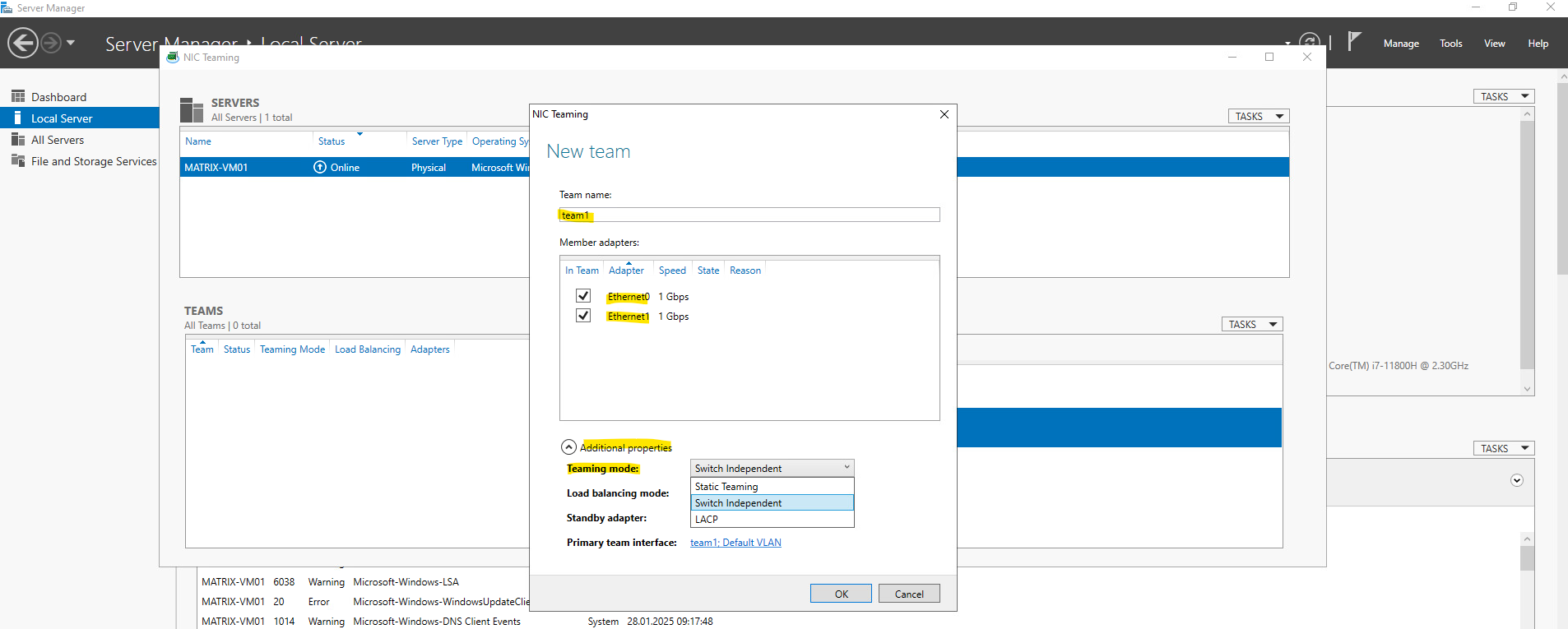
Static Teaming is a teaming mode that requires manual configuration on both the server and the network switch.
Unlike Switch Independent mode, Static Teaming relies on the switch to handle the aggregation of the network adapters.
Static Teaming is a switch-dependent mode where the network adapters in the team are manually configured to work together. The switch must be explicitly configured to recognize the team and aggregate the links. This mode does not use dynamic protocols like Link Aggregation Control Protocol (LACP) but instead relies on static configuration.
LACP (Link Aggregation Control Protocol) mode is a switch-dependent teaming mode that uses the IEEE 802.3ad standard to dynamically aggregate multiple network adapters into a single logical link.
LACP is a widely used protocol for link aggregation, providing both bandwidth aggregation and failover capabilities.
For the Load balancing mode I will select Address Hash. When configuring for a virtual machine, the only valid load balancing algorithm here is Address Hash.
Address Hash distributes outbound network traffic by calculating a hash based on packet attributes such as the source and destination IP addresses, MAC addresses, or TCP/UDP port numbers. The resulting hash determines which physical network adapter is used to transmit a particular traffic flow.
Unlike Hyper-V Port, where each virtual machine is assigned to a single team member, Address Hash can distribute multiple network flows from the same server across different physical adapters, resulting in better utilization of the available bandwidth. However, each individual flow is always transmitted over a single physical adapter, so a single TCP connection cannot exceed the bandwidth of one team member.
As with the other NIC Teaming load-balancing modes, each individual network flow is transmitted through a single physical team member to preserve packet ordering. Therefore, a single TCP connection normally cannot exceed the bandwidth of one physical adapter, although multiple simultaneous flows can be distributed across the available team members.
Dynamic is usually the highest-performing load-balancing mode. The Dynamic algorithm combines the best aspects of the two algorithms to create an effective load balancing mechanism.
Hyper-V Port mode is a specialized load balancing mode in Windows Server NIC Teaming, tailored for Hyper-V environments. You can use this mode for Windows servers where the Hyper-V role is installed on. Each VM’s virtual network adapter (vNIC) is mapped to a specific physical NIC in the team, ensuring that traffic from different VMs is distributed across the available physical adapters.
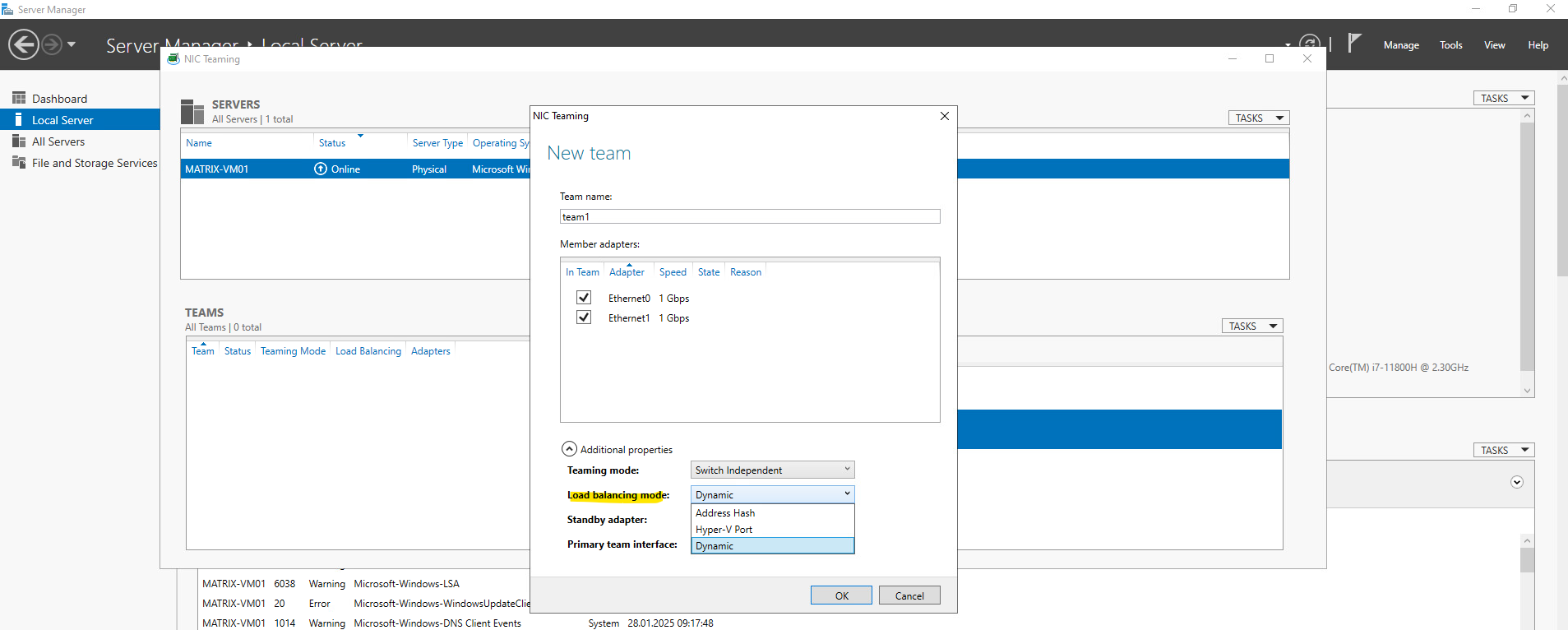
For the Standby adapter configuration I will select None (all adapters Active) aka active/active configuration.
In Windows Server NIC Teaming, if the Standby Adapter is set to None, it means that all NICs in the team are actively handling traffic, and there are no passive (standby) adapters.
This configuration is often used in Active/Active NIC teaming, where multiple NICs share the load simultaneously rather than having one or more NICs sitting idle as backups.
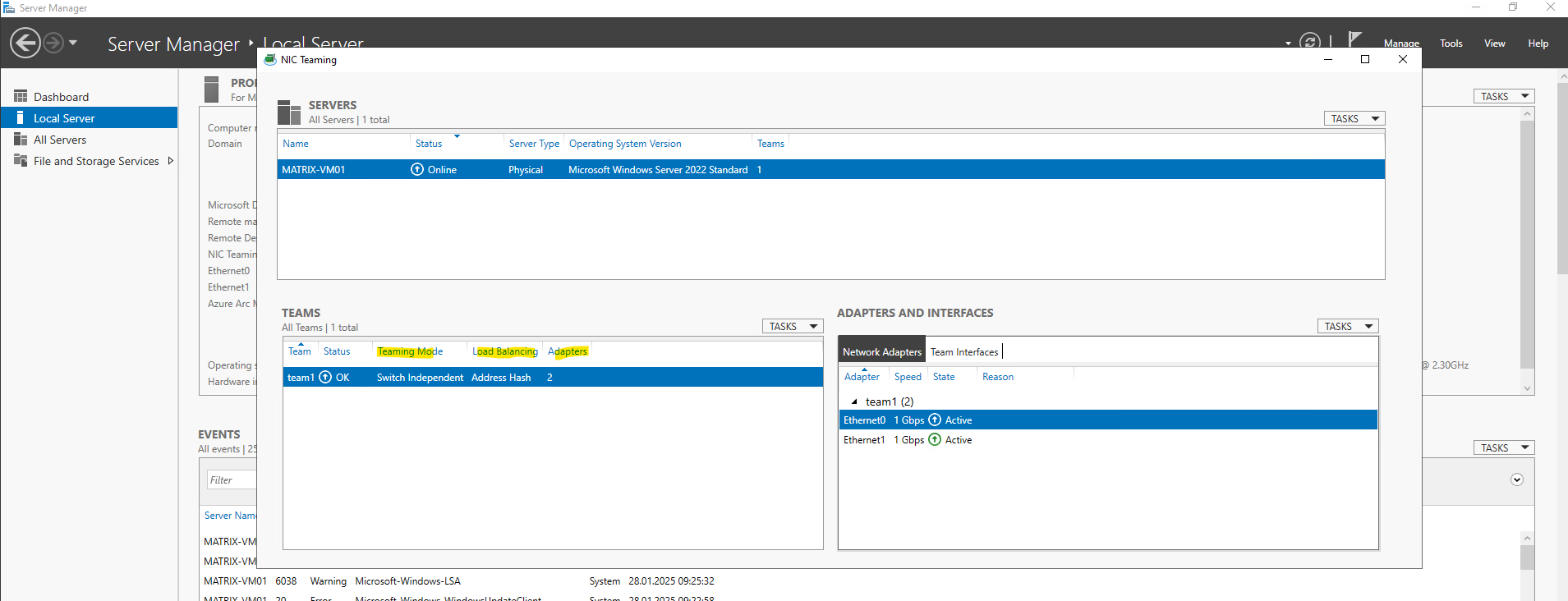
The highlighted interface is our newly created nic team.
The virtual nic team interface and its NICs are up.
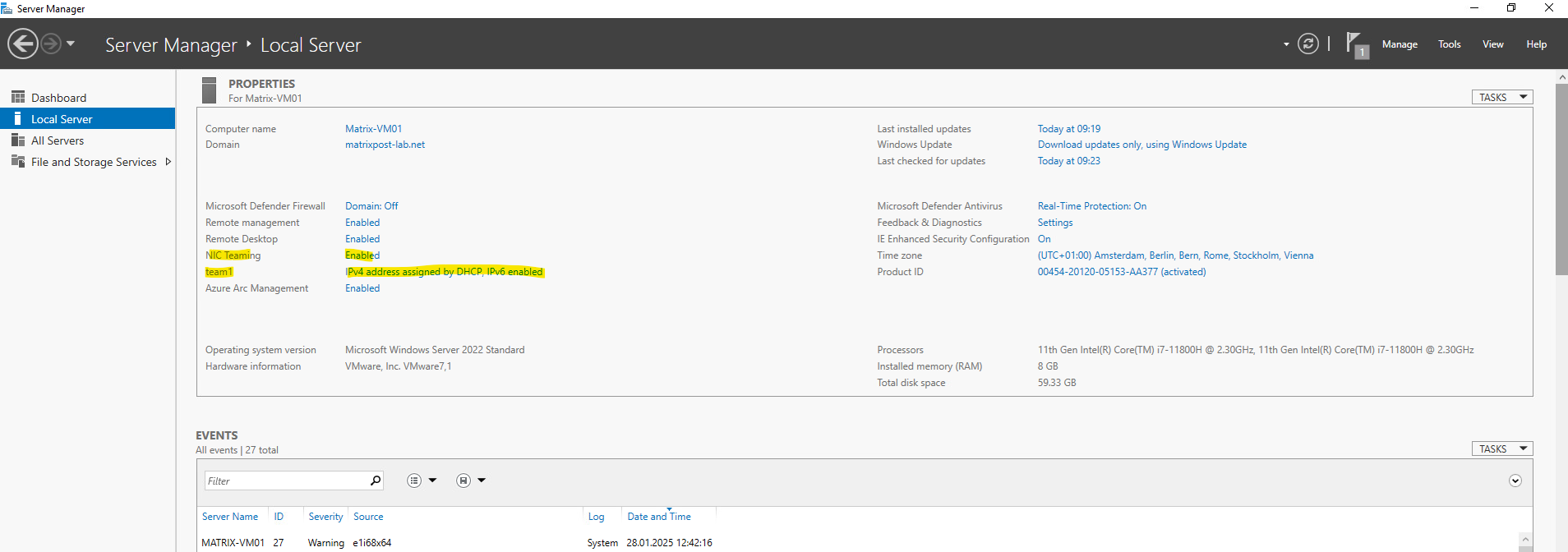
From now on we can see in the server manager that Nic Teaming is enabled.
The virtual nic team interface we can now also see under network connections in the control panel.
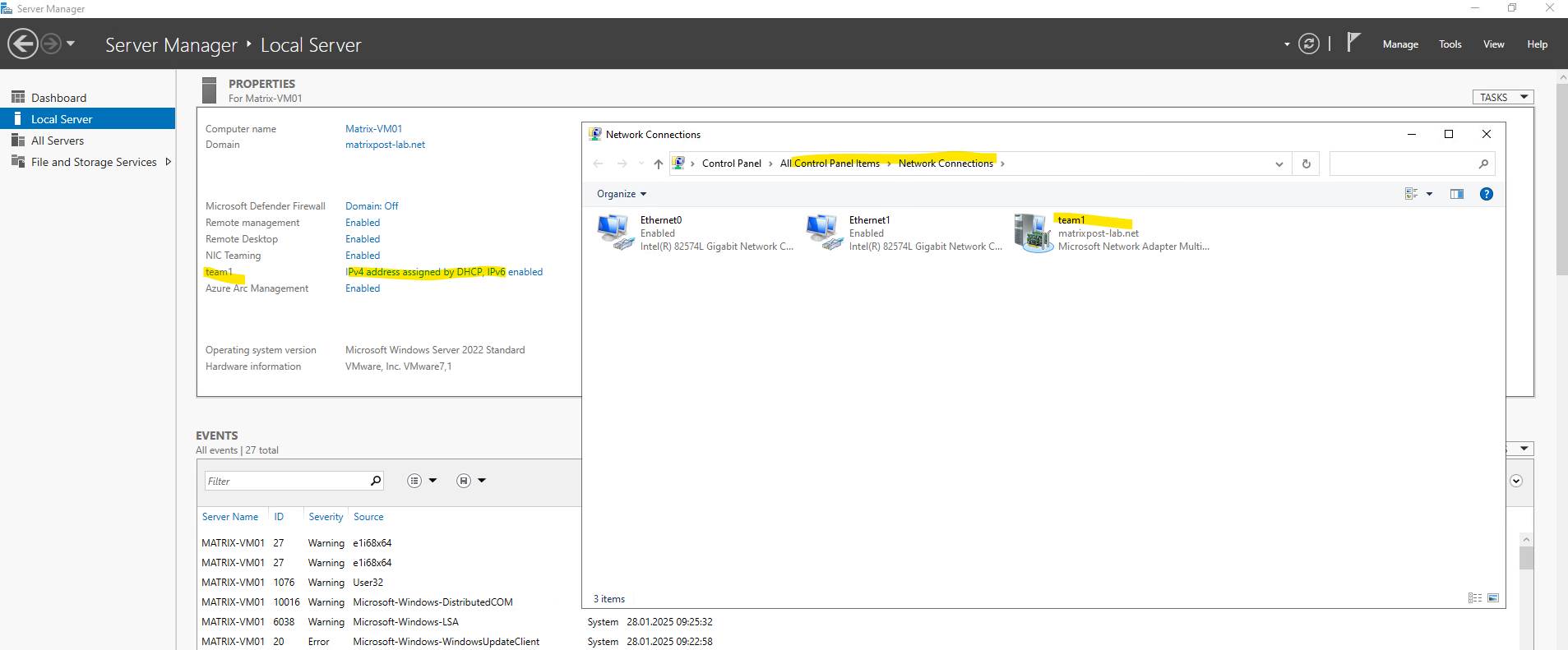
We can also see that the IPv4 & IPv6 protocol is enabled on the virtual nic team interface and the IP configuration for the server.
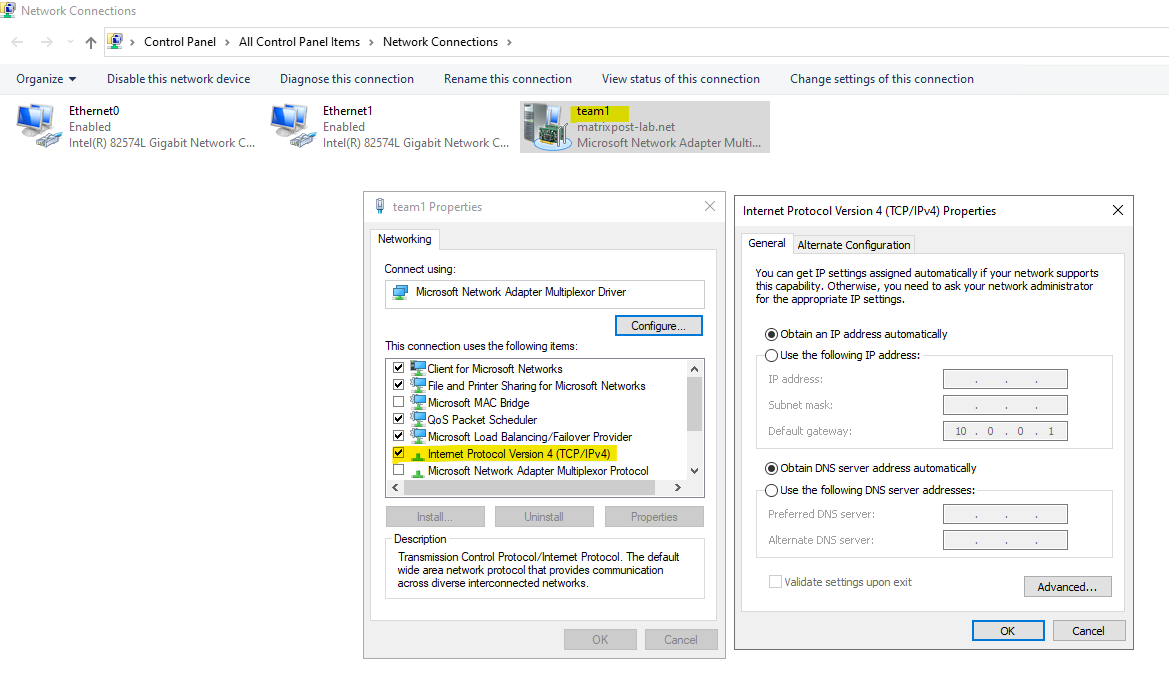
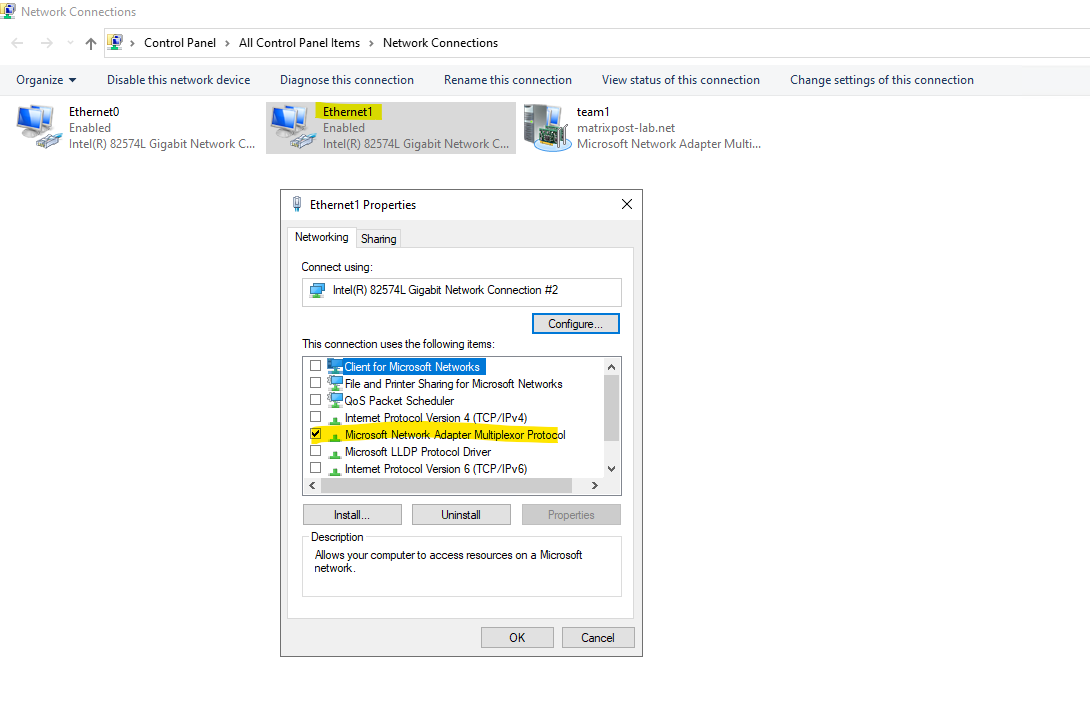
The IP protocols and network configuration was before creating the team directly on the NICs enabled and configured.
Now after the team is created and configured, on these adapters is only the Microsoft Network Adapter Multiplexor Protocol enabled.
The Microsoft Network Adapter Multiplexor Protocol is a Windows networking component that is automatically enabled when you create a NIC Team (Network Interface Card Teaming) in Windows Server or Windows 10/11 (Pro & Enterprise).
It is responsible for binding multiple physical network adapters into a single virtual NIC, allowing load balancing, failover, and increased bandwidth.
Set up NIC Teaming by using the PowerShell
As mentioned, the same shown above we can also achieve by using the PowerShell in Windows Server.
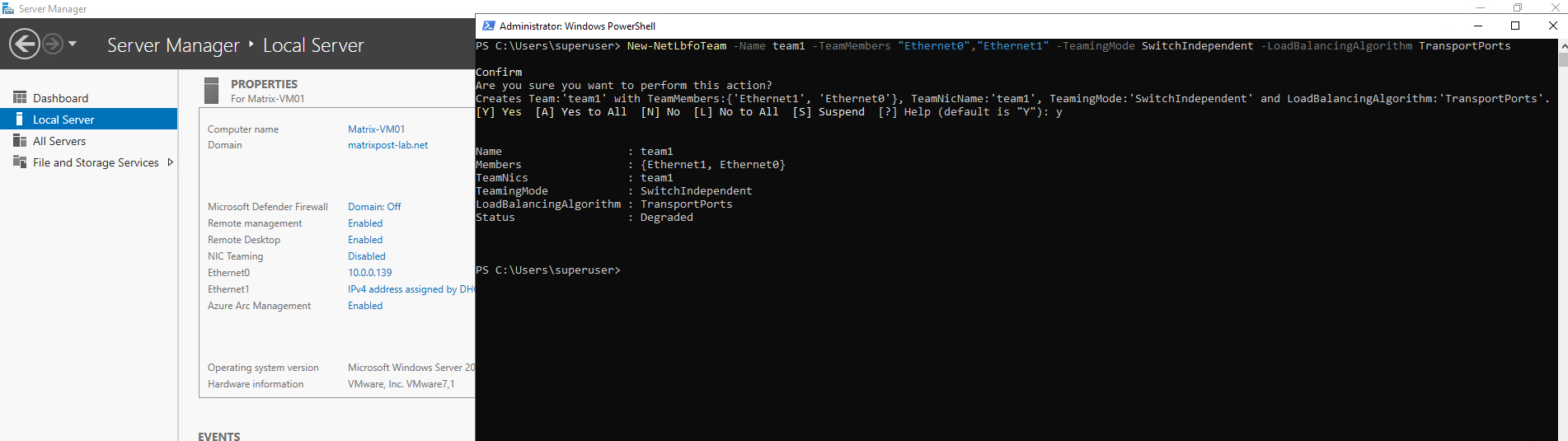
We can use here the New-NetLbfoTeam cmdlet to create a new NIC team as following.
Note that for the Load Balancing Algorithm the value with TransportPorts, finally is Address Hash.
> New-NetLbfoTeam -Name team1 -TeamMembers "Ethernet0","Ethernet1" -TeamingMode SwitchIndependent -LoadBalancingAlgorithm TransportPorts
Already configured NIC team’s we can check by using the Get-NetLbfoTeam cmdlet.
> Get-NetLbfoTeam
> Get-NetLbfoTeam | ft
> Get-NetLbfoTeam -Name team1
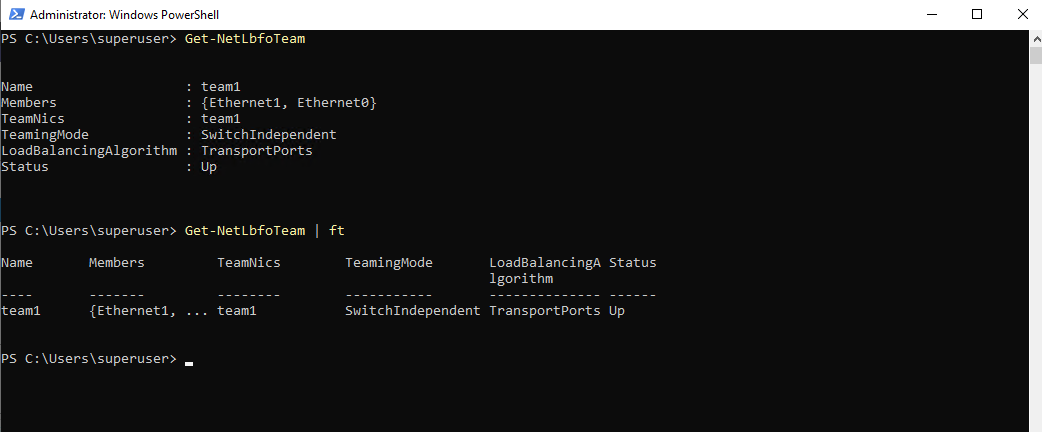
More about the Get-NetLbfoTeam cmdlet you will find here https://learn.microsoft.com/en-us/powershell/module/netlbfo/get-netlbfoteam?view=windowsserver2025-ps.
Switch Independent vs. LACP – Is the Additional Complexity Worth It?
In practice, both approaches provide redundancy and aggregate bandwidth across multiple network flows.
The primary advantage of LACP is that the switch is aware of the link aggregation group, allowing failover without MAC address relearning (MAC moves) and resulting in a slightly cleaner transition.
With LACP, all member links belong to a single logical Link Aggregation Group (LAG) from the switch’s perspective. As a result, the switch associates the server’s MAC address with the logical port channel rather than with an individual physical switch port.
If one link fails, traffic is automatically forwarded over the remaining member links without requiring the switch to relearn the MAC address (MAC Move), resulting in a slightly smoother failover.
Whether this small operational benefit justifies the additional configuration and dependency on technologies such as MLAG, vPC, or switch stacking depends on the specific environment.
Static Teaming for the teaming mode in Windows Server corresponds to a static EtherChannel (Port Channel) configuration on the connected switch.
Unlike LACP, no negotiation takes place between the server and the switch, so both sides must be configured manually and consistently.
How the Switch Learns the Team MAC Address
When NIC Teaming is configured, Windows presents the teamed adapters as a single logical network adapter with one IP address and one virtual MAC address.
Switch Independent
In Switch Independent mode, the connected switches are unaware of the NIC team and simply learn the team’s virtual MAC address on the physical port from which they most recently receive traffic.
If Windows starts transmitting over the other team member, the switch updates its MAC address table accordingly (MAC Move).
                   Windows Server
          +------------------------------+
          | Team Adapter                 |
          | IP : 10.240.1.41             |
          | MAC: 00:11:22:33:44:55       |
          +------------------------------+
                   |            |
                 NIC 1        NIC 2
                   |            |
              +---------+  +---------+
              |Switch A |  |Switch B |
              +---------+  +---------+

Switch MAC Table
----------------
00:11:22:33:44:55  --> Port 1

(after Windows transmits via NIC 2)

00:11:22:33:44:55  --> Port 2   (MAC Move)
LACP / Static Teaming (Port Channel)
With LACP (or Static Teaming), the switch is aware that both physical ports belong to the same logical Port Channel.
Therefore, the team’s MAC address is associated with the logical Port Channel instead of an individual physical port, eliminating the need for MAC relearning during link failover.
                      Windows Server
          +------------------------------+
          | Team Adapter                 |
          | IP : 10.240.1.41             |
          | MAC: 00:11:22:33:44:55       |
          +------------------------------+
                   |            |
                 NIC 1        NIC 2
                   |            |
          +--------+------------+--------+
          |     Logical Port Channel     |
          |       (LACP / Static)        |
          +--------+------------+--------+
                   |            |
              +---------+  +---------+
              |Switch A |  |Switch B |
              +---------+  +---------+

Switch MAC Table
----------------
00:11:22:33:44:55  --> Port-Channel1
Links
Network Interface Card (NIC) Teaming
https://learn.microsoft.com/en-us/previous-versions/windows/it-pro/windows-server-2012-r2-and-2012/hh997031(v=ws.11)Create a NIC Team for Load Balancing and Failover (LBFO) in Windows Server 2012 R2
https://docs.secureauth.com/0902/en/create-a-nic-team-for-load-balancing-and-failover–lbfo–in-windows-server-2012-r2.htmlNew-NetLbfoTeam
https://learn.microsoft.com/en-us/powershell/module/netlbfo/new-netlbfoteam?view=windowsserver2025-psNetLbfo
https://learn.microsoft.com/en-us/powershell/module/netlbfo/?view=windowsserver2025-psGet-NetLbfoTeam
https://learn.microsoft.com/en-us/powershell/module/netlbfo/get-netlbfoteam?view=windowsserver2025-ps