Windows Secure Boot Certificates Expire in June and October 2026 – Readiness Checks, Troubleshooting, and VMware vSphere Fixes
Microsoft has announced that the original Secure Boot certificates introduced with Windows and UEFI Secure Boot in 2011 are approaching the end of their lifecycle and will begin expiring between June and October 2026.
To maintain a trusted boot chain and continue receiving future boot-level security updates, Microsoft is rolling out a new generation of Secure Boot certificates and revocation lists through Windows Update and firmware updates.
For administrators managing Windows Server on physical hardware, Hyper-V, or VMware vSphere, it is important to understand whether Secure Boot is enabled, whether the required updates have already been deployed, and how to verify the current migration status of a system.
In this post, we will examine the upcoming Secure Boot certificate expiration, review Microsoft’s Secure Boot servicing mechanism, verify the readiness of fully patched Windows Server systems, and explore VMware-specific considerations that may affect the successful deployment of the new Secure Boot certificates.
Background
After more than 15 years of service, Microsoft’s original Secure Boot certificates issued in 2011 are reaching their planned expiration dates. The first certificates begin expiring in June 2026, followed by additional Secure Boot certificates in October 2026.
Systems that continue relying on the older certificate chain will not immediately stop booting, but they may enter a degraded security state and eventually lose the ability to receive future Secure Boot and bootloader security updates.
The UEFI Secure Boot DB and KEK need to be updated with the corresponding new certificate versions.
It is important to note that this Secure Boot certificate transition only affects systems where Secure Boot is enabled. Systems running in legacy BIOS mode or UEFI mode with Secure Boot disabled are not impacted by the upcoming certificate expiration because they do not rely on the Secure Boot trust hierarchy during the startup process.
You can verify whether Secure Boot is enabled by running the following PowerShell command:
PS> Confirm-SecureBootUEFI

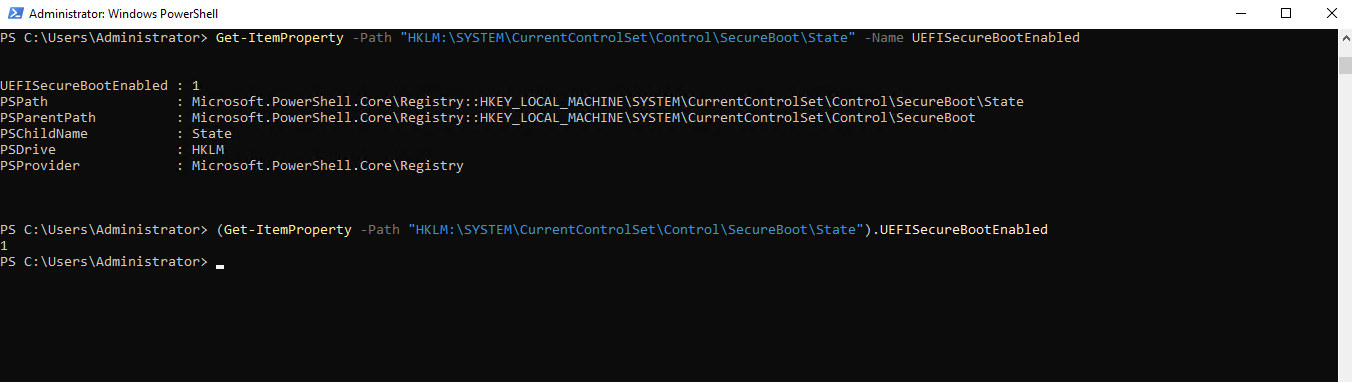
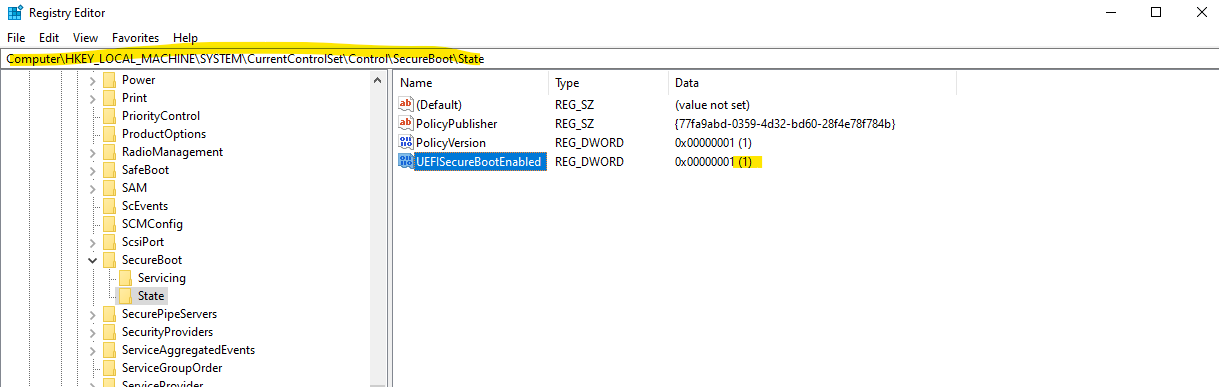
Or we can directly query the registry to check if it is enbled: (1 = True or 0 = False)
PS> Get-ItemProperty -Path "HKLM:\SYSTEM\CurrentControlSet\Control\SecureBoot\State" -Name UEFISecureBootEnabled

Or just query the value
PS> (Get-ItemProperty -Path "HKLM:\SYSTEM\CurrentControlSet\Control\SecureBoot\State").UEFISecureBootEnabled
Computer\HKEY_LOCAL_MACHINE\SYSTEM\CurrentControlSet\Control\SecureBoot\Servicing\UEFISecureBootEnabled
Two of the most important Secure Boot databases are the Key Exchange Key (KEK) database and the Allowed Signature Database (DB).
The KEK database contains trusted certificates that are authorized to update the Secure Boot configuration, including the DB and DBX databases.
The DB database contains the certificates and digital signatures that are trusted during the boot process. When the firmware loads a boot component, its digital signature is validated against the certificates stored in the DB database.
As part of Microsoft’s Secure Boot certificate transition, both the KEK and DB databases must be updated with new 2023 certificates. These new certificates will eventually replace the existing 2011 certificate chain that has been used by Windows systems for more than a decade.
The hierarchy of these certificates are as follows:
Platform Key (PK)
        │
        ▼
Key Exchange Keys (KEK)
        │
        ▼
Allowed Signature Database (DB)
Forbidden Signature Database (DBX)- PK = Root of trust
- KEK = Allowed to update DB and DBX
- DB = Trusted certificates used during boot
- DBX = Revoked certificates that must no longer be trusted
To determine which PK Certificate, KEK certificate and DB certificate currently is used by Windows we can use the UEFIv2 PowerShell module.
The UEFIv2 PowerShell module we first need to install and import on the system we want to check.
PS> Install-Module -Name UEFIv2
PS> Set-ExecutionPolicy -ExecutionPolicy RemoteSigned
PS> Import-Module -Name UEFIv2
On legacy VMware virtual machines (pre-ESXi 8.0 U2 / ESXi 9.0 design), the Platform Key (PK) is often unprovisioned or uses a non-standard signature type. When you run the check, PowerShell returns a warning because it cannot find a valid certificate to decode:
That GUID (
452e8ced...) essentially represents a “NULL” or “Empty” signature. In this state, your VM is “unowned,” and Windows will fail to apply the 2023 certificate updates.
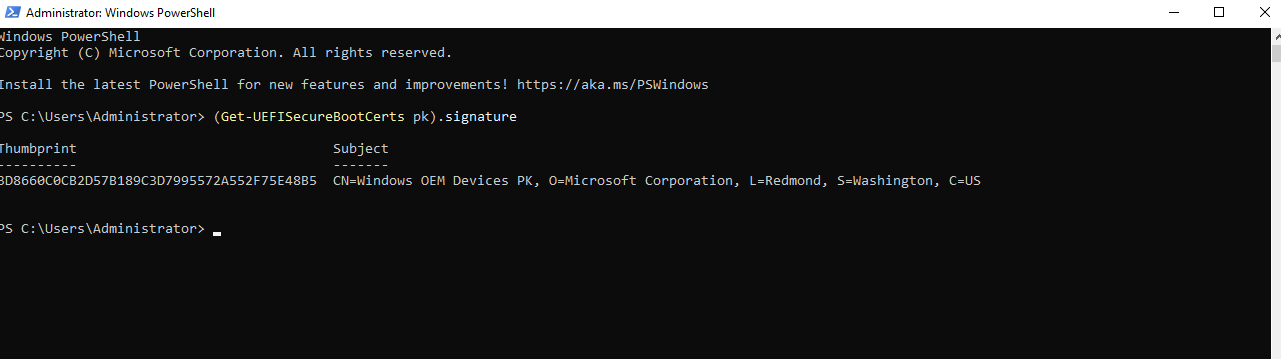
PS> (Get-UEFISecureBootCerts pk).signature

The following screenshot shows a virtual machine with a valid certificate resp. Platform Key (PK).
For VMware virtual machines we can also identify the virtual machines with missing or NULL Platform Key by running the following built-in PowerShell commands in an elevated prompt:
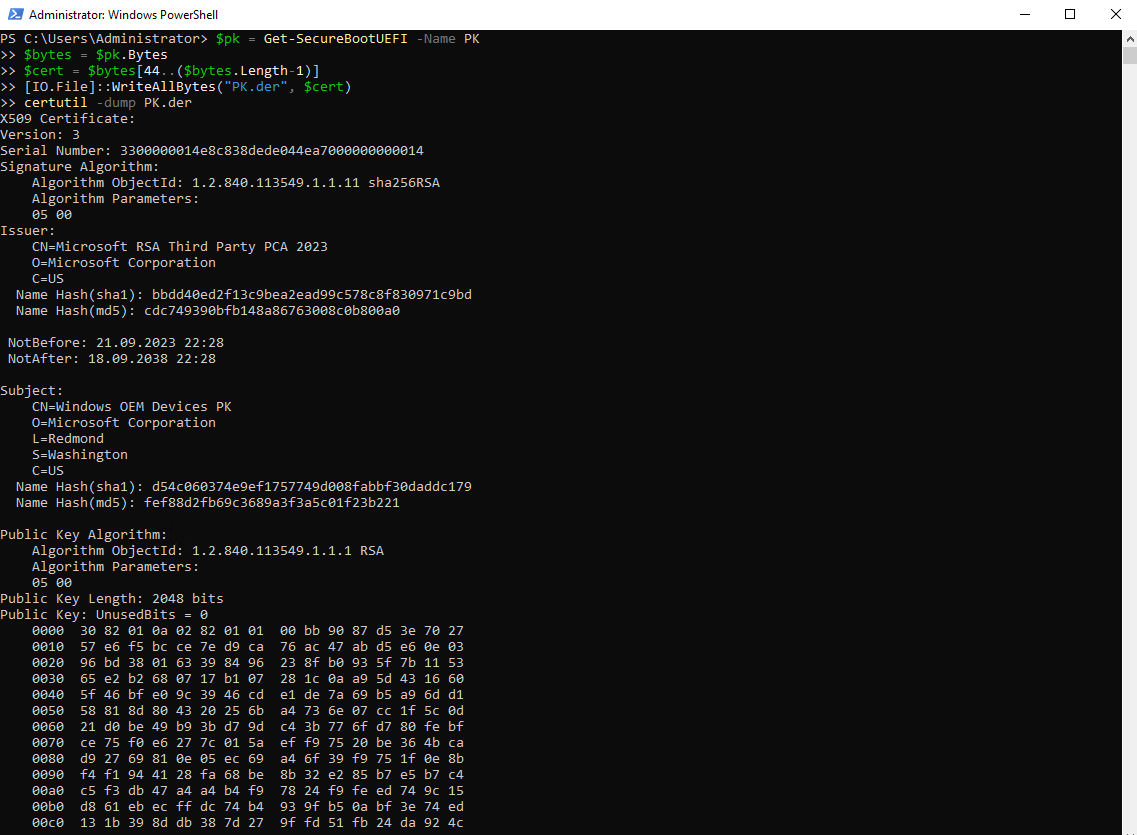
$pk = Get-SecureBootUEFI -Name PK
$bytes = $pk.Bytes
$cert = $bytes[44..($bytes.Length-1)]
[IO.File]::WriteAllBytes("PK.der", $cert)
certutil -dump PK.der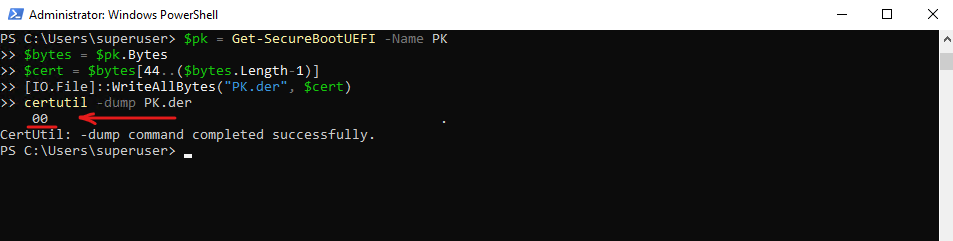
The Platform Key (PK) needs to be updated if the above command fails with an error like Cannot index into a null array or the certutil command (shown above) will show the result as “00” , which both means the Certificate is Invalid and we need to replace and update.
The same as previously for the UEFIv2 PowerShell cmdlet, the following screenshot shows a virtual machine with a valid certificate resp. Platform Key (PK) using the built-in PowerShell commands.
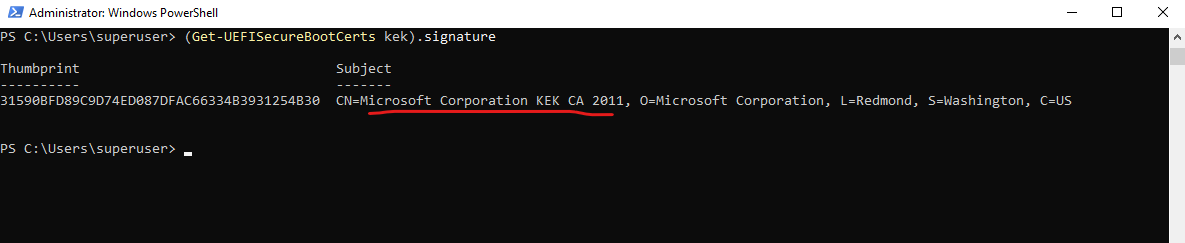
The following command shows the certificates that are allowed to modify Secure Boot databases.
The output shows the contents of the active Key Exchange Key (KEK) database. In this example, only the original Microsoft Corporation KEK CA 2011 certificate is present, indicating that the system has not yet received the corresponding 2023 Key Exchange Key used to authorize future Secure Boot database updates as part of Microsoft’s Secure Boot certificate transition.
PS> (Get-UEFISecureBootCerts kek).signature
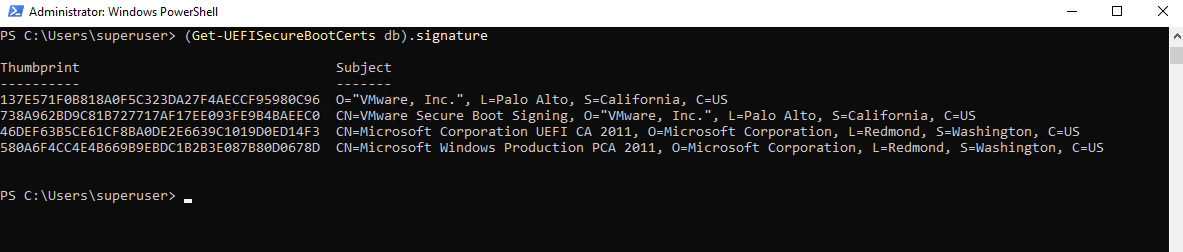
The following command shows the certificates that Secure Boot actually trusts when validating boot components.
The output above shows the contents of the active Secure Boot Allowed Signature Database (
DB) on a Windows Server 2022 virtual machine running on VMware vSphere. In addition to VMware’s own Secure Boot signing certificates, the database contains the original Microsoft 2011 Secure Boot certificates, indicating that the system has not yet been migrated to the new Microsoft 2023 Secure Boot trust chain.
PS> (Get-UEFISecureBootCerts db).signature
Microsoft is updating both to transition from the 2011 trust chain to the new 2023 trust chain.
- the trust anchors used during boot (
DB) - and the certificates authorized to update Secure Boot itself (
KEK)
Unlike the KEK, DB, and DBX databases, which are updated as part of Microsoft’s Secure Boot certificate transition, the Platform Key (PK) typically remains unchanged. The PK is usually issued and managed by the platform manufacturer, such as Dell, Lenovo, HP, or VMware, and serves as the root of trust that authorizes updates to the Secure Boot hierarchy below it.
As we will see later in this post, an invalid Platform Key configuration on VMware virtual machines can prevent the Secure Boot certificate migration from completing successfully. We will therefore also examine how to identify this issue and update the Platform Key to allow the remaining Secure Boot certificate updates to be installed successfully.
How Secure Boot Validation Works During System Startup
Understanding how Secure Boot validation works helps explain why Microsoft’s 2023 certificate migration requires updates not only to the Windows Boot Manager but also to the underlying UEFI Secure Boot databases.
Although Windows installs and manages the Secure Boot certificate updates, the actual Secure Boot validation process is performed by the UEFI firmware. During system startup, the firmware uses the Platform Key (PK), Key Exchange Keys (KEK), and Secure Boot signature databases (DB and DBX) to verify that the Windows Boot Manager is signed by a trusted certificate before allowing it to execute.
The simplified Secure Boot startup sequence is shown below:
Power On
   │
   ▼
UEFI Firmware
   │
   ├─ Reads PK (Platform Key)
   ├─ Reads KEK (Key Exchange Keys)
   ├─ Reads DB (Trusted Certificates)
   ├─ Reads DBX (Revoked Certificates)
   │
   ├─ Validates bootmgfw.efi
   │      against certificates in DB
   │      and checks DBX
   │
   └─ If trusted, executes Boot Manager
               │
               ▼
Windows Boot Manager
               │
               ├─ Validates winload.efi
               ├─ Loads Windows Kernel
               └─ Starts Windows
This means that the Windows Boot Manager itself does not decide whether it is trusted. Instead, the UEFI firmware performs the trust validation before the Boot Manager is allowed to run. If the Boot Manager’s signature cannot be validated against the certificates stored in the Secure Boot databases, the firmware will block the boot process.
This is also the reason why the Secure Boot certificate migration requires updating the firmware trust chain. The UEFI firmware must first trust the new Windows UEFI CA 2023 certificate before it can successfully validate and start a Windows Boot Manager signed with the new 2023 certificate chain.
Affected Systems
Physical and virtual machines (VMs) on supported versions of Windows 10, Windows 11, Windows Server 2025, Windows Server 2022, Windows Server 2019, Windows Server 2016, Windows Server 2012, Windows Server 2012 R2, the systems released since 2012, including the long-term servicing channel (LTSC).
Not affected: Copilot+ PCs released in 2025
Secure Boot uses certificate-based trust hierarchy to ensure that only authorized software runs during system startup. At the top of this hierarchy is the Platform Key (PK), typically managed by the OEM or a delegate, which acts as the root of trust. The PK authorizes updates to the Key Enrollment Key (KEK) database, which in turn authorizes updates to two critical signature databases: the Allowed Signature Database (DB) and the Forbidden Signature Database (DBX). This layered structure ensures that only validated updates can modify the system’s boot policy, maintaining a secure boot environment. See how it works in Updating Secure Boot keys.
Windows systems released since 2012 might have expiring versions of the certificates listed below. The UEFI Secure Boot DB and KEK need to be updated with the corresponding new certificate versions.
See what new certificates will be available in the coming months to maintain UEFI Secure Boot continuity.
| Expiration date | Expiring certificate | Updated certificate | What it does | Storing location |
| June 2026 | Microsoft Corporation KEK CA 2011 | Microsoft Corporation KEK 2K CA 2023 | Signs updates to DB and DBX | KEK |
| June 2026 | Microsoft Corporation UEFI CA 2011 (or third-party UEFI CA)* | a) Microsoft Corporation UEFI CA 2023b) Microsoft Option ROM UEFI CA 2023 | a) Signs third-party OS and hardware driver componentsb) Signs third-party option ROMs | DB |
| Oct 2026 | Microsoft Windows Production PCA 2011 | Windows UEFI CA 2023 | Signs the Windows bootloader and boot components | DB |
You need two new certificates for Microsoft Corporation UEFI CA 2011, which together allow for more granular control.
Microsoft and partner OEMs will be rolling out certificates to add trust for the new DB and KEK certificates in the coming months. (origin article published Jun 2025)
The CAs ensure the integrity of the device startup sequence. When these CAs expire, the systems will stop receiving security fixes for the Windows Boot Manager and the Secure Boot components.
Compromised security at startup threatens the overall security of affected Windows devices, especially due to bootkit malware. Bootkit malware can be difficult or impossible to detect with standard antivirus software. For example, even today, the unsecured boot path can be used as a cyberattack vector by the BlackLotus UEFI bootkit (CVE-2023-24932).
Every Windows system with Secure Boot enabled includes the same three certificates in support of third-party hardware and Windows ecosystem. Unless prepared, physical devices and VMs will:
- Lose the ability to install Secure Boot security updates after June 2026.
- Not trust third-party software signed with new certificates after June 2026.
- Not receive security fixes for Windows Boot Manager by October 2026.
To prevent this, you’ll need to update your organization’s entire Windows ecosystem with certificates dated 2023 or newer. This will also help you apply mitigations needed to help secure your systems against the BlackLotus and similar boot-level cyberattacks today.
Microsoft will update the Secure Boot certificates as part of their latest cumulative update cycle.
Checking the Deployment Status of the 2023 Secure Boot Certificates
Before examining the Secure Boot trust hierarchy in detail, it is useful to first determine which Secure Boot certificates are currently present on the system. This allows us to quickly identify whether the new 2023 Secure Boot certificates have already been deployed and whether they are active or only staged for a future migration phase.
The following PowerShell commands, based on Dell’s Secure Boot certificate verification guidance, can be used to inspect the currently configured Secure Boot certificate databases and determine the current deployment state of the Microsoft 2023 Secure Boot certificates.
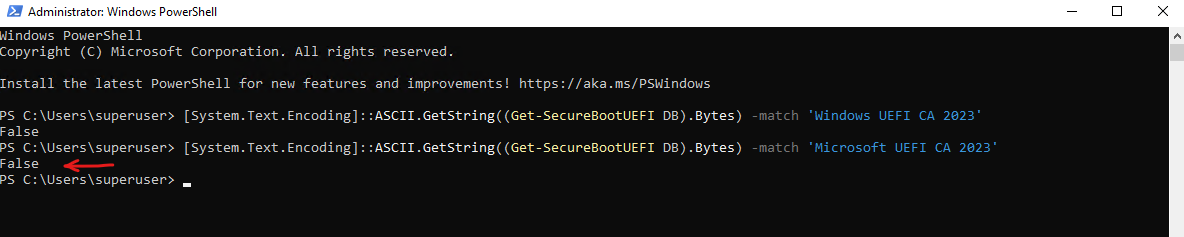
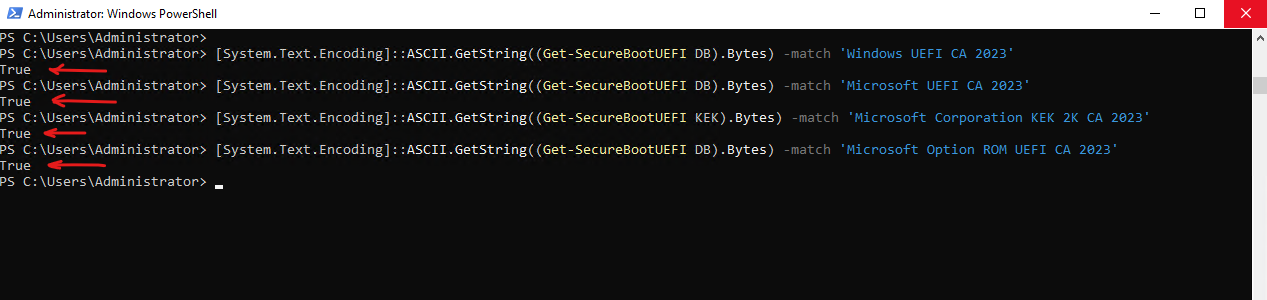
The 4 commands below check for the presence of the 4 major 2023 Secure Boot certificates in the active Secure Boot databases.
To verify a successful Secure Boot certificate migration to the new 2023 Secure Boot certificates, all four certificate validation commands should finally return
True.
Checks whether the Windows UEFI CA 2023 certificate is present in the active Allowed Signature Database (DB). This certificate is used to trust newer Microsoft Windows boot components, including updated Windows Boot Manager and WinPE images signed with the new 2023 certificate chain.
PS> [System.Text.Encoding]::ASCII.GetString((Get-SecureBootUEFI DB).Bytes) -match 'Windows UEFI CA 2023'

Checks whether the Microsoft UEFI CA 2023 certificate is present in the active Allowed Signature Database (DB). This certificate is used to trust additional Microsoft UEFI applications and boot loaders that are signed using the new 2023 trust chain.
PS> [System.Text.Encoding]::ASCII.GetString((Get-SecureBootUEFI DB).Bytes) -match 'Microsoft UEFI CA 2023'
Checks whether the Microsoft Corporation KEK 2K CA 2023 certificate is present in the active Key Exchange Key (KEK) database. The KEK database sits above the DB and DBX databases in the Secure Boot trust hierarchy and authorizes future updates to the allowed and forbidden signature databases. The presence of this certificate indicates that the system is prepared to receive and trust future Secure Boot database updates signed with the new 2023 key.
PS> [System.Text.Encoding]::ASCII.GetString((Get-SecureBootUEFI KEK).Bytes) -match 'Microsoft Corporation KEK 2K CA 2023'
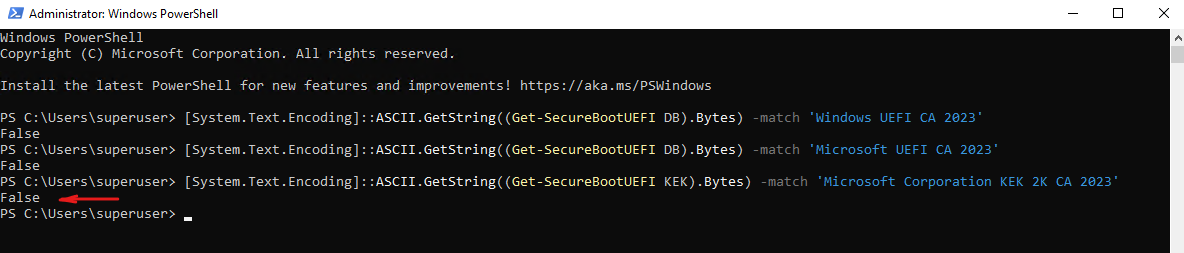
Checks whether the Microsoft Option ROM UEFI CA 2023 certificate has already been deployed to the active Secure Boot database (DB).
PS> [System.Text.Encoding]::ASCII.GetString((Get-SecureBootUEFI DB).Bytes) -match 'Microsoft Option ROM UEFI CA 2023'

For a more detailed inspection of the Secure Boot certificate databases, we can install and use the PowerShell UEFIv2 module if not already done as shown in the above Background section. This module provides additional cmdlets that allow us to enumerate and examine the certificates stored in the active and default Secure Boot databases.
The active Secure Boot database (
db) contains the certificates currently used by the firmware to validate trusted boot components during system startup. It is the live, active database currently stored in your NVRAM that the system uses during boot to validate bootloaders.The default Secure Boot database (
dbdefault) represents the firmware’s baseline certificate store and may already contain newer certificates that have been staged for a future activation but are not yet actively used during the boot process. It represents the original, hardcoded list of trusted certificates provided by your hardware vendor (in this case, VMware) or a recent firmware update. Your firmware wants to trust these.
PS> Install-Module -Name UEFIv2
PS> Set-ExecutionPolicy -ExecutionPolicy RemoteSigned
PS> Import-Module -Name UEFIv2
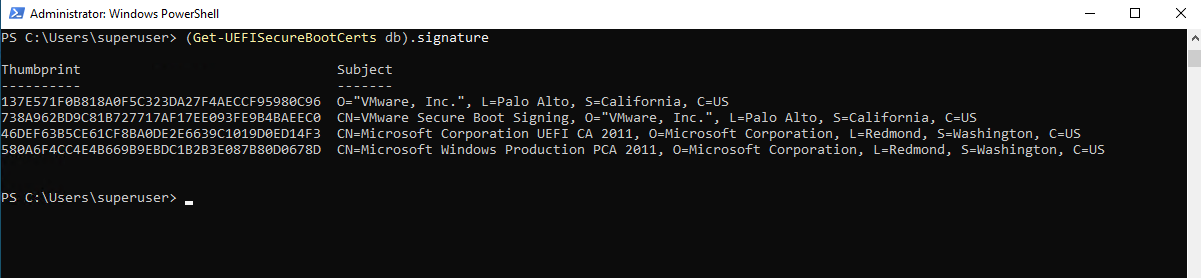
The following command shows the certificates currently present in the active Secure Boot allowed signature database (DB), which is used by the firmware during every system boot to validate trusted boot components.
In this example, only the original Microsoft 2011 certificates and the VMware Secure Boot signing certificates are present, indicating that the new Microsoft 2023 Secure Boot certificates have not yet been activated in the
active Secure Boot database.
PS> (Get-UEFISecureBootCerts db).signature
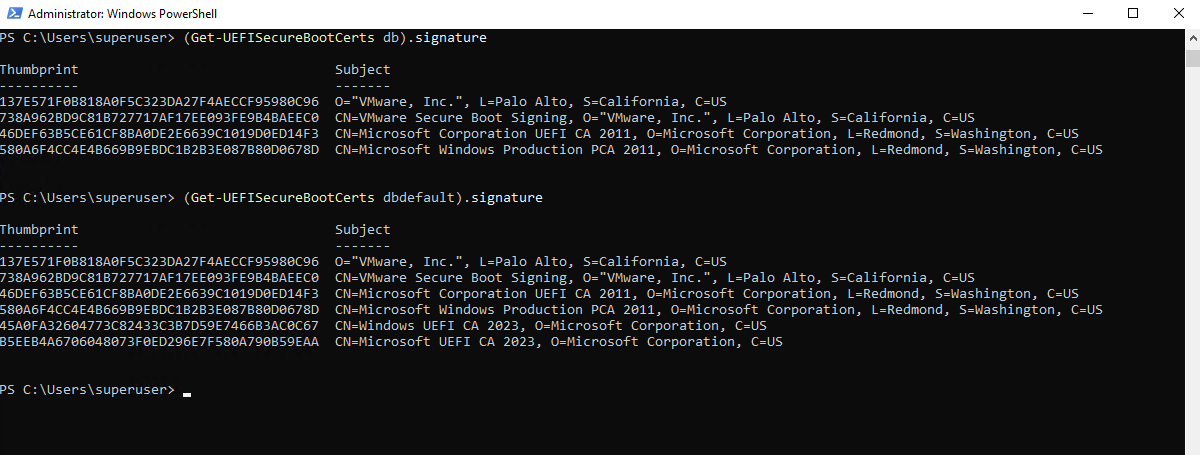
The following command displays all certificates stored in the Secure Boot default allowed signature database (dbdefault).
Unlike the active db database, the dbdefault database already contains the new Microsoft 2023 Secure Boot certificates.
This indicates that the updated trust anchors have been staged in the firmware but have not yet been activated in the active Secure Boot database, which means the system is still booting exclusively with the original 2011 certificate chain.
This usually happens because a BIOS/firmware update added the new 2023 certificates to the hardware’s fallback profile (
dbdefault), but it didn’t automatically overwrite your active NVRAM settings (db) to avoid disrupting your current boot setup.
PS> (Get-UEFISecureBootCerts dbdefault).signature
In addition to checking the individual Secure Boot certificates, Windows also maintains several registry values that provide insight into the current state of the Secure Boot certificate migration. These values can be viewed by querying the following registry key:
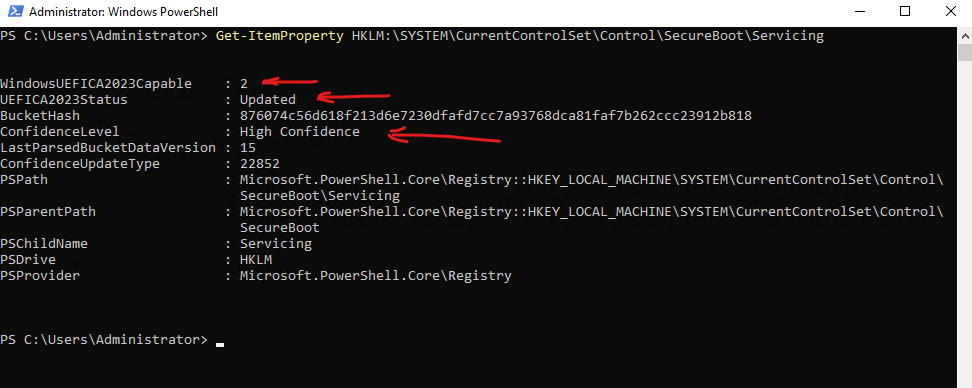
PS> Get-ItemProperty HKLM:\SYSTEM\CurrentControlSet\Control\SecureBoot\Servicing
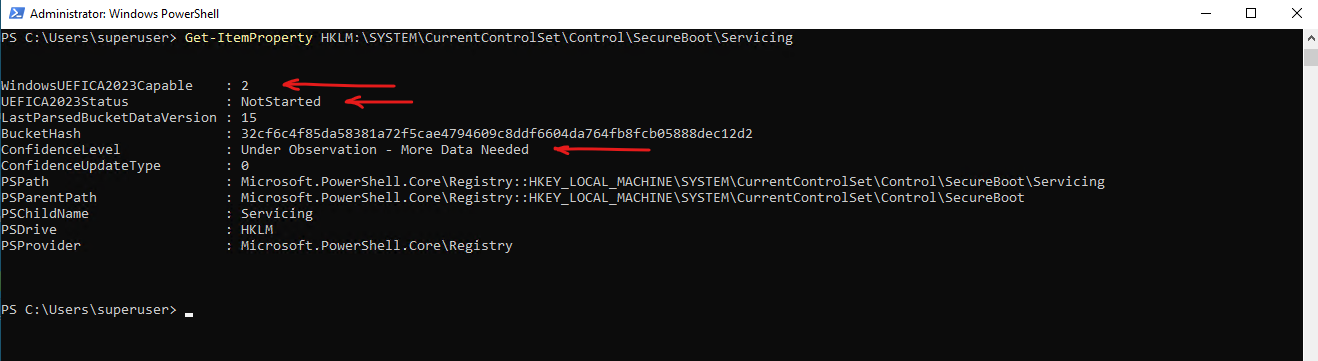
WindowsUEFICA2023Capable
Indicates whether the system is capable of using the new Windows UEFI CA 2023 trust chain. A value of 0 means the Windows UEFI CA 2023 certificate is not present in the active Secure Boot database (DB). A value of 1 indicates that the certificate is present, while a value of 2 confirms that the system is booting from a Windows Boot Manager signed with the Windows UEFI CA 2023 certificate.
UEFICA2023Status
Represents Microsoft’s overall deployment status for the Secure Boot certificate migration. Depending on the deployment stage, values such as NotStarted, InProgress, or Updated may be reported. Microsoft recommends using this value as the primary indicator when assessing the status of the Secure Boot certificate update process. A value of Updated indicates that the Secure Boot certificate transition has completed successfully and the system has been migrated to the new 2023 trust chain.
ConfidenceLevel
Provides Microsoft’s confidence assessment regarding the readiness of the system for the Secure Boot certificate migration. During the rollout process, values such as Under Observation - More Data Needed may be displayed while Microsoft continues to evaluate device telemetry. Once sufficient validation data has been collected, a higher confidence level may be reported. A value of High Confidence indicates that Microsoft has positively validated the migration state based on the system’s Secure Boot configuration and telemetry data.
In the example shown below, the values WindowsUEFICA2023Capable = 2, UEFICA2023Status = Updated, and ConfidenceLevel = High Confidence indicate a successfully completed Secure Boot certificate migration. The system is booting from a Windows UEFI CA 2023-signed Boot Manager and all required Secure Boot certificates have been deployed successfully.
Deploy the 2K23 Certificates: Updating the UEFI NVRAM and Boot Manager Database
If our status check revealed that the 2023 certificates are present in dbdefault but missing from our active db, your next step is to commit them to the live database.
Bringing our active Secure Boot environment up to date requires pulling those newer keys out of the firmware’s storage and writing them directly into our system’s NVRAM.
Deploy by using Registry Keys
Run each of the following commands separately from an administrator PowerShell prompt:
The command initiates the certificate and boot manager deployment on the device.
PS> reg add HKEY_LOCAL_MACHINE\SYSTEM\CurrentControlSet\Control\Secureboot /v AvailableUpdates /t REG_DWORD /d 0x5944 /f

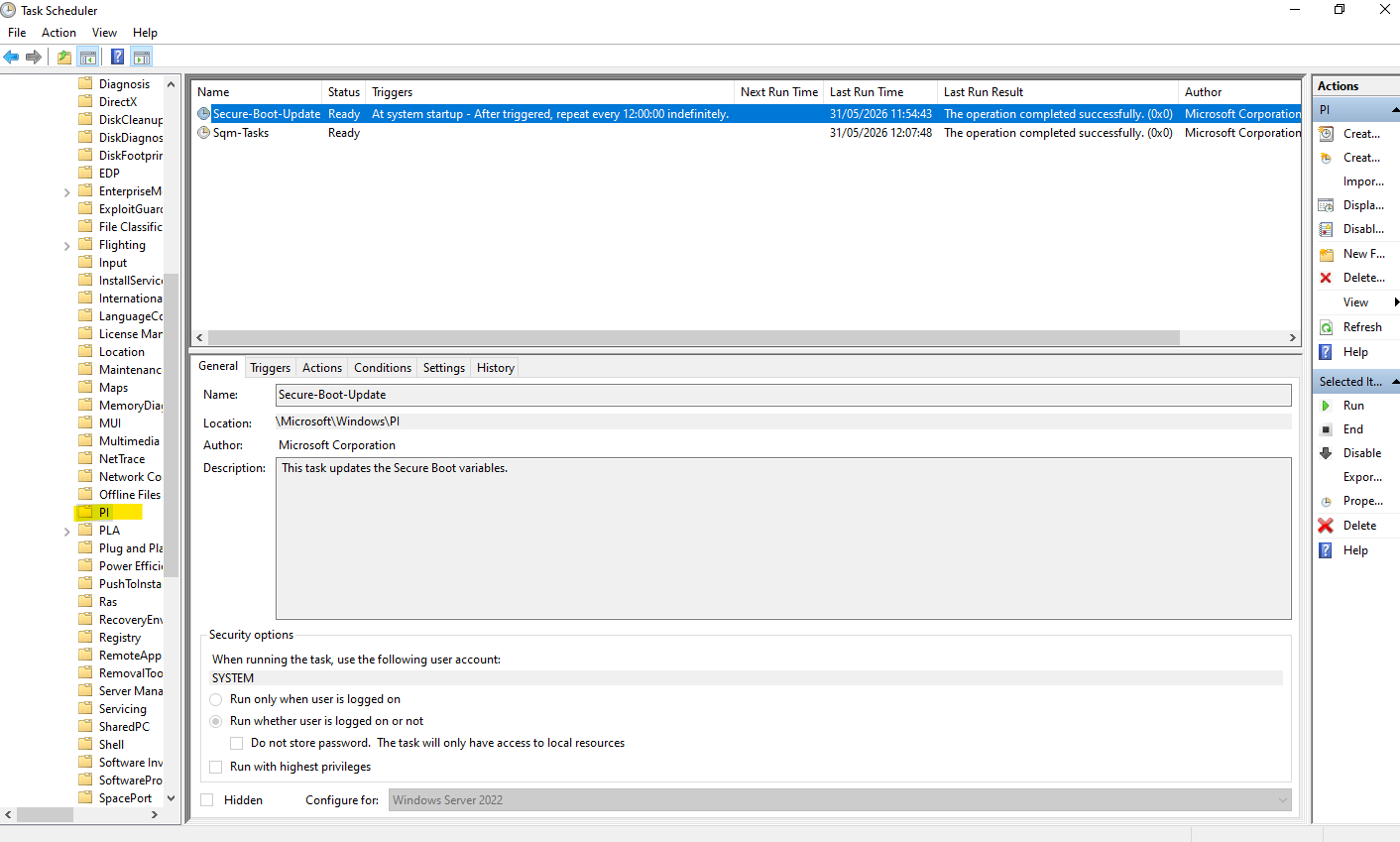
The command causes the task that processes the AvailableUpdates registry key to run right away. Normally the task runs every 12 hours.
PS> Start-ScheduledTask -TaskName "\Microsoft\Windows\PI\Secure-Boot-Update"

This scheduled task we will find in the task scheduler as shown below.

Verify the state:
The
Get-WinEventcommand can be used to review Secure Boot-related events and identify issues that prevent the complete deployment of the new 2023 Secure Boot certificates.
PS> reg query HKLM\SYSTEM\CurrentControlSet\Control\SecureBoot /v AvailableUpdates
PS> Get-ScheduledTaskInfo -TaskName "Secure-Boot-Update" -TaskPath "\Microsoft\Windows\PI\"
PS> Get-WinEvent -LogName System | ? {$_.ProviderName -match "TPM-WMI|Secure-Boot"} | Select -First 20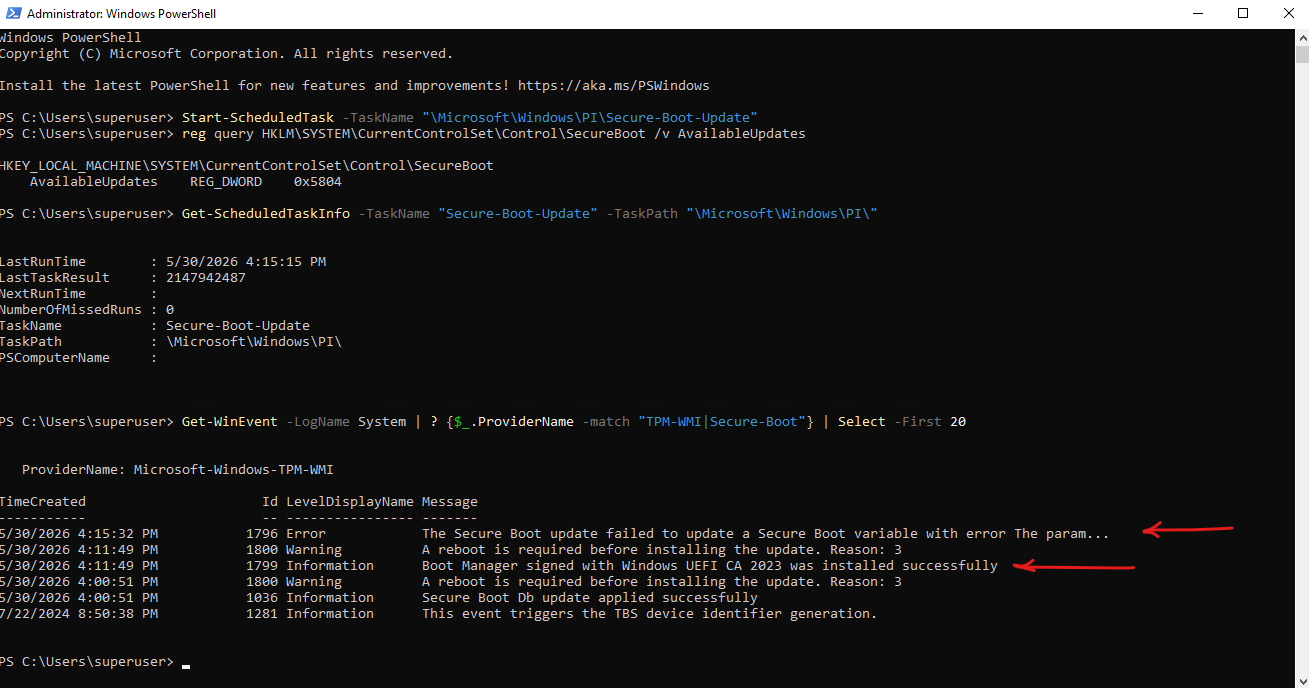
After manually initiating the Microsoft Secure Boot update workflow, the Windows UEFI CA 2023 certificate was successfully added to the active Secure Boot database and the Windows Boot Manager was updated to a version signed with the new certificate chain.
However, subsequent update attempts generated Event ID 1796 (“The parameter is incorrect”), suggesting that additional Secure Boot variable updates may not be fully supported by the VMware virtual firmware implementation. The system nevertheless progressed through the most critical migration steps successfully.
On this VMware VM, the Microsoft update task successfully added
Windows UEFI CA 2023to the active DB and updated Boot Manager, butMicrosoft UEFI CA 2023remained only indbdefault, while later Secure Boot variable updates failed with Event ID 1796.
PS> (Get-UEFISecureBootCerts db).signature
PS> (Get-UEFISecureBootCerts dbdefault).signature
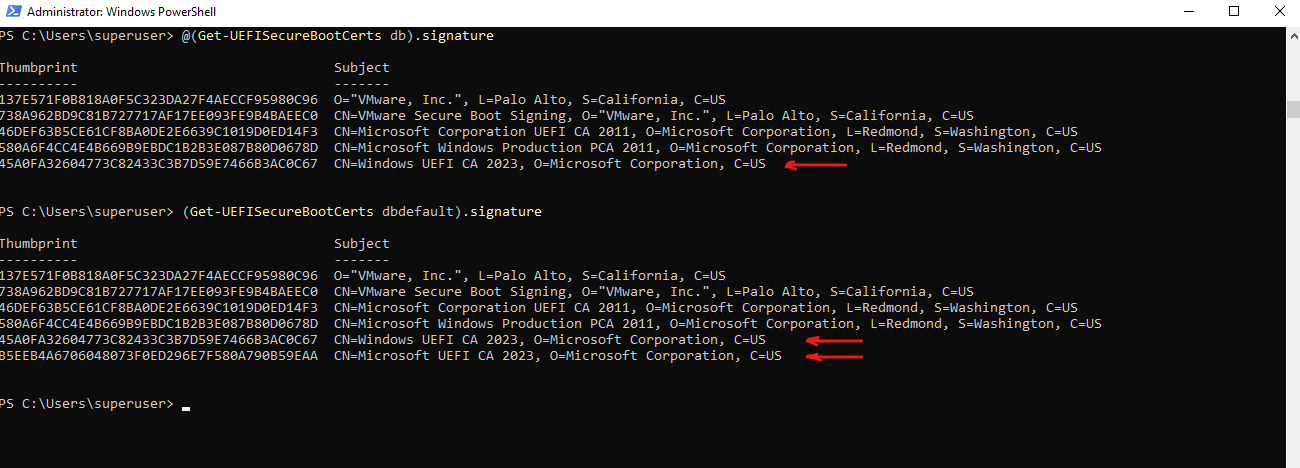
Now after running the Secure Boot update workflow the Windows UEFI CA 2023 certificate state is → WindowsUEFICA2023Capable : 1
The
WindowsUEFICA2023Capable : 1value indicates that the Windows Servicing Stack has detected a firmware environment that is physically capable of supporting the 2023 certificates but is currently blocked from applying them.In my case this is a VMware VM, this specifically signaled that while the virtual hardware was compatible, the lack of a valid Platform Key (PK) prevented the OS from having the “write permissions” needed to advance the status to the next stage. We will see in the next section below how to solve this and finally have the state
WindowsUEFICA2023Capable : 2.
0→ Windows UEFI CA 2023 certificate not present in the active DB1→ Windows UEFI CA 2023 certificate present in the active DB2→ Windows UEFI CA 2023 certificate present and system booting from a Windows UEFI CA 2023-signed Boot Manager
PS> Get-ItemProperty HKLM:\SYSTEM\CurrentControlSet\Control\SecureBoot\Servicing
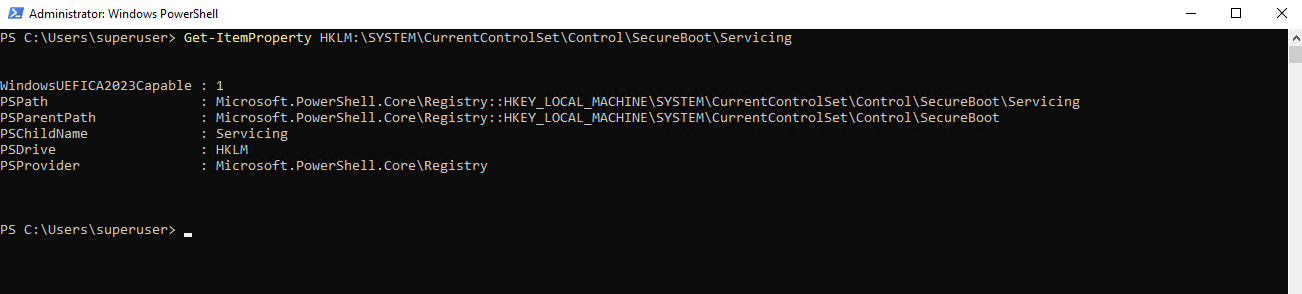
The Servicing registry key as shown below may initially contain only limited information or may not yet be fully populated.
PS> Get-ItemProperty HKLM:\SYSTEM\CurrentControlSet\Control\SecureBoot\Servicing
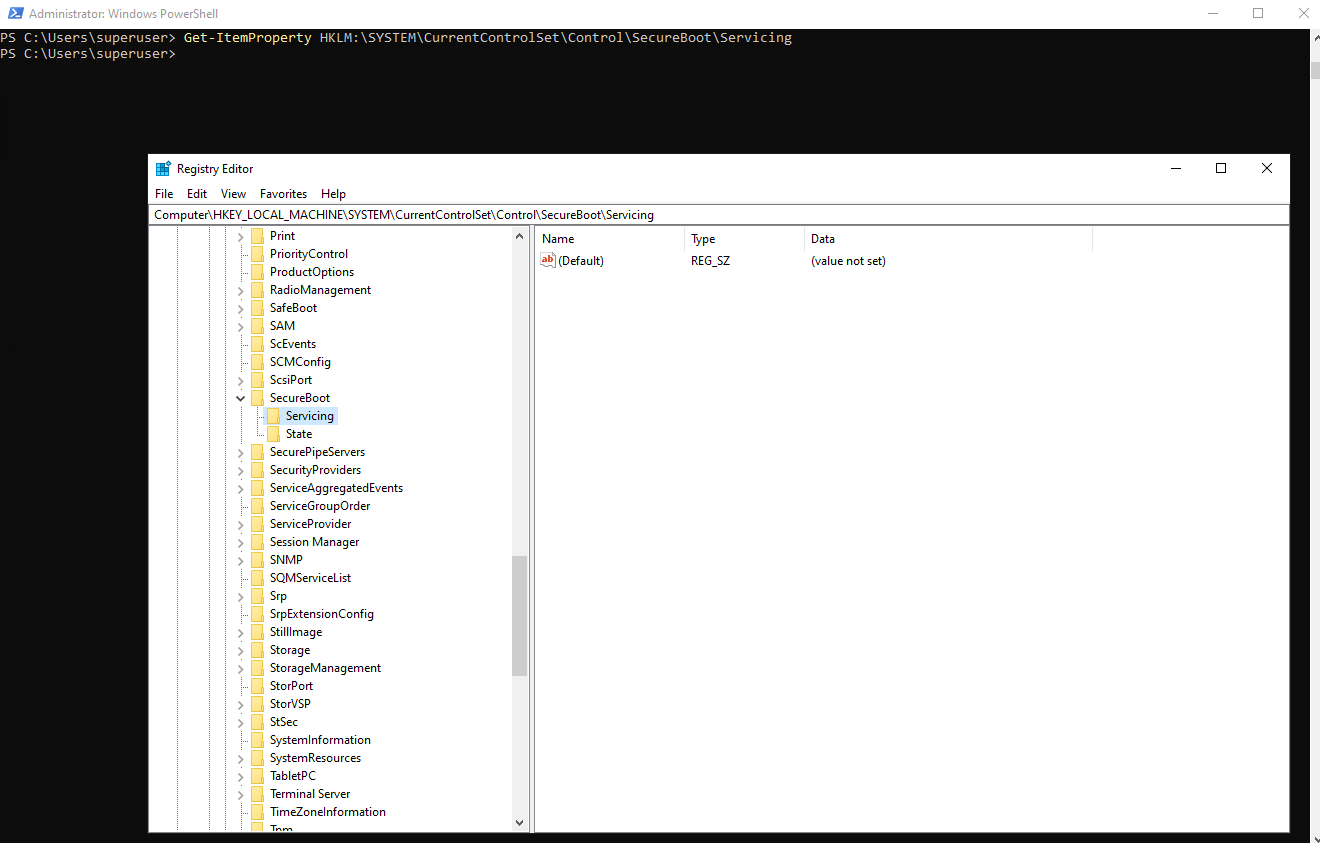
After enabling the Secure Boot updates through the AvailableUpdates registry value and triggering the Secure-Boot-Update scheduled task, Windows evaluates the system’s Secure Boot configuration and populates additional migration status information such as UEFICA2023Status and WindowsUEFICA2023Capable.
PS> reg add HKEY_LOCAL_MACHINE\SYSTEM\CurrentControlSet\Control\Secureboot /v AvailableUpdates /t REG_DWORD /d 0x5944 /f
PS> Start-ScheduledTask -TaskName "\Microsoft\Windows\PI\Secure-Boot-Update"
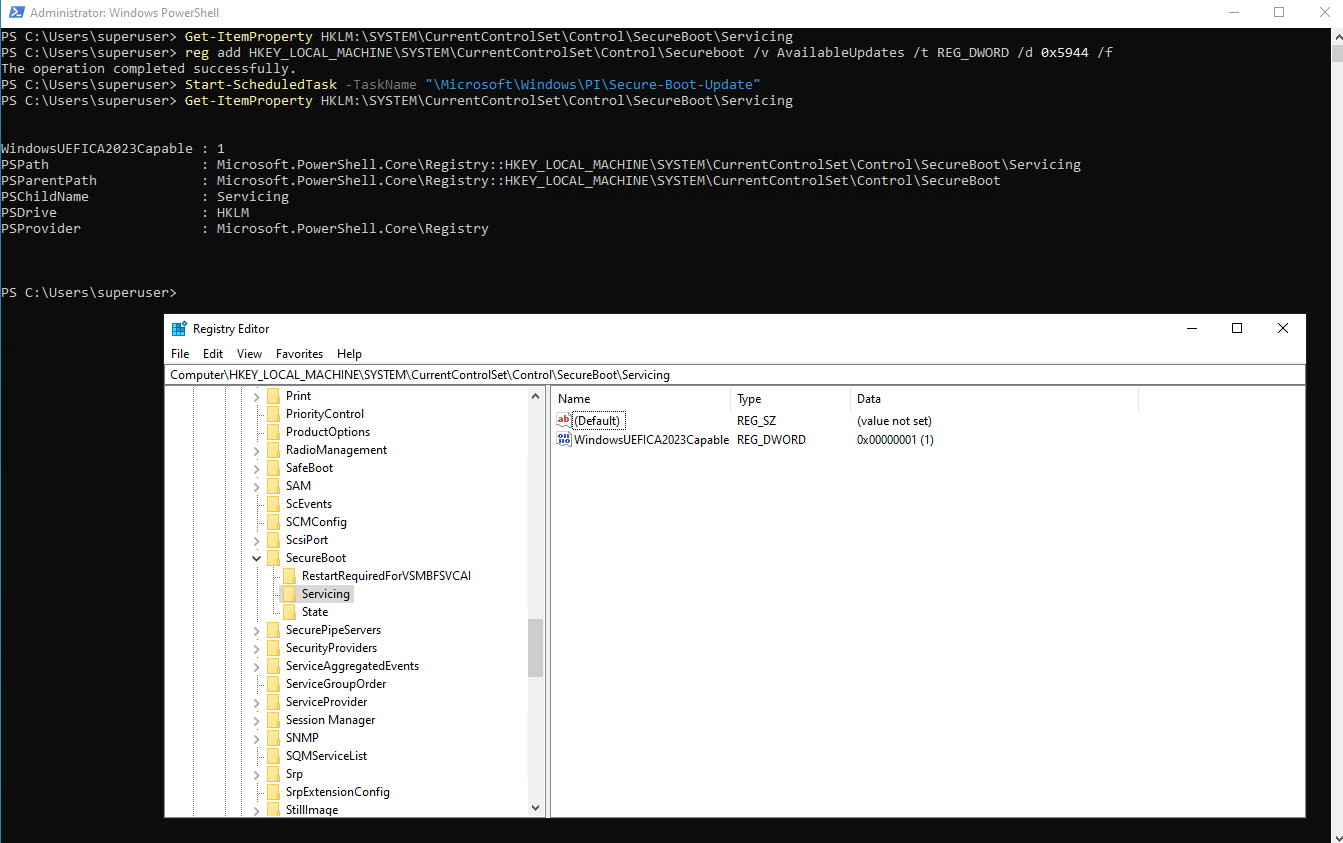
By using Group Policies
Computer Configuration > Administrative Templates > Windows Components > Secure Boot
To apply Secure Boot updates to devices using Group Policy, set the Enable Secure Boot certificate deployment policy to Enabled. This lets Windows automatically begin the certificate deployment process.
This GPO setting corresponds to the registry key AvailableUpdates ==>
reg add HKEY_LOCAL_MACHINE\SYSTEM\CurrentControlSet\Control\Secureboot /v AvailableUpdates /t REG_DWORD /d 0x5944 /f
Be sure to get the latest version of the .admx for Windows Server to have this policy available.
Sources:
https://techcommunity.microsoft.com/blog/windowsservernewsandbestpractices/windows-server-secure-boot-playbook-for-certificates-expiring-in-2026/4495789
https://support.microsoft.com/en-us/topic/group-policy-objects-gpo-method-of-secure-boot-for-windows-devices-with-it-managed-updates-65f716aa-2109-4c78-8b1f-036198dd5ce7
Secure Boot Certificate Updates on VMware vSphere
As documented by Broadcom, virtual machines created on ESXi versions earlier than 9.0 may use a Platform Key (PK) configured with a NULL signature.
Because the Platform Key represents the root of trust within the Secure Boot hierarchy, it cannot authorize updates to the Key Exchange Key (KEK) database. As a result, the subsequent KEK, DB, and DBX certificate updates required for Microsoft’s Secure Boot certificate migration cannot be completed successfully until the Platform Key is updated.
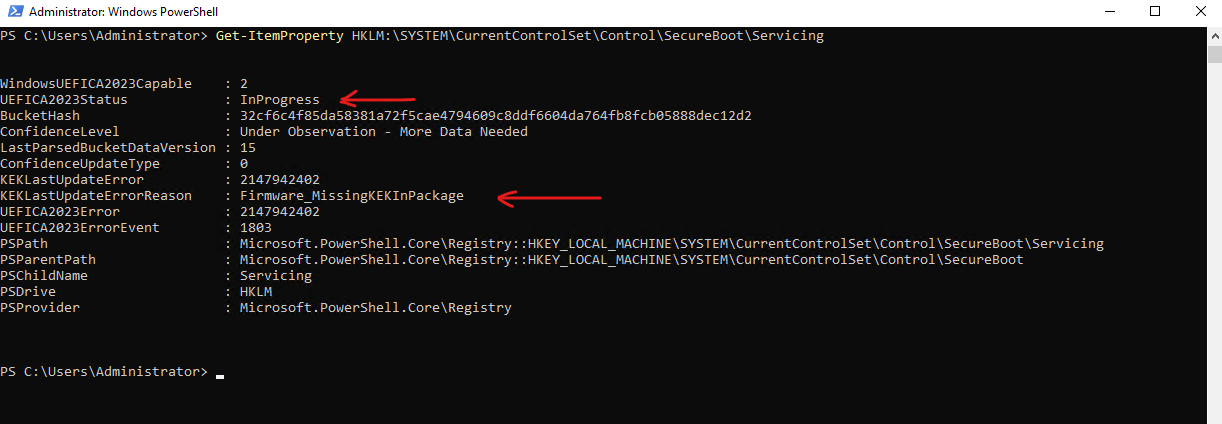
The VMware virtual machines stuck at UEFICA2023Status in state InProgress and for the KEKLastUpdateErrorReason we see Firmware_MissingKEKInPackage as shown below.
PS> Get-ItemProperty HKLM:\SYSTEM\CurrentControlSet\Control\SecureBoot\Servicing
Before applying the VMware-specific EFI certificate update, the Secure Boot update process may generate several warning and error events in the Windows System log.
The following command can be used to review Secure Boot-related events and identify issues that prevent the complete deployment of the new 2023 Secure Boot certificates.
PS> Get-WinEvent -LogName System | ? {$_.ProviderName -match "TPM-WMI|Secure-Boot"} | Select -First 20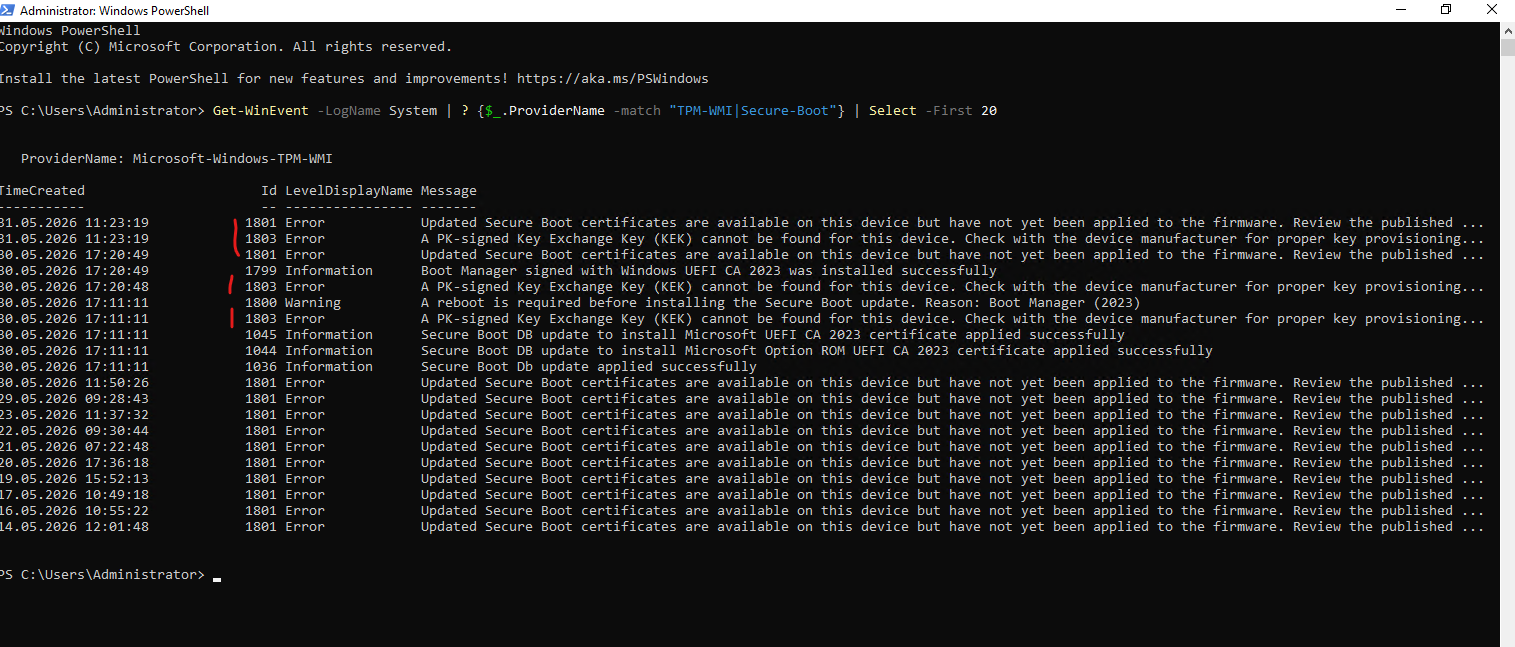
To see all details of a specific event listed above we can run:
Here e.g. the latest above shown event with the
ID 1801.
Get-WinEvent -FilterHashtable @{
    LogName='System'
    ProviderName='Microsoft-Windows-TPM-WMI'
    Id=1801
} | Select-Object -First 1 | Format-List *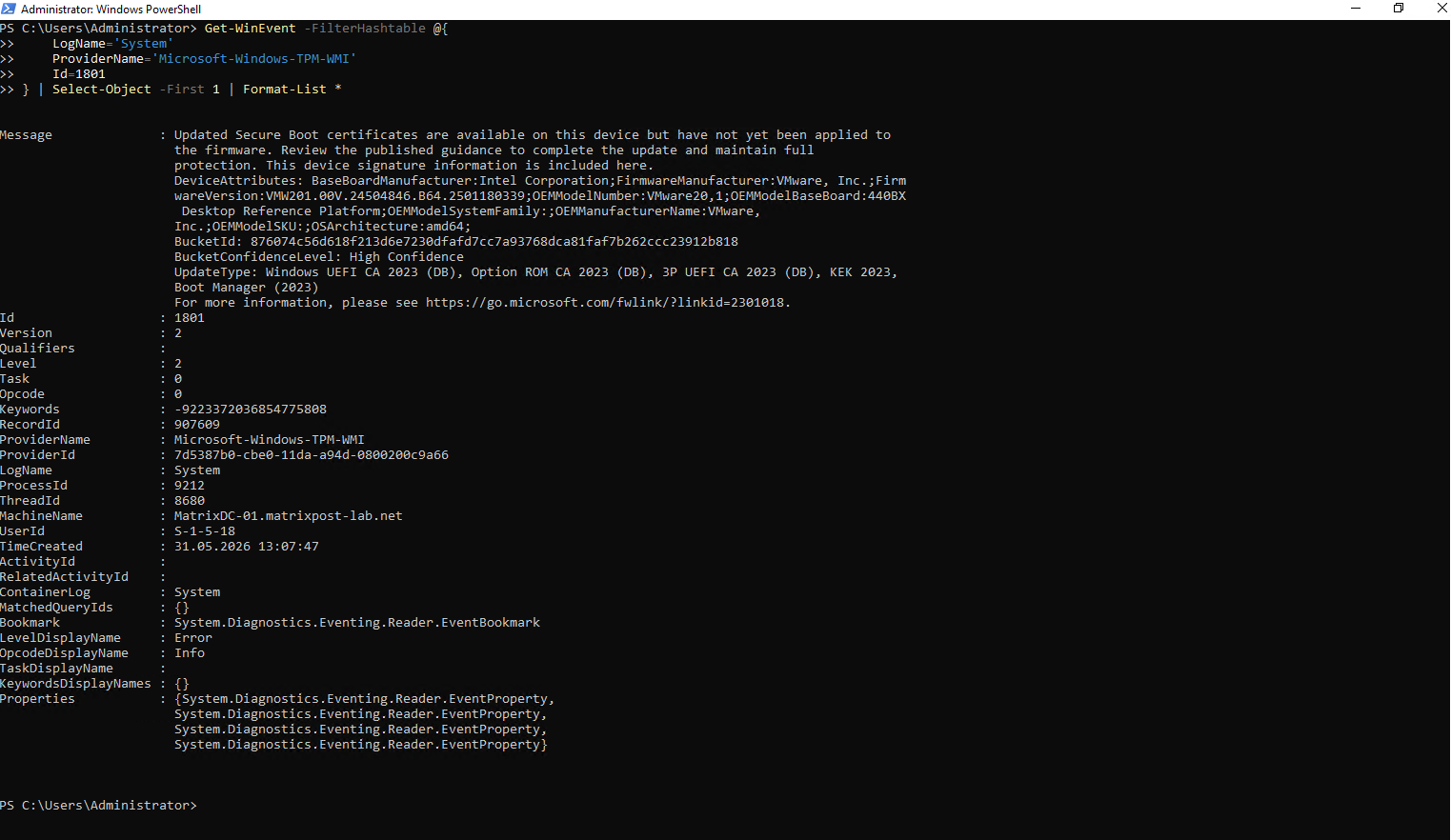
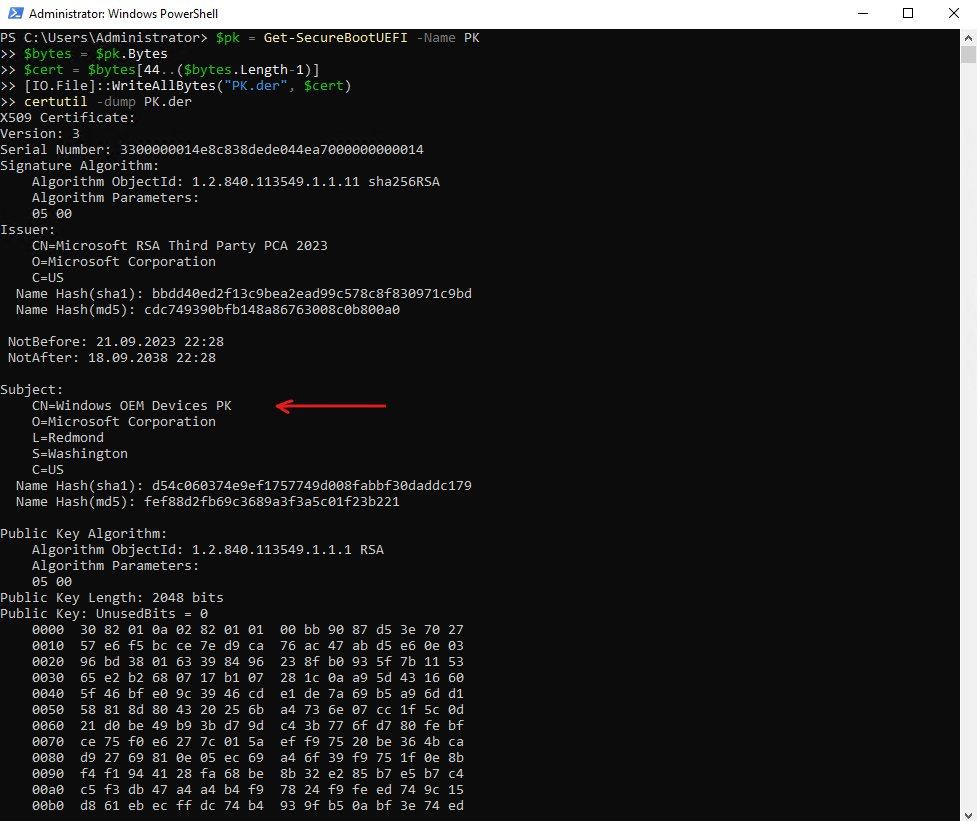
We can identify the virtual machines with missing or NULL Platform Key by running the following PowerShell commands in an elevated prompt:
$pk = Get-SecureBootUEFI -Name PK
$bytes = $pk.Bytes
$cert = $bytes[44..($bytes.Length-1)]
[IO.File]::WriteAllBytes("PK.der", $cert)
certutil -dump PK.der
The Platform Key (PK) needs to be updated if the above command fails with an error like Cannot index into a null array or the certutil command (shown above) will show the result as “00” , which both means the Certificate is Invalid and we need to replace and update.
Or we can also use the UEFIv2 PowerShell module if installed and shown already further above.
PS> (Get-UEFISecureBootCerts pk).signature

Later after applying this workaround it will looks like here:

Or when using the separate PowerShell commands it will looks like:
The following sections demonstrate three approaches to address this issue: the new automated PK remediation introduced with ESXi 8.0 U3j (P09), manual PK enrollment, and manual Key Exchange Key (KEK) updates where required.
SilentPK Update – Automated Remediation of Platform Key (only if vTPM disabled)
VMware ESXi 8.0 U3j (P09) contains the fixes to enable automated remediation of Platform Key during the Virtual Machine reboot for vTPM-disabled Virtual Machines.
If you upgrade hosts managed by vCenter Server, you must upgrade vCenter Server
before you upgrade the ESXi hosts. If you do not upgrade your environment in the correct order,
you can lose data and lose access to servers.
About upgrading the vCenter Server (VCSA) you can also read my following post.
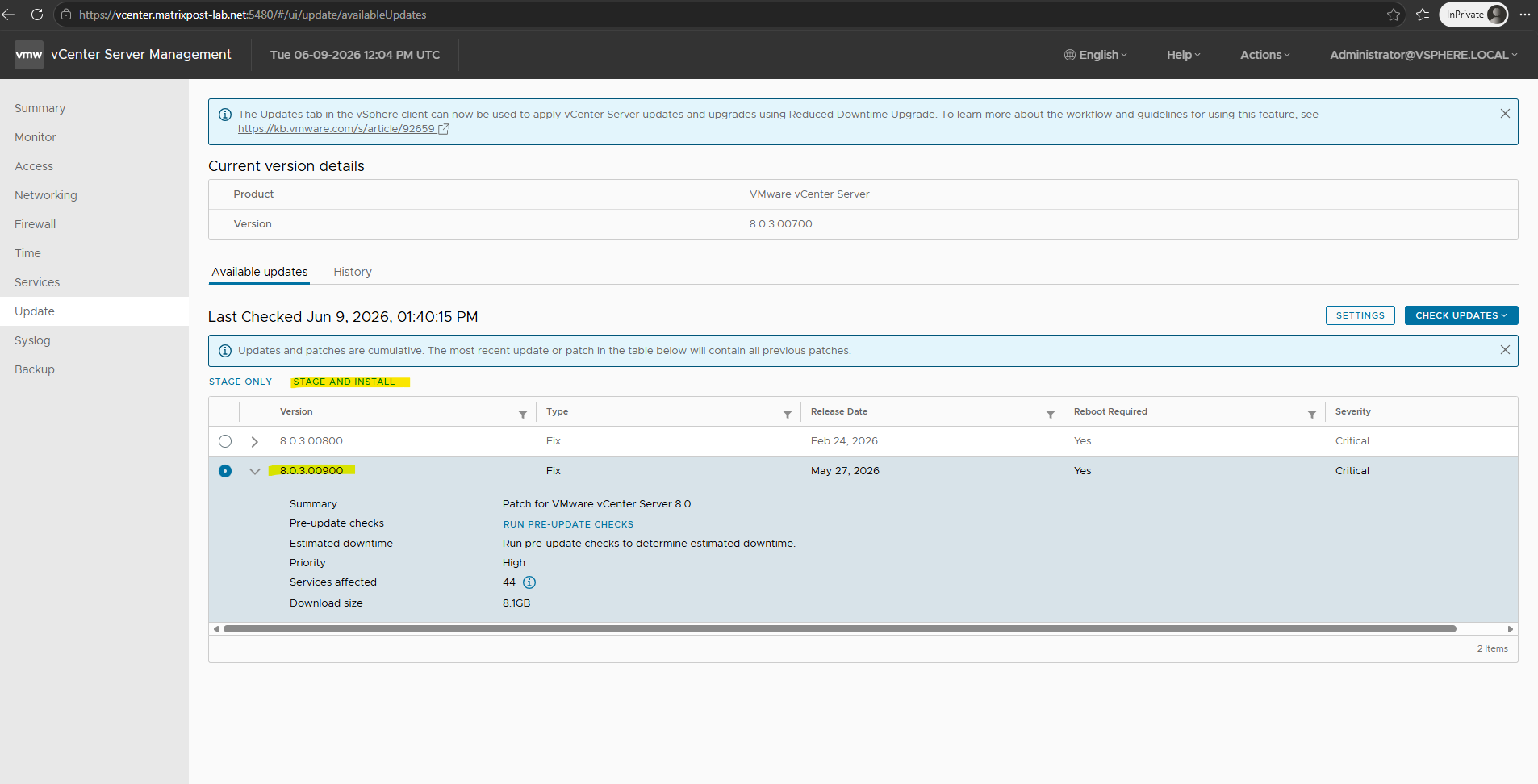
To finally update vCenter click on Stage and Install.
In vCenter Server, staging refers to the process of pre-downloading the update files to the vCenter Server Appliance (VCSA) before actually applying the update. This helps to reduce downtime by ensuring all necessary files are ready when you initiate the update
Version 8.0.3.00900 finally is VC-8.0U3j we also need to update the ESX hosts to remediate the secure boot certificate issue for VMware virtual machines.
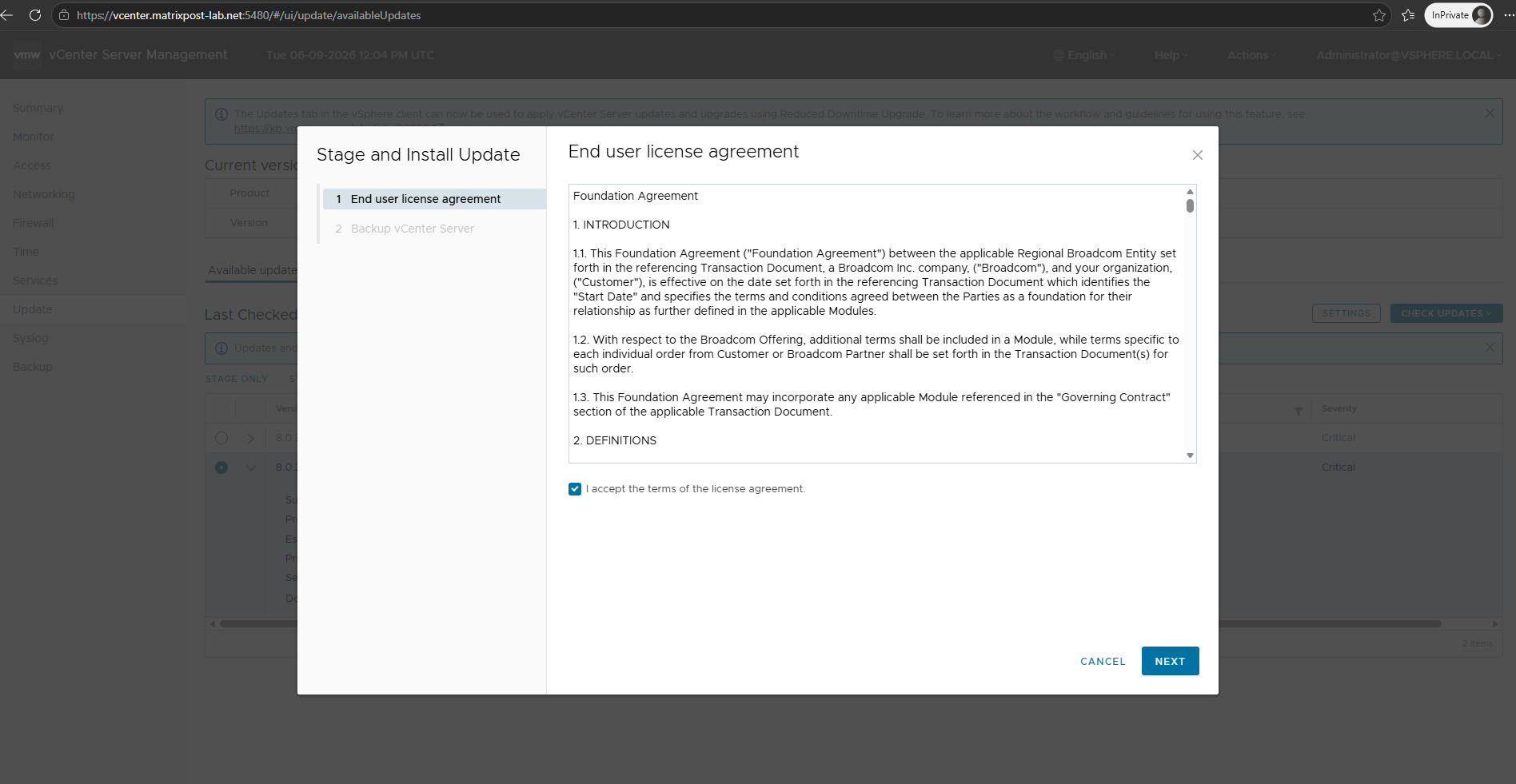
Accept the terms and click on Next.
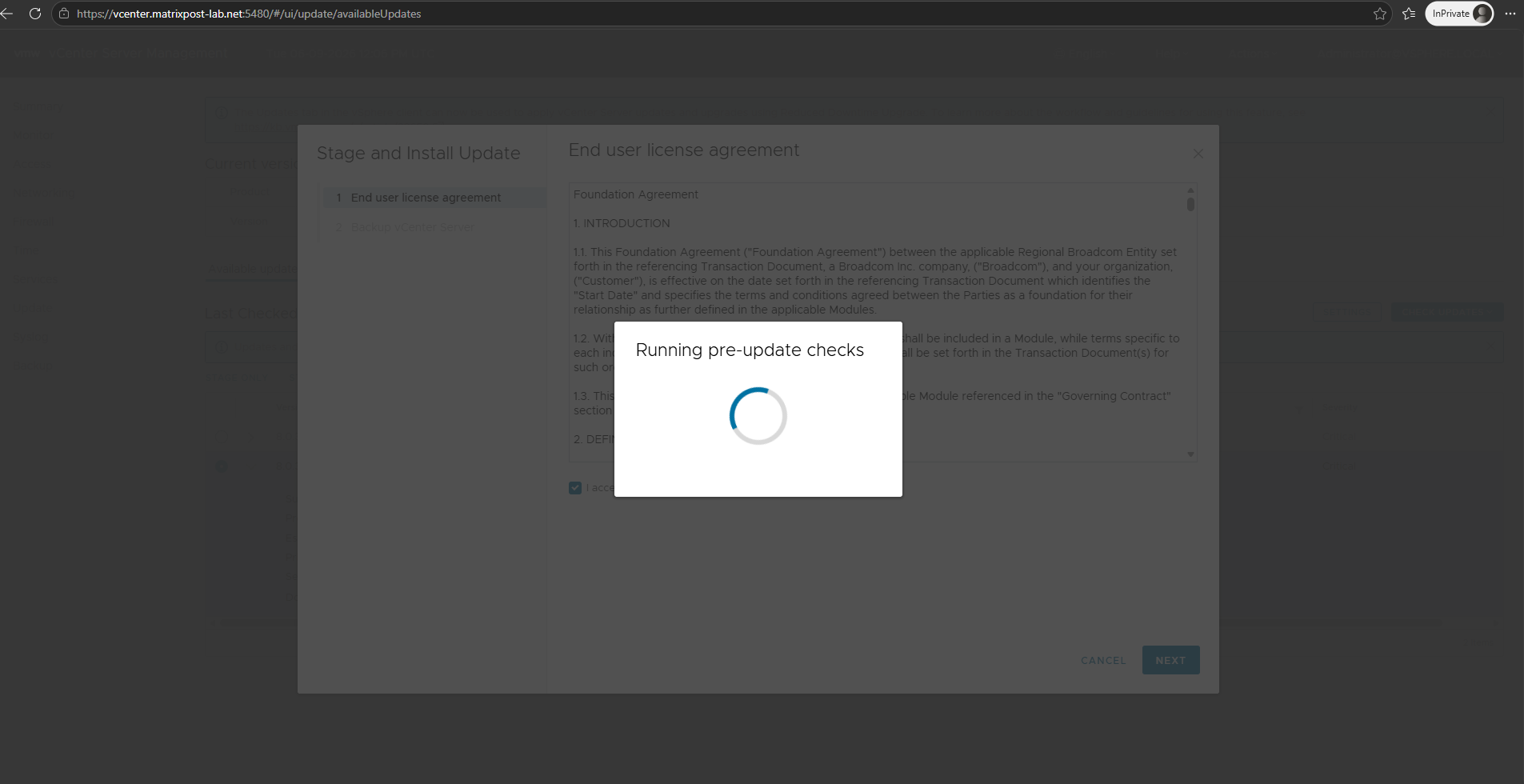
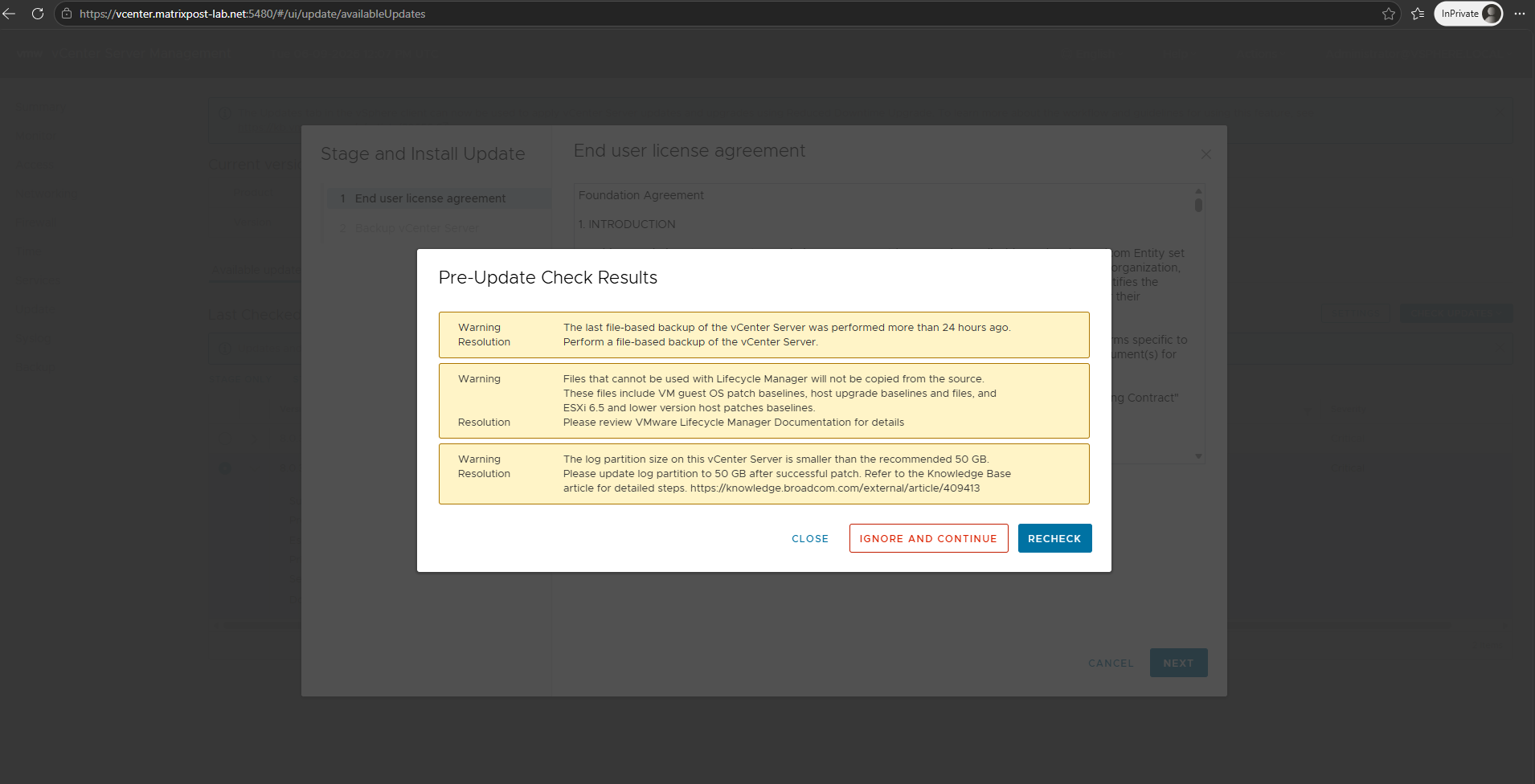
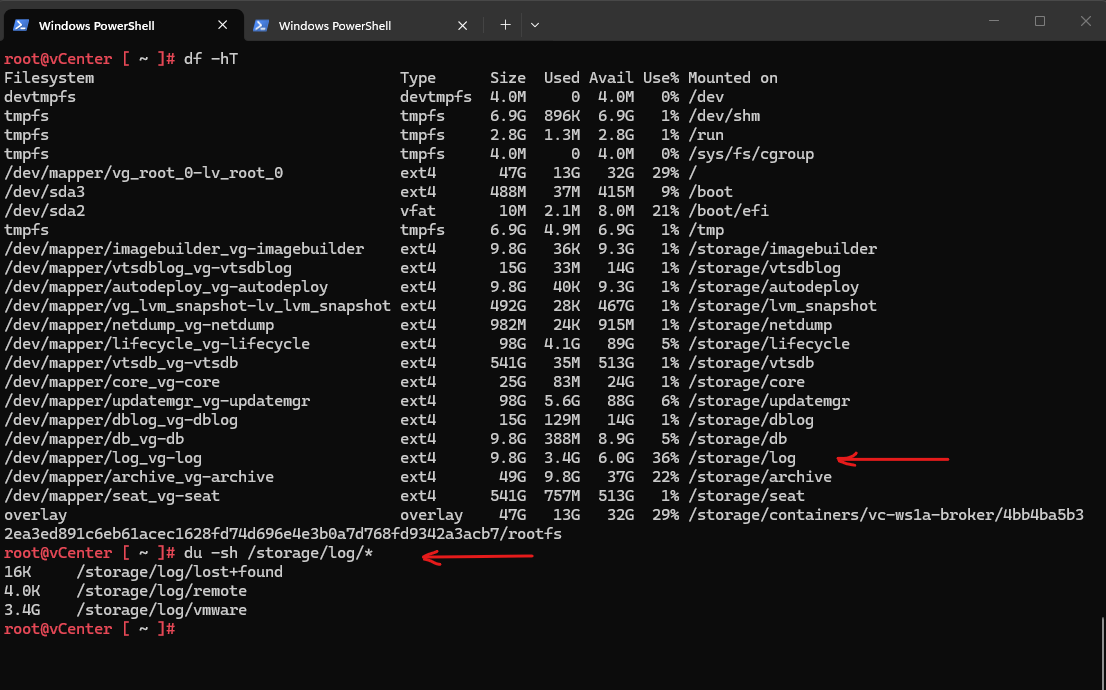
Regarding the /storage/log partition is smaller than the currently recommended 50 GB. In my case, the partition still had more than 6 GB of free space available and only 36% utilization, so the warning could be safely ignored as it is based on the configured partition size rather than actual disk usage.
So I will click on Ignore and Continue.
The rest are just warnings about not been created file-based backup of my vCenter Server and that files which cannot be used with Lifecycle Manager will not be copied from the repository. Finally I can ignore these messages.
We can check the current partition sizes with:
root@vCenter [ ~ ]# df -hT
root@vCenter [ ~ ]# du -sh /storage/log/*
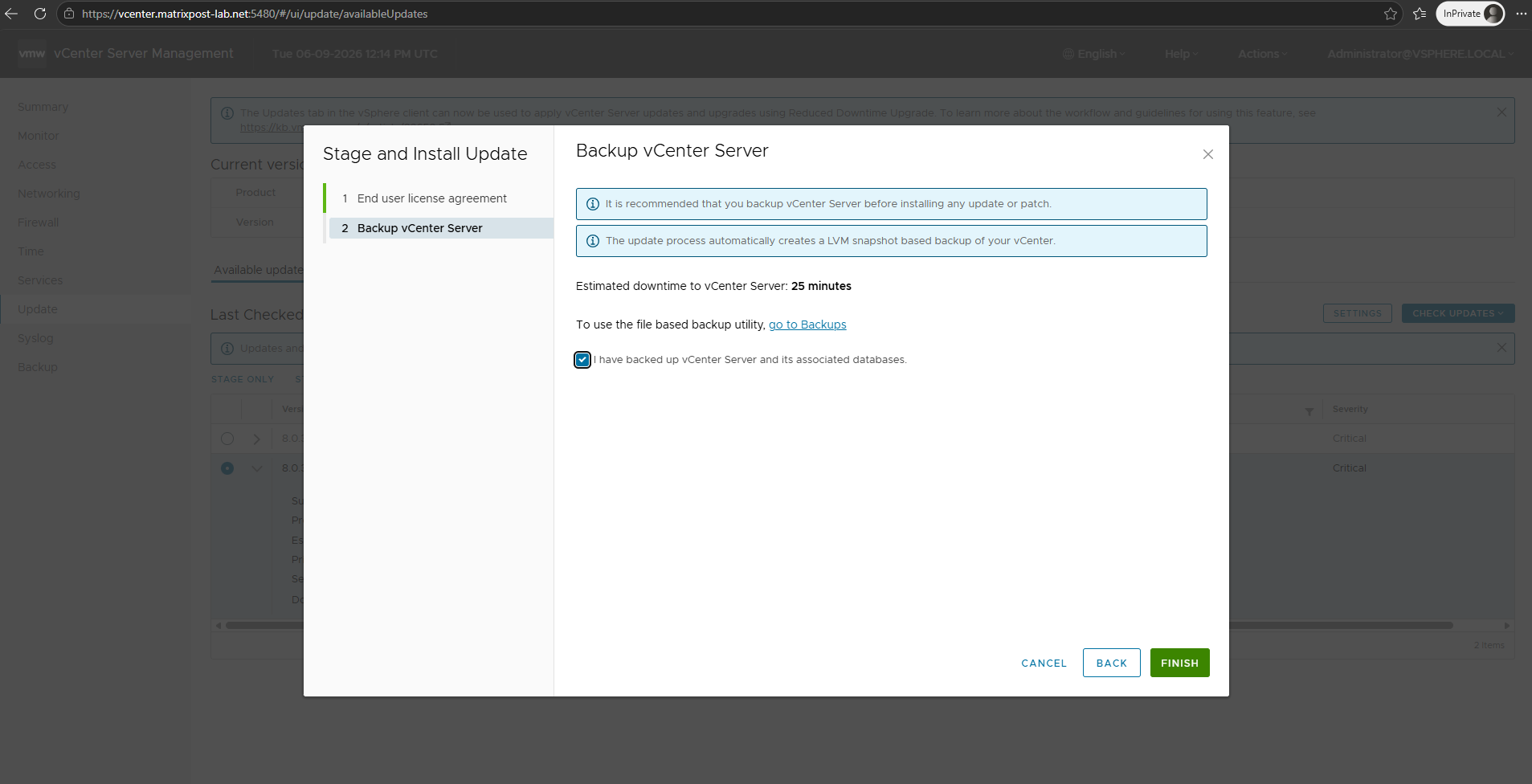
Finally click on Finish.
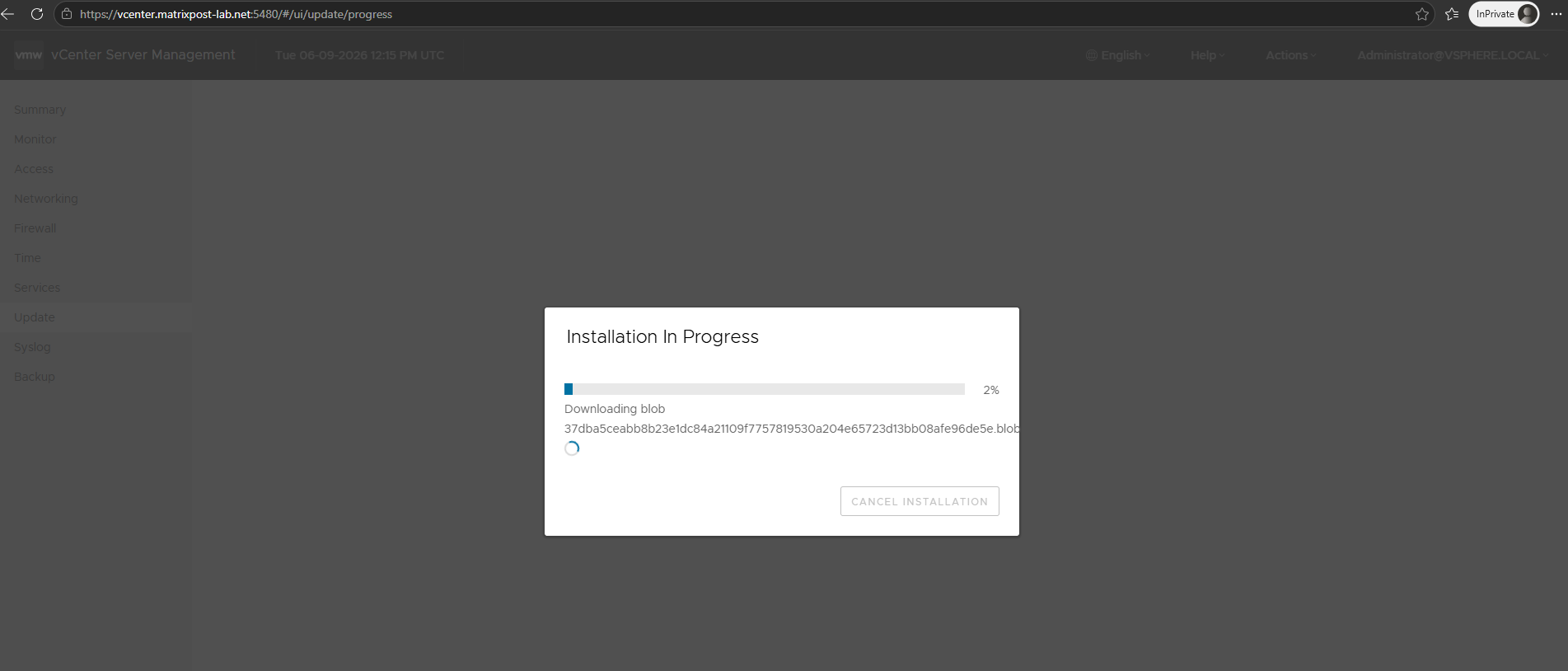
The installation of the updates are now in progress. First the required files will be downloaded.
More detailed steps during the update process you will find in my post here.
Finally the updates were successfully installed.
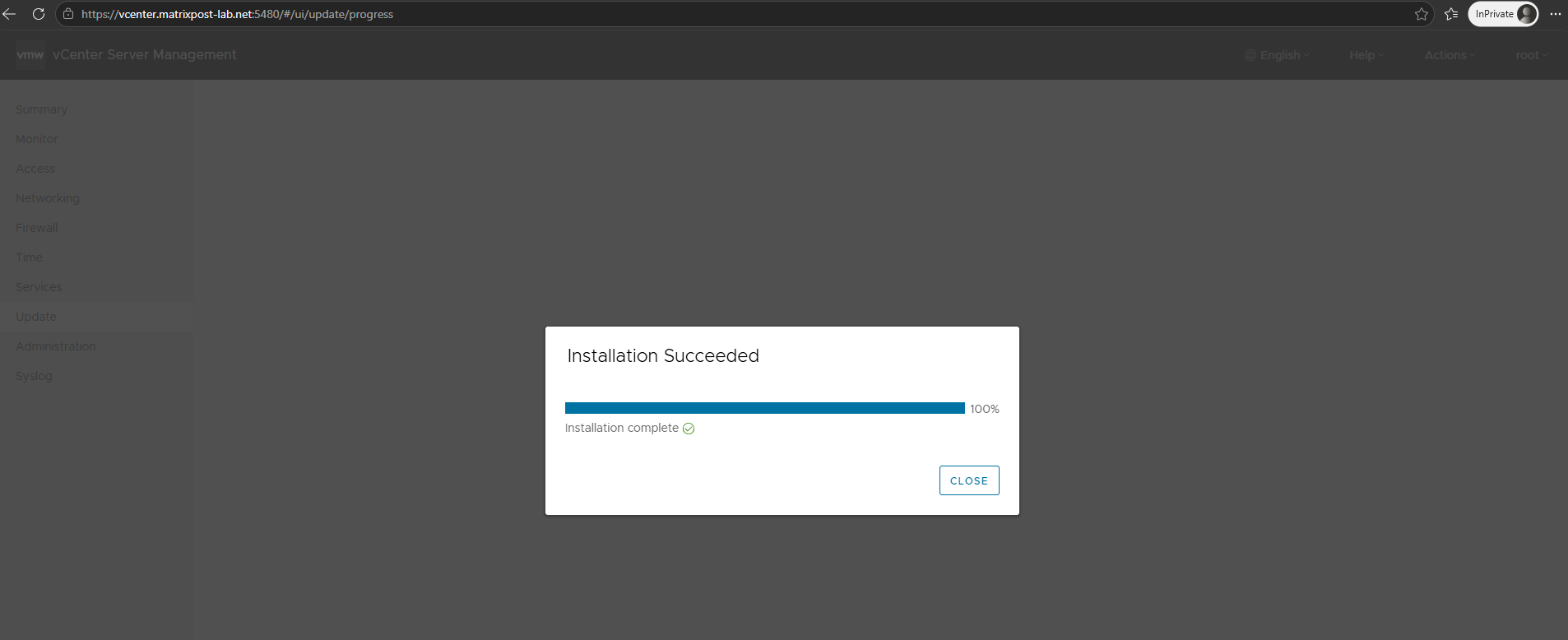
The vCenter server reboots after the upgrade and it takes some time before we can finally access the vCenter Web GUI.
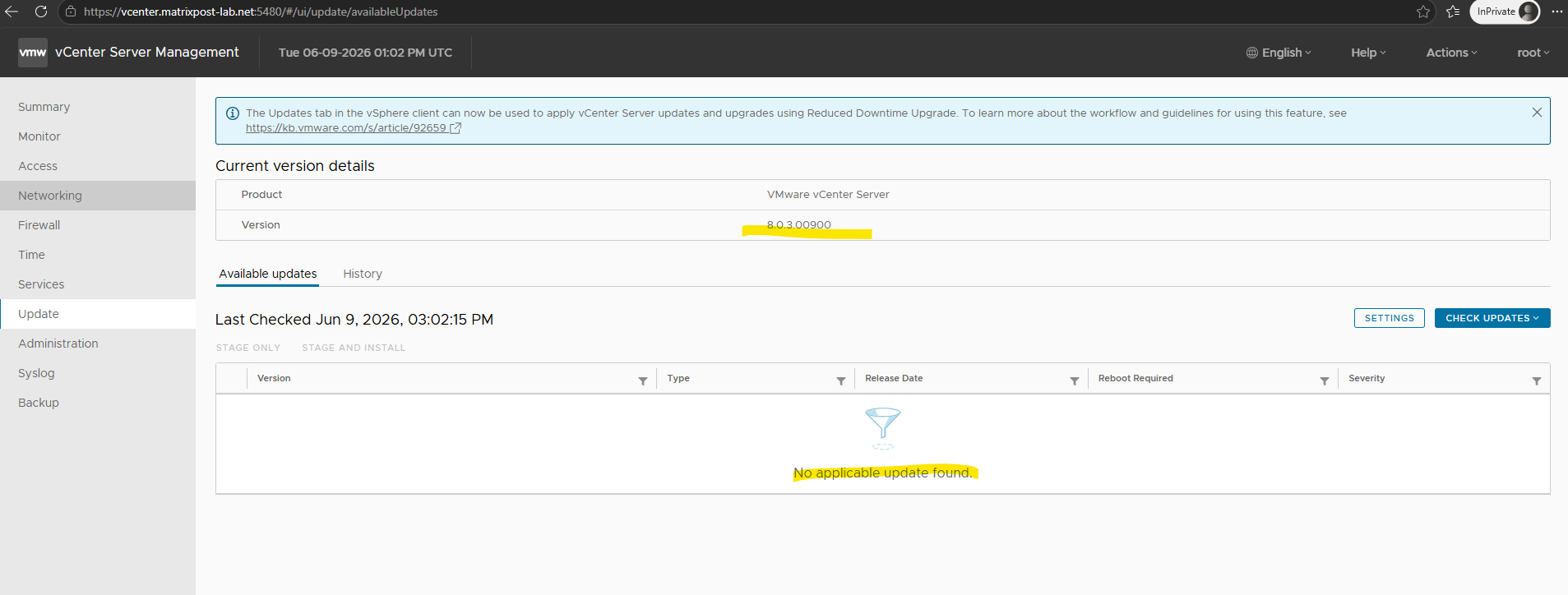
When checking updates again by using the vCenter Server Appliance Management Interface (VAMI), now no new updates are available and vCenter Server is up to date.
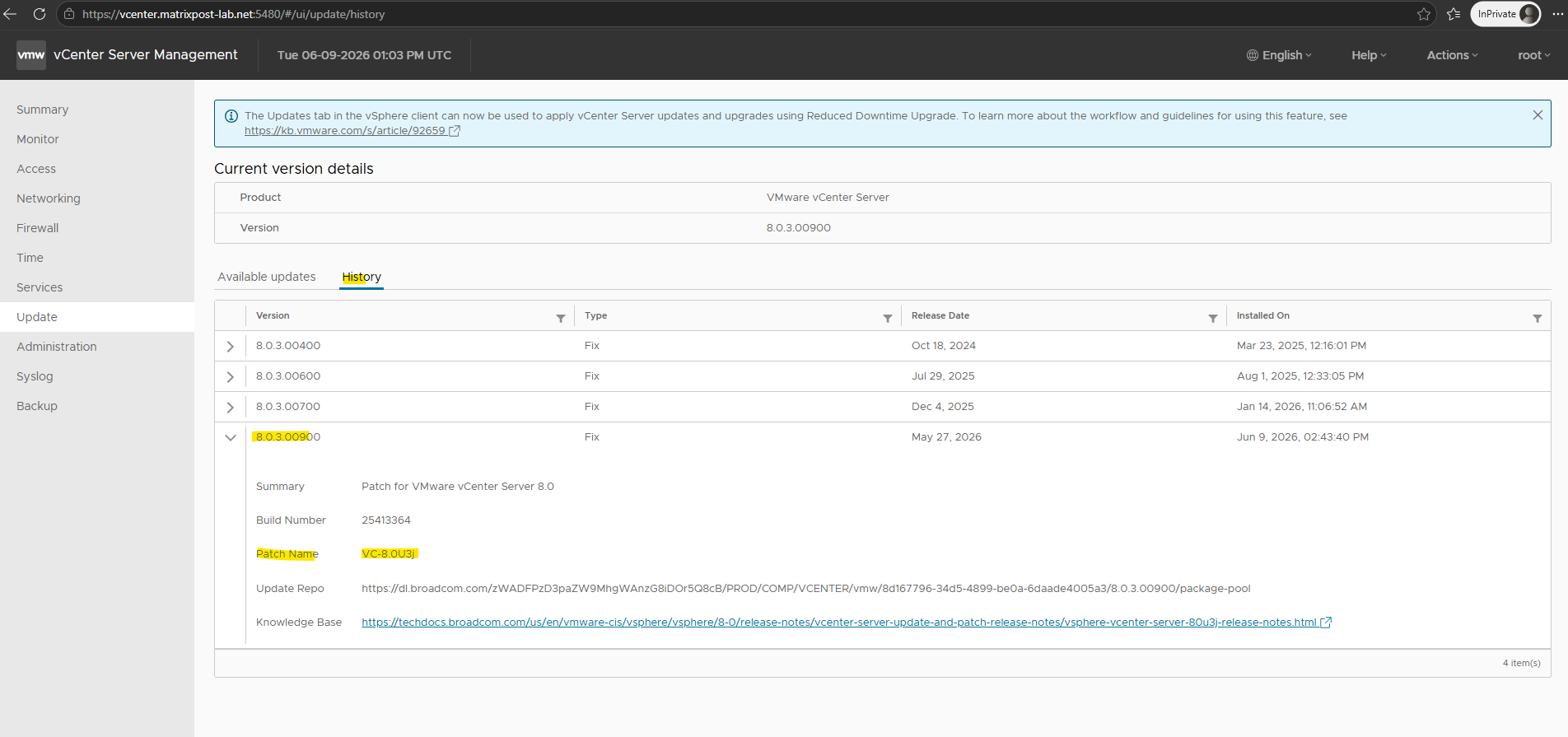
On the History tab we can see all installed updates in past.
We can also see here that version 8.0.3.00900 finally is VC-8.0U3j we also need to update the ESX hosts to remediate the secure boot certificate issue for VMware virtual machines.
Next we can update the ESX hosts as shown in my following post.
In my case before I can upgrade and remediate the ESXi hosts to the latest version, I will first need to add the Flings USB NICs component drivers to the image.
For my lab environment I will use three notebooks for the ESXi hosts and they will use USB NICs which by default is not be supported for all models by the out-of-the box ESXi images.
Therefore I will first need to download the latest version from the new Broadcom Flings Site.
The detailed steps you will find in my post here.
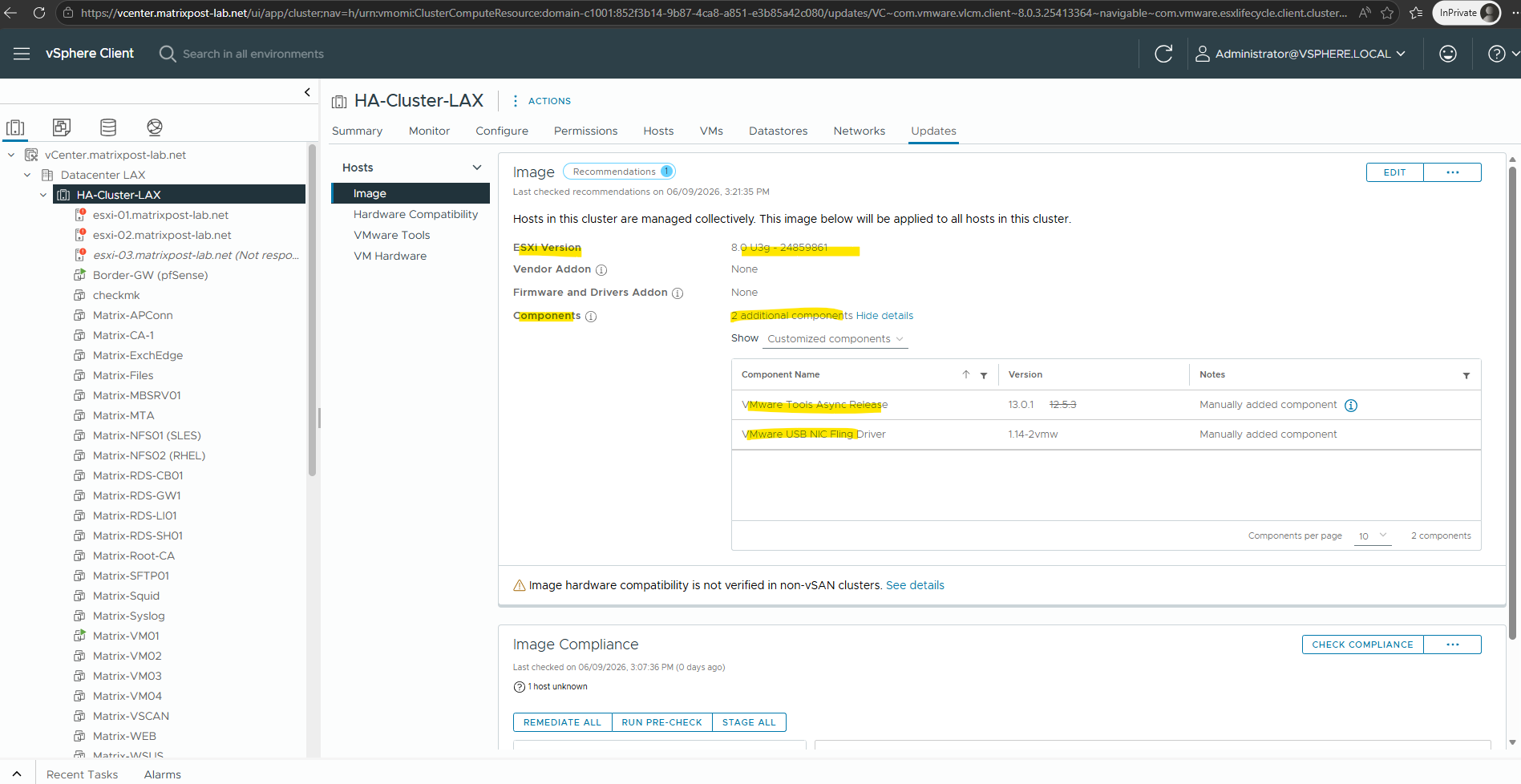
To now finally upgrade/update our ESXi hosts, we need to navigate to Hosts and Clusters -> Updates -> Images as shown below. We can also see here that currently the cluster is running with the ESXi image version 8.0 U3g – 24859861.
Under additional components we can see in my case the mentioned VMware USB NIC Fling Driver.
Click on Recommendations.
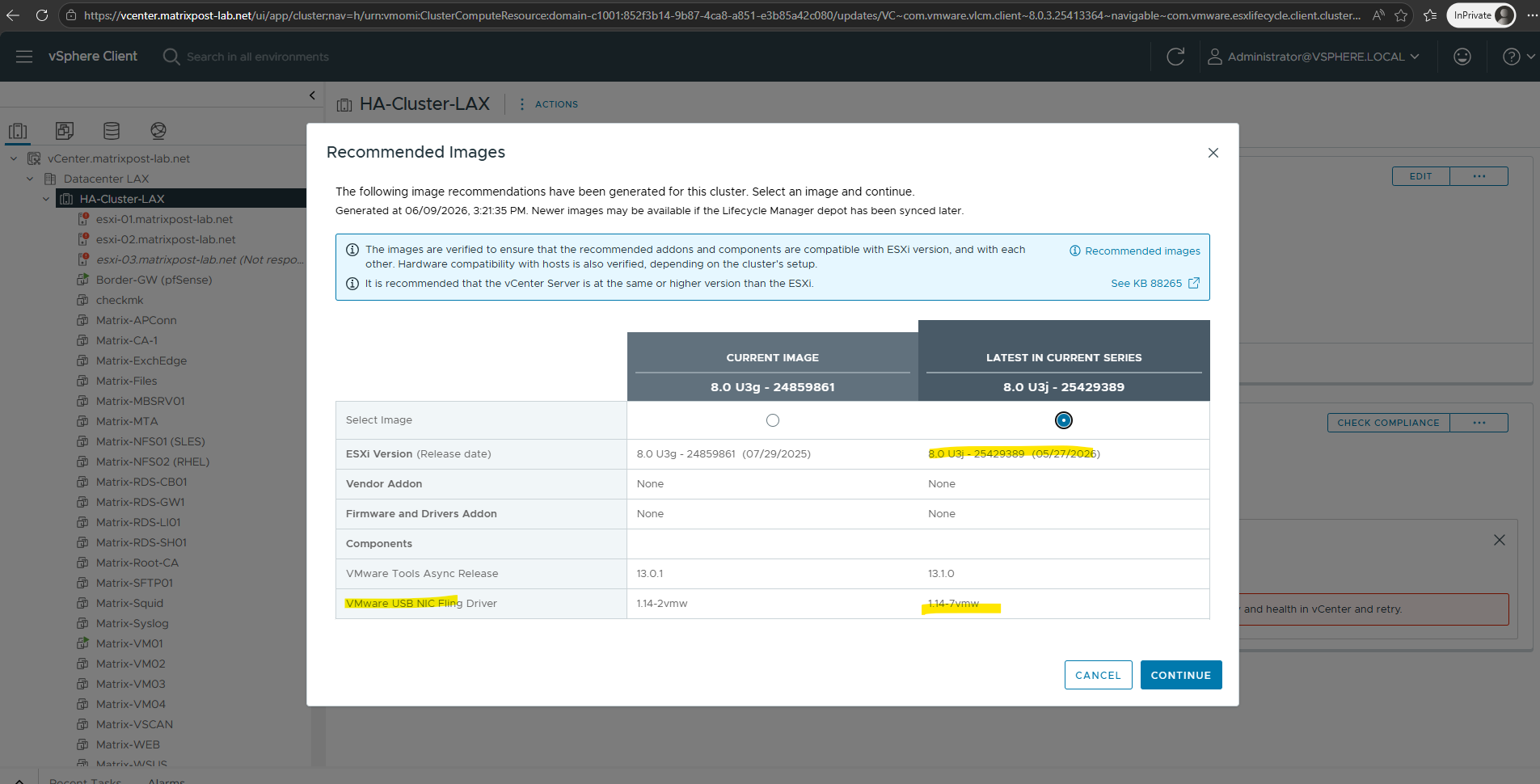
Our downloaded VMware USB NIC Fling Driver is already included in the new image. Click on Continue.
Click on Save. The compliance will be checked again.
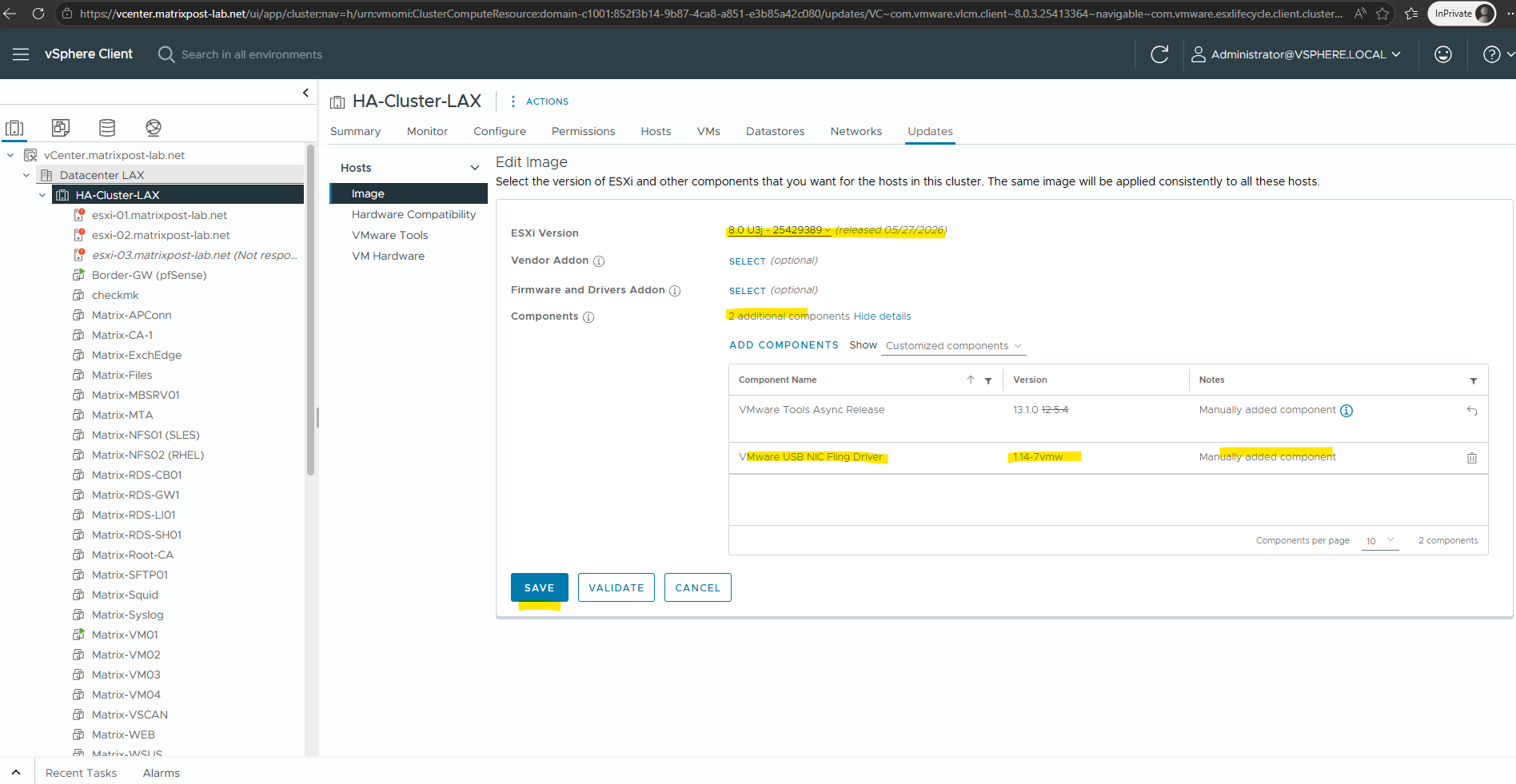
We can now remediate all of the ESXi hosts to finally upgrade them to version 8.0. U3j which will support the remediation of the secure boot certificate issue in VMware.
!!! Note !!!
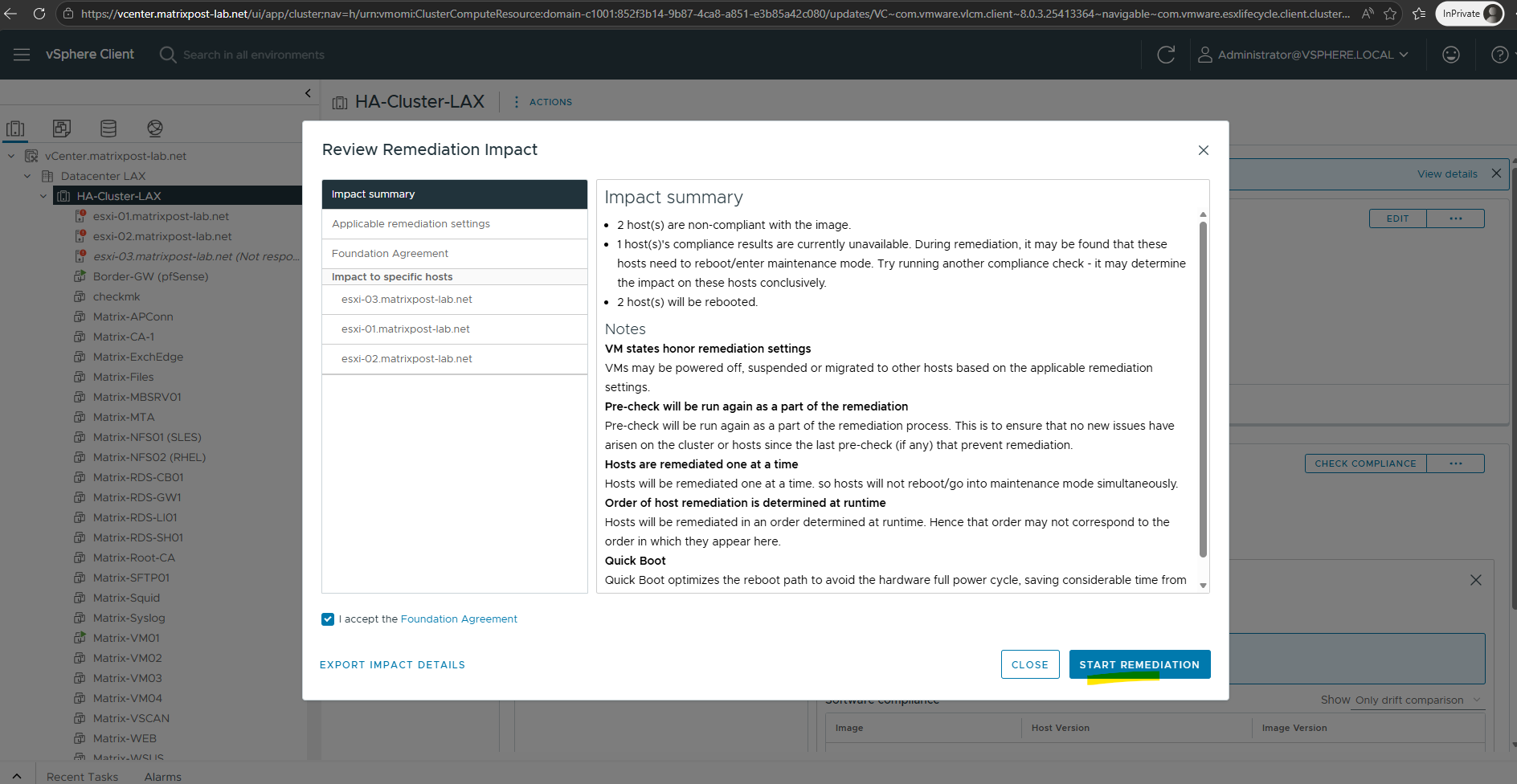
As shown on the next dialog, Hosts will be remediated one at a time. so hosts will not reboot/go into maintenance mode simultaneously.
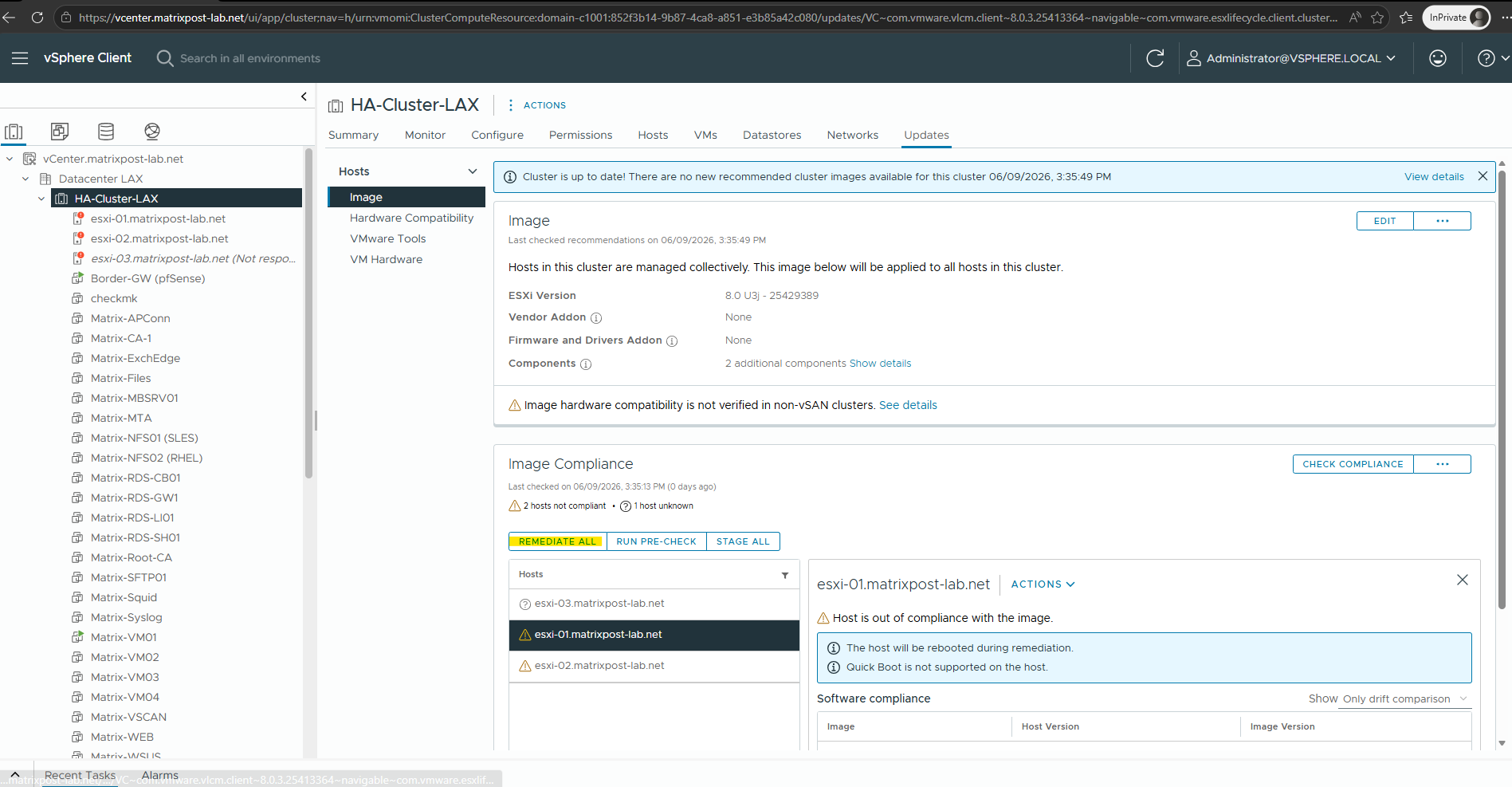
!!! Note !!!
vSphere Lifecycle Manager remediation requires both DNS resolution and network connectivity to perform validation and compliance checks. If these services are provided by virtual machines running within the vSphere environment itself, such as a DNS server or Internet gateway, they must remain powered on during the remediation process.During remediation, in my case in past the task became stuck at 2% while the lab’s pfSense gateway and Domain Controller were powered off.
Finally all hosts were remediated and updated to version 8.0. U3j.
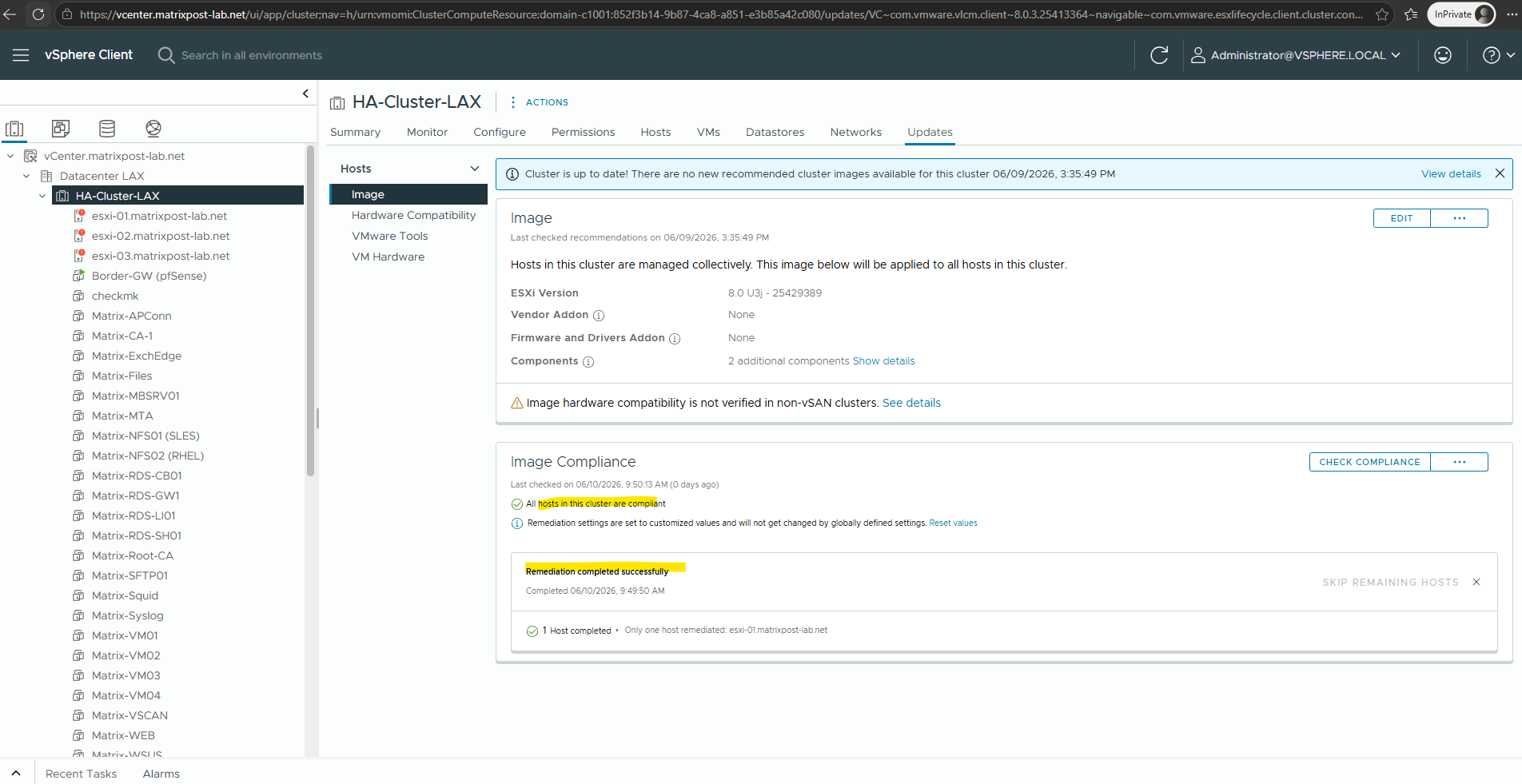
From now on a restart of the virtual machines will update the platform key (PK) automatically during the reboot.
For virtual machines they were powered off, just powering on and booting will automatically update the platform key (PK).
Run the following commands to manually trigger the Secure Boot certificate update process.
Setting the
AvailableUpdatesregistry value to0x5944instructs Windows to apply all required Secure Boot updates, while starting theSecure-Boot-Updatescheduled task immediately initiates the update workflow instead of waiting for the next automatic execution (Windows repeats the task every 12 hours).
PS> reg add HKEY_LOCAL_MACHINE\SYSTEM\CurrentControlSet\Control\Secureboot /v AvailableUpdates /t REG_DWORD /d 0x5944 /f

PS> Start-ScheduledTask -TaskName "\Microsoft\Windows\PI\Secure-Boot-Update"
Finally it should looks like this:
In the example shown below, the values
WindowsUEFICA2023Capable = 2,UEFICA2023Status = Updated, andConfidenceLevel = High Confidenceindicate a successfully completed Secure Boot certificate migration. The system is booting from a Windows UEFI CA 2023-signed Boot Manager and all required Secure Boot certificates have been deployed successfully.
Get-WinEvent -LogName System | ? {$_.ProviderName -match "TPM-WMI|Secure-Boot"} | Select -First 20
Get-ItemProperty HKLM:\SYSTEM\CurrentControlSet\Control\SecureBoot\Servicing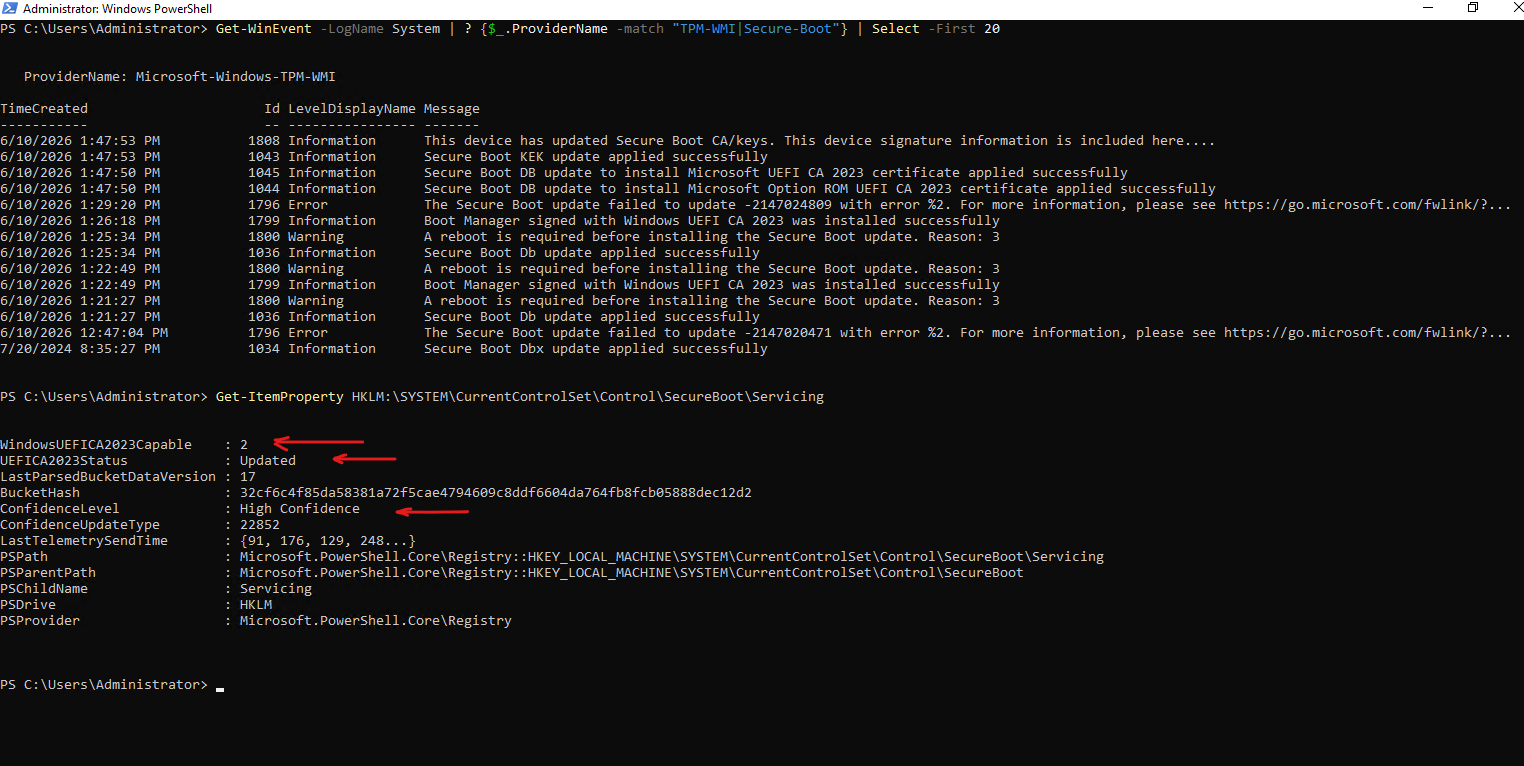
All 4 major 2023 Secure Boot certificates installed in the Allowed Signature Database (DB).
[System.Text.Encoding]::ASCII.GetString((Get-SecureBootUEFI DB).Bytes) -match 'Windows UEFI CA 2023'
[System.Text.Encoding]::ASCII.GetString((Get-SecureBootUEFI DB).Bytes) -match 'Microsoft UEFI CA 2023'
[System.Text.Encoding]::ASCII.GetString((Get-SecureBootUEFI KEK).Bytes) -match 'Microsoft Corporation KEK 2K CA 2023'
[System.Text.Encoding]::ASCII.GetString((Get-SecureBootUEFI DB).Bytes) -match 'Microsoft Option ROM UEFI CA 2023'

Manual Update Process Platform Key (PK)
As mentioned we can also manually without updating the ESX hosts deploy a valid Platform Key (PK).
To solve this issue for secure boot enabled Windows VMs they have vTPM also disabled or even enabled, I will below manually update the Secure Boot Platform Key for the virtual machines.
More about you will find here https://knowledge.broadcom.com/external/article/423919.
Therefore we first need to prepare a disk for the platform key update.
- Add a 128-MB virtual disk to the virtual machine.
- Format the disk as FAT32.
- Download the required certificate from Microsoft – Platform Key (PK) – WindowsOEMDevicesPK.der
- Copy the certificate to the newly partitioned volume with 128MB size.
To manually update the Secure Boot Platform Key for the virtual machines first shutdown the virtual machine and to be safe take a snapshot.
Then attach the disk containing the Microsoft PK.
To be able to edit the EFI Secure Boot Configuration we first need to add the following advanced configuration paramers.
Edit Settings > Advanced Parameters
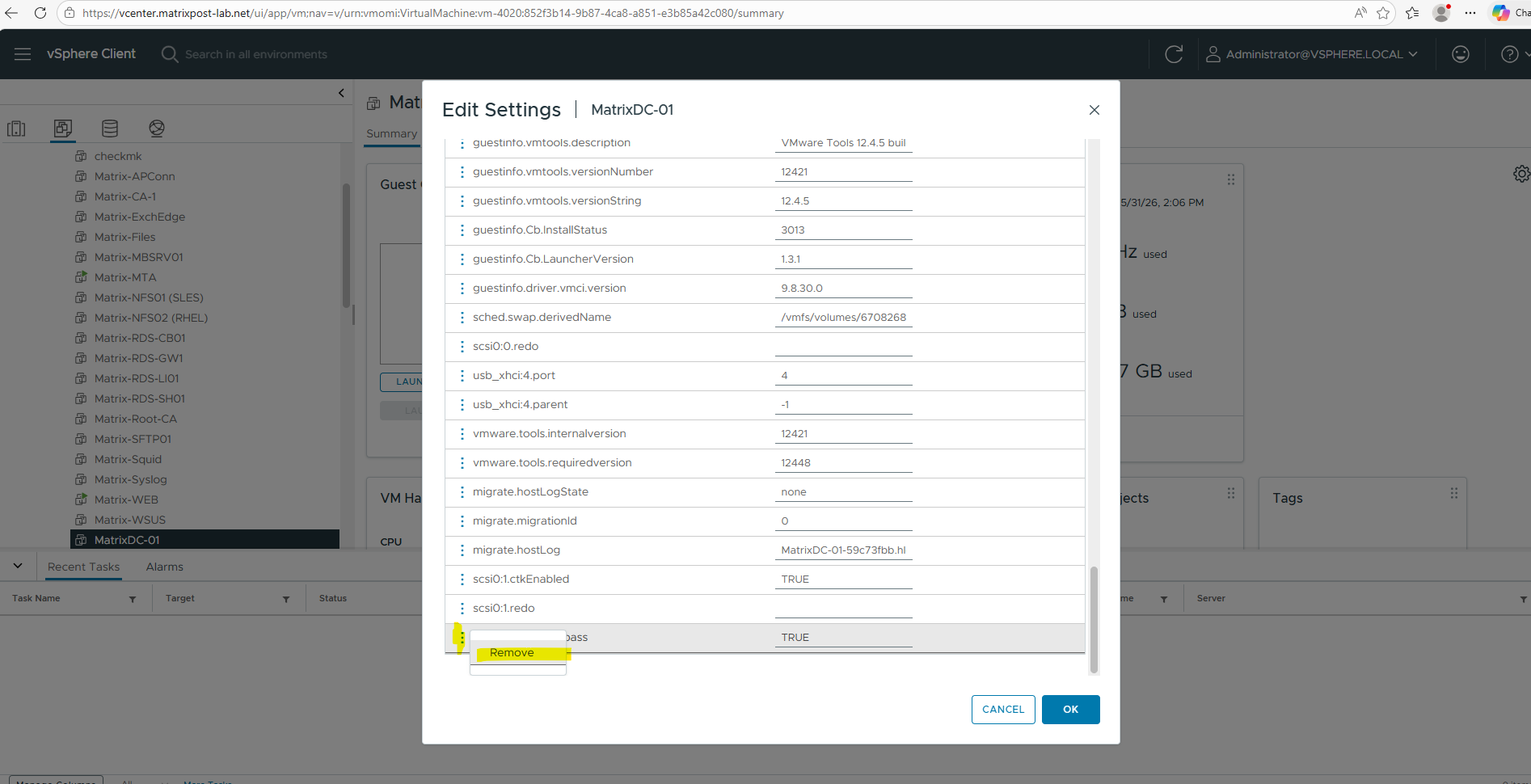
Add new option: uefi.allowAuthBypass = "TRUE"
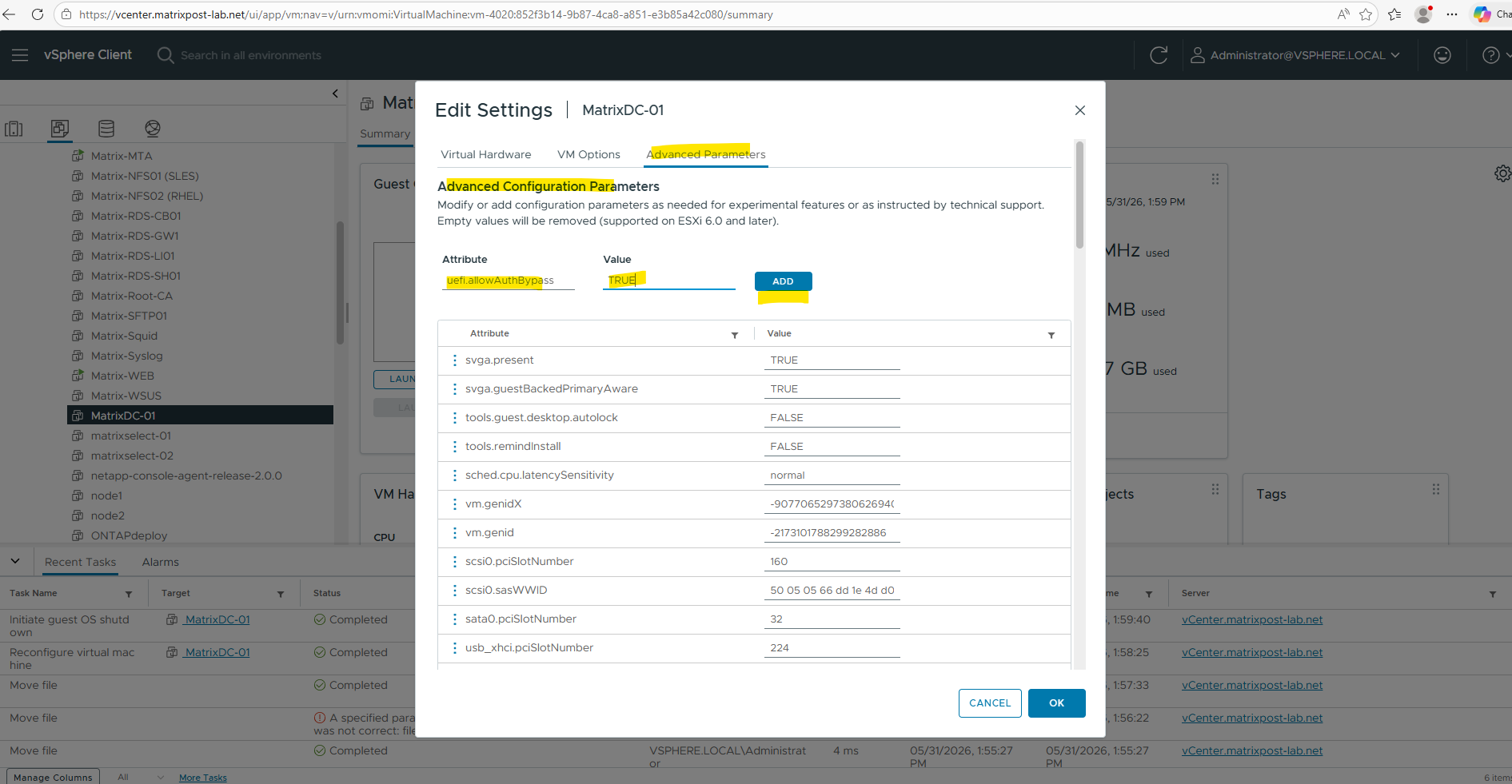
We also need to force the VM to enter Setup Mode.
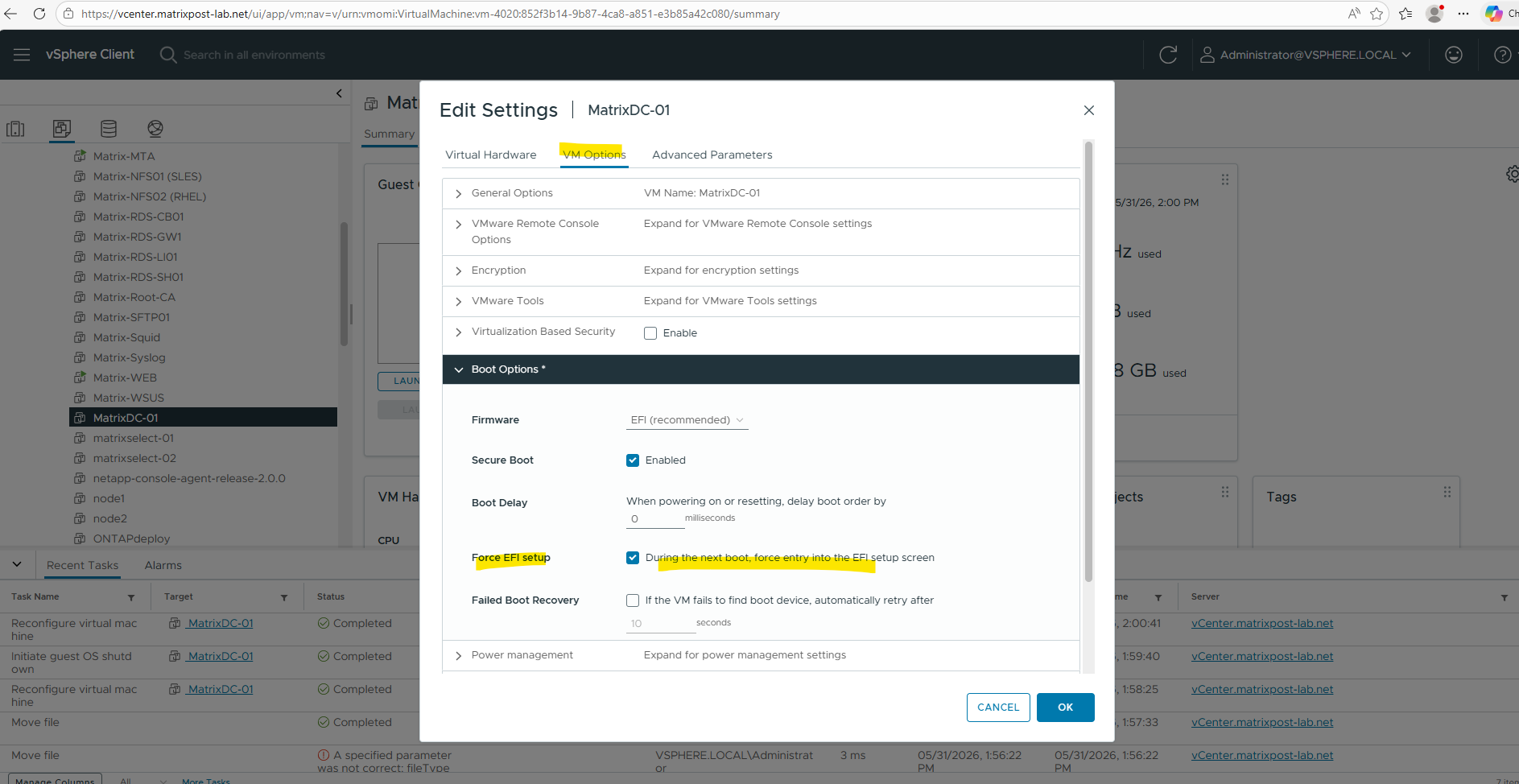
Power on the VM.
Because of
uefi.allowAuthBypass = "TRUE"we set previously we now have a further menu item with Secure Boot Configuration.
Navigate to Enter Setup > Secure Boot Configuration > PK Options > Enroll PK
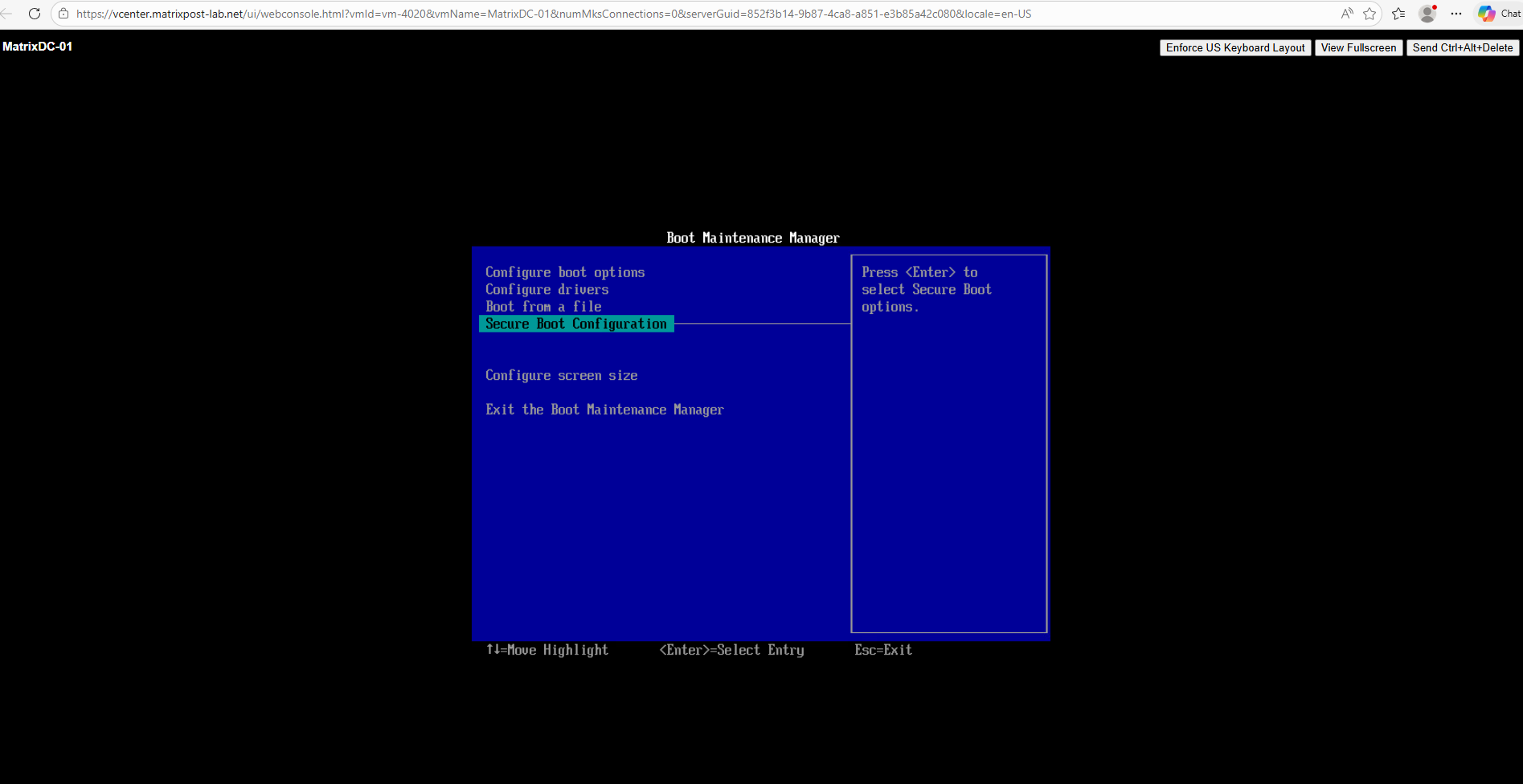
> PK Options > Enroll PK
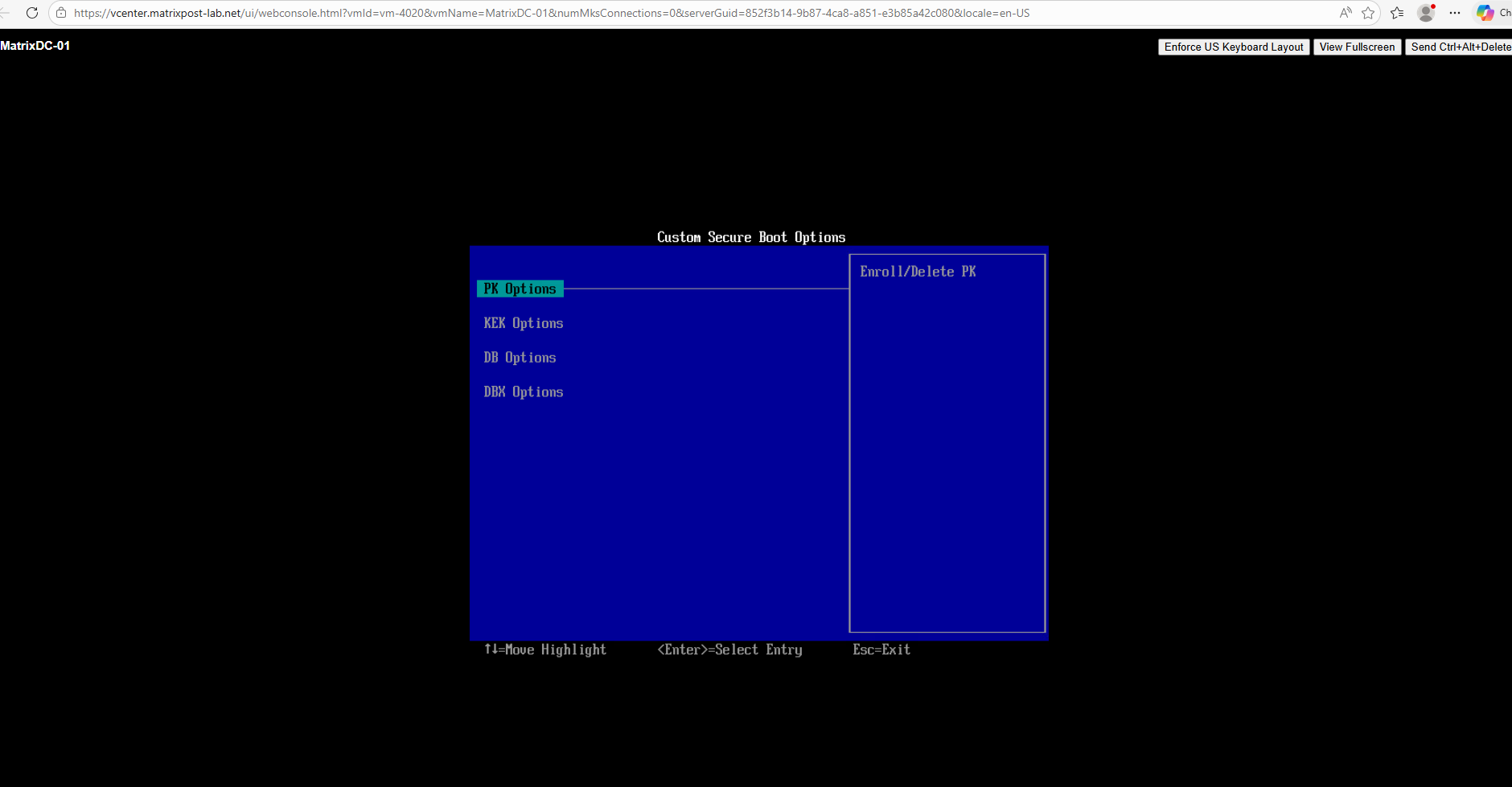
> Enroll PK
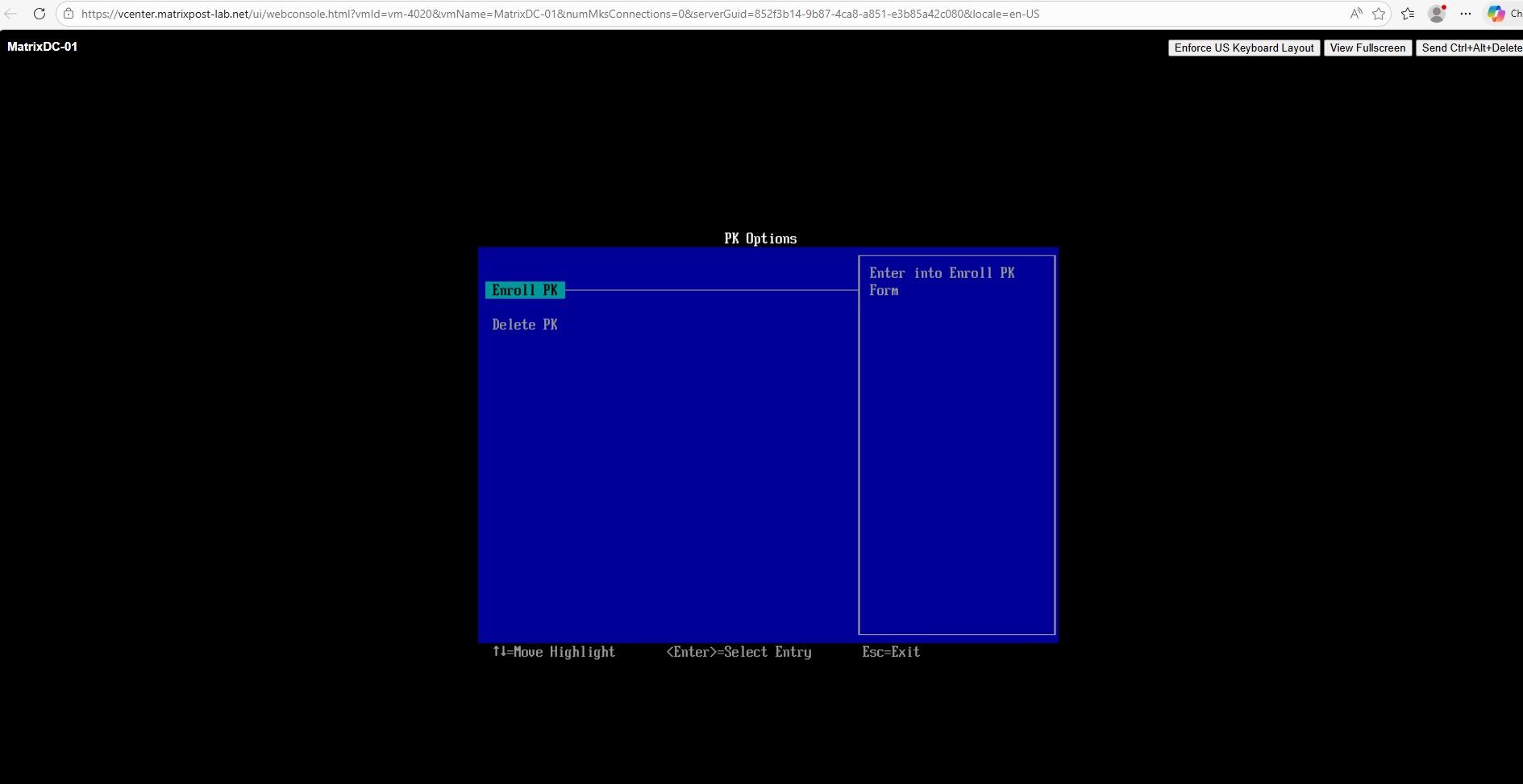
Select Enroll PK Using File.
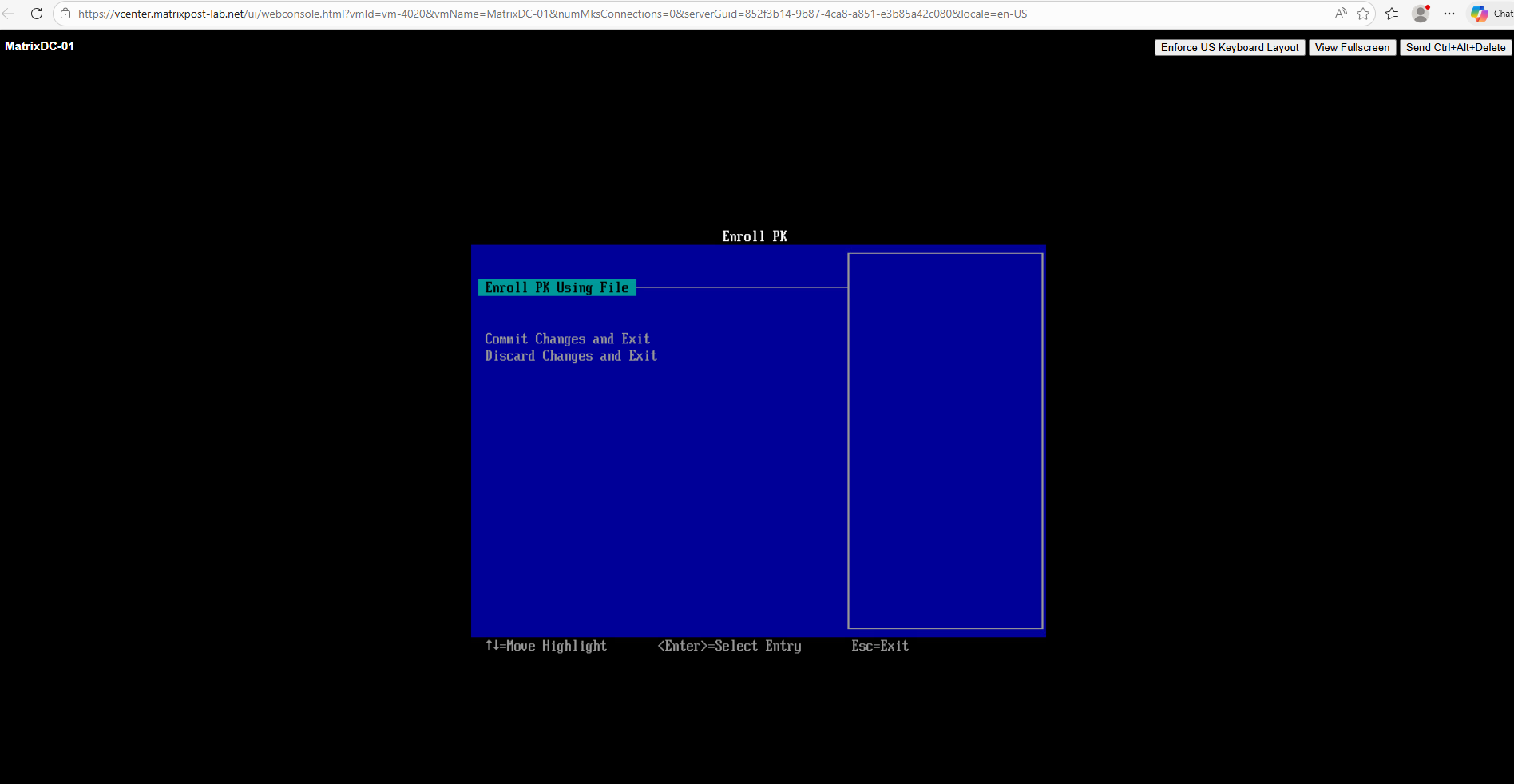
Select the disk you have attached with the Platform Key (PK). We finally we will see the volume name with PK I was using previously.
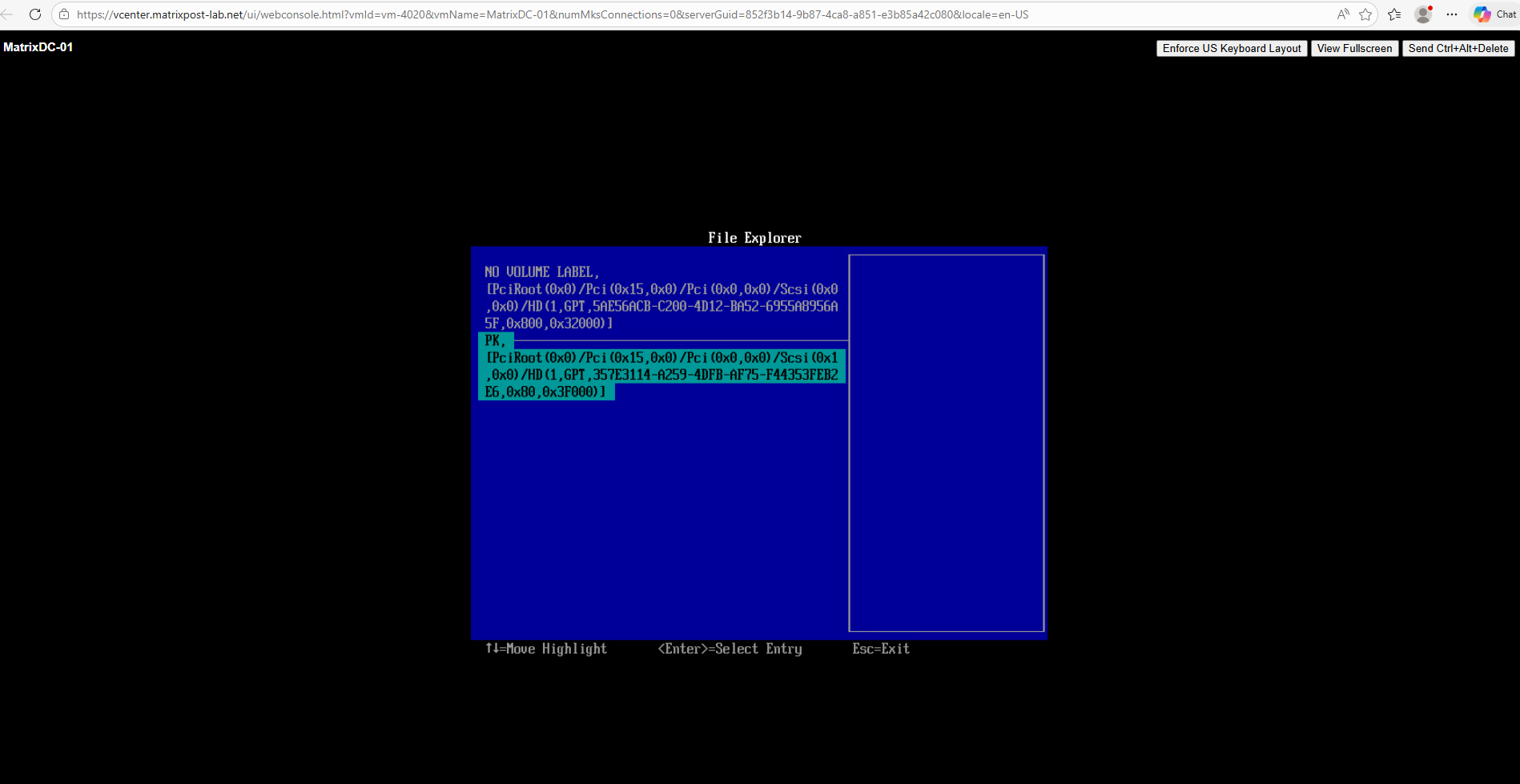
Select the PK file.
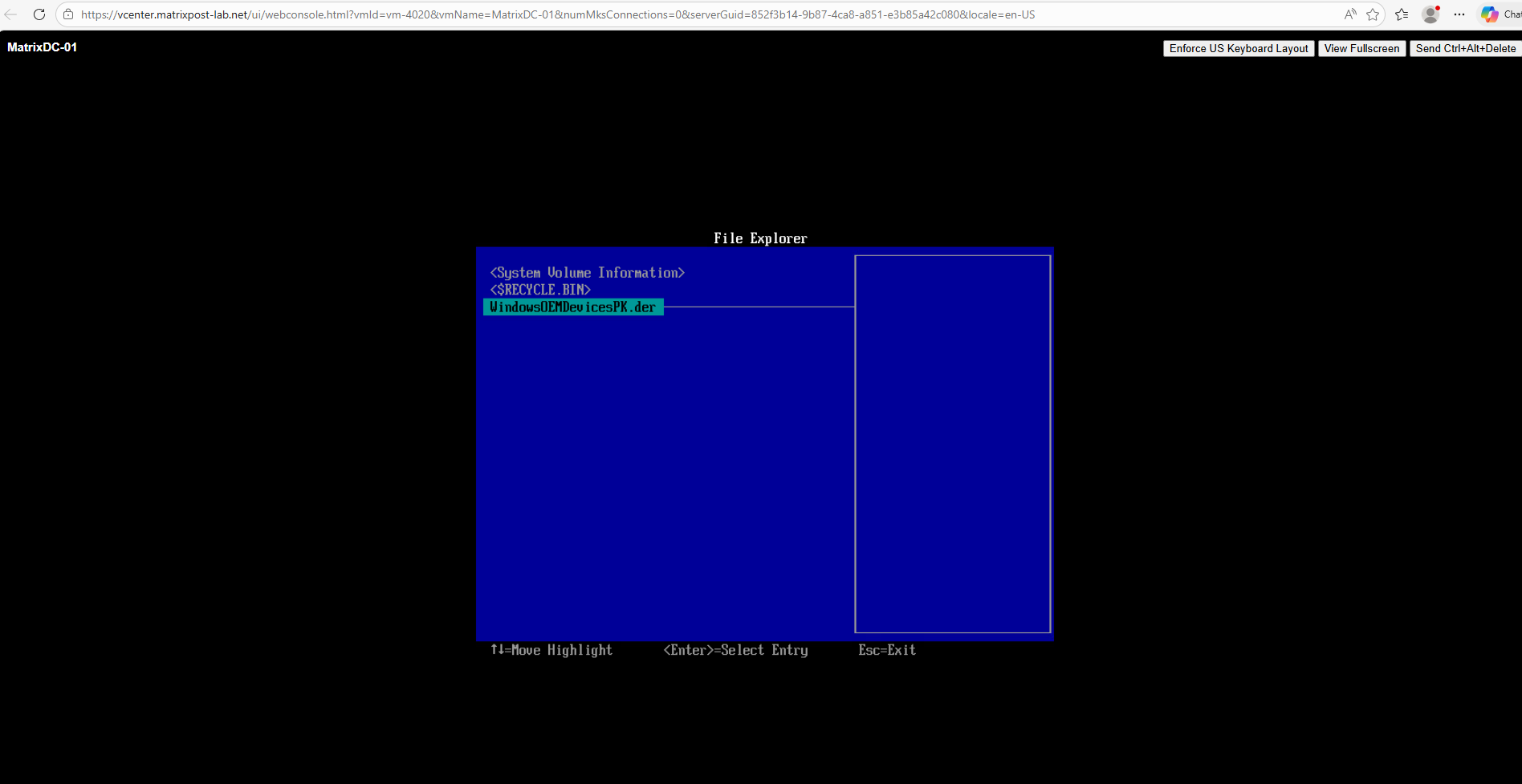
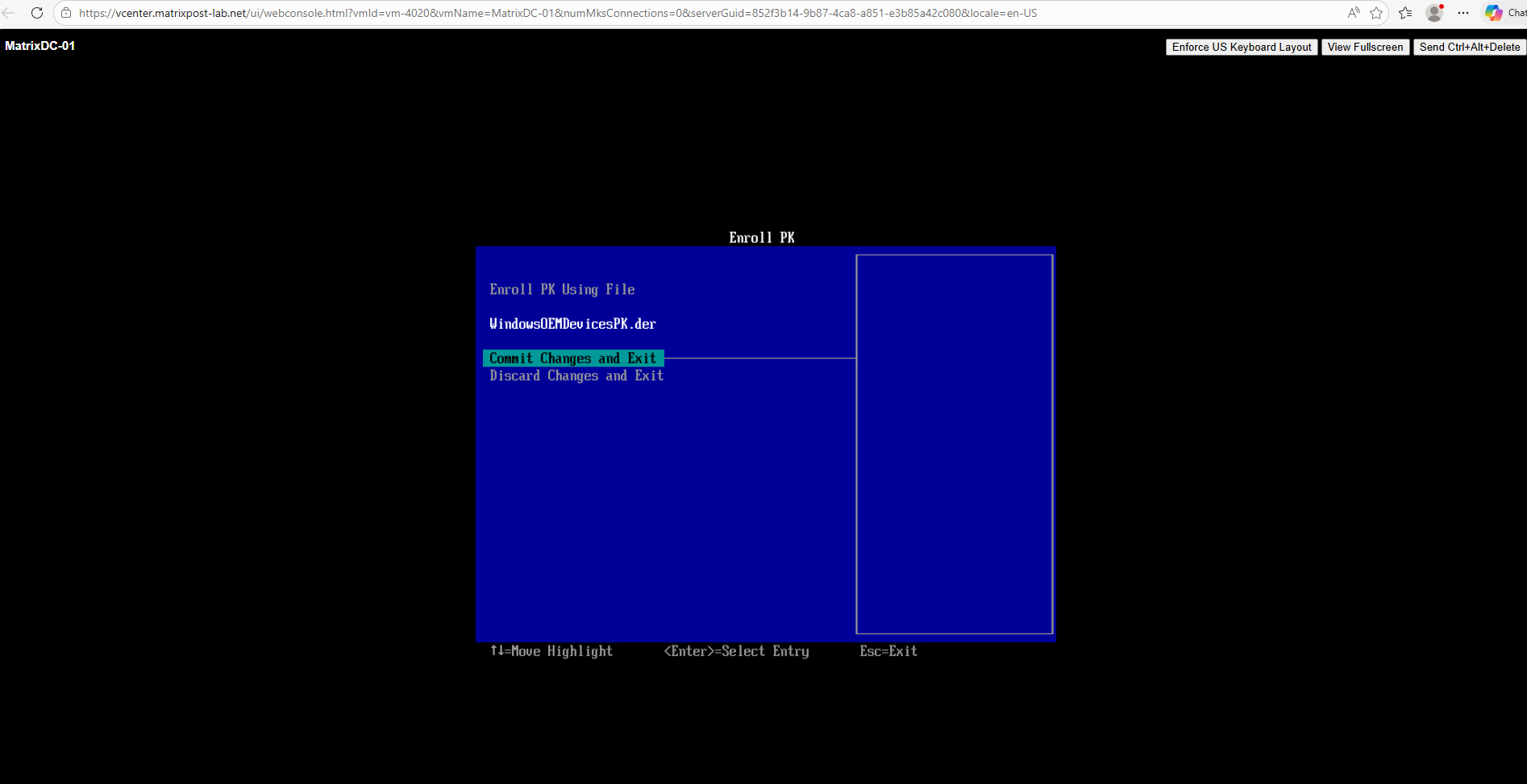
Commit changes and exit.
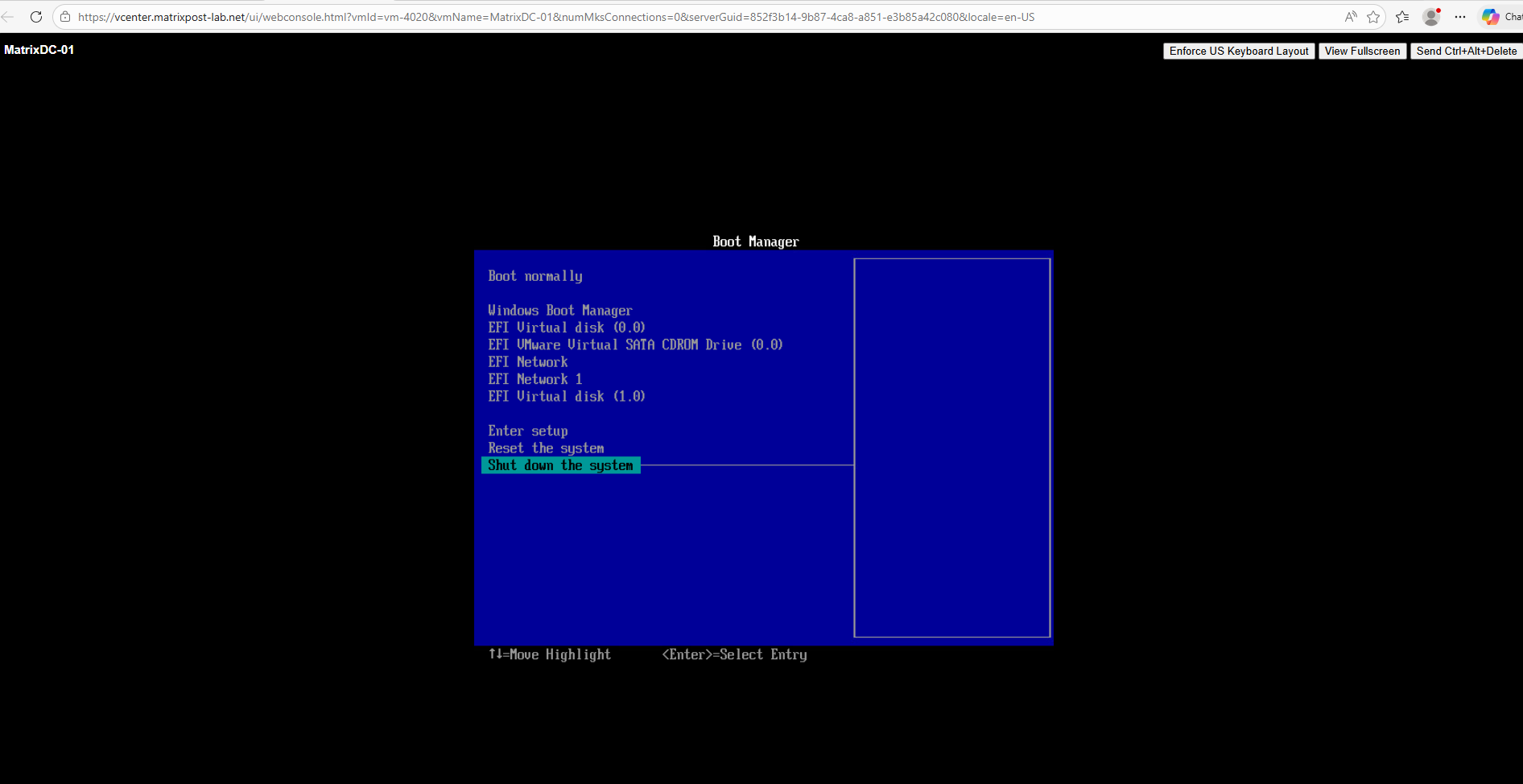
Shut down the system.
After the update, remove the VMX entry: uefi.allowAuthBypass = "TRUE"
Also remove the disk with the Platform Key (PK) from the VM.
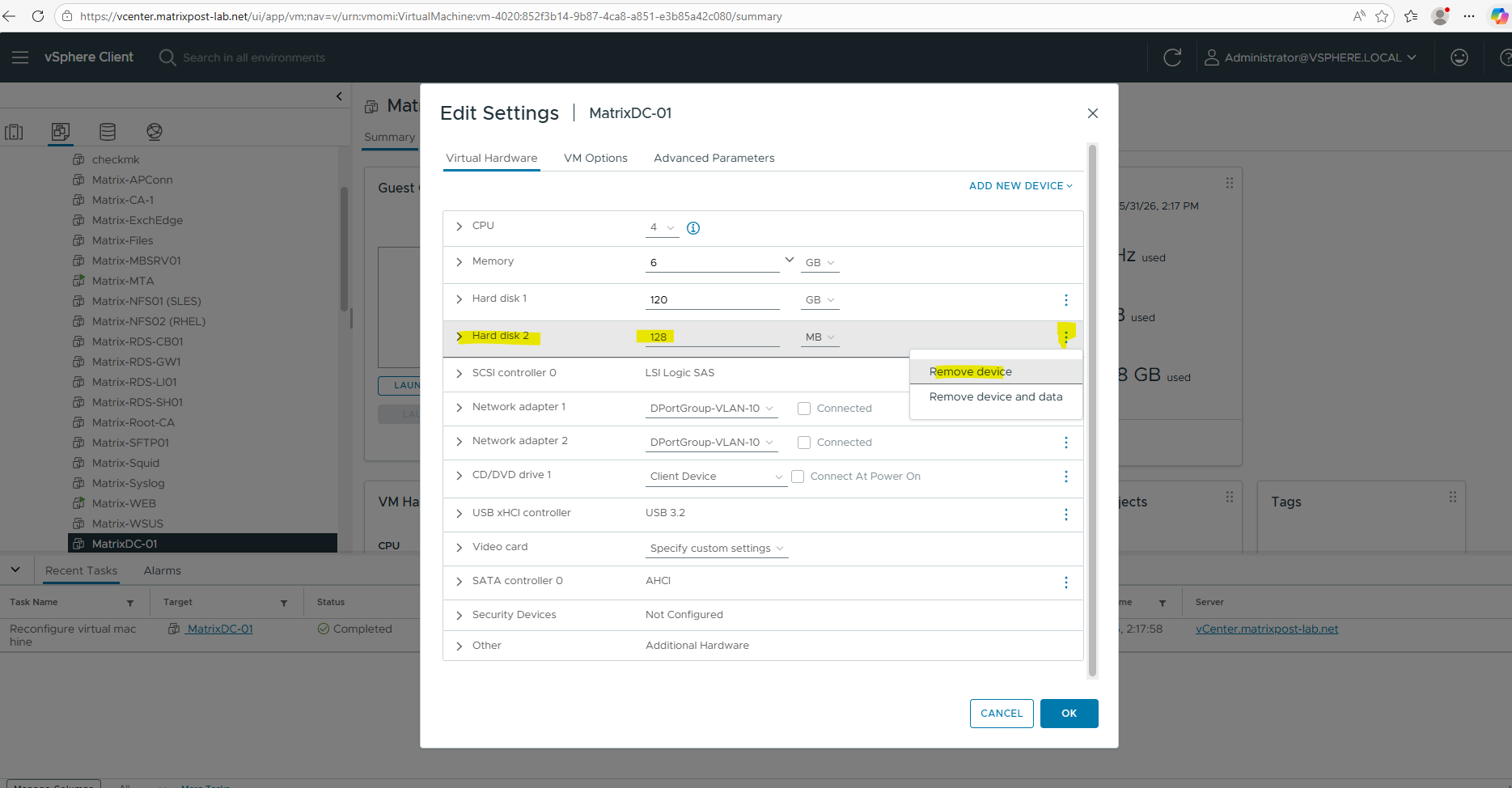
Power on the virtual machine.
After completing the update and rebooting the virtual machine, verify that the Platform Key is updated successfully by executing the commands below.
$pk = Get-SecureBootUEFI -Name PK
$bytes = $pk.Bytes
$cert = $bytes[44..($bytes.Length-1)]
[IO.File]::WriteAllBytes("PK.der", $cert)
certutil -dump PK.der
PS> (Get-UEFISecureBootCerts KEK).signature | Select-Object Thumbprint, Subject
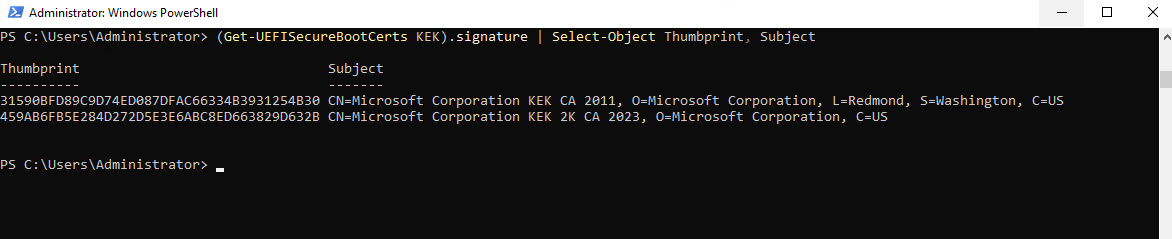
Looks good now and we can trigger the Final Handshake.
Force the scheduled task to run now that it actually has permission to succeed:
PS> Start-ScheduledTask -TaskName "\Microsoft\Windows\PI\Secure-Boot-Update"
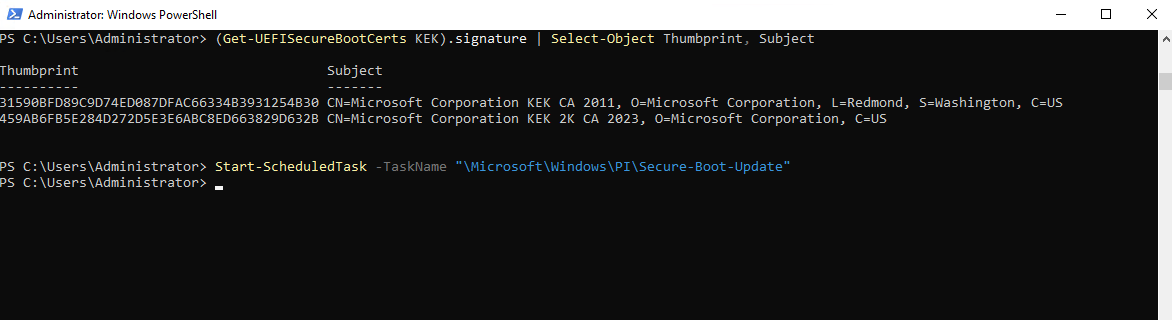
Check your registry one last time. The InProgress status should finally be gone:
PS> Get-ItemProperty HKLM:\SYSTEM\CurrentControlSet\Control\SecureBoot\Servicing | Select-Object UEFICA2023Status
PS> Get-ItemProperty HKLM:\SYSTEM\CurrentControlSet\Control\SecureBoot\Servicing
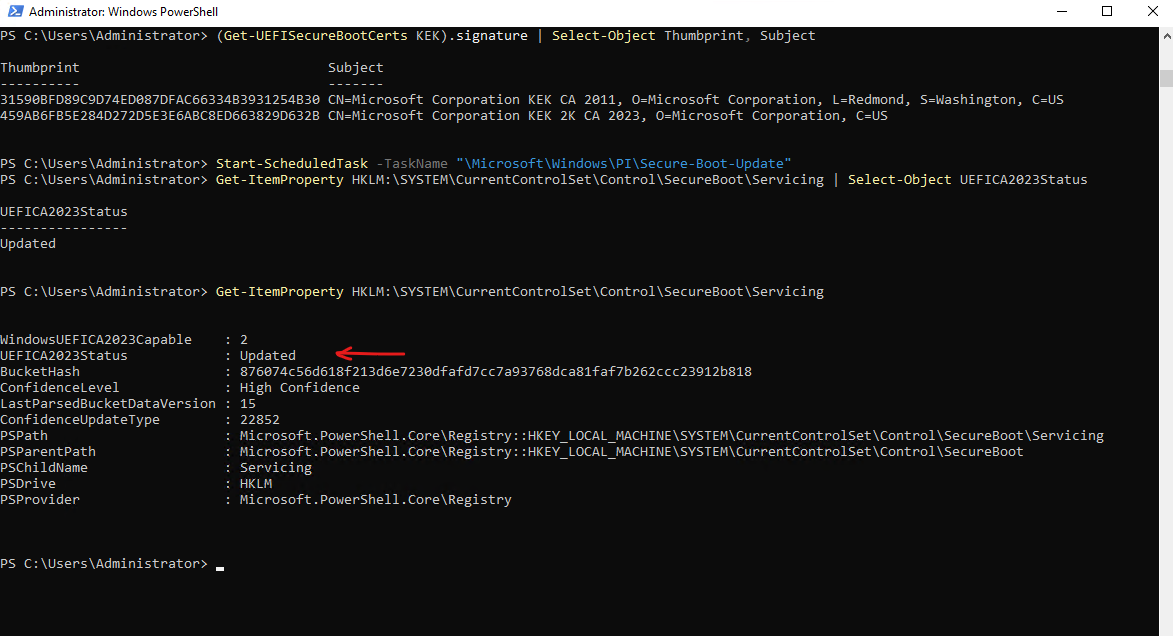
The verification of a successful 2023 Secure Boot migration isn’t just a registry key, it’s the presence of the actual certificate strings within the UEFI variables.
Using PowerShell to scan the
DBandKEKbytes for these specific 2023 identifiers confirms that the ‘handshake’ between the OS and the Firmware is complete. If all four strings returnTrue, your system is fully prepared for the 2026 legacy certificate deprecation.”
PS> [System.Text.Encoding]::ASCII.GetString((Get-SecureBootUEFI DB).Bytes) -match 'Windows UEFI CA 2023'
PS> [System.Text.Encoding]::ASCII.GetString((Get-SecureBootUEFI DB).Bytes) -match 'Microsoft UEFI CA 2023'
PS> [System.Text.Encoding]::ASCII.GetString((Get-SecureBootUEFI KEK).Bytes) -match 'Microsoft Corporation KEK 2K CA 2023'
PS> [System.Text.Encoding]::ASCII.GetString((Get-SecureBootUEFI DB).Bytes) -match 'Microsoft Option ROM UEFI CA 2023'
The previous Event ID 1803 errors (“A PK-signed Key Exchange Key (KEK) cannot be found for this device”) disappeared, and the System event log now reports successful deployment of the Secure Boot updates, including Event ID 1043 (“Secure Boot KEK update applied successfully”) and Event ID 1808, confirming that the device has updated Secure Boot certificates and keys.
PS> Get-WinEvent -LogName System | ? {$_.ProviderName -match "TPM-WMI|Secure-Boot"} | Select -First 20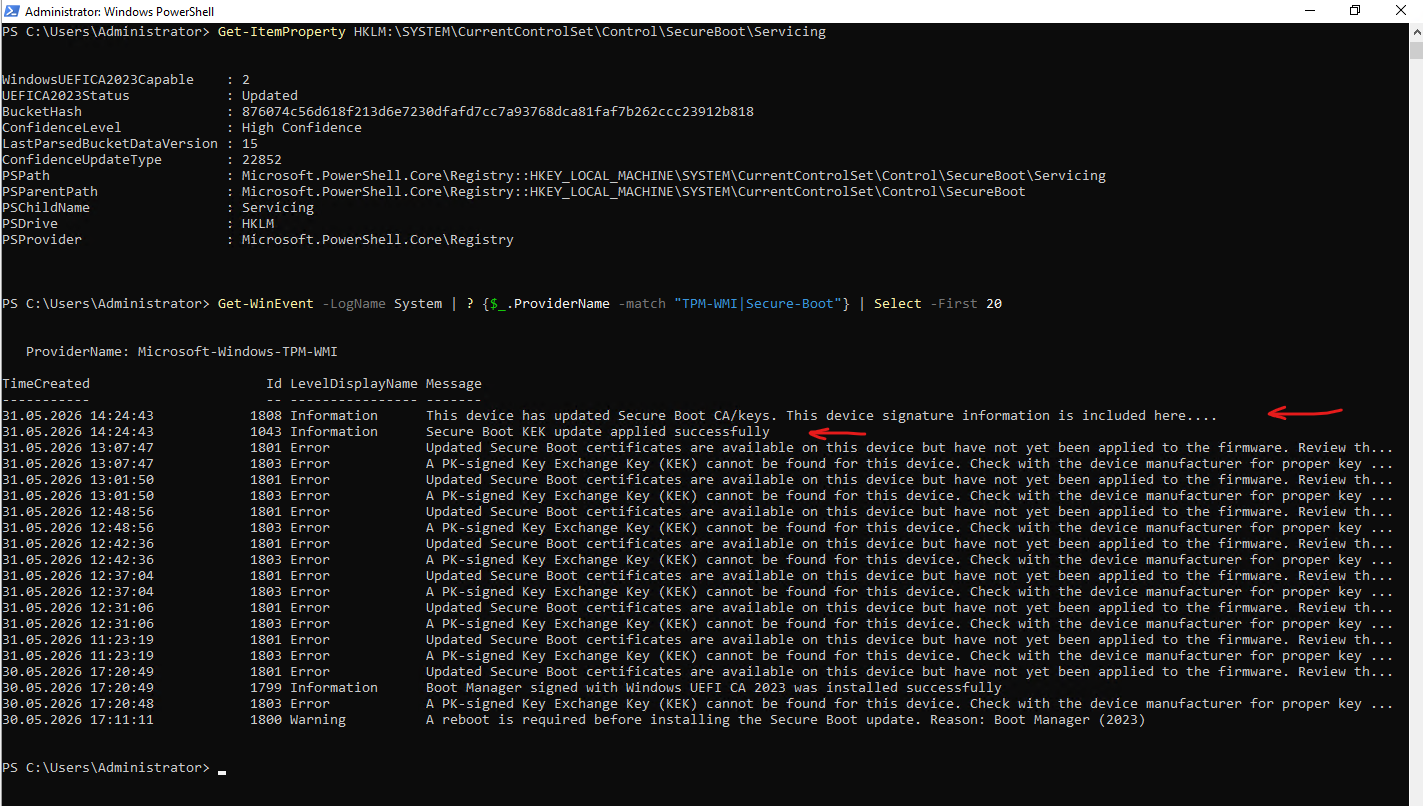
So if you are running on VMware ESXi 8.0.x and still see InProgress after a reboot, don’t keep running the scheduled task.
Check your Platform Key (PK). If it’s a NULL or legacy key, the firmware will silently block the update.
Use the Broadcom KB 423893 method to manually enroll the Microsoft 2023 PK. Once that anchor is set, the rest of the certificates will fall into place automatically.
Manual Update Process KEK certificate
When updating the Platform Key (PK) isn’t enough to trigger the automated update, and the built-in Windows task fails to push the new keys, you must intervene manually. This process forces the 2023 Key Exchange Key (KEK) directly into the NVRAM, bypassing the “memory access” errors that often stall the automated servicing.
This is also documented by Broadcom here https://knowledge.broadcom.com/external/article/423919.
To manually update the KEK certificate on the virtual machine, follow the instructions below:
Download the certificate from Microsoft via the link https://go.microsoft.com/fwlink/?linkid=2239775.
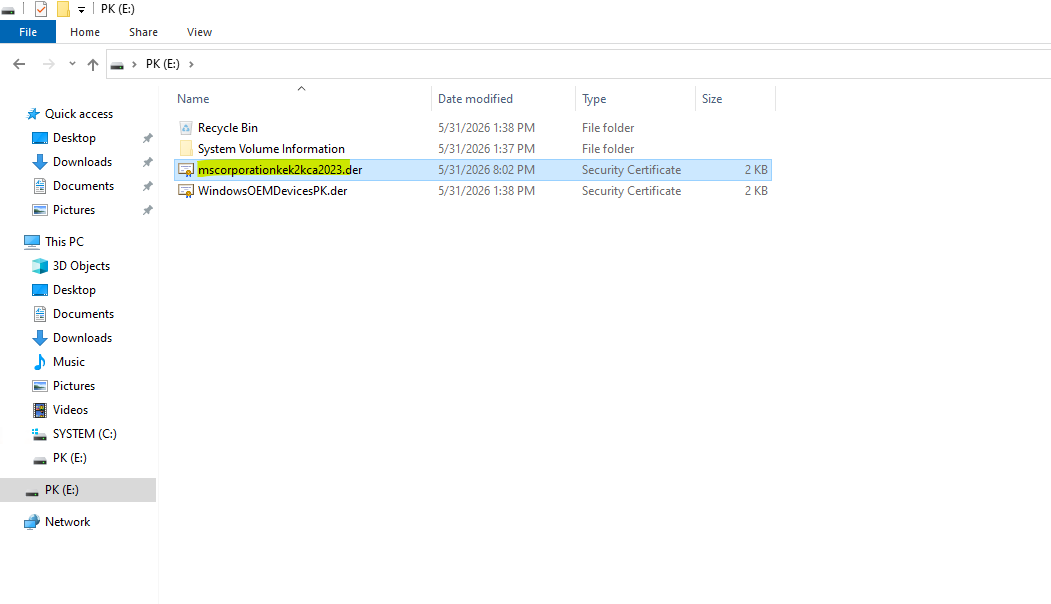
Copy the certificate to the disk we already added the Platform Key (PK) .
Rename the downloaded file to “
KEK-2023.der” (Note: Used filenameKEK-2023.deras an example here, name can be anything with .der extension”)
Boot the VM into EFI setup again.
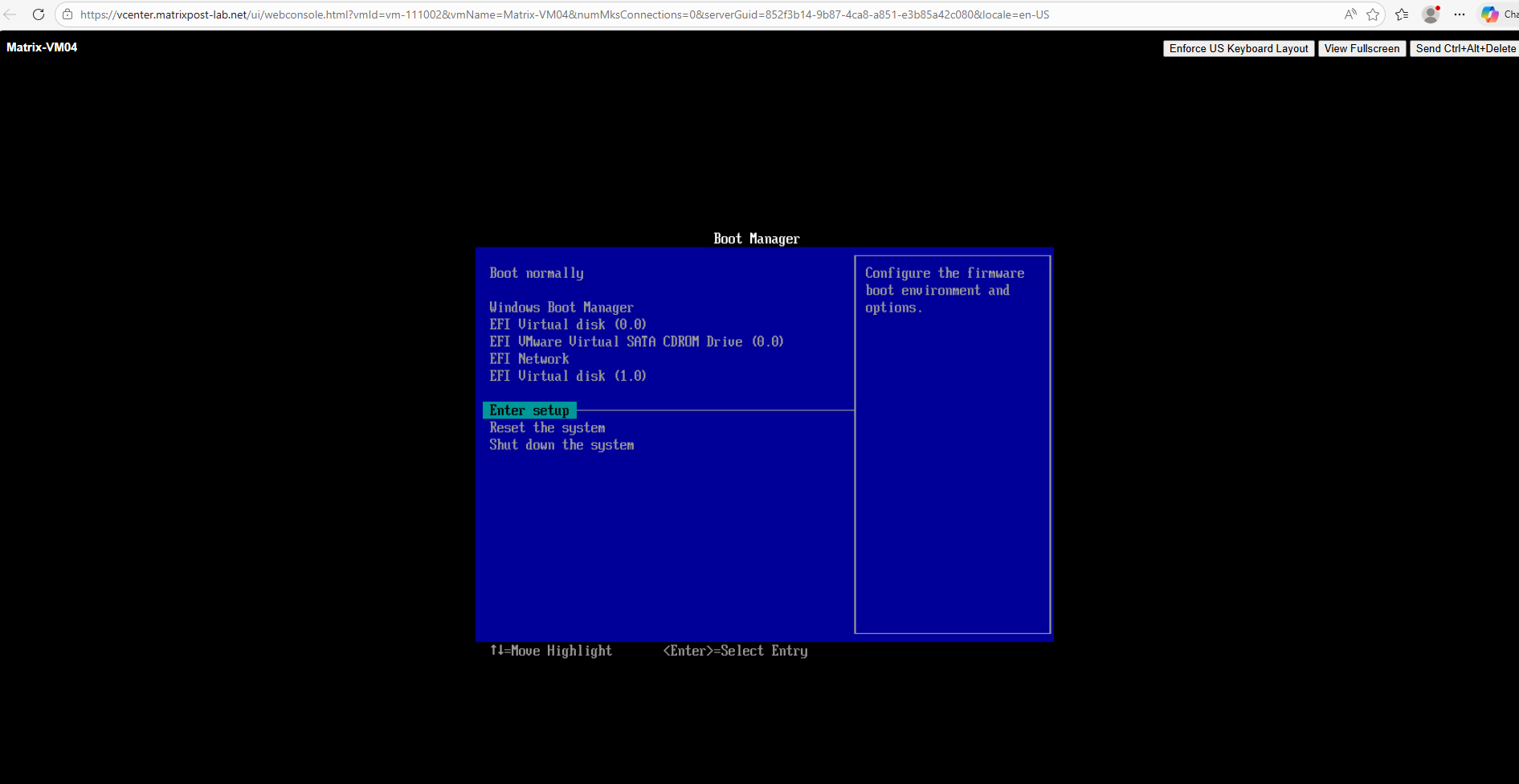
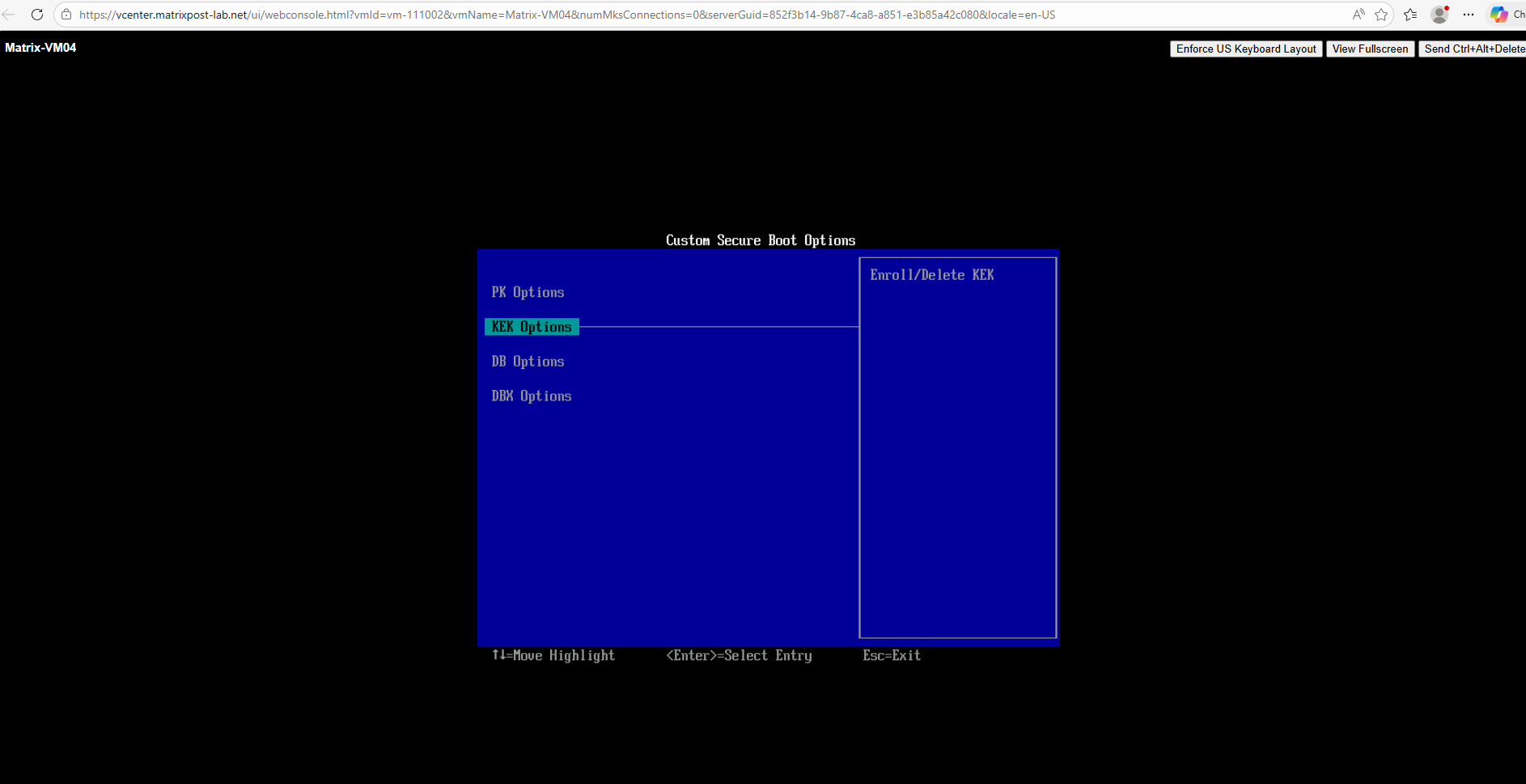
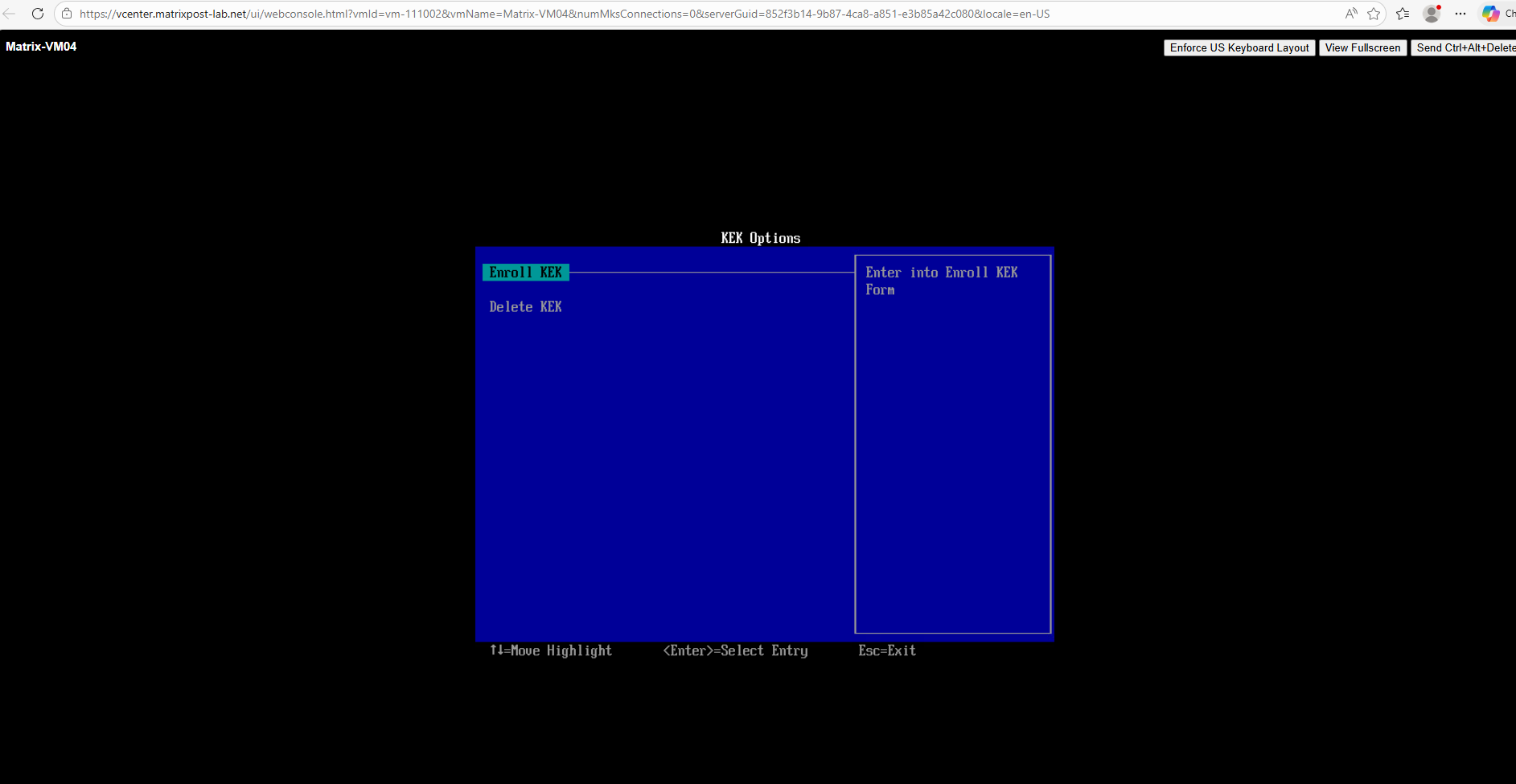
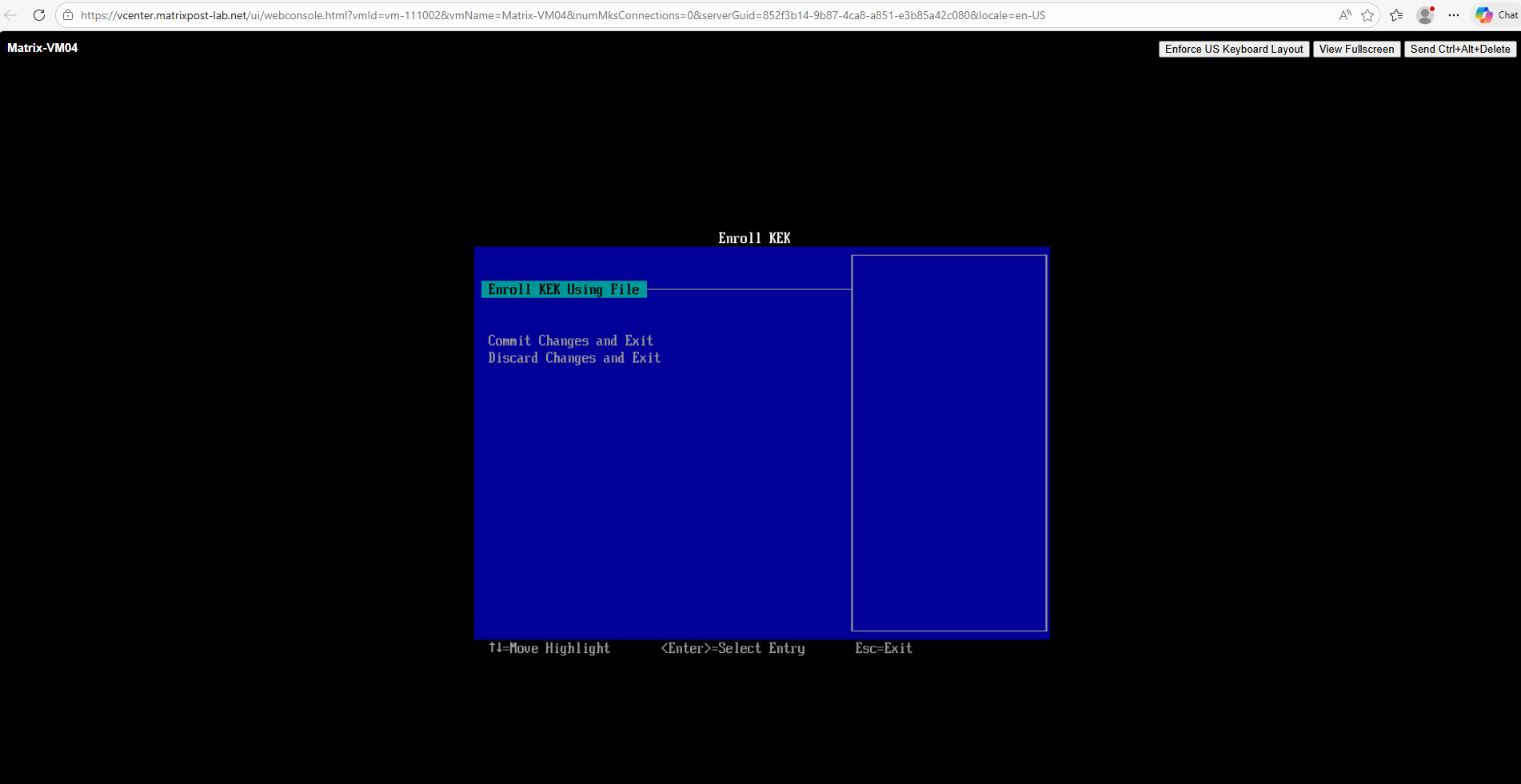
Navigate to Enter Setup > Secure Boot Configuration > KEK Options > Enroll KEK
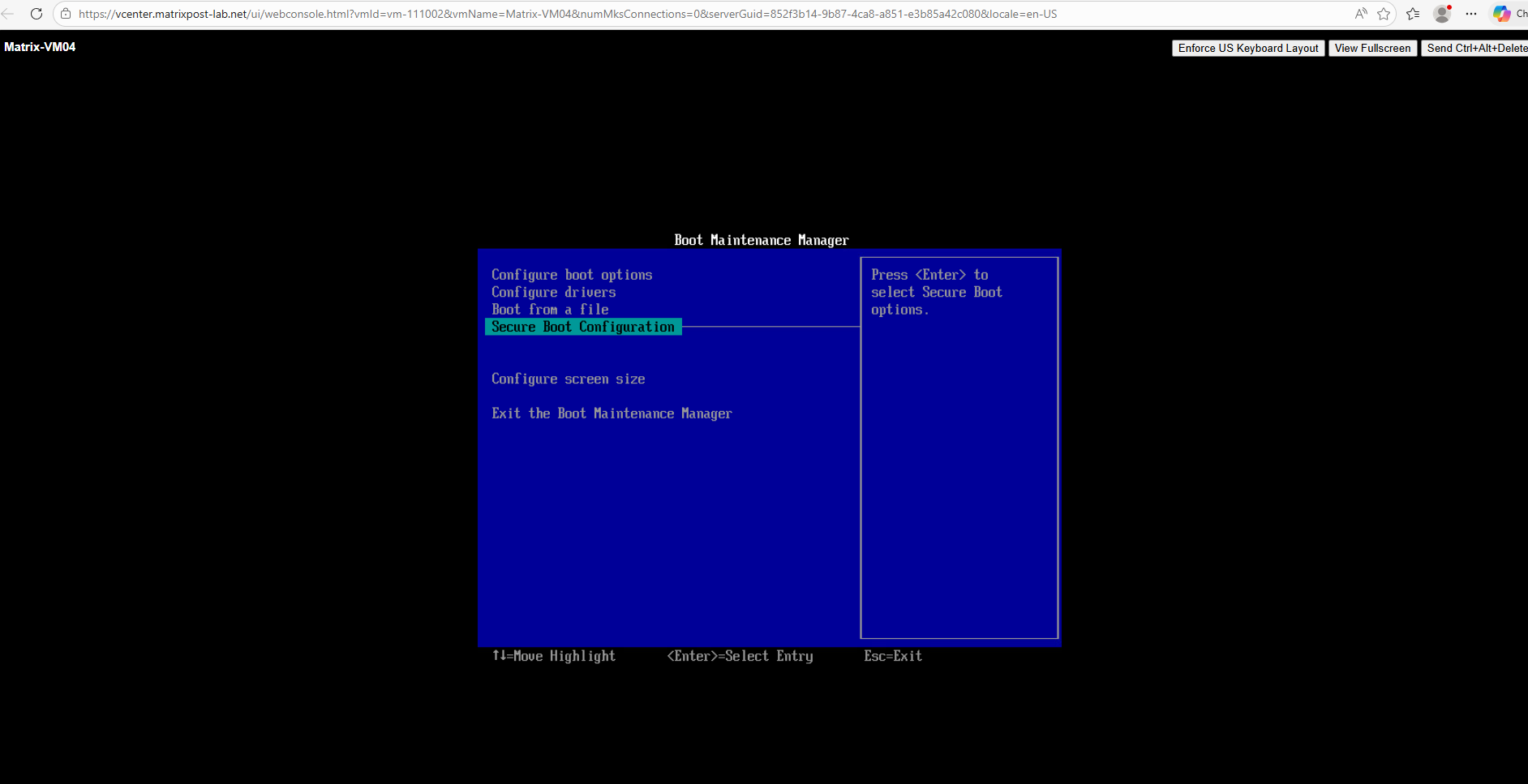
KEK Options > Enroll KEK
Enroll KEK
Select Enroll KEK Using File.
Select the disk you have attached with the KEK certificate. We finally we will see the volume name with PK I was using previously.
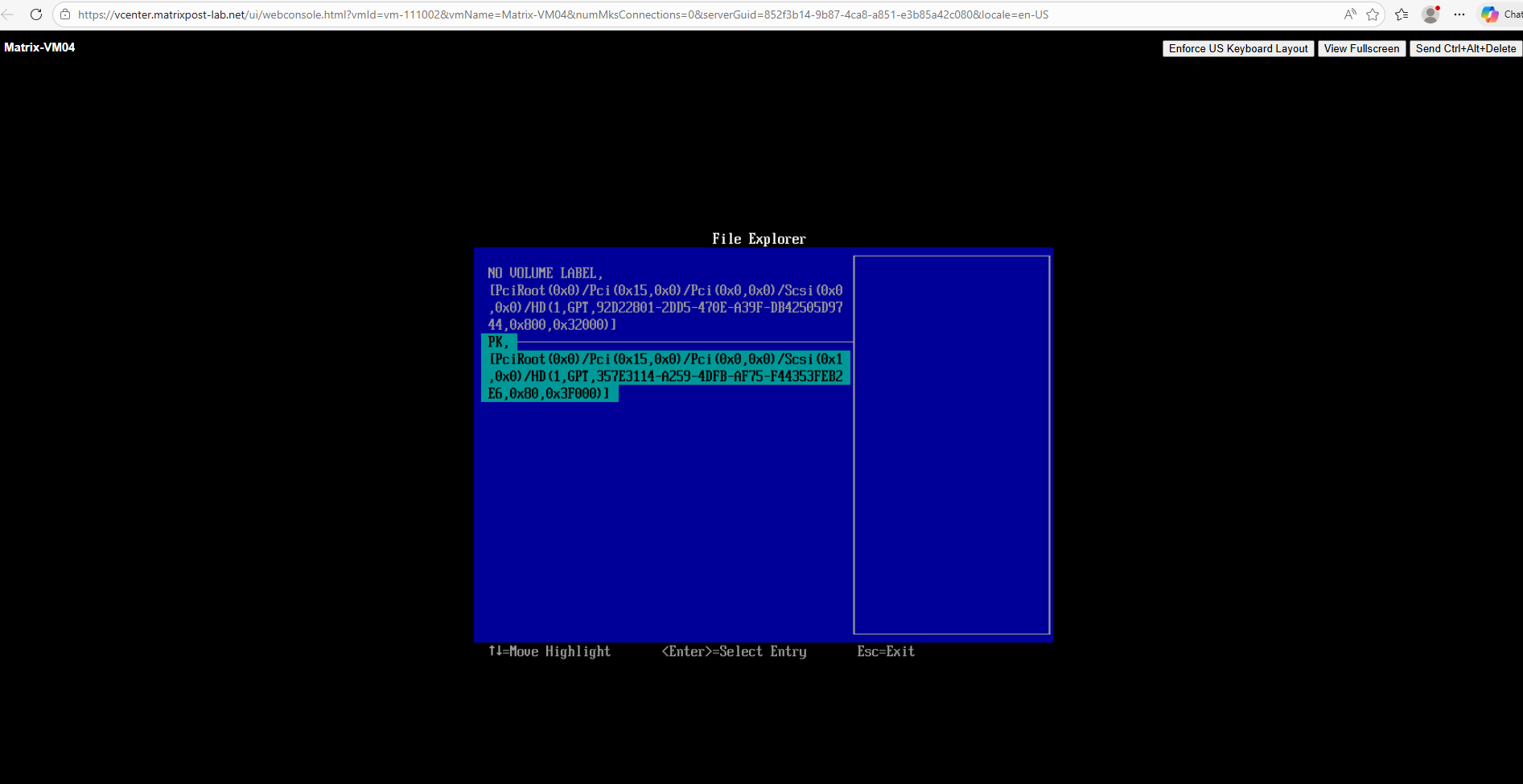
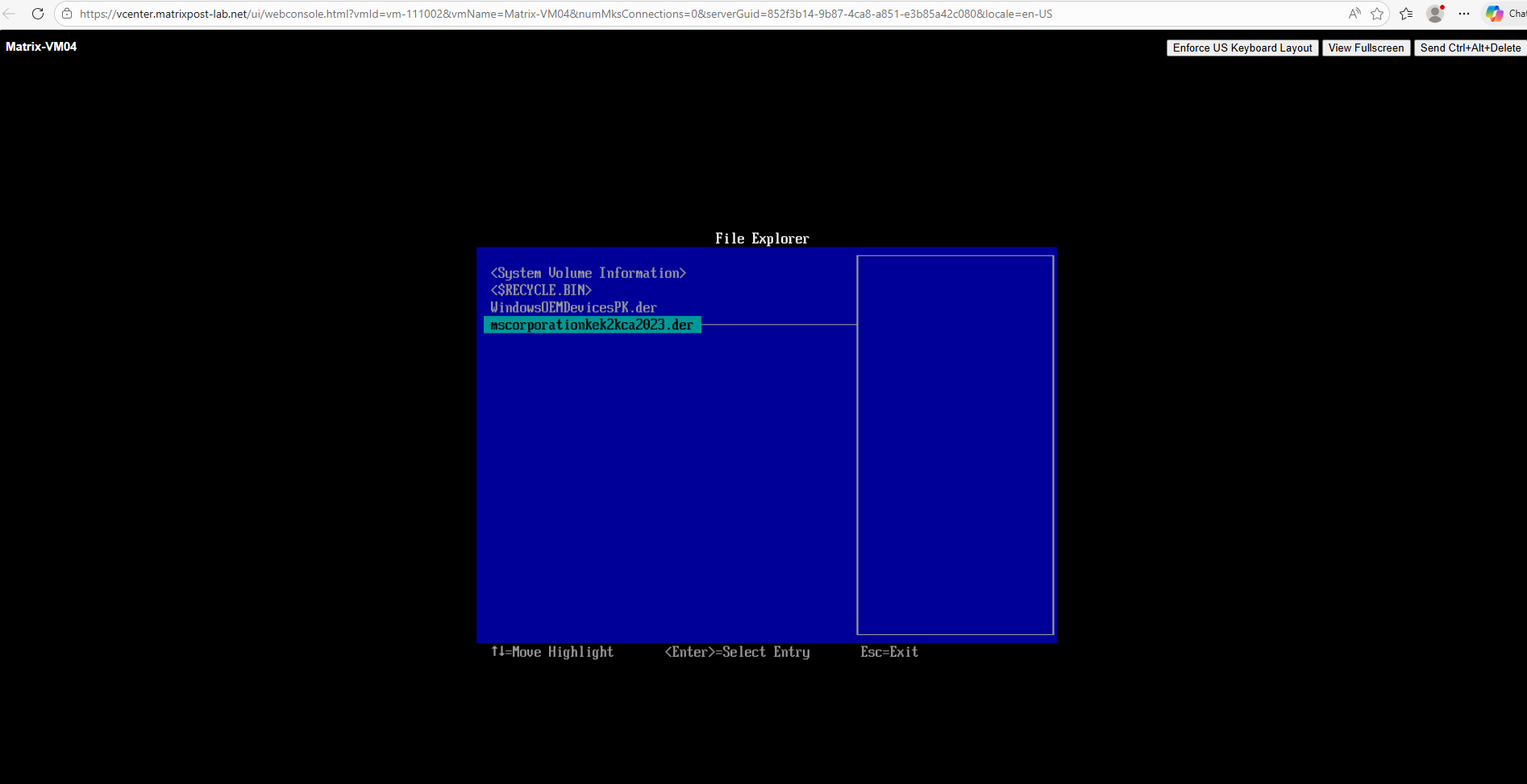
Select the KEK file.
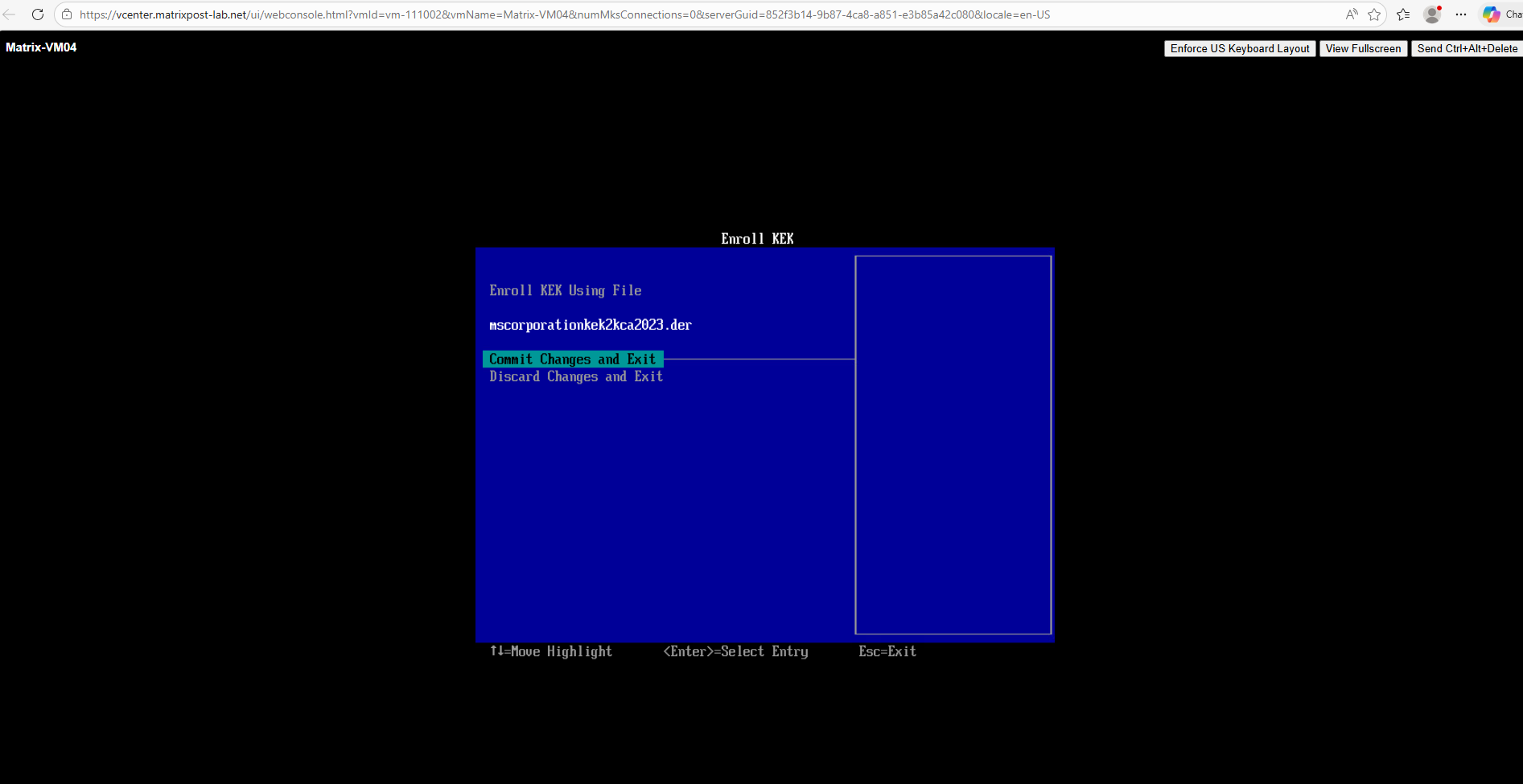
Commit changes and exit.
Shut down the system.
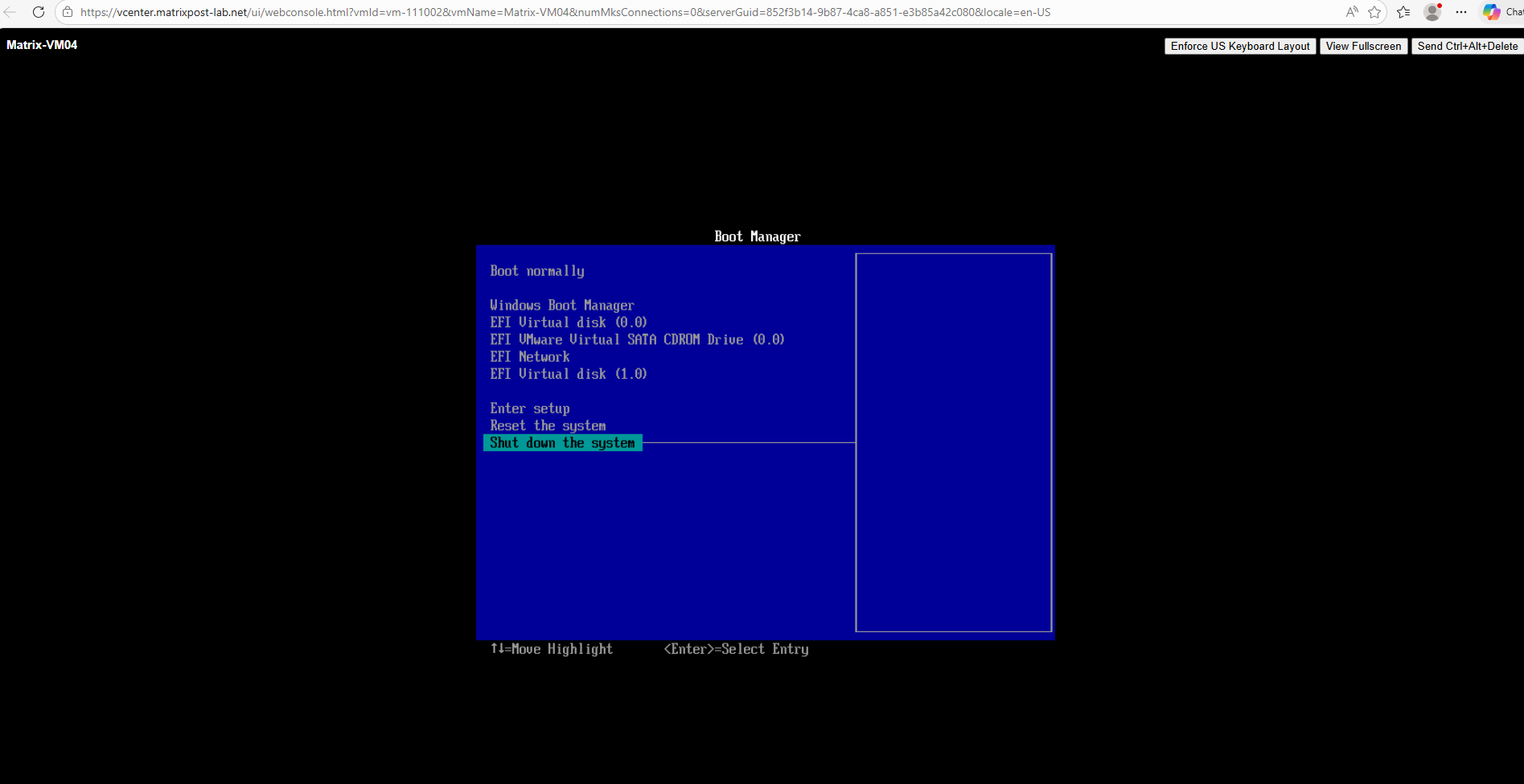
Power on the VM.
After manually enrolling the certificate and rebooting, we will check if the KEK was successfully activated in the EFI Firmware. This direct check bypasses the OS reporting and confirms the hardware state:
PS> [System.Text.Encoding]::ASCII.GetString((Get-SecureBootUEFI KEK).Bytes) -match 'Microsoft Corporation KEK 2K CA 2023'

After manually adding the KEK and rebooting we re-run the servicing task one last time:
PS> Start-ScheduledTask -TaskName "\Microsoft\Windows\PI\Secure-Boot-Update"

So far the registry says InProgress even though, logically, the update should be finished. To see past the “administrative” status and find out what’s actually happening in the hardware, you need to check the certificates directly.
PS> Get-ItemProperty HKLM:\SYSTEM\CurrentControlSet\Control\SecureBoot\Servicing
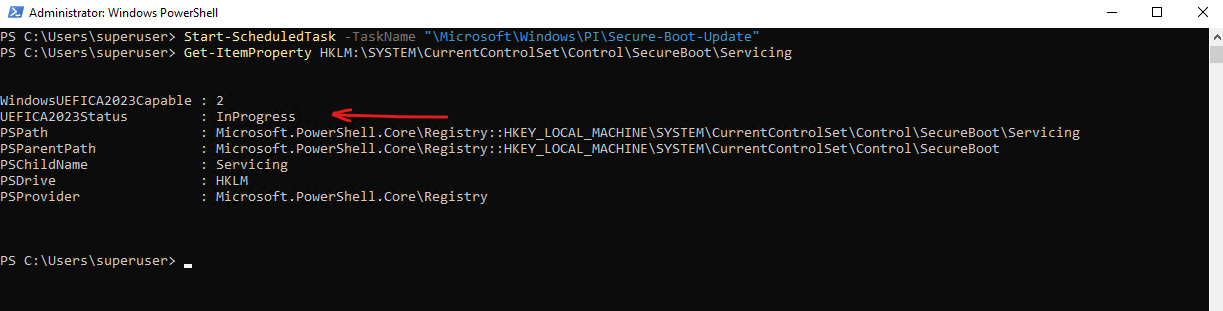
Using PowerShell to scan the DB and KEK bytes for these specific 2023 identifiers confirms that the ‘handshake’ between the OS and the Firmware is complete. If all four strings return True, your system is fully prepared for the 2026 legacy certificate deprecation.”
PS> [System.Text.Encoding]::ASCII.GetString((Get-SecureBootUEFI DB).Bytes) -match 'Windows UEFI CA 2023'
PS> [System.Text.Encoding]::ASCII.GetString((Get-SecureBootUEFI DB).Bytes) -match 'Microsoft UEFI CA 2023'
PS> [System.Text.Encoding]::ASCII.GetString((Get-SecureBootUEFI KEK).Bytes) -match 'Microsoft Corporation KEK 2K CA 2023'
PS> [System.Text.Encoding]::ASCII.GetString((Get-SecureBootUEFI DB).Bytes) -match 'Microsoft Option ROM UEFI CA 2023'

On VMware VMs where manual KEK enrollment was required, you may find that the registry remains stuck in ‘InProgress’ even after the Event Viewer reports ‘Secure Boot KEK update applied successfully’ (Event 1043).
This is a known behavior where the OS enters an observation phase. Because the hardware was updated manually or via a warm restart, the Windows servicing task won’t flip to ‘Updated’ until it satisfies its internal ‘Confidence’ check, which can take several days of uptime or a full host-level power cycle.
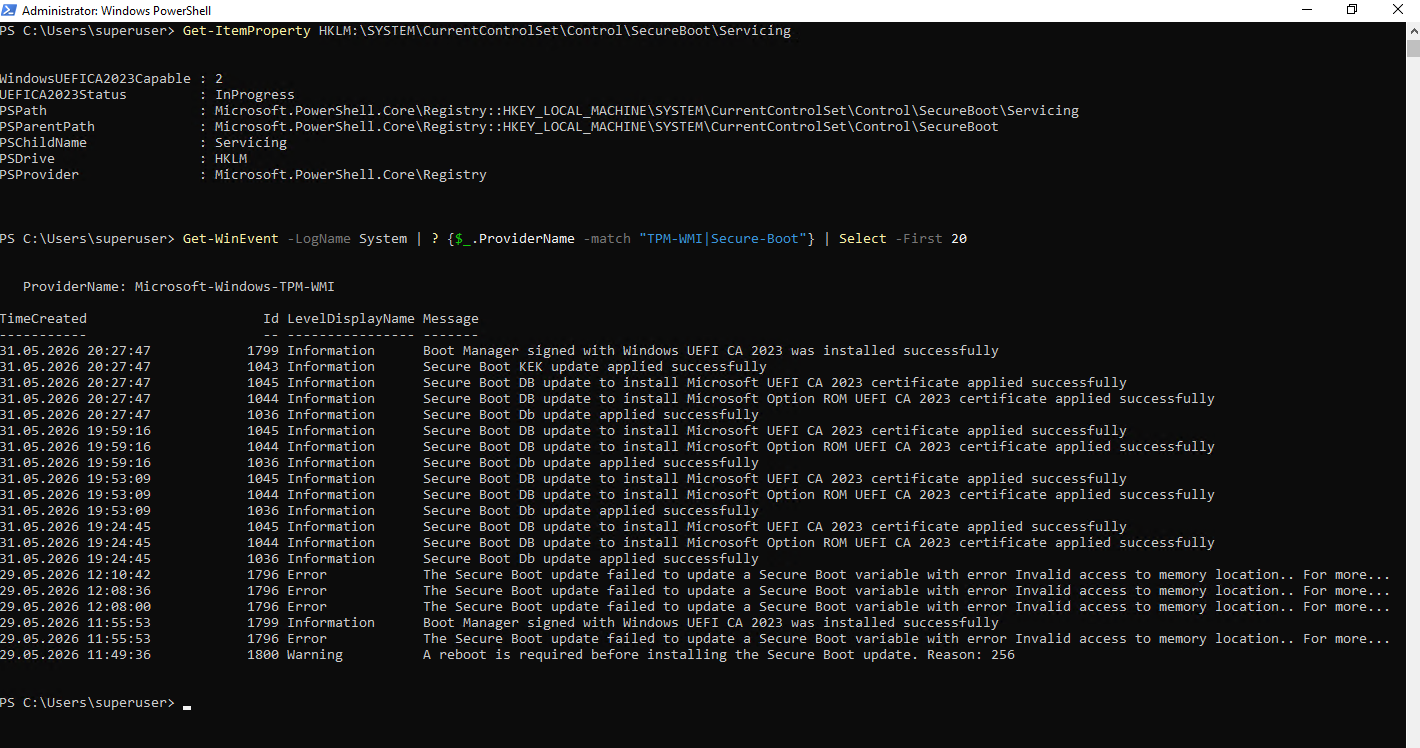
Troubleshooting
Event 1796 errors – The Secure Boot update failed to update a Secure Boot variable with error The parameter is incorrect..
When upgrading your ESXi hosts to version 8.0 U3j, the newer Platform Key (PK) certificate is automatically injected into the environment, requiring only a standard VM reboot to surface the hardware-level updates to the guest OS.
Following the reboot, Windows will attempt to automatically replace the Key Exchange Key (KEK) and other required 2023 CAs.
However, to successfully commit these OS-level variables to the VMware NVRAM without errors, you may first need to install the latest Windows Cumulative Update and manually force the transition by running Start-ScheduledTask -TaskName "\Microsoft\Windows\PI\Secure-Boot-Update".
About VMware NVRAM
VMware stores UEFI firmware settings and Secure Boot variables, including the Platform Key (PK), Key Exchange Keys (KEKs), and signature databases (DB/DBX), in the virtual machine’s NVRAM file (.nvram).This file acts as the virtual equivalent of the non-volatile firmware memory found on physical systems and preserves UEFI configuration across VM reboots and power cycles.
Alternatively, you can wait for the OS to automatically retry the task during its 12-hour maintenance cycle, though a final reboot may be required to completely clear any lingering Event 1796 errors.
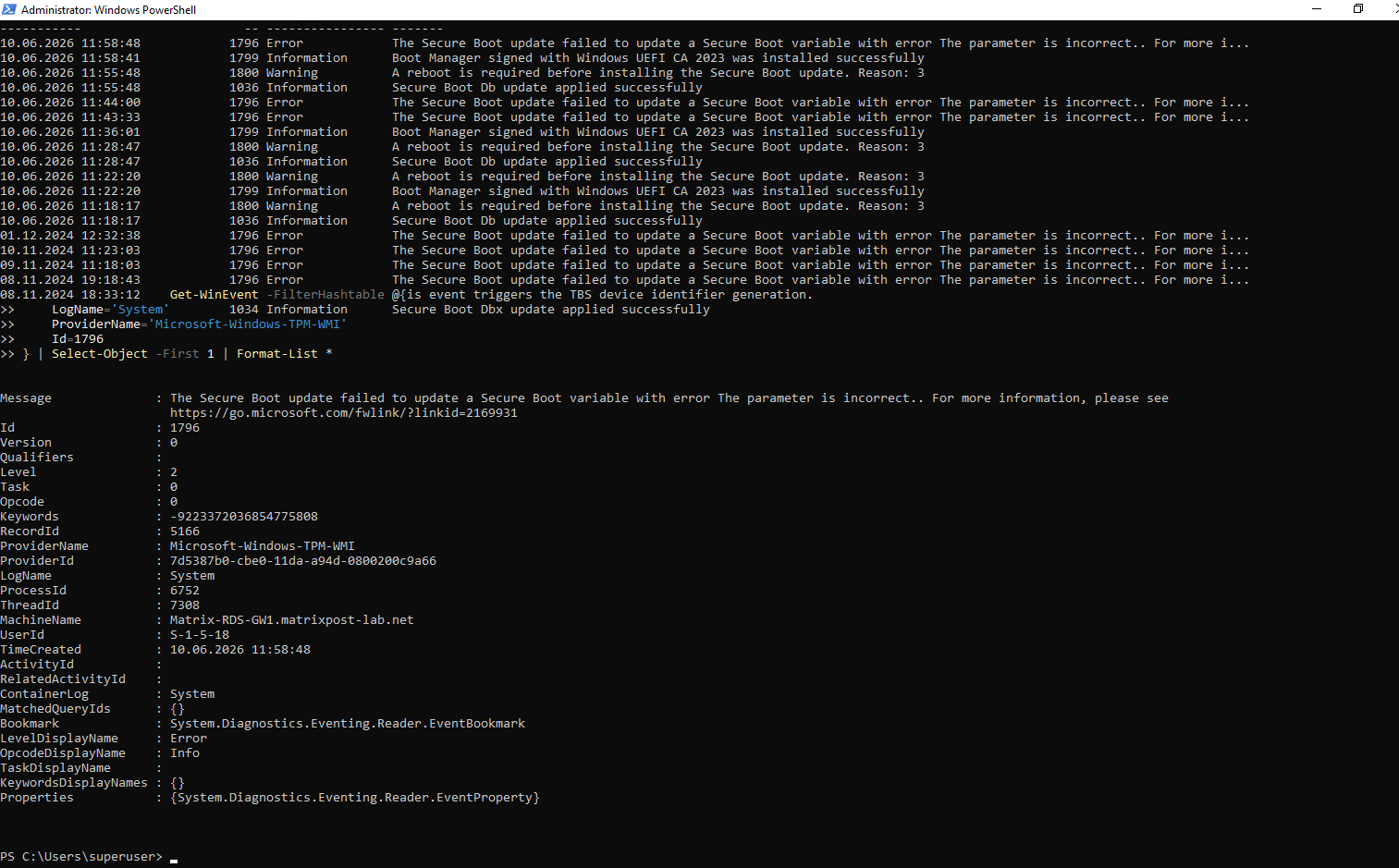
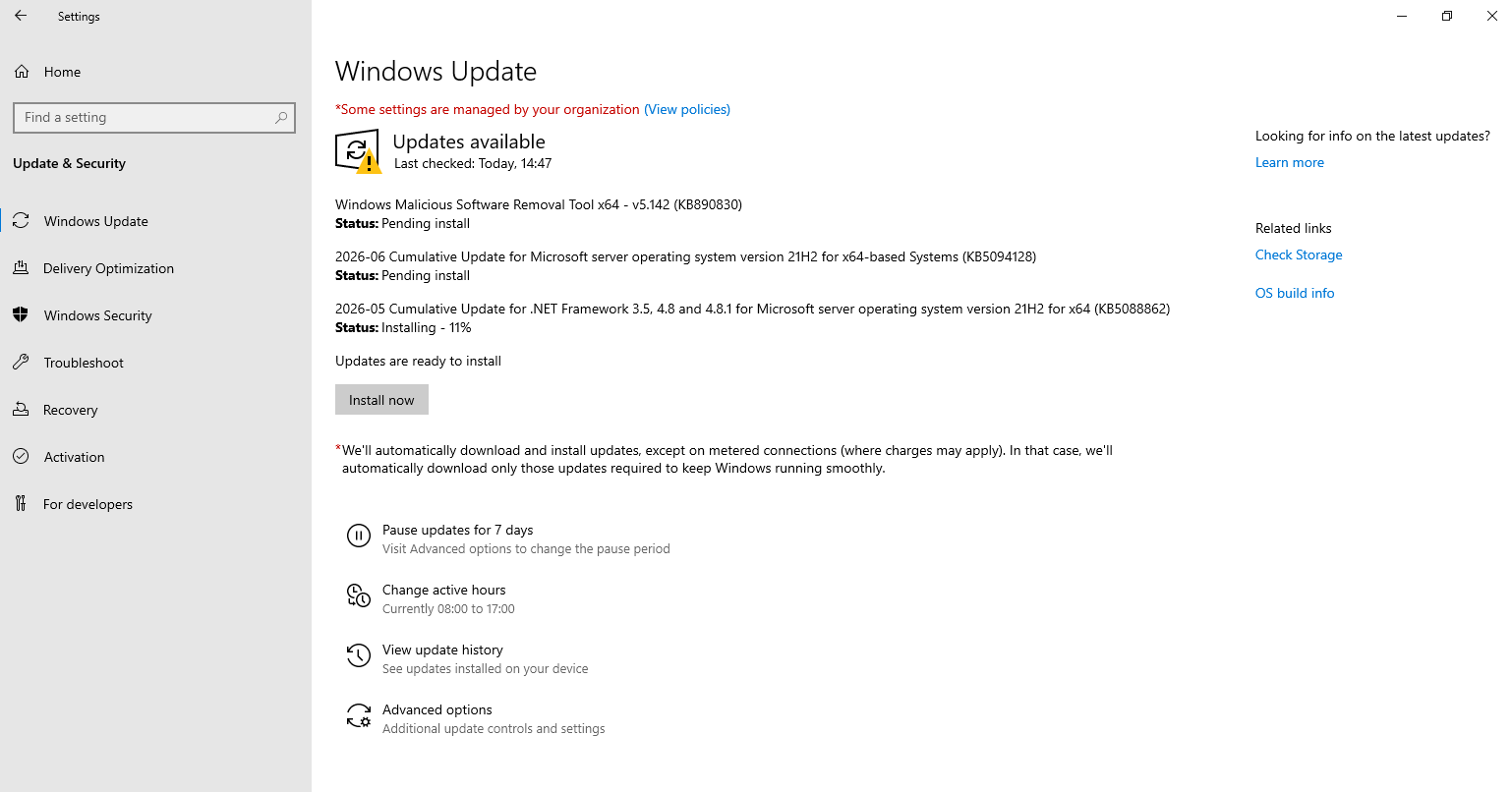
Finally the Secure Boot certificate migration was successfully.
Get-WinEvent -LogName System | ? {$_.ProviderName -match "TPM-WMI|Secure-Boot"} | Select -First 20
Get-ItemProperty HKLM:\SYSTEM\CurrentControlSet\Control\SecureBoot\Servicing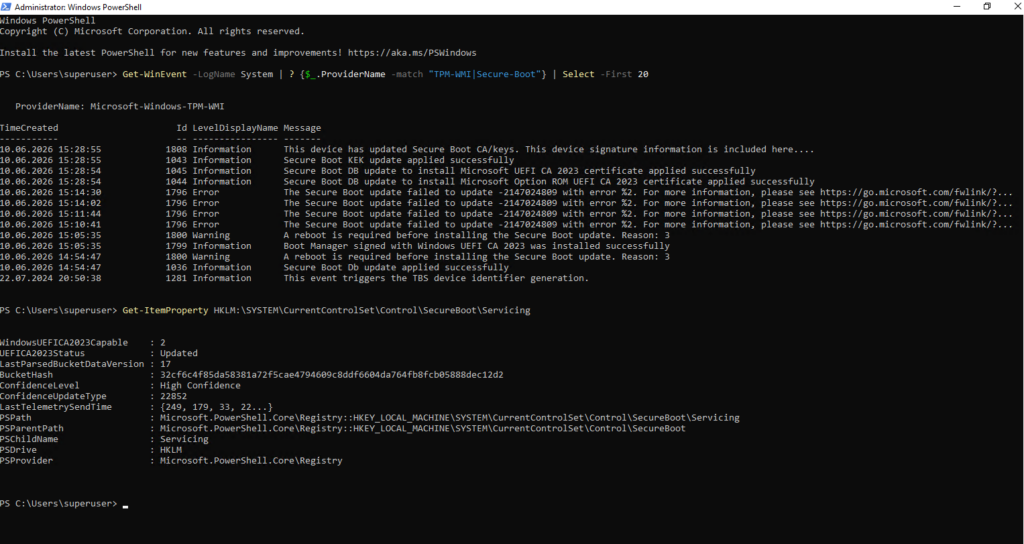
All 4 major 2023 Secure Boot certificates installed in the Allowed Signature Database (DB).
[System.Text.Encoding]::ASCII.GetString((Get-SecureBootUEFI DB).Bytes) -match 'Windows UEFI CA 2023'
[System.Text.Encoding]::ASCII.GetString((Get-SecureBootUEFI DB).Bytes) -match 'Microsoft UEFI CA 2023'
[System.Text.Encoding]::ASCII.GetString((Get-SecureBootUEFI KEK).Bytes) -match 'Microsoft Corporation KEK 2K CA 2023'
[System.Text.Encoding]::ASCII.GetString((Get-SecureBootUEFI DB).Bytes) -match 'Microsoft Option ROM UEFI CA 2023'

Links
How To Check Secure Boot Certificates
https://www.dell.com/support/kbdoc/en-us/000385747/how-to-check-secure-boot-certificatesWindows Server Secure Boot playbook for certificates expiring in 2026
https://techcommunity.microsoft.com/blog/windowsservernewsandbestpractices/windows-server-secure-boot-playbook-for-certificates-expiring-in-2026/4495789Secure Boot Certificate updates: Guidance for IT professionals and organizations
https://support.microsoft.com/en-us/topic/secure-boot-certificate-updates-guidance-for-it-professionals-and-organizations-e2b43f9f-b424-42df-bc6a-8476db65ab2f#bkmk_how_updates_are_deployedRegistry key updates for Secure Boot: Windows devices with IT-managed updates
https://support.microsoft.com/en-us/topic/registry-key-updates-for-secure-boot-windows-devices-with-it-managed-updates-a7be69c9-4634-42e1-9ca1-df06f43f360dUpdating Windows Boot Manager and WinPE with the Windows UEFI CA 2023 Certificate
https://lenovopress.lenovo.com/lp2353-updating-windows-boot-manager-and-winpe-windows-uefi-ca-2023-certificateSecure Boot Certificate Expirations and Update Failures in VMware Virtual Machines
https://knowledge.broadcom.com/external/article/423893/secure-boot-certificate-expirations-and.htmManual Update of the Secure Boot Platform Key in Virtual Machines
https://knowledge.broadcom.com/external/article/423919Act now: Secure Boot certificates expire in June 2026
https://techcommunity.microsoft.com/blog/windows-itpro-blog/act-now-secure-boot-certificates-expire-in-june-2026/4426856Windows Secure Boot certificate expiration and CA updates
https://support.microsoft.com/en-us/topic/windows-secure-boot-certificate-expiration-and-ca-updates-7ff40d33-95dc-4c3c-8725-a9b95457578eWindows Secure Boot Key Creation and Management Guidance
https://learn.microsoft.com/en-us/windows-hardware/manufacture/desktop/windows-secure-boot-key-creation-and-management-guidance?view=windows-11VMware vCenter Server versions and build numbers
https://knowledge.broadcom.com/external/article/326316/build-numbers-and-versions-of-vmware-vce.htmlHow to create and manage the Central Store for Group Policy Administrative Templates in Windows
https://learn.microsoft.com/en-us/troubleshoot/windows-client/group-policy/create-and-manage-central-storeGroup Policy Objects (GPO) method of Secure Boot for Windows devices with IT-managed updates
https://support.microsoft.com/en-us/topic/group-policy-objects-gpo-method-of-secure-boot-for-windows-devices-with-it-managed-updates-65f716aa-2109-4c78-8b1f-036198dd5ce7