

Cheat Sheet pfSense
pfSense provides a powerful web-based management interface, but many troubleshooting and recovery tasks can be performed directly from the console or shell.
This cheat sheet summarizes some of the most useful pfSense shell and console commands, including examples for managing firewall rules, WebGUI access and other day-to-day administration tasks.
I will update the post on a regular basis.
Access pfSense when Locked Out of the Firewall
In cloud environments such as Microsoft Azure, direct access to the pfSense WebGUI through a private management network is not always available.
About deploying pfSense in Google Cloud you can also read my following post.
About deploying pfSense in Azure, the following post.
When no site-to-site VPN connection exists and no management VM is present in the WAN subnet, temporary access through the public IP address may be required to perform administration and troubleshooting tasks.
There are a few ways to manipulate the firewall behavior at the shell to regain access to the firewall GUI.
From the pfSense console menu, select Option 8 – Shell to open a command-line shell session. This provides direct access to various troubleshooting and recovery commands that can be used when administrative access through the WebGUI is unavailable.
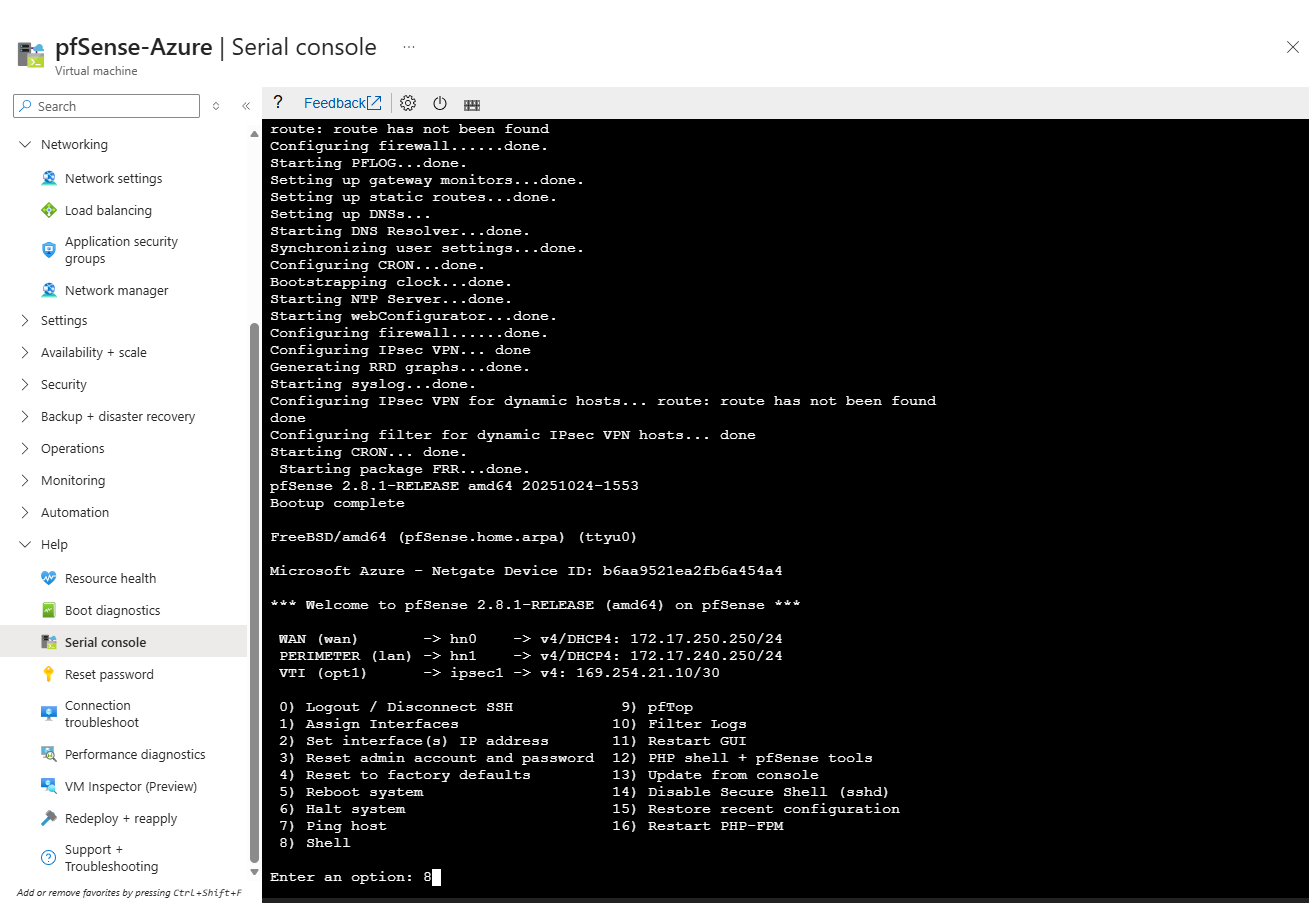
We can temporarily activate an “allow all” rule on the WAN to let a client in.
# pfSsh.php playback enableallowallwan
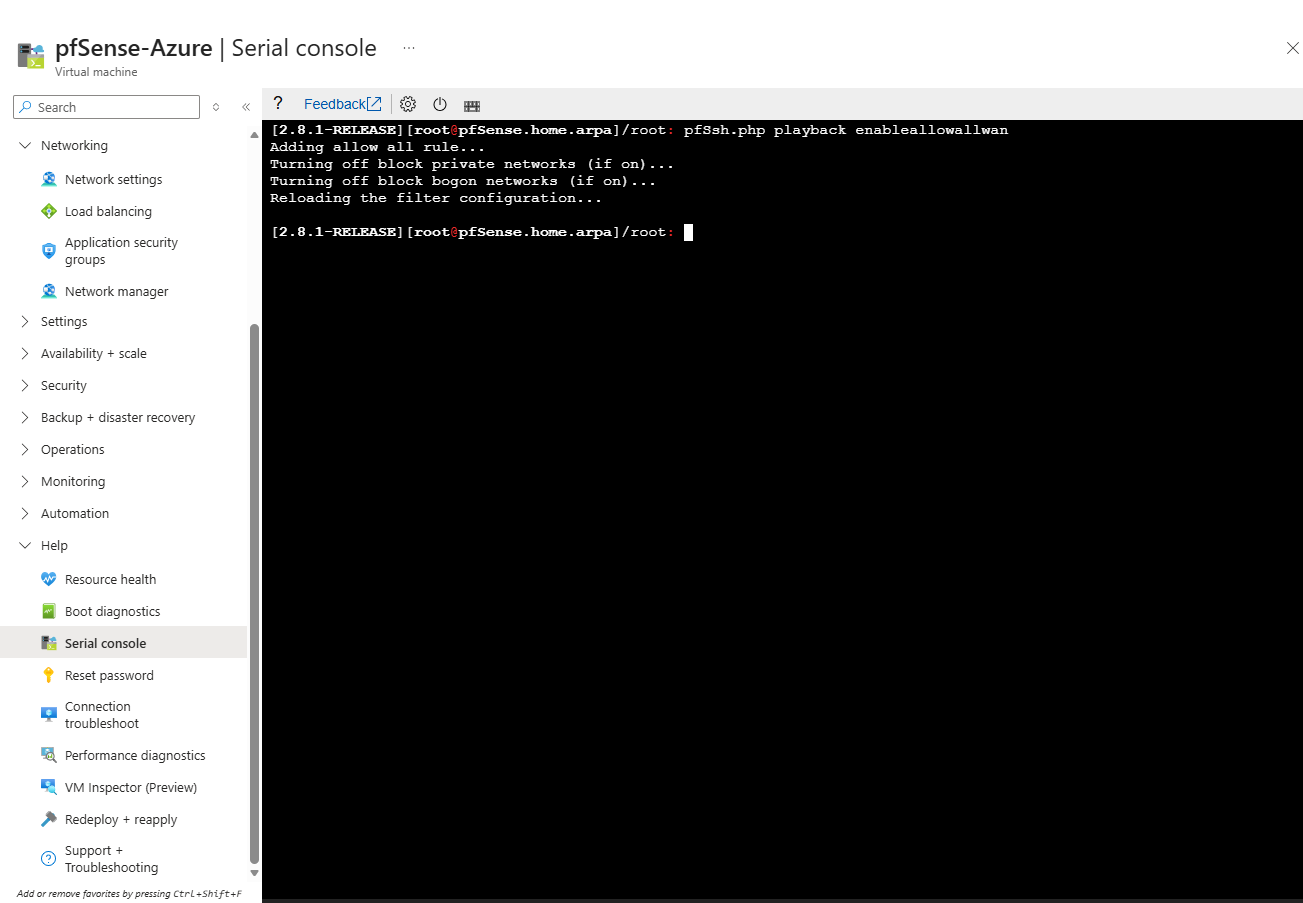
If the pfSense WebGUI is configured to use a custom port instead of the default HTTPS port 443, we can determine the currently configured listening port directly from the shell. This is especially useful when reconnecting to an existing deployment or troubleshooting administrative access issues.
If the WebGUI is configured to use the default HTTPS port (443), pfSense typically does not store a
<port>entry inconfig.xml.
# grep '<port>' /cf/conf/config.xml
# grep -A5 '<webgui>' /cf/conf/config.xml

# sockstat -4 -6 | grep nginx
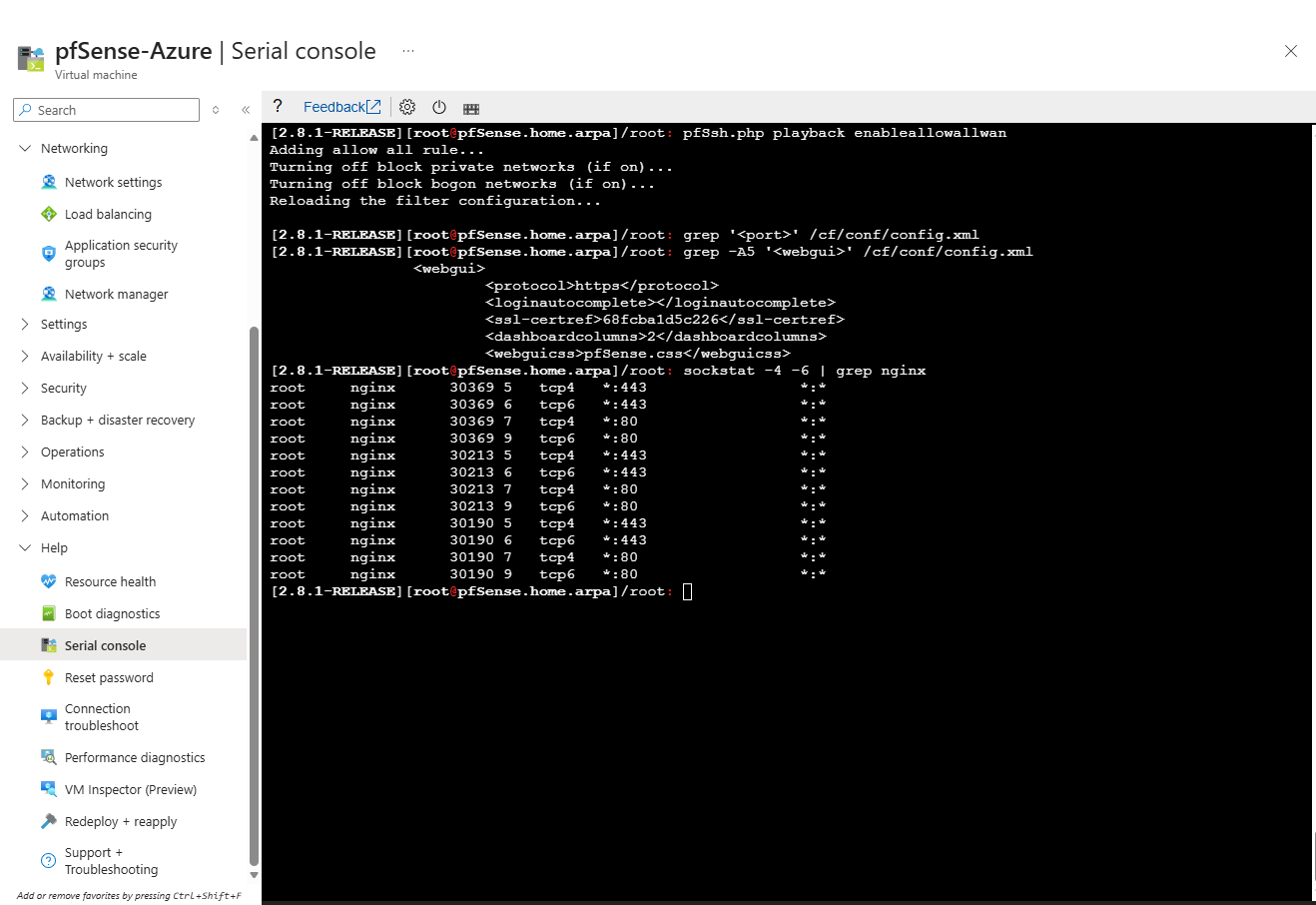
The easiest way, assuming the administrator knows the IP address of a remote client PC that needs access, is to use the easyrule shell script to add a new firewall rule. In the following example, the easyrule script will allow access on the WAN interface, from x.x.x.x (the client IP address) to y.y.y.y (presumably the WAN IP address) on TCP port 443.
Once the easyrule script adds the rule, the client will be able to access the GUI from the specified source address.
# easyrule pass wan tcp x.x.x.x y.y.y.y 443
When accessing the pfSense WebGUI through the public IP address, pfSense displayed an HTTP_REFERER warning showing below.
This occurs because pfSense performs additional CSRF (Cross-Site Request Forgery) protection checks and may reject requests when the browser accesses the WebGUI through an IP address, public IP, hostname, or reverse NAT path that differs from the URL pfSense expects.
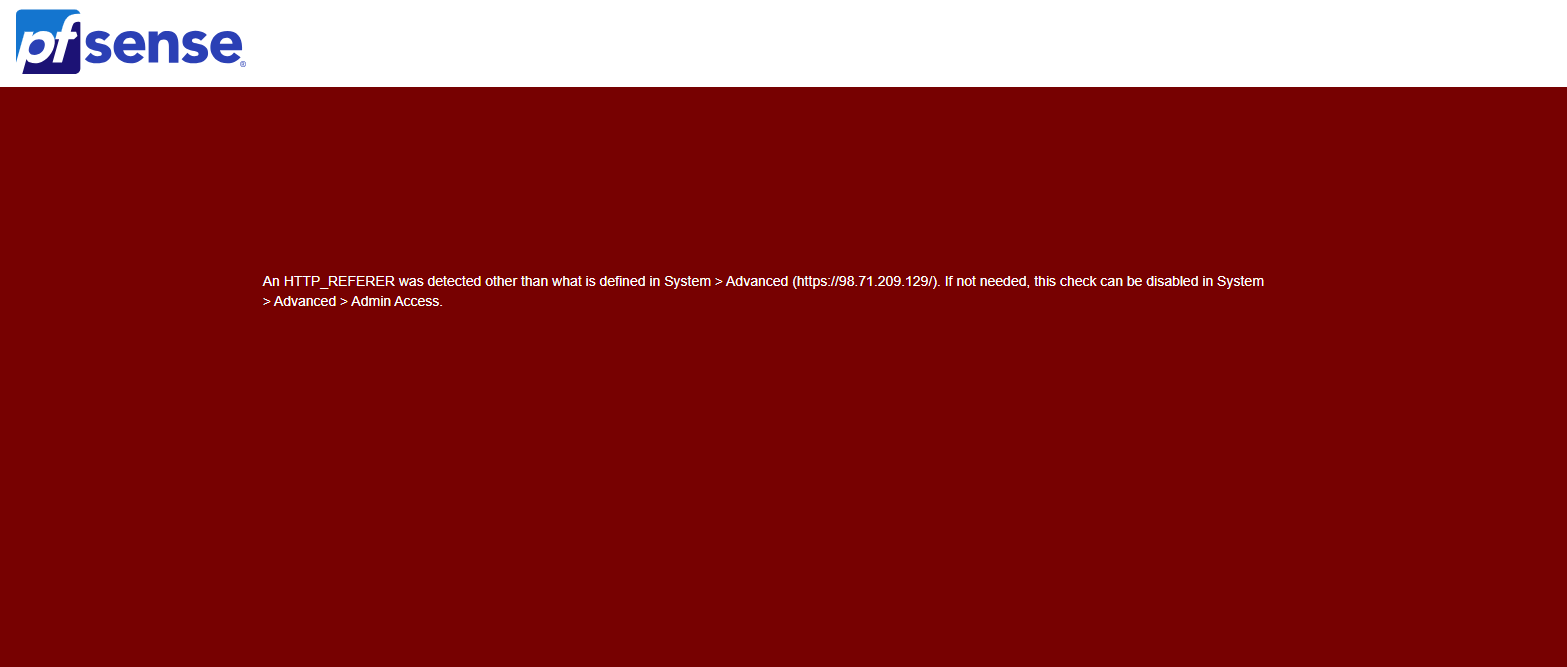
To disable the web gui refferer check, run.
# pfSsh.php playback disablereferercheck
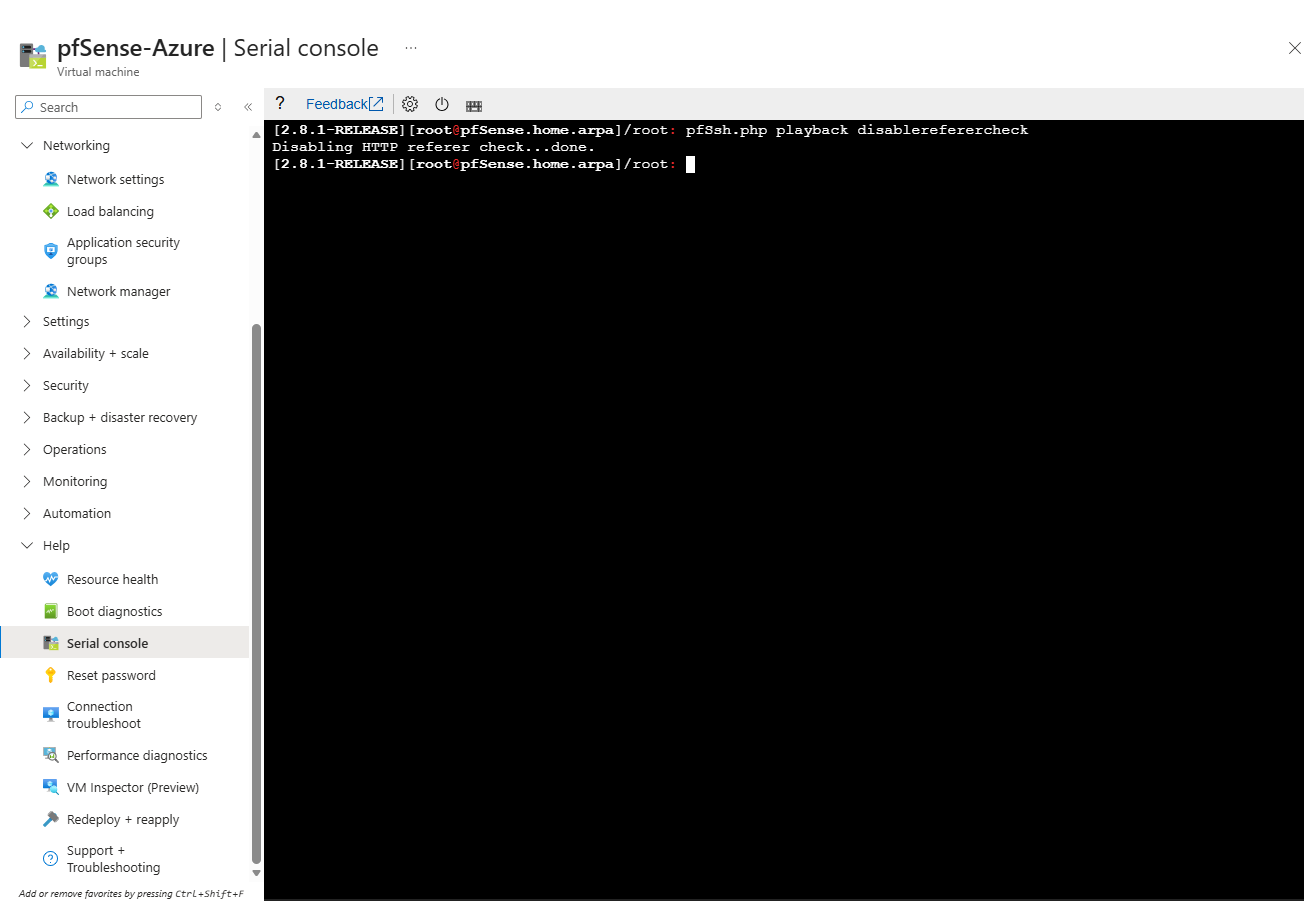
We are now able to access pfSense through the external public IP address.

Links
Allowing Remote Access to the GUI
https://docs.netgate.com/pfsense/en/latest/recipes/remote-firewall-administration.html
Troubleshooting Access when Locked Out of the Firewall
https://docs.netgate.com/pfsense/en/latest/troubleshooting/locked-out.html
