

Cheat Sheet Kubernetes – Commands used in Day-to-Day Operations
This Kubernetes cheat sheet provides a practical collection of commonly used kubectl commands and concepts for day-to-day administration, troubleshooting, and application management. It covers essential operations such as working with Pods, Deployments, Services, Ingress, networking, and cluster troubleshooting in real-world Kubernetes environments.
I will update this post on a regular basis.
Azure CLI Authentication and Session Handling
After authenticating once with Azure CLI, authentication tokens are cached locally and reused automatically for future commands.
This behavior is especially useful when working frequently with AKS or other Azure resources, but it is important to understand how to verify the active account, subscription context, and when manual re-authentication may still be required.
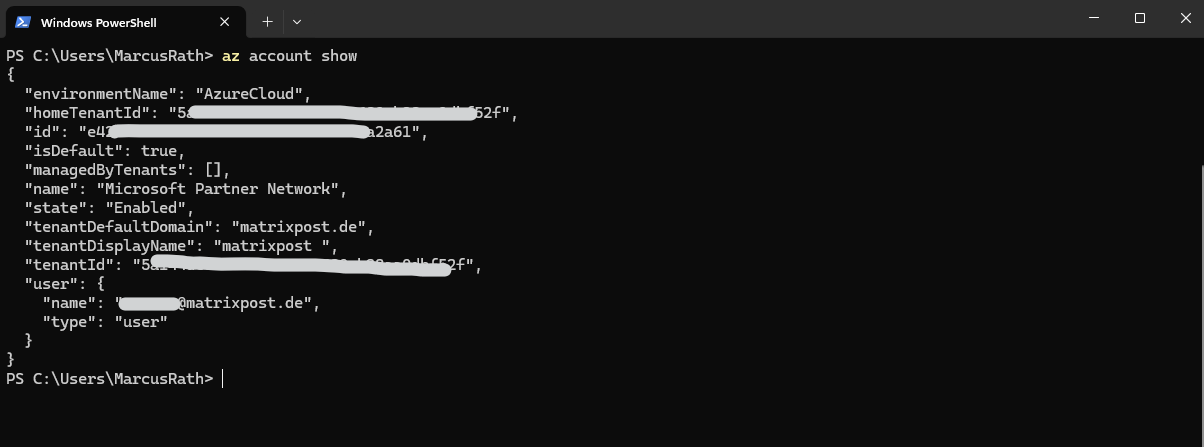
The command az account show displays the currently active Azure account and subscription context (id) used by Azure CLI.
This allows us to verify which user account, tenant, and subscription subsequent Azure CLI commands will operate against.
PS> az account show
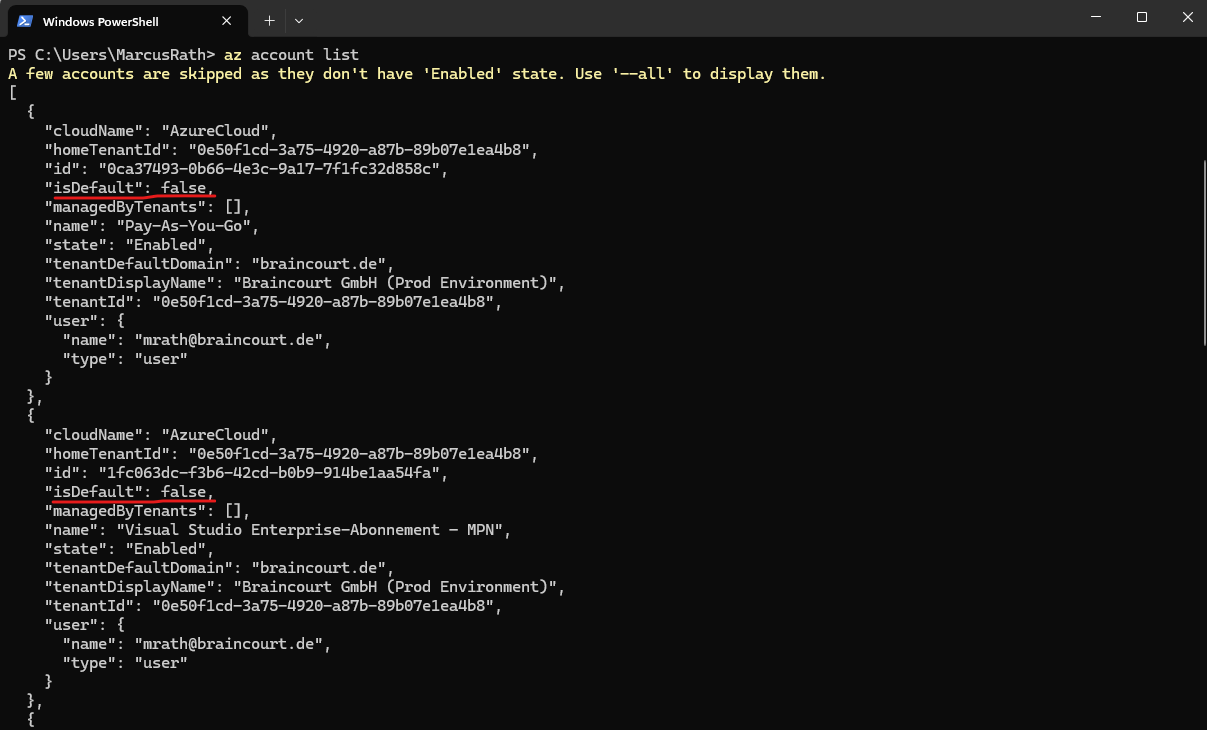
The command az account list displays all Azure subscriptions currently available through the locally cached Azure CLI authentication context.
This is especially useful in environments with access to multiple tenants and subscriptions, allowing us to verify which subscriptions are available and which one is currently configured as the default context ("isDefault": true).
The screenshot also still contains subscriptions and account contexts from a former environment at Braincourt, which meanwhile no longer exists and is no longer accessible. Therefore, these legacy account entries are not considered sensitive and have not been masked in the screenshot.
PS> az account list
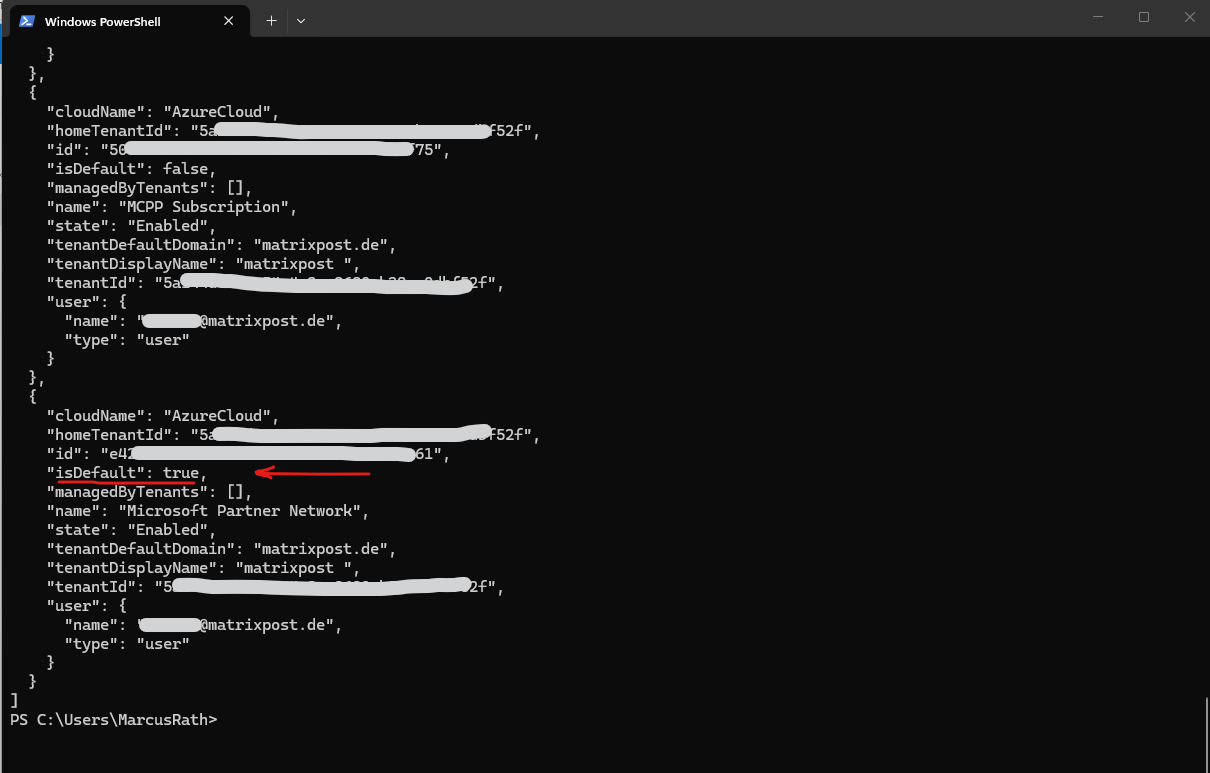
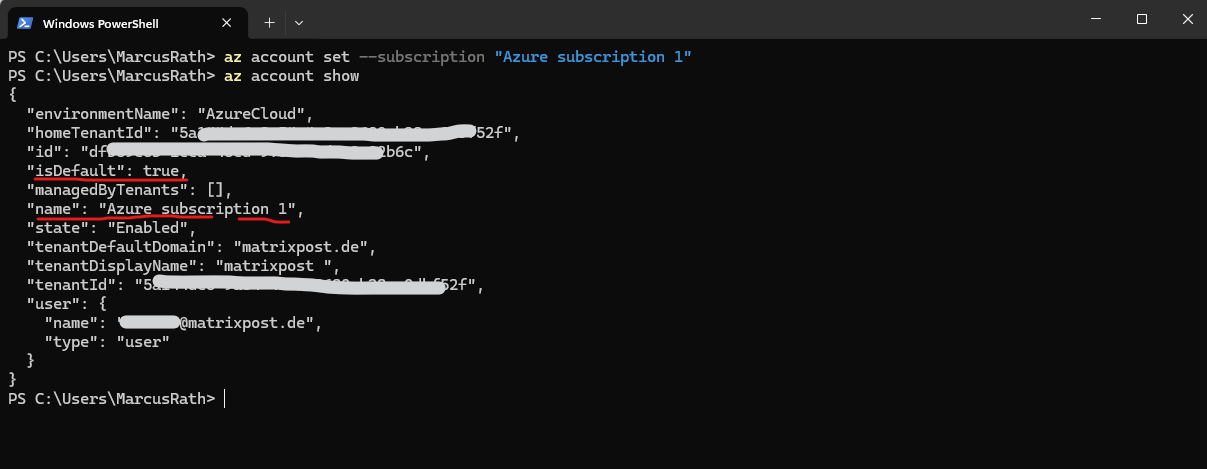
To switch the active Azure CLI context to another subscription where "isDefault": false, use the following command:
This allows commands to target a different subscription or tenant without requiring a new login. The selected subscription then becomes the active default context for subsequent Azure CLI operations.
PS> az account set --subscription "<subscription-name-or-id>"
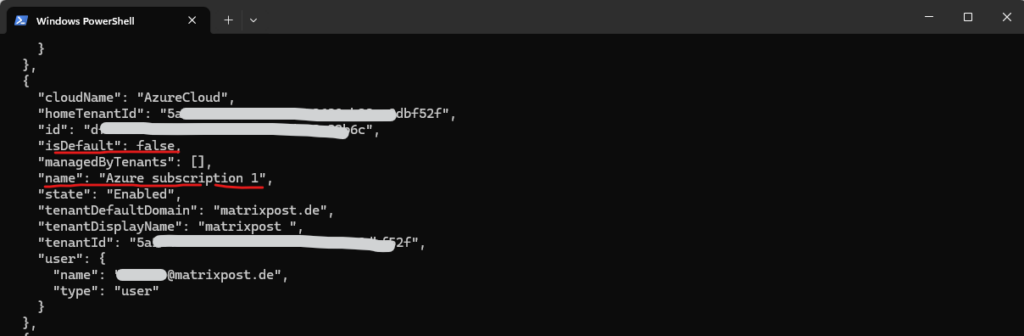
PS> az account set --subscription "Azure subscription 1"
PS> az account show
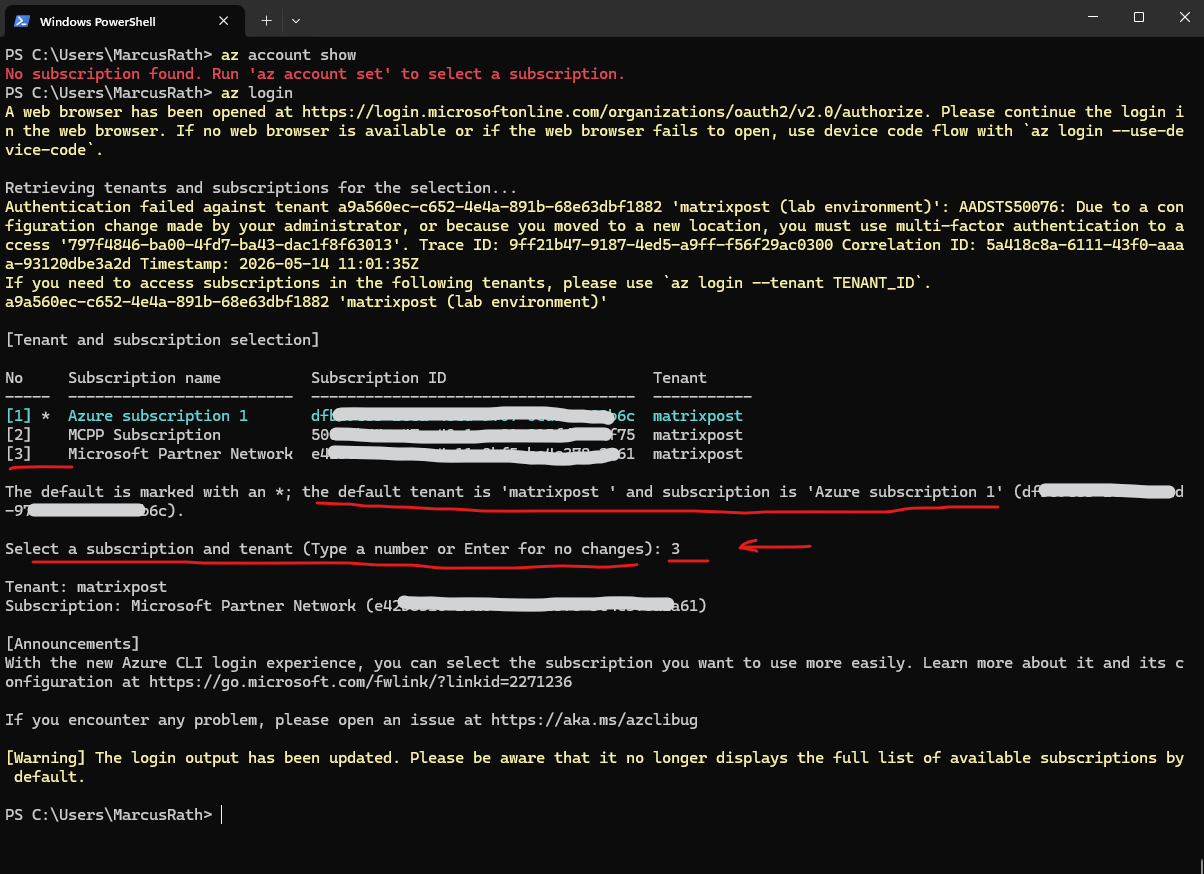
The command az logout removes the locally cached Azure CLI authentication context and signs the current user out from Azure CLI. After logging out, Azure CLI commands requiring authentication will fail until a new az login is performed.
PS> az logout

# verify
PS> az account show

If multiple accounts are cached locally, az logout without additional parameters logs out all accounts. A specific account can also be logged out individually:
az logout --username <user>@matrixpost.de
The az logout command clears the locally cached Azure CLI authentication session and removes the active account context.
After logging out, a new az login is required before authenticated Azure CLI operations can be performed again.
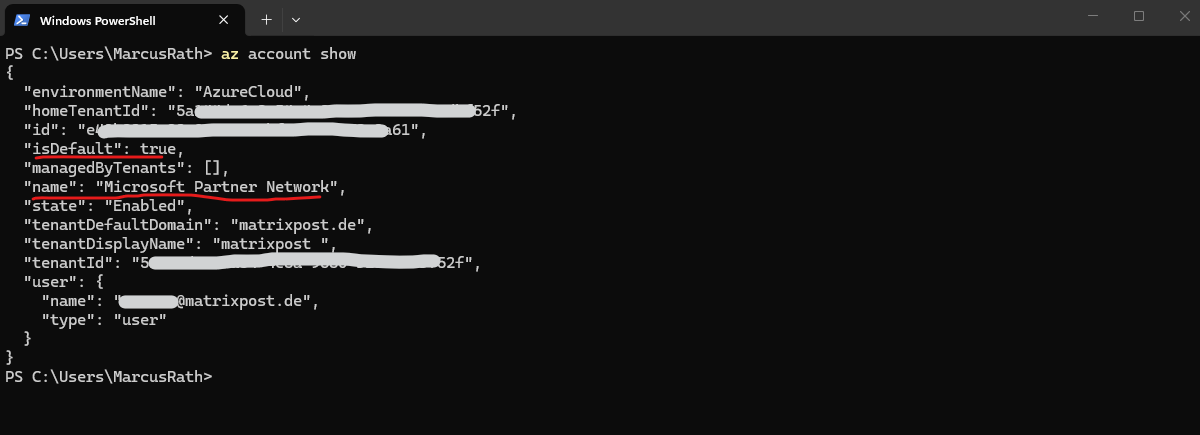
Verify is the above selected tenant and subscription was successful set as default context.
PS> az account show
Stopping an AKS Cluster to Reduce Costs
In lab or development environments, it is often not necessary to run an AKS cluster continuously. To reduce costs, the cluster can be temporarily stopped when not in use.
To reduce costs, an AKS cluster can be stopped using az aks stop, which deallocates the worker nodes while preserving the cluster configuration. The cluster can later be started again using az aks start.
PS> az aks stop --resource-group rg-aks-lab-02 --name aks-lab-cluster-02


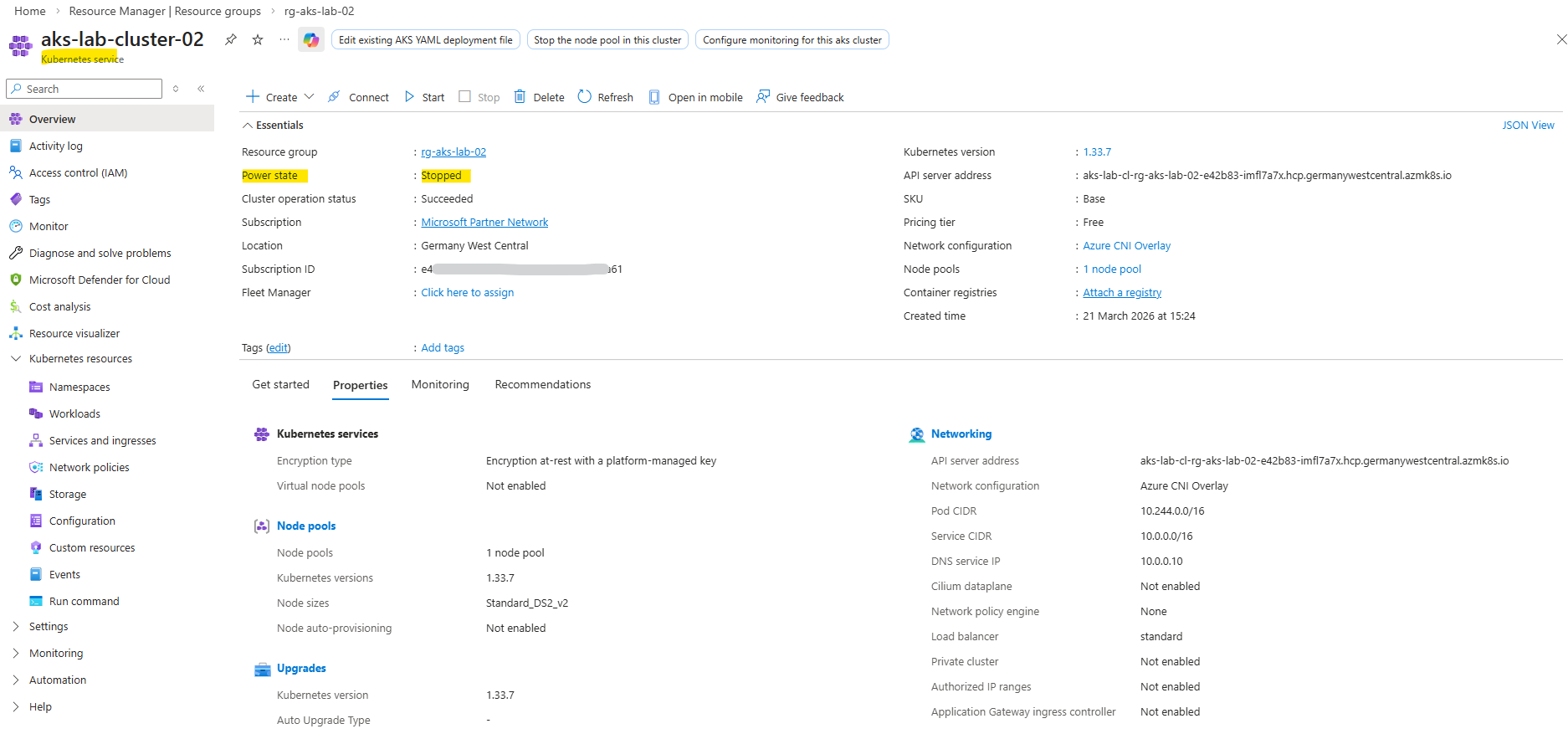
When stopping an AKS cluster, the worker nodes are not merely powered off but fully deallocated, resulting in zero instances in the underlying Virtual Machine Scale Set as shown below. When the cluster is started again, the nodes are recreated dynamically.
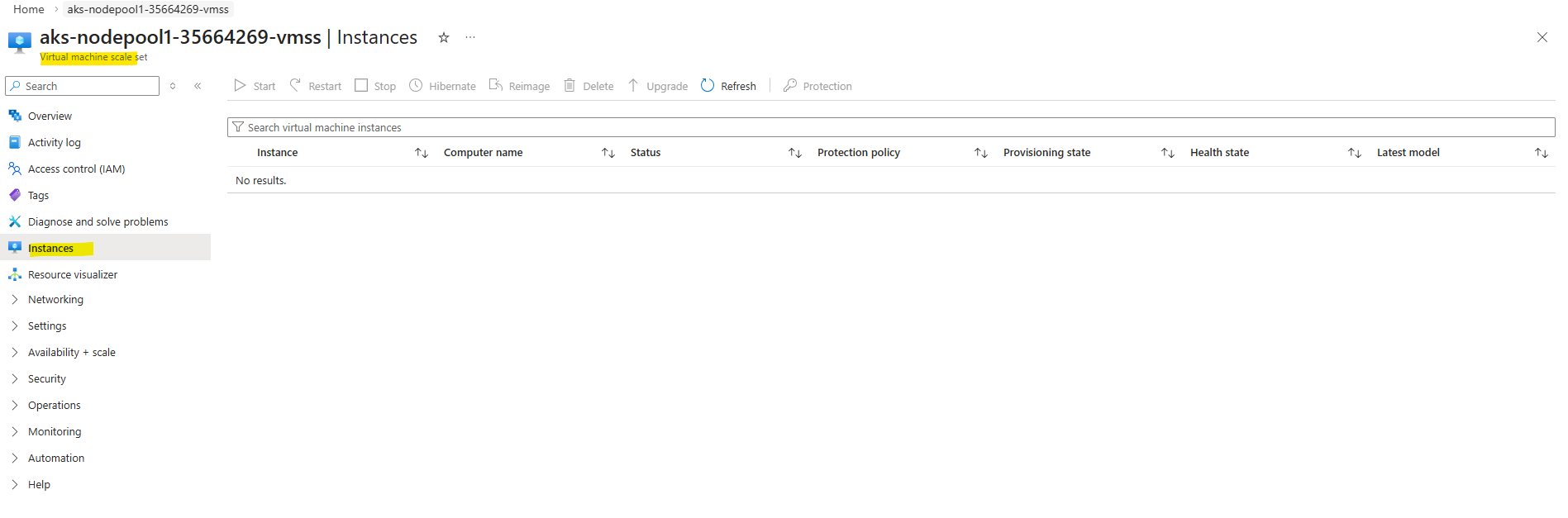
This provides a simple way to pause lab environments without deleting and redeploying the cluster.
Starting an AKS Cluster
To start again we can run.
PS> az aks start --resource-group rg-aks-lab-02 --name aks-lab-cluster-02
Cleaning Up an AKS Deployment
Deleting the AKS cluster automatically removes all associated resources, including the node resource group (MC_*), virtual machine scale sets, networking components, and the automatically created virtual network.
Resources in the MC_ resource group should not be deleted manually, as they are managed by AKS. Always delete the AKS cluster itself to ensure a clean and consistent removal of all related components.
PS> az aks delete --resource-group rg-aks-lab --name aks-lab-cluster --yes

The removing may take several minutes to complete.

When enabling monitoring, additional Azure Monitor resources such as Data Collection Rules not always removed automatically and may need to be cleaned up manually if no longer required.
The Data Collection Rule was created automatically when enabling monitoring using the
az aks create--enable-addons monitoringcommand, which activates Azure Monitor for the AKS cluster.
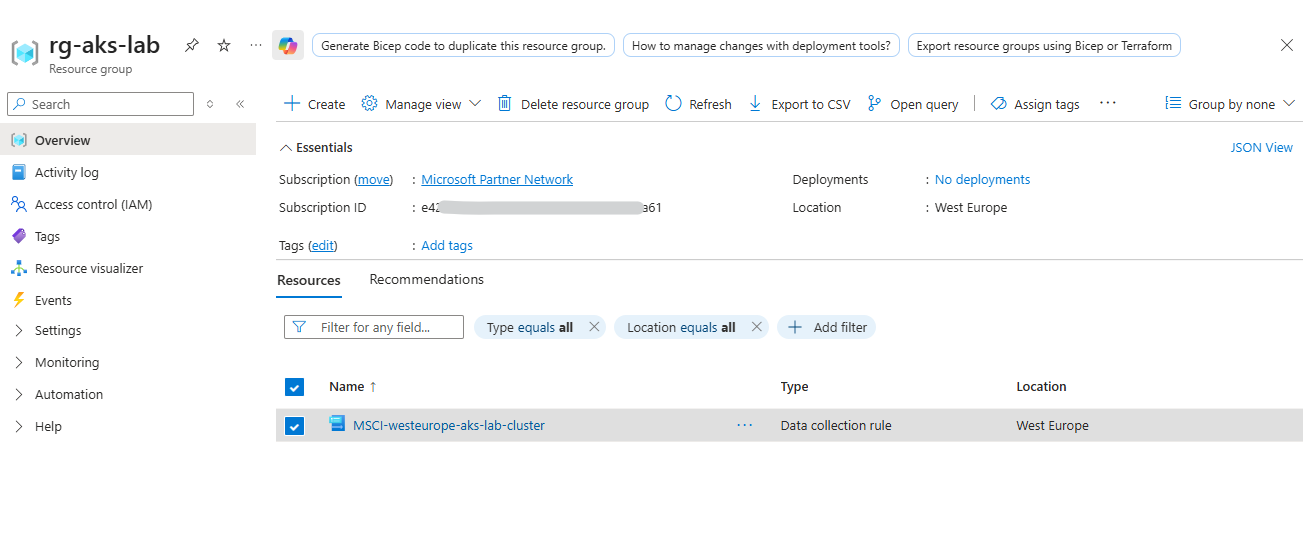
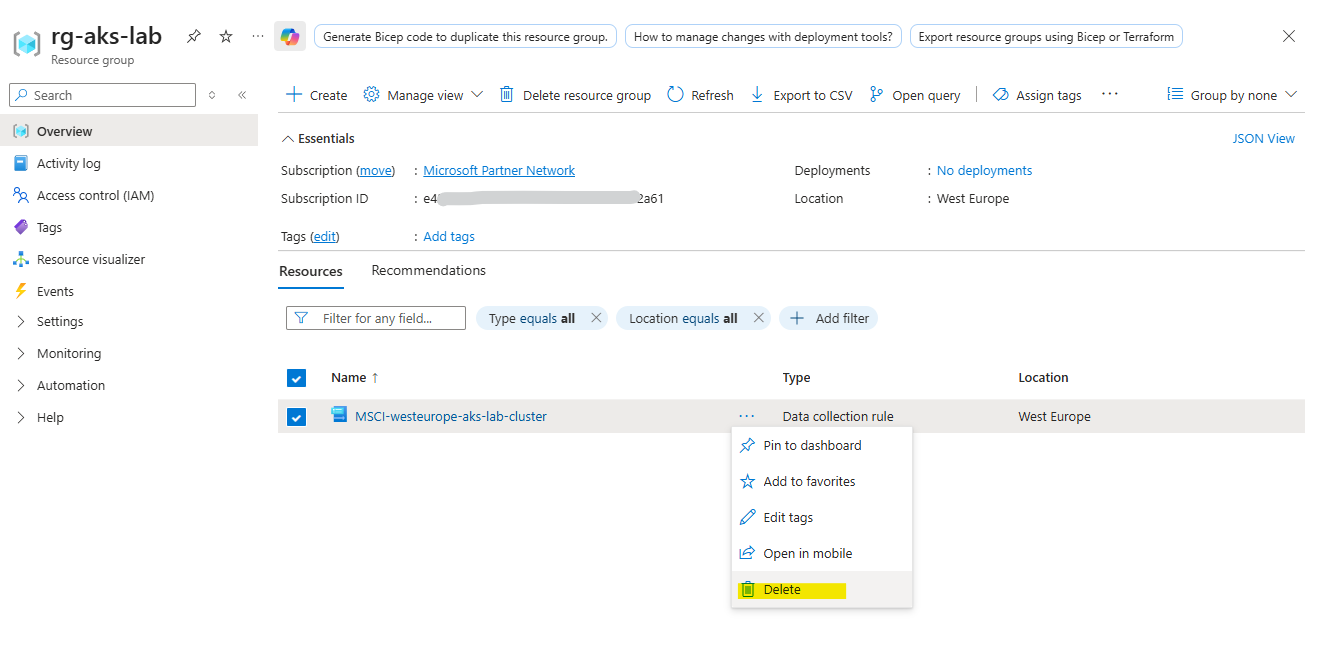
We can delete by using the Azure Portal or the CLI.
PS> az monitor data-collection rule delete --name MSCI-westeurope-aks-lab-cluster --resource-group <resource-group>
Links
Stop and start an Azure Kubernetes Service (AKS) cluster
https://learn.microsoft.com/en-us/azure/aks/start-stop-cluster?tabs=azure-cliaz account
https://learn.microsoft.com/en-us/cli/azure/account?view=azure-cli-latestDelete an Azure Kubernetes Service (AKS) cluster
https://learn.microsoft.com/en-us/azure/aks/delete-cluster?tabs=azure-cli
