Active Directory Cheat Sheet essential Commands
Active Directory (AD) is the backbone of identity and access management in most enterprise Windows environments.
Whether you’re managing users, diagnosing authentication issues, or querying domain controllers, knowing the right commands can save valuable time.
This cheat sheet provides a concise list of essential AD commands for system administrators, covering domain info, user and group management, trust verification, and troubleshooting tools.
Ideal for quick reference on domain-joined machines, this guide helps streamline common AD tasks from the command line or PowerShell.
I will update this post regularly.
- List all Domain Controllers in the Domain from a Member Server
- Determine the Domain Controller Selected by the Client (DC Locator)
- Determine if Computer is joined to an Domain (on-premise, Entra ID, Hybrid)
- Determine the Logon Server (Domain Controller) on a Windows Client
- Determine in which OU my Active Directory Domain Joined Computer is placed to
- Determine in which OU my Active Directory User Account is placed to
- Determine FSMO Role Holder
- The trust relationship between this workstation and the primary domain failed
- Verify Active Directory Replication Status
- Force AD Security Group Refresh on a Computer/Server Without Rebooting
- Verifying Machine-Level GPO Access
- Verify the Secure Channel to the Active Directory Domain
- Reset the Secure Channel to a Domain Controller
- Verify Active Directory DNS Name Resolution and LDAP SRV Records
- Display the Local DFS Referral Cache
- Group Policy Management
- Display Applied Computer Group Policies
- Display Applied User Group Policies
- Display the Resultant Set of Policy (RSoP)
- Display Group Policy Permissions
- Display Detailed Information About a Group Policy Object (GPO)
- Display the NTFS Permissions of a GPO in SYSVOL
- Generate an HTML Group Policy Report
- Export Windows Update Group Policy Registry Settings
- Schedule the Next Group Policy Refresh for Synchronous Processing
- Links
List all Domain Controllers in the Domain from a Member Server
To list all domain controllers in the domain from a member server, you can use one of the following methods:
PS> nltest /dclist:<domain name>
PS> nltest /dclist:matrixpost-lab.net
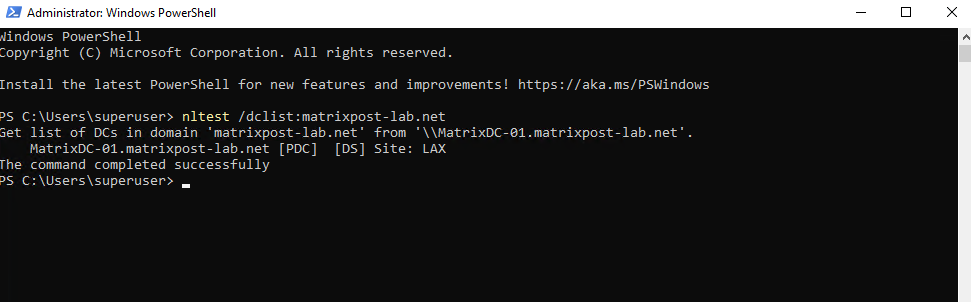
Or by using DNS Query.
> nslookup
> set type=SRV

_ldap._tcp.dc._msdcs.<YourDomainName>
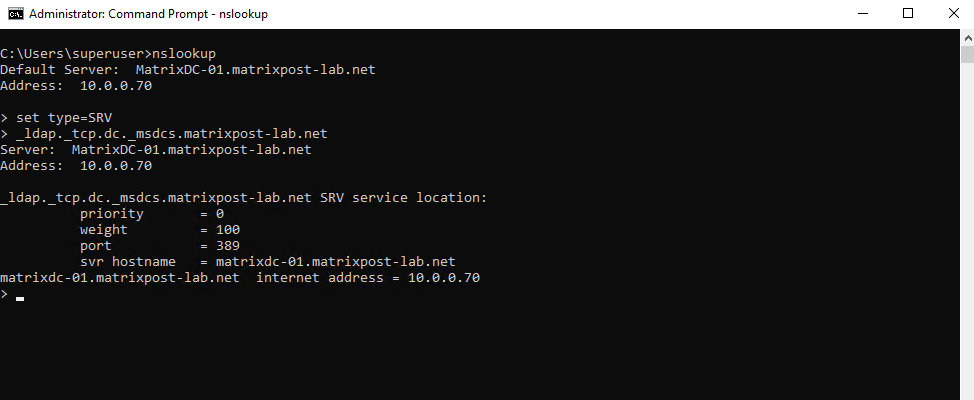
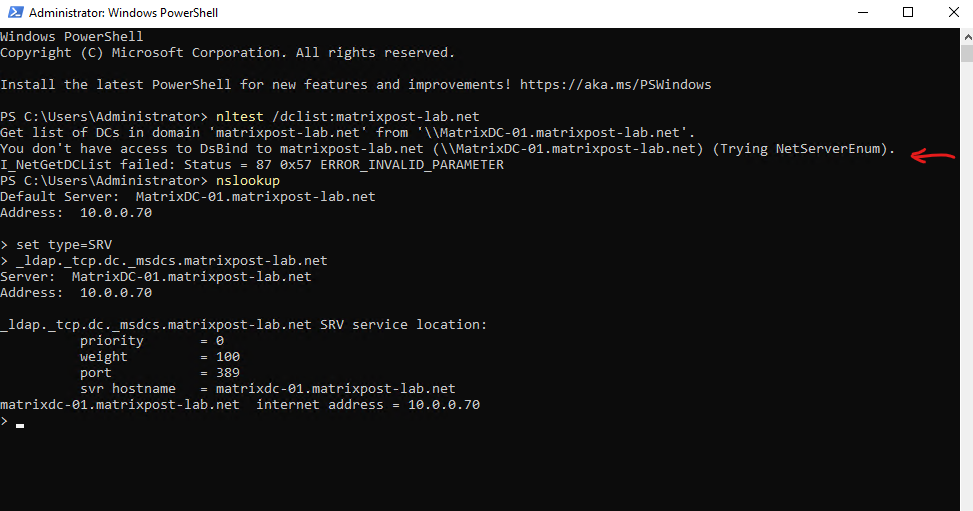
Querying DNS will also work by the way in case you just have a local user account on the domain member server, therefore are not signed in to the domain, in this case the previous nltest /dclist command will fail like shown below.
You don’t have access to DsBind to matrixpost-lab.net (\MatrixDC-01.matrixpost-lab.net) (Trying NetServerEnum).
I_NetGetDCList failed: Status = 87 0x57 ERROR_INVALID_PARAMETER
Determine the Domain Controller Selected by the Client (DC Locator)
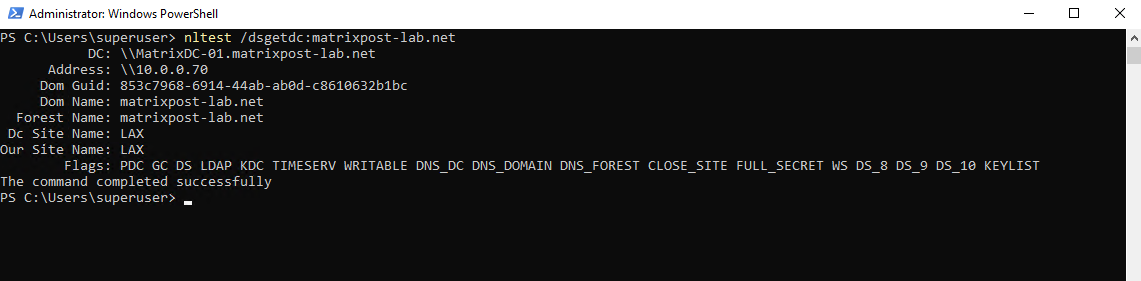
Unlike nltest /dclist above, which lists all domain controllers in a domain, nltest /dsgetdc:<domain> executes the Active Directory DC Locator process and returns the domain controller selected by the client.
The selection is based on the client’s Active Directory site, DNS SRV records, domain controller availability, and other locator criteria.
In a healthy multi-site environment, the returned domain controller is typically located in the client’s own Active Directory site.
PS> nltest /dsgetdc:<domain name>
PS> nltest /dsgetdc:matrixpost-lab.net
Determine if Computer is joined to an Domain (on-premise, Entra ID, Hybrid)
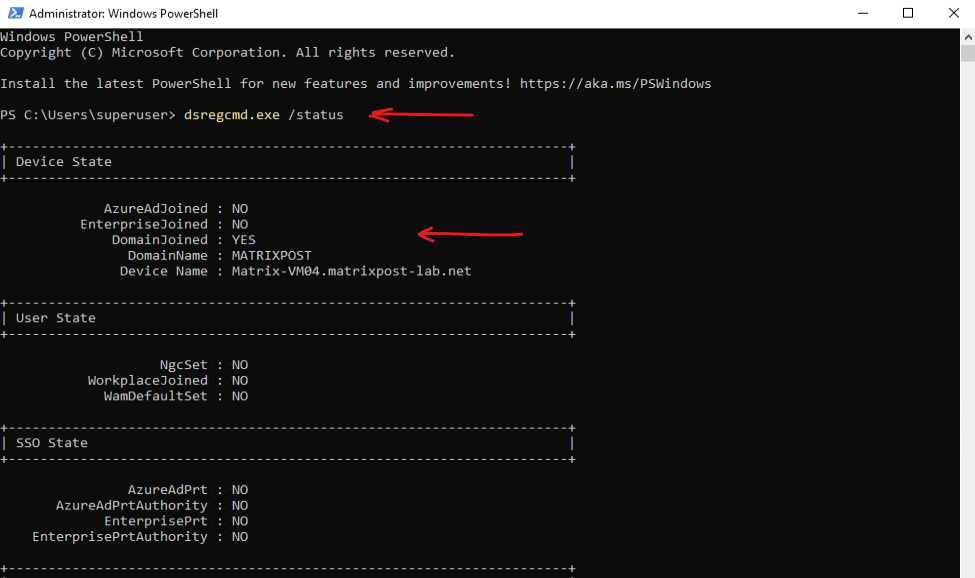
To quickly determine if a computer is joined to a domain (on-premise, Entra ID or hybrid) we can execute the following command in the PowerShell or CMD with elevated Administrator rights.
The dsregcmd.exe /status command is a useful diagnostic tool in Windows for checking the device’s Entra ID join status and related registration details. It provides information such as domain join type, user state, SSO (Single Sign-On) status, and other relevant Entra ID connectivity details. This command is particularly helpful for troubleshooting authentication, device registration, and hybrid join issues in enterprise environments. Running it displays a summary of the device’s Entra ID and domain registration state.
> dsregcmd.exe /status
Determine the Logon Server (Domain Controller) on a Windows Client
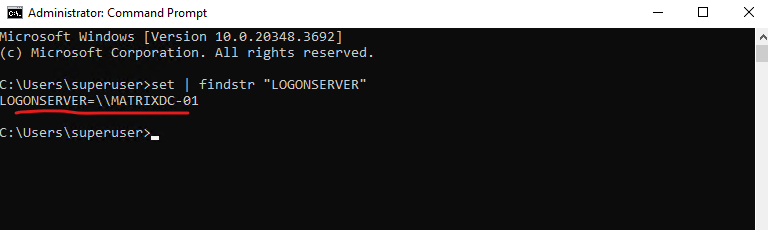
When a Windows computer joins a domain, it authenticates against a Domain Controller (DC), known as the logon server. There are several ways to find the Logon Server against the client authenticated.
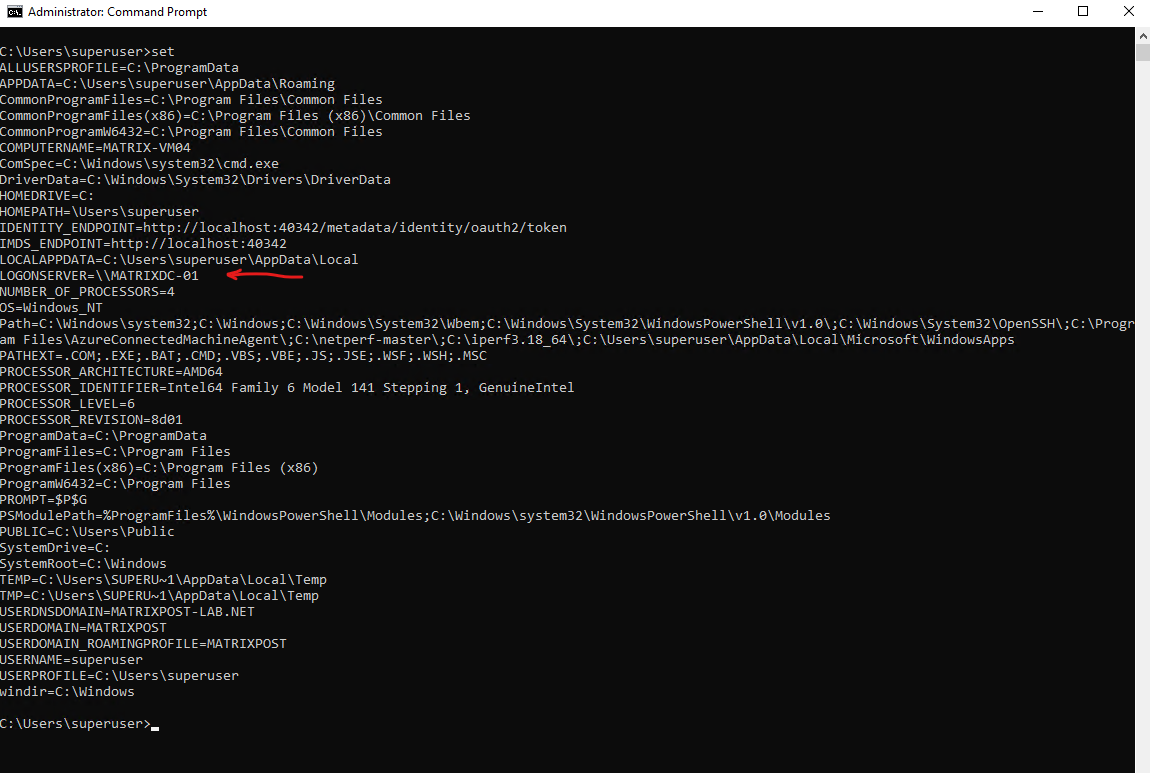
By using the legacy CMD command set, just works when using the CMD (Command Prompt).
> set | findstr "LOGONSERVER"
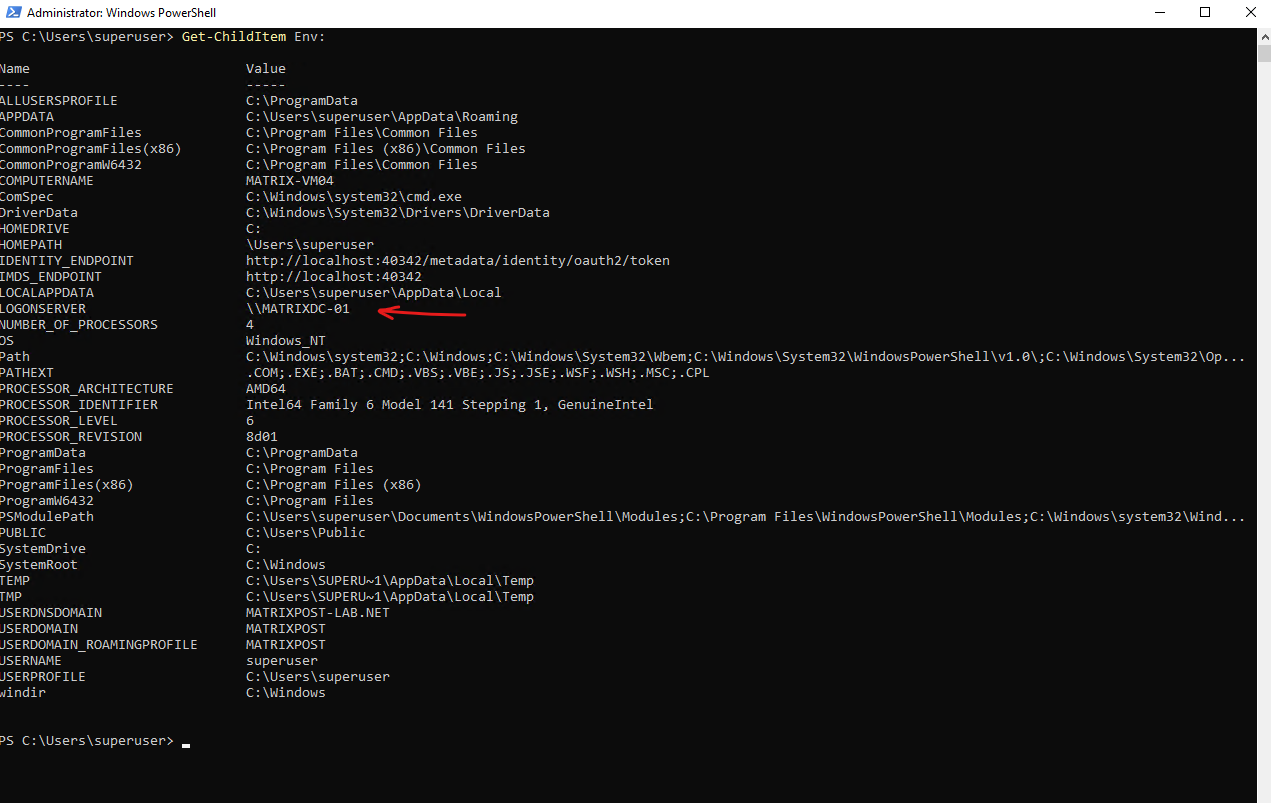
The PowerShell equivalent is.
PS> Get-ChildItem Env:
PS> Get-ChildItem Env: | Where-Object { $_.Name -like "*LOGON*" -or $_.Name -like "*DOMAIN*" -or $_.Name -like "*USER*" }
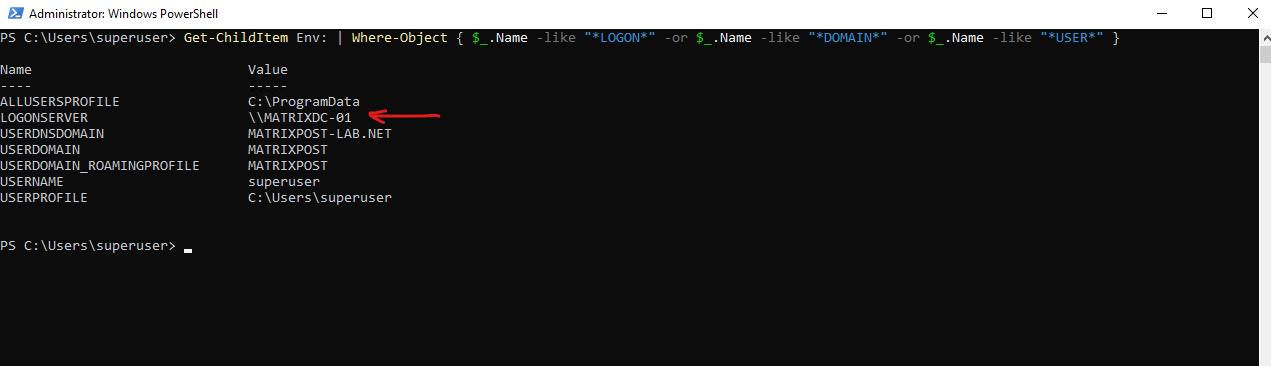
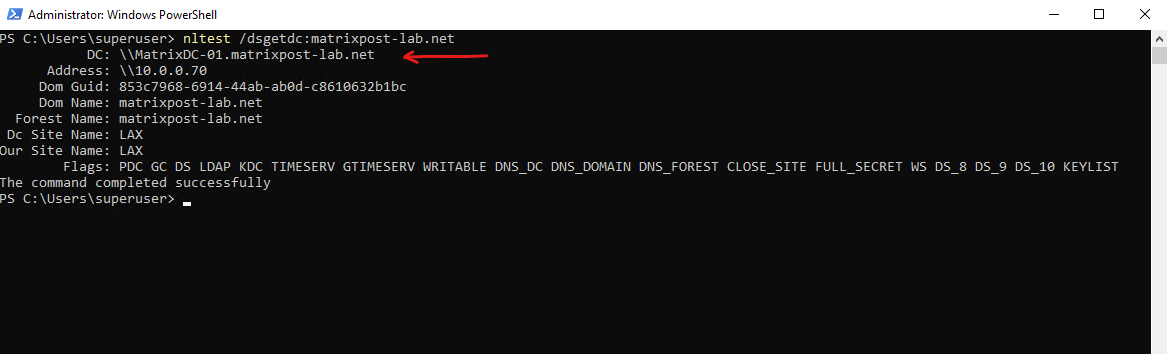
By using the nltest command/utility used for testing and troubleshooting Active Directory (AD) domain relationships, trust configurations, and Domain Controller (DC) communications.
PS> nltest /dsgetdc:YOURDOMAIN.COM
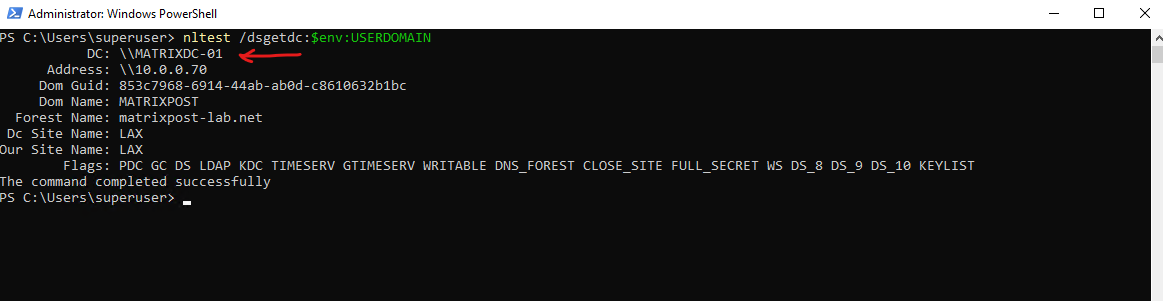
Below the DC: \\MatrixDC-01.matrixpost-lab.net show the logon server which was used by the client.
PS> nltest /dsgetdc:$env:USERDOMAIN
Determine in which OU my Active Directory Domain Joined Computer is placed to
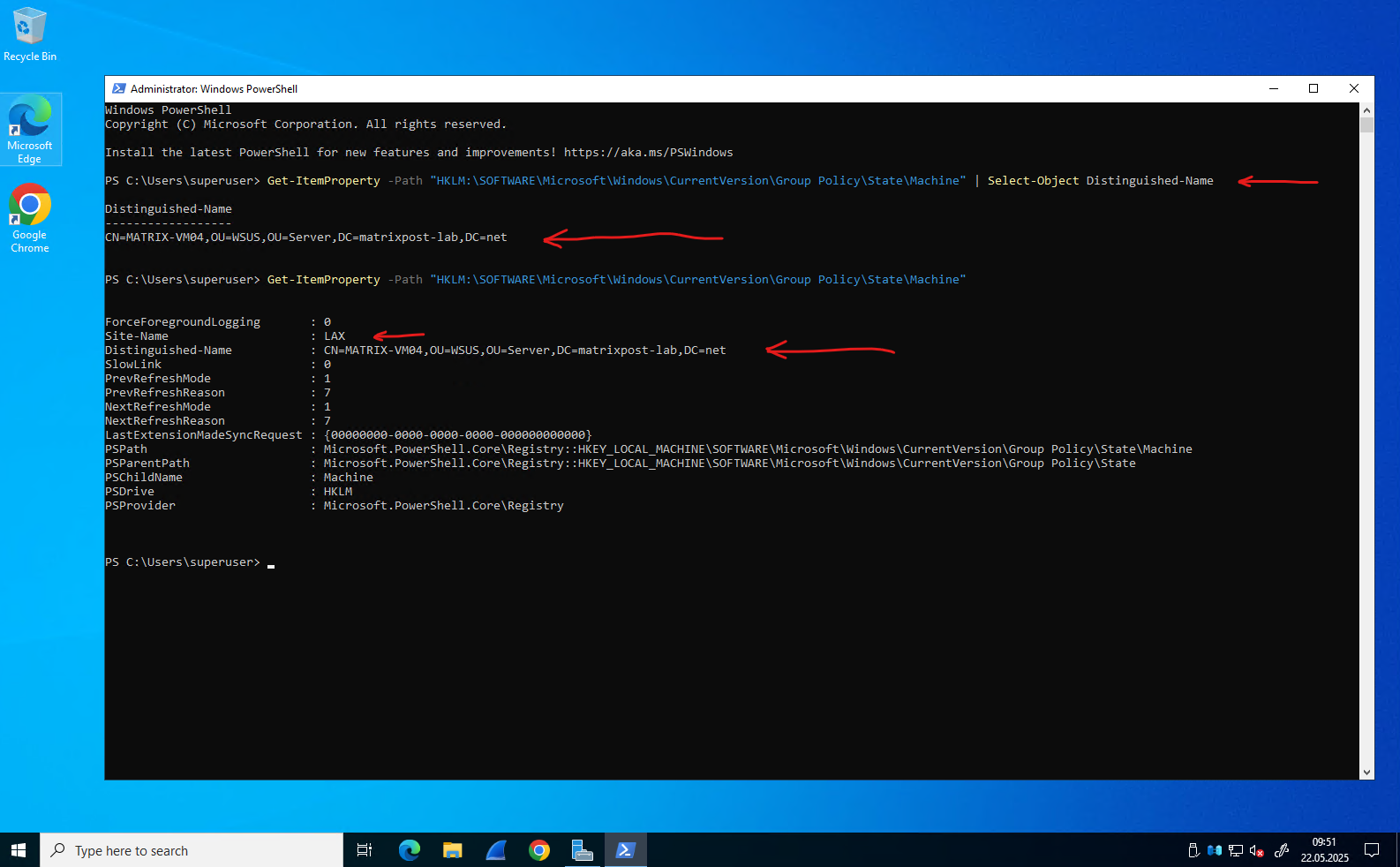
To determine directly on a Active Directory domain joined computer in which OU it is placed to, we can run the following PowerShell command.
PS> Get-ItemProperty -Path "HKLM:\SOFTWARE\Microsoft\Windows\CurrentVersion\Group Policy\State\Machine" | Select-Object Distinguished-Name

PS> Get-ItemProperty -Path "HKLM:\SOFTWARE\Microsoft\Windows\CurrentVersion\Group Policy\State\Machine"
Determine in which OU my Active Directory User Account is placed to
We can run the following command which displays the user name in Fully Qualified
Distinguished Name (FQDN) format.
> whoami -fqdn
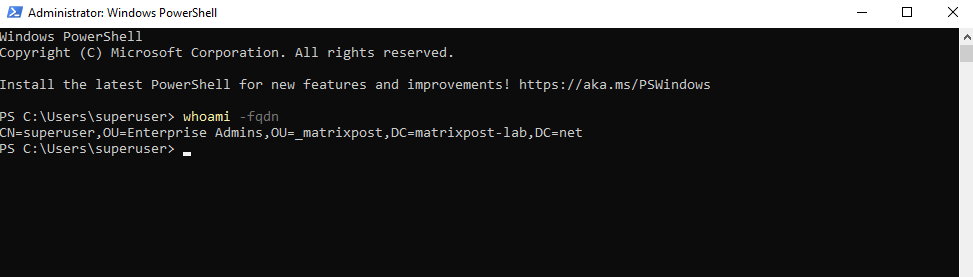
More you will find by display the help information for the whoami command.
> whoami /?
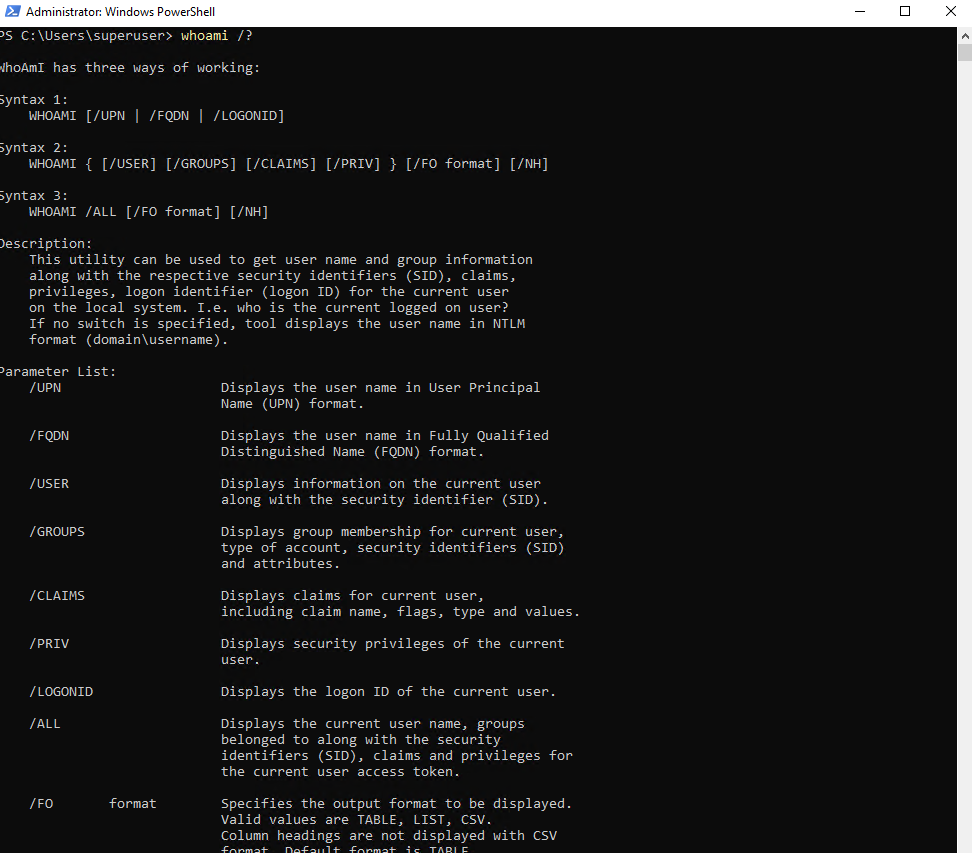
More about general essential Windows commands you will find in my following post.
Determine FSMO Role Holder
In Active Directory, certain tasks can only be performed by specific domain controllers called FSMO role holders. There are 5 such roles, each responsible for critical operations like schema updates, domain additions, time synchronization, and object creation.
FSMO role (Flexible Single Master Operation role)
To determine which specific domain controller holds which specific FSMO role we can run the following two commands. So in my lab environment I have so far just one domain controller running and therefore is holding all 5 FSMO roles.
PS> Get-ADDomain | Select-Object InfrastructureMaster, RIDMaster, PDCEmulator
PS> Get-ADForest | Select-Object DomainNamingMaster, SchemaMaster
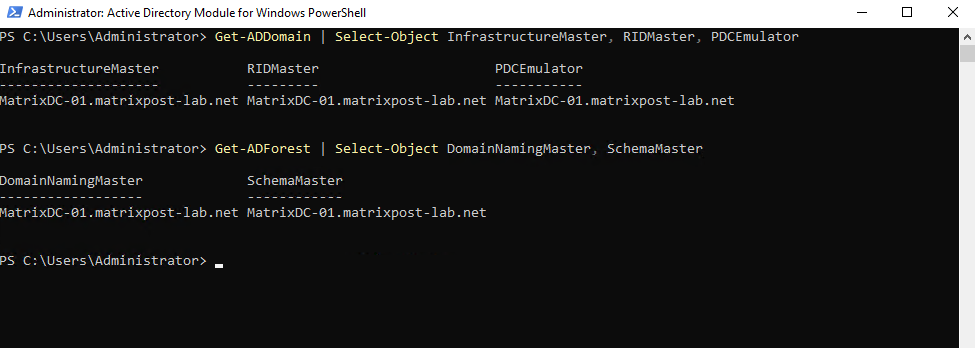
Forest-wide roles (1 per forest)
- Schema Master ==> Controls changes to the AD schema (e.g., extending for Exchange/Skype/Defender). Rarely used, but critical during schema updates.
- Domain Naming Master ==> Handles adding/removing domains in the forest. Only needed when creating or deleting domains.
Domain-wide roles (1 per domain)
- PDC Emulator ==> Most important role. Acts as: Time source for the domain, Handles password changes and authentication fallback, Legacy NT4 compatibility. Usually the busiest FSMO role.
- RID Master ==> Issues unique ID pools (RIDs) to DCs so they can create security principals (users, groups, computers). Without it, you can’t create new objects once the pool is exhausted.
- Infrastructure Master ==>Updates references to objects across domains (group memberships etc.). Important only in multi-domain forests.
The trust relationship between this workstation and the primary domain failed
Verify Active Directory Replication Status
The repadmin tool is one of the primary utilities for monitoring and troubleshooting Active Directory replication.
It provides detailed information about inbound and outbound replication partners, replication failures, latency, and the overall health of the replication topology.
In environments with multiple domain controllers, these commands are essential for identifying replication issues and ensuring that Active Directory data is synchronized correctly across the domain.
Display the Replication Status of a Domain Controller
The repadmin /showrepl command displays the inbound Active Directory replication status for a domain controller. It lists all replication partners, the replicated naming contexts (directory partitions), the transport protocol, and the result of the most recent replication attempt.
This command is one of the primary tools for verifying that Active Directory replication is functioning correctly and for troubleshooting replication failures.
PS> repadmin /showrepl
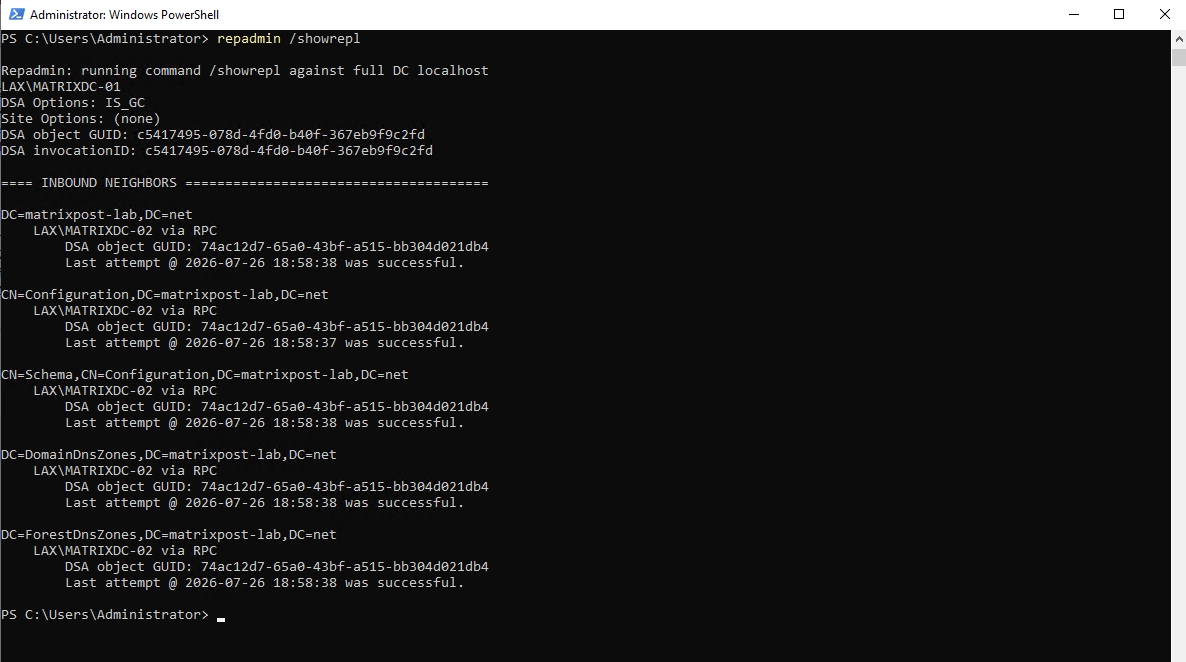
In this example below, MATRIXDC-01 receives successful replication from MATRIXDC-02 for all Active Directory naming contexts:
- Domain (
DC=matrixpost-lab,DC=net) - Configuration
- Schema
- DomainDnsZones
- ForestDnsZones
The “Last attempt … was successful.” message for each naming context confirms that Active Directory replication is operating normally.
Display a Replication Health Summary
The repadmin /replsummary command provides a concise overview of the replication health across all domain controllers in the Active Directory forest.
It summarizes replication latency, replication failures, and any errors reported for each source and destination domain controller, making it one of the quickest ways to assess the overall health of Active Directory replication.
PS> repadmin /replsummary
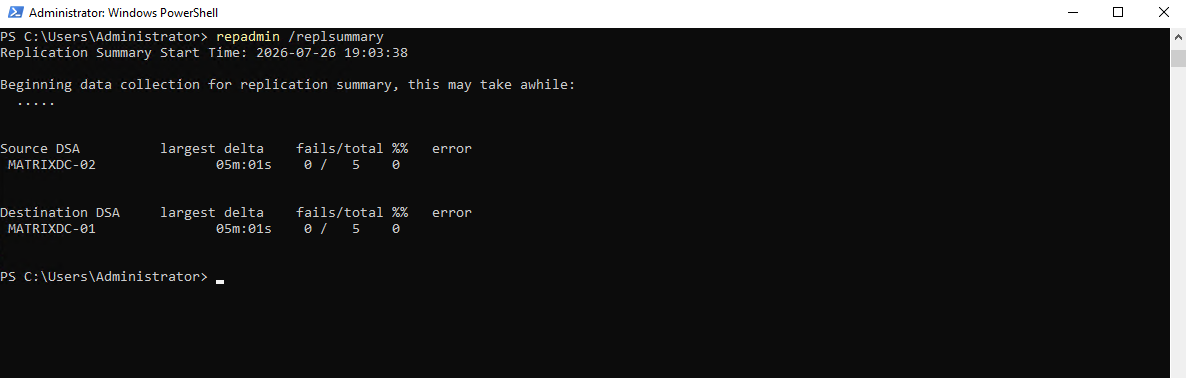
In the example below, replication between the two domain controllers (MATRIXDC-01 and MATRIXDC-02) is healthy.
The largest delta indicates the time elapsed since the last successful replication, while fails/total shows the number of failed replication attempts compared to the total number of attempts. A value of 0 / 5 (0%) confirms that all recent replication attempts completed successfully and no replication errors were detected.
| Column | Description |
|---|---|
| Source DSA | Domain controller acting as the replication source. |
| Destination DSA | Domain controller receiving replicated changes. |
| largest delta | Time since the oldest successful replication with any partner. Large values may indicate delayed or failed replication. |
| fails/total | Number of failed replication attempts compared to the total number of attempts. |
| error | Displays the last replication error, if any occurred. |
Force AD Security Group Refresh on a Computer/Server Without Rebooting
Updates the machine’s Kerberos ticket cache to instantly apply new Active Directory security group memberships to the OS. Run from an elevated prompt. Zero disruption to active user sessions or running services.
# Purge the SYSTEM account Kerberos tickets
klist -li 0x3e7 purge

# Force Group Policy to re-evaluate with the new token
gpupdate /force
How it works & When it normally happens:
- What happens with the new ticket: Purging the cache destroys the old, outdated Kerberos ticket. The very next time the server talks to the domain (like running the
gpupdate), it silently and instantly requests a brand-new ticket from the Domain Controller. This new ticket contains the updated list of security groups. - When this normally happens: Without this manual purge, a server only updates its computer security groups during a full system reboot, or when its Kerberos Ticket-Granting Ticket (TGT) naturally expires and renews (which typically takes 7 days for computer accounts by default in Active Directory).
Verifying Machine-Level GPO Access
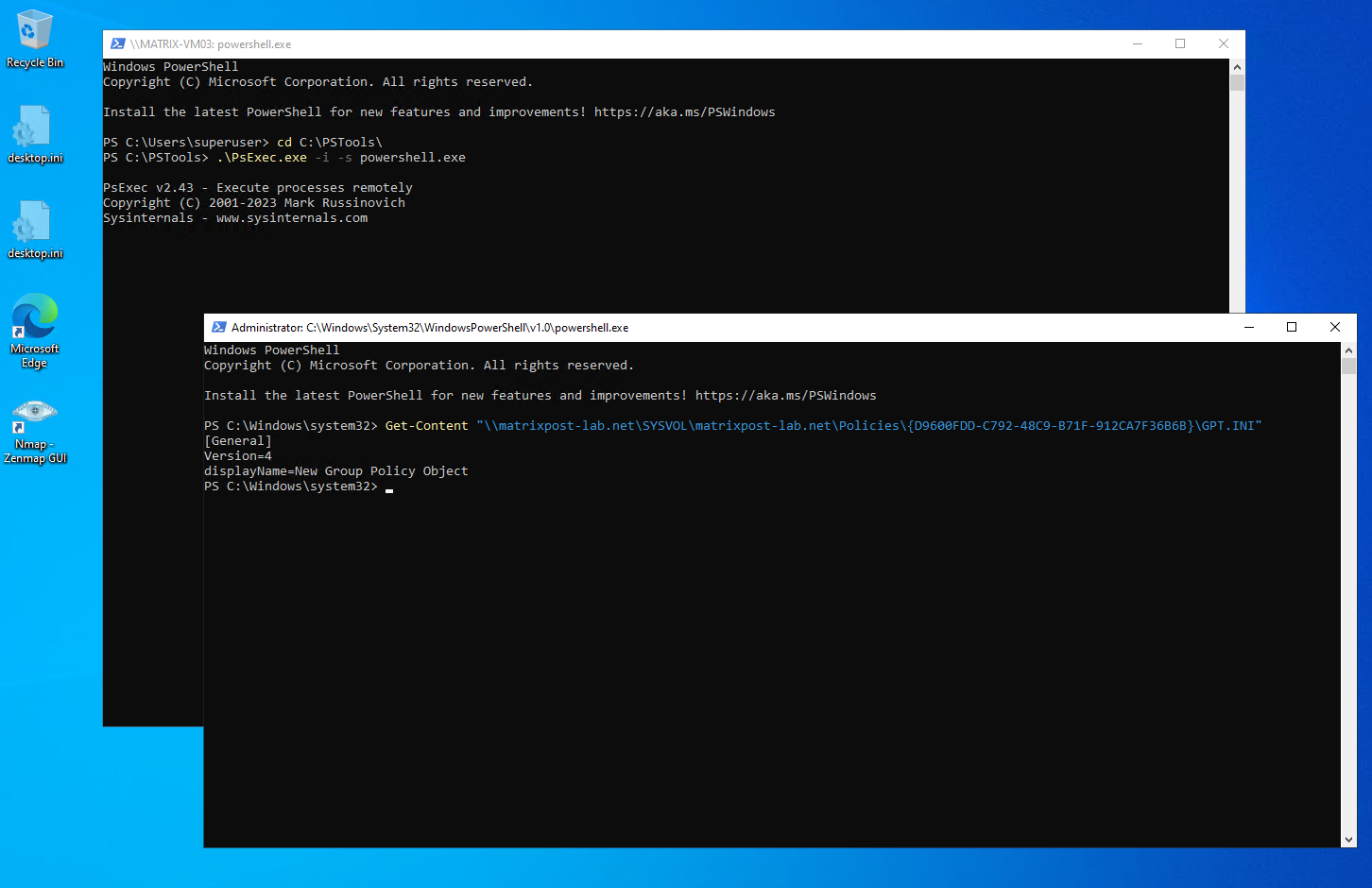
Using PsExec to launch PowerShell as NT AUTHORITY\SYSTEM allows us to verify machine-level SMB access directly against SYSVOL without user context interference.
We verify that the computer account itself has the necessary Read and Apply permissions to evaluate Computer-only settings.
This test confirms the local computer account can successfully reach and read the target GPO’s GPT.INI file.
PS> .\PsExec.exe -i -s powershell.exe

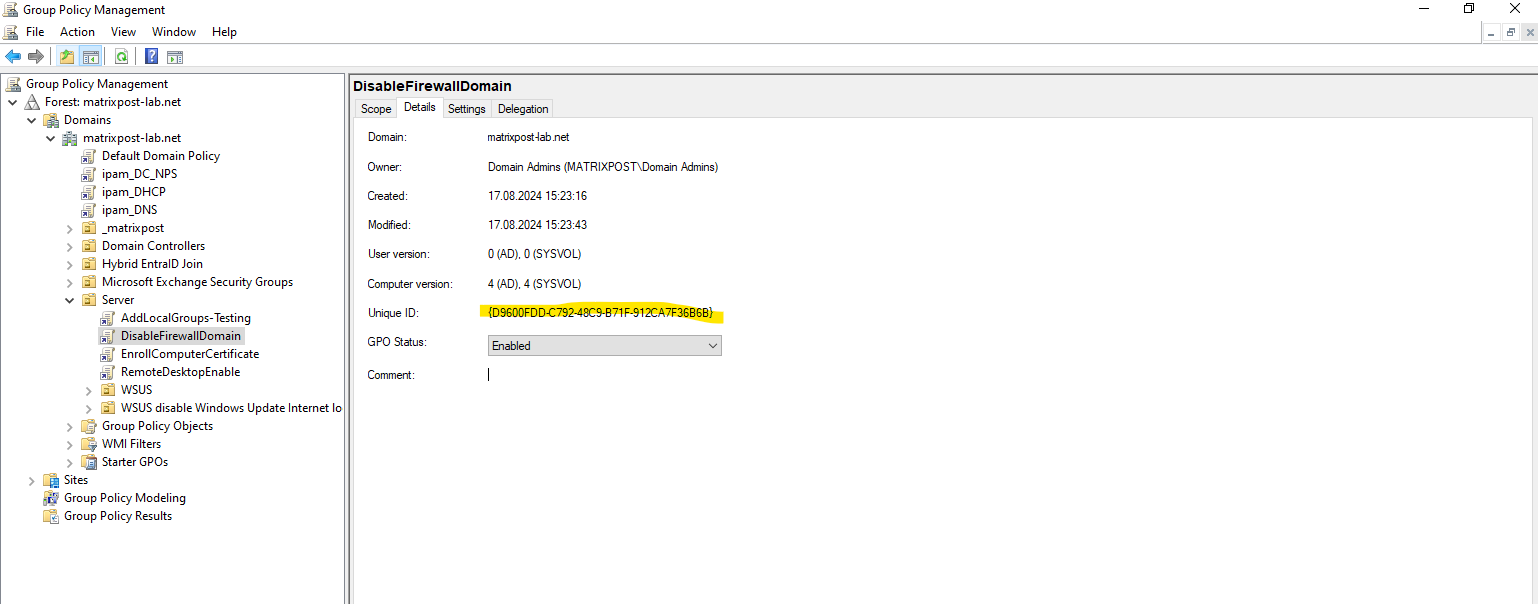
PS> Get-Content "\\matrixpost-lab.net\SYSVOL\matrixpost-lab.net\Policies\{D9600FDD-C792-48C9-B71F-912CA7F36B6B}\GPT.INI"
Verify the Secure Channel to the Active Directory Domain
The nltest /sc_verify:<domain> command verifies that the computer account’s secure channel with Active Directory is healthy. It contacts a domain controller, authenticates using the machine account, and validates the Netlogon trust relationship.
The output also identifies the domain controller currently used for the secure channel.
PS> nltest /sc_verify:<domain>
PS> nltest /sc_verify:matrixpost-lab.net
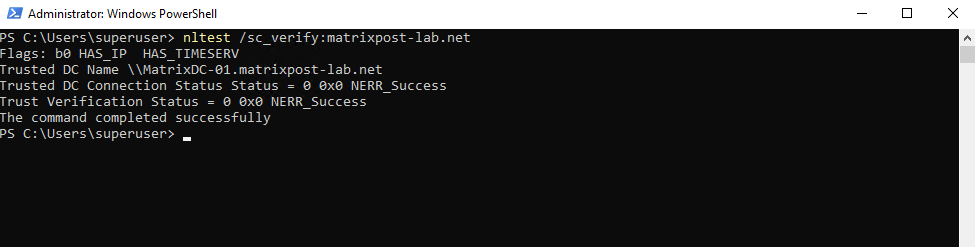
Understanding the output:
| Output | Meaning |
|---|---|
Trusted DC Name | Domain controller currently used for the secure channel. |
Trusted DC Connection Status = NERR_Success | The computer successfully contacted the DC. |
Trust Verification Status = NERR_Success | The secure channel and machine account trust are valid. |
HAS_IP | The DC was reached over IP. |
HAS_TIMESERV | The selected DC also acts as a Windows Time server. |
Reset the Secure Channel to a Domain Controller
If the computer’s secure channel to Active Directory is suspected to be broken or experiencing authentication issues, you can use the nltest /sc_reset:<domain> command to immediately re-establish the secure channel with a domain controller.
Unlike removing and rejoining the computer to the domain, this operation is non-disruptive and does not require a reboot. It is a useful troubleshooting step for issues related to Group Policy processing, Netlogon, or computer account authentication.
PS> nltest /sc_reset:<domain>
PS> nltest /sc_reset:matrixpost-lab.net

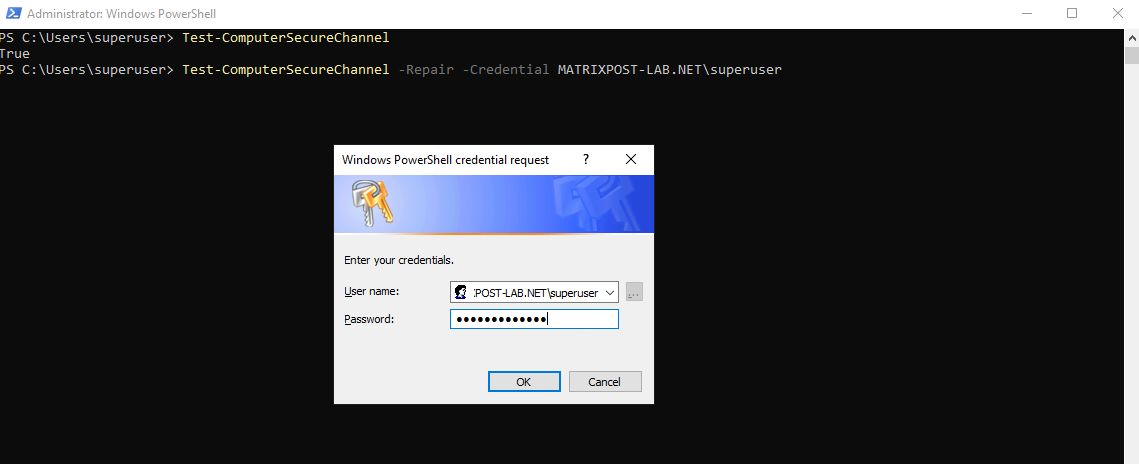
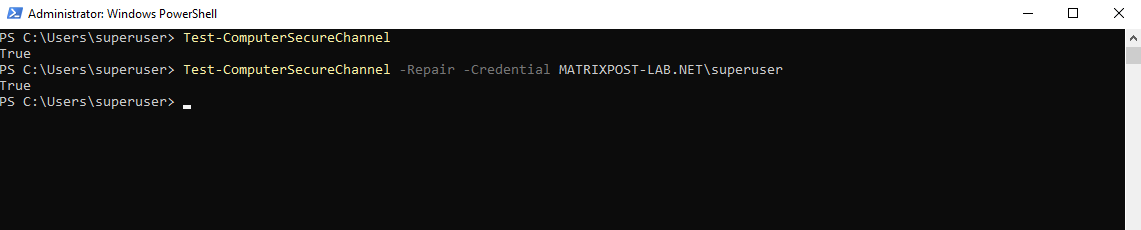
Test-ComputerSecureChannel is the PowerShell equivalent of the nltest secure channel commands. Without any parameters, it verifies the computer’s secure channel to Active Directory and returns True or False.
Using the -Repair parameter re-establishes the secure channel if necessary, making it useful for troubleshooting trust relationship and authentication issues.
PS> Test-ComputerSecureChannel

PS C:\Users\superuser> Test-ComputerSecureChannel -Repair -Credential <DOMAIN\domainadmin>
PS C:\Users\superuser> Test-ComputerSecureChannel -Repair -Credential MATRIXPOST-LAB.NET\superuser
Verify Active Directory DNS Name Resolution and LDAP SRV Records
Active Directory relies heavily on DNS for locating domain controllers and directory services. Use nslookup to verify that the Active Directory domain name resolves correctly and that the required LDAP SRV records are registered in DNS. Missing or incorrect DNS records can prevent domain joins, user authentication, Group Policy processing, and domain controller discovery.
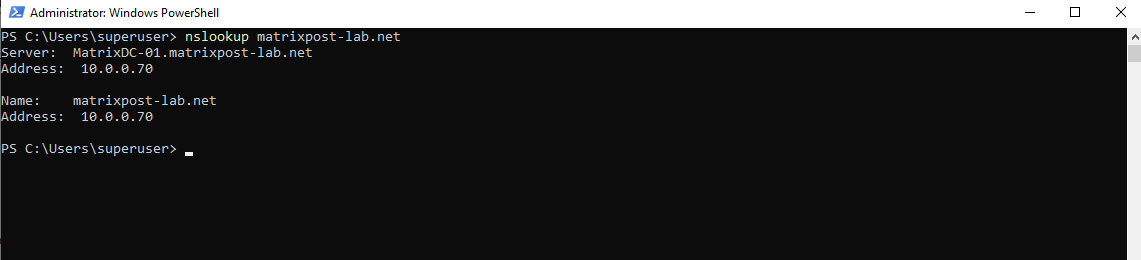
To verify DNS name resolution for the Active Directory Domain run:
This command verifies that the Active Directory domain name resolves to an IP address using the configured DNS server.
PS> nslookup matrixpost-lab.net
Verify LDAP SRV Records (Domain Controller Discovery):
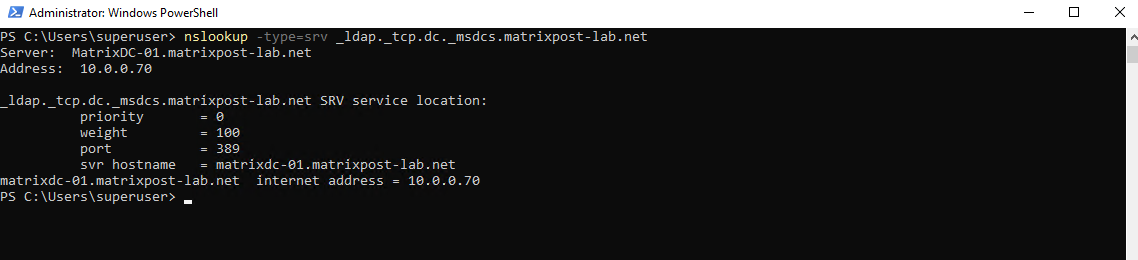
This command queries the LDAP SRV records used by the DC Locator process. The returned records identify the available domain controllers, including their hostname, LDAP port, priority, and weight.
These SRV records are essential for clients to discover suitable domain controllers for authentication, Group Policy, and other Active Directory services.
PS> nslookup -type=srv _ldap._tcp.dc._msdcs.matrixpost-lab.net
Display the Local DFS Referral Cache
The dfsutil /pktinfo command displays the local DFS referral cache (PKT), including cached referrals for domain-based DFS namespaces such as SYSVOL, NETLOGON, or custom DFS namespaces. It is useful for troubleshooting DFS namespace resolution and verifying which DFS targets the client is currently using.
Note: This command is available when the DFS Management Tools are installed. The displayed entries represent the local computer’s cached DFS referrals and are not limited to domain controllers.
PS> dfsutil /pktinfo
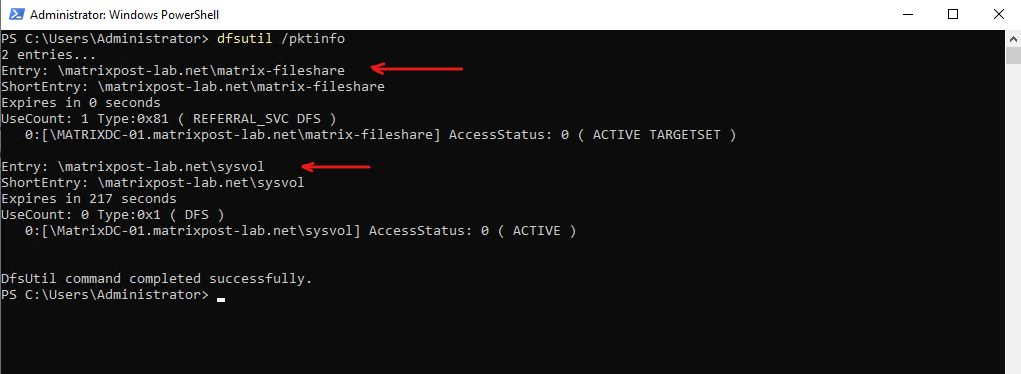
In this example, the client (my DC) has cached referrals for the custom DFS namespace \\matrixpost-lab.net\matrix-fileshare and the domain-based \\matrixpost-lab.net\SYSVOL namespace. The output shows that both referrals currently resolve to MATRIXDC-01, including their cache lifetime and referral status (ACTIVE).
The SYSVOL folder, which stores Group Policy Objects (GPOs), logon scripts, and other domain-wide files, is automatically replicated between all domain controllers using Distributed File System Replication (DFS Replication / DFS-R).
Prior to Windows Server 2008,
SYSVOLreplication was performed by the File Replication Service (FRS), which has since been deprecated and replaced by the more reliable and efficient DFS-R.
Group Policy Management
Group Policy is one of the core management technologies in Active Directory environments. The following commands help troubleshoot Group Policy processing, identify applied and denied Group Policy Objects (GPOs), force policy updates, and diagnose common issues related to domain connectivity, SYSVOL access, and policy application.
Display Applied Computer Group Policies
The gpresult /r /scope computer command displays the Resultant Set of Policy (RSoP) for the computer configuration. It lists all applied and filtered computer Group Policy Objects (GPOs), the Active Directory site, the domain controller used to process Group Policy, and other useful information for troubleshooting Group Policy application.
PS> gpresult /r /scope computer
Display Applied User Group Policies
The gpresult /r /scope user command displays the Resultant Set of Policy (RSoP) for the currently logged-on user. It lists all applied and filtered user Group Policy Objects (GPOs), the Active Directory site, the domain controller used to process Group Policy, and other useful information for troubleshooting user policy application.
PS> gpresult /r /scope user
Display the Resultant Set of Policy (RSoP)
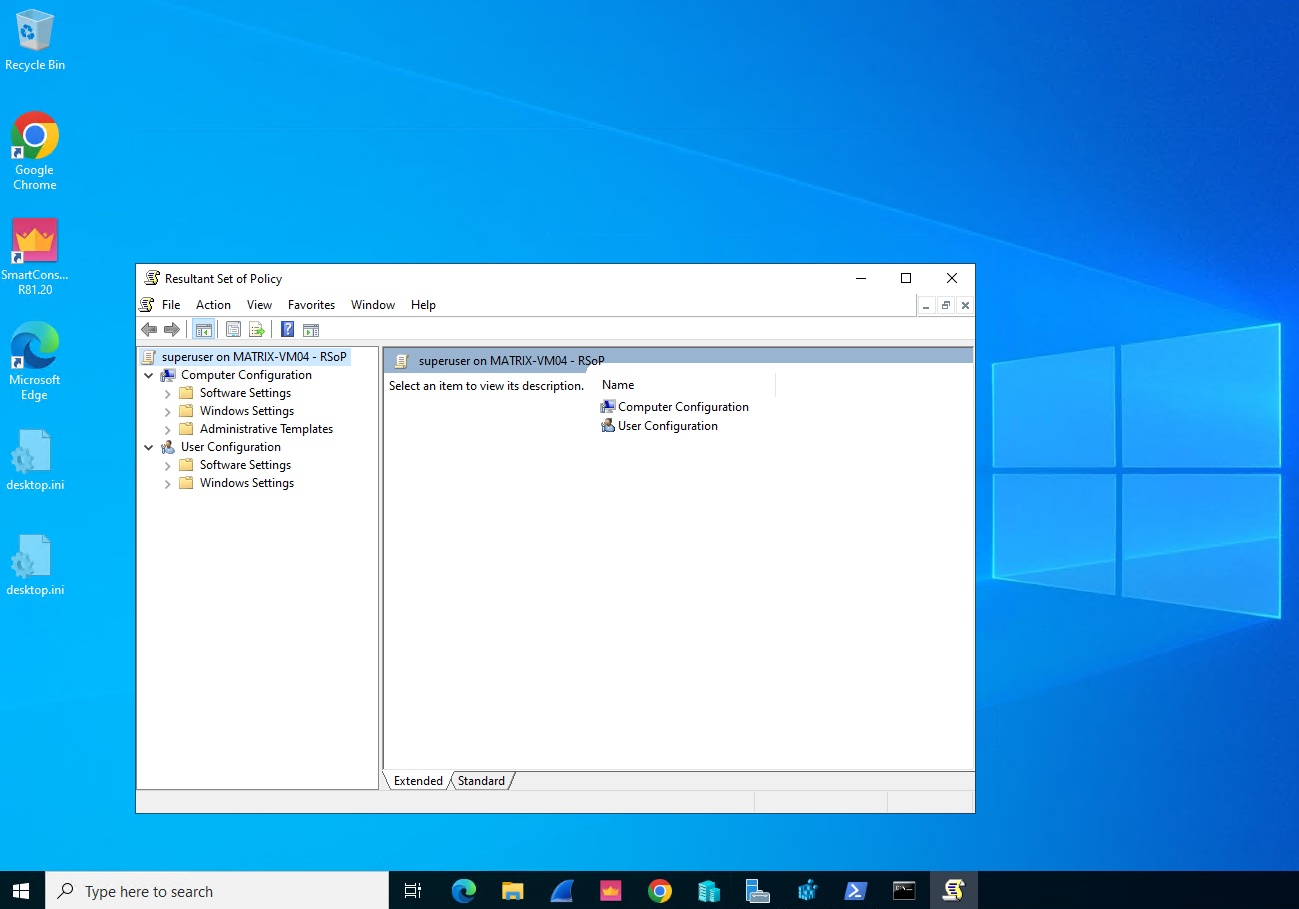
The Resultant Set of Policy (RSoP) snap-in provides a graphical view of all applied computer and user Group Policy settings. It is useful for troubleshooting Group Policy application and verifying the effective policy configuration on a computer.
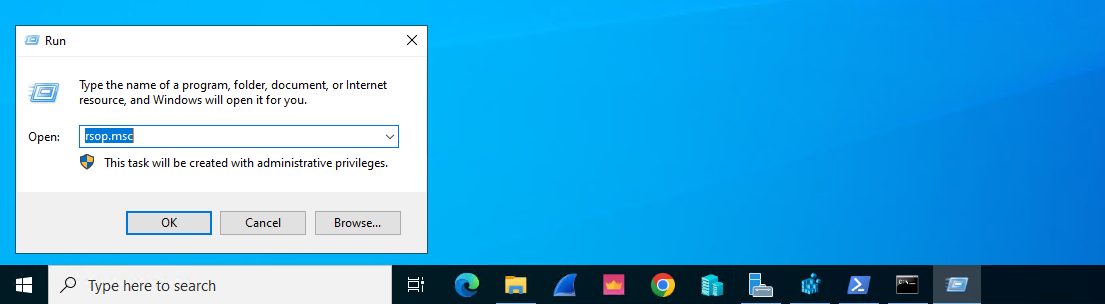
Launch the RSoP snap-in from the Run dialog (Win + R) or a command prompt:
Note: Unlike
gpresult, which displays a summary of applied and filtered GPOs, RSoP presents the effective policy settings in a familiar Group Policy Management Console (GPMC) tree structure, making it easier to browse and analyze individual policy settings.
rsop.msc
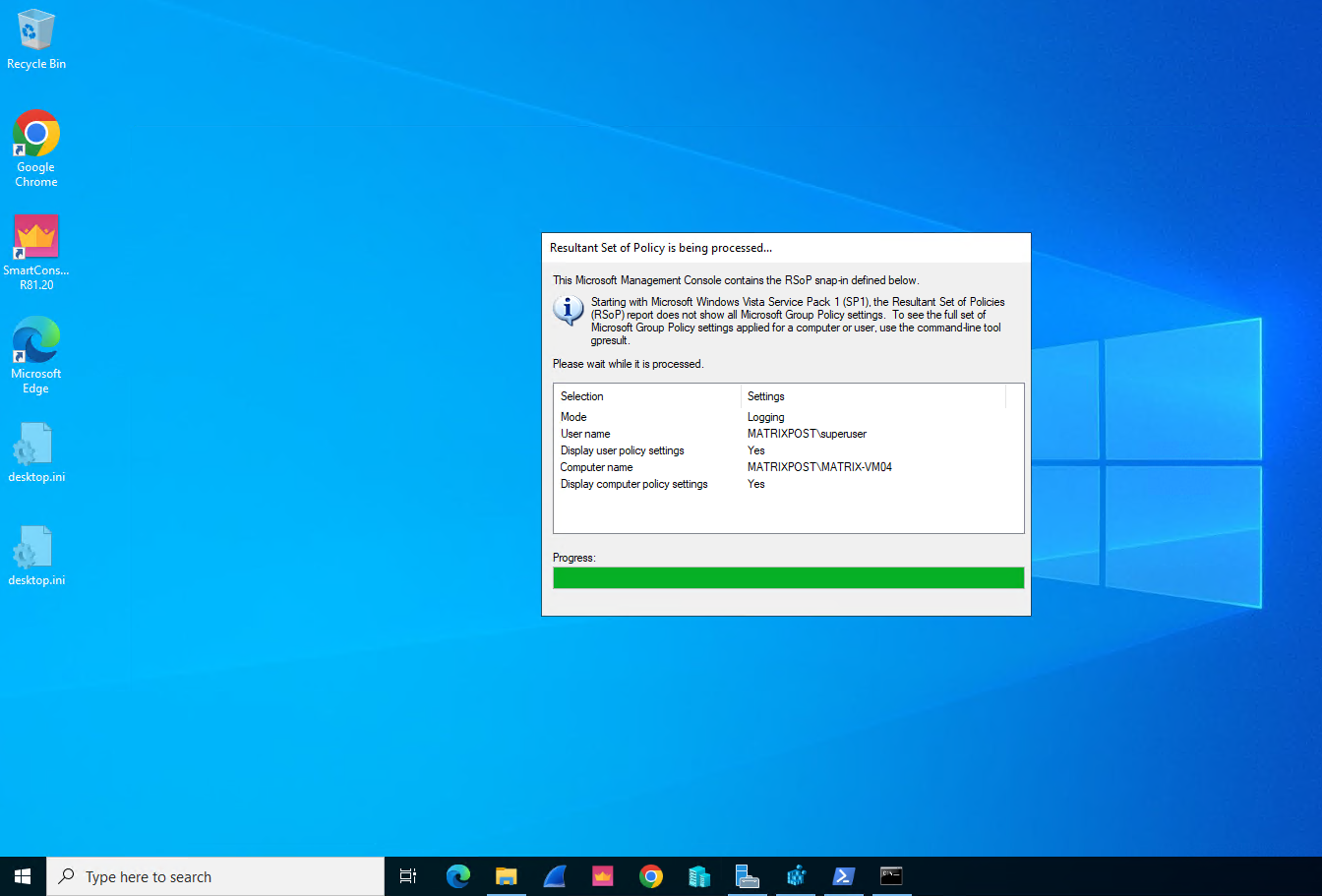
While the report is being generated, RSoP displays a progress dialog showing the current processing mode (Logging), the selected computer and user, and whether computer and user policy settings are included in the report.
Once processing is complete, the effective Group Policy settings are displayed in the MMC console.
gpresultfocuses on Group Policy processing (which GPOs were applied or filtered), whereasrsop.mscprovides a graphical view of the resulting effective policy settings after all applicable Group Policy Objects have been processed.
Display Group Policy Permissions
The Get-GPPermission cmdlet displays all trustees that have permissions on a specific Group Policy Object (GPO). Using the -All parameter shows the complete permission list, including which users and groups can read, apply, edit, delete, or modify the GPO’s security settings.
To apply a GPO, the security principal processing the policy must have both Read and Apply Group Policy permissions. For Computer Configuration, these permissions are required by the computer account, whereas User Configuration requires them for the user account.
Authenticated Users is a built-in security principal representing all successfully authenticated user and computer accounts. In the context of Group Policy, granting Read and Apply Group Policy to Authenticated Users allows both users and domain-joined computers to apply the appropriate portions of the GPO.
PS> Get-GPPermission -Name "WSUS" -All
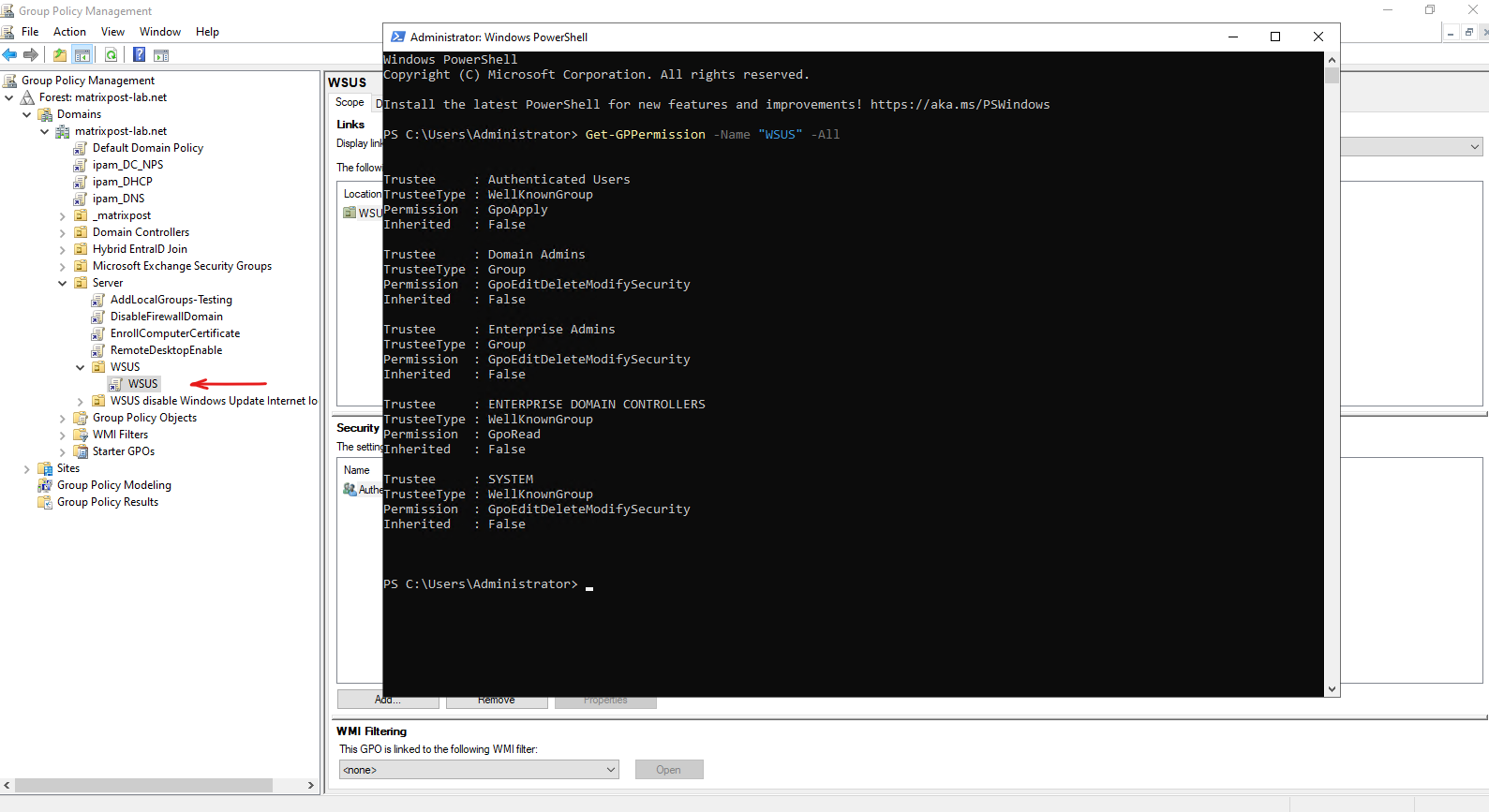
The configured permissions are also reflected in the Scope and Delegation tabs of the Group Policy Management Console (GPMC).
The Scope tab determines which users and computers are allowed to apply the GPO through Security Filtering, while the Delegation tab displays the complete set of permissions assigned to the GPO.
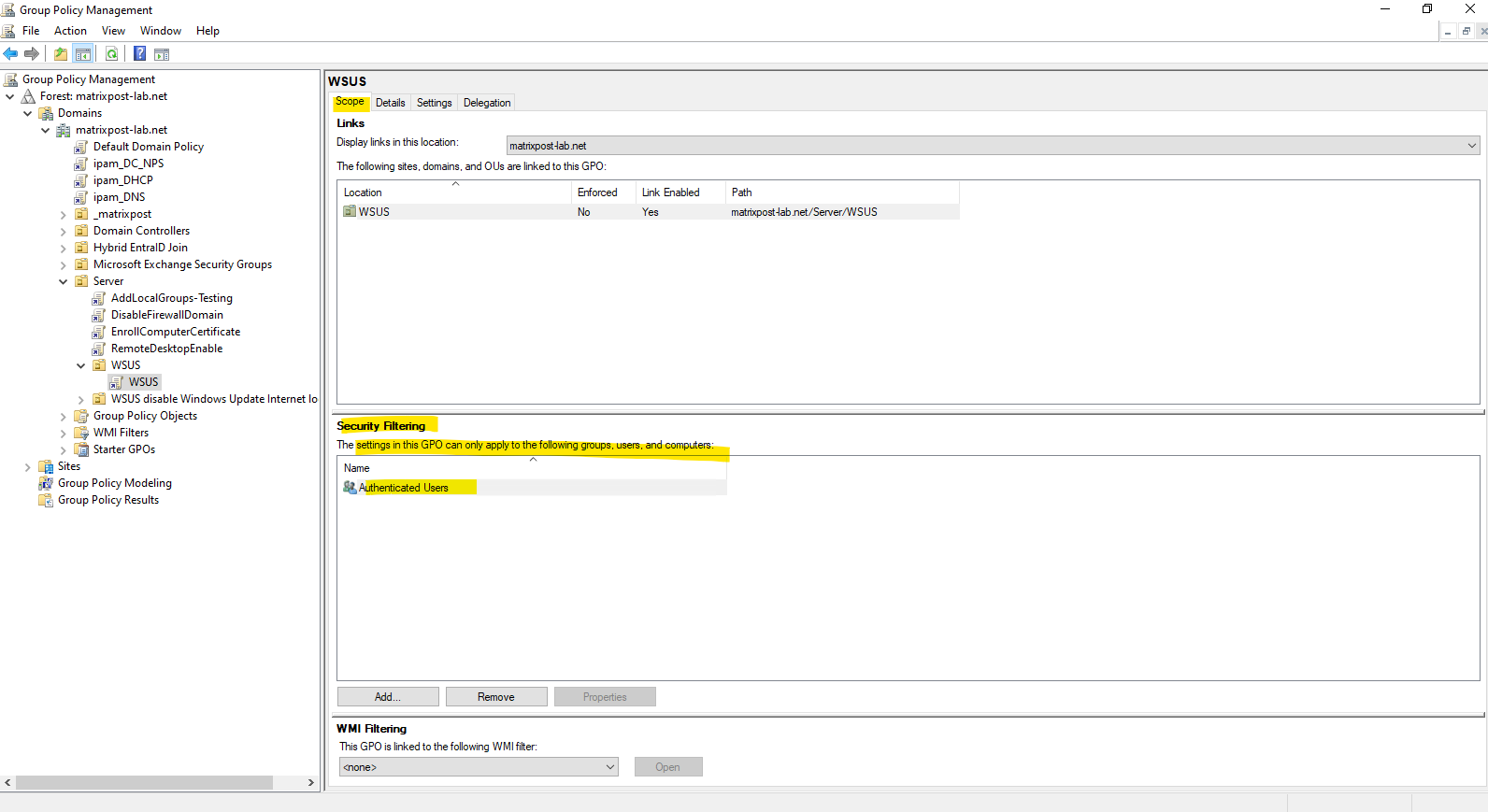
Note: If a security principal is granted both Read and Apply Group Policy permissions through Security Filtering, the Delegation tab displays the simplified permission “Read (from Security Filtering)”. The Apply Group Policy permission is still present and can be viewed in the Advanced Security Settings dialog.
This also explains why
Get-GPPermissionreports:Permission : GpoApply
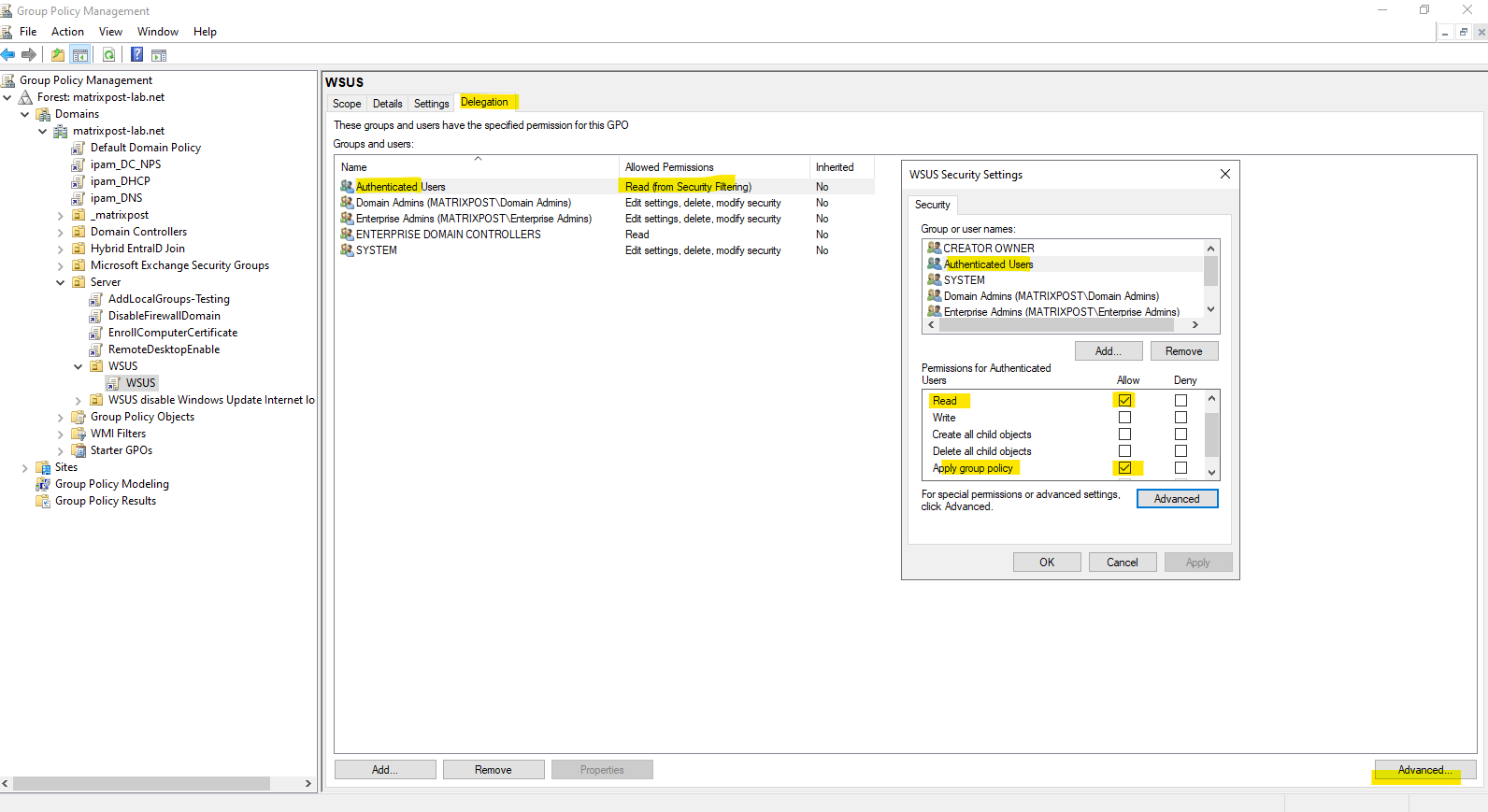
The Scope and Delegation tabs provide two different views of the same underlying GPO permissions.
The Scope tab offers a simplified interface for Security Filtering, allowing administrators to specify which users and computers are allowed to apply the GPO, while the Delegation tab exposes the complete permission set, including administrative permissions such as editing, deleting, and modifying the GPO’s security settings.
Display Detailed Information About a Group Policy Object (GPO)
The Get-GPO cmdlet retrieves detailed information about a Group Policy Object (GPO), including its unique identifier (GUID), owner, creation and modification timestamps, status, version numbers, and associated WMI filter. A GPO can be referenced either by its display name or by its globally unique identifier (GUID).
PS> Get-GPO -Guid 59F68BED-E52A-47E7-9A44-396854FEA81D
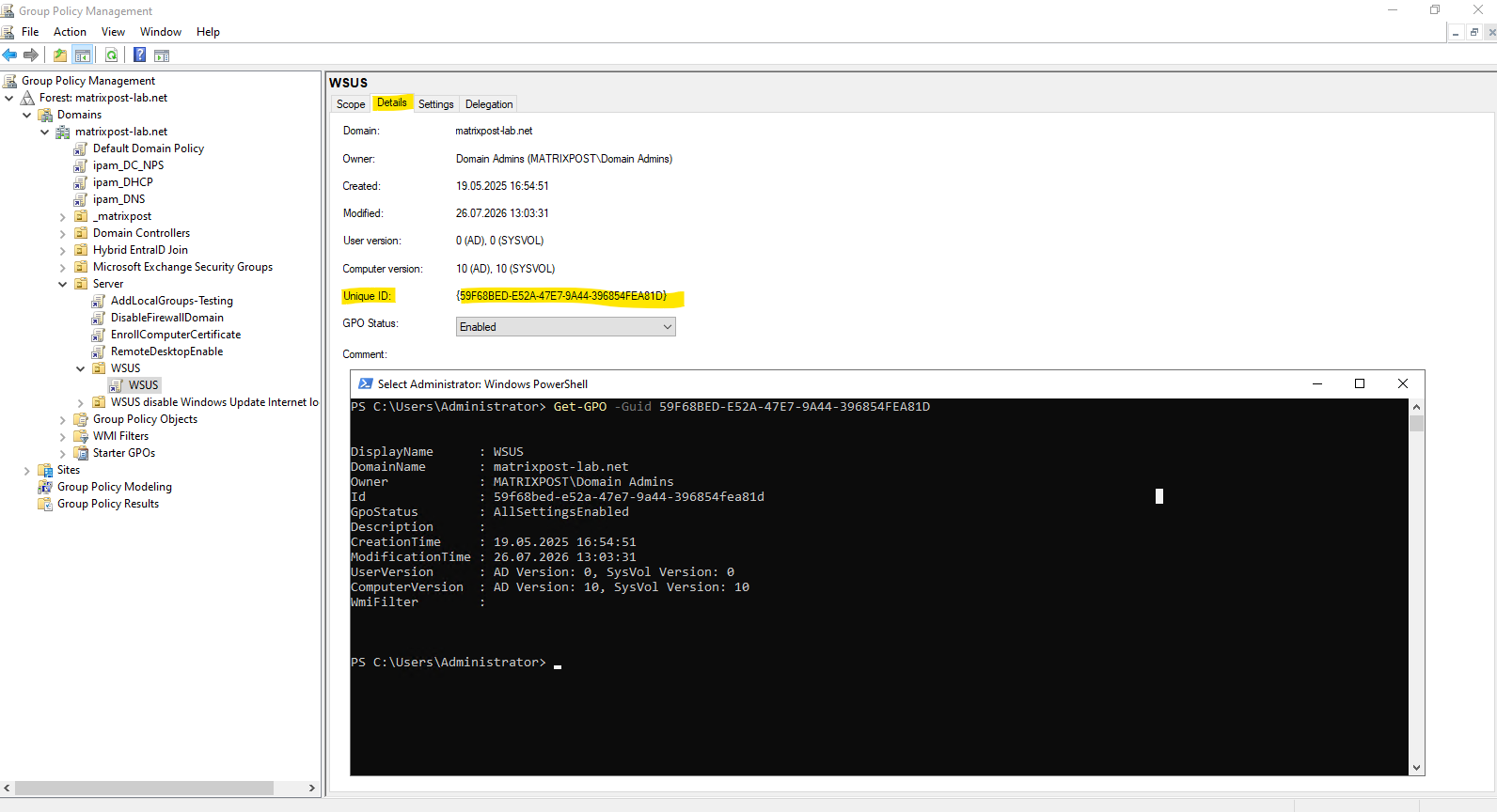
In this example, the GPO is queried using its GUID, which is also displayed on the Details tab in the Group Policy Management Console (GPMC). The output provides additional information such as the User and Computer version numbers stored in both Active Directory and SYSVOL, helping administrators verify GPO replication and identify version mismatches between the directory and the replicated SYSVOL contents.
Display the NTFS Permissions of a GPO in SYSVOL
Each Group Policy Object (GPO) is stored as a folder in the SYSVOL share, identified by its unique GUID. The icacls command displays the NTFS permissions assigned to the GPO folder, allowing administrators to verify which security principals have access to the GPO files replicated through SYSVOL.
PS> icacls "C:\Windows\SYSVOL\sysvol\matrixpost-lab.net\Policies\{59F68BED-E52A-47E-9A44-396854FEA81D}"
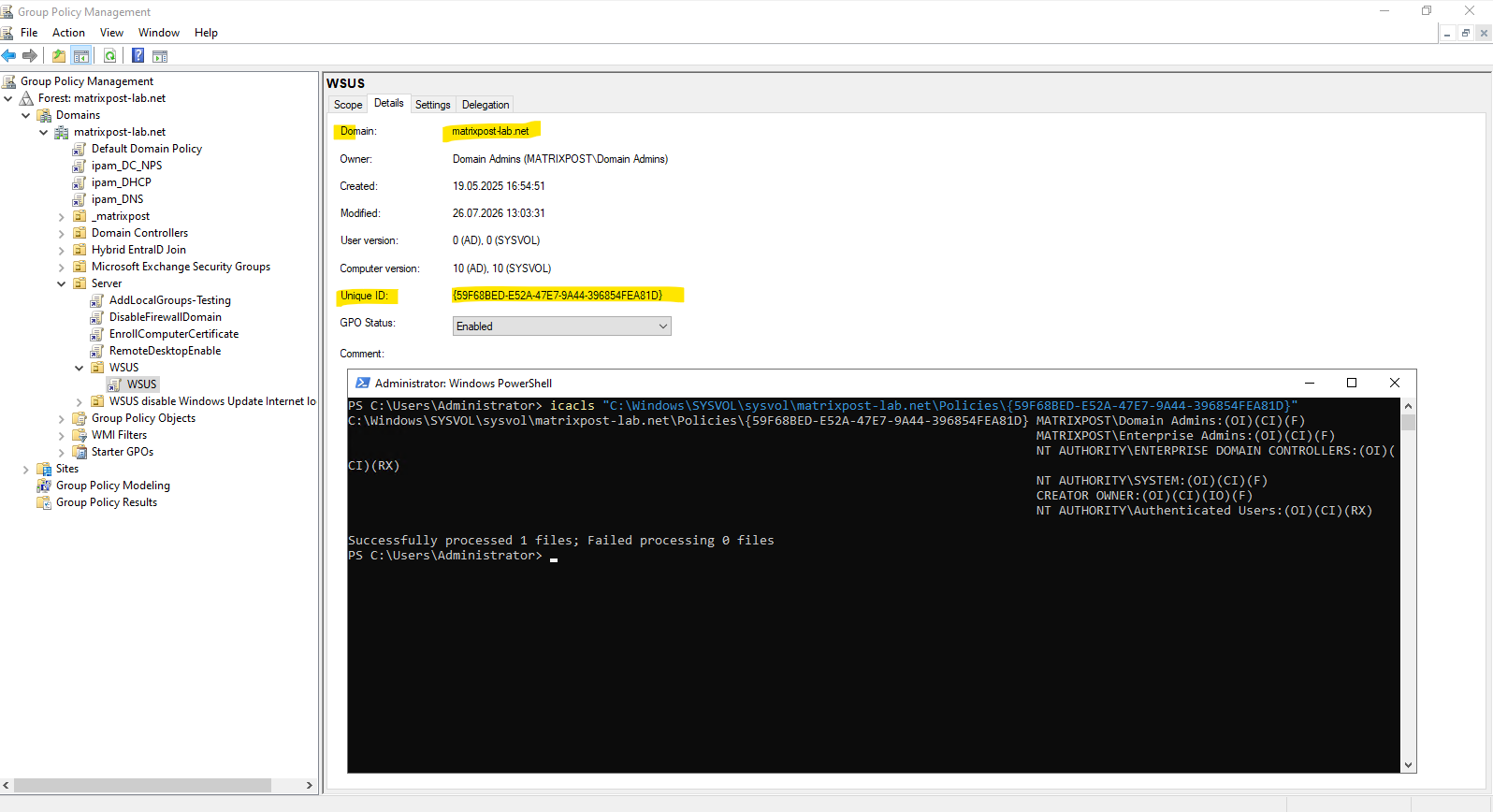
The output lists the NTFS Access Control Entries (ACEs) applied to the GPO folder in SYSVOL, including permissions for Domain Admins, Enterprise Admins, SYSTEM, Authenticated Users, and Enterprise Domain Controllers.
These permissions protect the physical GPO files stored in SYSVOL and are separate from the Active Directory permissions displayed on the Delegation tab in the Group Policy Management Console (GPMC).
Note: For a domain member computer to successfully apply a GPO, two conditions must be met:
(1)the computer account must have Read and Apply Group Policy permissions on the GPO object stored in Active Directory, and(2)it must be able to read the corresponding GPO files stored in SYSVOL through the configured NTFS and share permissions. The second requirement is typically satisfied by the default Authenticated Users read permissions on the SYSVOL folder.
On a domain member computer, access to the GPO files stored in SYSVOL can be verified by browsing to the corresponding GPO folder using File Explorer or a UNC path.
Since File Explorer runs in the context of the logged-on user, successfully opening the folder confirms that the user account has the required read permissions to access the GPO files stored in SYSVOL.
Note: Although Computer Configuration settings are processed by the computer account, File Explorer accesses the SYSVOL share in the security context of the currently logged-on user.
In most environments this succeeds because both domain users and domain computers are members of Authenticated Users, which is granted read access to the SYSVOL share and its GPO files by default.

The example below demonstrates how to verify SYSVOL access in the security context of the computer account.
Using PsExec, a PowerShell session is launched as LocalSystem (
NT AUTHORITY\SYSTEM), which authenticates to remote systems using the computer account. Successfully reading theGPT.INIfile confirms that the computer account has the required read access to the GPO files stored in SYSVOL, satisfying one of the prerequisites for processing the Computer Configuration section of a Group Policy Object (GPO).
PS> .\PsExec.exe -i -s powershell.exe

# PowerShell session in computer account context
PS> whoami
PS> Get-Content "\\matrixpost-lab.net\SYSVOL\matrixpost-lab.net\Policies\{59F68BED-E52A-47E7-9A44-396854FEA81D}\GPT.INI"
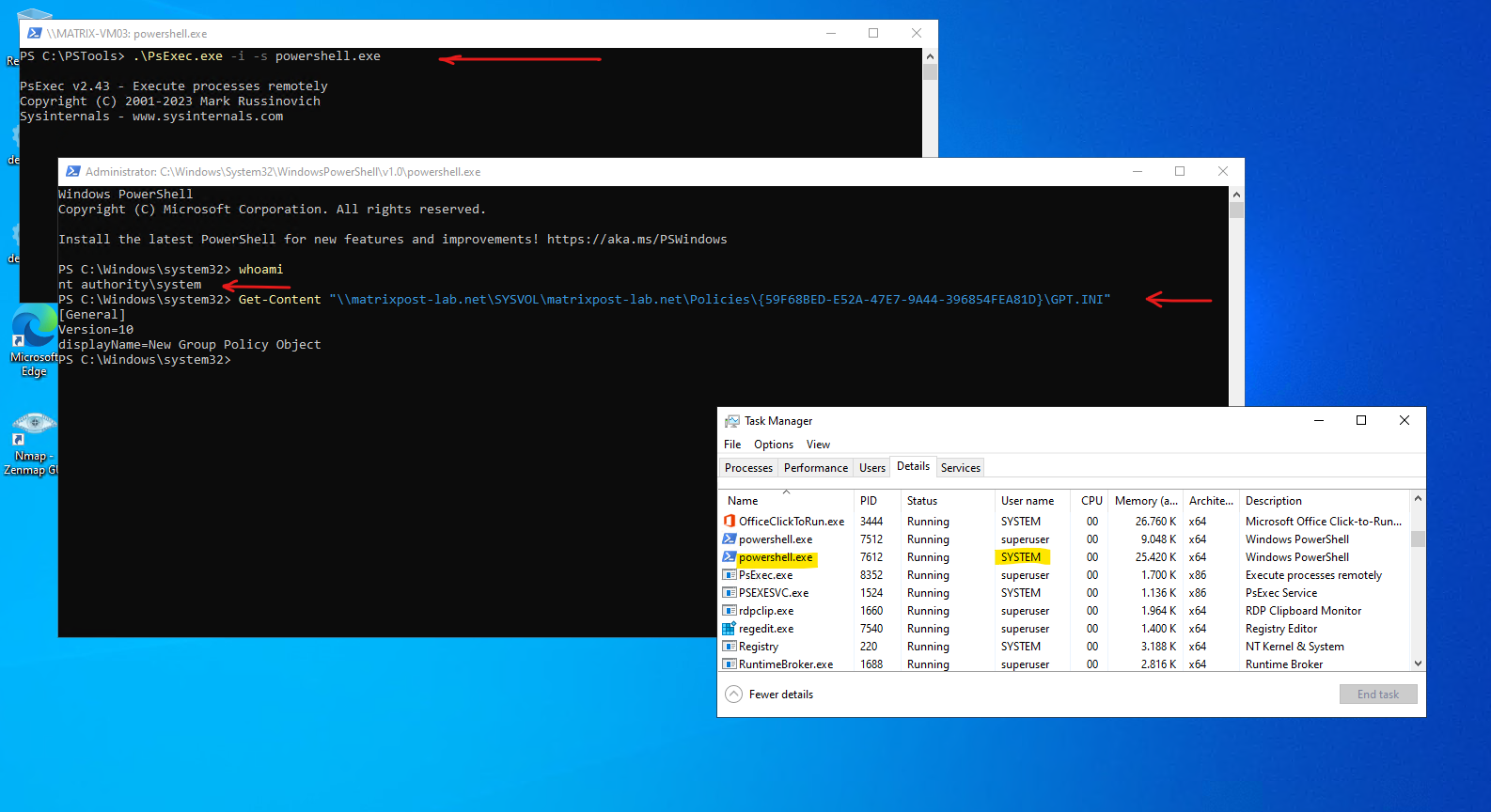
Or we can also use the type command. type is an old CMD built-in command that simply displays the contents of a text file on the console.
Alternatively, the
dircommand can be used to verify that the computer account has read access to the GPO folder in SYSVOL. A successful directory listing confirms that the computer account can access the files required for Computer Configuration Group Policy processing.
PS> .\PsExec.exe -i -s powershell.exe

# PowerShell session in computer account context
PS> whoami
PS> type "\\matrixpost-lab.net\SYSVOL\matrixpost-lab.net\Policies\{59F68BED-E52A-47E7-9A44-396854FEA81D}\GPT.INI"
PS> dir "\\matrixpost-lab.net\SYSVOL\matrixpost-lab.net\Policies\{59F68BED-E52A-47E7-9A44-396854FEA81D}\"
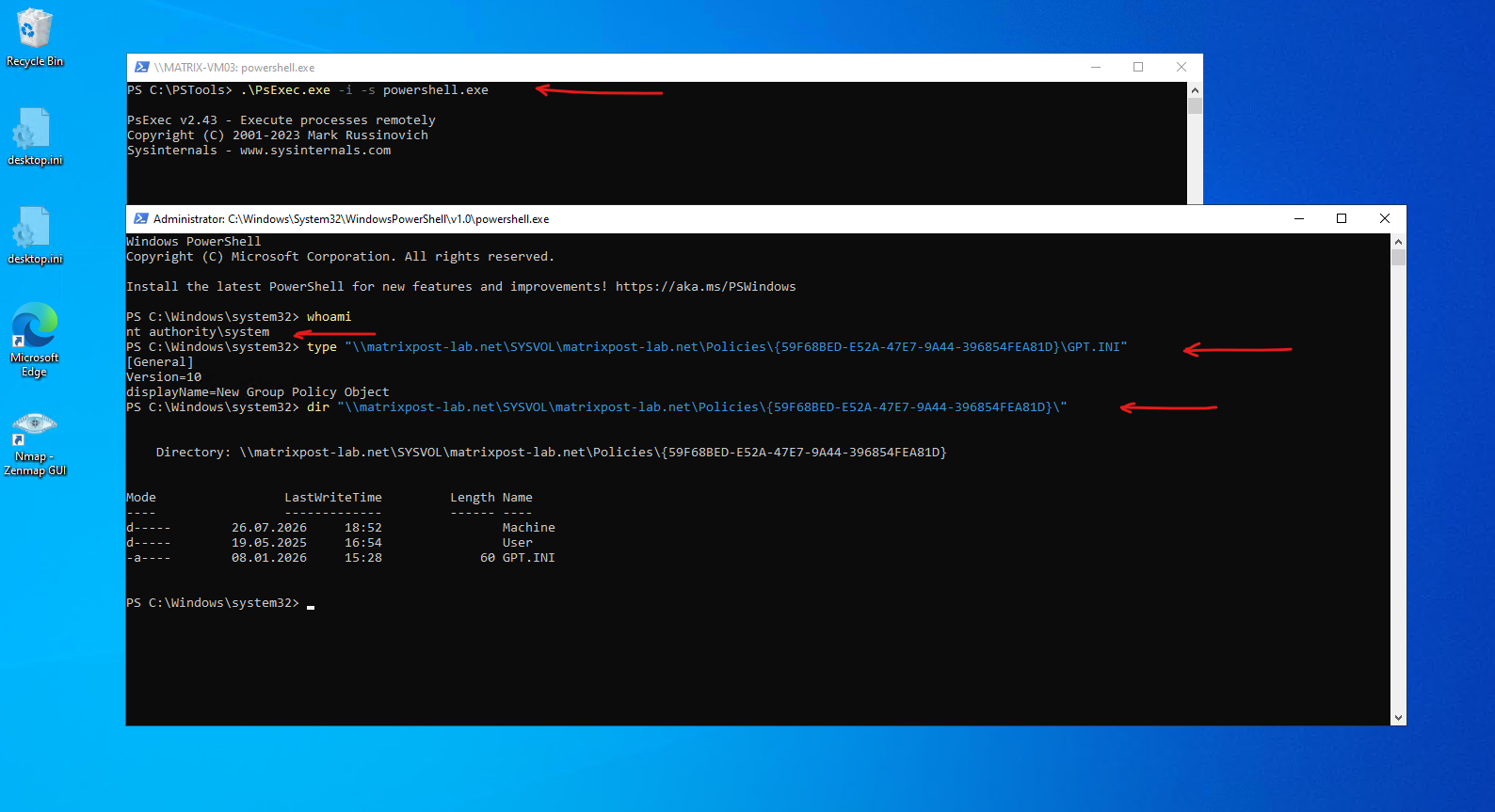
Note: Access to the GPO files in SYSVOL alone is not sufficient for a computer to apply a GPO. The computer account must also have Read and Apply Group Policy permissions on the corresponding GPO object stored in Active Directory.
For a detailed introduction to the PsExec utility, including its architecture, command-line options, and practical examples for launching processes under different security contexts, see my following post.
Generate an HTML Group Policy Report
The gpresult command can generate a detailed HTML report of the Resultant Set of Policy (RSoP) for both the computer and the currently logged-on user.
Unlike the text-based output of gpresult /r, the HTML report provides a structured and easy-to-navigate overview of all applied and filtered Group Policy Objects (GPOs), security group memberships, applied settings, WMI filter results, and other policy processing details.
This makes it particularly useful for documenting Group Policy configurations or performing in-depth troubleshooting.
PS> gpresult.exe -H C:\GPResult.html

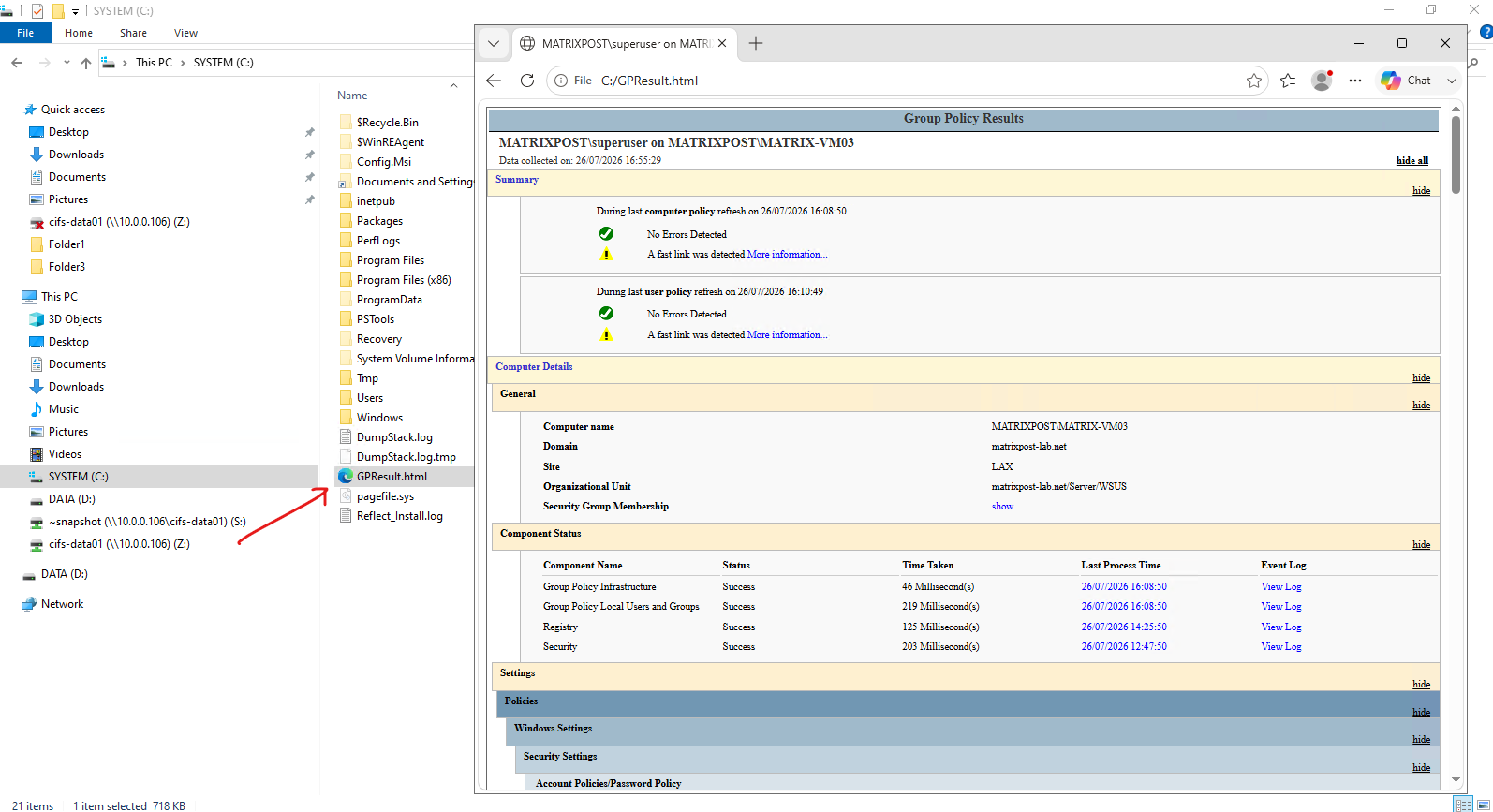
Export Windows Update Group Policy Registry Settings
Windows stores the effective Windows Update Group Policy settings under the HKLM\SOFTWARE\Policies\Microsoft\Windows\WindowsUpdate registry key.
Exporting this key to a .reg file provides a convenient way to document the current policy configuration, compare settings between systems, or preserve the configuration before making changes during troubleshooting.
PS> reg export "HKLM\SOFTWARE\Policies\Microsoft\Windows\WindowsUpdate" C:\Temp\WindowsUpdate-WSUS.reg

Schedule the Next Group Policy Refresh for Synchronous Processing
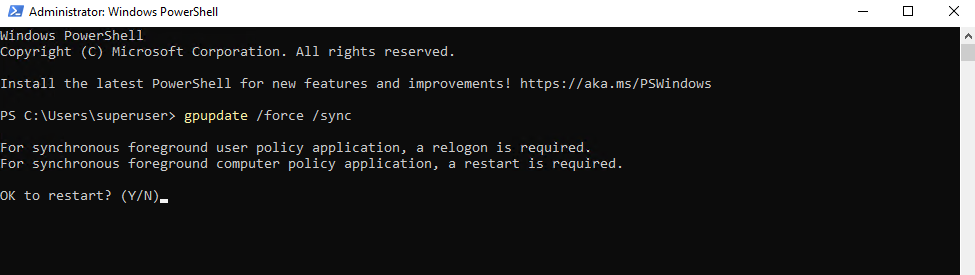
The gpupdate /force /sync command schedules the next foreground Group Policy refresh to be processed synchronously during the next computer startup and user logon.
During synchronous foreground processing, Windows waits for all Group Policy processing to complete before continuing the startup or logon process.
This is particularly useful for applying and troubleshooting policies that can only be processed during startup or logon and cannot safely be applied while the operating system is already running, such as Software Installation and Folder Redirection.
As shown below, Windows informs you that a user logoff and a computer restart are required before synchronous foreground processing can take place, and prompts for confirmation before restarting the computer.
PS> gpupdate /force /sync
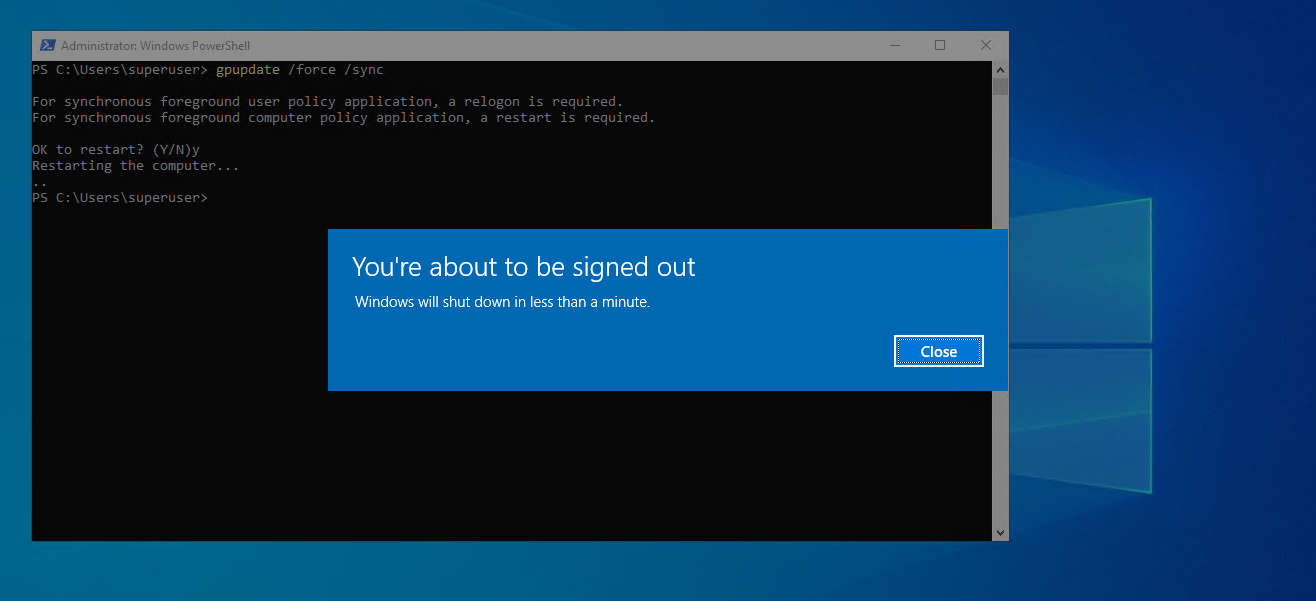
After restarting the computer, Windows performs the scheduled synchronous foreground Group Policy refresh.
During this phase, the operating system waits for all applicable Group Policy Client Side Extensions (CSEs), such as Local Users and Groups, to finish processing before continuing the startup or logon process.
Every computer startup and user logon performs a foreground Group Policy refresh. By default, modern Windows versions optimize the startup and logon process by allowing some policy processing to occur asynchronously.
Using
gpupdate /force /syncchanges the next startup and logon to synchronous foreground processing, causing Windows to wait until all applicable Group Policy extensions have finished before continuing.
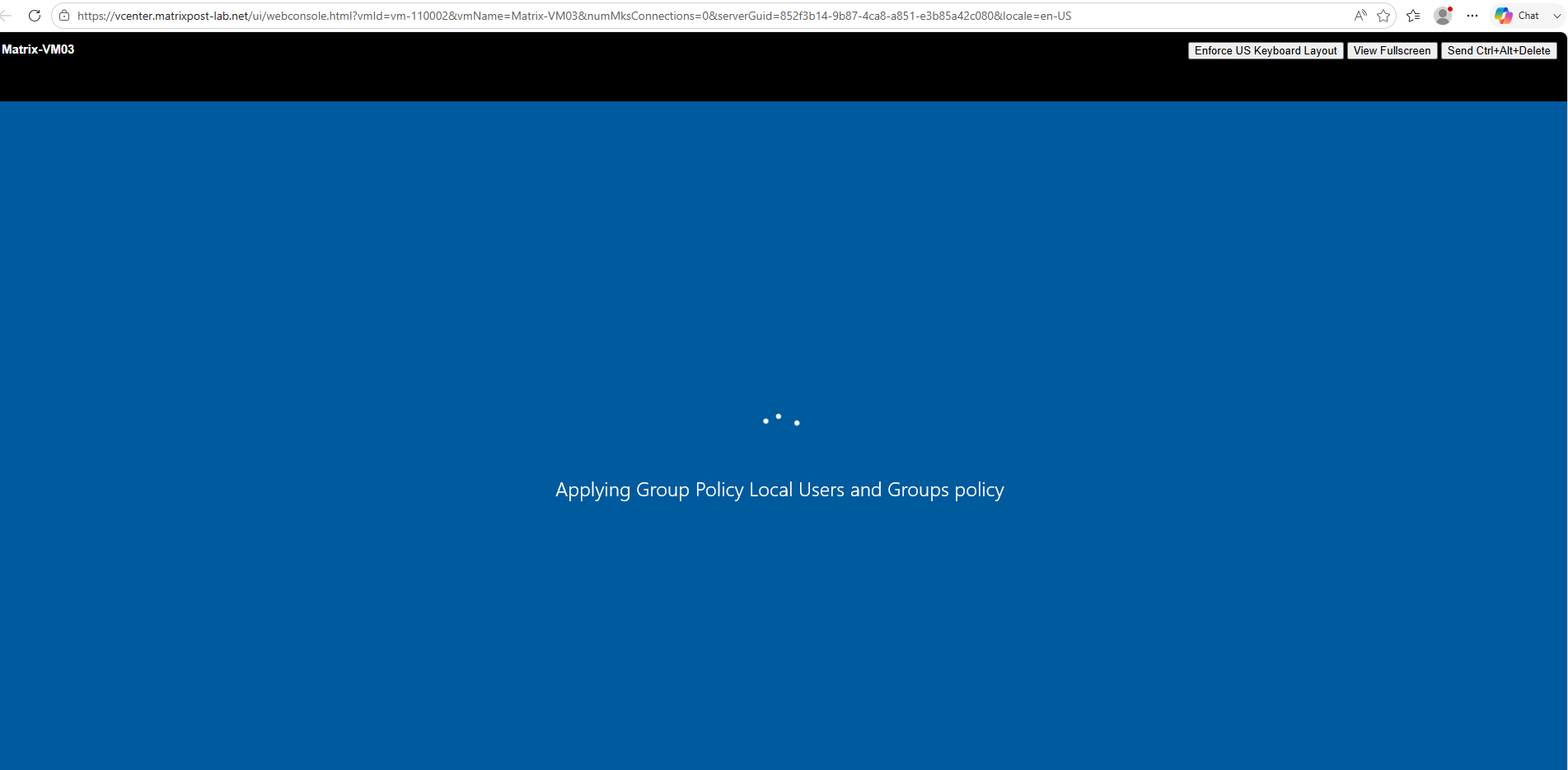
Note: During synchronous foreground processing, Windows does not wait for every configured GPO to be applied.
Instead, it waits for each applicable Group Policy Client Side Extension (CSE) to complete its evaluation and processing. GPOs that are filtered out or otherwise not applicable are skipped after evaluation and therefore typically add only a negligible delay to the startup or logon process.
Links
Set command
https://learn.microsoft.com/en-us/windows-server/administration/windows-commands/set_1