Mastering tcpdump in SUSE Linux Enterprise
tcpdump is a powerful command-line packet analyzer available on SUSE Linux Enterprise and many other Linux distributions. It allows you to capture, filter, inspect, and save network traffic directly from the command line, making it an invaluable tool for troubleshooting network connectivity and analyzing packet flows.
In this article, we will cover the most useful tcpdump commands and filters for everyday network troubleshooting on SUSE Linux Enterprise.
For capturing network traffic using TShark, the command-line version of Wireshark, see my previous article.
For capturing network traffic natively on Windows without first installing third-party tools such as Wireshark or Npcap, see my article.
tcpdump vs. TShark
tcpdump is an excellent choice for lightweight packet capturing and basic filtering directly on a Linux system, while TShark provides the more advanced protocol analysis and filtering capabilities of Wireshark from the command line.
Install tcpdump on SUSE Linux Enterprise
We first, check whether tcpdump is already installed, if not like in my case, we can install it by using the zypper utility.
rpm -q tcpdump
zypper install tcpdump
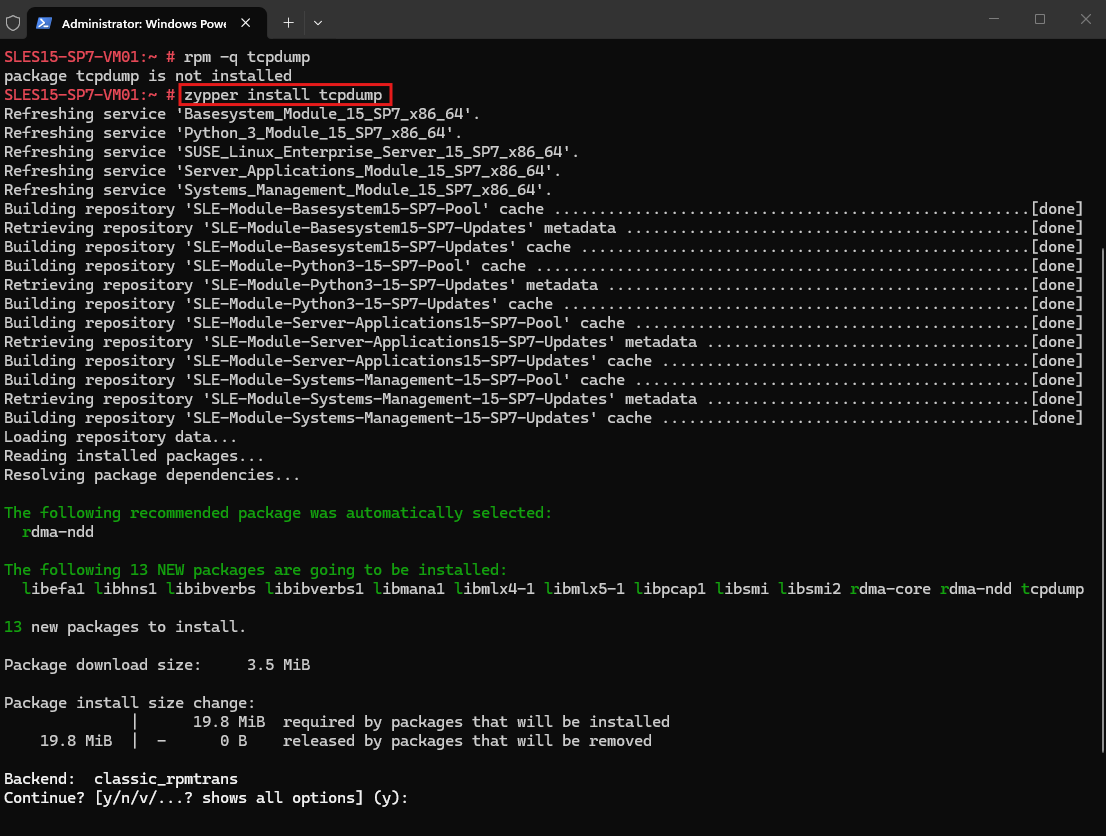
Finally, we can verify the installed version:
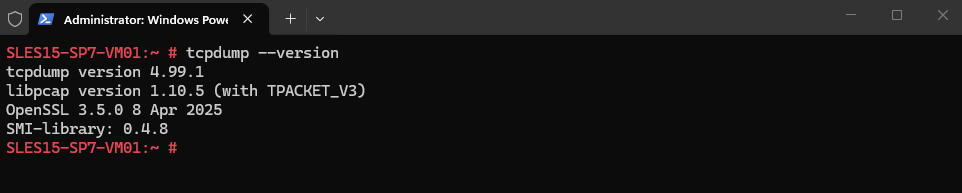
The output shows the installed tcpdump version along with the versions of its underlying libraries, including libpcap, which tcpdump uses to capture packets.
OpenSSL is used by tcpdump/libpcap for cryptographic functionality required by certain capture and authentication features; it does not mean that tcpdump can decrypt captured HTTPS/TLS traffic simply because OpenSSL is installed.
tcpdump --version
On Ubuntu, tcpdump can simply be installed using the APT package manager:
apt install tcpdump
Capture Traffic by using tcpdump
To start a basic packet capture, specify the network interface with the -i option. The following command captures all traffic seen on interface eth0 and displays the packets directly in the terminal.
tcpdump -i eth0
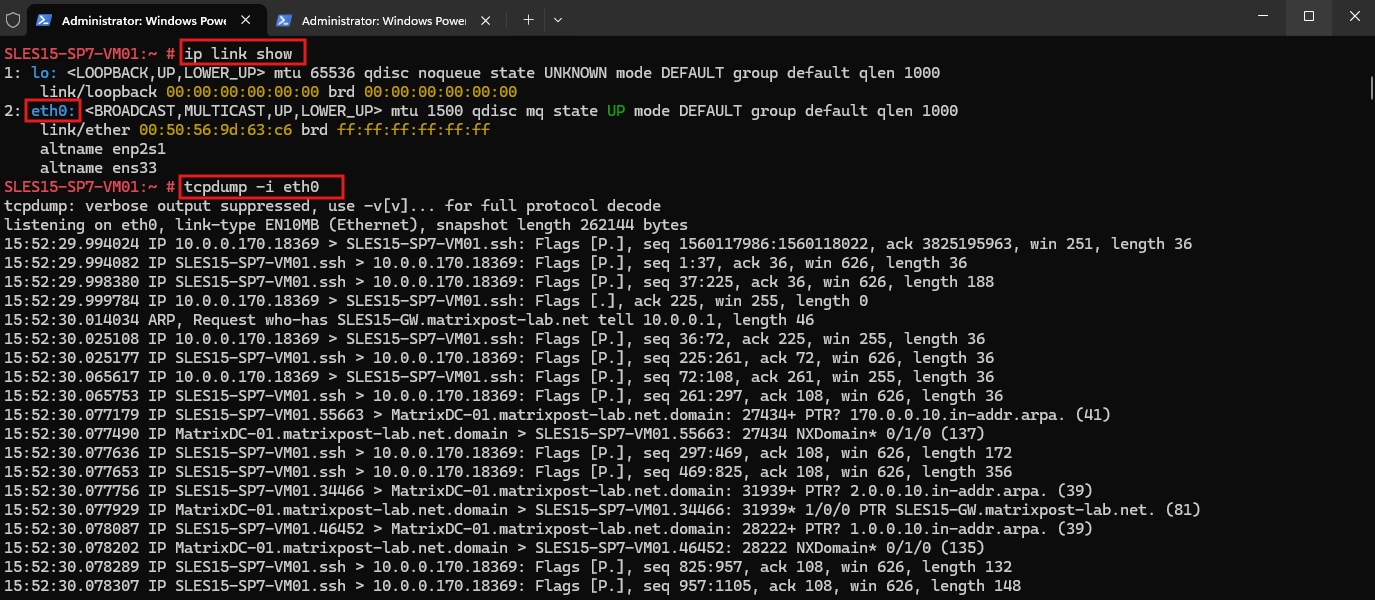
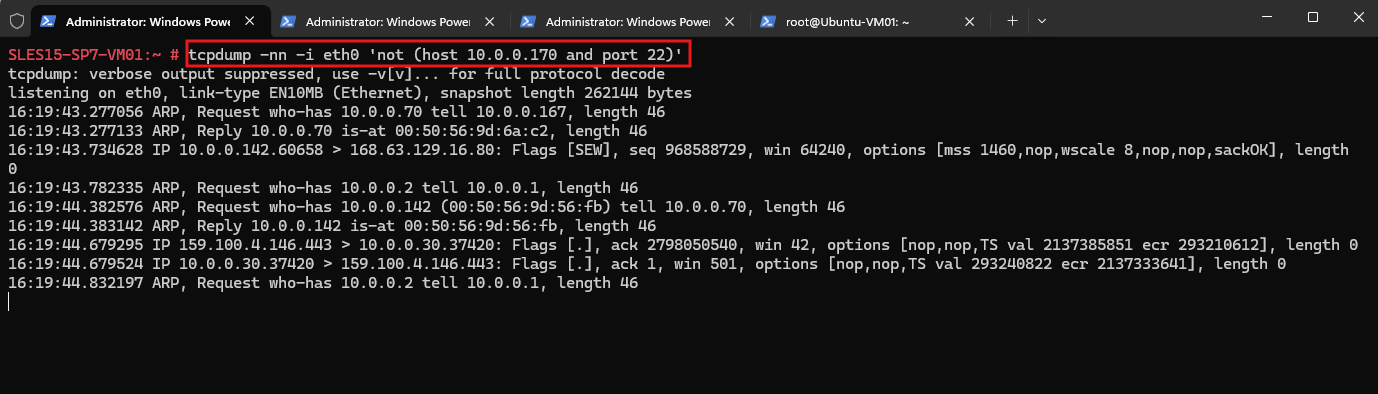
Since I am connected to the SUSE Linux Enterprise system through SSH, I exclude my own SSH session from the capture to avoid filling the output with unrelated management traffic.
The filter only excludes SSH traffic associated with my client IP address
10.0.0.170, while other SSH traffic can still be captured.
tcpdump -i eth0 'not (host 10.0.0.170 and port 22)'
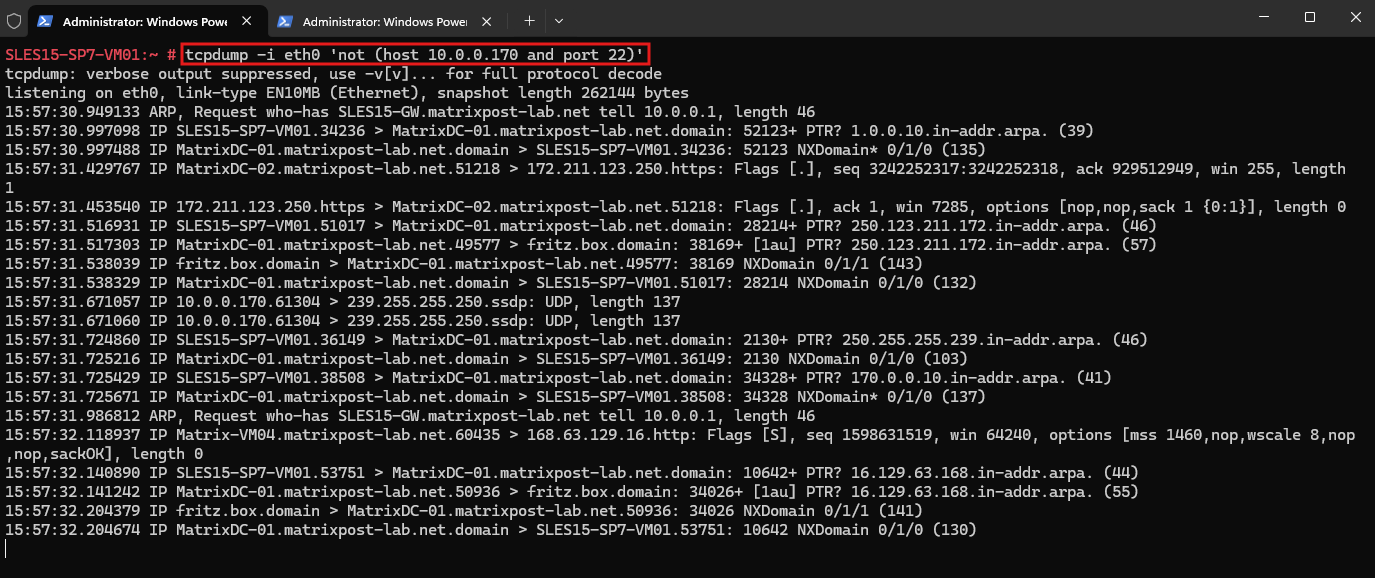
Note: By default, tcpdump attempts to resolve IP addresses and port numbers into host and service names. These DNS lookups can themselves generate additional network traffic, which may then also appear in the capture. Using
-nndisables both hostname and service-name resolution, keeps the output cleaner, and avoids tcpdump generating additional DNS traffic while capturing.
To reduce unnecessary noise in the capture, I exclude the SSH connection from my client 10.0.0.170. I also use -nn to disable hostname and service-name resolution, which keeps the output numeric and prevents tcpdump from generating additional DNS lookups.
tcpdump -nn -i eth0 'not (host 10.0.0.170 and port 22)'
Capture HTTP and HTTPS Traffic
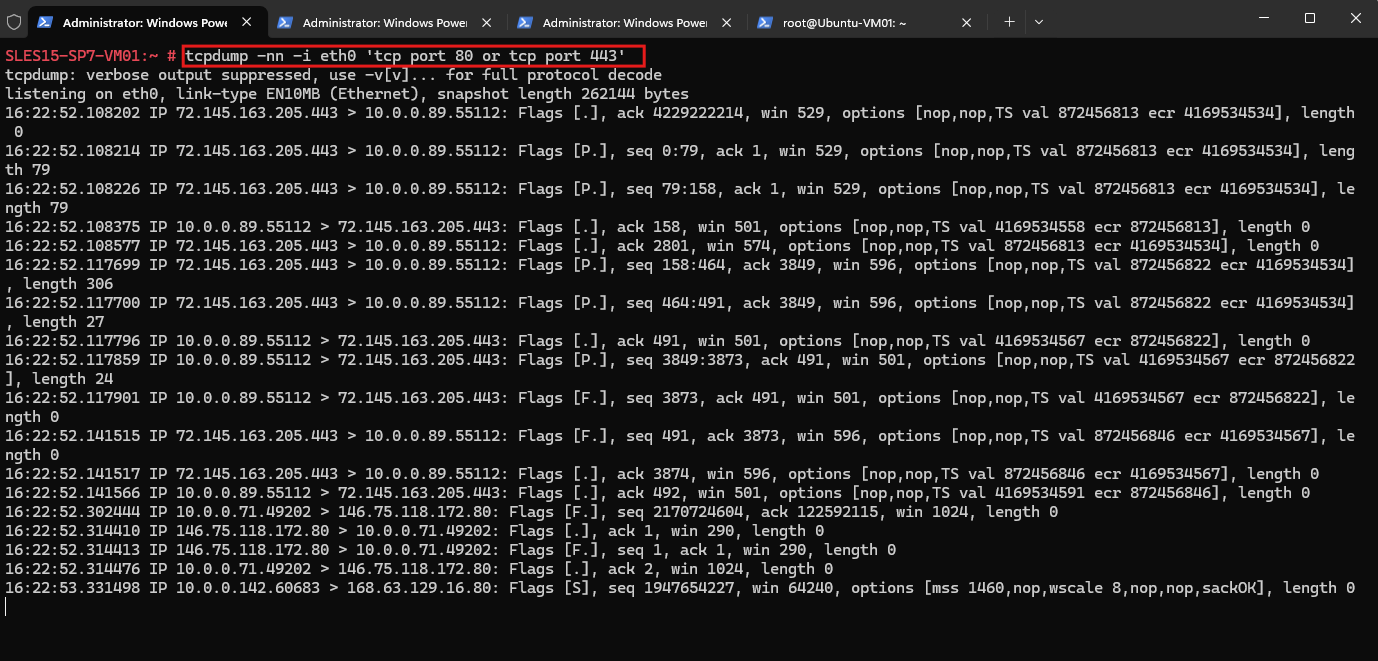
To capture only HTTP and HTTPS traffic, we can filter for TCP ports 80 and 443. I also use -nn to disable hostname and service-name resolution and keep the capture clean.
tcpdump -nn -i eth0 'tcp port 80 or tcp port 443'
Write Captured Traffic to a File
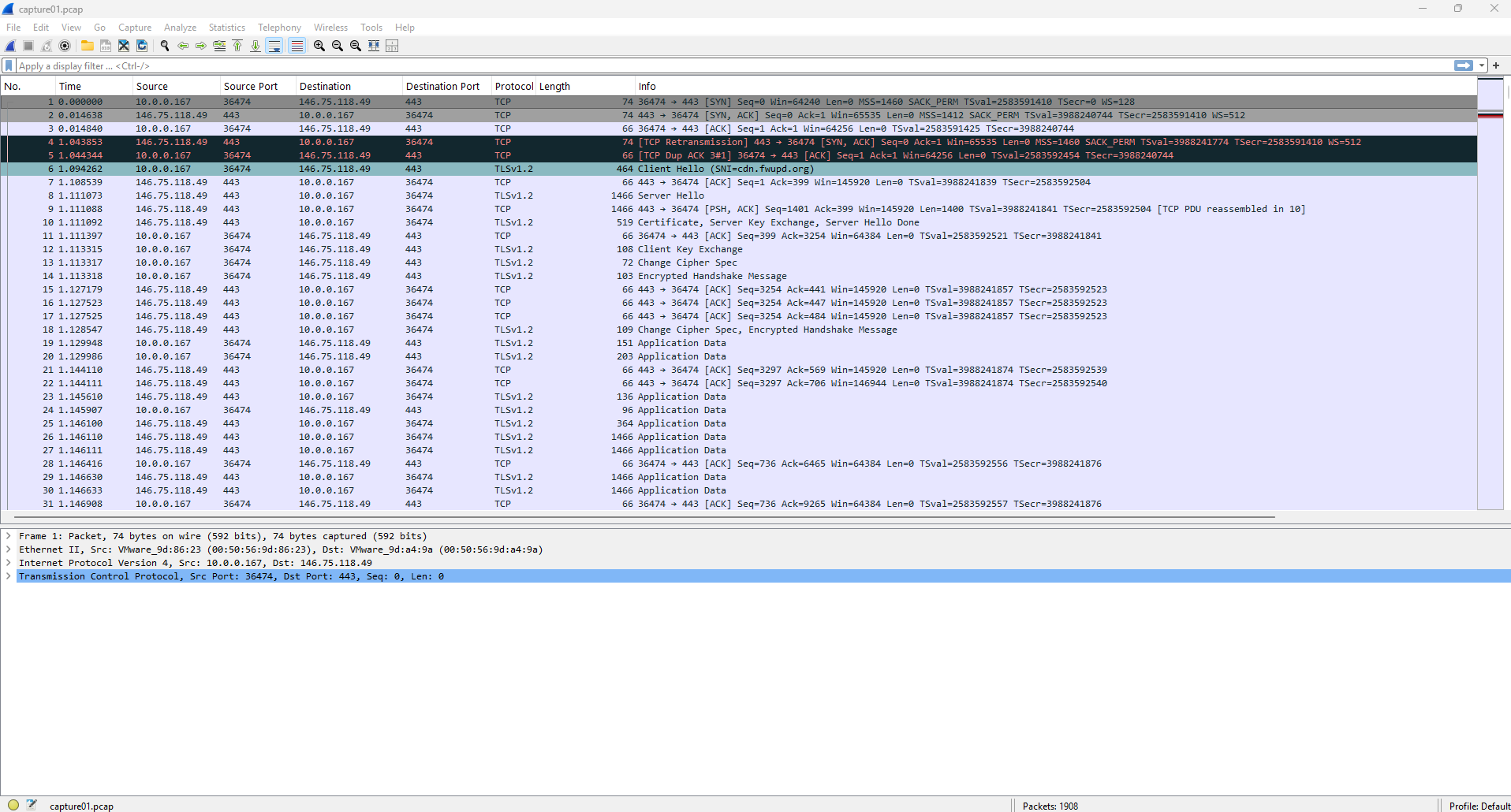
Instead of displaying the captured packets directly in the terminal, we can use the -w option to write them to a PCAP file for later analysis with tools such as Wireshark.
tcpdump -nn -i eth0 'tcp port 80 or tcp port 443' -w /opt/capture01.pcap

After stopping the capture with Ctrl+C, we can download the generated PCAP file and open it in Wireshark for further analysis. Since tcpdump writes standard PCAP files, the captured packets can be inspected and filtered in Wireshark just like any other packet capture.
Capture all Traffic from a Specific Host
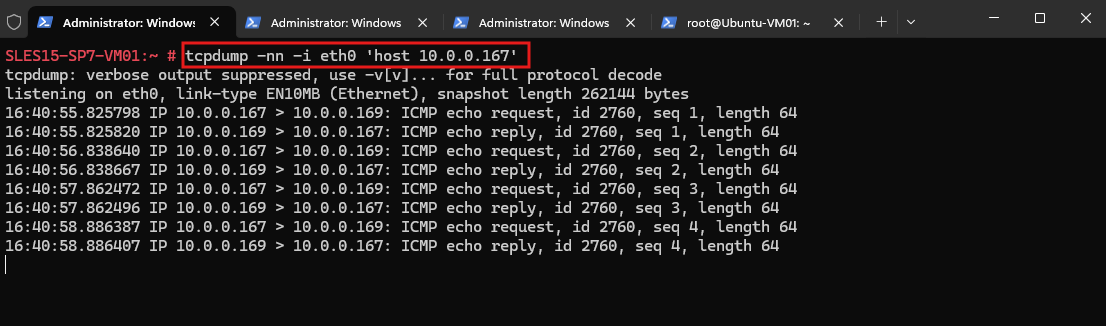
To capture all traffic to and from a specific host, use the host filter followed by its IP address. The following example captures all traffic associated with host 10.0.0.167.
In the following example, I capture all traffic to and from the Ubuntu VM with IP address
10.0.0.167. To generate some traffic, I run a simpleping -c 4from the Ubuntu VM to the SLES system.
tcpdump -nn -i eth0 'host 10.0.0.167'
Links
tcpdump & libpcap official project
https://www.tcpdump.org/tcpdump manual page
https://www.tcpdump.org/manpages/tcpdump.1.htmlpcap-filter manual page
https://www.tcpdump.org/manpages/pcap-filter.7.html