Understanding ICMP Redirects – Why Your Network Traffic Suddenly Takes a Different Route
When a host needs to communicate with a destination outside its local subnet, it normally forwards the packet to its configured default gateway. However, the default gateway may discover that another router on the same local subnet provides a more direct path to the destination. Instead of forcing all subsequent traffic to continue through this unnecessary additional hop, the router can inform the sending host about the better next hop using an ICMP Redirect message (ICMP Type 5).
In this article, we will look at exactly how ICMP Redirects work and reproduce the behavior in a small routed lab environment. We will start with a Windows host using pfSense as its default gateway, while a second Ubuntu router provides connectivity to another subnet.
What makes the example particularly interesting is what we can observe with tracert: the first trace initially uses pfSense, while a subsequent trace goes directly through the Ubuntu router, even though we haven’t changed the Windows routing table ourselves.
We will examine why this happens, how the router communicates the better next hop to the client, and how Wireshark, tracert, the Windows routing table, and the ARP/neighbor cache can be used to see what’s happening behind the scenes.
- What Is an ICMP Redirect?
- How ICMP Redirects Work – Our Lab Scenario
- Triggering the ICMP Redirect
- Why Doesn't the Learned Route Appear in route print?
- Security Considerations and Disabling ICMP Redirects
- ICMP Redirects vs. Proper Routing Design
- Examining the Windows Neighbor Table with Get-NetNeighbor
- Discovering the Local IPv4 Network with Wireshark
- Links
What Is an ICMP Redirect?
An ICMP Redirect is a message sent by a router to inform a host that a better next-hop router exists for reaching a particular destination.
ICMP Redirect messages are defined as ICMP Type 5 and are typically generated when a router receives a packet from a host and determines that the packet should be forwarded through another router that is reachable through the same network interface on which the original packet was received.
In simple terms, the router tells the host:
You sent this packet to me, but there is another router on your local network that provides a more direct path to the destination.
The router still forwards the original packet toward the correct next hop, but at the same time sends an ICMP Redirect back to the originating host. Depending on the operating system and its configuration, the host can use this information to temporarily adjust its routing behavior and send subsequent packets directly to the better next-hop router.
A typical scenario looks like this:
Client → Default Gateway → Better Router → Destination Network
After receiving and accepting an ICMP Redirect, subsequent traffic may instead take the more direct path:
Client → Better Router → Destination Network
This can be surprising during troubleshooting because the traffic path may suddenly differ from what the client’s configured routing table initially suggests.
ICMP Redirects therefore provide a mechanism for routers to dynamically inform hosts about a better route without requiring a routing protocol to run on the client.
However, while this behavior is part of the IP/ICMP protocol design, regularly relying on ICMP Redirects is generally not the preferred way to design a network. If clients frequently need another router to reach internal networks, explicitly providing the correct routes is usually the cleaner and more predictable approach.
In the following sections, we will use our lab environment to see exactly when an ICMP Redirect is generated, what happens to the packet, and how the client’s routing behavior changes afterwards.
How ICMP Redirects Work – Our Lab Scenario
To understand when and why an ICMP Redirect is generated, let’s look at the following lab scenario.
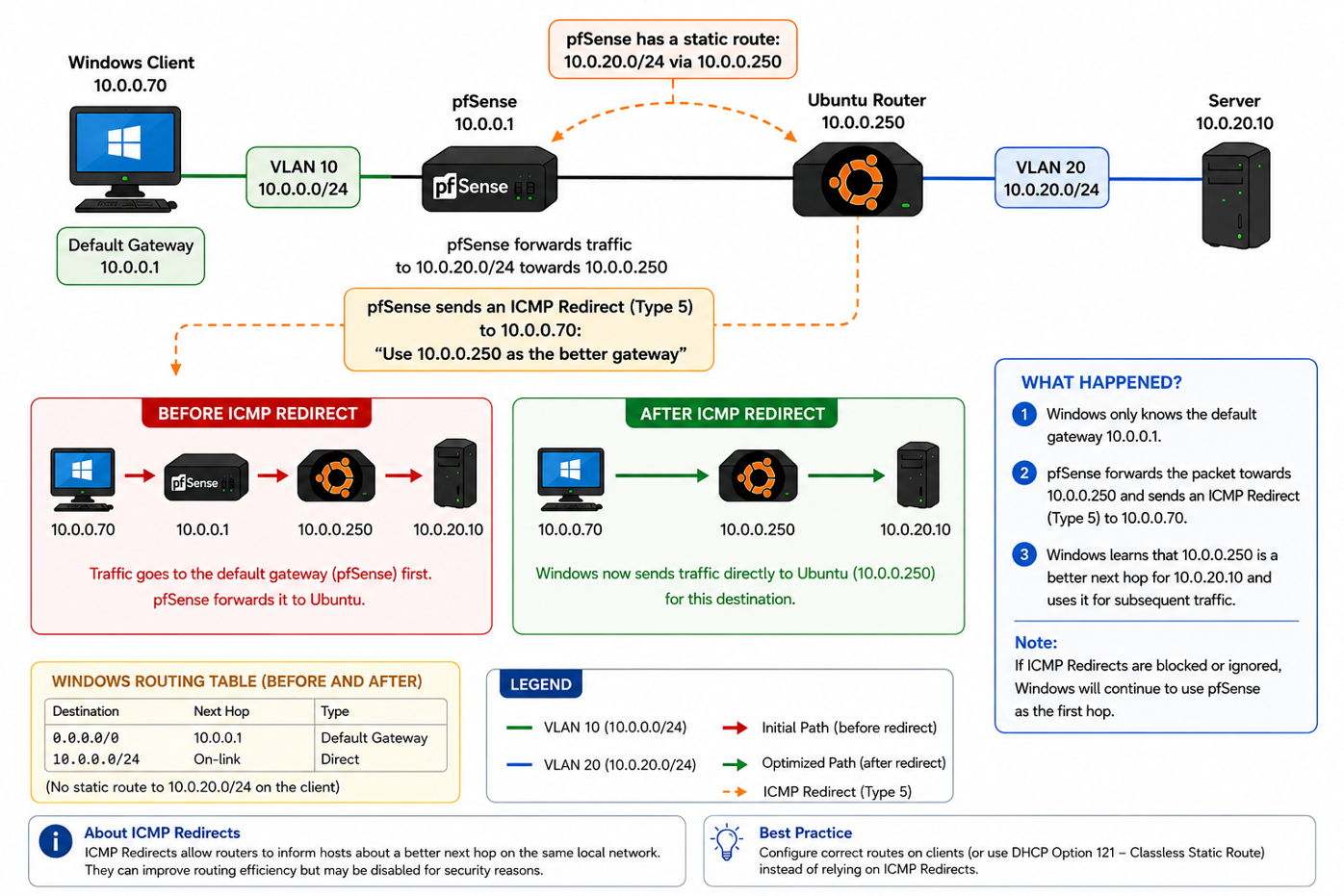
The client is located in the 10.0.0.0/24 network and uses the pfSense firewall at 10.0.0.1 as its default gateway.
However, another router exists within the same subnet that provides connectivity to an additional internal network. The client initially does not have a specific route for this remote network and therefore sends the traffic to its default gateway.
The initial traffic flow therefore looks like this:
Client → Default Gateway (pfSense) → Internal Router → Destination Network
The important detail here is that both the client and the internal router are reachable through the same interface and subnet of the default gateway.
When pfSense receives the packet, it checks its routing table and determines that the destination must be reached through the internal router. It therefore forwards the packet to that router.
However, pfSense also recognizes that the client could have sent the packet directly to the internal router in the first place.
This is exactly the situation in which an ICMP Redirect can be generated.
Along with forwarding the original packet, the default gateway sends an ICMP Type 5 Redirect message back to the client, informing it about the better next hop.
Conceptually, the exchange looks like this:
1. Client → pfSense
Please forward this packet to the remote network.
2. pfSense → Internal Router
The packet needs to go through you.
3. pfSense → Client
For this destination, use the internal router directly instead of sending the traffic through me.
If the client accepts the ICMP Redirect, subsequent packets can be sent directly to the internal router:
Client → Internal Router → Destination Network
The unnecessary hop through the default gateway has now been removed.
This behavior also explains one of the fundamental requirements for an ICMP Redirect: the better next-hop router must be reachable by the client on the local network. A router cannot simply redirect a host toward an arbitrary gateway somewhere else in the network.
In the next step, we will reproduce this behavior in the lab and examine what actually happens on the wire.
Triggering the ICMP Redirect
Now that we understand the topology, let us see what actually happens when the client tries to reach the remote internal network.
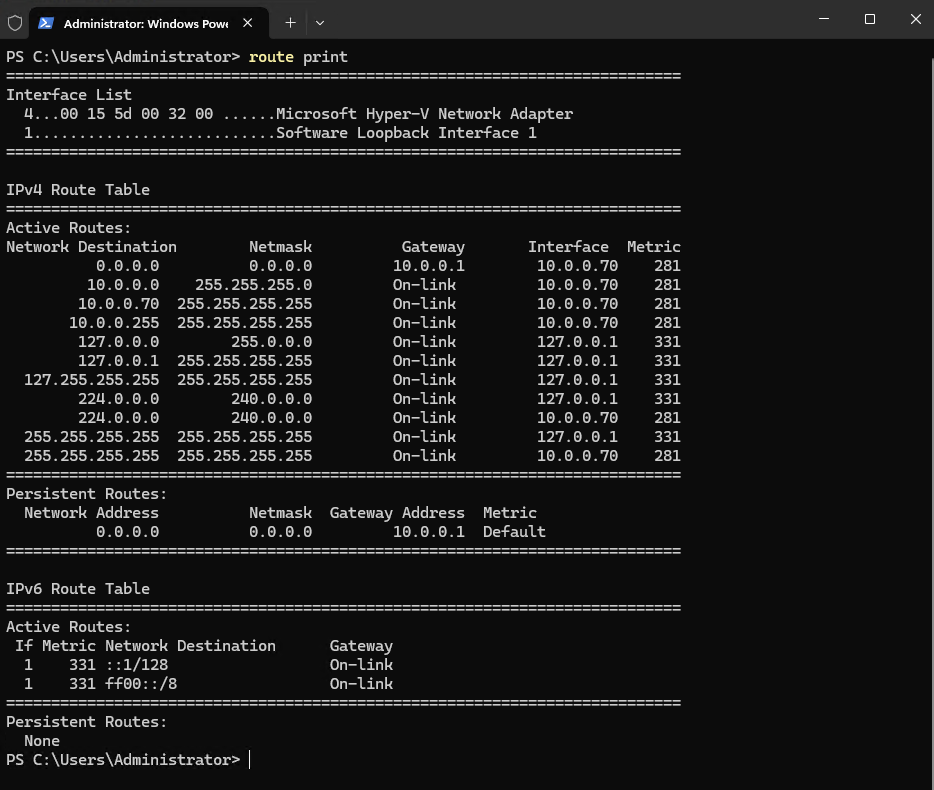
Initially, the client does not have a specific route for the destination network (10.0.20.0/24). When checking its routing table, the only matching route is therefore the default route pointing to its configured default gateway 10.0.0.1, as highlighted below.
The client itself is configured with the IP address
10.0.0.70/24. Since there is no more specific route for10.0.20.0/24, any traffic destined for this network will initially be sent to10.0.0.1.
ipconfig
route print
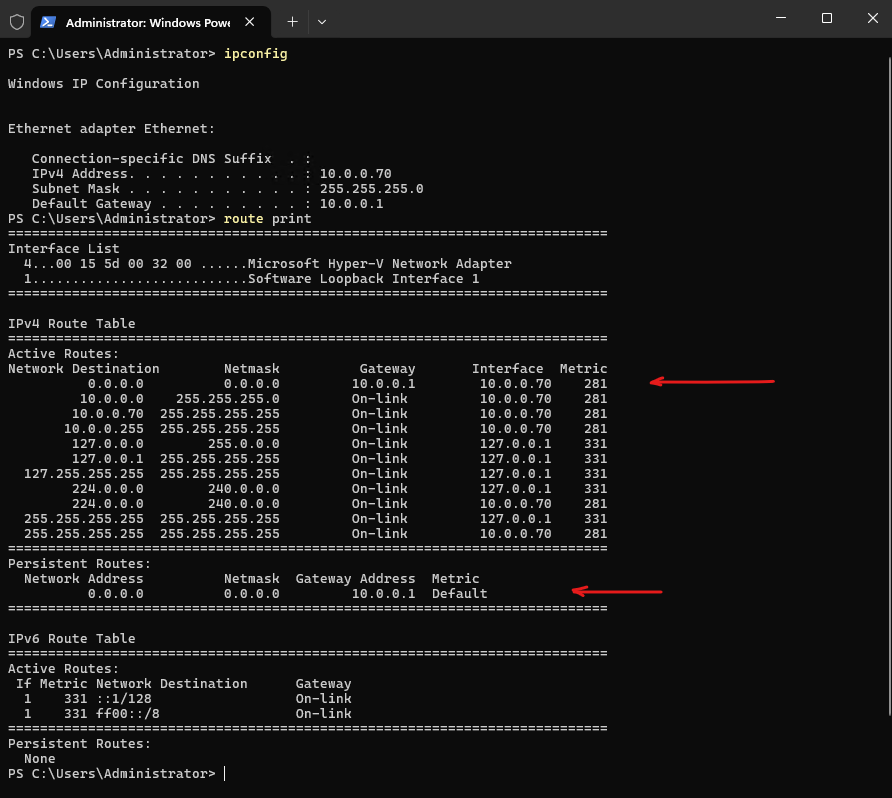
According to the client’s routing table, everything looks perfectly normal: traffic for unknown networks is simply sent to the default gateway.
Triggering the ICMP Redirect with Ping
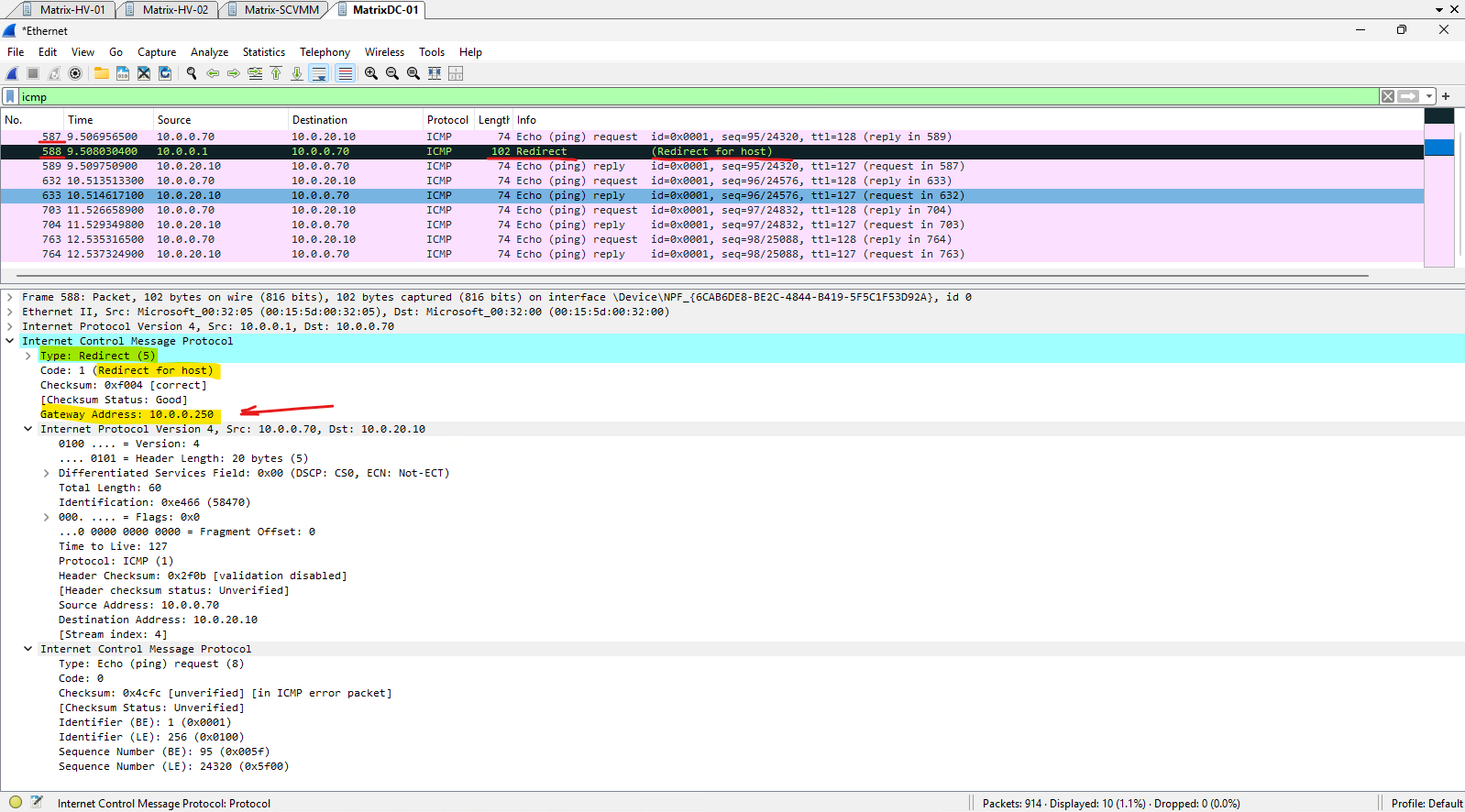
We can now trigger and observe the ICMP Redirect by starting a regular ping from the client 10.0.0.70 to the destination host 10.0.20.10, while simultaneously capturing the traffic with Wireshark.
The first ICMP Echo Request is destined for 10.0.20.10. However, because the client does not have a more specific route for this destination, it initially sends the corresponding Ethernet frame to the MAC address of its configured default gateway 10.0.0.1. The destination IP address itself remains 10.0.20.10.
The default gateway receives the packet, performs its own routing lookup, and determines that the destination is reachable through the internal Ubuntu router 10.0.0.250.
Because the client 10.0.0.70 and the better next-hop router 10.0.0.250 are located on the same local subnet, the default gateway can forward the original packet toward 10.0.0.250 and simultaneously inform the client that it should use this router directly for subsequent traffic.
This is the key condition for generating an ICMP Redirect: a router receives a packet and determines that a better next-hop router is reachable through the same interface/network from which the packet arrived.
The Wireshark capture below shows this sequence very clearly. Immediately after the first Echo Request from 10.0.0.70 to 10.0.20.10, we can see an ICMP Redirect sent from the default gateway 10.0.0.1 back to the client. Directly afterwards, the Echo Reply from 10.0.20.10 confirms that the original Echo Request was successfully forwarded toward its destination.
The following Echo Requests and Replies continue successfully, while the client can now use the better next hop learned through the ICMP Redirect.
Verifying the Traffic Path with Tracert
After observing the ICMP Redirect with a regular ping, we can use tracert to examine the actual Layer 3 path toward the destination 10.0.20.10.
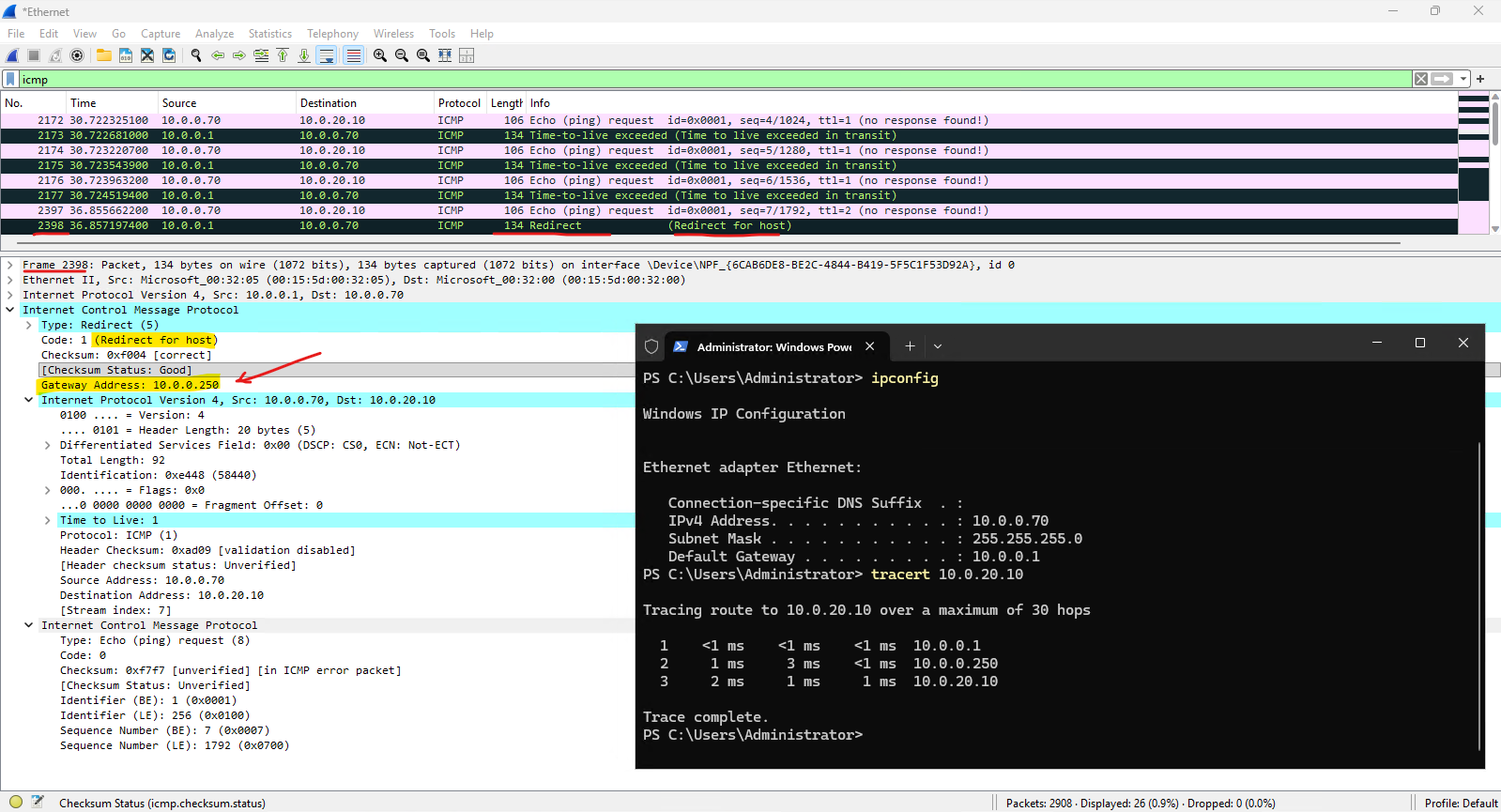
During the first traceroute, the path corresponds to what we would expect from the client’s initial routing configuration:
10.0.0.70 → 10.0.0.1 → 10.0.0.250 → 10.0.20.10
Because the default gateway receives the packet from the client and determines that the better next-hop router 10.0.0.250 is reachable through the same local network, it sends an ICMP Redirect back to the client.
This is the key condition for generating an ICMP Redirect: the router forwards the packet through the same interface/network from which it was received and a better next-hop router exists on that network.
Looking inside the captured ICMP message, we can see:
- Type 5 – Redirect
- Code 1 – Redirect for host
- Gateway Address:
10.0.0.250
The Gateway Address is the crucial information. The default gateway 10.0.0.1 is telling the client that 10.0.0.250 is a better next hop for reaching the destination 10.0.20.10.
The ICMP Redirect also contains the original IP packet that triggered the redirect.
Wireshark therefore shows the original packet from 10.0.0.70 to 10.0.20.10 directly inside the ICMP Redirect message.
It is important to understand that tracert discovers these hops by sending probe packets with an increasing IP Time to Live (TTL) value. The first probes are sent with TTL 1 and therefore expire at the default gateway 10.0.0.1, which responds with an ICMP Time Exceeded message.
The next probes use TTL 2, allowing them to reach the second router 10.0.0.250, where their TTL expires again.
Finally, probes with a sufficiently high TTL reach the actual destination 10.0.20.10.
This explains the ICMP Time Exceeded messages visible in the Wireshark capture. They are an intentional part of how tracert discovers each router along the path and should not be confused with failed communication to the destination.
We will now run tracert a second time to see whether the client has accepted this information and whether the resulting path changes.
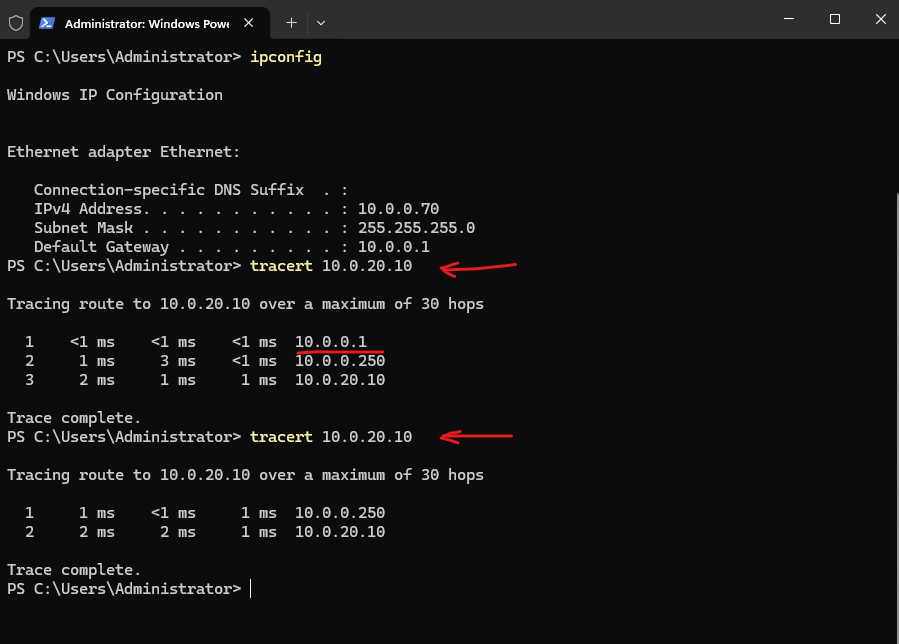
And this time the result is different.
During the first traceroute, the traffic still follows the original path through the configured default gateway:
10.0.0.70 → 10.0.0.1 → 10.0.0.250 → 10.0.20.10
During the second traceroute, however, 10.0.0.1 has disappeared from the path:
10.0.0.70 → 10.0.0.250 → 10.0.20.10
The client has therefore accepted the previously received ICMP Redirect and now sends traffic for 10.0.20.10 directly to the better next-hop router 10.0.0.250, completely bypassing its configured default gateway 10.0.0.1.
This is a great example of why ICMP Redirects can initially be confusing during network troubleshooting: the configured default gateway has not changed, but the actual path taken by the traffic has.
Why Doesn’t the Learned Route Appear in route print?
At this point, an interesting question arises: if the Windows client has accepted the ICMP Redirect and now sends traffic directly through 10.0.0.250, shouldn’t we also see a corresponding route in the Windows routing table?
The answer is no.
Even after the ICMP Redirect has been accepted, running route print still shows the original default route through 10.0.0.1. There is no additional route for 10.0.20.0/24 or even a host route for 10.0.20.10/32 through 10.0.0.250.
route print
We can confirm the same behavior with PowerShell:
Windows returns that no matching
MSFT_NetRouteobject exists.
Get-NetRoute -DestinationPrefix 10.0.20.10/32
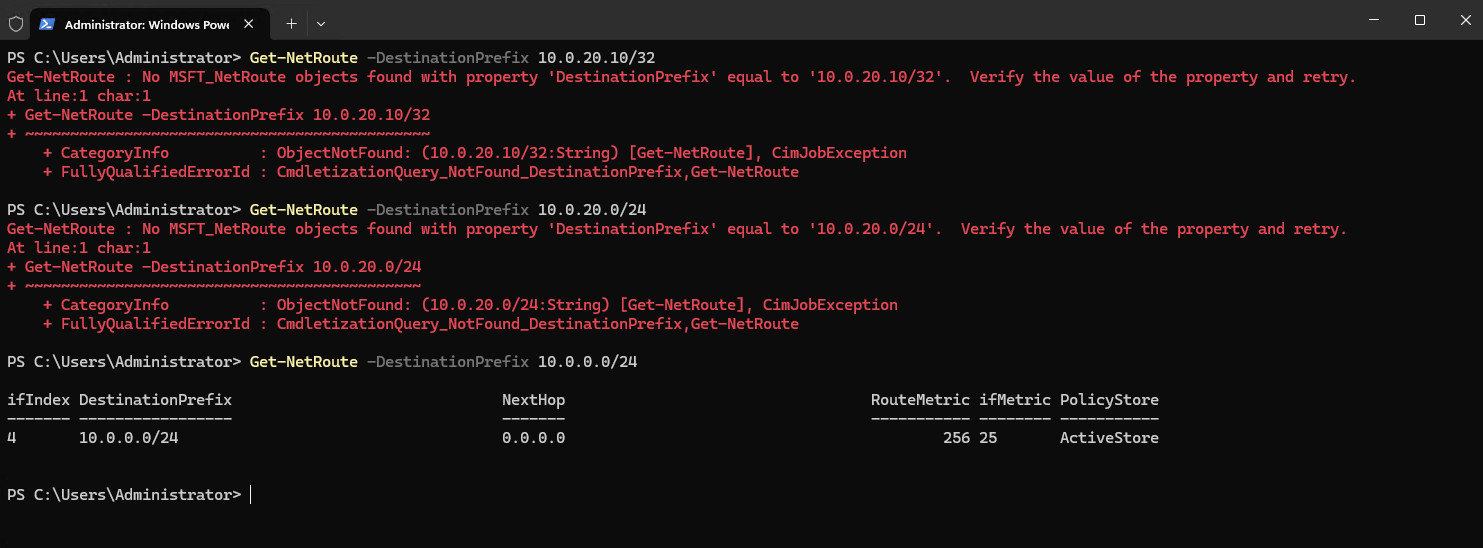
Nevertheless, our previous tracert test clearly demonstrated that Windows has changed its forwarding behavior:
Before receiving the ICMP Redirect:
10.0.0.70 → 10.0.0.1 → 10.0.0.250 → 10.0.20.10
After accepting the ICMP Redirect:
10.0.0.70 → 10.0.0.250 → 10.0.20.10
The reason is that an accepted ICMP Redirect does not have to create a conventional route entry in the Windows IP routing table. It therefore does not appear under either the Active Routes or Persistent Routes displayed by route print, nor is it exposed as a regular route through Get-NetRoute.
Instead, Windows can retain the information as cached path information and use the learned better next hop when sending subsequent packets to that destination.
This distinction is important during troubleshooting. Looking only at route print or Get-NetRoute can therefore be misleading: the configured routing table may still indicate 10.0.0.1 as the only gateway for remote destinations, while the actual packets are already being sent directly to another router as the result of an accepted ICMP Redirect.
The routing table tells us what routes are configured, but it does not necessarily reveal all cached forwarding decisions resulting from ICMP Redirects.
In our example, tracert and the packet capture therefore provide much stronger evidence of the actual path being used than route print alone.
Security Considerations and Disabling ICMP Redirects
Although ICMP Redirects are a legitimate part of the IP protocol, accepting them also means that a host allows a router on its local network to influence its forwarding decisions.
A successfully accepted ICMP Redirect can cause a host to send subsequent traffic for a particular destination through a different gateway, as we have just demonstrated with our Windows client.
This behavior has security implications. If a malicious system is able to send ICMP Redirect messages that are accepted by a host, it could potentially attempt to influence the path taken by network traffic, for example by directing traffic through another system.
For this reason, ICMP Redirects are commonly disabled or restricted in security-conscious and carefully routed environments.
There are two different sides to consider:
- Routers can be configured not to send ICMP Redirects.
- Hosts can be configured not to accept and process ICMP Redirects.
Disabling only one side can therefore already prevent the behavior we observed in our lab.
On Windows, whether received ICMP Redirect messages are processed is controlled by the TCP/IP stack. When processing is disabled, the client simply continues using the routes available in its regular routing table instead of learning a better next hop from an ICMP Redirect.
In our lab, this would mean that traffic continues to follow:
10.0.0.70 → 10.0.0.1 → 10.0.0.250 → 10.0.20.10
instead of subsequently switching to:
10.0.0.70 → 10.0.0.250 → 10.0.20.10
However, simply disabling ICMP Redirects does not correct the underlying routing design. If 10.0.0.250 is intentionally the router for 10.0.20.0/24, the cleaner solution is to provide the client with the appropriate route rather than forcing all traffic through 10.0.0.1.
Disabling ICMP Redirects on Windows
On our Windows client, processing of received ICMP Redirect messages is enabled by default. We can verify this in the Registry under:
HKEY_LOCAL_MACHINE\SYSTEM\CurrentControlSet\Services\Tcpip\Parameters
Create or modify the following DWORD (32-bit) value:
EnableICMPRedirect = 1
As shown below, the value is currently set to
1, allowing Windows to process received ICMP Redirect messages.This is exactly the behavior we observed earlier when the client accepted the redirect from
10.0.0.1and subsequently started using10.0.0.250as the better next hop.
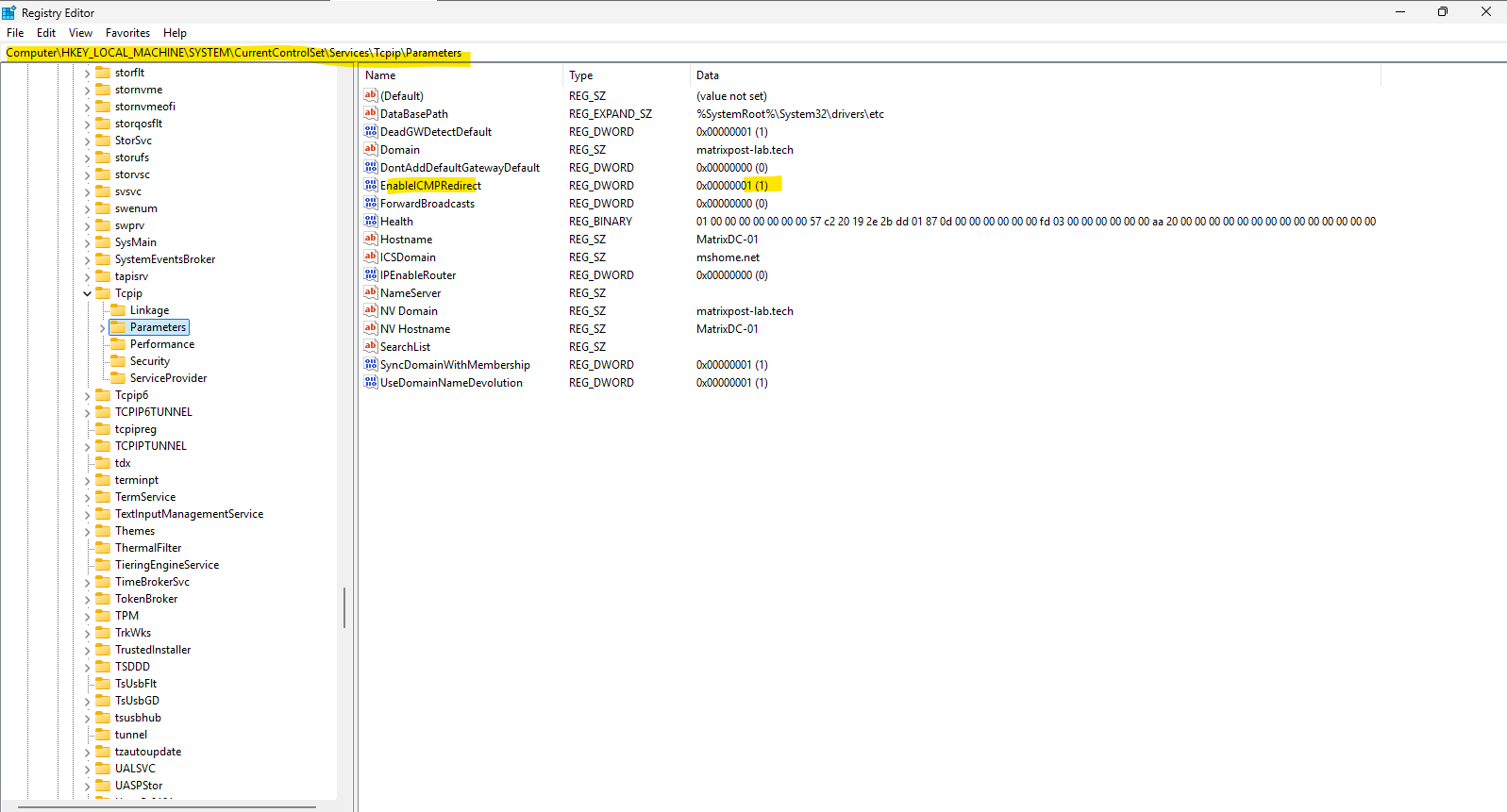
The same configuration can be applied from an elevated PowerShell session:
Set-ItemProperty -Path "HKLM:\SYSTEM\CurrentControlSet\Services\Tcpip\Parameters" -Name "EnableICMPRedirect" -Type DWord -Value 0
After applying the setting and restarting Windows, received ICMP Redirect messages will no longer be used to alter the client’s forwarding path.
In our lab, pfSense may therefore still send the ICMP Redirect, and we can still observe it in Wireshark, but the Windows client will ignore the routing information contained in the message. Traffic to 10.0.20.10 will consequently continue through the configured default gateway 10.0.0.1.
Disabling ICMP Redirects on Linux
Linux provides dedicated kernel parameters for controlling whether ICMP Redirect messages are accepted.
The current settings can be checked with:
sysctl net.ipv4.conf.all.accept_redirects
sysctl net.ipv4.conf.default.accept_redirects

Interestingly, accept_redirects is disabled globally through all, while default is still set to 1.
The naming can be somewhat confusing here. The default value acts as a template for newly created network interfaces, whereas all is a separate global setting used by the Linux kernel.
Therefore, default = 1 means that a newly created interface initially inherits an interface-specific accept_redirects value of 1; it does not necessarily mean that the system will effectively accept ICMP Redirects.
For a system operating as an IP router, Linux accepts ICMP Redirects only when both the global all.accept_redirects setting and the corresponding interface-specific setting allow them.
In our case, all.accept_redirects = 0 therefore prevents the router from accepting ICMP Redirects even if an individual interface has inherited a value of 1.
Nevertheless, for a clear and consistent configuration, especially on a router, it is good practice to disable both values:
net.ipv4.conf.all.accept_redirects = 0
net.ipv4.conf.default.accept_redirects = 0
To disable accepting ICMP Redirects immediately, we can use:
sudo sysctl -w net.ipv4.conf.all.accept_redirects=0
sudo sysctl -w net.ipv4.conf.default.accept_redirects=0
The configuration can then be loaded without rebooting by using:
sudo sysctl --system
As with Windows, disabling the acceptance of ICMP Redirects does not prevent a router from sending them. It simply prevents the Linux host from using the received redirect information to change its forwarding behavior.
Disabling ICMP Redirects on pfSense
In addition to preventing clients from accepting ICMP Redirects, we can configure pfSense to stop generating and sending ICMP Redirect messages itself.
It is important to distinguish between these two controls. Disabling ICMP Redirects on pfSense only prevents pfSense from generating them; it does not prevent a client from accepting a forged ICMP Redirect sent by another potentially malicious system. If ICMP Redirects are not required, disabling their acceptance directly on the endpoints therefore provides an additional and important security measure.
Since pfSense is based on FreeBSD, the current setting can be checked from the pfSense shell using:
sysctl net.inet.ip.redirect

A value of 1 enables sending ICMP Redirects, while a value of 0 disables them.
To disable ICMP Redirects persistently in pfSense, navigate to:
System → Advanced → System Tunables
Add or modify the following tunable:
Tunable: net.inet.ip.redirect
Value: 0
Description: Disable ICMP Redirects
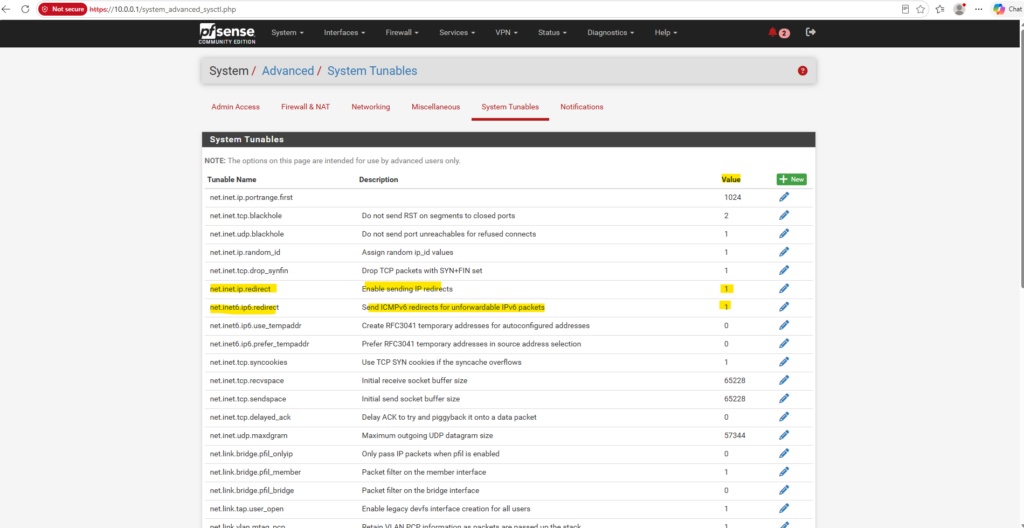
After applying the setting, pfSense will continue to route the traffic according to its routing table, but it will no longer inform clients about a potentially better next-hop router using ICMP Redirect messages.
ICMP Redirects vs. Proper Routing Design
As we have seen, ICMP Redirects can optimize an otherwise indirect traffic path. The mechanism itself is valid and works exactly as intended: the default gateway recognizes that another router on the same subnet provides a better path and informs the client accordingly.
However, regularly relying on ICMP Redirects should generally not be necessary in a well-designed and properly configured network.
In our lab, the Windows client initially knows only its default route:
0.0.0.0/0 → 10.0.0.1
The client therefore has no choice but to send traffic for 10.0.20.0/24 to 10.0.0.1. Only after receiving an ICMP Redirect does it learn that 10.0.0.250 is actually the better next hop.
A cleaner routing configuration would provide this information to the client from the beginning:
10.0.20.0/24 → 10.0.0.250
0.0.0.0/0 → 10.0.0.1
With this configuration, traffic for the internal network 10.0.20.0/24 is sent directly to the Ubuntu router 10.0.0.250, while all other traffic that does not match a more specific route continues to use the regular default gateway 10.0.0.1.
No ICMP Redirect is required, and the traffic path is deterministic from the very first packet.
The appropriate method for distributing such routes depends on the environment. Routes can, for example, be configured statically on the hosts, distributed centrally using DHCP Classless Static Routes (Option 121), or handled through an appropriate routing architecture.
An ICMP Redirect is therefore useful protocol behavior, but frequently seeing redirects can also be an indication that hosts have not been provided with the most appropriate routing information in the first place.
This does not mean that every occurrence of an ICMP Redirect represents a network misconfiguration. There are legitimate scenarios in which redirects can occur. However, if clients permanently depend on redirects to discover the correct gateway for known internal networks, explicitly providing the required routes generally results in a cleaner, more predictable, and easier-to-troubleshoot network design.
Examining the Windows Neighbor Table with Get-NetNeighbor
While the routing table determines where IP traffic should be sent, Windows still needs to resolve directly reachable IPv4 destinations and next-hop routers to their corresponding Layer 2 MAC addresses.
The PowerShell cmdlet Get-NetNeighbor displays the Windows neighbor cache, including the IP address, associated MAC address, network interface, and current neighbor state:
Get-NetNeighbor -AddressFamily IPv4
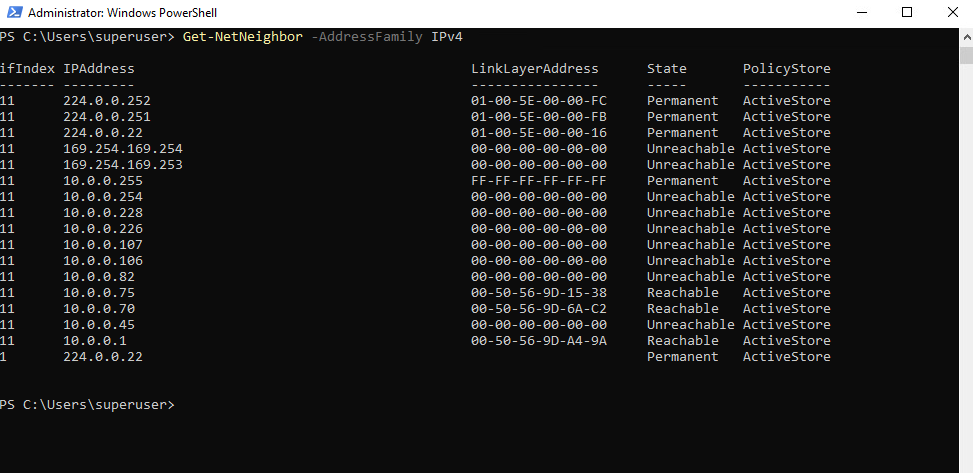
This is particularly useful for troubleshooting ARP and Layer 2 connectivity issues, verifying which MAC address Windows has learned for another host or gateway, and checking the current state of neighbor entries such as Reachable, Stale, Unreachable, or Permanent.
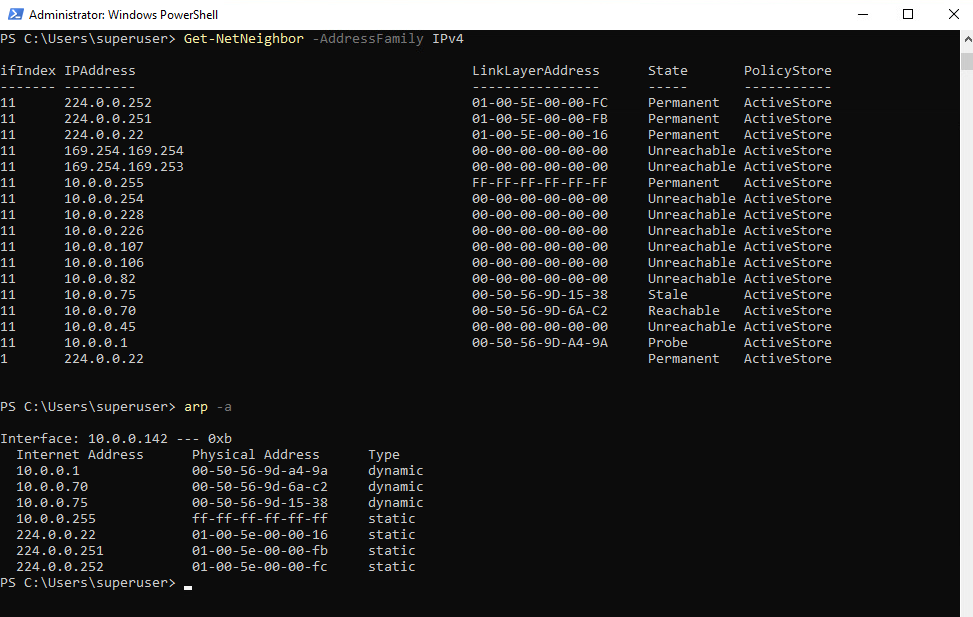
For IPv4, the information is essentially the modern PowerShell equivalent of what can traditionally be inspected using arp -a.
However,
Get-NetNeighborprovides additional information about the current Neighbor Unreachability Detection (NUD) state and also supports both IPv4 and IPv6, making it the more comprehensive tool on modern Windows systems.
arp -a
Discovering the Local IPv4 Network with Wireshark
The previously discussed neighbor table relies on a working IPv4 or IPv6 configuration and the corresponding neighbor discovery mechanisms, ARP for IPv4 and Neighbor Discovery (ND) for IPv6.
If a host has no valid network configuration, commands such as Get-NetNeighbor cannot simply discover all devices connected to the same Layer 2 network.
However, even when connecting a host to a physical network without knowing the correct IP address, subnet mask, or default gateway, we can often get a good indication of the IPv4 network in use by passively capturing Layer 2 broadcast traffic with Wireshark.
In the example below, our Windows VM has deliberately been configured with the incorrect IP address 172.20.0.30/24 and default gateway 172.20.0.1. These addresses do not belong to the IPv4 network actually connected to the virtual network adapter.
We can observe ARP Requests broadcast by other hosts on the same Layer 2 network. Because ARP Requests are Ethernet broadcasts sent to
ff:ff:ff:ff:ff:ff, our host can receive and capture them even though its own IPv4 configuration is incorrect.
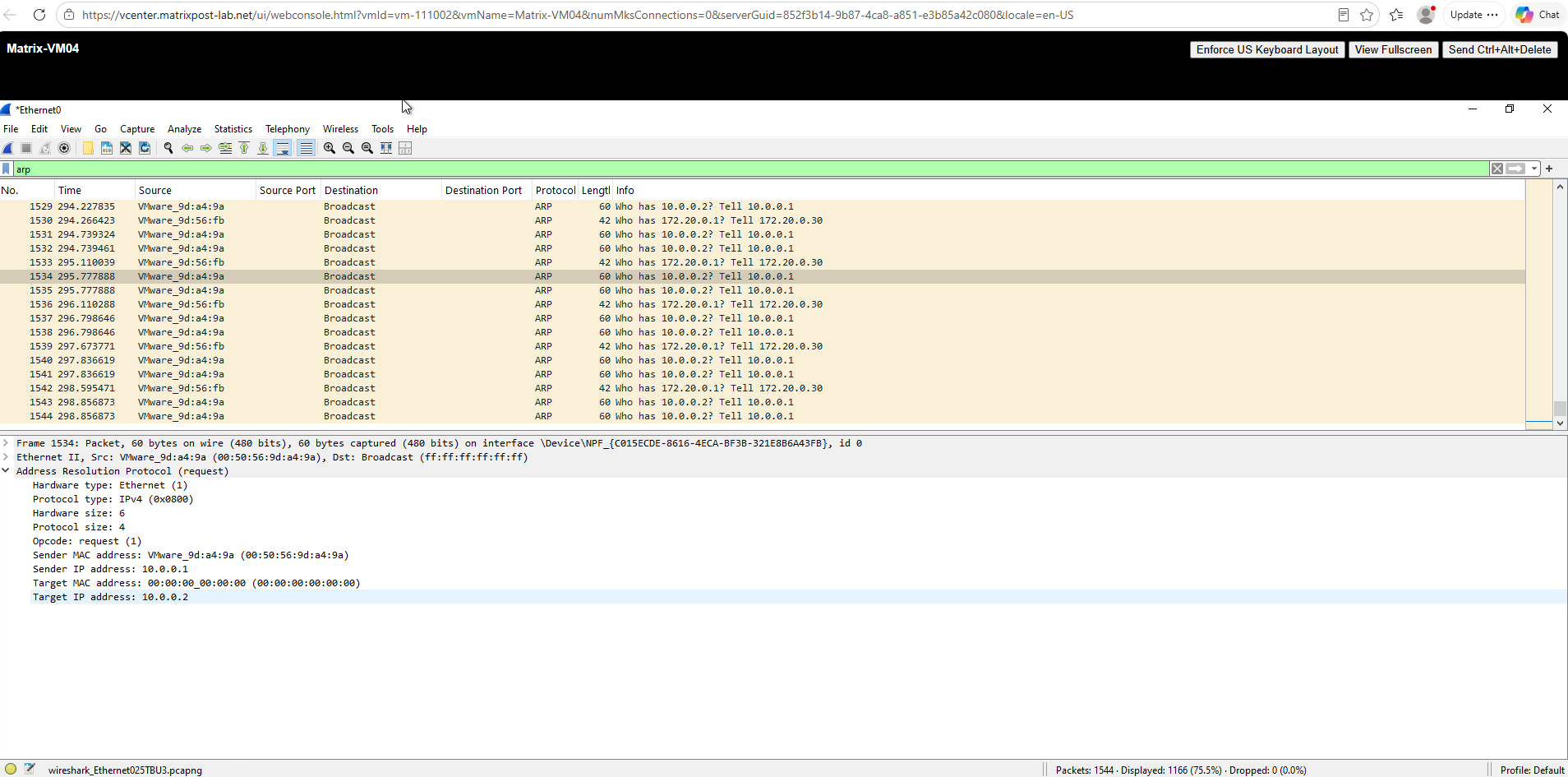
In the capture above, we can repeatedly observe messages such as:
Who has 10.0.0.2? Tell 10.0.0.1
The packet details also show the Sender IP address 10.0.0.1 and Target IP address 10.0.0.2. This provides a strong indication that the Layer 2 network to which our host is connected is using addresses from the 10.0.0.x range.
At the same time, we can see ARP Requests originating from our deliberately misconfigured host:
Who has 172.20.0.1? Tell 172.20.0.30
Our VM assumes that its configured gateway 172.20.0.1 is located on-link and therefore repeatedly broadcasts ARP Requests trying to resolve its MAC address. Since no such host exists on this Layer 2 network, these requests remain unanswered.
ARP traffic can provide strong clues about the IPv4 subnet in use, but it does not reveal the subnet mask itself. From the observed
10.0.0.xaddresses we can reasonably suspect a network such as10.0.0.0/24, but the exact prefix length cannot be determined from ARP alone.
Another useful clue can be the frequency and variety of ARP Requests generated by individual hosts. Routers and default gateways often communicate with many systems on their directly connected networks and may therefore generate ARP Requests for numerous different IP addresses.
In our capture, 10.0.0.1 repeatedly appears as the sender of ARP Requests. In this particular lab, we already know that 10.0.0.1 is our pfSense default gateway, which nicely demonstrates why routers can be quite visible when passively observing ARP traffic.
When analyzing an unknown network, an IP address that repeatedly sends ARP Requests for many different hosts may therefore be a good candidate for a router, default gateway, or another central infrastructure system. However, ARP traffic alone cannot prove the role of a device, since any IPv4 host can generate ARP Requests and other busy infrastructure systems may exhibit similar behavior.
Links
Understand ICMP Redirect Messages
https://www.cisco.com/c/en/us/support/docs/ios-nx-os-software/nx-os-software/213841-understanding-icmp-redirect-messages.htmlICMP Redirect
https://www.msxfaq.de/netzwerk/grundlagen/icmp_redirect.htmIcmpRedirectsEnabled
https://learn.microsoft.com/en-us/windows-hardware/customize/desktop/unattend/microsoft-windows-tcpip-icmpredirectsenabled