Modern Azure Deployments with Terraform & GitHub – Part 6 – Production Operational Controls and Drift Detection
In the previous parts of this series, we explored how to deploy and manage Azure infrastructure using Terraform and GitHub Actions, including remote state management, environment separation, automated deployments, and production approval workflows.
In this sixth part, we will focus on production operational controls. Deploying infrastructure is only the beginning. In production environments, we also need to know when the actual state of our resources drifts from the Terraform configuration, get notified about it reliably, and handle these changes through a controlled remediation process.
We will extend our existing Terraform and GitHub Actions environment with automated drift detection, using both GitHub’s native scheduler and a more reliable external scheduler in Azure, along with email notifications and controlled remediation workflows.
We will also implement a dedicated email notification solution using Microsoft Graph and Exchange Online, including a shared mailbox, mailbox-specific RBAC for Applications, and secure OIDC-based authentication between GitHub Actions and Microsoft Entra ID. This allows us to send automated drift alerts without storing authentication secrets or granting tenant-wide email permissions to the notification application.
Finally, we will deliberately introduce configuration changes outside Terraform to demonstrate how these mechanisms detect and help recover from unexpected changes.
- Detecting Terraform Configuration Drift with GitHub Actions
- Creating a Scheduled GitHub Actions Drift Detection Workflow
- Manually Triggering and Testing the Terraform Drift Detection Workflow
- Testing Terraform Drift Detection by Manually Modifying an Azure Resource
- Avoiding Manual Approval for Scheduled Drift Detection
- Triggering Drift Detection Reliably with an Azure Logic App
- Why the Native GitHub Schedule Is Not Enough
- Defining the Logic App Scheduler with Terraform
- Deploying the Scheduler Through the CI/CD Pipeline
- Creating a Fine-Grained GitHub Token for the Scheduler
- Storing the GitHub Token Securely in Azure Key Vault
- Testing the Azure-Triggered Drift Detection – Without Manual Changes in Azure
- Testing the Azure-Triggered Drift Detection – With Manual Changes in Azure
- Comparing the Azure Logic App Scheduler with GitHub's Native Schedule
- Configuring Dedicated Email Notifications for Infrastructure Drift
- Available email notification options
- Register the Microsoft Entra ID application
- Configure Microsoft Graph permissions
- Configure Exchange Online RBAC
- Registering the Microsoft Entra Application as a Service Principal in Exchange Online
- Creating a Dedicated Exchange Online Management Scope
- Creating the Mailbox-Specific Management Scope
- Assigning the Application Mail.Send Role to the Service Principal
- Configuring Federated Authentication for GitHub Actions
- Configuring GitHub OIDC Subject Claims with Immutable Repository IDs
- Configuring GitHub Actions to Authenticate with Microsoft Entra ID Using OIDC
- Configuring GitHub Actions Variables
- Obtaining a Microsoft Graph Access Token
- Sending Infrastructure Drift Notifications Using Microsoft Graph
- Committing the GitHub Actions Workflow and Creating a Pull Request
- Testing OIDC Authentication After Simulating Drift
- Links
Detecting Terraform Configuration Drift with GitHub Actions
One of the most important operational challenges when managing infrastructure as code (IaC) is configuration drift. Drift occurs when the actual configuration of deployed Azure resources differs from the configuration managed by Terraform.
For example, an administrator might manually modify a virtual network, change a network security group (NSG) rule, or update a virtual machine configuration directly through the Azure portal. Although these changes take effect immediately in Azure, they are not automatically reflected in the Terraform configuration stored in our GitHub repository.
Terraform can identify such differences by comparing the desired configuration defined in our Terraform files with the actual infrastructure deployed in Azure.
To automate this process, we will extend our existing GitHub Actions workflows with a scheduled Terraform drift detection workflow.
Using Terraform Plan to Detect Configuration Changes
Terraform provides the plan command to evaluate the current infrastructure against the desired configuration.
terraform plan -detailed-exitcode
The -detailed-exitcode parameter provides three possible exit codes:
- 0: No changes are required. The deployed infrastructure matches the Terraform configuration.
- 1: An error occurred while generating the Terraform execution plan.
- 2: Terraform detected differences that would require changes to the infrastructure.
It is important to understand that an exit code of 2 does not necessarily indicate configuration drift. It can also indicate intentional changes made to the Terraform configuration that have not yet been deployed.
By running this command periodically through GitHub Actions, we can automatically identify unexpected configuration differences without manually executing Terraform commands.
In the following steps, we will create a dedicated GitHub Actions workflow that periodically checks our Azure infrastructure and reports detected changes. We will then deliberately modify an Azure resource outside Terraform to verify that our automated drift detection works as expected.
Creating a Scheduled GitHub Actions Drift Detection Workflow
To automatically detect configuration drift, we will create a dedicated GitHub Actions workflow in our existing Terraform repository.
The workflow will execute periodically using GitHub Actions’ schedule trigger. We will also enable manual execution using workflow_dispatch, allowing us to test drift detection immediately without waiting for the next scheduled run.
In our example, the workflow will check the production environment using the existing remote Terraform state stored in Azure Blob Storage.
We create the following GitHub Actions workflow file .github/workflows/terraform-drift-detection.yml in our existing local Terraform repository using Visual Studio Code (VS Code).
The new workflow is placed alongside our existing terraform.yml deployment workflow and will later be committed and pushed to GitHub.
name: Terraform Drift Detection

on:
  workflow_dispatch:

  schedule:
    - cron: '17 5 * * *'

jobs:
  drift-detection:
    name: Check Production Drift
    runs-on: ubuntu-latest
    environment: production

    env:
      ARM_CLIENT_SECRET: ${{ secrets.ARM_CLIENT_SECRET }}
      ARM_CLIENT_ID: ${{ secrets.ARM_CLIENT_ID }}
      ARM_TENANT_ID: ${{ secrets.ARM_TENANT_ID }}
      ARM_SUBSCRIPTION_ID: ${{ secrets.ARM_SUBSCRIPTION_ID }}
      TF_VAR_admin_password: ${{ secrets.TF_VAR_ADMIN_PASSWORD }}

    defaults:
      run:
        working-directory: .

    steps:
      - name: Checkout repository
        uses: actions/checkout@v4

      - name: Setup Terraform
        uses: hashicorp/setup-terraform@v3
        with:
          terraform_wrapper: false

      - name: Initialize Terraform
        run: |
          terraform init \
            -backend-config="backend/prod.hcl" \
            -reconfigure \
            -input=false

      - name: Validate Terraform
        run: terraform validate -no-color

      - name: Detect Configuration Drift
        id: drift
        shell: bash
        run: |
          set +e

          terraform plan \
            -var-file="environments/prod.tfvars" \
            -detailed-exitcode \
            -no-color \
            -input=false \
            -lock-timeout=5m \
            -out=tfplan

          exit_code=$?
          set -e

          echo "exit_code=$exit_code" >> "$GITHUB_OUTPUT"

          case "$exit_code" in
            0)
              echo "No Terraform changes detected."
              ;;
            1)
              echo "Terraform plan failed."
              exit 1
              ;;
            2)
              echo "Terraform changes detected."
              ;;
            *)
              echo "Unexpected Terraform exit code: $exit_code"
              exit 1
              ;;
          esac

      - name: Report Drift Detection Result
        if: always()
        shell: bash
        run: |
          case "${{ steps.drift.outputs.exit_code }}" in
            0)
              echo "### Terraform Drift Detection: No Changes" >> "$GITHUB_STEP_SUMMARY"
              echo "Production infrastructure matches the Terraform configuration." >> "$GITHUB_STEP_SUMMARY"
              ;;
            2)
              echo "### Terraform Drift Detection: Changes Detected" >> "$GITHUB_STEP_SUMMARY"
              echo "Terraform detected differences requiring review." >> "$GITHUB_STEP_SUMMARY"
              echo "Check the execution log for details." >> "$GITHUB_STEP_SUMMARY"
              ;;
            1)
              echo "### Terraform Drift Detection: Failed" >> "$GITHUB_STEP_SUMMARY"
              echo "Terraform plan encountered an error." >> "$GITHUB_STEP_SUMMARY"
              ;;
            *)
              echo "### Terraform Drift Detection: Incomplete" >> "$GITHUB_STEP_SUMMARY"
              echo "Check the workflow logs for initialization or validation errors." >> "$GITHUB_STEP_SUMMARY"
              ;;
          esac

      - name: Fail Workflow on Detected Changes
        if: steps.drift.outputs.exit_code == '2'
        run: |
          echo "Terraform detected configuration differences."
          exit 1
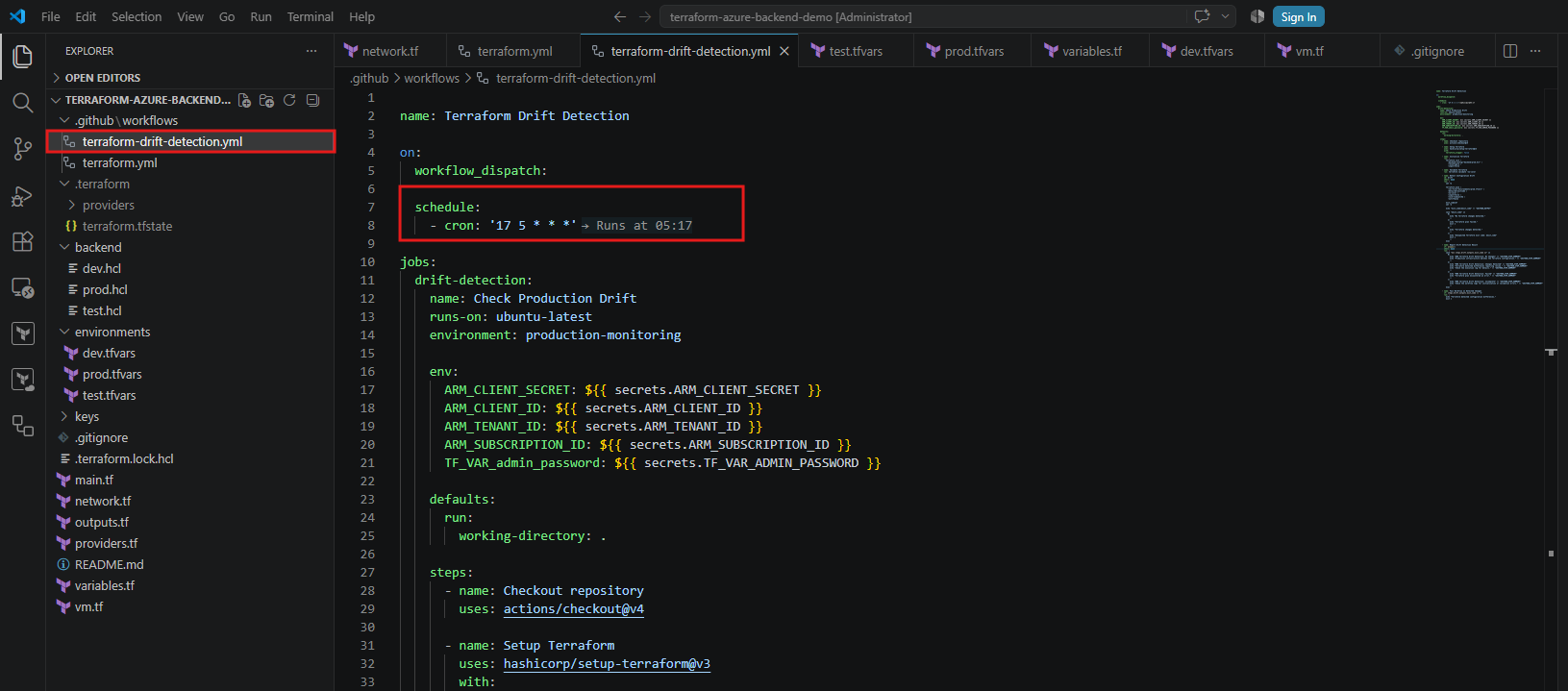
The workflow is configured to run daily at 05:17 UTC. GitHub Actions schedules use UTC, and scheduled workflows may be delayed during periods of high load.
We use minute 17 instead of the full hour because the start of every hour is GitHub Actions’ busiest time, when scheduled runs are more often delayed or dropped.
The GitHub Actions extension for VS Code translates the cron expression inline as “Runs at 05:17”, which is UTC (06:17 Berlin winter time).
During execution, GitHub Actions authenticates against Azure using OpenID Connect (OIDC), initializes Terraform with our existing production backend configuration, and generates an execution plan.
The workflow uses the exit code returned by Terraform to determine whether changes are required and publishes the result in the GitHub Actions job summary.
Important: This workflow only generates a Terraform execution plan. It does not execute
terraform applyand therefore does not automatically modify deployed Azure resources.Additionally, the scheduled workflow uses the repository’s default branch. Because our production environment has a required approval gate, the job may require approval before it can execute. We will need to account for this when configuring unattended monitoring.
Committing and Pushing the Drift Detection Workflow to GitHub
After creating and configuring our new GitHub Actions workflow in Visual Studio Code, we need to commit the file and push it to our remote GitHub repository.
Following our existing branching strategy, we first commit the workflow to the develop branch before promoting it through test and finally main.
First, we verify that we are currently working on the correct branch:
git branch --show-current
Next, we stage our new workflow file, create a commit, and push the changes to GitHub:
git add .github/workflows/terraform-drift-detection.yml
git commit -m "Add production Terraform drift detection workflow"
git push origin develop
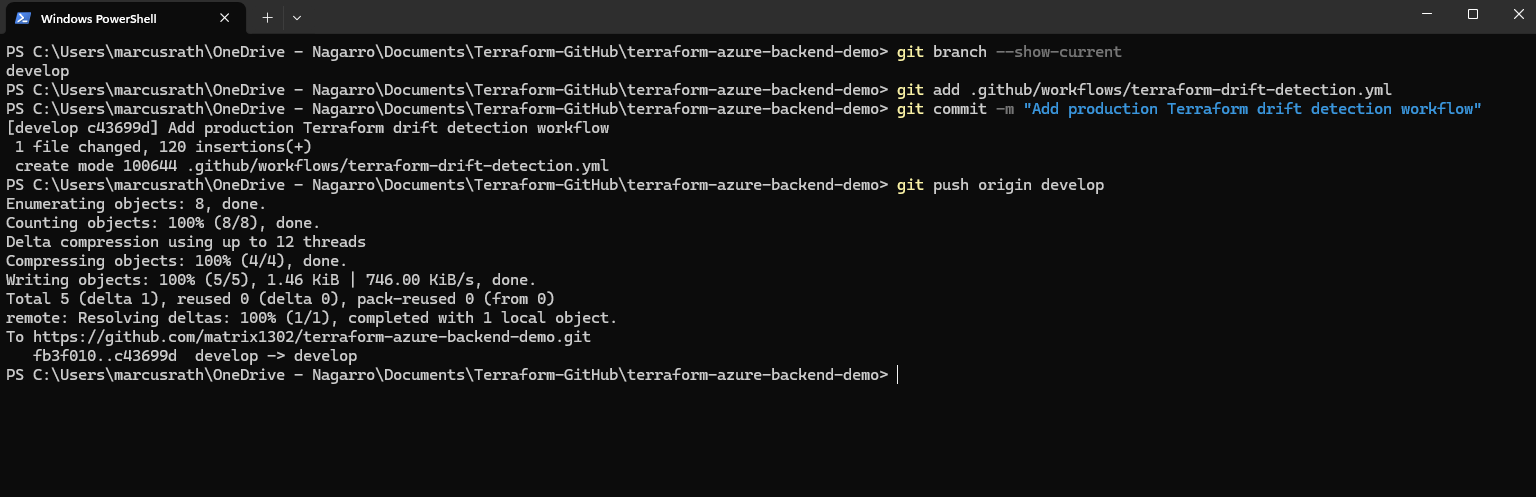
The workflow is now available in the remote GitHub repository on the develop branch.
Since GitHub Actions scheduled workflows are executed from the repository’s default branch, we will promote our changes to main before testing the scheduled execution.
Promoting the Drift Detection Workflow to the Production Branch
After committing and pushing our new drift detection workflow to the develop branch, we need to promote it through our existing GitHub branching strategy.
As established in the previous parts of this series, our repository uses three branches to separate development, testing, and production deployments:
- develop: Development and initial validation of Terraform configurations and GitHub Actions workflows.
- test: Testing changes before they are promoted to production.
- main: Production branch containing the approved Terraform configuration.
We follow the same pull request process described in Part 5 of this series, promoting our changes from develop → test → main.
First, we navigate to our GitHub repository and create a pull request from develop into test. After reviewing and merging the changes, we create another pull request from test into main.
This ensures that our new drift detection workflow follows the established review and approval process before becoming available in production.
Since we already covered this process in detail in Part 5, we will skip the individual pull request and merge steps here and continue directly with testing our new drift detection workflow.
Once merged into main, GitHub Actions can execute the workflow automatically using the configured schedule:
schedule:
  - cron: '17 5 * * *'
This schedules the workflow to run daily at 05:17 UTC.
The workflow also supports manual execution through the workflow_dispatch trigger, which we will use to verify its functionality without waiting for the next scheduled execution.
Important: Promoting the workflow file itself does not automatically execute
terraform apply. However, our existing deployment workflow may also be triggered by pull requests or merges. We therefore need to verify the deployment workflow’s trigger conditions before merging changes into the production branch.
Before manually executing our new drift detection workflow, we will first adjust the trigger configuration of our existing Terraform deployment workflow to prevent unnecessary infrastructure deployments when modifying only GitHub Actions workflow files.
Manually Triggering and Testing the Terraform Drift Detection Workflow
After successfully promoting our new Terraform Drift Detection workflow to the main branch, we can manually execute it to verify that it works as expected.
As configured earlier, our workflow supports both scheduled and manual execution:
  workflow_dispatch:

  schedule:
    - cron: '17 5 * * *'
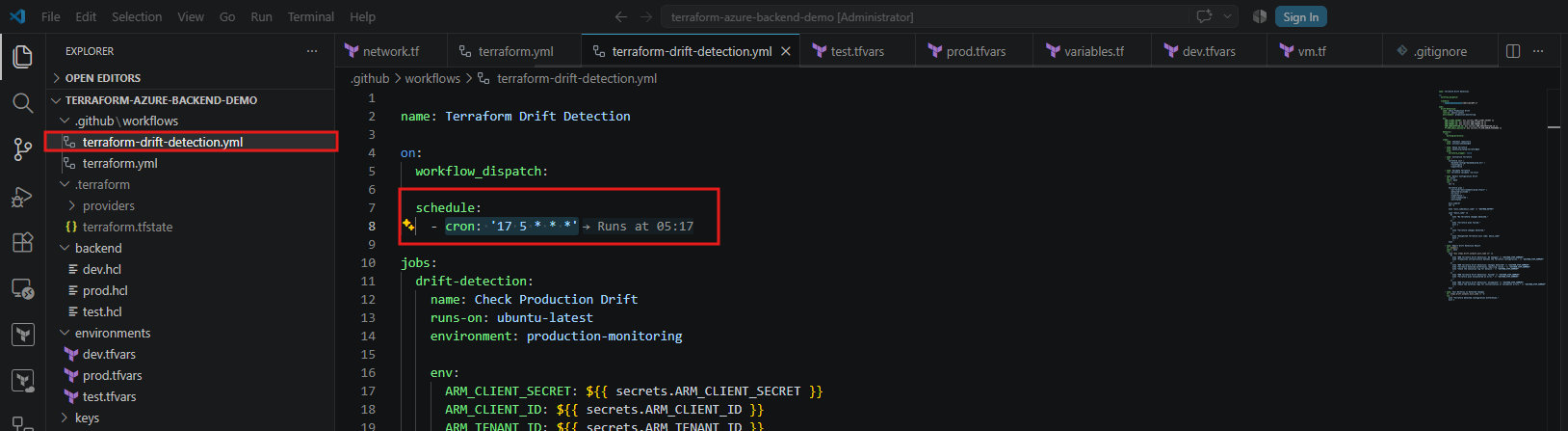
Instead of waiting for the next scheduled execution at 05:17 UTC, we will manually trigger the workflow using GitHub Actions.
We navigate to our GitHub repository and open Actions → Terraform Drift Detection.
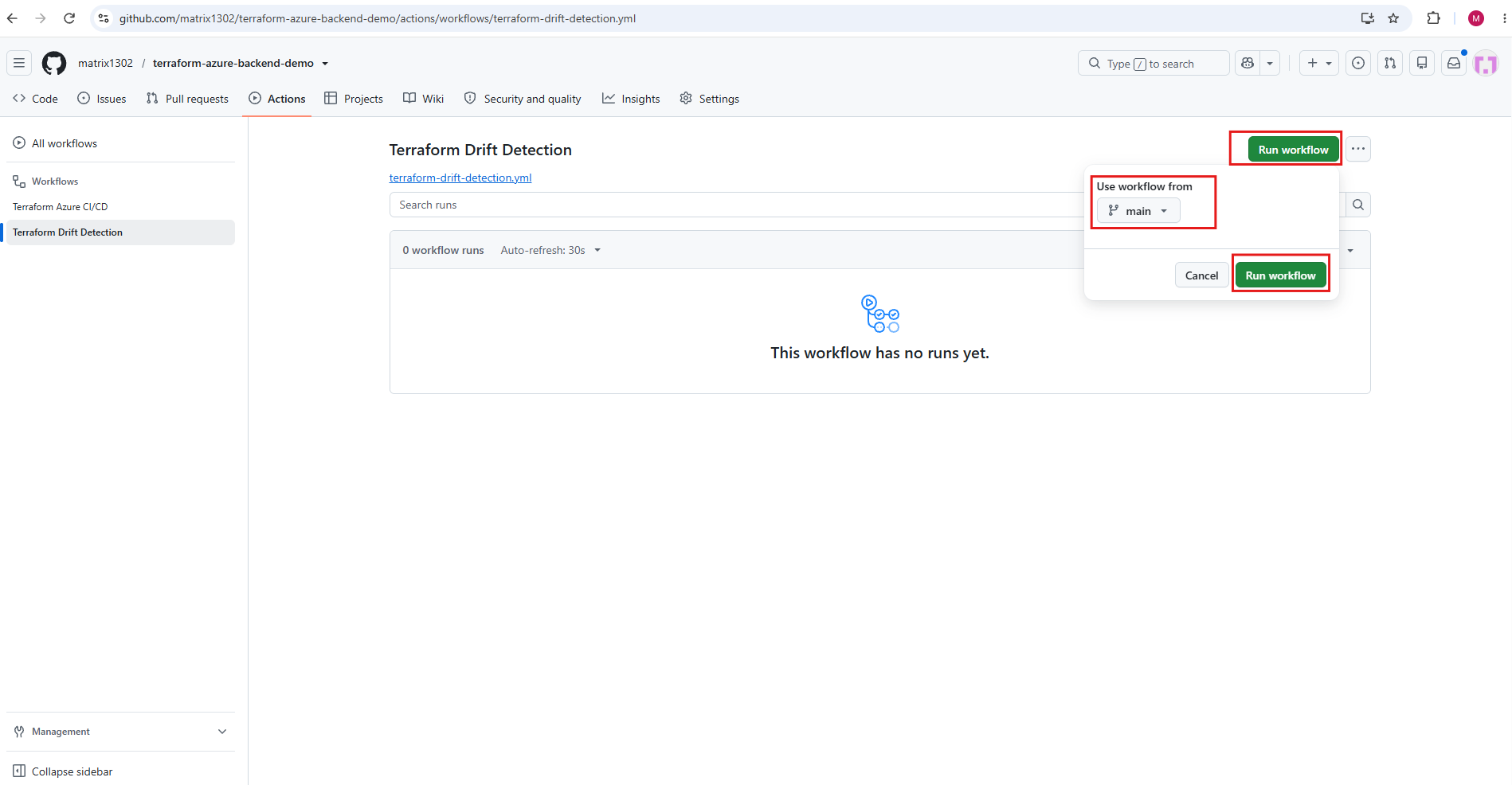
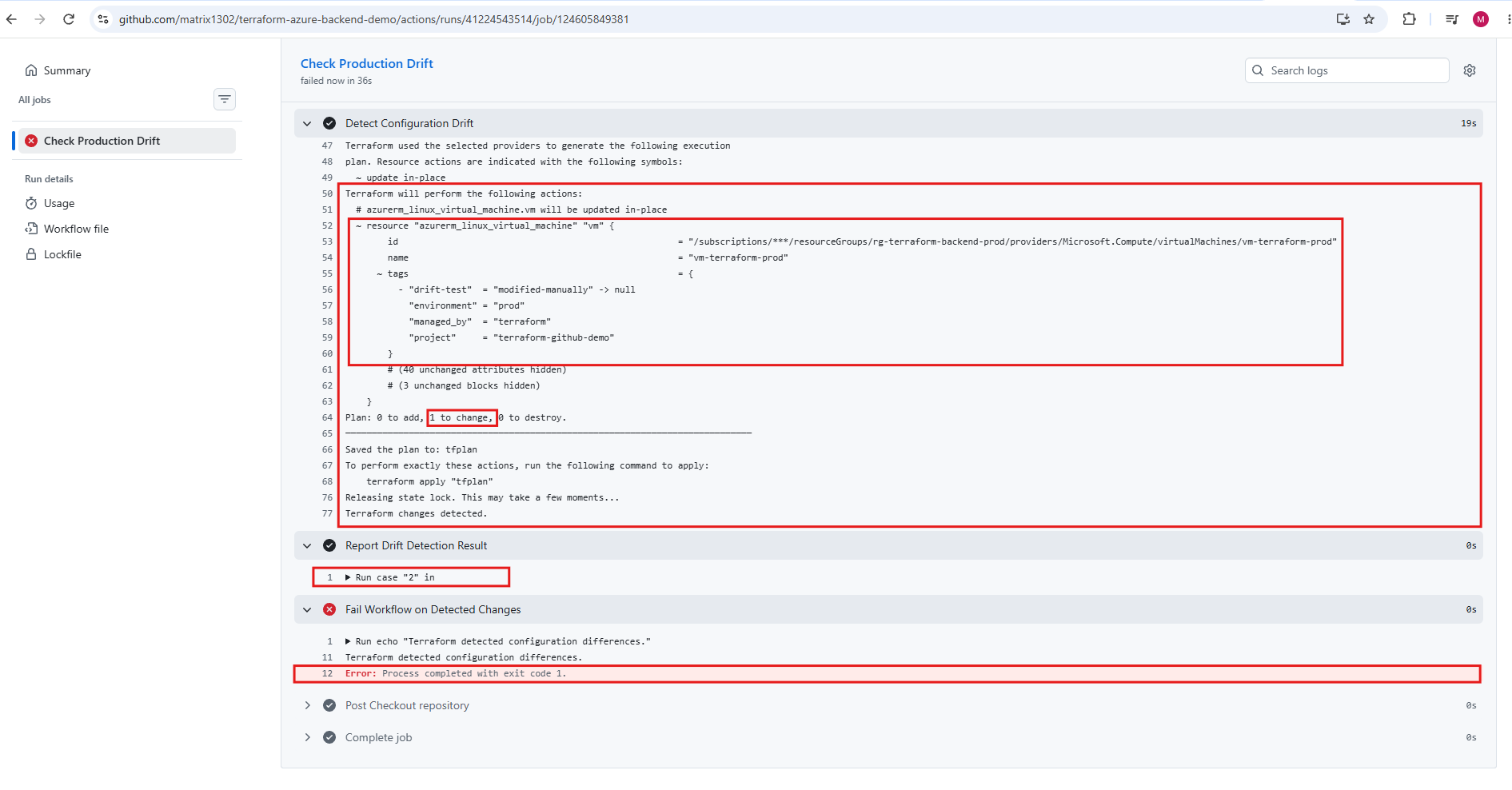
On the workflow page, we click Run workflow, select the main branch, and confirm by clicking Run workflow again.
As shown below, our new Terraform Drift Detection workflow is now available in GitHub Actions. Since it has not been executed yet, no previous workflow runs are listed.
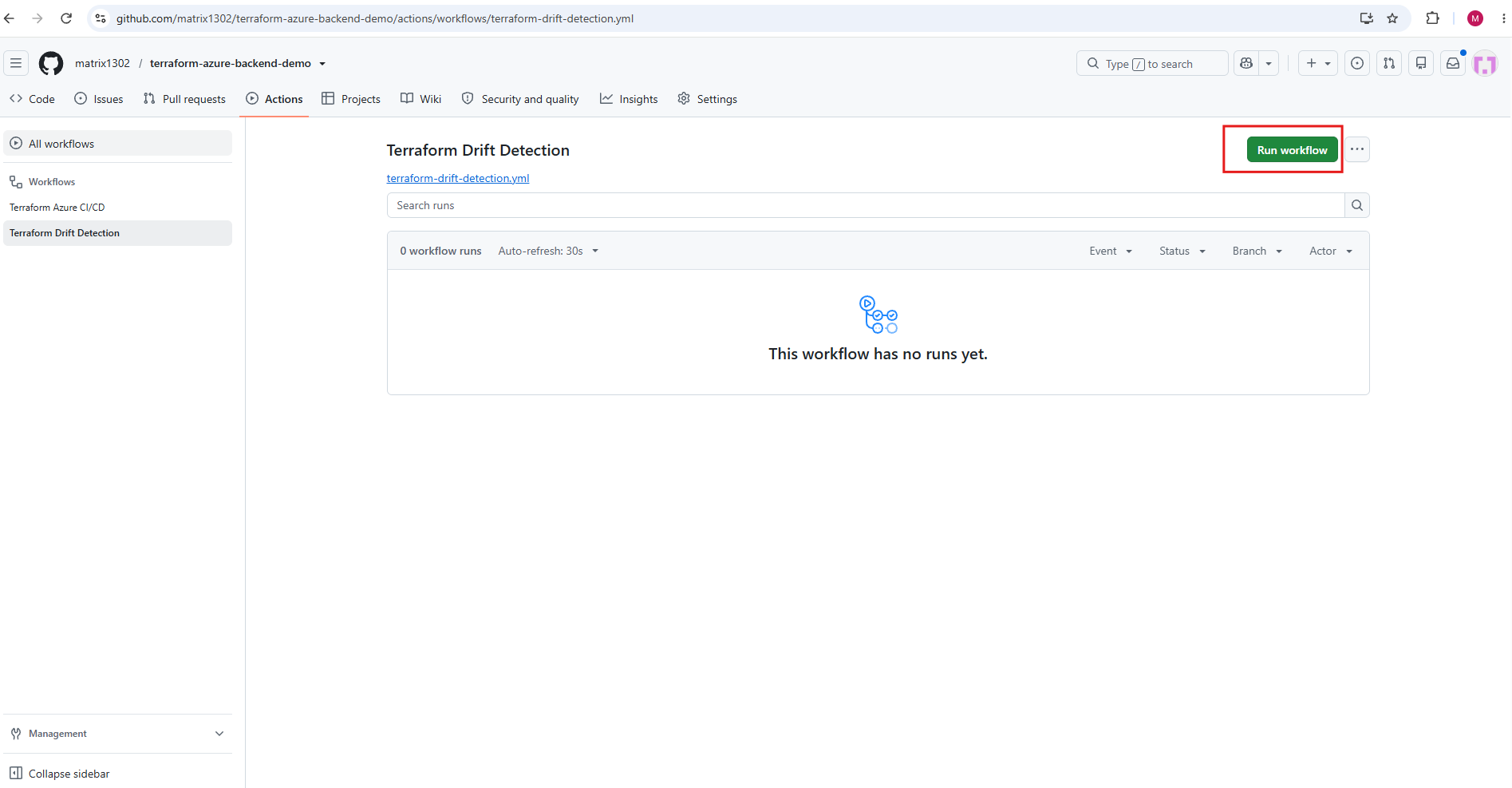
Next, click Run workflow, select main, and confirm the execution.
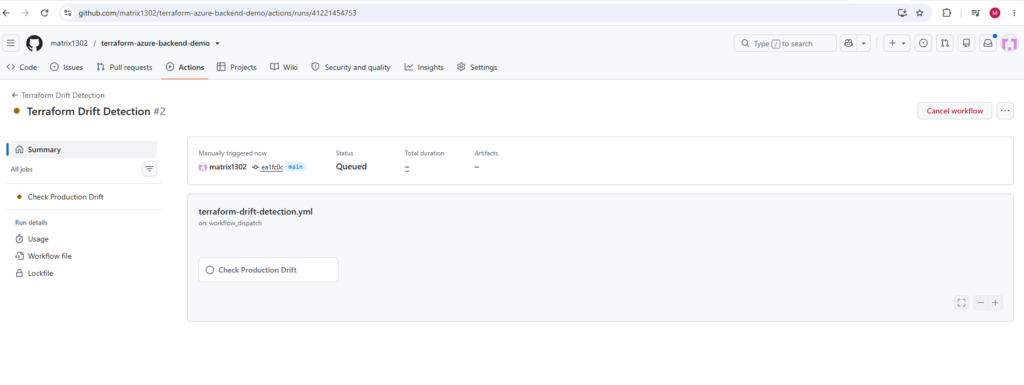
After manually triggering the Terraform Drift Detection workflow from the main branch, GitHub Actions creates a new workflow run with the status Queued.
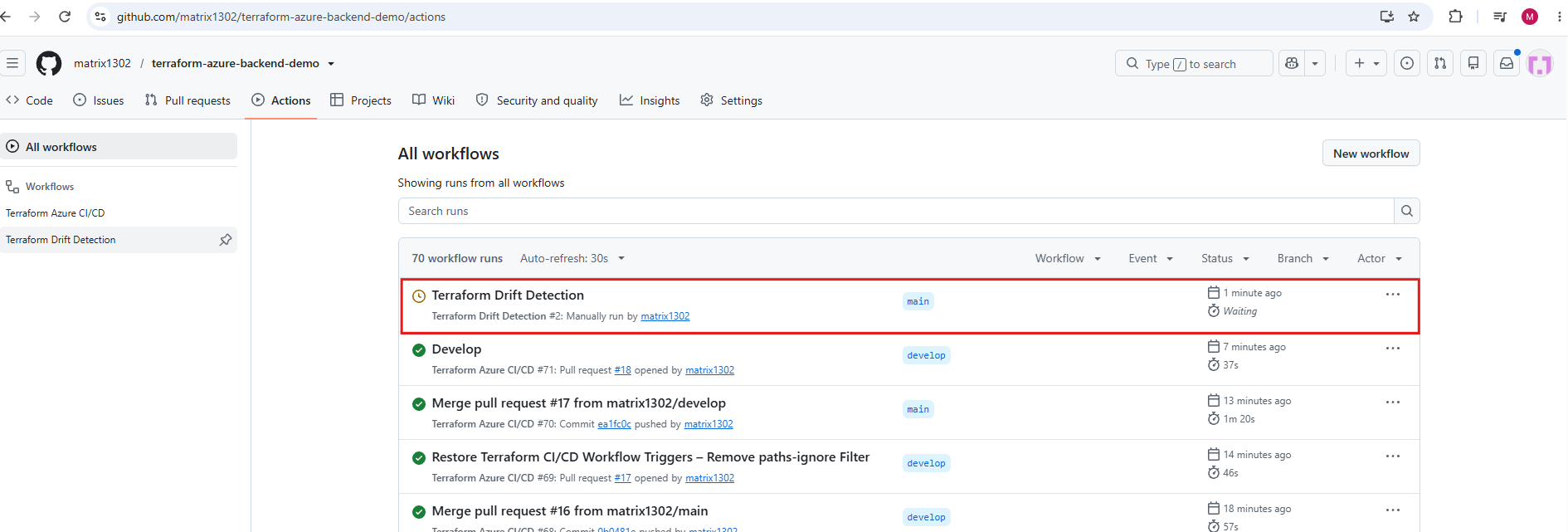
Before executing the Terraform steps, the workflow requires manual approval because it is associated with our protected
productionenvironment.
To approve click on the workflow below.
Click on Check Production Drift.
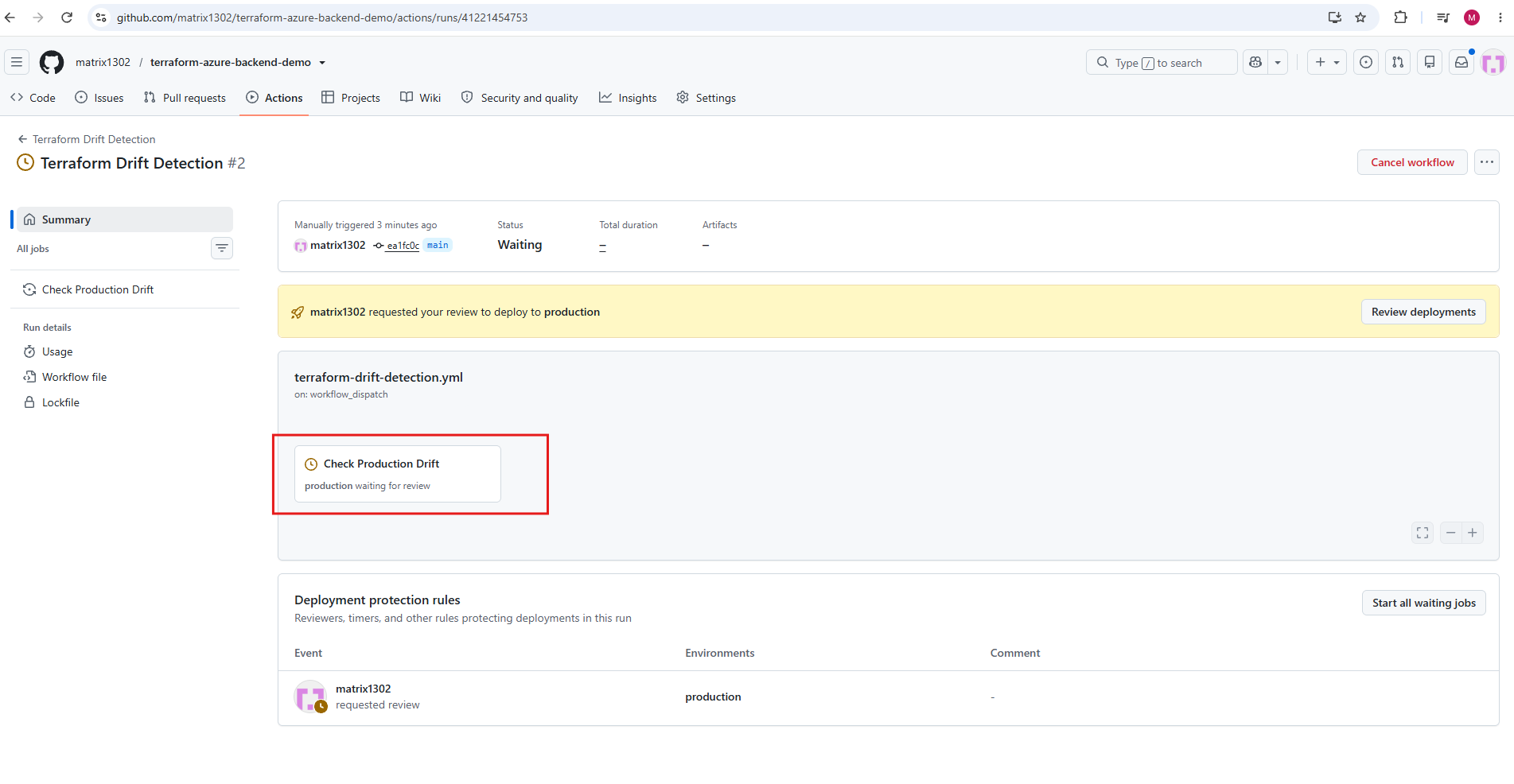
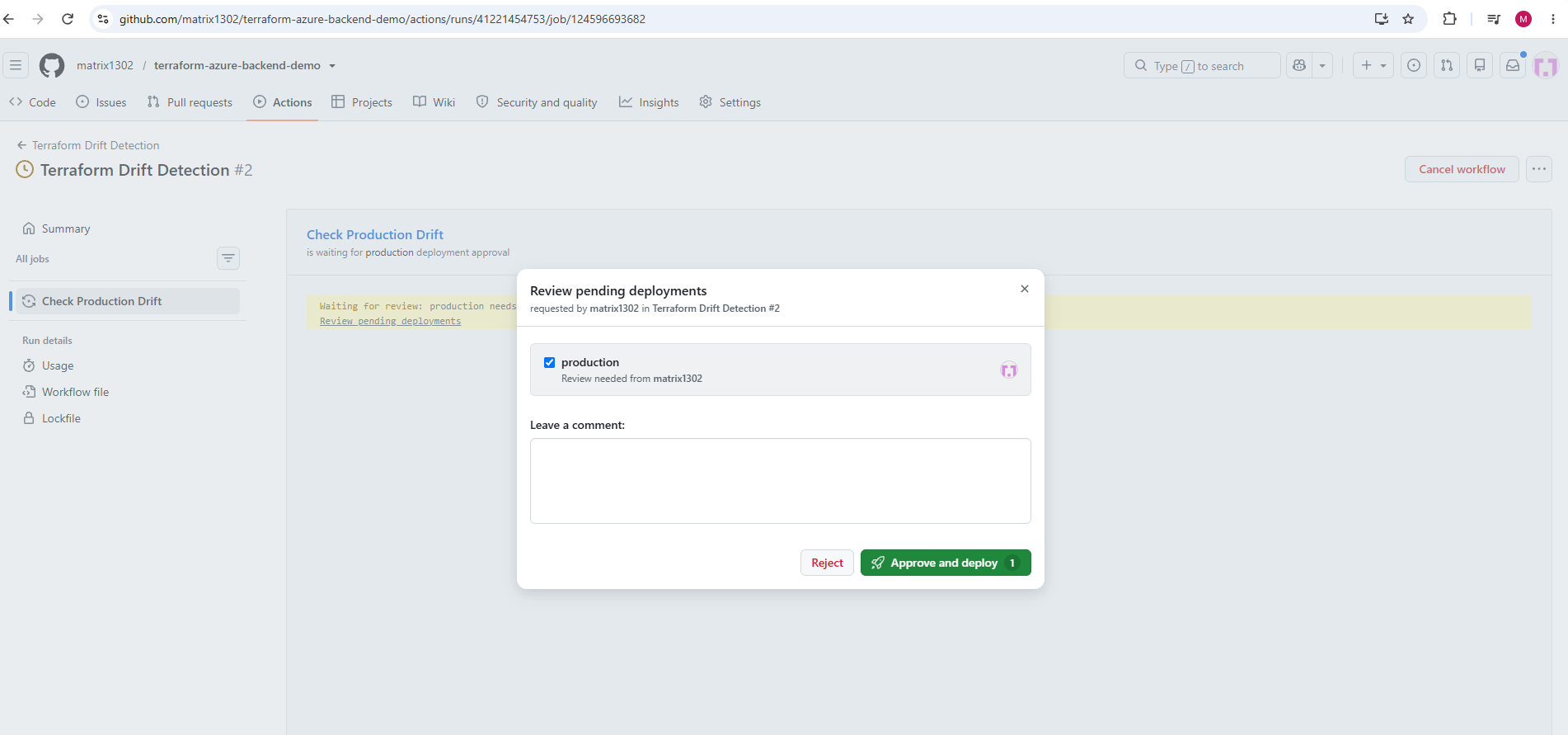
Here we can see the manual approval required by our protected production environment. With production selected, click Approve and deploy to authorize execution of the drift detection job.
Although GitHub uses the term deploy, our workflow only executes
terraform planand does not deploy or modify any Azure resources.
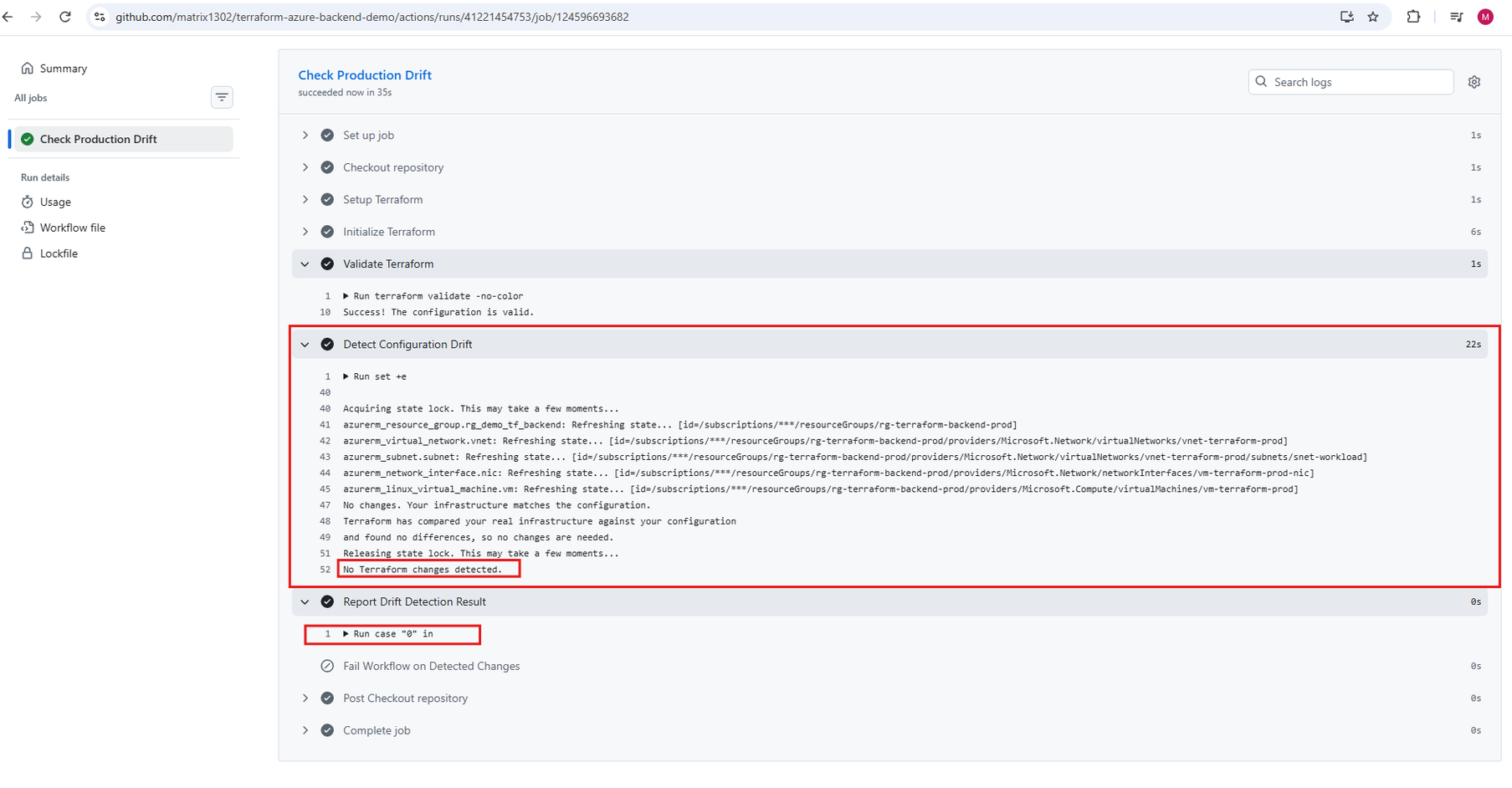
After approving the workflow execution, GitHub Actions successfully completed the Terraform drift detection job.
Terraform refreshed the state of the deployed Azure resources and reported “No changes. Your infrastructure matches the configuration.” The workflow therefore completed successfully without modifying any Azure resources.
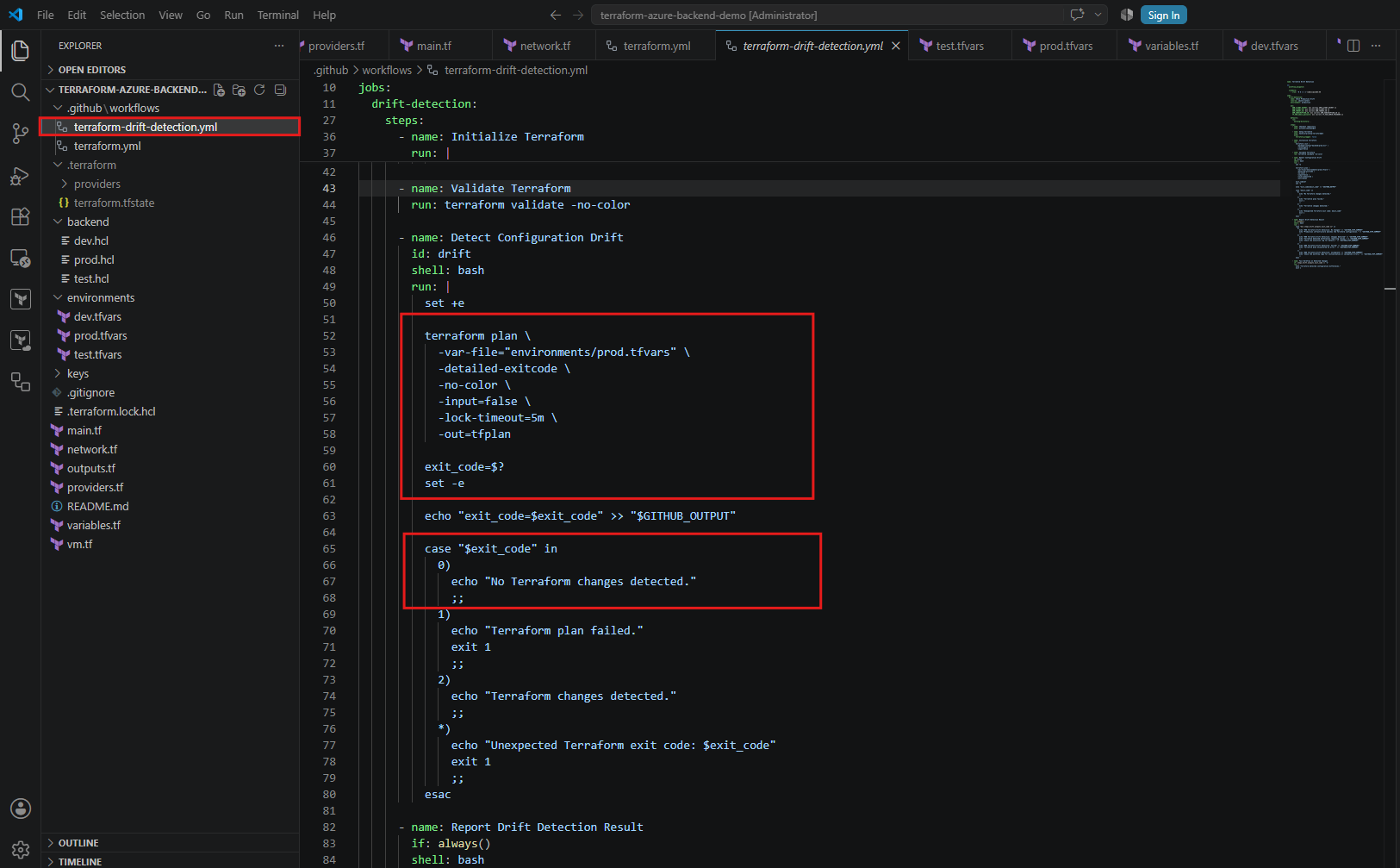
As shown in our workflow configuration below, terraform plan uses the -detailed-exitcode option to distinguish between three possible results:
- Exit code 0: No changes detected.
- Exit code 1: Terraform encountered an error.
- Exit code 2: Terraform detected differences between the configuration and the infrastructure.
In our case, Terraform returned exit code 0, confirming that the deployed production infrastructure matches our Terraform configuration. The workflow therefore completed successfully without making any changes to Azure resources.
Testing Terraform Drift Detection by Manually Modifying an Azure Resource
Now that our first drift detection run completed successfully without detecting any differences, let’s deliberately introduce some infrastructure drift to verify that our workflow behaves as expected.
For this test, we will modify the tags of our production VM, vm-terraform-prod, directly in the Azure Portal without changing the Terraform configuration.
We will add a new tag with the name drift-test and the value modified-manually.
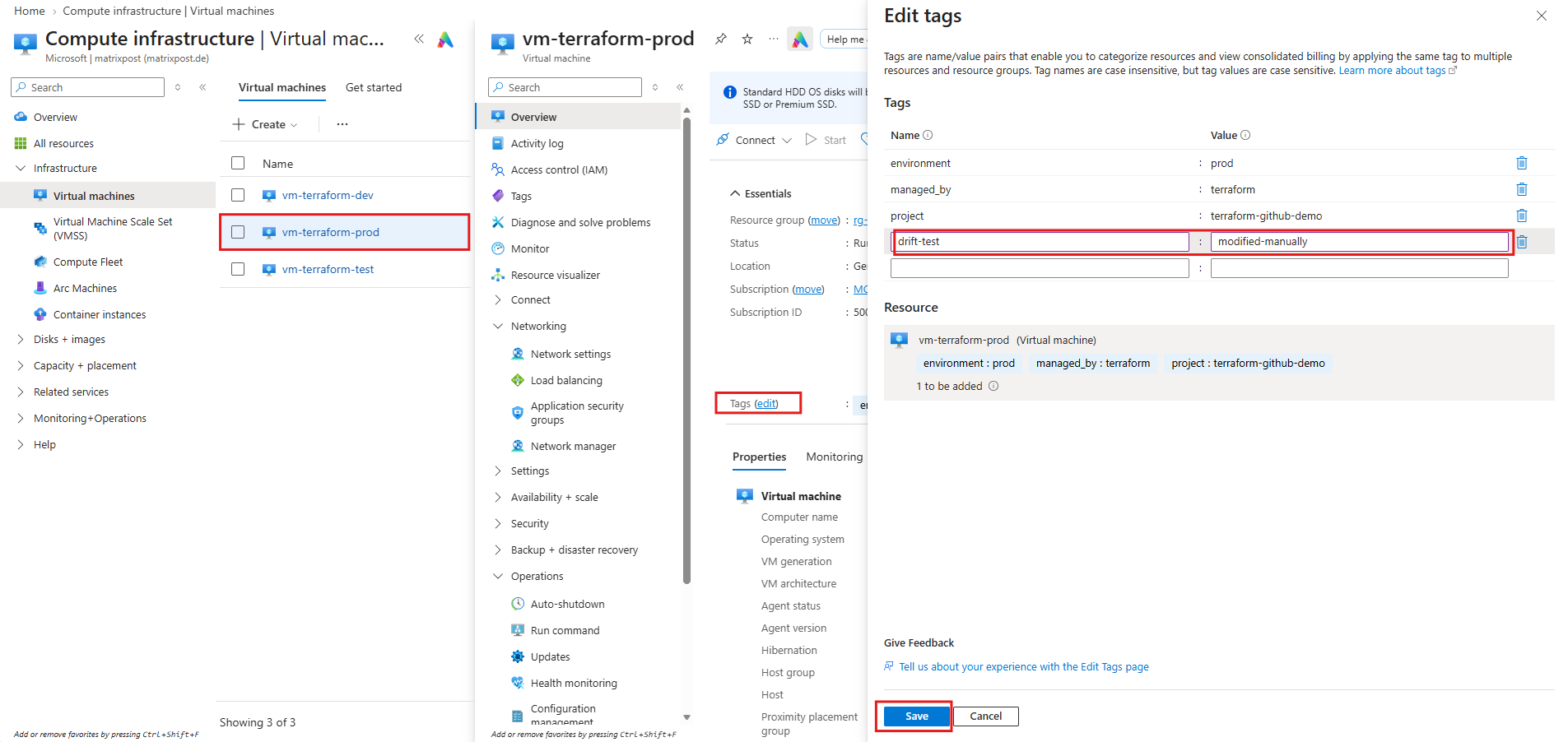
Since this change is performed outside Terraform, the actual Azure resource configuration will no longer match our declared infrastructure. When we execute the drift detection workflow again, Terraform should identify the difference and return exit code 2, indicating that changes are required to restore the expected configuration.
Our workflow will report the detected differences and intentionally fail the GitHub Actions job, without modifying any Azure resources.
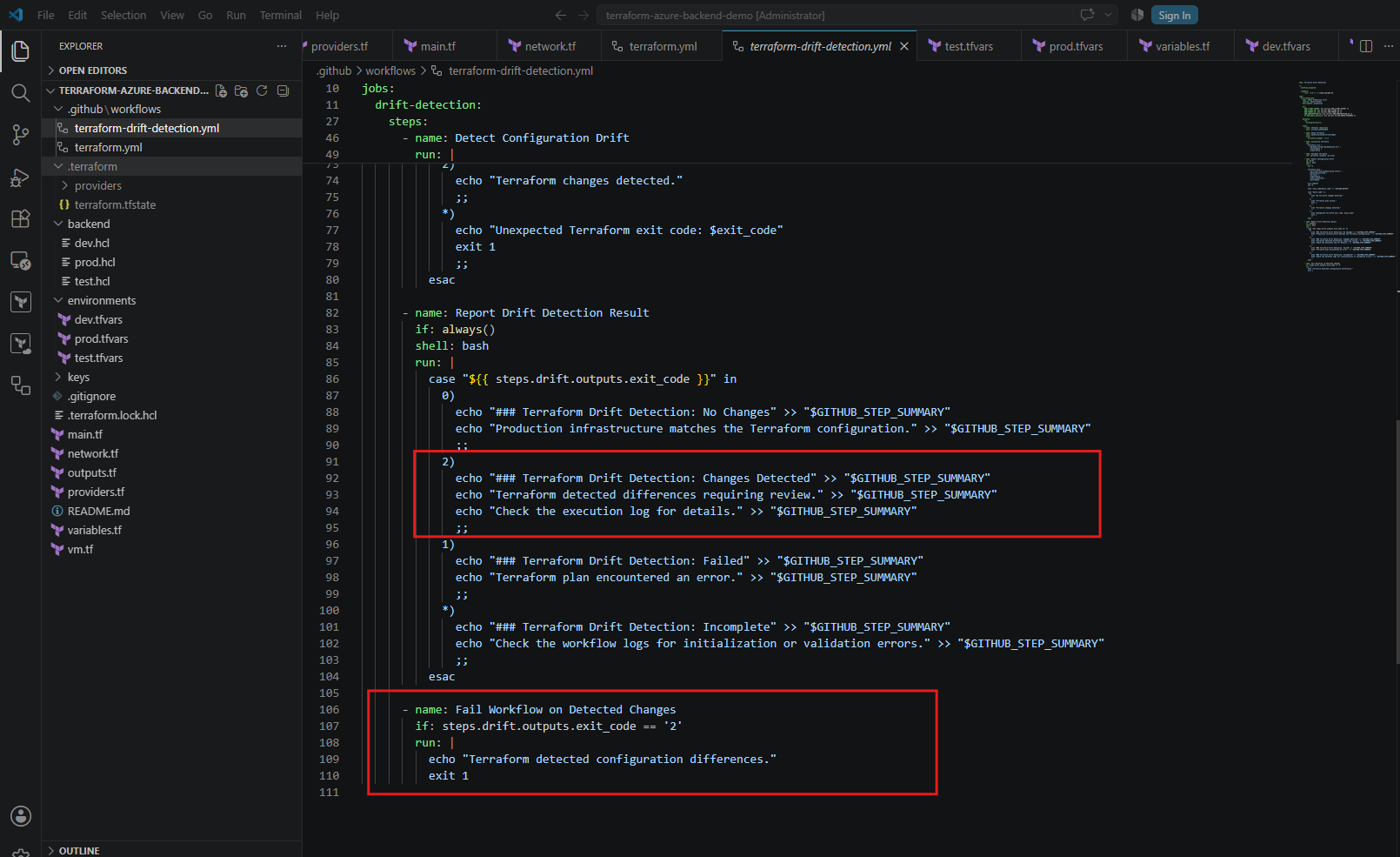
As shown in our workflow configuration below,
exit code 2generates a corresponding message in the GitHub Actions job summary and triggers the Fail Workflow on Detected Changes step.This intentionally marks the workflow as failed, making detected configuration differences immediately visible.
With the manually added tag saved in Azure, we trigger the Terraform Drift Detection workflow again from the main branch and approve its execution.
This time, Terraform should detect the difference between the actual production VM configuration and our declared Terraform configuration. Let’s examine the workflow logs to verify that the drift is correctly identified and reported.
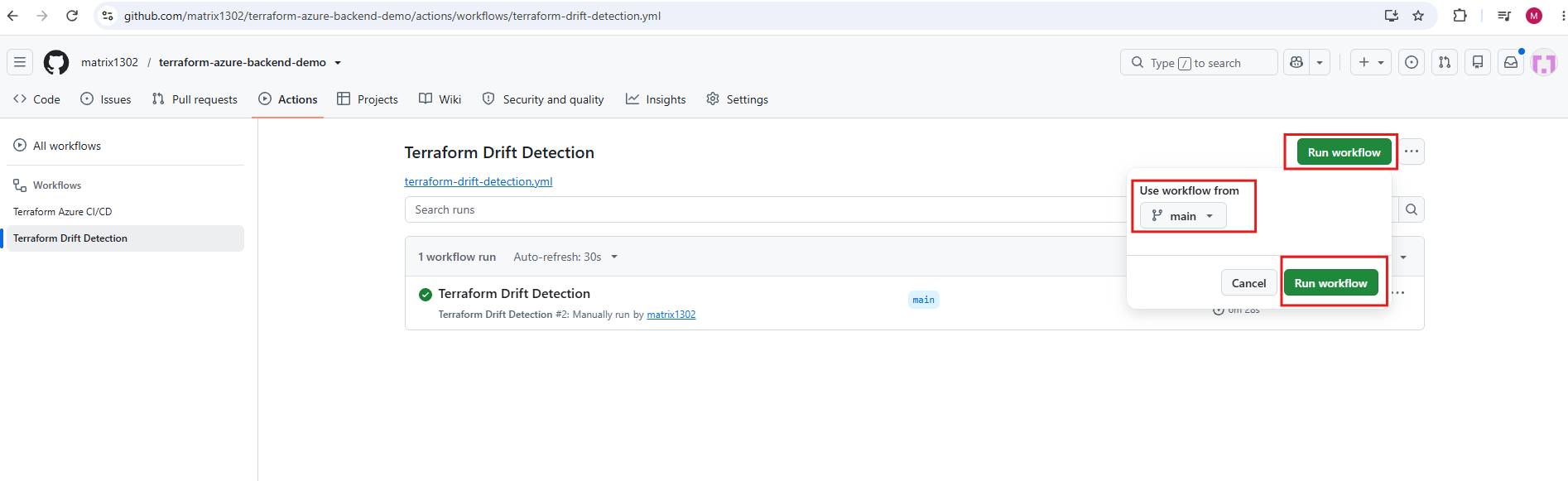
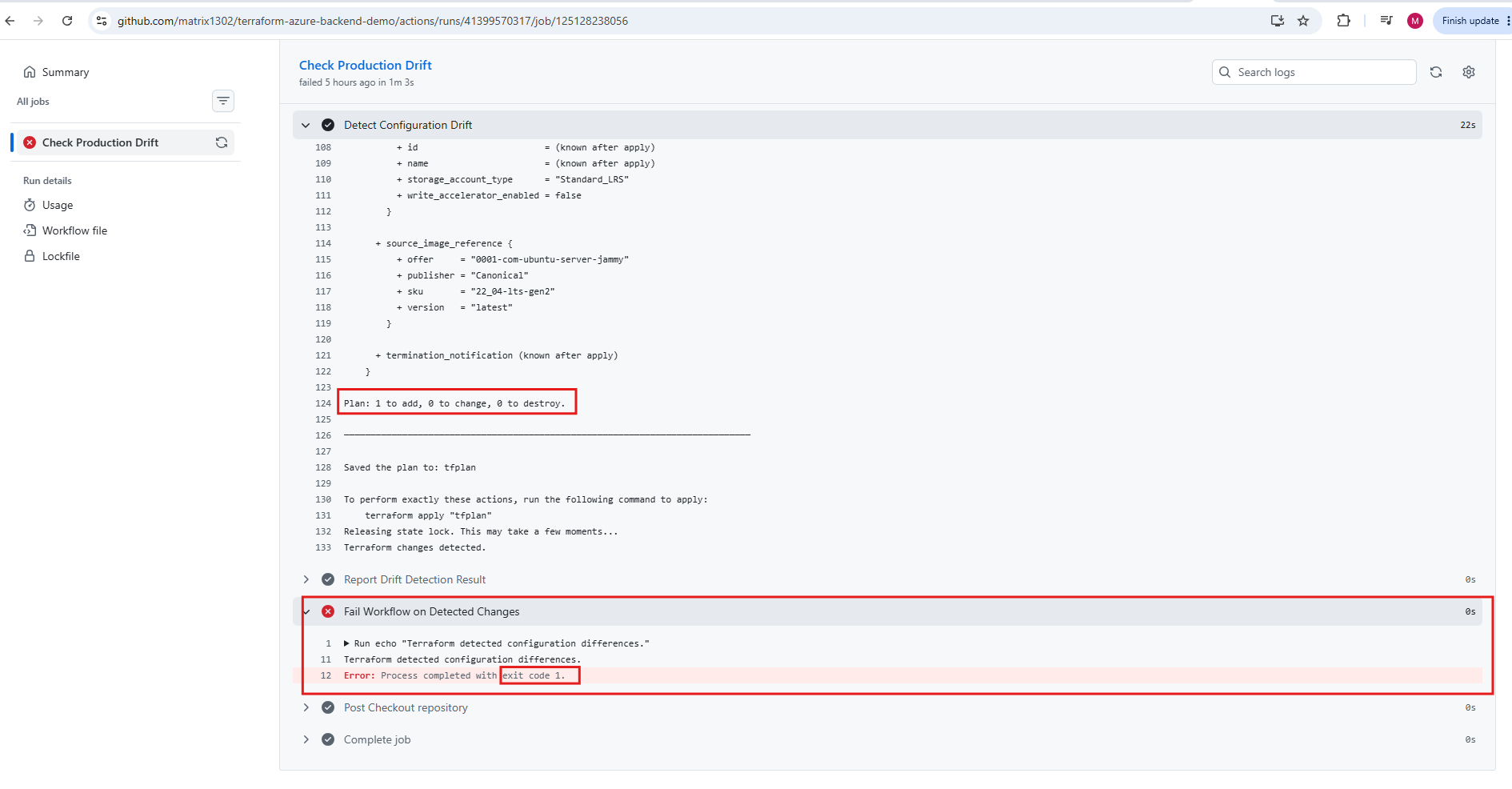
After manually triggering the workflow again, Terraform successfully detected the configuration drift introduced on our production VM.
The execution plan identified the manually added
drift-test = modified-manuallytag and proposed removing it through an in-place update, reportingPlan: 0 to add, 1 to change, 0 to destroy.Terraform returned exit code 2, indicating that configuration differences were detected. As configured in our workflow, the final Fail Workflow on Detected Changes step then exited with code 1, intentionally marking the GitHub Actions job as failed.
Importantly, no changes were applied to Azure. The manually added tag remains in place until we explicitly remediate the drift.
Avoiding Manual Approval for Scheduled Drift Detection
Since our drift detection workflow references the GitHub production environment, any configured required reviewers would also apply to scheduled executions. This would prevent the workflow from running unattended.
To avoid this, we can create a separate GitHub environment, such as production-monitoring, without required reviewers, and assign it to our drift detection job.
This allows production deployments to remain protected by manual approval, while our daily drift detection runs automatically without human intervention. Any required environment secrets must also be configured for the new environment.
Creating a Dedicated GitHub Environment for Drift Detection
Navigate to Settings → Environments → New environment in the GitHub repository and create a new environment named production-monitoring.
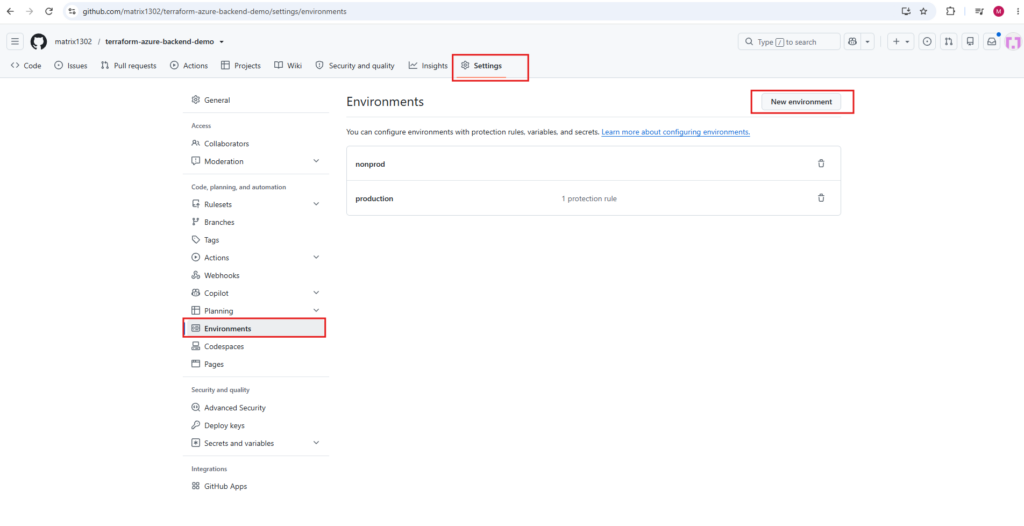
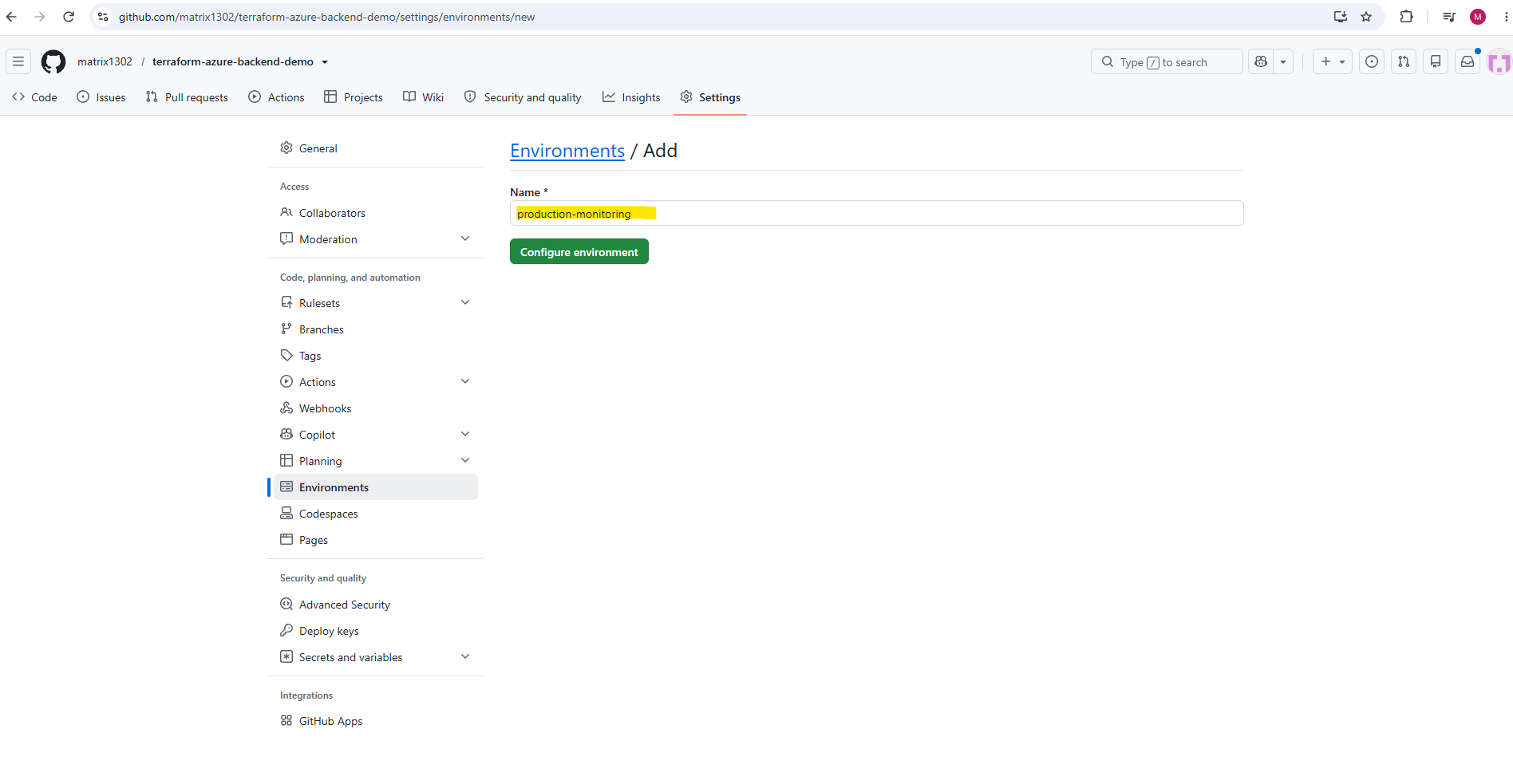
Unlike our existing production environment, we leave Required reviewers disabled so that scheduled workflows can execute without manual approval.
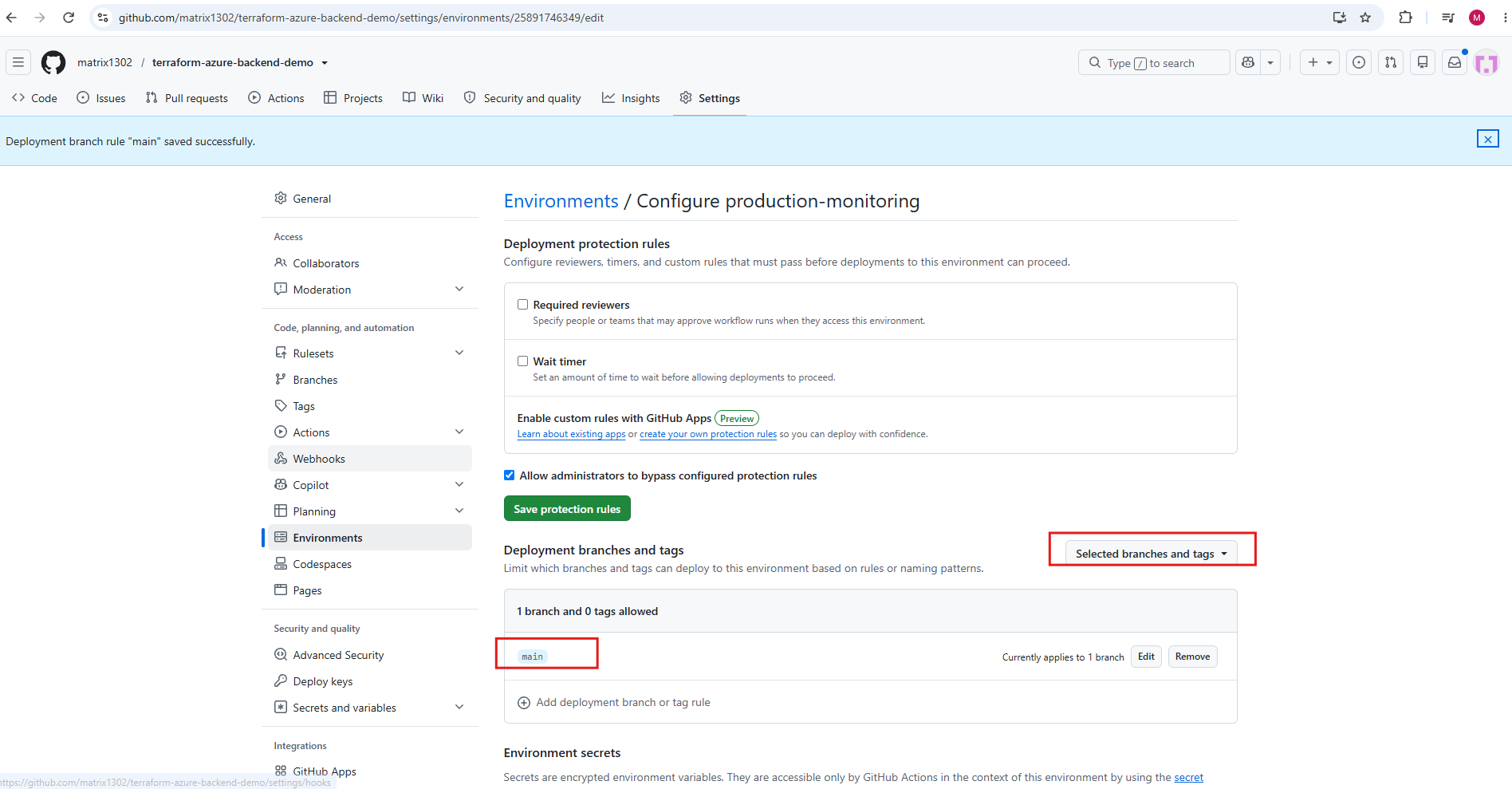
We additionally restricted the production-monitoring environment to the main branch under Deployment branches and tags → Selected branches and tags. We don’t need to configure any environment secrets for production-monitoring, as our workflow already uses repository-level secrets; environment secrets are sensitive values, such as passwords or API credentials, that are only accessible to workflows referencing the specific GitHub environment.
This ensures that only workflows running from our production branch can access this monitoring environment, while scheduled drift detection can execute without manual approval.
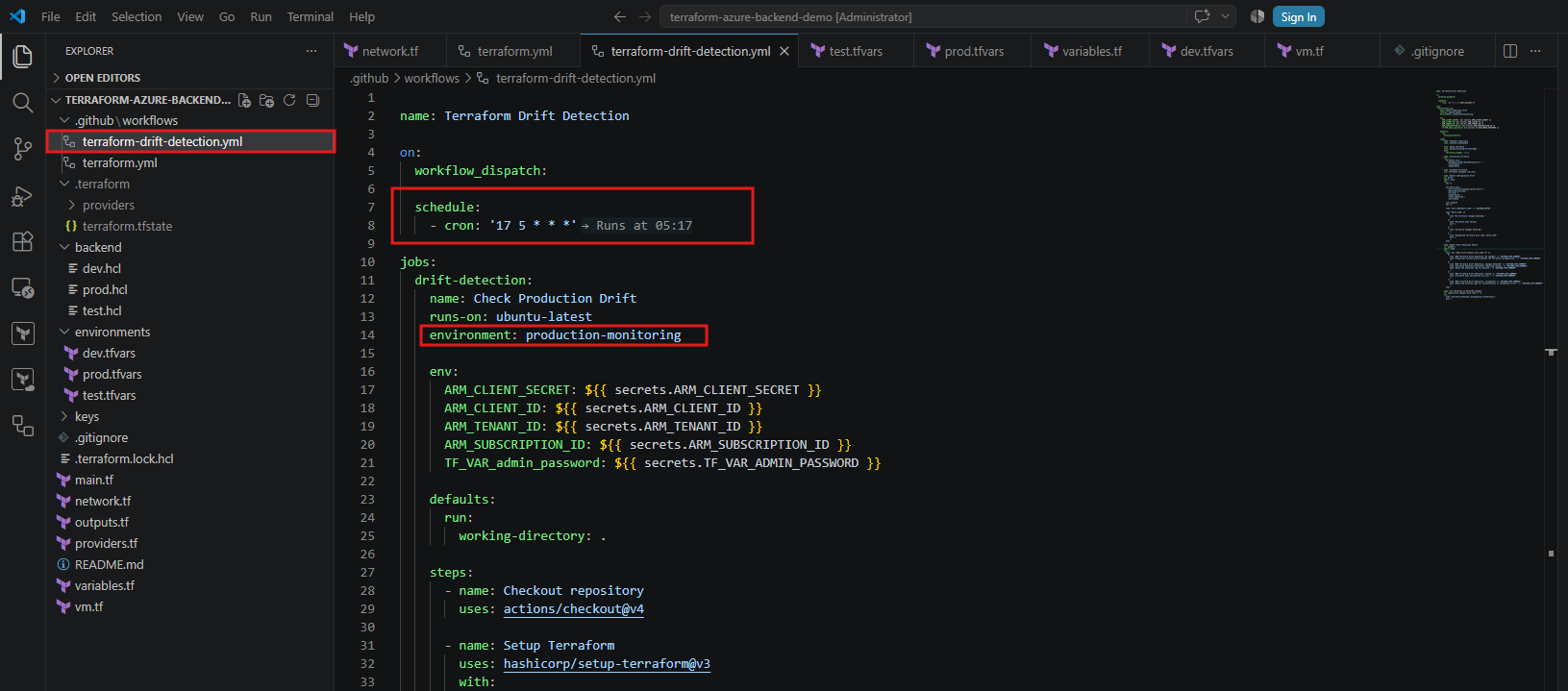
Next, we update the drift detection workflow to reference the new environment:
Our regular Terraform deployment workflow continues using the protected
productionenvironment, while drift detection runs independently and automatically.
environment: production-monitoring
Testing the Automated Drift Detection Workflow
After updating terraform-drift-detection.yml to use the new production-monitoring environment, we follow our usual approach from Part 4 and Part 5 to merge the changes into the main branch.
Next, we manually trigger the Terraform Drift Detection workflow once more under Actions → Terraform Drift Detection → Run workflow.
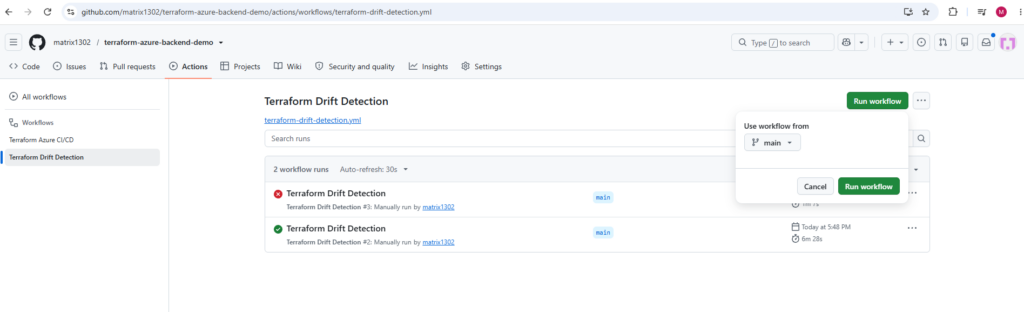
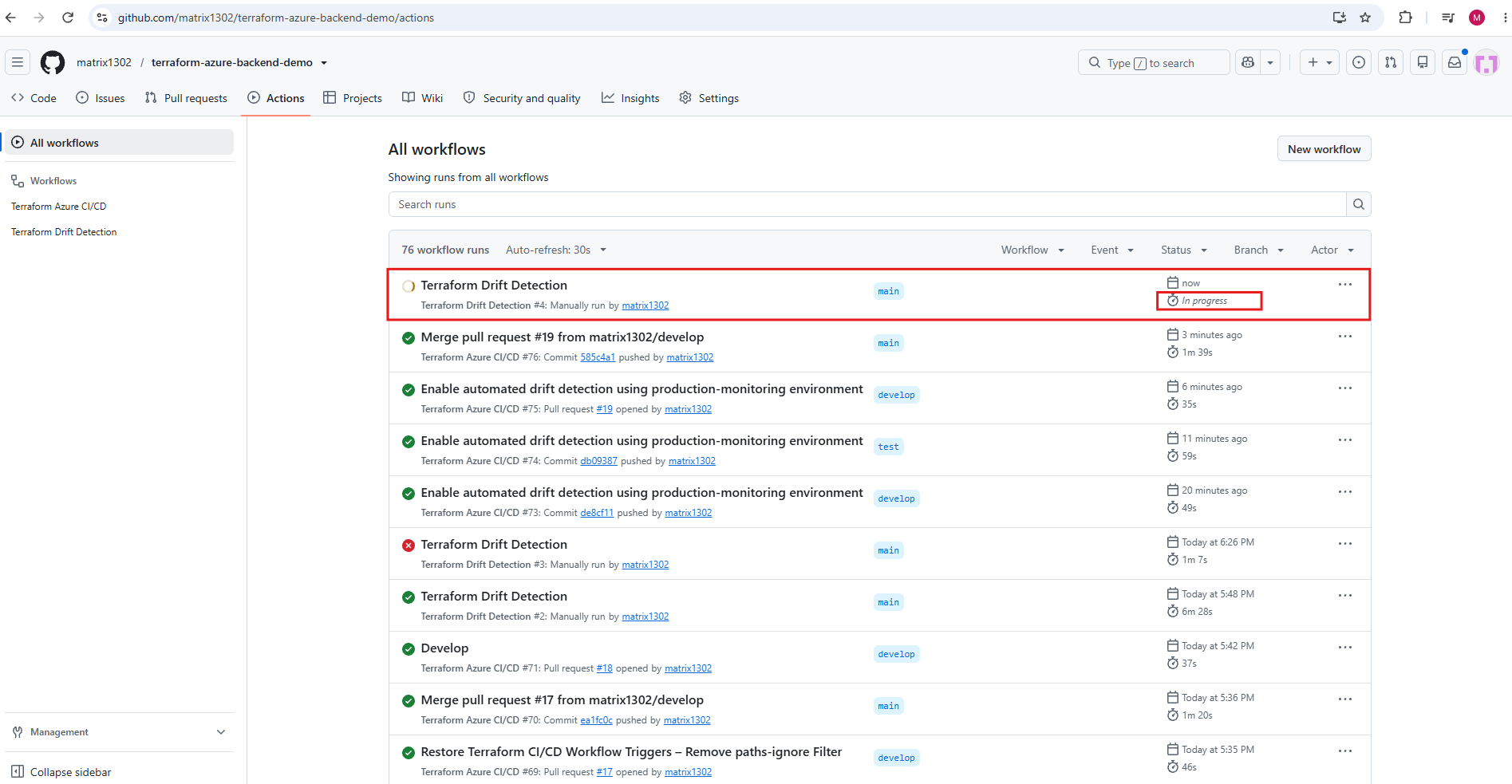
This time, the workflow should start immediately without requiring manual approval, confirming that our environment configuration also supports unattended scheduled executions.
As shown below, the workflow immediately enters the In progress state instead of waiting for manual approval, confirming that our new
production-monitoringenvironment works as intended.
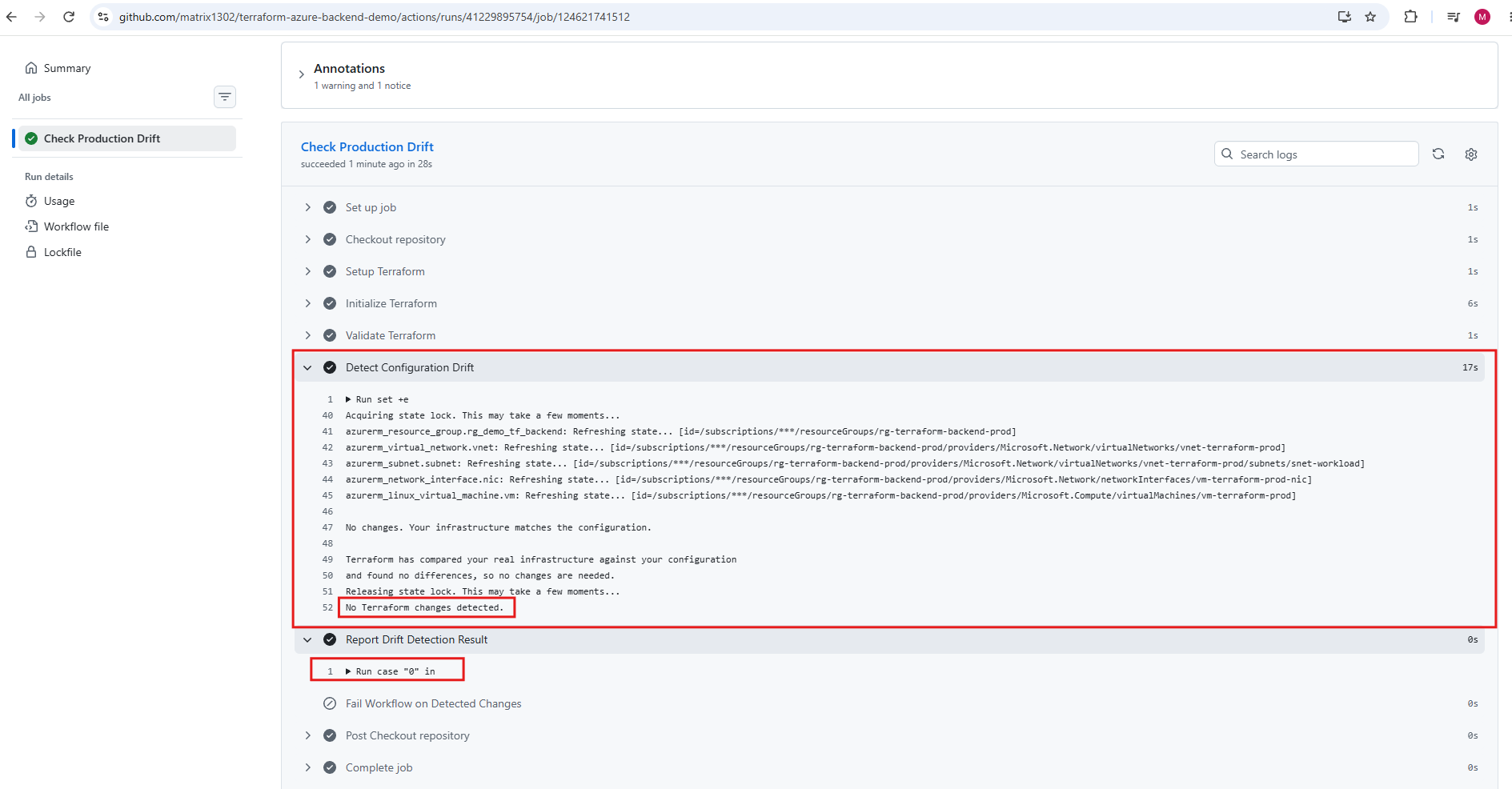
The workflow completed successfully, without requiring manual approval. Terraform refreshed the state of our Azure production resources and confirmed “No Terraform changes detected.”
The Report Drift Detection Result step returned exit code
0, indicating that no infrastructure drift was detected. Our automated drift detection is now working as intended, without modifying any Azure resources.
The daily schedule remains configured for 05:17 UTC, allowing GitHub Actions to check our Azure infrastructure automatically.
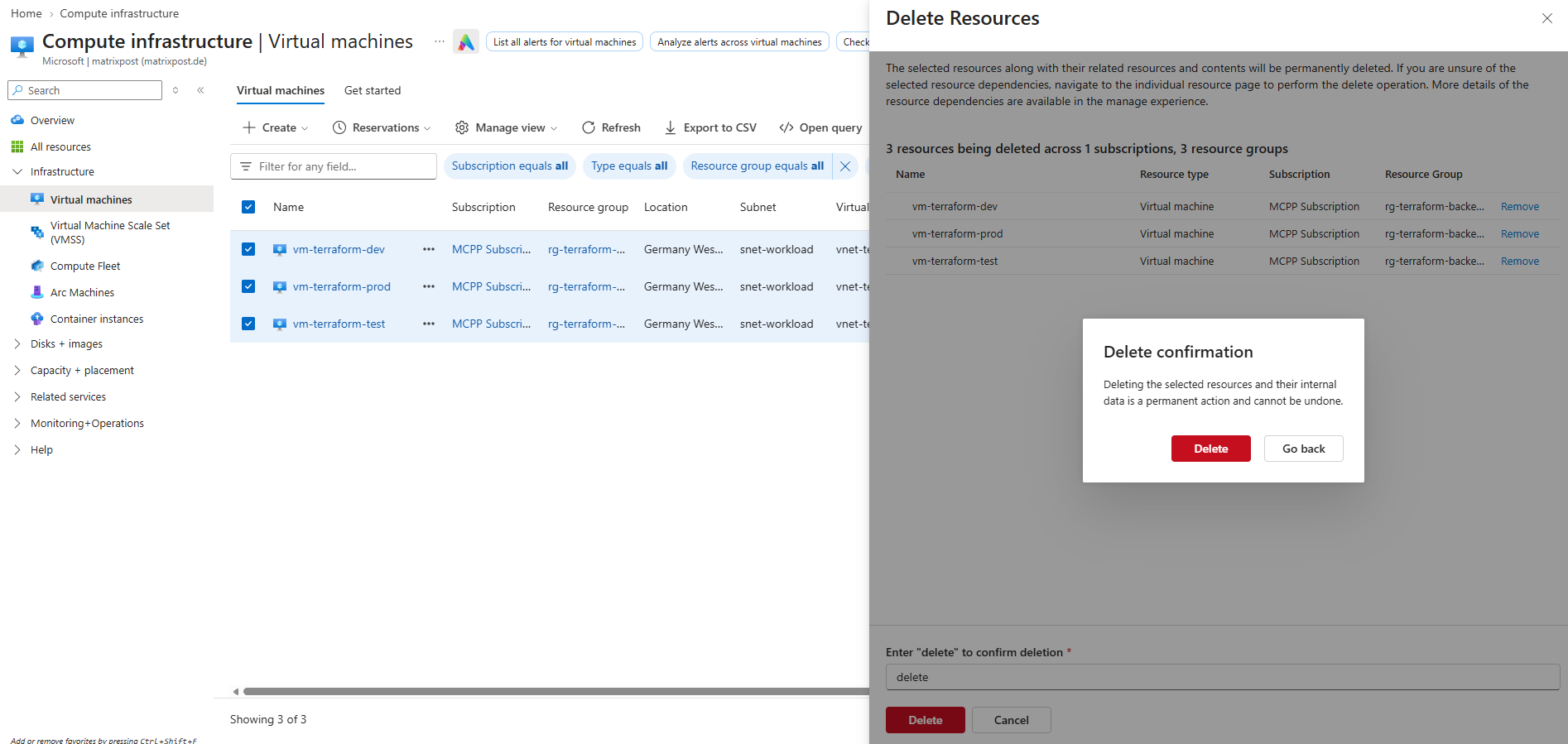
Finally, to conserve our remaining Azure subscription credits and test the scheduled drift detection, we will delete the deployed resources directly in the Azure Portal, without using Terraform. This leaves the resources in the Terraform state file, allowing our next scheduled workflow run to detect the resulting infrastructure drift.
By deleting all three virtual machines (vm-terraform-dev, vm-terraform-test, and vm-terraform-prod) directly in the Azure Portal, we deliberately introduce infrastructure drift without updating the Terraform state files.
The next scheduled drift detection run should identify the missing production VM and report that it needs to be recreated to match our Terraform configuration. The dev and test VMs are not covered by our drift detection, which only monitors production.
At this point, we had already configured an Azure Logic App as an external scheduler for the drift detection workflow, as shown in the next section.
GitHub’s native schedule also ran, but as we’ll see below, it only started more than eight hours late.
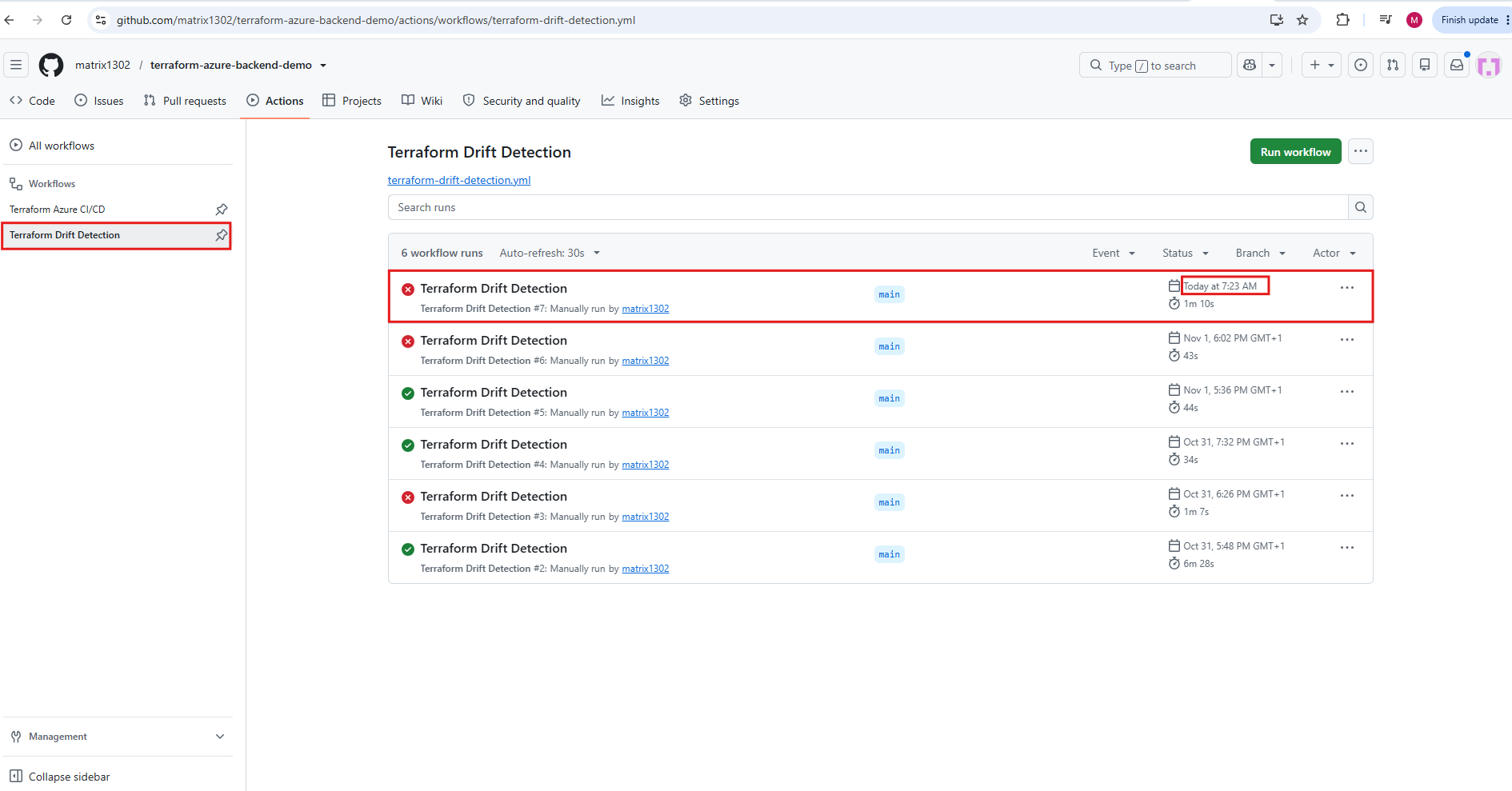
The next morning, the Logic App shown next triggered the workflow at 07:23 on the dot. The run failed as expected, and the plan correctly reported the deleted production VM:
# azurerm_linux_virtual_machine.vm will be created
Plan: 1 to add, 0 to change, 0 to destroy.
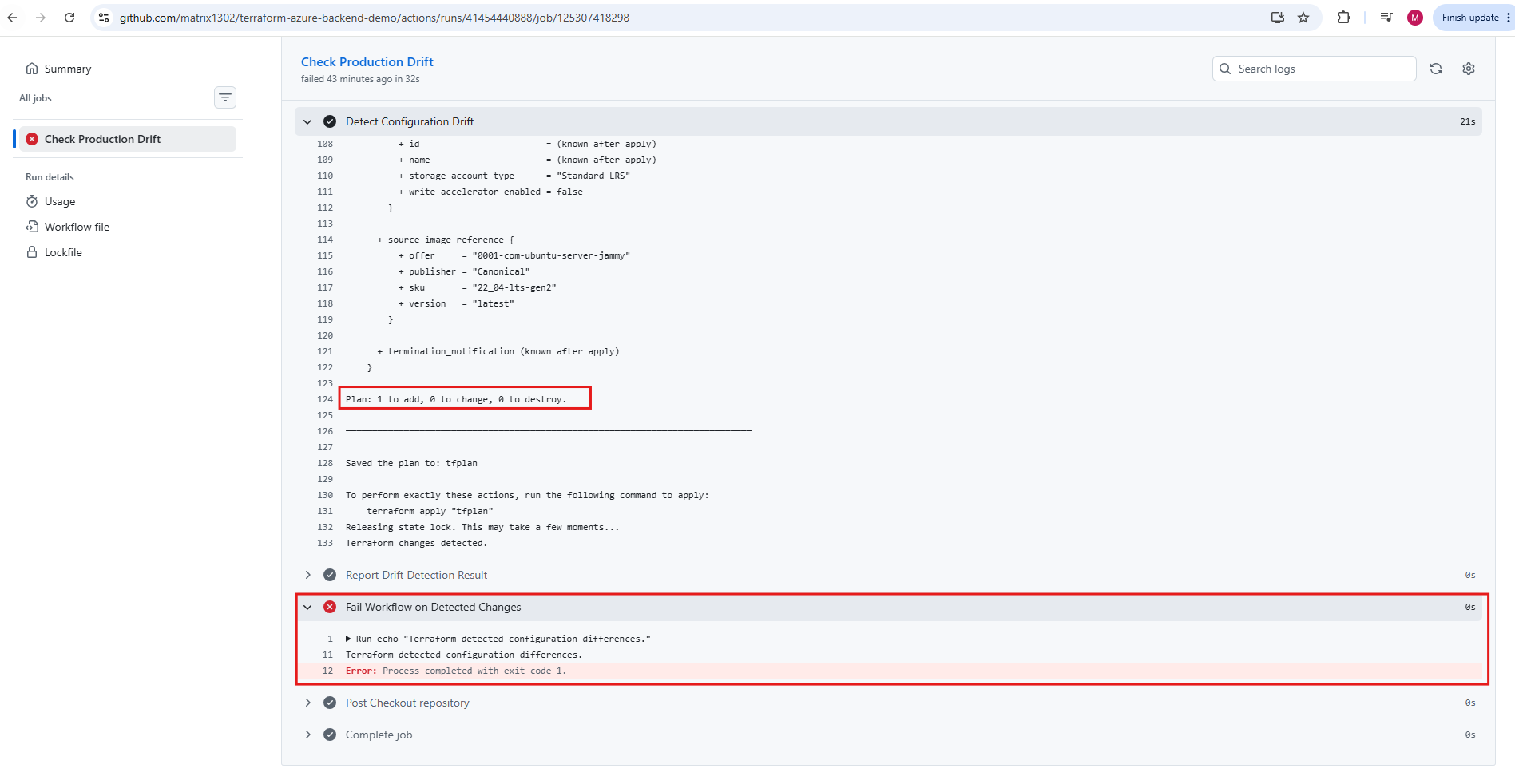
The drift detection run #7 was started at 07:23 by the Azure Logic App and failed, because the production VM no longer exists.
At this point, there’s still no run from GitHub’s native schedule, even though it was scheduled for 05:17 UTC (06:17 Berlin time).
The plan output shows the reason for the failure: the VM
vm-terraform-prodwas deleted outside Terraform, so Terraform wants to create it again (Plan: 1 to add, 0 to change, 0 to destroy).
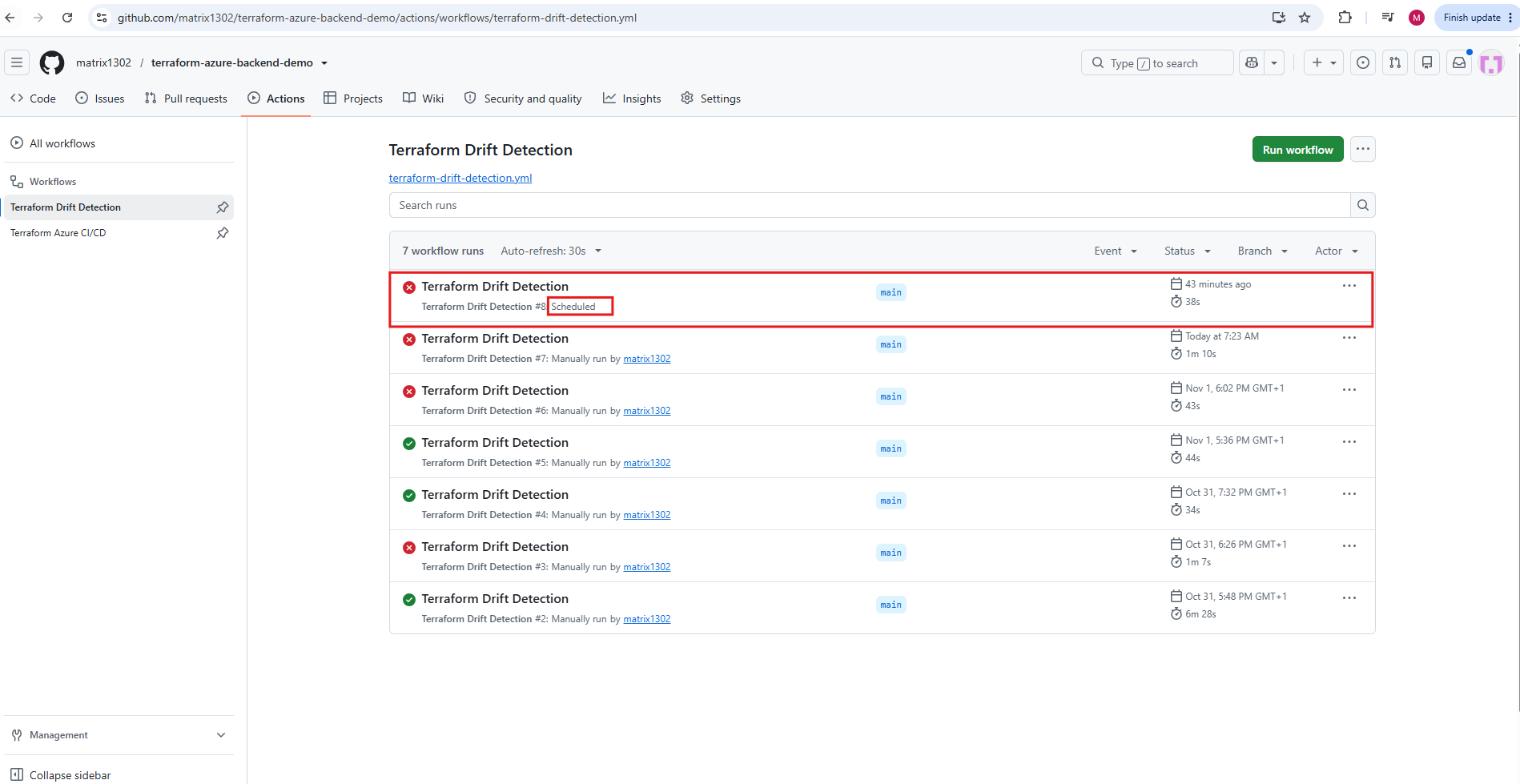
GitHub’s native schedule at 05:17 UTC (06:17 Berlin time), on the other hand, only triggered its run at 14:36, more than eight hours late. In our earlier tests, it hadn’t fired at all.
For a daily production control, a check that might run eight hours late, or not at all, isn’t reliable. That’s why the next section sets up the Azure Logic App as the primary trigger for our daily drift detection.
Run #8 is labelled “Scheduled”, which tells us it was triggered by GitHub’s native schedule (
scheduleevent). Runs started by the Azure Logic App, like #7, show “Manually run by matrix1302” instead, because they’re triggered through theworkflow_dispatchevent using the token owner’s identity.
Triggering Drift Detection Reliably with an Azure Logic App
Why the Native GitHub Schedule Is Not Enough
GitHub’s schedule trigger is best-effort. Scheduled runs can be delayed during periods of high load or, in some cases, dropped entirely, without any error or entry in the Actions tab. For a production control like drift detection, a silently missing run is exactly what we want to avoid.
In our own tests, GitHub’s native schedule didn’t trigger at all for the 15-minute test interval, and the first daily run only started more than eight hours late as shown above. The Azure Logic App, in contrast, triggered the drift check on time to the second.
We therefore keep the native schedule, but add an external scheduler in Azure that triggers the same workflow through the GitHub REST API. This works because our drift detection workflow already includes the workflow_dispatch trigger, and the API can start it the same way the Run workflow button does.
Note: Unlike GitHub cron, which always uses UTC, the Logic App recurrence trigger runs in a local time zone and handles daylight saving time automatically.
Defining the Logic App Scheduler with Terraform
Besides the Logic App, the file also creates an Azure Key Vault for the GitHub token. It uses access policies instead of Azure RBAC, because our deployment service principal only has the Contributor role and cannot create role assignments. The Logic App’s system-assigned managed identity gets read-only access to its secrets.
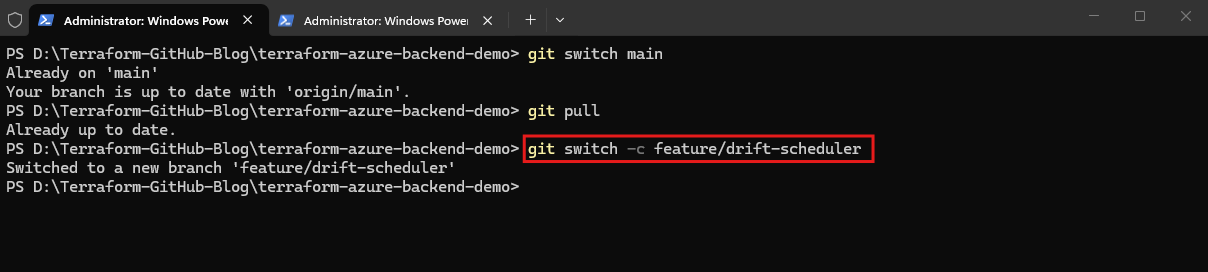
Since the scheduler adds new functionality, we use a feature branch, which is a short-lived branch for a new feature, and merge it directly into main, because the scheduler is only deployed in production.
git switch main
git pull
git switch -c feature/drift-scheduler
Next we add the Terraform code: a new file, drift-scheduler.tf, plus the related variables, outputs and production settings in variables.tf, outputs.tf and prod.tfvars.
Because enable_drift_scheduler defaults to false and is only set to true in prod.tfvars, the scheduler is deployed in production only.
Create in the root folder: drift-scheduler.tf
# --------------------------------------------------
# External Drift Detection Scheduler (Azure Logic App)
# --------------------------------------------------
# GitHub's native "schedule" trigger is best-effort: runs can be delayed or
# dropped entirely under load. This Logic App triggers the drift detection
# workflow on a fixed timer through the GitHub REST API (workflow_dispatch).
#
# Deployed only where enable_drift_scheduler = true (prod).
#
# The GitHub token is NOT managed by Terraform (it would end up in the state).
# Store it manually after the first apply:
#
#   az keyvault secret set --vault-name <key vault name> \
#     --name github-drift-dispatch-token --value <fine-grained PAT>
# --------------------------------------------------

data "azurerm_client_config" "current" {}

locals {
  drift_scheduler_count = var.enable_drift_scheduler ? 1 : 0

  github_dispatch_uri = "https://api.github.com/repos/${var.github_repository}/actions/workflows/${var.drift_workflow_file}/dispatches"
}

# --------------------------------------------------
# Key Vault holding the GitHub token
# --------------------------------------------------
# Access policies instead of Azure RBAC: the deployment service principal
# only has Contributor and therefore cannot create role assignments.

resource "azurerm_key_vault" "drift_scheduler" {
  count = local.drift_scheduler_count

  name                       = var.drift_scheduler_key_vault_name
  location                   = azurerm_resource_group.rg_demo_tf_backend.location
  resource_group_name        = azurerm_resource_group.rg_demo_tf_backend.name
  tenant_id                  = data.azurerm_client_config.current.tenant_id
  sku_name                   = "standard"
  rbac_authorization_enabled = false
  soft_delete_retention_days = 7
  purge_protection_enabled   = false

  tags = {
    environment = var.environment
    managed_by  = "terraform"
    project     = "terraform-github-demo"
  }
}

# Lets the administrator store and rotate the GitHub token.
resource "azurerm_key_vault_access_policy" "drift_scheduler_admin" {
  count = local.drift_scheduler_count

  key_vault_id = azurerm_key_vault.drift_scheduler[0].id
  tenant_id    = data.azurerm_client_config.current.tenant_id
  object_id    = var.drift_scheduler_secret_admin_object_id

  secret_permissions = ["Get", "List", "Set", "Delete", "Recover"]
}

# Lets the Logic App's managed identity read the GitHub token (read-only).
resource "azurerm_key_vault_access_policy" "drift_scheduler_logic_app" {
  count = local.drift_scheduler_count

  key_vault_id = azurerm_key_vault.drift_scheduler[0].id
  tenant_id    = data.azurerm_client_config.current.tenant_id
  object_id    = azurerm_logic_app_workflow.drift_scheduler[0].identity[0].principal_id

  secret_permissions = ["Get"]
}

# --------------------------------------------------
# Logic App Workflow
# --------------------------------------------------

resource "azurerm_logic_app_workflow" "drift_scheduler" {
  count = local.drift_scheduler_count

  name                = "logic-terraform-drift-${var.environment}"
  location            = azurerm_resource_group.rg_demo_tf_backend.location
  resource_group_name = azurerm_resource_group.rg_demo_tf_backend.name

  identity {
    type = "SystemAssigned"
  }

  tags = {
    environment = var.environment
    managed_by  = "terraform"
    project     = "terraform-github-demo"
  }
}

# Daily timer in local time. Unlike GitHub cron (always UTC), the Logic App
# handles daylight saving time automatically.
resource "azurerm_logic_app_trigger_recurrence" "drift_scheduler" {
  count = local.drift_scheduler_count

  name         = "Daily_Drift_Check"
  logic_app_id = azurerm_logic_app_workflow.drift_scheduler[0].id
  frequency    = "Day"
  interval     = 1
  time_zone    = var.drift_schedule_time_zone

  schedule {
    at_these_hours   = [var.drift_schedule_hour]
    at_these_minutes = [var.drift_schedule_minute]
  }
}

# Step 1: Read the GitHub token from Key Vault using the managed identity.
resource "azurerm_logic_app_action_custom" "get_github_token" {
  count = local.drift_scheduler_count

  name         = "Get_GitHub_Token"
  logic_app_id = azurerm_logic_app_workflow.drift_scheduler[0].id

  body = jsonencode({
    type = "Http"
    inputs = {
      method = "GET"
      uri    = "${azurerm_key_vault.drift_scheduler[0].vault_uri}secrets/github-drift-dispatch-token?api-version=7.4"
      authentication = {
        type     = "ManagedServiceIdentity"
        audience = "https://vault.azure.net"
      }
    }
    # Hide the token in the Logic App run history.
    runtimeConfiguration = {
      secureData = {
        properties = ["inputs", "outputs"]
      }
    }
    runAfter = {}
  })

  depends_on = [azurerm_key_vault_access_policy.drift_scheduler_logic_app]
}

# Step 2: Trigger the drift detection workflow via workflow_dispatch.
# GitHub answers with HTTP 204 (No Content) on success.
resource "azurerm_logic_app_action_custom" "dispatch_drift_workflow" {
  count = local.drift_scheduler_count

  name         = "Dispatch_Drift_Workflow"
  logic_app_id = azurerm_logic_app_workflow.drift_scheduler[0].id

  body = jsonencode({
    type = "Http"
    inputs = {
      method = "POST"
      uri    = local.github_dispatch_uri
      headers = {
        Accept                 = "application/vnd.github+json"
        Authorization          = "Bearer @{body('Get_GitHub_Token')?['value']}"
        "X-GitHub-Api-Version" = "2022-11-28"
        "User-Agent"           = "azure-logic-app-terraform-drift"
      }
      body = {
        ref = var.drift_workflow_ref
      }
    }
    runtimeConfiguration = {
      secureData = {
        properties = ["inputs"]
      }
    }
    runAfter = {
      Get_GitHub_Token = ["Succeeded"]
    }
  })

  depends_on = [azurerm_logic_app_action_custom.get_github_token]
}
Within our variables.tf (append at the end)
# --------------------------------------------------
# External Drift Detection Scheduler (drift-scheduler.tf)
# --------------------------------------------------

variable "enable_drift_scheduler" {
  description = "Deploy the Logic App that triggers the drift detection workflow on a timer"
  type        = bool
  default     = false
}

variable "drift_scheduler_key_vault_name" {
  description = "Globally unique name of the Key Vault storing the GitHub token (3-24 characters)"
  type        = string
  default     = null
}

variable "drift_scheduler_secret_admin_object_id" {
  description = "Entra ID object ID of the user or group allowed to store and rotate the GitHub token"
  type        = string
  default     = null
}

variable "github_repository" {
  description = "GitHub repository in the format owner/repo"
  type        = string
  default     = "matrix1302/terraform-azure-backend-demo"
}

variable "drift_workflow_file" {
  description = "File name of the drift detection workflow in .github/workflows"
  type        = string
  default     = "terraform-drift-detection.yml"
}

variable "drift_workflow_ref" {
  description = "Branch the drift detection workflow is dispatched on"
  type        = string
  default     = "main"
}

variable "drift_schedule_time_zone" {
  description = "Windows time zone ID used by the Logic App recurrence trigger"
  type        = string
  default     = "W. Europe Standard Time"
}

variable "drift_schedule_hour" {
  description = "Hour (local time) at which the drift check is triggered"
  type        = number
  default     = 7
}

variable "drift_schedule_minute" {
  description = "Minute at which the drift check is triggered"
  type        = number
  default     = 23
}
Within outputs.tf (currently empty, we paste this)
output "drift_scheduler_key_vault_name" {
  description = "Key Vault storing the GitHub token for the drift scheduler"
  value       = var.enable_drift_scheduler ? azurerm_key_vault.drift_scheduler[0].name : null
}

output "drift_scheduler_logic_app_name" {
  description = "Logic App triggering the drift detection workflow"
  value       = var.enable_drift_scheduler ? azurerm_logic_app_workflow.drift_scheduler[0].name : null
}
Within environments/prod.tfvars (we append at the end)
# External Drift Detection Scheduler (Azure Logic App)
enable_drift_scheduler                 = true
drift_scheduler_key_vault_name         = "kv-tf-drift-prod-2026"
drift_scheduler_secret_admin_object_id = "<your Entra ID object ID>"
We replace <our Entra ID object ID> with the output of:
az ad signed-in-user show --query id -o tsv

Deploying the Scheduler Through the CI/CD Pipeline
Next we can commit, push and open the Pull request to finally merge to production (main branch).
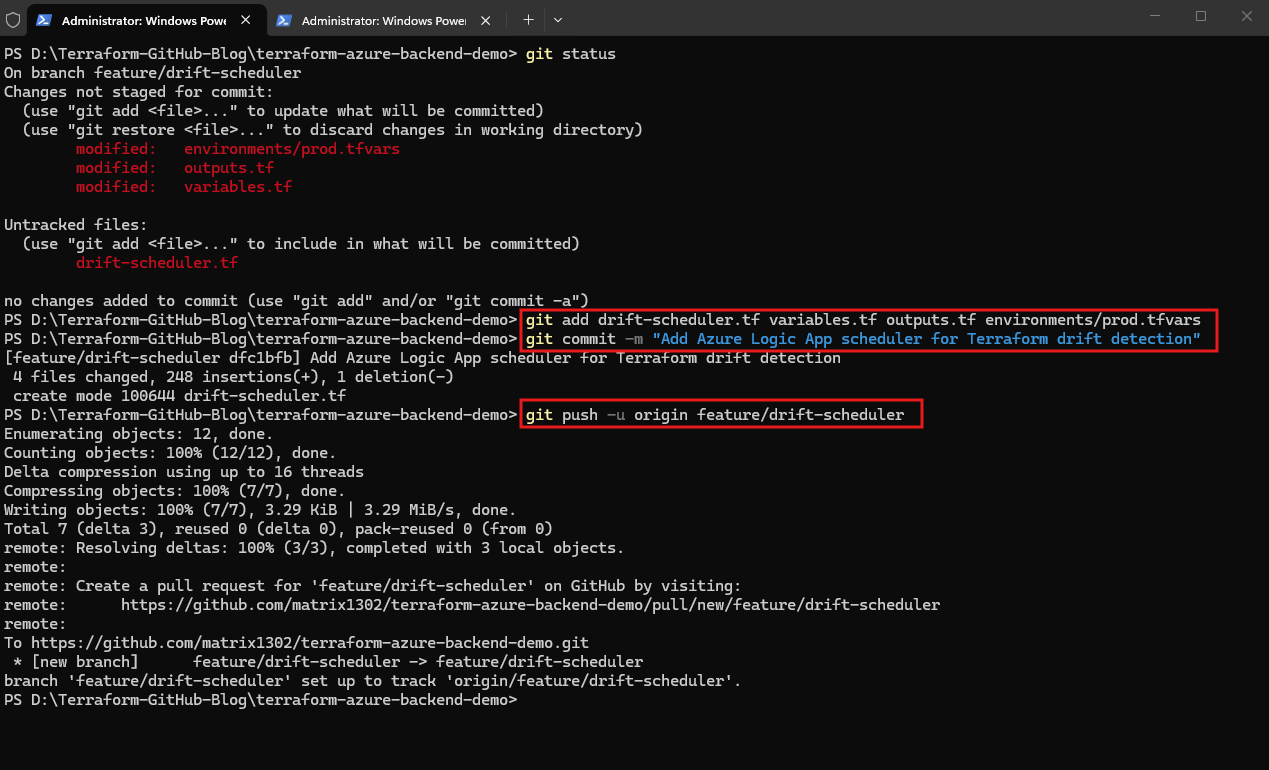
git add drift-scheduler.tf variables.tf outputs.tf environments/prod.tfvars
git commit -m "Add Azure Logic App scheduler for Terraform drift detection"
git push -u origin feature/drift-scheduler
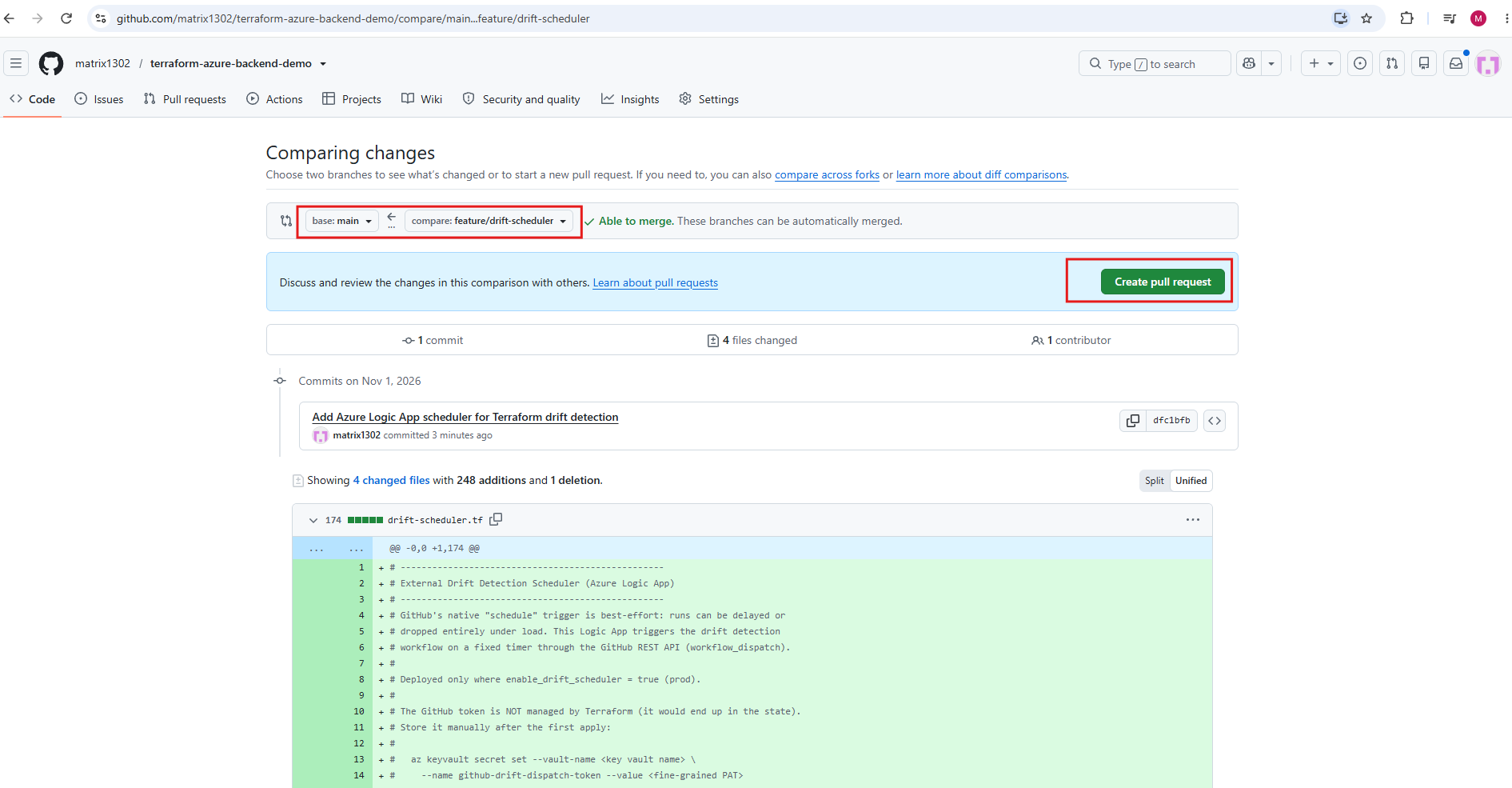
Next we open a pull request from feature/drift-scheduler into main.
The comparison shows the new
drift-scheduler.tfplus the changes tovariables.tf,outputs.tfandprod.tfvars, and GitHub confirms the branches can be merged automatically.
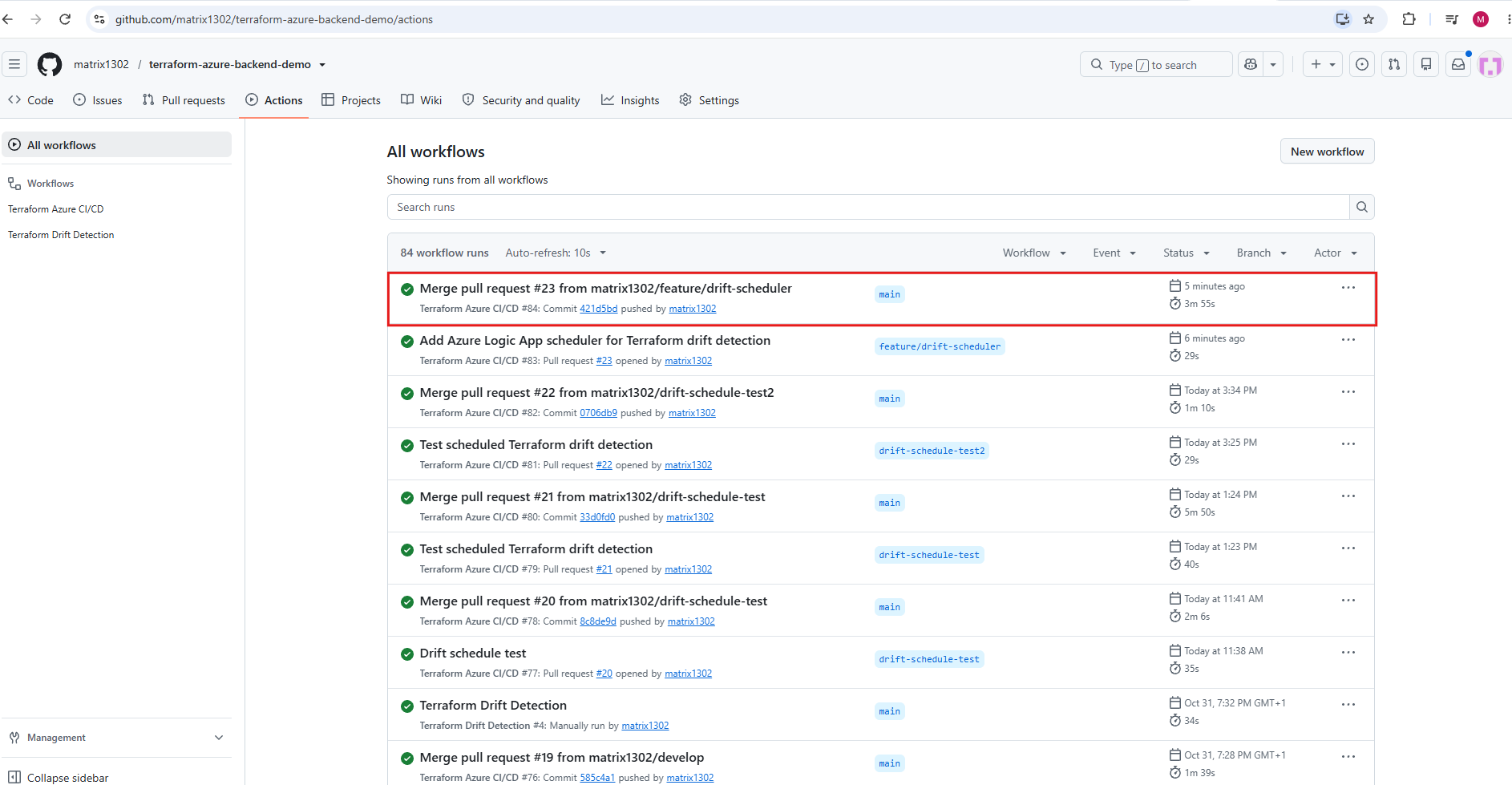
After merging the pull request, the push to main triggers the CI/CD workflow, which deploys the scheduler to production after approval.
Terraform creates seven resources: the Key Vault, two access policies, the Logic App with its recurrence trigger, and the two HTTP actions.
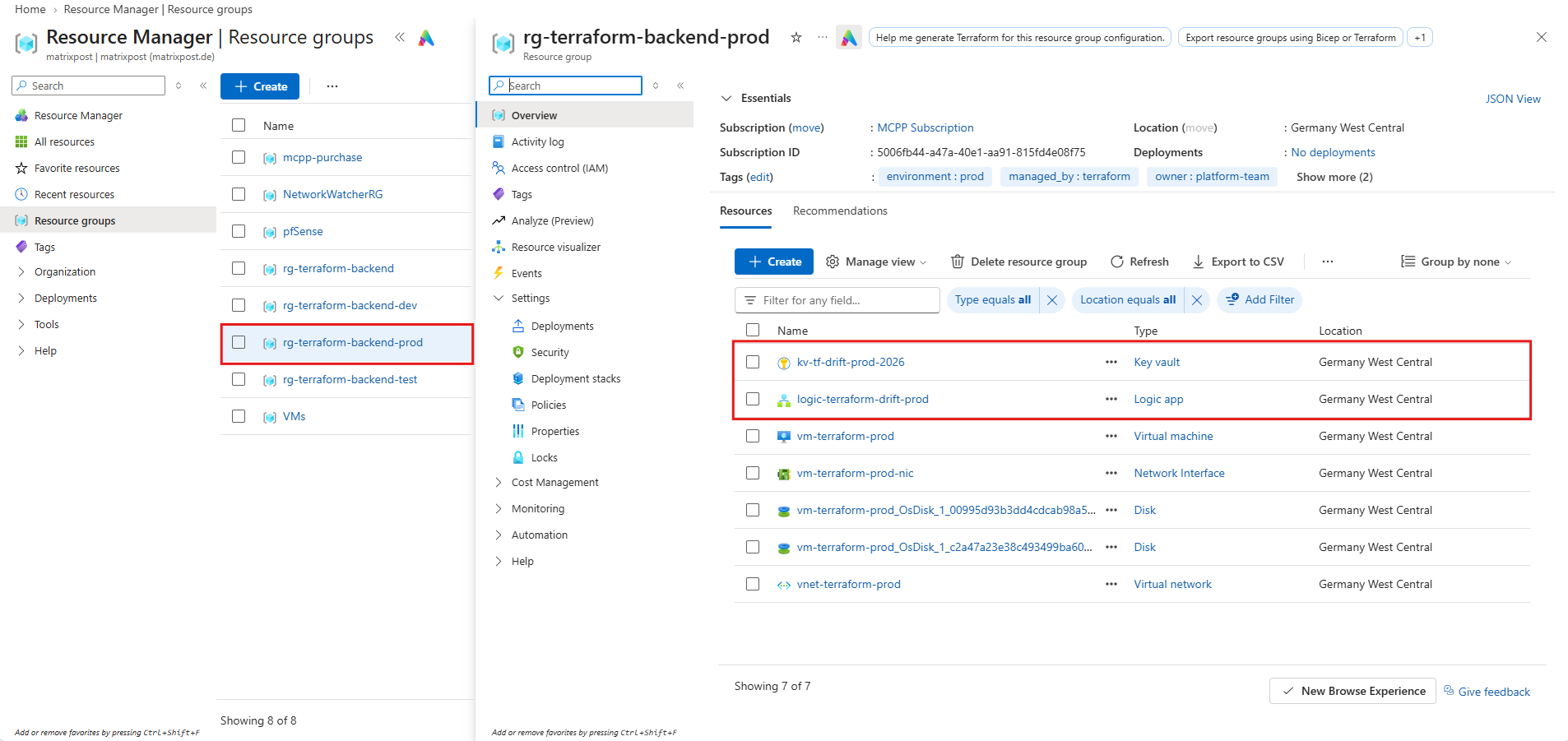
In the Azure portal, the two new resources appear in the production resource group rg-terraform-backend-prod: the Key Vault kv-tf-drift-prod-2026 for the GitHub token and the Logic App logic-terraform-drift-prod, which triggers the drift detection workflow.
The access policies, the recurrence trigger and the HTTP actions are part of these two resources, so they don’t show up as separate entries.
Azure Logic Apps is a serverless workflow service that runs automated workflows, triggered by a schedule, an HTTP request or an event, without any servers or code to manage. Each workflow is a trigger followed by one or more actions, such as HTTP calls or one of the hundreds of built-in connectors for Azure and third-party services.
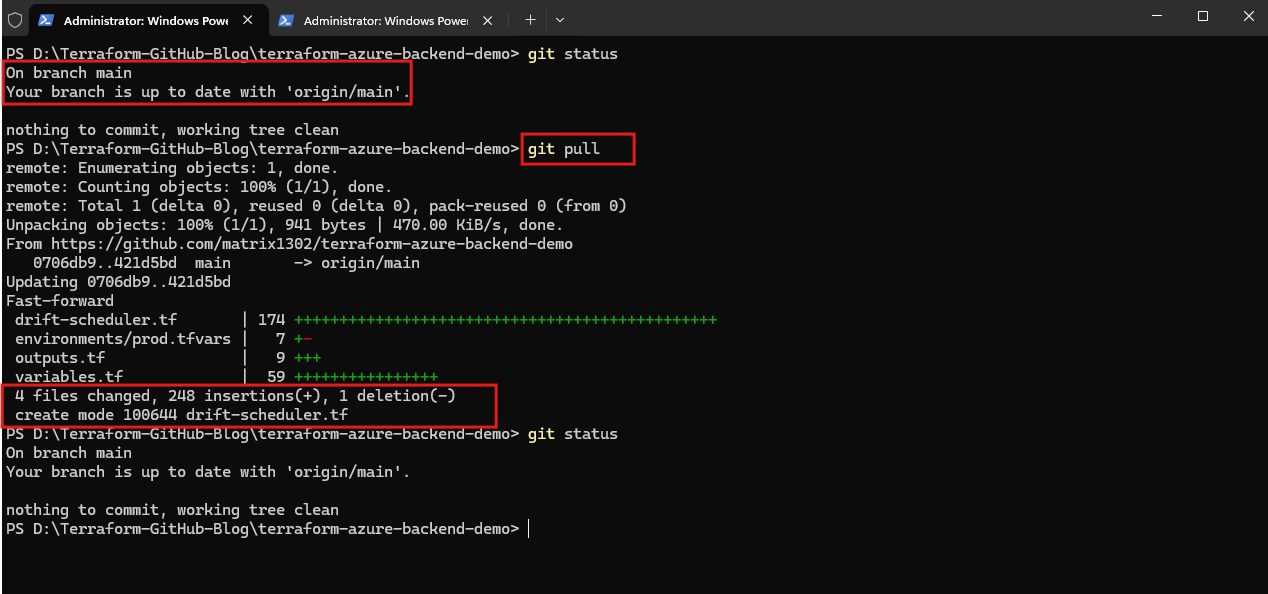
After the pull request has been merged, we update our local main branch with git pull.
The fast-forward brings in the merged changes: the new
drift-scheduler.tfand the updatedvariables.tf,outputs.tfandprod.tfvars.
Note: The first
git statusstill reports “up to date with ‘origin/main’” because Git compares against the last fetched state of the remote. It only notices the merge on GitHub aftergit pull(orgit fetch) contacts the remote.A fast-forward moves our local
mainbranch pointer to the latest commit fromorigin/main(here from0706db9to421d5bd) and updates the files in our working directory to match. This only works because our localmainwas simply behind the remote and had no commits of its own; otherwise, Git would have to create a real merge (or rebase) instead.
git branch -d feature/drift-scheduler
git push origin --delete feature/drift-scheduler
At this point, the Logic App is deployed but cannot trigger the workflow yet, because the Key Vault doesn’t contain a GitHub token. We create it in the next step.
Creating a Fine-Grained GitHub Token for the Scheduler
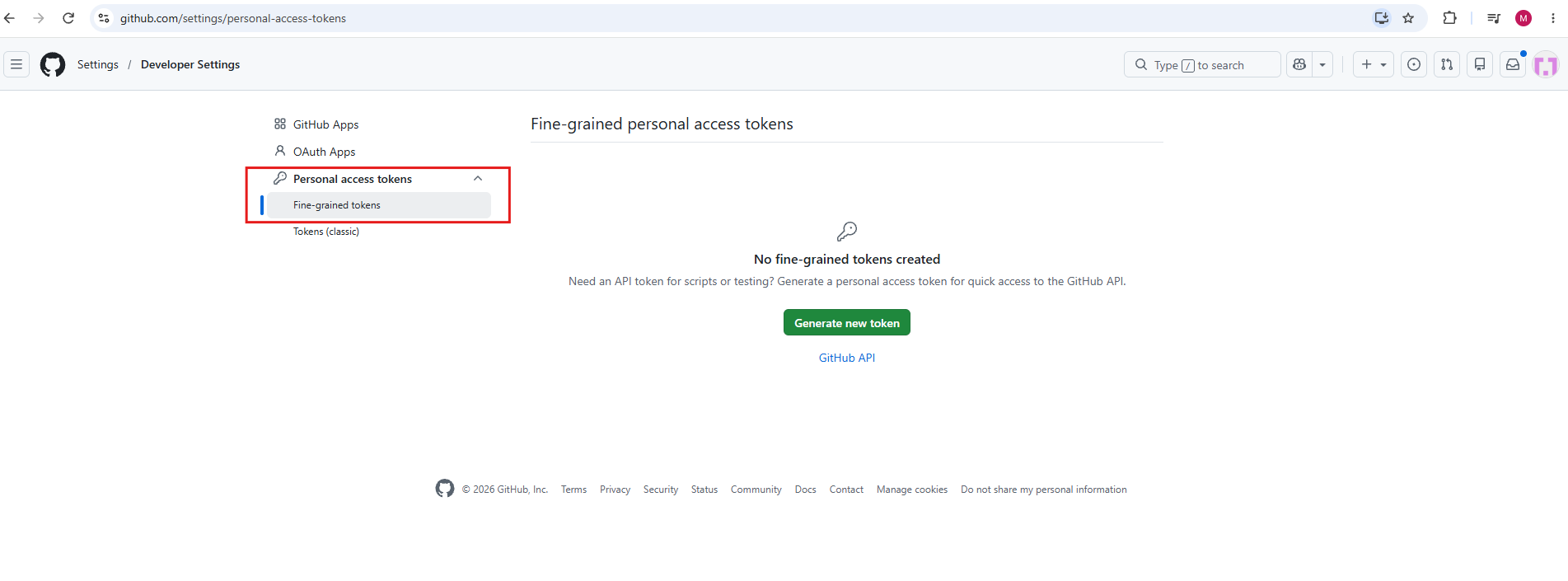
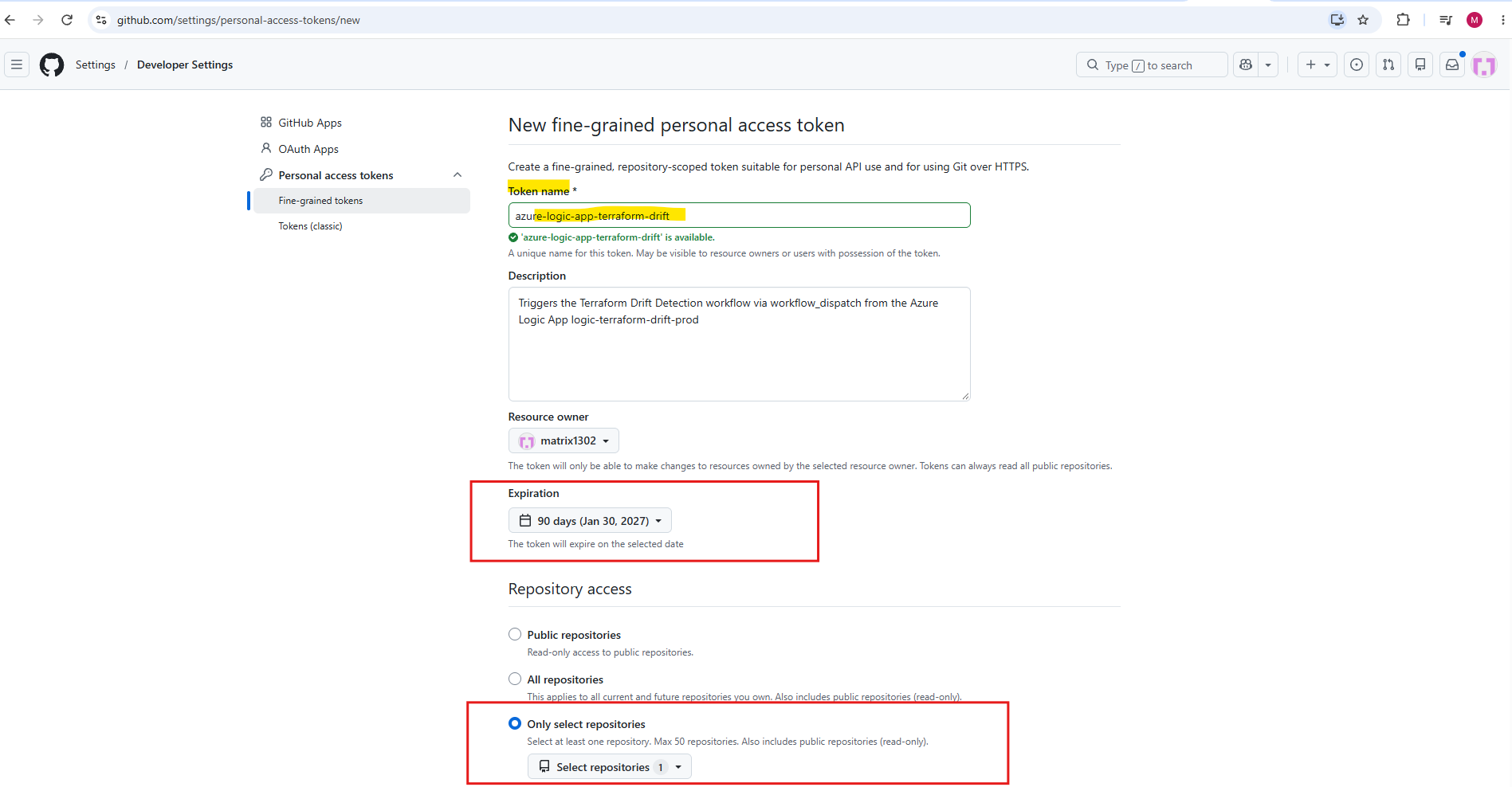
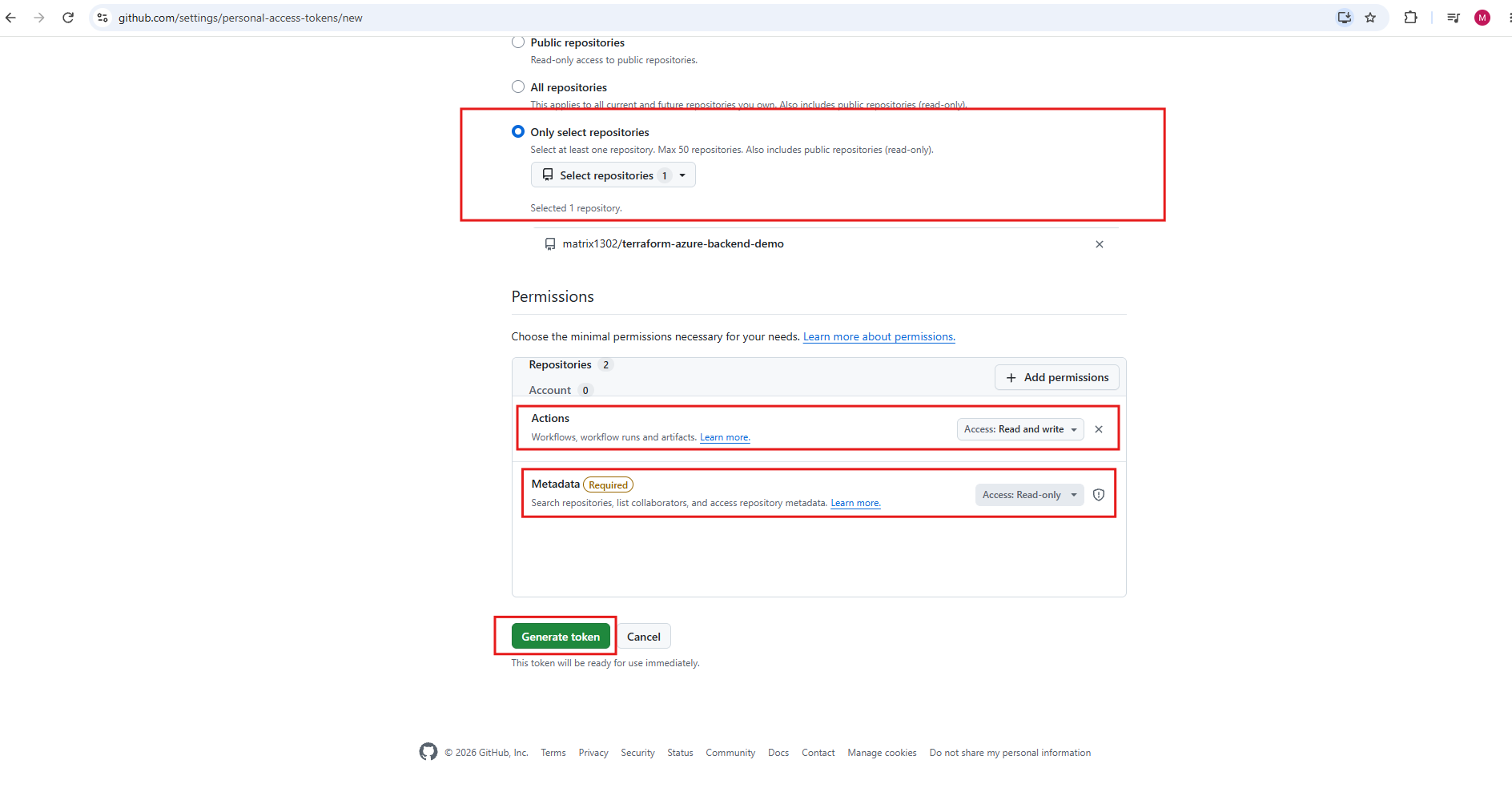
To call the API, the Logic App needs a GitHub token. We create a fine-grained personal access token under Account Settings → Developer settings → Personal access tokens → Fine-grained tokens. It’s limited to only our repository and needs just one permission: Actions: Read and write.
Direct link: https://github.com/settings/personal-access-tokens/new
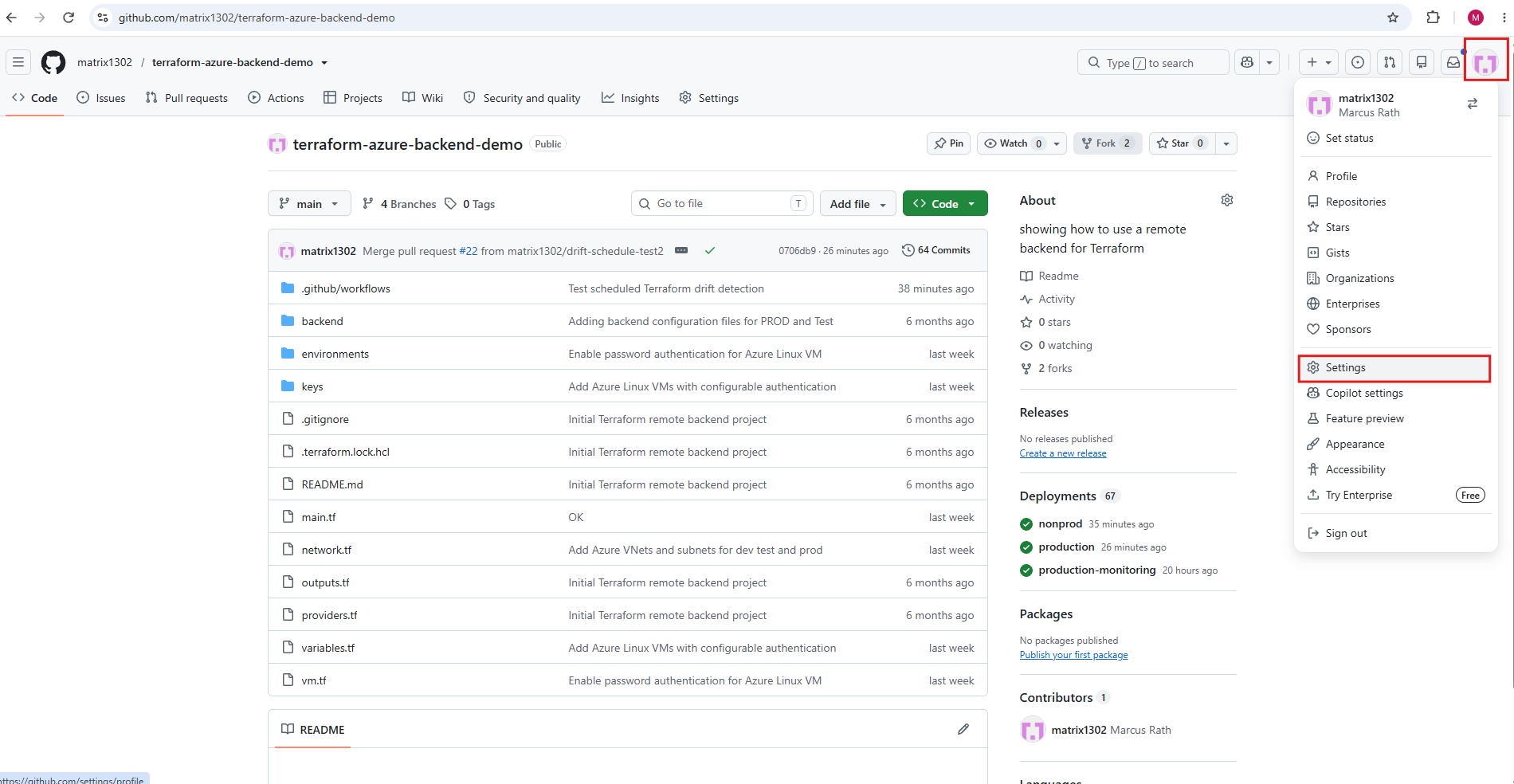
Scroll all the way down the left sidebar and click Developer settings.
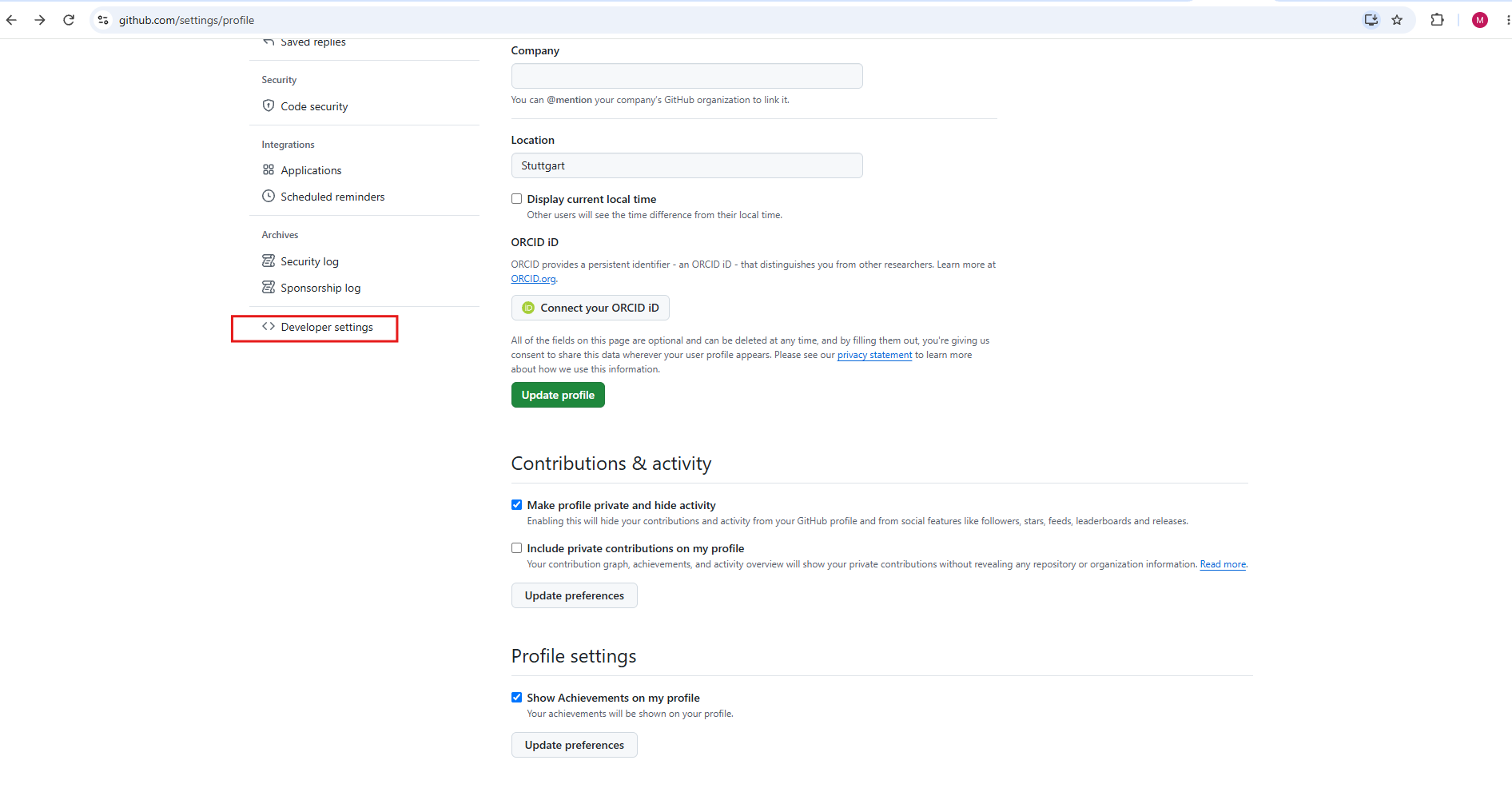
Go to Personal access tokens → Fine-grained tokens → Generate new token.
Enter the following information resp. adjust to your environment.
- Token name:
azure-logic-app-terraform-drift - Description:
Triggers the Terraform Drift Detection workflow via workflow_dispatch from the Azure Logic App logic-terraform-drift-prod - Resource owner:
matrix1302(I will leave as is) - Expiration: 90 days is fine for testing the article setup. For a real production setup, choose a longer custom date and plan the rotation.
- Repository access: Only select repositories →
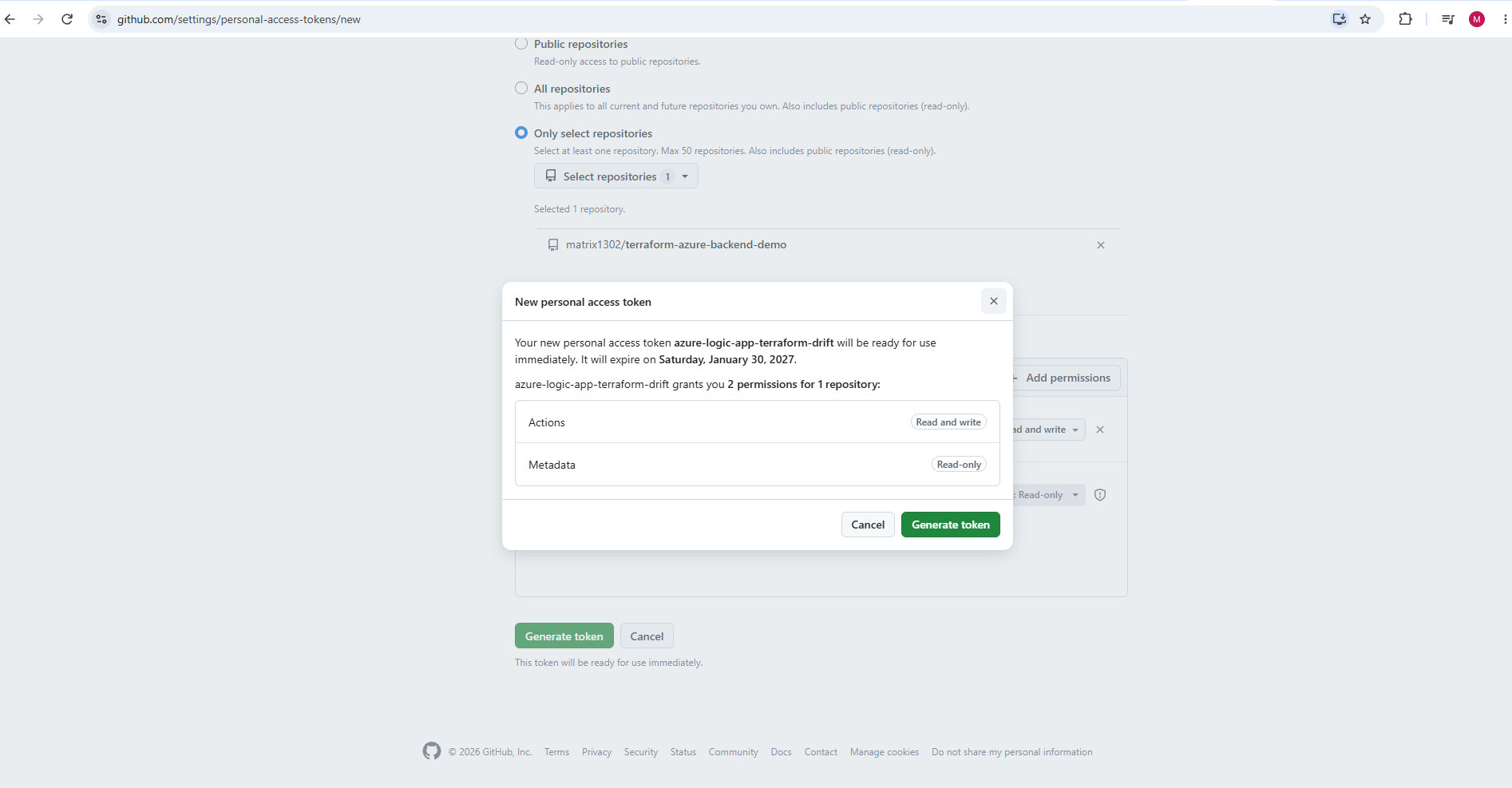
terraform-azure-backend-demo. Don’t leave the default Public repositories: that’s read-only and can’t trigger workflows. - Permissions (scroll down): under Repository permissions, set Actions to Read and write. Metadata: Read-only gets added automatically; leave everything else at No access.
“‘azure-logic-app-terraform-drift’ is available” just means we don’t already have a token with that name. Token names must be unique within our account, and GitHub checks that as we type. It has nothing to do with the word “drift” or with the repository.
Important: Fine-grained tokens have an expiration date. When the token expires, the scheduler stops triggering the workflow, so note the date and rotate the token in Key Vault before it expires.
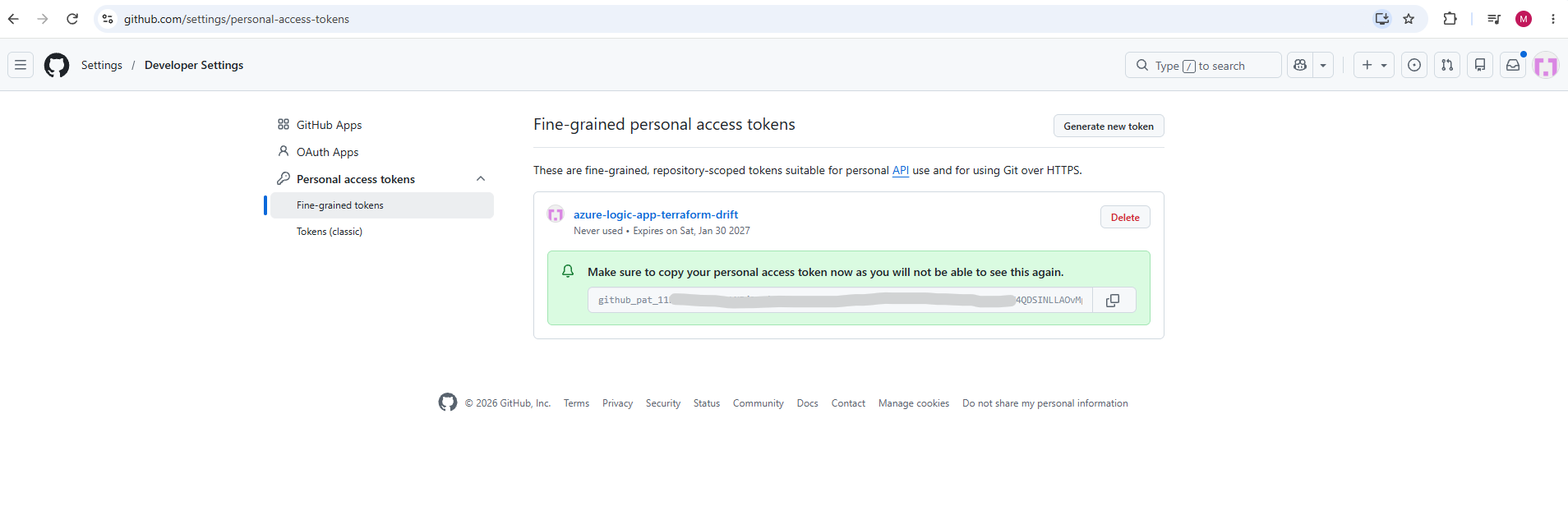
After generating the token, GitHub displays it only once, so we copy it right away. We’ll store it in Azure Key Vault after deploying the scheduler with Terraform.
Storing the GitHub Token Securely in Azure Key Vault
The token is stored in an Azure Key Vault that the Logic App reads using its system-assigned managed identity, so no credentials are stored in the Logic App itself. The Key Vault uses access policies instead of Azure RBAC, because our deployment service principal only has the Contributor role and cannot create role assignments.
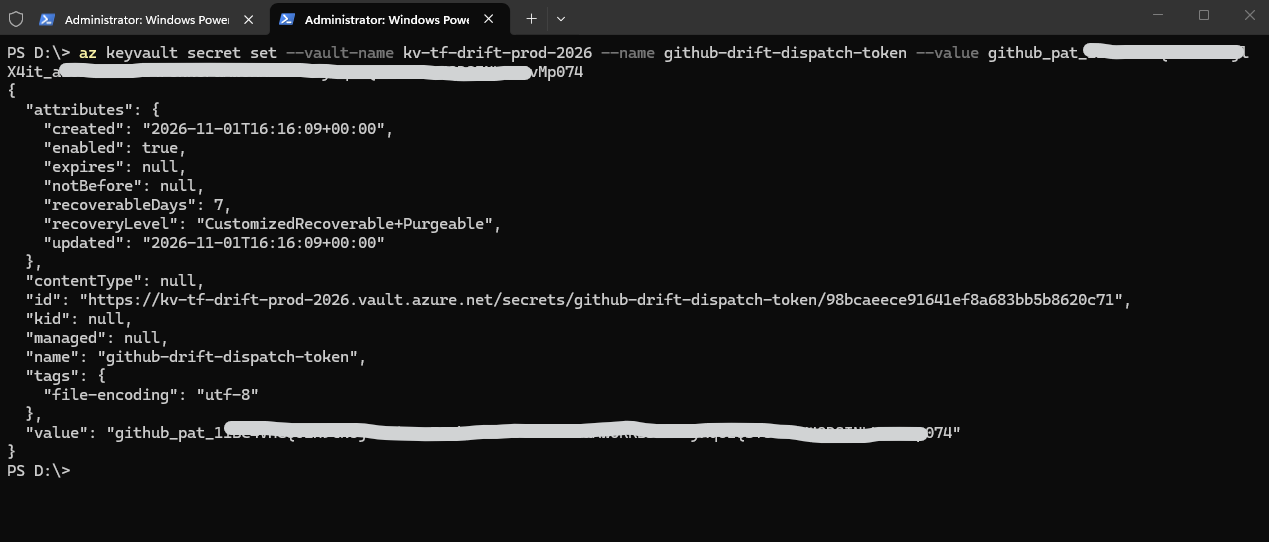
The token itself is deliberately not managed by Terraform. A secret value defined in Terraform would end up in the state file, so we store it manually after the deployment:
az keyvault secret set --vault-name kv-tf-drift-prod-2026 --name github-drift-dispatch-token --value <token>
Testing the Azure-Triggered Drift Detection – Without Manual Changes in Azure
First, we start the Logic App with Run while the production environment still matches the Terraform configuration. The Azure-triggered drift detection workflow should complete successfully, because terraform plan finds no differences.
Instead of waiting for the next scheduled run at 07:23, we start the Logic App manually.
The daily run time is controlled by the variables
drift_schedule_houranddrift_schedule_minuteinvariables.tf, which default to 07:23 in the time zoneW. Europe Standard Time(Berlin).To change the schedule, override them in
prod.tfvars. After the next deployment, the Logic App’s recurrence trigger is updated accordingly.
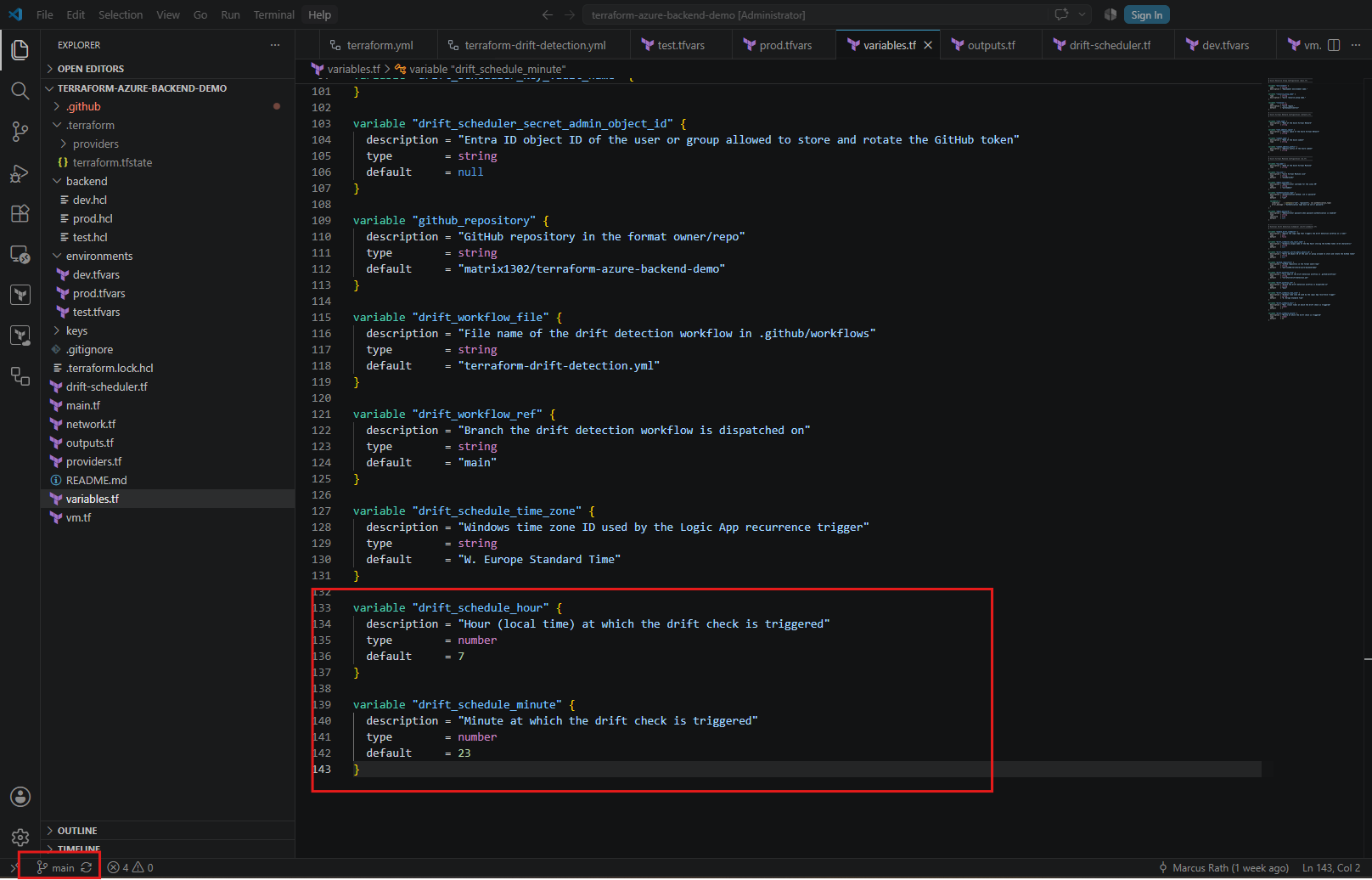
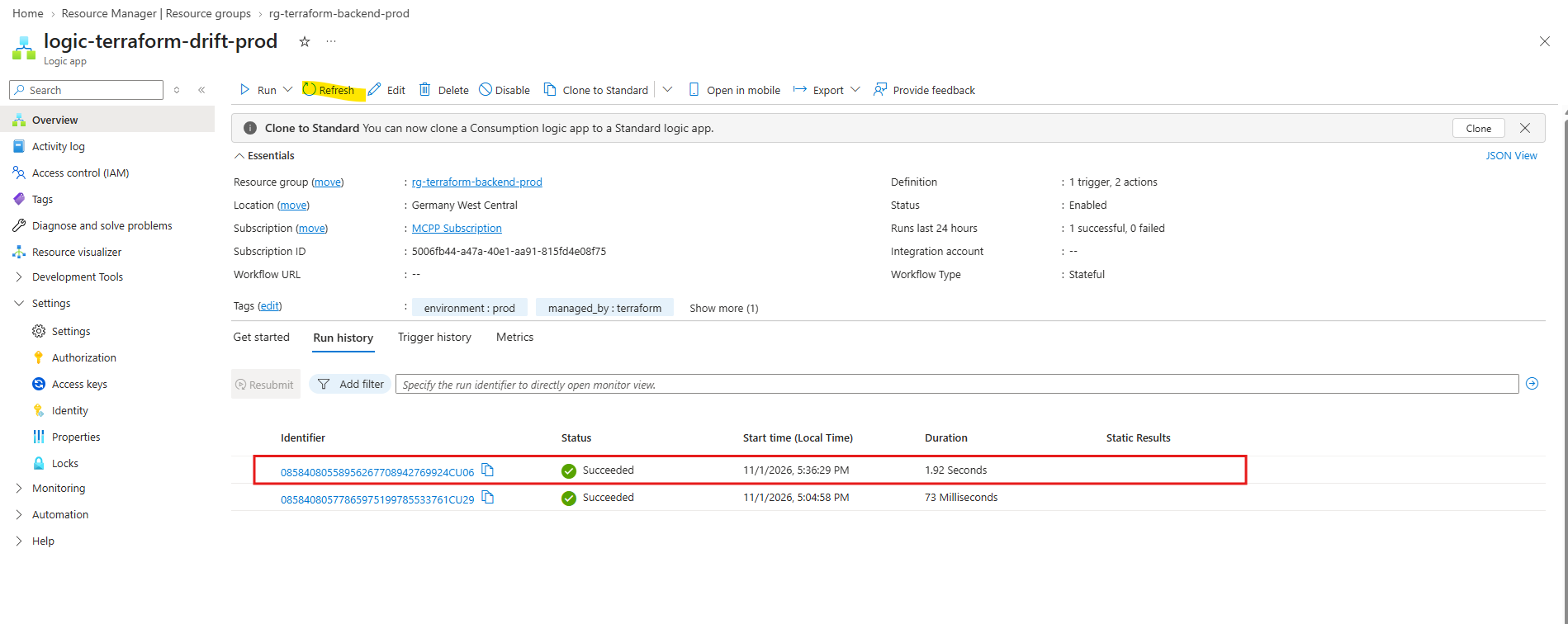
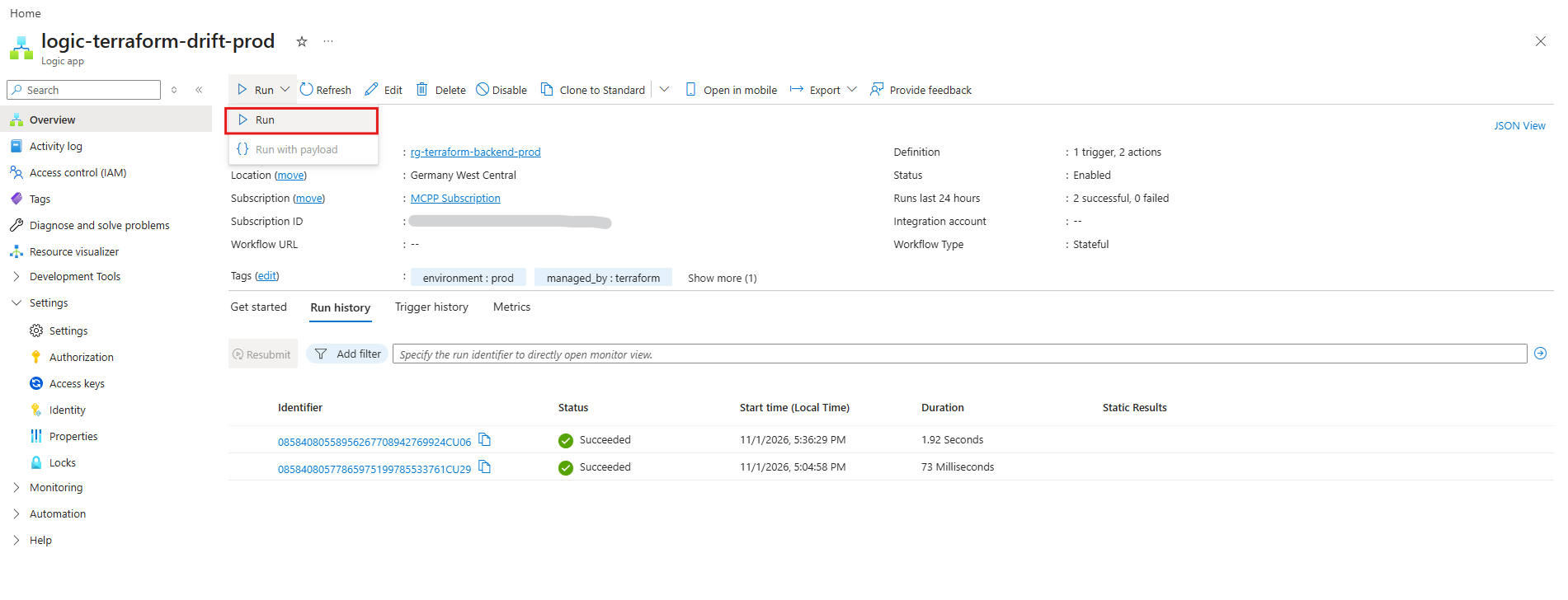
In the Azure portal, we open the Logic App logic-terraform-drift-prod and select Run trigger on the Overview page. This runs the workflow immediately, exactly as the daily schedule would.
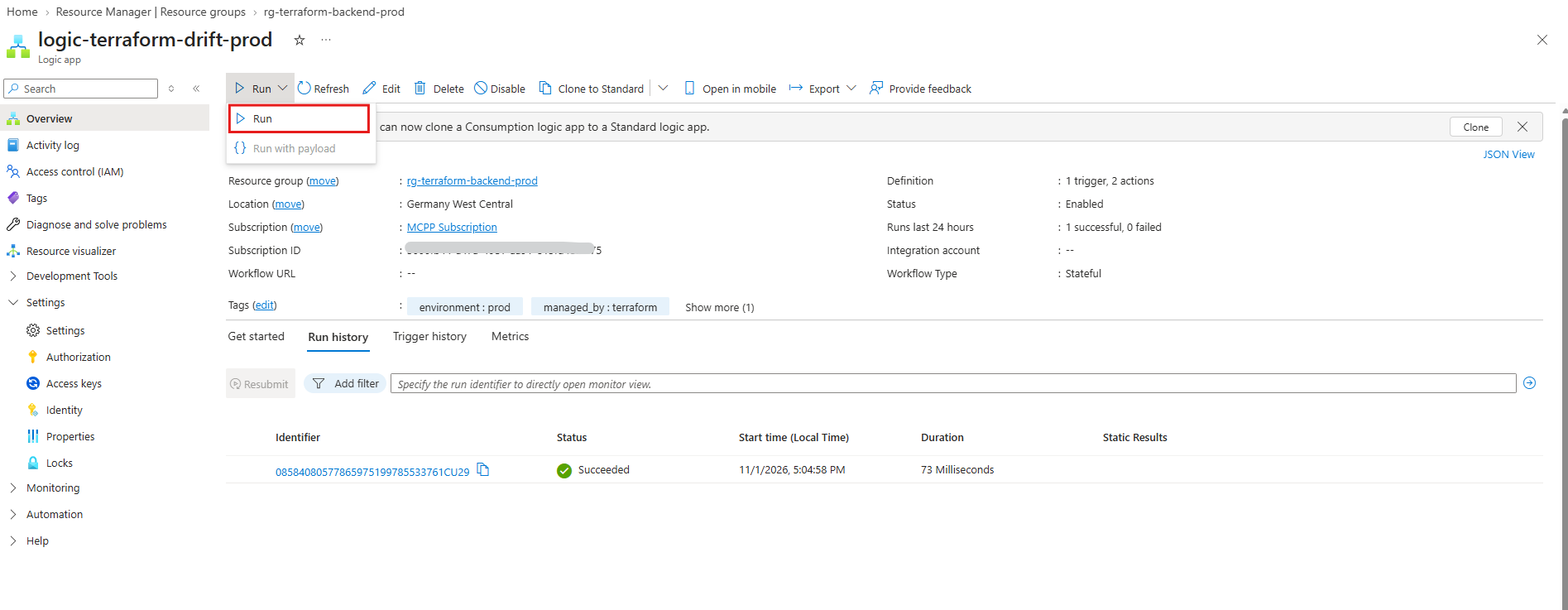
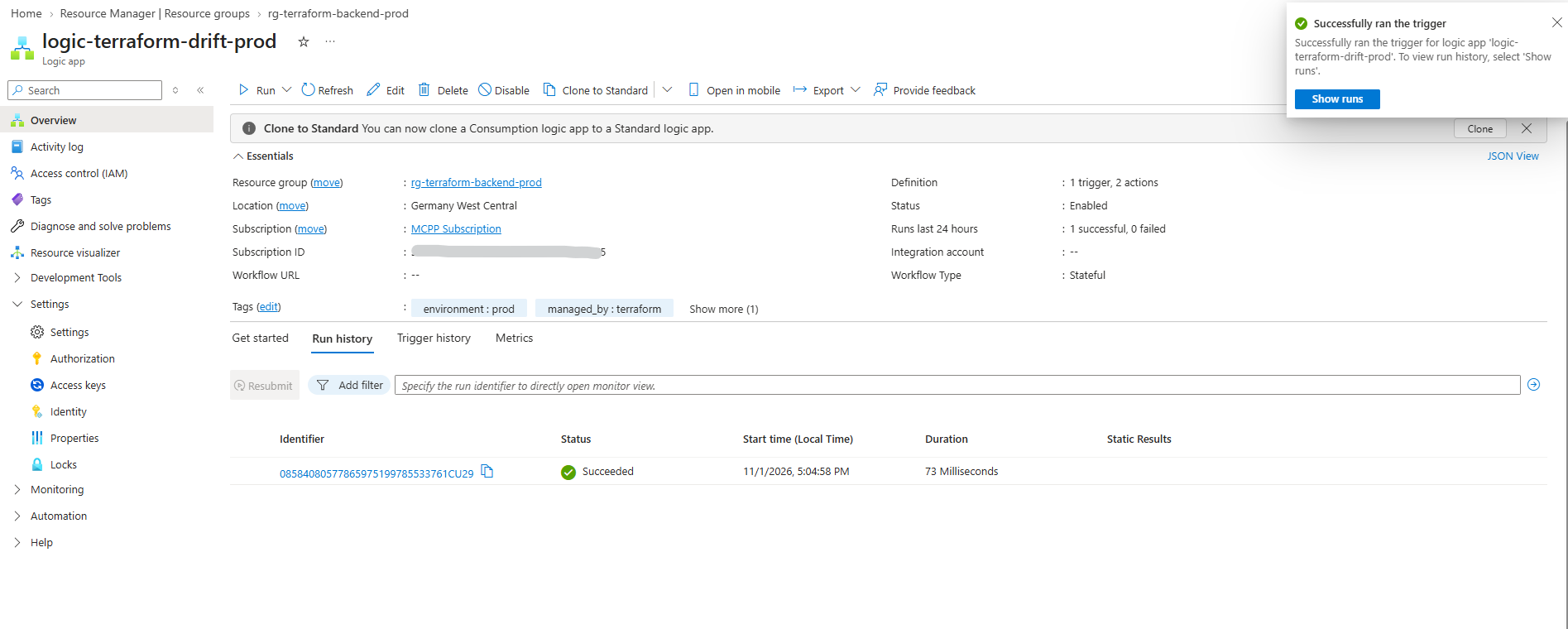
After a refresh, the manually started run appears in the Run history with the status Succeeded.
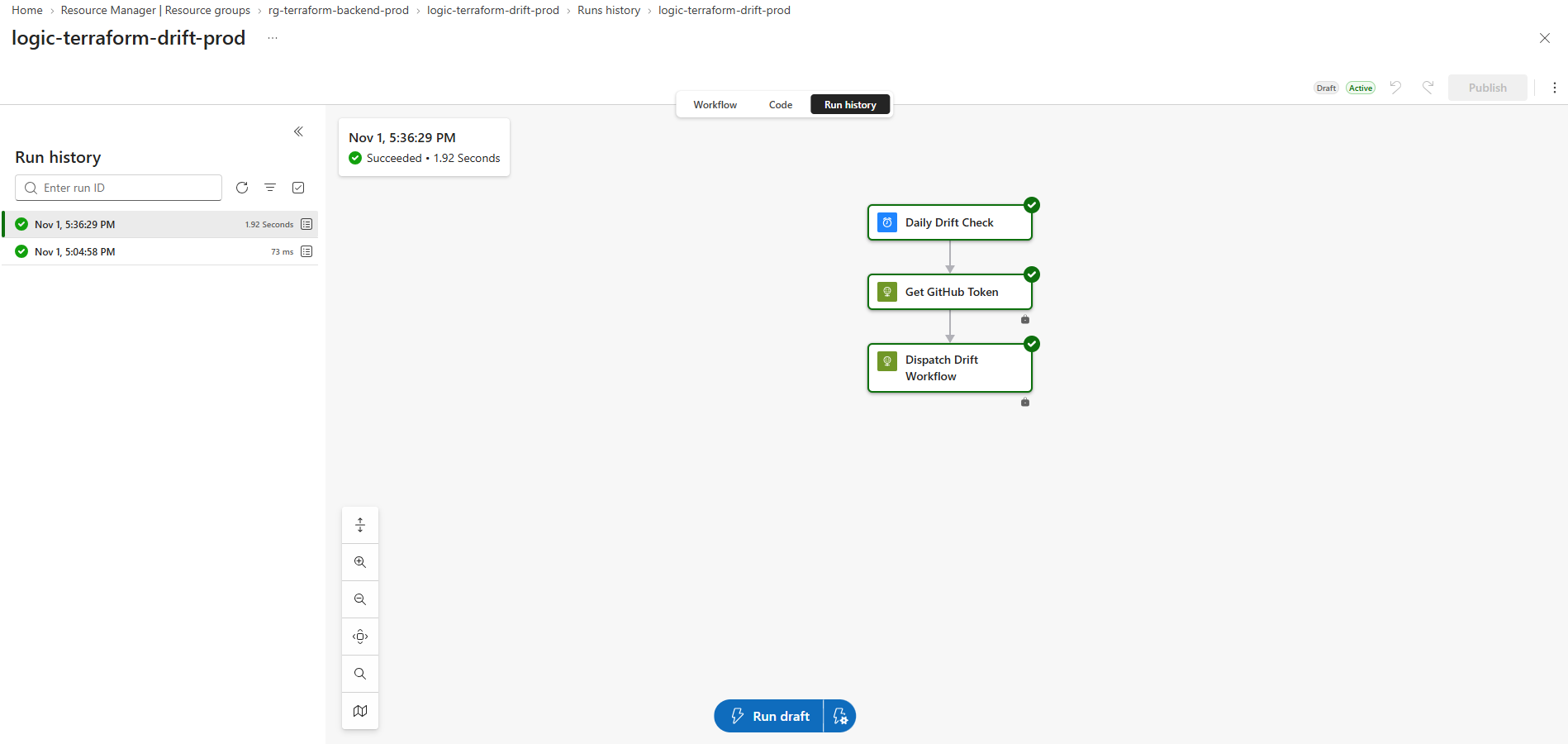
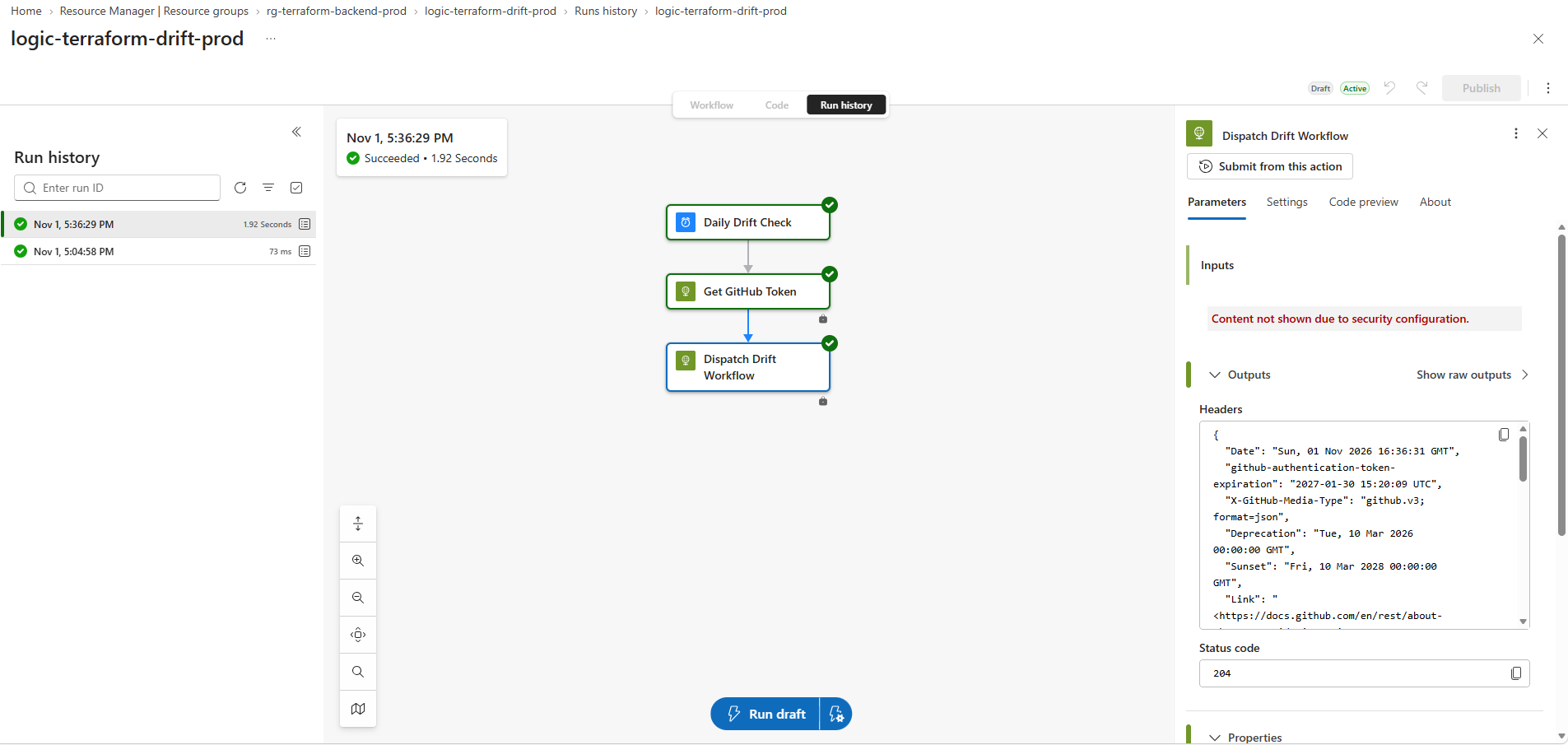
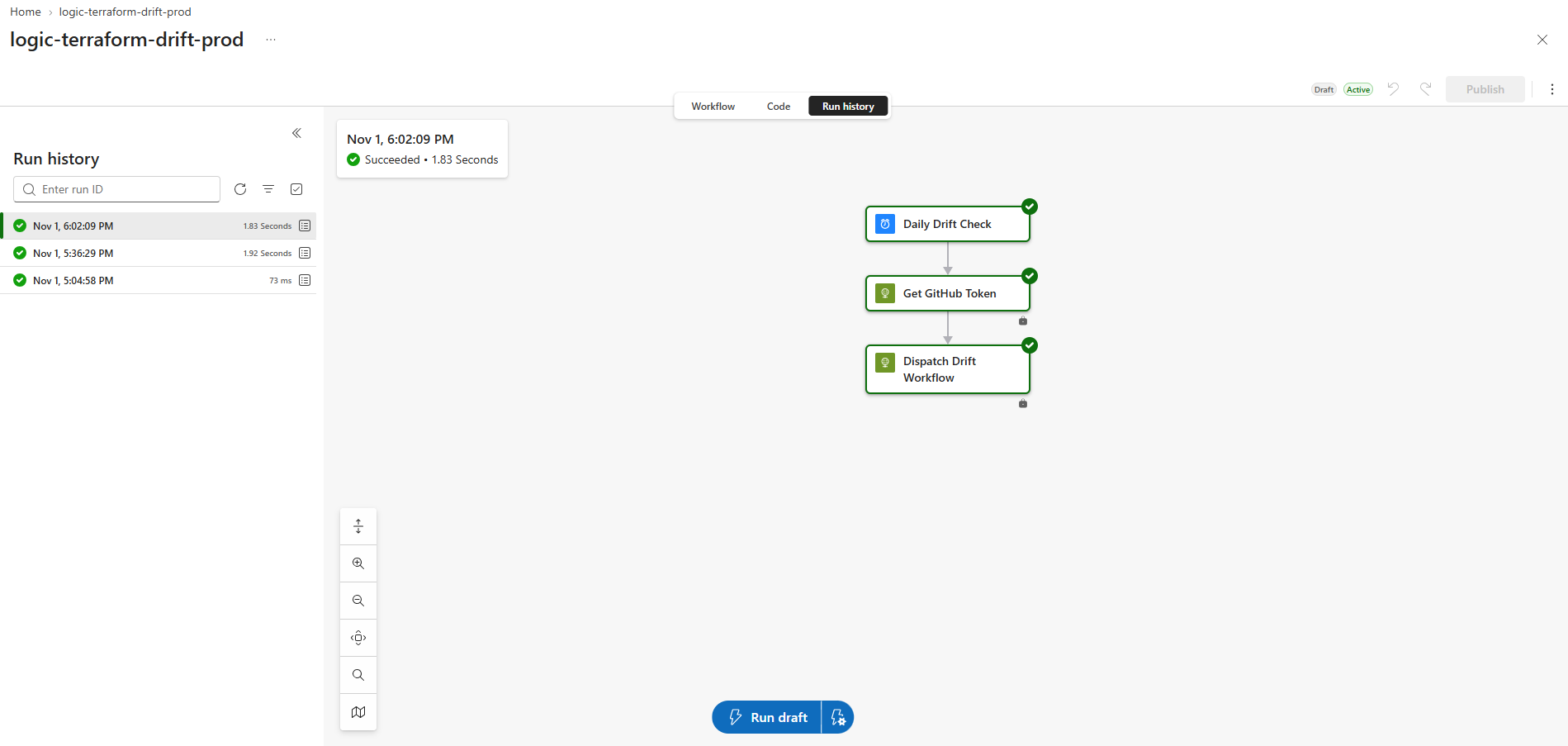
The run view shows the three steps of the workflow: the Daily Drift Check trigger, Get GitHub Token, which reads the token from Key Vault, and Dispatch Drift Workflow, which triggers the GitHub workflow.
The lock icons under both actions indicate secure inputs and outputs, so the token never appears in the run history.
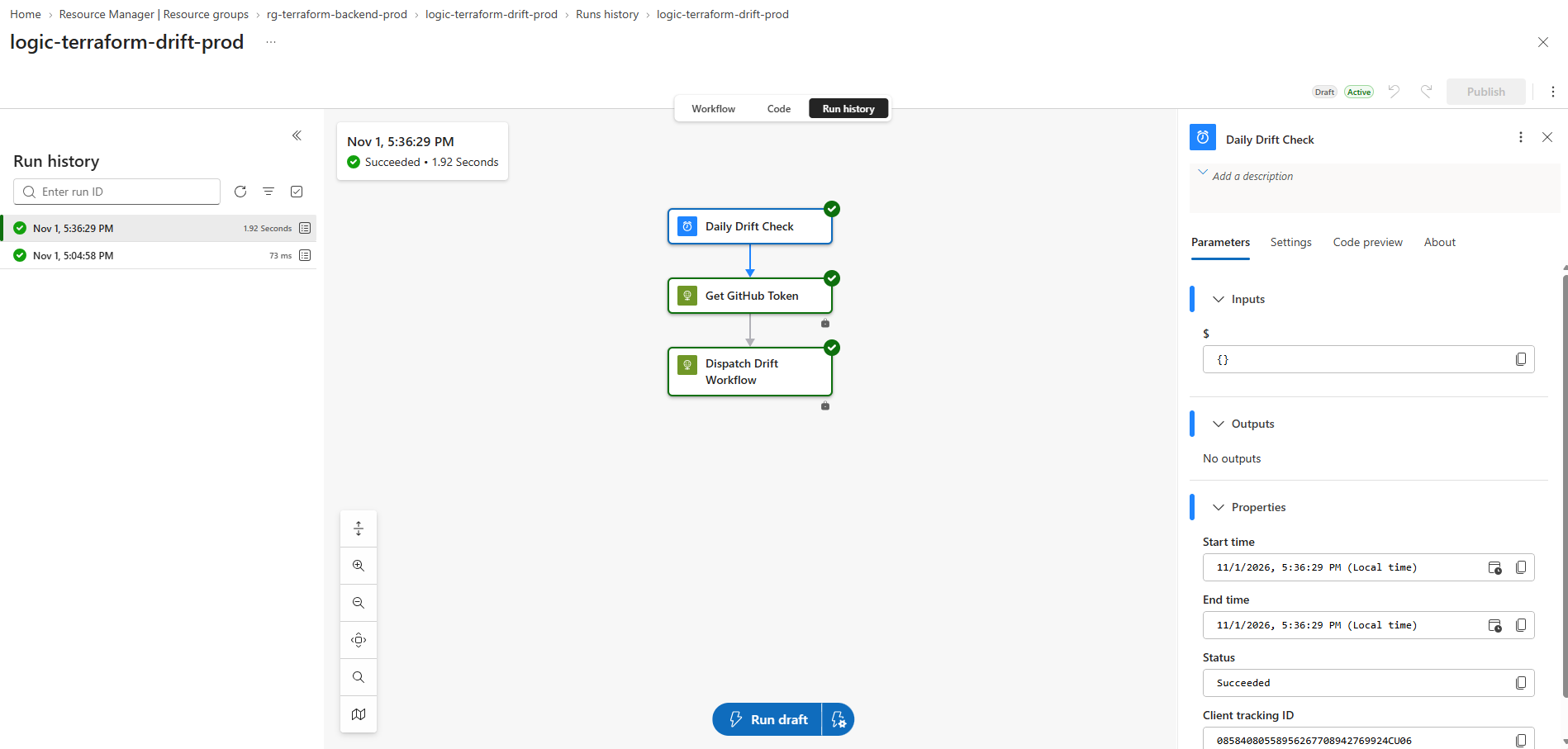
The Daily Drift Check trigger has empty inputs (
{}) and no outputs, because a recurrence trigger only starts the workflow at the configured time and doesn’t pass any data on. Start time, end time and the status Succeeded confirm that the trigger fired, here started manually with Run.
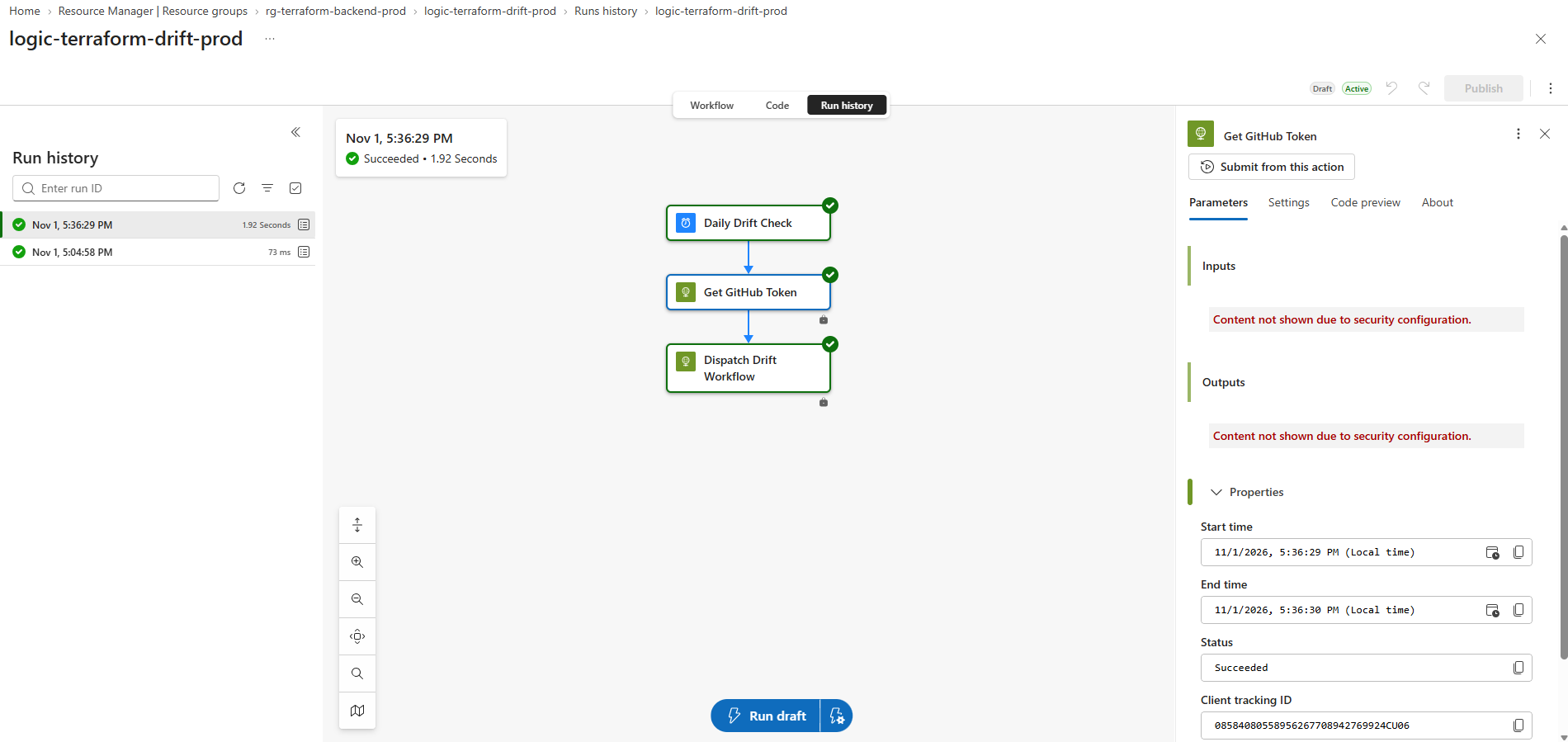
The Get GitHub Token action reads the token from Key Vault using the Logic App’s managed identity. Both inputs and outputs show “Content not shown due to security configuration”, because we enabled secure inputs and outputs for this action in Terraform (
secureData). That way, the GitHub token never appears in the run history, even for users who can view the Logic App’s runs.
The Dispatch Drift Workflow action calls the GitHub REST API. Its inputs are hidden as well, because the
Authorizationheader contains the token. The outputs show status code 204 (No Content), which is GitHub’s response to a successfulworkflow_dispatchrequest: the workflow was started, and there’s no response body.
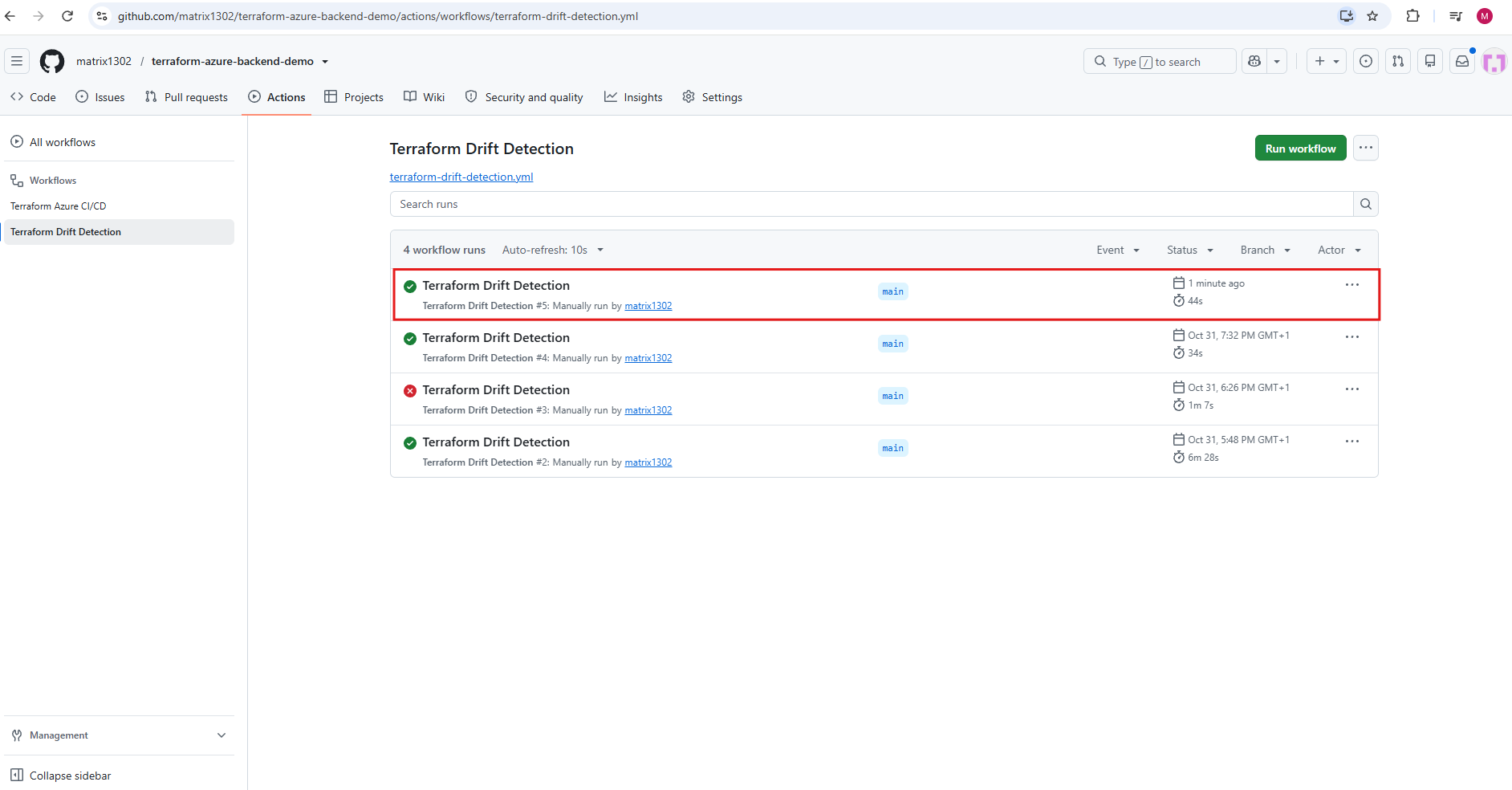
A few seconds after the Logic App run, a new Terraform Drift Detection run (#5) appears in the GitHub Actions tab and completes successfully, which means no drift was detected in production.
It’s listed as “Manually run by matrix1302”, because the Logic App triggers the workflow through the
workflow_dispatchevent using the token owner’s identity.
Testing the Azure-Triggered Drift Detection – With Manual Changes in Azure
Next, we add a tag manually to the production VM in the Azure portal and start the Logic App again with Run.
This time, the drift detection workflow should detect the tag as a configuration difference and fail the run.
Below I will add a new tag named drift_test and its value azure-scheduler directly in the Azure Portal.
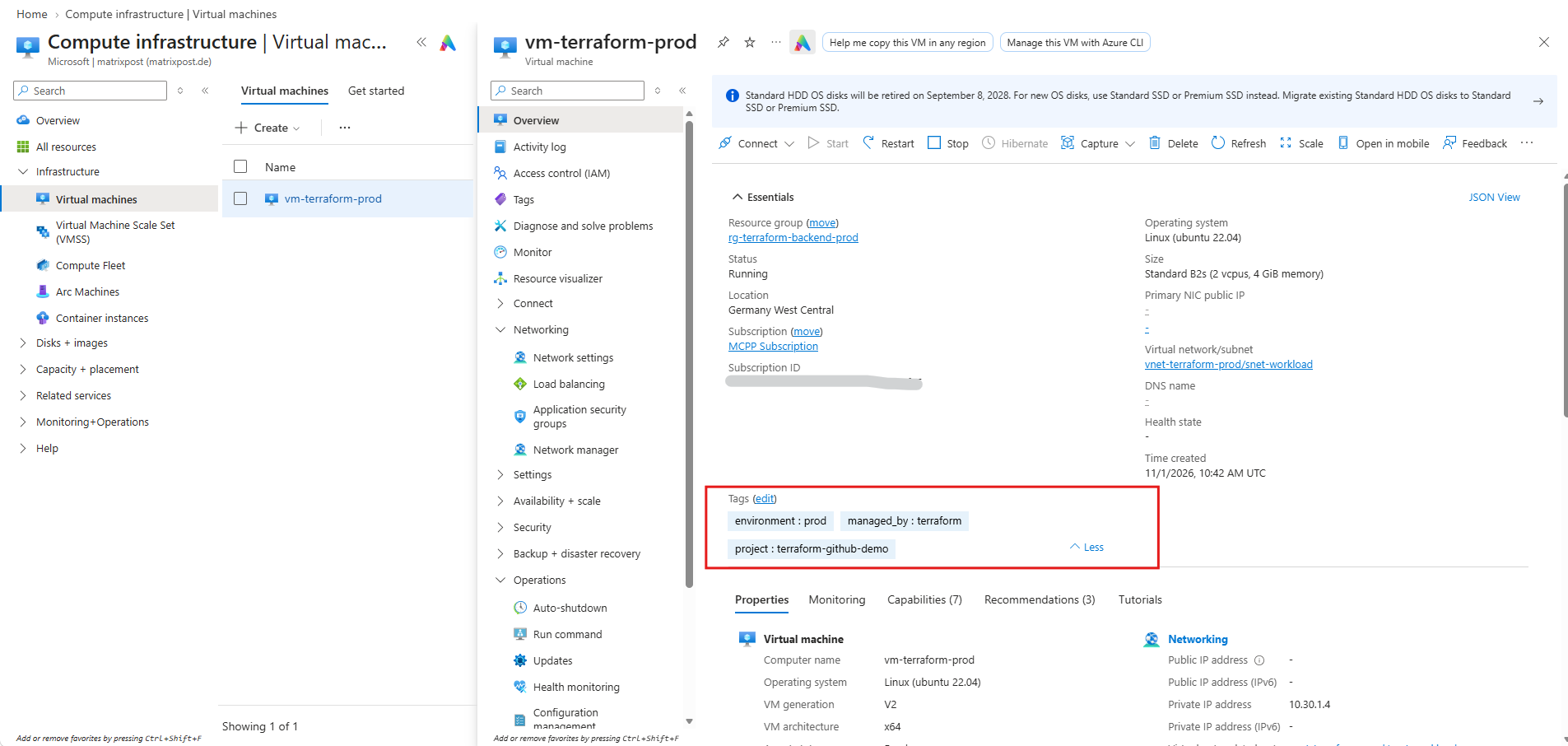
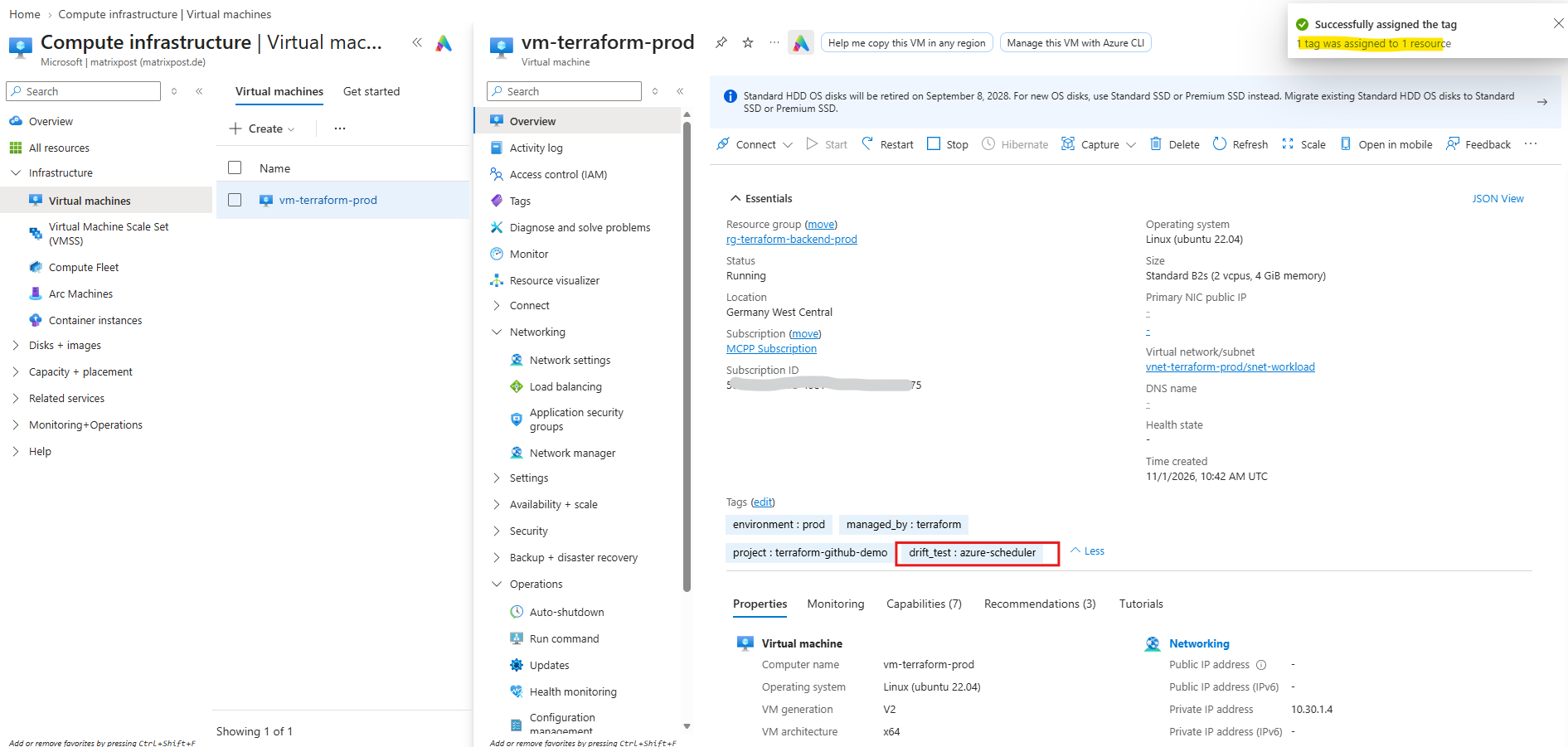
After adding the tag drift_test : azure-scheduler to the production VM in the Azure portal, we start the Logic App logic-terraform-drift-prod again with Run.
The Logic App triggers the drift detection workflow through the GitHub API, just as it will every morning at 07:23.
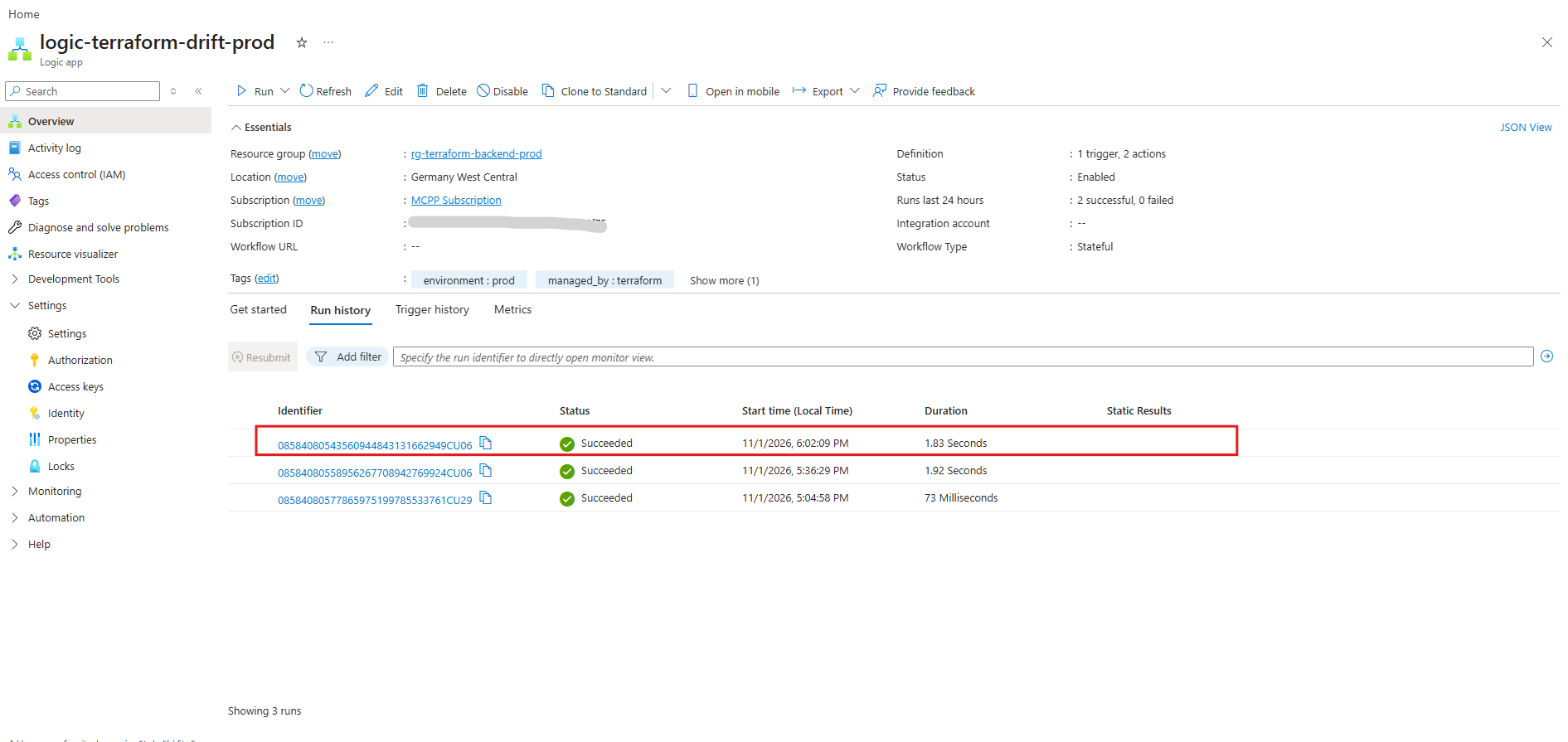
The Logic App run completes successfully, because its job is only to trigger the workflow.
The drift detection run in GitHub (#6), however, fails as intended and shown below:
terraform plandetects the manually added tagdrift_teston the production VM and reports 1 to change, so the workflow is marked as failed.
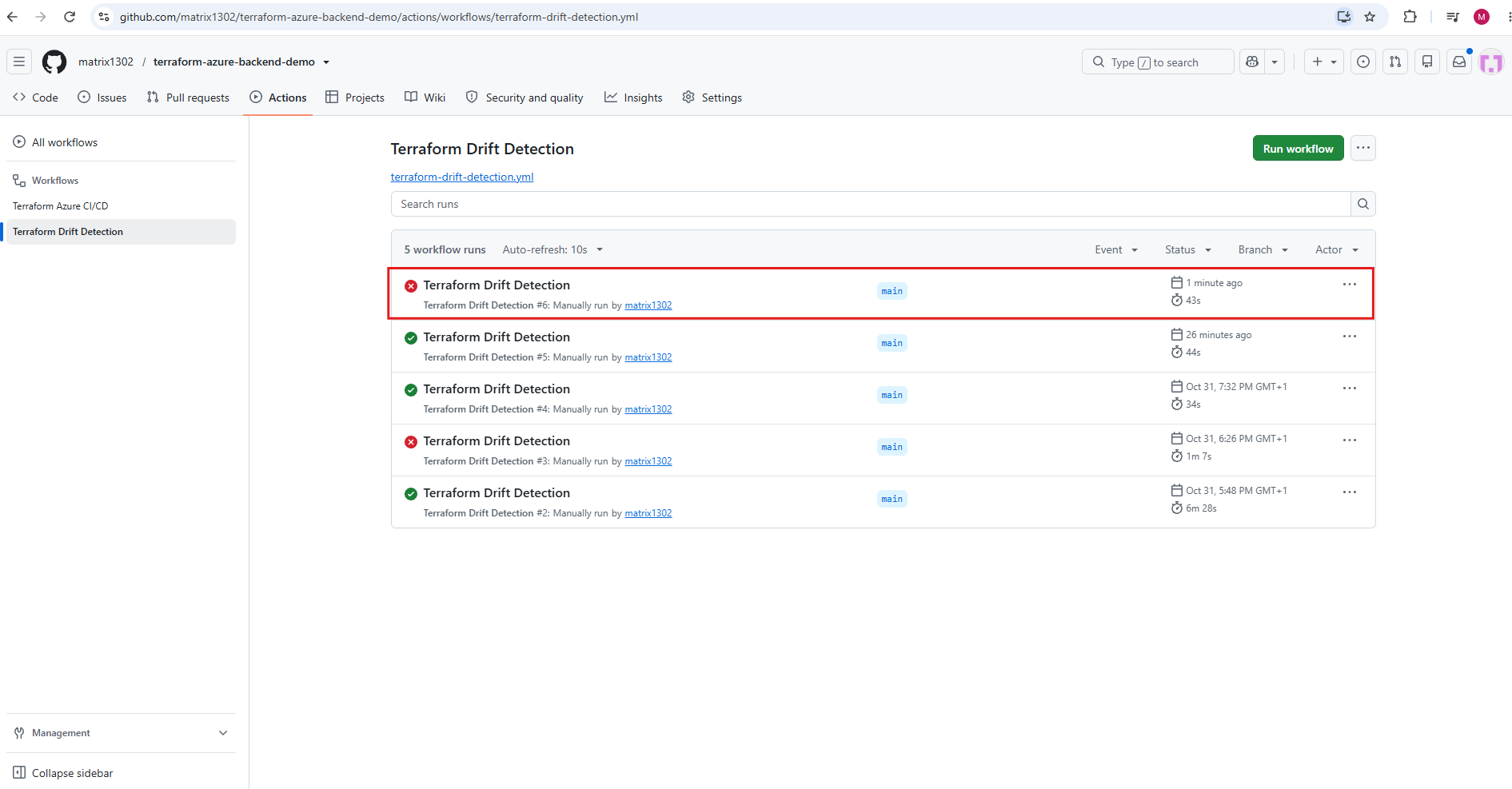
Just a second after the Logic App run, a new Terraform Drift Detection run (#6) starts in GitHub Actions. Like the previous run, it’s listed as “Manually run by matrix1302”, because it was triggered through the
workflow_dispatchevent.
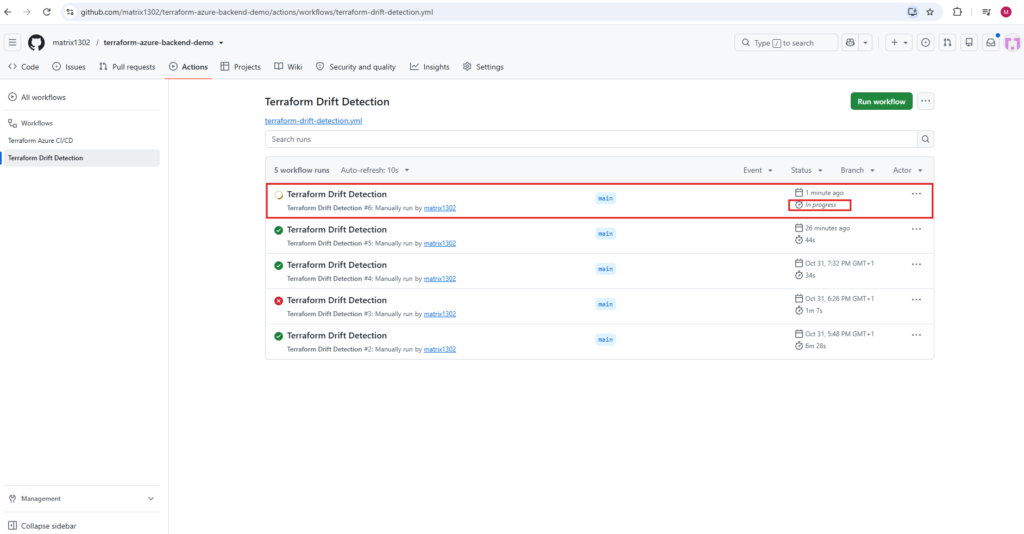
After about 40 seconds, run #6 completes with a failure, unlike the successful run #5 before it.
The failure is intended: it signals that the production environment no longer matches the Terraform configuration.
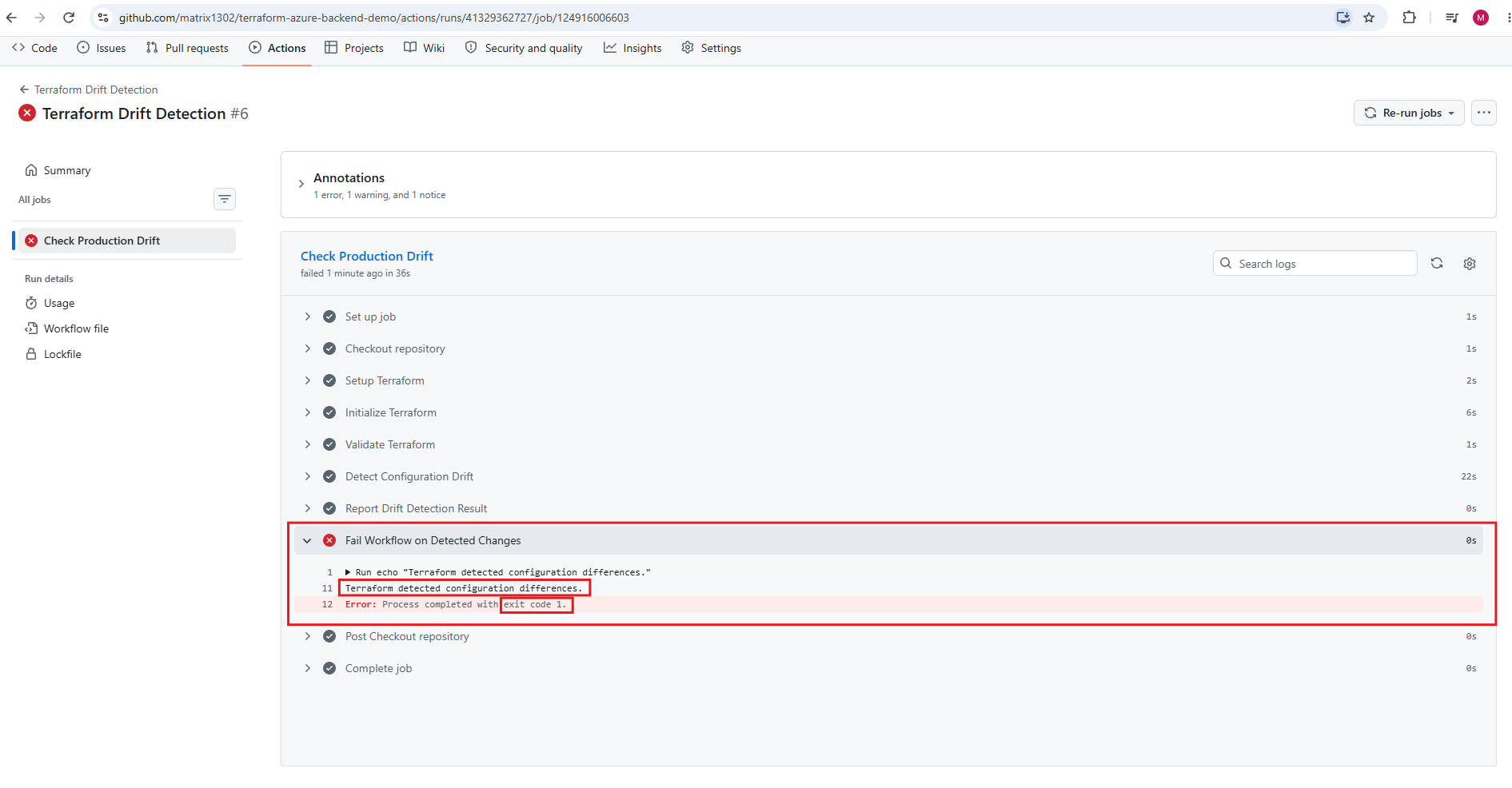
The failure comes from the step Fail Workflow on Detected Changes, which only runs when terraform plan returned exit code 2 (changes detected).
It writes “Terraform detected configuration differences.” to the log and then ends deliberately with
exit 1, so the drift shows up as a failed run in GitHub Actions and triggers a notification.
When drift is detected, we don’t fix it automatically, because a manual change might be an intentional hotfix, and some plans would destroy and recreate resources.
Instead, we review the plan and then either revert the change by running the CI/CD workflow from main, which still requires production approval, or adopt it by updating the Terraform code through a pull request.
With the Daily Schedule
Finally, we let the Logic App run on its own. In the previous evening, we had deleted the production VM vm-terraform-prod in the Azure portal, as shown earlier in this article. The next morning, the Logic App’s recurrence trigger started the drift detection workflow automatically at 07:23 on the dot, with no manual Run needed.
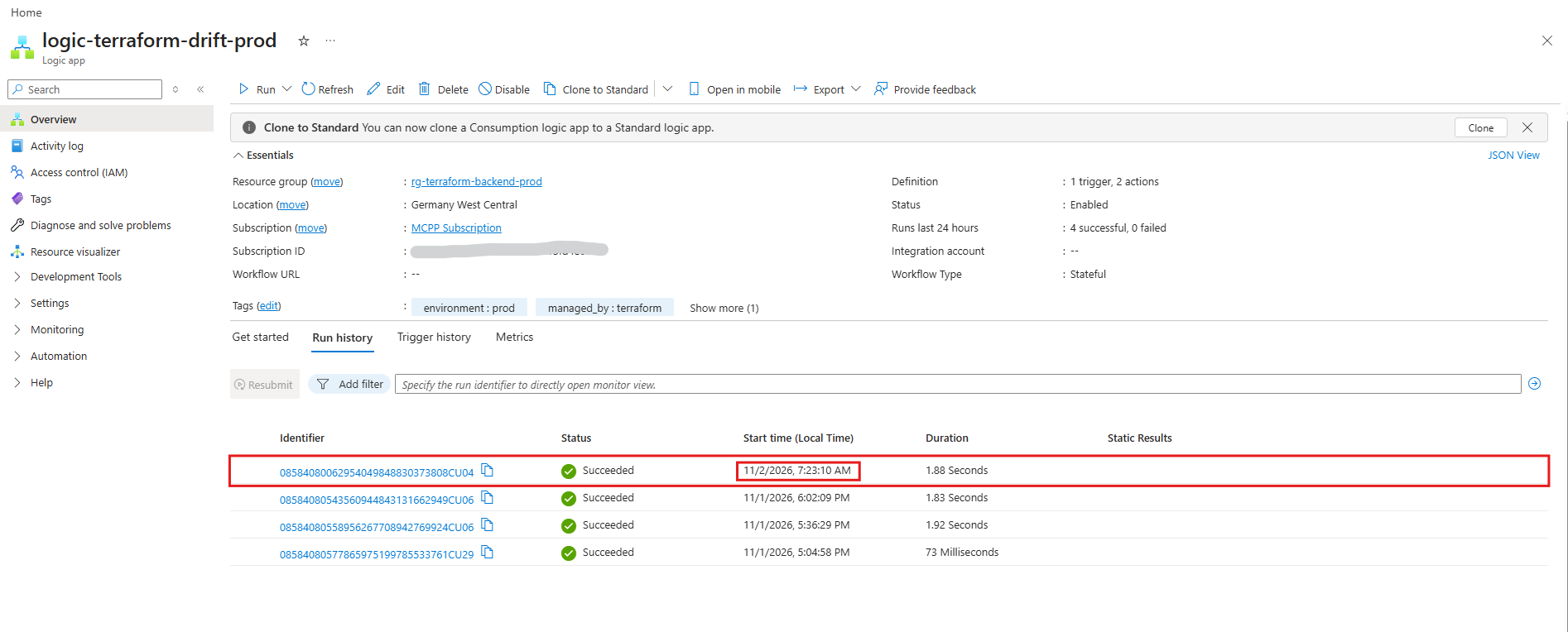
The drift detection run in GitHub failed as expected, and the plan correctly reported the deleted VM:
# azurerm_linux_virtual_machine.vm will be created
Plan: 1 to add, 0 to change, 0 to destroy.
The drift detection run #7 was started at 07:23 by the Azure Logic App and failed, because the production VM no longer exists. There’s no run triggered by GitHub’s native schedule at 06:17.
The plan output shows the reason for the failure: the VM
vm-terraform-prodwas deleted outside Terraform, so Terraform wants to create it again (Plan: 1 to add, 0 to change, 0 to destroy).
Comparing the Azure Logic App Scheduler with GitHub’s Native Schedule
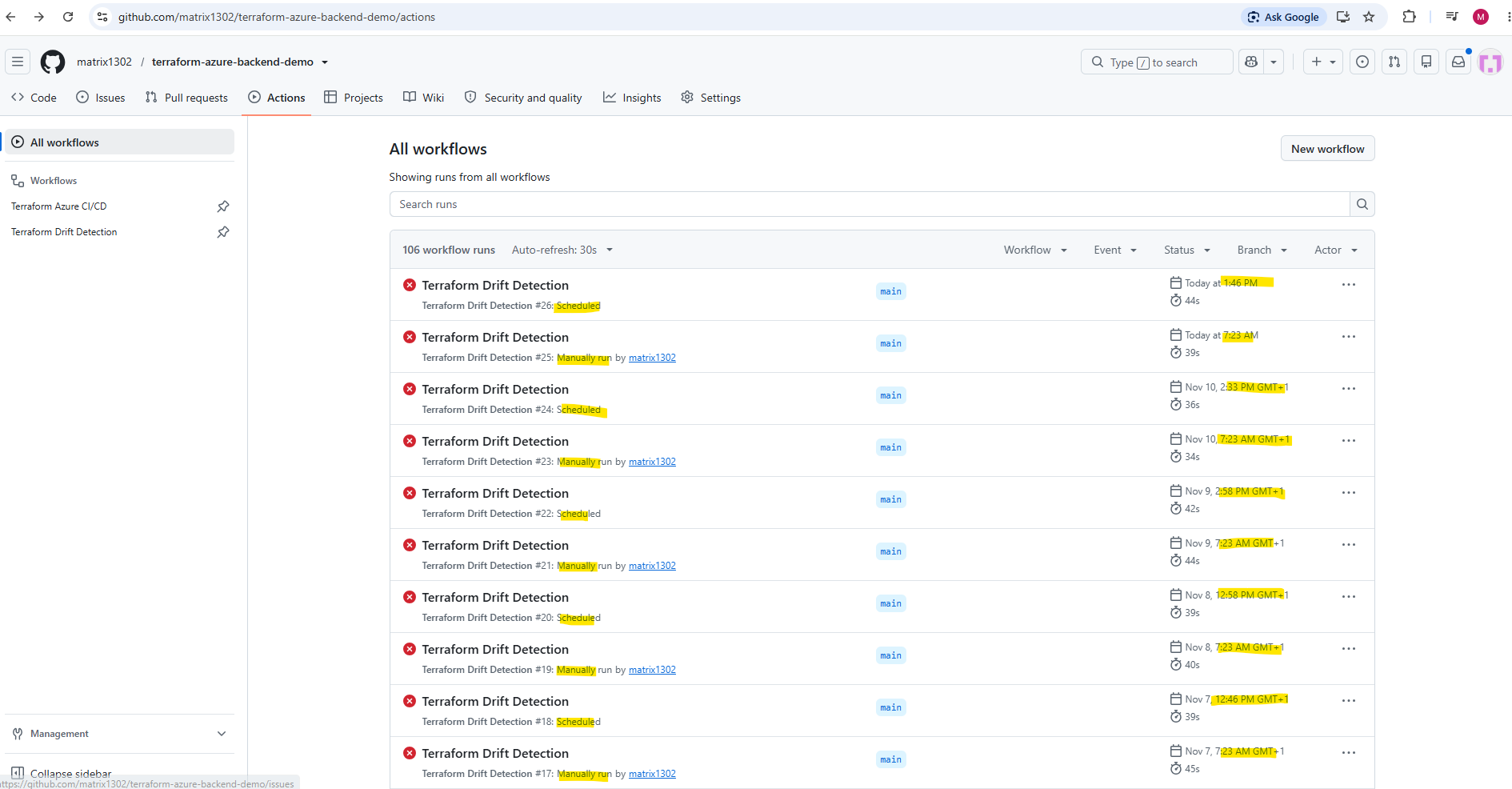
After running both scheduling mechanisms in parallel for several days, the GitHub Actions execution history revealed a significant difference in their reliability and timing.
The Azure Logic App consistently triggered the Terraform drift detection workflow at approximately 07:23 CET, while the native GitHub Actions schedule executed the same workflow several hours later.
Although the native workflow was configured to execute at 05:17 UTC (06:17 CET), its actual execution times varied considerably. Between November 7 and November 11, the scheduled executions occurred between approximately 12:46 and 14:58 CET.
In contrast, the Azure Logic App triggered the workflow at the expected time on all five observed days.
This confirms that the original GitHub Actions workflow was functioning correctly. The problem was not related to Terraform or the workflow configuration but to the timing of the native GitHub Actions scheduler.
GitHub documents that scheduled workflows can experience delays during periods of high load and that some scheduled jobs may even be dropped.
For infrastructure monitoring tasks such as Terraform drift detection, where predictable execution times are desirable, using an external scheduler such as Azure Logic Apps can therefore provide a more dependable alternative.
Note: The Azure Logic App triggers the GitHub Actions workflow through the GitHub API. Consequently, these executions appear as
manuallydispatched runs in the GitHub Actions history, even though they are initiated automatically.
Configuring Dedicated Email Notifications for Infrastructure Drift
So far, we have relied on GitHub’s built-in email notifications to inform us when our Terraform Drift Detection workflow fails. However, these notifications are not specific to infrastructure drift and can also be triggered by other issues, such as authentication failures or Terraform execution errors.
For a production environment, we may want a more targeted notification mechanism that sends an email to a dedicated monitoring address, such as terraform-alerts@company.com, only when actual infrastructure drift is detected.
To achieve this, we can extend our existing GitHub Actions workflow with a dedicated notification step that:
- Sends an email only when Terraform reports infrastructure drift.
- Uses a configurable recipient address, independent of the GitHub account’s notification settings.
- Includes relevant information such as the repository, environment, workflow run and detected drift.
- Does not send drift alerts when no changes are detected or when the workflow fails for unrelated reasons.
We can implement this using an SMTP-based GitHub Action or an external email service, with the required credentials stored securely as GitHub Actions secrets.
This separates infrastructure drift alerts from general GitHub Actions failure notifications and makes our monitoring more suitable for production environments.
Note: GitHub’s existing workflow failure notifications remain independent of this configuration and can still be sent according to the user’s notification preferences.
Available email notification options
| Solution | Dedicated M365 mailbox? | Cost for my lab | Suitability |
|---|---|---|---|
| Azure Communication Services Email | No | Usage-based | Good for learning, but retiring |
| Microsoft Graph API | Yes, an Exchange mailbox | Included if already licensed | Excellent |
| Microsoft 365 High Volume Email (HVE) | No user mailbox | Depends on tenant eligibility | Good for internal recipients |
| Azure Logic Apps + Outlook connector | Yes, typically | Low execution costs + M365 license | Very good |
| Azure Monitor Action Groups | No | 1,000 email notifications/month included | Excellent for Azure monitoring |
| Exchange Online SMTP OAuth | Yes, generally | Existing M365 subscription | Good |
| Third-party email API (SendGrid, Mailgun, etc.) | No | Free tiers or usage-based | Good |
| Self-hosted SMTP server | No M365 mailbox | Hosting and maintenance | Unnecessary complexity |
For my Terraform drift detection workflow, I will use the Microsoft Graph API together with a dedicated Microsoft 365 Exchange Online shared mailbox (terraform-alerts@matrixpost.tech).
This approach avoids additional mailbox licensing costs and allows GitHub Actions to send automated drift notifications using secure application-based authentication without requiring a mailbox password.
Register the Microsoft Entra ID application
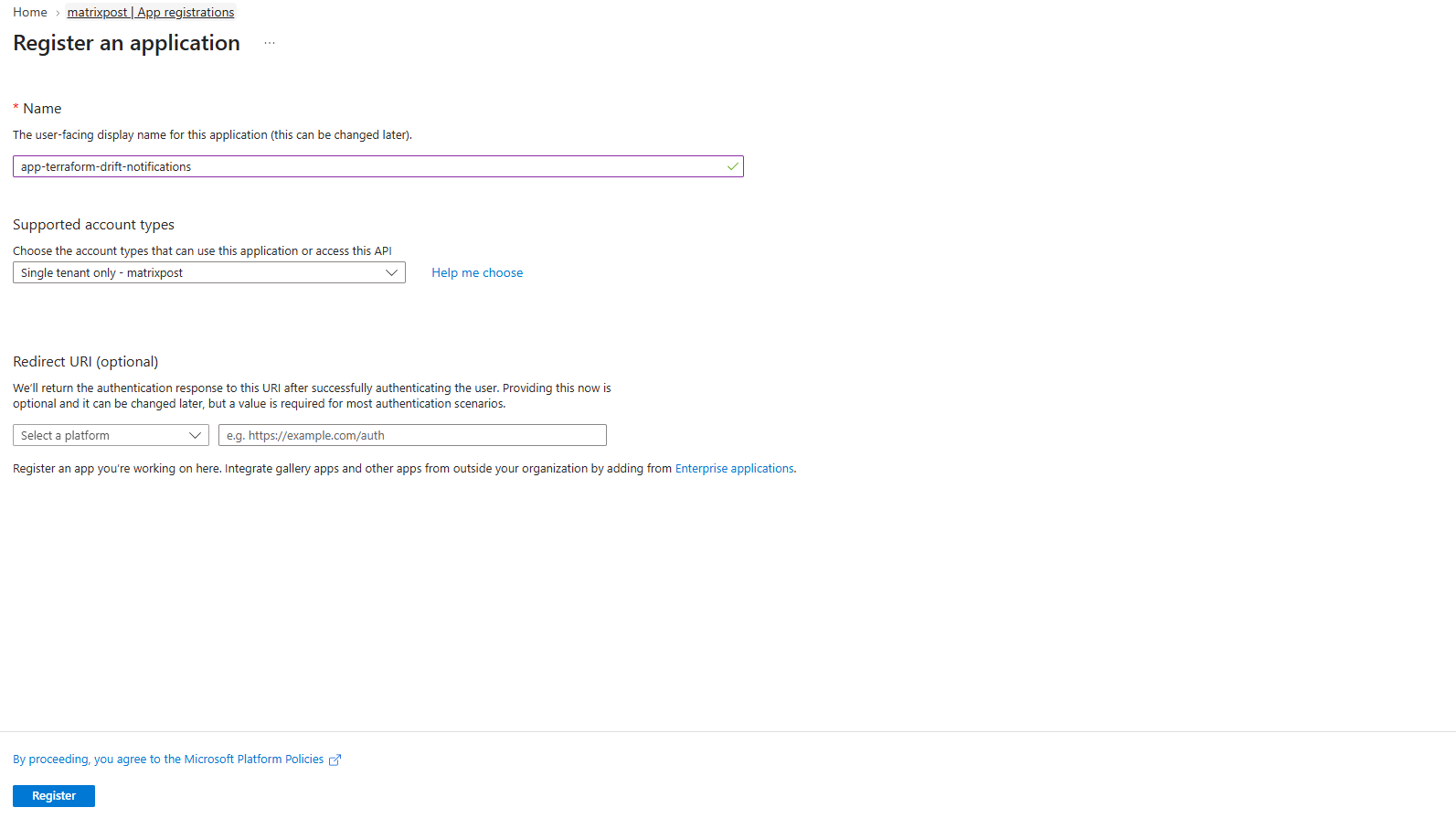
To allow our GitHub Actions workflow to send email notifications through the Microsoft Graph API, we first need to register an application in Microsoft Entra ID.
This application will provide a dedicated identity for authentication and will later be granted permission to send emails exclusively through our Exchange Online shared mailbox.
Open Microsoft Entra admin center and navigate to Entra ID → App registrations → New registration or the Azure Portal and navigate to Entra ID → Manage → App registrations → New registration.
Name: app-terraform-drift-notifications
Supported account types: Accounts in this organizational directory only (Single tenant)
Redirect URI: Leave empty
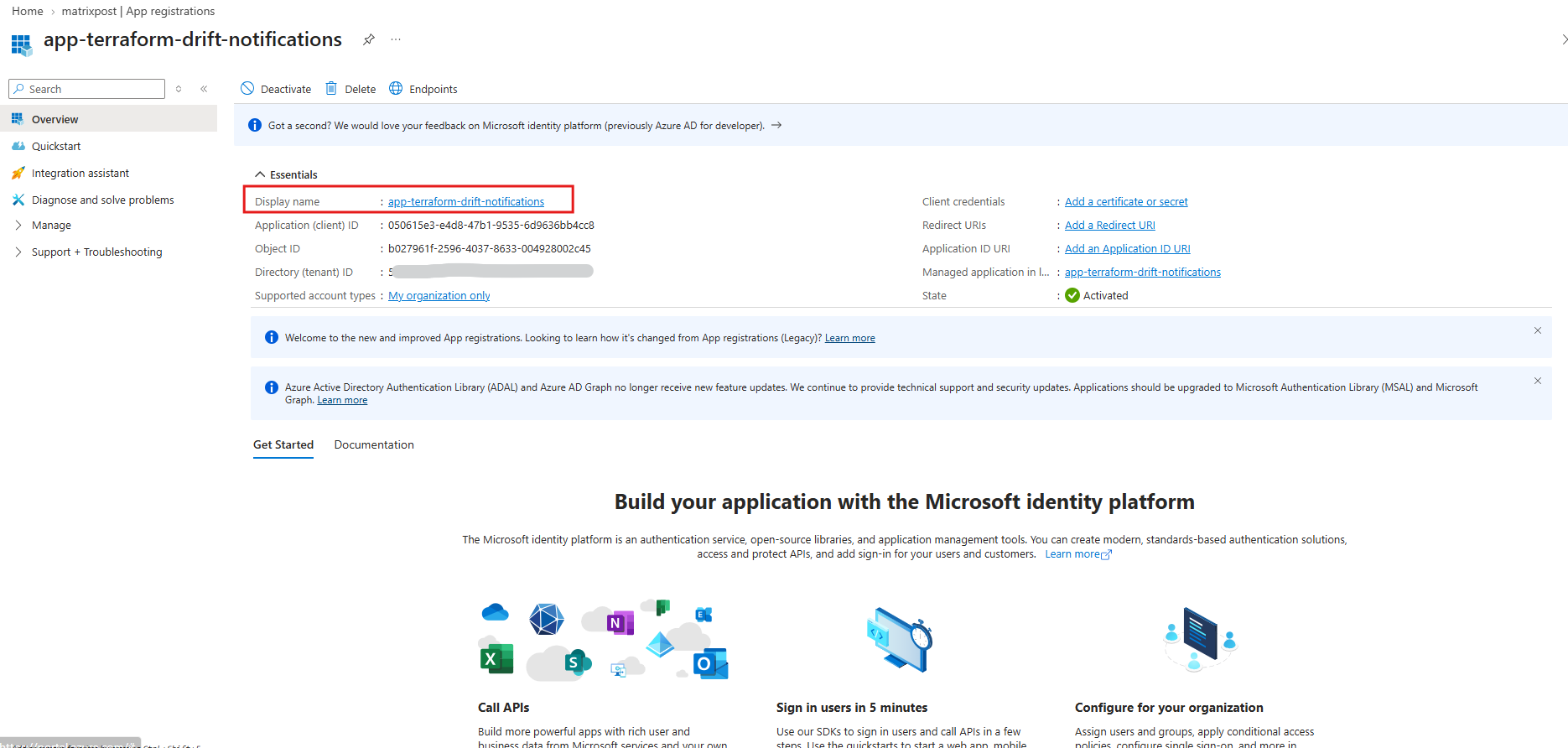
After registration, we’ll configure the Mail.Send application permission and restrict mailbox access to terraform-alerts@matrixpost.tech using Exchange Online RBAC for Applications.
Important: We won’t grant tenant-wide Microsoft Graph
Mail.Sendaccess unnecessarily. We’ll configure the mailbox restriction before testing email delivery.
Configure Microsoft Graph permissions
Since we want to restrict sending to terraform-alerts@matrixpost.tech, we’ll use Exchange Online RBAC for Applications rather than granting unrestricted tenant-wide Graph access.
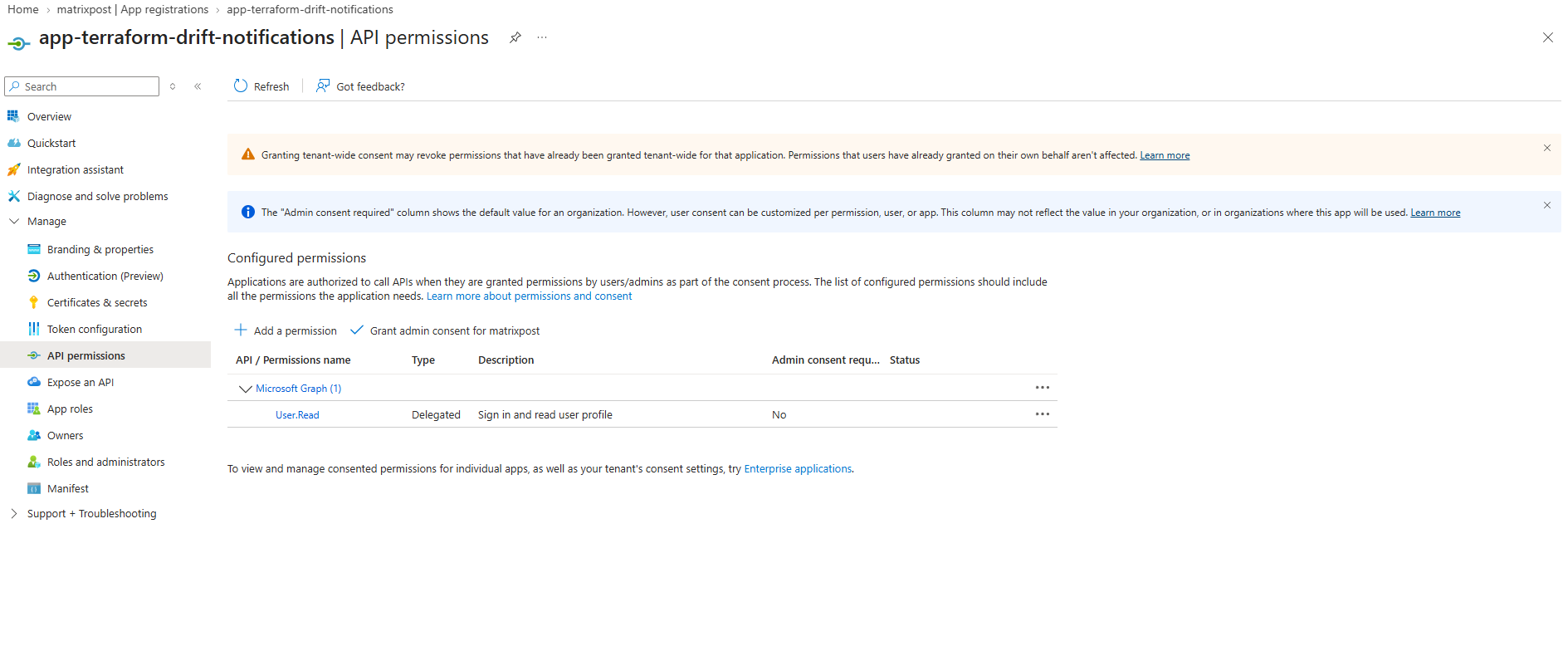
Expand Manage → API permissions in the left navigation.
The application currently has only the default delegated
User.Readpermission. We do not need to add or grant the Microsoft GraphMail.Sendapplication permission here, as we will configure the requiredApplication Mail.Sendrole directly through Exchange Online RBAC for Applications, restricting access to our dedicated shared mailbox.
Configure Exchange Online RBAC
We’ll use Exchange Online RBAC for Applications to grant our application the Application Mail.Send role, restricted to the shared mailbox terraform-alerts@matrixpost.tech.
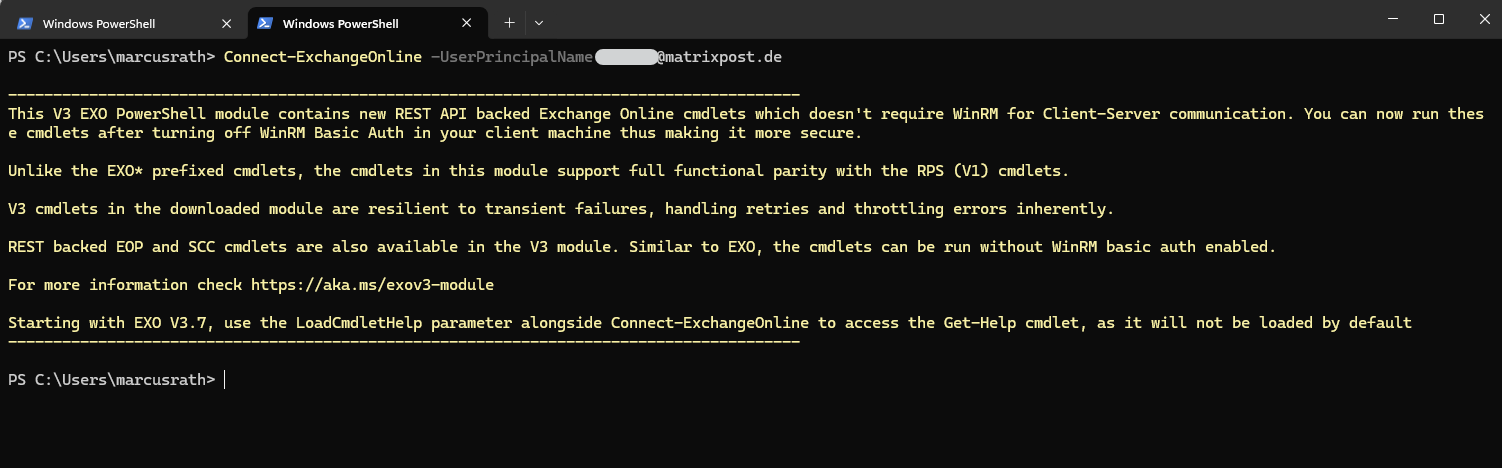
First, we connect to Exchange Online PowerShell. Open PowerShell and run:
Install-Module ExchangeOnlineManagement -Scope CurrentUser
Then connect:
Connect to Exchange Online PowerShell using an existing Microsoft 365 administrator account with the required Exchange Online permissions.
This account is used for administration, while the dedicated shared mailbox terraform-alerts@matrixpost.tech will later be used to send Terraform drift detection notifications.
Connect-ExchangeOnline -UserPrincipalName <mailboxuser@domain>
Once connected, we verify the shared mailbox:
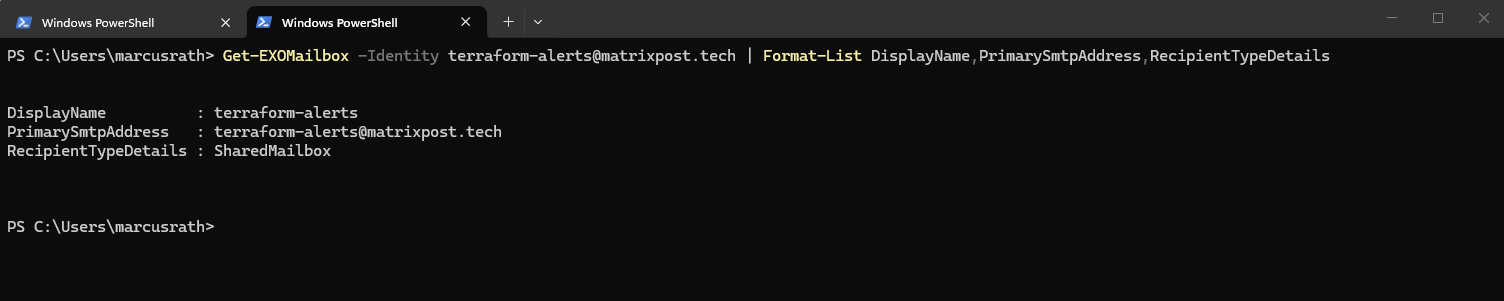
The
Get-EXOMailboxcommand confirms that the mailbox is available and its recipient type isSharedMailbox.
Get-EXOMailbox -Identity terraform-alerts@matrixpost.tech | Format-List DisplayName,PrimarySmtpAddress,RecipientTypeDetails
Registering the Microsoft Entra Application as a Service Principal in Exchange Online
Next, we need to register our Microsoft Entra application as a service principal in Exchange Online. This allows Exchange Online to recognize the application so that we can subsequently assign the required Application Mail.Send role and restrict access to our dedicated shared mailbox.
For the registration, we need two identifiers from Microsoft Entra ID:
- Application (client) ID: Available under Entra ID → App registrations → app-terraform-drift-notifications → Overview.
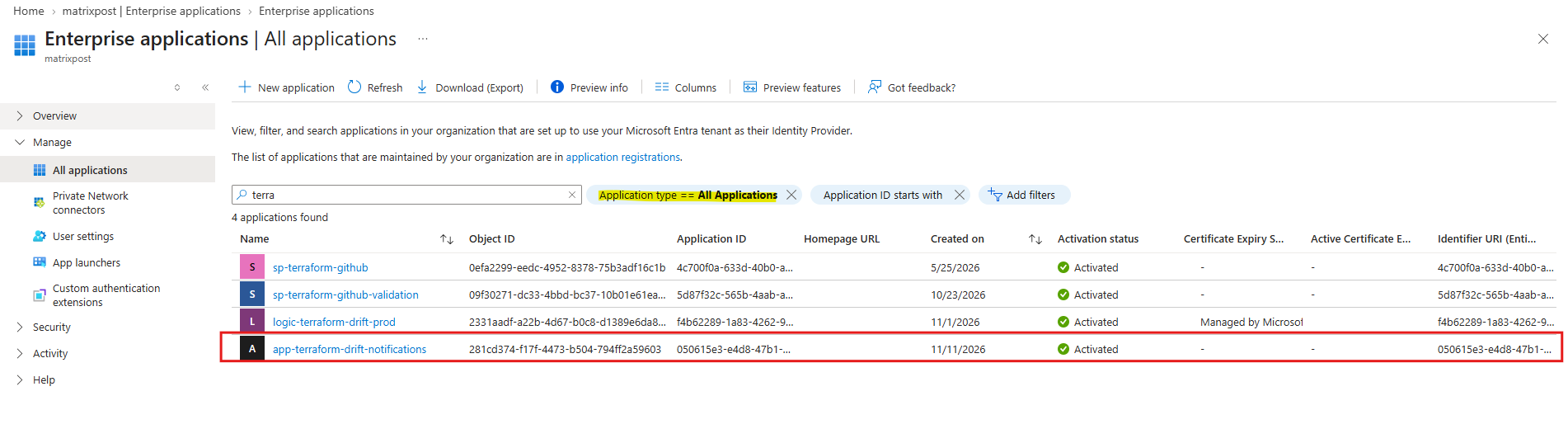
- Object ID: Available under Entra ID → Enterprise applications → app-terraform-drift-notifications → Overview.
Important: The Object ID must belong to the Enterprise Application (service principal), not the App Registration, as these are different objects in Microsoft Entra ID.
For a more detailed explanation of the differences between App Registrations and Enterprise Applications in Microsoft Entra ID, including their respective application and service principal objects, see my previous article: Azure AD – App Registrations vs. Enterprise Applications
Once we have both identifiers, we register the service principal in Exchange Online using PowerShell:
This command creates a reference to the existing Microsoft Entra service principal within Exchange Online. It does not create another application or grant any mailbox permissions.
New-ServicePrincipal -AppId "<Application-Client-ID>" -ObjectId "<Enterprise-Application-Object-ID>" -DisplayName "app-terraform-drift-notifications"

The required Application (client) ID can be found under Microsoft Entra ID → App registrations, while the corresponding service principal Object ID is available under Enterprise applications → All applications shown below. Search for
app-terraform-drift-notificationsto locate the Enterprise Application and retrieve its Object ID.
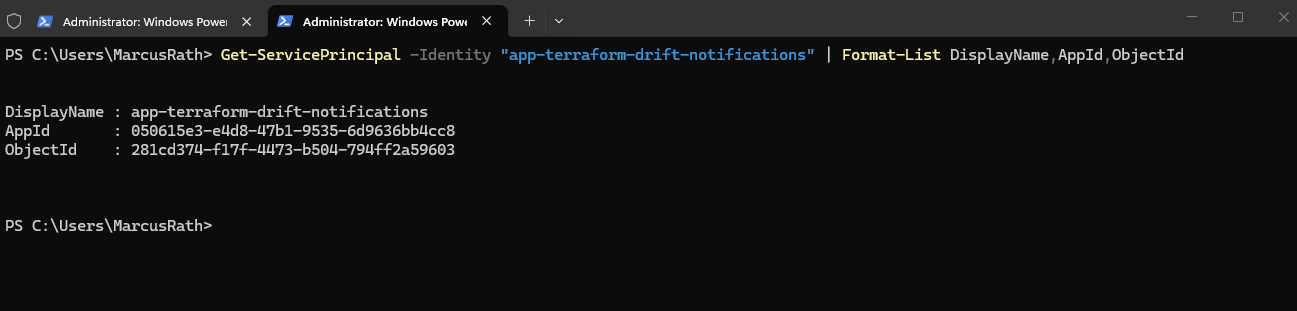
We can verify the registration using:
Get-ServicePrincipal -Identity "app-terraform-drift-notifications" | Format-List DisplayName,AppId,ObjectId
In the next step, we will create a dedicated Exchange Online management scope and assign the Application Mail.Send role, ensuring that our application can send email only through terraform-alerts@matrixpost.tech.
Creating a Dedicated Exchange Online Management Scope
Next, we need to create a dedicated Exchange Online management scope to restrict our application’s email-sending permissions to the shared mailbox terraform-alerts@matrixpost.tech.
Without an appropriate scope, application-level email permissions could potentially allow access to other mailboxes in the tenant. By defining a mailbox-specific management scope, we can apply the principle of least privilege.
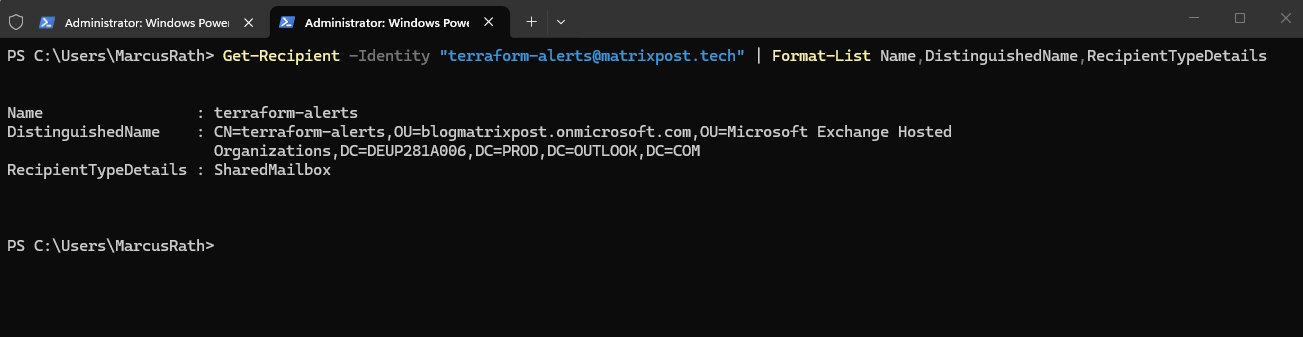
First, retrieve the mailbox’s Distinguished Name (DN) using Exchange Online PowerShell:
Get-Recipient -Identity "terraform-alerts@matrixpost.tech" | Format-List Name,DistinguishedName,RecipientTypeDetailsThe Distinguished Name uniquely identifies the mailbox object in the Exchange Online directory and can be used to construct an exact-match recipient filter.
Get-Recipient -Identity "terraform-alerts@matrixpost.tech" | Format-List Name,DistinguishedName,RecipientTypeDetails
In the next step, we will use this information to create the management scope with New-ManagementScope and subsequently assign the Application Mail.Send role to our registered service principal.
Creating the Mailbox-Specific Management Scope
Now that we have retrieved the Distinguished Name of our shared mailbox, we can create a dedicated Exchange Online management scope that restricts application permissions to terraform-alerts@matrixpost.tech.
We first retrieve the mailbox object and then create a management scope using a recipient restriction filter that matches its Distinguished Name.
$mailbox = Get-Recipient -Identity "terraform-alerts@matrixpost.tech"

New-ManagementScope `
    -Name "scope-terraform-drift-notifications" `
    -RecipientRestrictionFilter "DistinguishedName -eq '$($mailbox.DistinguishedName)'"
This creates a custom management scope that includes only the recipient matching the specified Distinguished Name.
$mailbox = Get-Recipient -Identity "terraform-alerts@matrixpost.tech"

New-ManagementScope `
    -Name "scope-terraform-drift-notifications" `
    -RecipientRestrictionFilter "DistinguishedName -eq '$($mailbox.DistinguishedName)'"
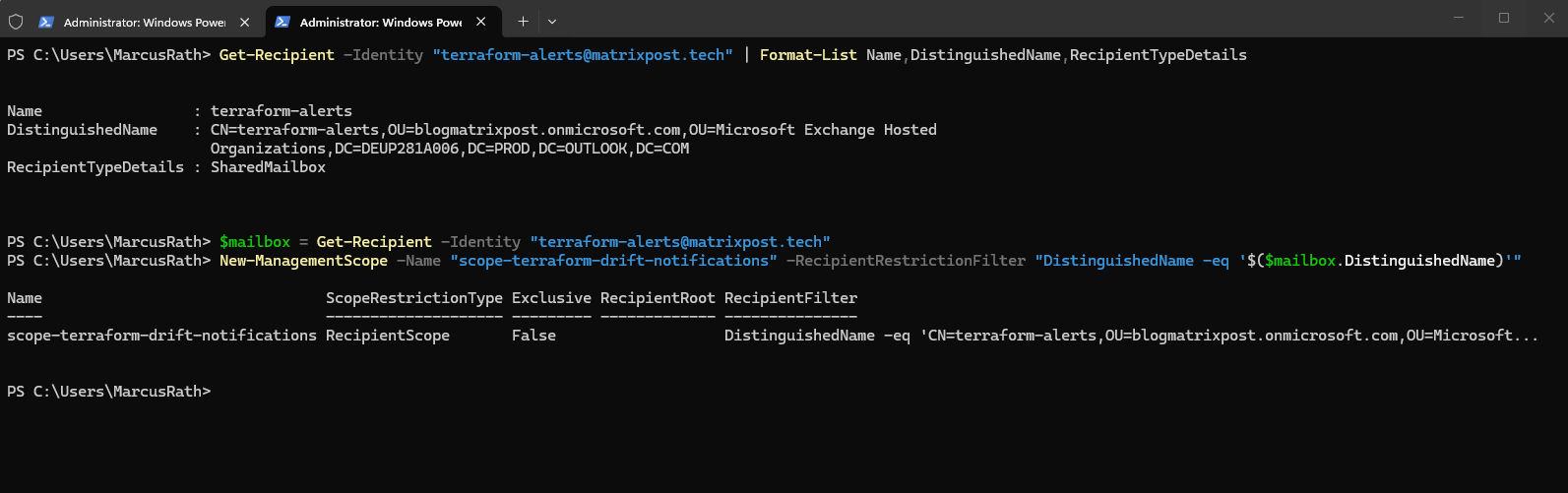
We can verify the scope configuration using:
Get-ManagementScope -Identity "scope-terraform-drift-notifications" | Format-List Name,RecipientRestrictionFilter

To confirm that the recipient filter matches only our dedicated shared mailbox, we can preview the recipients included in the scope:
The expected result is a single recipient:
terraform-alerts@matrixpost.techas shown below.
$scope = Get-ManagementScope -Identity "scope-terraform-drift-notifications"
Get-Recipient -RecipientPreviewFilter $scope.RecipientFilter | Format-Table Name,PrimarySmtpAddress,RecipientTypeDetails
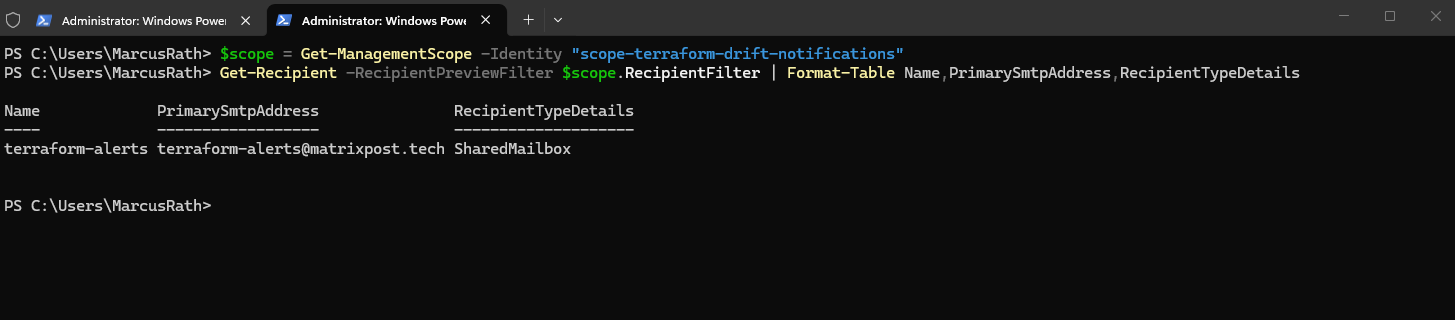
At this stage, the management scope only defines which mailbox the application will be allowed to access. No email-sending permissions have been granted yet.
In the next step, we will assign the Application Mail.Send role to our registered service principal and associate it with this management scope, ensuring that the application can send email exclusively through our dedicated shared mailbox.
Assigning the Application Mail.Send Role to the Service Principal
Now that our management scope has been created and verified, we can grant the registered service principal permission to send emails through our dedicated Exchange Online shared mailbox.
We use the Application Mail.Send role together with the previously created management scope to restrict the application’s email-sending permissions to terraform-alerts@matrixpost.tech.
Run the following command in Exchange Online PowerShell:
New-ManagementRoleAssignment `
    -App "app-terraform-drift-notifications" `
    -Role "Application Mail.Send" `
    -CustomResourceScope "scope-terraform-drift-notifications"
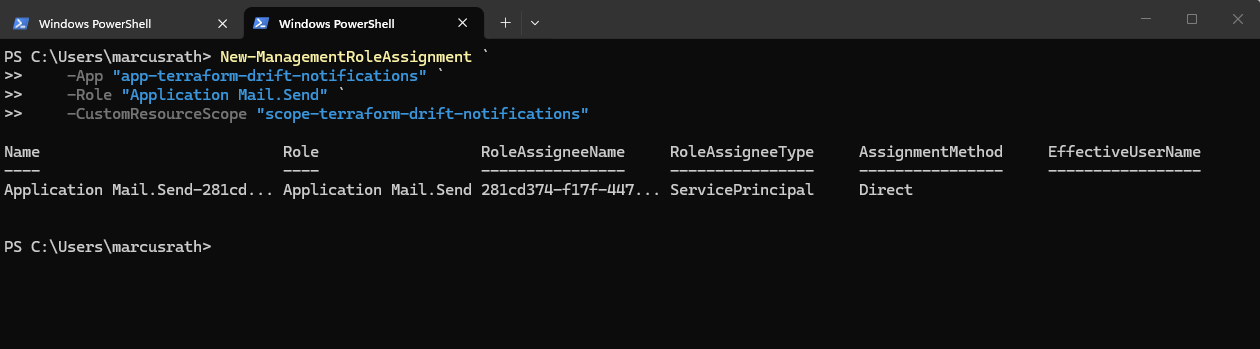
This creates an Exchange Online RBAC role assignment that associates our registered service principal with the Application Mail.Send role and the mailbox-specific management scope.
Next, we verify the effective authorization:
Test-ServicePrincipalAuthorization `
    -Identity "app-terraform-drift-notifications" `
    -Resource "terraform-alerts@matrixpost.tech" |
    Format-Table RoleName,GrantedPermissions,AllowedResourceScope,ScopeType,InScope
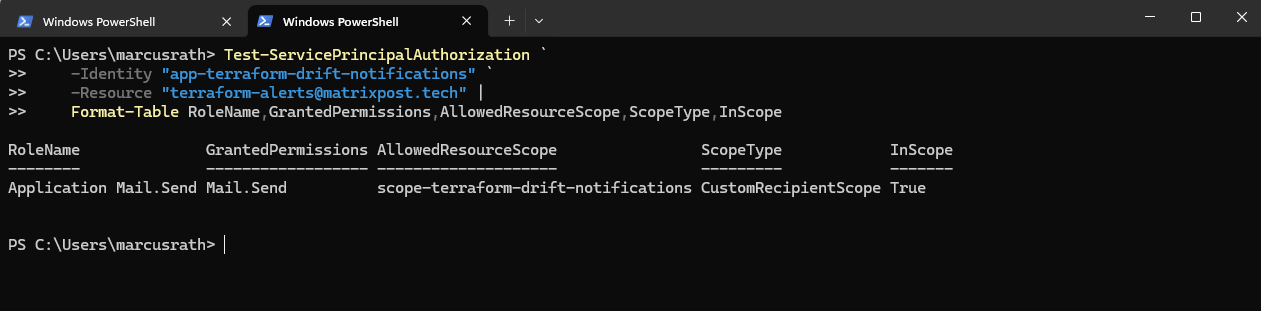
The expected result is an Application Mail.Send assignment with InScope = True, confirming that our shared mailbox is included in the application’s authorized resource scope.
To verify that other mailboxes are excluded, we can repeat the test using a different mailbox in the same tenant:
For the other mailbox, we expect
InScope = False.
Test-ServicePrincipalAuthorization `
    -Identity "app-terraform-drift-notifications" `
    -Resource "<another-mailbox@yourdomain.com>" |
    Format-Table RoleName,GrantedPermissions,AllowedResourceScope,ScopeType,InScope
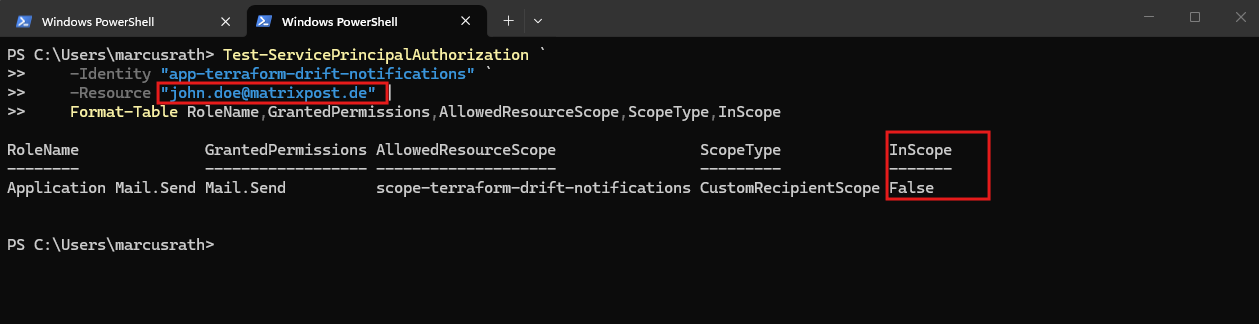
This configuration follows the principle of least privilege by allowing the application to send emails only through the dedicated Terraform notification mailbox, without granting tenant-wide Microsoft Graph Mail.Send permissions.
Note: Exchange Online RBAC role assignments can take some time to propagate. The authorization test verifies the configured scope, but we will also validate the permissions by sending an actual email through Microsoft Graph.
Configuring Federated Authentication for GitHub Actions
To allow our Terraform drift detection workflow to authenticate against Microsoft Graph, we will configure OpenID Connect (OIDC) federation between GitHub Actions and Microsoft Entra ID.
For authentication between GitHub Actions and Microsoft Entra ID, we will use OpenID Connect (OIDC) federated credentials instead of storing a client secret.
This allows our workflow to authenticate securely using short-lived tokens without maintaining application passwords. We will explore OIDC federation and its underlying authentication mechanisms in greater detail in
Part 7 – Securing Azure Authentication with OIDC Federated Credentials.
Open Microsoft Entra ID → App registrations → app-terraform-drift-notifications → Certificates & secrets → Federated credentials.
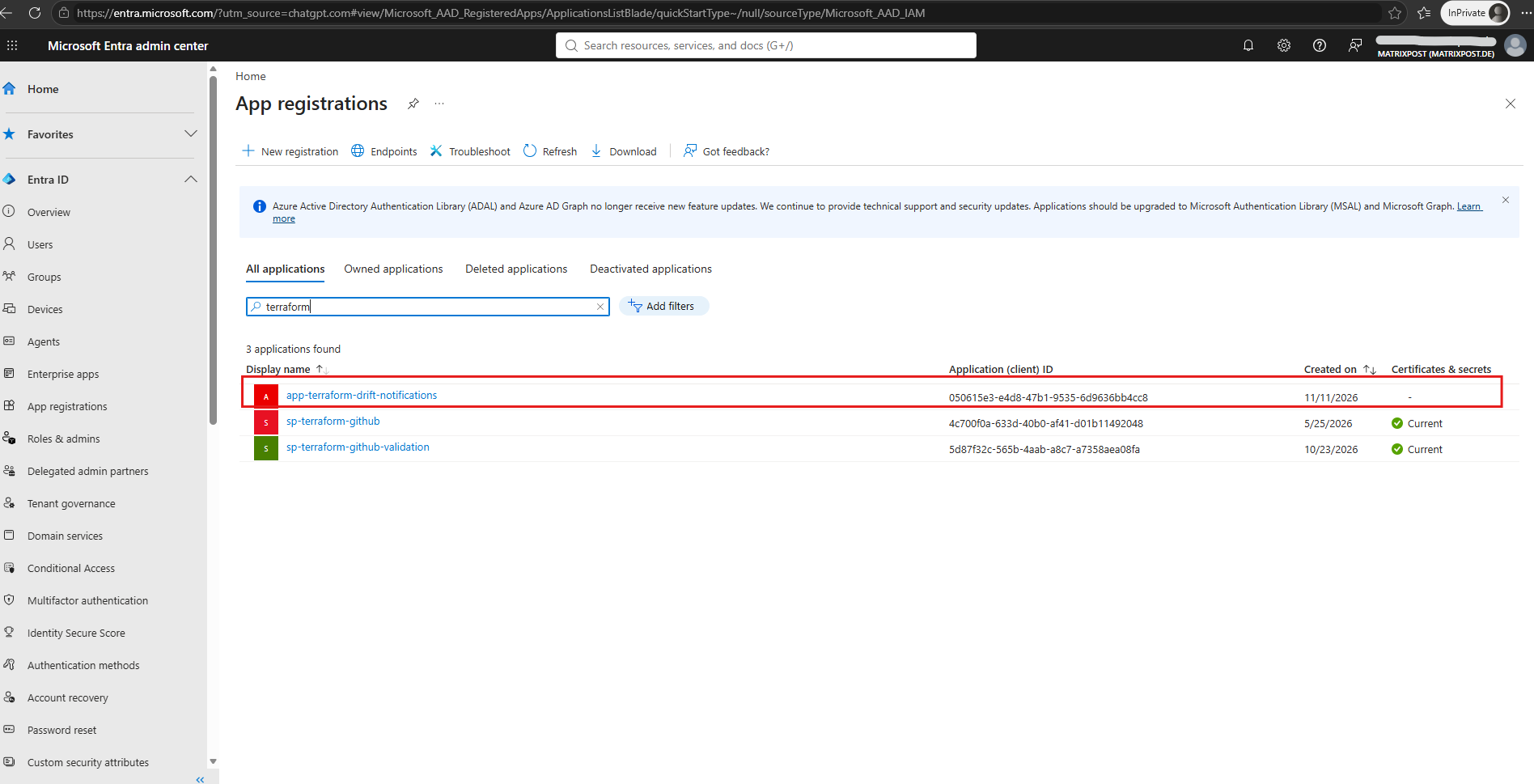
Select Add credential.
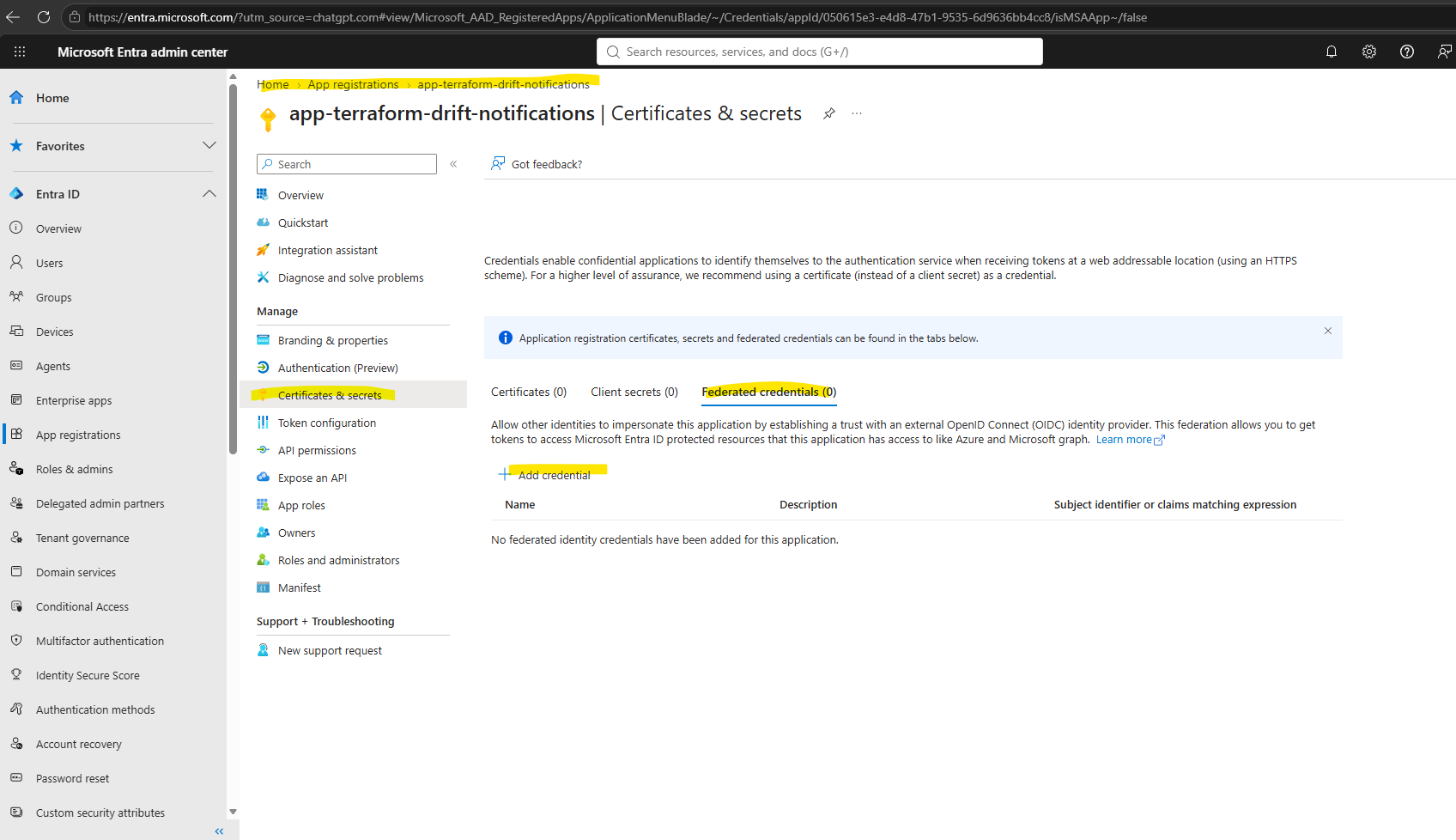
Choose GitHub Actions deploying Azure resources as the federated credential scenario.
We will configure the credential to trust our GitHub repository and the dedicated
production-monitoringenvironment used by the Terraform drift detection workflow.
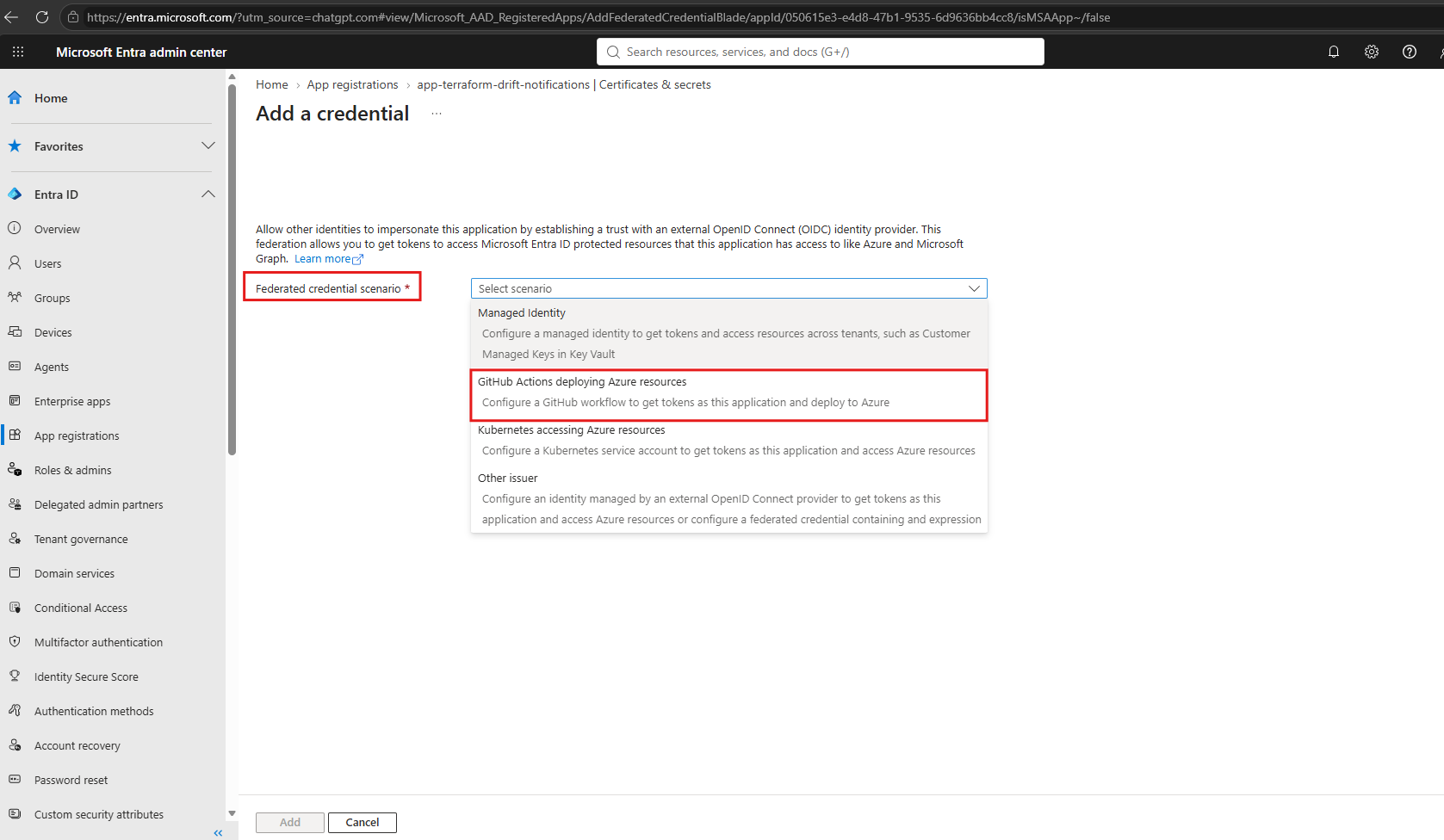
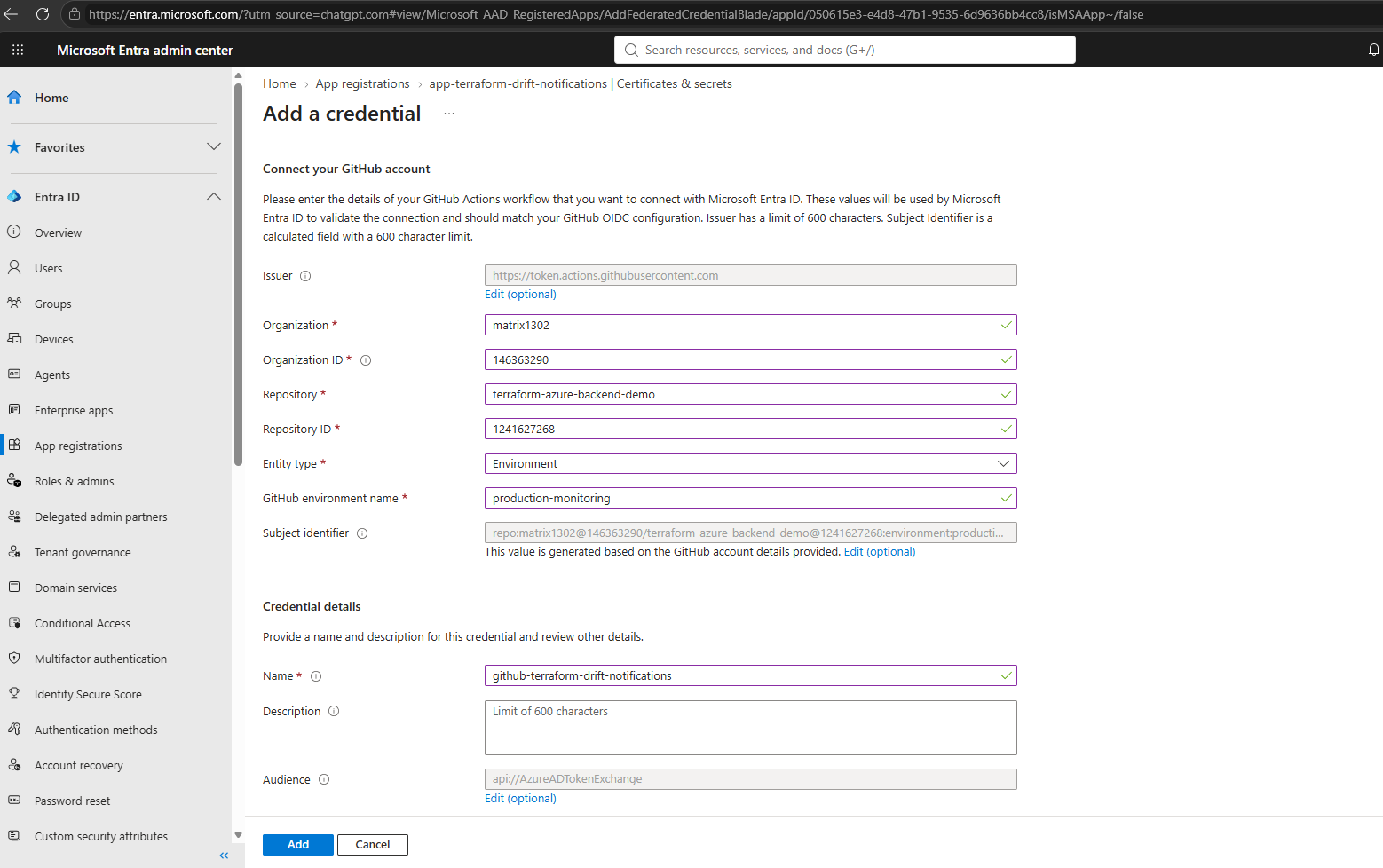
I will use these settings:
The Organization field in the Entra ID federated credential must match the actual GitHub repository owner. My repository URL is
https://github.com/matrix1302/terraform-azure-backend-demo.
| Setting | Value |
|---|---|
| Organization | matrix1302 |
| Repository | terraform-azure-backend-demo |
| Entity type | Environment |
| Environment name | production-monitoring |
| Credential name | github-terraform-drift-notifications |
| Issuer | https://token.actions.githubusercontent.com |
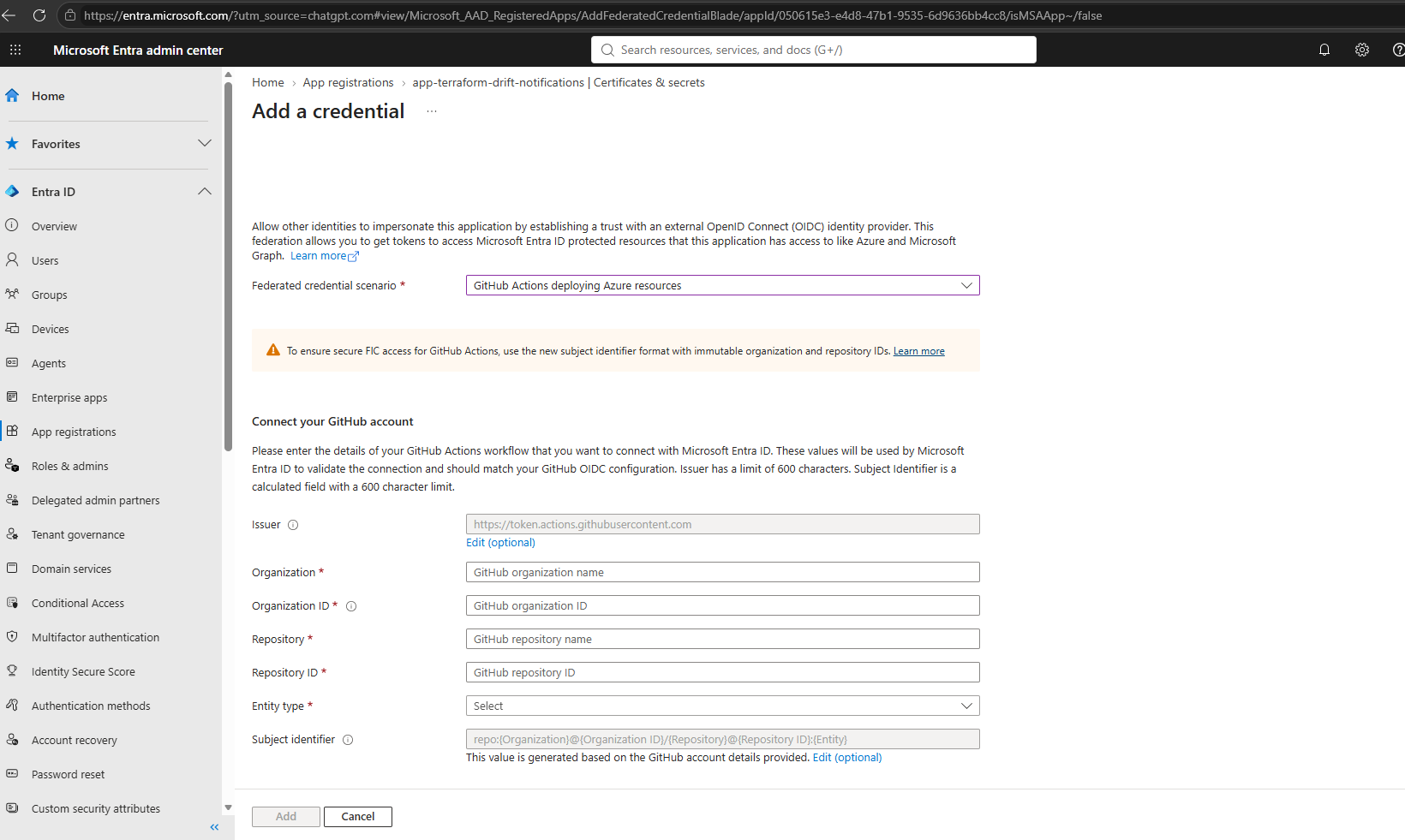
The required GitHub Organization ID and Repository ID can be retrieved using the GitHub REST API.
Open
https://api.github.com/users/matrix1302to obtain the account ID andhttps://api.github.com/repos/matrix1302/terraform-azure-backend-demoto retrieve the repository ID. In both JSON responses, look for the top-levelidproperty.
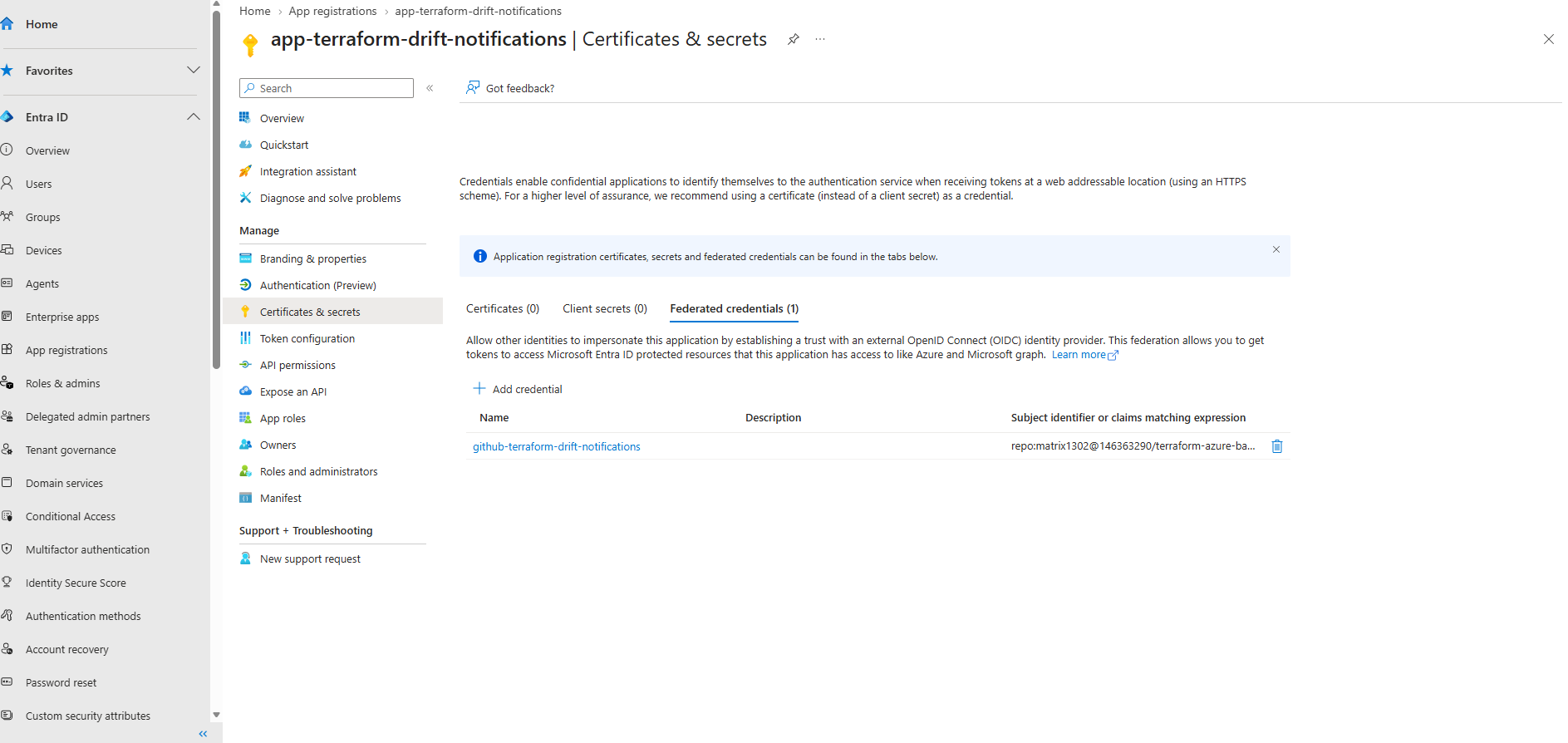
The federated credential github-terraform-drift-notifications has been successfully created in Microsoft Entra ID.
Our application can now use OIDC-based authentication without requiring client secrets or certificates, provided that the GitHub Actions workflow presents a matching OIDC token.
Configuring GitHub OIDC Subject Claims with Immutable Repository IDs
Now that our federated credential has been created in Microsoft Entra ID, we need to ensure that the OIDC subject identifier issued by GitHub Actions matches the identifier expected by Microsoft Entra ID.
By default, GitHub generates a subject identifier based on the repository owner, repository name, and GitHub environment:
repo:matrix1302@146363290/terraform-azure-backend-demo@1241627268:environment:production-monitoring
However, our federated credential uses the newer format containing immutable GitHub account and repository IDs:
repo:matrix1302@146363290/terraform-azure-backend-demo@1241627268:environment:production-monitoring
These numeric identifiers remain stable even if the GitHub account or repository is renamed, providing additional protection against repository-name reuse and impersonation.
To inspect the current GitHub OIDC configuration, we can use the GitHub CLI (gh).
The GitHub CLI (
gh) is GitHub’s official command-line tool for interacting with GitHub directly from a terminal or PowerShell.It allows users to manage repositories, pull requests, issues, and GitHub Actions workflows, as well as access the GitHub REST API without manually handling authentication tokens or HTTP requests.
On Windows, the GitHub CLI (
gh) can be installed directly from PowerShell usingwinget install --id GitHub.cli -e.After installation, open a new PowerShell session, verify the installation with
gh --version, and authenticate to GitHub usinggh auth login.
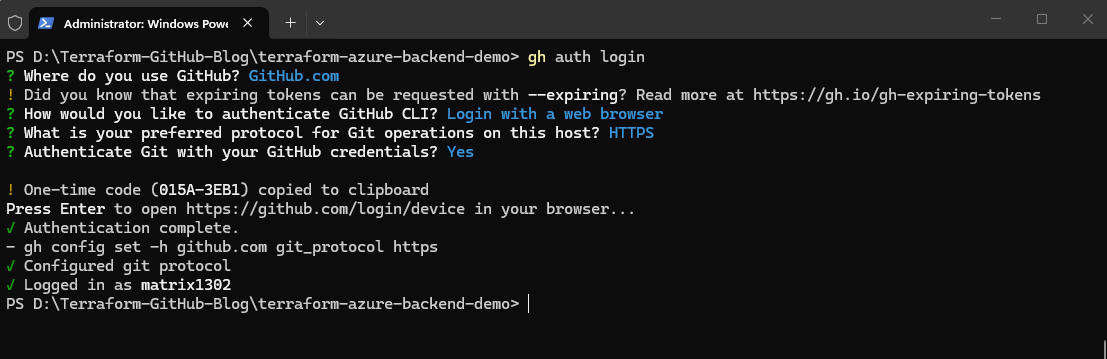
First, authenticate to GitHub, keep GitHub.com selected and press Enter.
gh auth login

After running gh auth login, select GitHub.com, choose HTTPS as the preferred Git protocol, and authenticate using a web browser.
This authentication uses the OAuth 2.0 Device Authorization Flow, allowing GitHub CLI to obtain an access token for our GitHub account without requiring our password in the terminal.
Note that this is OAuth 2.0 authorization, not the OpenID Connect federation we will configure for GitHub Actions. For a detailed explanation of both protocols and their differences, see my previous article: OAuth 2.0 and OpenID Connect – Deep Dive.
To inspect the current OIDC subject configuration of our GitHub repository, we can use the GitHub CLI to query the corresponding GitHub REST API endpoint:
gh api repos/matrix1302/terraform-azure-backend-demo/actions/oidc/customization/sub
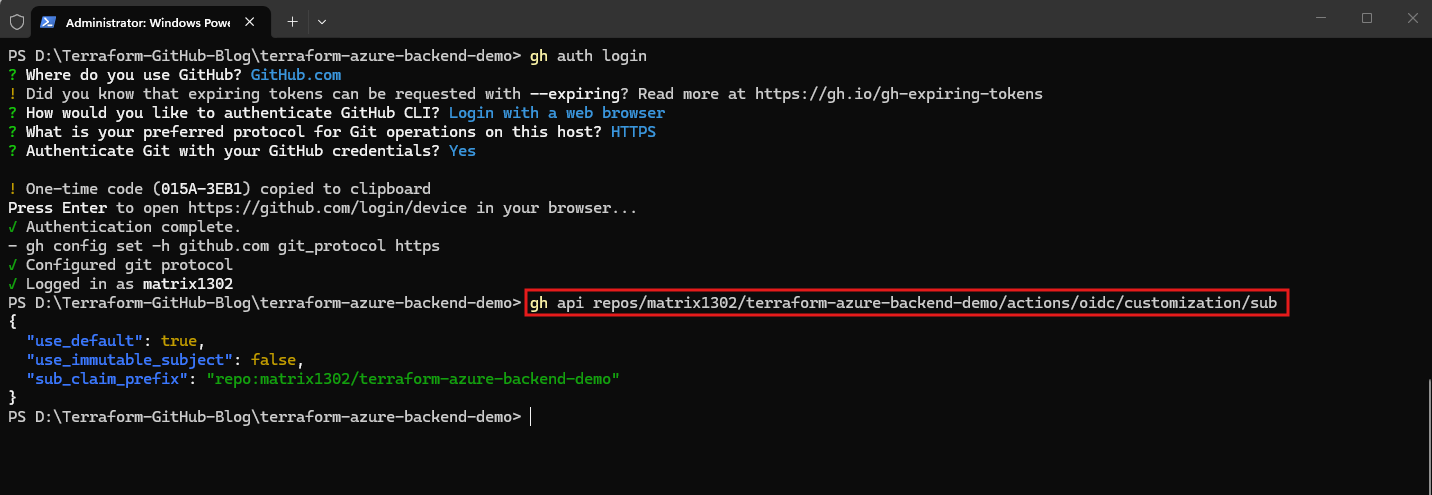
This read-only request retrieves the repository’s OIDC subject customization settings. Before enabling immutable repository identifiers, we first need to determine whether the repository is still using GitHub’s default subject format or already has a custom claim template configured.
The response above confirms that immutable subject identifiers are currently disabled.
GitHub is currently using its default, name-based OIDC subject format, as confirmed by:
"use_default": true,
"use_immutable_subject": false
Since our Microsoft Entra federated identity credential already uses immutable GitHub identifiers, we need to enable the corresponding subject format on the GitHub repository.
Enable immutable subject identifiers
To enable immutable subject identifiers for our GitHub repository, we use the GitHub CLI to send a PUT request to the GitHub REST API:
gh api --method PUT repos/matrix1302/terraform-azure-backend-demo/actions/oidc/customization/sub -F use_default=true -F use_immutable_subject=true

# Verify
gh api repos/matrix1302/terraform-azure-backend-demo/actions/oidc/customization/sub
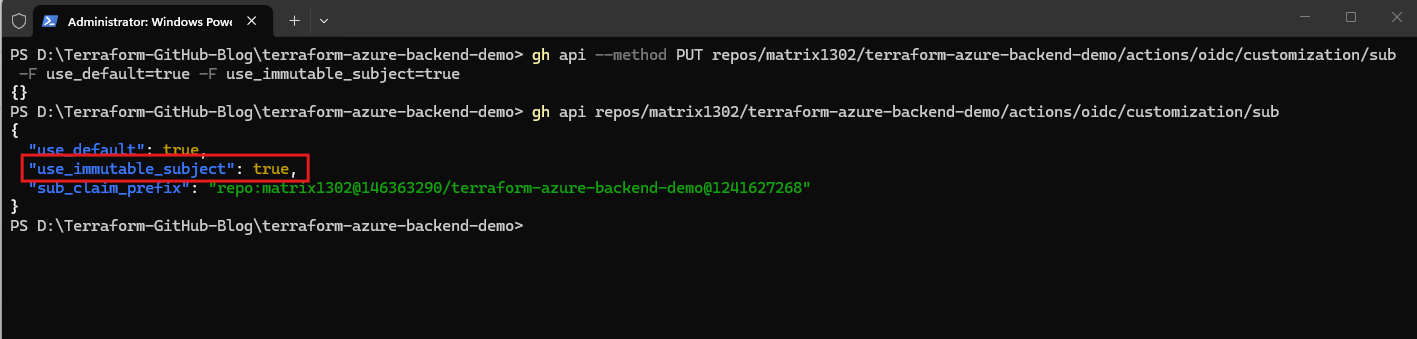
The updated configuration confirms that immutable subject identifiers are now enabled.
GitHub now includes the immutable owner and repository IDs in the OIDC subject identifier while retaining the default subject structure.
For our workflow using the GitHub environment production-monitoring, the resulting subject identifier is expected to be:
repo:matrix1302@146363290/terraform-azure-backend-demo@1241627268:environment:production-monitoring
This matches the subject configured in our Microsoft Entra federated identity credential and prevents repository renaming or name reuse from changing the underlying repository identity.
Configuring GitHub Actions to Authenticate with Microsoft Entra ID Using OIDC
With the federated identity credential and immutable GitHub OIDC subject configured, the next step is to enable OIDC authentication in our GitHub Actions workflow.
Instead of storing a Microsoft Entra client secret in GitHub, the workflow will request a short-lived OIDC token from GitHub and exchange it for a Microsoft Entra access token.
First, we need to grant the workflow permission to request OIDC tokens. For this configuration, we modify our existing GitHub Actions workflow, .github/workflows/terraform-drift-detection.yml.
For this configuration, we modify our existing GitHub Actions workflow, .github/workflows/terraform-drift-detection.yml.
The following permissions: block must be added at the top level of the workflow YAML file, outside the jobs: section, alongside existing properties such as name: and on:. If a permissions: block already exists, extend it with the required permissions rather than creating a duplicate.
permissions:
  contents: read
  id-token: write
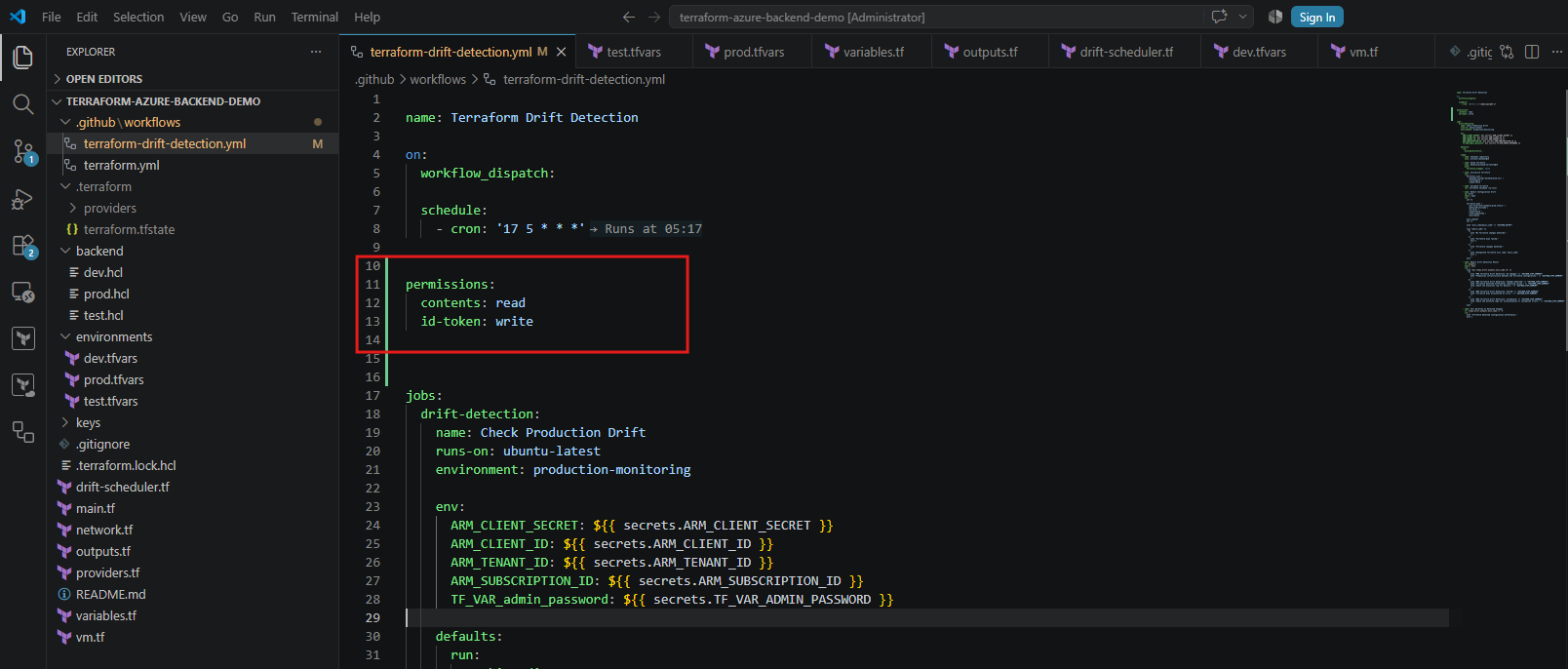
The environment is particularly important because it forms part of the OIDC subject identifier:
repo:matrix1302@146363290/terraform-azure-backend-demo@1241627268:environment:production-monitoring
Microsoft Entra ID validates the GitHub-issued OIDC token against the configured federated identity credential, including its issuer, audience, and subject identifier.
To authenticate our GitHub Actions workflow, we can use the official Azure Login GitHub Action (azure/login@v2).
The following authentication step must be added to our existing GitHub Actions workflow, .github/workflows/terraform-drift-detection.yml, inside the steps: section of the drift detection job.
Near the end of
.github/workflows/terraform-drift-detection.yml, inside the existingsteps:section, immediately after Report Drift Detection Result and before Fail Workflow on Detected Changes.
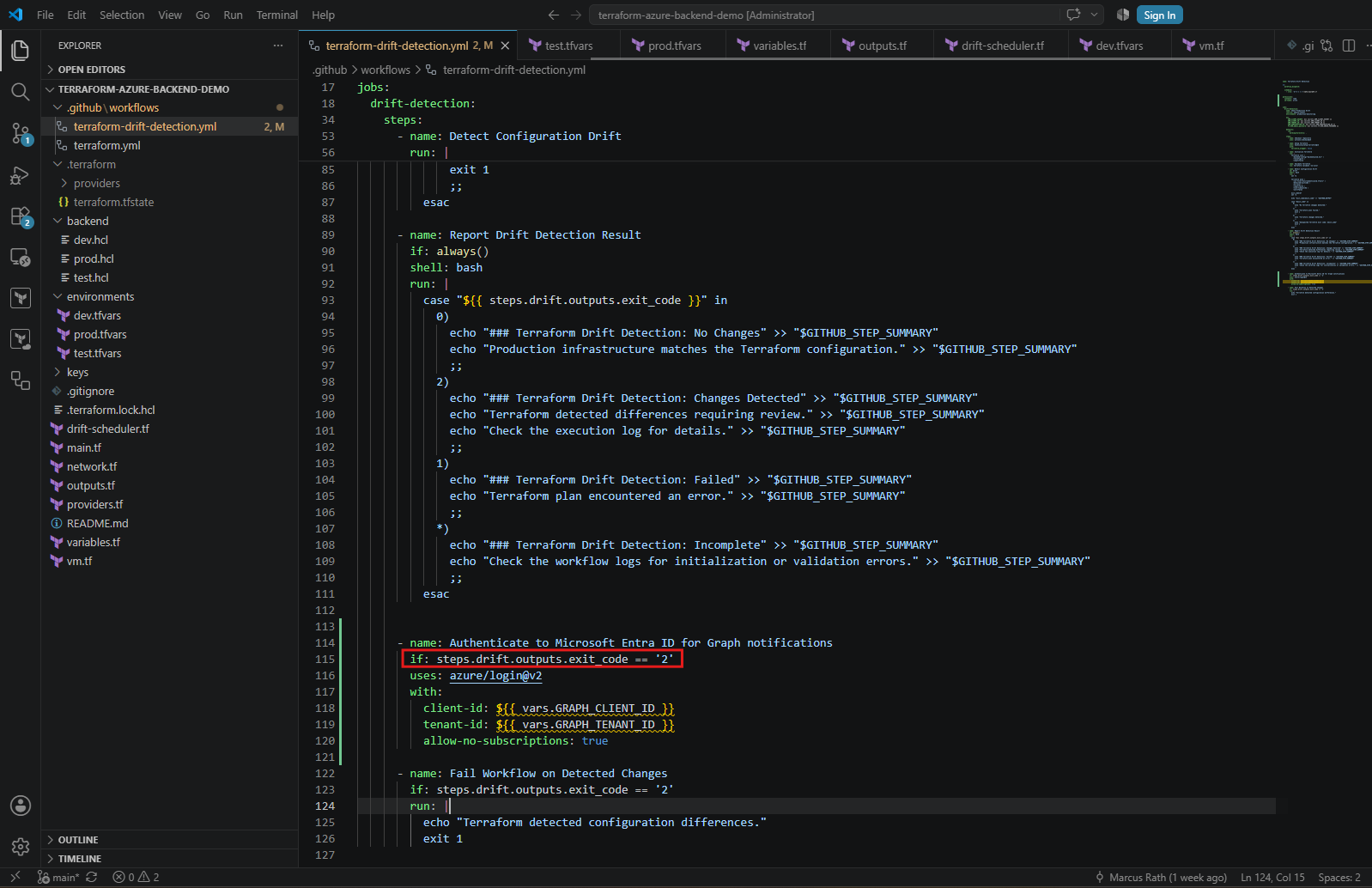
- name: Authenticate to Microsoft Entra ID for Graph notifications
  uses: azure/login@v2
  with:
    client-id: ${{ vars.GRAPH_CLIENT_ID }}
    tenant-id: ${{ vars.GRAPH_TENANT_ID }}
    allow-no-subscriptions: true
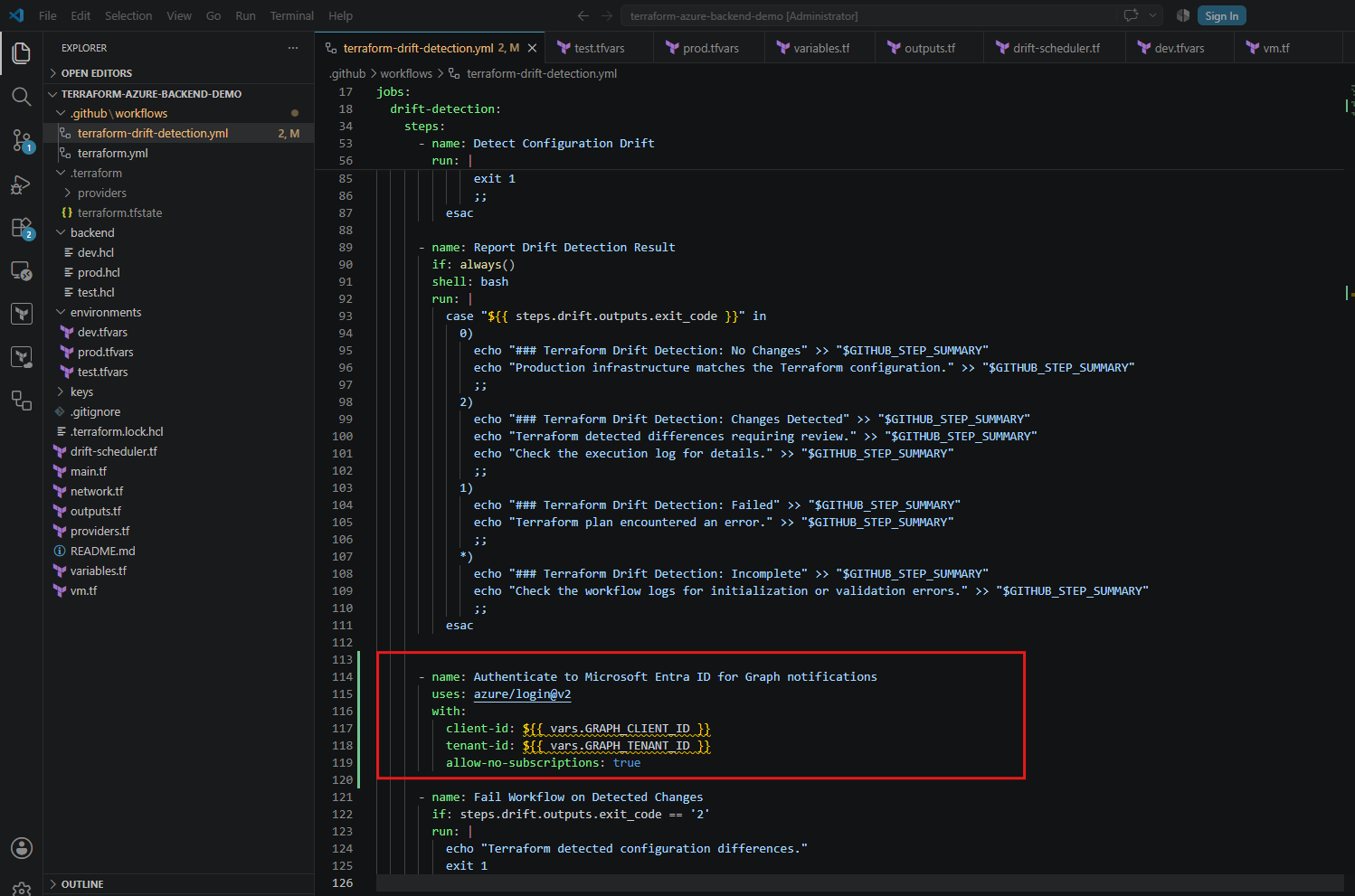
The application and tenant IDs can be stored as GitHub Actions variables because they are identifiers rather than secrets. The allow-no-subscriptions: true setting allows authentication without requiring access to an Azure subscription.
With OIDC federation, no client secret or certificate needs to be stored in GitHub. The resulting Microsoft Entra authentication can subsequently be used to obtain an access token for Microsoft Graph.
We also need to ensure that Microsoft Entra authentication is performed only when Terraform detects actual configuration drift. Therefore, we add the following condition directly below the authentication step’s name: property:
if: steps.drift.outputs.exit_code == '2'
Configuring GitHub Actions Variables
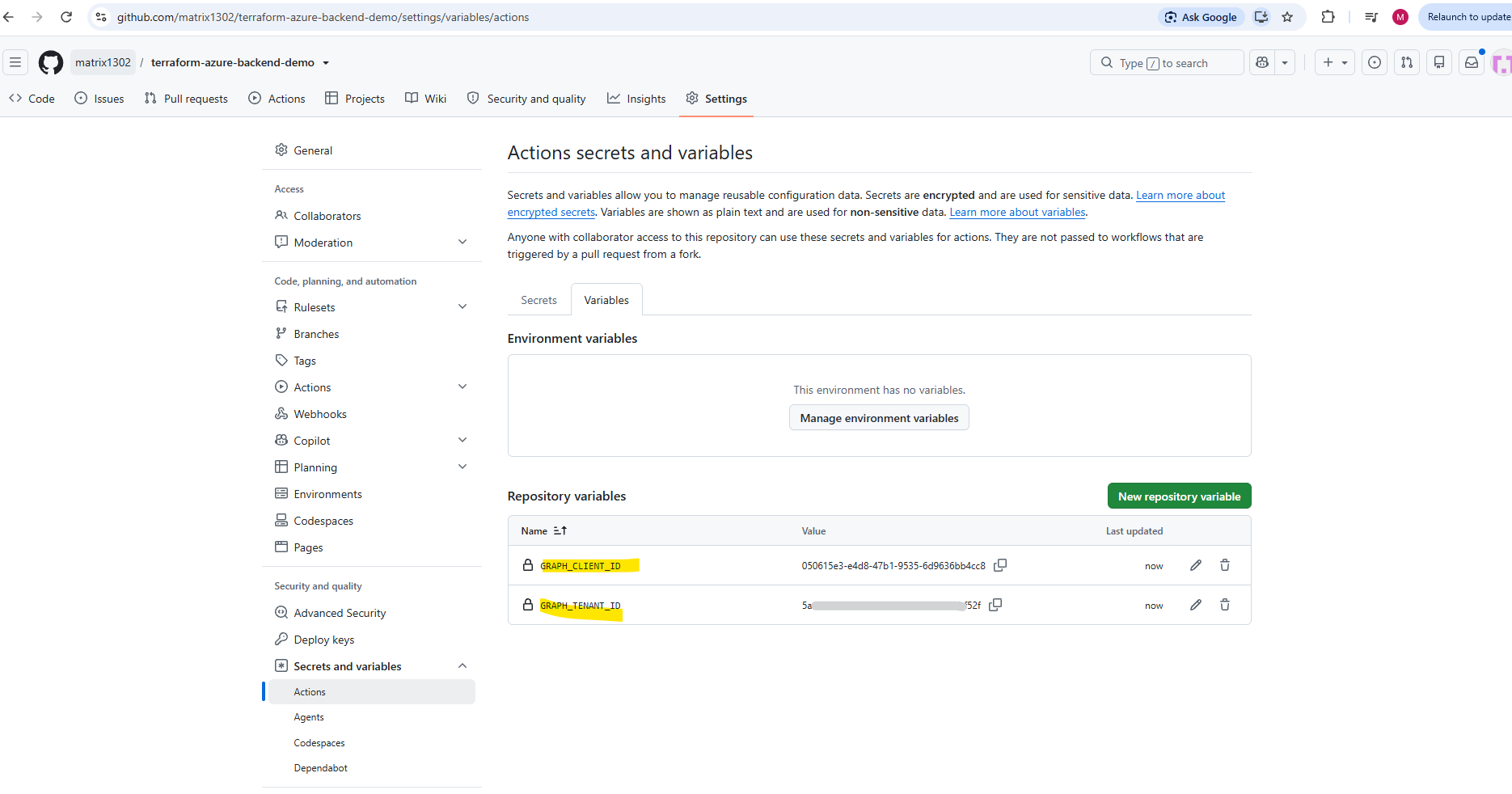
Our authentication step above references two GitHub Actions variables containing the Microsoft Entra application and tenant IDs.
Navigate to GitHub repository → Settings → Secrets and variables → Actions → Variables and click New repository variable to create both GRAPH_CLIENT_ID and GRAPH_TENANT_ID.
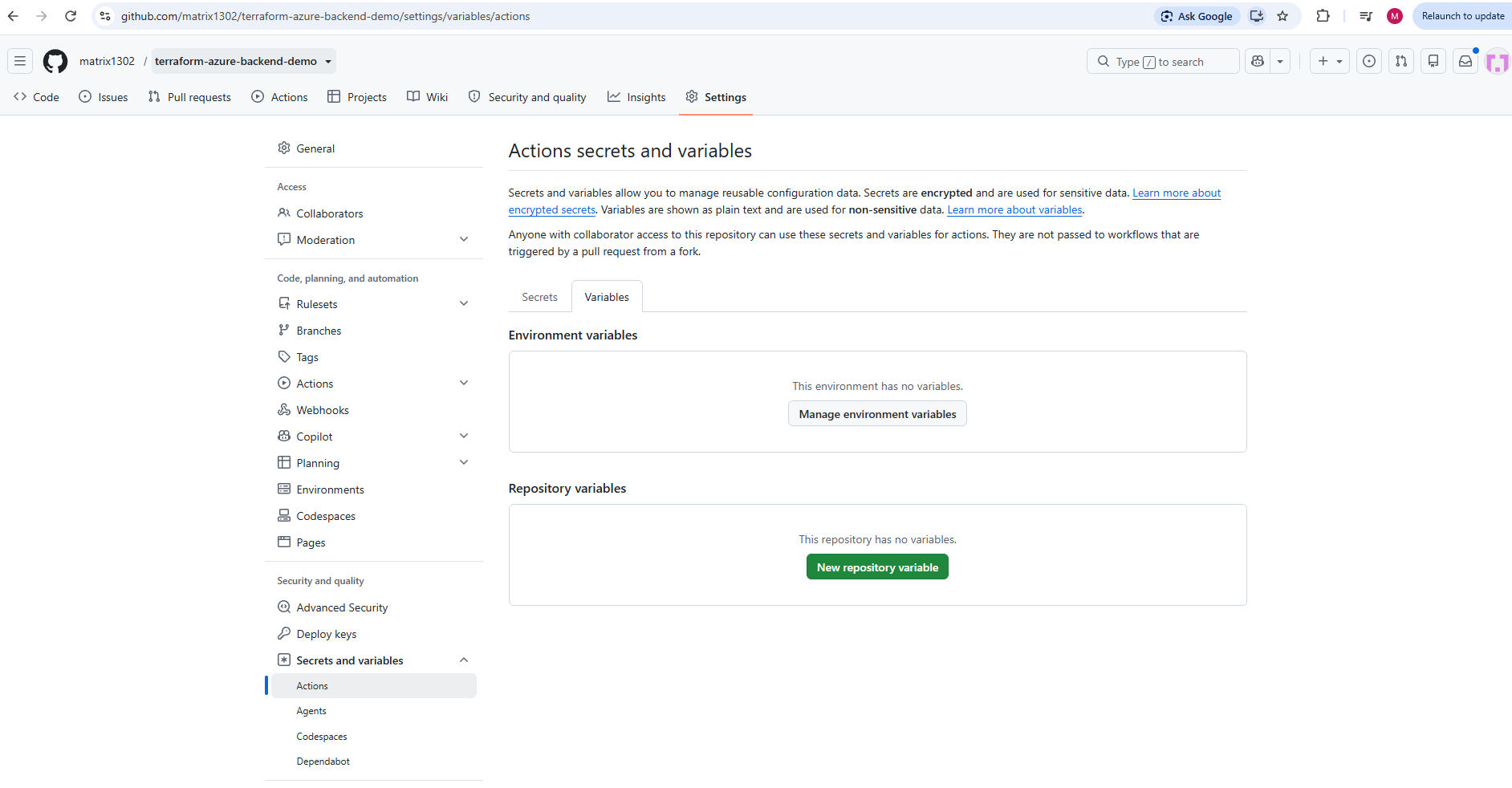
Both values are identifiers rather than credentials, so they can be stored as repository variables instead of secrets.
5a144de6-9a54-4e8a-9680-b28aa0dbf52f |
Both values are identifiers rather than credentials, so they can be stored as repository variables instead of secrets.
The workflow accesses them through ${{ vars.GRAPH_CLIENT_ID }} and ${{ vars.GRAPH_TENANT_ID }}.
No client secret or certificate is required because authentication uses the federated OIDC token issued by GitHub Actions.
Obtaining a Microsoft Graph Access Token
After successfully authenticating to Microsoft Entra ID using OIDC federation, we can request an access token for Microsoft Graph.
We add the following step directly after Authenticate to Microsoft Entra ID for Graph notifications in our existing GitHub Actions workflow:
- name: Obtain Microsoft Graph Access Token
        if: steps.drift.outputs.exit_code == '2'
        id: graph-token
        shell: bash
        run: |
          token=$(az account get-access-token \
            --resource https://graph.microsoft.com \
            --query accessToken \
            --output tsv)

          echo "::add-mask::$token"
          echo "GRAPH_ACCESS_TOKEN=$token" >> "$GITHUB_ENV"
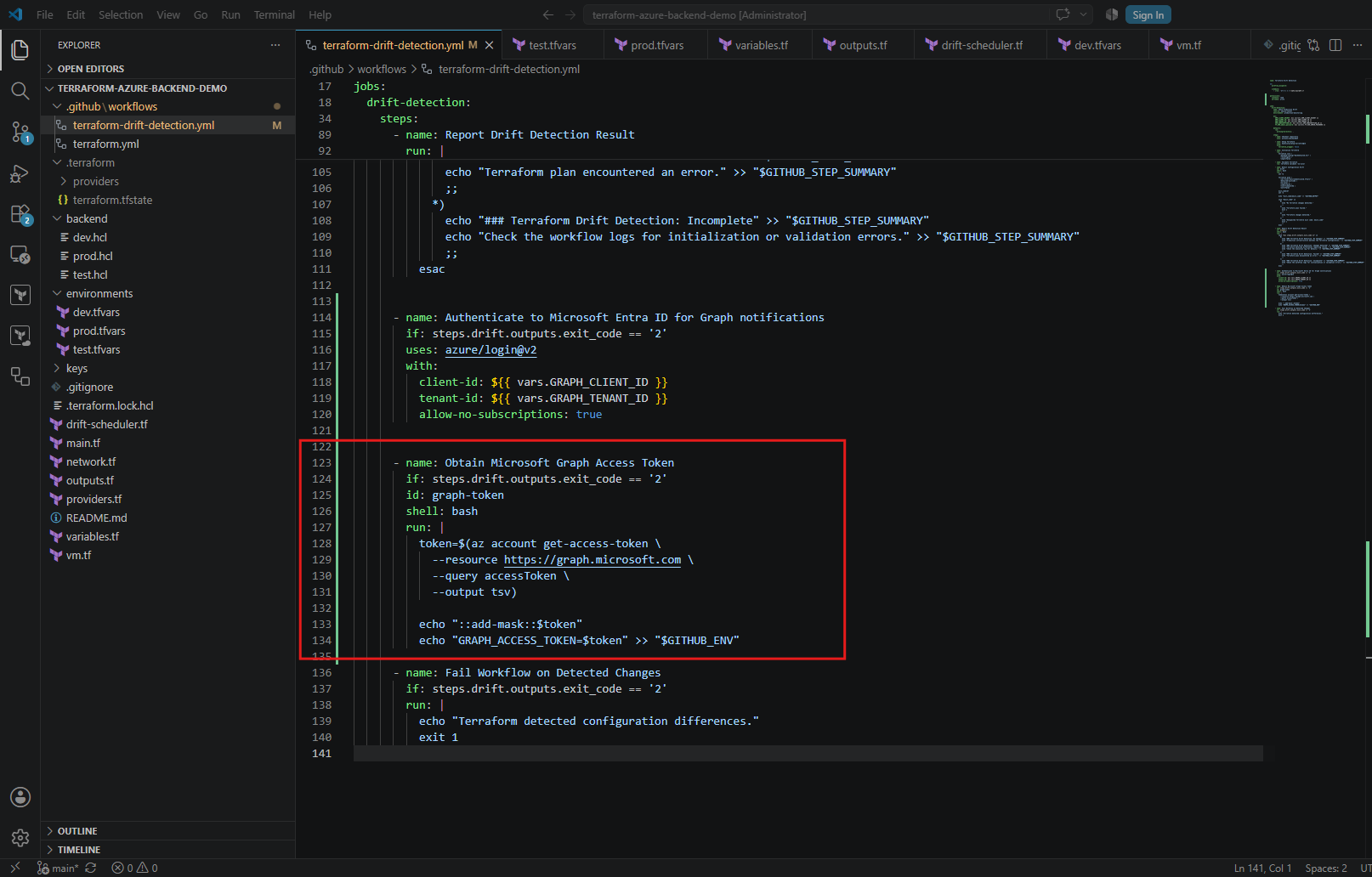
The Azure CLI requests an access token for the Microsoft Graph resource using the identity authenticated by azure/login.
The --resource https://graph.microsoft.com parameter specifies Microsoft Graph as the intended audience of the access token.
We mask the token in GitHub Actions logs and make it available to subsequent workflow steps through the GITHUB_ENV environment file.
This access token can then be used to authenticate requests to the Microsoft Graph API without storing any long-lived credentials in GitHub.
Sending Infrastructure Drift Notifications Using Microsoft Graph
Now that GitHub Actions can authenticate with Microsoft Entra ID using OIDC and obtain a Microsoft Graph access token, we can implement the actual email notification.
The workflow uses our dedicated Exchange Online shared mailbox, terraform-alerts@matrixpost.tech, to send notifications through the Microsoft Graph sendMail API.
Thanks to the previously configured Exchange Online RBAC for Applications, the application is restricted to sending emails from this specific mailbox rather than having unrestricted access to all mailboxes in the tenant.
We add the following step immediately after Obtain Microsoft Graph Access Token, before the workflow intentionally fails when configuration drift is detected.
- name: Send Terraform Drift Notification
        if: steps.drift.outputs.exit_code == '2'
        shell: bash
        env:
          NOTIFICATION_SENDER: terraform-alerts@matrixpost.tech
          NOTIFICATION_RECIPIENT: ${{ vars.DRIFT_NOTIFICATION_RECIPIENT }}
        run: |
          python3 - <<'PY'
          import json
          import os
          import urllib.request

          sender = os.environ["NOTIFICATION_SENDER"]
          recipient = os.environ["NOTIFICATION_RECIPIENT"]

          payload = {
              "message": {
                  "subject": "Terraform Drift Detected - Production",
                  "body": {
                      "contentType": "Text",
                      "content": (
                          "Terraform detected configuration drift in production.\n\n"
                          f"Repository: {os.environ['GITHUB_REPOSITORY']}\n"
                          f"Workflow run: {os.environ['GITHUB_SERVER_URL']}/"
                          f"{os.environ['GITHUB_REPOSITORY']}/actions/runs/"
                          f"{os.environ['GITHUB_RUN_ID']}\n\n"
                          "Review the Terraform plan in the workflow logs."
                      )
                  },
                  "toRecipients": [
                      {"emailAddress": {"address": recipient}}
                  ]
              },
              "saveToSentItems": True
          }

          request = urllib.request.Request(
              f"https://graph.microsoft.com/v1.0/users/{sender}/sendMail",
              data=json.dumps(payload).encode("utf-8"),
              headers={
                  "Authorization": f"Bearer {os.environ['GRAPH_ACCESS_TOKEN']}",
                  "Content-Type": "application/json"
              },
              method="POST"
          )

          with urllib.request.urlopen(request) as response:
              print(f"Microsoft Graph sendMail HTTP status: {response.status}")
          PY
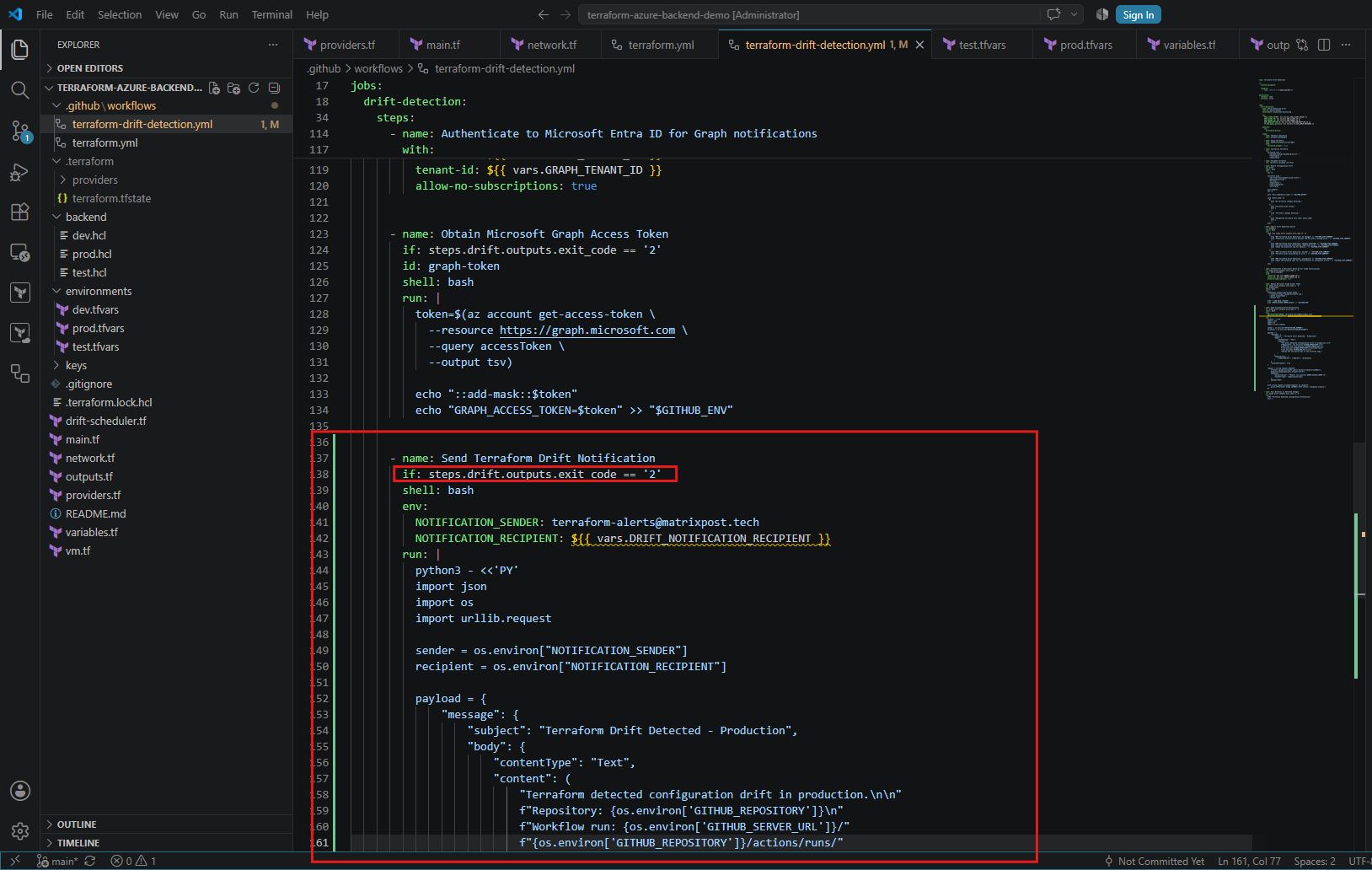
The notification step executes only when Terraform returns exit code 2, indicating that configuration differences were detected.
A successful Microsoft Graph request returns HTTP 202 Accepted, indicating that Exchange Online has accepted the message for processing. Actual email delivery is not guaranteed by this response.
Finally, the existing Fail Workflow on Detected Changes step marks the GitHub Actions run as failed, ensuring that infrastructure drift remains clearly visible in the workflow execution history.
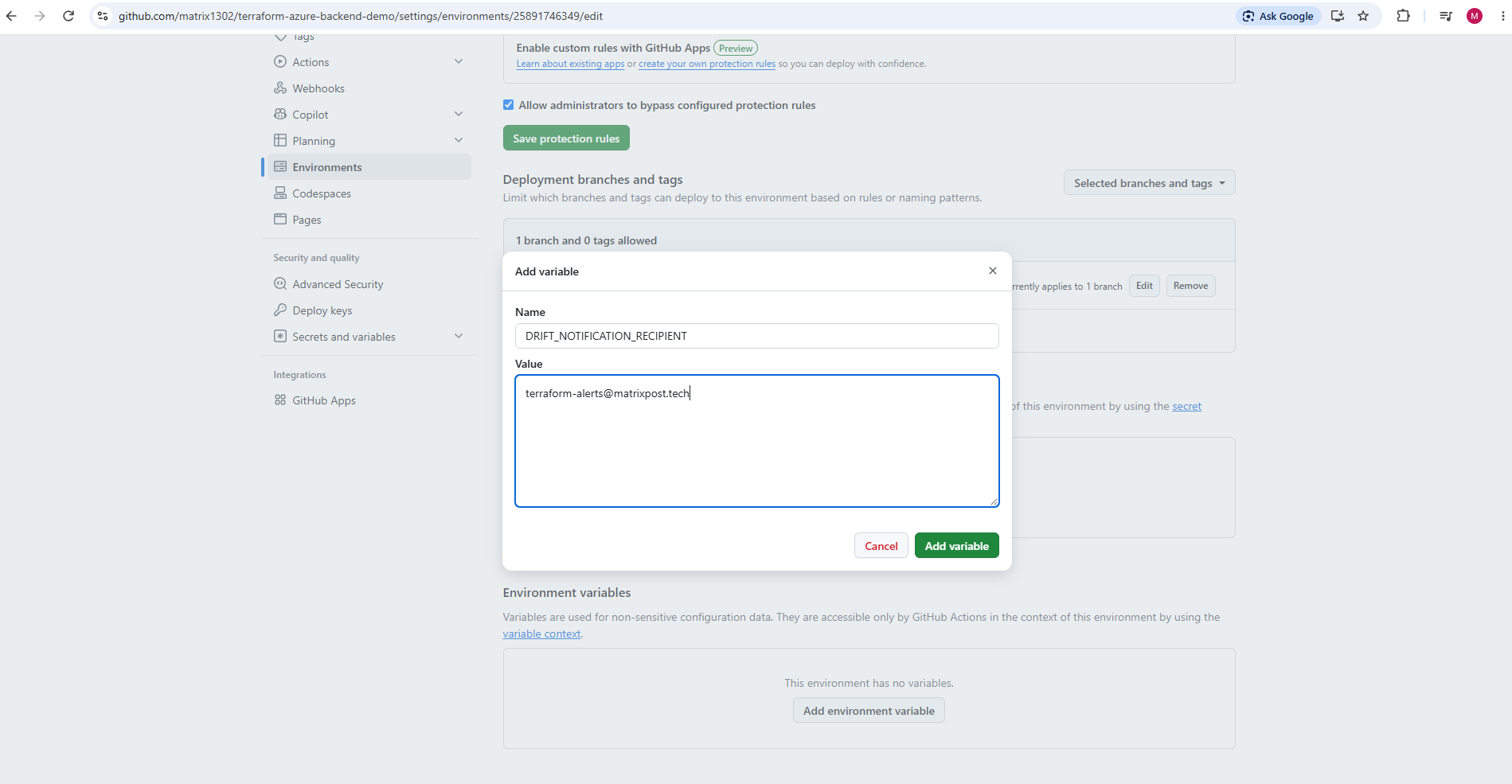
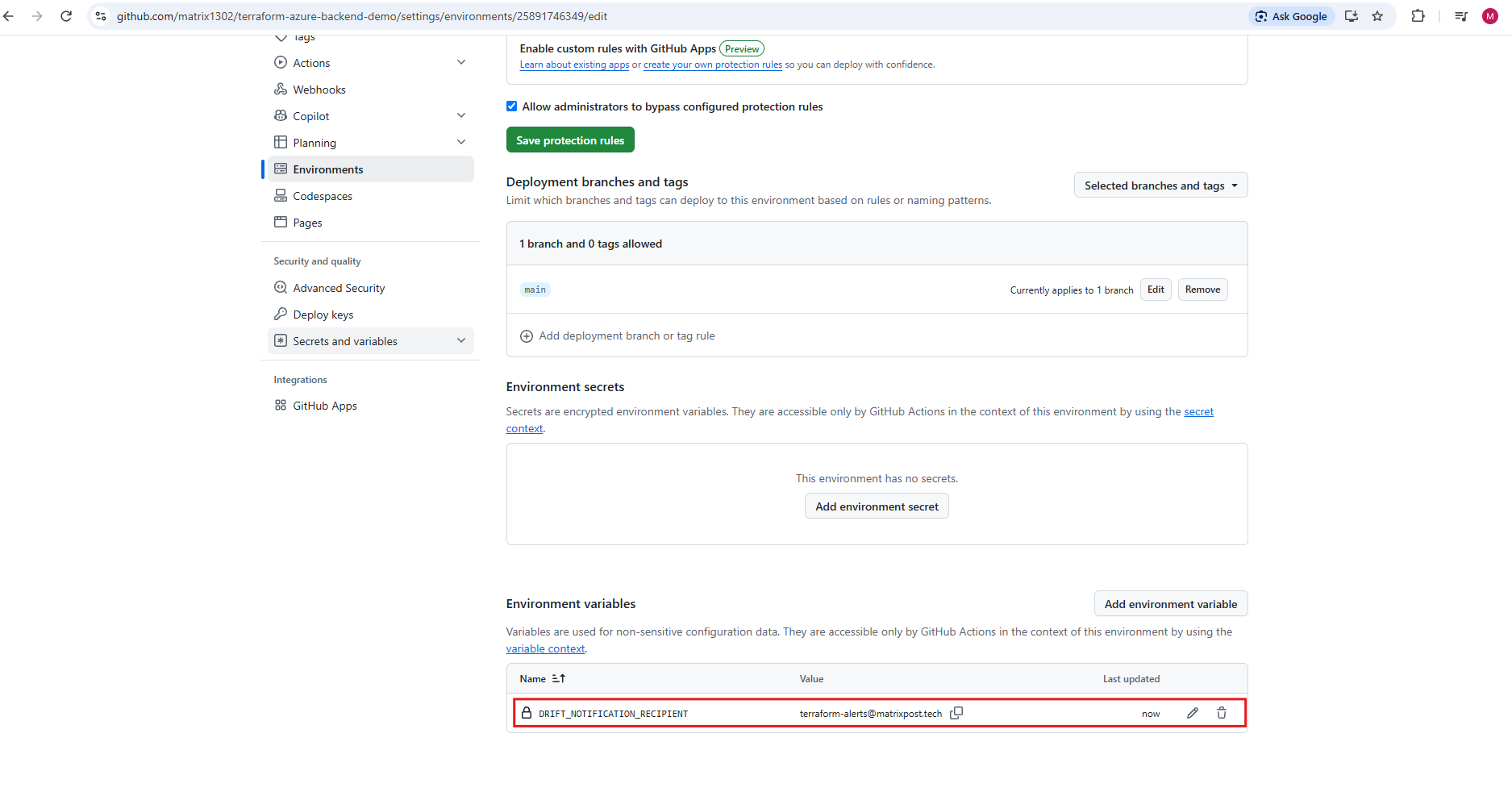
Before running the workflow, we need to configure the destination email address for drift notifications.
Navigate to GitHub → Repository Settings → Environments → production-monitoring and add the following environment variable:
Name: DRIFT_NOTIFICATION_RECIPIENT
Value: The email address that should receive infrastructure drift alerts.
Committing the GitHub Actions Workflow and Creating a Pull Request
After updating .github/workflows/terraform-drift-detection.yml, we commit our changes and create a pull request to merge them into the protected main branch.
First, we verify the current branch and working tree:
git branch --show-current
git status
Since our main branch is protected, we create a dedicated feature branch before committing any changes:
git switch -c feature/terraform-drift-oidc-notifications
Next, stage and commit the updated workflow:
git add .github/workflows/terraform-drift-detection.yml
git commit -m "Add OIDC authentication for Terraform drift notifications"
Push the feature branch to GitHub:
git push -u origin feature/terraform-drift-oidc-notifications
Finally, we create a pull request targeting main using the GitHub CLI:
GitHub then evaluates the required status checks before allowing the pull request to be merged.
gh pr create --base main --head feature/terraform-drift-oidc-notifications --title "Add OIDC authentication for Terraform drift notifications" --body "Configure GitHub OIDC federation and Microsoft Graph access token acquisition for Terraform drift notifications."

After creating the pull request, we can use the GitHub CLI (gh) to verify its status and merge it into the protected main branch.
First, we check the required status checks for our pull request:
The
gh pr checks 24command confirms that our required Terraform Workflow status check completed successfully, with one successful check and no failures or pending checks.
gh pr checks 24
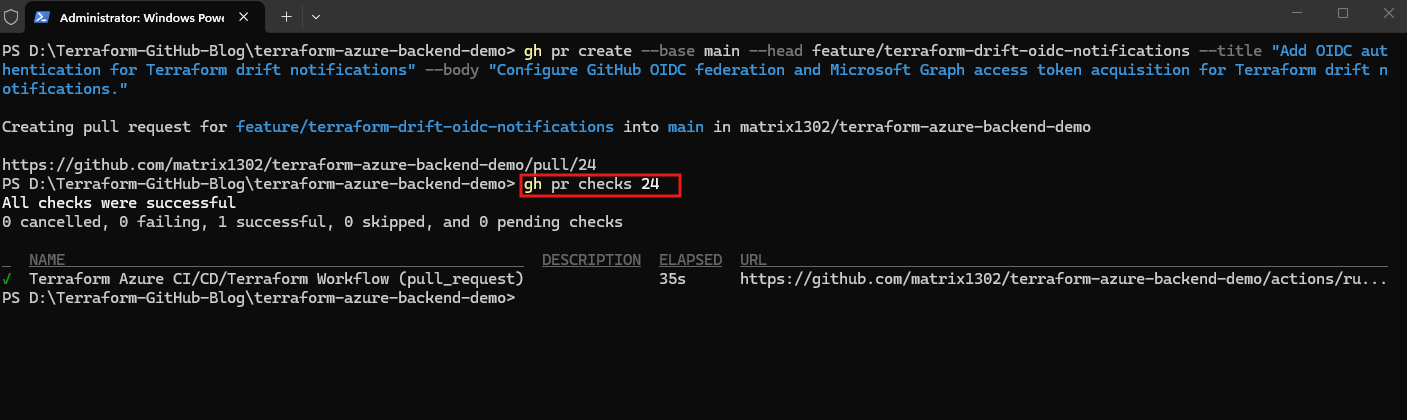
We can now merge pull request #24 into the protected main branch using GitHub CLI:
gh pr merge 24 --squash --delete-branch
After merging the pull request, GitHub automatically triggers our existing Terraform Azure CI/CD workflow on the main branch.
We can monitor the workflow execution directly in the GitHub web interface under Actions, where the new run initially appears with the status Waiting.
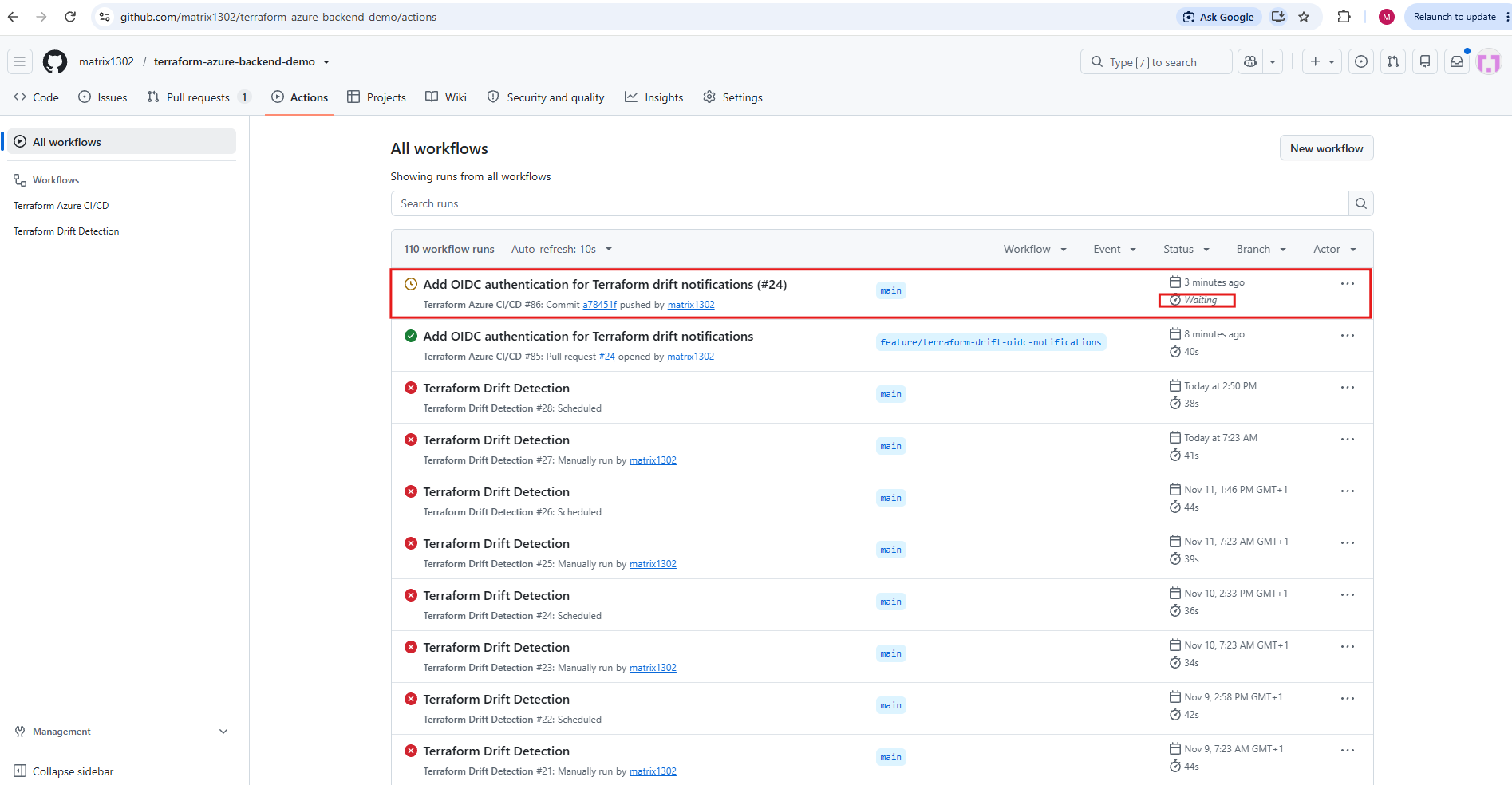
Alternatively, we can use the GitHub CLI to inspect the latest workflow runs:
The command displays the five most recent GitHub Actions workflow executions on the
mainbranch, including their status, workflow name, trigger, run ID, and execution time.Our newly triggered Terraform Azure CI/CD workflow is currently in Waiting status, pending execution, while previous Terraform Drift Detection runs show a failed status because detected configuration drift intentionally causes the workflow to fail.
gh run list --branch main --limit 5
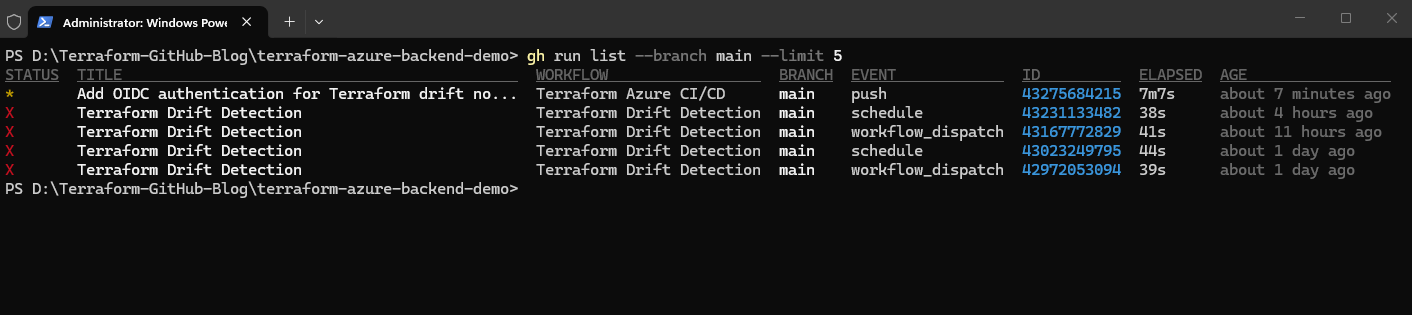
Because our production environment requires manual approval, the Terraform Azure CI/CD workflow initially remains in Waiting status after merging the pull request.
To continue execution, navigate to GitHub → Actions, open the corresponding workflow run, click Review deployments, select the production environment, and confirm with Approve and deploy. GitHub then releases the protected deployment job for execution.
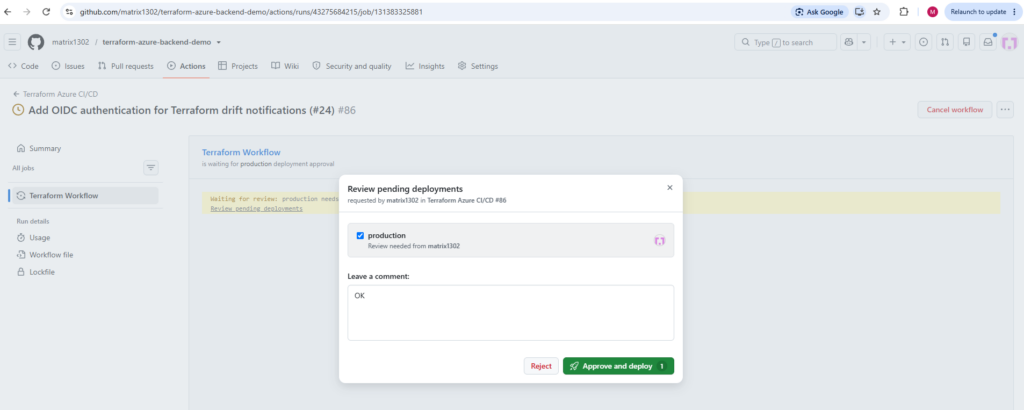
After approving the pending production deployment through GitHub CLI, the Terraform Azure CI/CD workflow continues and executes terraform apply, creating or updating the Azure resources defined in our Terraform configuration.
In omy case, this also recreates the production virtual machine that we previously deleted to simulate configuration drift, bringing the Azure infrastructure back into alignment with the Terraform state and configuration.
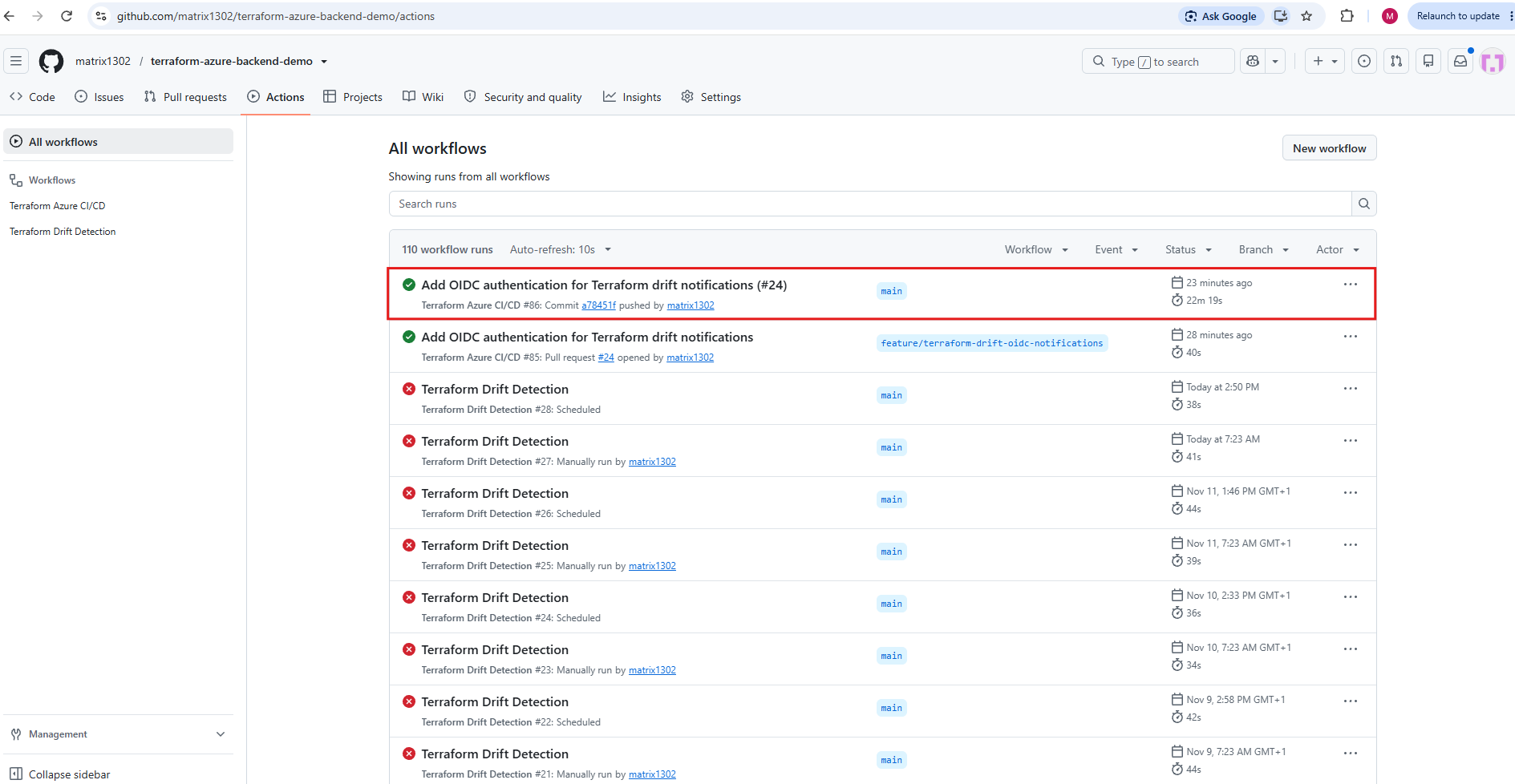
As expected, the production deployment recreated our previously deleted Azure virtual machine (vm-terraform-prod) and its associated OS disk.
To simulate configuration drift again and test our new OIDC authentication and Microsoft Graph notification workflow, we will manually delete these resources once more from the Azure portal.
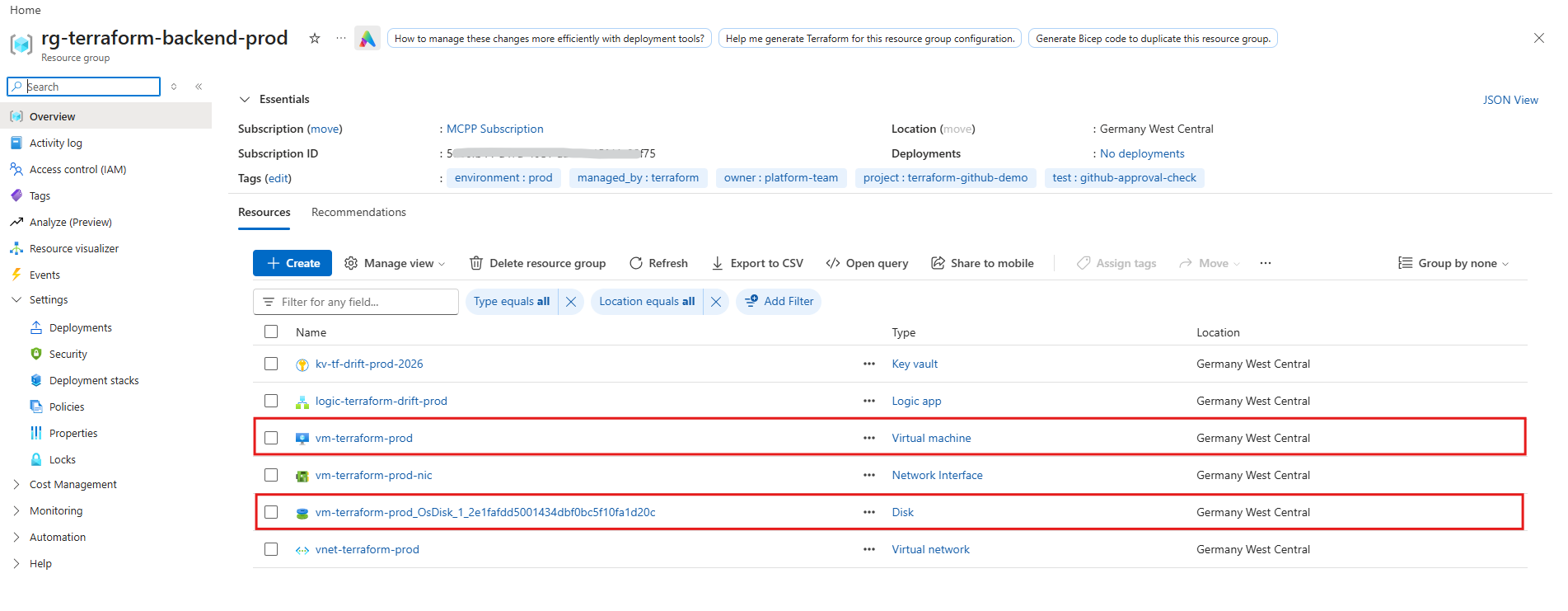
Testing OIDC Authentication After Simulating Drift
After manually deleting the production VM and its associated OS disk, we can trigger our updated Terraform Drift Detection workflow using GitHub CLI:
gh workflow run terraform-drift-detection.yml --ref main
We can monitor the workflow execution using:
gh run list --workflow terraform-drift-detection.yml --limit 5
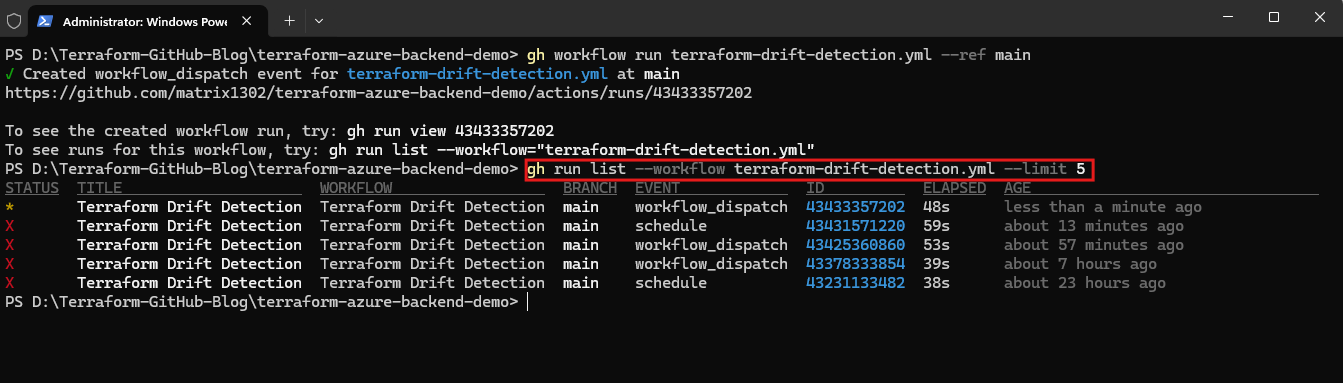
To inspect the execution logs, including the OIDC authentication and Terraform drift detection results, run:
gh run view --log
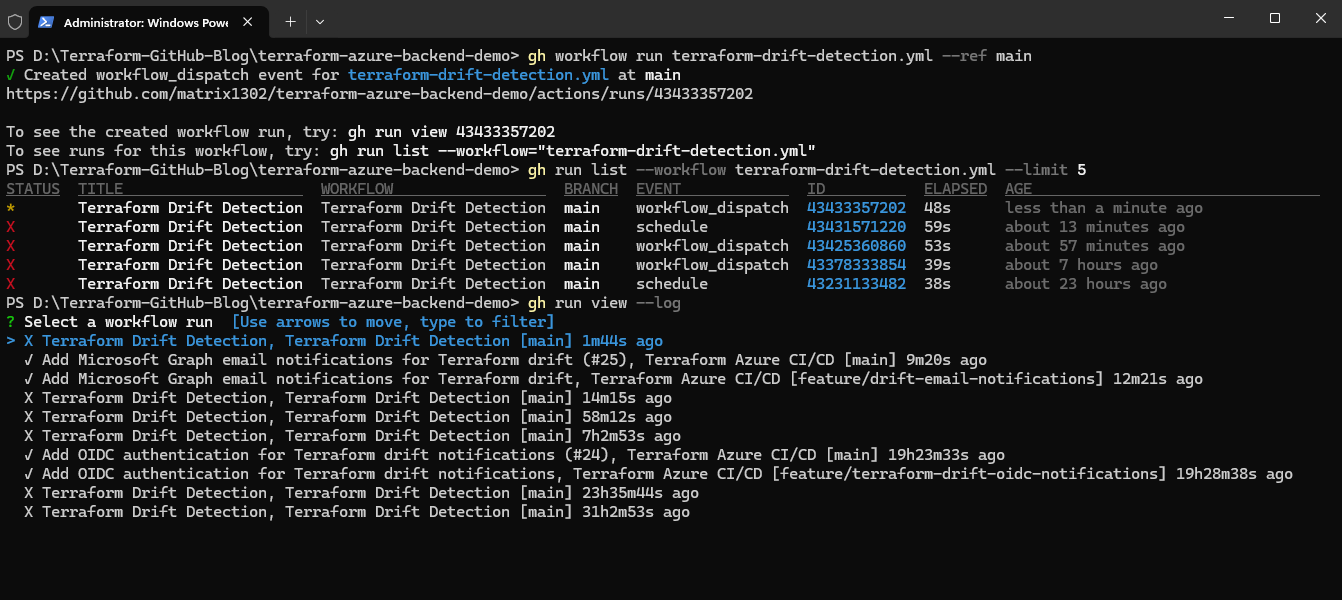
Next, we will inspect the failed steps using gh run view 43433357202 --log-failed to verify the actual cause of the workflow failure and confirm that Terraform detected infrastructure drift as expected.
gh run watch 43433357202 --exit-status
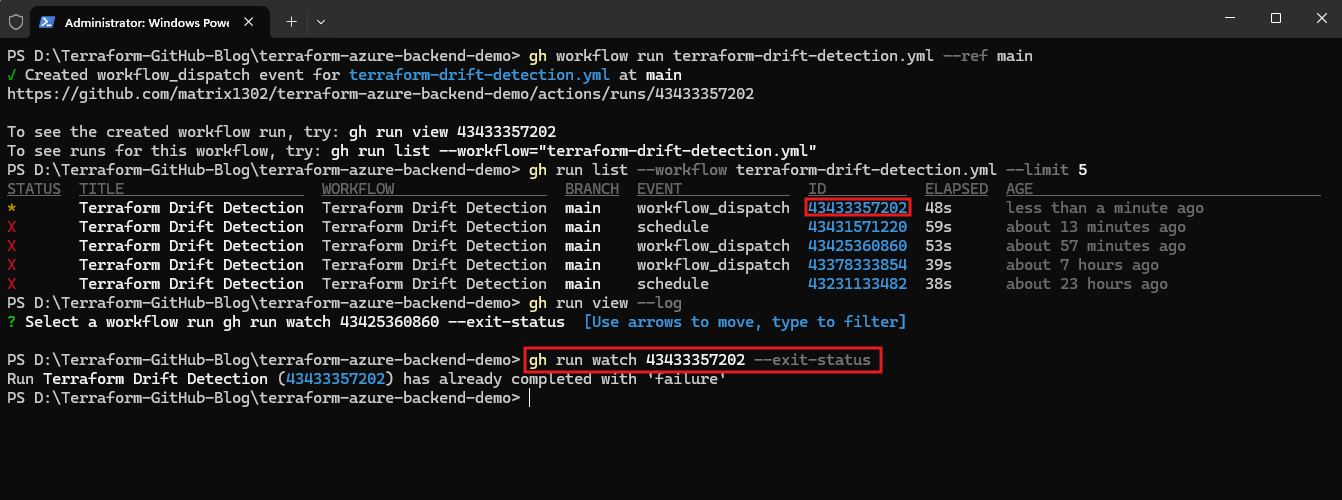
Using gh run view 43433357202 --log-failed, we can inspect the failed workflow step and confirm that Terraform detected configuration differences.
The workflow intentionally exits with code
1to flag infrastructure drift, indicating that our OIDC-based drift detection workflow is behaving as expected.
gh run view 43433357202 --log-failed
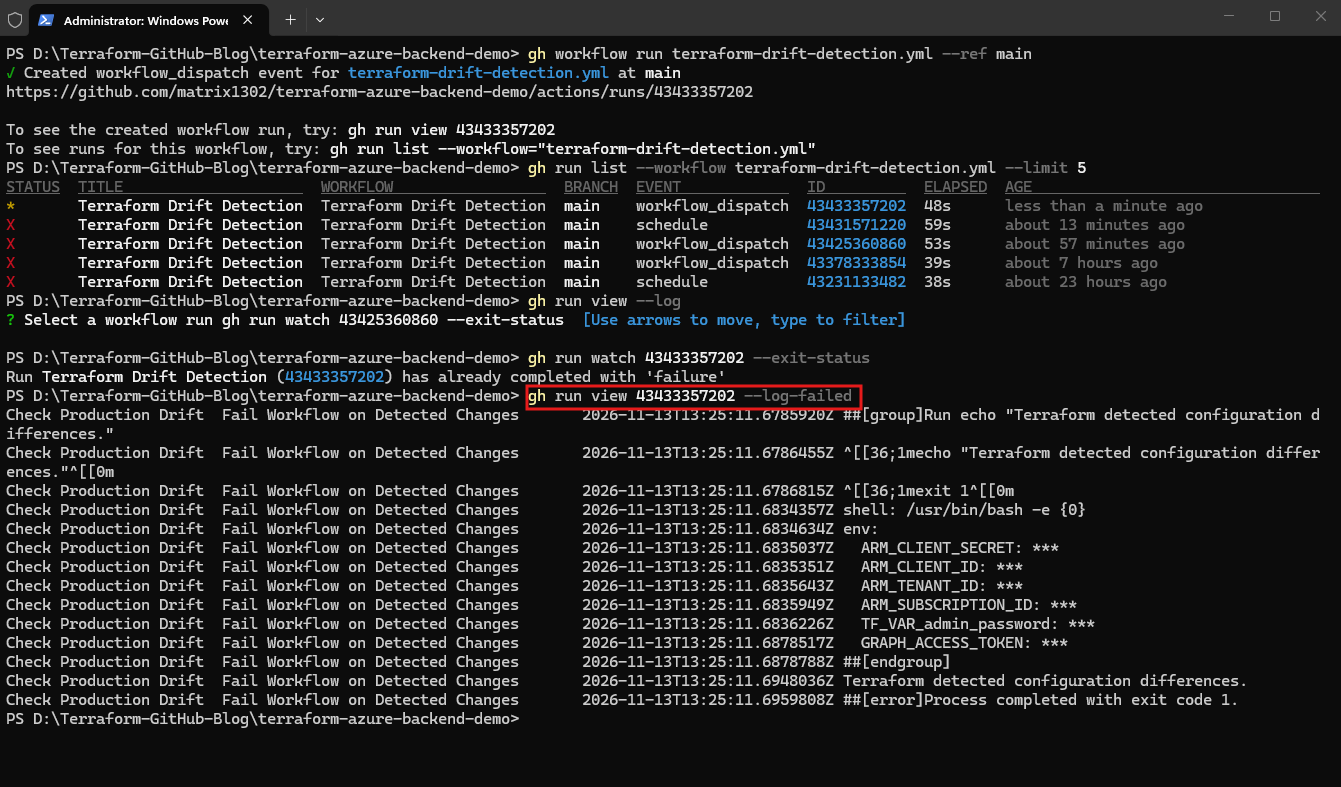
Next, we inspect the complete workflow execution log to verify that OIDC authentication with Microsoft Entra ID succeeded and that the workflow successfully obtained a Microsoft Graph access token.
The output confirms that GitHub Actions successfully authenticated with Microsoft Entra ID using OIDC.
The federated token’s subject claim matches our configured credential, demonstrating that passwordless authentication works as expected without requiring a client secret.
# Show complete workflow log
gh run view 43433357202 --log

# Filter for successful OIDC authentication
gh run view 43433357202 --log | Select-String "subject claim|Attempting Azure CLI login|Azure CLI login succeeds"

# Filter for failed workflow steps
gh run view 43433357202 --log-failed
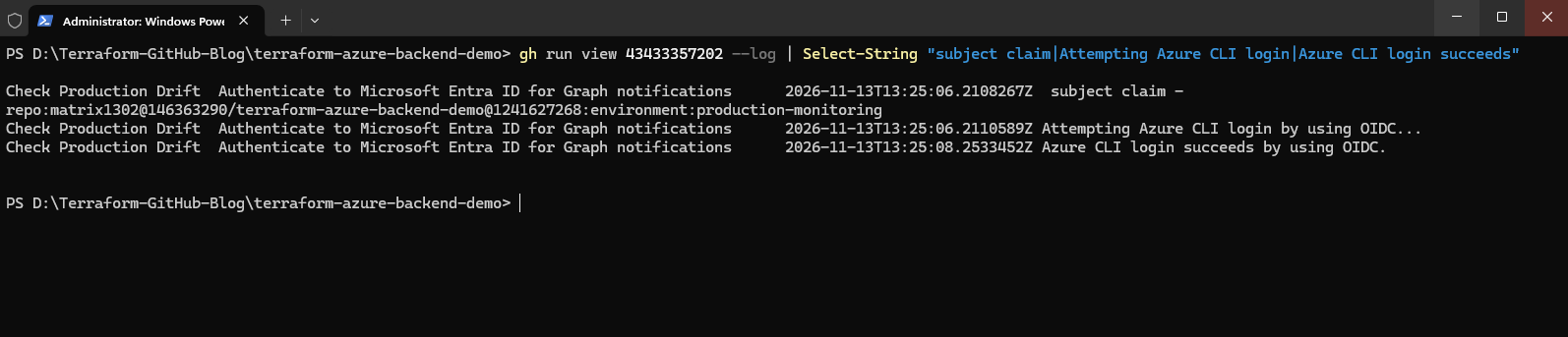
Next, we verify that the workflow successfully obtained a Microsoft Graph access token following OIDC authentication.
The output confirms that the access token was successfully obtained and made available to subsequent workflow steps. The token itself is masked (
***) to prevent exposing sensitive credentials in the execution logs.
gh run view 43433357202 --log | Select-String "Obtain Microsoft Graph Access Token|GRAPH_ACCESS_TOKEN" | Select-Object -Last 10
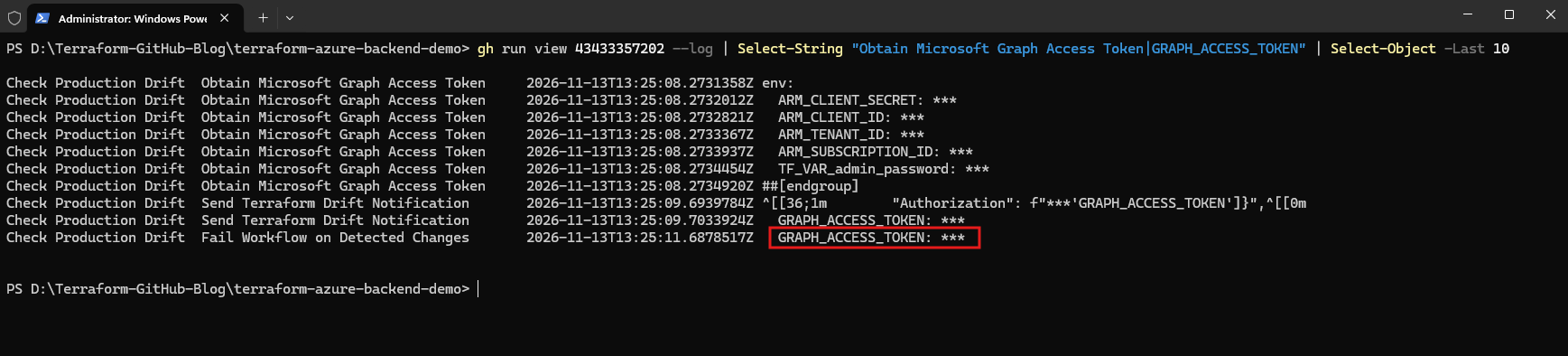
After verifying successful OIDC authentication and Microsoft Graph token acquisition, we inspect the workflow logs for the notification step to determine whether an email was sent.
The workflow successfully submitted the drift notification through Microsoft Graph, receiving HTTP 202 Accepted.
This confirms that Microsoft Graph accepted the email request for processing, although actual delivery to the recipient mailbox still needs to be verified.
gh run view 43433357202 --log | Select-String "Send Drift Notification|sendMail|HTTP|notification" | Select-Object -Last 20
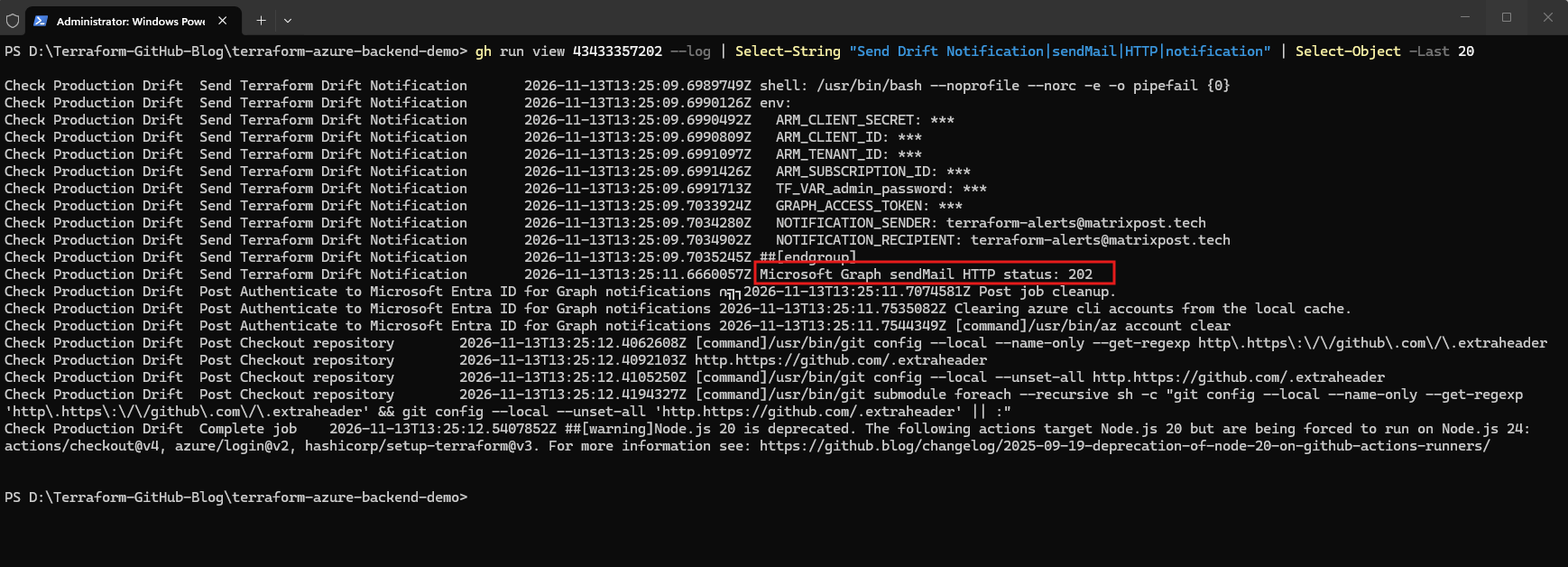
Finally, we can verify that the drift notification was successfully delivered to our dedicated Exchange Online shared mailbox, terraform-alerts@matrixpost.tech.
The email includes the detected infrastructure drift, repository information, and a direct link to the corresponding GitHub Actions workflow run.
This confirms that the complete notification process, from Terraform drift detection through OIDC authentication and Microsoft Graph to Exchange Online email delivery, works as expected.
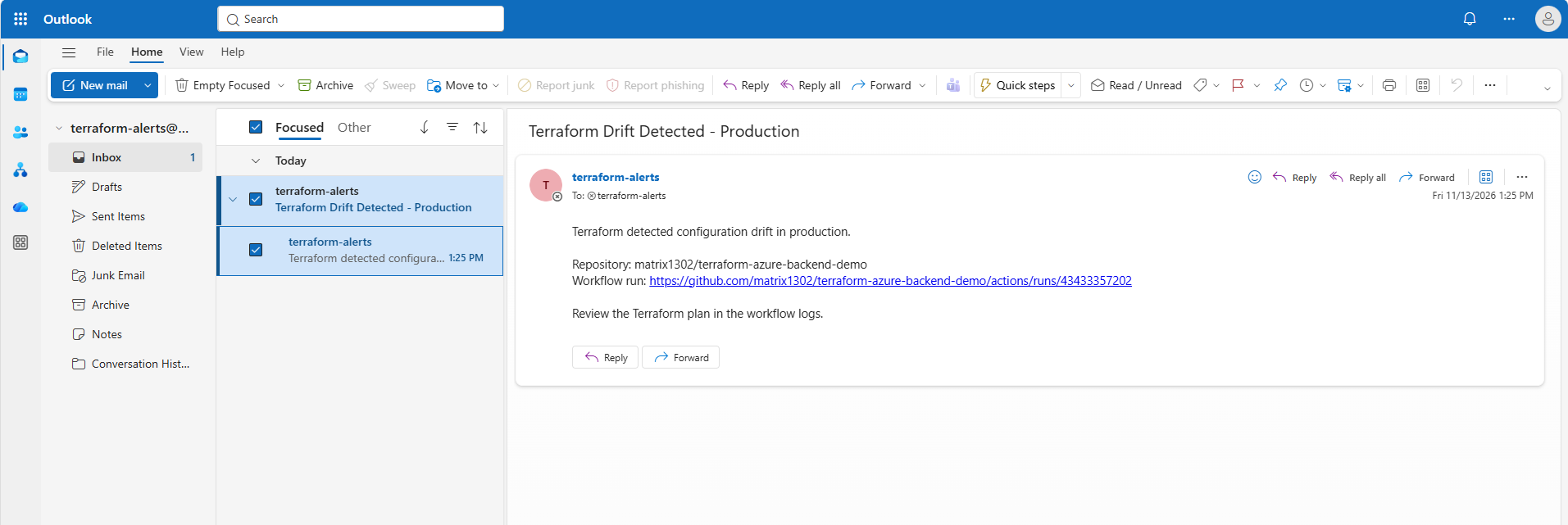
Links
Terraform drift detection
https://developer.hashicorp.com/terraform/cli/commands/planGitHub Actions scheduling
https://docs.github.com/en/actions/reference/workflows-and-actions/events-that-trigger-workflows#scheduleAzure Logic Apps scheduler
https://learn.microsoft.com/en-us/azure/logic-apps/concepts-schedule-automated-recurring-tasks-workflowsGitHub OIDC authentication
https://docs.github.com/en/actions/reference/security/oidcAzure federated credentials
https://learn.microsoft.com/en-us/entra/workload-id/workload-identity-federationExchange Online RBAC
https://learn.microsoft.com/en-us/exchange/permissions-exo/application-rbacMicrosoft Graph email
https://learn.microsoft.com/en-us/graph/api/user-sendmail?view=graph-rest-1.0&tabs=http