Recovering a Windows Server Stuck at “Preparing to Configure Windows” After Windows Updates
Occasionally, Windows Server may become stuck during startup with the message Preparing to configure Windows, often after an interrupted or failed Windows Update installation. Instead of completing the servicing operation, the system repeatedly attempts to process pending update transactions and never reaches the logon screen.
In this post, I’ll demonstrate how to recover the server by booting into the Windows Recovery Environment (WinRE), accessing the offline operating system, and reverting or removing the pending Component-Based Servicing (CBS) operations. In many cases, this allows the system to boot normally again without reinstalling Windows.
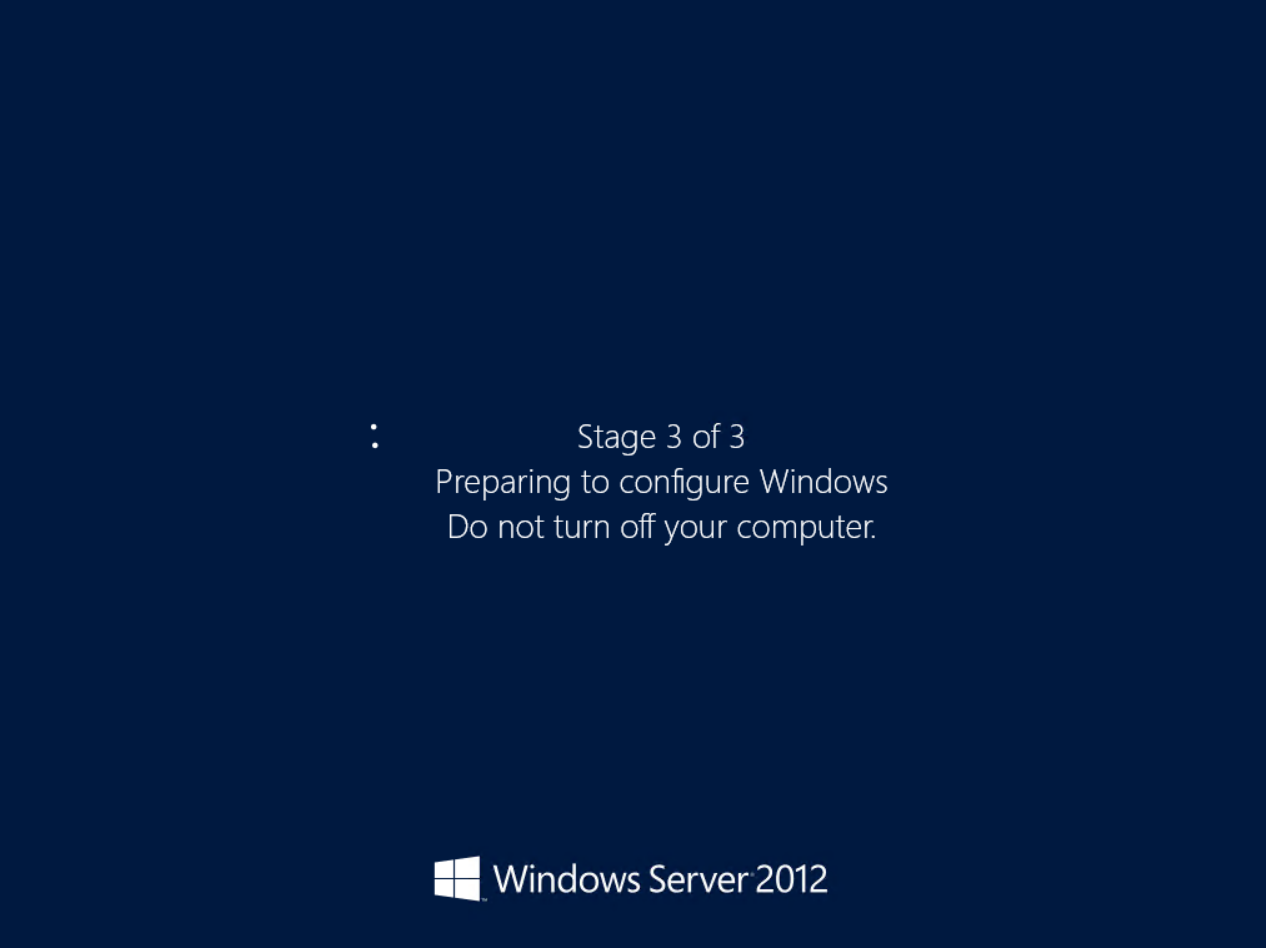
So in case your server stuck at the following screen during installing updates, you can try the following solution to get the server back online.
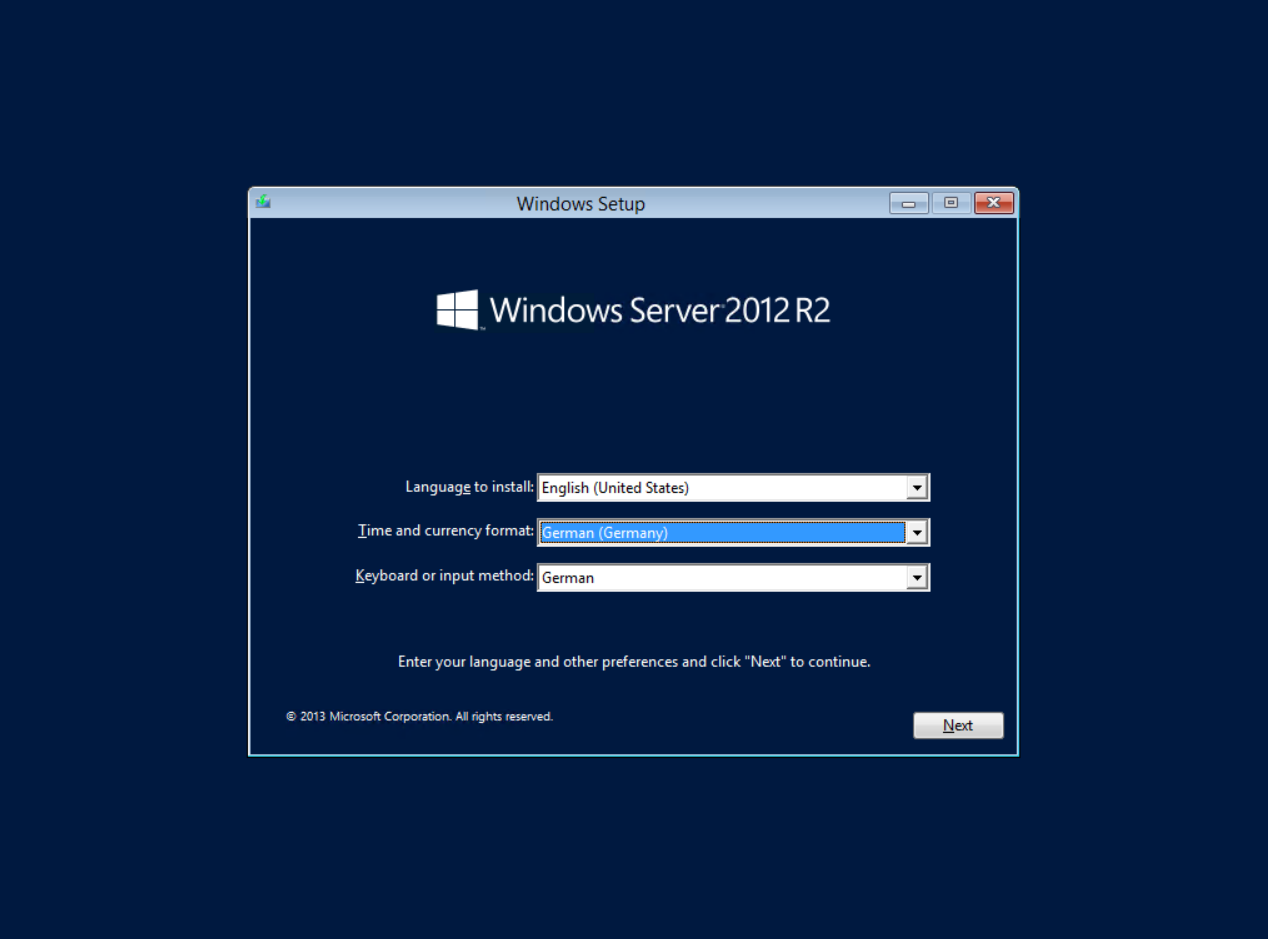
Boot from an OS installation medium to open a command prompt where you can browse the filesystem of the affected OS.
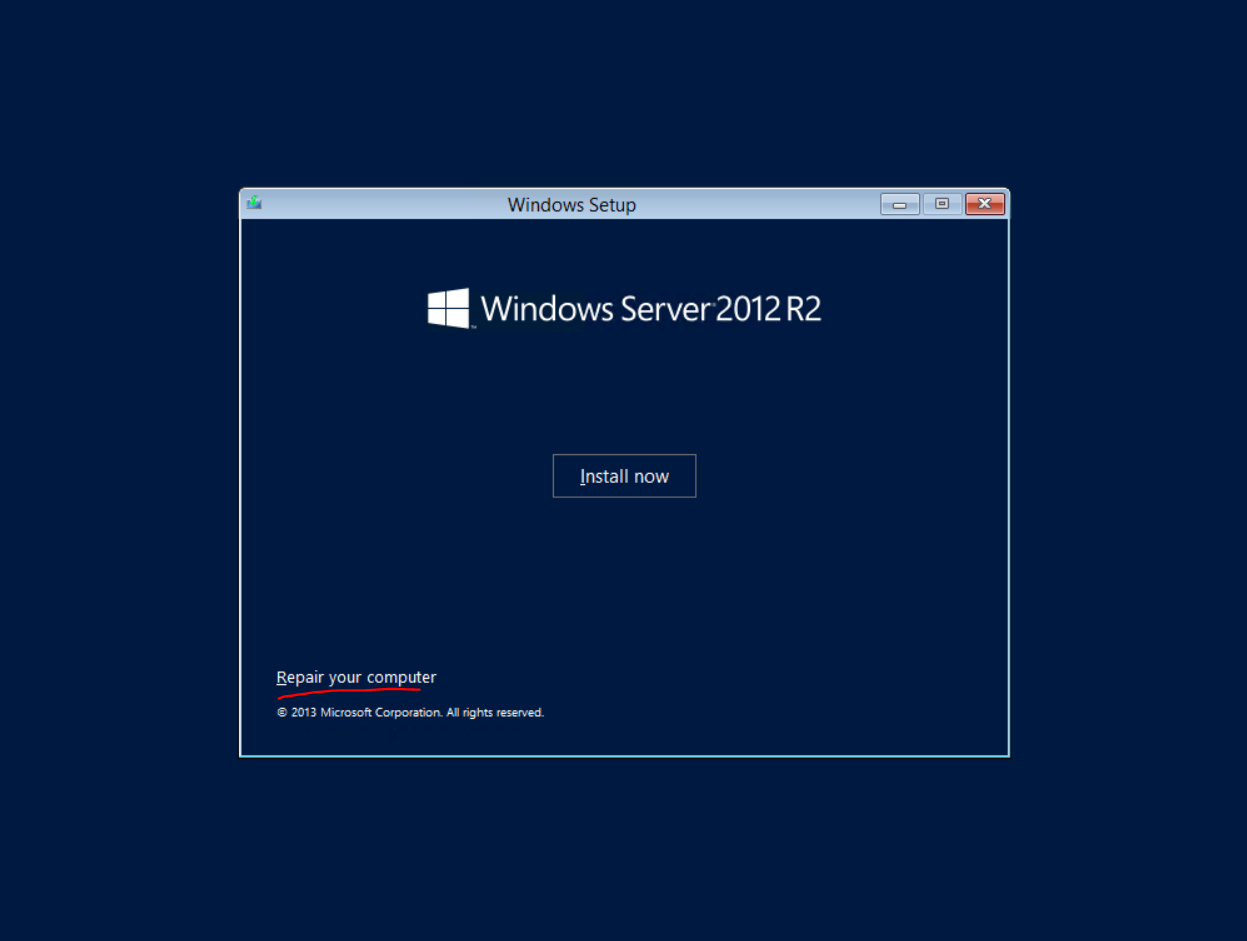
Click on Repair your computer
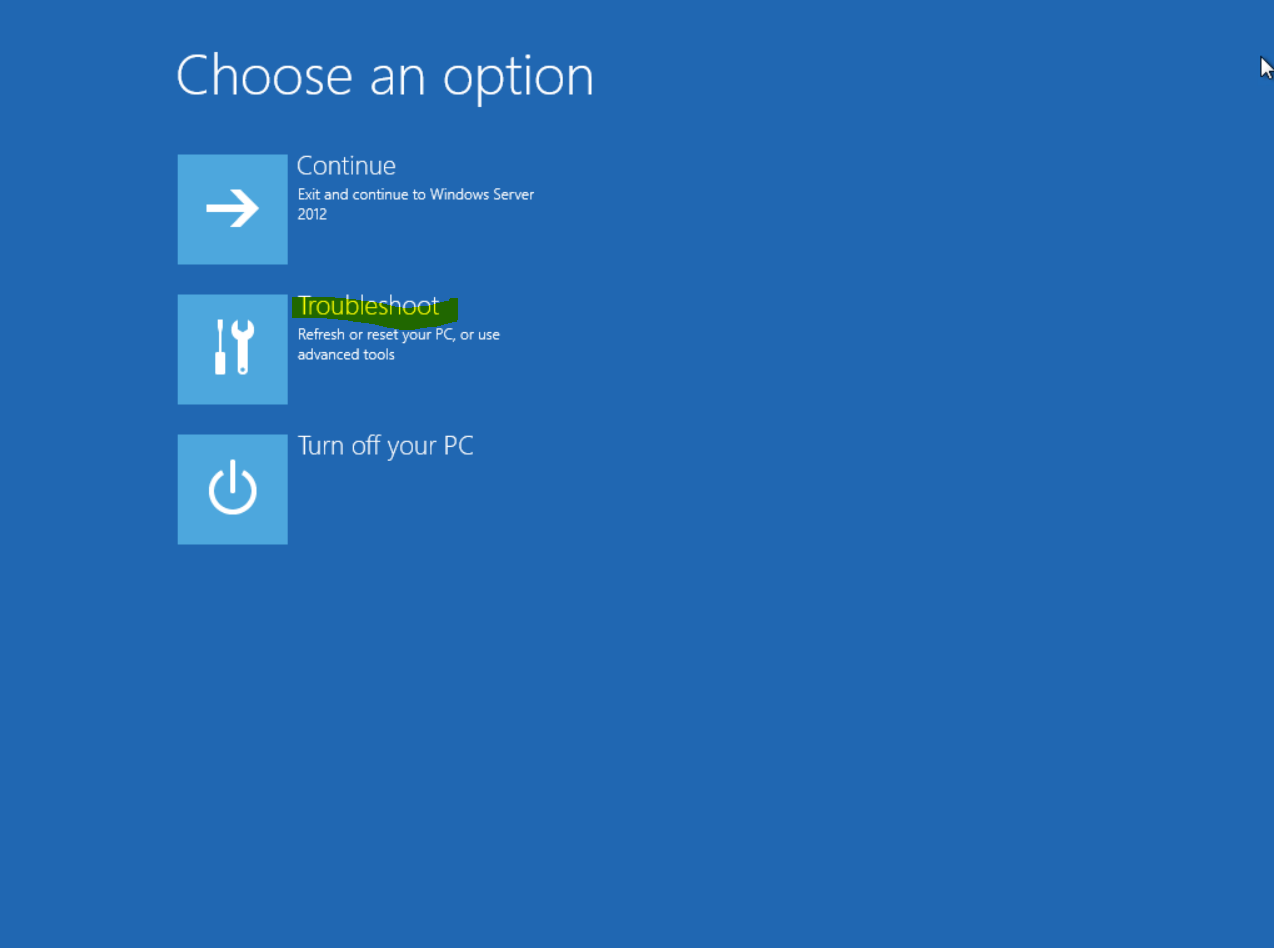
Click on Troubleshoot
Click on Command Prompt
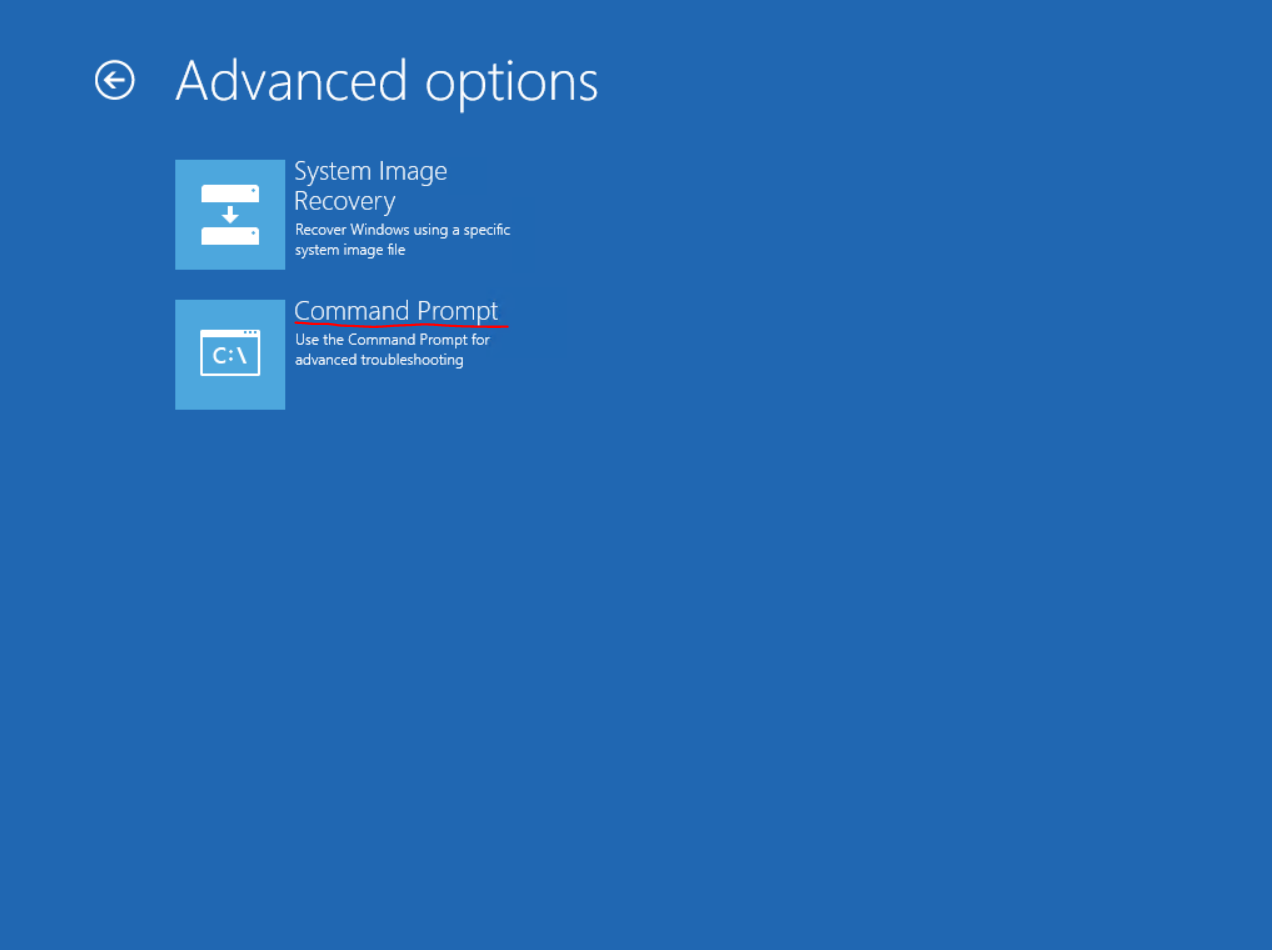
Microsoft’s preferred method is using the dism command below, it tells the servicing stack to abandon incomplete operations instead of simply removing the XML file.
Determine the drive letter of the offline Windows installation (it is often D: instead of C: in WinRE).
dism /image:D:\ /cleanup-image /revertpendingactions
In case not working we can also remove the following XML files from the affected OS.
Find the drive letter where the OS resides, in my case here D:\, then browse to the folder D:\Windows\WinSxS\ and delete the pending.xml and cleanup.xml file.
NOTE:
cleanup.xmlis not present on every system.
del D:\Windows\WinSxS\pending.xml pending.xml.bak
del D:\Windows\WinSxS\cleanup.xml cleanup.xml.bak
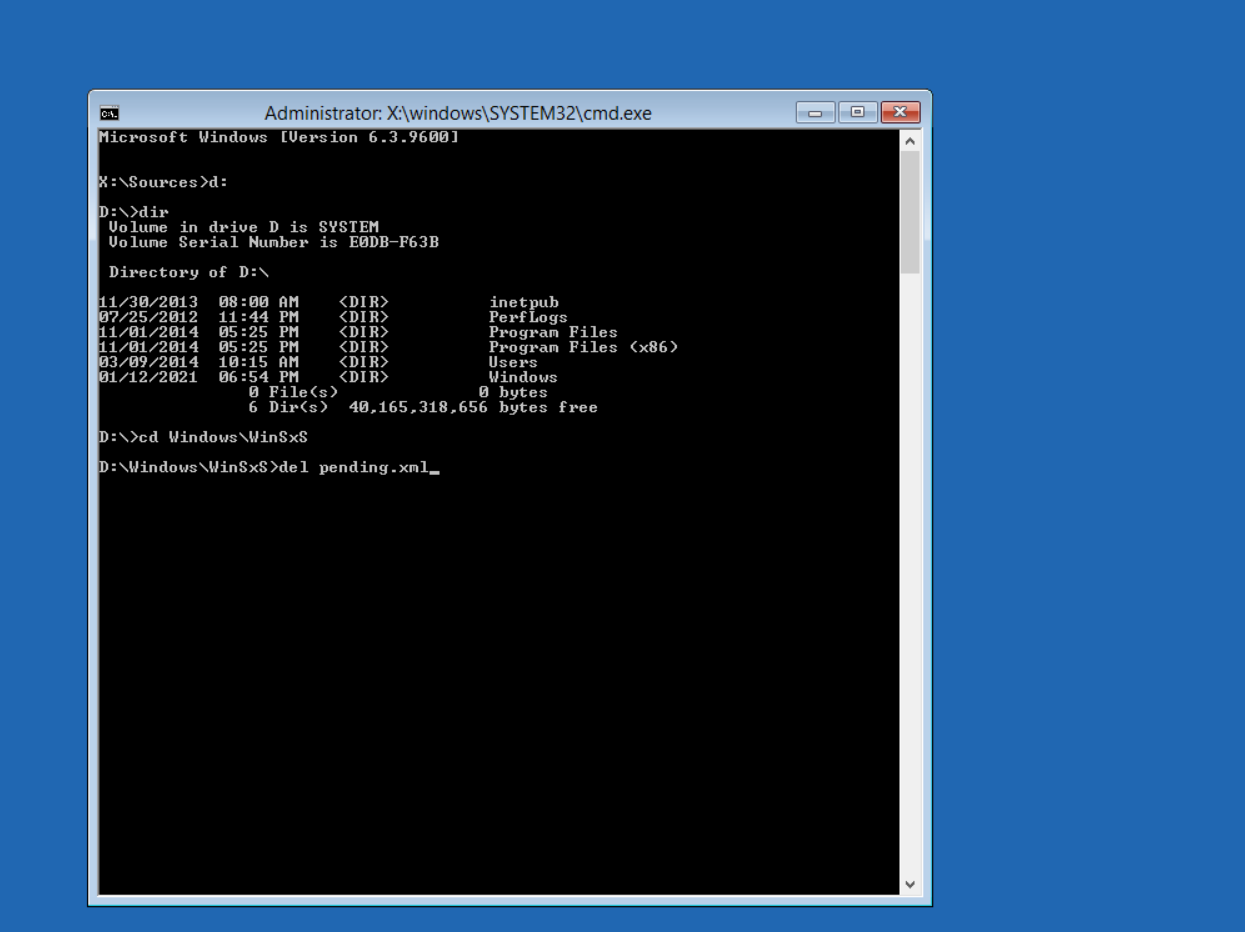
After that exit the command prompt and restart the system.
Links
Clean Up the WinSxS Folder
https://docs.microsoft.com/en-us/windows-hardware/manufacture/desktop/clean-up-the-winsxs-folder?view=windows-11