Extending and Recovering a Full Root Filesystem on an Azure Ubuntu VM
In this article, we will explore how to extend the root filesystem of an Ubuntu VM in Microsoft Azure, starting with increasing the underlying Azure OS disk and then extending the partition and filesystem from within Linux.
Unfortunately, Azure OS disks cannot be expanded while the VM is running, so the VM must first be stopped and deallocated before increasing the disk size.
We will then deliberately fill the root filesystem to simulate a real-world disk-full incident and examine different disaster recovery options when the VM can no longer operate or boot normally.
If both options shown in this article fail, the automatic expansion through cloud-init fails because the root filesystem has insufficient free space, and a manual online expansion using growpart and resize2fs is also no longer possible, we can perform the filesystem expansion offline using an Azure Repair VM shown in my article below.
Extending the Root Disk and Filesystem
Unlike supported Azure data disks, an Azure OS disk cannot be expanded while the virtual machine is running. The VM must first be stopped and deallocated before we can increase the size of the underlying OS disk.
After increasing the OS disk size in Azure, we will extend the root partition with growpart and then grow the filesystem to use the newly available space.
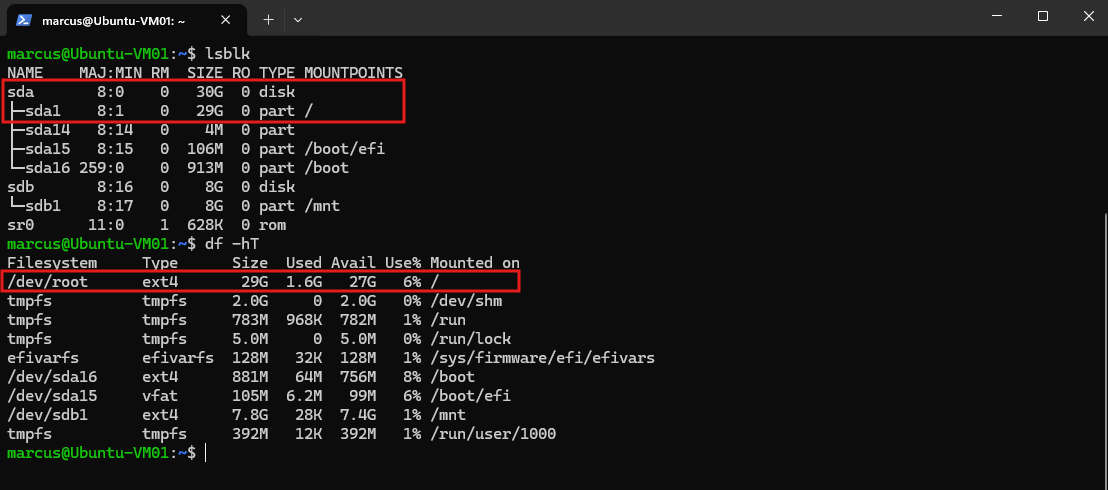
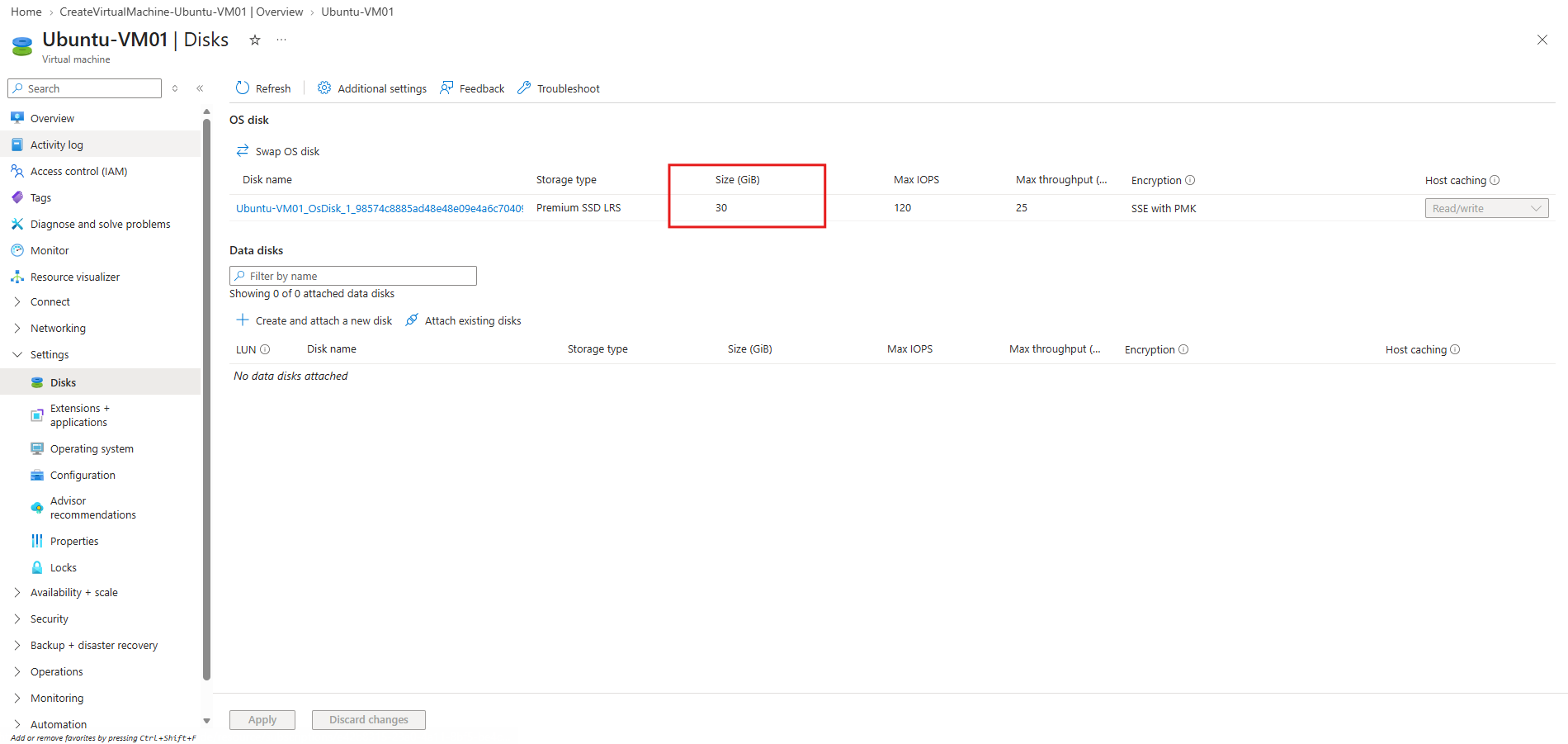
As a baseline, the Azure OS disk /dev/sda currently provides 30 GB, with the 29 GB /dev/sda1 partition hosting the ext4 root filesystem /.
The additional 8 GB
/dev/sdbis the Azure temporary resource disk mounted at/mnt.
lsblk
df -hT
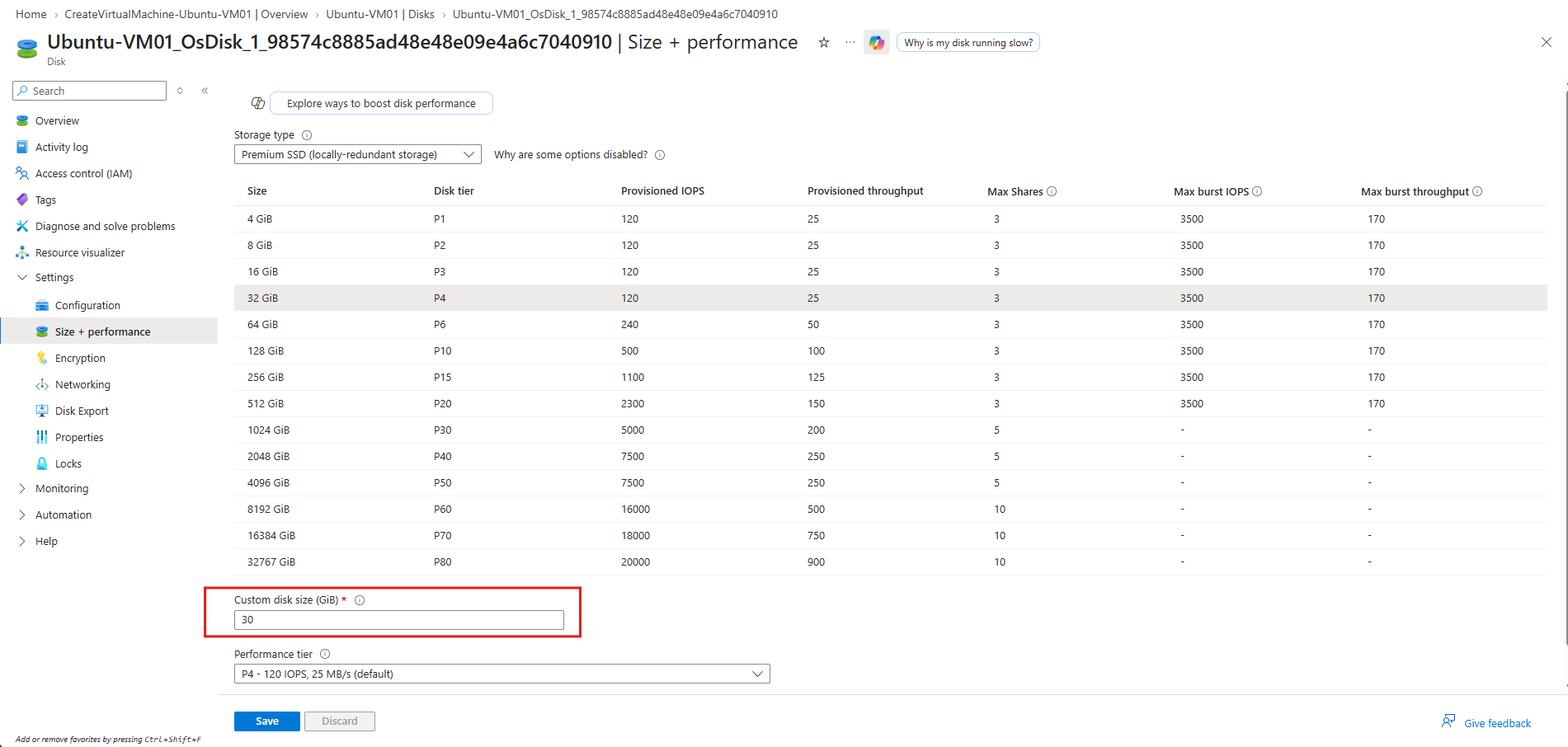
In the Azure portal, the OS disk is currently configured with a custom size of 30 GiB. We will increase it online to 64 GiB and then extend the root partition and filesystem inside Ubuntu to consume the additional capacity.
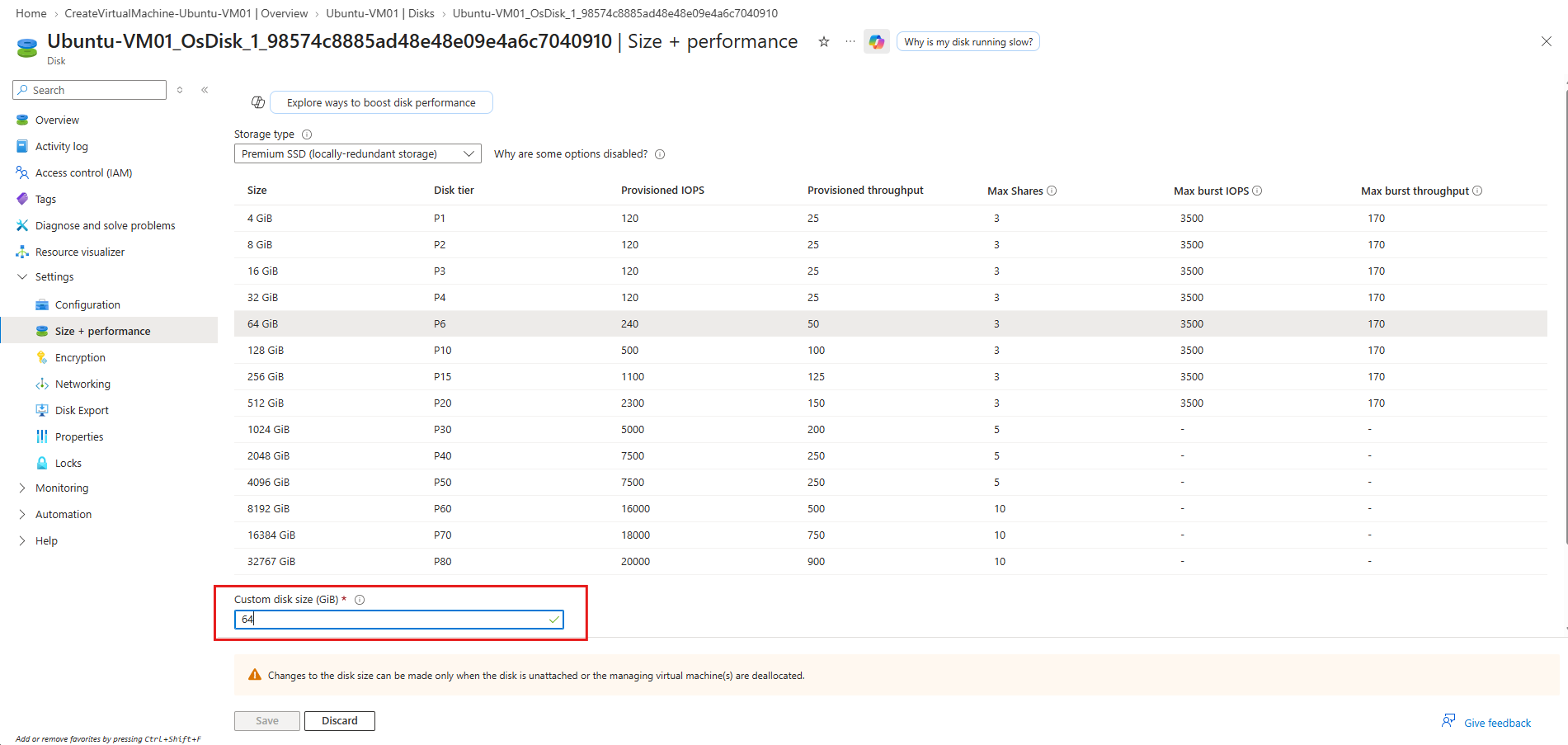
We need to manually enter the new disk size in the Custom disk size (GiB) field.
Azure bills Premium SSDs according to disk tiers, so even if we entered only 40 GiB, the disk would fall into the next applicable 64 GiB (P6) tier and be charged accordingly.
The warning also tells us that the disk size can only be changed when the disk is unattached or the VM is deallocated, so we first need to stop and deallocate the VM.
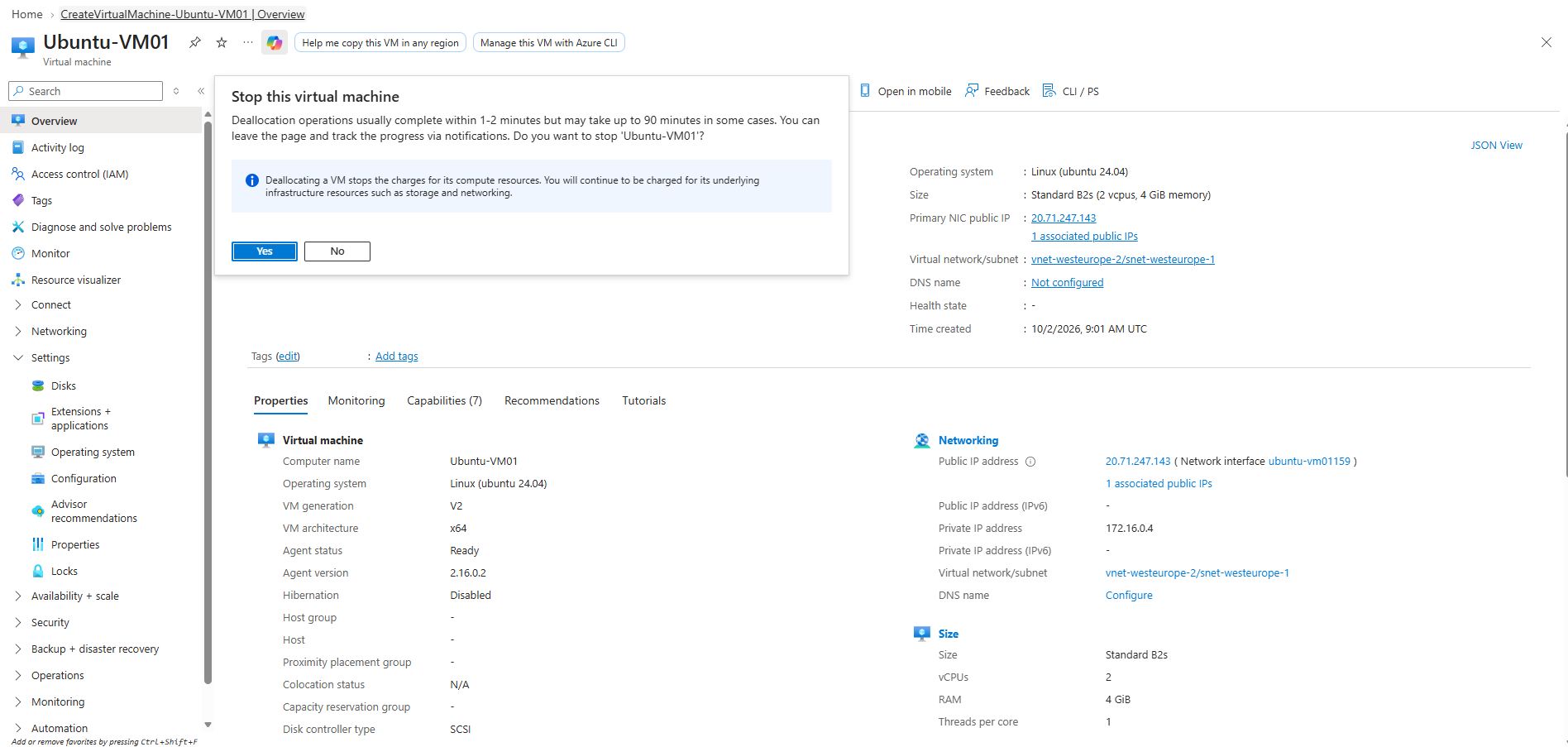
Before resizing the Azure OS disk, we need to stop and deallocate the virtual machine.
Deallocation releases the VM’s compute resources and stops compute charges, while charges for persistent resources such as the managed OS disk and networking resources continue.
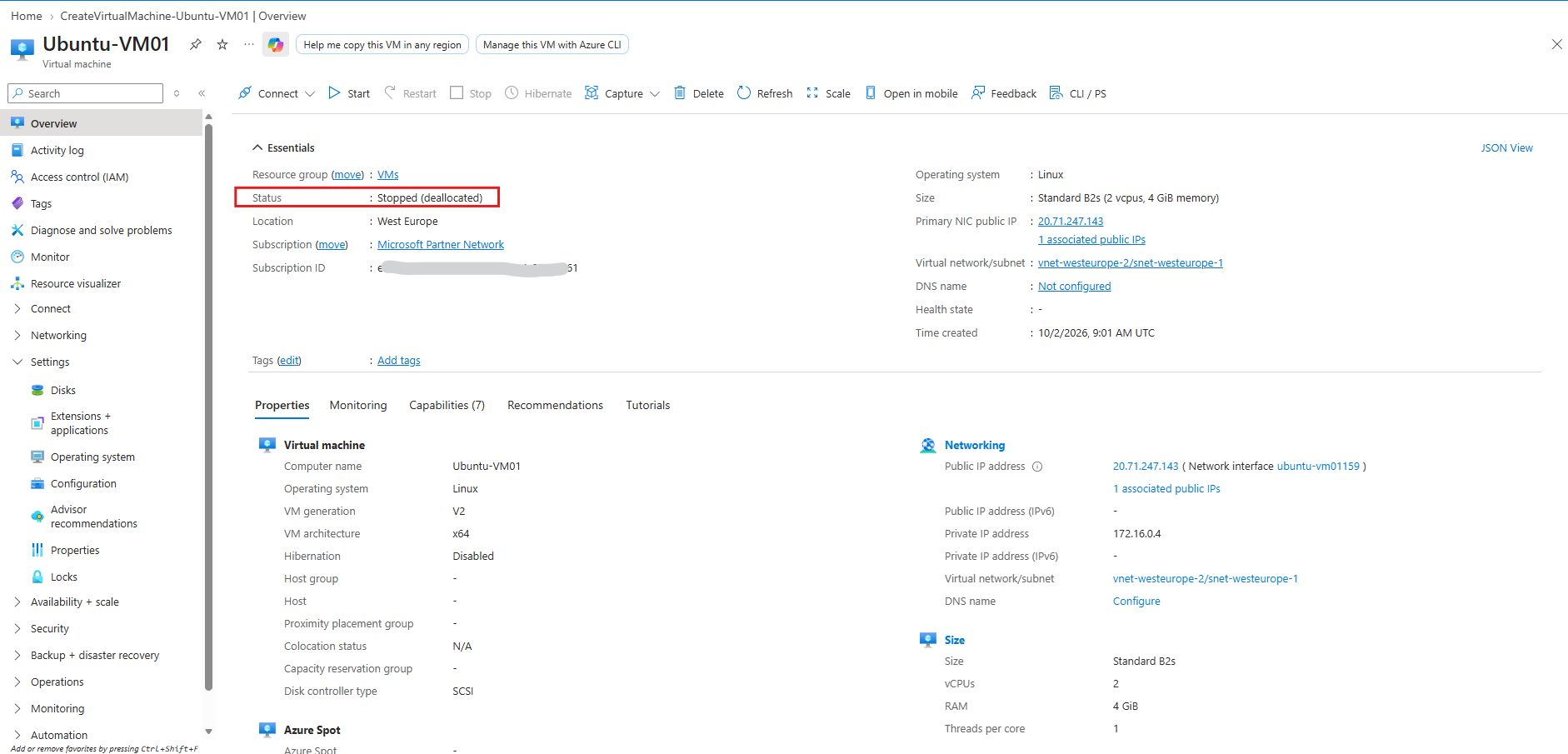
Once the VM status changes to Stopped (deallocated), we can return to the OS disk configuration and increase its capacity.
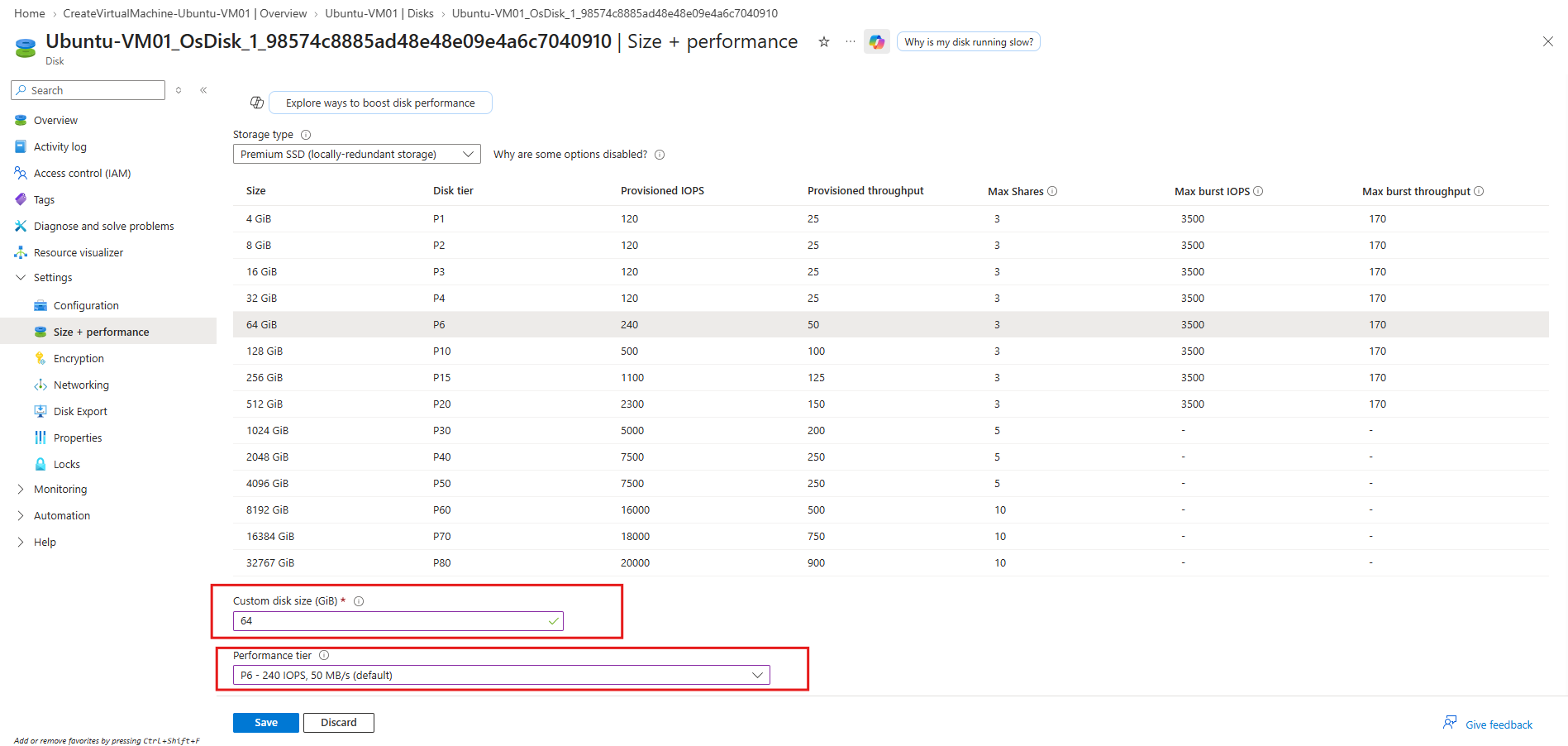
After the VM is deallocated, we can increase the OS disk to 64 GiB and select the appropriate performance tier.
In this example, we select P6, providing 240 IOPS and 50 MB/s of provisioned throughput by default.
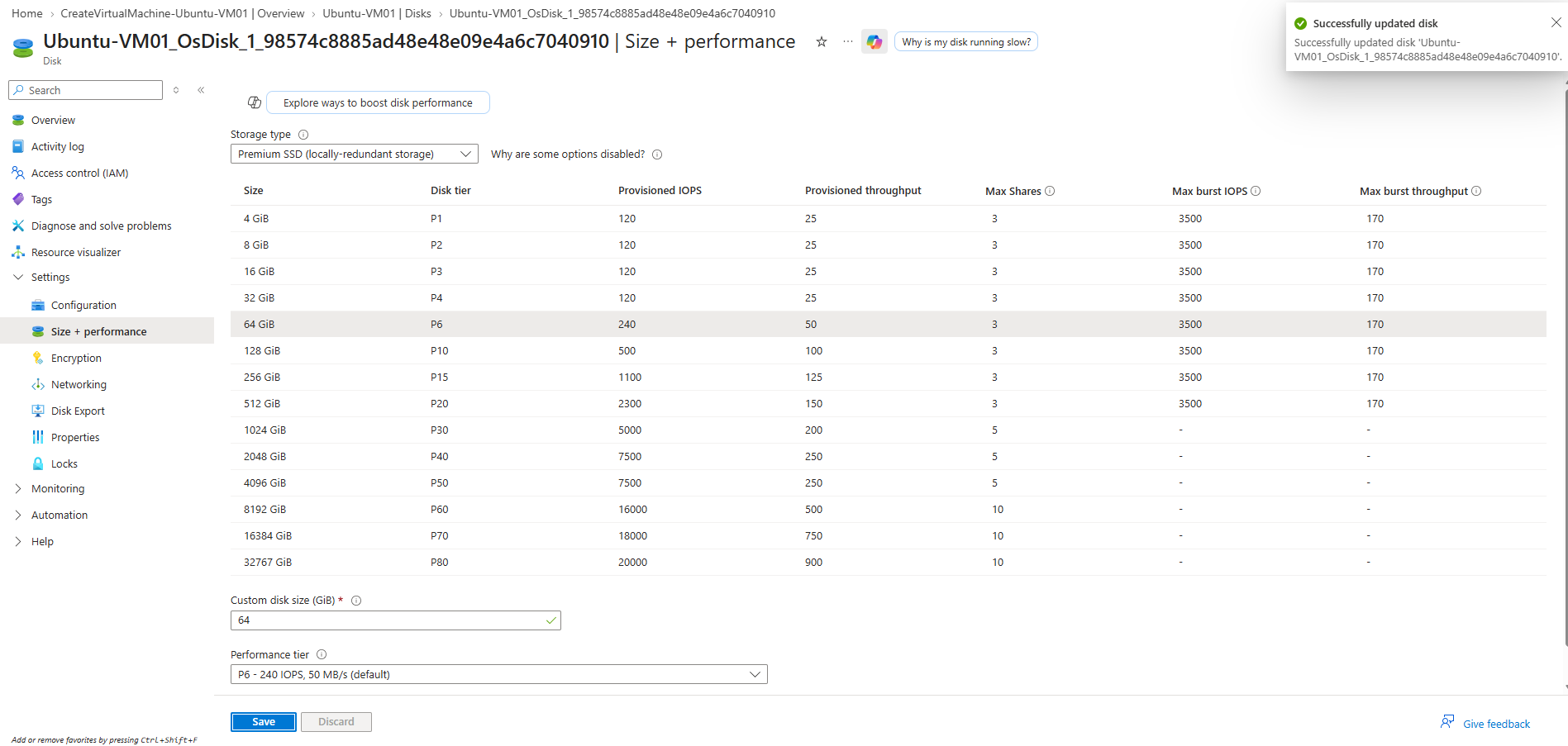
After clicking Save, Azure updates the managed OS disk to 64 GiB.
We can now start the VM again and verify how the increased disk capacity is presented to Ubuntu before extending the root partition and filesystem.
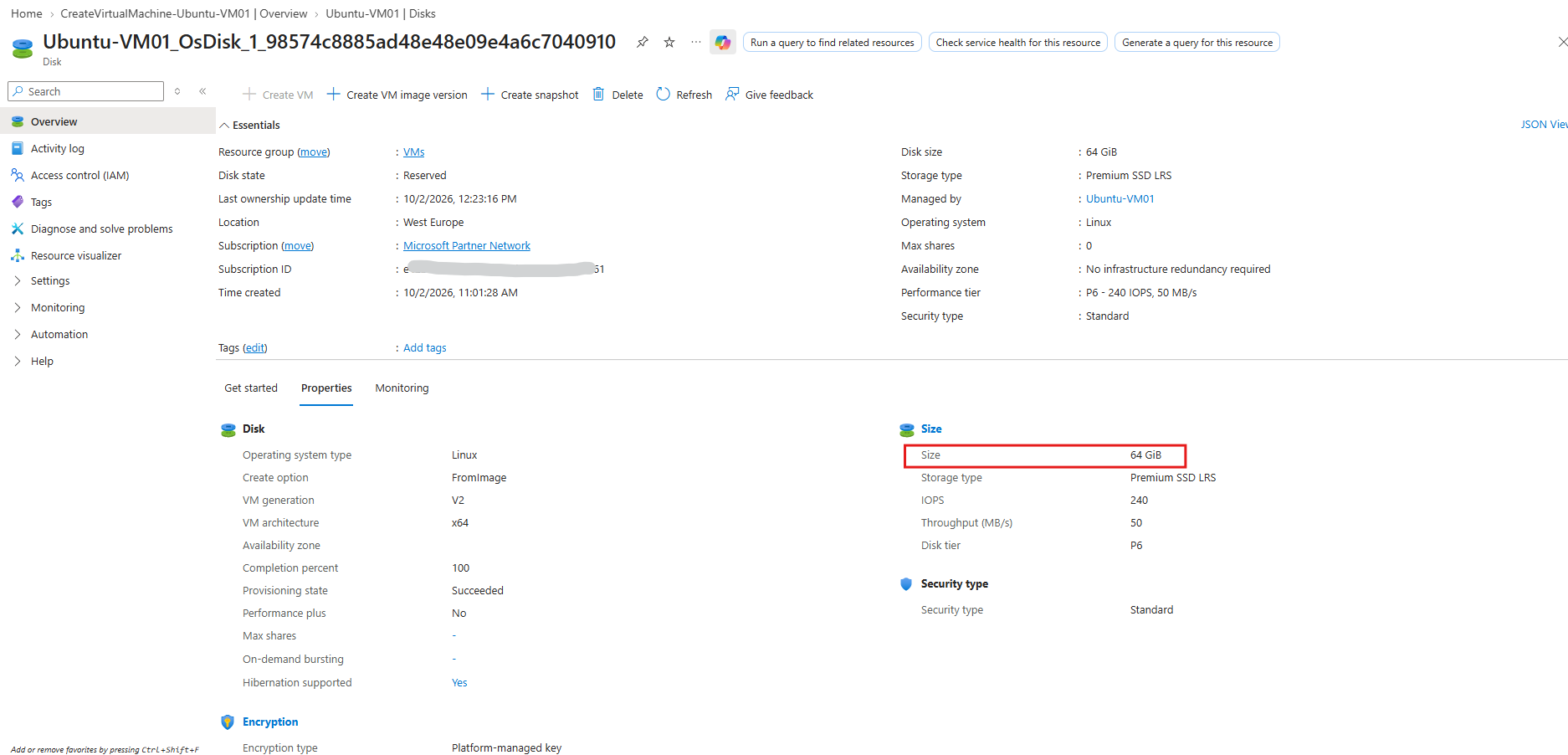
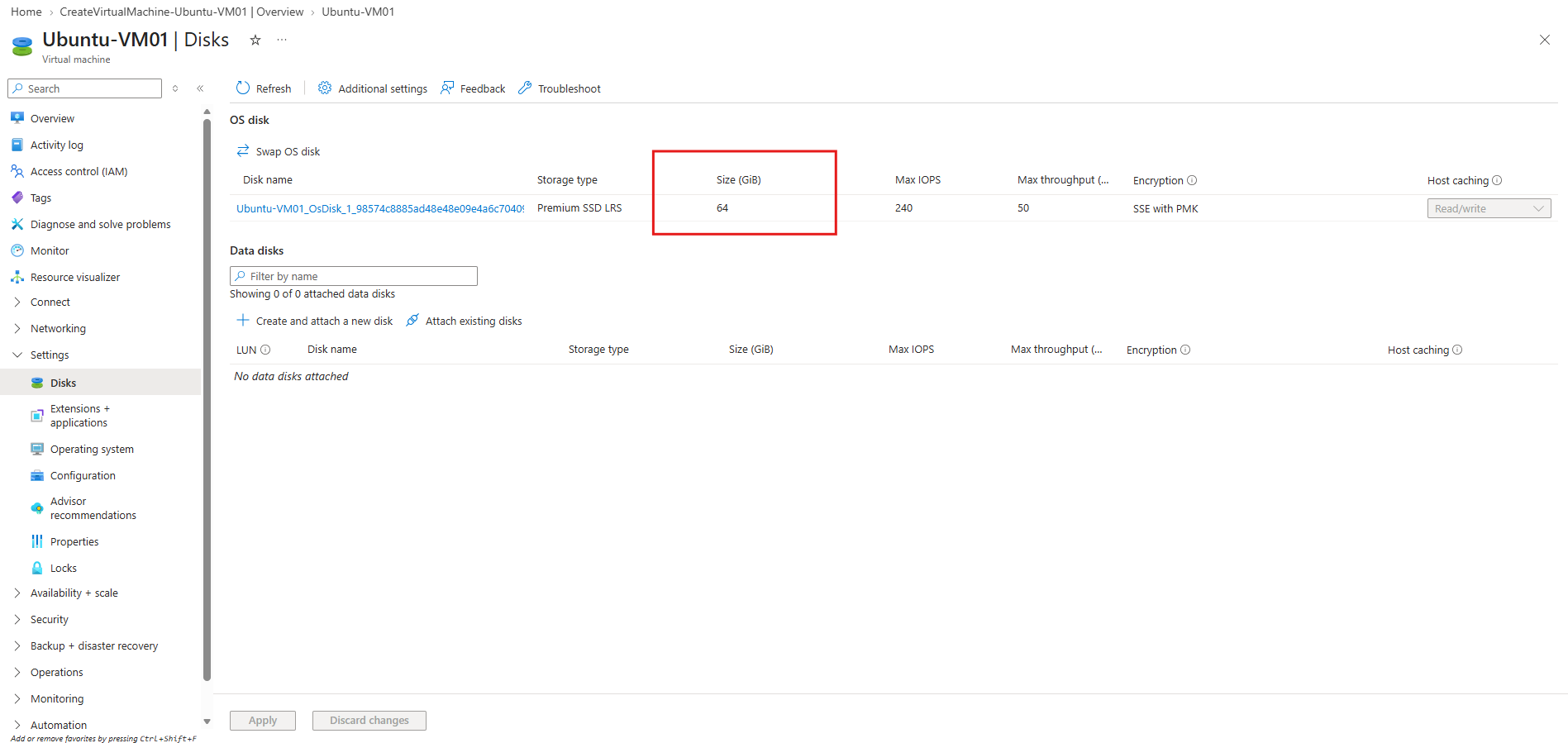
The managed disk properties confirm that the resize completed successfully and the OS disk now has a capacity of 64 GiB using the P6 performance tier with 240 IOPS and 50 MB/s throughput.
The VM’s Disks view may still display the previous 30 GiB disk size and performance values due to a delay in the Azure Portal updating the displayed resource information. We can just click on Refresh to see the new size.
Then new size now is also shown in the VM’s Disks view.
Automatic Root Partition and Filesystem Expansion with cloud-init
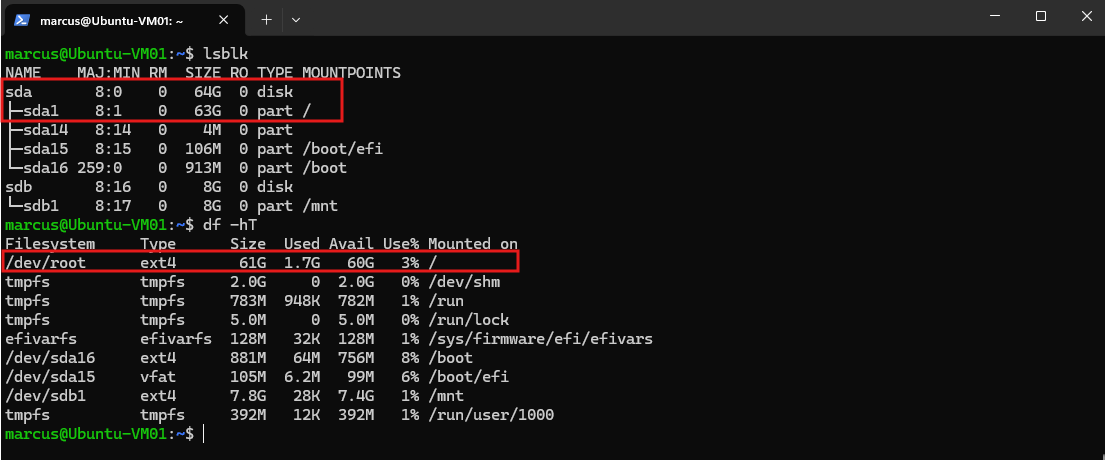
After starting the VM, lsblk shows that /dev/sda now provides 64 GB and the root partition /dev/sda1 has automatically grown from 29 GB to 63 GB.
df -hTalso confirms that the ext4 root filesystem has increased from 29 GB to 61 GB, without requiring any manualgrowpartorresize2fscommands.On Ubuntu 16.x and newer, the root partition of the OS disk and filesystems are automatically expanded to use all free contiguous space on the root disk by cloud-init. A small amount of free space must be available for the resize operation.
This automatic expansion is performed by cloud-init during boot. We can verify the relevant cloud-init configuration step by step.
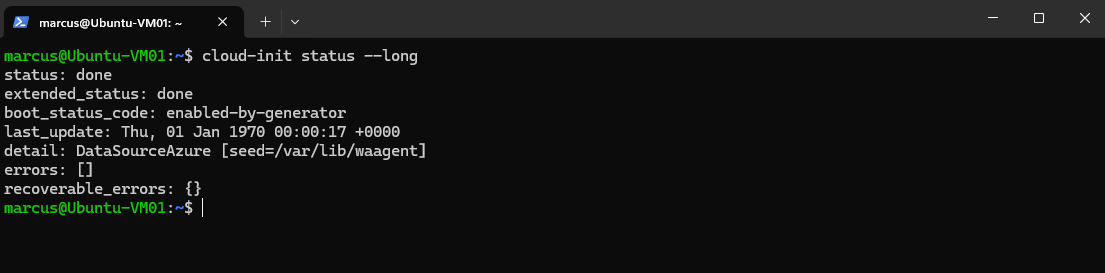
First, we can verify that cloud-init is enabled and completed its processing during the current boot.
status: done– cloud-init has completed all processing stages for the current boot.extended_status: done– cloud-init completed successfully without reporting a degraded state.boot_status_code: enabled-by-generator– cloud-init was enabled for this boot by its systemd generator.last_update: Thu, 01 Jan 1970 00:00:17 +0000– shows the last cloud-init status update; the 1970 timestamp results from the system clock not yet being initialized/synchronized at that early stage of boot.detail: DataSourceAzure [seed=/var/lib/waagent]– cloud-init detected Microsoft Azure as its datasource and used the Azure provisioning data provided via thewaagentlocation.errors: []– no fatal errors were reported during cloud-init processing.recoverable_errors: {}– no recoverable/non-fatal errors were reported either.
cloud-init status --long
Next, we can inspect the configured cloud-init modules responsible for automatically expanding the root partition and filesystem during boot.
The two relevant modules are
growpart, which expands the partition, andresizefs, which subsequently grows the filesystem to use the additional space.
grep -A20 '^cloud_init_modules:' /etc/cloud/cloud.cfg
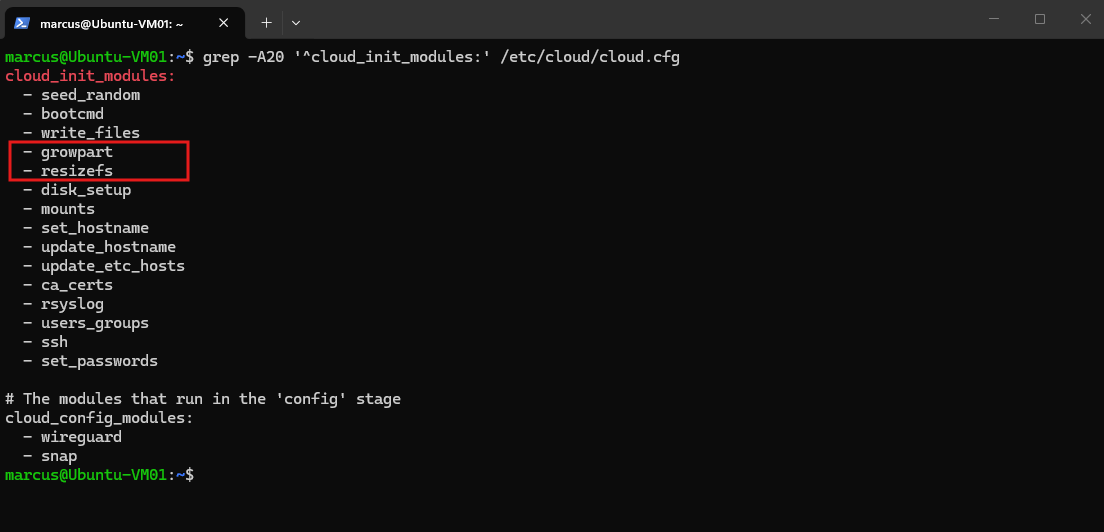
Finally, we can check whether automatic root filesystem resizing has been explicitly disabled through the resize_rootfs option.
No output means that no such override is configured; in particular, there is no
resize_rootfs: falsesetting preventing theresizefsmodule from expanding the root filesystem.
grep -R 'resize_rootfs' /etc/cloud/ 2>/dev/null

Simulating a Completely Full Root Filesystem
Microsoft notes that a small amount of free space must be available for the resize operation. To test what happens when this prerequisite is not met, we will deliberately fill the root filesystem until no usable free space remains and then attempt another OS disk expansion.
Before filling the filesystem, df shows that the ext4 root filesystem has a capacity of 61 GB, with only 1.7 GB used and approximately 60 GB available.
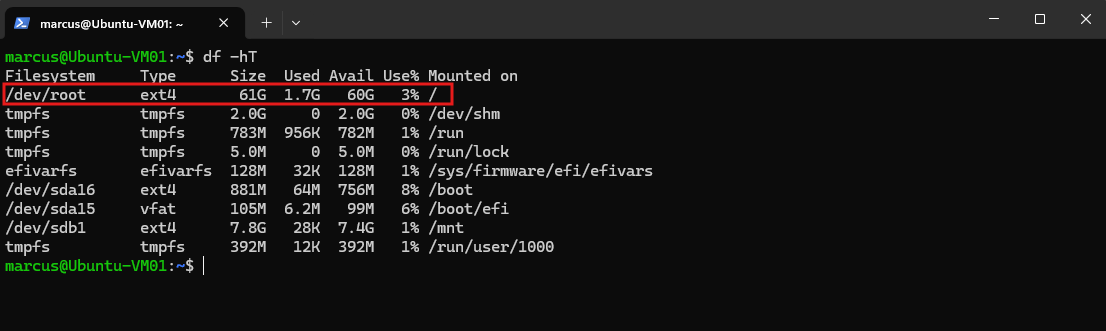
Now let’s consume most of it first, but not hit 100% immediately:
The
fallocatecommand quickly allocates 55 GB of actual filesystem space to the test file/root/rootfs-full-test.imgwithout having to write 55 GB of data. As a result, root filesystem utilization immediately increases from 3% to 93%.
sudo fallocate -l 55G /root/rootfs-full-test.img

The root filesystem is now 93% utilized, with 57 GB used and only 4.4 GB available. Next, we will consume the remaining free space to deliberately reproduce a completely full root filesystem.
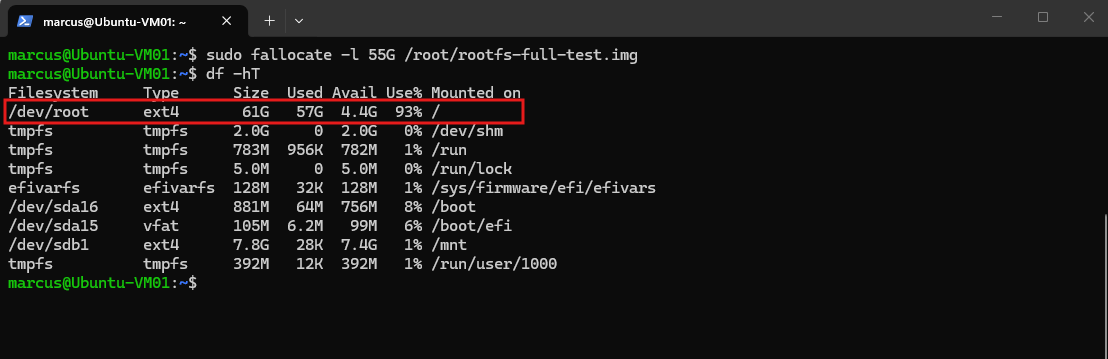
Now let’s consume most of the remaining 4.4 GB with a second test file:
After allocating another 4 GB, the root filesystem reaches 100% utilization, with only about 312 MB reported as available. We are now close enough to reproduce the conditions of a critically full root filesystem.
sudo fallocate -l 4G /root/rootfs-full-test-2.img
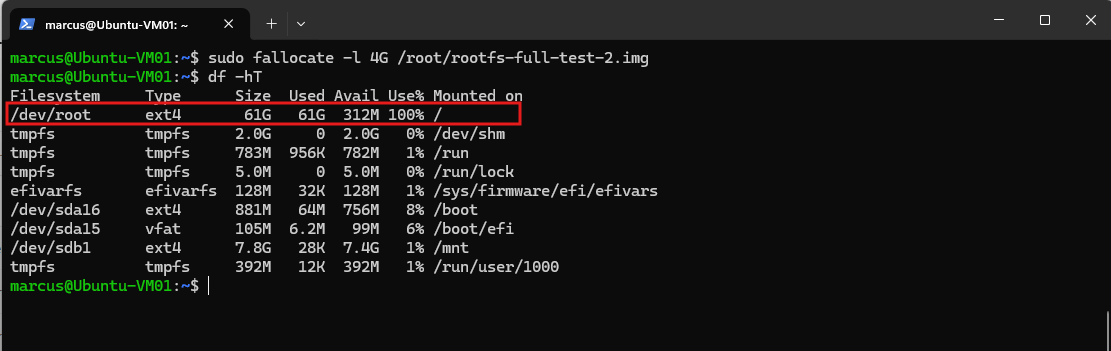
Next we consume those remaining ~312 MB in smaller steps:
After allocating another 300 MB, the root filesystem is effectively full at 100% utilization, with only 12 MB of usable space remaining. This gives us the disk-full condition needed to test whether Azure and cloud-init can still expand the root filesystem during the next boot.
sudo fallocate -l 300M /root/rootfs-full-test-3.img
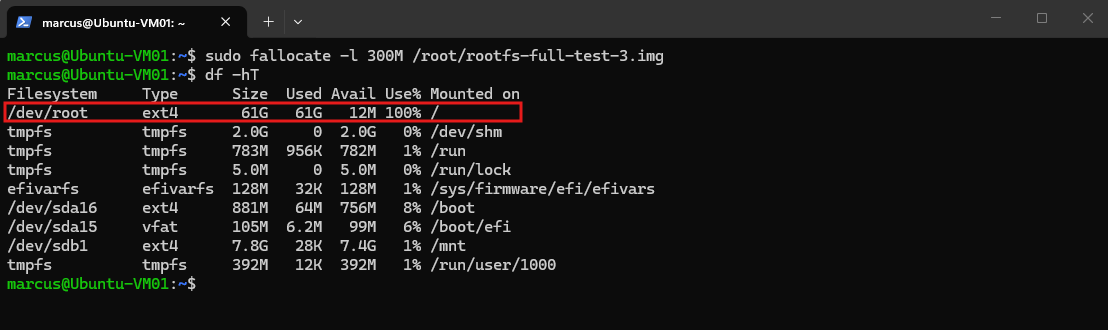
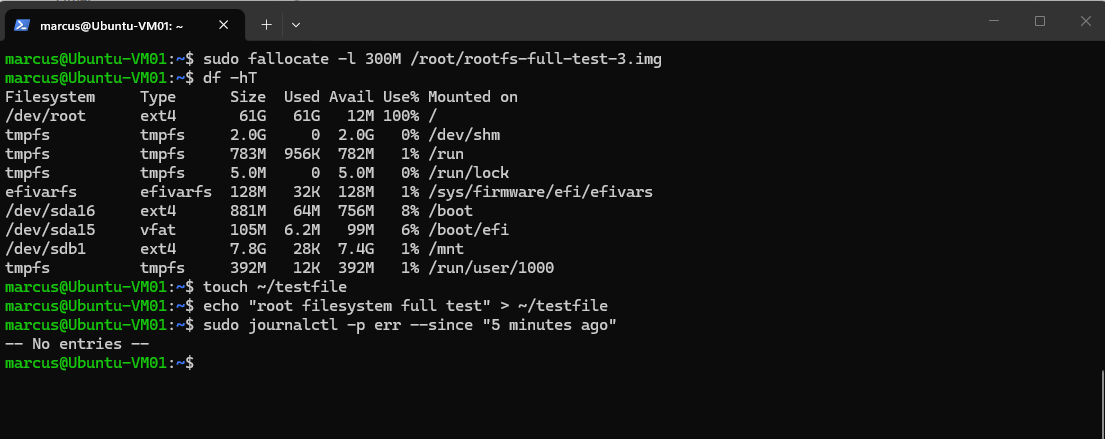
Although the root filesystem already reports 100% utilization, basic write operations still succeed because approximately 12 MB remain available.
No filesystem-related errors are currently reported in the system journal, so we will now consume the remaining usable space to reproduce a true
No space left on devicecondition.
sudo fallocate -l 300M /root/rootfs-full-test-3.img
df -hT
touch ~/testfile
echo "root filesystem full test" > ~/testfile
sudo journalctl -p err --since "5 minutes ago"
The final allocation attempt fails with No space left on device, confirming that the root filesystem can no longer allocate additional space.
df -hTnow reports 0 bytes available and 100% utilization, giving us a genuine disk-full condition for the recovery test.
sudo fallocate -l 12M /root/rootfs-full-test-4.img
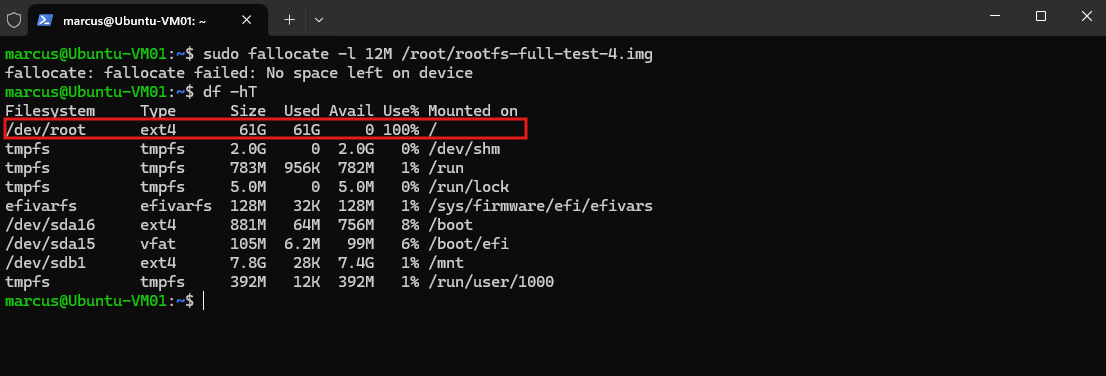
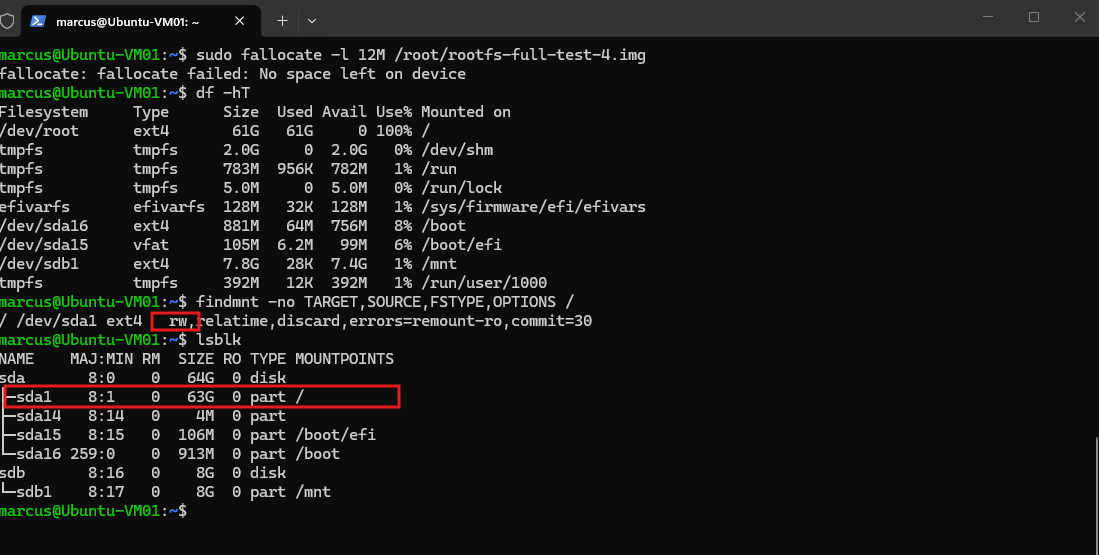
Even with the root filesystem completely full, ext4 remains mounted read-write (rw) and returns No space left on device when additional blocks cannot be allocated.
This differs from behavior we have encountered with Btrfs, where severe data or metadata space exhaustion can lead to filesystem errors and ultimately cause Btrfs to remount read-only (
ro) to protect the filesystem like shown in my article here https://blog.matrixpost.net/btrfs-balance-metadata-enospc-root-filesystem-read-only/.
findmnt -no TARGET,SOURCE,FSTYPE,OPTIONS /
Testing cloud-init with a Completely Full Root Filesystem
Microsoft notes that a small amount of free space must be available for the resize operation. Since our root filesystem now has 0 bytes available, it is unclear whether cloud-init will still be able to execute the configured growpart and resizefs modules successfully during the next boot.
We will therefore leave the filesystem completely full, deallocate the VM, increase the OS disk from 64 GiB to 128 GiB, and start it again.
This will show whether cloud-init can expand the partition and filesystem despite having no free space available beforehand.
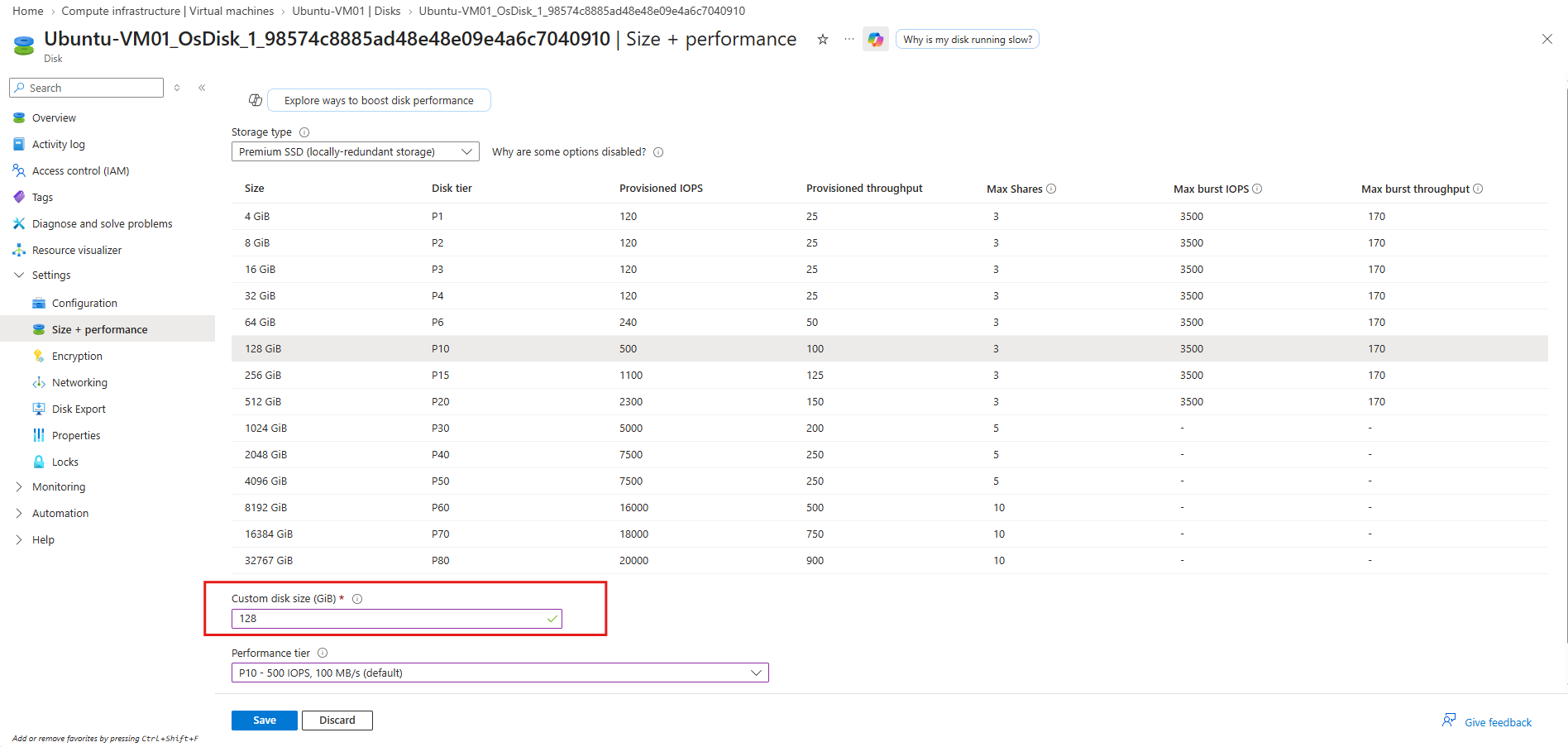
With the VM stopped and deallocated, we increase the Azure OS disk once again, this time from 64 GiB to 128 GiB. The corresponding P10 performance tier provides 500 IOPS and 100 MB/s throughput by default.
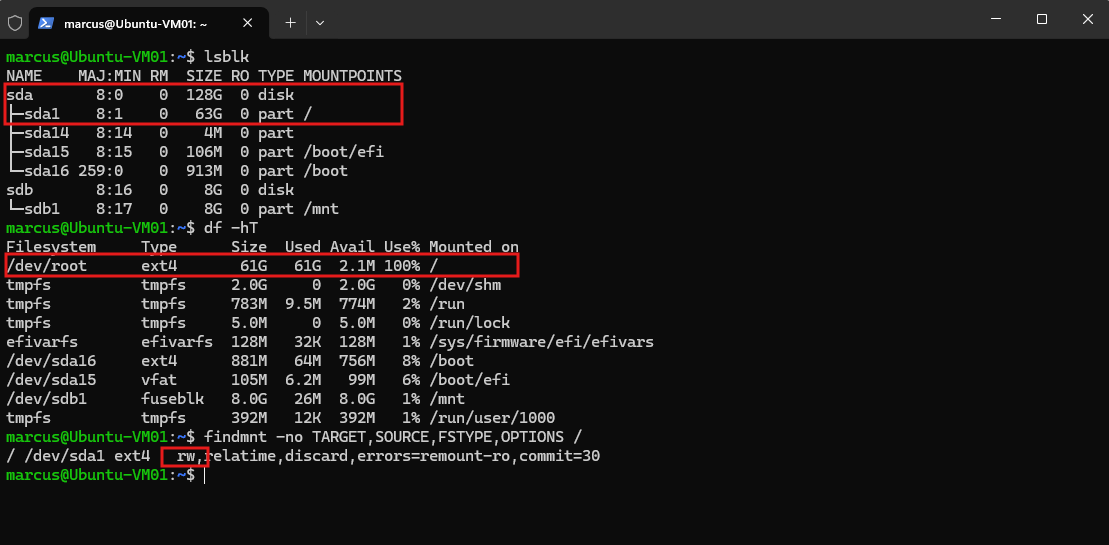
After starting the VM again, lsblk confirms that Azure successfully increased the underlying OS disk /dev/sda to 128 GB, while the root partition /dev/sda1 remains unchanged at 63 GB.
The ext4 filesystem also remains at 61 GB and 100% utilization, demonstrating that cloud-init was unable to perform the automatic expansion with the root filesystem completely full.
lsblk
df -hT
findmnt -no TARGET,SOURCE,FSTYPE,OPTIONS /
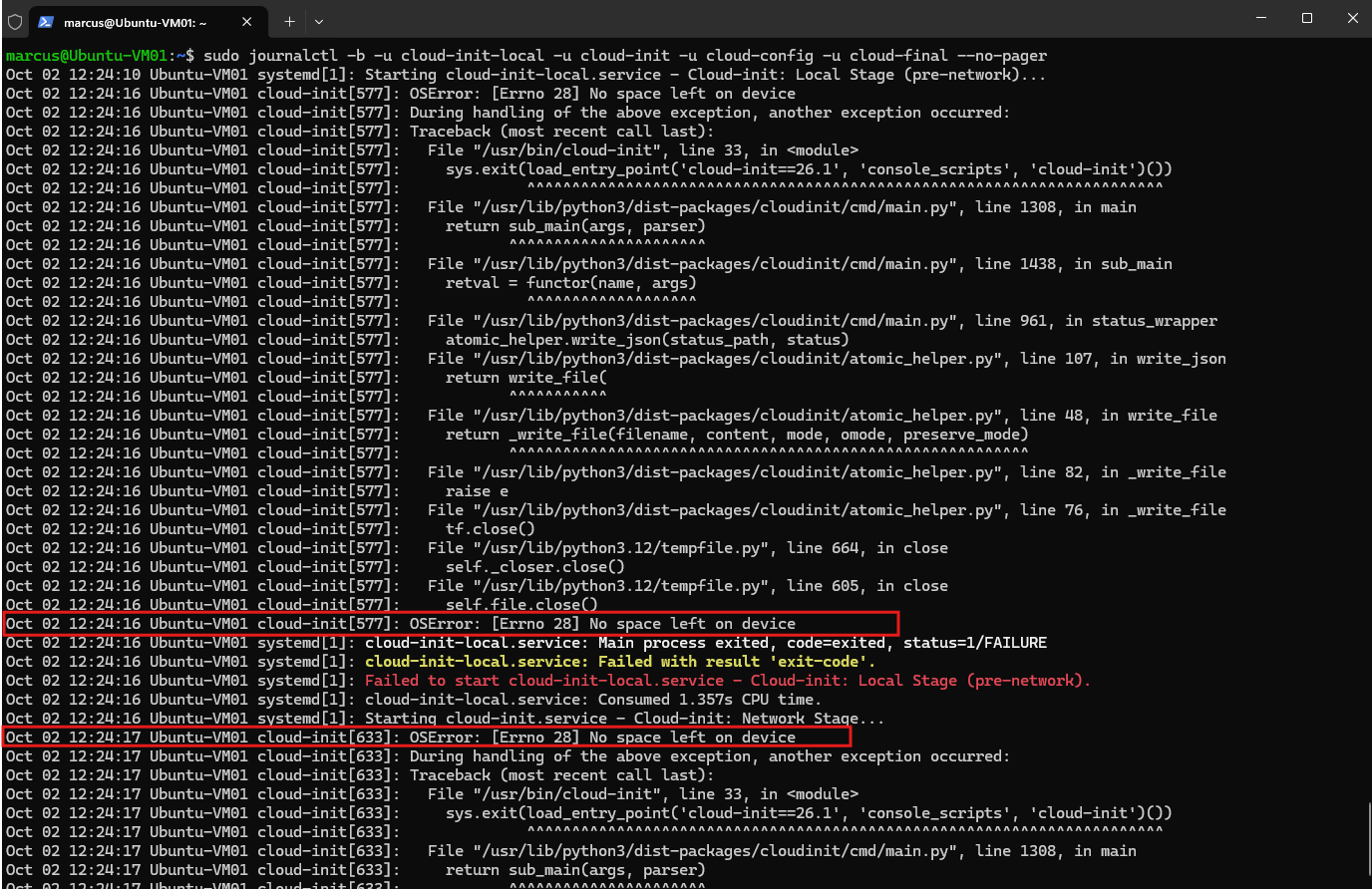
The system journal reveals why the automatic expansion did not occur. Because the root filesystem had no free space available, both the cloud-init Local Stage and Network Stage failed with OSError: [Errno 28] No space left on device.
The failure occurred while cloud-init attempted to write its own status data, preventing the Network Stage from reaching the configured
growpartandresizefsmodules. As a result, Azure successfully expanded the underlying disk to 128 GB, while the root partition and ext4 filesystem remained unchanged.
sudo journalctl -b -u cloud-init-local -u cloud-init -u cloud-config -u cloud-final --no-pager
Recovering a Full Root Filesystem
Since the underlying Azure OS disk already provides 128 GB but the root partition remains at 63 GB, we will first attempt to recover the system directly from the running VM.
We will manually execute the same basic operations normally performed by cloud-init: first extend the root partition with growpart, and then extend the ext4 filesystem with resize2fs.
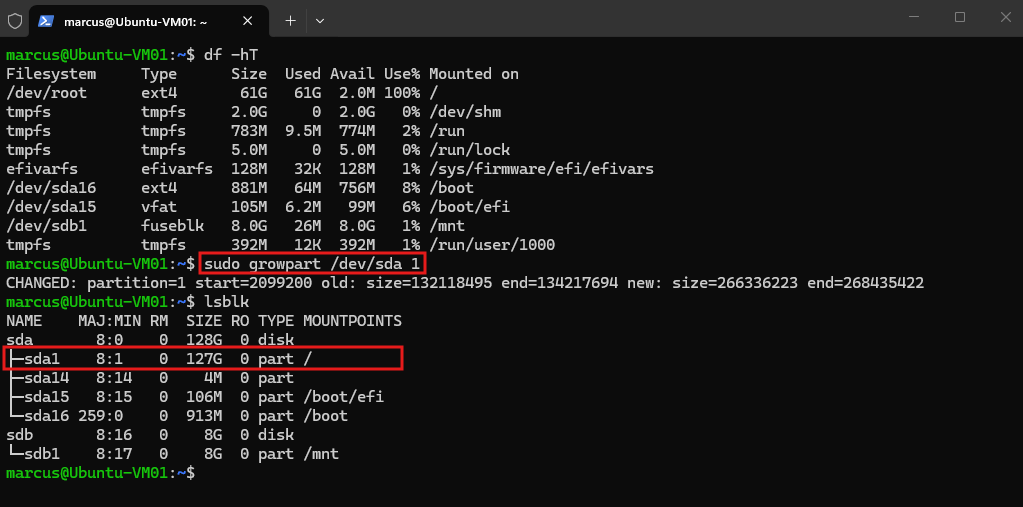
Interestingly, manually running
growpartsucceeds even though the root filesystem is still 100% utilized with only about 2 MB available. The root partition/dev/sda1is expanded online from 63 GB to 127 GB, showing thatgrowpartitself requires very little working space and can still operate under these conditions.
sudo growpart /dev/sda 1
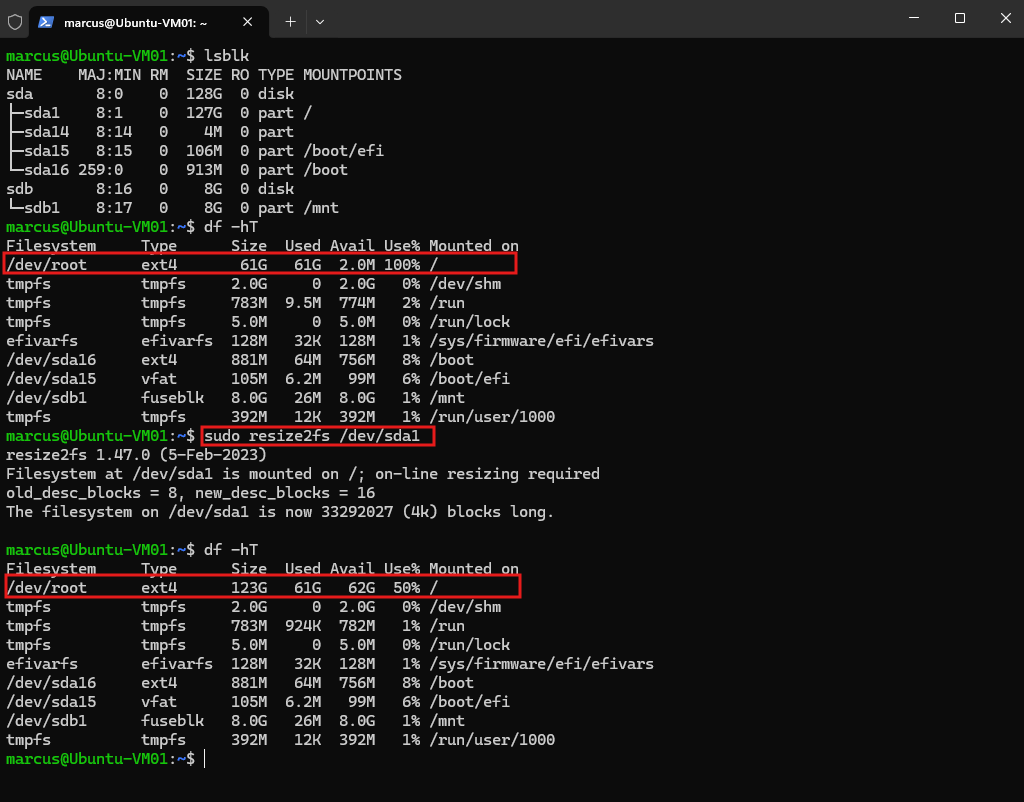
With the root partition now expanded to 127 GB, we next try to resize the mounted ext4 filesystem online with resize2fs, despite it still being at 100% utilization with only about 2 MB available.
Surprisingly,
resize2fsalso succeeds while the ext4 root filesystem is still at 100% utilization. The filesystem is expanded online from 61 GB to 123 GB, immediately providing approximately 62 GB of free space and reducing utilization to 50%.This demonstrates that neither
growpartnorresize2fswas the actual problem. Instead, the automatic expansion failed because cloud-init itself could not operate with the completely full root filesystem and terminated withNo space left on devicebefore reaching these modules.
sudo resize2fs /dev/sda1
A Short Introduction to cloud-init
cloud-init is the standard initialization framework used by many Linux cloud images to automatically configure a virtual machine during boot.
It integrates with cloud platforms such as Microsoft Azure, AWS, Google Cloud, and OpenStack and can handle tasks such as user and SSH key configuration, hostname setup, package installation, custom scripts, disk configuration, and, as in our example, automatically growing partitions and filesystems when additional disk space becomes available.
For more information, see the official cloud-init website.
Links
cloud-init – The standard for customising cloud instances
https://cloud-init.io/Expand virtual hard disks on a Linux VM
https://learn.microsoft.com/en-us/azure/virtual-machines/linux/expand-disksIncrease the size of the OS disk
https://learn.microsoft.com/en-us/azure/virtual-machines/linux/expand-disks?tabs=ubuntu#increase-the-size-of-the-os-diskRepair a Linux VM by using the Azure Virtual Machine repair commands
https://learn.microsoft.com/en-us/troubleshoot/azure/virtual-machines/linux/repair-linux-vm-using-azure-virtual-machine-repair-commands