VMware vSphere Networking Best Practices
This post outlines VMware’s recommended best practices for configuring network redundancy and NIC teaming in vSphere environments.
It explains the different NIC teaming and link aggregation options, including EtherChannel and LACP, and discusses their advantages, limitations, and recommended use cases.
Network outages or uplink misconfigurations can lead to host isolation, vSAN partition states, and virtual machine communication failures. Implementing standardized redundancy and failover policies prevents these scenarios.
Source: https://knowledge.broadcom.com/external/article/430982/best-practices-for-configuring-network-r.html
Configuration vSphere Distributed Switch (VDS)
How to deploy a vSphere Distributed Switch in vCenter, full walkthrough below.
Need to migrate between Standard and Distributed Switches (and back if needed)? Check out my full step-by-step walkthrough.
Types of port binding on a Distributed Switch
A vSphere Distributed Switch (VDS) uses port binding to determine how virtual switch ports are assigned to virtual machines.
The selected binding type influences when a port is allocated, how virtual machines can be connected to the distributed switch, and which vSphere features are available.
Choosing the appropriate port binding mode is therefore an important design consideration, particularly in environments that require high availability, automation, or direct host management.
This section describe the available port binding types and their typical use cases.
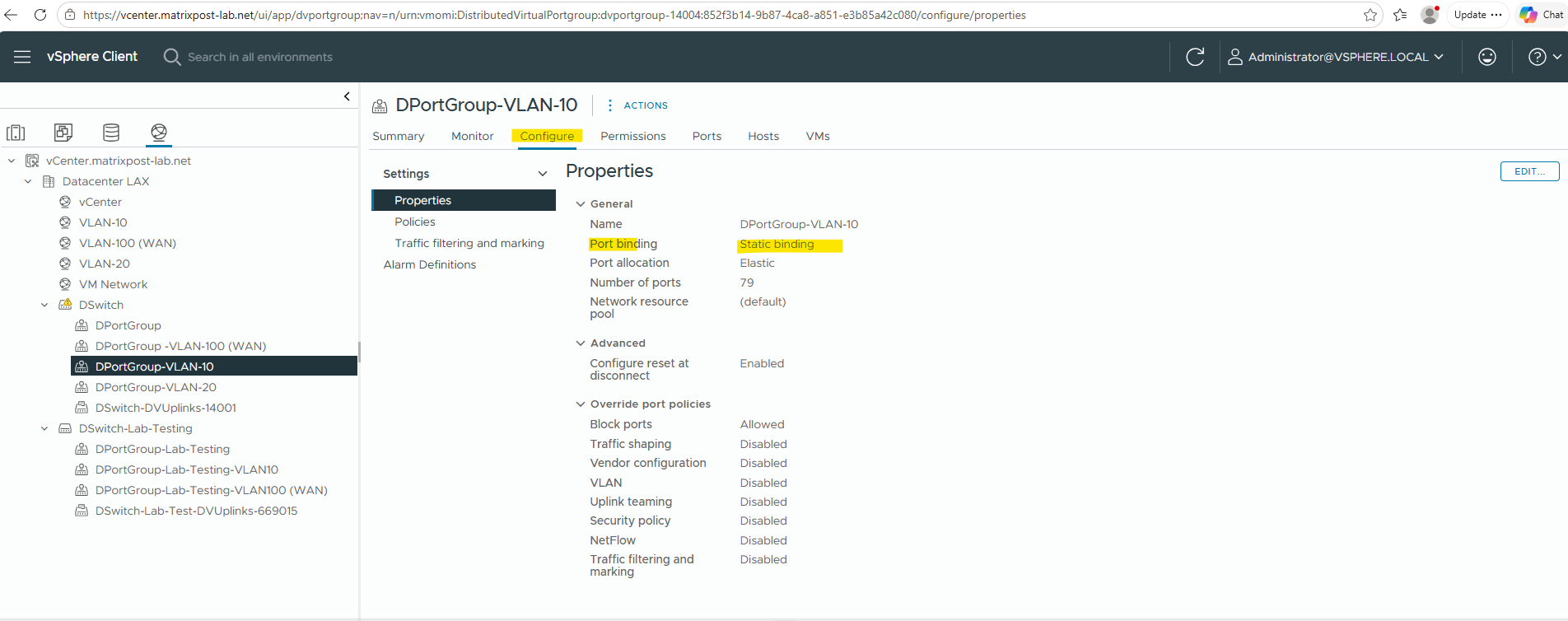
As shown below, the port binding type is configured on a per-distributed port group basis. In this example, the distributed port group for the default VLAN 10 uses the Static Binding port binding mode.
Note:
Static bindingis the default setting, recommended for general use.
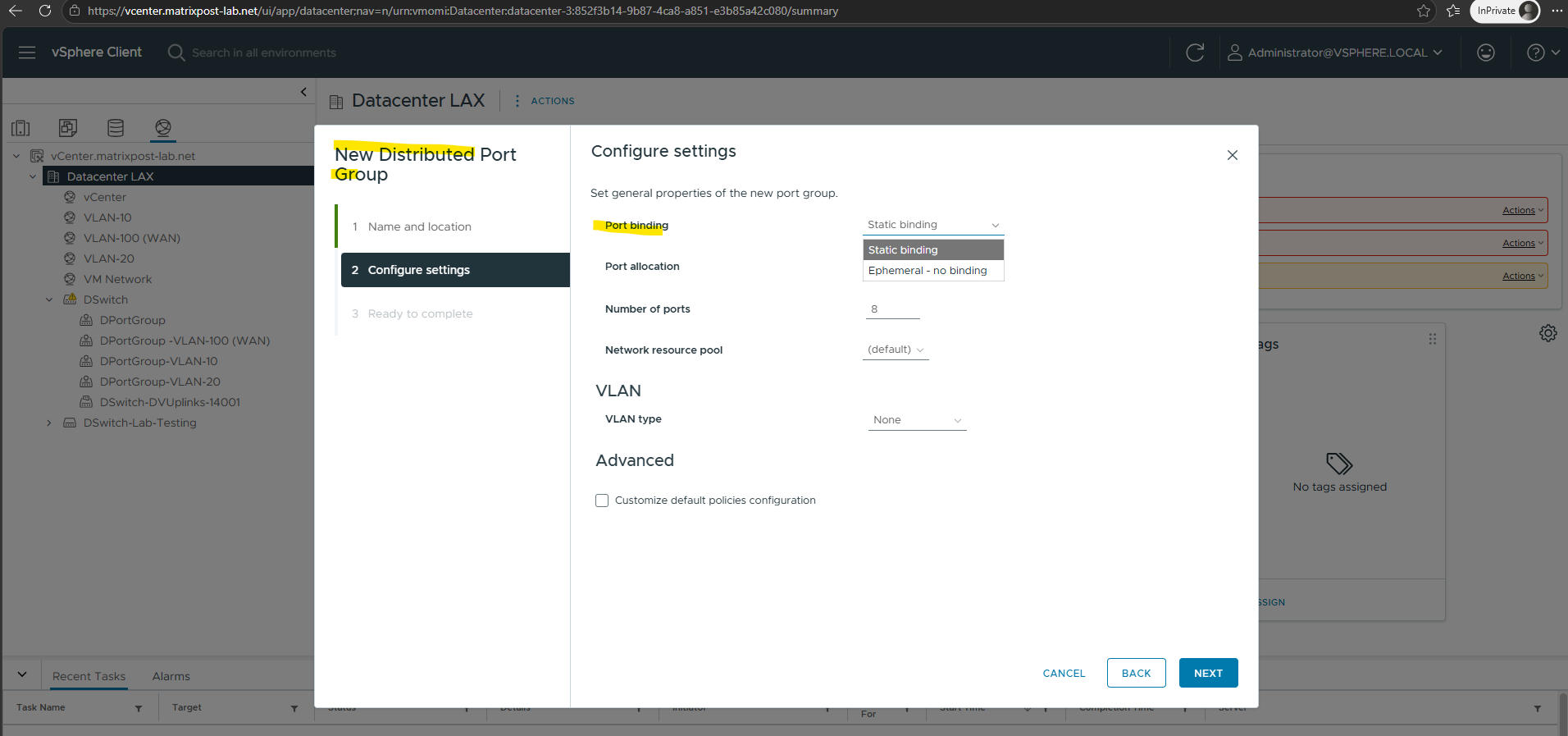
The port binding type can be selected when creating a new distributed port group.
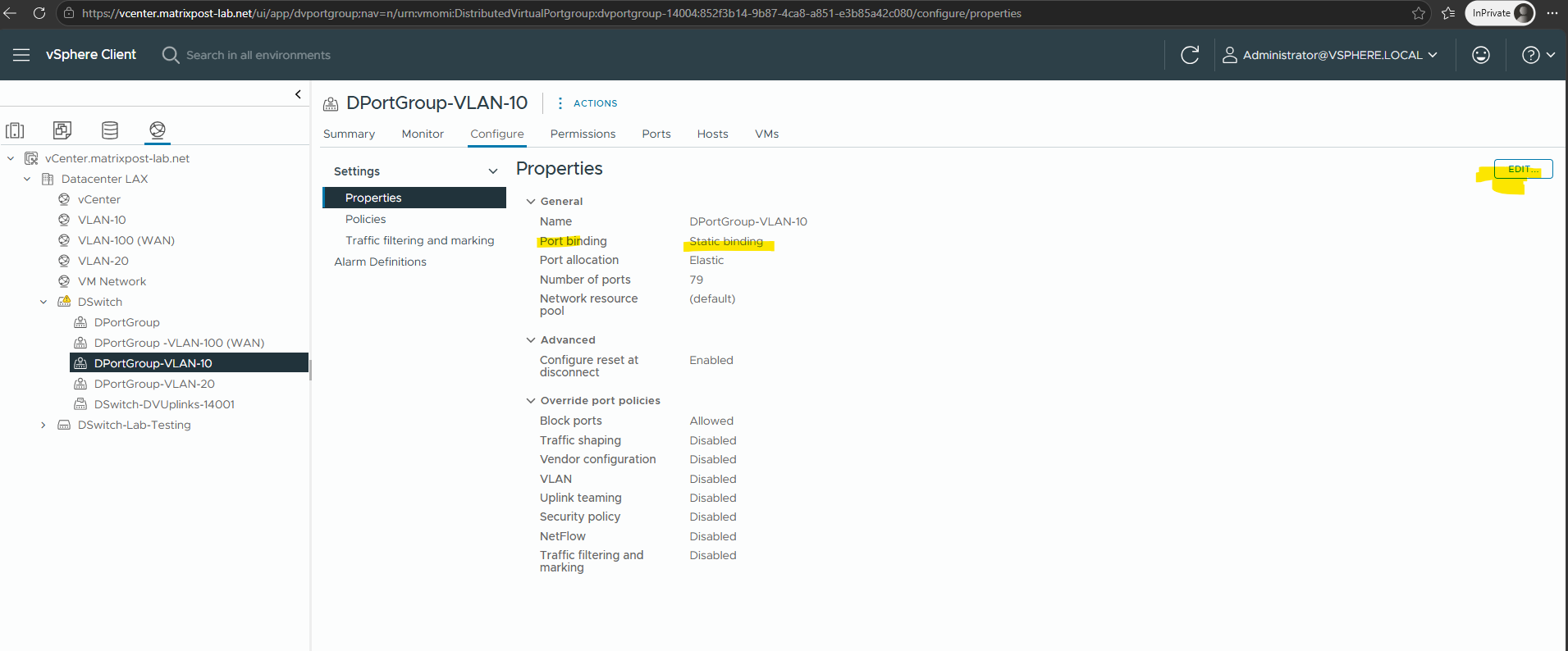
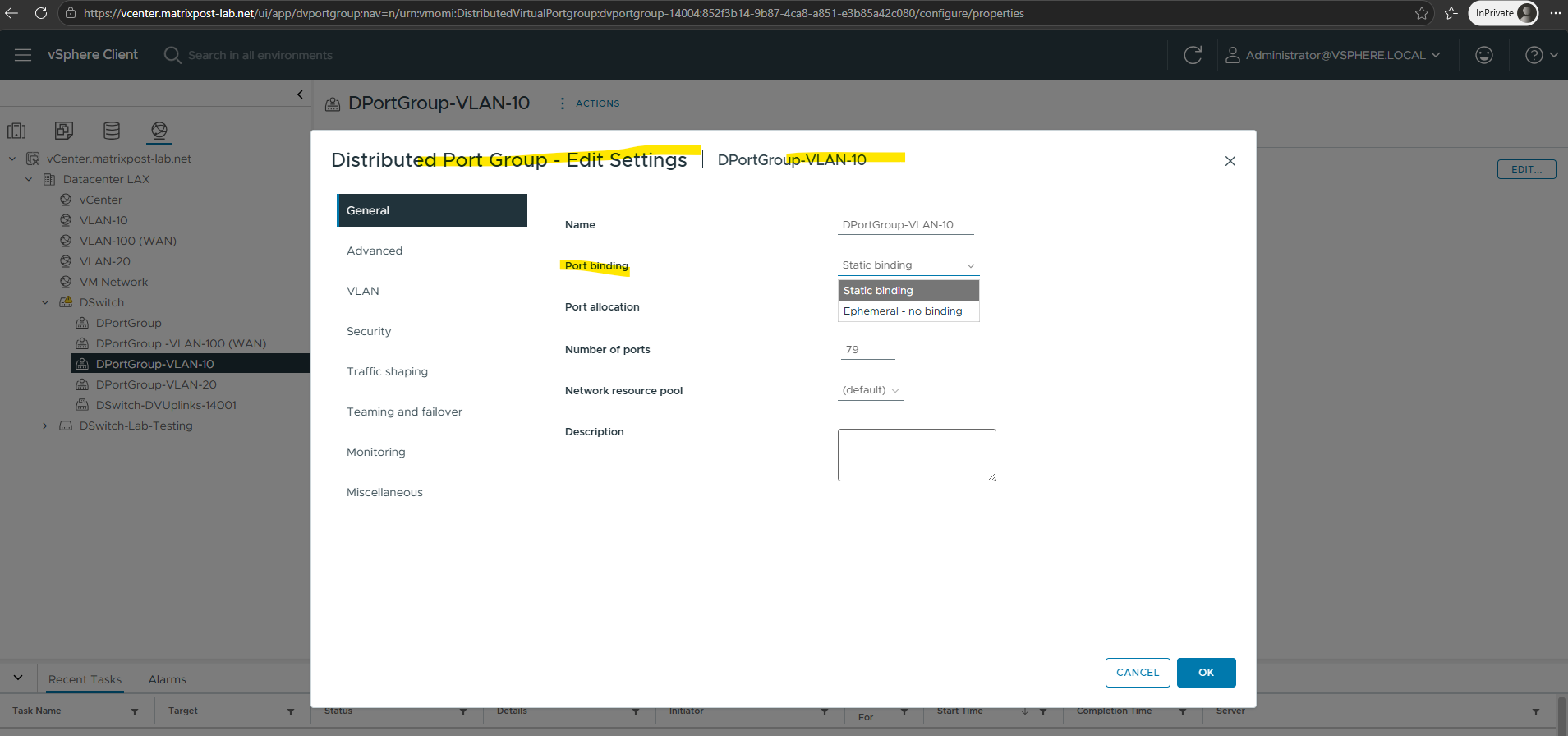
The port binding type can also be changed after the distributed port group has been created. To do so, edit the settings of the corresponding distributed port group and modify the Port Binding option as required.
Static binding
Static Binding is the default and recommended port binding mode for most vSphere environments. A distributed switch port is assigned to a virtual machine when it is connected to the distributed port group and remains reserved until the virtual machine is disconnected or removed.
Because port assignments are managed by vCenter Server, Static Binding provides the best performance, scalability, and integration with vSphere features, making it the preferred choice for production environments.
Ephemeral Binding
With Ephemeral Binding, distributed switch ports are created dynamically when a virtual machine is powered on or connected to the distributed port group and are released when no longer needed. Unlike Static Binding, port assignments are managed directly by the ESXi host rather than vCenter Server.
This allows administrators to connect virtual machines to a distributed port group even if vCenter Server is unavailable. As a result, Ephemeral Binding can be useful for recovery scenarios, for example, when access to a distributed port group needs to be restored after an accidental misconfiguration or when troubleshooting connectivity issues while vCenter Server is unavailable.
Because of the additional overhead and reduced feature set, Static Binding remains the recommended choice for normal operation.
Static vs. Ephemeral Binding: What Happens When vCenter Goes Down
While Static Binding is VMware’s recommended default for production workloads, offering centralized port management, strict security, and accurate auditing, it behaves very differently when vCenter becomes unavailable.
Our testing proved that while existing VMs on static ports stay connected during an outage, you cannot assign new static ports directly through the ESXi Host Client.
Understanding this dynamic is key to keeping your production environment secure while ensuring you have an Ephemeral fallback ready when vCenter goes offline.
Right now, my vCenter Server is intentionally offline with its network adapter disconnected. We’re putting W2K25-VM001 to the test, a powered-off VM bound to a static distributed port group.
Can it power on and maintain full network connectivity while vCenter is completely unreachable? Let’s find out.
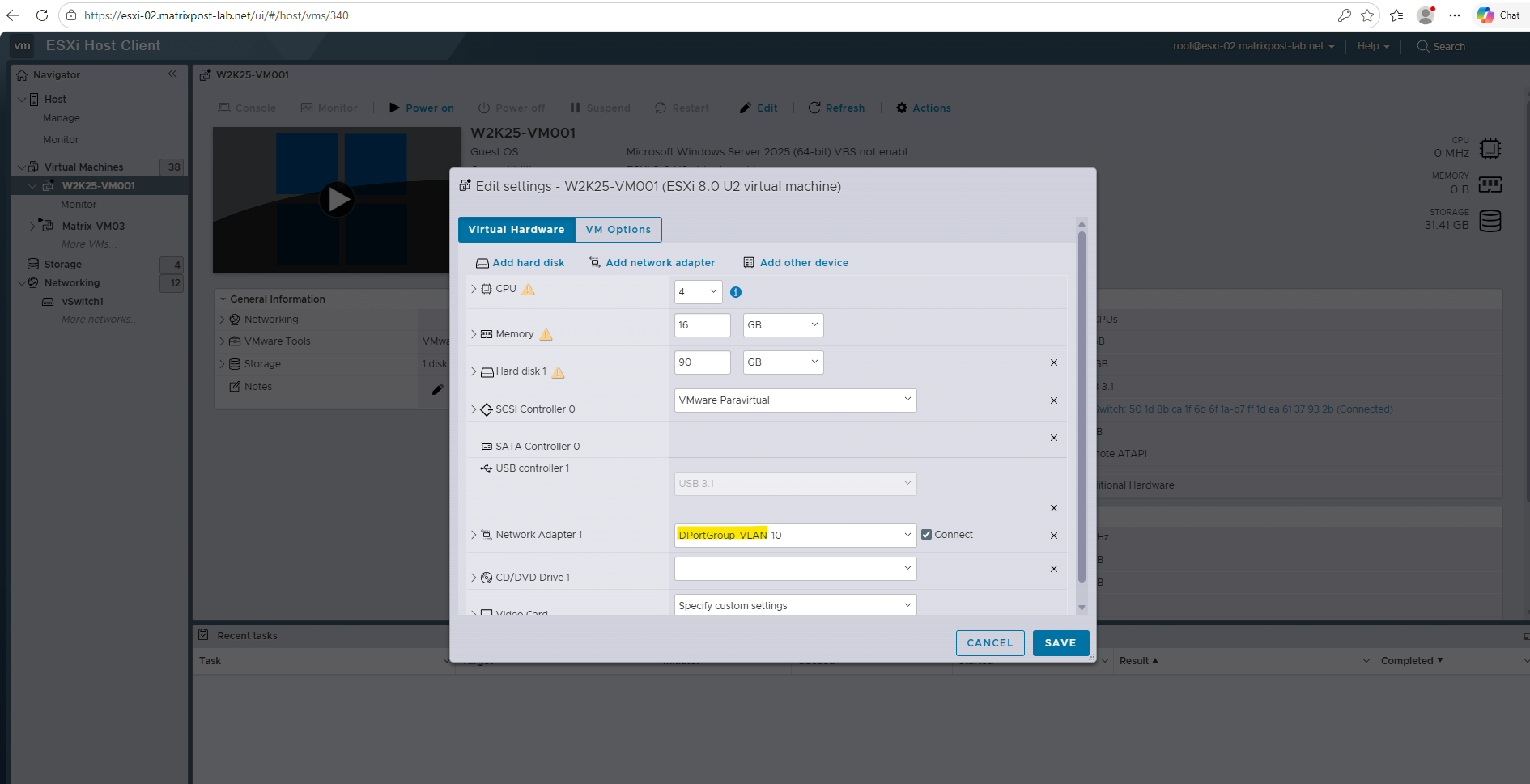
As shown in the host console, the VM boots up cleanly. This confirms that an existing static port assignment remains valid across power cycles without requiring real-time communication with vCenter.
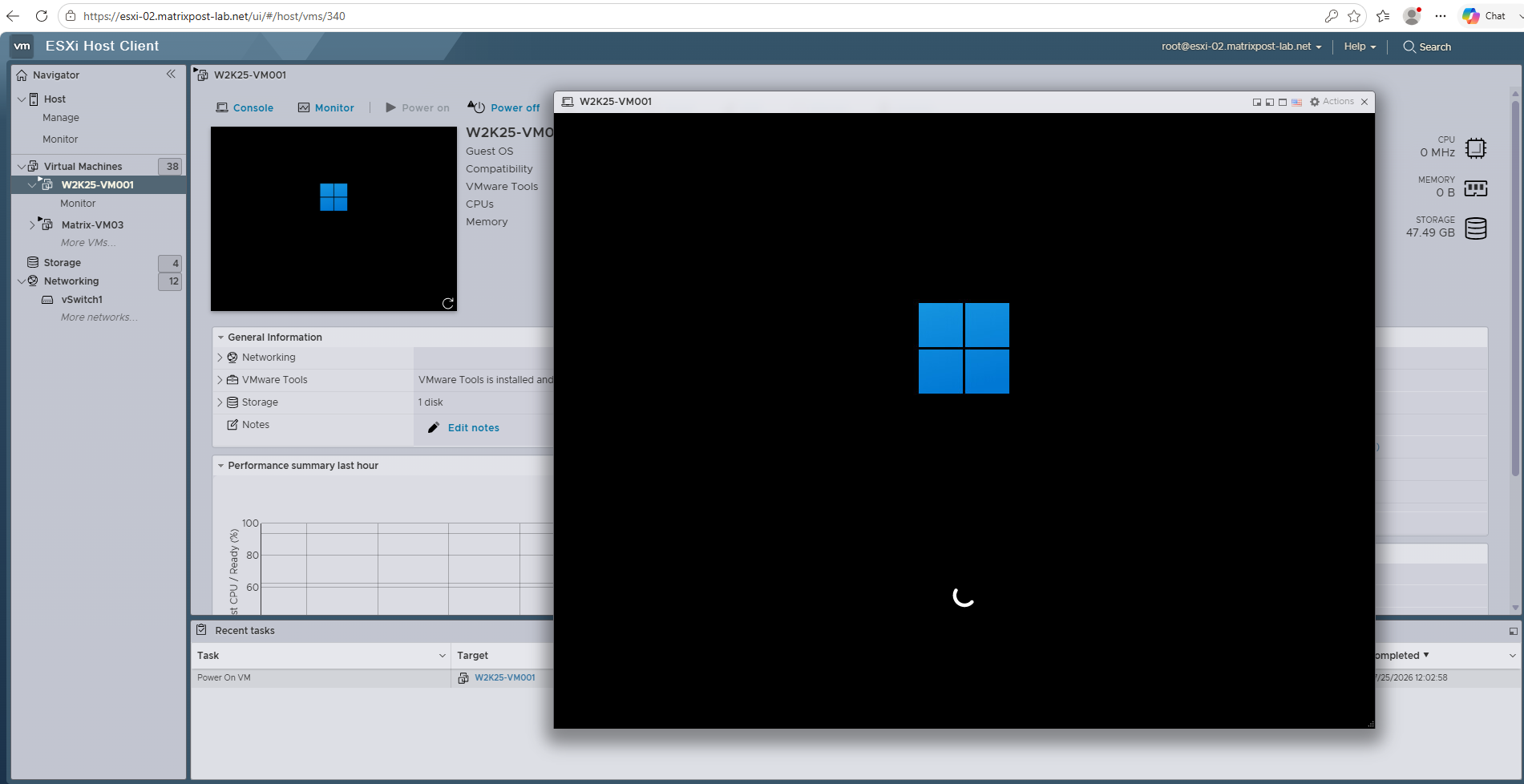
When a virtual machine is assigned to a Static Binding distributed port group, the port assignment is saved persistently in the ESXi host’s local configuration database ($dvsdata.db$).
Turning off a VM does not release or unbind its static port. The port remains permanently reserved for that VM’s virtual NIC (MAC address).
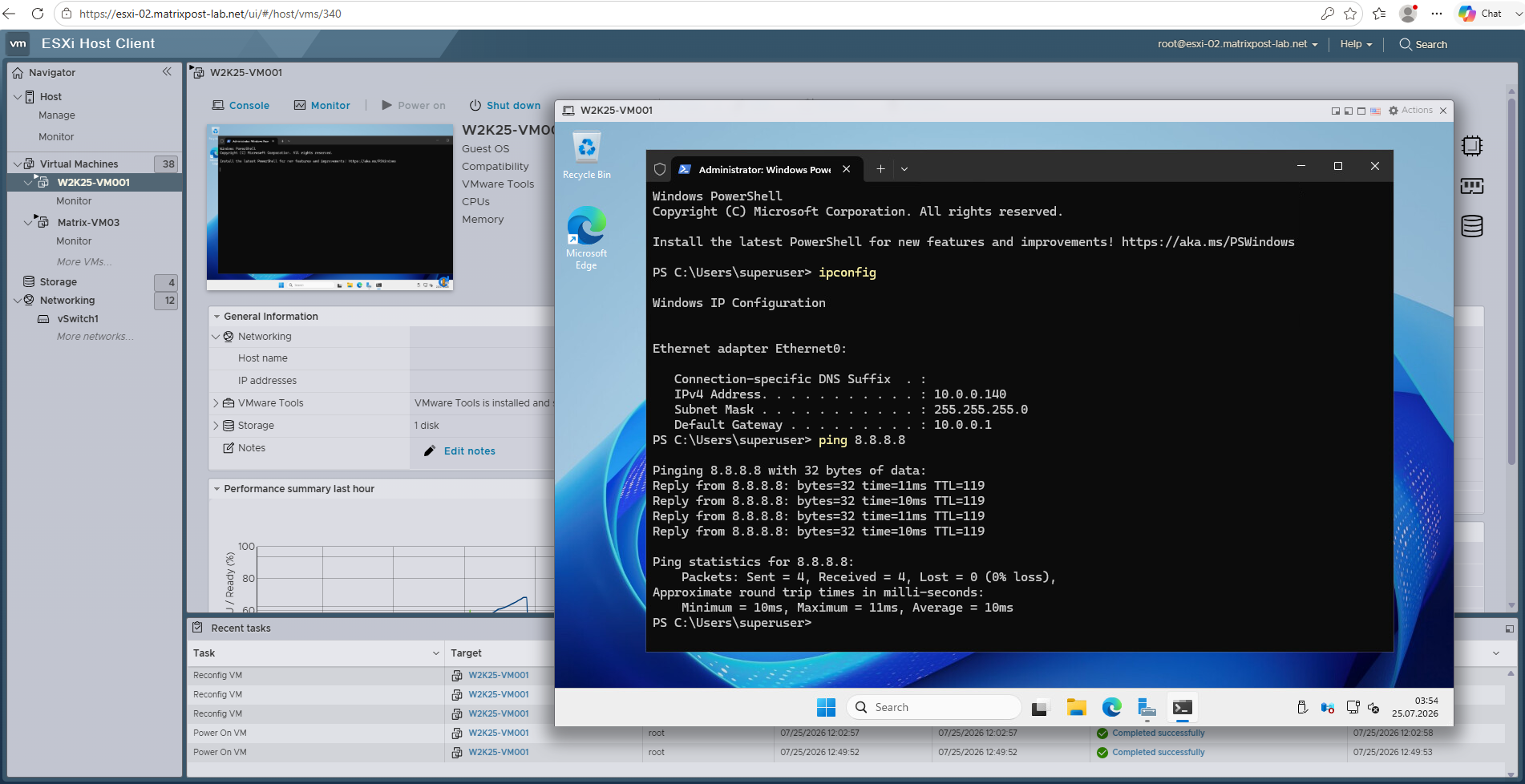
Because the port was already reserved back when vCenter was online, the ESXi host doesn’t need to ask vCenter for permission to boot the VM up. It simply re-activates the existing reserved port, which is why the VM booted up with full internet/IP connectivity as seen below.
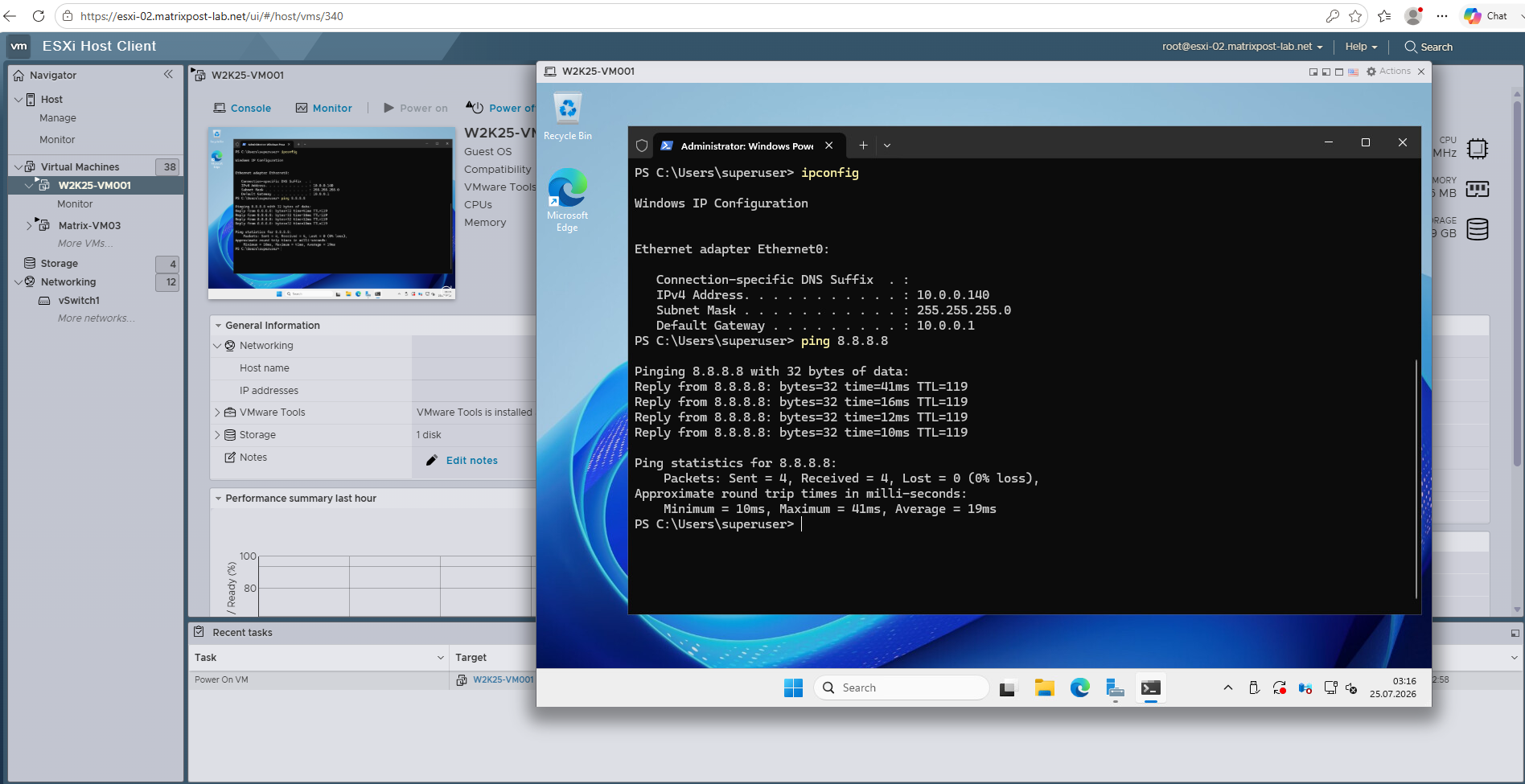
Now for the crucial test: I’m going to uncheck “Connected” on the VM’s network adapter to see what happens when we disconnect a static port. If the host releases that port assignment, will it let us re-connect it while vCenter is still offline, or are we about to get locked out?
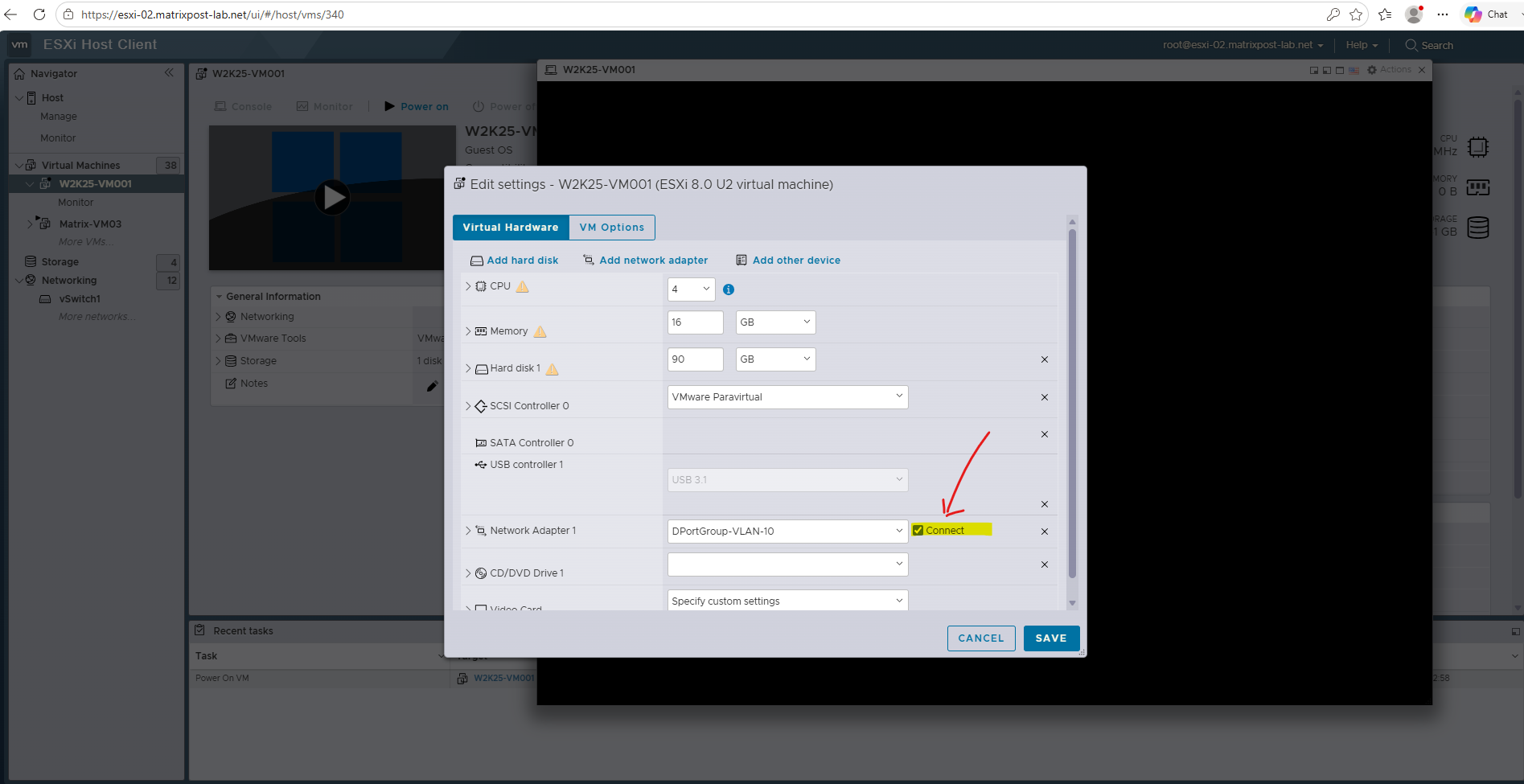
Now I will re-check and connect the virtual network adapter (distributed port group with static binding)
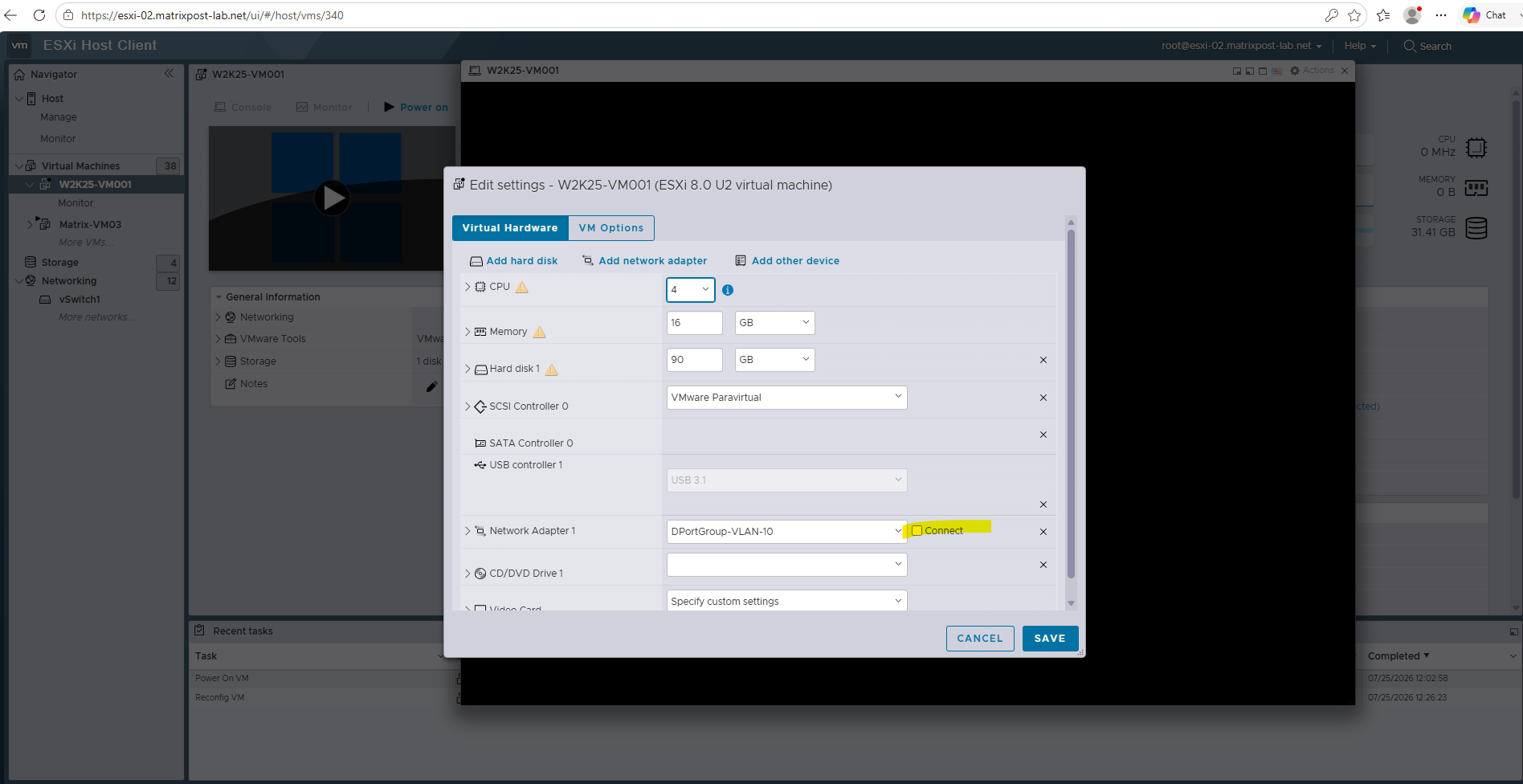
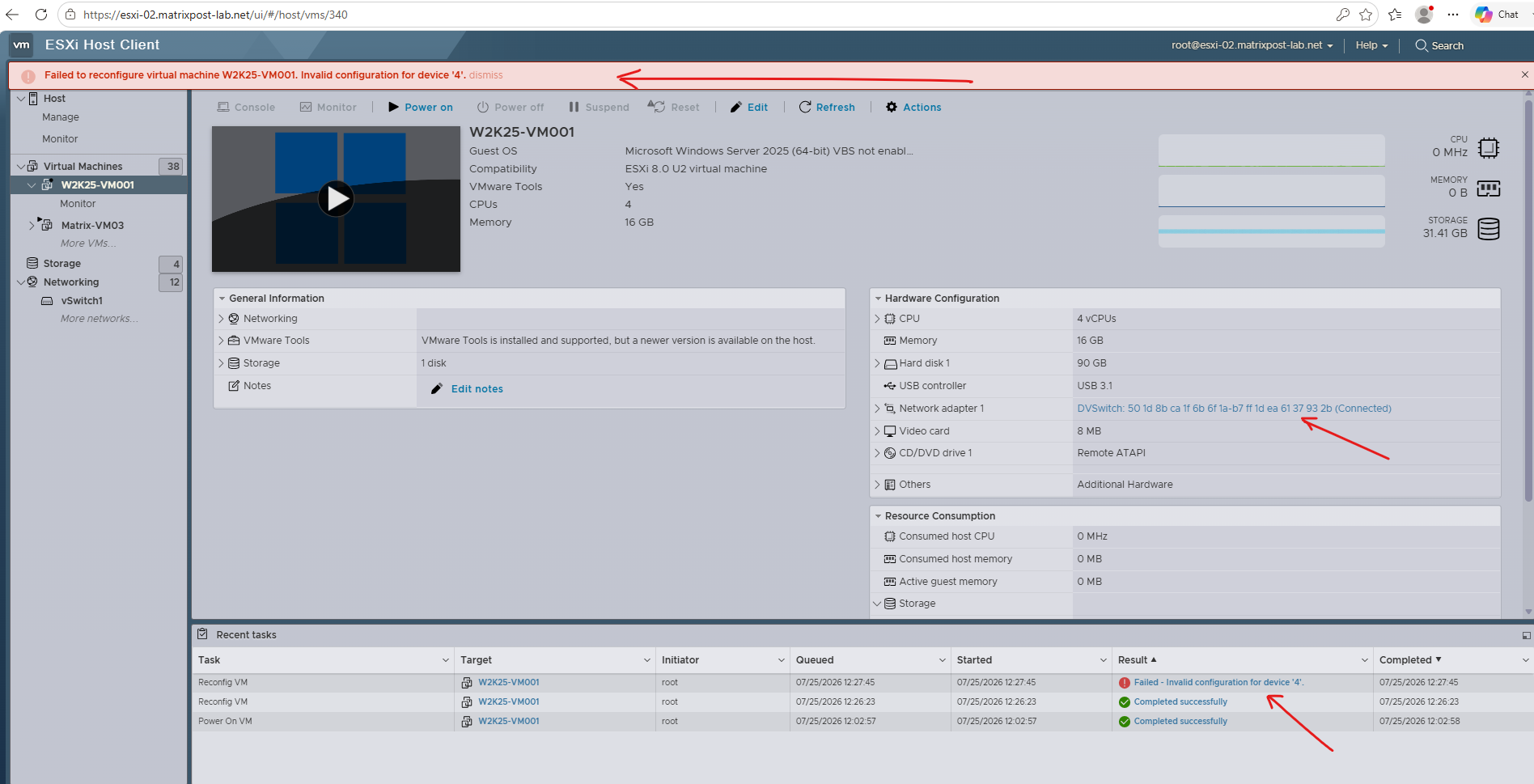
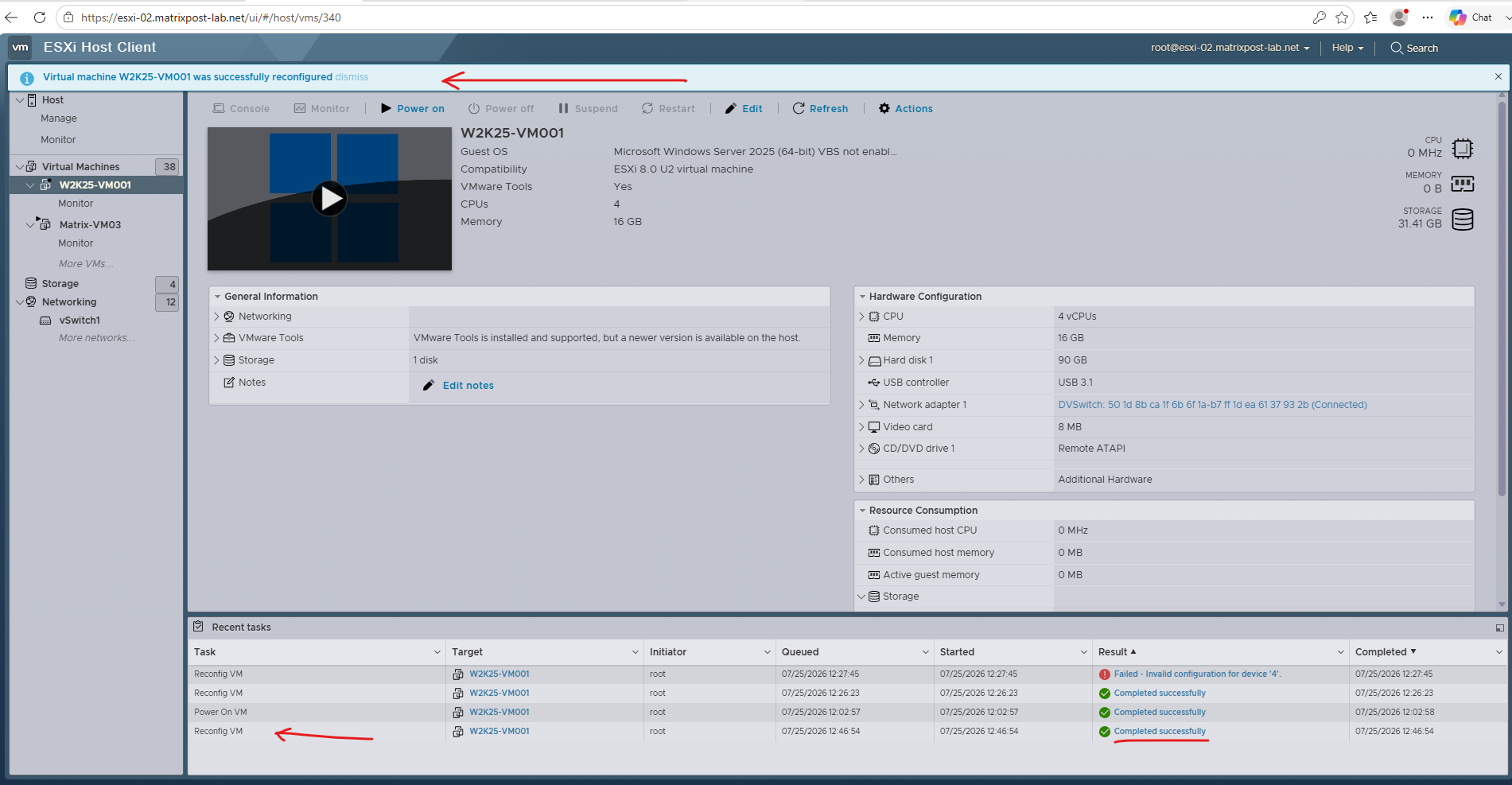
We now run into an ESXi API error when we break a static port binding while vCenter is down!
When we uncheck the connected virtual network adapter (distributed port group with static binding): The ESXi host unassigned the VM’s static Virtual Port ID back to the local database.
When we now try to re-check the box (reconnect): The ESXi Host Client sent a request to re-assign a port on that Static Distributed Port Group.
Because Static binding requires the vCenter control plane to handle port allocation, the local ESXi host refused the request and threw
Invalid configuration for device '4'(Device ‘4’ being Network Adapter 1).
To get that VM back on the network, we have two quick recovery options in the ESXi Host Client while vCenter remains down (assuming they’re already set up):
- switch to an ephemeral distributed port group on the same VLAN.
- switch to a standard virtual switch (VSS) on the same VLAN.
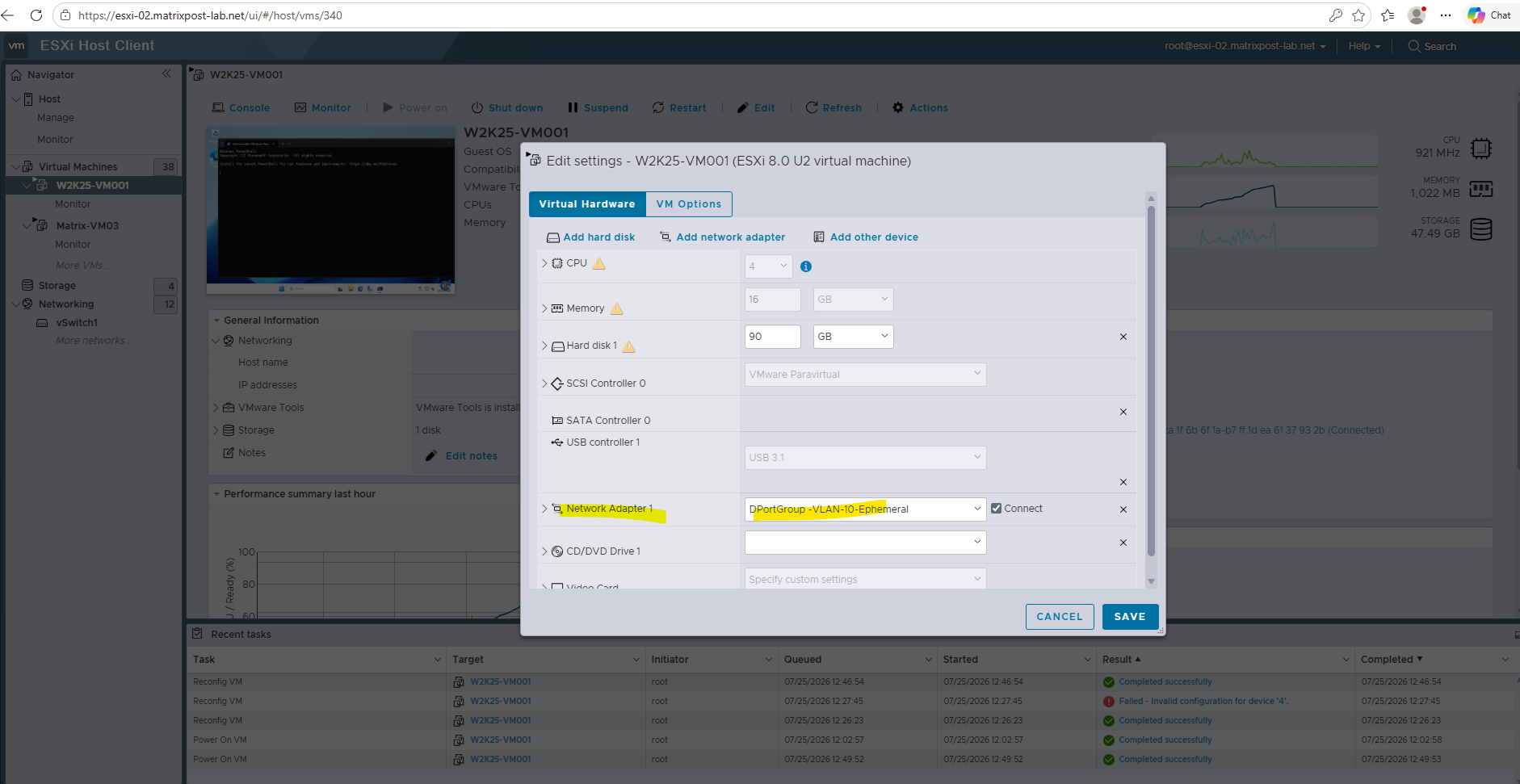
So In my case I have already created a distributed port group for that VLAN which is configured with ephemeral binding. Let’s see whats happened when a assign this while vCenter is still offline.
Because static and ephemeral port groups can seamlessly coexist on the same VLAN ID, having a standby ephemeral port group ready is the ultimate safety net. Let’s edit the VM settings in the Host Client to assign this ephemeral port and test if host-level binding succeeds without vCenter.
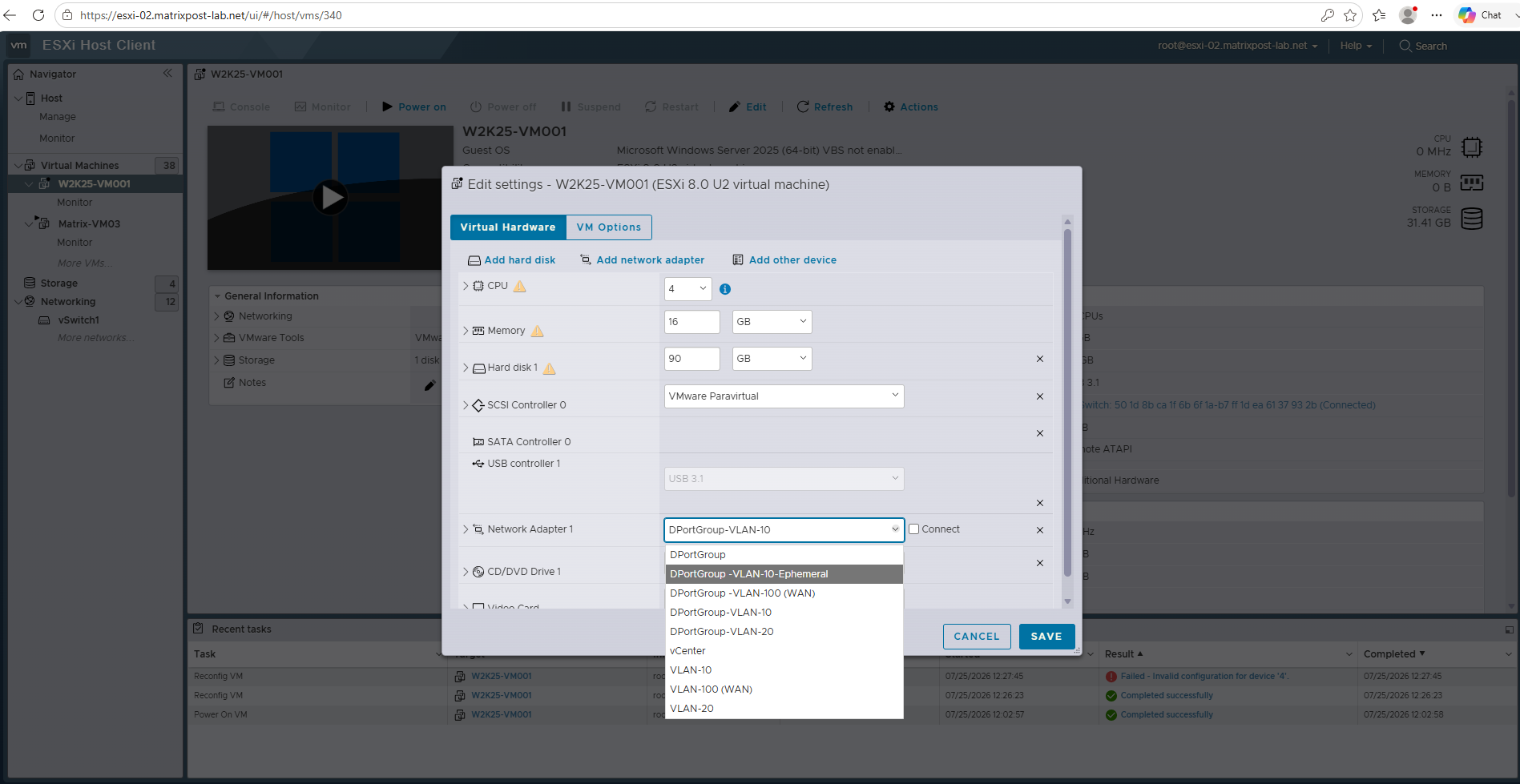
Check the connect box and click on SAVE to finally assign it.
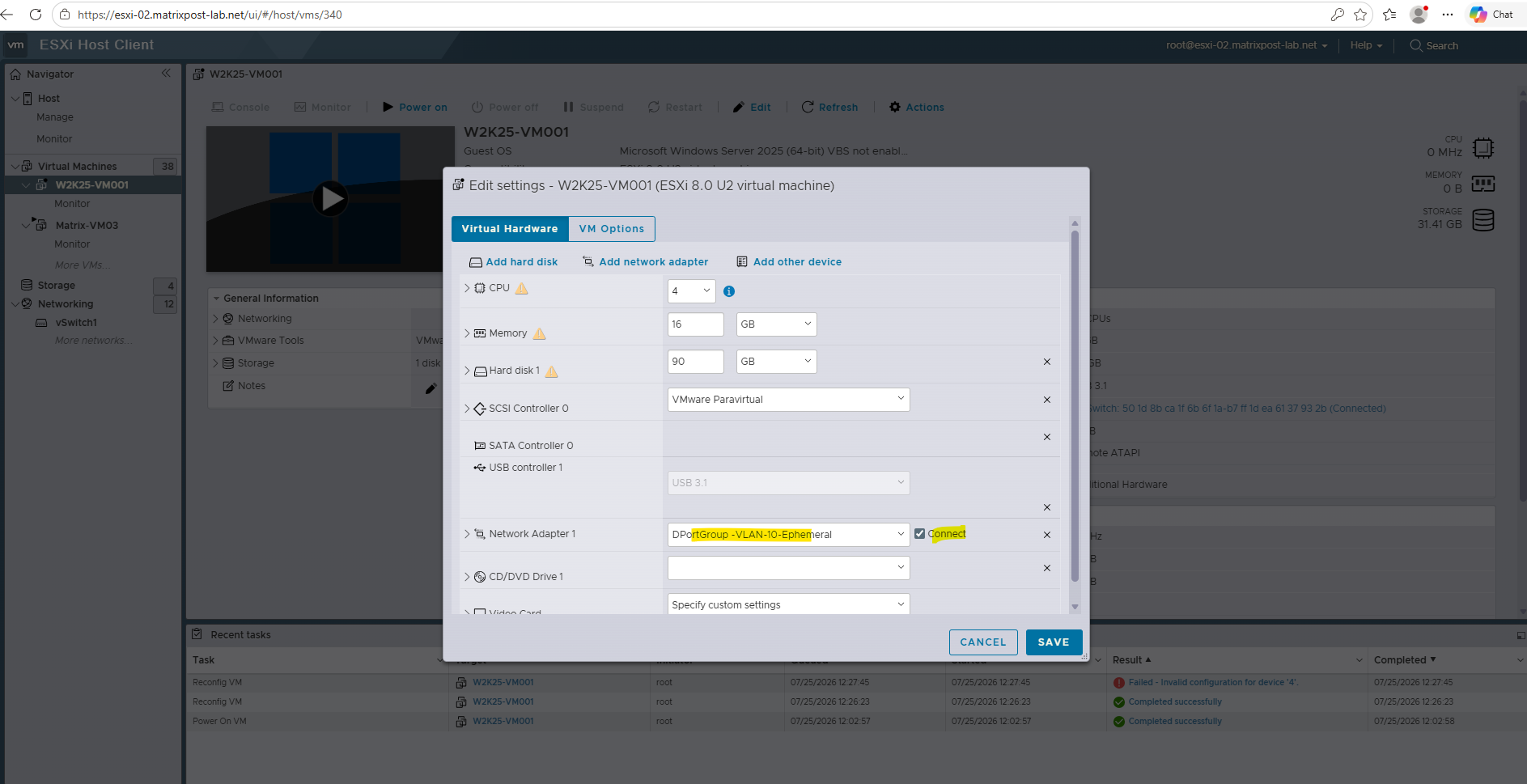
Because ephemeral binding shifts port management to the local ESXi host, the network reconfiguration completes instantly while vCenter is unavailable.
This successfully restores connectivity to W2K25-VM001 directly from the Host Client.
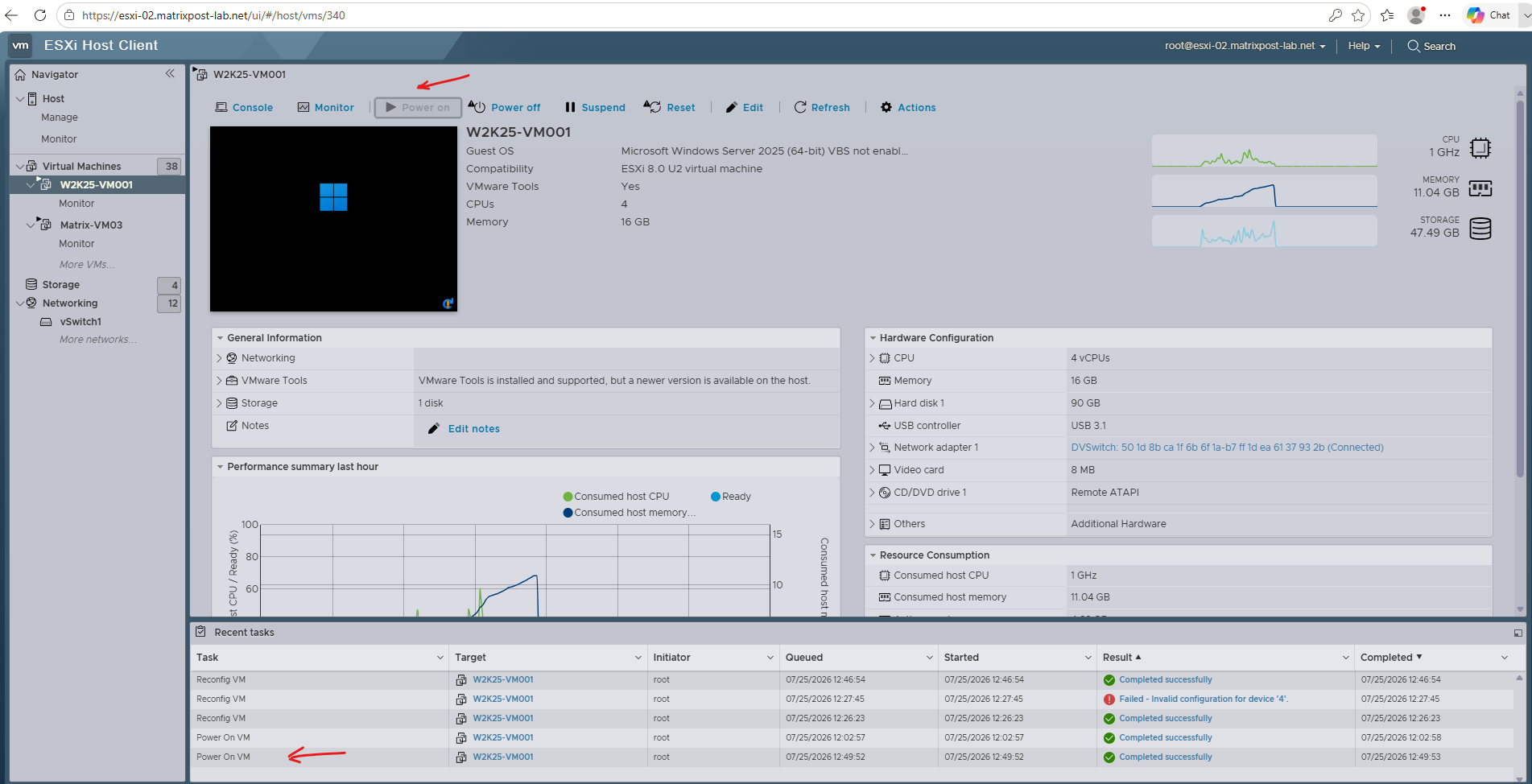
Powering on the VM confirmed that the local host successfully initialized the ephemeral port assignment. The guest OS picked up its network interface right away with full, uninhibited connectivity.
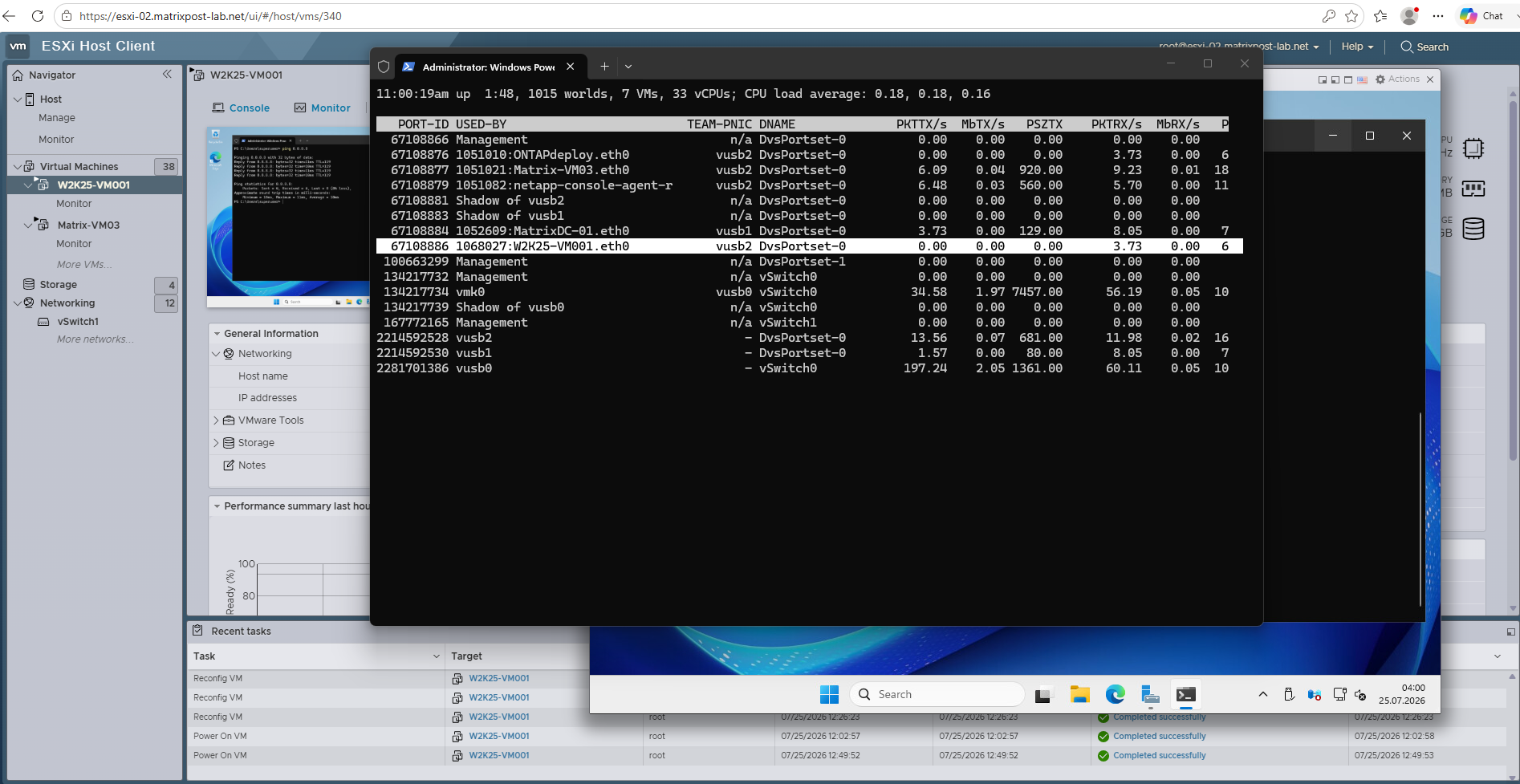
To trace a VM’s active virtual port ID on a vSphere Distributed Switch, simply run esxtop on the host. It gives you a real-time mapping of each virtual network adapter to its VDS port.
[root@ESXi-02:~] esxtop
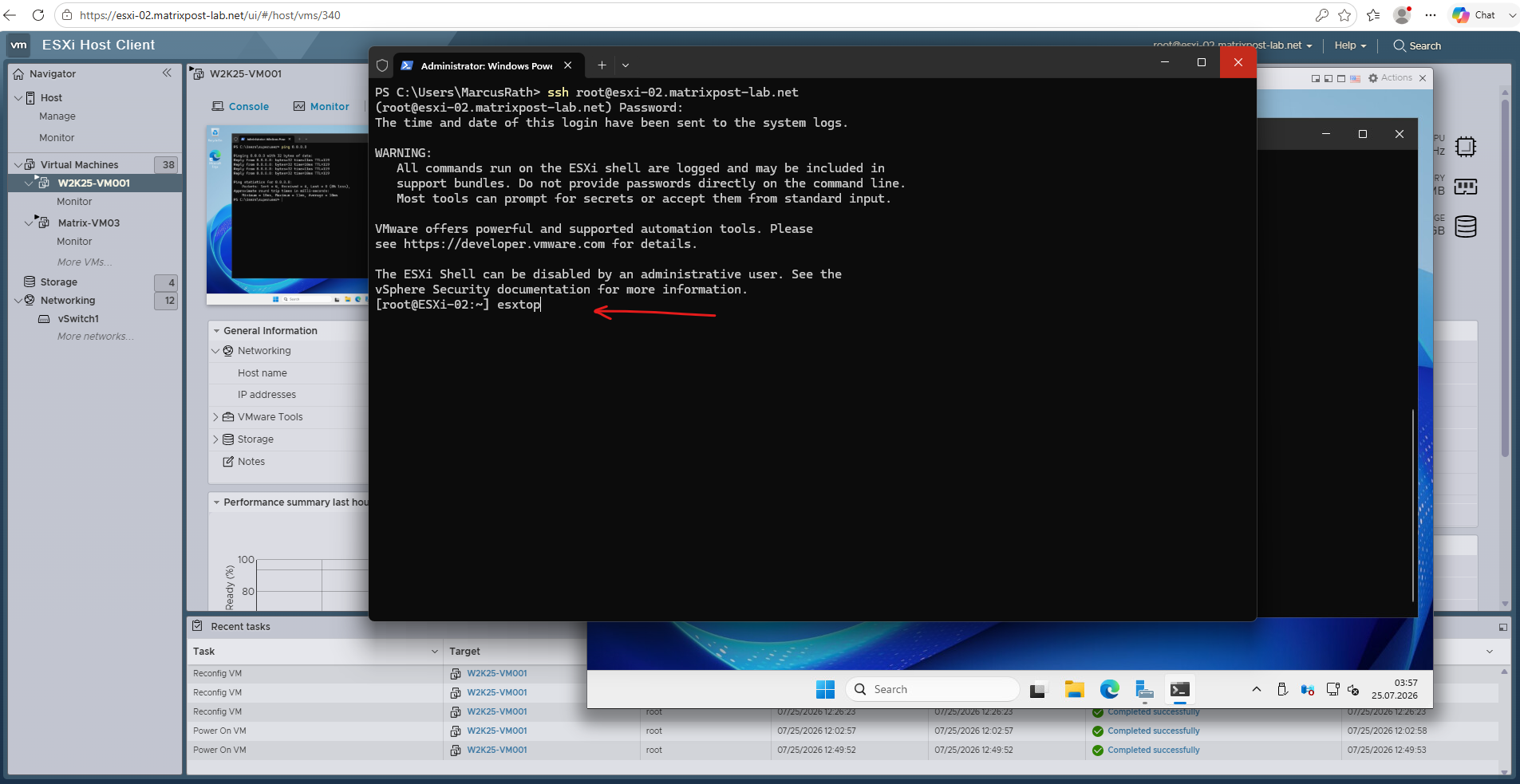
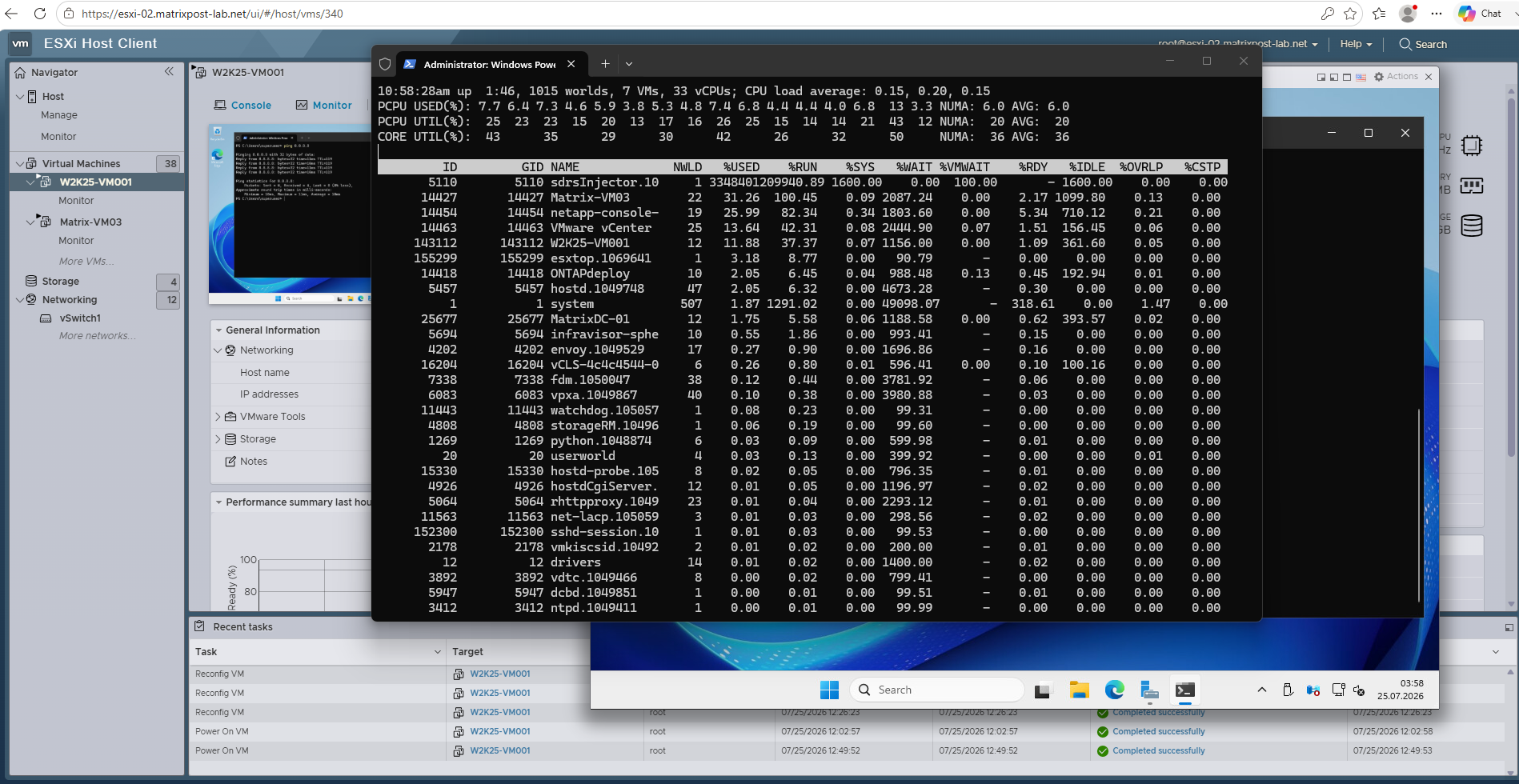
Press n to go to the network screen.
The output confirms that the virtual machine (W2K25-VM001.eth0) has been dynamically assigned a valid port ID on the distributed switch.
Press q to exit.
Want to dive deeper into esxtop and VDS internals? Check out my deep-dive post below about Multicast Traffic Handling in vSphere, where we explore advanced Distributed Switch settings and host-level troubleshooting!
Static binding is preferred for day-to-day operations because centralizing port assignment within vCenter guarantees consistent security policy enforcement, predictable resource usage, and accurate inventory tracking across the cluster.
Leaving ephemeral binding to do what it does best, serving as your reliable backup plan when disaster strikes.
Teaming and failover
If you are using vSphere Distributed Switch (vDS) and your host has two NICs connected to two different, completely independent ToR (Top-of-Rack) switches, configuring the load balancing policy to Route based on physical NIC load (LBT) as shown below is the absolute golden standard and industry best practice.
Zero configuration is required on the physical switches. To the physical ToR switches, the ESXi host looks like a collection of standard, individual server ports. The switches don’t know, and don’t need to know that LBT is running.
LBT stands for Load-Based Teaming (officially named “Route based on physical NIC load” in vSphere).
While VMware owns the LBT name, other platforms achieve the same switch-independent active-active balance using features like Hyper-V’s Dynamic Teaming or Linux Mode 6.
Because LBT does not use link aggregation protocols like LACP or static EtherChannels, you don’t have to configure vPC, MLAG, or stacking on the switches for this to work. Each switch port just handles standard Ethernet traffic. This completely eliminates the risk of a network misconfiguration causing a broadcast storm or a massive packet-loss event during switch maintenance.
Because the physical switches don’t require any special bundling, you get the absolute best of both worlds regarding hardware redundancy and performance.
Unlike the old Active/Passive setup (where one 25Gb link sits completely idle doing nothing), LBT keeps both links active.
VMs are distributed across both switches. If one link gets congested (reaching over 75% utilization for more than 30 seconds), ESXi will automatically and seamlessly shift a few VMs over to the other NIC/Switch.
The Setting
Failback = Nois strictly meant for Active/Passive setups because it prevents flapping links from repeatedly dropping and hijacking management traffic before the connection stabilizes. In an all-Active setup like LBT, forcingFailback = Nowould permanently leave a recovered physical link empty and useless, completely defeating the purpose of dynamic load balancing.
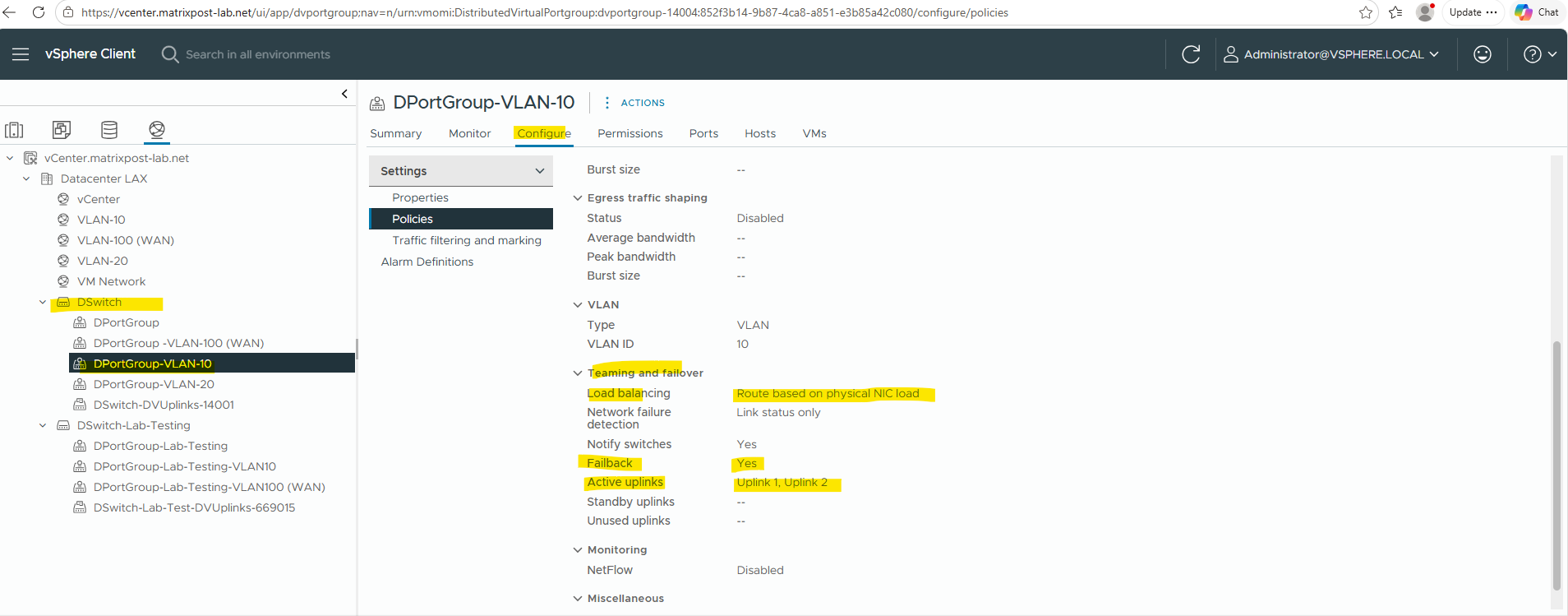
To ensure this works perfectly, you only need to ensure standard network plumbing is in place:
- Trunking: The ports on both ToR Switch
Aand ToR SwitchBmust be configured as standard VLAN trunks carrying the exact same VLANs. - vDS Policy: In the vDS Port Group settings, both uplinks must be placed in the Active uplinks category (no standby uplinks), and the teaming policy set to Route based on physical NIC load.
Load-Based Teaming (LBT) works by initially assigning each virtual machine’s virtual port to one of the available physical uplinks (vmnic0 or vmnic1) in a round-robin fashion, keeping both links active simultaneously.
The ESXi host then continuously monitors the actual throughput of these physical uplinks. If the utilization on a specific uplink exceeds 75% capacity for a sustained period of 30 seconds, LBT dynamically intervenes: it identifies the VM generating the highest traffic on that congested link and seamlessly moves its virtual port mapping to the underutilized uplink.
Because this shift happens entirely within the vSphere Distributed Switch (vDS) overlay, the VM’s MAC address is instantly updated on the new physical switch port via a gratuitous ARP, preventing any packet loss or disruption to the connection.
More about Reverse ARP (RARP) and Gratuitous ARP (GARP) you will find in my following post.
After LBT has assigned a virtual machine to a physical uplink, you may want to verify which uplink it is actually using. My following post shows you how to determine it quickly.
Configuration vSphere Standard Switch (VSS)
Port binding types, like Static and Ephemeral, do not exist on a vSphere Standard Switch (VSS) because they are features exclusive to the vSphere Distributed Switch (vDS).
While the vDS relies on these settings to manage port assignments through vCenter, a VSS runs entirely localized on the individual ESXi host. Because a standard switch handles port allocation natively on the host without any vCenter dependencies, the distinction is completely unnecessary.
Teaming and failover
LBT isn’t available on a vSphere Standard Switch (VSS) because a standard switch is completely isolated to an individual ESXi host and lacks the centralized management brain required to coordinate advanced telemetry.
To monitor traffic loads and dynamically shuffle virtual machine mappings across uplinks every 30 seconds without causing network drops, the switch needs a sophisticated management plane.
VMware built this coordination engine exclusively into the vSphere Distributed Switch (vDS) architecture, which is managed centrally by vCenter.
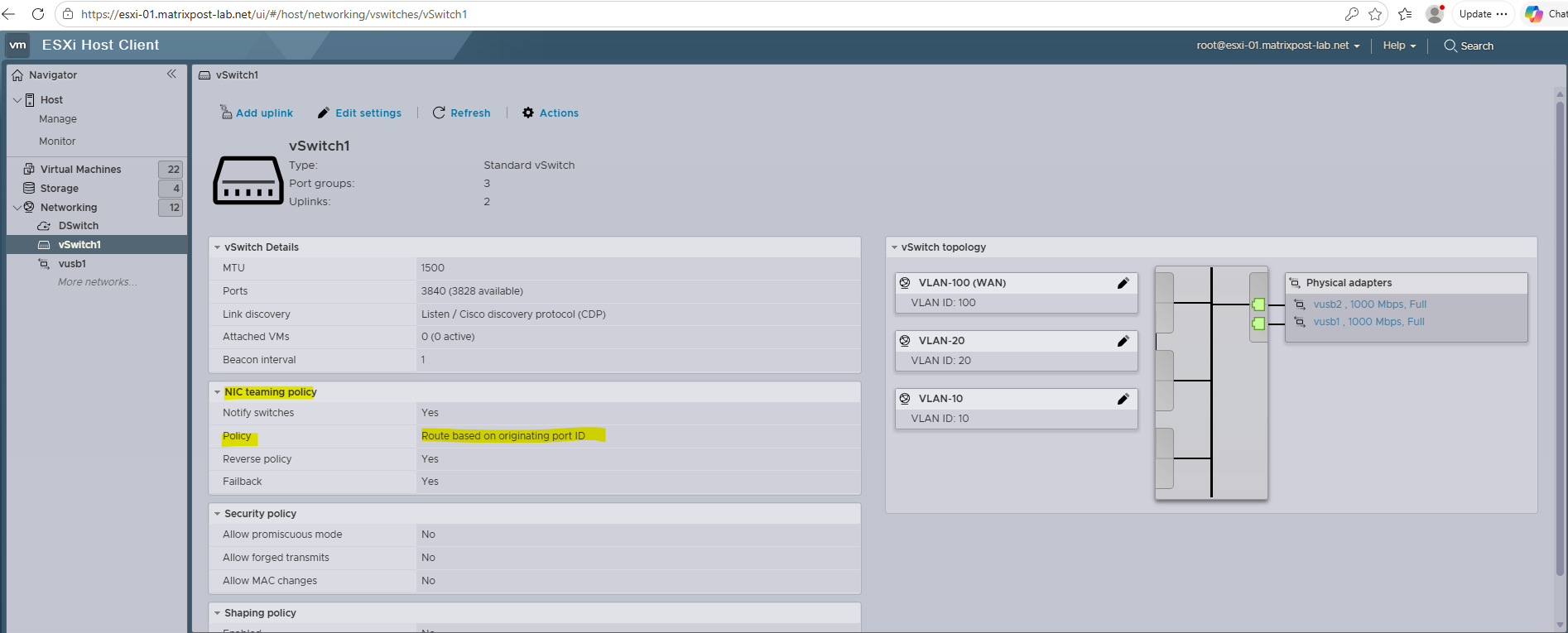
Therefore, on a standard vSS where LBT is unavailable, the best practice is to stick with the default Route based on originating virtual port policy as shown below. This provides stable, switch-independent traffic distribution across your uplinks without requiring any complex upstream network configurations.
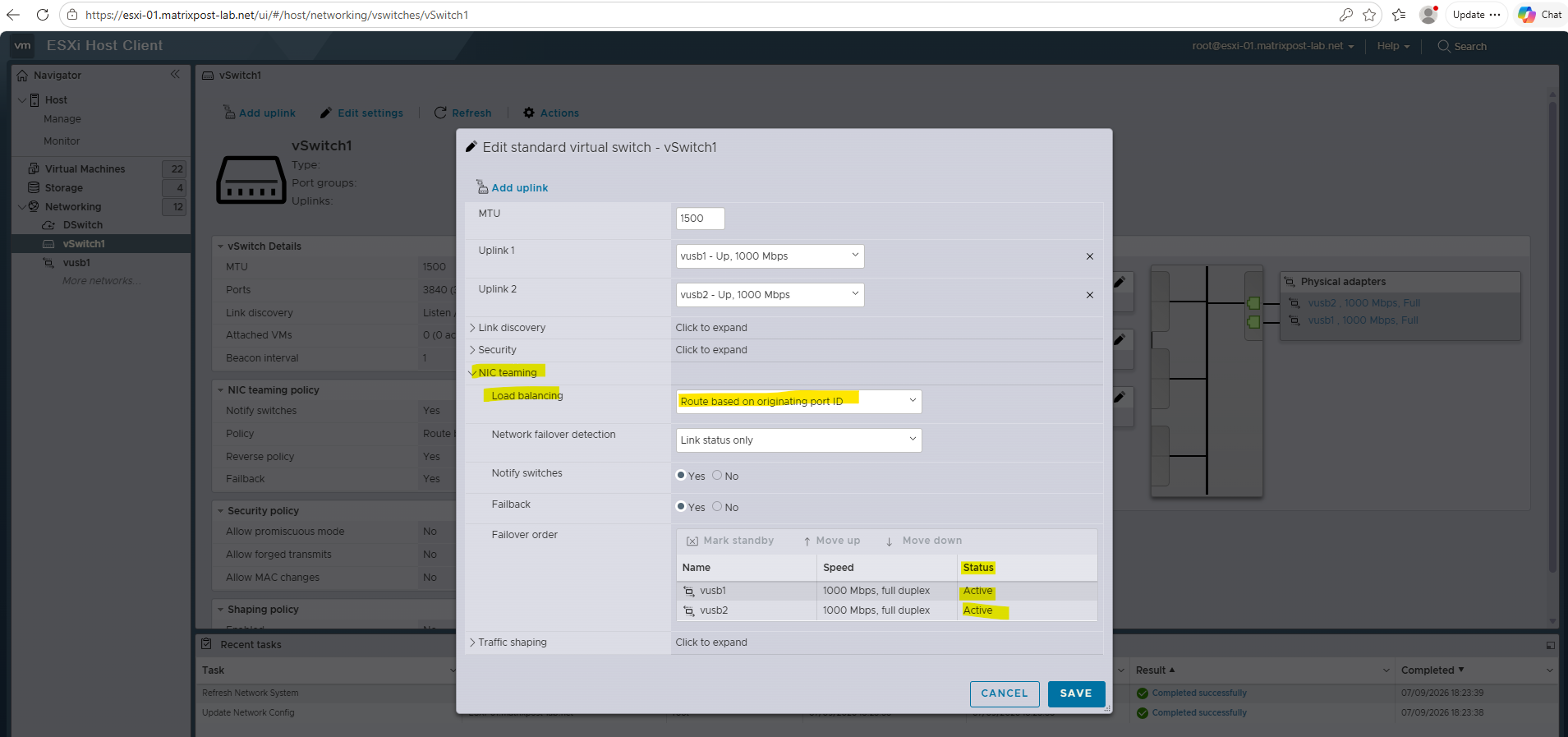
To ensure both physical NICs are fully utilized on a vSphere Standard Switch (vSS) using Route based on originating virtual port, you must configure the Failover Order so that both uplinks sit in the Active adapters category as shown below.
By default, vSphere will place all assigned network cards into the Active list. You should explicitly avoid putting one into the Standby status.
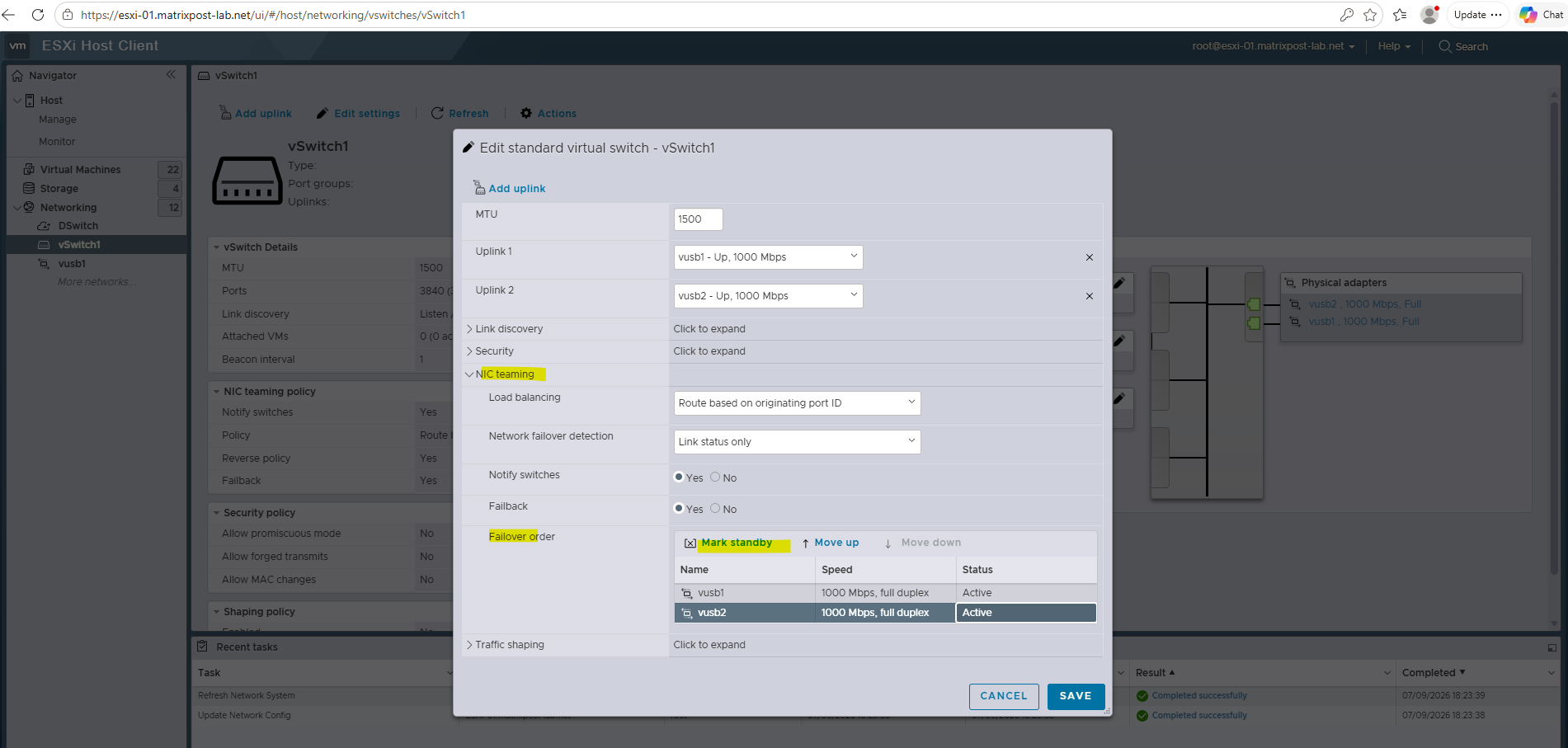
This policy is incredibly simple and predictable because it handles traffic placement using basic math rather than monitoring actual network congestion.
- The Virtual Port ID: Every virtual machine network card (vNIC) or VMkernel port (like our management network) is assigned a specific virtual port number on the vSwitch when it connects.
- The Modulo Math: The vSwitch takes that virtual port number and applies a modulo operation against the number of active physical uplinks available.
Uplink Assigned = Virtual Port ID (mod Number of Active Uplinks)
- The Static Binding: Once that math is calculated, the VM is tied to that specific physical NIC. It will send and receive all of its traffic through that single NIC for as long as it is powered on and that NIC stays healthy.
Just like LBT, the physical network switches have no idea that the server is grouping these NICs together. You can plug your uplinks into completely separate physical switches for redundancy, and it works perfectly out of the box.
Because the mapping is static, a VM never hops from one NIC to another unless a physical link actually goes down. This completely eliminates the risk of MAC address flapping on your physical switches.
If a physical NIC dies, the vSwitch instantly detects the link loss and remaps all the VMs that were on the dead NIC to the remaining healthy uplinks.
Unlike LBT, “Route based on originating virtual port” is blind to bandwidth. If you have two physical uplinks and boot up two massive, data-hungry backup VMs, the math might accidentally assign both of them to Uplink 1, leaving Uplink 2 completely empty. The switch will not do anything to rebalance them, it just lets Uplink 1 choke.
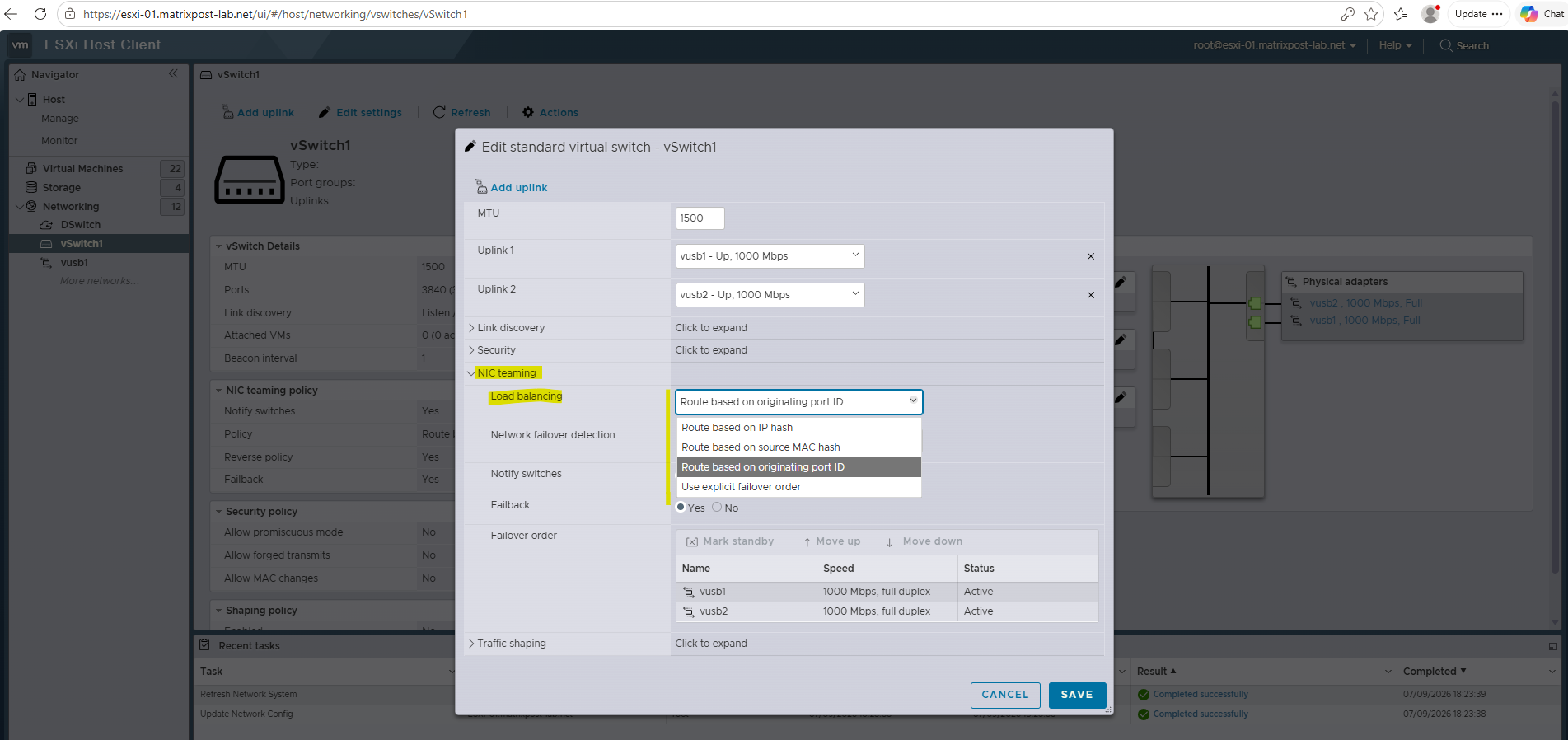
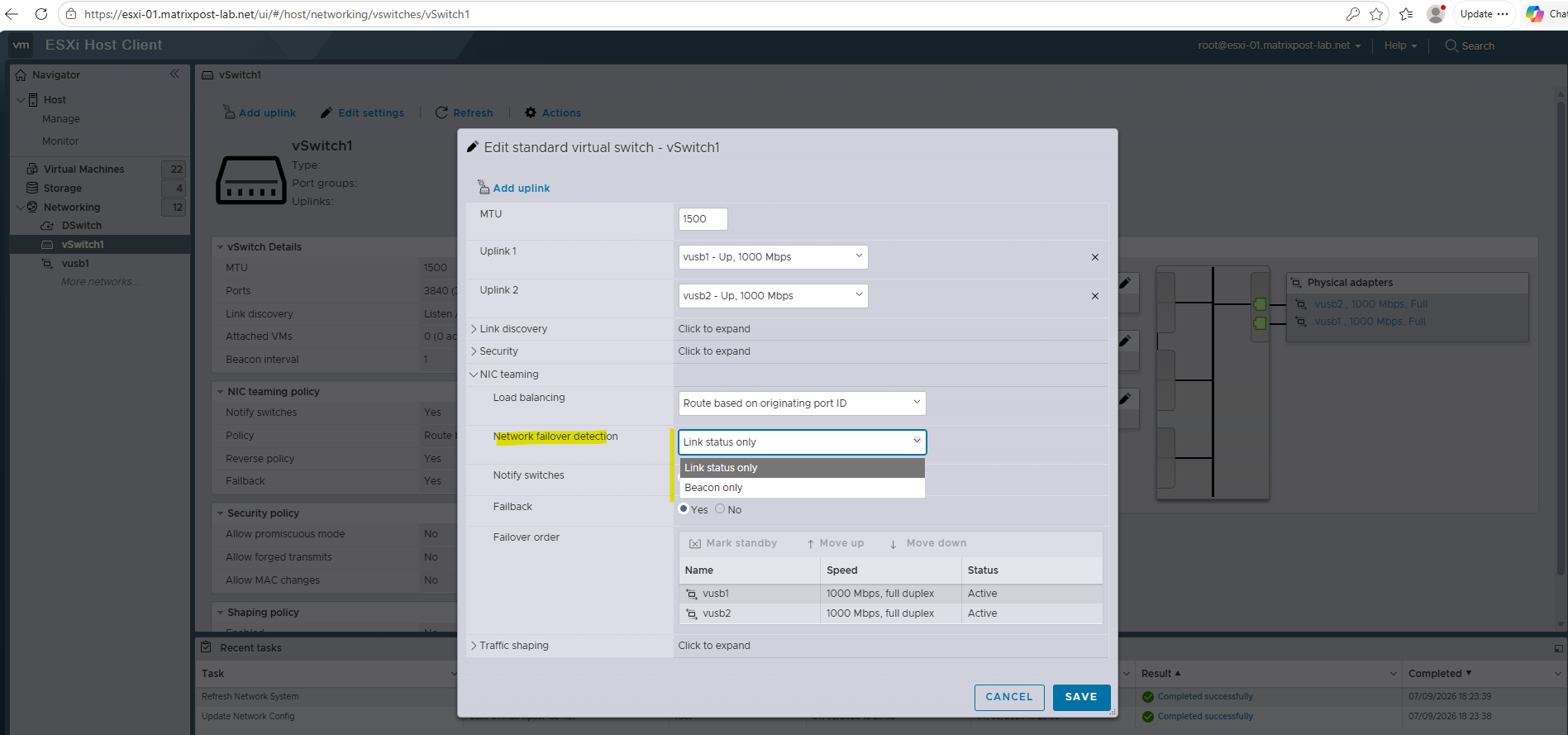
When selecting one NIC we can put it in standby state.
Teaming and Load Balancing Overview
| Load Balancing Policy | Primary Requirement | Best Use Case | Downside |
|---|---|---|---|
| Route Based on Originating Port ID | Default (No physical switch config) | General-purpose VM traffic | Capped at single physical NIC speed per VM vNIC |
| Route Based on IP Hash (Link Aggregation) | Requires EtherChannel / LACP on physical switches | Hosts with a few VMs moving massive amounts of data | Complex configuration, no single-stream speed increase |
| Route Based on Physical NIC Load (LBT) | vSphere Distributed Switch (vDS) required | Standard Virtual Machine workloads needing dynamic traffic management | Only available on vSphere Distributed Switch |
Networks Used for vSphere HA Communications
On ESXi hosts in the cluster, vSphere HA communications, by default, travel over VMkernel networks.
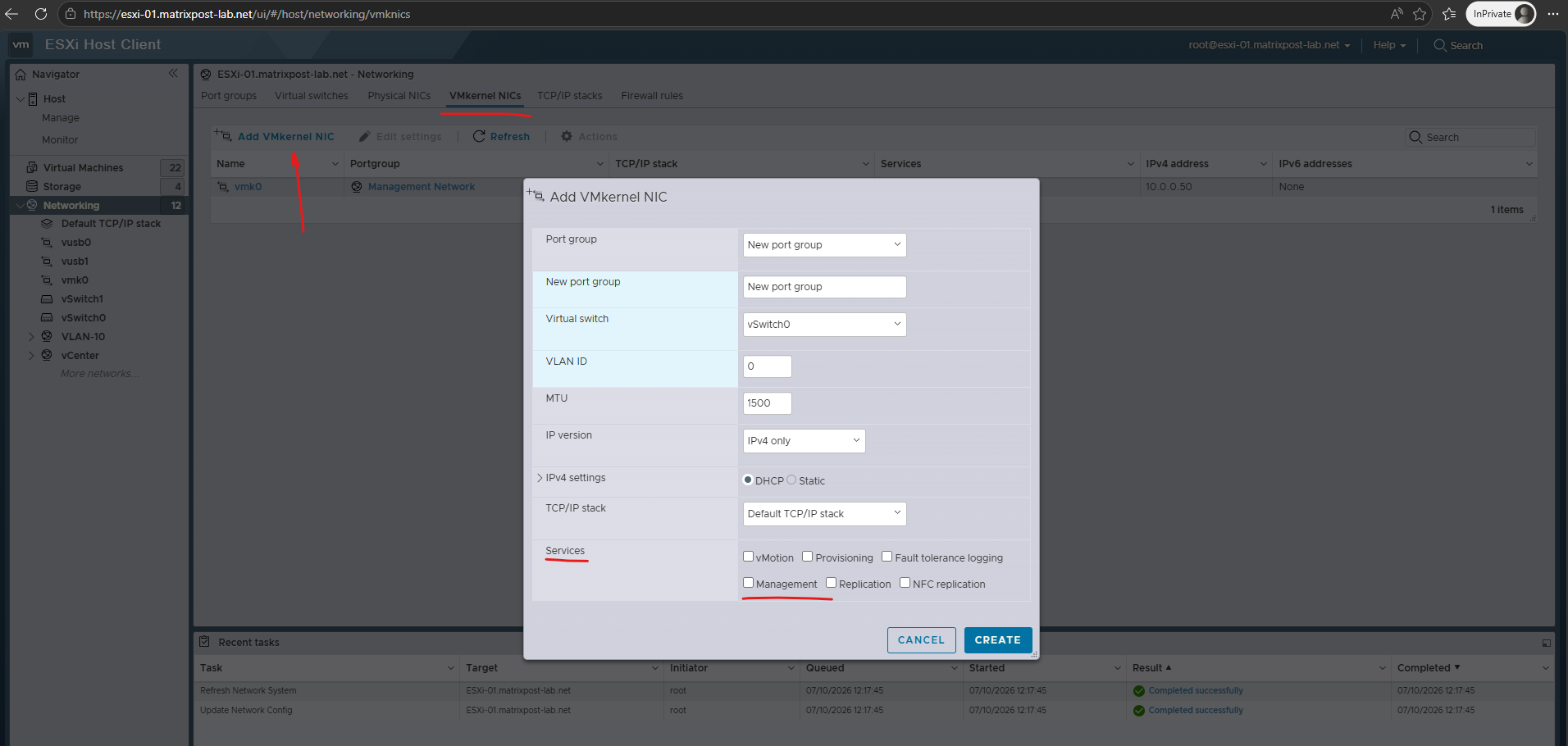
With an ESXi host, if you want to use a network other than the one vCenter Server uses to communicate with the host for vSphere HA, you must explicitly enable the Management traffic check box.
To use a dedicated network for vSphere HA communication, you must first create an additional VMkernel adapter on that network and enable the Management service (Management traffic) for it. By default, vSphere HA uses the same management VMkernel adapter that vCenter Server uses to communicate with the ESXi host.
To keep vSphere HA agent traffic on the networks you have specified, configure hosts so vmkNICs used by vSphere HA do not share subnets with vmkNICs used for other purposes.
vSphere HA agents send packets using any pNIC that is associated with a given subnet when there is also at least one vmkNIC configured for vSphere HA management traffic.
Therefore, to ensure network flow separation, the vmkNICs used by vSphere HA and by other features must be on different subnets.
Links
Link Aggregation Requirements for ESXi (EtherChannel, Port Channel, LACP)
https://knowledge.broadcom.com/external/article/324555/host-requirements-for-link-aggregation-e.htmlBest Practices for Configuring Network Redundancy in VMware vSphere and NSX
https://knowledge.broadcom.com/external/article/430982/best-practices-for-configuring-network-r.htmlRoute Based on Originating Virtual Port
https://techdocs.broadcom.com/us/en/vmware-cis/vsphere/vsphere/8-0/vsphere-networking/networking-policies/teaming-and-failover-policy/load-balancing-algorithms-for-virtual-switches/route-based-on-originating-virtual-port.htmlStatic (non-ephemeral) or ephemeral port binding on a vSphere Distributed Switch
https://knowledge.broadcom.com/external/article/324492/static-nonephemeral-or-ephemeral-port-bi.htmlBest Practices for Networking
https://techdocs.broadcom.com/us/en/vmware-cis/vsphere/vsphere/7-0/vsphere-availability/creating-and-using-vsphere-ha-clusters/best-practices-for-vsphere-ha-clusters/best-practices-for-networking.html